La documentación del producto está disponible solo en inglés.
How clients book meetings
Esqase gives every firm a public booking page where prospective and existing clients can pick a date and time to meet with you, much like Calendly. When someone books, Esqase automatically creates a new contact, a new lead, and a tentative meeting on your calendar, so a request for a consultation turns into a tracked piece of work without any manual data entry.
This page is written from your (the firm's) point of view. It explains what your clients see and do on the booking page, and how the choices you make when you set up an event type shape that experience.
Before you begin
The booking page is generated from an event type (a bookable meeting type such as "Initial consult"). Before clients can book, make sure you have:
- At least one active event type with a host (or a list of hosts, for a round-robin type), a duration, and a booking link. See Event types (scheduling).
- A host with a working schedule. Available times come from the host's weekly availability, or, if the host has none, from your firm's availability. See Setting firm availability.
- A connected meeting provider and calendar on the host (recommended). For a Google Meet, Zoom, or Microsoft Teams event type that generates meeting links, or an Ask customer type that offers one of them, Esqase creates each meeting on the host's own connected account, so the host needs that provider connected. A connected Google or Outlook calendar also lets the calendar sync bring the host's events into Esqase, where they count as busy time. See Connecting Google (Gmail, Calendar, Meet) and Connecting Outlook and Zoom.
Note: If your firm has not finished setup (for example, no lead stage or no default calendar for the host), the booking page will not accept bookings. Finish the Setup Guide first.
What clients see on your booking page
Each event type has its own public booking page. You share it by copying the booking link.
- In the sidebar, click Event types.
- Find the event type you want to share and click Copy link in its row. (You can also open the More actions menu, the ... button, for archive and other options.)
- Esqase copies the full booking URL to your clipboard. The link looks like
your-booking-domain/your-firm/your-meeting, where the last part is the event type's Booking link slug. Paste it into an email, your website, or a text message.
When a client opens the link, they see a clean, single-purpose page with no sign-in required:
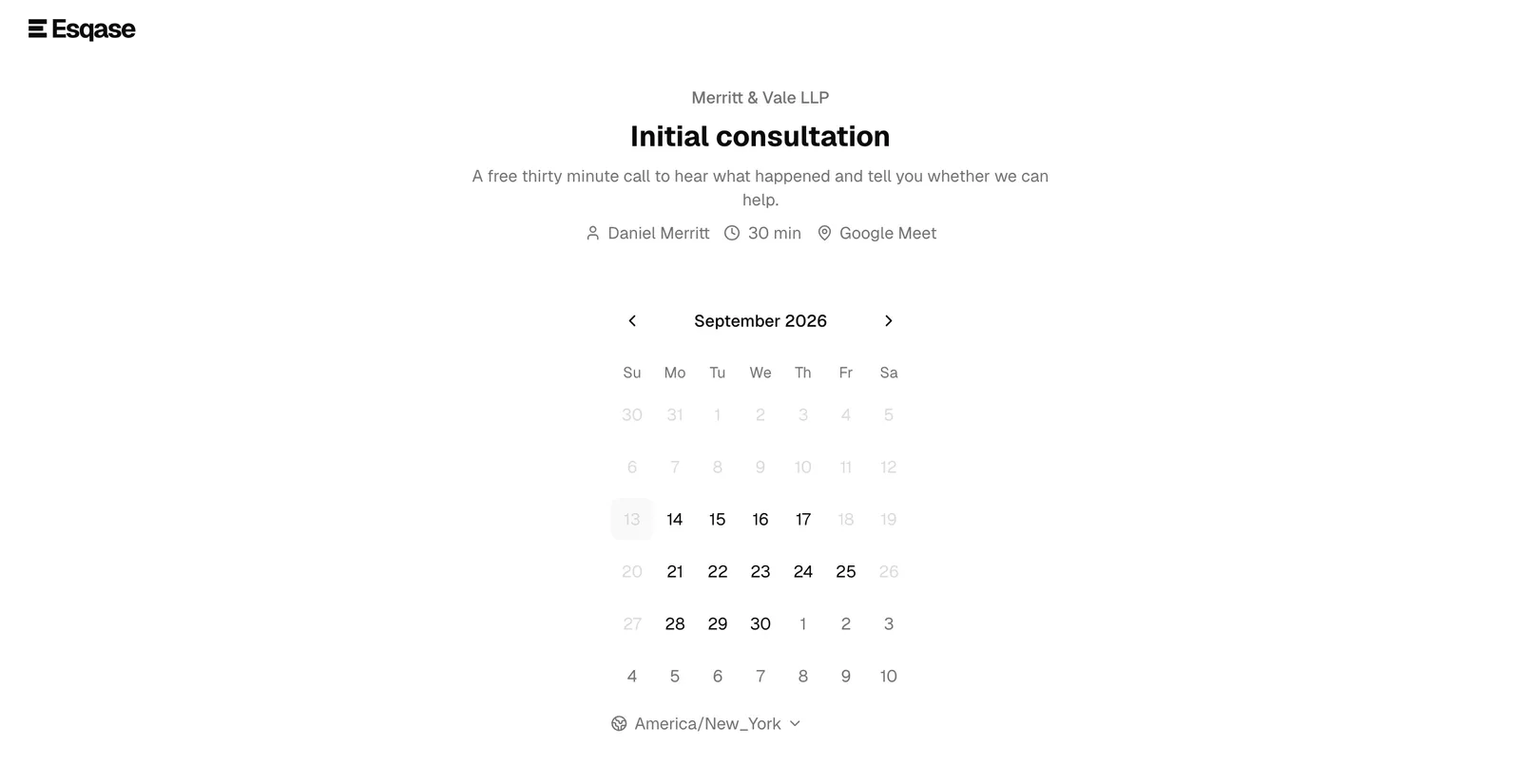
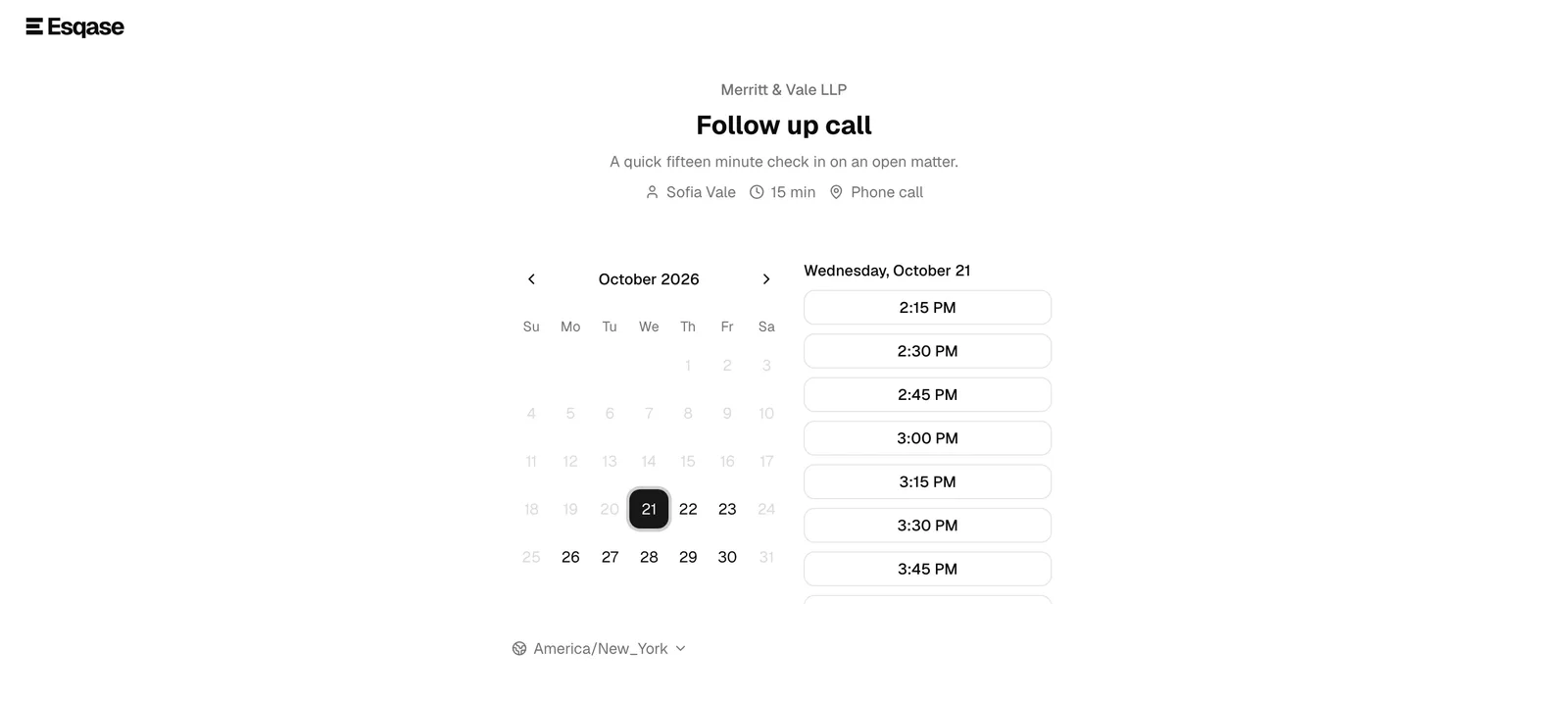
- Your firm name at the top, then the event type name (for example, "Initial consult") and its description.
- A short summary line showing the host, the duration (for example, "30 min"), and the location (for example, "Google Meet" or "Phone call"). For an Ask customer event type, the location reads "Choose a meeting type", because the client picks how to meet on the contact form.
- A monthly calendar for picking a date, with unavailable days greyed out. Only days in the month on screen can be clicked, so a client cannot land on a date from the month before or after by mistake.
- A time zone indicator below the calendar.
How you control what appears
Everything on the booking page comes from the event type's settings:
- Name and Description become the page heading and subheading.
- Host is the member the meeting is with. Their name appears in the summary line. For a round-robin type, the summary line shows your firm name instead, and a Hosts line lists the hosts (see below).
- Duration sets the meeting length and the summary "min" value.
- Location sets the location label. Options include In person, Phone call, Google Meet, Zoom, Microsoft Teams, Ask customer (the client picks one of the options you provide, under How would you like to meet? on the contact form), and Custom (your own label). For Custom, you can also choose Show on booking page or Only after booking confirmation, which controls whether the location appears while the client is choosing a time or only after they finish booking. For Google Meet, Zoom, and Microsoft Teams, and for an Ask customer type that offers one of them, the Meeting link choice decides whether the client gets a new link for each booking, one fixed link, or none. See When clients get the meeting link.
To edit any of these, open Event types, click Edit on the row, change the fields, and save. The booking page updates immediately.
Important: Only active event types appear at a booking link. If you Archive an event type, its link stops accepting bookings and shows a "We could not find that booking page" message. Restore it from the event type's ... menu to bring the link back.
What clients see for a round-robin event type
An event type set to Round robin shares its bookings between several hosts, and the client never picks one. See Event types (scheduling). Its booking page differs from a single-host page in a few ways:
- The summary line shows your firm name where a single host's name would be, and a Hosts line underneath lists the members who take the meeting, for example "Hosts: Daniel Reyes, Sofia Cruz, Owen Park".
- The calendar offers a time whenever any of those hosts is free, so it often shows more open times than any one host's page would.
- Times are shown in the client's own time zone. Once the client picks a time, the page adds the same moment in your firm's time zone in brackets at the end of the chosen time, labeled Firm time, whenever the two zones differ. If the event type locks the time zone, the page is locked to your firm's zone.
- After booking, the confirmation page names the host the booking went to, for example "Your host is Sofia Cruz." From then on the email and the meeting page show that host, just as they would for a single-host type.
If none of the hosts can take bookings (for example, every one of them is disabled or archived), the page shows "No times are available right now." instead of a calendar.
📷 Screenshot: A round-robin booking page, showing the firm name in the summary line, the Hosts line listing three members, and the calendar.
Booking a meeting
Booking is a two-step flow: the client picks a time, then fills in their contact details.
- The client opens your booking link.
- On the calendar, the client clicks an available date. Days with no open times are disabled and cannot be selected, and neither are days that belong to the previous or next month.
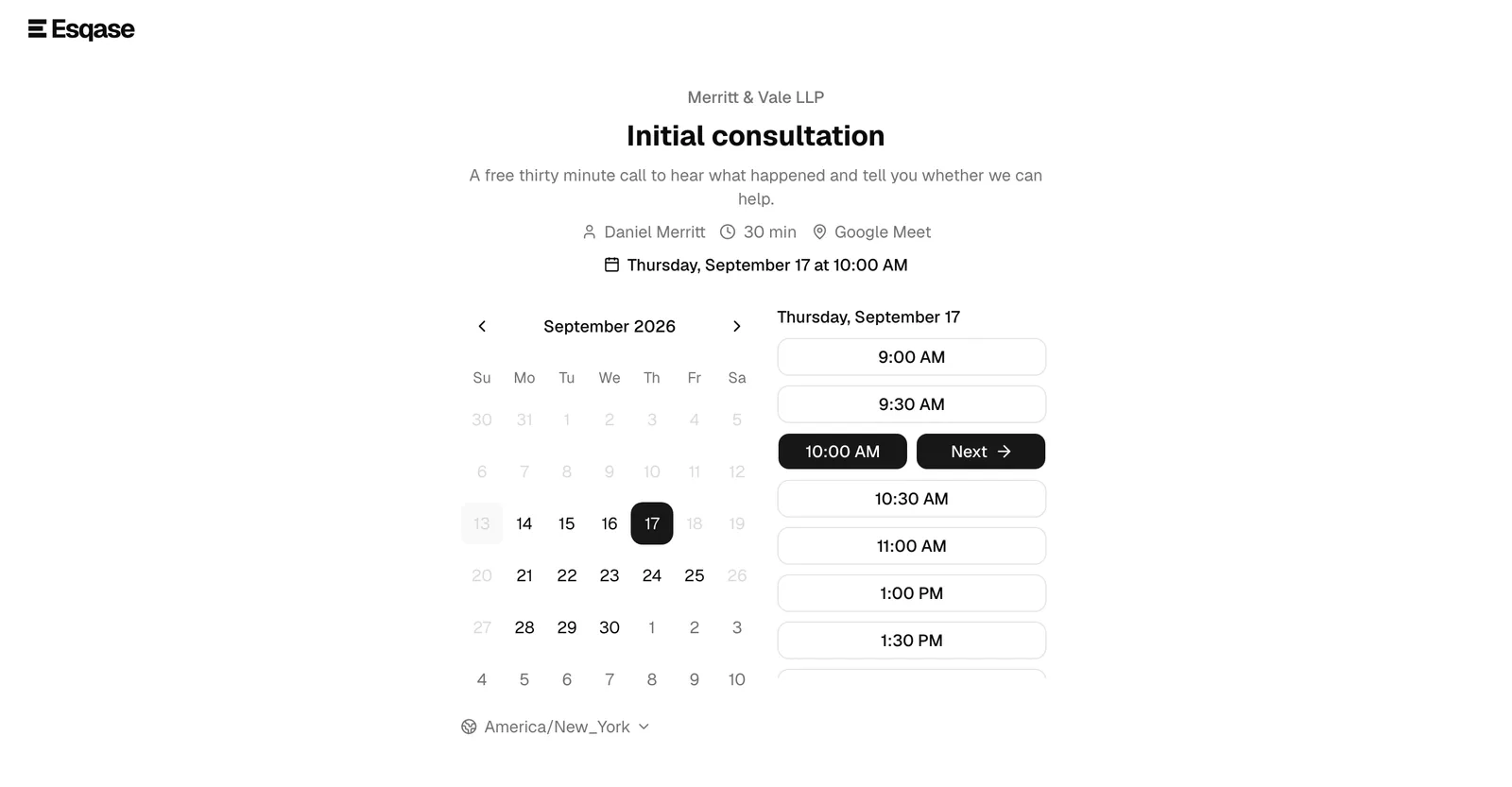
- A list of time slots for that day appears beside the calendar. Each slot is a button showing the start time (for example, "9:00 AM"). On a phone, the list replaces the calendar instead. Back to calendar at the top of the list shows the calendar again, with the chosen date still highlighted.
- The client clicks a slot. The slot expands to reveal a Next button next to it.
- The client clicks Next to move to the contact form.
If the client picks a day with no open times, the page shows "No times are available on this day." They can pick a different day or use the month arrows to look ahead.
Note: If Esqase cannot load the month's availability at all (a dropped connection, for example), the page says so with "We could not load the available times for this month. Please try again." and offers a Try again button. It never shows an empty calendar in that case, so a client is never misled into thinking you are fully booked.
Providing details and an optional note
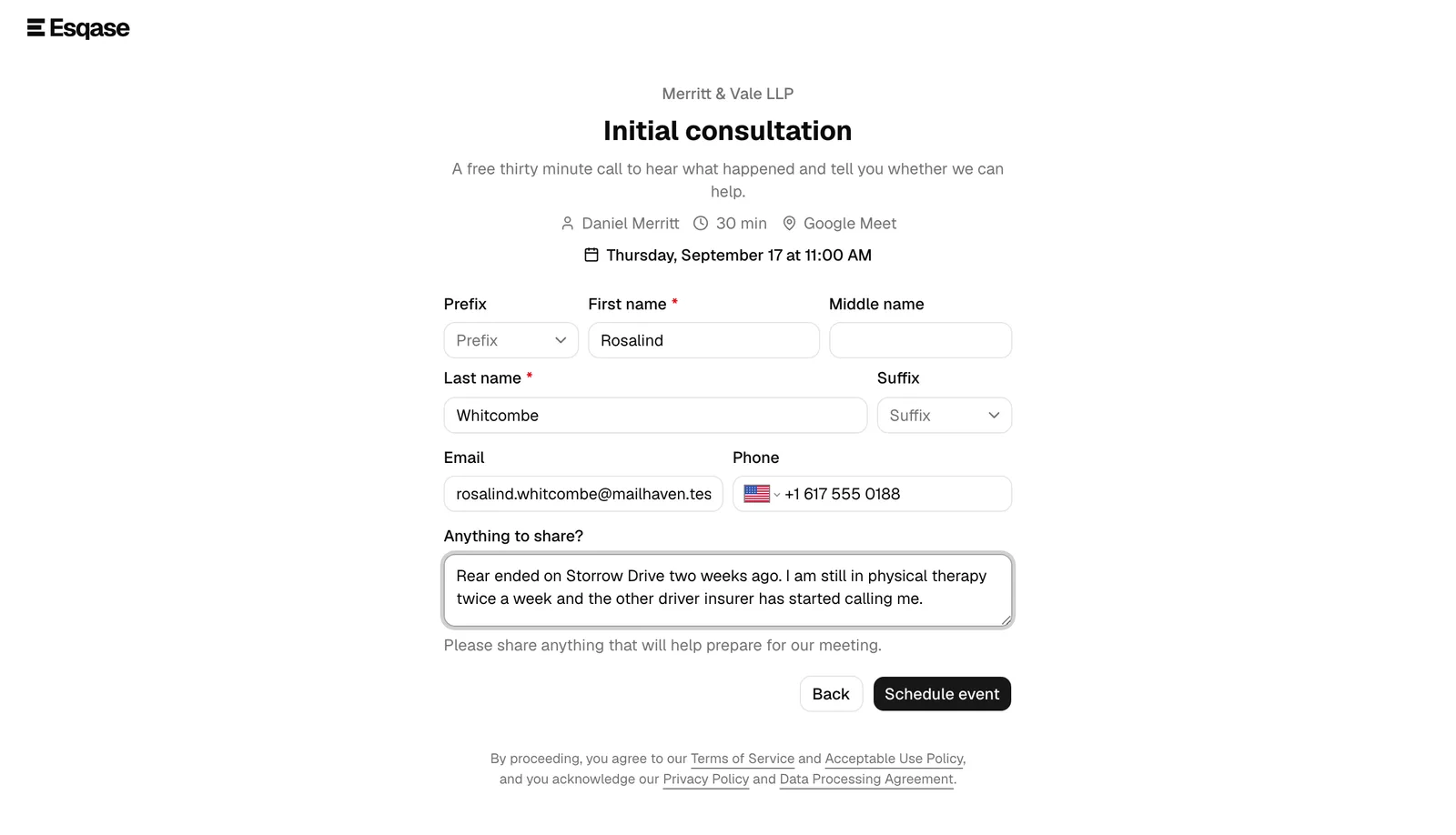
After clicking Next, the client sees a short contact form. The selected date and time stay visible at the top of the page so the client always knows what they are booking.
- The client fills in their name. First name and Last name are required. Prefix (for example, "Mr."), Middle name, and Suffix (for example, "Jr.") are optional.
- The client provides at least one way to reach them: Email, Phone, or both. If they leave both blank, the form asks for "an email or phone number." This contact detail is how the firm and the confirmation reach them.
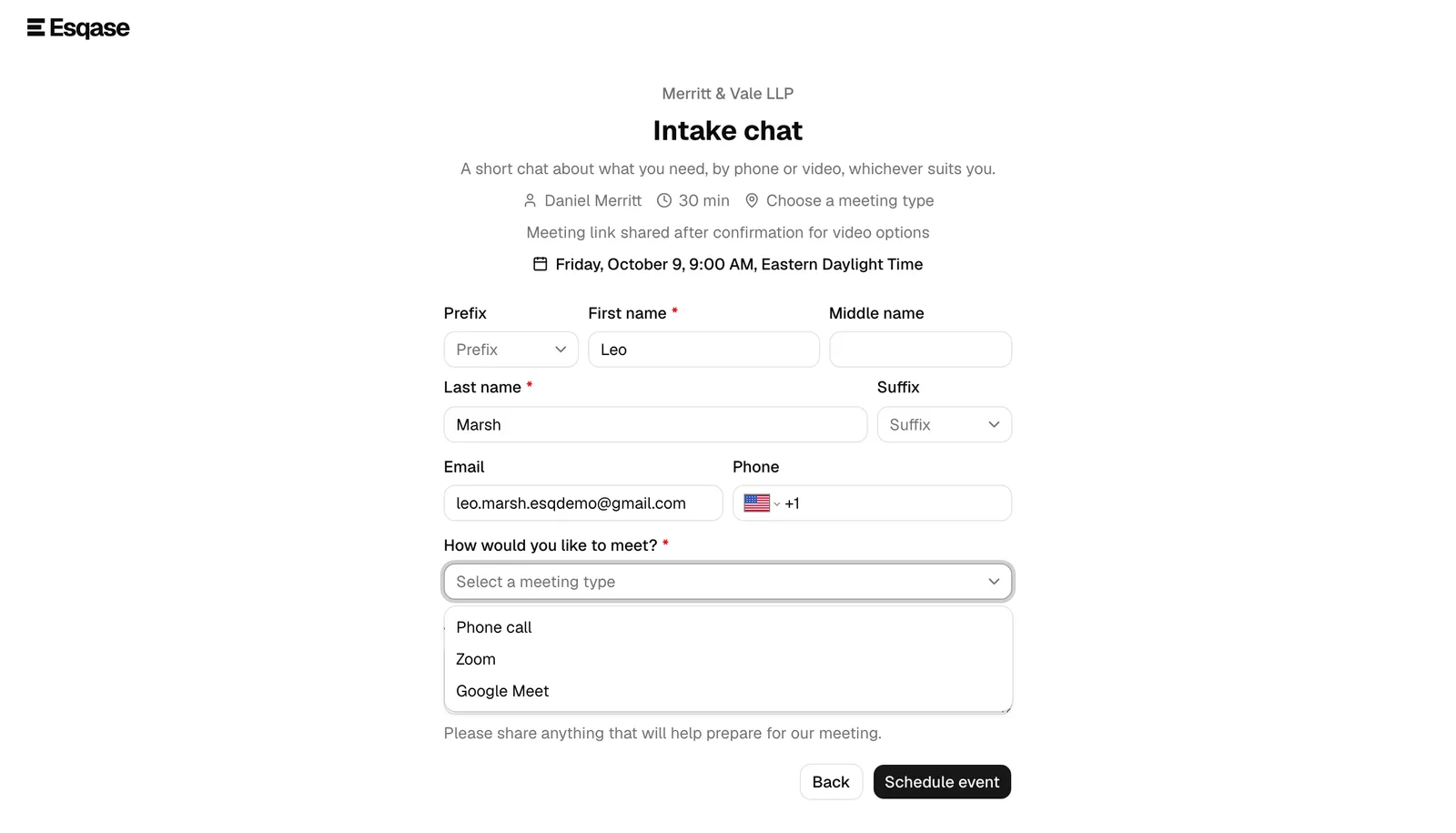
- If the event type is set to Ask customer, the client chooses how to meet in How would you like to meet?, a required list of the options you set up (for example, Phone call or Zoom). If they leave it empty, the form shows "Choose how you would like to meet." The option they pick becomes the meeting's location.
- In the Anything to share? box, the client can add an optional note (for example, the nature of their legal matter). The helper text reads "Please share anything that will help prepare for our meeting." This note is saved with the lead so you have context before the meeting.
- The client clicks Schedule event. While it submits, the button shows "Scheduling...".
A line of fine print under the button notes that, by proceeding, the client agrees to Esqase's Invitee Terms and Privacy Notice.
Tip: The client can click Back at any point on the contact form to return to the calendar and pick a different time without losing what they typed.
Why the booking page can refuse a booking
Esqase checks every booking for spam and automated tools before it reaches your calendar. A real client rarely sees anything, but the page refuses a booking when the email address has a typo, comes from a temporary email service, or is one Esqase can no longer send to, when the same network or the same email address books too often, or when the booking looks automated. The client then sees a short message, such as "Please use a permanent email address, not a temporary one." or "We could not accept this automatically. Please contact the firm directly.", and nothing is saved, so they can fix it and book again. A booking Esqase is unsure about is not refused but held for your review (see the confirmation page below). Every message and what it means is listed in Spam protection for booking pages and forms.
What stops a booking at the last second
To prevent double-bookings, Esqase re-checks availability the instant the client clicks Schedule event. If the chosen slot was taken by someone else (or filled by another calendar event) in the moments since they picked it, the booking is rejected with a message like "That time was just taken." The client simply chooses another open slot and tries again. This is normal and means the calendar stayed accurate.
The same moment checks the event type's Minimum notice. If the client took long enough over the form that the chosen time now starts sooner than the notice allows, the booking is refused with "That time is too soon to book. Please pick a later time." Nothing is saved, and the client clicks Back to pick a later time. See Set a minimum notice.
Choosing or locking the booking time zone
Times on the booking page are always shown in a specific time zone, and the booking page makes the active time zone clear so there is never confusion about, say, whether "2:00 PM" is the client's time or yours.
You decide how the time zone behaves with the event type's Time zone display setting:
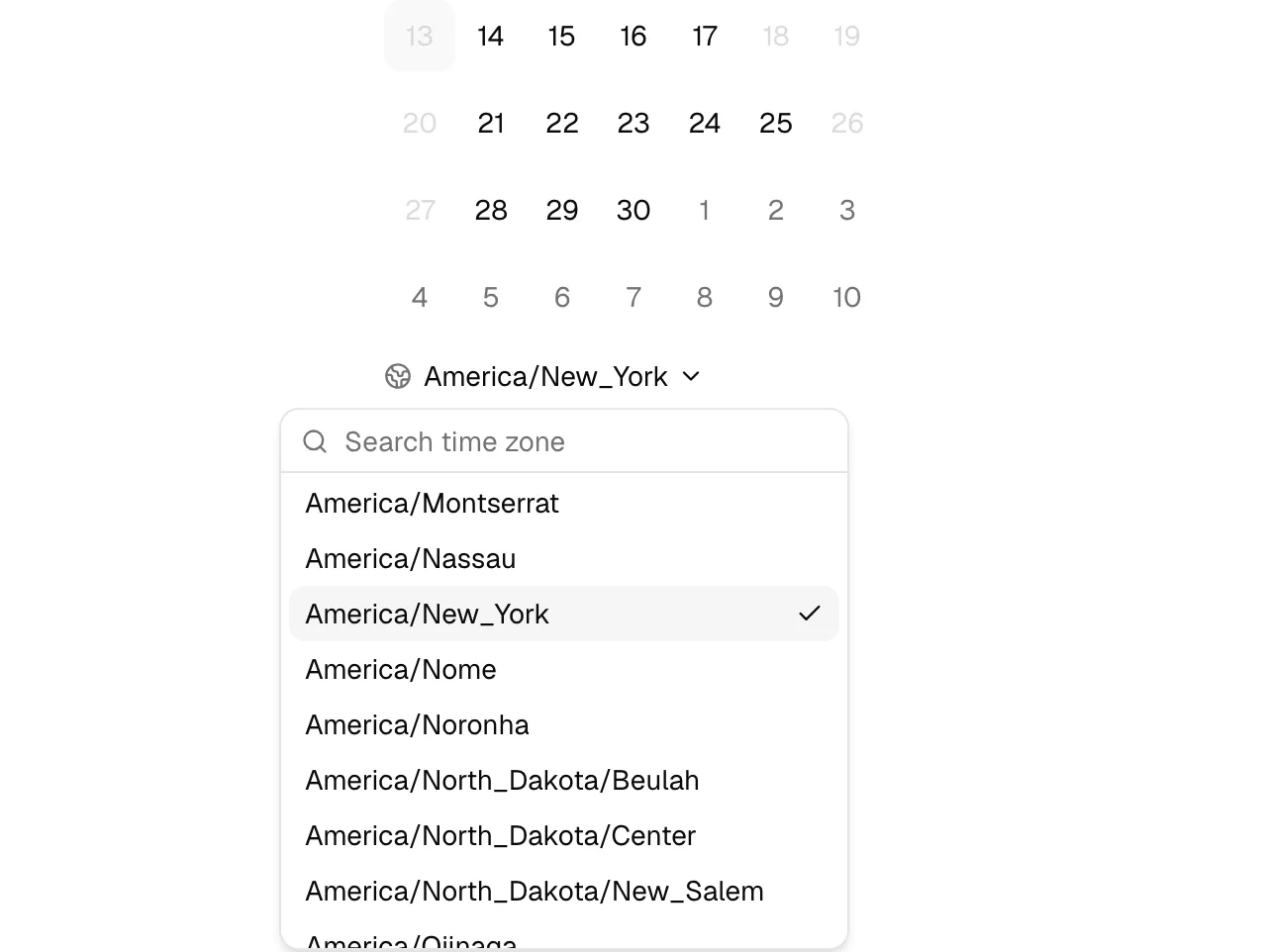
- Automatically detect and show the times in my invitee's time zone (the default). The booking page detects the client's own time zone and shows all slots in it. The client can also open the time-zone control under the calendar and pick a different zone if they are traveling or booking on someone else's behalf.
- Lock the time zone (best for in-person events). The page pins every time to the host's (or firm's) time zone, and the client cannot change it. On a round-robin page, the lock uses your firm's time zone, because its hosts may work in different zones. Use this for in-person meetings, where "3:00 PM" only makes sense in the office's local time.
On the booking page itself, the client sees a small globe and the current zone below the calendar. When the zone is not locked, that control is a searchable dropdown labeled by zone name; the client can type to filter and select a different zone.
Important: Changing the time zone re-displays all the slots at their equivalent local times and clears any date or slot the client had already selected, so they re-pick on the calendar. The actual meeting time never changes, only how it is labeled.
Once the client picks a slot, the page repeats the chosen date and time near the top, in the client's zone. Whenever your firm's clock reads a different time, a note in brackets, in lighter text, ends that line with the same moment in your firm's time zone, labeled Firm time. The note repeats the date only when it is a different day for your firm. A client in Manila booking a New York firm sees, for example:
- "Monday, October 5, 9:00 PM, Philippine Standard Time (Firm time: 9:00 AM, Eastern Daylight Time)", when it is the same day in New York.
- "Tuesday, October 6, 1:00 AM, Philippine Standard Time (Firm time: Monday, October 5, 1:00 PM, Eastern Daylight Time)", when it is still the day before in New York.
When both zones give the same clock time, the line has no note.
The zone the client booked in follows the meeting from there on. The confirmation page, the confirmation email, and the page where the client manages the meeting all lead with the client's own time zone. Whenever that differs from your firm's, they also give your firm's time, labeled Firm time, so neither side has to do the arithmetic. On the confirmation page and the meeting page it is the same kind of note in brackets, at the end of the start and end time, for example "9:00 PM - 9:30 PM (Firm time: 9:00 AM - 9:30 AM, Eastern Daylight Time)". In the confirmation email it is a line of its own, beneath the client's time.
How available slots are computed
You do not pick the open times by hand. Esqase calculates them from your settings each time the page loads, so the booking page always reflects reality. In plain terms, a slot is offered only when all of these are true:
- It falls inside a working window. Esqase uses the host's weekly schedule. If the host has not set one, it falls back to the firm's weekly schedule. A specific date can override the weekly pattern (for example, a one-off closure or extended hours).
- The full meeting plus buffers fits. Esqase reserves the meeting length and any Before event and After event buffer time you configured on the event type, so back-to-back meetings keep breathing room.
- The slot is far enough ahead. Past times, including times earlier today, are never offered. When the event type has a Minimum notice, neither is any time that starts sooner than that from now: with a notice of 4 hours, a client looking at 10:00 AM sees nothing before 2:00 PM. The notice counts real time from the moment the client looks, not working hours, and it is the same for every time zone. The page does not mention the notice; the client simply sees the times that remain.
- It does not overlap the host's busy time. Esqase checks the host's meetings and events in Esqase, including the busy time the calendar sync has already brought in from a connected Google or Outlook calendar, and hides any slot that would collide, buffers included. The sync runs about every ten minutes, so an event added in Google Calendar a moment ago may not block a slot until the next sync has run. An all-day court date on the host's calendar counts as free time and never blocks a slot, while a timed court hearing or trial does.
- The meeting limit is not reached. If you set a cap such as "3 meetings per Day," days that already hit the cap show no slots. Limits can be per Day, Week, or Month.
Whole days that end up with zero open slots appear greyed out on the calendar, so clients only ever click into days that can actually be booked.
For a round-robin event type, Esqase runs these checks for each host on their own, using that host's schedule, time zone, and busy time, and offers a slot when at least one host passes them all. Meeting limits are the exception: they count the event type's bookings across all of its hosts.
Tip: If clients report that no times are available, check the host's weekly availability, the event type's buffers, minimum notice, and meeting limits, and whether the host's connected calendar is showing them as busy. These five settings, together, decide what clients can see.
To adjust the inputs:
- Change working hours in Setting firm availability (firm-wide) or on the host member's own schedule.
- Change Buffer times, Minimum notice, and Meeting limits on the event type. See Event types (scheduling).
What happens after booking
When the client clicks Schedule event and the slot is still open, Esqase confirms the booking and shows a confirmation page.
The confirmation page
The heading tells the client exactly where the meeting stands, so nobody leaves thinking a time is locked in when it is not:
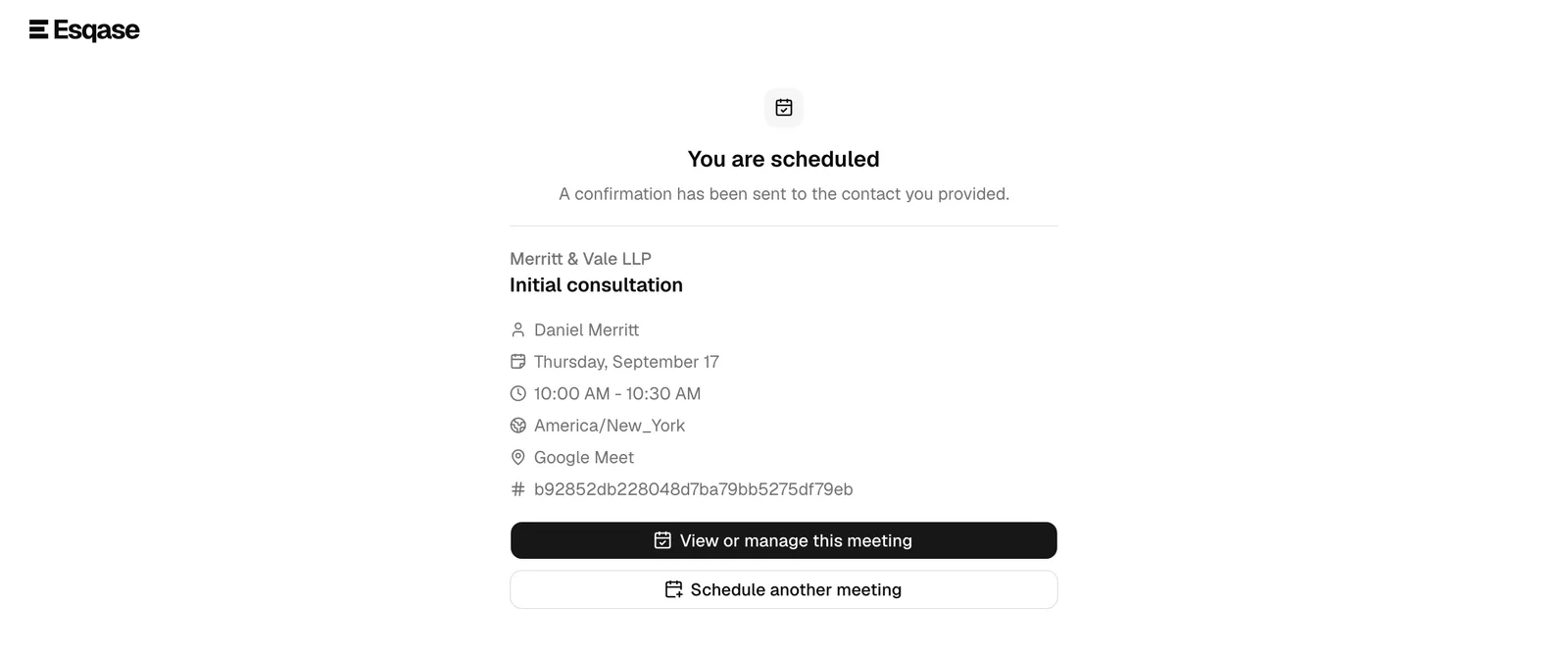
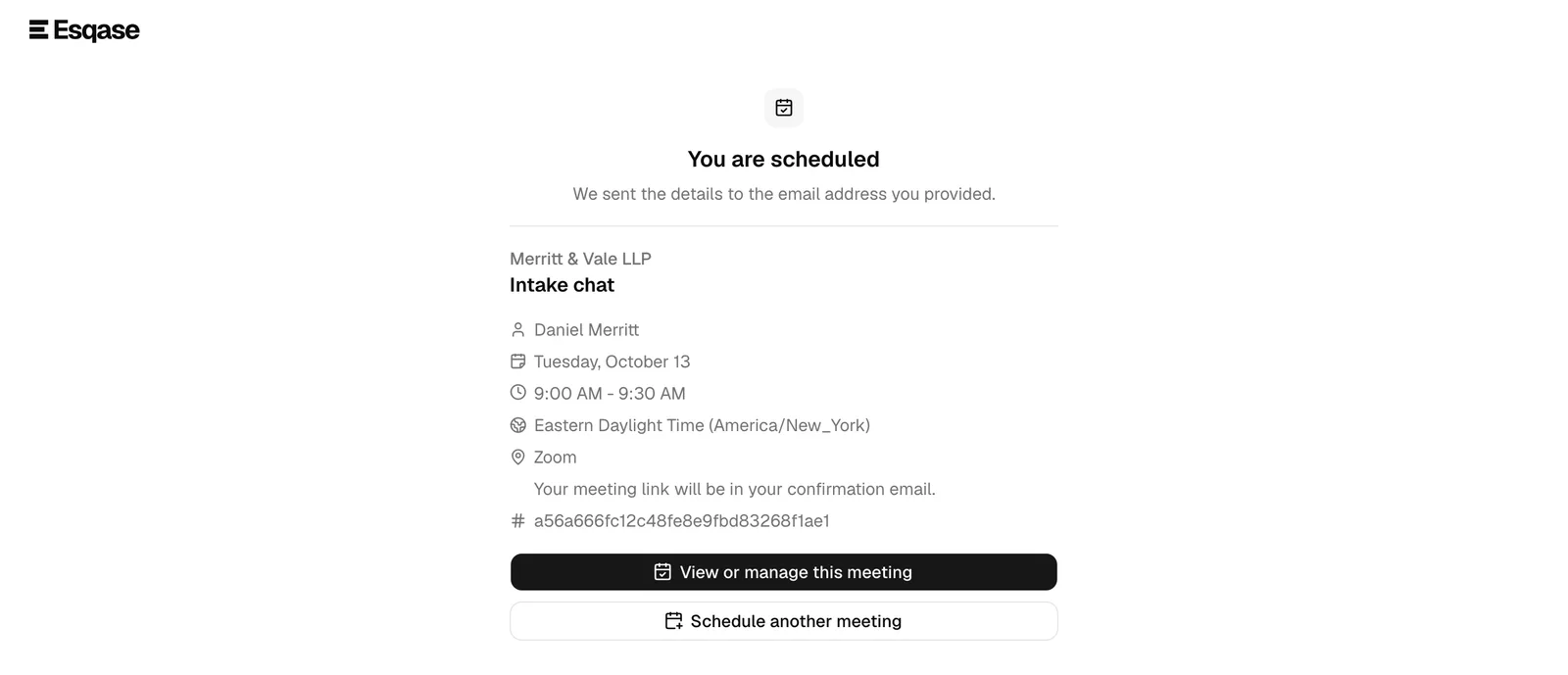
- You are scheduled, when the event type auto-confirms bookings. The time is theirs.
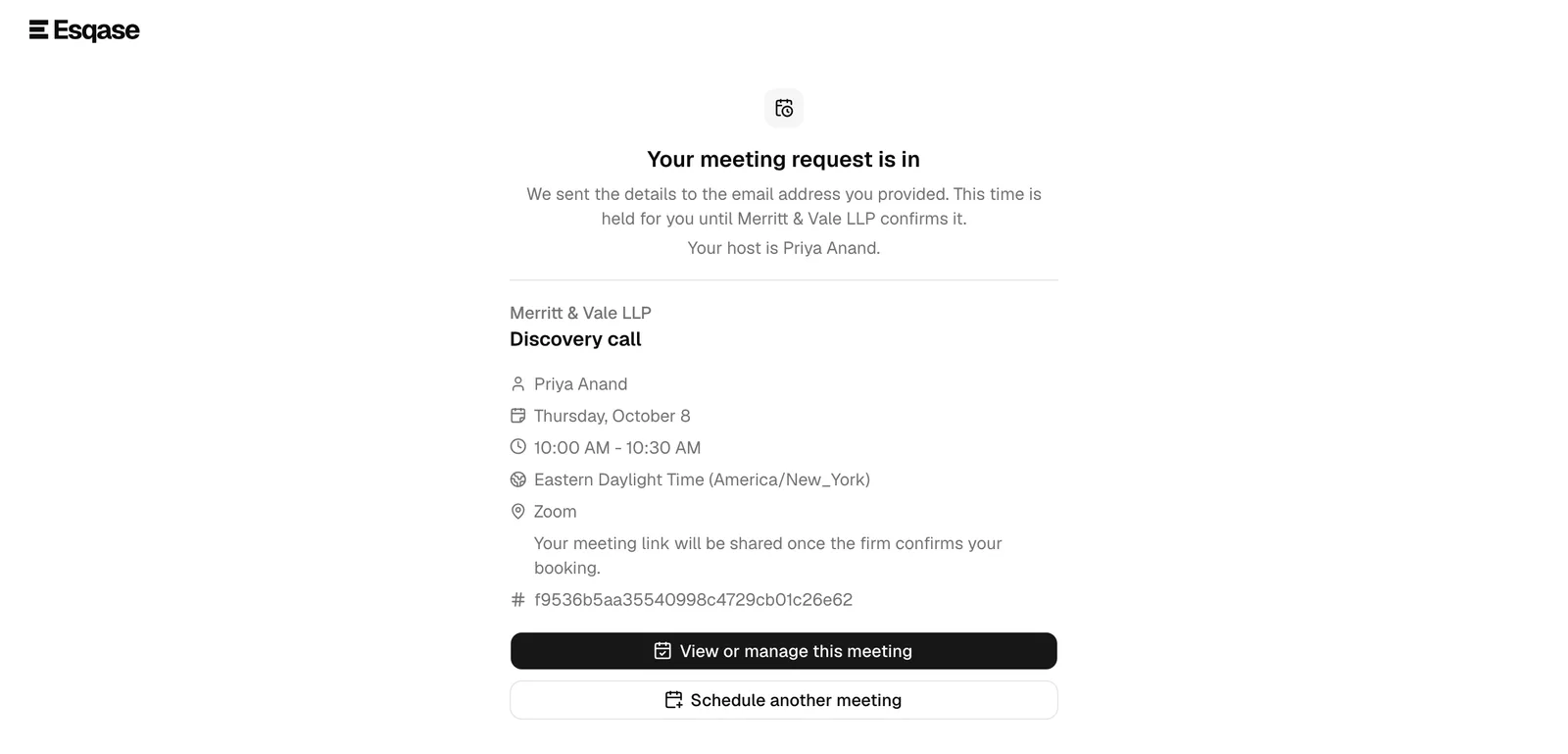
- Your meeting request is in, when the event type waits for your firm to confirm. The page adds "This time is held for you until [your firm name] confirms it."
- Your request was received, when Esqase held the booking for review because it looked automated, whatever the event type's setting. The page adds "The firm will confirm by email." (or "The firm will contact you to confirm." when the client gave only a phone number or the event type's booking email is off), and no email goes out until a member approves the meeting. See Submissions held for review.
Under the heading, the page says whether an email went out ("We sent the details to the email address you provided.") or, when no email went out (the client gave only a phone number, or the event type's Email the client about their booking switch is off), asks them to "Save the details below." The page then lists:
- Your firm name and the event type name.
- The host, the date, and the start and end time, in the client's own time zone. When your firm's time differs, the start and end time end with a Firm time note in brackets giving the same meeting in your firm's time, for example "9:00 PM - 9:30 PM (Firm time: 9:00 AM - 9:30 AM, Eastern Daylight Time)". The note adds the date when it is a different day for your firm.
- The time zone, marked "your time zone" when it differs from yours, for example "Philippine Standard Time (Asia/Manila), your time zone".
- The location (for an Ask customer event type, the option the client picked), and, once the meeting has one, its meeting link (for example, the Google Meet URL). Until then, a video meeting shows a line saying when the link will arrive. See When clients get the meeting link.
- A reference identifier for the meeting.
For a round-robin event type, a line under the heading also names the host the booking went to, for example "Your host is Sofia Cruz."
Two buttons appear:
- View or manage this meeting, which opens the stable per-event page (described below).
- Schedule another meeting, which returns to the booking page.
The confirmation email the client receives
As soon as a client books with an email address, Esqase emails them the details. You do not have to set this up: the email is on for every event type until you turn it off (see below), and it goes out whether or not the event type auto-confirms. When the event type waits for your approval, the client gets a second email once your firm approves the request: Meeting requested when they book, then Meeting confirmed when the meeting is confirmed. A booking held for review is the exception: its client gets the Meeting confirmed email once a member approves the meeting, and nothing before.
- The subject reads Meeting confirmed: [event type] with [your firm name] on [date] when the event type auto-confirms, and Meeting requested: [event type] with [your firm name] on [date] when it waits for your approval, for example "Meeting confirmed: Initial consult with Smith & Co on Monday, October 5, 2026". The body of a request email says the time is held and is not confirmed until your firm approves it. Apart from the client's first name in the greeting, nothing the client typed appears in the email or its calendar attachment.
- The times are written in the client's own time zone, with a Firm time line giving your firm's time whenever the two differ.
- The email names the host, the location (for an Ask customer event type, the option the client picked), and the meeting link when there is one. For an auto-confirmed booking on a video event type, or on an Ask customer type where the client picked a video option, that is the link Esqase created or your event type's single link. A Meeting requested email has no meeting link, because the meeting is not confirmed yet; the Meeting confirmed email that follows your approval carries it when the meeting has one.
- A calendar attachment comes with it, so the client can add the meeting to any calendar app in one click. The attachment is marked tentative until your firm confirms a booking that needs approval, and the Meeting confirmed email that follows carries a confirmed one for the same meeting, so a calendar app can update the entry the client already added rather than add a second one.
- Add it to your calendar links for Google Calendar and Outlook sit underneath, for clients who prefer a link to an attachment.
- A link back to the meeting page rounds it off, where the client can check the status or ask for a different time.
The email comes from Esqase on your firm's behalf and tells the client to contact your firm directly with any questions.
Your firm can turn it off for an event type. If you would rather send clients your own email, turn off Email the client about their booking on the event type. Esqase then sends that event type's clients neither the Meeting requested nor the Meeting confirmed email, held bookings included, and the client's side changes in two ways:
- The confirmation page no longer says an email was sent. It asks the client to "Save the details below." A booking held for review reads "The firm will contact you to confirm."
- The meeting link waits on the meeting page. Once the meeting is confirmed and has its link, the client finds it on their meeting page rather than in a booking email, and in any email your firm sends with a "Join the meeting" line (see When clients get the meeting link). On an auto-confirmed booking, the confirmation page says "Your meeting link will appear on your meeting page in a moment."
The booking itself, your calendar, and the contact and lead are unaffected. See Turn the client booking email on or off.
Note: A client who books with a phone number and no email address gets no email, because there is nowhere to send it. The confirmation page tells them to save the details from the screen instead, and your firm still gets the contact, the lead, and the meeting.
What your firm receives
Behind the scenes, a single booking populates several places in your dashboard automatically:
- A new contact is created from the name and email or phone the client entered. See Working with contacts.
- A new lead is created and assigned the next lead number. If the client wrote a note, it is saved with the lead. A Booking source (plus a source named after the event type) is attached so you can see where the lead came from. See Managing leads and Lead sources.
- A tentative event is added to your calendar with the host and the client as guests. For an Ask customer event type, its location is the option the client picked. See Calendar and events.
- A workflow is attached, if you assigned one. If the event type has an assigned workflow, or a workflow is set to start when a lead is created from your Booking page, its steps are copied onto the new lead. If the workflow's own Automation switch is on, its automatic steps start by themselves. They wait for somebody to click Start automation on the lead only if a firm owner or administrator has turned off Run automatic steps on these leads under Settings > Firm > Automation. See Workflows and the builder and Automation settings.
- The booked meeting fills the workflow's Event step. If that workflow has an Event step, the meeting the client just booked lands on it instead of showing up as a second item, so the lead reads as one meeting rather than two. A step pinned to a particular event type is only filled by a booking of that type; a step left on None takes any booking. It happens before any step runs, so a workflow whose first step is an automatic Event step does not send the client who just booked a second invite to pick a time. It also happens whether or not the lead's automatic steps are allowed to run, because it records what the client did. See Workflow step types.
Note: If the client did not provide an email, Esqase still records the booking and creates the contact and lead from the phone number. The confirmation email and any email-based follow-up will not reach a client who only gave a phone number, so call them to confirm.
Auto-confirmed vs pending bookings
Whether a booking is instantly confirmed or waits for your approval depends on the event type's Auto-confirm bookings toggle.
- Auto-confirm bookings on. The meeting is confirmed the moment the client books. The host is marked as attending, and the meeting is live on the calendar right away. The client sees You are scheduled and gets a Meeting confirmed email. If the lead's workflow has an Event step, that step is completed at once and the workflow moves on.
- Auto-confirm bookings off (the default). The booking is recorded as tentative and waits for a member to approve it from the dashboard. The client sees Your meeting request is in, told the time is held until your firm confirms it, and gets a Meeting requested email that says the same. When a member approves the request, the client gets a second email, Meeting confirmed, with the confirmed time and the meeting link when there is one. They can still manage the meeting, but the host's attendance is pending until someone on your team accepts the request. If the lead's workflow has an Event step, that step sits on Waiting until a member approves the booking, and then completes on its own. The helper text on the setting reads "When off, new bookings are tentative until you approve them."
Both emails go out only while the event type's Email the client about their booking switch is on. See The confirmation email the client receives.
To change this, open Event types, click Edit on the row, toggle Auto-confirm bookings, and save.
Tip: Leave auto-confirm off when you want a human to vet new consultation requests (for conflicts, fit, or capacity) before committing the host's time. Turn it on for low-stakes, always-available meeting types.
Note: A booking Esqase held for review waits for your approval even when Auto-confirm bookings is on. The client sees Your request was received, and the meeting, its link, and the confirmation email all wait until a member approves the request. See Submissions held for review.
Approving and managing tentative bookings happens on your side, on the firm calendar. See Calendar and events.
When clients get the meeting link
For a Google Meet, Zoom, or Microsoft Teams event type, the event type's Meeting link choice decides what the client receives: a new meeting link for each booking, created on the host's connected account; the one link you pasted for every booking; or no link at all. See Meeting link for video locations.
For an Ask customer event type, the same choice applies when the client picks Google Meet, Zoom, or Microsoft Teams. Any other pick, such as Phone call, gets no link. See Ask customer.
Whichever you choose, a client sees a meeting link only once the meeting is confirmed:
- On the booking page, the link never appears, not even a single link you pasted.
- On the confirmation page, a line under the location says where the link will be. On an Ask customer event type, the line appears only when the client picked a video option. Once the link has been added, refreshing the page shows the link instead.
- "Your meeting link will be in your confirmation email." when the booking is auto-confirmed and Esqase emailed the client.
- "Your meeting link will appear on your meeting page in a moment." when it is auto-confirmed and no email went out: the client gave only a phone number, or the event type's Email the client about their booking switch is off.
- "Your meeting link will be shared once the firm confirms your booking." when it waits for your approval.
- In the confirmation email of an auto-confirmed booking, when the event type sends one. The calendar attachment and the Add it to your calendar links carry it too.
- On the meeting page, with a Join meeting button, from the moment the meeting has its link. For a booking that waits for your approval, that is shortly after a member approves it. When the client accepts a time your firm proposed, their confirmation page says the link is on its way, and it appears on the meeting page once added.
- In the Esqase Client app, where Join meeting opens the same link.
- In your firm's emails about the meeting, whenever the email carries a "Join the meeting" line. The Event - Event Confirmation, Event - Event Invitation, Event - Event Reminder, and Event - Event Rescheduled templates have one. That covers the confirmation email a workflow Event step sends once the meeting is confirmed, and the emails your team sends from an Event step on the lead or matter, such as the confirmation offered when you accept a booking. For a booking that waited for your approval, the Meeting confirmed email Esqase sends once you approve it carries the link too, and these emails are a second way it reaches the client; the Meeting requested email has none. A booking held for review also gets the Meeting confirmed email once approved. A meeting with no link, such as an in-person meeting, gets the email without that line. See Add the meeting link to an event email.
A rescheduled meeting keeps its link, so the client joins the same way at the new time.
Important: If the host has not connected the provider the event type uses (on an Ask customer event type, the one the client picked), no link is created, even though the confirmation page said one would follow. Your team can add a link to the meeting by hand from the firm calendar, or the host can connect the provider on their Integrations page so later meetings get one.
Viewing and managing a meeting (the per-event page)
Every booked meeting has a stable, durable page the client can return to at any time. It is where they confirm attendance and request changes. The client reaches it from the View or manage this meeting button on the confirmation page, or from a link in their confirmation email.
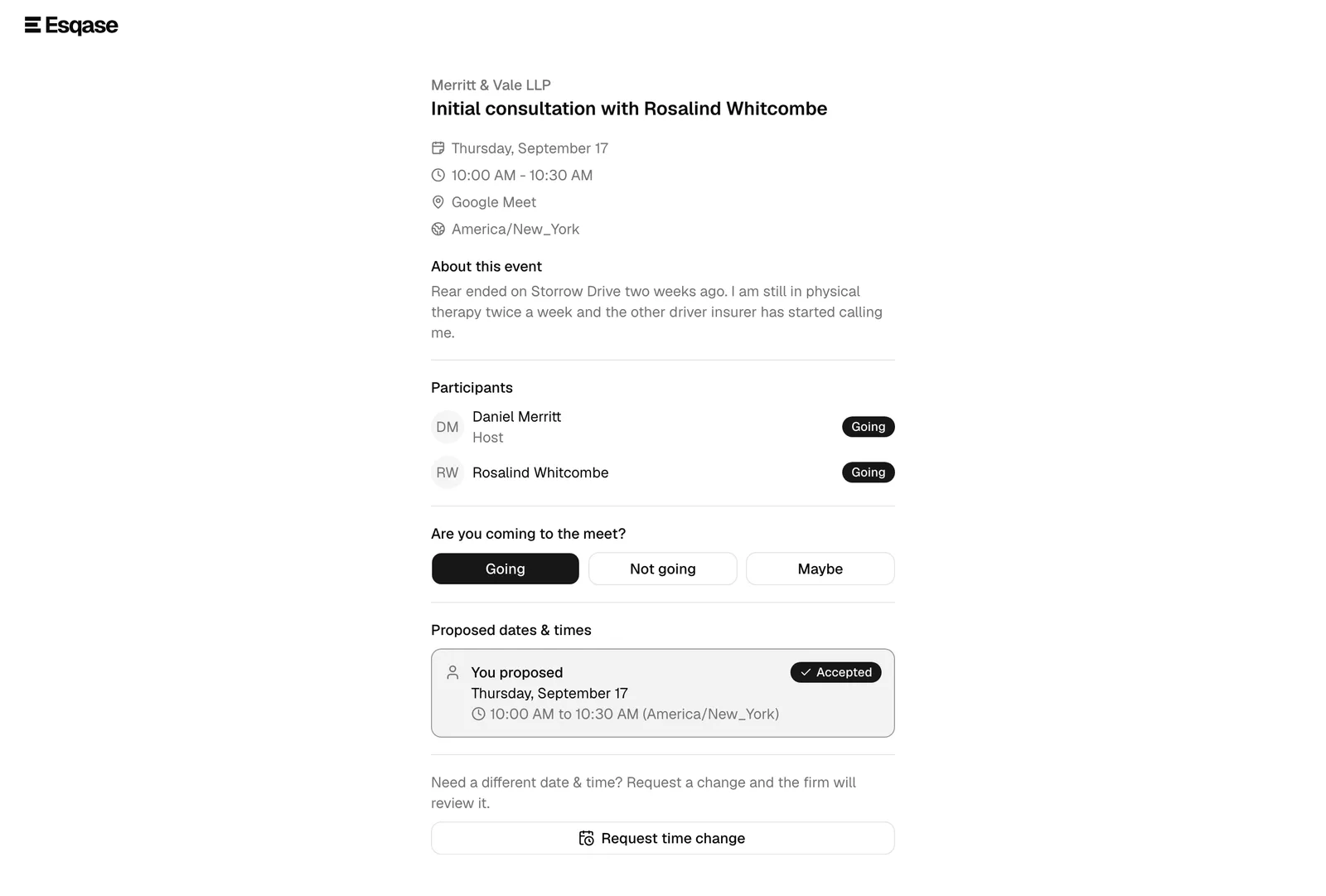
Because this page can expose meeting details, it is protected by a sign-in step (covered in the next section). Once signed in, the client sees:
- The firm name, meeting title, date, time, time zone, location, and, once the meeting is confirmed and has one, a meeting link with a Join meeting button. The date and time are in the client's own time zone. Whenever your firm's time differs, the time ends with a Firm time note in brackets, as on the confirmation page. For an all-day meeting the note appears only when the day falls on a different date for your firm, for example "All day (Firm time: Monday, October 5, all day, Eastern Daylight Time)".
- An About this event section, if the meeting has a description.
- A Participants list, showing each guest, who the Host is, and each person's RSVP status (Going, Not going, Maybe, or No response).
- Controls to RSVP and to request a different time.
RSVP yes or no
Under the participant list, the client sees "Are you coming to the meet?" with three buttons:
- The client clicks Going, Not going, or Maybe.
- The choice saves immediately and updates the client's badge in the participant list.
The client can change their RSVP as many times as they like before the meeting. Their response is visible to your team on the firm calendar.
Proposing a new time (rescheduling) and the negotiation
If the meeting time no longer works, the client can ask for a different one without canceling. Esqase handles this as a back-and-forth negotiation, so both sides agree before anything moves.
To propose a new time:
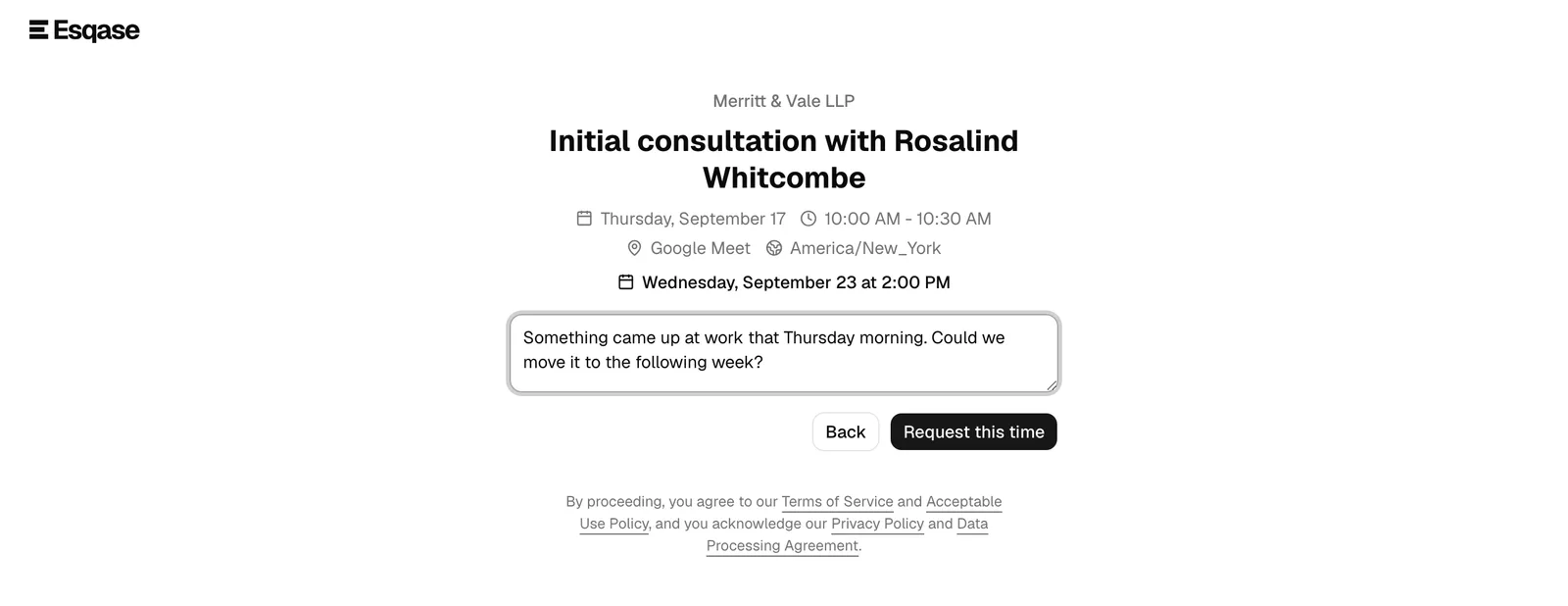
- On the per-event page, the client clicks Request time change (the wording is Request schedule change for an unconfirmed invite).
- The familiar date-and-time picker appears, showing the host's currently open slots. For a meeting booked from a round-robin event type, these are the open slots of the host the meeting was assigned to, and the host does not change. These are the host's genuine working hours, read from their weekly schedule (or your firm's, when the host has none) and from any date-specific hours either of you has set, so a client cannot ask for a time you were never open for. When the meeting's event type has a Minimum notice, the picker also leaves out times that start sooner than that from now, and Esqase checks it again when the client sends the request: a time that has become too soon by then is refused with "That time is no longer available. Please pick another time." The client picks a date, then a slot, then clicks Next.
- The client can add an optional note for the firm, then clicks Request this time (or Propose this schedule).
- The page returns to the overview and shows the proposed time as Pending, with the message "Waiting for the firm to confirm your requested time."
While a client proposal is pending, the client can:
- Choose a different time, which replaces the pending proposal with a new one.
- Cancel request (or Cancel proposal), which withdraws their proposed time and leaves the meeting as it was.
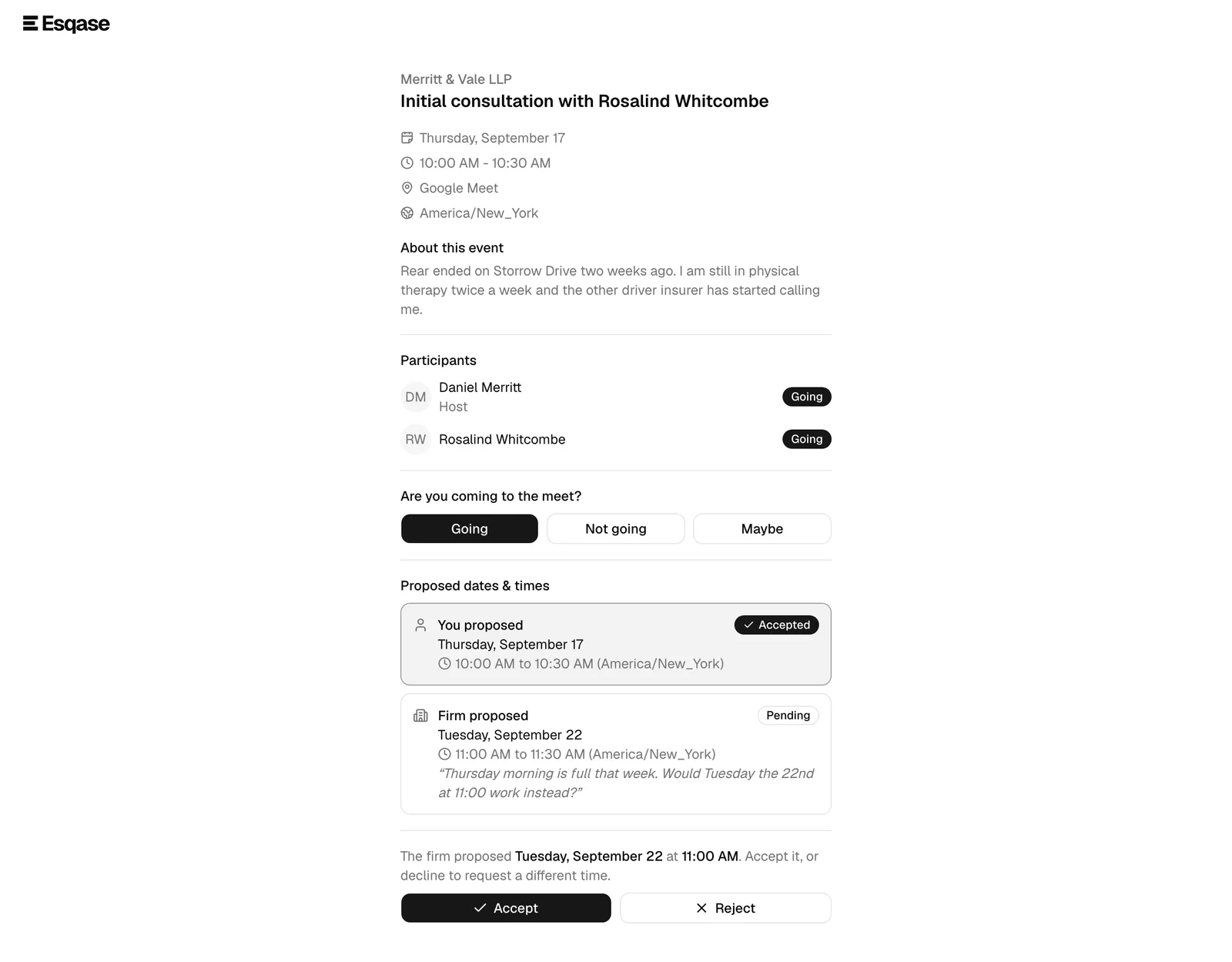
The negotiation can also go the other way. When your team proposes a new time from the dashboard, the client sees it on this page as "The firm proposed [date] at [time]," and can:
- Accept, which confirms the new time and updates the meeting. A time your firm proposed can always be accepted, even when it starts sooner than the event type's Minimum notice, because the notice limits only the times a client picks.
- Reject (or Propose new schedule), which declines the firm's proposal so the client can request a different time instead.
A Proposed dates & times history lists each offer, who made it (Firm proposed or You proposed), the time, any note, and its status (Pending, Accepted, Declined, or Withdrawn), so both sides can follow the conversation.
The whole negotiation stays in the client's own time zone. The picker names the zone it is offering slots in beneath the date grid. At the top of the page, the meeting's current time carries the same Firm time note in brackets as the meeting page, and the slot the client selects is echoed back beneath it the way the booking page shows it, for example "Tuesday, October 6, 1:00 AM, Philippine Standard Time (Firm time: Monday, October 5, 1:00 PM, Eastern Daylight Time)". Every entry in the Proposed dates & times history carries the note too, for example "9:00 PM to 9:30 PM, Philippine Standard Time (Firm time: 9:00 AM - 9:30 AM, Eastern Daylight Time)". With your firm's time always beside the client's, a client in another country never has to work out what your offer means on their clock.
When the client accepts a time your firm proposed, or approves a reschedule, two things follow on your side without anyone doing anything: the host is sent a Meeting time confirmed notification giving the agreed time in their own zone (plus the client's time when the two differ), and the meeting is pushed to the host's connected Google or Outlook calendar. See Notifications and Calendar and events.
Note: Only one proposal from each side can be outstanding at a time. Submitting a new proposal supersedes the previous one (it shows as Withdrawn in the history). The meeting time only actually changes when one side accepts the other's pending proposal.
Meeting invitations a workflow sends, and the reminders that follow
Not every meeting starts with the client finding your booking page. A workflow step can invite a client to pick a time, which is how a consultation usually gets booked after a lead comes in.
- Esqase emails the client from <Your firm name> via Esqase, with the reply address your firm chose under Settings > Firm > Automation.
- The email carries a link to choose a time. The client opens it, confirms who they are, and picks a slot from the host's open times, on a calendar like the one on your booking page. When the step uses an event type with a Minimum notice, times that start sooner than that from now are not offered, just as on your booking page.
- The time comes back to your firm as a scheduling request to accept. Once the meeting is confirmed, the client gets the step's confirmation email (none, if the step leaves its Confirmation email blank), which gives an online meeting's link on its "Join the meeting" line when the email has one, and the workflow moves on to its next step.
If the step has reminders turned on, Esqase chases the client on the step's schedule until they pick a time. Reminders stop when the client books, when the step reaches the number of reminders it was given or your firm's reminder cap, when the step has been waiting longer than your firm allows for chasing, or when a reminder cannot be sent at all. In every case but the first, the firm gets a Workflow waiting on a client notification as the chasing stops, naming the step and how many times the client has been reminded, so a person can follow up instead. A member can also send the invitation again by hand from the step.
Note: If your firm set a sending window, the invitation and every reminder wait for that window in your firm's time zone.
See Calendar and events for the firm's side of a scheduling request, and How automation runs your workflows for how the steps around it run.
Signing in to a meeting
The per-event page is gated so that only people on the meeting can open it, and most of the time the client does nothing at all.
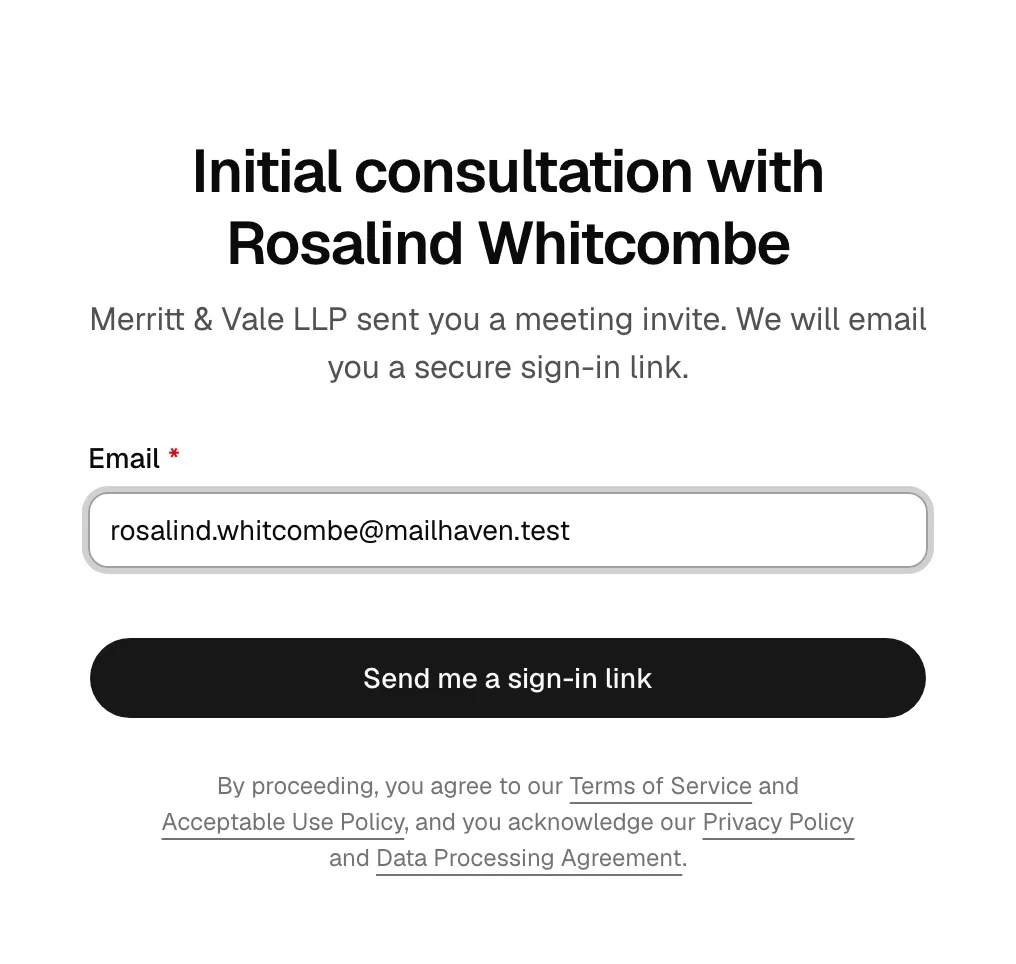
A client already signed in to Esqase sees Signing you in for a moment and then the meeting. A client who is not signed in is taken to their Esqase client portal sign-in panel, which says "Sign in to open your meeting", signs in with a 6-digit code Esqase emails them or with Continue with Google, and lands back on the meeting. How clients sign in covers all of it.
The emailed sign-in link is the fallback on the meeting page itself, shown when the automatic sign-in is refused or does not apply. It needs no account:
- The client sees a sign-in screen asking them to "Enter the email the firm has on file and we will send you a secure sign-in link to view this meeting."
- The client types their email and clicks Email me a sign-in link.
- The page confirms with "Check your email," noting that if that address is on the meeting, a secure sign-in link was sent. (The client can click Use a different email if they entered the wrong one.)
- The client opens the email and clicks the link on the same device. Esqase verifies it ("Signing you in"), then shows the meeting.
Either way the client stays signed in on that device for the next two weeks, so a meeting page they come back to opens straight away. An invitation that asks a client to pick a time is different: it is a one-off link with no meeting behind it yet, and it keeps the emailed sign-in link only.
Important: Every method checks the same thing: the address must be one the firm has on the meeting (the client's own email, or the host's). A client signed in with a different address sees "You're signed in to Esqase with a different email address" and the email sign-in form underneath it. If a client cannot get in, confirm the email address on their contact record matches the one they are entering. Links are single-use and expire; if a link is "invalid or has expired," the client simply requests a new one.
Note: When a client requests a sign-in link for a meeting that is tied to a matter or lead, the link email is recorded on that record's Communications tab in the dashboard, so your team can see that the client asked for access. See Logging communications.
From the Esqase Client app
A client who uses the Esqase Client app sees the meetings they are a guest on in the Events tab, as a calendar or a list, with their reply to each. Tapping a meeting and then View opens this meeting page inside the app, already signed in.
- RSVP and proposing a new time work as described above. When the client changes their reply, the app closes the page and refreshes the meeting.
- Join meeting opens the meeting link in the phone's browser or meeting app.
- If the page cannot be opened in the app, the app says "Open this from your email", and the link in your invitation email still works.
Common questions
Do clients need an Esqase account to book or manage a meeting? No. Booking requires nothing but the public link, and managing a meeting only requires access to the email the firm has on file. A client who does have an Esqase account is simply recognised without waiting on an email.
Can a client cancel a meeting from this page? The per-event page is for confirming attendance (RSVP) and proposing a different time. To cancel outright, the client should RSVP Not going or contact your firm. Removing or canceling the event itself is done by your team from the firm calendar.
The booking link shows "We could not find that booking page." Why? The event type is archived or paused, or the link is mistyped. Restore the event type, or copy a fresh link from Event types and resend it.
A client says no times are available. What should I check? Confirm the host has a weekly schedule (or that your firm availability is set), that the event type's buffers and meeting limits are not too tight, that its Minimum notice is not pushing every open time past the days the client is looking at (a 1 week notice leaves the coming week empty), and that the host's connected calendar is not blocking the whole window as busy. For a round-robin type, also confirm that at least one of its hosts is active and has a calendar in Esqase; the Event types table shows No eligible host when none of them can take bookings.
A client says the time in their email is not the time we agreed. Who is right? Both of you. The confirmation page and the email lead with the client's own time zone and add your firm's time, labeled Firm time (a note in brackets after the time on the page, a line of its own in the email), so the same meeting is written two ways. Compare the Firm time with what you see on your calendar.
Does the Esqase Client app add meetings to the client's phone calendar? No. Meetings appear in the app's Events tab. The app does not write them to the phone's own calendar.
Why does the client not have a meeting link yet? The meeting may not be confirmed yet, or it was confirmed only moments ago. If it is confirmed and still has no link, the event type may be set to Don't add a meeting link, or the host has not connected the provider its location needs. On an Ask customer event type, the client may also have picked an option that is not a video option. See When clients get the meeting link.
Did the client get an email? Yes, as long as they booked with an email address, the event type's Email the client about their booking switch is on, and the booking was not held for review. The confirmation page says "We sent the details to the email address you provided." when it went out, and "Save the details below." when it did not. A held booking's client is emailed once a member approves the meeting, unless the switch is off. See The confirmation email the client receives.