La documentación del producto está disponible solo en inglés.
Connecting Outlook and Zoom
Esqase can connect to your personal Outlook (Microsoft) account so you can send email from your own Outlook address and keep events in sync with your Outlook Calendar, and to your Zoom or Microsoft Teams account so Esqase can create meeting links. These connections work just like the Google ones, they are personal to you, not shared with the rest of your firm, and you manage them from the Integrations page.
This page explains how to connect Outlook email, Outlook Calendar, Zoom, and Microsoft Teams, what each connection unlocks, how to choose which mailbox you send from when you have more than one, how to generate a meeting link on an event, how event types use your Zoom and Teams connections, how to disconnect, and how to remove Esqase from your Zoom account.
Before you begin
A few things to know before you start:
- The connections are yours. Each connection belongs to your individual user account, not to your firm. Other members do not see or share your connections, and disconnecting only affects you.
- You sign in to the provider during the process. Connecting sends you to Microsoft's or Zoom's own sign-in and consent screen, where you choose the account to use and approve the access Esqase is asking for. You can use any account you have access to (it does not have to match the email you use for Esqase).
- No special firm role is required. Because these connections are personal, any signed-in member can connect their own accounts. You do not need owner or administrator access.
- You can mix providers. Connecting Outlook does not replace Gmail, and connecting Zoom does not replace Google Meet. You can have several connected at once and Esqase will offer each where it applies.
Tip: If your firm has not finished configuring a provider on the Esqase side, its Connect button may show a message that connecting is not available right now. See Troubleshooting below.
Opening your Integrations page
All of your personal connections live on one page.
- In the sidebar, click Integrations. (You can also click the Integrations card on the Settings page.)
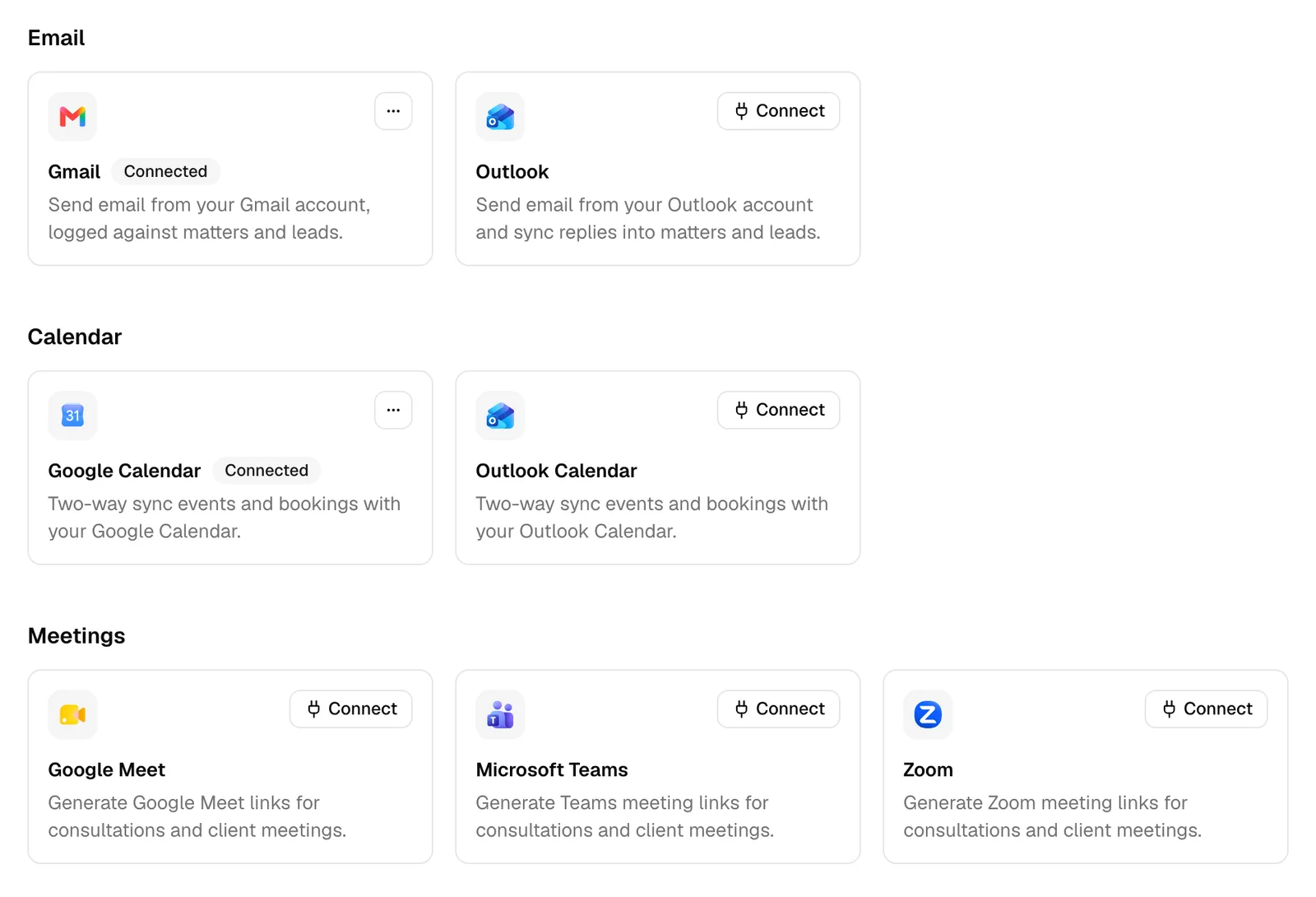
- The page is grouped into categories such as Email, Calendar, and Meetings. Outlook lives under Email, Outlook Calendar under Calendar, and both Zoom and Microsoft Teams under Meetings.
Each card shows the provider name and a short description of what it does. A card that is not connected shows a Connect button. Once connected, the card shows a Connected badge and a more options (⋯) menu that lists the connected account and a Disconnect action.
Connect Outlook for email
Connecting Outlook lets Esqase send email through your own Outlook account and bring replies back into the app.
- Under Email, find the Outlook card.
- Click Connect.
- You are redirected to Microsoft. Sign in (if prompted) and choose the Outlook account you want to use.
- On Microsoft's consent screen, review the access Esqase is requesting and approve it.
- Microsoft sends you back to Esqase, which confirms Outlook connected as followed by the address you chose. Click Back to Integrations. The Outlook card now shows a Connected badge. Open the card's more options (⋯) menu to see the address you connected and to Disconnect.
📷 Screenshot: Microsoft's consent screen for the Outlook connection, with the account picker and the approve button highlighted.
What connecting Outlook enables
Once Outlook is connected:
- You can send email from your own Outlook address inside Esqase (for example, when emailing a client from a matter or sending a templated message). The recipient sees the message coming from your Outlook account.
- Each message is recorded on the matter or lead against Outlook, the mailbox it actually went out from.
- Replies to those emails are pulled back into Esqase and recorded so the conversation stays attached to the right matter or lead.
Note: Outlook on its own is enough. You do not also need Gmail connected: with Outlook connected, the email composer sends through it and works in full. See Sending email.
Note: If neither Gmail nor Outlook is connected, the composer still opens. Esqase hands the finished message to your own mail app instead of sending it for you, and asks what to record. See Send from your own mail app.
Important: Emails sent through Outlook used to be recorded as though they had gone out through Gmail, and as a side effect client replies to them were never pulled back into the matter. Both are fixed, and both now work for messages sent from the fix onward. Emails sent before it keep the mailbox they were recorded with at the time and cannot be corrected retroactively, so replies to those older conversations still have to be logged by hand. See Logging communications.
Connect Outlook Calendar
Connecting Outlook Calendar keeps your Esqase events and your Outlook Calendar in step with each other.
- Under Calendar, find the Outlook Calendar card.
- Click Connect.
- You are redirected to Microsoft. Choose the account to use and sign in if prompted.
- On the consent screen, review the calendar access being requested and approve it.
- Microsoft returns you to Esqase, which confirms Outlook Calendar connected as followed by the address you chose. Click Back to Integrations. The Outlook Calendar card now shows Connected and the connected address.
What connecting Outlook Calendar enables
Once Outlook Calendar is connected:
- The meetings already on your Outlook Calendar for the year ahead are imported on the first sync, so your existing commitments start blocking your booking slots right away. You do not have to wait for them to change, or recreate them by hand.
- Events you create in Esqase (for matters and from bookings) are sent to your Outlook Calendar, so they appear alongside the rest of your schedule.
- Changes flow both ways, keeping your Esqase calendar and Outlook Calendar aligned.
- An event whose Show as is Free, and a meeting invitation you declined, do not hold your time, so neither blocks your booking page.
- An all-day event blocks that full day on your own clock, not a day shifted by your timezone.
Note: Events push to every calendar you have connected. If you connect both Google Calendar and Outlook Calendar, an event you create in Esqase appears on both, and changes made in either place sync back. To see how events behave inside Esqase, read Calendar and events.
Court dates on your Outlook Calendar
If your firm uses court rules and court dates are put on your calendar, Outlook Calendar receives them a little differently from other events:
- Esqase copies each court date to your Outlook Calendar without inviting anyone, so nobody is emailed.
- An all-day court date shows there as free time, so it does not block your day. A timed hearing or trial shows as busy.
- When a court date leaves your calendar in Esqase (it is vacated, marked not applicable, or removed) or its calendar entry is deleted, Esqase deletes the copy from Outlook Calendar, again without emailing anyone.
- If Outlook refuses the removal, for example because Esqase's access was removed from your Microsoft account, the copy stays and you need to delete it by hand. The matter's activity timeline records that it could not be removed.
- Moving or deleting the copy in Outlook Calendar never changes the court date in Esqase.
See Court dates and your connected calendar.
Connect Zoom
Connecting Zoom lets Esqase generate a Zoom meeting link when you schedule a meeting. Start the connection from your Integrations page in Esqase.
- Under Meetings, find the Zoom card.
- Click Connect.
- You are redirected to Zoom. Sign in if prompted, using the Zoom account you want your meetings created in.
- On Zoom's consent screen, review the access Esqase is requesting (described below) and approve it.
- Zoom sends you back to Esqase, which confirms Zoom connected as followed by the email address of your Zoom account. Click Back to Integrations. The Zoom card now shows a Connected badge. Open the card's more options (⋯) menu to see the Zoom account you connected and to Disconnect.
What Esqase can access in your Zoom account
Esqase asks Zoom for two permissions, and nothing broader:
- Create meetings for you. Esqase uses this when you click Generate Zoom link on an event, and when a booking you host is confirmed on a Zoom event type set to generate links (see Meeting links for event types).
- Read your basic Zoom profile. Esqase reads your Zoom account's ID and email address when you connect. It uses them to show which Zoom account is connected, and to recognize your connection if you later remove Esqase from your Zoom account.
Esqase does not ask for access to your existing meetings, recordings, chats, or contacts.
What connecting Zoom enables
Once Zoom is connected, the event form shows a Generate Zoom link button, so a join link is ready to share when you schedule a consultation or client meeting (see Generate a meeting link on an event). This sits alongside Google Meet and Microsoft Teams: connect any of them (or several) and use whichever you prefer for a given meeting.
- Each click of Generate Zoom link creates a new meeting in your Zoom account, named Meeting, and fills its join link into the event's Meeting link field.
- The button does not send the event's title, date, time, or guests to Zoom, so that meeting in your Zoom account does not show them. The event in Esqase is where the schedule and the guest list live.
- Deleting the event, or clearing its Meeting link, does not delete the meeting from your Zoom account.
Connect Microsoft Teams
Connecting Microsoft Teams lets Esqase generate a Teams online meeting link when you schedule a meeting.
- Under Meetings, find the Microsoft Teams card.
- Click Connect.
- You are redirected to Microsoft. Sign in if prompted and choose the account you want to use.
- On Microsoft's consent screen, approve the requested access.
- After Microsoft returns you to Esqase and the connection finishes, click Back to Integrations. The Microsoft Teams card shows Connected.
What connecting Microsoft Teams enables
Once Microsoft Teams is connected, Esqase can create a Teams meeting link for consultations and client meetings, so a join link is ready to share when you schedule the meeting. Teams works alongside Google Meet and Zoom: connect whichever you prefer (or several) and choose per meeting. Microsoft Teams event types use this connection too; see Meeting links for event types.
📷 Screenshot: Microsoft's consent screen for the Microsoft Teams connection, with the account picker and the approve button highlighted.
Choosing which mailbox you send from
If you connect both Gmail and Outlook, Esqase lets you choose which mailbox each email goes out from.
- Start an email anywhere you would normally send one (for example, from a matter or lead).
- In the composer, open the From menu. It lists your connected email accounts by their addresses.
- Choose the account you want to send as, then finish and send your message. The recipient sees it coming from the address you picked.
If only one email account is connected, there is no choice to make: Esqase sends from that account, and the From line simply shows which one.
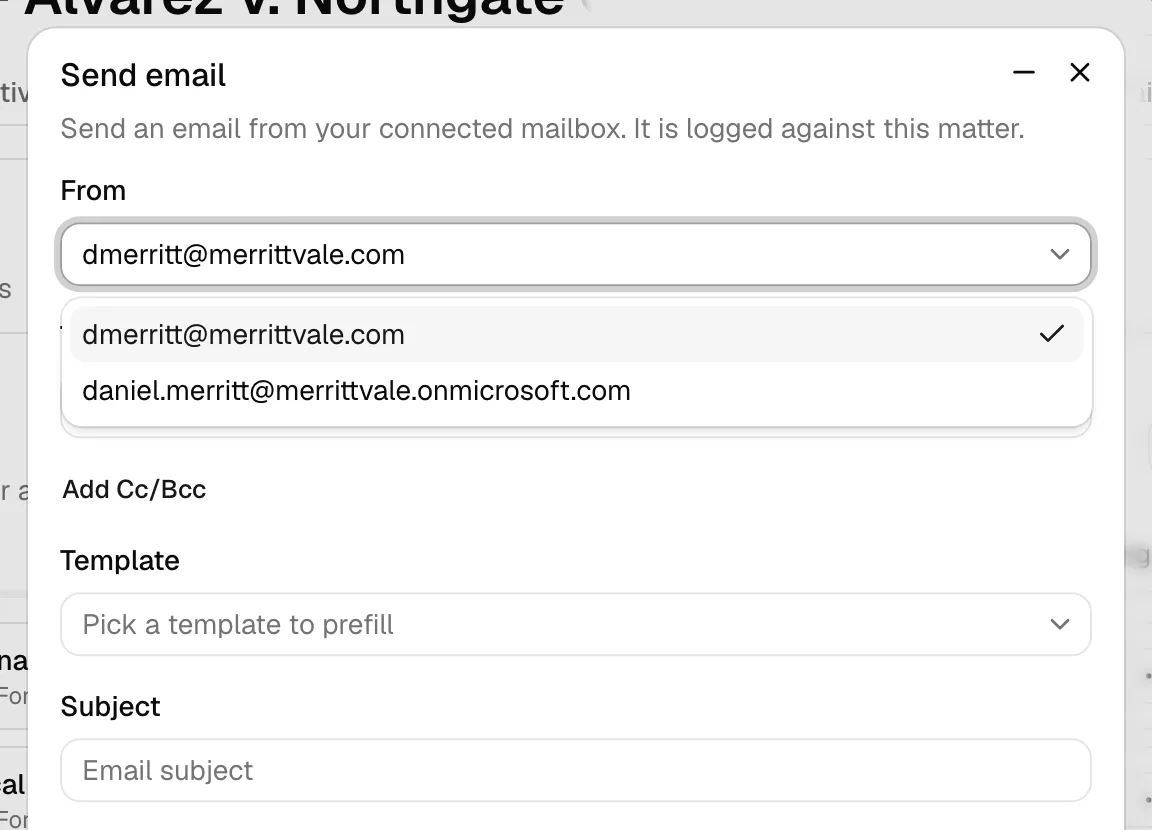
Tip: The From picker only appears when you have more than one email account connected. Connect a second one on the Integrations page if you want the choice.
Generate a meeting link on an event
When you add or edit an event that needs a video link, Esqase can create one for you from a connected meeting provider.
- Open the event form (for example, when creating an event on a matter or from the calendar).
- Find the Meeting link field.
- Click Generate Zoom link, Generate Teams link, or Generate Google Meet link, depending on which provider you want to use. The link is filled into the Meeting link field.
- Save the event. The meeting link travels with it, so everyone invited can join.
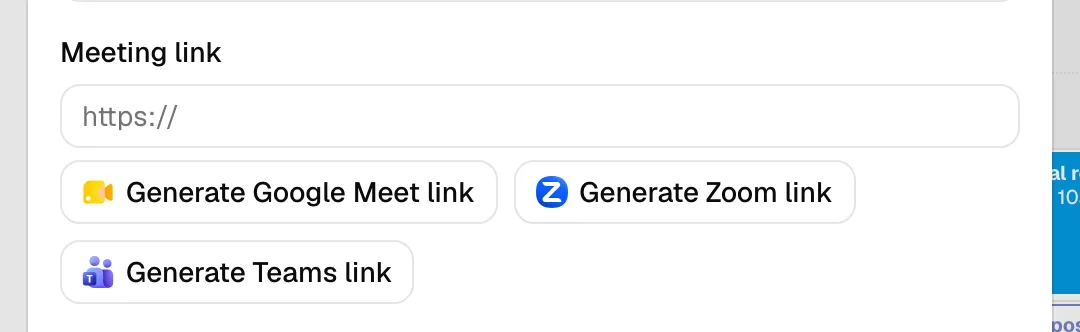
Note: Each button appears only when its provider is connected: Generate Zoom link when Zoom is connected, Generate Teams link when Microsoft Teams is connected, and Generate Google Meet link when Google Meet is connected. If none of them is connected, the event form shows a link to connect a meeting provider on the Integrations page so you can enable automatic meeting links. You can always paste a link into the Meeting link field by hand instead.
Meeting links for event types
Your Zoom and Microsoft Teams connections also serve your event types. When a booking you host is confirmed on a Zoom or Microsoft Teams event type whose Meeting link is set to Generate a new link for each confirmed booking, Esqase creates the meeting in your own Zoom or Teams account and adds its join link to the meeting, so your client gets it once the booking is confirmed. It is named after the meeting in Esqase and set to its start time and length, and no guests are sent. The connection has to match the location: a Zoom event type needs your Zoom connection and a Teams event type your Microsoft Teams connection. If it is not connected, no link is made for your bookings, and Esqase does not use Google Meet, Outlook, or another member's account instead. See Meeting link for video locations.
The generated link also appears in your firm's own emails about the meeting, such as the confirmation email a workflow Event step sends, on their "Join the meeting" line. See Add the meeting link to an event email.
Check status and disconnect
The Integrations page is where you check each connection and turn one off.
- A connected card shows a Connected badge and a more options (⋯) menu; open it to see the account it was connected with and a Disconnect action. A card that is not connected shows a Connect button and no badge.
- To disconnect, open the card's more options (⋯) menu and click Disconnect. Esqase revokes its access to that service for your account, so it can no longer send email, sync events, or create meeting links on your behalf through that connection.
- Disconnecting removes the connection only for you. It does not affect other members. Anything already saved (past emails, existing events, links already added to meetings) stays in place.
- You can reconnect at any time by clicking Connect again and going through the consent screen.
Important: Disconnecting a service you actively use stops the features it powers. For example, disconnecting Outlook stops you from sending email through your Outlook address in Esqase. Reconnect when you are ready to use those features again.
Remove Esqase from your Zoom account
You can also end the Zoom connection from Zoom's side, by removing Esqase from the apps added to your Zoom account. You do not need to open Esqase to do this.
- Go to the Zoom App Marketplace at marketplace.zoom.us and sign in with the Zoom account you connected to Esqase.
- In the bottom left corner, click My Library.
- Find Esqase in the list.
- Under the Actions column for Esqase, click the More icon, then click Remove.
- A Remove App window appears. Optionally choose a reason from the drop-down menu, then click Remove to confirm.
You can do the same from the Zoom Workplace desktop app: click the Marketplace tab (if you do not see it, click More, then Marketplace), then follow steps 2 to 5.
Note: If your Marketplace shows Manage instead of My Library, click Manage, then Added Apps, and click Remove next to Esqase.
What happens when you remove Esqase in Zoom
- Zoom notifies Esqase that you removed the app, and Esqase disconnects Zoom for your Esqase account.
- Esqase erases the Zoom connection details it stored for you: the tokens Zoom issued to Esqase, and the email address and ID of the Zoom account you connected.
- On your Integrations page, the Zoom card shows Connect again, the event form no longer offers Generate Zoom link, and Zoom event types stop creating links for the bookings you host until you connect again.
- Meeting links already added to events stay on those events. Esqase does not change or delete them.
- Only the Zoom connection ends. Your other connections, such as Outlook or Google Meet, are not affected.
- If colleagues connected the same Zoom account to their own Esqase accounts, removing the app disconnects Zoom for each of them.
You can reconnect at any time: on the Integrations page, click Connect on the Zoom card and approve the access again.
Troubleshooting
- The consent screen was cancelled or declined. If you close or deny the provider's consent screen instead of approving it, the connection does not complete. Click Connect again and approve the requested access.
- The connection did not finish. Something can go wrong on the provider's side during the handoff. Wait a moment, then click Connect again to retry.
- Connecting is not available right now. This means that provider is not configured for your firm's Esqase environment yet, so its Connect button cannot start the process. This is a setup item handled by whoever administers your firm's Esqase account, not something you can fix from this page. Check back later, or ask your firm administrator whether the provider is enabled.
- Sending email still fails after connecting. The provider sometimes withholds the lasting permission Esqase needs if you approved Esqase before. Remove Esqase from that account's connected apps, then connect again from the Integrations page so the provider issues a fresh, full approval.
- Zoom asks for your admin's approval. Some Zoom accounts allow only apps that the account owner or an admin has approved. If Zoom says the app needs approval, or offers Request instead of letting you approve, ask your Zoom account owner or admin to approve Esqase, then click Connect on the Zoom card again.
- Generate Zoom link says Zoom is not connected. The message Connect Zoom in integrations to generate meeting links means your Zoom connection has ended, for example because Esqase was removed from your Zoom account. Connect Zoom again from the Integrations page.
- Generate Zoom link fails. The message We couldn't generate a meeting link. Please try again in a moment means no meeting was created. Wait a moment and try again. If it keeps failing, disconnect Zoom on the Integrations page and connect it again.
Common questions
- Do I need to connect all of them? No. Connect only the services you use. Each one is independent, and you can add or remove them at any time.
- Will my colleagues use my Outlook, calendar, or Zoom? No. These connections are personal. Each member connects their own accounts.
- Can I use Gmail and Outlook together? Yes. When both are connected, the email composer shows a From picker so you can choose which mailbox each message sends from.
- Can I use Google Meet, Microsoft Teams, and Zoom together? Yes. When several are connected, the event form offers a button for each, so you can pick per meeting. An event type always uses the provider its location names.
- Is disconnecting reversible? Yes. Disconnecting simply removes access. You can reconnect whenever you like by clicking Connect again.
- Can I remove Esqase from my Zoom account instead of disconnecting in Esqase? Yes. Remove it from the apps added to your Zoom account, as described in Remove Esqase from your Zoom account. Esqase then disconnects Zoom for you, and you can reconnect later from the Integrations page.