La documentación del producto está disponible solo en inglés.
Converting a lead to a matter
A lead is a prospective client you are still deciding whether to take on. A matter is an active case you are working. Converting a lead to a matter is the moment a prospect officially becomes a client: Esqase creates a new matter from the lead's details, marks the lead as hired, and links the two together so nothing has to be re-typed.
This page explains when to convert, the two ways conversion can happen (a quick template-based conversion or the full new-matter form), what information carries over, what changes about the lead afterward, and how a workflow can convert leads for you automatically.
Before you begin
- You need a lead. Conversion starts from an existing lead. To create or work with leads, see Managing leads.
- From the header, the lead must be hired first. The Convert to matter button in the lead's header only appears on a lead that has been marked as hired. If the lead is still in your intake pipeline, mark it Mark as hired first. (The workflow-item path below is the exception: a Convert to matter or Invoice workflow item can convert whether or not the lead is hired, and marks it hired for you.)
- You need permission to create matters. Conversion creates a new matter. If your role does not include create access for matters, the new-matter form will show a no-access message and the conversion cannot complete. Firm owners, administrators, and attorneys can create matters by default; staff roles are view-only for matters unless your firm has changed that. See Roles and permissions.
- A practice area helps. Conversion places the new matter into a practice area and a pipeline stage. If you convert with a matter template, the template supplies the practice area; otherwise you choose one in the form. See Practice areas and stages.

When to convert a lead
Convert a lead once you have decided to represent the client and you are ready to start doing the work. Until then, keep the prospect as a lead so you can track it through your intake pipeline, run conflict checks, and gather information without cluttering your active caseload.
A few signals that it is time to convert:
- The client has agreed to engage your firm.
- You are ready to begin tracking tasks, time, documents, and billing against the case.
Esqase runs a conflict check inside the convert dialog and inside Mark as hired, and holds the button until you acknowledge any high-priority matches, or acknowledge that the check could not be completed. Reviewing the results and deciding whether a conflict exists stays with you. See Running a conflict check.
Tip: You do not have to convert immediately. You can mark a lead as hired to record the outcome, finish any intake steps, and convert later. A hired lead stays editable and can still be put back to your kanban or converted whenever you are ready.
Convert a lead to a matter
There are two paths to conversion, and Esqase chooses between them for you based on whether you pick a matter template. Both start the same way.
- Open the lead from your intake pipeline. In the sidebar, click Intake, then open the Leads area and click the lead you want to convert.
- If the lead is not already hired, click Mark as hired. Once it is hired, the Convert to matter button appears in the header.
- Click Convert to matter.
What happens next depends on whether your firm has any active matter templates.
If your firm has matter templates: the template picker
A matter template is a saved blueprint for a kind of case (practice area, billing setup, default team, starting tasks, and so on). If at least one active template exists, Esqase opens the Convert to a matter dialog so you can pick one.
![The convert dialog titled "Convert [lead number] to a matter", showing the Matter template dropdown with the placeholder "No template (open the new-matter](images/converting-leads-to-matters/convert-template-picker.webp)
- At the top of the dialog, a Conflict check panel screens the lead's contact against your firm's records. It starts on its own when the dialog opens, unless you already ran a check from the lead's header, in which case those results are reused. Review the results before you go further. See Running a conflict check.
- If the check found high-priority matches, a checkbox appears reading I have reviewed the [n] high-priority matches and choose to proceed. If the check could not be completed, it reads I understand the conflict check could not be completed and choose to proceed instead. The conversion button stays disabled until you tick it.
- In the Matter template dropdown, choose the template that best matches this case. The dropdown is searchable, so start typing to filter.
- To create the matter immediately, leave a template selected and click Convert to matter. Esqase builds the new matter in the background and takes you straight to it. You will see a "Lead converted to matter" confirmation.
- To review every detail before saving instead, leave the Matter template field empty (the placeholder reads "No template (open the new-matter form)"). The button label changes to Open new-matter form. Clicking it opens the full new-matter form seeded from the lead (see the next section).
Note: The screening is saved against the lead, so it stays available afterward under Previous conflict checks in the lead's Conflict check dialog.
When you convert with a template, Esqase fills the new matter from the lead's details plus the template's blueprint, with no further input required:
- The matter is titled after the lead's primary contact (for example, "Jane Doe matter").
- The lead's contact becomes the matter's primary client and bill recipient.
- The practice area, matter types, default team, view permissions, billing setup, and starting tasks come from the template.
- If the template carries a court, your firm has court rules turned on, and your role can add court dates, the matter gets that court too. Its case number, judge, and other case details start empty, so fill them in on the matter. See Applying court rules to a matter.
- The matter's open date is set to today.
- The matter is placed into the template's pipeline stage. If the template did not capture a stage, Esqase uses the first stage of that practice area.
Note: Templates do not carry custom-field values, so a templated matter starts with its custom fields empty (you fill them on the matter afterward). The same is true for the statute-of-limitations date and any related contacts: add those on the matter once it exists.
Important: If the template you pick has since been archived or deleted, Esqase cannot use it. It tells you "That matter template is no longer available, so the new-matter form was opened instead" and switches you to the full new-matter form so the conversion can still go through.
If your firm has no templates (or you want full control): the new-matter form
If your firm has no active matter templates, the convert dialog still opens (it runs the conflict check and confirms the conversion), but the Matter template dropdown reads "No active matter templates" and the button reads Open new-matter form. Clicking it opens the full new-matter form, already seeded from the lead. You also reach this form on purpose by leaving the template field empty in the picker.
This is the same step-by-step matter form used for any new matter, so you can review and adjust every detail before saving. For a full walkthrough of each step, see Creating a matter.
- The form opens with the lead's information pre-filled (see "What carries over" below). Work through the steps: Customers, Matter information, Custom fields, Assignees, View permissions, Related contacts, Billing, Document folder, Tasks, and Workflow.
- Adjust anything that needs changing, and fill in details the lead did not have (such as billing method, statute-of-limitations date, or team assignments).
- Save the matter to finish the conversion.
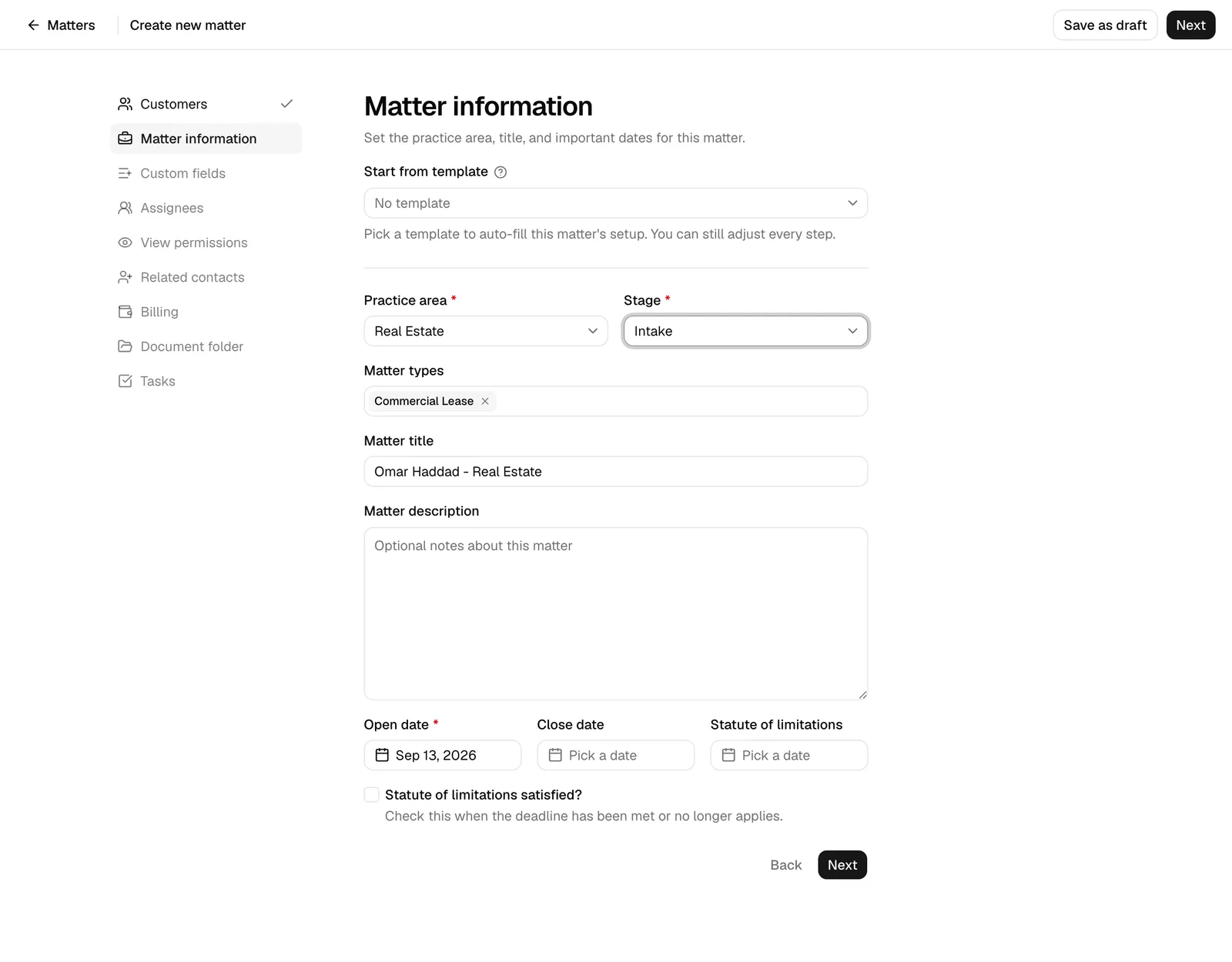
Tip: The new-matter form path is the right choice when the case needs details the lead did not capture, when no template fits, or when you simply want to confirm everything before the matter is created.
What carries over from the lead
Conversion is designed so you do not re-enter information you already gathered during intake. The exact set depends on which path you take, but in both cases the lead's core details flow into the new matter.
Carried over in both paths:
- The client. The lead's contact becomes the matter's primary client and bill recipient.
- A matter title. Esqase suggests a title based on the contact's name (for example, "Jane Doe matter"). You can change it in the new-matter form before saving; the template path uses the suggested title as-is.
- The practice area and matter types. The lead's practice area and any matter types it was tagged with are applied to the matter.
- The document folder. If the lead had collected documents, that folder is carried into the matter so files stay with the case.
- The lead's workflow checklist. Any workflow steps that were attached to the lead move onto the new matter, so the intake checklist continues on the case. See Workflows and the builder.
- Communications. Emails and other logged communications tied to the lead stay associated with the new matter.
Path-specific behavior:
- Template path: the practice area, matter types, team, view permissions, billing setup, and starting tasks come from the template, along with its court when it has one; the open date is set to today; custom fields and the statute date start empty.
- New-matter form path: the lead's contact, practice area, matter types, suggested title, and document folder are pre-filled, and you supply everything else (billing, team, statute date, custom fields, related contacts) as you would for any new matter.
Note: Custom-field values entered on the lead do not automatically transfer to the matter today. After converting, re-enter any custom-field values you need on the matter. See Custom fields.
What changes about the lead after conversion
Once a lead has been converted, Esqase locks it so the prospect's record is preserved exactly as it stood at conversion, and links it to the matter it became.
- The lead is marked hired and locked. Its status is set to hired, and it now has a matter attached. The Edit and Archive options for the lead are disabled, because the live case is now the matter, not the lead.
- The status actions are replaced by a shortcut. The Mark as not hired, Put back to leads kanban, and Convert to matter buttons disappear. In their place, a View matter button appears in the lead's header so you can jump straight to the case the lead became.
- The outcome tables show it as hired. The lead appears under the Hired tab in your leads view. Because it is now converted (it has a matter), you cannot put it back to intake from there; use View matter to reach the case instead.

Note: A lead that is merely marked hired (but not yet converted) is different: it stays editable, and you can still unmark it, put it back to your kanban, or convert it. The lock only applies once an actual matter exists.
Convert automatically with a Convert to matter workflow step
If your firm runs the same intake steps on every lead, you can let a workflow handle conversion as part of that sequence. A workflow is a reusable checklist of steps that attaches to a lead; one of the available step types is Convert to matter.
Add the step when building a workflow
- Open your workflow in the builder. See Workflows and the builder.
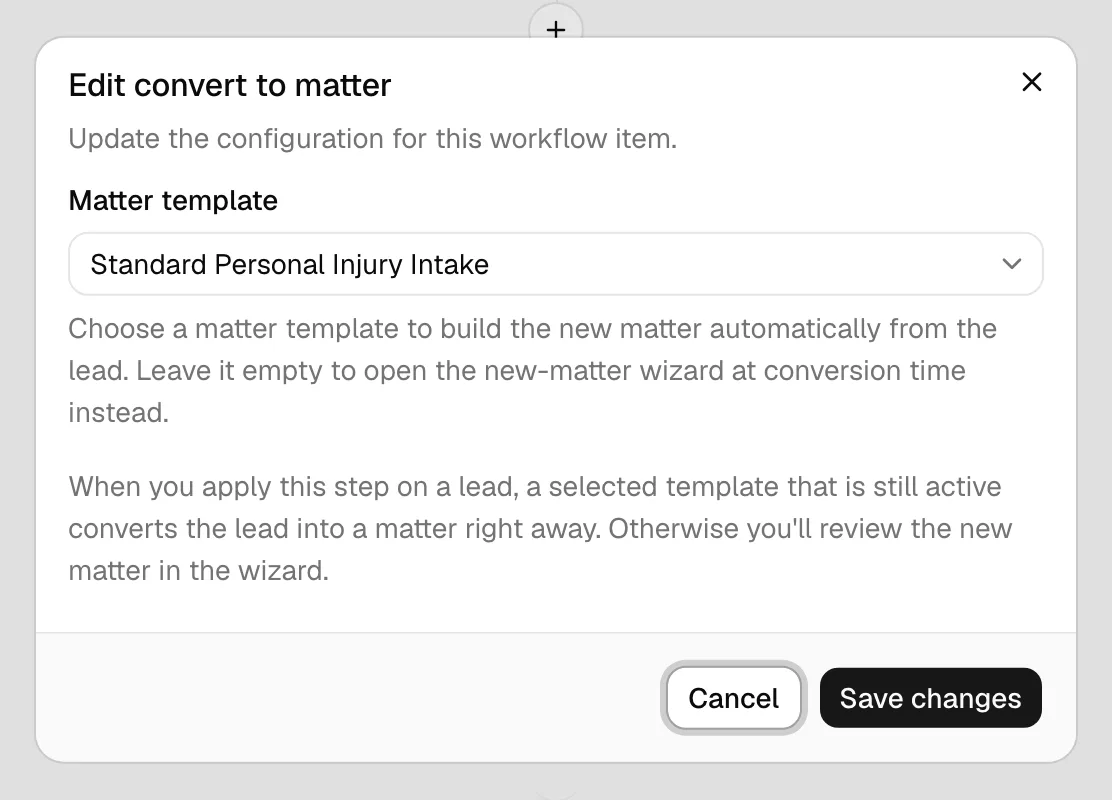
- Add a step and choose the Convert to matter type. Its description reads "Convert this lead into a matter".
- In the step's Matter template field, optionally choose the template the conversion should use. The field is searchable, and the same placeholder, "No template (open the wizard)", applies.
- Pick a template to convert headlessly when the step is applied: as long as that template is still active at conversion time, the lead becomes a matter immediately with no form to fill.
- Leave it empty to open the full new-matter form at conversion time so a team member reviews the matter before it is created.
- Save the step.
Apply the step on a lead
When a workflow is attached to a lead, its steps appear as a checklist on the lead detail page. The Convert to matter step opens the same convert-to-matter dialog as the header action, but with one convenience: you do not have to mark the lead hired first.
- Open the lead and find the Convert to matter item in its workflow checklist.
- Click Convert to matter on the step. It works whether or not the lead is hired, and converting marks the lead as hired for you as part of the conversion.
- The convert-to-matter dialog opens so you can confirm. It runs the conflict check on the lead's contact first, and holds the conversion button until you acknowledge any high-priority matches, or acknowledge that the check could not be completed. Then, if your firm has matter templates, pick one:
- If you pick a still-active template, the conversion runs from the lead's details plus the template and the step is marked complete.
- If you leave the template empty (or the chosen template was archived or deleted), the new-matter form opens, seeded from the lead, for you to review and save.
- After conversion, the step is checked off and, like the rest of the lead's workflow, moves onto the new matter, where the remaining steps continue.
Tip: An Invoice workflow step does run on a lead, and it does not wait for a conversion. Invoices belong to a matter, so Esqase puts the draft on a small pre-engagement invoicing matter linked to the lead, which it creates the first time you bill that lead and reuses for every invoice after it. The lead itself is not marked hired, converted, or done, so you can bill a consultation without deciding whether to take the case. If you convert the lead later, the billing carries on in the real matter. See Creating and sending invoices.
Troubleshooting
- I do not see a Convert to matter button. The lead is probably not hired yet, or your role does not allow changing lead status. Mark the lead hired first, and confirm your permissions with your firm owner.
- It opened the form instead of converting instantly. That is expected when no template is selected, when the chosen template was archived or deleted, or when your firm has no active templates. Review and save the matter in the form to finish.
- Convert to matter is gone and I see View matter. The lead has already been converted. Click View matter to open the case it became.
- My custom fields are blank on the new matter. Custom-field values do not transfer automatically yet. Re-enter them on the matter. See Custom fields.
Common questions
- Does converting delete the lead? No. The lead is kept (marked hired and locked) and linked to the matter, so you retain the full intake history.
- Can I convert a lead that was never marked hired? Conversion always results in a hired lead. From the header you mark it hired first; from a workflow item's Convert to matter button you can convert directly whether or not the lead is hired, and Esqase marks it hired for you as part of the conversion.
- Can I undo a conversion? Conversion is one-directional. Once a matter exists, the lead is locked to it. If a matter was created in error, manage it from the matter side (for example archive it). See The matter workspace.