La documentación del producto está disponible solo en inglés.
Workflow step types
A workflow is an ordered list of steps that you attach to a lead or a matter. Each step is one action, like sending an email, creating a task, screening for conflicts, or converting a lead into a matter. Every step also carries a How it runs block that says who does it, when it starts, and what counts as finished.
This page explains the shared How it runs settings, then every step type, the fields you fill in, and what the step does on a real lead or matter. For creating a workflow and using the builder, see Workflows and the builder. For what happens once automation is on, see How automation runs your workflows.
Before you begin
- You build and edit workflow steps in the workflow builder, which opens when you create or edit a workflow under Workflows in the sidebar.
- You need a role that includes Update access for workflows to add, edit, or remove steps. Without it you can open a workflow but the Add workflow item controls will not appear.
- Some step types reference other records. To pick them, you need at least one of the matching items set up first:
- Email, Form, Event, and Invoice steps can start their emails from your Email templates, and you can then edit the wording in the step. Esqase ships preset templates, and you can create a new one from inside the step using the New email template action.
- Form steps need at least one form.
- Event steps can optionally use an event type.
- Task list steps need at least one task list.
- Document steps can optionally copy from a document template.
- Convert to matter steps can optionally use a matter template.
- Invoice steps use your activity categories.
Important: Adding steps only builds the template. Steps do something once the workflow is attached to a lead or matter. A step set to Manual always waits for a team member. A step set to run on its own only runs when the workflow's Automation switch is on and automation is not paused for your firm.
Adding a step
Every step type is added the same way. The differences are in the configuration screen that follows.
- In the sidebar, click Workflow, then open the workflow you want to edit (or create a new one).
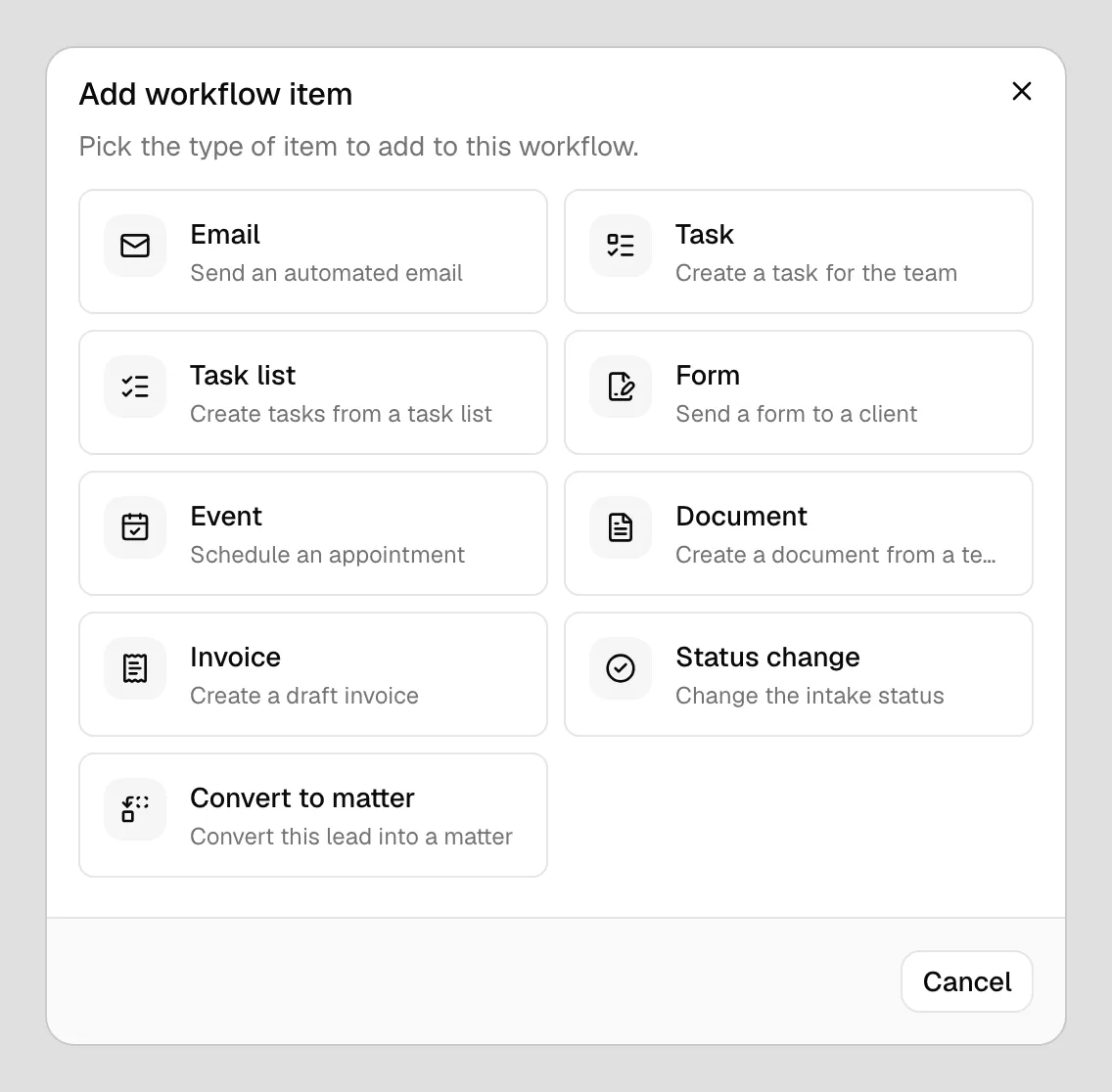
- In the builder, click the + button on the chain line between two steps, or Add workflow item if the workflow is empty. This opens the Add workflow item dialog.
- Choose a step type from the grid. Each tile shows the type name and a short description:
- Email (Send an automated email)
- Task (Create a task for the team)
- Task list (Create tasks from a task list)
- Form (Send a form to a client)
- Event (Schedule an appointment)
- Document (Draft from a template)
- Invoice (Create a draft invoice)
- Status change (Change the intake status)
- Convert to matter (Convert this lead into a matter)
- Conflict check (Screen the client for conflicts)
- Set How it runs at the top of the configuration screen, then fill in the fields for that type.
- Click Add to workflow. The step appears on the canvas at the position you chose.
- When you are finished, click Save in the builder toolbar to store the whole workflow.
Tip: To change a step later, open its ... menu on the canvas and click Edit. The dialog title changes to Edit ... and the button reads Save changes instead of Add to workflow. Editing a step does not save the workflow on its own; click Save in the toolbar afterward.
How it runs
Every step type opens with the same How it runs block above its own fields.
📷 Screenshot: The How it runs block at the top of a step's configuration screen, showing Run mode, Starts, Done when, the Only run if switch, and If the condition is not met.
Run mode
Run mode decides who does the work:
- Manual: "A team member runs this step from the lead or matter." Nothing happens until someone opens the record and runs it.
- Automatic: "Esqase runs this step on its own."
- Automatic, needs approval: "Esqase prepares this step and waits for someone to approve it." Esqase gets everything ready, for example writing the email or drafting the invoice, then holds it for a member to look over.
Two things can lock the picker:
- Convert to matter always reads Convert to matter always asks a member. Converting a lead is never done unattended.
- A type Esqase cannot run yet reads This step type cannot run automatically yet.
Note: Your firm can require approval for whole types of step. A step set to Automatic whose type needs approval still waits for a member. Your firm owner or administrator sets that under What needs approval in Automation settings.
Starts
Starts decides when the step begins once the step before it is finished:
- After the previous step is done: as soon as the one above it finishes.
- A set time after the previous step: type a number and choose Minutes, Hours, Days, Business days, or Weeks. Business days skip Saturdays and Sundays.
Waits are counted in your firm's time zone. Emails, form requests, meeting invites, and reminders also respect the sending window your firm sets, so a step that comes due outside those hours goes out when the window next opens. Tasks, documents, invoices, and status changes are created straight away whatever the window says.
Done when
Done when decides what marks the step finished, which is what lets the next step start. The picker only appears when the type offers more than one choice:
| Step type | Choices |
|---|---|
| Form | The step runs, The client sends the form back |
| Event | The step runs, The meeting is confirmed |
| Task | The step runs, The task is done |
| Invoice | The step runs, The invoice is approved, The invoice is paid |
| Conflict check | The step runs, The conflict check is cleared |
| Email, Task list, Document, Status change, Convert to matter | The step runs |
A Conflict check step behaves the same way whichever of its two choices you pick: it is done when the screen finds nothing that blocks it, and it waits for you when it does.
Esqase preselects the choice most firms want: the client outcome on a Form, an Event, and a Conflict check step, and The step runs everywhere else.
Pick The step runs when the workflow should carry straight on, and a client outcome when the next step must not happen until the client responds. A step waiting on a client sits in a Waiting state and can chase the client with reminders.
Note: On a lead, a task step is done as soon as the task is created, even if you chose The task is done. The builder says so under the picker. On a matter, the step waits until someone ticks the task off.
Only run if
Turn on Only run if to give the step a condition. The step then runs only when everything you list is true.
- Turn the Only run if switch on. One condition row appears.
- Pick the field to test:
- Lead source, Lead stage, Lead status, Lead type (a person or a company), Assigned member,
- Practice area, Matter stage,
- Previous step, which tests how the step above it ended.
- Pick how to compare: is, is not, is one of, is not one of, is empty, or is set. is one of and is not one of let you choose several values at once, and is empty and is set need no value at all.
- Pick the value.
- Click Add another condition for more rows. Every row must be true for the step to run.
- A plain sentence under the rows shows what you have built, for example This step runs only when the lead source is Website.
Then choose If the condition is not met:
- Skip this step and carry on: the step is marked skipped and the workflow moves to the next one.
- Stop the workflow here: this step and everything below it are skipped, and the workflow finishes.
Note: A condition is checked against the record the workflow is running on. After a Convert to matter step the workflow keeps the lead it came from as well as the new matter, so lead conditions are still checked on the matter. Matter fields are not available while the record is still a lead, and a field Esqase cannot check counts as "not met", so the step is skipped (or the workflow stops, if that is what you chose). Keep matter conditions below the Convert to matter step.
Email step
An Email step sends one email that you write in the step, either from scratch or starting from a saved template. Use it for a welcome message, a "we received your inquiry" note, or any standard message you send at a point in your process.
- In the Add workflow item dialog, choose Email.
- Under Email, you can pick a Template ("Pick a template to prefill") to start from one of your saved email templates. This is optional. Esqase copies the template's subject and body into the fields below and adds your firm's default email signature to the end of the body. Picking a template replaces whatever subject and body you had so far.
- The dropdown is searchable. Start typing to filter your templates.
- If you do not have a suitable template yet, click New email template at the bottom of the dropdown to create one without leaving the workflow. Esqase picks the new template and copies it in for you.
- Write or edit the Subject (required, up to 256 characters) and the Body (required). A new step starts with an empty subject and your firm's default email signature in the body.
- To personalize the email, type placeholder keys such as
{{contact_firstname}}. The Available placeholders panel under the email lists the keys this step can fill; click See more to show them. See Placeholders in step emails. - Click Add to workflow.
The step is named after the template you picked, or after the subject when you did not pick one.
📷 Screenshot: The Email step configuration with the Template dropdown, the Subject field, the Body editor ending in the firm signature, and the Available placeholders panel below.
What it does: the email goes to the client on the record, with placeholders like the contact's name filled in from the record. Run by hand, it opens your email composer with the step's subject and body already filled in, ready to check and send. Run by Esqase, it is sent for you from your firm's name exactly as written in the step, signature included, and the step is done once it has gone out. See How automation runs your workflows.
Note: The step keeps its own copy of the subject and body, so later edits to the template you started from do not change it. A step set to Automatic, needs approval writes the email when it prepares the step, and that is the wording you review and send. Email steps added before you could write the email in the step keep sending their template, with your firm's default email signature added. Open one and the editor shows that template's text with the signature; save it and the step keeps its own copy from then on.
Placeholders in step emails
Every step that sends an email (Email, Form, Event, and Invoice) has the same Available placeholders panel, and it only lists the keys Esqase can fill for that kind of step. A Form step adds the form's title and link, an Event step adds the meeting keys, and an Invoice step adds the invoice number, amounts, dates, and payment link.
- Firm and sender details that have no value, for example a firm phone number you never entered, are left out of the email instead of stopping it.
- Any other key the step cannot fill, or a client detail the record does not have, makes the step stop with Needs attention when it runs.
- When you click Add to workflow or Save changes, Esqase checks each subject and body and flags the first key it cannot fill under that field, for example This step cannot fill
{{invoice_url}}on an Email step. Remove the key or replace it, then save again. - On an Event step, the meeting date, time, location (
{{event_location}}), and meeting link ({{event_meeting_link}}) keys only fill once a time is set, so an automatic invite or reminder cannot use them, and saving flags them there. The confirmation and decline emails can, and so can an invite on a step set to Manual, where you create the event first. - When the meeting has no link or no location, for example an in-person or phone meeting, a body line that holds
{{event_meeting_link}}or{{event_location}}is left out of the email, together with any words on that line such as "Join the meeting:", instead of stopping the step. Keep the label and the placeholder on the same line, on a line of their own, so nothing else goes with it. See Add the meeting link to an event email.
Task step
A Task step creates an internal to-do for your team. This is the most detailed step type because it carries everything a task needs: who is responsible, how urgent it is, and when it is due.
- In the Add workflow item dialog, choose Task.
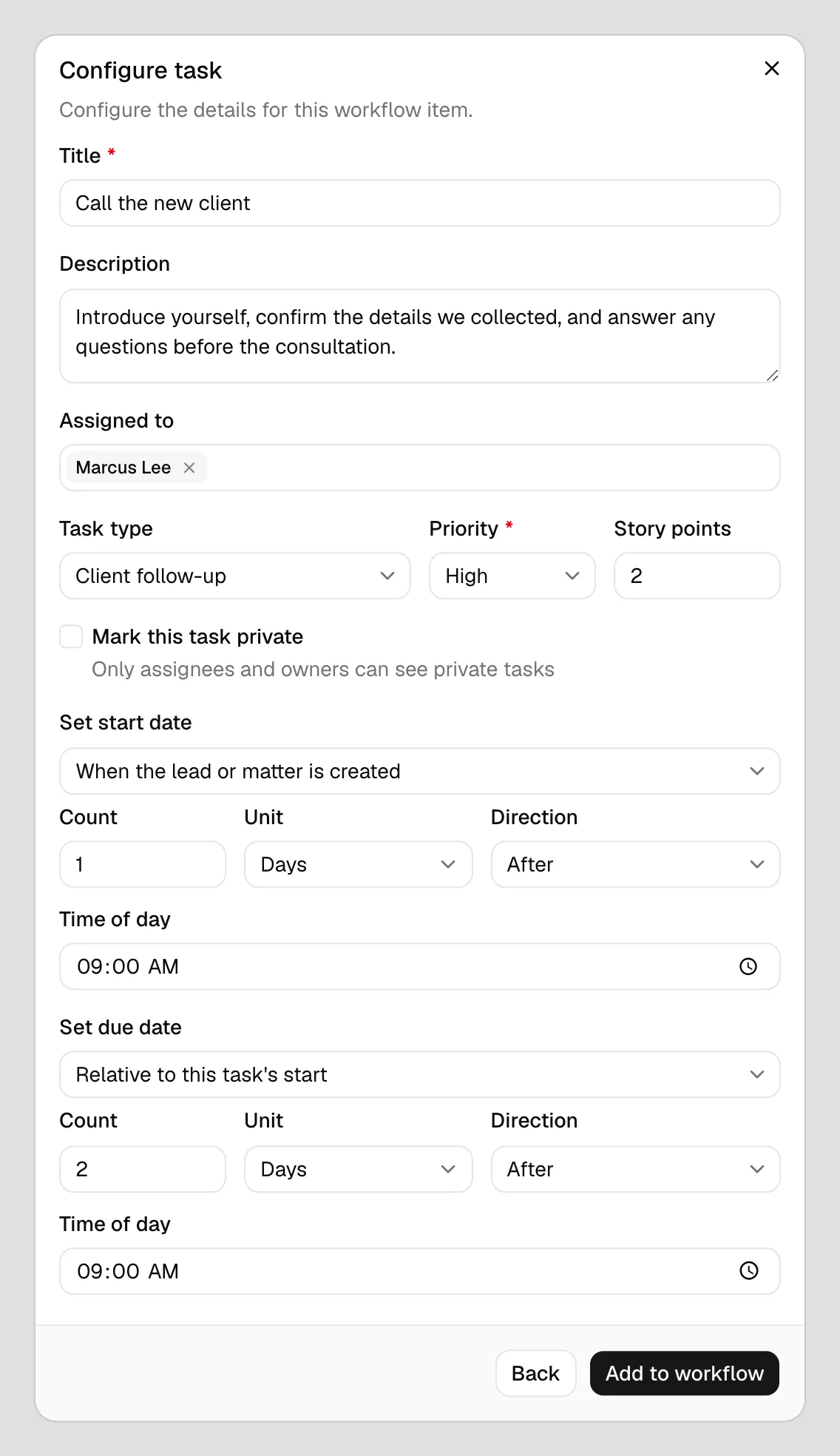
- Fill in the task details:
- Title (required). A short description of what needs to be done, for example "Open the file" or "Send engagement letter".
- Description (optional). Extra detail for whoever picks up the task.
- Assigned to (optional). Select one or more firm members. Leave it empty to create the task unassigned.
- Task type (optional). Categorize the task using one of your task types. If you have none active, the field shows "No active task types".
- Priority (required, defaults to Medium). Choose from Lowest, Low, Medium, High, or Highest.
- Story points (optional). A numeric estimate of effort, if your firm uses point sizing.
- Mark this task private. When checked, only assignees and firm owners can see the task.
- Set when the task starts and is due using the two scheduling fields below.
- Click Add to workflow.
Scheduling the start and due dates
Because a workflow runs at different times for different leads or matters, task dates are set relative to a reference point rather than to a fixed calendar date. The Set start date and Set due date fields each offer a "how to schedule" dropdown:
- Not scheduled. The task has no start (or due) date. This is the default.
- When the lead or matter is created. Anchors the date to the moment the record came into being. After choosing this you can set an offset:
- Count and Unit (Day, Week, Month, or Year): how far from the anchor.
- Direction (Before or After): which side of the anchor.
- Time of day: the clock time the date lands on.
- For example, Count
3, UnitDay, DirectionAfterschedules the task three days after the record was created.
- Relative to this task's start (available only on Set due date). Anchors the due date to this same task's start date, so the due date moves with the start.
Tip: A common pattern is to set the start date to "When the lead or matter is created" with a small offset, then set the due date to "Relative to this task's start". The whole task window then slides with the record.
What it does: the step creates a real task on the lead or matter with the title, description, type, priority, points, privacy, and assignees you configured, and the dates are worked out at that moment. On a matter the task lands in the first active task stage. You can open and edit the task afterward from the Tasks page. See Creating and managing tasks.
Note: The people you assign are told about the task, whether a member ran the step or Esqase ran it on its own.
Task list step
A Task list step creates several tasks at once from a saved task list. Use it to drop in a standard checklist in a single step instead of adding many individual Task steps.
- In the Add workflow item dialog, choose Task list.
- In the Task list field, select the list to use. This is required. If you have none, the field shows "No active task lists".
- A Tasks in this list preview appears showing every task the list will create. Sub-tasks are indented under their parent. If the list is empty, it shows "This task list has no tasks yet."
- Click Add to workflow.
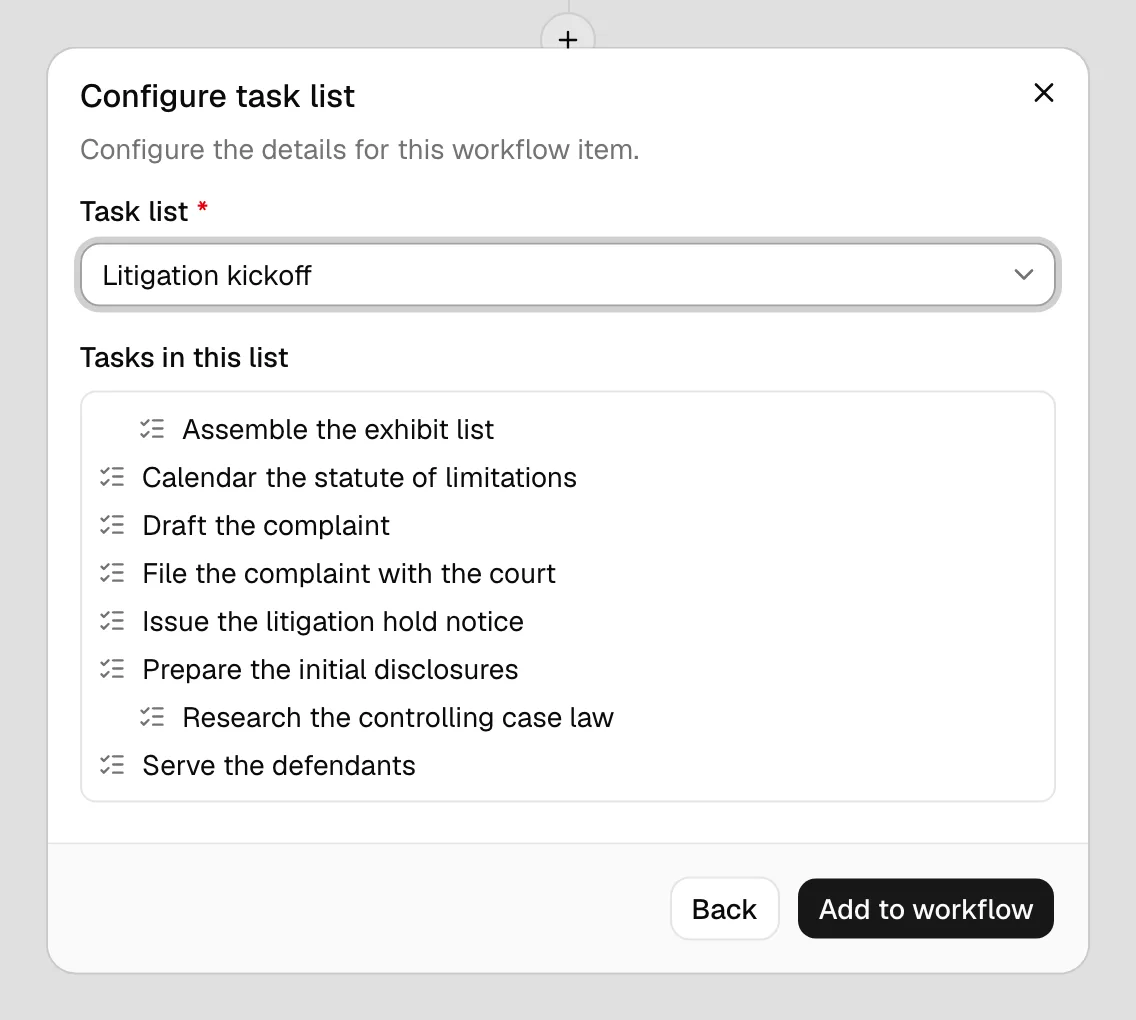
What it does: the step creates a task for every template in the chosen list, including the assignees, priorities, and relative dates defined there. On a lead, the tasks are created as a flat list. On a matter they keep their parent and sub-task structure and need an active task stage to land in. On a lead, the row's button reads Create tasks.
Form step
A Form step emails a client a link to one of your forms and, optionally, keeps reminding them until they respond.
- In the Add workflow item dialog, choose Form.
- In Form (required), pick the form to send.
- Under Request email, write the "please complete this form" message. It works like the Email step: Template is optional and fills the Subject and Body from a saved template plus your firm's default email signature, and you can then edit both. A new step starts from the preset Form - Form Request template when your firm has it. Put
{{form_url}}where the client should click to open the form. Subject and Body are required. - To chase clients who have not responded, check Send reminders for pending submissions. This reveals the reminder settings:
- Reminder interval. A number plus a unit (Minute, Hour, or Day), for example
3Dayto remind every three days. - Total reminders. How many reminders to send in all. Choose a number from
1to10, or Unlimited. - Under the fields, Esqase notes Automatic reminders stop at your firm's cap.
- Reminder email (required when reminders are on). The email sent each time, written the same way as the request email. It starts from the preset Form - Form Reminder template when your firm has it. The request email never stands in for it: a step with reminders on and no reminder email cannot be saved.
- A new step opens with the interval and the total already filled in from your firm's Reminder defaults under Settings > Firm > Automation, so most steps need no change. Whatever you save on the step is what that step uses from then on.
- Reminder interval. A number plus a unit (Minute, Hour, or Day), for example
- Click Add to workflow.
📷 Screenshot: The Form step with a form chosen, the Request email editor, Send reminders for pending submissions checked, the reminder fields, the Reminder email editor, and the Available placeholders panel at the end.
What it does: the client is emailed a link to the form using the request email, exactly as written in the step. With Done when set to The client sends the form back, the step waits until they submit and the workflow holds there. With The step runs, the workflow carries on as soon as the request has gone out.
With The client sends the form back, the answers mark the step done when they come in, whether the client submits the form or a member fills it in on the client's behalf from the step, and the workflow carries on. This works on a step set to Manual too, once the form has been sent or filled in from the step. A Form item you add to a lead or matter on its own, outside a workflow, still waits for you to tick it. A Document step below can then fill from those answers. See Document step.
Important: Unlimited means "until your firm's cap is reached" for reminders Esqase sends. Your firm sets both a maximum number of reminders and a number of days after which reminding stops. See Automation settings.
For the client side, see Public lead-intake forms and How clients fill intake forms.
Event step
An Event step invites a client to schedule a meeting and manages the surrounding emails. Because scheduling involves back-and-forth, this step has its own email for each stage, and you write each one in the step the same way as an Email step: an optional Template to prefill, then a Subject and a Body you can edit.
-
In the Add workflow item dialog, choose Event.
-
Fill in the event details:
- Event title (required). What the meeting is for, for example "Initial consultation".
- Event type (optional, shown only if you have event types). Choose one of your event types to carry its duration and settings over. Each option shows its length in minutes. Select None to leave it open.
-
Write the emails:
- Invite email (required). The email that asks the client to book a time. A new step set to run on its own starts from the preset Event - Event Schedule Invitation template, which carries the booking link; a new step set to Manual starts from Event - Event Invitation, which also names the date and time of the event you create.
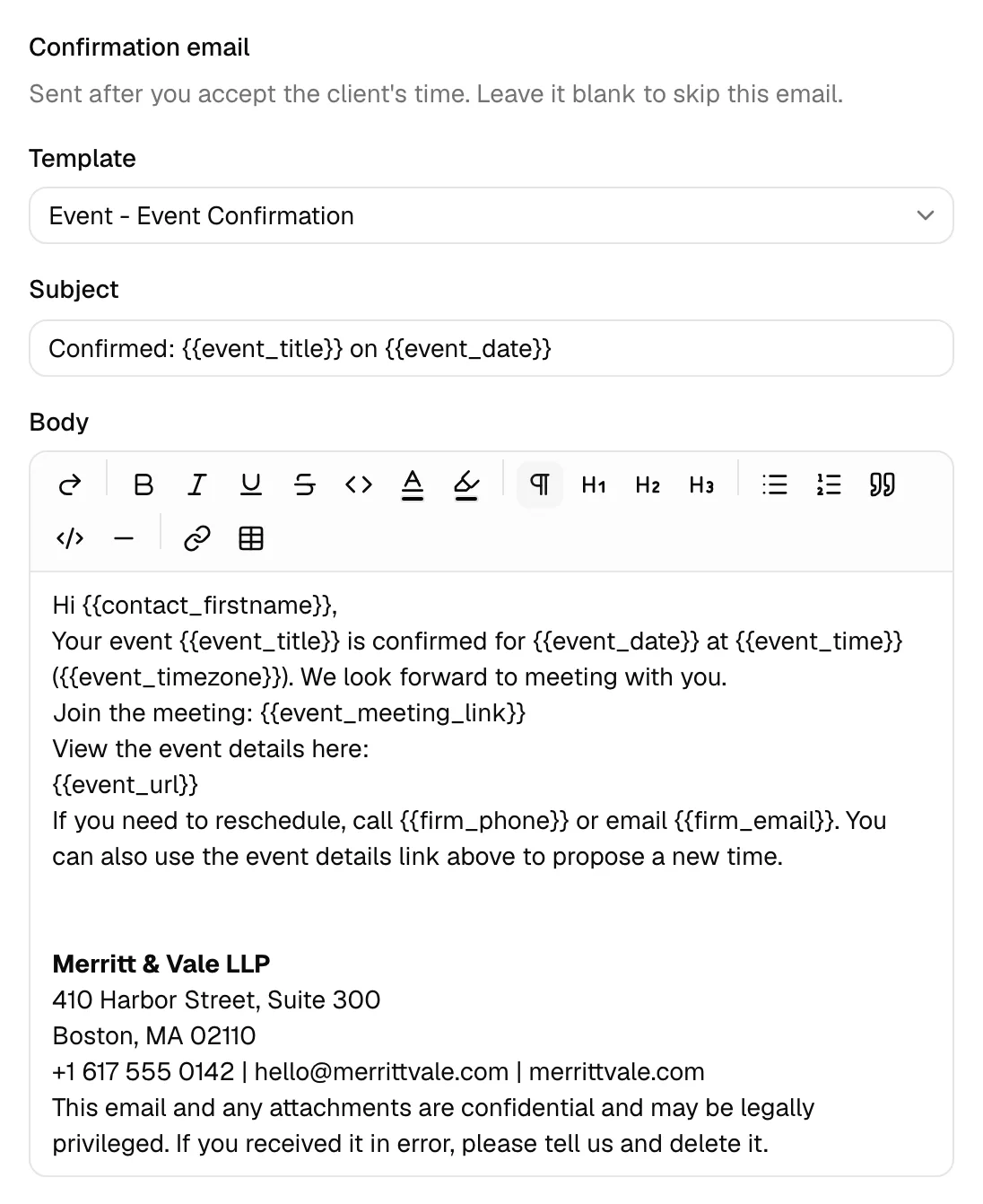
- Confirmation email (optional). Sent after you accept the client's time. Leave it blank to skip this email.
- Decline email (optional). Sent when you decline the client's proposed time, asking them to pick another. Leave it blank to skip this email.
A new step starts the confirmation and decline emails from the preset Event - Event Confirmation and Event - Event Schedule Declined templates. Clear both the subject and the body of one and the step sends no email at that stage; after you accept or decline a time on the record, no composer opens either.
The Confirmation email, the Decline email, and the Invite email of a step set to Manual can use the meeting link (
{{event_meeting_link}}) and location ({{event_location}}) placeholders. Event - Event Confirmation and Event - Event Invitation already carry a "Join the meeting" line, which is left out when the meeting has no link. The invite of a step set to run on its own and the Reminder email go out before a meeting exists, so they cannot use these two placeholders. A step saved before the "Join the meeting" line was added keeps its own copy of its emails, so add the line to its Confirmation email yourself if you want it (see Default templates seeded for a new firm). -
To remind clients who have not yet responded to the invite, check Send reminders for pending responses, then set the Reminder interval, Total reminders, and the Reminder email (required when reminders are on). These also start from your firm's Reminder defaults, and the same firm cap note applies.
-
Click Add to workflow.
📷 Screenshot: The Event step showing Event title, the optional Event type, the Invite email, Confirmation email, and Decline email editors stacked in the dialog, and the Available placeholders panel at the end.
What it does: the invite goes to the client with a link to choose a time. With Done when set to The meeting is confirmed, the workflow waits until a time is booked. With The step runs, it carries on once the invite has gone out. A member of your firm is set as the meeting host, and the meeting is booked in your firm's time zone. The step keeps the member acting on it as the host even when the chosen event type is round robin, so the rotation between hosts applies only to bookings made from your public booking link. For the client experience, see How clients book meetings and Calendar and events.
The confirmation email goes out by itself. When the meeting on a step of a workflow running on the lead or matter is confirmed, because you accept the client's time (a booking that waits for approval included) or the client accepts a time you proposed, Esqase sends the step's Confirmation email for you, from your firm's name, whatever the step's Run mode. Before sending, Esqase adds the meeting link when the event type creates one or uses a single link, so the "Join the meeting" line carries it. If the link cannot be made at that moment, for example because the host has not connected the provider, the email goes out without that line. Because the step sends this email, accepting a time on the step does not open the composer with the confirmation again; you see "The workflow step sends the confirmation email automatically." instead. An Event item that is not part of a running workflow, such as the meeting a booking adds to a lead that runs no workflow, still offers the confirmation email in the composer when you accept, and so does a step you skipped or one marked Cancelled, because Esqase sends nothing for those. See Approve, reject, or propose a new time for a booking.
A booking made on your public page fills this step. When a client books a time on your booking page and the lead is already running a workflow with an Event step, the meeting lands on that step instead of appearing as a second item. A booking your firm confirms straight away completes the step. A booking that waits for approval leaves the step Waiting until a member approves it, and the step then completes on its own. If you pinned an Event type on the step, only a booking of that type fills it; a step left on None takes any booking. This happens even while Run automatic steps on these leads is off under Settings > Firm > Automation: what the client did is always recorded on the step, and only the next step waits for a member.
The same goes for the lead a booking creates. When a workflow attaches to that new lead, Esqase puts the booked meeting on the workflow's first open Event step before any step runs, so the client who just booked is never sent a second invite to pick a time. The steps above and below it then run as usual. An Event step pinned to a different event type keeps its own invite.
Document step
A Document step creates a rich-text document on the lead or matter, the same kind of document you get from the New document button in the documents workspace, and fills its placeholders from the record and from the answers a client sent back on a form. See Document placeholders.
- In the Add workflow item dialog, choose Document.
- Fill in the document details:
-
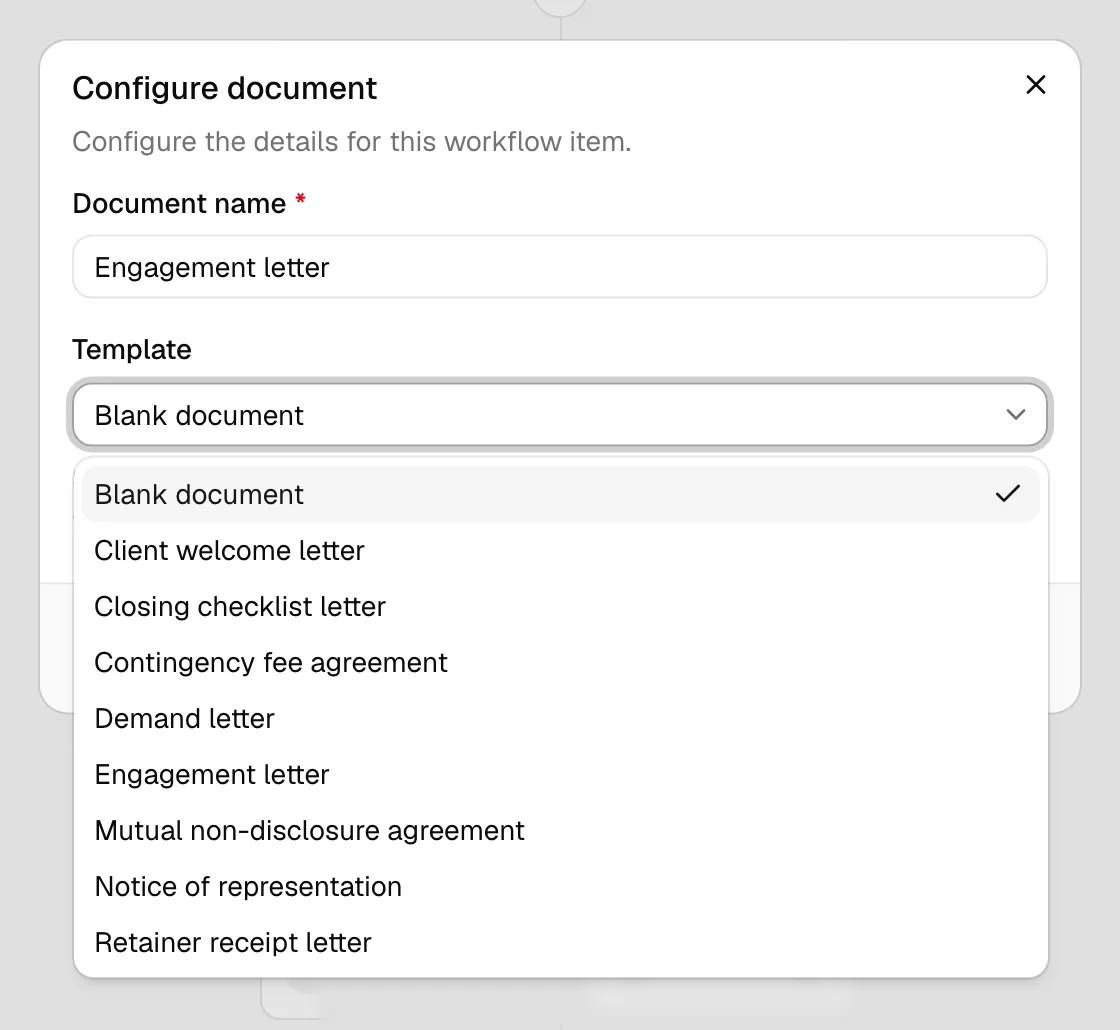
Document name (required). The title the new document will be given, for example "Engagement letter". If you leave it blank the field shows the placeholder "Untitled document".
-
Template (optional). Choose a document template to copy its content and page setup, or leave it on Blank document to start empty.
-
Fill values from. Where the template's form answer placeholders get their values:
- Latest answers on the lead or matter: the newest completed answers of each form on the record.
- A Form step above this one, listed by its title (with its form's name when the two differ): the answers the client sends back to that step.
- The intake form that created the lead: the answers from the lead-intake form the lead came in on.
- No form answers: form answer placeholders are left for someone to fill.
A new step starts on the Form step above it when there is exactly one, and on Latest answers on the lead or matter otherwise. Contact, matter, lead, and firm placeholders fill whichever you pick.
-
- Once a template is chosen, a line under the picker counts its placeholders and where each one will come from. See The placeholder count.
- On a step whose run mode is Automatic, choose whether to Wait for review when placeholders are empty. It is on for a new step. See When Esqase creates the document.
- Click Add to workflow.
On the canvas, a Document step that fills from a Form step above it carries a badge such as Fills from New client intake.
The placeholder count
The line under Fill values from reads like 8 placeholders: 3 from New client intake, 4 from the lead or matter, 1 to fill by hand. Click Show placeholders to fill by hand to list those by name. A template with no placeholders reads This template has no placeholders.
- From the form (or from the intake form): answer placeholders whose questions that form asks.
- From the lead or matter: everything Esqase fills from the record, the firm, the member, and today's date, plus form answers when Fill values from is Latest answers on the lead or matter.
- To fill by hand: your own placeholders, and form answer or custom field placeholders that no form or custom field defines.
- Filled at review: on an Automatic step that waits for review, the court, invoice, event, and personal injury placeholders. Esqase cannot fill those on its own, so a member fills them while reviewing. On an Automatic step that does not wait for review, they count as to fill by hand. Either way, when a question on the form Fill values from names uses the same merge key as one of them, that placeholder counts as from the form instead, because a form answer fills it.
Make the document wait for the form
If Fill values from names a Form step whose Done when is The step runs, that step is done the moment the form is sent, so the document can be made before the answers come back. The builder warns you under the picker: New client intake is done as soon as it is sent, so this document may be made before the answers come back. Set its Done when to The client sends the form back. The same warning appears after you click Save, and it does not stop the save.
To fix it, edit the Form step and set Done when to The client sends the form back. The Document step then waits until the client's answers are in.
If Fill values from names a step that is no longer a Form step above this one, because it was moved, deleted, or changed, Save stops with Pick a form step above this one, or use the latest answers on the lead or matter. Pick another source, then save.
When a member creates the document
On the lead or matter, the step's row has a Create document button. Click it and Esqase creates the document from the template, fills it from the record and the answers Fill values from names, files it in the record's documents, links it to the step, and opens it, on the Placeholders tab when anything is still empty. A message says how it went:
- Document created and filled from New client intake., followed by 2 placeholders are still empty. when some are.
- Document created. 2 placeholders are still empty.
- Document created. New client intake has not been sent back yet, so its answers are empty.
- Document created.
Ticking the step and choosing Apply and mark done does the same and adds Item marked done. to the message.
Once the document exists, the button reads View document. If a colleague or Esqase created it a moment before you clicked, you see This step already has a document. and Esqase opens that one, so a step never ends up with two. From the step you can View document, unlink it, or remove the step (optionally deleting the document too). When the step is done, its row says where the values came from, for example Ran Oct 2, 2026, 12:38 AM by Daniel Merritt. Filled from New client intake.
When Esqase creates the document
When the step's turn comes, Esqase creates and fills the document on its own. It fills the contact, matter, lead, firm, member, date, document, custom field, and form answer placeholders. Court, invoice, event, and personal injury placeholders need a person, so they are left for whoever reviews the document, unless a form answer fills them.
- With Wait for review when placeholders are empty on, a document that still has an empty placeholder is held for review. The step reads Needs approval and Ready to review. 2 placeholders were empty when it was created., and the people watching the record are notified. Click Review on the row to see what is empty, fill it, and approve. See Approving a step.
- With the switch off, the step is done as soon as the document exists, and any empty placeholders stay empty until someone fills them.
- A step set to Automatic, needs approval always waits for a member, with the same review.
Note: Document steps saved before Wait for review when placeholders are empty existed start with it off, so they keep finishing on their own until you turn it on.
Note: If the step's document is in the Trash, the step stops with Needs attention: The document for this step is in the Trash. Restore it, then run the step again. Restore the document, then click Try again on the step: Esqase picks up the restored document without filling it again. If you click Create document while the step's document is in the Trash, Esqase says This step's document is in the Trash. Restore it to continue. and opens the document, where Restore puts it back.
Invoice step
An Invoice step creates a draft invoice, with one line per activity category you choose. It can then approve the invoice, create a payment link, email the invoice to the client, and remind the client until it is paid.
-
In the Add workflow item dialog, choose Invoice.
-
In Activity categories (required), select one or more categories. Each option is labeled with its name, its scope (Firm-wide or Member: a member name), its type (Time or Expense), and its rate. If you have none active, the field shows "No active activity categories".
-
Under Approval and payment, choose what happens once the draft exists. A new step starts with the payment link, the invoice email, and payment reminders on, and auto approve off:
- Auto approve the invoice: Approves the draft as soon as Esqase creates it, unless your invoice approval rules need a reviewer. It is hidden on a step set to Manual. On a step set to Automatic, needs approval it reads A member reviews this step first, so they approve the invoice in that review., and when your firm makes every invoice step wait for approval it reads Your firm reviews every invoice step first, so a member approves the invoice in that review. See When Esqase approves the invoice.
- Generate a payment link when approved: Needs a card, bank or manual payment method in Settings. Without one, Esqase skips the link, email and reminders.
- Send the invoice email to the client: Sent once the invoice is approved and the payment link is ready. Checking it shows the Invoice email editor, which works like the Email step and starts from the preset Invoice - Invoice / Payment Notice template with your firm's default email signature.
{{invoice_url}}becomes the payment link. - Send reminders for pending payments: shows Reminder interval, Total reminders (
1to10, or Unlimited), the line Reminders stop once the invoice is paid or at your firm's cap., and the Payment reminder email editor, which starts from the preset Invoice - Invoice / Payment Reminder template. The interval and total start from your firm's Reminder defaults (every 3 days, 3 reminders in all, until someone changes them).
The email and the reminders need the payment link. While Generate a payment link when approved is off, both are greyed out and read Turn on the payment link to email the invoice. and Turn on the payment link to send payment reminders.
-
Click Add to workflow.
📷 Screenshot: The Invoice step with Activity categories, the Approval and payment settings (Auto approve the invoice, Generate a payment link when approved, Send the invoice email to the client, Send reminders for pending payments), the Invoice email editor, the reminder fields, and the Payment reminder email editor.
On the canvas, the step's card says what follows approval: Payment link, Payment link and email, Payment link and reminders, or Payment link, email and reminders.
Note: Invoice steps saved before these settings existed open with all four switches off, so they keep creating a draft and nothing more until you turn something on and save. Turning on the invoice email or reminders on such a step fills the editor from the preset template.
What it does: the step creates a draft invoice with one line per category. The line rate comes from the category, and each line starts at a quantity of one (one hour for a time entry, one unit for an expense). The bill contact, your firm's invoice numbering, and the currency are filled in automatically. The invoice starts as a draft so you can review and edit it. When the step is waiting on approval, the review dialog offers Also approve this invoice, ticked for you, so approving the step finalizes the invoice in the same click. Clear it and the invoice stays a draft for you to finalize from the invoice itself.
An invoice belongs to a matter, so where the draft lands depends on the record:
- On a matter: the draft is created on that matter.
- On a lead: the draft is created on a small invoicing matter linked to the lead. Esqase creates that matter the first time you bill the lead and reuses it afterwards. The lead itself is not marked hired, converted, or done. This works the same whether a member clicks Create draft invoice on the step or Esqase runs it.
Once the draft exists, the step's button reads View invoice so you can open it.
Tip: If you want the bill on the real matter your team will work, put a Convert to matter step above the Invoice step.
Done when offers The invoice is approved and The invoice is paid, which hold the workflow until the invoice reaches that point. A step set to The invoice is approved does not sit waiting for something that has already happened: if the invoice was approved when you approved the step, or you finalized it yourself in the invoice editor first, the step finishes on its next pass. See Creating and sending invoices and Activity categories and rates.
When Esqase approves the invoice
With Auto approve the invoice on, a step set to Automatic approves the draft it has just created, in the same pass, when nothing needs a person:
- Invoice is not on your firm's What needs approval list. It is on that list out of the box, so auto approve only acts once an owner or administrator takes it off. See Automation settings.
- The member the workflow runs as can approve invoices: their role includes Update access for invoices, and your firm's invoice approval rules do not ask for a review from their role. See Approvals for invoices and documents.
- The matter still accepts new records, and automation is not paused for your firm.
The invoice is then approved exactly as if a member had done it: it takes its number (if your firm assigns numbers on finalizing), the activities behind it are marked billed, and it becomes Pending. The step's row reads Approved by Esqase automation.
When something does need a person, the step reads Needs approval with the reason, for example The member running this workflow cannot approve invoices, so the invoice was not approved automatically. or Your firm's approval settings ask for a review of invoices from the member running this workflow, so the invoice was not approved automatically., and the people watching the record are notified. Click Review on the row and approve it there. See Approving a step.
After the invoice is approved
However the invoice gets approved (by Esqase, in the step's review, in the invoice editor, or by your firm's reviewers), Esqase then does what the step's Approval and payment settings ask:
- Payment link. If the invoice already has a payment link the client can use, Esqase uses it. Otherwise it creates one that offers every payment method your firm has set up, follows your firm's default partial-payment policy, and never expires. Esqase never sets up installments: a firm default of Firm-defined installments gives a Full balance only link. If no payment method is set up, there is no link, no email, and no reminders, and the step itself still finishes. See Payment settings.
- Invoice email. The email goes to the invoice's client at their Billing email address, otherwise their Primary or Work address, and is sent on your firm's behalf like every automatic email. If the invoice has no due date,
{{invoice_date_due}}shows its issue date. If the invoice was already sent, for example from the invoice page, Esqase does not send it again. The invoice's Last sent date is updated. - Payment reminders. They start once the client has the invoice: when Esqase emails it, when the invoice was already sent, or, with the invoice email turned off, as soon as approval happens and the client has an email address. Each reminder goes out on the step's interval within your firm's sending window and updates Last sent. Reminders carry on after the step is done, and stop when the invoice is paid or no longer waiting for payment, when nothing is left to pay, when the step's total or your firm's Reminder cap is reached, or when your firm's Stop reminding after days have passed since they started. They also stop when the invoice no longer has a payment link the client can use, when the client has no email address, when a reminder cannot be sent, or when the workflow is cancelled or the step is skipped, and the run history says why. A part payment does not stop them: the next reminder shows the new balance.
This only happens on records where Esqase is running the workflow: the step belongs to a workflow attached to the lead or matter, its automation is on for that record, and your firm has not paused automation. A step set to Manual is included, so once a member approves the draft, the link and the email follow. An Invoice item you add to a lead or matter on its own, outside a workflow, does none of this, and its dialog says so: This item is not part of an automated workflow, so Esqase does not do these on its own.
When automation is held, delivery waits. If the invoice is approved while the workflow is paused on the record, before its automation has been started, or while your firm has paused automation, Esqase holds the link and the email. The row says so, for example The payment link, invoice email and payment reminders are on hold until this workflow resumes., and they go out as soon as the workflow resumes, automation is started, or your firm resumes, provided the invoice is still waiting for payment. Payment reminders that are already running pause the same way and carry on afterwards. A workflow that finished with its automation off never sends them.
Important: One reminder schedule at a time. While a workflow's payment reminders are running for an invoice, your firm's due-date reminders skip that invoice. When the workflow's reminders pause or finish, your firm's reminders pick the invoice up again. See Invoice and billing settings.
What the row tells you. On the lead or matter, the step's row reports what went out, for example Payment link created. Invoice emailed October 4, 2026. Reminder 1 of 3 sent. Next reminder October 10, 2026. When the invoice already had a payment link, the row reads Existing payment link used. in place of Payment link created., and while the reminders are on hold it ends with Payment reminders are on hold. When something could not be done, it gives the reason instead, such as No payment method is turned on., The member running this workflow cannot update invoices., Invoice not emailed. The client has no email address., or Invoice not emailed. The invoice email could not be sent. The run history has the full sentence.
Before you approve, Esqase says what follows. On a step set to Manual, the Create a draft invoice? dialog on a lead, and the confirmation message after Create draft invoice on a matter, name what will happen, for example When this invoice is approved, Esqase creates a payment link, emails the invoice to Jane Doe, and sends up to 3 payment reminders until it is paid. When delivery is on hold, the message adds when it will happen, for example This workflow is paused, so that happens when it resumes. The step's review dialog says the same under Also approve this invoice. Create draft invoice opens the new draft in a new browser tab, so the lead or matter stays open where you were. If your browser blocks the new tab, the draft opens in the same tab instead.
Status change step
A Status change step moves a record along without anyone clicking through the pipeline.
- In the Add workflow item dialog, choose Status change.
- In What this step changes, pick the target:
- Move to the next stage. Moves the record one stage forward in its pipeline, whatever stage it is on. Works on leads and matters.
- Move to a lead stage you pick. Choose the exact Lead stage to move to. Leads only.
- Set the lead status. Choose Hired or Not hired. Leads only.
- Click Add to workflow.
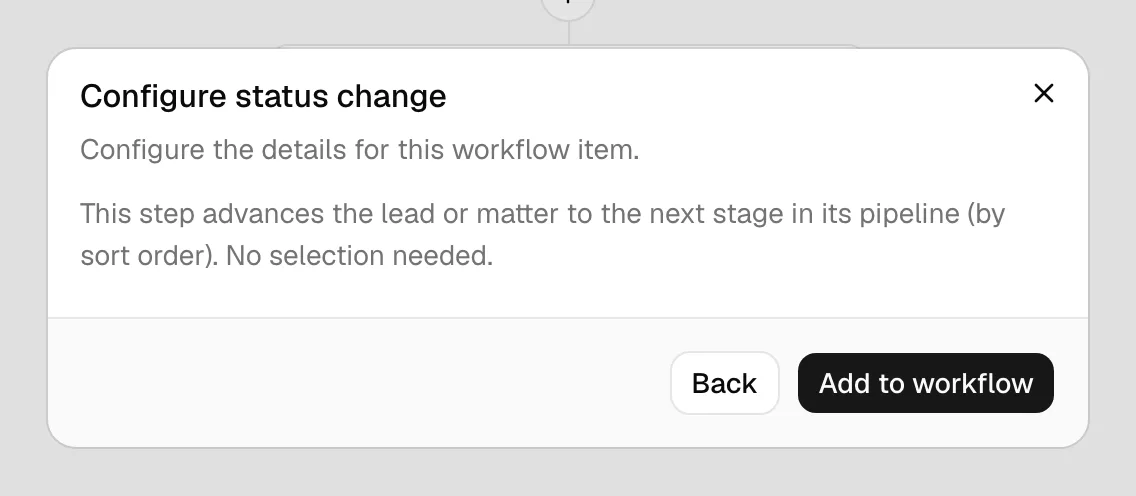
What it does: the record moves as you asked. Move to the next stage on a lead advances the lead pipeline, and on a matter it advances the matter stages; a record already on the last stage stays where it is and the step is marked done. A lead stage or status target still moves the lead after a Convert to matter step, because the workflow keeps the lead it came from. It only fails on a workflow that has never run on a lead, where the step stops with This step changes a lead, and this workflow is running on a matter. Edit the step to change the matter instead.
Note: Setting a lead to Not hired pauses the workflows on that lead, whether a member did it or this step did, so nothing below it reaches a client you have turned away. Putting the lead back into intake, or marking it hired, starts them again.
Convert to matter step
A Convert to matter step turns a lead into a matter. Use it as the hand-off point in an intake workflow, once a lead is qualified.
- In the Add workflow item dialog, choose Convert to matter.
- In the Matter template field, optionally choose a matter template:
- Pick a template to build the new matter from the lead's information plus the template, with no extra screens.
- Leave it empty (the field reads "No template (open the wizard)") to open the new-matter wizard at conversion time so you can review and adjust the details by hand.
- If you have no active templates, the field shows "No active matter templates".
- Click Add to workflow.
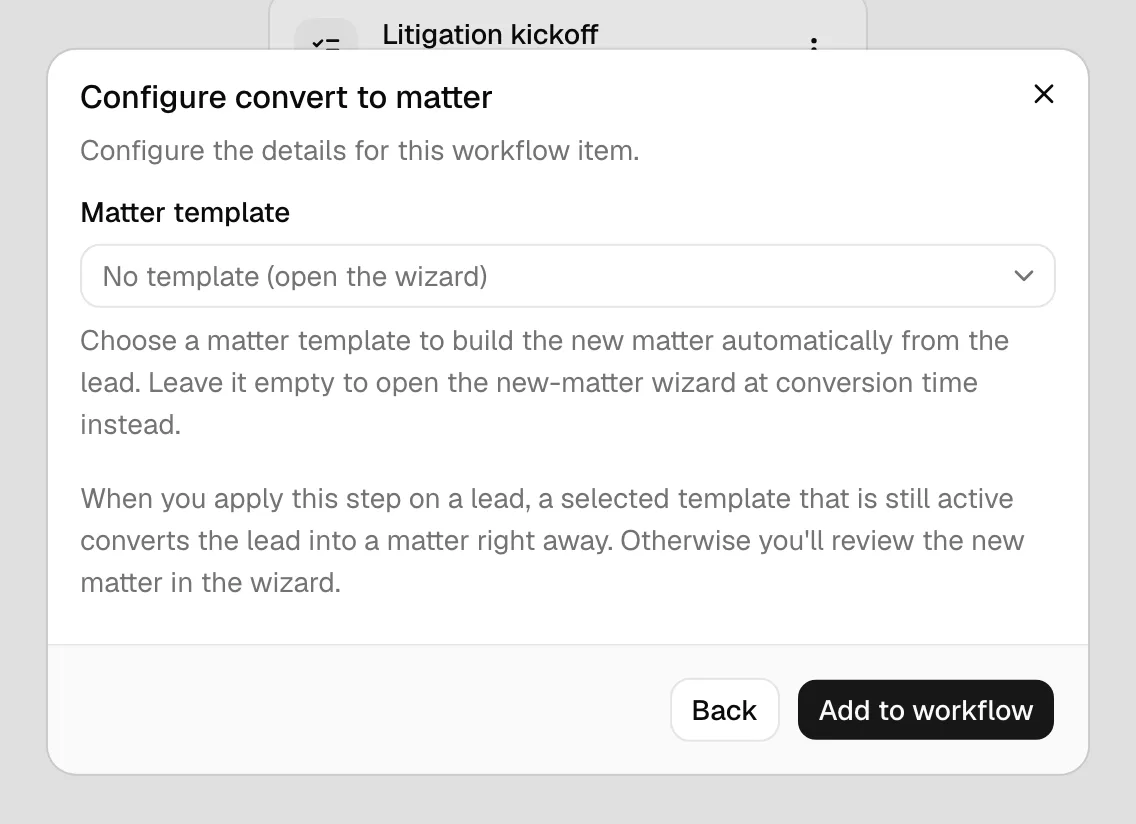
What it does: converting always needs a person, so this step never runs unattended. Set to Automatic or Automatic, needs approval, it asks a member to convert now and waits. A member clicks Convert to matter on the step, and Esqase either converts straight away using the template you chose, or opens the new-matter wizard seeded from the lead when there is no usable template. After the conversion the workflow continues on the new matter.
Note: You can convert from the step or from the Convert to matter button in the lead's header. Either way the step is ticked off and the workflow carries on with the new matter.
For the full flow, see Converting a lead to a matter.
Conflict check step
A Conflict check step screens the client on the record for conflicts of interest before the workflow goes any further.
- In the Add workflow item dialog, choose Conflict check.
- Set the two switches:
- Block the workflow when a possible conflict is found (on by default). The workflow stops and waits for a team member to review the results before anything else runs.
- Also screen related contacts (off by default). Screens the people and companies linked to the client as well as the client itself.
- Click Add to workflow.
📷 Screenshot: The Conflict check step configuration with the two switches and their explanations, and the How it runs block above them.
What it does depends on who runs it:
- A member clicks Run conflict check on the step, which opens the usual conflict screen and searches everything Esqase can search.
- Esqase runs a narrower screen: matters, clients, related contacts, organisation links, contacts, leads, and invoices. It does not search tasks, activities, events, notes, emails, or documents.
Either way the results are saved to the record's conflict history. A screen Esqase ran is listed there as Automatic screen by Esqase, with a line naming what it looked at and what it did not, so a later reader can tell the two kinds of check apart. When Esqase finds a high-priority match and the blocking switch is on, the step turns red and the workflow stops until a member deals with it.
The step shows you what the check found. As soon as a check is attached to the step, the row carries a status button reading Conflicts found (a high-priority match), Matches to review (matches, none of them high priority), Nothing found, or Not checked (the screen could not search anything, so nothing was ruled out). It is there whatever state the step is in, not only when the workflow is blocked. Hover it for a one-line summary.
Click the button and a Conflict check results dialog opens on the results already saved, headed What this check found when it ran. Opening it does not start a new check. It shows the outcome, when the check ran and who ran it, the parties that were screened, the matches grouped by what they matched, and a note on how far the search went. Results are limited to what your own access allows, so a matter you are not on reads Restricted matter rather than showing its details. Previous conflict checks at the bottom lists the record's earlier screenings with the step's own check highlighted, and Run a new check in the footer is the only thing that starts a fresh one.
📷 Screenshot: A Conflict check step row with its Matches to review status button, and the Conflict check results dialog open beside it showing the saved results and the highlighted row in Previous conflict checks.
Important: An automatic screen is narrower than one a member runs, so treat a clean automatic result as a first pass, not a clearance. A member can always run the full check from the step. See Running a conflict check.
Common questions
Can I put an Invoice step before a Convert to matter step? You can, but the invoice will be drafted on the lead's small invoicing matter rather than the real one. Put Convert to matter first if you want the bill on the matter your team will work.
What happens if a template, form, or task list I picked is deleted later? Emails are copies; everything else is a reference. The emails you write in Email, Form, Event, and Invoice steps are kept in the step itself, so deleting or editing the template they started from changes nothing. Other things a step picks, such as a form or a task list, are references: if one is gone when the step runs, the step stops and tells you what is missing, for example The form for this step is no longer available. Edit the step to point at a current item, then use Try again on the record.
A step saved before you could write its emails in the step still points at its template, and stops with The email template for this step is no longer available. if that template is gone. Open the step, pick another template or write the email, and save. If a step points at a template that is not in the Template list, the list shows it as Current template with This step uses a template that is not in this list, so its text is not shown here. Leave the subject and body blank to keep sending it, or pick another template.
Do these steps run on their own? Only when you have set them to and turned the workflow's Automation switch on. A step set to Manual, or any step in a workflow with automation off, waits for a team member. See How automation runs your workflows.
Can I change how a step runs after the workflow is attached somewhere? Yes, but the change only applies to records you attach it to afterward. Records already running keep the settings they started with.