La documentación del producto está disponible solo en inglés.
Reconciling bank and trust accounts
Reconciling means proving that what Esqase says is in an account matches what the bank says. You enter the closing balance from a bank statement, tick off the entries that appear on that statement, and finish when the difference reaches zero. Every account in Esqase can be reconciled, and trust accounts should be reconciled every month.
Before you begin
- Permission. You need View access for Reconciliations to see the Reconcile tab, Create access to start one, and Update access to edit it, match entries, complete it, or reopen it. Cancelling one needs Delete access for Reconciliations, which is granted separately. Firm owners and administrators have full access by default. Attorneys can view reconciliations but not run them, and staff have no access until you grant it. See Roles and permissions.
- An active account. You cannot reconcile an archived account. Restore it first.
- A bank statement. You need its statement date (the closing date of the period) and its closing balance.
Important: Only Posted ledger entries dated on or before the statement date can be matched. An entry that is still pending will not appear in the workspace at all, no matter how you search for it, and neither will a voided or deleted one. If you cannot find a line from your statement, check its status on the account's Transactions tab first.
Open the Reconcile tab
- In the sidebar, open Billing, then click Accounts.
- Click the account you want to reconcile.
- Click the Reconcile tab.
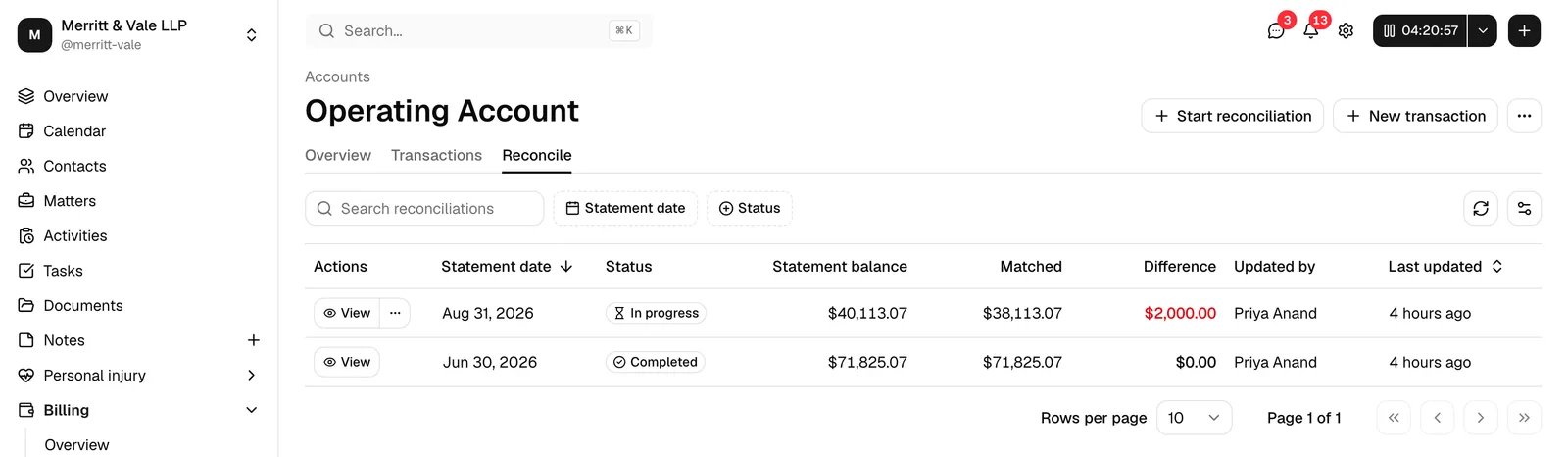
The Reconcile tab lists every reconciliation that has been run on this account, newest statement first. It is the account's reconciliation history, and it is where you start a new one.
Note: Reconciliation used to have its own page. That address now sends you to the Reconcile tab, so old bookmarks and links still work.
Read the reconciliation history
Each row in the history is one reconciliation:
| Column | What it shows |
|---|---|
| Statement date | The closing date of the statement it was run against. |
| Status | Draft, In progress, Completed, or Archived. |
| Statement balance | The closing balance you typed in from the statement. |
| Matched | The total of the entries ticked off against that statement. |
| Difference | Statement balance minus matched. It is shown in red while anything is still unexplained. |
| Updated by | The member who last changed it. |
| Last updated | When that happened. |
Click Statement date or Last updated to sort by that column. Use the page controls underneath to move through the list, and the column control on the right to hide columns you do not need.
Click View on a row to open that reconciliation and do the matching work.
Find a past reconciliation
Three controls sit above the table, left to right:
- Search reconciliations. Type a word or two and the table keeps only the rows that contain them. It matches the statement date (as the row shows it, or typed the way you would type a date), the status, and the name or email address of the member who last changed the reconciliation. It does not look at the notes you wrote when you started it, and it does not look at any of the amounts. Capitals and accents are ignored, and if nothing matches exactly you get the closest matches instead, with a Showing closest matches note beside the box.
- Statement date. Pick a start and an end date to keep only the statements that closed inside that window. The button shows the range once you have chosen one.
- Status. Tick any of Draft, In progress, Completed, or Archived to keep only those rows.
As soon as any of the three is set, a Clear filters button appears beside them. It resets all three at once.
Important: These controls narrow the reconciliations the tab has already loaded, which is the first 100 in whatever sort order you are using (newest statement first, until you change it). On an account with a longer history a line under the filters says so in plain words, for example "Search and filters cover the 100 reconciliations loaded here, not all 214. Change the sort order to reach the rest." That is the way through: click Statement date or Last updated to flip the order, and the far end of the history loads in place of the near end, ready to search. If that line is not there, the whole history is loaded and the filters cover all of it.
Start a reconciliation
Start reconciliation sits at the top right of the account page, to the left of New transaction. It appears only while the Reconcile tab is open, so if you cannot find it, check which tab you are on. It is also hidden on an archived account, and on every account if your role does not include Create access for reconciliations.
- Open the account's Reconcile tab, then click Start reconciliation.
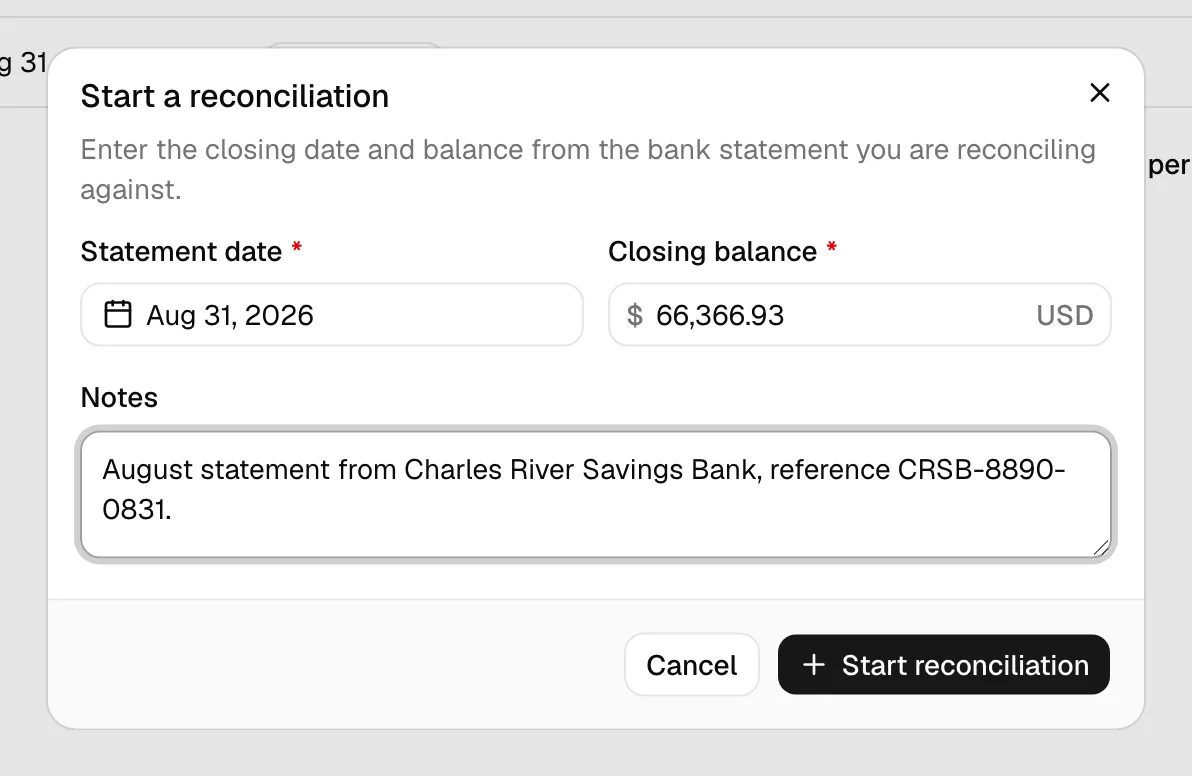
- Fill in the dialog:
- Statement date. The closing date printed on the bank statement. It defaults to today and cannot be in the future.
- Closing balance. The balance the statement ends with. Enter it exactly, including cents.
- Notes. Optional. Anything you want the next person to know, for example the statement reference.
- Click Start reconciliation.
Esqase creates the reconciliation and opens it straight away, ready for matching.
Important: An account can only have one reconciliation open at a time. If you see "This account already has a reconciliation in progress. Finish or reopen that one first", the account already has a Draft or In progress row in the history. Open that one and finish it, or cancel it, before starting another.
Edit a reconciliation
If you typed the wrong statement date or closing balance, you can correct it without starting again.
- On the Reconcile tab, click the ... button on the reconciliation's row.
- Click Edit.
- Change the Statement date, Closing balance, or Notes, then click Save changes.
Esqase re-checks the figures against the new statement date and balance, so the Matched and Difference columns update to match.
Note: Edit only appears while a reconciliation is Draft or In progress. A completed one is locked to the statement it was closed against. Reopen it first if it genuinely needs to change.
Match entries against the statement
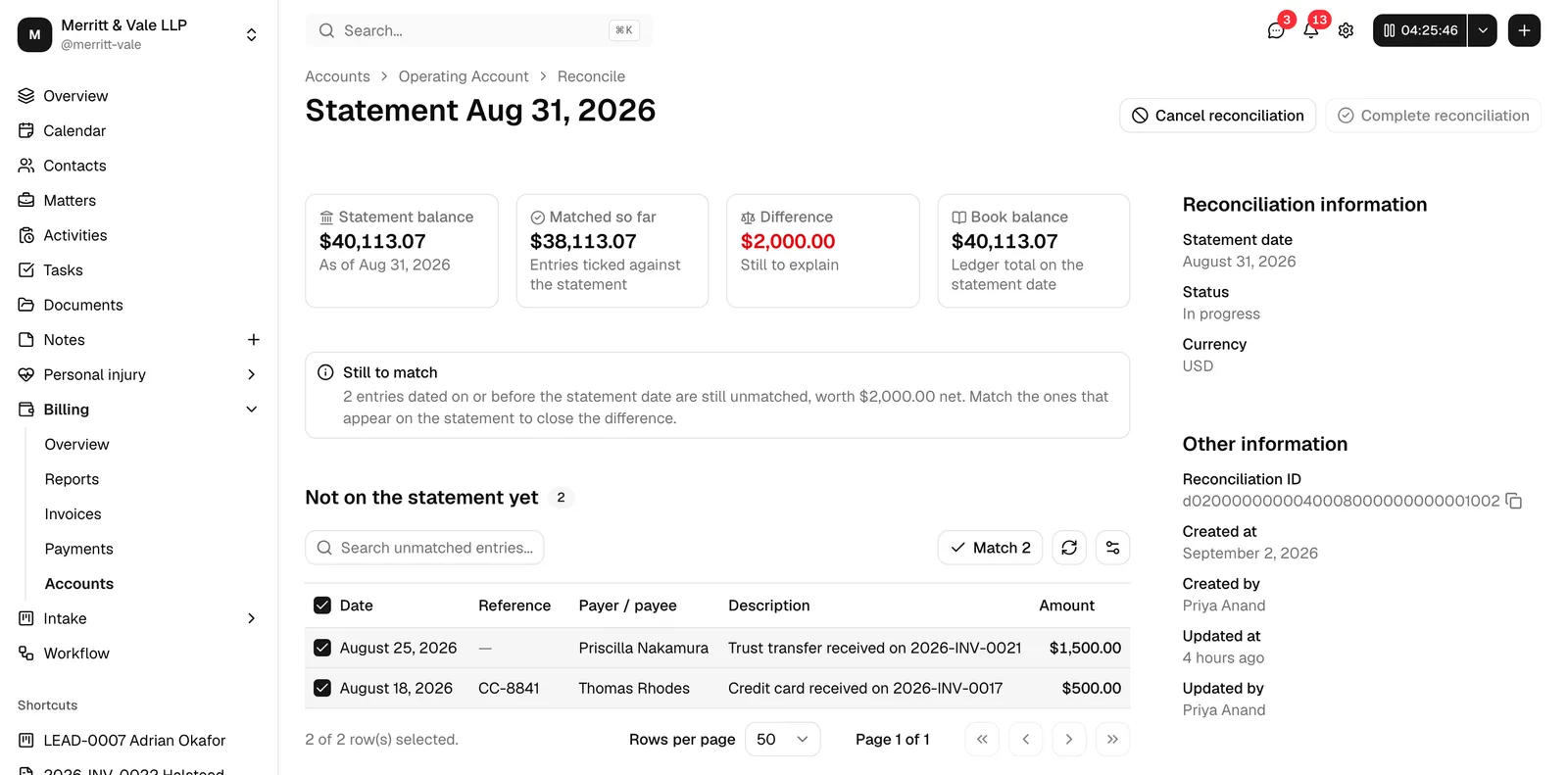
Click View on a reconciliation to open its workspace. The page reads like an invoice: a header at the top carries the trail back to Accounts, the account, and its Reconcile tab, with the heading Statement followed by the statement date. The buttons that finish, reopen, or throw the reconciliation away sit at the top right of that header, across the top of the page. Below the header the matching work fills the page, and a details sidebar runs down the right.
Four figures run across the top of the matching area:
| Figure | What it means |
|---|---|
| Statement balance | What you typed in from the bank statement. |
| Matched so far | The running total of the entries you have ticked off. |
| Difference | Statement balance minus matched. This is what you are driving to zero. |
| Book balance | What Esqase's ledger says the account held on the statement date. |
While the reconciliation is still open and the difference is not yet zero, a Still to match note sits directly under those four figures. It tells you how many entries dated on or before the statement date are still unmatched and what they add up to, for example "12 entries dated on or before the statement date are still unmatched, worth $4,310.00 net." The note goes away once the difference reaches zero.
Tip: When the Difference equals the figure in that note, the entries you have not matched yet are exactly what the statement is missing.
Below it are two tables, one above the other:
- Not on the statement yet. Posted entries dated on or before the statement date that you have not matched. Entries dated after the statement date never appear here, because they belong to the next statement.
- Matched to this statement. Everything you have ticked off so far.
Each table has a heading with a count beside it, telling you how many entries it holds, and each shows the entry's Date, Reference, Payer / payee, Description, and Amount. Each also has its own toolbar: a search box on the left, and on the right the Match or Unmatch button, a refresh control, and a column control. Use the column control to hide columns you do not need, the refresh control to reload that table without leaving the page, and the page controls underneath to move through long lists.
Note: The two tables are searched separately. Search unmatched entries narrows only Not on the statement yet, and Search matched entries narrows only Matched to this statement, so you can hunt for a statement line in one table while the other stays exactly where you left it. Each search runs across every entry in its own table, not just the page you are looking at, and the count beside the heading follows the search, so it always tells you how many entries the search left.
To match entries:
- Work down the bank statement line by line. For each line, find the matching entry in Not on the statement yet and tick its checkbox. Use that table's search box to find an entry by reference number, payer or payee, source or destination, or description.
- Click Match in that table's toolbar. The count next to the button tells you how many rows you have ticked. The entries move across to Matched to this statement, and Matched so far and Difference update.
- If you tick the wrong entry, find it in Matched to this statement, using that table's own search box if the list is long, then select it and click Unmatch.
You can match or unmatch up to 200 entries in one click.
The details sidebar
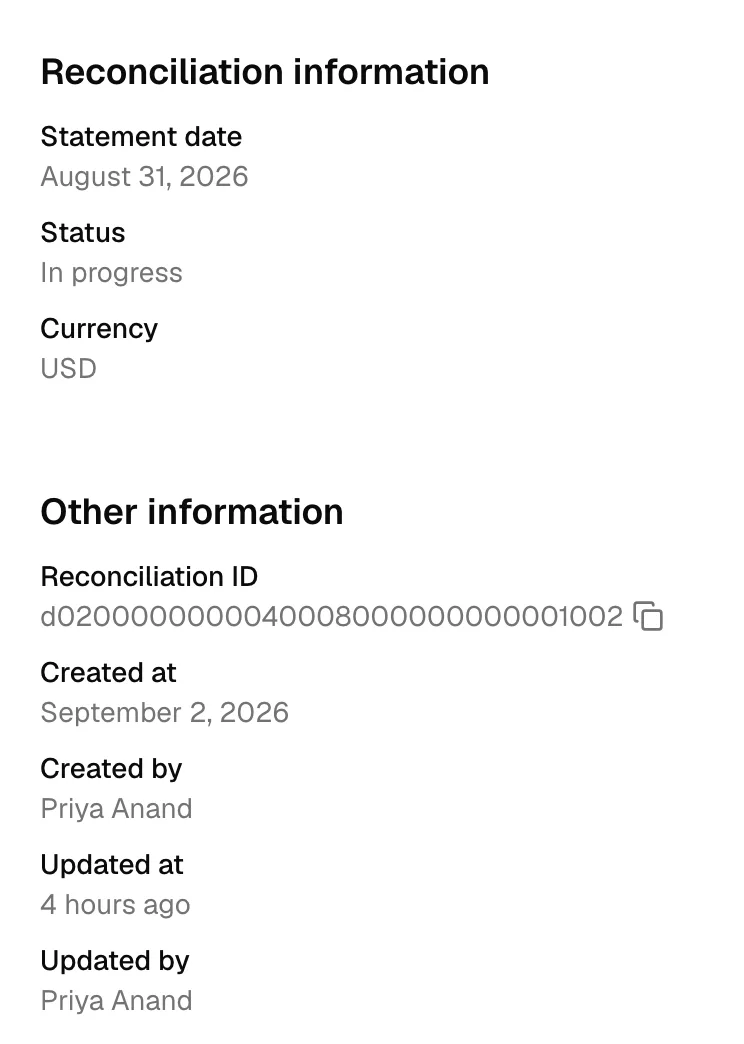
The sidebar down the right of the workspace records what this reconciliation is and who has touched it.
Reconciliation information shows:
- Statement date. The closing date this reconciliation is being run against.
- Status. Draft, In progress, Completed, or Archived.
- Currency. The currency the figures are in.
- Completed at and Completed by. These two appear only once the reconciliation is completed, and record when it was closed and who closed it.
Other information underneath shows the Reconciliation ID, with a copy control beside it so you can paste the reference into an email or a support request, then Created at, Created by, Updated at, and Updated by. The two timestamps read as "3 days ago" while they are recent, and show the full date once they are older than a week.
When the difference will not clear
A difference that will not go away usually means one of these:
- A payment or deposit has not been entered in Esqase yet. Record it, then come back. New entries appear in the top table as soon as they are posted.
- The entry is still pending. Only posted entries can be matched. Clear the payment first, and the entry appears.
- An amount was typed wrong. Compare the entry's amount to the statement line.
- The entry is dated after the statement date. It will not show in the top table. Correct its date if the date is wrong, otherwise leave it for the next statement.
- Deposits in transit and uncleared cheques. These are genuinely not on the statement yet. Leave them unmatched. They are why the book balance and the statement balance differ, and they carry forward to the next reconciliation.
Complete a reconciliation
- Get the Difference to zero. Complete reconciliation sits at the top right of the page and stays disabled until it is.
- Click Complete reconciliation and confirm.
The matched entries are locked to this statement. The reconciliation shows as Completed in the history, and the account is ready for its next statement.
Important: If you see "The matched entries still do not add up to the statement balance", Esqase rechecked the figures at the moment you clicked and they still disagree. Something changed while you were working, usually a new entry or an edit. Clear the remaining difference and try again.
Cancel a reconciliation
Cancelling throws a reconciliation away. Use it when you started one against the wrong statement, or when you would rather begin again from scratch.
- Open the reconciliation from the Reconcile tab.
- Click Cancel reconciliation at the top right of the page, then confirm.
Every entry you had matched is released back to the account, so it is available to the next reconciliation, and the reconciliation itself is discarded. The transactions themselves are not changed: no amount, date, or status is touched, and the account balance does not move. Esqase then takes you back to the account's Reconcile tab.
Note: You can only cancel a reconciliation that is Draft or In progress. To cancel a completed one, reopen it first.
Reopen a completed reconciliation
If something needs correcting after the fact:
- On the Reconcile tab, click View on the completed reconciliation.
- Click Reopen at the top right of the page, then confirm.
While a reconciliation is completed, Reopen is the only button in the header. Cancel reconciliation and Complete reconciliation take its place once it is open again.
The matched entries stay matched, and you can match and unmatch again. Reopening does not undo anything, it only unlocks the reconciliation so you can change it. Once it is open again you can also edit its statement details or cancel it.
Common questions
Does reconciling change any balances? No. Reconciling records which entries you have seen on a statement. It never creates, edits, or deletes a ledger entry, and the account balance is unaffected. Cancelling a reconciliation is the same: it only lets go of the entries it was holding.
Why can I not find an entry I know exists? The workspace only offers posted entries dated on or before the statement date. A pending entry, a voided entry, or one dated after the statement will not appear, and searching will not bring it up. Check which table you are searching, too: each of the two has its own search box, so an entry you have already matched will never turn up in the top table's results.
Can two people reconcile the same account at once? Only one reconciliation can be open per account, so in practice no. If a colleague started one, their work in progress is what you will see.
Can I import the bank statement as a file? Not today. Entries are matched by hand against the statement.
What happens to entries dated after the statement date? Nothing. They stay available and will appear in the next reconciliation, once its statement date covers them.