La documentación del producto está disponible solo en inglés.
Messages (chat)
Messages is real-time chat inside Esqase. It lets you send quick messages, and share files, with your colleagues and with your firm's clients, one-on-one or in a group, without leaving the dashboard. Chats open as small floating windows at the bottom-right of the screen, so you can keep working while you talk. New messages arrive near-instantly and update the red unread badge on the Messages icon on their own, so you never miss one. You can also react to a message with an emoji, reply to quote it, edit your own message for a few minutes after sending, delete messages, and clear a whole conversation out of your list.
Before you begin
- Who you can message. Two kinds of people: members of your firm, the colleagues who sign in to the dashboard, and your firm's clients, the contacts you have on record. A conversation can hold both at once. See Message a client for what a client can and cannot do on their side.
- Where Messages lives. Messages is built into the top bar of the dashboard, so it is available on every page. There is also a full Messages page for a roomier view, reached from the Messages menu rather than the sidebar.
- Permissions. Access to Messages is controlled by a Chat permission on your role. By default every role can use Messages, so you should see it out of the box. If a firm owner or administrator turns the Chat permission off for your role, the Messages icon disappears and you will not be able to send or receive chats. Messaging clients needs one more thing: View access for contacts. Without it, everything else in Messages works and the Clients lists simply do not appear. See Roles and permissions.
- Your messages belong to the firm you are working in. If you belong to more than one firm and switch between them, Messages shows the conversations for the firm you are currently viewing, and any chat windows you had open are closed.
Note: Chat reaches your notification bell as well as the red badge. A message in a conversation you are in arrives as New message, and being @mentioned arrives as Mentioned in a message. Both are yours to control under Settings > Notifications. See How you are told about a message. Clients are told differently, by email: see How a client is told.
The Messages icon and unread badge
The Messages icon is your way in. It sits in the top bar of the dashboard, just to the left of the notification bell.
- Look at the top-right of the dashboard header for the Messages icon (a speech-bubble icon).
- When you have conversations with unread messages, a small red badge sits on the icon. The number is how many of your conversations have messages you have not read yet, not the total count of unread messages, and it counts every conversation you belong to, not only the ones showing in the list. Once you pass 99, the badge shows 99+.
- Click the Messages icon to open the Messages menu.

Note: If you do not see the Messages icon at all, your role does not include the Chat permission. Ask a firm owner or administrator to turn it on for your role under Roles and permissions.
How you are told about a message
The red badge is not the only signal any more. A message you have not seen also reaches your notification bell, and your desktop if you have turned desktop alerts on.
- A message in a conversation you are in arrives as New message, naming who sent it.
- Being @mentioned in a message arrives as Mentioned in a message instead, so a message addressed to you by name stands out from the rest of the thread.
- A message a client sends from the portal or the Esqase Client app tells your team in exactly the same way.
- Clicking the notification opens the conversation, so you can answer without hunting for it.
A busy thread does not flood your bell. Esqase sends at most one New message notification per conversation every five minutes, however many messages land in it during that time, and the badge and the thread keep updating as usual. Mentions are never grouped: every mention notifies, because somebody asked for you by name.
You are never notified about your own messages, and you are never notified twice: if a message both mentions you and is new to you, you get the mention.
To change any of this, open Settings > Notifications and use the New message and Mentioned in a message rows. Turning New message off and leaving Mentioned in a message on is a good setting for a busy firm. See Notifications.
Note: Reactions, edits, deletes, and changes to who is in a group are never notified. They show up live in the conversation and nowhere else.
Mark conversations as read
A conversation counts as unread (and adds to the red badge) when someone else sends a message you have not seen yet. There are three ways to clear it:
- Open the conversation. Reading a conversation marks it read automatically, so simply opening it clears its unread state.
- Mark one conversation read without opening it. In the Messages menu or on the full Messages page, hover over an unread conversation and click the check mark that appears on its right. It is marked read and the badge updates.
- Mark everything read at once. While you have unread conversations, a Mark all read button appears in two places: at the top of the Messages menu, and at the top right of the full Messages page beside New message. Click it to clear them all in one step.
Marking read only changes what counts as unread for you. It never deletes messages and never affects what anyone else sees.
Open the Messages menu
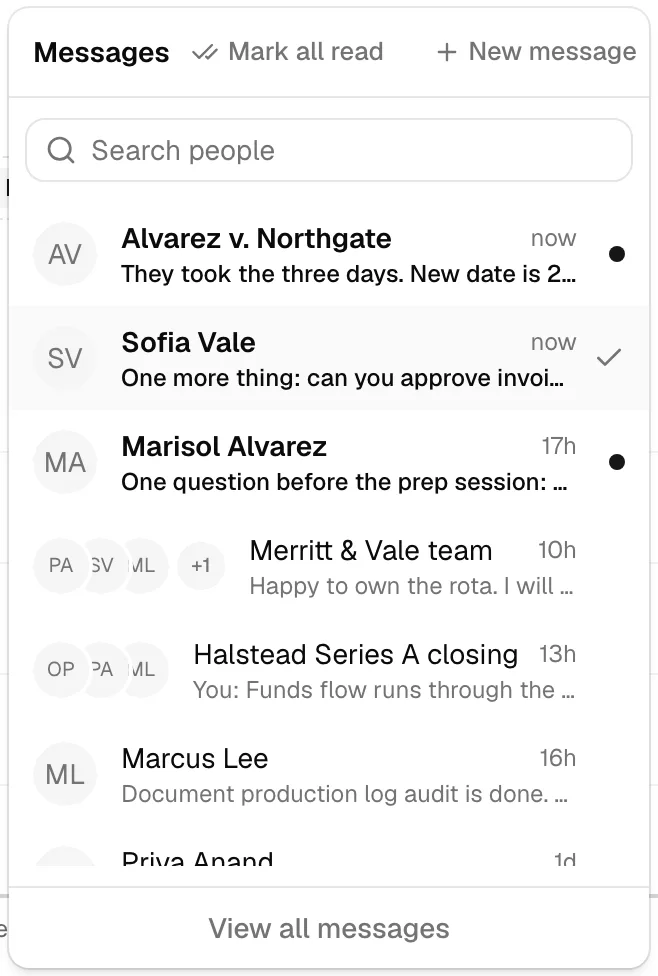
Clicking the Messages icon opens a dropdown menu. From here you can jump back into an existing conversation, start a new one-on-one chat, or start a group.
The menu has four parts:
- A Messages heading, with Mark all read (while you have unread conversations) and New message on the right.
- A Search people box.
- Your conversations, followed by a Start a chat list of teammates you have not messaged yet, and then a Clients list of the contacts you can message (see below).
- A View all messages link at the bottom that opens the full Messages page (see The full Messages page).
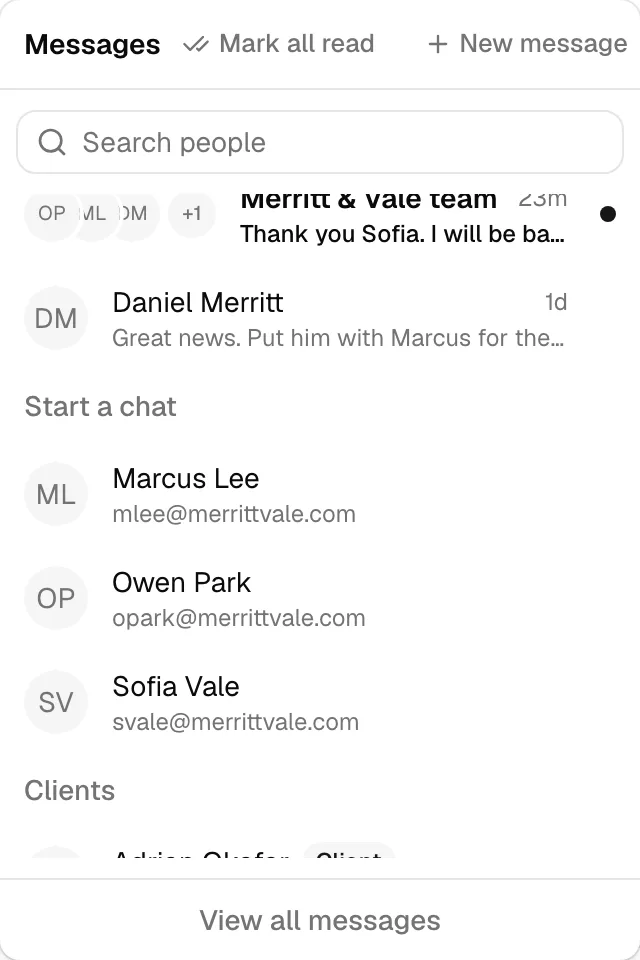
Your conversation list
Your conversations come first, most recent first, with any unread ones lifted to the top. Each row shows:
- A picture: the other person's profile photo in a one-on-one chat, the group's initials in a group of three, and the members' photos stacked together once a group has four or more people. A stack shows up to three photos, then a count (+2, for example) for anyone beyond that.
- The conversation's name. A group you have not named is listed by its members' names.
- A one-line preview of the last message. If the last message was yours, it is prefixed with You:. A message that was only files shows Attachment or, for several, 2 attachments. A conversation nobody has written in yet shows No messages yet.
- How long ago the last message arrived (for example, "5 minutes ago").
- A small dot on the right while the conversation has unread messages. Unread conversations also show their name and preview in bold so they stand out.
If you have more conversations than fit in the first batch, a Load more button sits at the bottom of the list. Click it to bring in the next set.
Click any conversation to reopen it. It opens as a floating chat panel at the bottom-right (see Floating chat panels).
Starting a one-on-one chat
People you have not messaged yet are listed for you below your conversations, in two headings: Start a chat for teammates, and Clients for the contacts you can message. You do not have to search for them.
- Open the Messages menu.
- Scroll to Start a chat or Clients and pick the person you want. To narrow a long list, type a name or an email address (or part of one) into the Search people box first.
- If your firm is large, click Load more at the bottom of a list to see more people.
- Click the person you want.
- Esqase opens a chat with them at the bottom-right, ready for your first message.
Once you have a chat with a teammate, they drop out of Start a chat, because their conversation is already in your list above. Clients drop out of the Clients list the same way. If you already have a one-on-one chat with that person, Esqase reopens the existing one rather than creating a duplicate, so all your past messages with them stay in a single thread.
Every row under Clients carries a small Client badge, and the badge follows that person everywhere in Messages: in the conversation list, in the New message dialog, and in the Members dialog. It is there so you can always tell at a glance whether you are writing to a colleague or to a client.
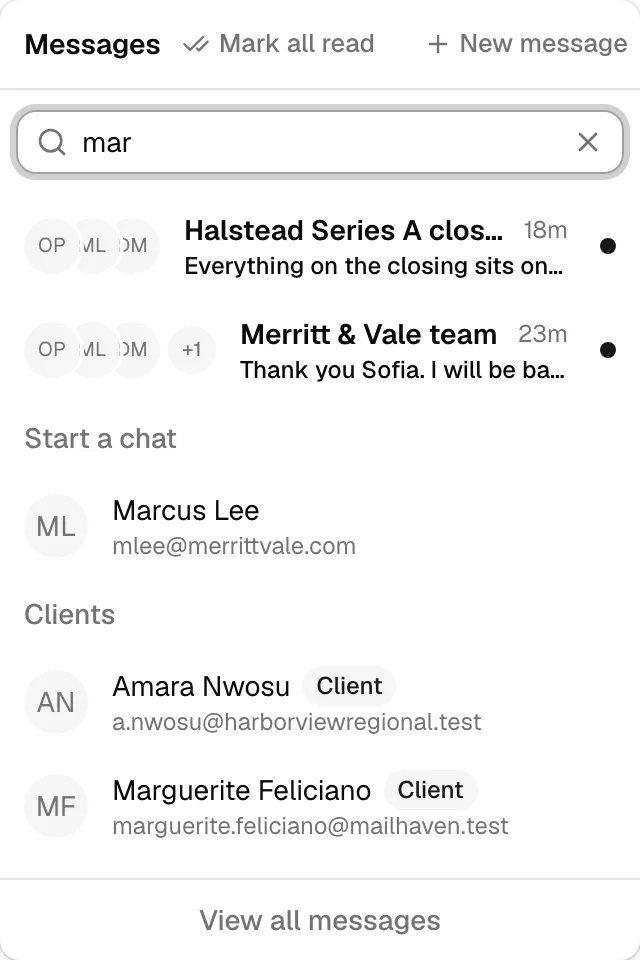
Tip: Typing in the search box filters all the lists at once: your conversations by name (the group's name, or the people in it), and your teammates and clients by name and email address. It never searches the words inside messages, so you cannot find a conversation by something that was said in it.
The full Messages page
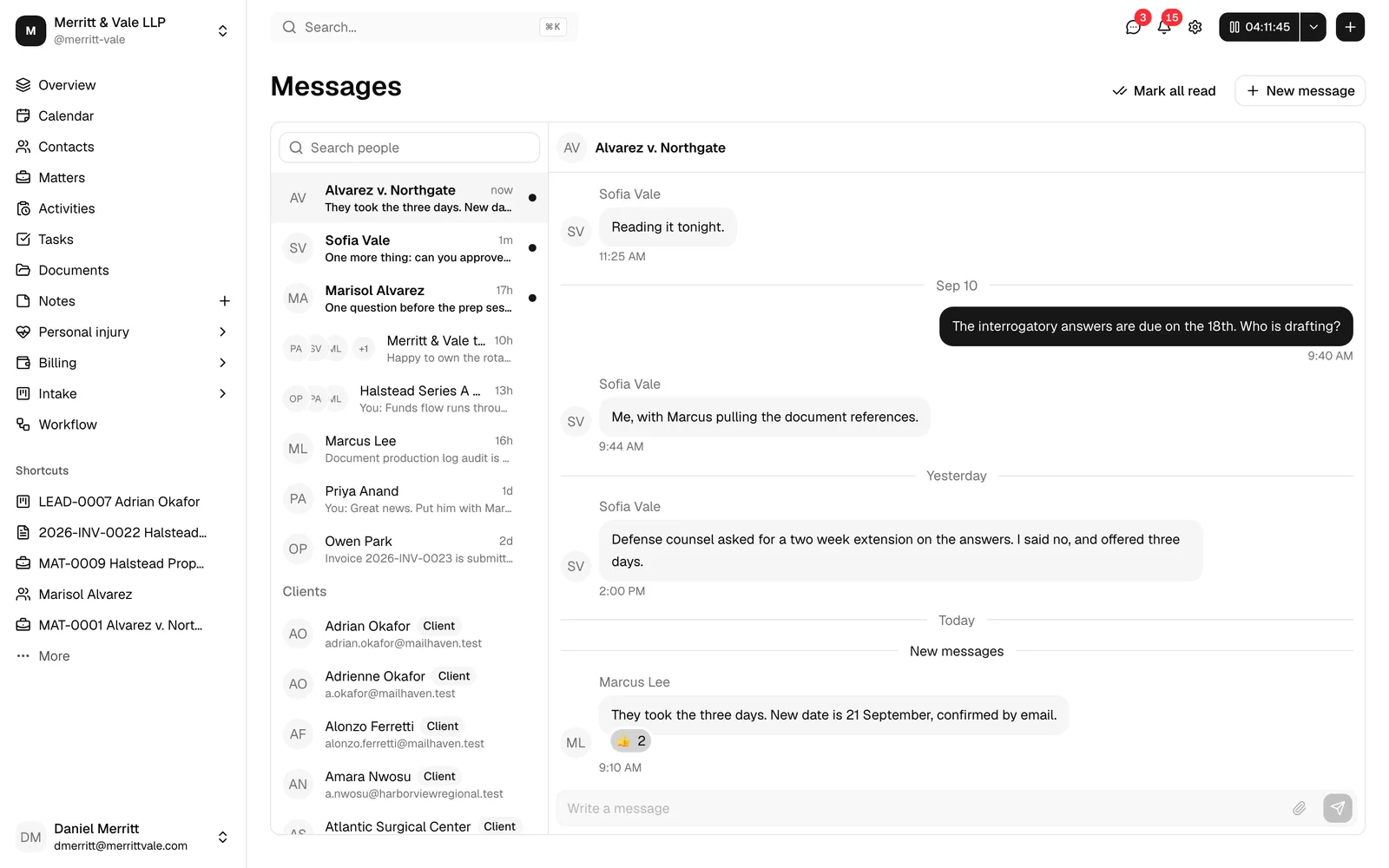
For a roomier view, click View all messages at the bottom of the Messages menu to open the full Messages page. It shows everything in one place:
- The same list runs down the left: your conversations, then Start a chat, then Clients, with the same Search people box as the menu. The list has no heading of its own. Mark all read (while you have unread conversations) and New message sit at the top right of the page, beside the Messages title.
- The conversation you pick opens in a large reading pane on the right. Its header shows the conversation's picture and name, and clicking the picture opens the conversation menu (see Manage a conversation). The full message history and the same message box you use in the panels sit below it.
- Your most recent conversation opens automatically when you arrive, and the one you are viewing stays highlighted in the list. If you have no conversations yet, the right-hand pane reads No conversation selected and points you at the list to pick someone.
Everything works exactly as it does in the floating panels: sending, files, mentions, reactions, replies, editing, deleting, typing indicators, and real-time delivery, just with more room. The floating panels and the full page stay in sync, so a message you send in one place shows up in the other.
Start a group chat
A group chat lets you talk with several people at once in a single thread. A group can mix colleagues and clients freely: a matter team and the client on one thread, for example.
- Click New message, at the top right of the Messages page or in the top right of the Messages menu. The New message dialog opens with the prompt "Pick one person for a direct message, or several for a group."
- Use the Search people box to find people. The list is split into Team members and Clients, so it is always clear which you are picking. Click each person you want to add. A check mark appears next to everyone you have selected. Click a selected person again to remove them.
- Once you have selected two or more people, a Group name (optional) box appears at the top. Type a name for the group if you like, or leave it blank. You can rename the group later.
- Click Create group to start the chat. (If you select only one person, the button reads Start chat and Esqase creates a one-on-one chat instead, reusing an existing one if you already have it.)
- The new group opens as a floating chat panel at the bottom-right, and you are its owner.
To back out without creating anything, click Cancel.
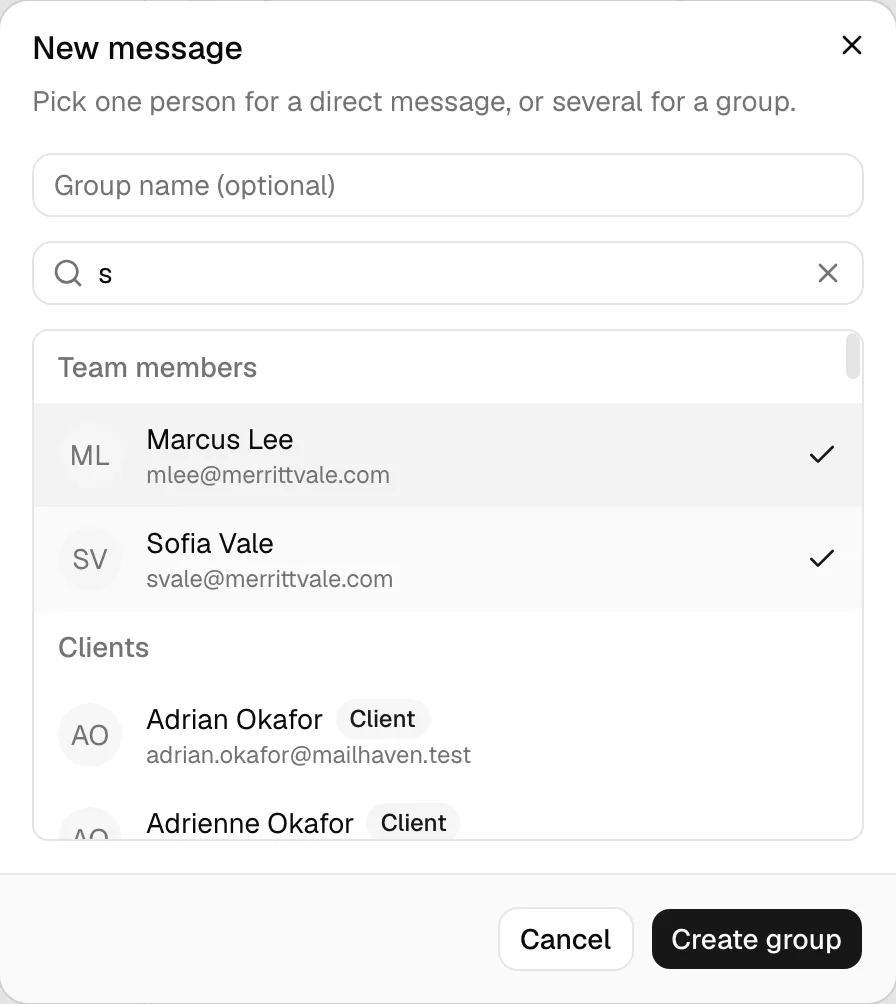
Note: You must pick at least one person before you can create a chat. If you try to create one with no one selected, Esqase asks you to "Select at least one person".
Important: A client you add to a group can read everything sent in it from the moment they were added, including messages between your colleagues. Start a separate group when the team needs to talk privately about the same matter.
Message a client
Messages reaches your firm's clients as well as your team. You write from the dashboard exactly as you would to a colleague; the client reads and replies in the client portal, their own signed-in area of Esqase, or in the Esqase Client app on their phone. Everything stays in one thread, so a question and its answer live together instead of scattering across an inbox.
Which clients you can message
A contact appears in the Clients list when all of this is true:
- The contact is active. A draft contact, or one you have archived, is not offered.
- The contact has at least one email address on record. The address is how Esqase reaches them and how it recognizes them when they sign in to the portal, so a contact with no email cannot be messaged. See Contacts to add one.
- Your role allows it. You need the Chat permission and View access for contacts. Without the contact permission, the Clients lists simply do not appear anywhere in Messages, and everything else keeps working.
Start a conversation with a client
- Open the Messages menu, or the full Messages page.
- Scroll to Clients, or type the client's name or email address into the Search people box.
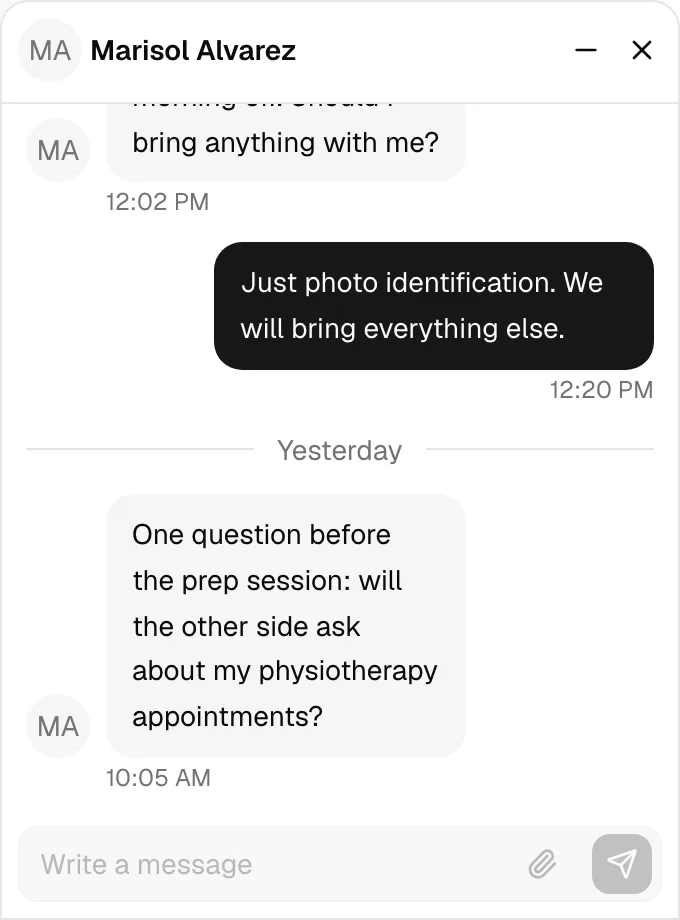
- Click the client you want. A chat opens at the bottom-right, ready for your first message.
- Type your message and send it as usual. To bring colleagues in as well, use New message instead and pick everyone in one go (see Start a group chat).
Your firm always starts the conversation. A client has no way to open a new chat with you, and their portal offers no equivalent of New message. Until you write to them, they have nothing to read and nothing to reply to. In the Esqase Client app, a conversation you open appears as soon as you create it, empty until the first message, and the client can write in it.
How a client is told
A client is not sitting in the dashboard, so Esqase emails them a short heads-up.
- The subject is New message from followed by your firm's name, and the email carries a View message button that takes them to the conversation in the portal.
- The message itself is never in the email. The email says only that something is waiting, so nothing confidential travels by mail.
- The email is deliberately infrequent. The first message reaches them straight away. After that, Esqase waits until they have read what you sent, or until four hours have passed, before sending another, and it never sends more than one every fifteen minutes. A busy back-and-forth therefore produces one email, not twenty.
- A client who uses the Esqase Client app also gets a New message alert on their phone, unless they turned it off. The alert never contains the message either: it reads New message and Open Esqase to see it. The email still goes out as described here.
- Every client in the conversation is told this way, except the person who wrote the message. Your colleagues are not emailed about a chat by default: they get the red badge and a notification in their bell instead, and they can switch email on for themselves under Settings > Notifications if they want it.
Tip: If a client says they never received the email, check the email address on their contact record first, then ask them to look in their spam folder. Replies to the email are not monitored, so a client who answers it by mail is not writing to you. Their reply has to be sent from the portal or the Esqase Client app.
What a client can do
In the portal or the Esqase Client app a client gets the same conversation you see, with the same message-by-message tools:
- Reply to the conversation, and reply to a single message so it is quoted above their answer.
- React to a message with one of the same six emoji.
- Edit their own message for five minutes after sending it, and delete it afterwards, or hide any message from their own view.
- Send files, under the same limits described in Share files in a chat: up to 10 files per message, up to 25 MB each, and the same allowed types.
- See when you are typing, and see the Members list of a group so they know who else is reading.
- In the Esqase Client app, report a message they think is inappropriate to Esqase support with Report message, or raise a concern about the conversation from Members with Report a concern to Esqase.
What a client cannot do
- Start a conversation. Only your firm can open one.
- Rename a group, add or remove anyone, leave, or delete a conversation. Those belong to your colleagues, and a group is always owned by someone at your firm.
- Mention anyone. The @ menu is a team feature.
- Save a file into your Documents, or open a record card. A pasted dashboard address reaches them as a plain link they cannot open.
When access changes
- Archiving a contact takes away their access. The moment you archive them, their conversations disappear from the portal and they stop being emailed. Restore the contact and their access returns. See Contacts.
- Removing an email address has the same effect: Esqase matches a portal sign-in to a contact by email, so an address you delete is a door you close.
- A paused subscription pauses the portal. While your firm's subscription is paused, your conversations are hidden from the client's portal and the Esqase Client app. Nothing is deleted, and everything comes back once the subscription is active again. See Your Esqase subscription.
- Removing a client from a group, or deleting the group, takes it away from them immediately, exactly as it does for a colleague.
Important: A chat with a client is not a communication log entry. It does not appear on the matter's Communications tab and it is not an email you can forward. When something needs to sit on the file, send it as an email or record it as a note instead. See Logging communications.
Floating chat panels
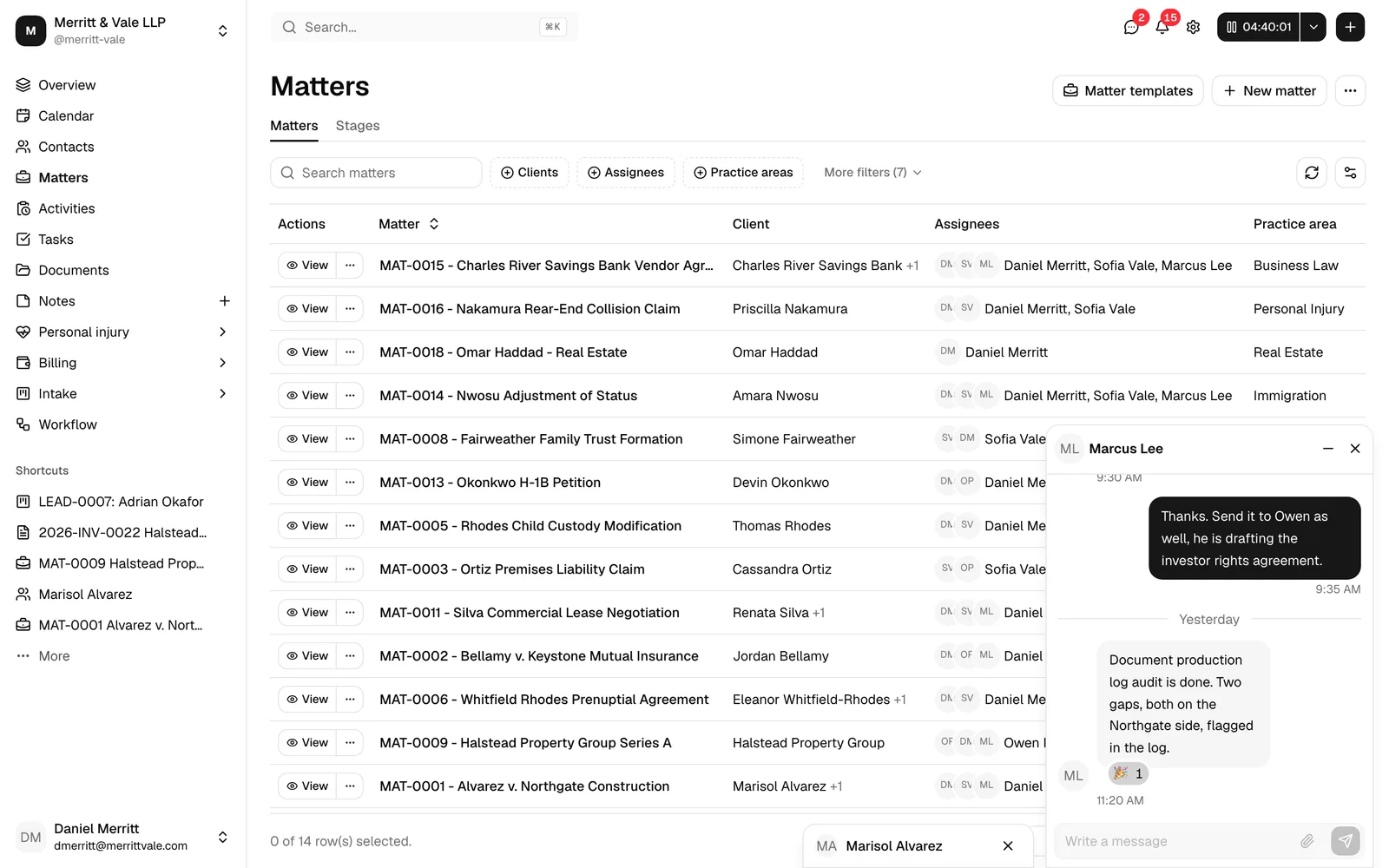
Chats open as small floating windows ("panels") at the bottom-right of the dashboard, similar to a Messenger-style chat. They stay with you as you move around the app so a conversation never interrupts your work.
A chat panel has:
- A header showing the conversation's picture, its name, a minimize button (the minus icon), and a close button (the X icon). Click the picture to open the conversation menu, where you manage the conversation (see Manage a conversation).
- The message thread, with the newest messages at the bottom.
- A message box at the bottom where you type, attach files, and send.
Up to three at once
You can have up to three chat panels open side by side. If you open a fourth conversation, Esqase closes the oldest panel to make room. Closing a panel here does not delete the conversation; it just tucks it away. You can reopen it any time from the Messages menu, with its history intact.
Minimize, restore, and close
- Minimize (the minus icon) collapses a panel to a small bar showing just the conversation's name. The chat keeps its place and you can bring it back later.
- Restore a minimized chat by clicking its collapsed bar, which expands it again.
- Close (the X icon) removes the panel from the bottom-right. Your messages are kept; closing only hides the window. Reopen it from the Messages menu whenever you want.
Reading back through a conversation
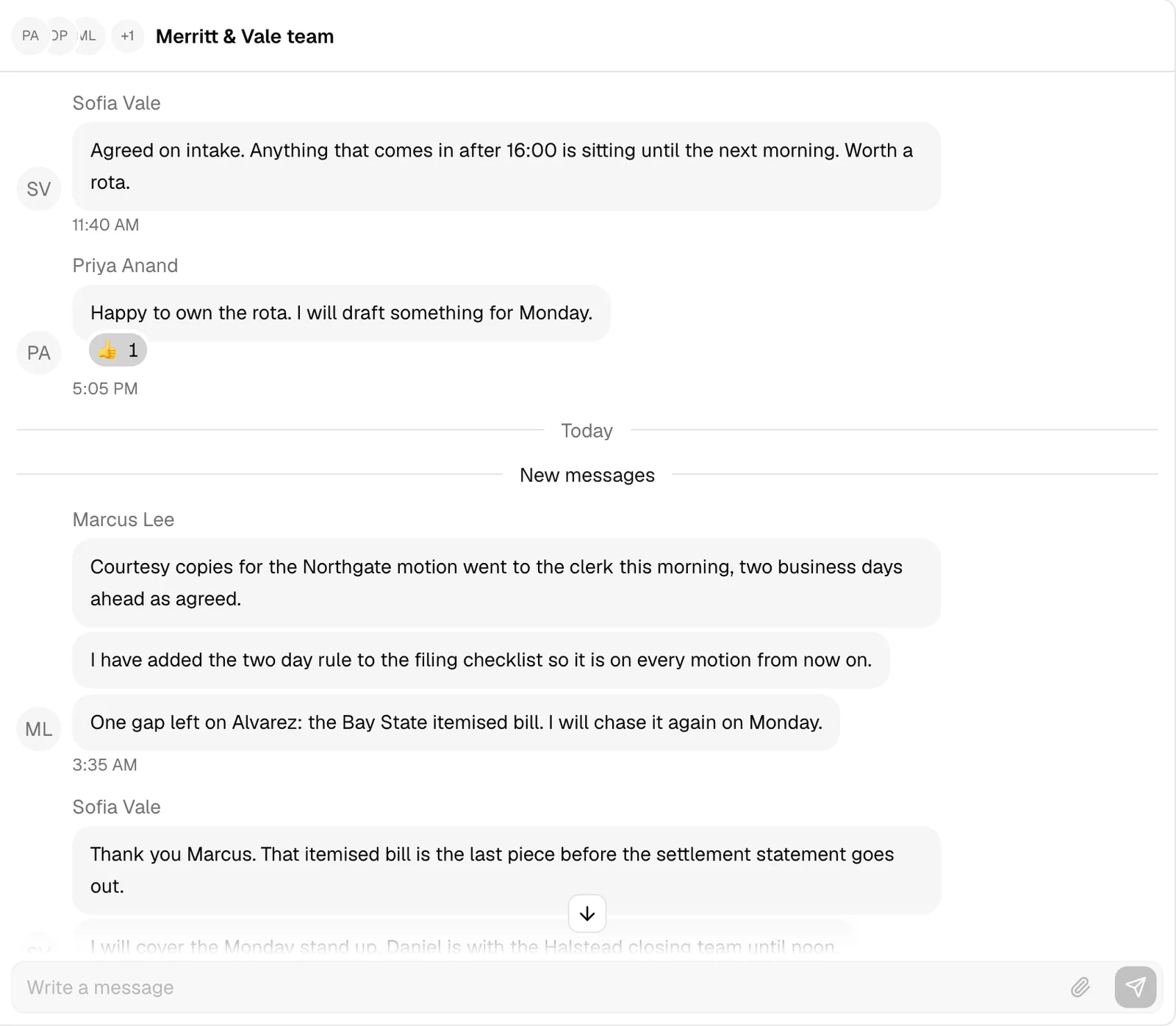
When you open a chat, Esqase shows the most recent messages and takes you to the bottom of the thread.
- Older messages. Scroll up and Esqase loads the earlier ones for you as you reach the top. There is also a Load earlier messages button above the oldest message you can see, if you would rather click.
- Day separators. A small label marks where each day starts: Today, Yesterday, or the date.
- New messages. A New messages line marks the first message you had not read when you opened the conversation, so you can pick up exactly where you left off.
- Jump back down. While you are scrolled up, a button appears at the bottom of the thread to take you back to the newest message. If messages arrived while you were reading, it shows how many, for example 3 new.
- Grouped messages. Several messages sent by the same person within a few minutes are stacked together under one name, with the time shown once at the bottom of the group.
Your draft is kept
If you type a message and then minimize or close the chat without sending, Esqase keeps your draft. Reopen the conversation and your text is still there, along with the message you were replying to and any files you had already attached. The draft clears once you send.
Send a message
- Open a conversation (from the Messages menu or by starting a new one).
- Click in the Write a message box at the bottom of the panel and type.
- Press Enter to send, or click the Send button (the arrow icon). To add a new line without sending, press Shift + Enter.
Your message appears in the thread right away, before it has finished sending. While it is on its way it shows a small Sending... label underneath. As soon as it is delivered the label changes to the time it was sent. If it cannot be sent, the message turns red and shows Not delivered with a Retry button next to it. Click Retry to send the same message again, files and all.
A message can be up to 5,000 characters. As you approach the limit a counter appears next to the Send button, and it turns red if you go over. You cannot send a message that is over the limit.
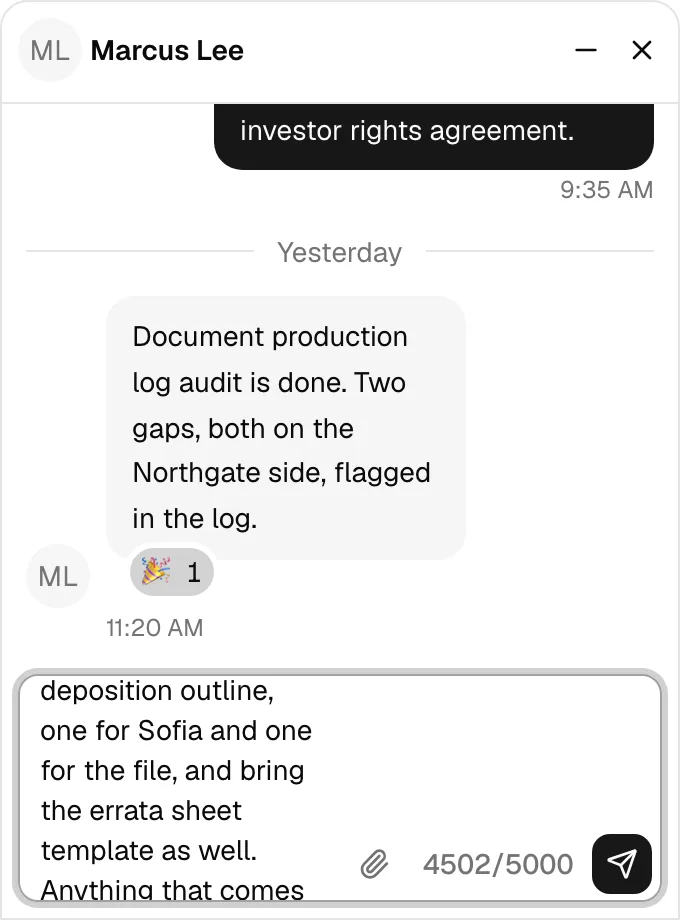
Tip: When a teammate is typing a reply in a conversation you have open, an X is typing... line appears just above your message box. It clears on its own when they stop.
Note: If you type using an input method that composes characters as you go (for example Japanese, Chinese, or Korean input), pressing Enter to confirm a candidate does not send the message. It sends only once you are done composing.
Mention a teammate
Mentioning a teammate inserts their name into your message so it is clear who you are addressing in a busy group conversation.
- In the message box, type @ followed by the start of a teammate's name.
- A short list of matching people in the conversation appears above the box.
- Click the person you want, or use the arrow keys and press Enter or Tab to pick the highlighted one. Their name is inserted into your message as a mention.
- Finish your message and send it as usual.
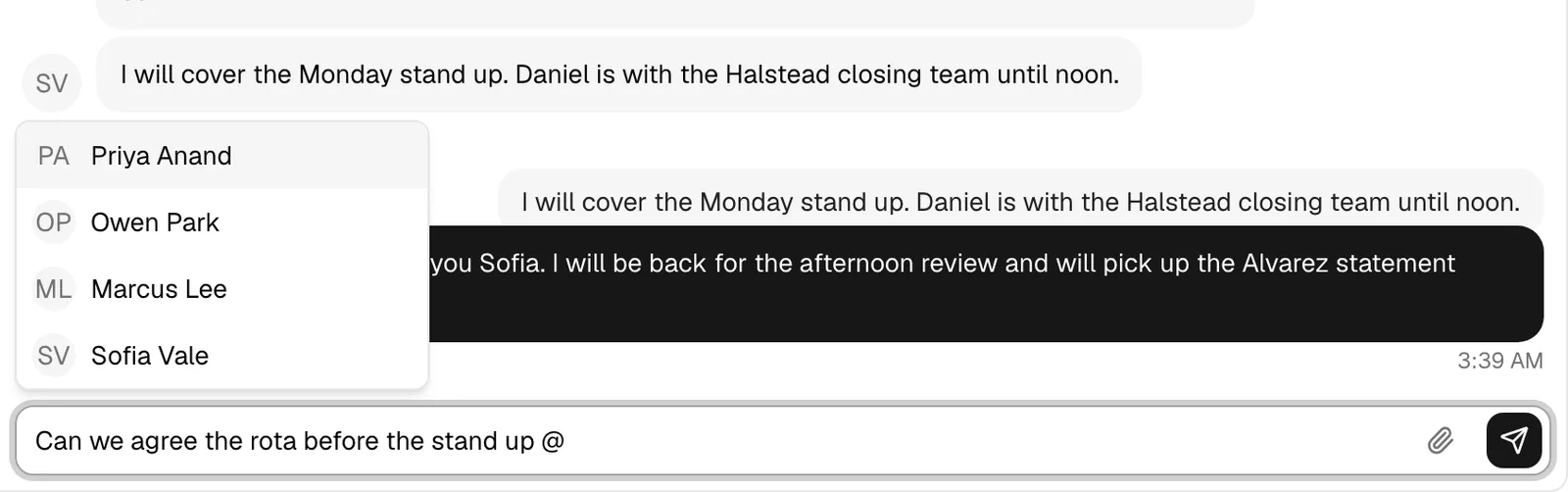
Note: You can only mention teammates who are in that conversation. Clients are never offered in the list and cannot be mentioned, even when they are in the group. Mentioning someone does not add them to the chat. It does notify them: they get a Mentioned in a message notification, and a desktop alert if they have those on. See How you are told about a message.
Share a link to a record
Paste a link to anything in Esqase and the chat turns it into a tidy card naming the record, instead of a long web address nobody can read.
- Open the record you want to share, for example a matter, and copy the address from your browser's address bar.
- Paste it into the message box and send the message as usual.
- The address is replaced by a card showing the record's name and what kind of record it is, such as MAT-0012 - Smith v. Jones with Matter underneath.
- Anyone in the conversation can click the card to open that record.
You can write around the link. Type your note, paste the address anywhere in it, and send: your words stay as you wrote them and the card appears just below them. Paste several links and you get a card for each, up to five in one message.
Links to these records become cards: matters, contacts, leads, invoices, accounts, documents, tasks, notes, calendar events, and workflows. A link to a list page, such as the matters list, stays as an ordinary link you can click. So does a link to a site outside Esqase, which opens in a new tab.
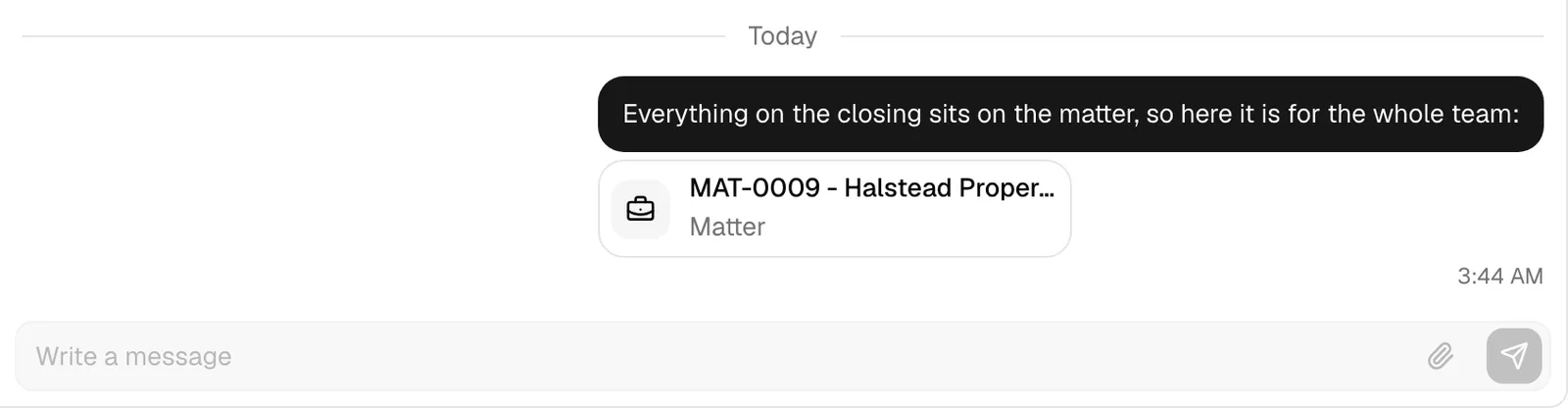
Note: A card only opens for people who are allowed to see that record. If a teammate's role does not give them access, or the record has been deleted, their card reads Not available and cannot be clicked. Sharing a link never grants access to anything.
Important: Record cards are a team feature. A client sees the address you pasted as an ordinary link, and it leads to your dashboard, which they cannot sign in to. When you want a client to see a document, share it properly instead: see Sharing documents.
React to a message
A reaction is a quick emoji you add to someone's message instead of typing a reply.
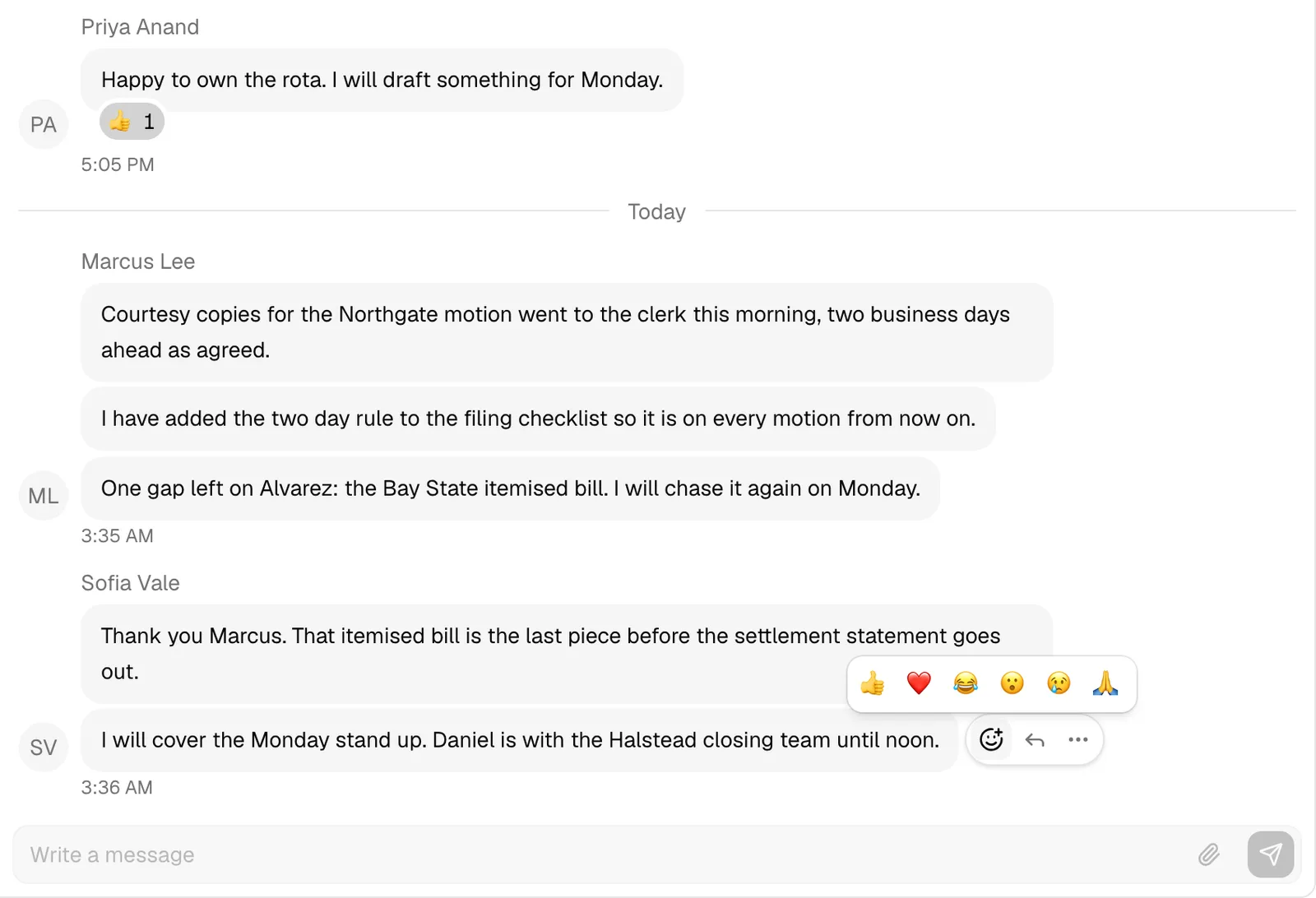
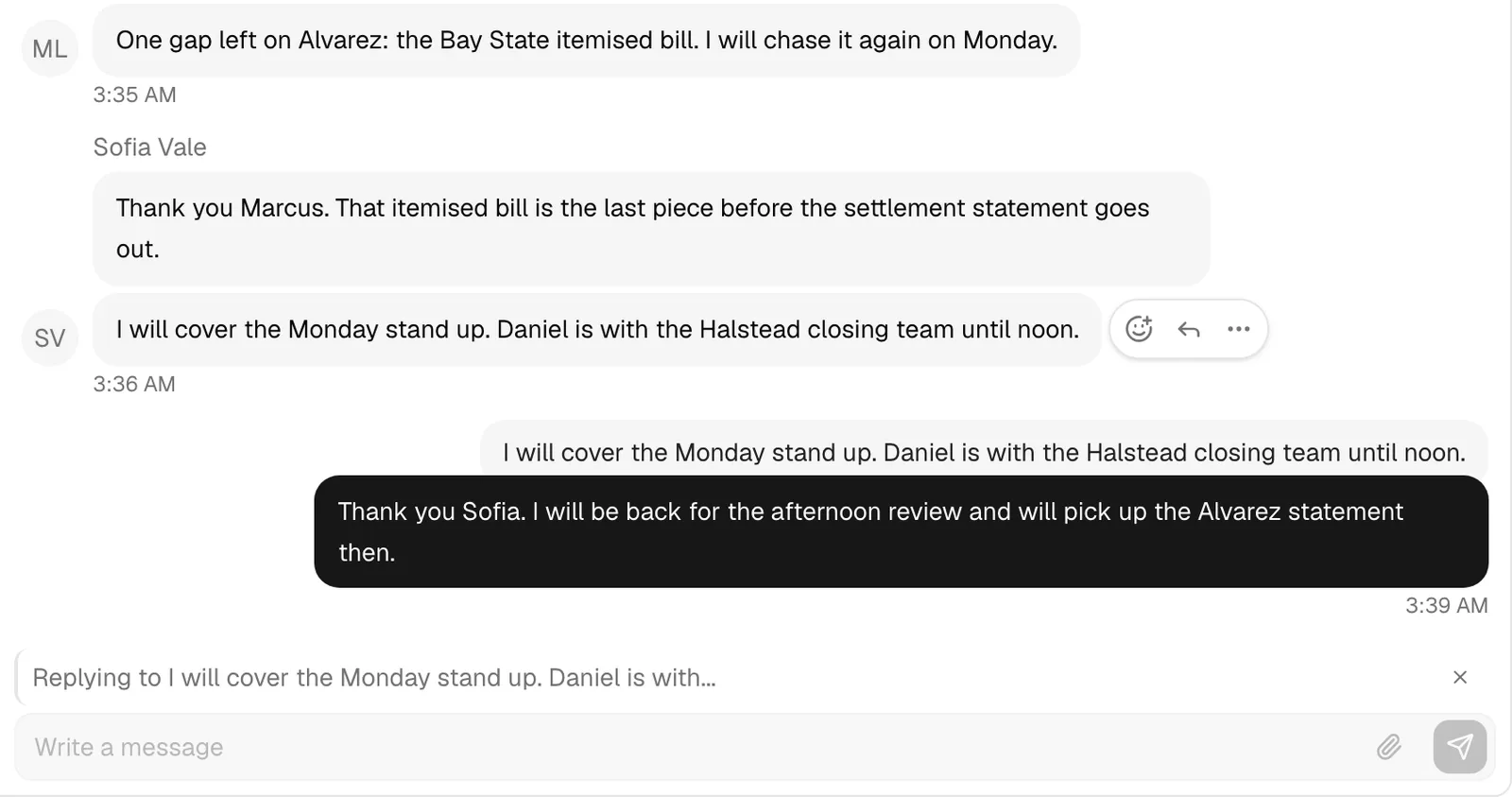
- Move your pointer over the message you want to react to. A small toolbar appears next to it.
- Click the smile icon (the add-reaction button).
- Pick an emoji from the short row that pops up. The choices are a fixed set: 👍, ❤️, 😂, 😮, 😢, and 🙏.
- Your reaction shows as a small chip below the message, with a count of how many people used that emoji.
To take your reaction back, click the chip again. Clicking a chip toggles your own reaction on or off, so the count goes up or down by one. Reactions appear for everyone in the conversation near-instantly.
Reply to a message
Replying quotes the message you are responding to, which keeps things clear in a busy thread.
- Move your pointer over the message you want to answer and click the Reply icon in the toolbar.
- A preview bar appears above the message box showing the message you are replying to. (Click the X on the bar to cancel the reply, or press Escape.)
- Type your message and send it as usual.
- The sent message shows the quoted snippet above it, so everyone can see what you were replying to.
Click the quoted snippet on any reply to jump up to the original message. It is highlighted for a moment so it is easy to spot.
Edit a message
You can fix a typo or reword your own message for a short time after sending it.
- Move your pointer over your message. If it is still within the edit window, an Edit (pencil) icon appears in the toolbar.
- Click it. The message text loads into the message box with an Editing message bar above it.
- Make your change and press Enter (or click the Send button) to save it. To back out, click the X on the bar or press Escape.
- The edited message shows a small edited label so it is clear it was changed.
Note: You have five minutes from when you send a message to edit it. After that the Edit option no longer appears. You can only edit your own messages, never someone else's. Editing changes the text only: you cannot add or remove files while editing, so the paperclip is unavailable.
Delete a message
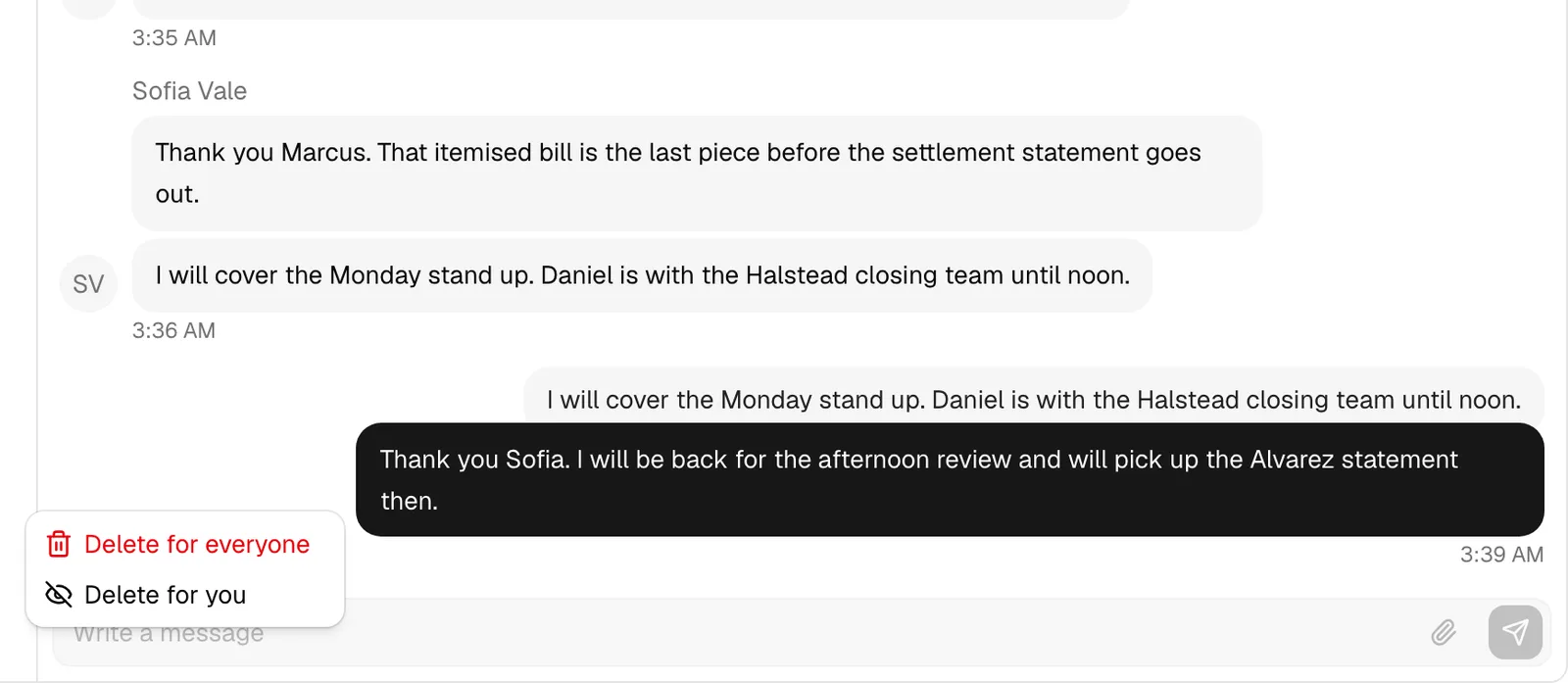
Hover a message and open the ... (more actions) menu to delete it. There are two kinds of delete:
- Delete for everyone (your own messages, any time). The message is replaced with This message was deleted for everyone in the conversation. The text is removed, and any files attached to it are removed as well.
- Delete for you (any message, yours or a teammate's). The message disappears from your view only. Everyone else still sees it normally.
Share files in a chat
You can send files as well as text: a scanned page for a colleague to check, a photo from a site visit, a spreadsheet of figures. Files sent in a chat stay inside that conversation and are visible only to the people in it. Clients in a conversation can send and download files too, under exactly the same limits and allowed types described below.
Attach a file
There are three ways to attach, and you can mix them:
- Click the paperclip (Attach files) button inside the message box, to the left of Send, and pick files from your computer.
- Paste a file or an image straight into the message box.
- Drag files from your desktop and drop them onto the message box. The box highlights and reads Drop files to attach while you hover over it.
Each file appears as a small card just above the message box while it uploads:
- The card shows the file name and Uploading, with the percentage counting up.
- It then shows Checking file for a moment while Esqase confirms the upload arrived intact.
- When it is ready, the card shows the file's size. Images show a small preview.
While a file is still uploading the Send button stays unavailable, so nothing is sent half-finished. Click the X on a card to cancel an upload or take a file off the message. If a file fails, the card explains why and offers a retry button next to the X.
You can send a message with files and no text at all. Your draft, including files you have already uploaded, is kept if you minimize or close the chat before sending.

What you can attach
- Up to 10 files per message.
- Up to 25 MB per file. A larger file is refused with "Files must be 25 MB or smaller".
- Allowed types: images, audio, video, PDF, Word documents, spreadsheets, presentations (including OpenDocument files), plain text, CSV, Markdown, and JSON.
- Not allowed: archives (ZIP, RAR, 7z, TAR, and similar), SVG images, web pages and scripts, and any file whose type your computer cannot identify. These are refused with "That file type cannot be shared in chat". Empty files are refused too.
Tip: To share a compressed folder or a file type chat will not take, put it in Documents instead and send your colleague the link.
Download or save a file
Files show as cards under the message, with pictures first and everything else below them.
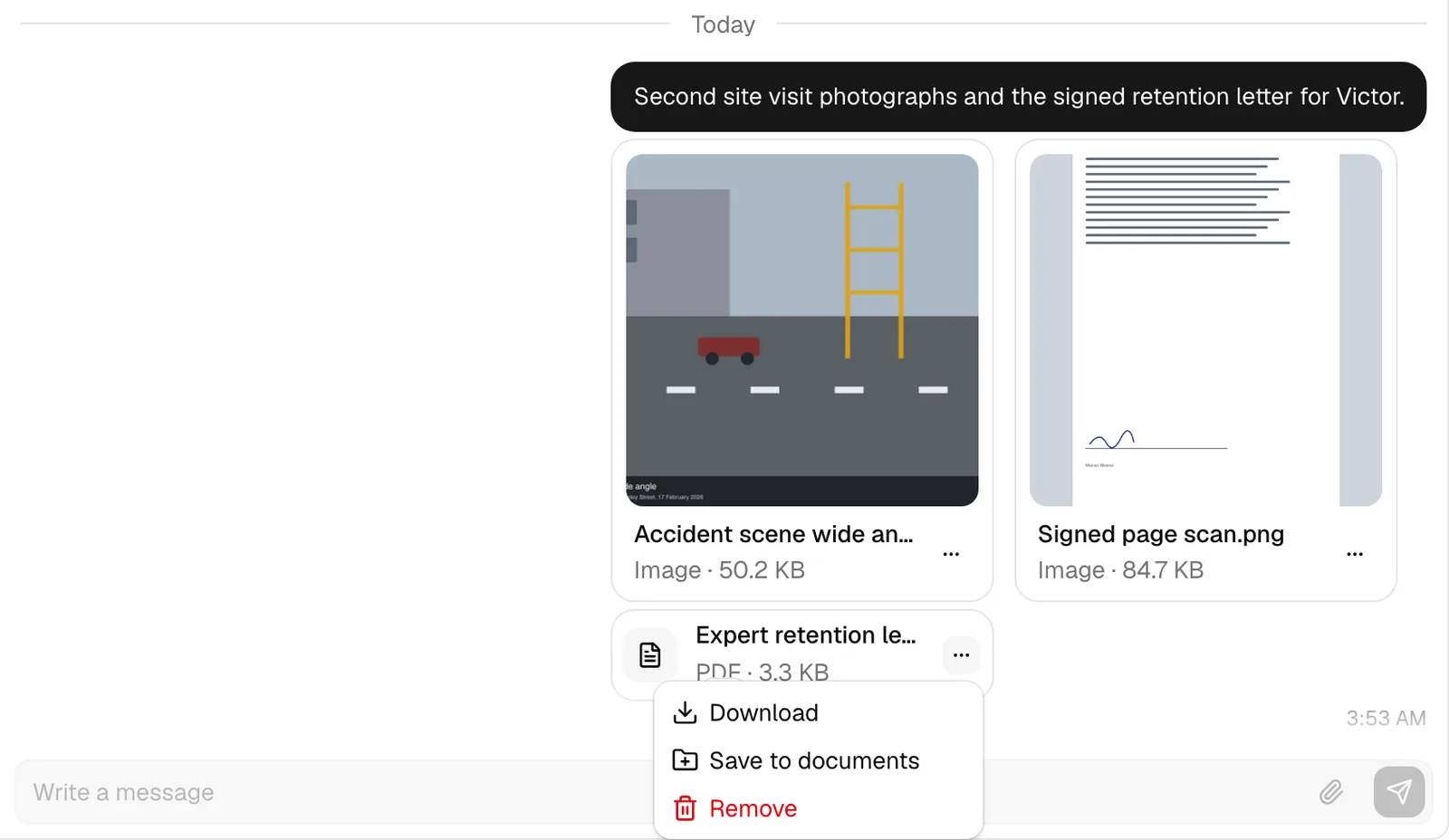
- Pictures (JPG, PNG, GIF and the like) show as picture cards: the image itself fills the top of the card, with the file name underneath and its type and size below that, for example Image · 1.2 MB. Send several pictures in one message and their cards sit side by side.
- Every other file type, such as PDFs and Word documents, shows as a single compact row with a file-type icon on the left, then the name and the type and size, for example PDF · 340 KB.
Both kinds work the same way:
- Click the card to download the file to your computer. Nothing opens in a new tab, including pictures, so a picture card is a preview rather than a viewer.
- Open the ... menu on a card for more:
- Download saves the file to your computer.
- Save to documents copies the file into your firm's Documents. A folder picker opens so you can choose where it lands, and Esqase confirms with Saved to documents. You only see this option if your role includes Create access for documents. Once saved, the copy behaves like any other document: it follows the usual rules about who can see it, and changing it in Documents does not change the file in the chat.
- Remove takes the file out of the conversation. You only see this option on files you sent yourself.
Important: Downloading a chat file is recorded in your firm's audit trail, along with who did it and when. See Activity timelines and audit logs.
Remove a file
- Open the ... menu on a file you sent and click Remove.
- Esqase asks you to confirm: "This file will be removed for everyone in this conversation. This cannot be undone."
- Click Remove. The file is deleted and everyone in the conversation now sees Attachment removed in its place.
Deleting a whole message with Delete for everyone removes its files in the same way.
Note: Removing a file from a chat does not remove any copy already saved into Documents. If you saved it there, delete that copy separately.
Manage a conversation
Every conversation is managed from its conversation menu. Click the conversation's picture in the header of a floating panel, or in the header of the reading pane on the full Messages page, to open it.
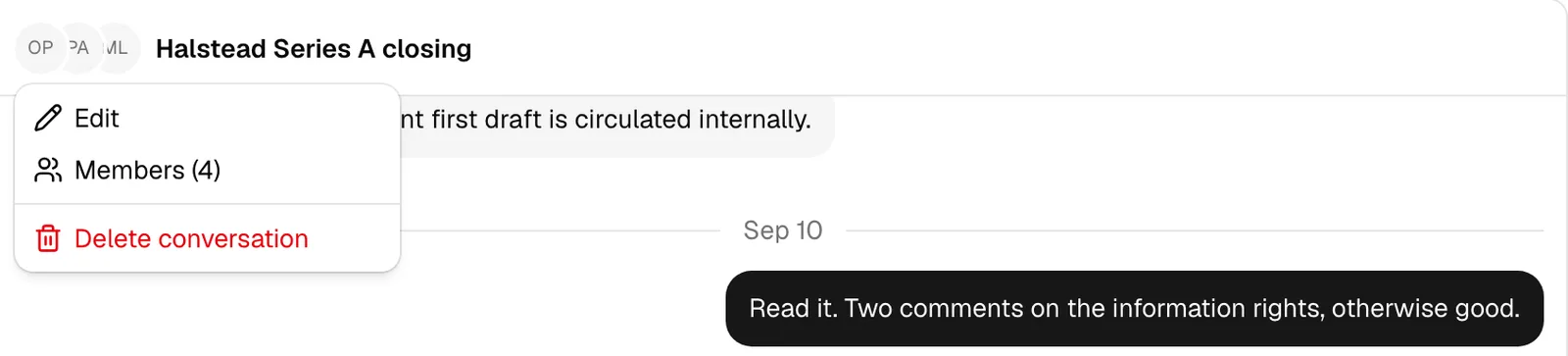
The menu holds up to three items, depending on the conversation and what you are allowed to do in it:
- Edit renames the conversation. Only a group's owners see it, and it never appears on a one-on-one chat.
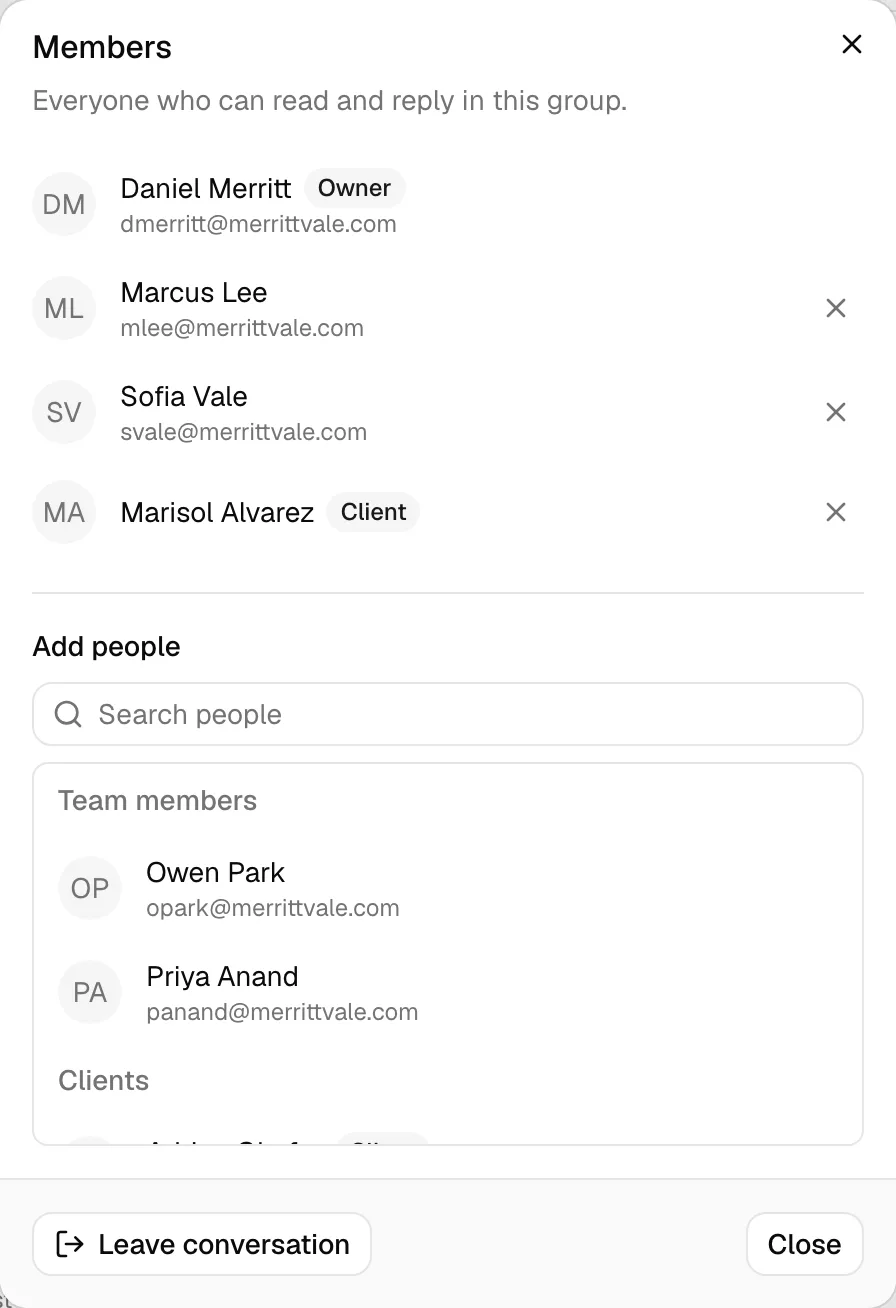
- Members shows everyone in the conversation, with the number in brackets (Members (4)), and is where you add people, remove them, or leave. Everyone sees it, in groups and one-on-one chats alike.
- Delete conversation clears the conversation away (see Delete a conversation). Everyone sees it on a one-on-one chat; on a group, only its owners do.
See who is in a conversation
- Click the conversation's picture to open the conversation menu.
- Click Members.
The Members dialog lists everyone in the conversation with their profile photo, name and email address. Group owners are marked with an Owner badge beside their name, and clients with a Client badge. In a group, these are the people who can read and reply in it. In a one-on-one chat, it is simply the two of you.
A client in the conversation sees this same list, so they know exactly who is reading along. It is read-only for them: they cannot add anyone, remove anyone, rename the group, or leave it.
Rename a group
Group owners can change the group's name at any time.
- Click the conversation's picture and choose Edit. The Edit conversation dialog opens.
- Type the new name into the Name box.
- Click Save. Esqase confirms with Conversation renamed, and the new name appears for everyone in the group.
Names can be up to 120 characters. The dialog will not save an empty name, so a group always keeps either the name you gave it or its members' names.
Add someone to a group
- Open the conversation menu and click Members.
- Search in the Search people box under Add people. The results are split into Team members and Clients, so you can add either. People who are already in the conversation are left out of the results, and if there is nobody left to add the box reads No one to add.
- Click the person you want. Esqase confirms with Added to the conversation.
Someone you add sees the conversation straight away, but only the messages sent from the moment they were added. Earlier history stays private to the people who were there at the time. The same applies to someone you add back after removing them: they pick up from the point they rejoined, not from the beginning.
Add people only appears to a group's owners, and a group's owners are always members of your firm. A client is never made an owner and never sees this box.
Remove someone from a group
- Open the conversation menu and click Members.
- Click the X next to the person you want to take out. This works the same way for a colleague and for a client.
- Confirm in the Remove member dialog, which warns that they will no longer see the conversation.
They lose access immediately and the conversation disappears from their Messages list, or from their portal if they are a client. Only a group's owners can remove someone, and you cannot remove yourself this way: leave the group instead.
Leave a group
Anyone in a group can leave it.
- Open the conversation menu and click Members.
- Click Leave conversation at the bottom of the dialog.
- Confirm in the dialog, which warns that you will stop receiving messages from this conversation.
The chat closes and disappears from your Messages list. The people left behind keep the conversation and its history.
If you are the group's only owner, Esqase hands ownership to the longest-standing colleague in the group as you leave, so the group is never left without an owner. Clients are skipped here: a group is always owned by someone at your firm. If there is no other colleague in the group to take it over, you cannot leave: Esqase tells you "You are the only owner of this group. Add someone else before you leave". A group holding only you and a client is in exactly that position, so delete it instead if it should end.
Note: Renaming, adding, removing, and leaving are for groups only, and only a group's owners can do them, which means only your colleagues. Clients never see those options. One-on-one conversations cannot be renamed, added to, or left, but you can delete one for yourself.
Delete a conversation
Delete conversation, in the conversation menu, does two different things depending on the kind of conversation, and Esqase tells you which before you confirm.
Delete a one-on-one conversation
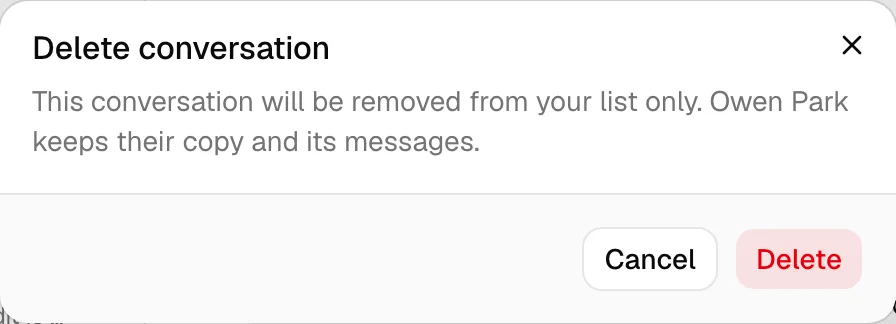
This takes the conversation out of your list only. The other person keeps their copy and every message in it.
- Open the conversation you want to clear away.
- Click the conversation's picture and choose Delete conversation.
- Read the warning in the Delete conversation dialog: "This conversation will be removed from your list only. [Name] keeps their copy and its messages." Click Cancel if you have changed your mind.
- Click Delete. Esqase confirms with Conversation removed from your list, and the chat closes.
Nothing changes for the other person. Their copy of the conversation stays exactly where it was, with every message still in it, and they are not told that you deleted yours.
The person comes back into the Start a chat list, or into the Clients list if they are a client, so you can message them again whenever you like.
Important: The conversation comes back if either of you picks it up again, but it comes back empty. If the other person writes to you, their new message is the first one in the thread. If you start a chat with them again, the thread starts blank. Either way the older messages stay with them and are not returned to you, so treat this as a way to clear your list rather than a way to take a break from a thread.
Delete a group conversation
A group owner can delete the whole group. This is permanent and it affects everyone.
- Open the group and click its picture, then choose Delete conversation.
- Read the warning in the Delete conversation dialog: "This group and every message in it will be deleted for everyone. This cannot be undone." Click Cancel if you have changed your mind.
- Click Delete. Esqase confirms with Conversation deleted for everyone, and the group disappears from every member's Messages list.
Everyone else finds out straight away. If a member had the group open, their chat closes on the spot and the group drops off their list along with its history. A deleted group cannot be brought back by anyone, including you.
Only a group's owners see Delete conversation on a group. If you are a member rather than an owner and you want out, use Leave conversation instead. Owners have that choice too: use Leave conversation to step out of a group that should carry on without you, and keep Delete conversation for a group that should not exist for anyone.
When a member is archived or leaves the firm
Chat membership follows firm membership:
- Archiving a member, or a member leaving the firm, takes them out of every conversation in that firm at once. They stop seeing those conversations, and the rest of the group carries on without them.
- Restoring an archived member puts them back into their one-on-one conversations, with the history they had. They are not added back to groups automatically, so a group owner needs to add them again if they should still be in one.
- Someone who rejoins the firm by accepting a fresh invitation also gets their one-on-one conversations back, but starting from the day they rejoined rather than with the old history.
- A one-on-one conversation the member had deleted for themselves is not brought back by any of this. It stays out of their list until one of the two of them messages the other again.
See Members for how archiving and removing members works. Archiving a client works differently: see When access changes.
Real-time delivery
Messages are delivered in real time. When a teammate or a client sends you a message, it appears in the conversation near-instantly (usually under a second), the conversation jumps to the top of your Messages list, and the unread badge on the Messages icon updates on its own. Reactions, edits, deletes, files, and changes to who is in a group show up just as quickly, and you see an X is typing... line while someone is composing a reply. You do not need to refresh the page. A client watching the portal or the Esqase Client app sees your messages arrive the same way.
Alongside the live thread, a message you have not seen reaches your notification bell and, if you have turned them on, your desktop, grouped so a busy conversation does not flood you. Reactions, edits, and deletes are never notified. See How you are told about a message.
Clients are told differently, because they are not in the dashboard to see a badge. They get a throttled email saying a message is waiting, with no message text in it, as described in How a client is told. A client's reply reaches you the same way any message does: instantly in the thread, and in your bell.
Note: Real-time updates do not need any special browser permission. If your live connection is ever interrupted, Messages catch up automatically the next time you return to the tab.
Messages on a phone or tablet
Messages works on a small screen, with a layout that suits it:
- A chat opens as a single full-width window at the bottom of the screen rather than a row of small panels. If you have several conversations open, the most recent one is the one you see; the others wait behind it and reappear as you close the one in front.
- On the full Messages page you see the conversation list first. Tap a conversation to open the thread, and tap the back arrow in its header to return to the list.
- The message toolbar (react, reply, edit, more actions) is always visible on a message rather than appearing on hover.
Your clients use the Esqase Client app on their phones instead. See The Esqase Client app.
Who can use Messages
Messages is governed by a Chat permission on each role, found under Settings > Roles in the Communications group. It is the only permission you need to chat with colleagues; messaging clients adds one more.
- By default, every role can use Messages. New firms start with Messages turned on for everyone.
- A firm owner or administrator can turn the Chat permission off for a role. Members with that role then no longer see the Messages icon, cannot open the Messages page, and cannot send or receive chats.
- Firm owners always have access, regardless of the grid.
- Messaging clients needs one more thing: View access for contacts, in the Contacts group of the same grid. A member without it uses Messages normally with colleagues; the Clients lists never appear for them, in the Messages menu, on the Messages page, in New message, or under Add people.
- Save to documents needs one more thing again: Create access for documents. Without it you can still download a chat file, but the Save to documents option does not appear.
To change who can use Messages, edit the relevant role's permission grid as described in Roles and permissions.
Important: Messages are personal to each member, but they are still firm records. Like the rest of Esqase, chat activity is captured in your firm's audit trail (who started a conversation, who sent messages, who added or removed people, and who opened or downloaded a file). The message text itself is not exposed in the audit log. See Activity timelines and audit logs.
Troubleshooting
- I do not see the Messages icon. Your role does not include the Chat permission. Ask a firm owner or administrator to turn it on under Roles and permissions.
- I got one notification for a conversation that had five messages in it. That is deliberate. Esqase sends at most one New message notification per conversation every five minutes so a fast exchange does not fill your bell. Open the conversation to read everything. Mentions are never grouped this way.
- I am not getting any chat notifications. Check the New message and Mentioned in a message rows under Settings > Notifications. If the bell entries arrive but nothing reaches your desktop, turn desktop alerts on from the top of that same page. See Notifications.
- I don't see the Clients list anywhere. Your role does not include View access for contacts. Ask a firm owner or administrator to turn it on under Roles and permissions. Everything else in Messages keeps working without it.
- A client is missing from the Clients list. Three things put them there: the contact must be active, it must have an email address, and you must not already have a chat with them (in which case the conversation is in your list above instead). Check the contact record first, then search your conversations by their name.
- My client says they never got an email. Check the address on their contact record, and ask them to look in their spam folder. Also remember the email is throttled on purpose: after the first one, Esqase waits until they have read the thread or four hours have passed, and never sends more than one every fifteen minutes. Nothing is lost either way, because the messages are waiting for them in the portal.
- A client replied to the notification email and I never saw it. Replies to that email are not monitored. Their answer has to be sent from the portal. Tell them to use the View message button in the email.
- A client cannot start a chat with me. That is by design. Your firm opens every conversation. Message them first and they can reply from then on.
- I can't make a client a group owner, or a client says they cannot rename or leave a group. Group management belongs to your firm. Only members can rename a group, add or remove people, leave, or delete it, and ownership always passes to a colleague.
- I tried to open a fourth chat and another one closed. That is expected. Up to three chat panels can be open at once, so opening a fourth closes the oldest. The closed conversation is not lost; reopen it from the Messages menu.
- I can't find an old conversation by searching. The search box matches a conversation by its name and the people in it, across the conversations already showing in your list, and it never looks inside messages. For an older one, clear the search, use Load more at the bottom of the list to bring it in, then search again.
- I started a chat with a teammate and ended up in our old thread. That is by design. Esqase reuses your existing one-on-one chat with a person instead of creating a duplicate, so your history stays together.
- My chat windows disappeared when I switched firms. Chat windows close when you change the firm you are working in, because conversations belong to one firm. Reopen the ones you want from the Messages menu.
- I can't edit my message anymore. Editing is only available for five minutes after you send a message. After that the Edit option goes away. You can still delete the message.
- The Edit option never shows on a teammate's message. You can only edit your own messages. To remove a teammate's message from your own view, use Delete for you from the ... menu.
- I pasted a link and it still shows as a web address. The link points at a list or settings page rather than one record, or at a site outside Esqase. Only links to a single record become cards. Open the record itself and copy the address from there.
- A teammate says my link card reads "Not available". Their role does not give them access to that record, or the record has been deleted. Sharing a link does not grant access. Ask a firm owner or administrator to review their role under Roles and permissions.
- A message says "This message was deleted." The sender chose Delete for everyone. The text, and any files that were attached to it, are gone for everyone in the conversation.
- My message says "Not delivered". It did not reach the server, usually because the connection dropped. Click Retry next to the message to send it again.
- My file will not attach. Check the three limits: 10 files per message, 25 MB per file, and the allowed types listed under What you can attach. Archives, SVG images, and web pages or scripts are always refused. The card on the file explains which rule it broke.
- The Send button will not click while I have files attached. A file is still uploading. Wait for every card to finish, or remove the one that is holding things up with its X.
- A file shows "Attachment removed". The person who sent it removed it, or they deleted the whole message for everyone. Ask them to send it again.
- I don't see Save to documents on a file. Your role does not include Create access for documents. You can still use Download.
- I was added to a group but the conversation looks empty. You see messages from the point you were added onwards. Anything said before that stays with the people who were in the group at the time.
- I can't rename a group or add someone to it. Only a group's owners can. Ask an owner (marked with an Owner badge in the Members dialog) to do it.
- I don't see Delete conversation on a group. Only a group's owners can delete a group, because it deletes it for everyone. To take yourself out, open Members and click Leave conversation.
- I deleted a one-on-one conversation and it came back. That is expected. Deleting a one-on-one chat clears it from your list, and it returns the moment either of you writes again. It comes back with only the new messages in it.
- I deleted a one-on-one conversation and now the old messages are gone. Deleting one for yourself is not reversible on your side. The other person still has the full thread, so ask them for anything you need from it.
- A conversation vanished from my list. Someone removed you from the group, an owner deleted the group, you left it, or your firm membership was archived. Ask a group owner to add you back, or a firm owner to restore your membership. A group an owner deleted is gone for everyone and cannot be brought back.
- A teammate is missing from Start a chat. You already have a one-on-one conversation with them, so they are in your conversation list above instead. Search for their name to bring that conversation to the top.
- A client stopped seeing our conversation. You archived their contact, their email address was removed, they were taken out of the group, or your firm's subscription is paused. See When access changes.