La documentación del producto está disponible solo en inglés.
The personal injury workspace and reports
Working case by case tells you where one client stands. The Personal injury section of the sidebar tells you where the practice stands: which records are still outstanding across every matter, which liens are waiting on a response, which deadlines are about to bite, and what your settlements are actually returning.
Before you begin
- Personal injury is part of the Professional plan. On the Standard plan the module is hidden: the Personal injury group is not in the sidebar and matters do not show the personal injury tabs. Only the firm owner can move the firm to Professional, from Settings > Billing. See Your Esqase subscription.
- Outside the Philippines, your firm owner also accepts an agreement once. Until that is done, the module opens on a Business Associate Agreement required card and nothing can be recorded. A firm registered in the Philippines accepts no agreement: the module opens as soon as the firm is on Professional. See Business associate agreement (BAA).
- Click Personal injury in the sidebar to open the group. It holds Overview, Records, Liens, Settlements, Deadlines, and Reports.
- View access for Personal injury opens the overview, the liens register, the settlements list, the deadlines page, and five of the six reports.
- View access for Medical records and bills opens the records worklist and the records outstanding report.
- Without the matching permission a page shows a No access message instead. Reports takes you to the first report you can see, or shows the same message when you can see none.
- Every page counts every matter in the firm. What it does not do is name a matter you are not allowed to see. See What a restricted matter looks like.
Note: A firm registered in the Philippines sees the sidebar group as Torts and Damages, the Liens page as Claims, the Lien aging report as Claim aging, and the overview card as Prescriptive periods at risk. See Torts and damages (Philippines).
The overview
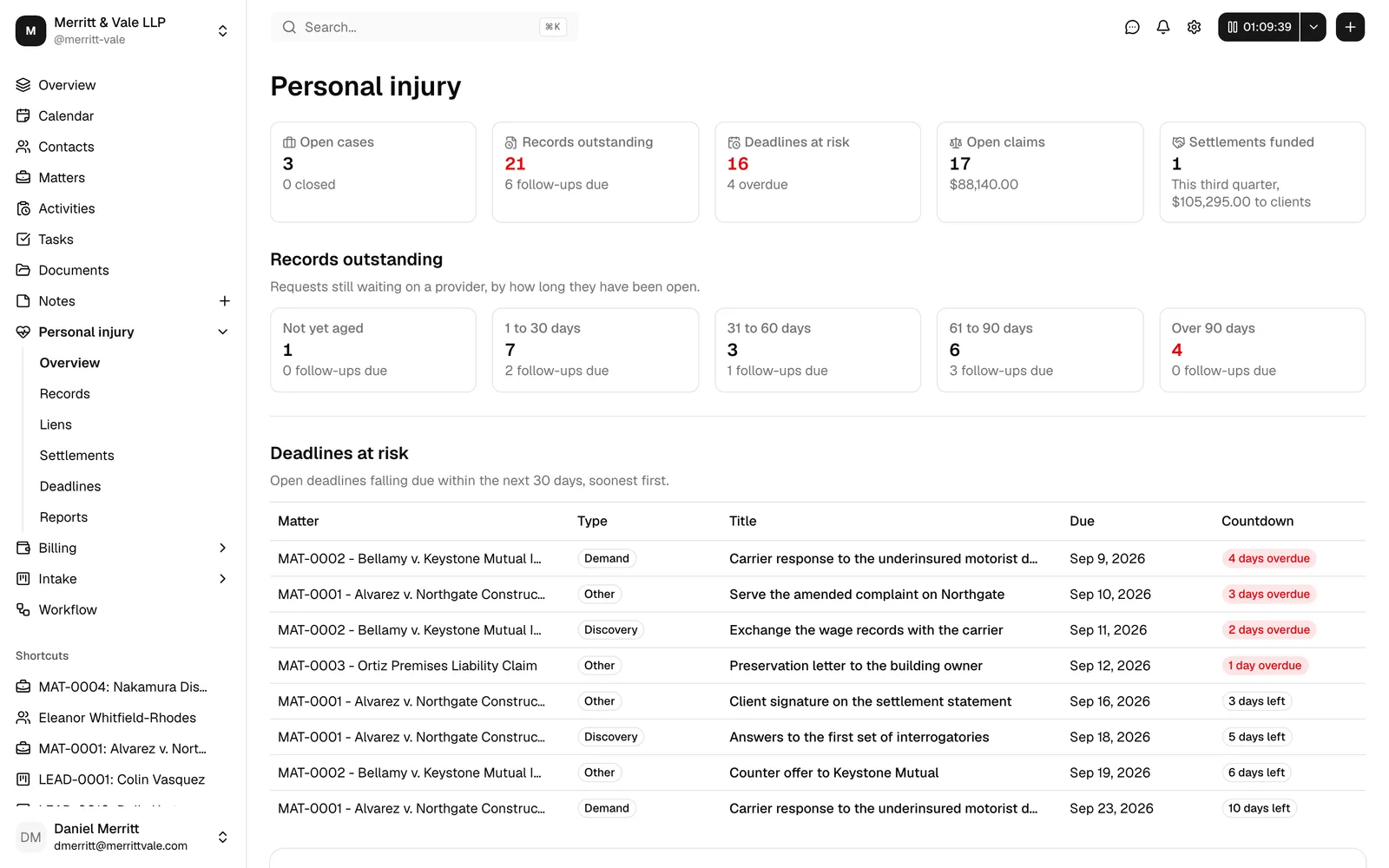
Personal injury > Overview is the morning read. Five cards across the top:
- Open cases, with the number of closed ones in the hint.
- Records outstanding, hinted with how many follow-ups are due.
- Deadlines at risk, hinted with how many are already overdue.
- Open claims, showing what your open liens and balances come to.
- Settlements funded, for the current quarter, hinted with what went to clients.
The last four are clickable and take you to the matching list page.
Underneath:
- Records outstanding breaks the open requests into five age buckets: Not yet aged, 1 to 30 days, 31 to 60 days, 61 to 90 days, and Over 90 days, each showing how many follow-ups are due in that band.
- Deadlines at risk lists the eight soonest open deadlines falling due in the next 30 days, with the matter, type, title, due date, and a countdown.
- Statute of limitations at risk lists open matters whose statute date falls in the next 30 days, or has already passed without being marked satisfied. A past date shows as N days past in red. When there is nothing to worry about it reads "No matter is approaching its statute of limitations."
Important: The statute card is the only place a missed statute date surfaces. Statute reminders stop once the date has passed, so a date that slipped by while nobody was looking will not notify you again. Check this card.
The records worklist
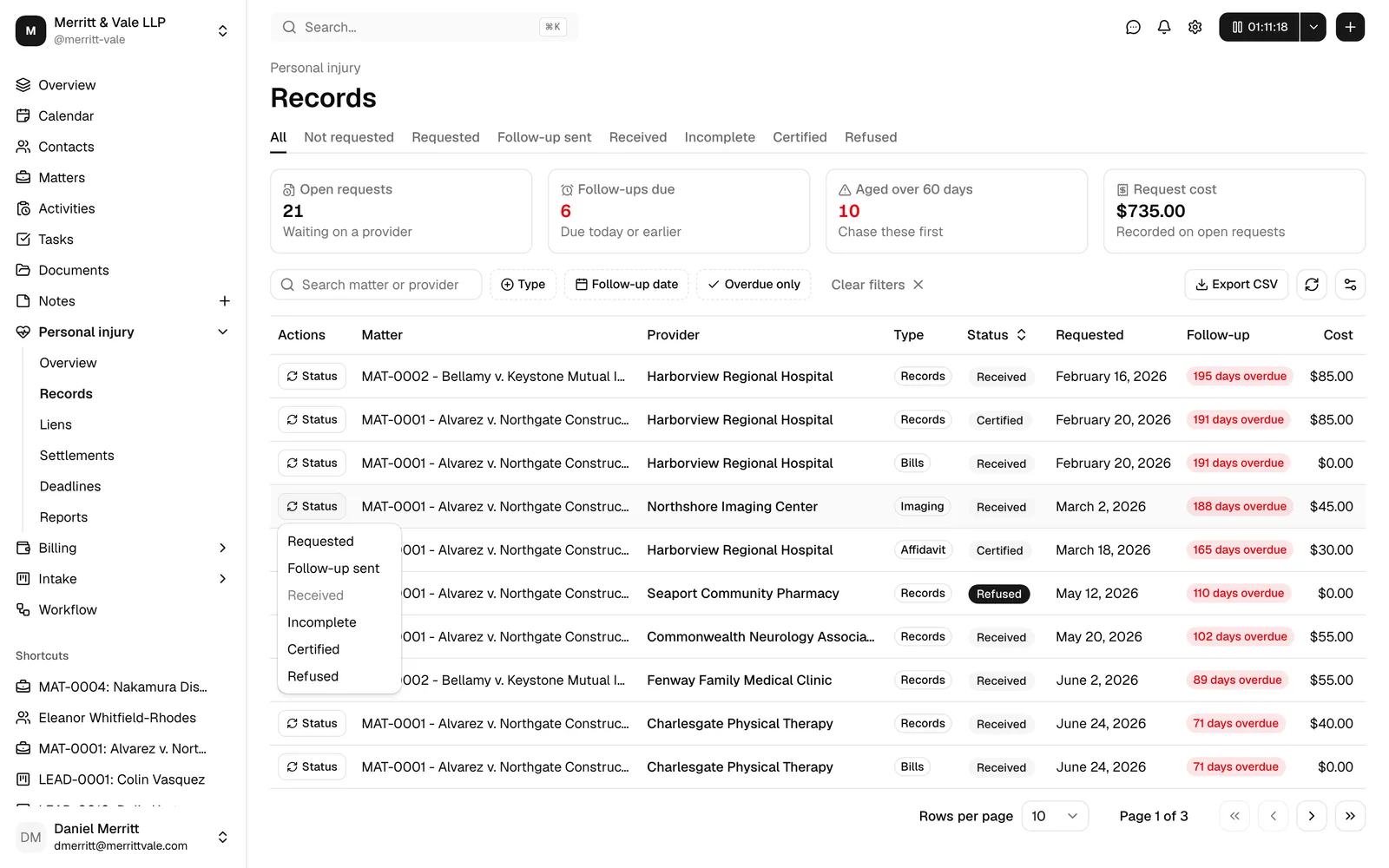
Personal injury > Records gathers every open records and bills request in the firm, so nothing sits waiting on a provider because it was only ever visible inside one matter.
Four stat cards read Open requests ("Waiting on a provider"), Follow-ups due ("Due today or earlier"), Aged over 60 days ("Chase these first"), and Request cost ("Recorded on open requests").
The table shows Matter, Provider, Type, Status, Requested, Follow-up, Cost, Vendor reference, and Updated, with Updated by available from the columns menu. A follow-up date that has passed shows a red N days overdue chip, and one falling today reads Due today.
To narrow it:
- Search matter or provider.
- Filter by Status and by Type.
- Set a Follow-up date range.
- Turn on Overdue only to see just the chases you are late on.
- Clear filters resets all five.
The Status button on each row is the point of the page: change a request's status straight from the worklist without opening the matter. The row updates in place.
Export CSV downloads what you are looking at, filters and all, as records-worklist-<date>.csv.
The liens register
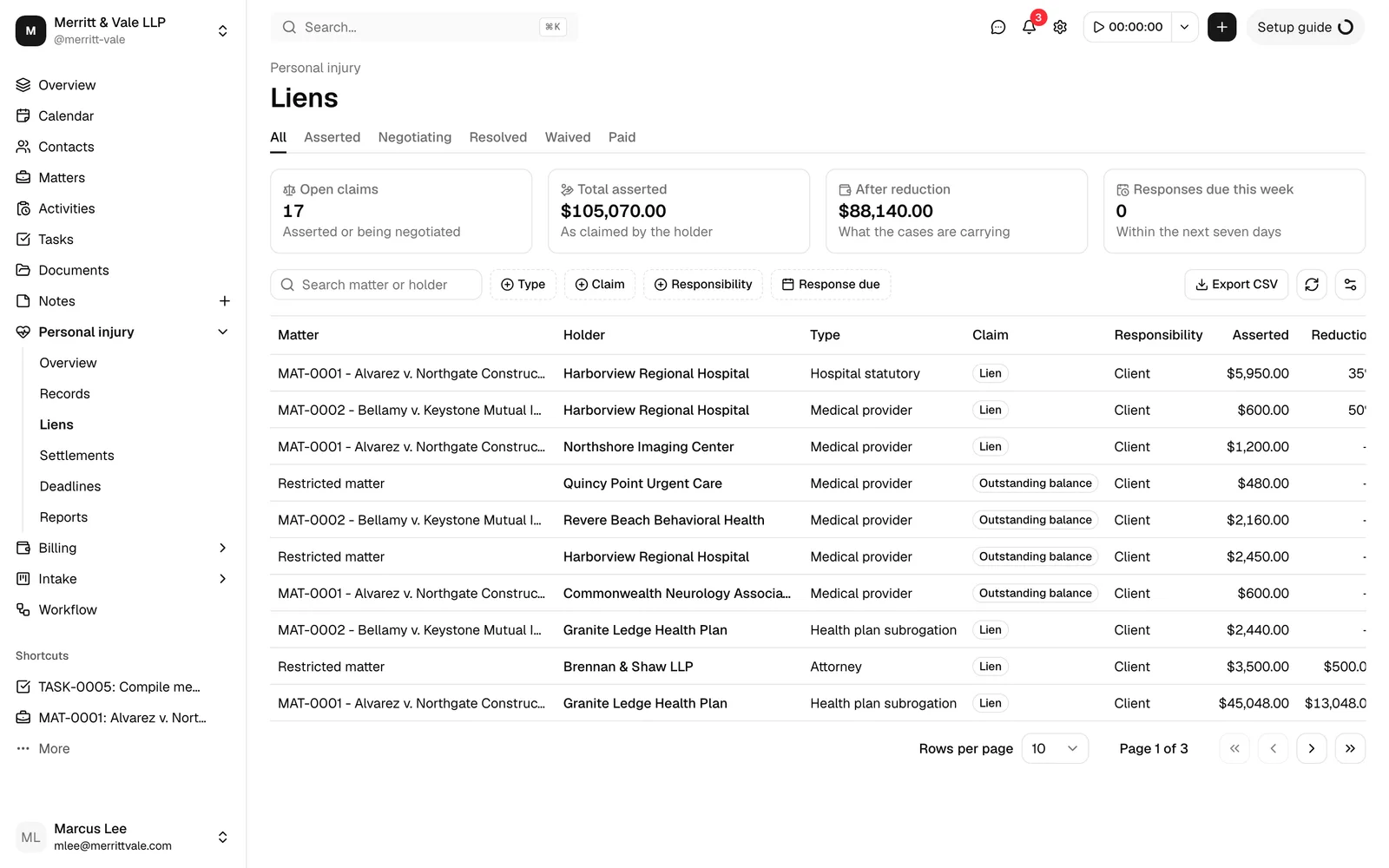
Personal injury > Liens lists every lien and outstanding balance across the firm, whether it came from a bill or was added by hand.
Four stat cards read Open claims ("Asserted or being negotiated"), Total asserted ("As claimed by the holder"), After reduction ("What the cases are carrying"), and Responses due this week ("Within the next seven days").
The table shows Matter, Holder, Type, Claim, Responsibility, Asserted, Reduction, Final, Status, Response due, and a Countdown, with Notice available from the columns menu. Filter by Status, Type, Claim, and Responsibility, set a Response due range, or search by matter or holder.
Clicking a matter takes you straight to that case's Settlement tab. Export CSV produces lien-register-<date>.csv.
Note: The Countdown column is blank for a claim that is Resolved, Waived, or Paid. There is nothing left to count down to.
The settlements list
Personal injury > Settlements lists every settlement with its money. The columns are Matter, Status, Gross recovery, Fees, Claims, Net to client, Agreed, and Funded, with Deduction order and Fee model available from the columns menu.
Search by matter, filter by Status, and set an Agreed date or Funded date range. Export CSV produces settlements-<date>.csv.
The money columns use exactly the same definitions as the settlement cycle report, so the two can never disagree. A settlement with nothing to add up yet shows Not calculated.
The deadlines page
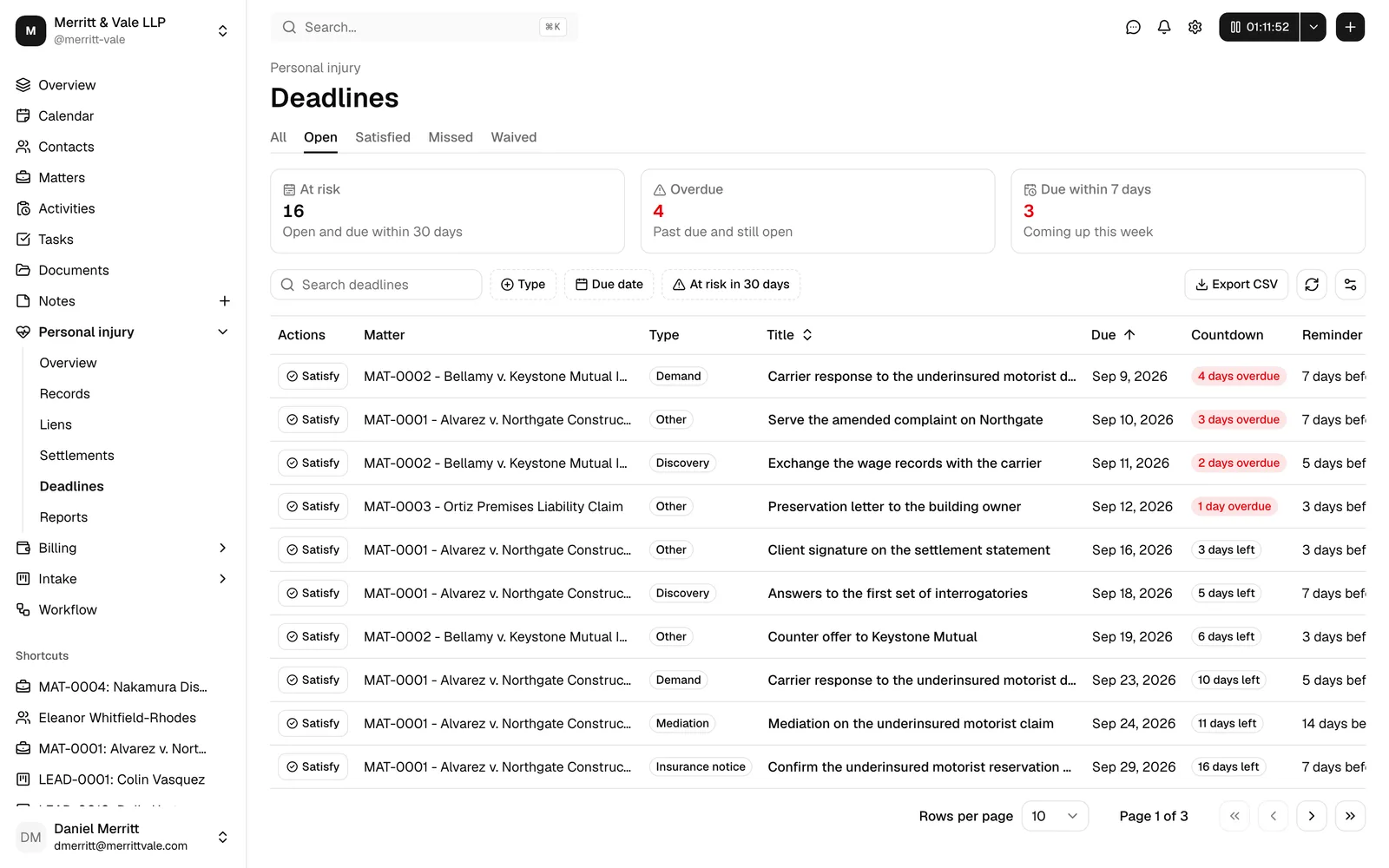
Personal injury > Deadlines is every personal injury deadline in the firm, with three stat cards: At risk ("Open and due within 30 days"), Overdue ("Past due and still open"), and Due within 7 days ("Coming up this week").
The table shows Matter, Type, Title, Due, Countdown, Reminder, and Status, and each row carries a Satisfy button (or Reopen on one already satisfied), so you can close a deadline out without opening the matter. Clicking a matter opens its Claims tab.
Filter by Status and Type, set a Due date range, search, or turn on the At risk in 30 days toggle.
Note: This page opens filtered to Open deadlines, which is almost always what you want. Clear filters returns it to Open rather than to nothing, so use the Status filter itself to see satisfied, missed, or waived ones.
The six reports
Personal injury > Reports opens a strip of six tabs. Each report has its own filters, its own stat cards, one table, and an Export CSV button. Every figure is calculated across the whole result set, never just the page you can see.
Records outstanding
What is still waiting on a provider, as of a date you choose. Stat cards: Outstanding requests ("Not received, certified or refused"), Follow-ups due ("On or before the as of date"), Aged over 60 days, and Request cost. The table breaks the requests down by Request type and Age bucket, with the oldest in each band.
Lien aging
How long your open claims have been sitting, as of a date. Stat cards: Open claims ("Not resolved, waived or paid"), Asserted, After reduction, and Over 90 days ("Waiting on a response"). The table groups by Lien type, Claim, Currency, and Age.
Case inventory
What the practice is carrying over a period. Stat cards: Cases opened, Estimated value, Medical owed, and Open deadlines. The table groups by Case type and Status, with damages, medical billed, medical owed, and open deadlines for each.
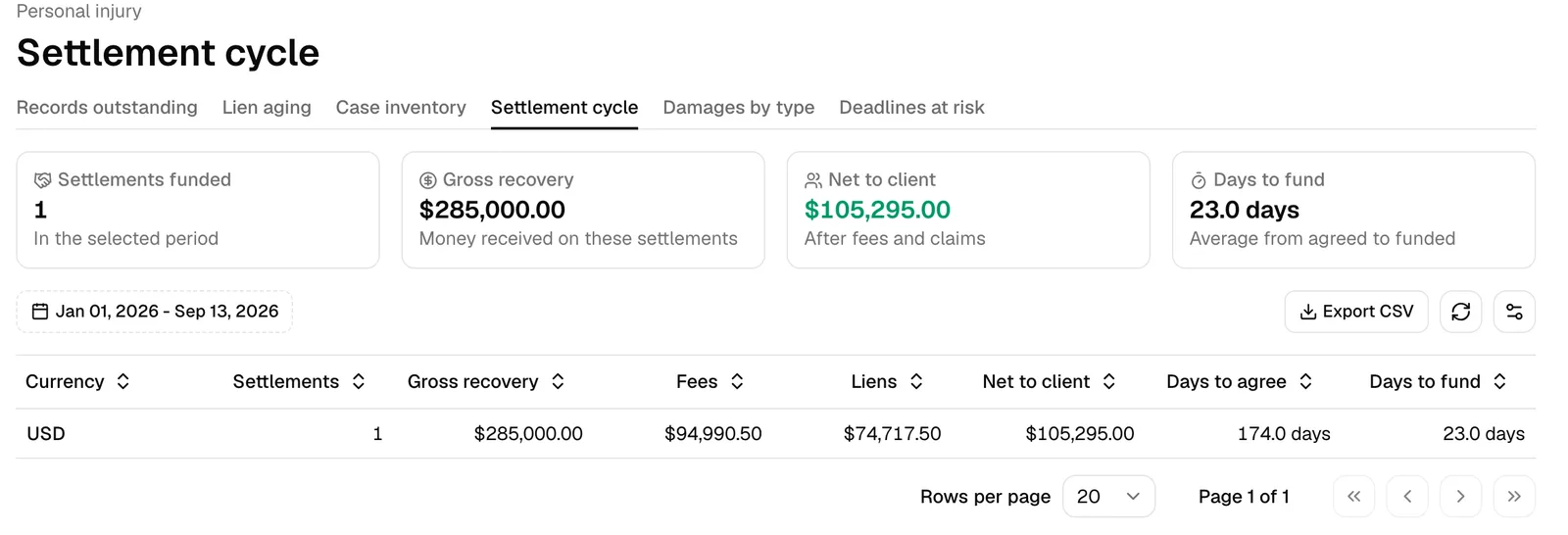
Settlement cycle
How long settlements take and what they return, over a period. Stat cards: Settlements funded, Gross recovery, Net to client, and Days to fund ("Average from agreed to funded"). The table adds Days to agree alongside it, per currency.
Damages by type
What you are claiming, over a period. Stat cards: Damages recorded, Still estimated ("Entries marked as an estimate"), Ledger entries, and Damage types. The table gives entries, cases, amount, and estimated amount for each damage type.
Deadlines at risk
What is about to come due. Two filters: an as-of date and a Within N days window (7, 14, 30, 60, or 90 days, starting at 30). Stat cards: Deadlines at risk, Overdue, and Due within 7 days. The table lists the matter, type, title, due date, countdown, and reminder.
Note: The deadlines at risk table shows the 200 soonest and says so when there are more. The stat cards always count the whole window, so the totals are right even when the list is trimmed. Narrow the window to see the rest.
Tip: Reports that carry money split their tables by currency and label the money cards In <currency> when your firm works in more than one, rather than adding different currencies together.
Exports
Every list page and every report carries an Export CSV button, to the left of the refresh and columns controls. The export runs the filters you have set, not just the rows on screen, and each one is named for what it is and the date you ran it.
Exports are recorded in your firm's audit trail, with the number of rows and which filters were set. Nothing about the contents is recorded. See Activity timelines and audit logs.
What a restricted matter looks like
A matter whose visibility is limited to specific members stays confidential on these pages even from someone who can see every lien and deadline in the firm.
Where you are not on the matter, its cell reads Restricted matter, in plain text with no link, no number, and no title. On the records worklist the provider name and the request notes are withheld too, and the row's Status button is not offered, because changing a request would tell you something about a case you cannot open. The same applies to the CSV exports: a restricted row exports without the matter's identity.
Everything else stays true. The amounts, the dates, the statuses, and the totals on the stat cards all include those matters, so your figures are complete even when some of the names are not shown. Searching by matter title or number is switched off for anyone whose matter access is limited, so the search box cannot be used to test whether a name exists.
To see the matter itself, ask to be added to it. Changing your personal injury permissions will not reveal it.
Common questions
Why is Records missing from my sidebar group? The records worklist needs View access for Medical records and bills, which is a separate permission from Personal injury.
A stat card and the table beneath it do not seem to match. They are answering different questions. Stat cards count the whole result set for the filters you have set; some tables trim to the soonest or most relevant rows and say so. The deadlines at risk report is the clearest example.
Can I change a request's status from the worklist for a restricted matter? No. The row is listed so your counts are right, but it carries no status control.
The overview says a deadline is overdue but the matter looks fine. Open the matter's Claims tab and check the deadline's status. A deadline stays overdue until someone marks it Satisfied (or Waived), whatever else has happened on the case.