La documentación del producto está disponible solo en inglés.
The matter summary page
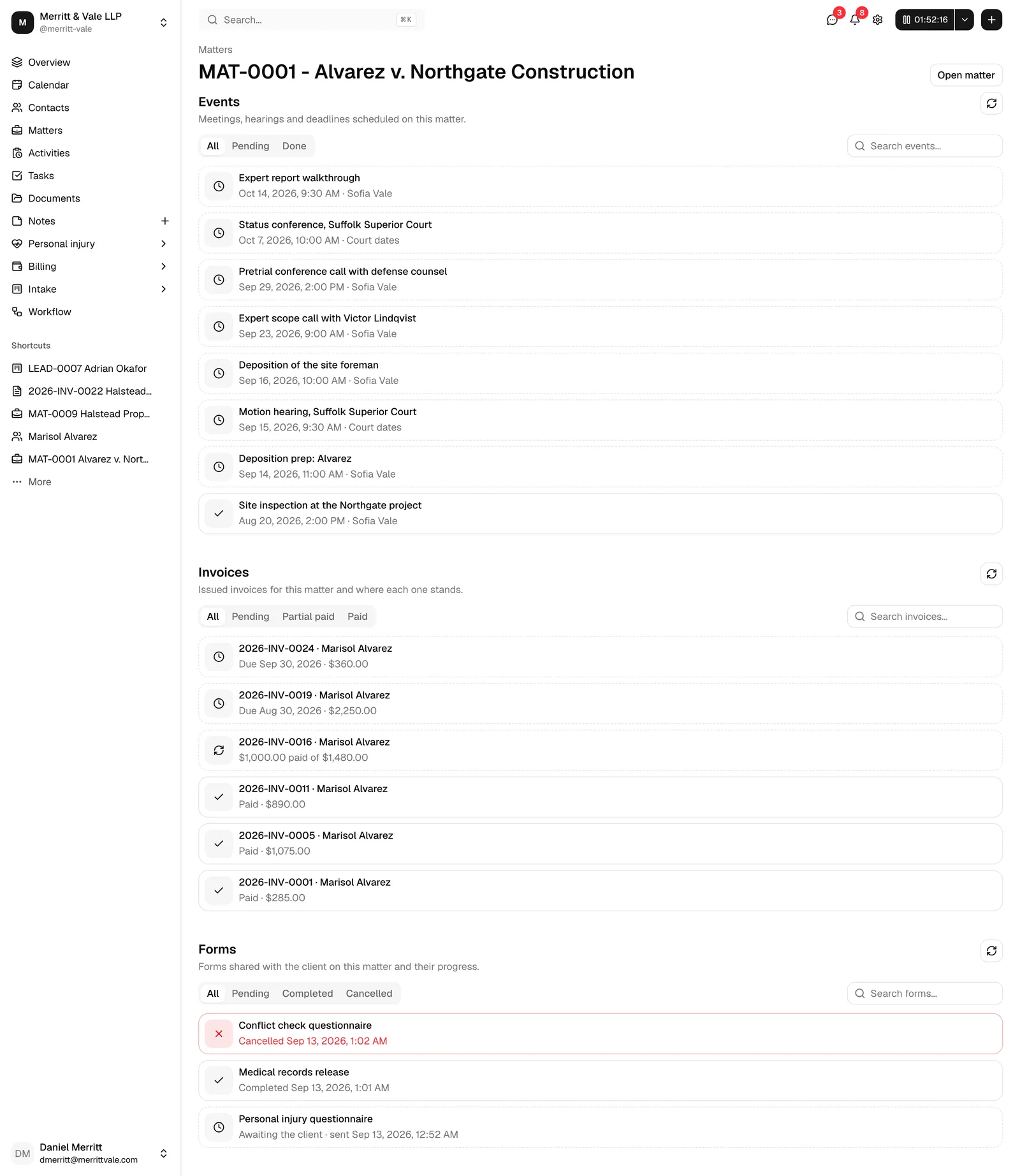
The matter summary is a short, read-only view of a single matter. It answers three questions in one screen: what is scheduled on the case, where its bills stand, and whether the client has sent back the forms you asked for. It is separate from the full matter workspace, which stays exactly as it is, and a single button takes you from one to the other.
Nothing on the summary can be changed. There are no buttons to create, edit, or delete, and the rows are not clickable. It is built for a quick check on a case, not for working it.
Before you begin
- Every matter has its own summary page at its own short link. The link is stable, so it always opens the same matter, and you can bookmark it or send it to a colleague.
- You open the summary from that link rather than from a button in the sidebar or the matters list. If you do not have the link, open the case from the Matters list and work in The matter workspace instead.
- You need View access for matters to open the page at all. Without it the page shows a No access message and a Back to Home button instead of the matter.
- Each of the three sections needs its own View access as well: the Events section needs view access to the calendar, Invoices needs view access to invoices, and Forms needs view access to forms. A section you cannot view is left out entirely, so the page may show three sections, two, one, or none. Firm owners always see all three. See Roles and permissions.
A tour of the page
The page has a header and three stacked sections.
- The header shows a breadcrumb (Matters, which takes you back to the matters list) and the matter's number and title together in large text, separated by a dash (for example, MAT-1042 - Smith v. Jones). This is the same label used wherever the matter appears in a list. If a matter has no title yet, it reads Untitled matter. The title stays on one line and is cut off with "..." when it does not fit; point at it and click the chevron that appears at the end to expand it over several lines, then click again to collapse it.
- Open matter sits on the right of the header. It opens this matter's full workspace, with all its tabs, actions, and details. Use it the moment you need to change anything.
- The three sections follow, in this order: Events, Invoices, Forms. Each one has the same layout, described below.
The controls every section shares
Each section is built the same way, so once you know one you know all three:
- A heading and a one-line description of what the section covers.
- A row of tabs that filter the list by status. All is always the first tab and is selected when the page opens.
- A search box on the right of the tabs. Type to narrow the list. It waits a moment after you stop typing before it filters, and an x appears in the box to clear it in one click.
- A refresh button (the circular arrows) at the top right of the section. Click it to pull the latest records without reloading the whole page. It is greyed out while the section is loading.
- The list itself. Each record is a compact card with a status icon on the left, the record's name on the first line, and a short summary on the second. Cards are not links, so clicking one does nothing.
While a section loads it shows placeholder rows. If a section has nothing to show, it shows a short empty message inside a dashed box instead. If something goes wrong loading it, the section shows a short error message in its place; click refresh to try again.
Note: The tabs and the search box work together. If you are on the Paid tab and type into the search box, you are searching within paid records only. Switch back to All to search everything the section holds.
Check what is scheduled on the matter
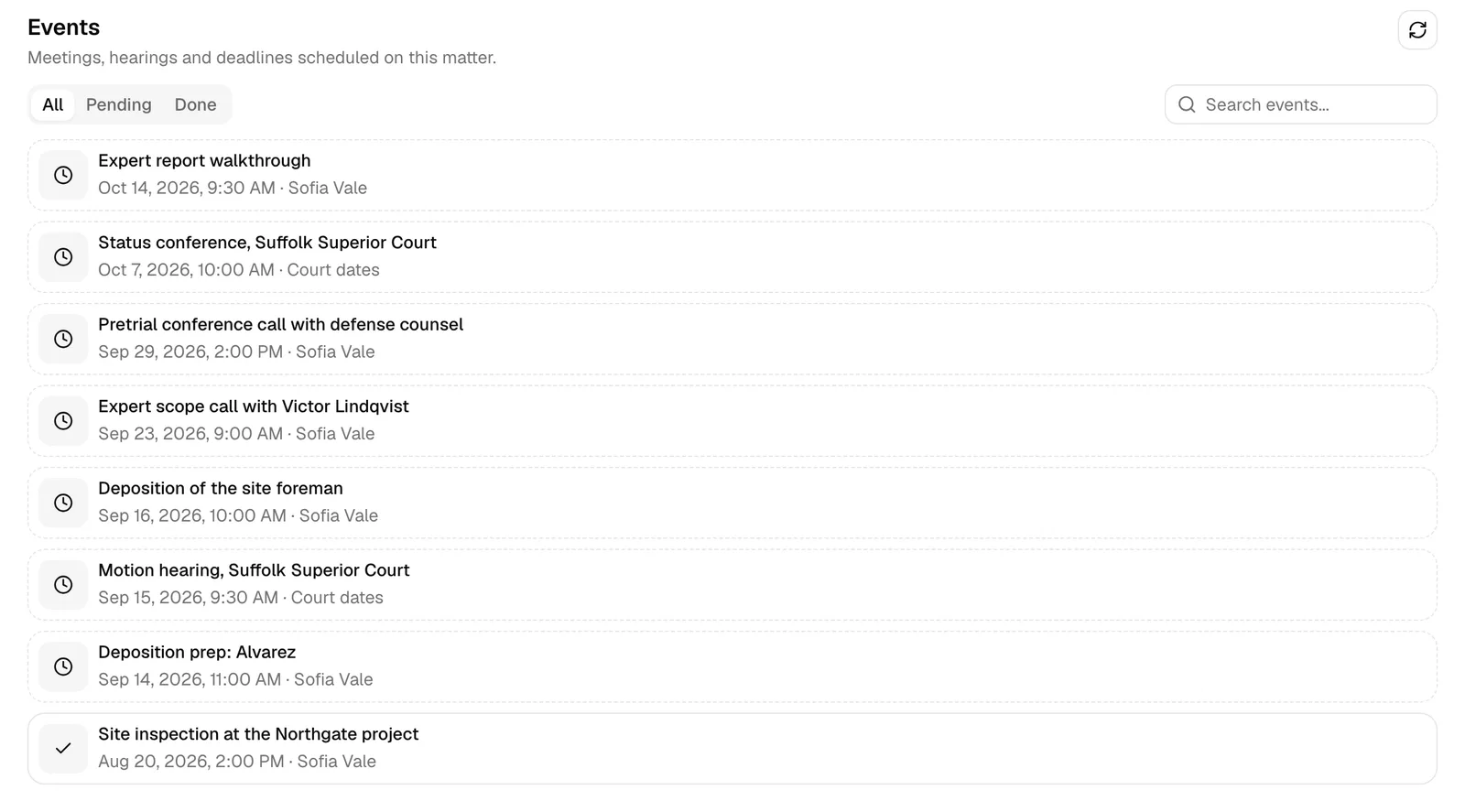
The Events section lists the meetings, hearings, and deadlines scheduled on this matter.
- Open the matter summary.
- Choose a tab:
- All: every event on the matter, most recent first.
- Pending: events that have not finished yet. This includes anything happening right now.
- Done: events whose end time has already passed.
- To find one event, type part of its title into Search events.... This search looks at the event title only, so searching for a guest's name or a location will not match here. For a wider search, use the matter's Events tab in the workspace.
Each row shows:
- The event title, or Untitled event if it has no title.
- When it happens: the start date and time, or All day followed by the date for an all-day event. If the event sits on a named calendar, the calendar's name follows after a dot.
- A status icon: a clock for an event still to come, a tick for one that is done.
If the matter has no events, the section reads "No events to show" with the note that events scheduled on this matter will appear here.
For creating, editing, and rescheduling events, see Calendar and events.
Check where the matter's bills stand
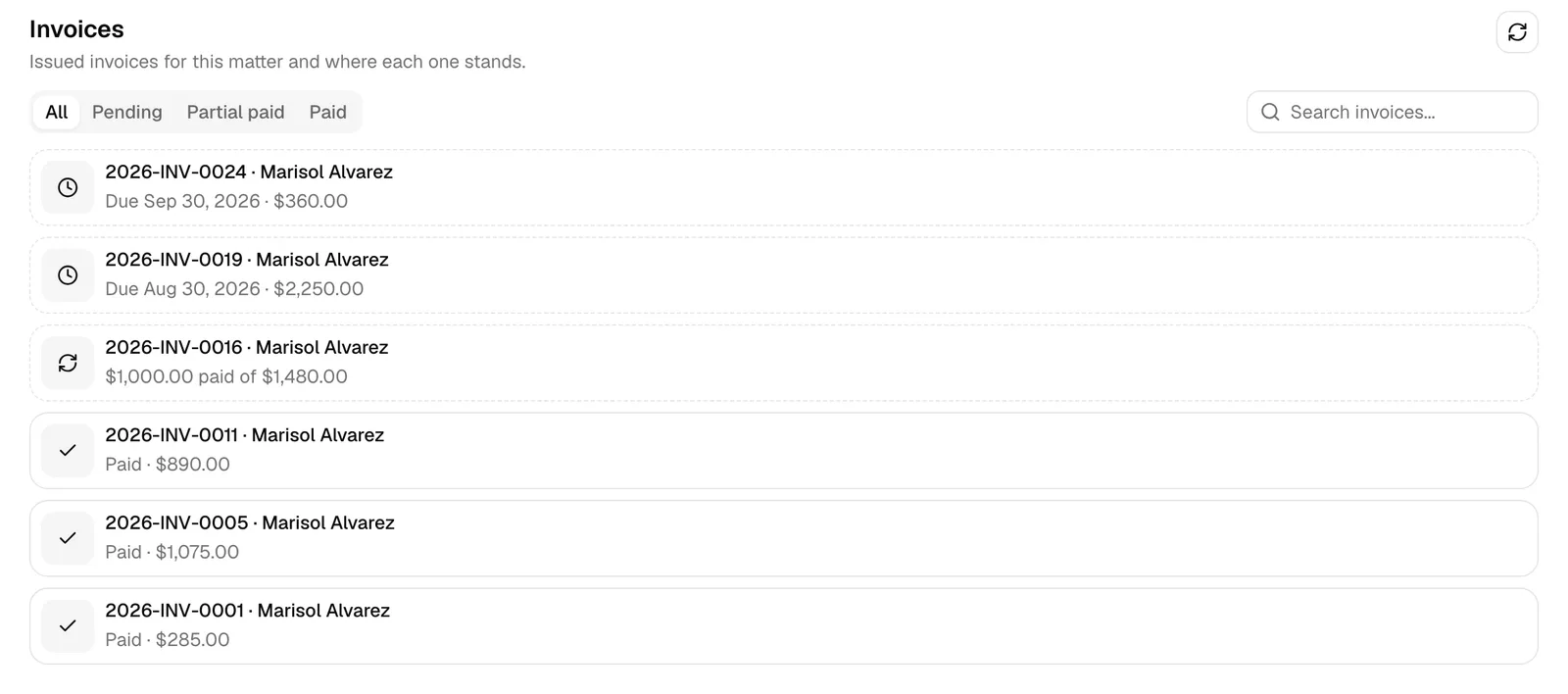
The Invoices section lists the invoices issued on this matter and where each one has got to.
- Open the matter summary.
- Choose a tab:
- All: every invoice the section holds, newest issue date first.
- Pending: issued and waiting to be paid.
- Partial paid: part of the amount has been received.
- Paid: settled in full.
- To find one invoice, type into Search invoices.... This search matches the invoice number, the client's name, and the matter name, and it tolerates small typos.
Each row shows:
- The invoice number and the client's name, separated by a dot.
- Where it stands, in one line:
- Paid followed by the invoice total.
- The amount paid so far, then "paid of" and the total, for a partially paid invoice.
- Due followed by the due date and the total, when the invoice has a due date.
- Pending followed by the total, when it does not.
- A status icon: a tick for paid, a circular arrow for partly paid, a clock for pending.
Important: This section deliberately shows a narrow slice of your billing. Draft invoices never appear, and neither do invoices that are in review, declined, cancelled, refunded, written off, or archived. All here means "pending, partly paid, and paid", not every invoice on the matter. For the complete picture, open the matter and use its Invoices tab.
Note: The section shows up to 50 invoices per tab, newest first, so a long-running matter with more bills than that will not show its oldest ones here. The matter's Invoices tab lists them all.
If the matter has no issued invoices, the section reads "No invoices to show".
For raising and sending bills, see Creating and sending invoices.
Check whether the client has returned a form
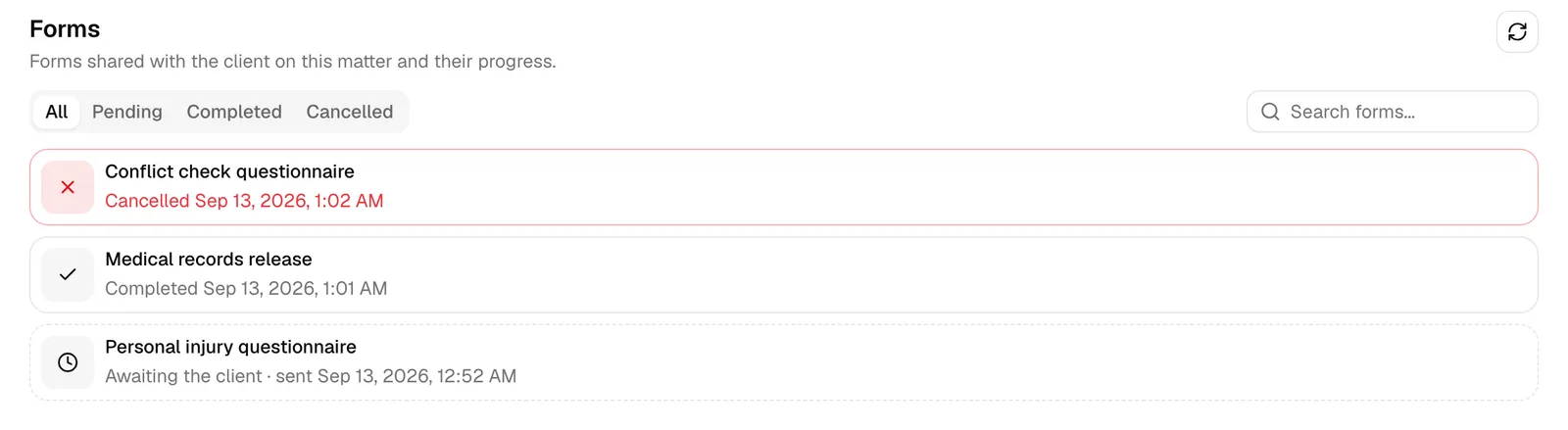
The Forms section lists the forms your firm has shared with the client on this matter, and how far each one has got.
- Open the matter summary.
- Choose a tab:
- All: every form the section holds, most recently updated first.
- Pending: sent, but the client has not submitted it yet.
- Completed: the client has filled it in and submitted it.
- Cancelled: the request was cancelled.
- To find one form, type part of its name into Search forms....
Each row shows:
- The form's name.
- Its progress: "Awaiting the client" followed by the date it was sent, "Completed" followed by the date it came back, or "Cancelled" followed by the date.
- A status icon: a clock while you are waiting, a tick once it is completed, an x if it was cancelled.
Important: Only forms shared with the client appear here. You share one from the matter's workflow: on a Form workflow item, open the Form button and choose either Send to client (which emails the client a secure link) or Copy link (which copies the same link for you to send yourself). Both put the form in this section. A form you fill in yourself using Fill on behalf of client is internal work, so it is deliberately left out. See Managing workflow items on a matter and Building forms.
Note: You see a form here only if it is available to the whole firm (the This form is available for all members of the firm setting on the form) or you created it yourself. Requests marked private stay visible only to the person who raised them, so a colleague's list can differ from yours.
If nothing has been sent to the client on this matter, the section reads "No forms to show".
Common questions
Why can I not click a row? The summary is read only by design. It is a status check, not a workspace. Use Open matter in the header, then go to the matching tab to act on a record.
A section is missing from my page. Where did it go? Sections are hidden when your role does not include view access for that area. If you cannot see the calendar, the Events section does not appear; the same goes for invoices and forms. Ask a firm administrator to check your role. See Roles and permissions.
An invoice I know exists is not in the list. Check its status first. Drafts and invoices that are in review, declined, cancelled, refunded, written off, or archived are not shown here at all. If it is pending, partly paid, or paid and still missing, it may be beyond the 50 rows this section holds; open the matter's Invoices tab for the full list.
I sent a form to the client but the Forms section is empty. Confirm you used Send to client or Copy link on the workflow item, rather than Fill on behalf of client. Only forms shared with the client appear here. Also check that the form is available to the whole firm, or that you were the one who created it.
The dates look wrong by a few hours. Event and form dates are shown in your firm's time zone. If it is set incorrectly, every date on this page shifts with it. See Your firm profile and details.
Troubleshooting
A section shows an error message instead of a list. Click the section's refresh button to try again. If the message keeps coming back, the rest of the page still works, so open the matter and use its tabs in the meantime, and tell your firm administrator what the message says.
The page says "No access". Your role does not include view access for matters. Use Back to Home to return to your dashboard, and ask a firm administrator to update your role.
The link opens a "not found" page. The link is either mistyped or points to a matter in a different firm from the one you are signed in to. Check which firm is selected in the sidebar, then open the matter from the Matters list instead.