La documentación del producto está disponible solo en inglés.
Sending email
Esqase lets you write an email to clients and colleagues straight from a matter, a lead, a contact, an invoice, or the header + menu. If you have connected Gmail or Outlook, Esqase sends the message through your own mailbox and logs it for you. If you have not connected a mailbox, the composer still opens: you write the message here and finish sending it from your own mail app. Either way, the message can be kept on the Communications tab so your whole team can see the conversation history. This page covers composing and sending, handing a message off to your own mail app, choosing which matter or lead a contact's email is filed under, applying templates, working with your signature and placeholders, and saving and retrying drafts.
Before you begin
A few things shape how the composer behaves:
- A connected mailbox is optional, but it does more for you. Connect Gmail or Outlook and Esqase sends each message for you, records it automatically, and (for Outlook) threads client replies back onto the record. Without a connected mailbox the composer still opens in full, and you finish the send in your own mail app. See Connecting Google (Gmail, Calendar, Meet) and Connecting Outlook and Zoom.
- Create access for communications. You see the New button and the Send email option only if your role includes Create access for communications. If your role is view-only, you can read the log but not compose. See Roles and permissions.
- An open matter, lead, invoice, or contact, or the header + menu. Email is composed in the context of a matter (on its Communications tab), a lead (from the lead's header), an invoice, or a contact (from the contact's detail page). Esqase fills in To for you: a matter adds its active clients, primary client first; a lead adds its contact; an invoice adds the client it is billed to; a contact adds that contact. Anyone without an email on file is named under To instead of being added.
Note: The address you send from is the mailbox you connected. With one mailbox connected, its address appears in the read-only From field. With two connected, From becomes a picker so you can choose. With none connected, From shows your own Esqase sign-in address and is only used to label the record, because the sending happens in your mail app.
Open the email composer
You can start an email from five places.
From the header (anywhere):
- Click the + button on the right of the dashboard header.
- Click Send email.
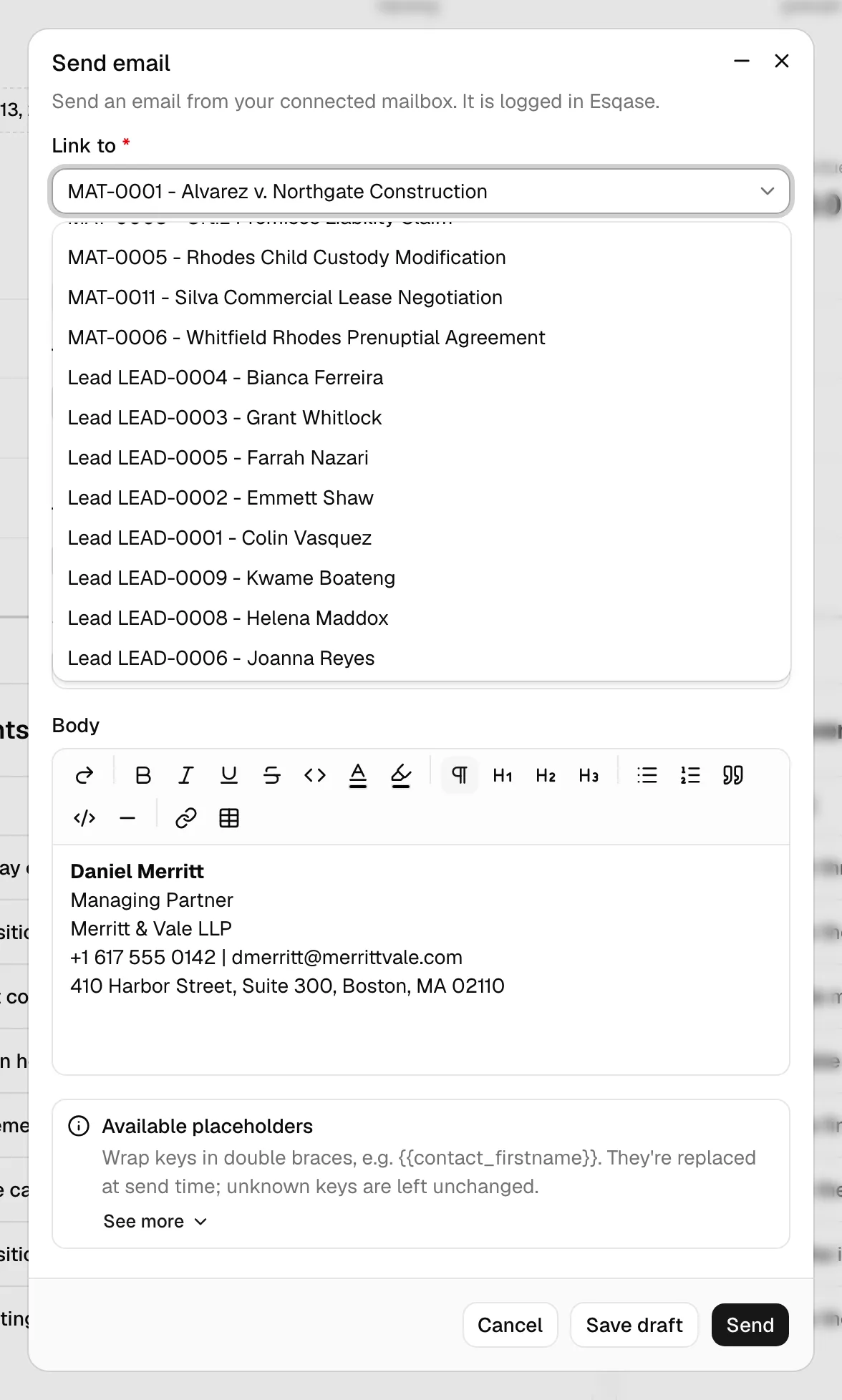
On a matter, lead, or invoice page, this opens the composer for that record, with To filled in the same way as the page's own composer and no Link to field. Anywhere else, the composer opens with an empty To and a required Link to field at the top of the form. Pick any active matter you can open, or any open lead; the email is then logged on that record's Communications tab. The field is only shown when there is at least one such matter or lead to link to; if there are none, it is hidden and the email is filed firm-wide. To always have the record pre-filled without being asked, open the composer from a matter, lead, or contact instead. See Navigating the dashboard.
From a matter:
- In the sidebar, click Matters, then open the matter you want.
- Click the Communications tab.
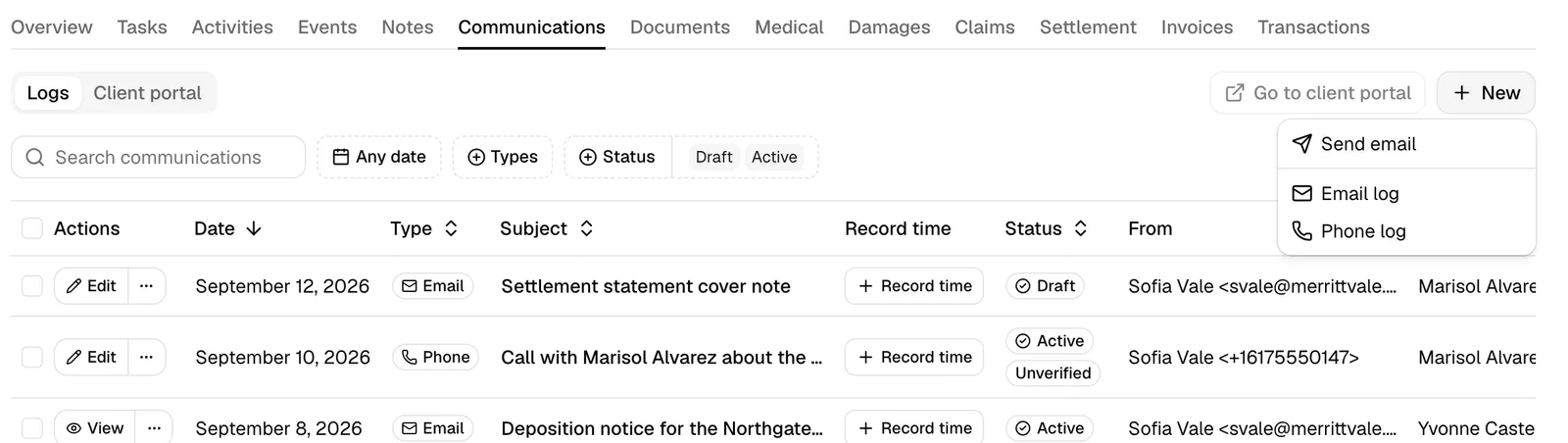
- Click New, then choose Send email.
From a lead:
- In the sidebar, click Leads (under intake), then open the lead.
- In the lead header, click Send email.
From an invoice:
- In the sidebar, click Invoices, then open the invoice you want.
- In the invoice header, click Send email. On a narrow screen it sits in the More actions menu instead.
This button is available at any status except Archived. See Email a client about an invoice.
From a contact:
- In the sidebar, click Contacts, then open the contact you want.
- In the contact header, click Send email.
The Send email dialog opens. Its description confirms both the scope and how the message will go out: "Send an email from your connected mailbox. It is logged against this matter (or lead, or contact)" when you have a mailbox connected, or "Compose here, then send it from your own mail app. It is logged against this matter" when you do not. An email started from an invoice says "It is logged in Esqase", because Esqase works out the matter to file it on when you send.
When you open the composer from a contact, the email is not tied to a matter or lead on its own. Instead, the form shows a Link to picker so you can choose which of the contact's matters or leads to file the email under. See Choose which matter or lead the email is filed under.
Send an email through your connected mailbox
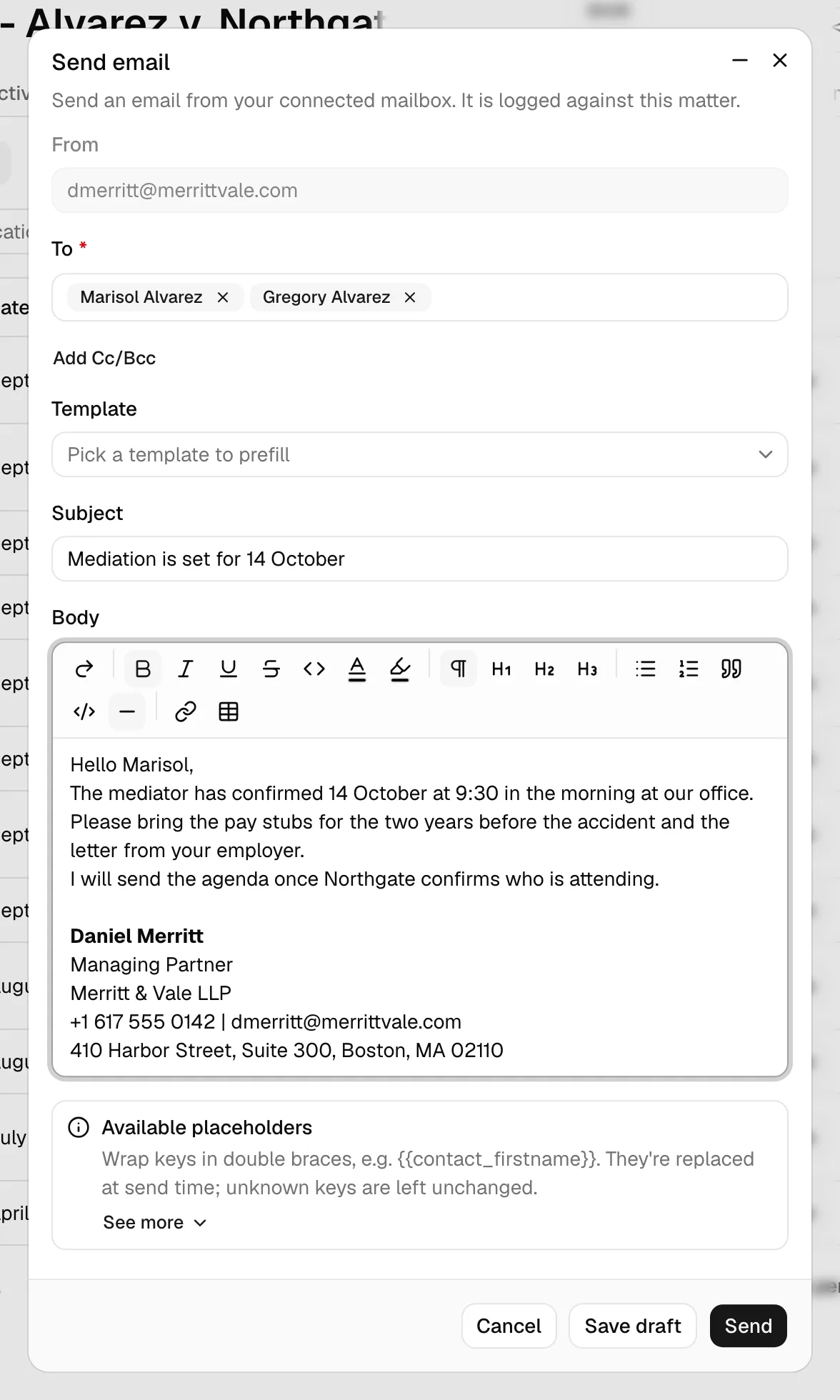
Once the Send email dialog is open, compose your message in the form fields, then send it. The whole message goes out through your own mailbox, so it lands in your real Sent folder and threads normally for the recipient.
- From shows the mailbox the message goes out from. With one connected account it is read-only. With both Gmail and Outlook connected, open the From menu and pick the address you want to send as. See Choosing which mailbox you send from.
- In the To field, add one or more recipients. Click in the field and a list opens with two groups, Members (people at your firm, each shown with their email) and Contacts (your firm's contacts, each shown with the email on their record). You can:
- Pick a member of your firm from the list.
- Pick any contact in your firm from the list. When you open the composer from a matter, lead, invoice, or contact, the people on that record who have an email are added for you automatically. The header + menu does the same for the matter, lead, or invoice page you have open, and starts with an empty To field anywhere else. For each person, Esqase uses the email labeled Primary, then one labeled Work, then the first email on file; invoice emails look for a Billing email first. Archived email addresses are never used. Some scheduling and event emails are addressed only to the clients who can open their link. See Calendar and events.
- Type any email address, then press Enter or click the Use '…' option at the bottom of the list to add it. Esqase checks that it looks like a valid email and shows a short hint if it does not. Start typing to filter the list by name or email. Each recipient appears as a removable chip. Click the small x on a chip, or press Backspace in an empty field, to remove the last one.
- To copy other people, click Add Cc/Bcc, then fill in the Cc and Bcc fields the same way. Both accept more than one recipient.
- (Optional) Pick a Template to prefill the subject and body. See Apply an email template.
- In Subject, type the email subject (up to 255 characters). This field is required.
- In Body, write your message using the rich text editor. Recipients see the same line spacing as in the editor, whether they read the email in Gmail or Outlook, and a blank line you leave stays one blank line. You can paste images into the body and they go out with the email. Your signature is already inserted at the bottom (see Insert and edit your signature). This field is required.
- Click Send.
While the email is sending, the button shows a spinner and reads Sending.... On success you see a Email sent confirmation, the dialog closes, and the message appears as a new row on the Communications tab with the status Active.
Note: If your subject or body still contains a placeholder that was not filled in when you click Send, Esqase asks you to confirm before the email goes out. See Confirm unfinished placeholders before sending.
Note: Images you paste into the Body are stored securely, and the copy delivered to the recipient links to them. The recipient can view the images for 7 days after you send; the row on the Communications tab keeps showing them for your firm. SVG images are not supported.
Important: Esqase saves the email as a record before it tries to send. If the send fails for any reason, the message is kept as a draft so you can retry it without retyping (see Retry a failed send).
Tip: You can set the composer aside without losing your work. Click the minimize button (the - icon) next to the close (x) button to collapse it into a small bar in the bottom-right corner, then click the bar to bring it back with your draft intact. You cannot minimize or close the composer while it is sending or saving. See Navigating the dashboard.
Choose which matter or lead the email is filed under
The Link to picker appears in two situations: when you open the composer from the header + menu anywhere other than a matter, lead, or invoice page, and when you open it from a contact's detail page. In both cases it lets you decide where the email is logged so it lands on the right record's Communications tab.
When you open the composer from a matter or lead directly, the email is already filed against that record and the Link to picker is not shown. An invoice composer does not show it either: Esqase files the email on the invoice's matter when you can open that matter and it is not archived, and otherwise keeps it in Esqase without a matter.
From the header + menu
- In the Send email dialog opened from the header + menu, the Link to field is at the very top of the form and is required.
- Open the picker. It lists your firm's active matters that you can open, and its open leads.
- Pick the matter or lead you want the email filed under. You must select one before the form will submit.
From a contact's detail page
When you compose from a contact's detail page, the email is not automatically attached to a matter or lead, because a contact can be a client on several matters or tied to more than one lead.
- In the Send email dialog, find the Link to field at the top of the form. It is required when the contact has at least one matter or open lead on file.
- Open the picker. It lists:
- The contact's active client matters that you can open, each shown by its number and title, for example 00123 - Acme acquisition.
- The contact's open leads that have not been converted to a matter yet, each shown as Lead followed by its number, for example Lead 00045.
- Pick the matter or lead you want the email filed under. If the contact has exactly one matter (and no open leads), or exactly one open lead (and no matters), that one is selected for you automatically. You can change it.
- If the contact has no matters and no open leads, the Link to field is hidden. The email sends and is logged against the contact, but does not appear on a matter or lead Communications tab.
When you send, the email is logged on the Communications tab of whichever matter or lead you chose, alongside emails sent from that record directly.
Note: If the Link to field does not appear, the contact has no active matters and no open leads yet, so there is nothing to link to. The email still sends and is logged against the contact.
Tip: If you file a contact's email under a lead and that lead is later converted to a matter, the email follows the conversion and appears on the new matter's Communications tab automatically.
What happens to recipients with no email on file
If you pick a contact who has no email address saved (in To, Cc, or Bcc), Esqase shows a No email on file dialog instead of adding them. It tells you the contact has no email and offers a Go to contact link. Open the contact, add an email, then come back and pick the contact again. See Working with contacts.
When Esqase fills in To for you, a client or contact who has no email on file is left out, and a line under To names them, for example "Dana Cruz has no email on file, so they were not added." Once you add an email for that person and pick them in To, the line no longer lists them. If you click Send while To is empty, the message "Add at least one recipient" shows in place of that line until you change To.
Apply an email template
A template is a reusable, pre-written email (subject and body) your firm has set up, for example an engagement-letter cover note or an appointment reminder. Applying one saves you from writing the same message twice.
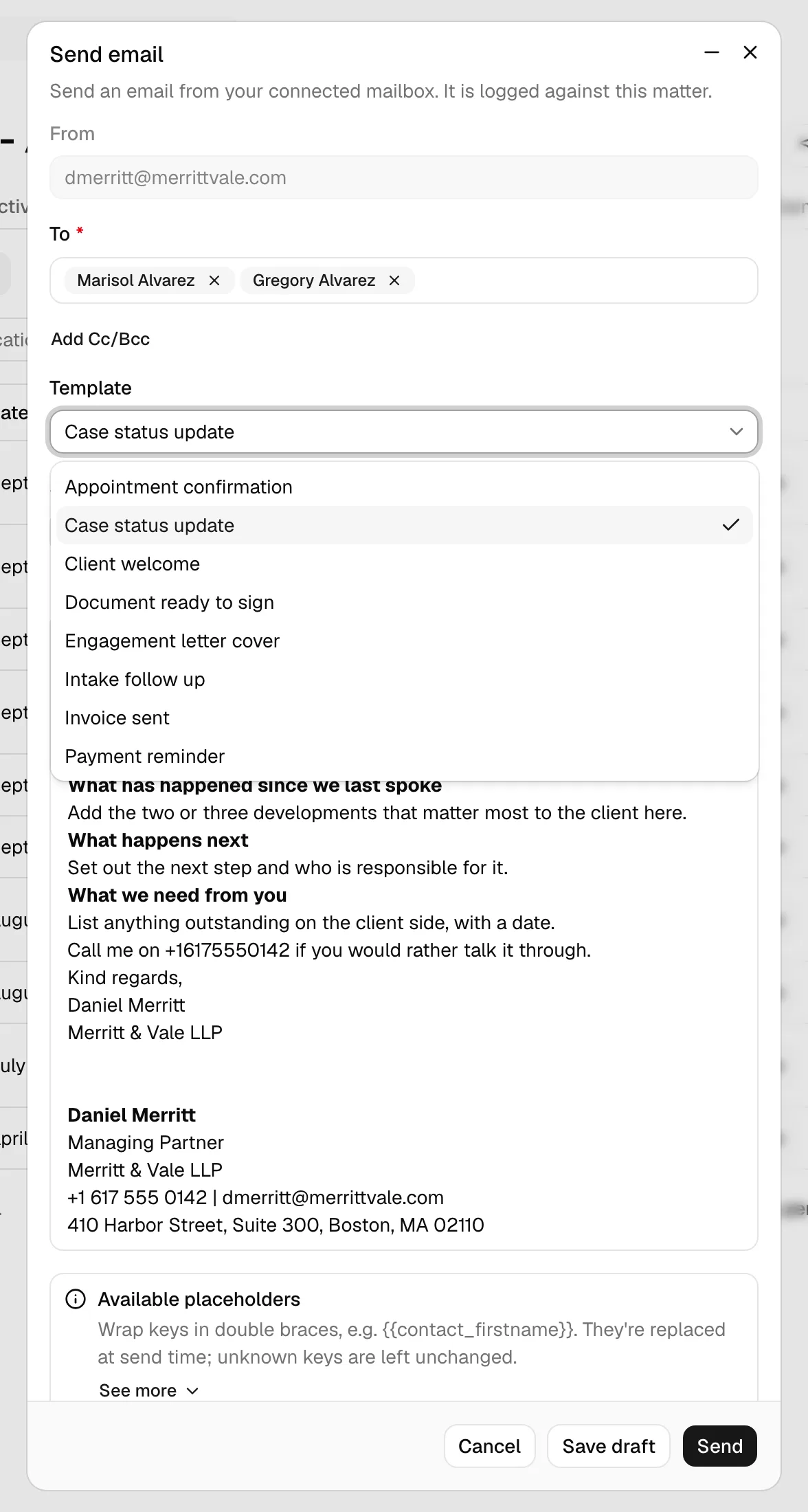
- In the Send email dialog, open the Template field.
- Pick a template from the list. The field is labeled Pick a template to prefill.
- Esqase fills the Subject and Body with the template's content, resolves any placeholders against the current contact, member, firm, and date, and appends your signature.
- Edit the prefilled text however you like.
Note: If you change the subject or body by hand after applying a template, the Template selection clears. That is expected: it just means the message no longer matches the template exactly. Your edits are kept.
Tip: If the Template field reads No templates available, your firm has not created any email templates yet. A firm member with the right access can add them under settings. See Email templates.
Insert and edit your signature
Your email signature (the closing block with your name, firm, and contact details) is added automatically every time you open the composer or apply a template. It is inserted directly into the Body editor, below your message, so you can see and edit it inline before sending.
- The signature is your personal signature if you have set one, otherwise your firm's default signature.
- Placeholders inside the signature (such as your name and the firm address) are filled in for you when it appears in the editor.
- Because the signature lives in the Body field, you can change it for this one email, delete it, or reorder it just like any other text. Editing it here does not change your saved signature.
To change the signature for every future email instead of just this one, update it in your settings. See Email signatures.
Tip: If you do not want a signature on a particular email, simply delete the signature block from the Body before sending.
Use template placeholders
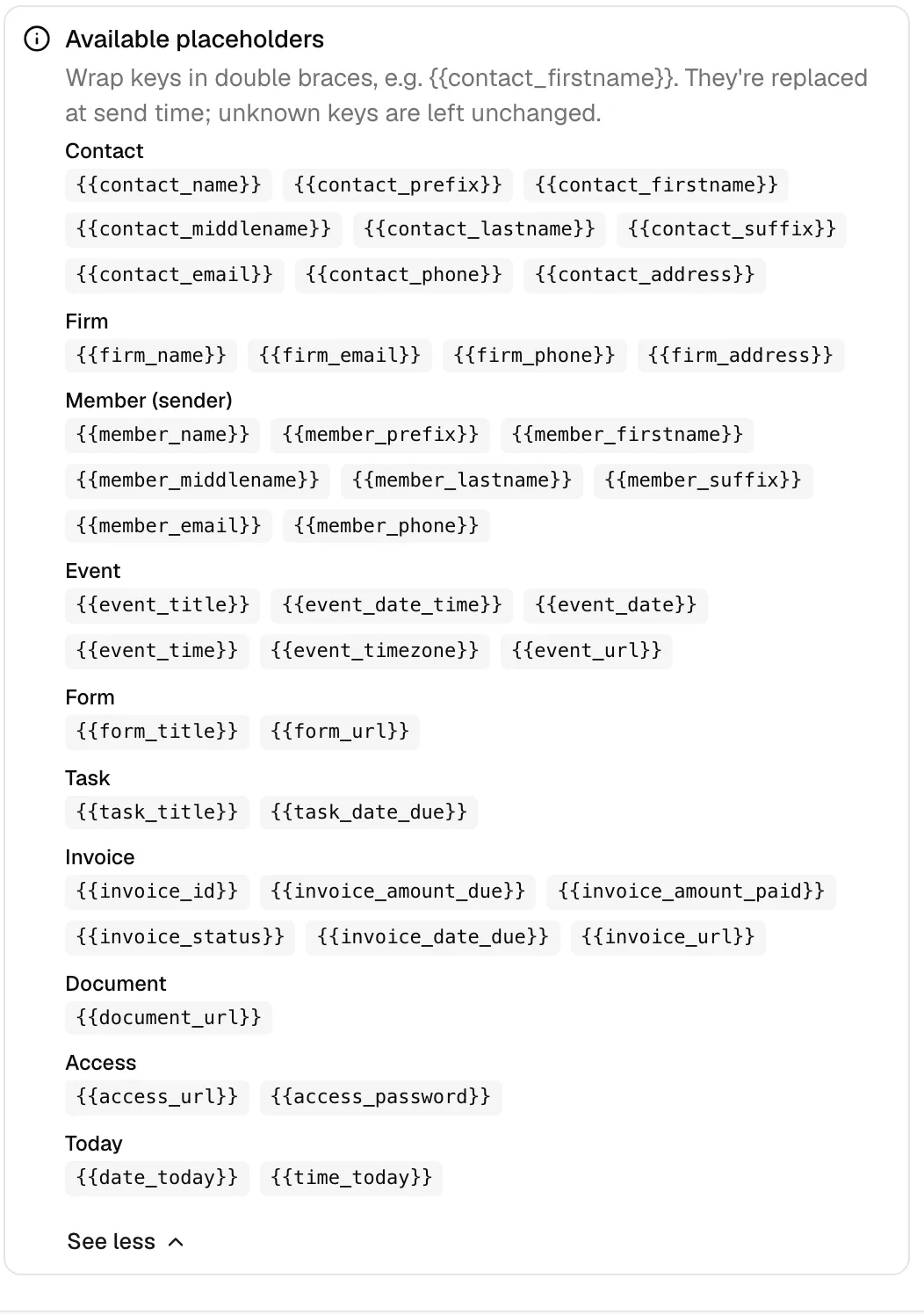
Placeholders are short keys you wrap in double braces, like {{contact_firstname}}. Esqase replaces them with real values at send time so a single template can greet each recipient by name. You can type placeholders anywhere in the Subject or Body.
At the bottom of the composer is an Available placeholders panel. Click See more to expand the full list of keys, grouped by category. Hover any key to see what it inserts.
How placeholders behave:
- Wrap each key in double braces, for example
{{contact_name}}or{{firm_phone}}. - They are replaced when you send (or save a draft, or hand the message off to your own mail app). The recipient never sees the braces.
- If a key has no value (for example, the contact has no phone on file) or the key is misspelled, Esqase leaves it unchanged rather than inserting a blank. When you click Send (or Continue), Esqase warns you about any placeholders that were left unfilled so you can finish them first (see Confirm unfinished placeholders before sending).
- The contact placeholders resolve against the first contact in your To list, falling back to the matter or lead's primary contact.
The most common groups you will use:
- Contact (the person you are writing to):
contact_name,contact_prefix,contact_firstname,contact_middlename,contact_lastname,contact_suffix,contact_email,contact_phone,contact_address.contact_firstnameis built for greetings, so it always resolves to something you can send. Writing to a company contact fills it with the company name; writing to someone recorded with only a full name fills it with that full name. SoHi {{contact_firstname}},reads correctly either way.
- Firm:
firm_name,firm_email,firm_phone,firm_address. - Member (sender), meaning you:
member_name,member_firstname,member_lastname,member_email,member_phone, and more. - Today:
date_today(today's date) andtime_today(the current time).
Note: Other groups (such as Event, Form, Invoice, and Document) appear in the list too. Those keys are filled in only when Esqase sends the email as part of a workflow or scheduling step that has that context. In a plain email you compose by hand, they may be left unchanged.
Emails about an event: the meeting link and location
When you open the composer from an Event step on a lead or matter, the email is about that step's meeting, so the Event placeholders fill from it. That covers the email offered after Create event, Send email in the step's ... menu once it has an event, the email offered when you send a scheduling link, and the emails offered when you accept, decline, or propose a time for a scheduling request. Two of the Event keys tell the client how to attend:
{{event_meeting_link}}: the link to join an online meeting, such as the Google Meet, Zoom, or Microsoft Teams link created for it, or a link your team added to the event.{{event_location}}: where the event takes place, such as In person or Zoom.
When the meeting has no link, the whole line that holds {{event_meeting_link}} is left out of the Body, together with any words on that line such as "Join the meeting:", and the blank lines around it close up. A line that holds {{event_location}} is left out the same way when the event has no location. This happens as soon as the template or the step's email fills the Body, so what you see is what the client gets, and it runs again when you click Send, for lines you typed yourself. A line left out this way never appears in Finish your placeholders before sending. Only body lines are left out: a meeting link placeholder in the Subject with no value is listed in that dialog like any other.
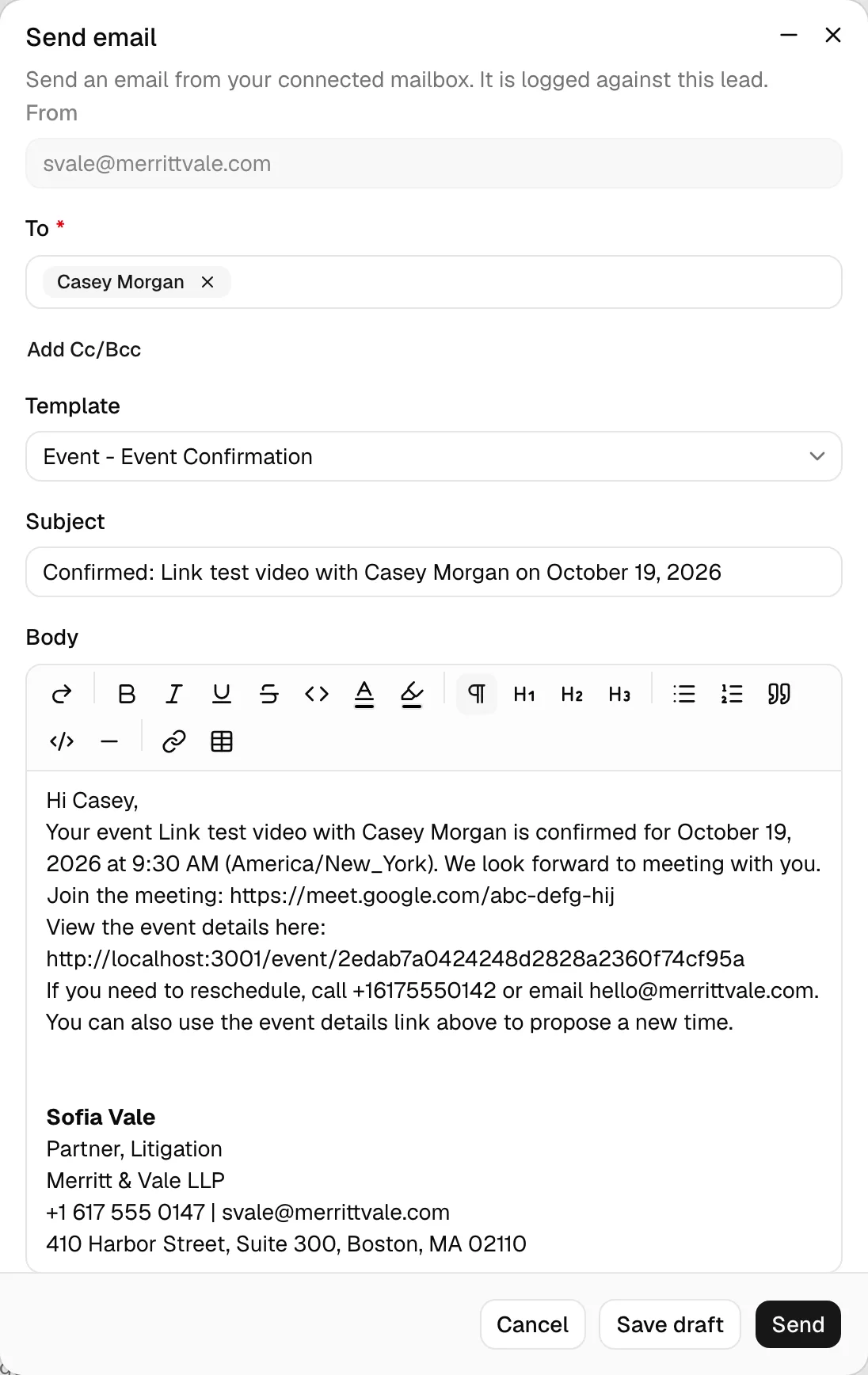
Because the whole line goes, keep the label on the same line as the placeholder (Join the meeting: {{event_meeting_link}}), give the placeholder a line of its own rather than a place inside a sentence, and put that line before another paragraph rather than last before your signature. A label on its own line above the placeholder stays behind, a sentence that holds the placeholder is left out whole, and a last line takes the blank line before your signature with it. See Add the meeting link to an event email.
In an email you start anywhere else, such as a matter's Communications tab or a contact, there is no event, so these two placeholders are not filled and the dialog lists them before you send. See Add the meeting link to an event email.
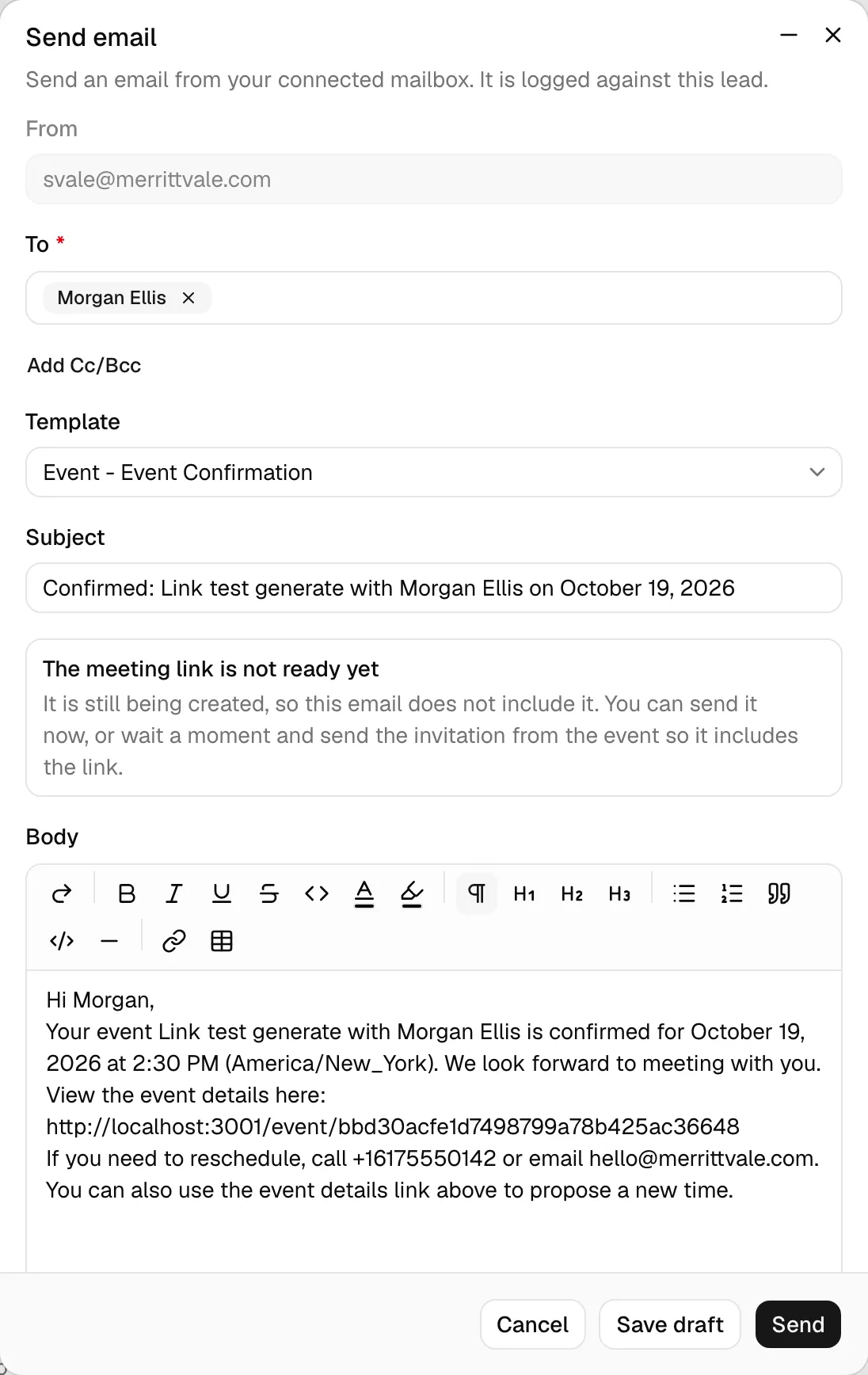
When the meeting link is not ready yet. For a video meeting whose link Esqase adds from its event type, the link can arrive a moment after the meeting is confirmed. If you write to the client before it exists, for example right after you accept a booking, a note above the Body reads The meeting link is not ready yet: "It is still being created, so this email does not include it. You can send it now, or wait a moment and send the invitation from the event so it includes the link." You can:
- Send the email as it is. The "Join the meeting" line is left out, and the client finds the link on their meeting page once it is added. See When clients get the meeting link.
- Or close the composer, wait a moment, and send the invitation from the event: open the step's ... menu and choose Send email. The step's invitation email opens, and once the link exists it fills every
{{event_meeting_link}}line, including one in a template you pick from Template, such as Event - Event Confirmation.
Confirm unfinished placeholders before sending
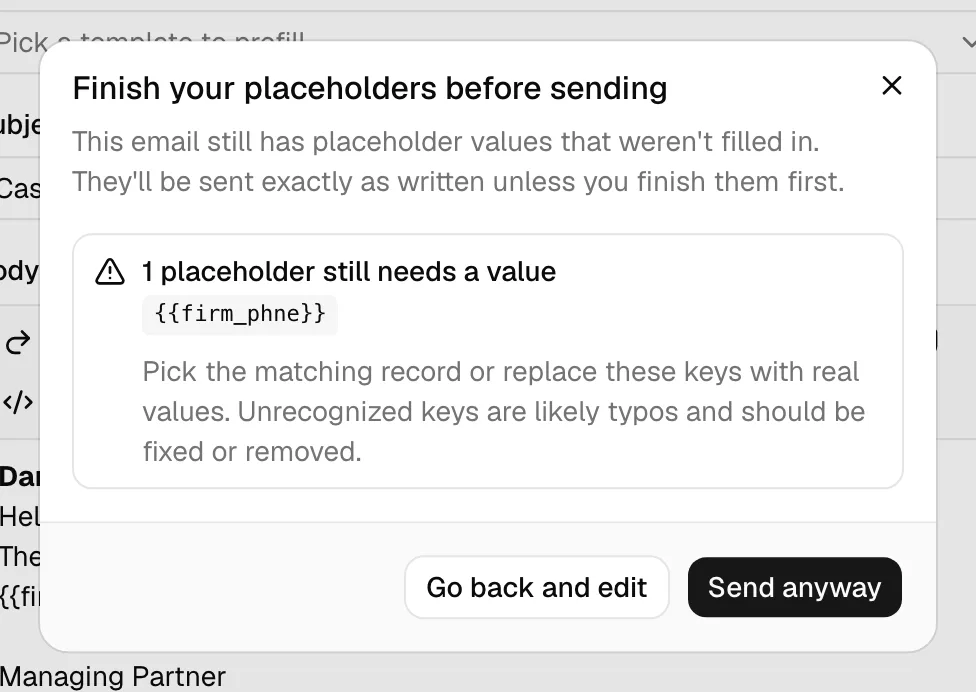
Esqase checks your message when you click Send (or Continue, when no mailbox is connected). If the Subject or Body still contains a placeholder that was not filled in (for example {{firm_address}} when no firm address is on file, or a key with a typo), a Finish your placeholders before sending dialog appears before anything is emailed. It:
- Warns that the email still has placeholder values that were not filled in, and that they will be sent exactly as written.
- Lists each leftover placeholder, such as
{{firm_address}}, so you can see what to fix. - Points out that an unrecognized key is usually a typo you should correct or remove.
You then choose:
- Go back and edit closes the dialog without sending, so you can fill in the value, pick the matching contact, or fix the key, then click Send again.
- Send anyway sends the email as written, leaving the placeholder text in the message. With no mailbox connected, this takes you on to the hand-off step instead of sending.
This check runs only when you click Send or Continue. Saving a draft never shows it, so you can keep unfinished placeholders in a draft and resolve them later.
Save an email as a draft
If a message is not ready to send, save it as a draft and finish it later. Drafts are kept on the Communications tab so you (or a colleague with access) can pick them back up.
- Compose the email as usual: add recipients, a subject, and a body.
- Instead of Send, click Save draft.
The button shows Saving... while it works, then you see a Draft saved confirmation and the dialog closes. The message appears on the Communications tab with the status Draft. Nothing is emailed yet.
Tip: You do not have to fill in everything to save a draft. Save early and often, then come back when you have the missing details.
Note: The Save draft button appears only when you have a mailbox connected. Without one, click Continue and choose Save as draft on the hand-off step instead. A draft saved that way opens in the Edit email log dialog, not this composer, when you edit it, because Esqase cannot send it for you. See Choose what to record in Esqase.
Open and send a saved draft later
This applies to drafts saved through a connected Gmail or Outlook mailbox: ones you saved with Save draft, and messages whose send failed.
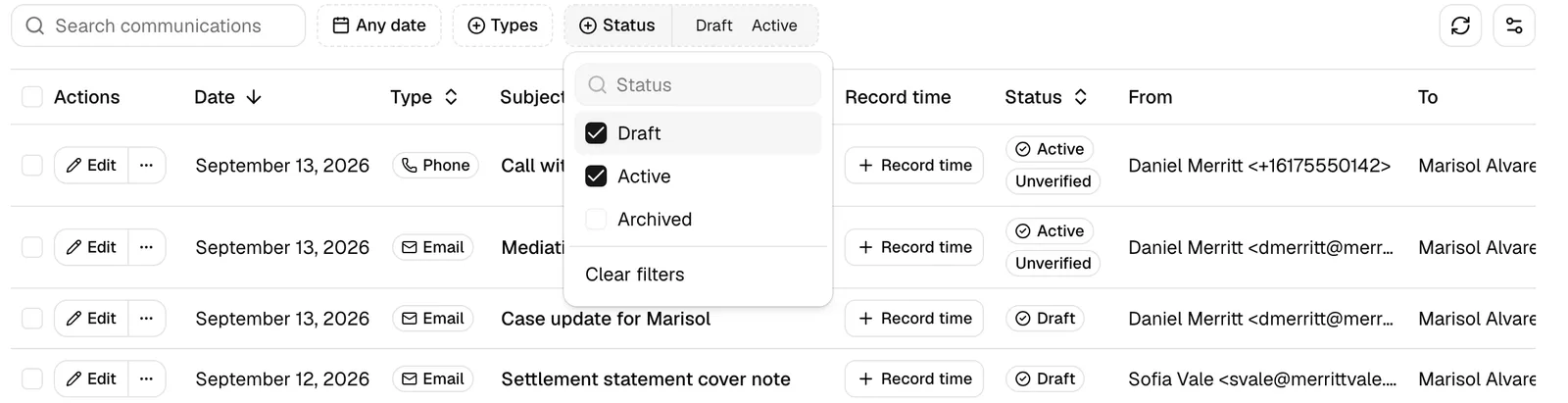
- On the matter's Communications tab, find the row with the Draft status. (Drafts are hidden by the default filter, which shows Active only. Use the Status filter and select Draft to show them.)
- In that row's actions, click Edit. The Send email dialog reopens with the title Edit draft email and your saved recipients, subject, and body restored.
- Make any final changes.
- Click Send to send it now, or Save draft again to keep editing later.
Note: A draft saved with Save as draft on the hand-off step (when no mailbox was connected) does not reopen here. Clicking Edit opens it in the Edit email log dialog, where you can update it, and it stays a draft until you mark it as active. See Edit an email draft.
Tip: If a draft has already gone out some other way and you only want to record it as sent, you do not need to reopen it. Choose Mark as active from the row's More actions menu. This does not send the message: it keeps the draft's date, shows the Unverified badge, and turns a draft saved through a connected mailbox into an ordinary logged email. See Mark a draft as active.
Retry a failed send from a saved draft
Because Esqase saves the email record before contacting your mailbox, a failed send never loses your work. If the send fails, you see a message telling you the draft was saved so you can try again, and the message is kept as a Draft on the Communications tab.
To retry:
- Open the matter's Communications tab.
- Show drafts using the Status filter (select Draft), then find the failed message.
- Click Edit to reopen it in the Send email dialog.
- Confirm the recipients, subject, and body still look right.
- Click Send again.
If the send succeeds this time, the row flips from Draft to Active and the email goes out.
Note: A common reason a send fails is that your mailbox connection has expired or been revoked. If retries keep failing, reconnect Gmail or Outlook on the Integrations page, then try again. See Connecting Google (Gmail, Calendar, Meet) and Connecting Outlook and Zoom.
Send from your own mail app (no mailbox connected)
You do not need a connected mailbox to use the composer. Write the message here exactly as you normally would, and Esqase hands the finished message to whichever mail app you use, with the placeholders already filled in.
At the top of the form you will usually see a No mailbox connected notice. It explains that you can compose here and hand the message off to your own mail app, and that connecting a mailbox lets you send directly from Esqase and log delivery automatically. The notice names only the mailboxes you can actually connect, so it reads Connect Gmail or Outlook, Connect Gmail, or Connect Outlook, and those words link to the Integrations page. If neither Gmail nor Outlook is available to connect, the notice is not shown at all, because there would be nothing to set up. Everything else in the composer works as described above: recipients, template, subject, body, signature and placeholders.
Important: Esqase can confirm delivery only for messages it sends itself. A message you finish in your own mail app leaves Esqase's hands, so anything you record about it is your own note that it went out. See Choose what to record in Esqase.
Hand the message off
- Fill in the composer as usual.
- Click Continue (this is where the Send button sits when a mailbox is connected). If any placeholders are unfilled, Esqase asks you to confirm first.
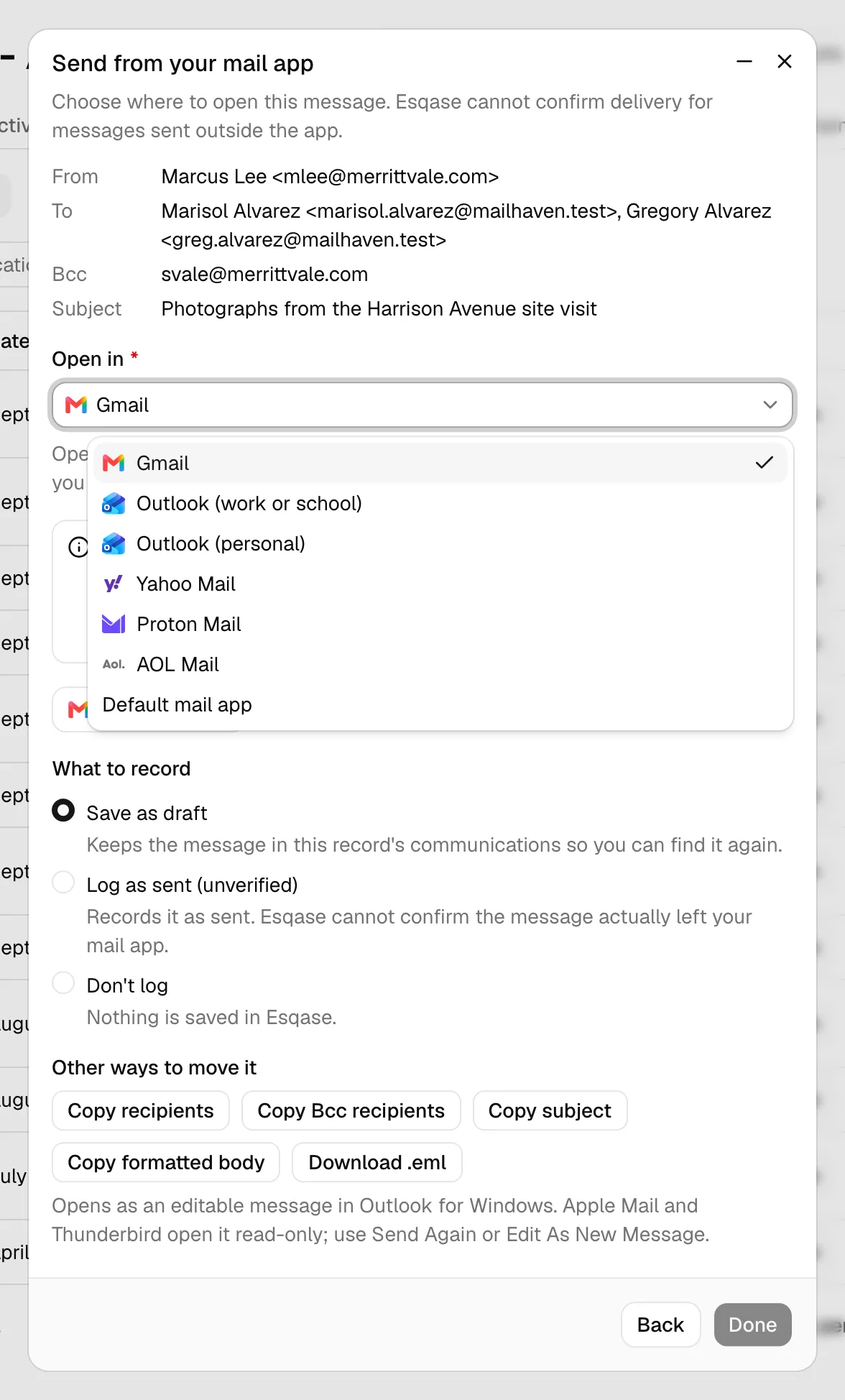
- The dialog moves to a second step titled Send from your mail app. At the top it recaps From, To, any Cc and Bcc, and the Subject, so you can check the message before it leaves.
- Open the Open in picker and choose where to write the message. The options are Gmail, Outlook (work or school), Outlook (personal), Yahoo Mail, Proton Mail, AOL Mail, and Default mail app (whichever mail app this computer is set to use). A short line under the picker explains what to expect from the option you chose.
- Click the open button, for example Open in Gmail, or Open your default mail app. Your mail app opens with the recipients, subject and message already filled in. Review it there and send it yourself.
- Back in Esqase, choose What to record, then click Done.
Note: Done stays inactive until you have actually moved the message somewhere: opened it in a mail app, or used one of the copy or download buttons. That way you cannot record an email you have not sent.
Tip: Prefer Outlook (work or school) for a company or university account and Outlook (personal) for an Outlook.com, Hotmail, or Live address. Choosing the wrong one lands on an account picker and the prefilled message is lost.
Keep the formatting, images, and Bcc
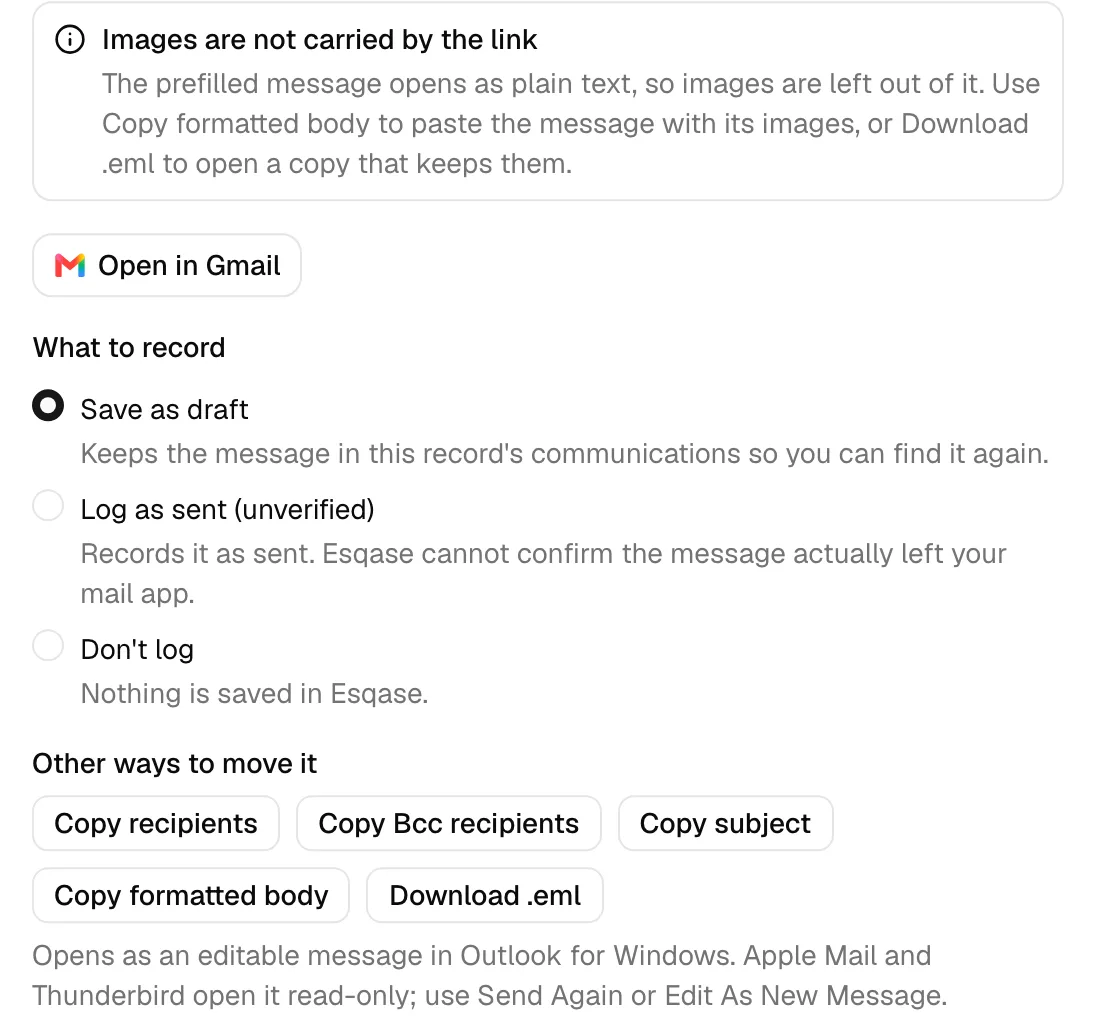
A prefilled link can only carry plain text, so the copy that opens in your mail app is simplified. The step gives you three ways to move the rest across, under Other ways to move it:
- Copy formatted body puts the formatted version of your message on the clipboard. Paste it over the plain text in your mail app to restore the styling and any images.
- Download .eml saves the message as a file that keeps the formatting, the images, and the recipients. The file is named for the subject and the first recipient. Open the file in your mail app and send it from there. A line under the buttons explains how each mail app treats the file: it opens as an editable message in Outlook for Windows, while Apple Mail and Thunderbird open it read-only, so use Send Again or Edit As New Message there.
- Copy recipients, Copy Bcc recipients (shown only when you added Bcc), and Copy subject put those details on the clipboard so you can paste them in by hand.
Esqase tells you when something could not travel in the link:
- Too long for a prefilled link. Your message is longer than the mail app you chose can accept, so the copy that opens there is cut short. Use Copy formatted body or Download .eml to move the whole message.
- Bcc is not carried by the link. Your Bcc recipients were left out. Use Copy Bcc recipients and add them in your mail app.
- Images are not carried by the link. The prefilled message opens as plain text, so images in your body are left out. Use Copy formatted body to paste the message with its images, or Download .eml to open a copy that keeps them.
Choose what to record in Esqase
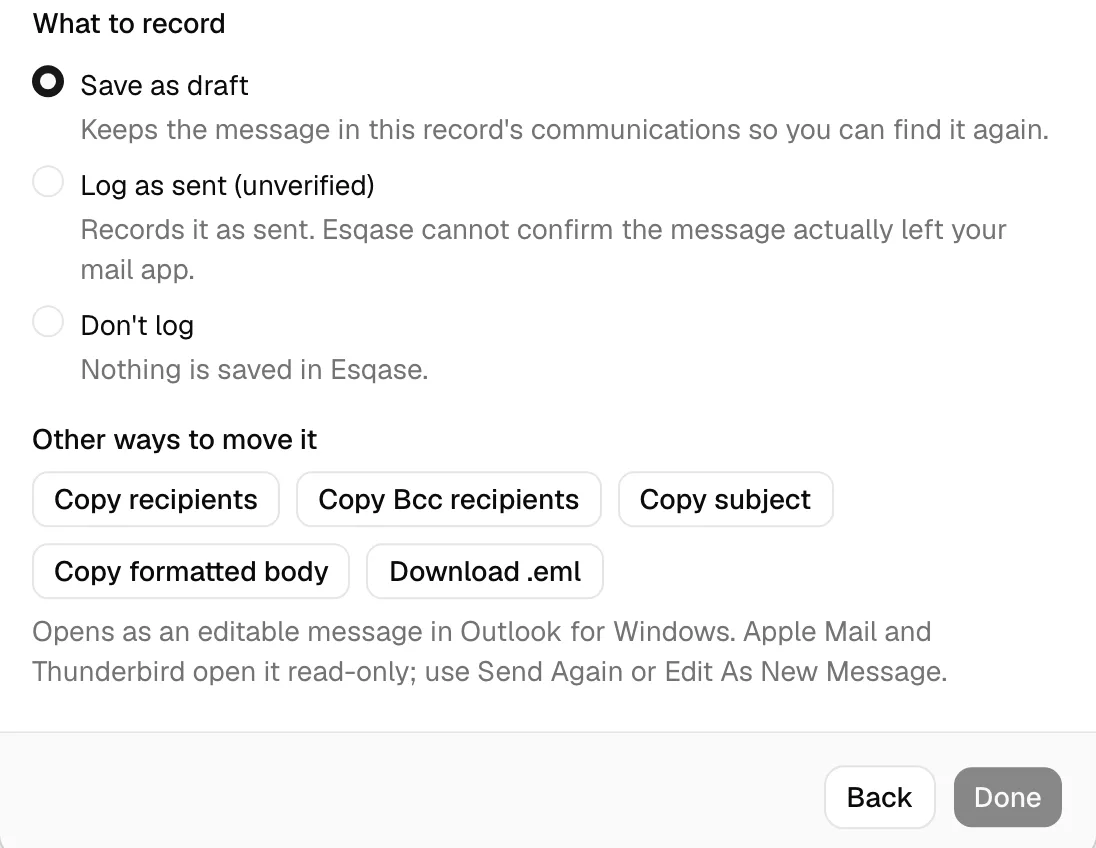
Before you finish, pick what should be kept on the Communications tab under What to record:
- Save as draft (the default) keeps the message in this record's communications so you can find it again. It appears with the Draft status. To update it later, click Edit on its row, which opens the Edit email log dialog. Once you have sent it, choose Mark as active from the row's More actions menu to record it as sent. See Mark a draft as active.
- Log as sent (unverified) records it as sent. Esqase cannot confirm the message actually left your mail app, so the row is marked Unverified on the Communications tab. See What the Unverified badge means.
- Don't log saves nothing in Esqase.
Click Done to finish. You see a Draft saved or Email logged as sent confirmation and the dialog closes.
Important: An Unverified row is your own record that you sent the message, not proof of delivery. Esqase never sees the message once it is in your mail app, and replies to it are not pulled back in. Connect Gmail or Outlook if you want delivery recorded for you.
Go back to the composer
Click Back in the dialog footer to return to the compose form. Everything you typed is still there, so you can fix the subject, add a recipient, or edit the message and click Continue again.
Signature requests get one message per signer
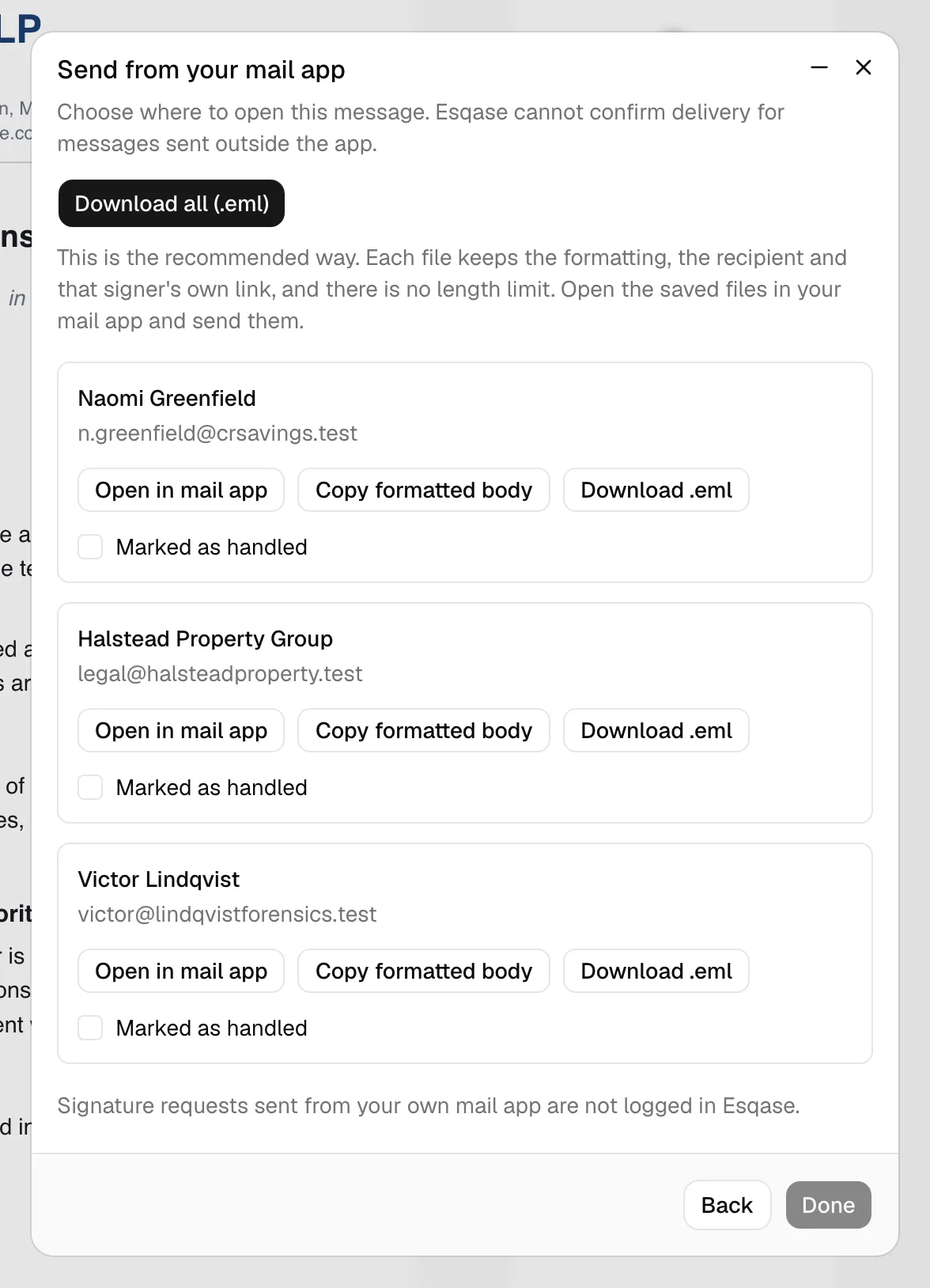
The Send to signers flow on a document, and Resend signing email on a single signer, use this same hand-off step. The only difference is that every signer receives their own personal signing link, so the step carries one message per signer instead of a single shared one.
- You still choose once. There is one Open in picker and one What to record choice for the whole batch, exactly as above. The summary at the top reads 3 recipients, one message each rather than naming a single To. With only one signer to write to, the step names that person under To and gives you one set of buttons instead of a Messages list, exactly like an ordinary hand-off.
- Under Messages, each row is one signer, named with their address, carrying that signer's own link. Every row offers Open in Gmail (or whichever app you picked), Copy address, Copy formatted body, and Download .eml. A row you have opened, copied, or downloaded gets a Handled badge, so you can keep your place.
- Download all (.eml) under Other ways to move it prepares one file per signer in one go, each keeping the formatting, that person's address, and that person's own signing link, with no length limit. Each file is named for the subject and the signer it belongs to, so the files sit side by side in your downloads folder instead of overwriting each other. Esqase confirms how many messages it prepared and reminds you that your browser may ask permission to download several files at once, so allow it if you are asked. Only the signers whose file was actually prepared are marked Handled: if one could not be built, Esqase tells you how many it managed and asks you to use Download .eml on the rest. Open the files in your mail app and send them.
- Only what you handled is recorded. A note under What to record says so: only the messages you open, copy, or download here are recorded. A signer you skipped leaves no row on the Communications tab. Done stays inactive until you have handled at least one message.
- If a signer's message is too long for a mail app link, that row says so and points you to Copy formatted body or Download .eml, so the signing link is never cut off.
- There is no Link to field on a signer send. The request already belongs to its document, and to that document's matter if it has one, so there is nothing to choose.
- If the document still needs approval, Esqase tells you when you click Continue and does not hand out any links. Get the approval done, then try again.
For the full signature flow, see Requesting eSignatures.
Emails Esqase sends for you also appear on Communications
Beyond the emails you write in the composer, Esqase sends a few emails on your behalf as part of other flows. When one of those emails relates to a matter or lead, it is recorded on that record's Communications tab too, so the tab shows the full picture of what your client has been sent. You do not have to do anything: these rows appear on their own and are read-only.
These automatic rows cover:
- Invoice payment notices. When you email a client a payment link from an invoice, the message is filed on that invoice's matter, as long as you can open that matter and it is not archived. Otherwise it is kept in Esqase without a matter, so it does not appear on any Communications tab. See Creating and sending invoices.
- Document share links. When you share a document with a specific recipient, the secure link is emailed to them and recorded on the document's matter. See Sharing documents.
- Signature request links. When you send a document for signature, each outside signer's signing link is emailed to them and recorded on the matter. See Requesting eSignatures.
- Booking and payment sign-in links. When a client asks for a secure sign-in link to open a booking page or a payment link, that email is recorded on the related matter or lead.
Note: These rows behave like any other sent email on the tab: they are read-only, show the Email type, and can be searched and filtered along with everything else. They appear only when the email is connected to a matter or lead.
Addresses Esqase no longer sends to
Some email leaves Esqase on your firm's behalf rather than from your own mailbox: booking confirmations, workflow emails, form requests and their reminders, invoice and payment emails, signature requests, document share links, and the sign-in codes and links your clients use. Esqase protects how that email is received, for your firm and for every other firm on Esqase, in two ways.
- Bounces and spam reports. When an email to an address bounces for good (the receiving mail server says the address does not exist or will never accept mail), or the recipient marks an Esqase email as spam, Esqase stops sending to that address. A temporary problem, such as a full mailbox, does not count. This applies to every email Esqase sends.
- A limit on emails a stranger could set off. Some emails can be triggered by anyone who types an address into a public page: booking confirmations, sign-in links and codes, account verification and password reset emails, the email that tells someone they already have an account, and workflow emails sent to leads that came from your booking page or an intake form. Esqase sends a limited number of these sign-in and confirmation emails to one address each hour. One past the limit is not sent and is not tried again later.
Email your firm sends as part of its own work, such as invoices, payment reminders, signature requests, and workflow emails on your clients' matters or on leads your team created, is never limited. Email you send through your connected Gmail or Outlook mailbox, or hand off to your own mail app, is not affected at all: it leaves from your own mailbox, not from Esqase.
What you see
- A workflow email step to that address stops with Needs attention and the reason "The email could not be delivered. Check the client email address, then try again." See When a step cannot run.
- Your booking pages and public forms refuse an address Esqase no longer sends to and ask the visitor to use a different one. See Spam protection for booking pages and forms.
- Other automatic emails to that address, such as an invoice email or a client's sign-in code, are not sent.
Get an address receiving email again
- Check the address with the person. If it was mistyped or has changed, correct it on their contact record. A corrected address is a different address, so Esqase sends to it normally. Then use Try again on any workflow step that stopped.
- If a workflow step on a lead from your booking page or an intake form stopped because of the hourly limit, wait an hour and use Try again.
- If the address is right and the person can receive email again (for example, they marked an Esqase email as spam by mistake, or their mail provider rejected it in error), contact Esqase support and ask for the address to be re-enabled. This is also the fix when a client's sign-in codes stop arriving because their address was blocked. Once support has re-enabled it, the client simply asks for a new code. There is no way to re-enable an address yourself yet.
Common questions
Where do sent emails go after I send them? Each email becomes a row on the Communications tab of the matter or lead it is filed under, with the Email type. When you send from a contact, that is whichever matter or lead you chose in the Link to picker. Emails sent through a connected mailbox are read-only there. Replies arrive in your own inbox. Through Outlook they are recorded on the same record automatically; through Gmail you add them yourself with Email log, because the Gmail connection is send-only.
Do I have to connect Gmail or Outlook to email a client? No. The composer always opens, and without a connected mailbox you finish the send in your own mail app. Connecting one is still worth it: Esqase then sends the message for you, records it as genuinely sent, and (with Outlook) threads client replies back onto the record.
Why does the button say Continue instead of Send? You have no mailbox connected, so Esqase cannot send the message itself. Continue takes you to the hand-off step where you choose which mail app to open it in. See Send from your own mail app.
What does the Unverified badge mean? The badge sits on an active email log that did not go out through a connected Gmail or Outlook mailbox, so Esqase never saw the message leave and does not claim it was delivered. You get it when you choose Log as sent (unverified) after handing a message off to your own mail app, when someone types an email in as a log, and when a draft is marked as active. Phone logs never show it. See What the Unverified badge means.
I sent a draft from my own mail app. How do I record it as sent? On the Communications tab, show drafts with the Status filter, open the draft's More actions menu, and choose Mark as active. To do several at once, select them and choose Mark as active from the batch-actions control. The log keeps its original date. See Mark a draft as active.
Why did my draft open in the email log form instead of Send email? It was saved with Save as draft on the hand-off step, when no mailbox was connected, so Esqase cannot send it. Update it there and mark it as active once you have sent it. Drafts saved through a connected Gmail or Outlook mailbox open in Send email. See Edit an email draft.
Why did my formatting disappear in Gmail (or Outlook) after the hand-off? A prefilled link can only carry plain text. Use Copy formatted body and paste over the plain version, or Download .eml and open that file instead. See Keep the formatting, images, and Bcc.
I sent an email from the header + menu (or from a contact). Why did it ask me what to link it to? When there is no specific matter or lead already in scope, Esqase cannot guess which record the email belongs to. The Link to picker lets you choose, or you can leave it Not linked to a matter or lead. When composing from a contact, the picker shows only that contact's matters and leads, leaving out matters you cannot open. From the header + away from a matter, lead, or invoice page, it shows the active matters you can open and all open leads. See Choose which matter or lead the email is filed under.
Can I edit an email after I send it? An email sent through a connected mailbox becomes read-only in Esqase, so you can only View it, not edit it. Drafts stay editable, and so does a message you logged after handing it off to your own mail app, since Esqase only holds your own record of it. To follow up on a sent email, send a new one.
Why is the From field locked? With a single mailbox connected, Esqase sends as you from that account, so From is fixed to it. Connect a second mailbox and From becomes a picker. With no mailbox connected, From shows your Esqase sign-in address purely to label the record, because your mail app decides the real sending address.
Someone added a contact's email after I started. Do I need to start over? No. Close the No email on file notice, add the email on the contact, then reopen the composer and pick the contact again.
Why did Esqase ask me to confirm placeholders when I clicked Send?
Your message still had a placeholder that was not filled in, such as {{firm_address}} with no value on file or a key with a typo. Esqase pauses so the braces do not go out by accident. Choose Go back and edit to fix it, or Send anyway to send it as written. See Confirm unfinished placeholders before sending.
Troubleshooting
- I don't see a New button or a Send email option. Your role may not include Create access for communications, or you may not have permission to view the Communications tab. Ask a firm owner or administrator to adjust your role. See Roles and permissions.
- The composer shows a "No mailbox connected" notice. That is expected when neither Gmail nor Outlook is linked. You can still compose and hand the message off, or click the connect link in that notice to link a mailbox and send directly. If you see no notice at all and the button still reads Continue, neither mailbox is available to connect in your Esqase environment, and handing the message to your own mail app is the intended way to send it.
- My mail app opened empty, or without the message. The link may have been too long for that mail app, or the app may have been slow to start. Use Download .eml to open the whole message as a file instead, or Copy formatted body and paste it in.
- The Done button is greyed out on the hand-off step. Open the message in a mail app, or use one of the copy or download buttons, first. On a signature request, do that for at least one signer's row: a row you have handled shows a Handled badge.
- My placeholder did not get replaced. The key may be misspelled, or the underlying value may be empty (for example, the contact has no phone). Esqase leaves unknown or empty keys as-is. Open Available placeholders, click See more, and copy the exact key. When you click Send or Continue, Esqase also lists any leftover placeholders so you can fix them before the email goes out.
- A dialog asked me to finish my placeholders. Your message still has a placeholder that was not filled in. Choose Go back and edit to fix it, or Send anyway to send the message as written. See Confirm unfinished placeholders before sending.
- The Template field says "No templates available." Your firm has no email templates yet. See Email templates.
- The send failed. Your message was saved as a draft. Reopen it from the Communications tab (filter by Draft), click Edit, and click Send again. If it keeps failing, reconnect your mailbox.
- A workflow email step says "The email could not be delivered." The address may be one Esqase no longer sends to, or, on a lead from your booking page or an intake form, it reached the hourly limit for one address. See Addresses Esqase no longer sends to.