Available lang sa Ingles ang dokumentasyon ng produkto.
Approvals for invoices and documents
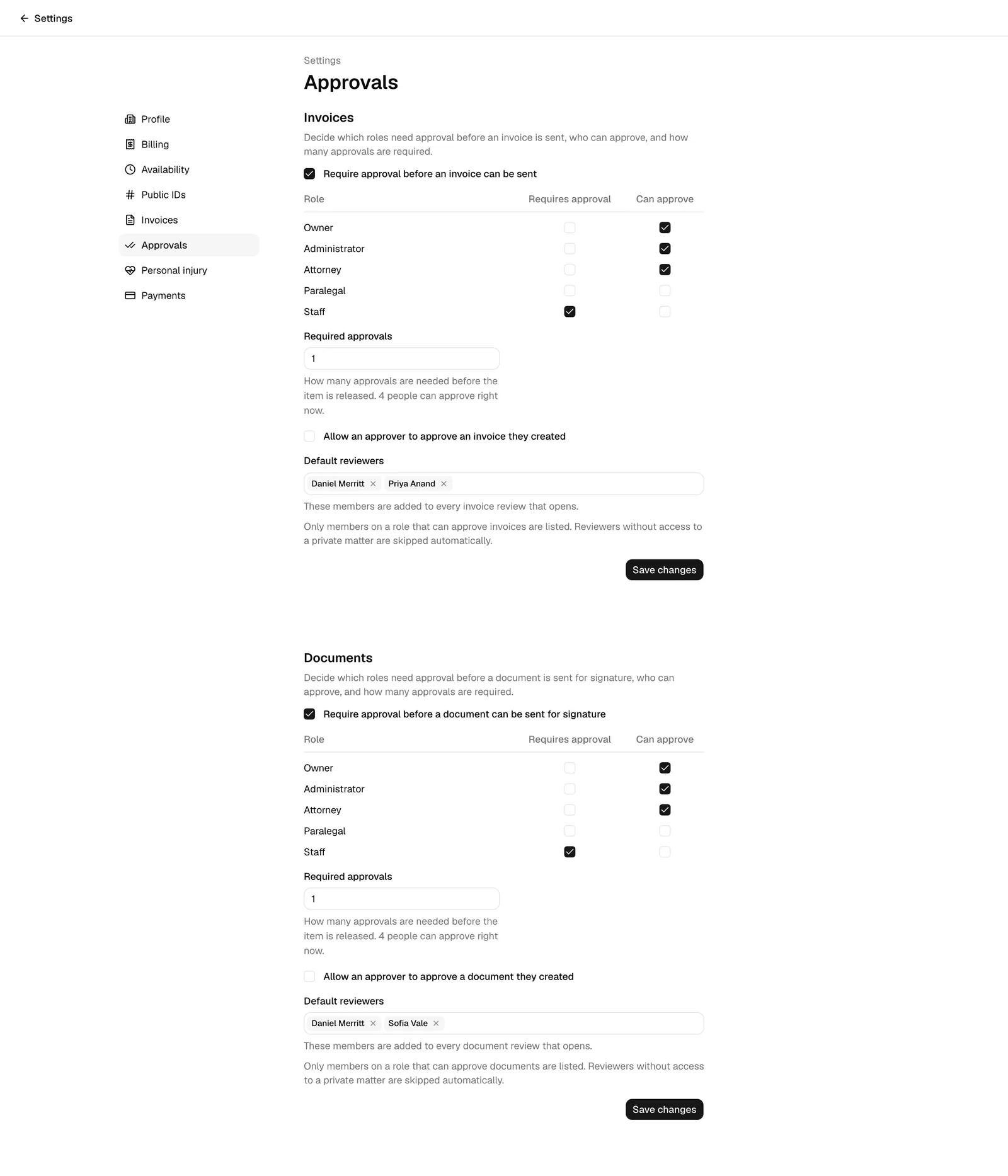
Approvals let your firm require a second pair of eyes before an invoice goes out to a client or a document is sent for signature. You decide the rules once, at Settings > Approvals: which roles have their work reviewed, which roles are allowed to review, how many approvals an item needs, and who is added to every review automatically. Esqase then applies those rules as people work, and shows the review status right on the invoice or document.
Invoices and documents are configured separately, so you can require approval on billing without slowing down document signing, or the other way around.
Before you begin
- Approval settings live in the dashboard under Settings. In the settings sidebar, click Approvals.
- Access to this page is controlled by its own permission, Firm approval settings, in the Firm group of the role permission grid. With View access you can read the settings; with Update access you can change and save them. Firm owners always have full access. By default, the Owner and Administrator roles can open this page and the Attorney and Staff roles cannot. See Roles and permissions.
- If your role has no view access, the page shows a no-access message. If you have view access but not update access, you can read every setting but the fields are disabled and Save changes does nothing.
- You do not have to set anything up to start. Every firm already has a working set of rules. See What your firm starts with.
How approvals work
A few terms make the rest of this page easier to follow.
- A review is opened on one invoice or one document. It collects decisions from the people reviewing it and reports one overall status.
- A reviewer is a firm member asked to make a decision on that review. A reviewer either approves or requests changes. A review always needs at least one reviewer: with nobody on it, no one can approve the item.
- A review comment is what a reviewer writes when they ask for changes. It is posted into the item's own comment conversation and marked with a Review chip, so the whole team reads it in the same place as every other comment, and anyone else on the item can mark it Done once it has been handled.
- A role requires approval when work created by people in that role has to be reviewed.
- A role can approve when people in that role are allowed to be reviewers.
Those last two are independent. A role can require approval without being able to give it, a role can approve without ever needing approval itself, and a role can do both (useful when several colleagues review each other's work).
What a review blocks depends on the item:
- An invoice that needs approval is created as In review. It cannot be sent, and you cannot generate a payment link or record a payment against it, until the review is approved. Once it is, the invoice moves to Pending on its own.
- A document never enters a review on its own. Someone clicks Request reviewers on it and picks who should look. While a review is open and not yet approved, the document cannot be sent for signature. You can still write, edit, place signature fields, and add signers in the meantime.
Important: Matter privacy always wins over approval settings. A reviewer who cannot see a private matter is never added to a review on that matter's invoices or documents, even if your firm listed them as a default reviewer. See Creating a matter.
Set up approvals for invoices
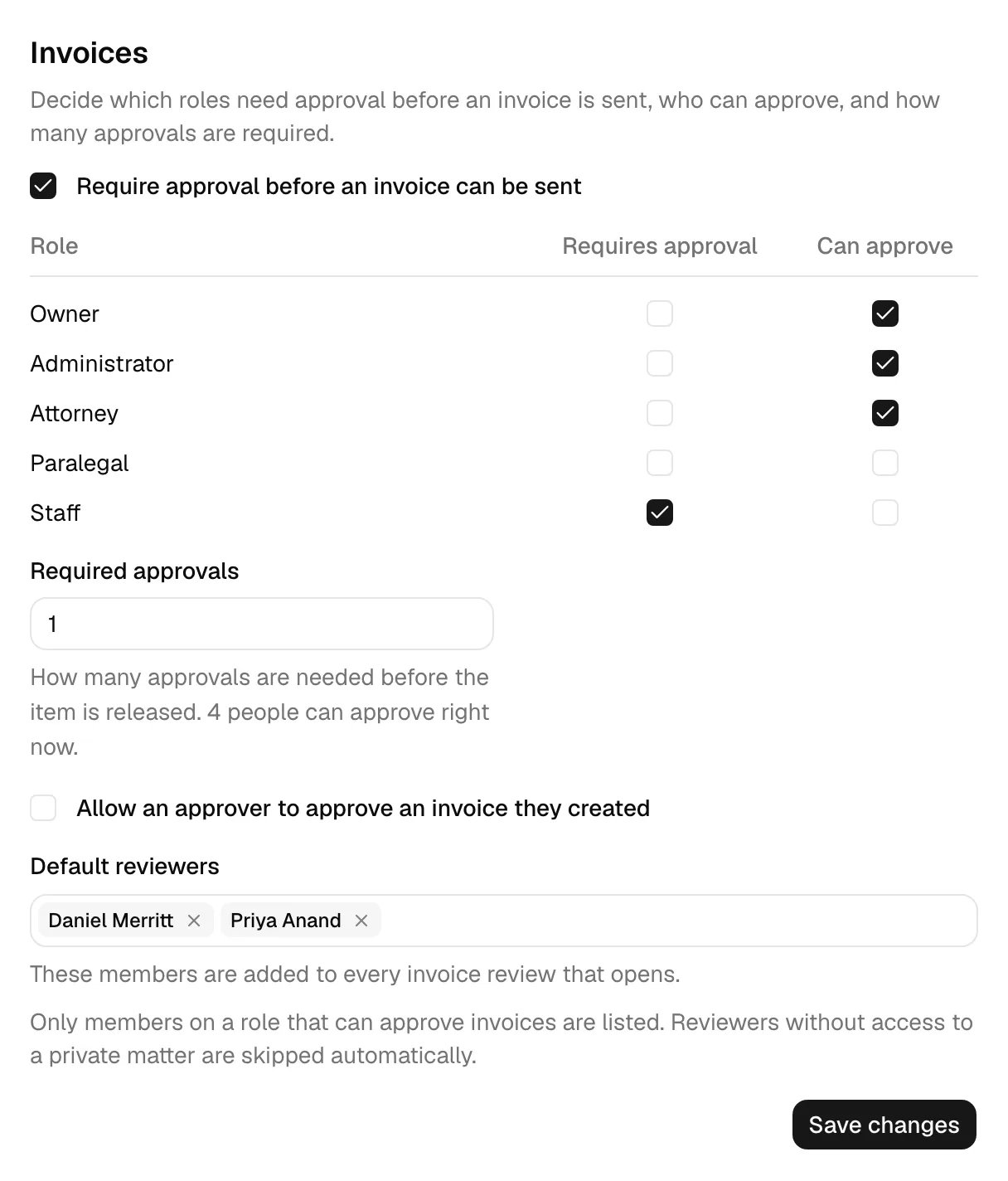
The Invoices section decides which roles need approval before an invoice is sent, who can approve, and how many approvals are required.
-
Open Settings, then click Approvals in the settings sidebar.
-
In the Invoices section, select Require approval before an invoice can be sent to turn invoice approvals on. Clearing this checkbox turns them off and hides the rest of the section, so no new invoice will be sent for review.
-
Fill in the role grid. Each row is one of your firm's roles, with two checkboxes:
- Requires approval: invoices created by people in this role must be reviewed before they can be sent or paid.
- Can approve: people in this role are allowed to review invoices.
-
Set Required approvals: how many approvals are needed before the item is released. This is a whole number from 1 to 10. Underneath the field, Esqase tells you how many people can actually approve with your current grid (for example, 3 people can approve right now), so you never ask for more approvals than your firm can give.
-
Decide whether to select Allow an approver to approve an invoice they created. This only matters for someone whose role both requires approval and can approve. Leave it clear (the default) to keep reviews independent, or select it if a small firm needs people to sign off on their own work.
-
Optionally choose Default reviewers. These members are added to every invoice review that opens, so nobody has to remember to pick them. Only members on a role that can approve invoices are listed. You can choose up to 25.
-
Click Save changes. The button shows a spinner and reads Saving... while it works. On success you see an Invoice approval settings updated confirmation.
Note: Changing these settings does not disturb reviews already under way. Each review keeps the rules it was opened under, so a change you make today will not move the goalposts for an invoice that is already waiting on someone.
Set up approvals for documents
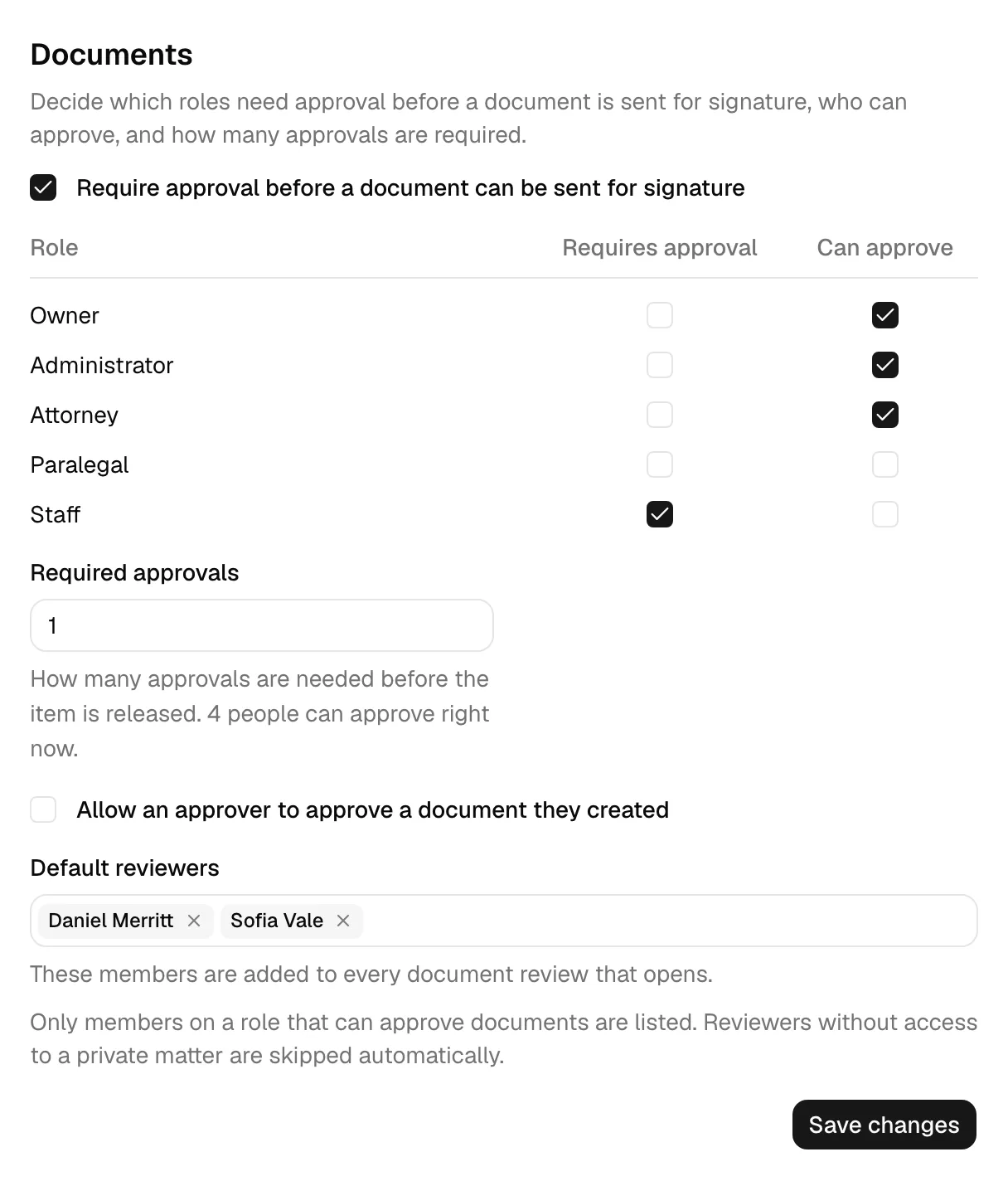
The Documents section works exactly the same way, with wording to match. It decides which roles need approval before a document is sent for signature, who can approve, and how many approvals are required.
- In the Documents section, select Require approval before a document can be sent for signature.
- Fill in the role grid, set Required approvals, and choose whether to select Allow an approver to approve a document they created.
- Optionally choose Default reviewers. These members are added to every document review that opens. Only members on a role that can approve documents are listed.
- Click Save changes. On success you see a Document approval settings updated confirmation.
Tip: The two sections are completely independent. Different roles, different numbers, and different default reviewers are all fine. A firm can require partner review on every invoice while leaving document approvals off entirely.
What your firm starts with
Esqase writes a starting set of rules for you, so approvals work before you touch anything.
For both invoices and documents, the starting grid is:
| Role | Requires approval | Can approve |
|---|---|---|
| Owner | No | Yes |
| Administrator | No | Yes |
| Attorney | No | Yes |
| Staff | Yes | No |
Required approvals starts at 1, self-approval is off, and no default reviewers are set. In short: work created by Staff needs one approval, and owners, administrators, and attorneys are the people who can give it.
If your firm is new, both invoice and document approvals start switched on.
If your firm was already using Esqase, the same grid applies with one deliberate difference:
- Invoice approvals are on. This preserves exactly how invoices already behaved for you: an invoice created by someone other than the firm owner went to In review and waited for approval. That rule is now a setting you can see and change instead of a fixed behaviour.
- Document approvals are off. Nothing gated sending a document for signature before, so turning it on for you would be a change nobody asked for. The grid is filled in and ready, waiting behind the switch. Your existing eSignature flows keep working exactly as they do today until you turn document approvals on yourself.
Note: If your firm renamed its roles (for example, if Attorney is now Associate), that role may start with neither box selected, which means it neither needs approval nor grants it. Open Settings > Approvals, review the grid, and select the boxes that match how your firm actually works.
Send an invoice for approval
You do not submit an invoice for approval as a separate step. It happens when you save.
- Create an invoice and click the save action that finalizes it, rather than saving a draft. See Creating and sending invoices.
- If your role requires approval for invoices, the invoice is created as In review and a review opens automatically. Any default reviewers your firm set are added right away, and they are notified.
- If your role does not require approval, the invoice goes straight to Pending, ready to send and collect on.
Batch invoicing follows the same rule. See Batch invoicing.
Approving an invoice from a workflow step follows the same rule too. When you approve an Invoice step, the review dialog offers Also approve this invoice, ticked for you. If your role requires approval for invoices the checkbox reads Also send this invoice for review and the invoice goes to In review with your firm's reviewers on it, exactly as if you had finalized it yourself. If your role does not include Update access for invoices, the checkbox is greyed out and the invoice stays a draft for a colleague who can approve it. See How automation runs your workflows.
An Invoice step with Auto approve the invoice turned on follows these rules as well, for the member the workflow runs as. If that member's role requires approval for invoices, or cannot update invoices, Esqase does not approve the draft: the step waits for a member to review it instead, and never starts a review round on its own. See When Esqase approves the invoice.
On the invoice's page, the review sits at the top right. Before anyone has been asked it is a Request reviewers button. Once at least one person is reviewing, the button is replaced by a row of reviewer avatars, each carrying a small badge with that person's decision. Click either one to open the review panel, which holds everything about the review in one place. See The review panel.
The review panel
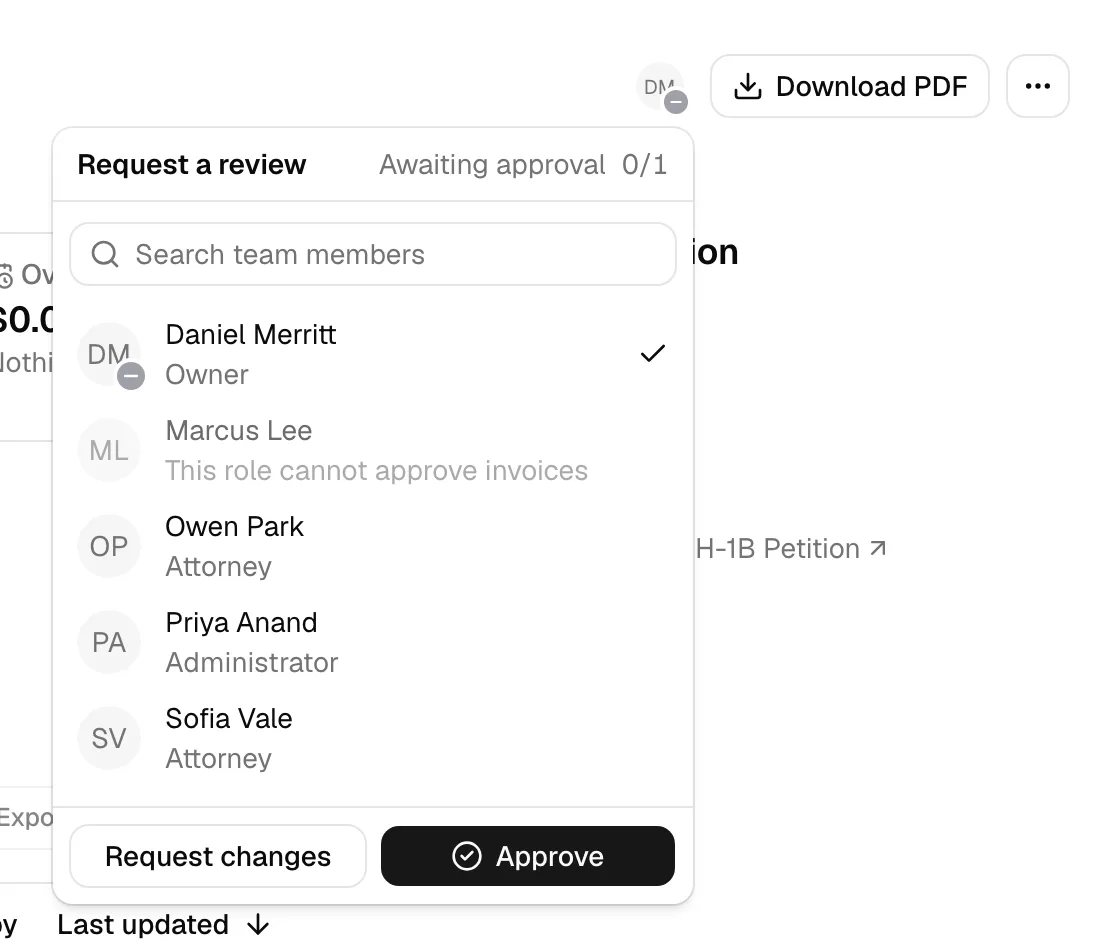
Everything to do with a review lives in one panel, whichever item you are on. Open it from the Request reviewers button (before anyone has been asked) or from the reviewer avatars (once someone has). Depending on the item and on your own permissions, the panel holds:
- A heading on the left: Request a review if you are allowed to ask colleagues to review, or just Reviewers if you are not.
- On the right of that heading, the review's current status (for example, Awaiting approval) and, once a review exists, the count of approvals collected so far after it, reading like Awaiting approval, 1 of 2.
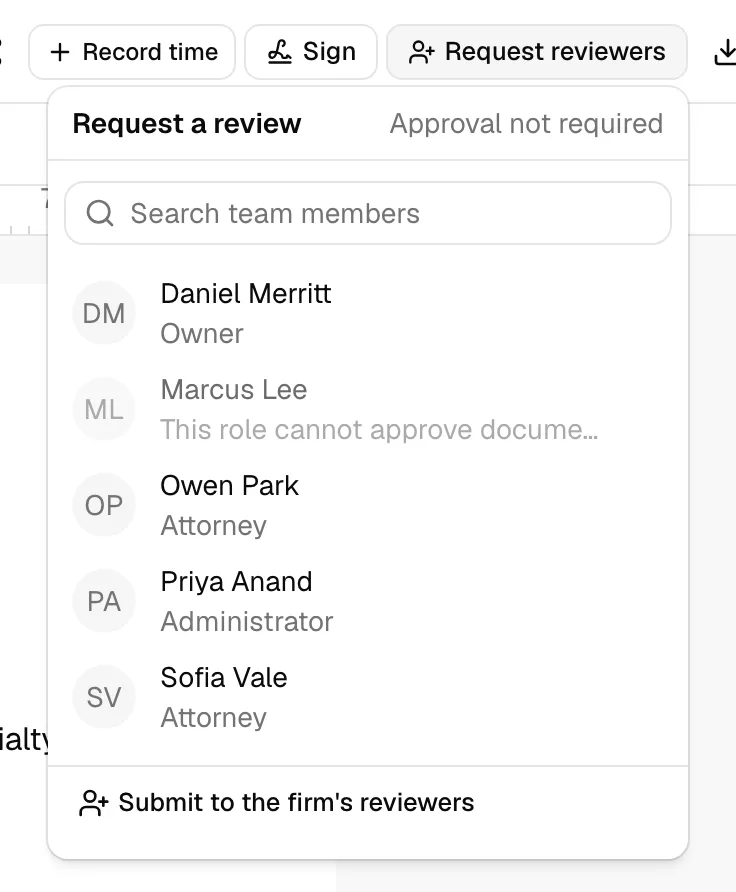
- A Search team members box and the list of colleagues you can ask. A check mark sits beside everyone already on the review, except a reviewer who has asked for changes: their row carries a View feedback button instead. See Ask for a review and Jump straight to a reviewer's feedback.
- Submit to the firm's reviewers, if your firm set default reviewers and this item has no review yet.
- Cancel review, if the review has been left with nobody on it. See Cancel a review that has no reviewers.
- Approve and Request changes, if your role can approve this kind of item. See Approve an item or request changes.
- Mark all feedback implemented, if a reviewer asked for changes and you can request reviews on this item. See Tell the reviewers the changes are in.
Note: If you are a reviewer but cannot request reviews yourself, the panel is headed Reviewers and shows you the reviewer avatars instead of the member list, along with the status, the count, and your Approve and Request changes buttons.
Ask for a review
You ask for a review from the same panel on both invoices and documents. Invoices open their review automatically when your role requires approval (see Send an invoice for approval), but you can also ask a colleague on any invoice that is in review. Documents are opt-in per document: nothing enters review on its own, so someone has to ask.
- Open the item and find the review control:
- On an invoice, it is at the top right of the invoice's page.
- In the document editor (for a rich-text document), it is in the toolbar just to the right of Sign.
- On a file's page (for an uploaded file of any type), it is in the row of actions at the top right of the header, between the record-time control and Download.
- If nobody is reviewing yet, the control is a Request reviewers button. Click it. If people are already reviewing, the control is the row of their avatars: click that instead.
- The panel opens on the Request a review list. Type in the Search team members box to narrow it down. Each row shows a member's avatar, their name, and their role.
- Click a member to ask them. Their review is requested straight away (the review itself starts if this is the first person you ask), and you see a Review requested confirmation. They get a notification. The list stays open, so you can ask several colleagues one after another.
Colleagues who cannot review this item are still listed, greyed out and not selectable, with the reason in place of their role, so you can see who was considered:
- This role cannot approve documents (or invoices): their role does not have Can approve for that item.
- No access to this matter: the item belongs to a private matter they cannot see.
On a document, the list is narrowed further: only colleagues who can already open that document are offered at all. Somebody who has no access to it is left out rather than greyed out, because asking them to review something they cannot open would send them a notification leading nowhere. Give them access on the Members tab of the document's Share dialog and they appear. See The documents workspace.
If nobody matches what you typed, the list reads No team members found.
Anyone who can update the item can request a review, and can request one from any eligible colleague, at any time.
Tip: If your firm set Default reviewers and the item has no review yet, the panel also offers Submit to the firm's reviewers. Click it to open the review with those people, without picking anyone yourself. You see a Submitted for review confirmation.
Tip: On a file's page, the review control is available on every kind of file, not only PDFs, so a Word document, a spreadsheet, or a scanned image can go through the same review. It also stays available after a document has been fully signed, which is useful when you need to record a sign-off on the executed copy. It is hidden on files in Trash, and it does not appear at all when your firm has document approvals switched off and the file has no review on it.
Change who is reviewing an item
The same list adds and removes reviewers, so you never leave the invoice or document you are looking at.
- Open the review panel on the invoice or the document.
- Members who are already reviewing carry a check mark at the right of their row. Click a member without a check to ask them (Review requested). Click a member with a check to take that request back (Reviewer removed).
People who are already reviewing are always listed first, even if they have since been archived as members, so you can always take a request back.
Note: A reviewer who has asked for changes shows a View feedback button where their check mark would be. They are still on the review: clicking their name or their avatar takes the request back, exactly as it does for anyone else. See Jump straight to a reviewer's feedback.
Note: Taking somebody off a review does not notify them. Only being asked to review does.
Tip: Approval notifications land where you can act on them. Approval requested and Feedback implemented open the invoice or document with the review panel already open, so Approve and Request changes are in front of you. Changes requested and My review was marked done open the item at the review comment itself. See Notifications.
Removing the last reviewer
A review with nobody on it can never reach the number of approvals it needs, so Esqase does not leave one behind:
- If your firm does not require a review of that item, removing the last reviewer cancels the review. The item is no longer waiting on anyone, so a document can be sent for signature again and an invoice is no longer held back by a review. An invoice sitting at In review offers the older Approve and Decline actions again, so you can move it on to Pending yourself.
- If your firm does require a review of that item, removing the last reviewer is refused: This invoice needs approval, so it has to keep at least one reviewer. Add another reviewer first. Add the replacement first, then take the other person off. A required review can never be emptied out.
Cancel a review that has no reviewers
If a review was already left with nobody on it, the panel says This review has no reviewers, so no one can approve this invoice (or document) and offers a Cancel review button. Click it to close the review and release the item. You see a Review cancelled confirmation.
If your firm requires a review of that item, cancelling is refused with This invoice needs approval, so its review cannot be cancelled. Add a reviewer instead. Use the member list in the same panel to bring someone in.
📷 Screenshot: The review panel showing the "This review has no reviewers, so no one can approve this document" message with the Cancel review button beneath it.
See who is reviewing at a glance
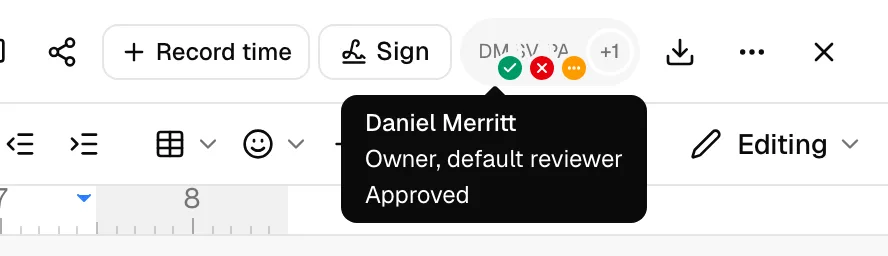
Reviewers are shown as a row of avatars, the same way an event's participants wear their answer on the calendar. Each avatar carries a small badge in its lower corner with that person's decision:
| Badge | Meaning |
|---|---|
| Green check | Approved |
| Red x | Requested changes |
| Amber dash | Changes addressed, awaiting re-review: everything this reviewer asked for has been marked done, and the review is back with them |
| Grey dots | Awaiting review (they have not decided yet) |
- The avatars appear on the control you click to open the panel, so you can read the state of a review without opening anything.
- Up to three avatars are shown at once. If more people are reviewing, a +N chip after them tells you how many are not pictured. Hover the chip to see their names and their decisions.
- Hover an avatar to see that person's name, their role, whether they are one of your firm's default reviewers, and their decision.
- Before anyone has been asked, there are no avatars at all: the control is the Request reviewers button instead.
- What a reviewer wrote when they asked for changes is not on the avatar row. It is posted into the item's comments, marked with a Review chip. See Work through the changes a reviewer asked for.
An event's participants are shown the same way on the calendar, with badges for their answers instead of their decisions. See See who has responded.
Approve an item or request changes
If your role can approve, the review panel on the invoice or document gives you two actions.
- Open the invoice or the document and click the review control to open the panel: top right on an invoice, in the editor toolbar for a rich-text document, and in the top-right row of header actions on an uploaded file's page.
- To sign off, click Approve. Your avatar picks up a green check badge and the count of approvals goes up. Once the count reaches the number of required approvals, the whole review is Approved and the item is released.
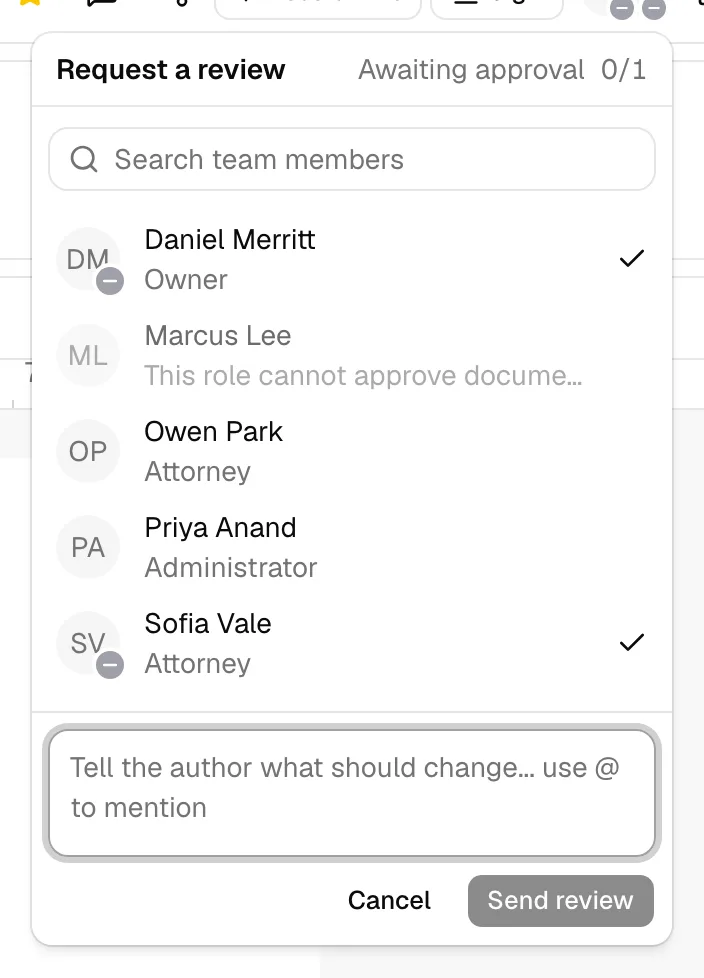
- To send it back, click Request changes. A box opens with the prompt Tell the author what should change... use @ to mention. Write what needs fixing, mention colleagues with @ if you want them pulled in, then click Send review, or click Cancel to back out.
When you send a review, two things happen at once: your decision is recorded as Requested changes, and what you wrote is posted into the item's comment conversation, tagged with a Review chip. You see a Your review was posted to the comments confirmation. On a document, the Comments panel opens on its own so you can see it land.
The status beside the panel's heading tells you where the item stands the moment the panel opens:
- Awaiting approval: the review is open and has not reached the number of approvals it needs.
- Approved: the review is satisfied and the item is released.
- Changes requested: at least one reviewer asked for changes, and the item is blocked.
- Approval not required: this item does not need approval.
Important: Requesting changes is not a rejection and it is not final. It blocks the item, and the same reviewer can come back and click Approve once the changes are in, which unblocks it. If you are reviewing an item you cannot request reviews on yourself, the panel says as much: A reviewer asked for changes. They can approve once the changes are in.
Tip: Because a review is also a comment, you can reply to it, react to it, and mention people in the reply, exactly as with any other comment. Only the reviewer who wrote it can edit or delete it.
To take someone off a review, open the panel and click their name in the member list. See Change who is reviewing an item.
Work through the changes a reviewer asked for
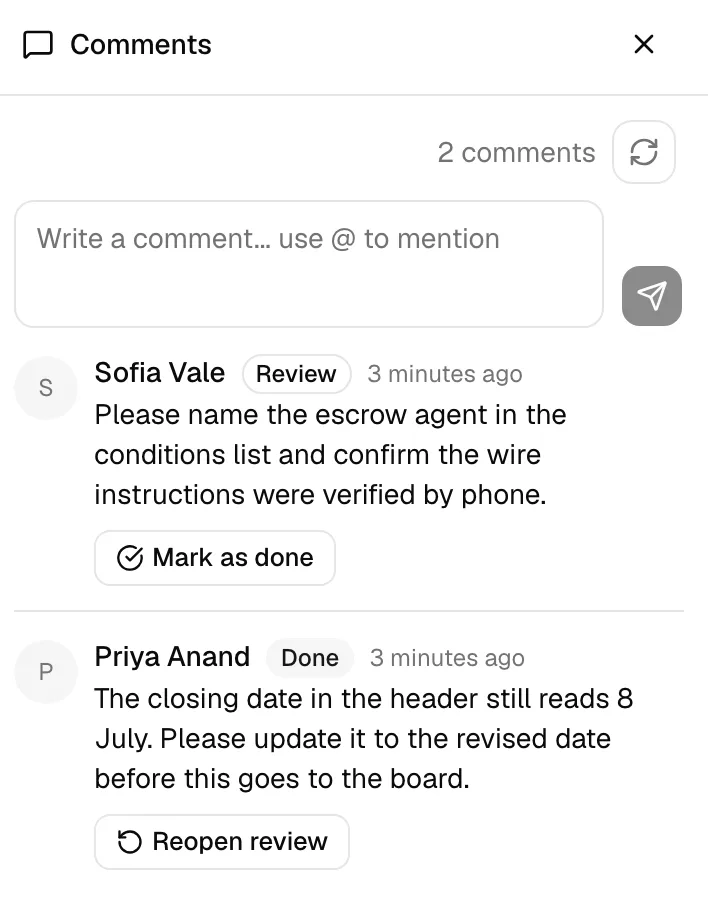
A review comment sits in the item's comment conversation with an amber Review chip beside the author's name. On a document that is the Comments panel on the right; on an invoice it is the Comments section on the invoice's page. Work through them there.
- Open the item's comments and find the comments carrying the Review chip. The quickest route is View feedback in the review panel, which takes you straight to the right one. See Jump straight to a reviewer's feedback.
- Make the changes the reviewer asked for.
- Click Mark as done, the button sitting just under the text of the review comment. The chip changes to a grey Done.
- If you marked one done too early, click the same button, which now reads Reopen review. The chip goes back to Review.
Once every point one reviewer raised is marked Done, their avatar badge turns from red to amber, meaning the review is back with them for another look, and they are notified that it is ready. They still have to click Approve themselves: marking reviews done never approves anything on their behalf.
Note: You cannot mark your own review done. The Mark as done button appears on every review comment you are allowed to close, so there is nothing to hover for or hunt through a menu to find. It is shown to everyone with edit access to the item, but not to the reviewer who wrote the comment, so the person who asked for the change is not the one declaring it handled. On a document that means Update access: colleagues who can only view the document can still read and reply to a review comment, but cannot mark it done. On an invoice everyone who can comment at all already has Update access.
Jump straight to a reviewer's feedback
You do not have to hunt through the conversation for what a reviewer wrote. Their row in the review panel links to it.
- Open the review panel from the reviewer avatars.
- Find the reviewer who asked for changes. Instead of a check mark, their row carries a View feedback button.
- Click View feedback. The panel closes and Esqase takes you to that reviewer's comment, scrolls it into view, and highlights it for a moment so it is easy to spot.
Where you land depends on what you are looking at:
- On a document, the Comments panel opens on the right and jumps to the comment.
- On an invoice's page, the Comments section is already there, so the page simply scrolls to the comment.
- While editing an invoice, that screen has no comments on it, so Esqase takes you to the invoice's own page and highlights the comment there. Save your work first if you have unsaved changes.
Note: If the reviewer's comment is older than the page of the conversation you are on, the comments open but nothing is highlighted. Page back with the buttons beneath the feed until you reach it.
Note: View feedback replaces the check mark on that row, not the row itself. Clicking the reviewer's name or avatar still takes their review request back, just as it does for any other reviewer.
Tell the reviewers the changes are in
If you would rather nudge everybody at once, the review panel offers Mark all feedback implemented whenever a reviewer has asked for changes and you can request reviews on this item. Click it to let every reviewer who asked for changes know that the work is done. You see a confirmation naming one reviewer or several.
This is a message and nothing more. It does not approve the item, it does not change anyone's decision, and the item stays blocked until each reviewer who asked for changes comes back and approves.
Tip: To look back over what a review did and when, open the item's activity timeline: the review opening, reviewers being added or removed, each approval or request for changes, and each review comment marked done all appear there. On an invoice that is the Recent activities section on its page. On a document it is the Activity tab in the editor's side panel, or the Activities tab on a file's page. See Activity timelines and audit logs.
Who gets notified
Approvals use the normal notification system, and you choose which channels reach you under Settings > Notifications:
- Approval requested: you have been asked to review an invoice or a document. Being taken off a review notifies nobody.
- Approval granted: your item was approved.
- Changes requested: a reviewer asked for changes on your item.
- Feedback implemented: someone used Mark all feedback implemented on an item you asked for changes on.
- My review was marked done: every point you raised on an item has been marked done, so it is ready for another look.
Comments carry their own notifications on top of these, including mentions. See Notifications.
What happens when you change an approved item
A review applies to the version of the item that was reviewed, so a material change starts the review over.
- On an invoice, changing the line items or the totals (the contact, matter, currency, line items, quantities, rates, taxes, or the amounts) clears the approvals collected so far and opens a fresh review. Editing notes or other details around the invoice does not.
- On a document, changing the content does the same: editing the text of a document, or uploading a new version of a file, clears the approvals and opens a fresh review. Renaming a document, tagging it, moving it, sharing it, or changing its page setup does not.
When a review restarts, the people who were already reviewing it come with it, so the colleague who asked for changes is the one who sees it again. Their decisions reset to Awaiting review.
Tip: This is why an approved invoice you then edit can suddenly refuse a payment again. Ask your reviewers for a fresh approval, and the invoice is payable once more.
Common questions
Someone cannot be picked as a reviewer. Why? Two reasons cover almost every case. Their role does not have Can approve for that item (invoices and documents are separate, so check the right section), or the item belongs to a private matter they cannot see. They are still listed in the member list, greyed out, with the reason where their role would be, so you can tell which it is.
I asked the wrong person. Can I undo it? Yes. Open the panel again and click their name a second time. The request is taken back and you see Reviewer removed, and they are not notified about it. The only case Esqase refuses is taking off the last reviewer of an item your firm requires a review for. See Removing the last reviewer.
Why is a reviewer's avatar amber? Every point they raised has been marked Done, so the item is waiting on them to look again. It goes green when they approve, or back to red if they ask for more changes. See Work through the changes a reviewer asked for.
Where did the reviewer's feedback go? It used to be in the panel. It is in the item's comments now, marked with a Review chip, so it sits alongside the rest of the discussion and can be replied to and marked done. The item's activity timeline records the decision itself.
Can I mark my own review done? No. Mark as done is for the people acting on the feedback, so it never appears on your own review comment.
What happens if I take everybody off a review? The review is cancelled and the item no longer waits for approval. If your firm requires a review of that item, the last reviewer cannot be removed at all, so a required review always keeps somebody on it.
A default reviewer was not added to my review. Why? The review is on a private matter that person cannot access. Matter privacy always wins, so Esqase skips them rather than exposing the matter. Ask someone with access to review instead.
Can I approve my own invoice or document? Only if your firm selected Allow an approver to approve an invoice they created (or the document equivalent) and your role can approve. Otherwise Esqase blocks it with a message saying you cannot approve your own item.
Why can I not set Required approvals to the number I want? It cannot be higher than the number of people who can actually approve. The hint under the field tells you how many that is right now. Give Can approve to another role, or add members to a role that already has it, and the limit rises.
I changed the settings. What happens to reviews already in progress? Nothing. Each review keeps the rules it was opened under, including how many approvals it needs and who is allowed to approve. New rules apply to reviews opened after you save.
Does turning approvals off cancel reviews that are already open? No. Turning a section off stops new reviews from opening. An item already waiting keeps its review, and it is still released when that review is approved.
Troubleshooting
- I do not see Approvals in the settings sidebar. Your role does not include view access for Firm approval settings. Ask a firm owner or an administrator.
- The fields are greyed out and Save changes does nothing. Your role has view access but not update access for Firm approval settings.
- "This invoice needs approval before you can request or record a payment." The invoice has an open review that has not been approved. Open the invoice and check the panel at the top right for who still has to decide.
- "This document needs approval before it can be sent for signature." Same thing on a document. You can keep placing fields and adding signers while you wait; only sending is blocked.
- "You don't have permission to approve this document." Your role does not have Can approve for documents, or the review was opened when your role did not have it.
- "This invoice needs approval, so it has to keep at least one reviewer. Add another reviewer first." You tried to take off the only reviewer of an item your firm requires a review for. Ask someone else first, then remove the person you meant to.
- "This invoice needs approval, so its review cannot be cancelled. Add a reviewer instead." Same rule, reached from the Cancel review button. The item must be reviewed, so the review stays open until somebody approves it.
- "Remove the reviewers first, then this review can be cancelled." Somebody joined the review while your page was open, so it is no longer empty. Refresh to see who is on it.
- "This review is no longer open. Please refresh and try again." The review was completed, restarted by an edit, cancelled, or replaced while your page was open. Refresh to see the current one.
- My firm has nobody who can approve. Open Settings > Approvals and select Can approve for at least one role that has active members. This is worth checking if your firm renamed its roles, because a renamed role may have started with neither box selected.