Available lang sa Ingles ang dokumentasyon ng produkto.
Running a conflict check
A conflict check screens the people and companies involved in a new matter against your firm's existing records. Esqase builds the check into the places where you take on work: the new-matter wizard, a lead you are about to hire or convert, and the ... menu on any matter or lead. Every check you run is saved, so your firm has a record of when a screening ran and what it returned.
What a conflict-of-interest check is
A conflict of interest happens when representing a new client could clash with your duties to an existing or former client. The clearest example: the person on the other side of your new matter is already a client of your firm. Bar rules vary by jurisdiction, and many require firms to screen for these situations before accepting a matter and to keep a record that they did.
Esqase's conflict check is a screening tool. When you run it, Esqase searches your firm's records for the names you are taking on and for the names of everyone else involved, then shows you where those names already appear, ordered so the highest-priority matches come first. You review the results and use your professional judgment to decide whether a true conflict exists.
Important: The conflict check is an aid, not a legal determination. It surfaces potential matches so you can investigate them. It does not decide whether you have a conflict, it does not clear one, and it does not replace your firm's own conflict-screening policy or discharge any obligation your bar places on you.
Before you begin
- You need view access to matters. The check reads across your firm's records, so it depends on your role's View access for matters. Without it, Conflict check does not appear in a matter's or a lead's ... menu, marking a lead as hired does not screen it first, and a check you start from the new-matter wizard or the New lead dialog reports that it could not run. See Roles and permissions.
- Your role also shapes the results. Esqase only searches the record types your role can view. If your role cannot view invoices, for example, invoices are skipped and the results say so, rather than reporting them as clear.
- You need at least one party to screen. The Run conflict check button stays disabled until a party is selected or a name is typed. If no party is present you will see "Add at least one party to run a check."
- Saved contacts give the sharpest results. Screening someone who already exists as a contact lets Esqase follow their real relationships (which matters they are on, who they work for) as well as their name. A name you type for someone who is not a contact yet is screened by name only. See Working with contacts.
Where you can run a conflict check
The same check appears at each point where you take on work. It works the same way and is recorded the same way in every place.
| Where | How it starts | What it screens |
|---|---|---|
| New matter wizard, Customers step | You click Run conflict check | Every customer and related contact on the matter |
| New matter wizard, Related contacts step | You click Run conflict check | Every customer and related contact on the matter |
| A matter's ... menu, Conflict check | Runs on its own when the dialog opens | The matter's clients and related parties |
| A lead's ... menu, Conflict check | Runs on its own when the dialog opens | The lead's contact |
| Mark as hired on a lead | Runs on its own before the lead is hired | The lead's contact |
| Convert to matter on a lead | Runs on its own inside the convert dialog | The lead's contact |
| New lead dialog, Conflict check button | You click Run conflict check in the dialog | The name you have typed so far |
Note: When Esqase runs the check for you (the matter and lead menus, marking a lead hired, converting a lead), it starts as soon as the dialog opens, so the results are on screen when you get there.
Note: Conflict check appears in a matter's or a lead's ... menu only for members whose role can view matters, and only those members get the automatic screening when they mark a lead as hired.
Note: On a lead's header, Conflict check, Mark as hired, and Convert to matter share one screening. Once one of them has run the check, opening another shows those same results instead of screening again. Click Re-run conflict check when you want a fresh screen.

Run a conflict check
These steps describe the new-matter wizard, where you start the check yourself. The other places work the same way once the results appear.
- Start creating a matter. The wizard opens on the Customers step. See Creating a matter.
- In each customer row, use the Customer picker to select the client. To add more clients, click Add customer.
- (Optional) Go to the Related contacts step and add the other people involved: opposing party, opposing counsel, witnesses, experts. Give each one a Relationship. The conflict check treats these people differently from your clients, so filling them in widens what the check covers.
- On either step, scroll to the Conflict check panel and click Run conflict check. Both panels screen the same full set: every customer plus every related contact you have added.
- While the check runs, the button reads Checking... and a status line reads "Checking records for potential conflicts...". Wait for it to finish.
- Review the results below the panel. To screen again after changing the parties, click Re-run conflict check.
Tip: Esqase screens up to 12 parties in one check, taken alternately from your clients and your related contacts, so the other side is never the group that gets left out. If you add more than 12, the parties that were not screened are named in the coverage notes under the results.
Note: If you add or remove a party after running the check, Esqase clears the old results so you do not act on a screen that no longer matches the matter. Run the check again. If the parties change while a check is still running, that run is discarded too, and the panel tells you so: "A previous check was discarded because the parties changed. Run the check again."
Note: There is a short pause between runs. If you click Run conflict check twice in quick succession you will see "Please wait a moment before running another conflict check". Your existing results stay on screen. Wait a second or two and click again.
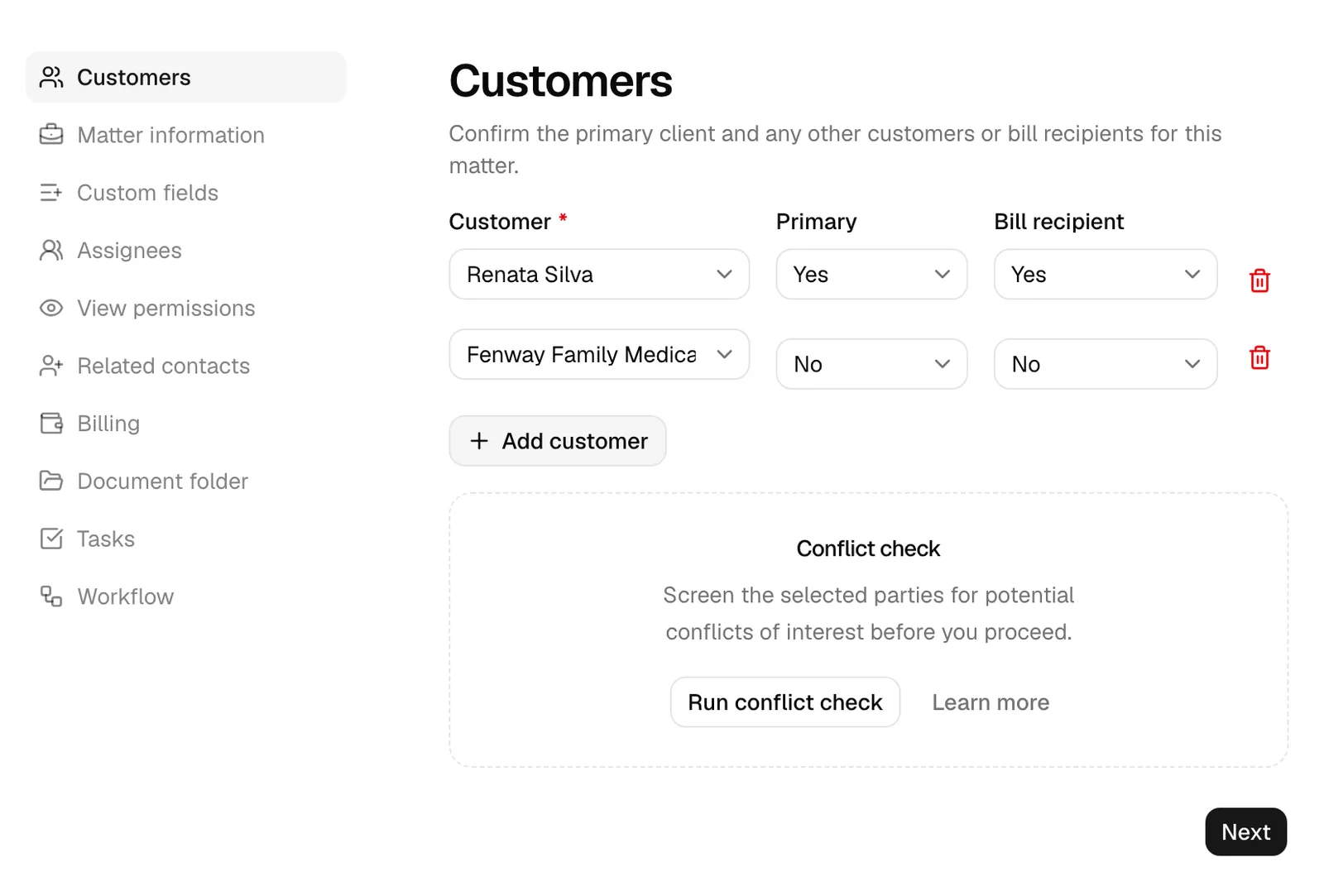
What Esqase screens
Clients and related parties are screened differently
Esqase knows which parties you are taking on as clients and which are on the other side, and it reads the same record differently for each.
- A client who already appears as a client on another matter is flagged as an Existing client match.
- A related party (opposing party, opposing counsel, a witness, anyone on your Related contacts step) who turns out to be a client of your firm is flagged as Adverse party is a client, at high priority. This is the classic conflict of interest.
For that reason, fill in the Related contacts step before you run the check. A check that screens your clients alone does not cover it.
Current and former involvement
The check does not stop at live records. It also finds:
- Former clients. Someone who was a client on a matter and was later taken off it is flagged as Former client.
- Former related parties. Someone who was listed as a related contact on a matter and was later removed is flagged as Former related party.
- Past matters. Archived and closed matters are searched alongside active ones.
- Leads at every stage. Active leads, hired leads, drafts, archived leads, and prospects you declined are all searched. A match names the stage it found, for example "matches a declined prospect in the pipeline".
Which names are matched
Esqase screens more than one spelling of each party:
- Full names in either order, with or without a middle name, so "Maria Santos Cruz", "Maria Cruz", and "Cruz, Maria" all find each other.
- Nicknames and other names stored on the contact, so a contact recorded as Robert with the nickname Bob is found either way.
- Company names with or without their legal ending, so "Northgate Holdings Ltd" also matches plain "Northgate Holdings".
- Trade names, so a company found under its brand name is matched too.
- The surname on its own, at low priority, to catch family members and related entities.
- The employer recorded on a person's contact record, reported separately as an Employer mention so you can tell it apart from a hit on the person themselves.
Accents and other marks are ignored, so "Muller" finds "Müller" and "Jose" finds "José". Names written in scripts that do not use spaces between words are screened too. Initials are treated consistently on both sides, so "J. R. Smith" and "JR Smith" find each other.
Note: A name has to be at least three letters long to be screened. Anything shorter is listed under the coverage notes as a name Esqase could not screen.
Where Esqase looks
The check searches every record type your role can view:
- Matters, including titles, numbers, descriptions, the clients on them, and the assigned team.
- Contacts, including their name fields and their company and employee links.
- Leads at every stage.
- Invoices, including their notes and line-item descriptions.
- Tasks, including who they are assigned to.
- Activities (time and expense entries).
- Notes.
- Communications (logged calls and emails, including the people on them).
- Events, including guests and locations.
- Documents, including the file's name, its description, and the text Esqase has read from the file itself.
Matching allows for small spelling differences, so a near-miss spelling in an old note can still surface.
Read the results
Nothing was found
If nothing matched, you will see No matches found, confirming that the screened parties "did not appear on other matters, contacts, or records". If some record types could not be searched, the heading instead reads No matches found across the records that could be checked, which is not the same thing. See "What the check did not cover" below.
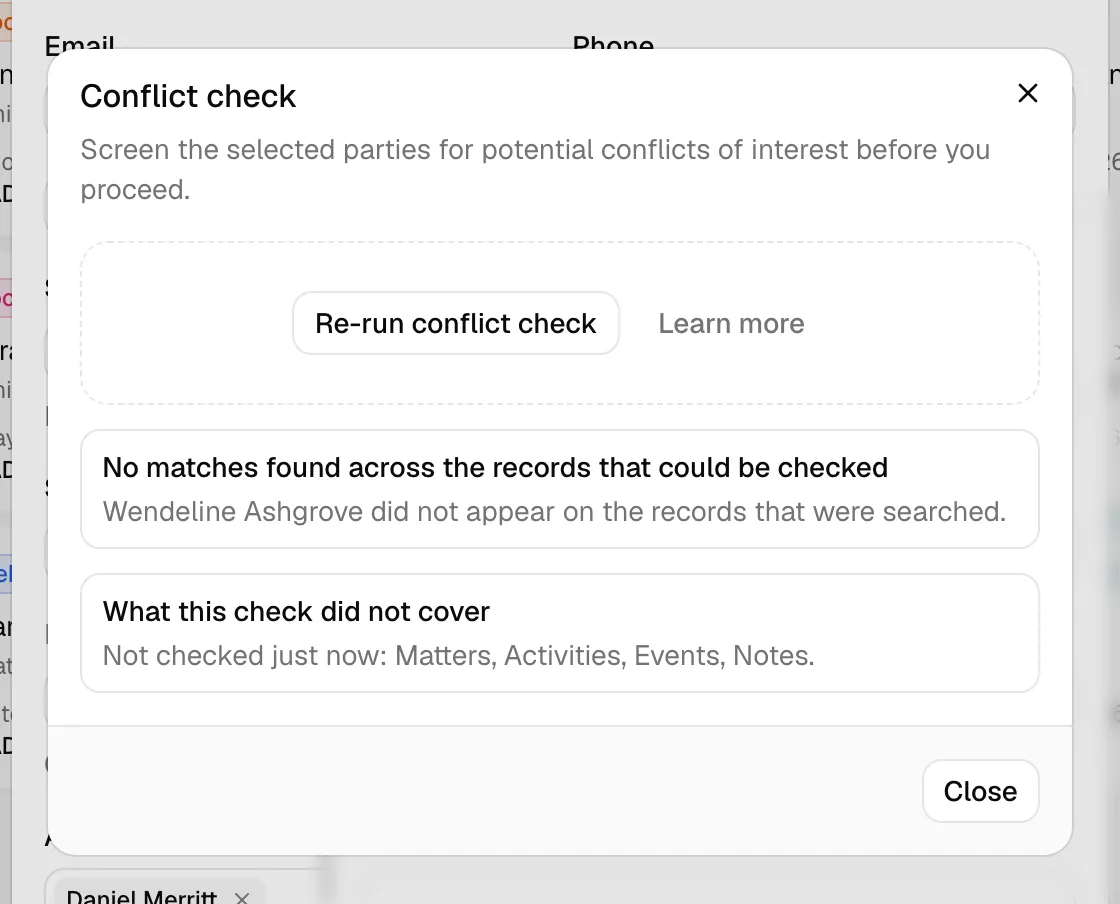
Potential matches were found
Above the results is a summary line such as "7 potential matches found", with a red badge counting the high-priority ones (for example, "2 high priority"). Next to it is an Export CSV button.
Results are then grouped by where they were found, each with a count: Matters, Contacts, Leads, Invoices, Tasks, Activities, Notes, Communications, Events, and Documents.
Every row shows:
- The record's name, with a short detail beside it where there is one (a matter's number, a contact's company, an event's location).
- A plain-English explanation of why it surfaced, for example "'Jane Doe' (opposing party) is the firm's client on this matter." A record that matched more than one party shows one line for each.
- A tag on the right naming the kind of match, and the priority underneath it.
- A "Matched:" line, when you screened more than one party, naming which of them this record matched.
Click a row to open that record. It opens in a new tab, so you do not lose the matter or lead you are in the middle of filling in.
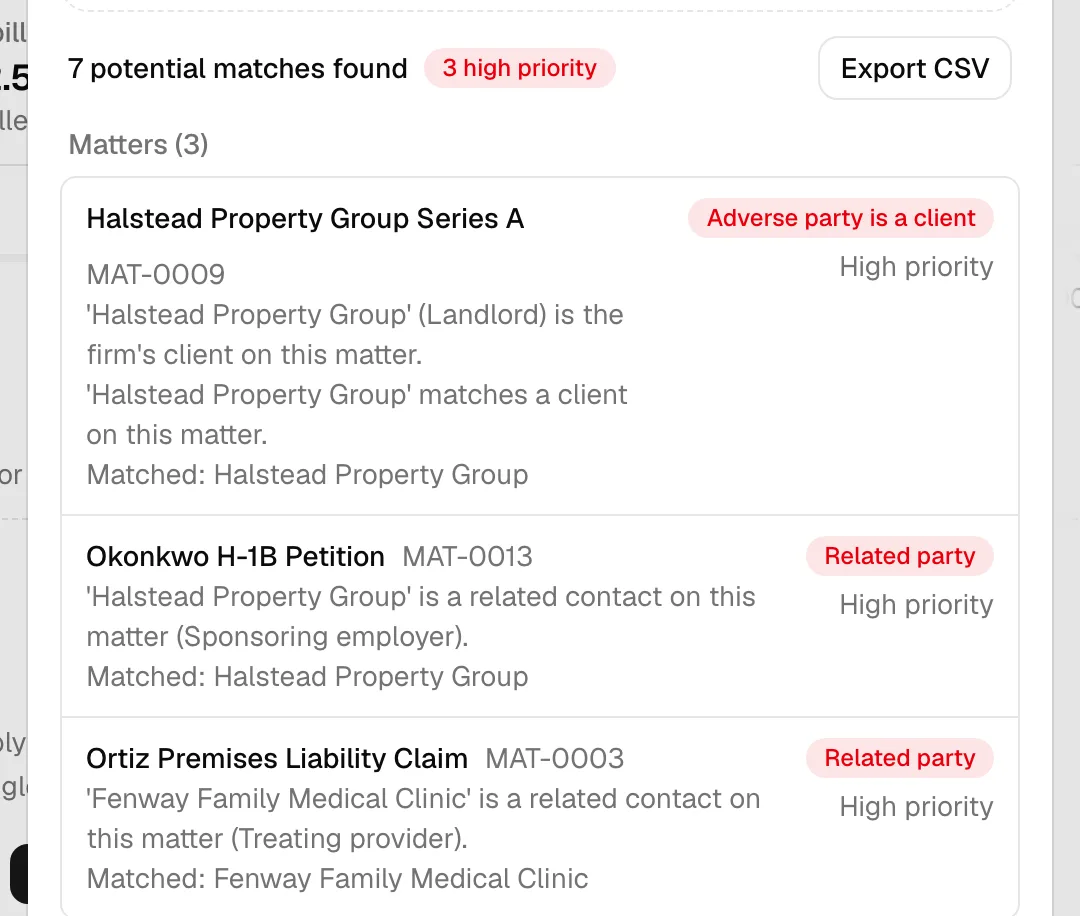
Match types and priority
| Tag | Priority | What it means |
|---|---|---|
| Adverse party is a client | High | Someone on the other side of this matter is, or was, your firm's client. |
| Existing client | High | The party is currently a client on another matter. |
| Former client | High | The party was a client on another matter and was later removed from it. |
| Related party | High | The party is listed as a related contact on another matter. |
| Former related party | High | The party was a related contact on another matter and was later removed. |
| Employee | Medium | The person is recorded as an employee of the company you are screening. |
| Affiliation | Medium | The person you are screening is recorded as working at, or affiliated with, this company. |
| Mention | Low or medium | The name appears in this record's text. It is medium when the name matches a client on that matter, low everywhere else. |
| Employer mention | Low | Only the employer recorded on the person's contact appears here, not the person. |
Tip: Work through the high-priority tags first. They come from relationships recorded in your files rather than from text matching, so they are the ones to open first. Low-priority Mention rows match on name text alone, so two people who share a name will both appear.
Records you cannot open
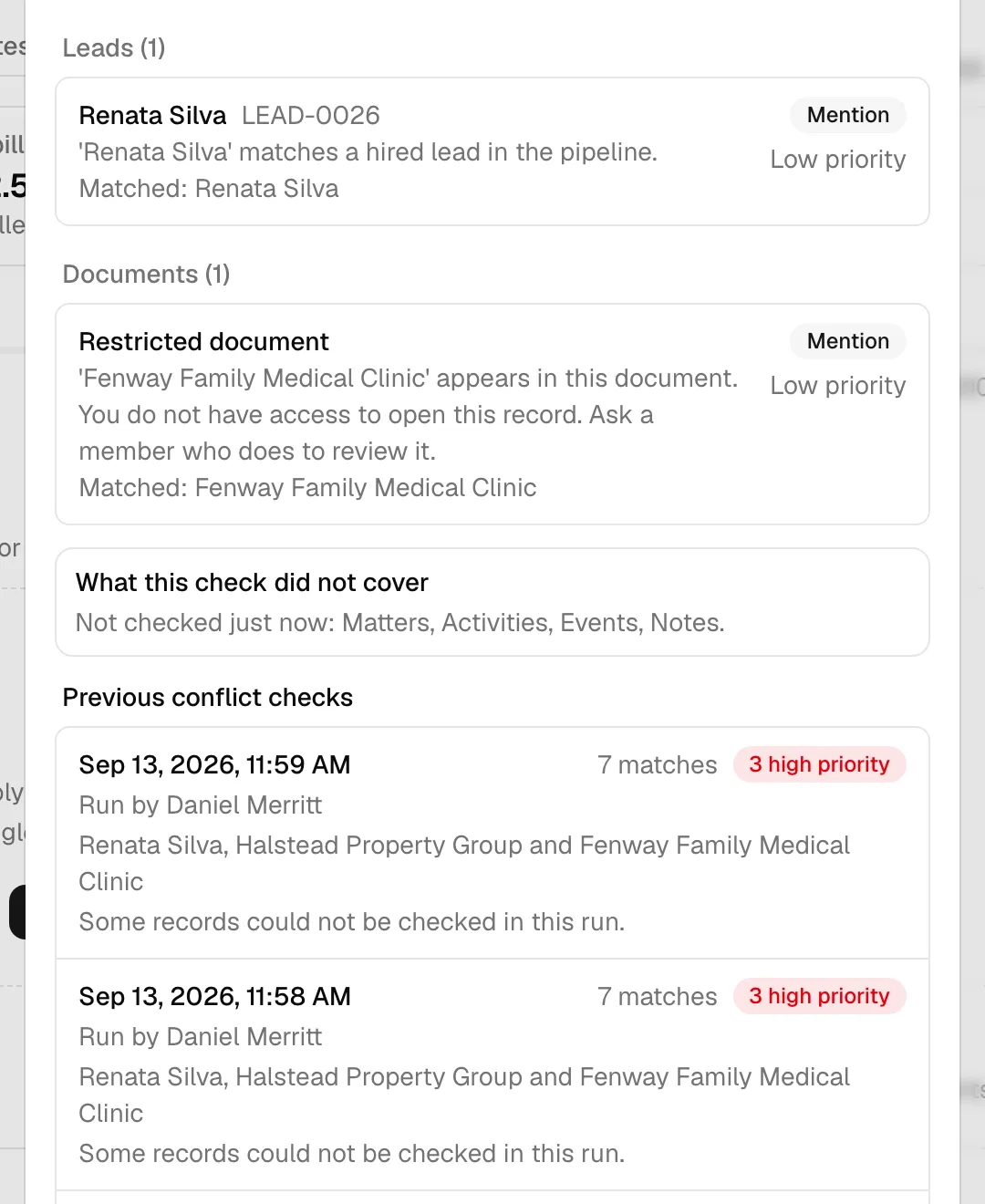
Some results are shown without their details. A matter that is limited to specific members you are not on appears as Restricted matter, and a private document belonging to another member appears as Restricted document. The row still counts toward the results and still explains the kind of match, but it has no title, no detail, and no link, and it carries the note "You do not have access to open this record. Ask a member who does to review it."
The fact that a possible conflict exists is worth knowing, while the contents of a restricted record stay restricted. Ask a colleague who has access to review that row.
What the check did not cover
Under the results, Esqase adds a What this check did not cover panel whenever the screen was not exhaustive. It can tell you:
- "Not checked just now" and a list of record types, when a search did not come back. Run the check again in a moment.
- "Not checked because your role can't view these records" and a list, when your role has no view access to those record types. A colleague with wider access can run the check instead.
- "Only the first 12 parties were screened", when you selected more parties than one check covers.
- "We could not screen [name]", when a name was too short to search. Add more of the name and run the check again.
- "Some record types hit their search limit, so more matches may exist", when a record type returned more matches than one pass can collect. Narrow the matter down or review the record type directly.
A group heading can also read "12 more not shown" when a single record type produced a very long tail of low-priority mentions. High-priority matches are kept.
Important: When this panel appears, a "No matches found" result is not a clean bill of health. It means nothing was found in the records that were actually searched.
When no party could be screened
Esqase can only search for a name it can work with. If none of the parties you selected could be screened, the results are replaced by a red Nothing could be screened alert reading "None of the selected parties could be screened, so no conflict has been ruled out", followed by the reason for each party: a name too short to search (add more of the name and run the check again), or a contact that could no longer be found, which usually means it was deleted.
This is not the same as a clean screen. Nothing was searched for, so treat it as a check that did not happen.
When nothing could be checked
If no record type could be searched at all, the results are replaced by a red We could not check any records alert reading "Nothing was searched, so no conflict has been ruled out. Try again in a moment", followed by the reasons. Treat this as a check that did not happen, not as a clean result.
When the screening could not be saved
Every check is saved to your firm's record. If a screening ran but could not be stored, a line under the results reads "This screening could not be saved to the record." The results on screen are still yours to act on, but that run will not appear under Previous conflict checks or on the matter's activity timeline. Run the check again if your firm needs the screening on file.
Export the results
Click Export CSV above the results to download the full list as a spreadsheet. The file is named after the day the check ran, for example conflict-check-2026-08-29.csv, and has one row per match with the record type, its name and detail, the priority, the match type, the explanation, the parties it matched, and a direct link to the record.
Use the export when you need to circulate the screening for review or file it with your firm's intake paperwork.
When you must acknowledge the check
Before a matter is saved, a lead is marked as hired, or a lead is converted, Esqase asks you to tick an acknowledgment in two situations:
- The check found high-priority matches. The checkbox reads I have reviewed the [n] high-priority matches and choose to proceed.
- The check could not be completed. This covers a run that failed, a run where no record type could be searched, and a run where no party could be screened. The checkbox reads I understand the conflict check could not be completed and choose to proceed.
A check you never ran does not hold anything up. The acknowledgment appears only once a check has run and come back one of those two ways.
In the new-matter wizard
- A red banner appears at the top of every other step of the wizard. It names the number of high-priority matches and the parties they relate to, or reads The conflict check did not complete when no records could be searched. Its Review button takes you back to the Customers step.
- The matching checkbox appears under the step you are on.
- The matter cannot be saved until you tick it. If you try, Esqase shows Conflict check not acknowledged and keeps you on the step. This applies to Save as draft and to saving the matter as a template as well.
- Ticking the box does not clear the matches, and it does not turn an incomplete check into a completed one. It records that you saw the result and chose to proceed.
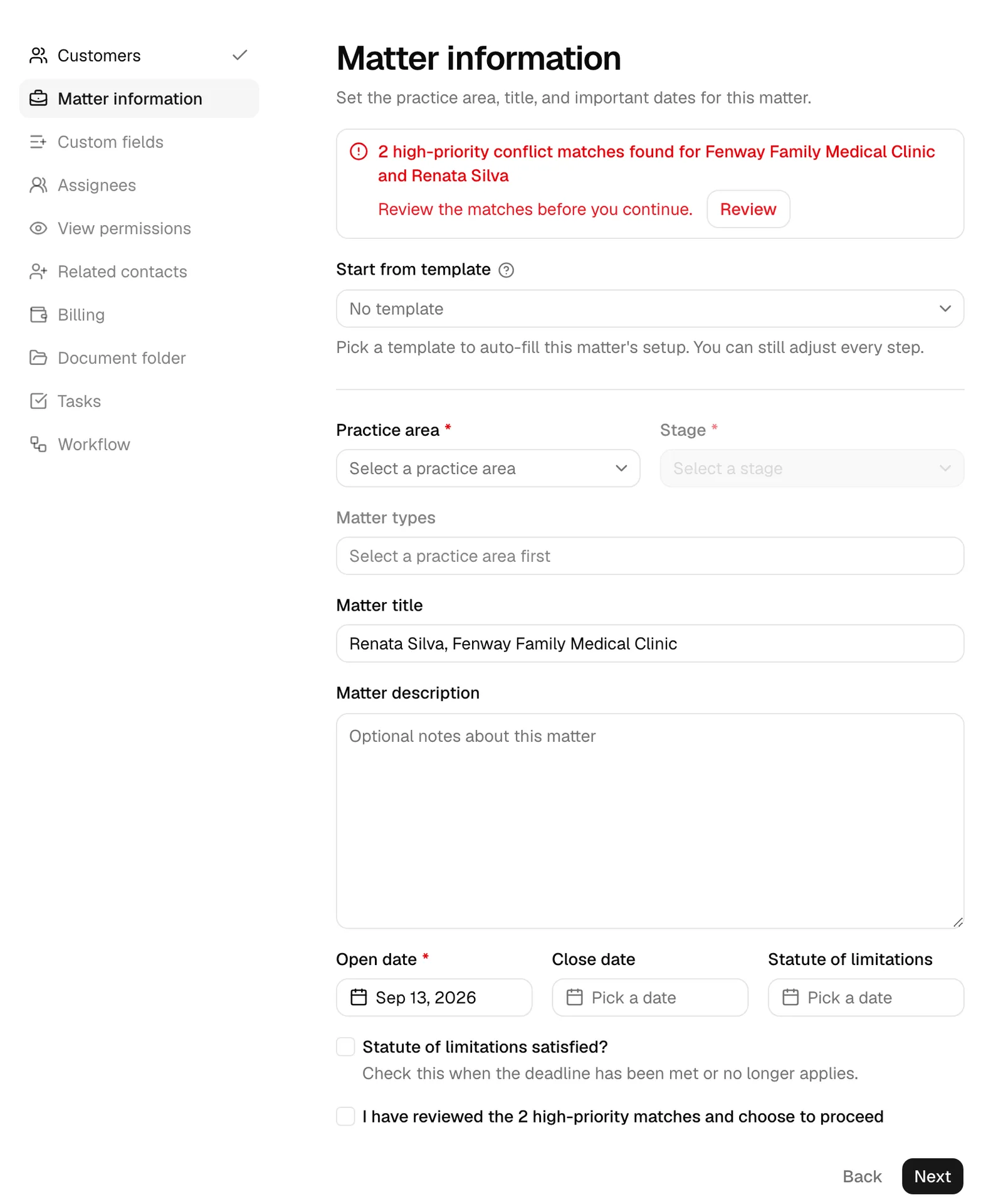
On a lead
- When you click Mark as hired, the conflict check runs first. Mark as hired stays disabled until you tick the acknowledgment, whether it appeared because of high-priority matches or because the check could not be completed.
- When you click Convert to matter, the check runs inside the convert dialog, and Convert to matter (or Open new-matter form) stays disabled on the same terms.
- Opening Conflict check from a matter's or a lead's ... menu is a review only. There is nothing to acknowledge there, because you are not creating or converting anything.
Note: Acknowledging does not mean Esqase cleared the conflict. The decision to take on, decline, or waive the matter stays with you and your firm.
Previous conflict checks
Every check you run is saved with who ran it, when, which parties were screened, how many matches came back, and how many were high priority.
To see them, open Conflict check from a matter's or a lead's ... menu. Under the results is a Previous conflict checks list showing each earlier screening for that matter or lead, newest first. A run that was not exhaustive is marked "Some records could not be checked in this run."
A check a member ran is listed as Run by that member. A screen a workflow ran on its own is listed as Automatic screen by Esqase and carries the line "Esqase screened matters, clients, related contacts, organisation links, contacts, leads and invoices. It did not search tasks, activities, events, notes, emails or documents." That tells you at a glance how far the row went, so treat a clean automatic screen as a first pass and run the full check yourself before you rely on it. See How automation runs your workflows.
A check that belongs to a workflow's Conflict check step also opens straight from that step: the step row carries a status button (Conflicts found, Matches to review, Nothing found, or Not checked) that shows the saved results without running anything again. The list of previous checks appears at the bottom of that dialog too, with the step's own check highlighted so you can tell it apart from the others. See Workflow step types.
Checks also appear in the matter's activity timeline on the Overview tab, alongside everything else that has happened on the matter, so a later review shows the screening in sequence. See Activity timelines and audit logs.
Where a check is attached depends on where you ran it:
- Run inside the new-matter wizard, it attaches to the matter as soon as the matter is saved, including a draft.
- Run from the New lead dialog, it attaches to the lead when the lead is created.
- Run from a matter's or a lead's ... menu, from Mark as hired, or from Convert to matter, it attaches to that matter or lead straight away.
Note: A screening attaches to one record only, and only the member who ran it can attach it. If a colleague saves the matter or creates the lead you screened, your screening stays saved but is not listed under Previous conflict checks for that record. They can run their own check from the record's ... menu.
How to act on potential conflicts
- Start with the high-priority rows. Open every Adverse party is a client, Existing client, Former client, Related party, and Former related party result. These come from real client relationships in your records.
- Open each match to investigate. Confirm whether it is genuinely the same person or company (common names produce false matches) and whether the earlier or current representation actually conflicts with this one.
- Chase the restricted rows. A Restricted matter or Restricted document row still counts. Ask a member who can open it to review it for you.
- Look at the medium and low rows too. Employee and Affiliation rows can reveal that a client works for an opposing company. Mention rows are usually harmless but occasionally surface a link you would have missed.
- Read the coverage notes before you clear the matter. If record types were skipped, run the check again once they are available.
- Decide. If you clear the conflict, tick the acknowledgment and proceed. If a real conflict exists, do not proceed: close the wizard, or take the steps your firm requires, such as obtaining a written waiver, before continuing.
- Keep your paperwork. The saved screening and the CSV export both record that the check ran and what it returned. Add a note to the matter if your firm's policy asks for a written conclusion. See Notes.
Tip: The matter you are editing never flags itself. When you run the check from inside an existing matter, or while editing one, that matter is excluded from the results, so anything you see is a different record worth reviewing.
Common questions
Does running a conflict check change my records? It does not change any of the records it searches. It does save the screening itself, so your firm has a record of who ran the check, when, and what it found.
Can I run a check on someone who is not a contact yet? Yes. The New lead dialog screens the name you have typed, and a customer you create in the wizard is screened as soon as it exists. Screening a saved contact is stronger, because Esqase can also follow that contact's matters and employer links.
Why did a clearly unrelated person show up? Low-priority Mention rows match on name text, so people who share a name will both appear. Open the record to confirm.
A row says "Restricted matter" with no details. What do I do? That matter is limited to members you are not on. Ask a colleague who has access to review it, or ask a firm owner.
The check found nothing but also said records could not be checked. Can I rely on that? No. That means the screen was not exhaustive. Run it again once the missing record types come back, and check whether the gap was your role's access rather than a temporary problem.
Can I stop someone from creating a matter with a high-priority match? Esqase requires an explicit acknowledgment before the matter is saved, but it does not refuse the matter. Clearing or declining the engagement stays a firm decision.
Why can't I click Run conflict check again straight away? There is a short pause between runs. Wait a moment and click again. Your current results stay on screen in the meantime.