Available lang sa Ingles ang dokumentasyon ng produkto.
Document templates
Document templates are reusable starting points for the documents your firm creates over and over: engagement letters, retainer agreements, intake summaries, demand letters, and more. Build a template once, then spin up a fresh, fully editable copy whenever you need one, so you never start from a blank page or copy and paste from an old matter.
This page explains what templates are, where to find them, how to create a new document from a template, and how to turn any document into a template (or remove the template flag).
Before you begin
- Templates live alongside your regular files in the Documents workspace. If you are new to that area, see The documents workspace.
- Templates are native rich-text documents (the kind you edit in the built-in editor), not uploaded files. You cannot mark an uploaded PDF or Word file as a template.
- What you can do depends on your role and your firm's permissions for documents:
- To view the templates list, you need View access for documents.
- To create a template or create a document from one, you need Create access.
- To mark, unmark, or change the status of a template, you need Update access.
- Firm owners can do all of the above. If your role does not include the access a step needs, you will not see the button described in that step.
Note: Templates are shared across your whole firm. A template you create is available to every member who can create documents, so give it a clear, descriptive name.
What document templates are
A template is simply a document that has been flagged as a template. That flag does two things:
- It collects the document on the dedicated Document templates page so it is easy to find and manage, separate from your day-to-day files.
- It makes the document available as a starting point in the Template picker when you create a new document. Choosing it copies the template's content and page setup into a brand-new document.
A few things to keep in mind:
- Creating from a template makes a copy. The new document is independent. Editing it never changes the template, and updating the template never changes documents you already created from it.
- Templates have a status, just like regular documents: Draft, Active, or Archive. Only Active templates appear in the Template picker when you start a new document, so a template is not offered to your team until you set it to Active.
- Templates are firm-shared. They are stored in a system Templates folder (with a Documents subfolder) that Esqase manages for you. You do not need to create or maintain that folder yourself.
Browse template folders
There are two ways to find your templates: the dedicated Document templates page (best for managing them) and the Templates folder inside the main documents tree.
Open the Document templates page
This is the fastest way to see every template in one place.
- In the sidebar, click Documents.
- In the page header, click Manage templates. (You will only see this button if you have View access for documents.)
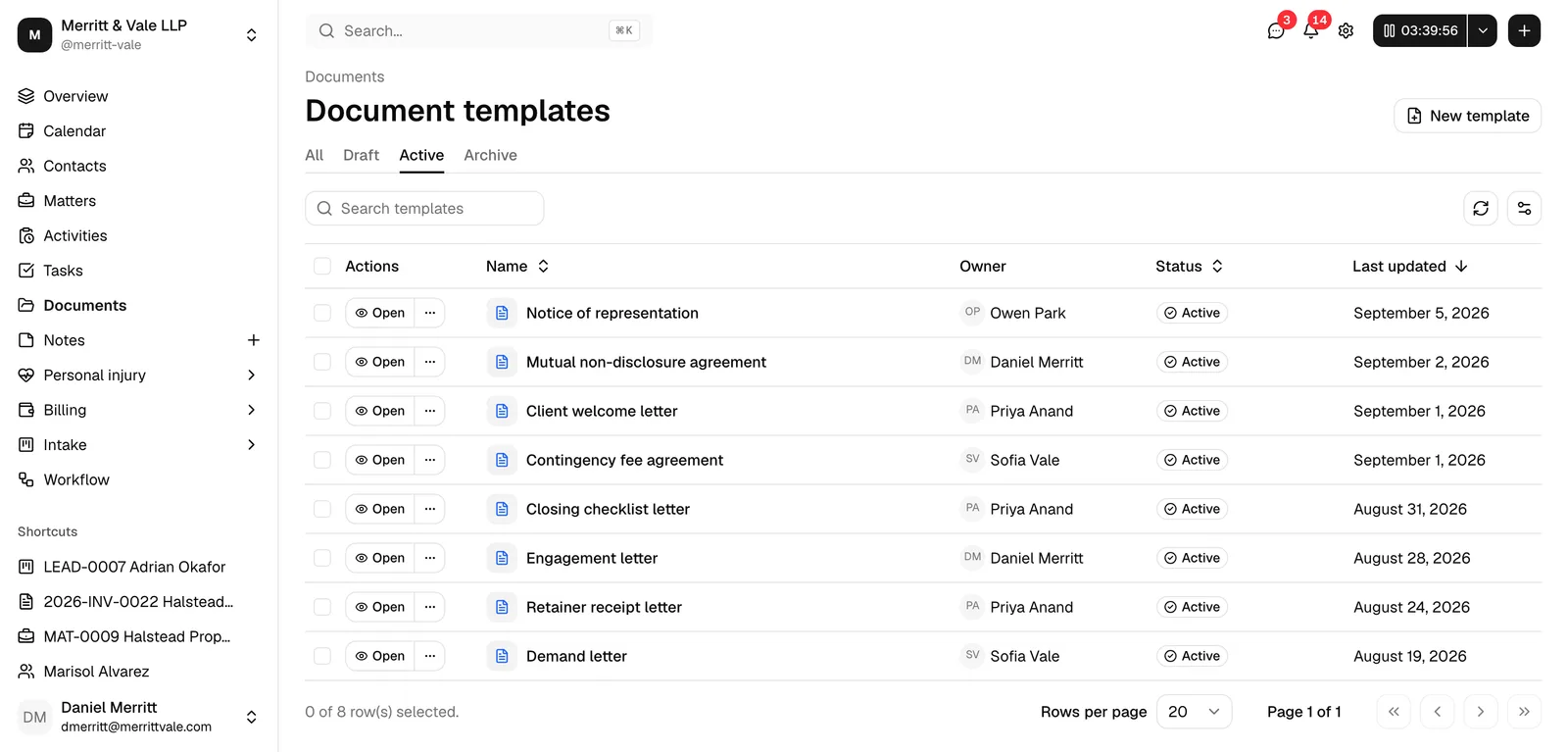
- The Document templates page opens, listing your firm's templates.
On this page you can:
- Filter by status using the tabs at the top of the table: All, Draft, Active, and Archive. The list opens on Active by default.
- Search by template name using the Search templates box. Click Clear filters to reset the search.
- Sort by clicking the Name, Status, or Last updated column headers.
- See, for each template, its Name, Owner (the member who created it), Status, and Last updated time.
Tip: To get back to the main file list at any time, click Documents in the breadcrumb above the page title.

Find templates in the documents tree
Templates also live in a managed folder structure inside the regular Documents workspace, which is handy when you are already browsing files.
- In the sidebar, click Documents.
- Open the Templates folder, then the Documents subfolder inside it.
- Your template documents are listed there.
Important: The Templates folder and its Documents subfolder are system folders that Esqase maintains automatically. Do not rename, move, or delete them. Doing so can break the templates feature, and the option to rename or move them is intentionally not offered.
Create a document from a template
When you create a new rich-text document, you can start from a blank page or copy an existing template. Starting from a template brings over the template's content and page setup so you only have to fill in the specifics.
- In the sidebar, click Documents.
- (Optional) Open the folder where you want the new document to live. The new document is created in the folder you are currently viewing.
- In the page header, click New, then click New document.
- In the New document dialog, type a Document name. This is required. You can rename the document later.
- Open the Template picker. Start typing to filter the list by name, or scroll to find your template.
- The list always starts with Blank document, which creates an empty document.
- Below that are your firm's Active templates. Draft and archived templates do not appear here.
- Choose the template you want (or leave Blank document selected to start empty).
- Click Create document.
When you click Create document, Esqase creates a new document, copies the selected template's content and page setup into it, and opens it in the editor so you can start editing right away. The original template is untouched. If you create the document in a matter's documents, Esqase also fills its placeholders from that matter as it creates it. See Placeholders in templates.
- Required field: Document name must not be empty. If you leave it blank, you will see "Please enter a document name."
- Default: the Template picker defaults to Blank document, so if you do nothing you get an empty document.
- If you do not see the New button at all, your role does not include Create access for documents.
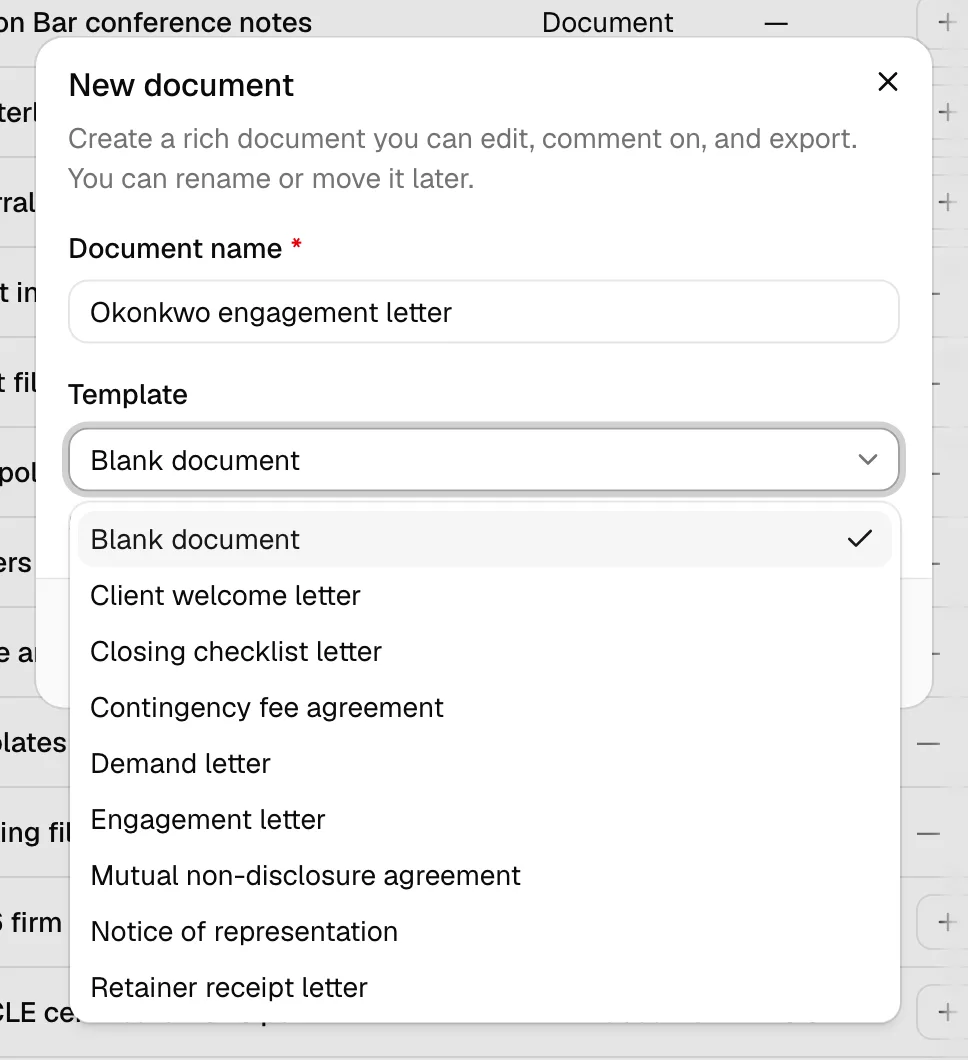
Tip: The helper text under the picker says "Start blank or copy the content and page setup from a template." Page setup means things like page size and orientation, so a template's layout carries over too, not just its text.
Common questions
- Will editing my new document change the template? No. The new document is a separate copy. Your edits stay in the new document.
- My template is not in the picker. Why? Only Active templates appear. Open the template on the Document templates page and set its status to Active (see below). Also confirm the document is actually flagged as a template.
- Can I start from a template inside a matter? Yes. The same New document flow is available from a matter's Documents tab, and the Template picker works the same way there. A document you create there opens with its placeholders filled from the matter.
Mark and unmark a document as a template
You can promote any rich-text document into a template, and you can remove the template flag later. You can also create a brand-new, empty template from scratch.
Mark an existing document as a template
Use this when you have already written a document (for example, a polished engagement letter on a real matter) that you want to reuse.
- Open the document. You can do this from the Documents workspace or from a matter's Documents tab.
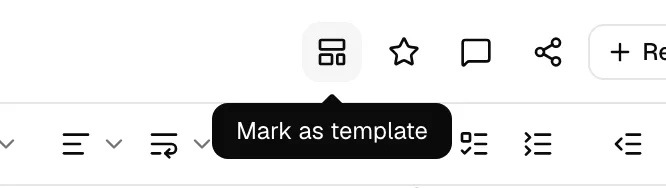
- In the document editor toolbar, click the template button (the layout-template icon). Hover over it to confirm it reads Mark as template.
- You can also do this without opening the document: in the file list, click the More actions (three-dots) menu on the document's row, then click Mark as template.
- Esqase flags the document as a template. The icon fills in to show it is now a template, and you will see a "Marked as template" confirmation.
Once marked, the document appears on the Document templates page. Remember to set it to Active if you want it offered in the Template picker.
Marking a document as a template also clears the placeholder values it took from its record, so the template never holds one client's details. See Mark as template clears record values.
Note: The Mark as template option only appears for native rich-text documents, not for uploaded files or folders, and only if you have Update access for documents.
Create a new template from scratch
Use this when you want to build a template fresh rather than promote an existing document.
- In the sidebar, click Documents.
- In the page header, click Manage templates.
- On the Document templates page, click New template.
- Esqase creates a template named Untitled template and opens it in the editor. Rename it and add your content.
The new template is created in your firm's managed Templates folder automatically. Set its status to Active when it is ready to be used (see "Change a template's status" below).
Note: You will only see the New template button if you have Create access for documents.
Unmark (remove the template flag)
Removing the template flag turns a template back into a regular document. The document and all its content are kept; it just stops being offered as a template.
- Go to the Document templates page (sidebar Documents > Manage templates).
- On the template's row, click Open to open it, or use the row's More template actions (three-dots) menu.
- To remove the flag from the open document, click the template button in the editor toolbar (it now reads Remove template). To remove it from the list, click Remove template in the row's menu.
- Confirm if prompted. The document is no longer a template, but the document itself remains in your files.
You can remove the template flag from several templates at once: on the Document templates page, select the checkboxes for the rows you want, then choose Remove template from the batch actions. You are asked to confirm, and Esqase reminds you that "The documents themselves are kept."
Important: Removing the template flag does not delete anything. It simply takes the document off the templates list and out of the Template picker. To actually remove a document, trash it from the Documents workspace instead.
Change a template's status
A template's status controls whether it is offered when starting a new document. Only Active templates appear in the Template picker.
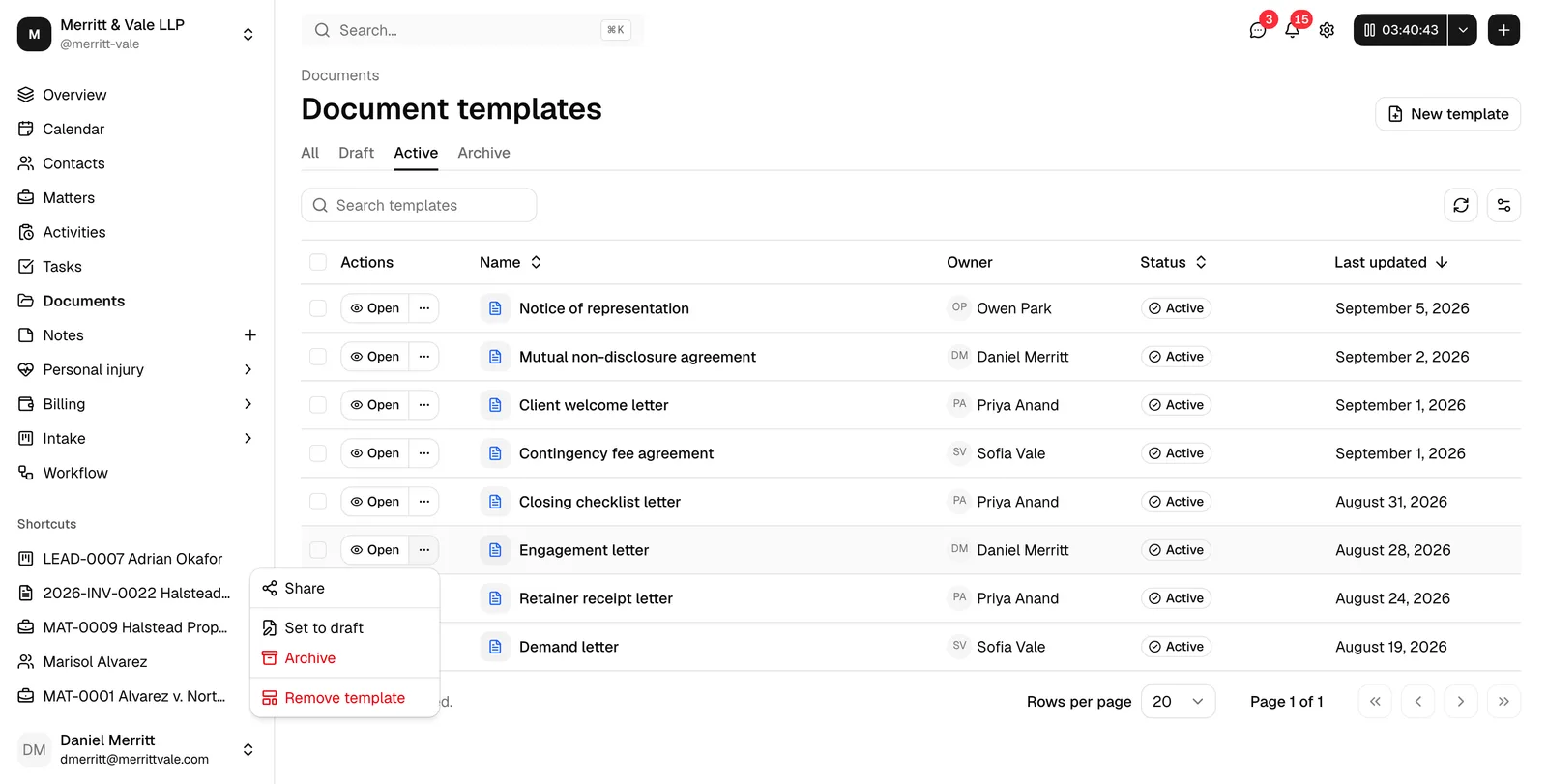
- On the Document templates page, open the template's row menu (three dots) or use the editor toolbar.
- Choose the status you want:
- Set to active makes the template available in the Template picker.
- Set to draft hides it from the picker while you keep working on it.
- Archive moves it to the Archive tab and out of the picker, without deleting it. You can restore it later by setting it back to Draft or Active.
- The change saves immediately and a confirmation appears.
You can also change status for several templates at once. Select the rows with their checkboxes, then use the batch actions Set to active, Set to draft, or Archive.
Tip: Use Draft for templates you are still writing, Active for ones the team should use, and Archive for retired ones you might want back later.
Placeholders in templates
A template is where you write placeholders once, so every document made from it fills itself in. Write {{contact_name}}, {{matter_number}}, or {{damages_total}} into the template, and each document you create from it carries that client's and that case's details. See Document placeholders.
- The template keeps its tokens. Record placeholders such as
{{contact_name}}or{{matter_title}}stay empty on the template itself. The Placeholders panel says so: "Templates fill firm, member, date and document fields only. Record fields fill when a document is created from this template." - Each document fills from its own record. Create a document from the template in a matter's documents, or let a workflow Document step create it, and its placeholders fill from that matter or lead: the client, the matter, the court, invoices, events, custom fields, personal injury figures, and form answers. (A document a workflow creates on its own leaves the court, invoice, event, and personal injury ones for the member who reviews it, unless a form answer fills them.) A template never carries one client's values into another client's document.
- Firm and member defaults carry over. A value you type on the template for a firm or member placeholder, or for one of your own placeholders such as
{{retainer_terms}}, becomes the starting value in every document made from it. In the new document, the row offers Use record value (or Use my details on a member placeholder) when the record holds something different. - Insert form questions with Show answers from. In Insert a field, open Form answers and pick a form in Show answers from to insert its questions. They stay empty on the template and fill from that form's answers in each document.
- Exports keep the tokens. Downloading a template as a PDF or Word file, printing it, or making a signing copy keeps its
{{tokens}}, and Esqase does not warn about empty placeholders on a template.
Mark as template clears record values
When you mark a document as a template, Esqase clears every placeholder value that came from a record, so a template never holds a client's details. That covers contact, matter, lead, court, invoice, event, personal injury, custom field, and form answer values, as well as the date and the document's own name and creation date. Values Esqase filled in automatically are cleared too, including firm and member ones.
Values someone typed for firm and member placeholders, and for your own placeholders, stay on the template as its defaults. To fill the firm, member, date, and document placeholders on the template again, click Fill from records in its Placeholders panel.
Removing the template flag leaves the values as they are.