Available lang sa Ingles ang dokumentasyon ng produkto.
Recording and managing payments
The Payments area is where you record money your clients pay against their invoices, keep track of what has cleared, and issue refunds. Every payment is tied to a specific invoice, so recording one here keeps that invoice's balance and your account ledgers accurate and audit-ready.
This page covers the firm side: recording payments from the dashboard, charging a client's card or bank account from Esqase, marking pending payments as cleared, changing a payment's status, viewing details, refunding, and reading the payments list. Payment plans have their own tab on the same page; see Payment plans and autopay. When a client reports a bank transfer or QR payment on a payment link, Esqase creates it for you as Pending, and it stays pending until a firm member reviews it and marks it cleared. When a client pays by card or bank account through your firm's LawPay or Confido Legal account, Esqase records the payment and clears it by itself (see Card and bank payments through LawPay or Confido Legal and How clients pay invoices).
Before you begin
A few things to have in place before you record payments.
- Permission. You need Create access for payments to record a payment, to charge a client's card or bank account, and to create a payment plan, and Edit access to mark payments cleared, change a status, or issue a refund. If your role does not include these, the Record payment and New payment plan buttons and the row actions will not appear. Firm owners and administrators have full access by default; attorneys can record and manage payments; staff can view, record, and edit them.
- At least one invoice. A payment is always recorded against an invoice. The invoice must be in a state that can accept money: open (unpaid), partially paid, or refunded. Cancelled or draft invoices cannot accept payments.
- An approved invoice, if your firm requires approval. An invoice with an open review cannot take a payment and cannot have a payment link generated until that review is approved. Esqase tells you the invoice needs approval first. See Approvals for invoices and documents.
- At least one account. You need an active operating or savings account to deposit funds into. For trust-related flows (overpayments and trust transfers) you also need an active trust (escrow) account. You can create an account on the fly from inside the payment form.
Note: A trust account (sometimes called an IOLTA or escrow account) holds money that belongs to the client, not the firm, until it is earned or owed. Esqase keeps trust funds separate from your operating funds so you stay compliant with the rules that govern client money.
Record a payment against an invoice
This is the everyday case: a client pays an invoice and you deposit the money into your operating (business) account. Only payments marked Cleared move the invoice's balance, so use this flow when the funds are in hand.
- In the sidebar, click Payments.
- In the top right, click Record payment.
- Pick the Invoice. Type in the field to search every open invoice by invoice number or client name. Client and Matter sit above it as optional filters (Any client, Any matter) to narrow the search; you do not have to set either, which is what lets you find a consolidated invoice that has no matter. If you opened the dialog from a specific invoice, it is already filled in and locked.
- Enter the Amount. It starts at the invoice's outstanding balance, which the dialog also shows under its title; change it to the amount you actually received. On an invoice with an active payment plan you pick an Installment here instead (see Record payment on a plan invoice).
- Set the Payment date. It defaults to today, and you can pick an earlier day but not a future one.
- Choose the Payment method: Wire, Check, Cash, Credit Card, Trust / Escrow Transfer, or Other. (Pick Trust / Escrow Transfer only for the trust-transfer flow described below.)
- Set the Status:
- Cleared (the default) records the payment as received and immediately reduces the invoice balance.
- Pending records the payment but waits to apply it to the invoice until you mark it cleared (useful for a check that has not cleared the bank yet).
- Failed records a payment that did not go through.
- Under Deposit to account, pick the operating or savings account the money lands in. It starts on your firm's default deposit account. To create a new account without leaving the form, click New account at the bottom of the list.
- Optionally fill in the Payer (who actually paid), a Check or reference no., and a Description with any notes.
- Click Record payment.
When you save, Esqase records the payment, deposits the amount into the chosen account, updates the invoice (to Partially paid or Paid if the payment cleared), and writes an entry to the account ledger. You will see a "Payment recorded" confirmation.
Your colleagues are told too. A Payment recorded notification goes to the people who can see invoices, naming the amount, the client, and the invoice number, and clicking it opens the invoice with that payment picked out in its payments list. If the payment is still Pending and your role lets you update payments, the Review payment dialog opens on it, so you can clear it in one step. You are not notified about a payment you recorded yourself, and each person can turn it off under Payment received in their notification settings. This covers payments a client makes through a payment link as well as ones you enter here, and a payment you record as Pending and clear later produces one notification, not two. See Notifications.
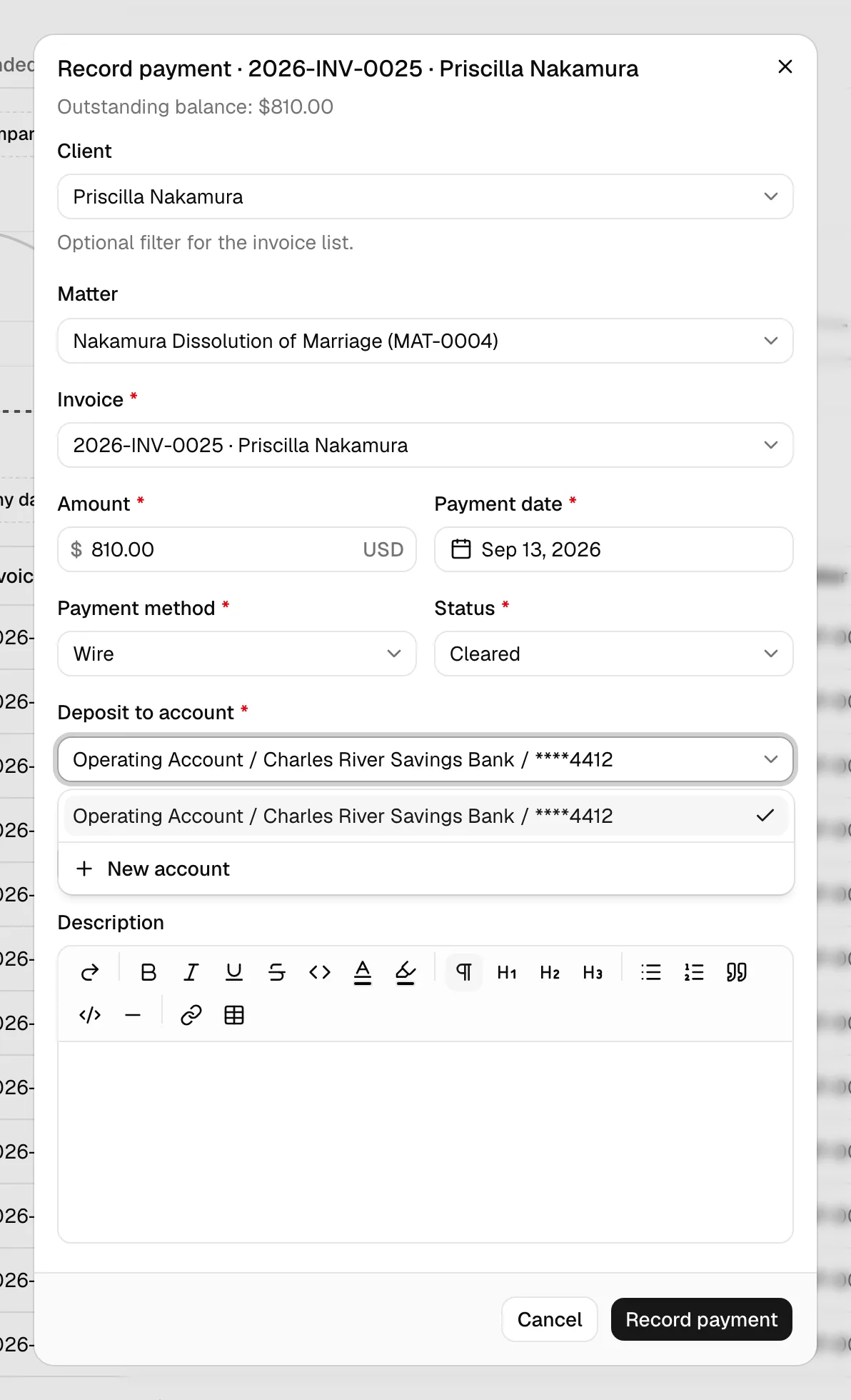
Tip: You can also start this flow straight from an invoice. On the Invoices list, open a row's actions and click Record payment, or use Record payment on the invoice's detail page. The client, matter, and invoice are pre-selected for you.
Record payment on a plan invoice
When the invoice has an active payment plan with installments still to pay, the dialog asks which installment the client paid instead of asking for an amount:
- In Installment, pick the installment. The list shows the plan's unpaid installments in due date order, each written like Installment 2 of 6 · $500.00 · due November 1, 2026, with the next one picked for you. An installment that already has a payment in progress, such as a bank transfer the client reported that is waiting for review, is not listed.
- The Amount is filled in from the installment and cannot be edited. When the installment is more than the invoice's balance due, the amount is the balance due.
- Set the Payment date. You can still change it, for example to the day a check arrived.
- Fill in the rest of the dialog as usual and click Record payment.
The payment pays the installment you picked, even when it is not the next one due: a Cleared payment marks it Paid straight away, and a Pending one marks it Paid when you clear it. If that installment was paid or changed while the dialog was open, the payment is not recorded and the dialog asks you to pick the installment again.
To record any other figure, pick Other amount, the last entry in the list. The free Amount field comes back, and a note headed This invoice is on a payment plan appears above Amount and Payment date to say what the payment does to the plan. Trust transfers and overpayments work as they do on any other invoice. See Record a payment by hand on a plan invoice.
📷 Screenshot: The Record payment dialog on a plan invoice, with the Installment picker open on "Installment 2 of 6 · $500.00 · due November 1, 2026", the read-only Amount, and the Payment date beside it.
Record a payment with overpayment parked in a trust account
Sometimes a client pays more than the invoice owes (for example, a round-number retainer check). Esqase applies what the invoice needs and parks the extra in a trust account as client credit, so the surplus is held safely instead of inflating the invoice.
- Start a payment as described above, with the Payment method set to anything other than Trust / Escrow Transfer.
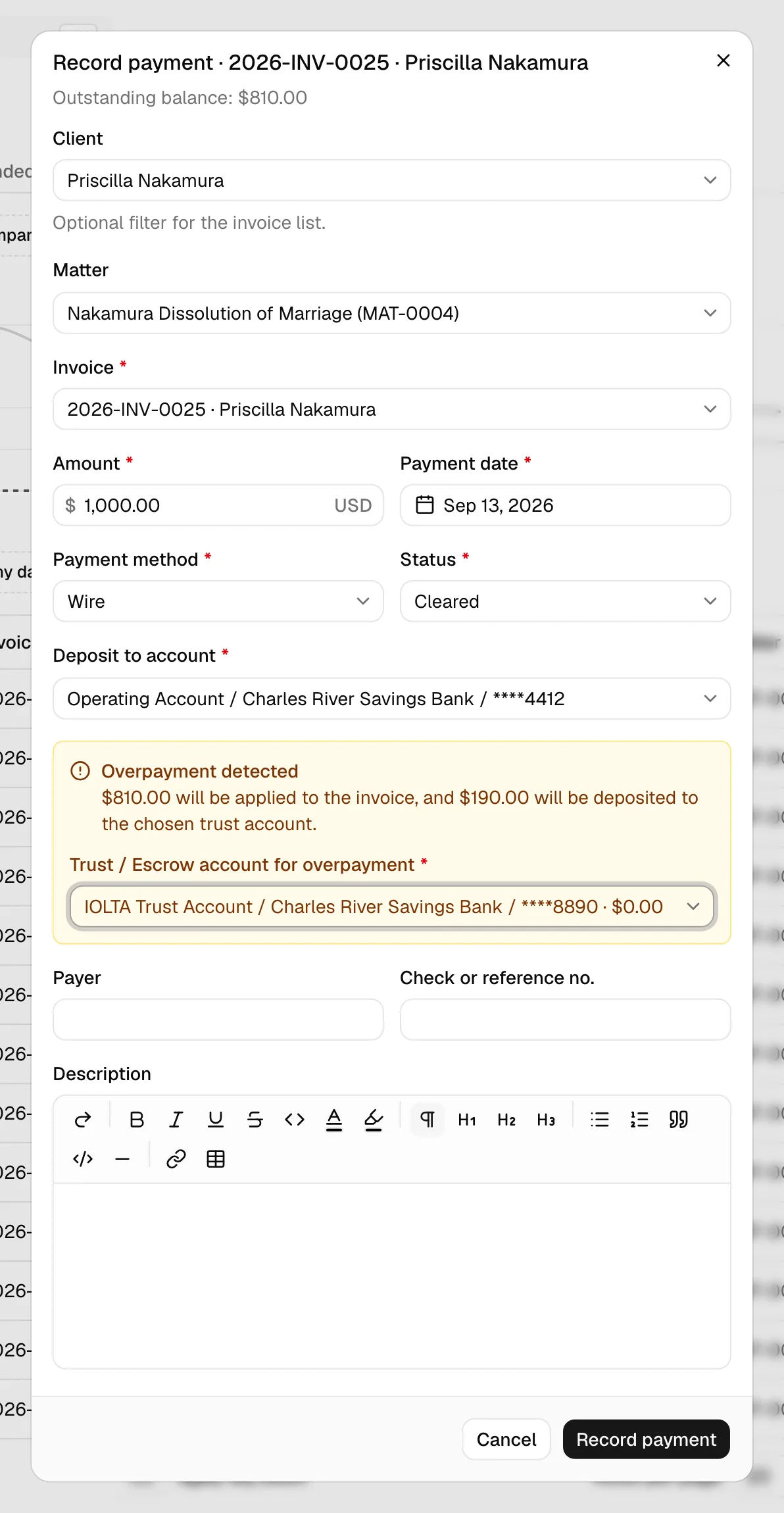
- In the Amount field, enter a figure larger than the invoice's outstanding balance.
- An Overpayment detected notice appears, telling you exactly how much will be applied to the invoice and how much will be deposited to trust.
- In the Trust / Escrow account for overpayment field that appears inside the notice, pick the trust account that will hold the surplus.
- Finish the rest of the form (date, method, deposit account for the applied portion, optional payer/reference/notes) and click Record payment.
On save, the invoice is paid in full from the applied portion, the deposit account receives that portion, and the overpayment is deposited into the chosen trust account. In the payments list, the Remarks column will show the amount routed "to trust."
Important: You must choose a trust account for the overpayment. If you leave it blank, the form will not let you save and will prompt you to "Pick a trust account to hold the overpayment."
Record a trust-transfer payment (pay an invoice from trust funds)
When a client already has money sitting in trust (for example, a retainer you collected earlier), you can move some of those funds to your operating account to pay an invoice. This is a trust transfer: the firm earns the fee and the client's trust balance goes down by the same amount.
- Start a payment and select the invoice as usual.
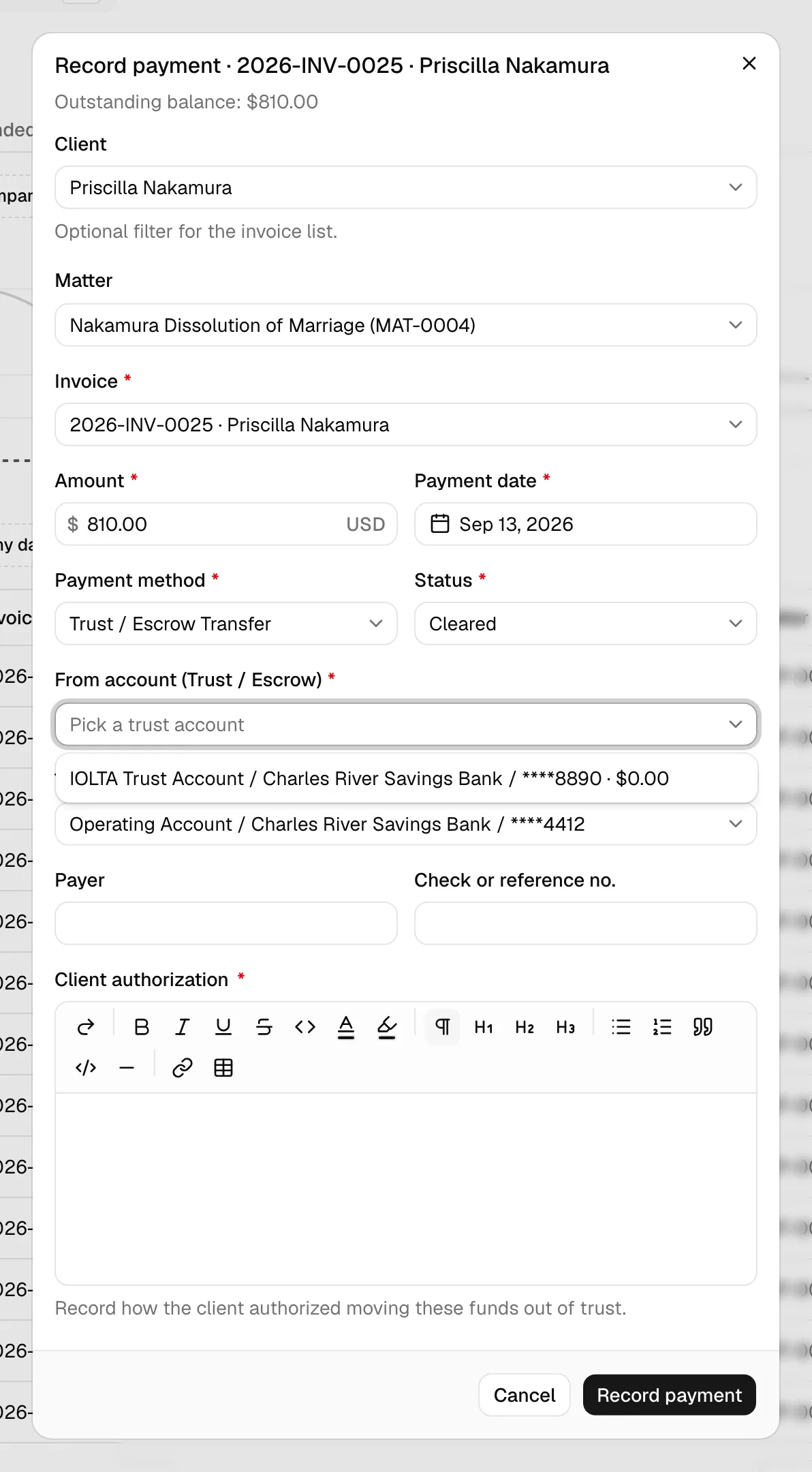
- Set the Payment method to Trust / Escrow Transfer. The account fields change to two pickers.
- In From account (Trust / Escrow), pick the trust account to draw from. Each option shows the client's current available balance in that account, so you can see what is available before you transfer.
- In To account (Operating / Savings), pick the operating account that will receive the funds.
- Enter the Amount to transfer. For a trust transfer, the amount cannot be more than the invoice's outstanding balance.
- Set the date, optional payer/reference/notes, and click Record payment.
On save, Esqase moves the funds out of the trust account and into the operating account, applies the payment to the invoice, and updates both account ledgers.
Important: The amount cannot exceed the client's available trust balance in the chosen account. If it does, an Insufficient trust balance message appears telling you how much is available, and the form will block the save. Lower the amount or pick a different trust account.
Note: The From and To accounts must be different accounts.
Charge a card or bank account from Esqase
When your firm takes card and bank payments through LawPay or Confido Legal, you can charge a client's card or bank account yourself, for example when a client calls with their card details, or asks you to take a payment from the card they saved.
The option appears in the Record payment dialog when your firm has a processor connected with an operating account mapped, Card payments or Bank payments is switched on, and your role includes Create access for payments. See Taking card and bank payments with LawPay or Confido Legal.
- Open Record payment from the Payments page, an invoice, or a matter's Transactions tab.
- At the top of the dialog, click Charge card or bank account, next to Record received payment.
- Pick the Invoice, with Client and Matter as optional filters, as when you record a payment. If you opened the dialog from an invoice, it is already filled in.
- Amount starts at the invoice's balance due, and the line under it reads Up to the balance due of $1,250.00. You can charge less, but not more: an overpayment cannot go through the processor.
- Under Payment method, pick one of the client's saved cards or bank accounts (for example Visa ending 4242), or New card or New bank account. When the client has a saved method, the first one is picked for you.
- For a new card or bank account, enter the details in the processor's secure fields. They are the same fields the client sees on a payment link: the card number, expiry, security code, and billing postal code, or the account holder, account type, routing number, and account number. The details go straight to the processor; Esqase never sees or stores them.
- For a bank account, new or saved, read the Bank payment authorization to the client (Read this authorization to the client before you continue.) and tick I read this authorization to the client and they agreed. For a saved bank account, first choose its Account holder and Account type, so the text matches.
- To keep a new card or bank account for later charges, such as a payment plan's autopay, tick The client has authorized (your firm) to save this payment method and charge it for the scheduled payments. For a card, the authorization to read to the client sits under the box. The box appears only when your firm's autopay is available for that kind of payment method.
- Optionally fill in Payer, Reference, and Description. The line above them names the account the payment is deposited to, for example Payments through LawPay are deposited to Operating.
- Click the button with the amount, for example Charge $1,250.00. The dialog stays open until the charge has finished, so the charge cannot be cut off halfway.
What happens next:
- A card the processor accepts is recorded as Cleared straight away, like a card payment a client makes on a payment link: the invoice balance goes down, and a receipt number is issued if your firm uses official receipts. You see Payment charged.
- A bank payment is recorded as Pending and clears by itself when the processor reports the money arrived. You see Bank payment started. It usually clears in 3 to 5 business days.
- A saved card or bank account gives a second message, Payment method saved, and the client is emailed a copy of the authorization (Copy of your payment authorization). It is recorded as saved by your firm on the client's authorization, with who saved it and when.
- The description reads, when you leave it empty, for example Card payment charged through LawPay (Visa ending 4242), so the payment names the processor and the card or bank account.
- A payment plan installment. When the amount matches the next installment of the invoice's active payment plan, the payment pays that installment. When it pays off the invoice, the plan completes. See Payment plans and autopay.
If the processor declines, nothing is recorded and the dialog gives the processor's reason, for example LawPay did not accept the charge. The card was declined for insufficient funds. Try again or use another method. If the invoice is paid another way while the charge is running, the charge is reversed (This invoice was paid another way while the charge was running, so the charge was reversed). If Esqase cannot confirm the result with the processor, or the processor took the charge but Esqase could not record it, the dialog tells you, for example We couldn't confirm the charge with LawPay. Press Charge again with the same invoice and amount so the client is not charged twice, or check LawPay and record the payment by hand. Either way is safe:
- Press Charge again with the same invoice and amount, in the same dialog. Esqase sends the same charge again, the processor answers with the first charge rather than taking a second one, and the payment is recorded. If you change the invoice or the amount, it counts as a new charge.
- Or check the processor and, if the charge went through, record the payment by hand with Record received payment.
A charge the processor took that Esqase never recorded is also flagged on the Processor tab of your payment settings, under Recent activity, as Needs attention: LawPay reports a charge a firm member started in Esqase for invoice INV-0042 (...) that has no payment in Esqase. Check the charge and record or refund it by hand. Esqase never records it on its own. See Taking card and bank payments with LawPay or Confido Legal.
📷 Screenshot: The Record payment dialog with Charge card or bank account chosen, showing the Invoice, the Amount with its Up to the balance due line, the Payment method picker on New card, the processor's secure card fields, the save checkbox with the authorization text, and the Charge button with the amount.
Important: Only charge or save a client's card or bank account when the client asked you to, and read the authorization to them first. The tick records that you did.
Card and bank payments through LawPay or Confido Legal
When your firm has connected LawPay or Confido Legal, clients can pay a payment link by card or from their bank account, and those payments arrive in your Payments list on their own. You never key them in, and you do not clear them. Charges your team takes with Charge card or bank account, autopay charges, and Charge now on a payment plan behave the same way. See Taking card and bank payments with LawPay or Confido Legal.
- Card payments arrive as Cleared the moment the processor accepts the card. The invoice balance moves, the deposit posts to the account you mapped on the Processor tab, and a receipt number is issued if your firm uses official receipts.
- Bank payments arrive as Pending, and move to Cleared by themselves when the processor reports that the money arrived, usually 3 to 5 business days later. If the client's bank refuses the debit, the payment moves to Failed and the invoice balance is open again.
- Returns, chargebacks, and refunds made at the processor. If the processor reports that a cleared bank payment was returned, that a card payment was reversed, or that someone refunded it in the processor's own portal, Esqase records the reversal as a refund against the payment, with the processor's reason, and the invoice balance goes back up. A refund you already recorded in Esqase is never recorded twice.
- The Method column shows Credit Card or Bank payment (ACH) with the card brand or bank and its last four digits, and the Remarks column shows the processor (LawPay or Confido Legal) and its own status for the payment.
- Review and View show extra rows: the Provider or Payment processor, the Saved method used, the Processor reference (the processor's transaction ID, which is also the payment's reference number, so you can match it on your bank statement), the Processor status, and when it was Settled and by which processor.
- The status stays read-only. The Status badge of a processor payment cannot be changed from the list, because the processor decides it.
📷 Screenshot: The Review payment dialog for a LawPay card payment, showing the Provider, Saved method, Processor reference, Processor status, and Settled rows, with only the Mark Failed button in the footer.
Important: A processor payment has no Mark Cleared button, because Esqase clears it when the processor reports it. Mark Failed is still there for a payment stuck at Pending, behind a confirmation: Only do this if LawPay shows the payment failed. Marking it failed here does not cancel the card charge or the bank debit with LawPay. Check the processor's portal first, and use it only when the processor itself shows the payment failed.
Mark a pending payment as cleared
A Pending payment is recorded but has not yet been applied to the invoice. This covers a check you are waiting to clear the bank, and every bank transfer or QR payment a client reports on a payment link. When the funds arrive, mark it cleared so the invoice balance updates. (Card and bank payments through LawPay or Confido Legal clear by themselves; see the section above.)
- On the Payments list, find the pending payment. Pending rows show a Review button in the actions column.
- Click Review.
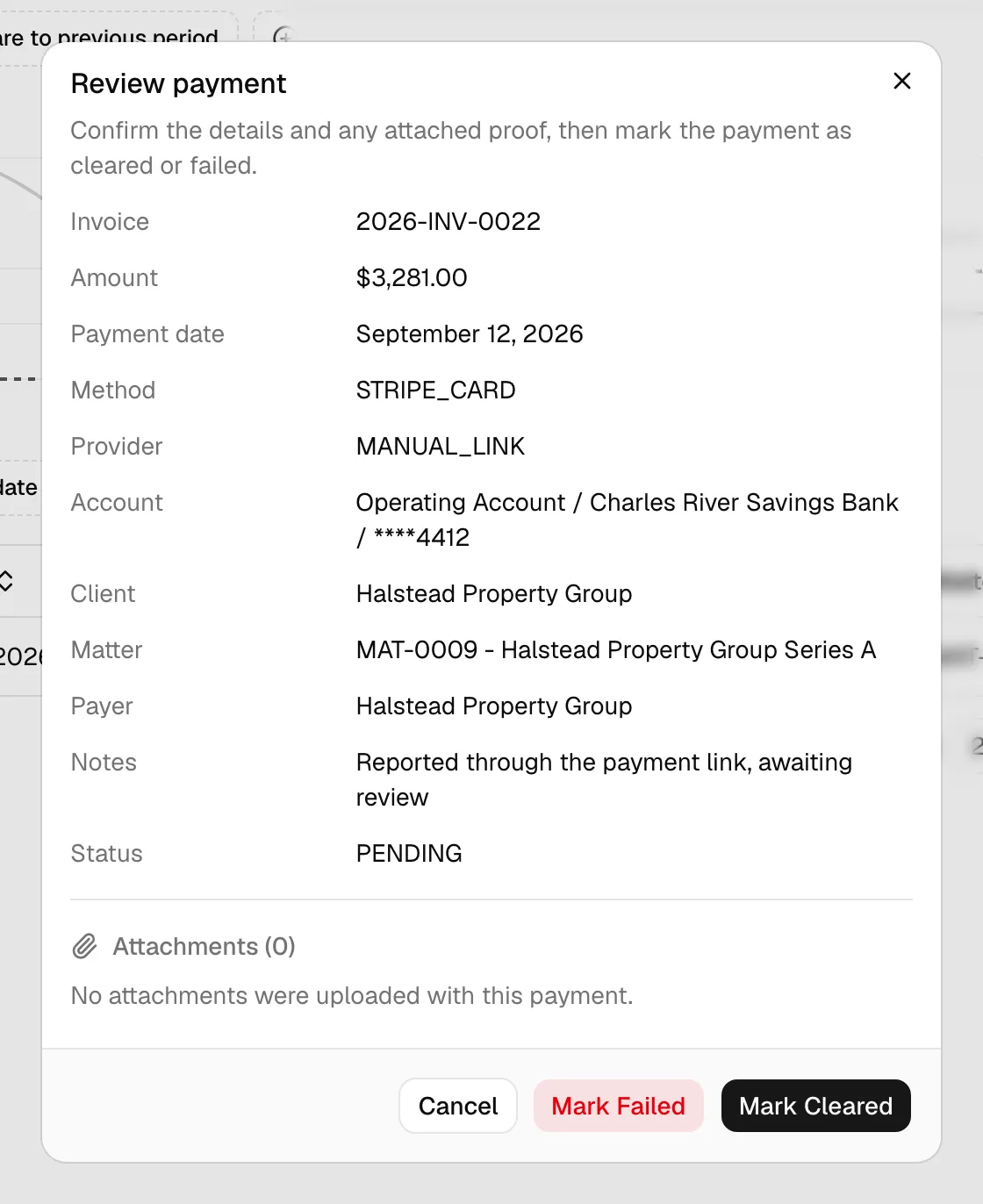
- In the Review payment dialog, confirm the details (amount, date, method, account, client, matter) and check any attached proof of payment. Click the eye icon next to a file to look at it in a preview without leaving the dialog (see Attach a receipt or proof of payment).
- Click Mark Cleared.
The payment becomes Cleared, the deposit posts to the account ledger, and the invoice moves to Partially paid or Paid. You will see a "Payment cleared" confirmation.
If the payment did not go through after all, click Mark Failed in the same dialog instead. The payment is recorded as Failed and never touches the invoice balance.
When the payment was for an installment of a payment plan, clearing it marks the installment Paid, and failing it opens the installment again so the client can pay it. See Payment plans and autopay.
Change a payment status
You can adjust the status of a payment that has not yet been applied or refunded directly from the list, without reopening the full form.
- On the Payments list, find the payment in the Status column.
- If the status is Pending or Failed, it shows as a clickable badge. Click it.
- Choose the new status from the menu (Pending or Failed).
The status updates in place and a "Payment status updated" confirmation appears.
Note: Only Pending and Failed payments can be switched this way, and never a payment taken through LawPay or Confido Legal, whose status comes from the processor. To move a pending payment to Cleared, use the Review flow above (this is what actually applies the money to the invoice). Cleared, Refunded, Voided, and Archived statuses are shown as read-only badges and cannot be changed inline; to reverse a cleared payment, issue a refund instead.
View a payment's details
Every payment, regardless of status, has a read-only details view.
- On the Payments list, click View in the actions column of any row.
- The Payment details dialog opens, showing the invoice, amount, payment date, method, status, the account it landed in (or the From and To accounts for a trust transfer), payer, reference number, and description. A payment with a refund also shows Refunded and Net under the amount.
- If the payment included an overpayment, the dialog also shows the Applied to invoice amount, the amount Held in trust, and the Overpayment trust account.
- Click Close when you are done.
Tip: The View action is always available, even when a payment is cleared, refunded, or archived. The Review button (for clearing) and the Refund action only appear when they apply to that payment's status.
Refund a cleared payment
You can refund a payment once it is Cleared. A refund can go back to the client out of your operating account, or be held as client credit by depositing it into a trust account. Refunds can be full or partial.
Important: Refunding is its own permission, shown as Payment refunds in the role grid, separate from ordinary payment editing. It is off by default for attorneys and staff, because a refund moves money out of the firm and cannot be undone. Grant it deliberately. See Roles and permissions.
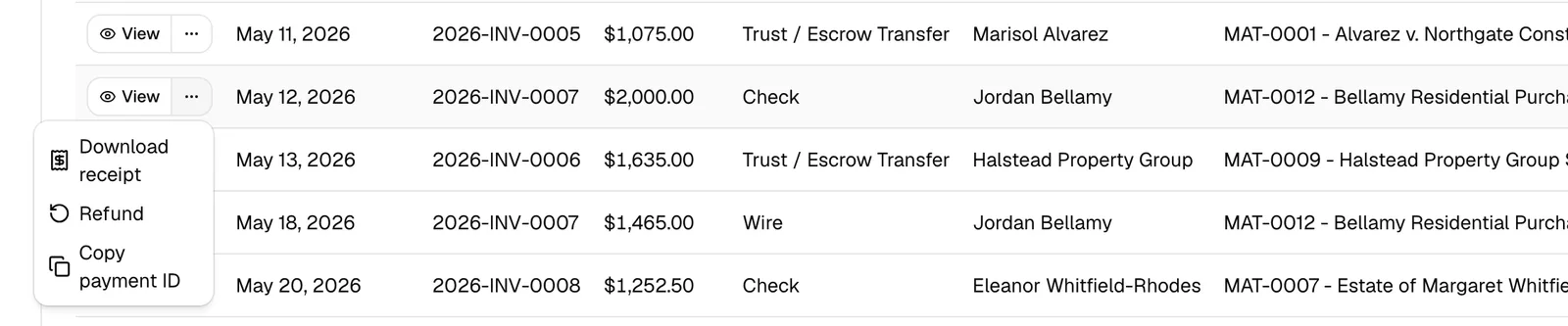
- On the Payments list, open the actions menu (the ... button) on a cleared payment.
- Click Refund.
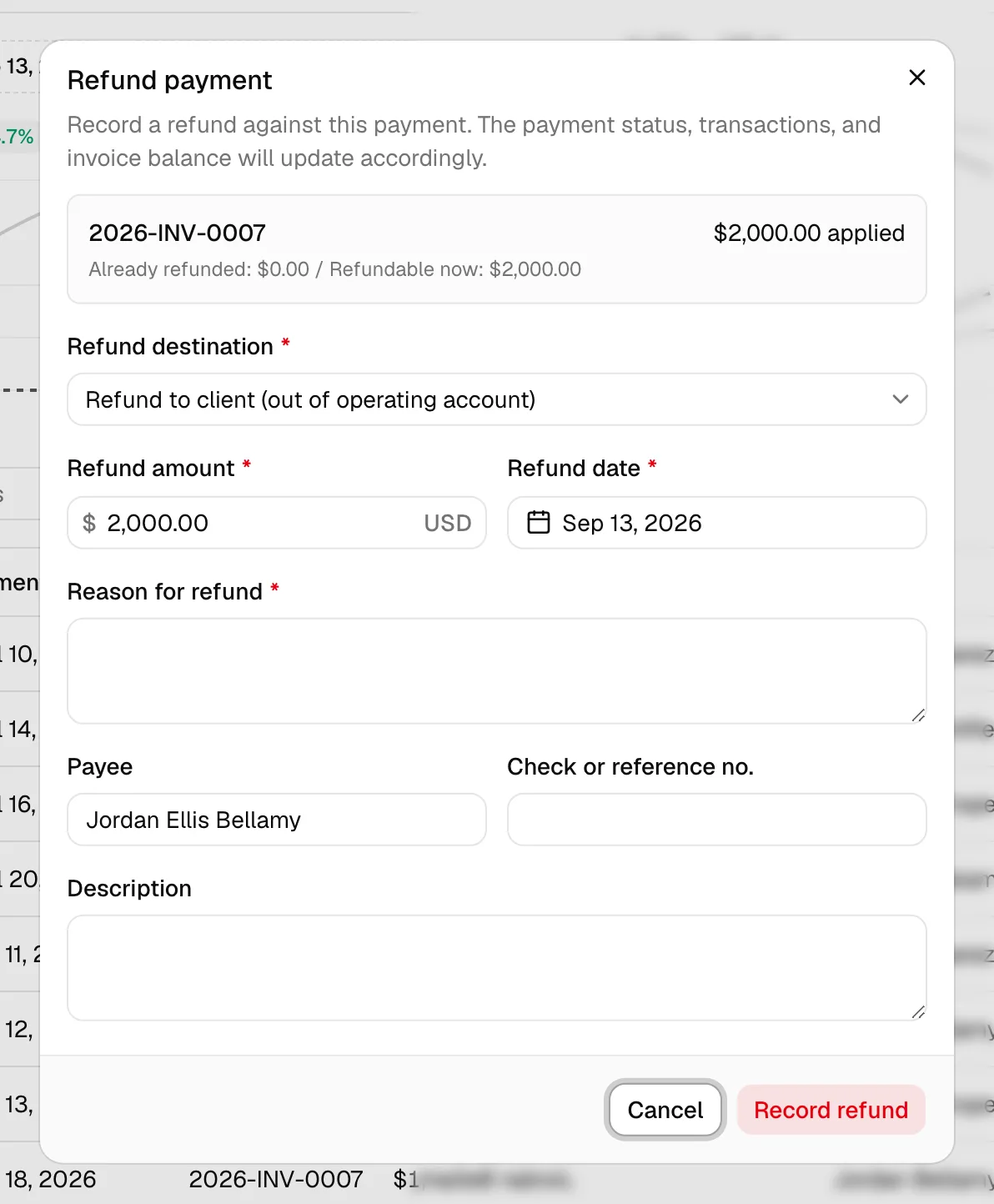
- In the Refund payment dialog, the top summary shows how much was originally applied, how much has already been refunded, and how much is refundable now.
- Choose the Refund destination:
- Refund to client (out of operating account) sends money back to the client and reduces your operating account balance.
- Hold as client credit (deposit to trust) keeps the money for the client by depositing it into a trust account. If you pick this, a Trust account field appears so you can choose which one.
- For a payment that was itself a trust transfer, the default is Return to ... (Trust), which puts the money back into the client's original trust account, with the operating refund offered as the alternative.
- Enter the Refund amount. It defaults to the full refundable balance; lower it for a partial refund. You cannot exceed the refundable balance, and the form warns you if you try.
- Set the Refund date.
- Fill in Reason for refund. This is required, and has to be at least a few words. It is what the audit trail carries, and what the next person reads when they ask why the money went back.
- Optionally add a Payee, a Check or reference no., and a Description.
- Click Record refund.
On save, Esqase records the refund, adjusts the account ledger (and the trust account if you chose to hold credit), and updates the invoice balance. A full refund sets the payment's status to Refunded; a partial refund leaves the payment cleared but reduces how much is still refundable. The refunded amount is owed again, so the invoice returns to Pending or Partial paid and can be paid again. When the payment paid a payment plan installment, the refunded amount goes back on the plan to be collected again, and the plan's autopay pauses. See When an installment's payment is refunded.
Important: Only money that actually left your operating account is refundable. A trust transfer moves funds between your own accounts and is net-neutral, so for that case the natural destination is returning the funds to the original trust account.
Refund a payment taken through LawPay or Confido Legal
A cleared payment the client made by card or bank account through your firm's processor is refunded through that processor, so the money goes back to the client's card or bank account.
- Open Refund on the payment, as above. The dialog is titled Refund through LawPay (or Refund through Confido Legal) and explains that the processor refunds the client first, and the payment status, transactions, and invoice balance then update in Esqase.
- Under Refund destination, Refund to client through LawPay (or through Confido Legal) is selected. The line beneath it confirms that the processor returns the money to the client's card or bank account, then the refund is recorded.
- Fill in the amount, date, and reason as for any refund, and click Refund through LawPay (or Refund through Confido Legal).
Esqase asks the processor for the refund first. Only when the processor accepts it is the refund recorded in Esqase, with the processor's refund reference as its reference number. If the processor refuses, nothing is recorded and the dialog shows the processor's message, for example LawPay did not accept the refund.
- Same-day refunds. When you refund the whole amount on the day of the payment, Confido Legal may cancel the charge instead of refunding it, so it never reaches the client's statement. Esqase records it the same way.
- Partial refunds of a Confido Legal card payment. Confido Legal refuses a refund of part of a card payment until the charge settles, usually the next business day. On the day of the charge, only a refund of the whole amount is possible, and Confido Legal records it as a void. To return part of the payment, try again on the next business day.
- Refunds that take time. Some refunds, such as a refund of a bank payment, are accepted by the processor but finish later. Esqase records them straight away. If the processor later rejects one, the Recent activity list on the Processor tab shows a row reading Needs attention: refund rejected by the processor. Void the refund transaction by hand, then try again. See Void a transaction.
- Holding it as a trust credit instead. Choosing Hold as client credit (deposit to trust) does not contact the processor at all. The card or bank account is not refunded; the amount becomes a trust credit for the client, recorded in Esqase only.
- After the processor is disconnected. When your firm no longer has that LawPay or Confido Legal account connected, Esqase cannot send the refund. The dialog then offers Refunded outside Esqase (selected for you) and Hold as client credit (deposit to trust), with the note LawPay is no longer connected, so Esqase can't send this refund. Return the money to the client another way, then record it here. Return the money another way, for example in the processor's own portal or by check, then record it here with its reference; the refund is recorded in Esqase like any other, without contacting the processor.
Important: Refunding through the processor needs the Payment refunds permission, like any refund. It does not need access to the firm's payment settings.
Refund to the operating account or into a trust account
The two destinations behave differently, so pick the one that matches what you mean to do.
- Refund to client (out of operating account): Choose this when you are actually returning the client's money. It decreases your operating account balance by the refund amount.
- Hold as client credit (deposit to trust): Choose this when the client should keep a balance with the firm rather than receive cash back. The refund amount is deposited into the trust account you select and stays available for future invoices.
Browse, search, filter, and sort the payments list
The Payments page has two tabs. Payments, the one it opens on, lists every payment your firm has recorded. Payment plans lists your firm's payment plans; see The Payment plans list. At the top right, New payment plan sits to the left of Record payment.
On the Payments tab, use the controls along the top to narrow the list down.
- In the sidebar, click Payments.
- Use the toolbar above the table to narrow the list:
- Search payments matches by client, invoice, reference, and related details, whatever the capitalization.
- The date range filter limits the list to payments whose payment date falls in the range you pick.
- The Status filter, next to Methods, shows only the states you tick: Pending, Cleared, Failed, or Refunded. Tick more than one to see them together. With nothing ticked, which is how the page opens, every payment is listed.
- The Methods filter lets you show only certain payment methods (Wire, Check, Cash, Credit Card, Bank payment (ACH), Stripe Card, PayPal, Trust / Escrow Transfer, Other). Card payments taken through LawPay or Confido Legal are Credit Card, and bank payments through them are Bank payment (ACH). Stripe Card and PayPal are kept so older payments stay findable; you cannot choose either when you record a new payment.
- When any filter is active, a Clear filters button appears to reset everything, the Status filter included.
- Export CSV downloads the list as filtered, with the columns Payment date, Currency, Amount, Refunded, Net, Method, Invoice, Client, Matter, Status, Remarks, Updated by, and Last updated.
- Sort by clicking a column header. You can sort by Payment date, Amount, or Last updated.
- The table columns are Actions, Payment date, Invoice, Amount, Refunded (how much of the payment has been refunded, or a dash when none), Net (the amount less refunds), Method, Client, Matter, Status, Remarks (shows overpayments routed to trust), Updated by, and Last updated. Use the view options menu to show or hide columns, and the refresh control to reload the latest data.
- Four of those columns are links: Invoice opens the invoice, Client opens the contact, Matter opens the matter (shown as its reference number and title, for example
MAT-0042 - Smith v. Acme Corp), and the name in Updated by opens that member's page. Clicking a link opens the record you clicked rather than the payment; use the row's View button to open the payment itself.
📷 Screenshot: The Payments page showing the New payment plan and Record payment buttons, the Payments and Payment plans tabs, the toolbar with the search, date range, Status, and Methods filters, and the table with the Invoice, Amount, Method, and Status columns.
Tip: The Invoice column links straight to the invoice. Click it to open the invoice and see the full picture of what is billed, paid, and outstanding. See Creating and sending invoices. For the whole set of links built into list rows, see Navigating the dashboard.
For money collected over time, compared against an earlier period, and a firm-wide view of revenue and refunds, see The billing overview dashboard. The Payments page itself has no chart, so the table starts right below the toolbar.
Download a payment receipt
Every cleared payment can produce a receipt PDF for the client.
- On the Payments list, open the ... menu on a cleared payment.
- Click Download receipt.
- The PDF downloads. It carries your firm's name, address, and contact details, who the money was received from, the amount, the payment date and method, the invoice it was applied to and the amount applied, the account it was deposited to, and the matter where there is one. A payment taken through LawPay or Confido Legal adds Processed by (the processor and the card or bank account, for example LawPay, Visa ending 4242) and Processor reference. A payment that was partly refunded adds Refunded and Net amount, while Amount applied still shows what the payment originally paid.
If your firm has switched on official receipt numbering, the document is titled OFFICIAL RECEIPT and carries its receipt number, taken from the firm's receipt sequence when the payment cleared. Without that setting it is titled PAYMENT RECEIPT and is referenced by the payment instead. See Invoice and billing settings.
Note: Download receipt only appears on a Cleared payment. A pending payment has not been received yet, so there is nothing to receipt.
Attach a receipt or proof of payment
Payments can carry attached files, such as a scanned check, a wire confirmation, or a receipt, so the proof lives alongside the record.
- On the Payments list, click Review on a pending payment.
- In the Attachments section, you will see any files already attached to the payment.
- For each attachment, click the eye icon to preview it, or the download icon to save a copy.
The preview opens in its own window on top of the Review payment dialog, titled with the file name, size, and type. Use the zoom control in the bottom right corner (-, the percentage, +) to zoom out and in; click the percentage to go back to 100%. A PDF shows every page, and you scroll to move between them. Any other kind of file says it can't be previewed here. At the bottom, Open in new tab opens the file in a browser tab instead, Download saves a copy, and Close returns you to the review. Clicking outside the preview does not close it.
📷 Screenshot: The attachment preview over the Review payment dialog, showing a photographed bank transfer receipt at 125% with the zoom control, and the Open in new tab, Download, and Close buttons.
Many attachments arrive on their own: when a client attaches proof of payment while reporting a payment on a payment link, that file is saved with the payment for you. Accepted file types are PDF, PNG, JPG, WebP, and GIF, up to 25 MB each.
Note: Attachments are previewed and downloaded through the Review payment dialog. If a payment has no files, the section reads "No attachments were uploaded with this payment."
Common questions
- Why didn't recording a payment change the invoice balance? The payment was probably saved as Pending. Only Cleared payments reduce the invoice balance. Use Review then Mark Cleared to apply it.
- Why can't I record a payment against this invoice? The invoice must be open, partially paid, or refunded to accept money. Draft and cancelled invoices cannot, and neither can an invoice that is already paid in full. Open the invoice to check its state. If the state looks right, check the approval panel at the top right of the invoice: an open review blocks payments until it is approved. See Approvals for invoices and documents.
- I don't see a Refund option on a payment. Refunds are only available on Cleared payments. Pending, failed, refunded, and archived payments cannot be refunded.
- Why is there no Mark Cleared button on a card or bank payment? It was taken through LawPay or Confido Legal, and Esqase clears it when the processor reports the money arrived. A bank payment usually takes 3 to 5 business days. See Card and bank payments through LawPay or Confido Legal.
- A refund through LawPay or Confido Legal was refused. Nothing was recorded in Esqase. Read the processor's message in the dialog, check the payment in the processor's portal, and try again or contact the processor.
- Why is the Record payment button missing? Your role does not include Create access for payments. Ask a firm owner or administrator to adjust your role. See Roles and permissions.
- Why is there no Charge card or bank account option in Record payment? Your firm has no LawPay or Confido Legal account connected with an operating account mapped, Card payments and Bank payments are both off, or your role does not include Create access for payments. See Taking card and bank payments with LawPay or Confido Legal.
- The secure card or bank fields do not appear. The dialog reads The secure payment form could not load. Check your connection and try again. Click Try again. If it reads The secure payment form is still loading. Try again in a moment., wait a second before charging. A field the processor rejects is marked, with Check the card details marked below and try again. (or Check the bank details marked below and try again.). For a bank account, Read the bank payment authorization to the client and confirm they agreed. means the authorization box is not ticked yet.
- Why is the save checkbox missing when I charge a new card? Saving needs Autopay for payment plans switched on and a processor account that allows recurring charges.
- The Refund action is missing even though the payment is cleared. Refunding is a separate grant (Payment refunds) that is off by default for attorneys and staff. Ask a firm owner or administrator to grant it.
- A payment shows "Restricted matter" instead of the matter name. That payment belongs to a matter whose visibility is limited to specific members, and you are not one of them. You can still see and clear the payment; only the matter's identity is hidden. See Roles and permissions.
Related
- Creating and sending invoices
- Approvals for invoices and documents
- Accounts, trust, and transactions
- Payment settings
- Payment plans and autopay
- Taking card and bank payments with LawPay or Confido Legal
- Invoice and billing settings
- Trust compliance and three-way reconciliation
- Financial reports and exports
- The billing overview dashboard
- How clients pay invoices
- Roles and permissions