Available lang sa Ingles ang dokumentasyon ng produkto.
AI Assistant
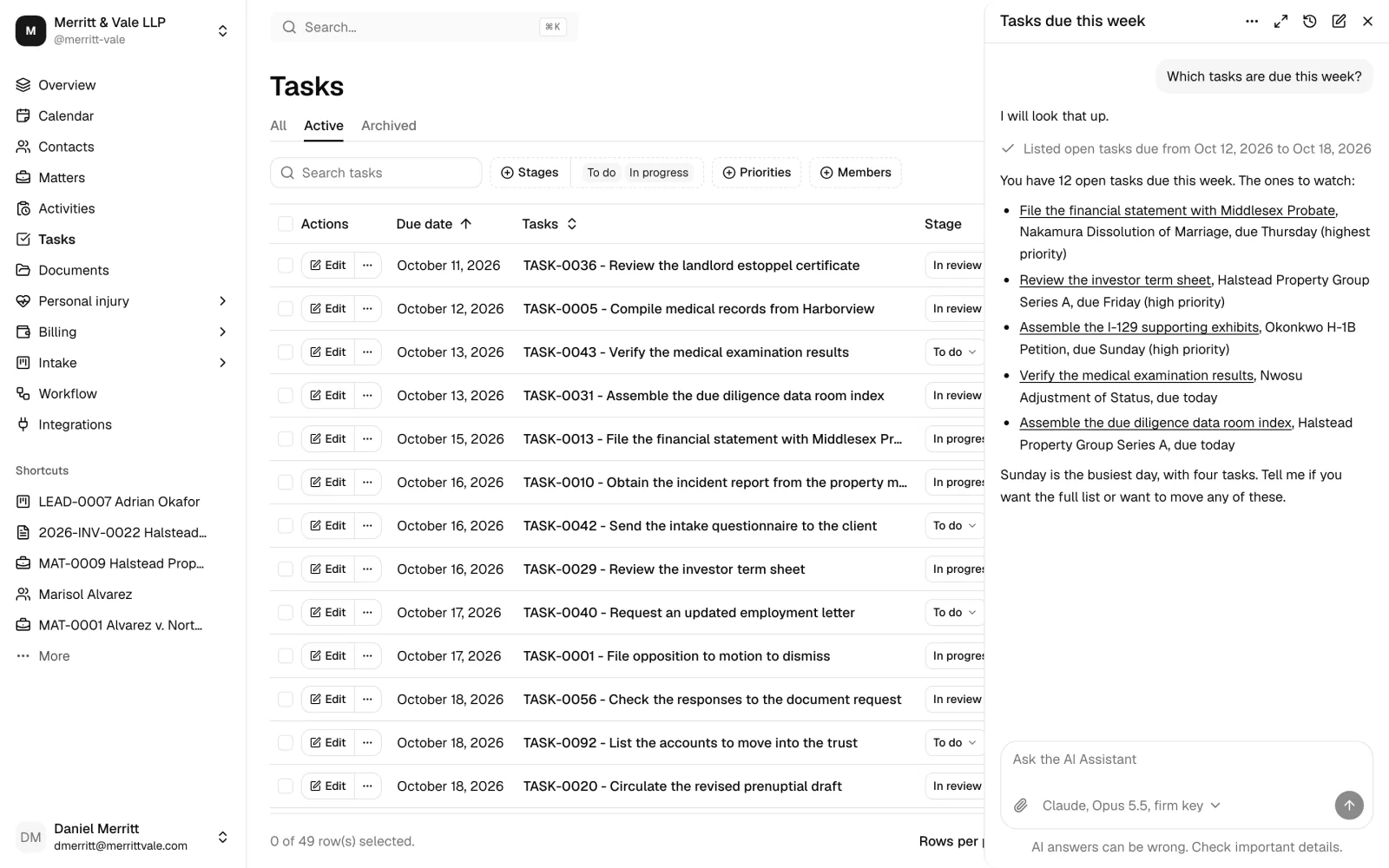
The AI Assistant is a chat panel inside the dashboard that you can also open as a full page. Ask it about your matters, contacts, leads, tasks, calendar, time, documents, invoices, billing reports, bank and trust accounts, court dates, and how your firm is set up, or ask it to make a change for you: draft a letter with your firm's placeholders, edit the document you have open, write and send an email, build a workflow or a form, run a workflow on a matter or a lead, set up tags, custom fields, and task list templates, or record an approval. It works through your firm's own Claude (Anthropic) or OpenAI API key, it acts as you, so it only sees and does what your role allows, and every change it proposes waits for you to click Confirm, or Send for an email.
This page explains how a firm sets the assistant up, how members use it, what it can do in this release, the limits it works within, and how your firm's data is handled.
Before you begin
- Plan. The AI Assistant is part of the Standard and Professional plans, including their free trials.
- Your firm's own API key. Esqase does not supply a model. Your firm needs an API key from Anthropic (for Claude) or OpenAI, and your firm's own agreement with that provider governs how it handles what the assistant sends. The provider bills your firm directly for what the key uses.
- Turning it on. A firm owner, or a member whose role includes Update access for Assistant settings, connects the firm's key and turns the assistant on. Owners and administrators have this by default.
- Using it. To use the assistant, your role needs View access for AI Assistant. Owners, administrators, and attorneys have it by default; staff do not. See Roles and permissions.
- Availability. The Claude and OpenAI cards on the Integrations page show Coming soon until Esqase makes them available for your firm. Until then no key can be connected.
Important: The AI Assistant is off for every firm until someone turns it on. If your firm has accepted the Esqase business associate agreement (BAA), turning the assistant on also asks the person doing it to confirm your firm's agreement with the AI provider (see What the provider statements mean).
Set up the assistant for your firm
Setup has three parts: connect a firm API key, turn the assistant on, and choose how it behaves. All three happen on one page.
- In the sidebar, open Settings.
- In the AI assistants section, click the Firm AI Assistant card. (You can also open Settings > Firm and click Firm AI Assistant in the list on the left, below Automation.)
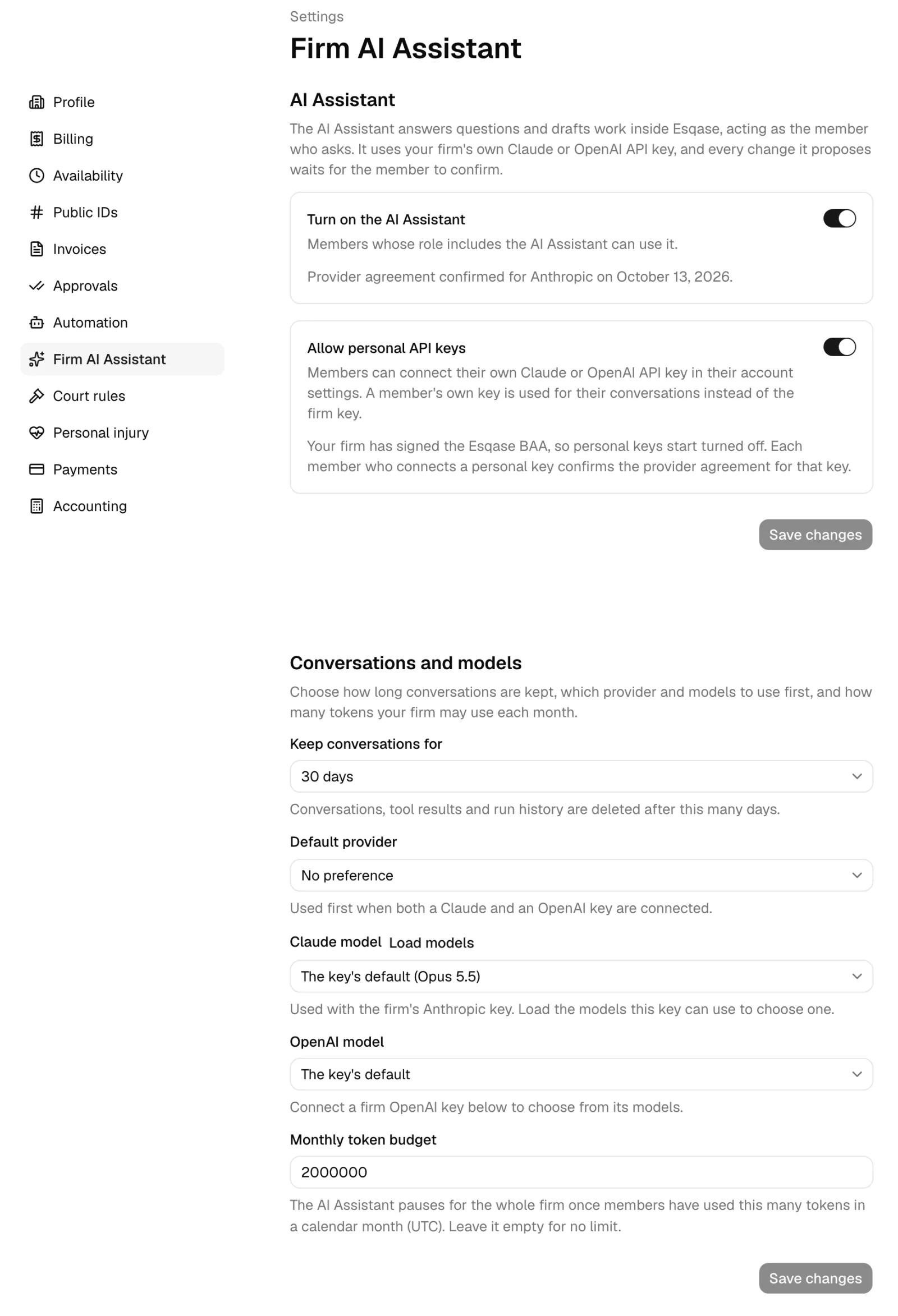
The page is titled Firm AI Assistant. Top to bottom, it has these sections: AI Assistant (the on switch and personal keys), Conversations and models, Usage this month, Firm API keys, Members' personal keys (only for members who can manage the settings), and Records sent to AI providers. The AI Assistant and Conversations and models sections each have their own Save changes button.
1. Connect a firm API key
The firm key is used for every member who can use the assistant, unless your firm allows personal keys and a member has connected their own (see Use your own API key). A member who has both can pick either one in the panel.
- Under Firm API keys, find the Claude or OpenAI row and click Connect. (On the Integrations page you can do the same from the Claude or OpenAI card under AI assistants: click Connect on the card, or click its settings button (the gear icon) and then Connect on the Firm key row. From there, a dialog, Connect Claude or Connect OpenAI, first explains what Esqase sends to the provider and that the provider handles it under your firm's own agreement. Read it, then click Continue.)
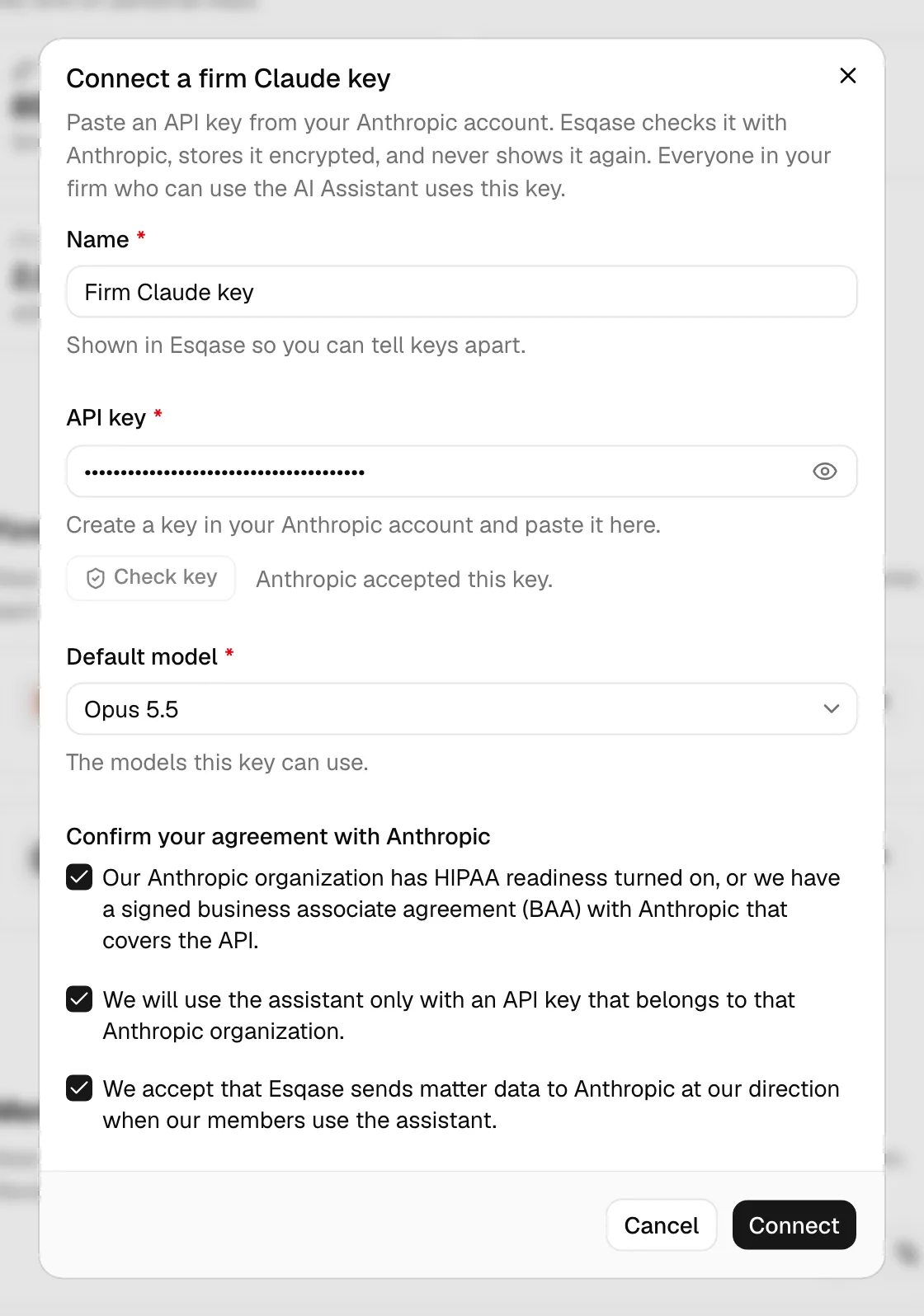
- The Connect a firm Claude key (or Connect a firm OpenAI key) dialog opens. Fill in:
- Name: filled in for you as "Firm Claude key" or "Firm OpenAI key". Change it if you like; it is shown in Esqase so you can tell keys apart.
- API key: paste a key you created in your Anthropic or OpenAI account. The key is hidden as you paste it; click the eye button to show it.
- Click Check key. Esqase checks the key with the provider and lists the AI Assistant's models that the key can use. When the check passes you see "Anthropic accepted this key." (or OpenAI). If you change the key afterwards, check it again.
- Default model is filled in with the first model the key can use, normally Opus 5.5 for Claude or GPT-6.1 Sol for OpenAI. Choose another if you like: the AI Assistant offers Opus 5.5, Sonnet 5.5, and Haiku 5.5 on Claude, and GPT-6.1 Sol, GPT-6 Astra, and GPT-6 Luna on OpenAI. If the key can use none of them, the dialog says so.
- Under Confirm your agreement with Anthropic (or OpenAI), tick each of the three statements. Connect stays disabled until the key is checked, a model is chosen, the name is filled in, and all three statements are ticked.
- Click Connect. You see Claude key connected (or OpenAI key connected) and the page updates in place, whether you connected from this page or from the Integrations page.
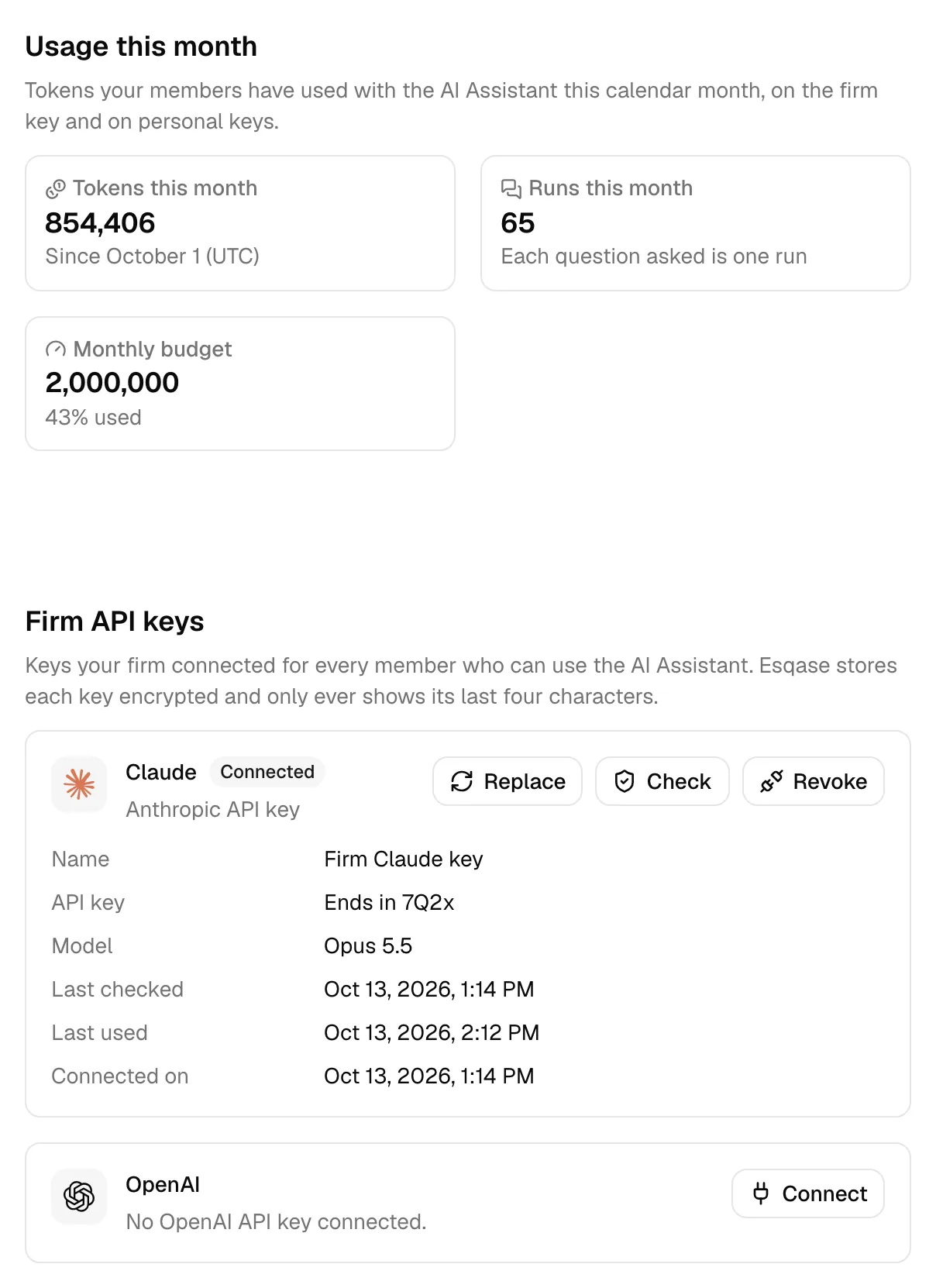
The row, which starts with the provider's logo, now shows a Connected badge and the key's details: Name, API key (only the last four characters, for example Ends in 7Q2x), Model (by name, for example Opus 5.5), Last checked, Last used, and Connected on.
Note: Esqase stores the key encrypted and never shows it again, not to you, to other members, or to the assistant. Only the last four characters appear anywhere in Esqase.
Note: Esqase limits how often API keys can be checked with the provider. Check key, Connect, and Replace key each count as one check. A member can make up to 10 checks in 10 minutes, and the whole firm up to 30. After that, the dialog says "Too many API keys were checked in the last few minutes. Wait a few minutes and try again".
The firm can have one Claude key and one OpenAI key. To change the key for a provider, use Replace (see Manage a connected key).
2. Turn the assistant on
- In the AI Assistant section at the top of the page, turn on Turn on the AI Assistant.
- If your firm has accepted the Esqase BAA, the three statements for your provider appear under the switch. Tick all three. (Which provider's statements appear follows the Default provider your firm has saved under Conversations and models, or the firm key you connected when none is saved.)
- Click Save changes in the AI Assistant section. You see The AI Assistant is on.
When the assistant is on and the firm key is connected, every member whose role includes AI Assistant sees the assistant button in the header. On a BAA firm, the page then shows Provider agreement confirmed for Anthropic on followed by the date (or OpenAI).
Note: If your firm has no active subscription, the switch is disabled with "The AI Assistant needs an active subscription." An owner also sees a Change your plan link.
3. Choose how the assistant behaves
Each section saves on its own. Its Save changes button turns on once you change a field in that section and saves only that section's fields, so unsaved changes in the other section stay as they are.
In the AI Assistant section:
- Allow personal API keys: lets members connect their own Claude or OpenAI key in their account settings. A member's own key is then used for their conversations instead of the firm key. It starts on for most firms and off for firms that have accepted the Esqase BAA. Each member who connects a personal key confirms the provider agreement for that key. Turning it off stops personal keys from being used, but does not delete them.
In Conversations and models, one field per row:
- Keep conversations for: how long conversations, the results of the assistant's steps, and its run history are kept before Esqase deletes them. Choose 7, 14, 30, 60, 90, 180, or 365 days. It starts at 30 days for firms that have accepted the Esqase BAA and 90 days for other firms.
- Default provider: which provider is used first when your firm has both a Claude and an OpenAI key. No preference uses Claude first.
- Claude model and OpenAI model: the model the assistant uses with the firm's key for that provider, by name, for example Opus 5.5 or GPT-6.1 Sol. The key's default uses the model chosen when the key was connected and names it, for example The key's default (Opus 5.5). To see every model the key can use, click Load models beside the field. Members can still pick another model for their messages in the panel (see Choose the model).
- Monthly token budget: a cap on how many tokens your whole firm may use in a calendar month (UTC). Once it is reached, the assistant pauses for everyone until the next month starts or you raise the budget. Leave it empty for no limit.
Tip: Tokens are how AI providers measure the text a request sends and receives. Every request also carries the assistant's own instructions and a description of each step it can take, so even a short question uses tens of thousands of tokens, and a question that reads several records uses more. The first request of a conversation costs the most, because all of that is sent up front; the provider keeps it for a short time, so requests that follow soon after reuse it at the provider's lower cached rate. The figures in Esqase count every token sent, reused or not. Your provider charges your firm per token.
See your firm's usage
Usage this month shows three figures for the current calendar month (UTC), two to a row:
- Tokens this month: tokens used by every member, on the firm key and on personal keys.
- Runs this month: each question a member asks is one run.
- Monthly budget: your budget and how much of it is used, or No limit with the hint "Set a monthly token budget above to cap usage" when your firm has not set one.
See what was sent to AI providers
At the bottom of the page, Records sent to AI providers lists each request the AI Assistant sent to Anthropic or OpenAI for your firm: when it was Sent, the Member who asked, the Provider and Model, the Records sent with it, the Tools it used, and its Size. Message text is never kept in this list. The four cards above it, two to a row, count the requests, runs, records, and data sent in the chosen dates. Pick a date range (the last 30 days to start) and click Export disclosures to download the list as a CSV file, for example to answer a client who asks who their information was shared with. The list shows 20 rows per page to start; change it with Rows per page below the list. Each member sees the same list for their own conversations, Records sent from my conversations, on the My AI Assistant settings page.
Manage a connected key
Each connected key has the same three actions, with the same names, on the firm settings page, on your account settings page, and in the card's settings on the Integrations page (the gear icon on the Claude or OpenAI card):
- Replace: paste a new key from the same provider in the Replace the firm Claude key dialog (or Replace your Claude key, and the same for OpenAI). Esqase checks it, replaces the saved key, and keeps the connection, its name, and its model (if the new key can use it). Click Replace key to finish; you see Claude key replaced (or OpenAI key replaced). Checking and replacing a key in this dialog count toward the key check limit described in Connect a firm API key.
- Check: Esqase checks the saved key with the provider again. If the provider no longer accepts it, the key is marked Needs attention and the assistant stops using it. On the settings page, a key that needs attention says "Anthropic didn't accept this key the last time it was checked. Replace the key, or check it again if you fixed it at Anthropic." A check that fails for a temporary reason, such as the provider being busy, changes nothing. Checking a saved key does not count toward the key check limit.
- Revoke: Esqase asks you to confirm (Revoke the firm Claude key? or Revoke your Claude key?), then deletes its saved copy of the key, and the assistant can no longer use it. You see Claude key revoked (or OpenAI key revoked). Revoke the key in your Anthropic or OpenAI account too if you no longer need it.
Note: Revoking the firm key does not delete anyone's conversations. Members simply cannot use the assistant until a key is connected again, unless they use their own key.
Members' personal keys
Owners and members with Update access for Assistant settings see a table of the personal keys members have connected: Member, Provider, Name, API key (last four characters), Status, and Last used. Click Revoke on a row, then Revoke key, to delete that member's key; their conversations then use the firm key. Members' keys are always masked, and nobody but the member can replace or check them.
Use your own API key
When your firm allows personal keys, you can connect your own Claude or OpenAI key. Your key is then used for your conversations instead of the firm key, and only you use it. You can still pick a model on the firm key in the panel (see Choose the model).
- In the sidebar, open Settings.
- In the AI assistants section, click the My AI Assistant card. (You can also open Settings > Account and click My AI Assistant in the list on the left.)
- Under Your API keys, click Connect on the Claude or OpenAI row, then follow the same steps as for a firm key: Name, API key, Check key, Default model, the three statements, and Connect.
Below your keys, My usage this month shows the tokens you have used and the runs you have started this calendar month, side by side, whichever key they used. Records sent from my conversations then lists the requests sent for your own conversations (see See what was sent to AI providers).
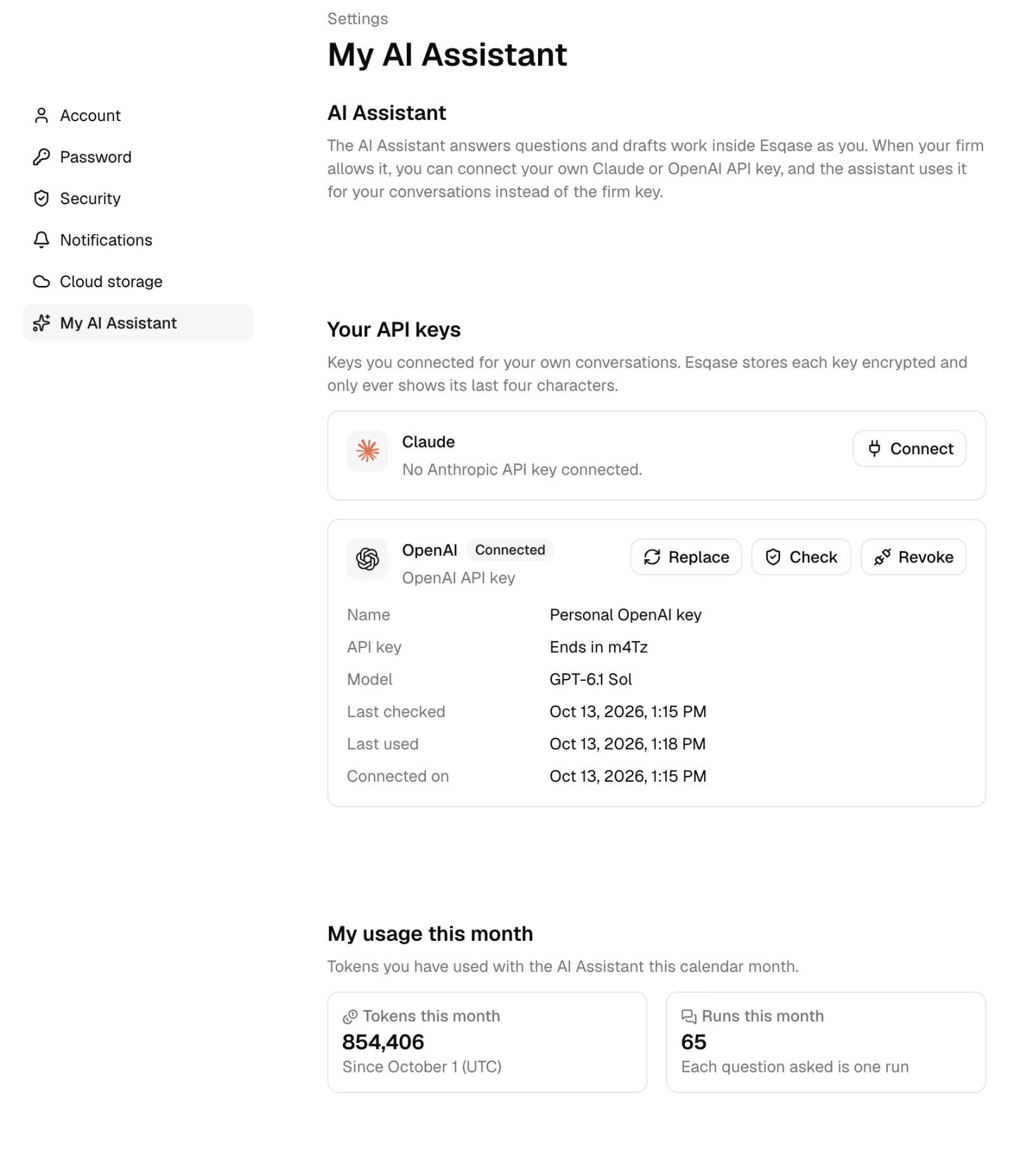
The page explains when your key cannot be used:
- Your firm doesn't allow personal API keys: the assistant uses the firm key for you. A personal key you connected earlier stays on file, and you can still check or revoke it, but it is not used.
- The AI Assistant is turned off for your firm: you can still manage your keys, but nobody can use the assistant until the firm turns it on.
- The AI Assistant needs an active subscription: ask your firm owner about the plan.
Important: With a personal key, the assistant does not read the text of documents or draft documents, and you cannot attach documents to a message. These run only on the firm key, whose provider agreement your firm confirmed.
Open the assistant
When the assistant is available to you, the AI Assistant button (a sparkle icon) appears in the header, just left of Messages. Click it to open the panel, which slides in from the right side of the screen. In the document editor, the same button is in the editor's own header, just left of Comments (see Editing the open document).
- The rest of the dashboard stays usable while the panel is open: you can click, scroll, and type on the page beside it, and clicking there does not close the panel. The panel also stays open while you move between pages, so you can keep a conversation going while you work.
- Close it with the X in its corner, or press Escape while you are in the panel. On a touch screen you can also swipe it to the right.
- On a phone, the panel fills the screen.
- The top of the panel shows the conversation's title, Conversation actions (the three dots, see Rename or delete a conversation), Expand (the two arrows icon, see Use the full page), Conversations (the history icon), New conversation (the pencil icon), and X.
- The bottom of the panel holds the message box. Below the text you type are the attach button (a paperclip, see Attach documents and files) and the model button (see Choose the model). Under the box, one line reminds you: "AI answers can be wrong. Check important details." Your usage for the month is on the settings pages, and appears when you hover over the model button.
When the button is dimmed
If the assistant cannot be used right now, the button is dimmed. Hover over it, or click it, to see why, with an Open assistant settings link to the page where the problem can be fixed (when your role can open it):
| Message | What to do |
|---|---|
| The AI Assistant needs an active subscription | A firm owner chooses a plan. |
| The AI Assistant is turned off for your firm | Someone who manages the assistant settings turns it on. |
| Connect a Claude or OpenAI API key to use the AI Assistant | Connect a firm key, or your own key if your firm allows personal keys. |
| The API key for the AI Assistant needs attention. Check or replace the key | Check or replace the key that failed its last check. |
| Your firm has used this month's AI Assistant token budget | Wait for the next month, or raise the Monthly token budget. |
| The AI Assistant isn't available right now. Please try again later | Esqase has paused the AI provider your firm's key uses. Nothing needs changing on your side; try again later. |
If your role does not include AI Assistant, the button does not appear at all.
Ask a question
- Click the AI Assistant button in the header.
- Type in the Ask the AI Assistant box at the bottom. Press Enter or click the arrow button to send, or press Shift and Enter for a new line. A message can be up to 20,000 characters.
- While the assistant works, the conversation ends with a grey line and a small spinner that says what it is doing: Thinking, the step it is taking (for example Reading matters or Creating a task), or Working on it between steps. Each step appears as a short row, with a spinner while it runs and a check once it is done, followed by what it found in plain words. A step that reads one record names it when you can open it, for example Listed tasks on matter 'MAT-0012 - Smith v. Jones'; a record on a personal injury matter, or one your role cannot open, is shown by a short id instead. While it works, the arrow button turns into Stop (see Stop, cancel, resume, and closing the panel).
- The answer appears in the conversation, which scrolls to follow it. When the assistant took several steps, they fold into one line above the answer, such as Worked for 12s; click it to see the steps again. Names of records in the answer link to the record in Esqase. If you scroll up to read earlier messages, an arrow button appears at the bottom of the conversation to take you back to the latest one.
Good questions name what you are looking for: "Which of my tasks are due this week?", "What stage is the Alvarez matter in?", "How much unbilled time is there on MAT-0012?", or "Draft an engagement letter for the Chen matter". If several records match a name, the assistant asks which one you mean rather than guessing, often with a short form (see Answer the assistant's questions).
Choose the model
The model button under the message box shows the provider, model, and key your next message uses, for example Claude, Opus 5.5, firm key. To start, it shows the model Esqase picks from your firm's settings: your personal key first when your firm allows personal keys and you have connected one, otherwise the firm key, with the model set under Conversations and models or the key's default.
- Click the model button. A list opens with each model the AI Assistant offers on every key you can use: Opus 5.5, Sonnet 5.5, and Haiku 5.5 on a Claude key, and GPT-6.1 Sol, GPT-6 Astra, and GPT-6 Luna on an OpenAI key, each marked Firm key or Personal key. Type to search the list.
- Click a model. Your next message uses it, and the choice holds until you pick another or reload the page.
Hover over the model button to see how many tokens you have used this month; the list shows the same line at the bottom. If the provider says your key cannot use the model you picked, the answer stops with a message that names the model; pick another one and send again.
Attach documents and files
When the selected model runs on the firm key, you can attach documents and files to your message so the assistant reads them when it answers.
- Click the attach button (the paperclip) below the message box. A small menu opens with Upload from computer and Choose from documents.
- To attach something already in Esqase, click Choose from documents. A list of your recent documents opens: documents written in the Esqase editor, files uploaded to Esqase, and files synced from Google Drive, OneDrive, or Dropbox. Each shows its type (for example PDF from Google Drive) and, when it is filed on a matter, the matter. Type to search by title, and click a document to attach it, or click it again to remove it. If nothing matches, the list says No documents found.
- To attach a file from your computer, click Upload from computer and choose one or more files. Each file is uploaded to Documents, at the top level, the same way as any other upload, and then attached. The paperclip shows a spinner while files upload. If the assistant cannot read a file, the file is still saved, and Esqase tells you that it was saved to Documents but the AI Assistant can't read it.
- Attached documents and files appear above the text you type, each with an X to remove it. You can attach up to 20 to one message. Once you have attached 15, a small count such as 15 of 20 appears next to the paperclip.
- Send your message. The titles of what you attached appear under your message.
How the assistant reads what you attach:
- Documents written in the Esqase editor: it reads the full text.
- Uploaded and synced files: it reads the text Esqase stores for the file, up to 200,000 characters (roughly 60 to 100 pages). For a longer file it reads that much and tells you the rest was not read. Esqase reads a file's text after the file is added or changed: Word, Excel, PowerPoint, OpenDocument, and text files and PDFs with selectable text are read directly, and scanned PDFs, images, audio, and video are transcribed, which can take a few minutes more.
- While the text is being read: the assistant reads the short summary Esqase keeps for search (what the file is, its type, the people involved, and key words) and says that the full text is still being read.
- Not ready yet: a file that Esqase has not finished reading shows this mark. You can attach it; if it is still not ready when the assistant looks at it, the assistant tells you so.
- Not readable: a file that Esqase cannot read shows this mark and cannot be attached. Examples are older Word, Excel, and PowerPoint files (.doc, .xls, .ppt), RTF and zip files, PDF, image, audio, video, and text files over 20 MB, newer Office and OpenDocument files over 25 MB, and files added while your firm had AI document indexing turned off (see Turn AI document indexing on or off).
- Documents on personal injury matters are not listed.
- Attachments need the firm key. When the selected model runs on your personal key, the paperclip is greyed out with "Attachments need a firm key". If you switch to a personal key after attaching documents, remove them or choose a model on the firm key before you send.
Answer the assistant's questions
When the assistant needs more details, for example which of several matters you mean or which date to use, it can ask you one to five short questions. Once its answer has finished, they appear as a small form at the end of the conversation.
- Type your answer, or pick one option (or several, when the question allows it).
- With more than one question, the form shows which one you are on, for example Question 1 of 3. Use Next, Previous, and Skip to move between them.
- Click Send answers.
Your answers are sent as your next message, each question followed by your answer (a skipped question reads No answer), and the assistant carries on. Anything you were typing in the message box stays there. The form appears only for the assistant's latest questions and goes away once you send another message, so you can also simply type your reply instead.
Conversations
- Click Conversations (the history icon) at the top of the panel to see your earlier conversations, newest first. Each row shows the conversation's title and, at the right, the date and time it was last used, in your firm's time zone. Click one to open it, or click Back to the conversation (the speech bubble icon) to return to the one you had open. If you have more conversations than the list shows, click Show more at the bottom. If you type a message while the list is open, it starts a new conversation.
- Click New conversation (the pencil icon) to start a fresh conversation.
- A new conversation first takes the first line of your first message as its title. While it answers that message, the assistant gives the conversation a short title of a few words that says what it is about. A name you give a conversation yourself always stays; the assistant never renames it.
- Your conversations are private to you. Nobody else at the firm can open them, including owners.
- Conversations are deleted automatically once they are older than your firm's Keep conversations for setting.
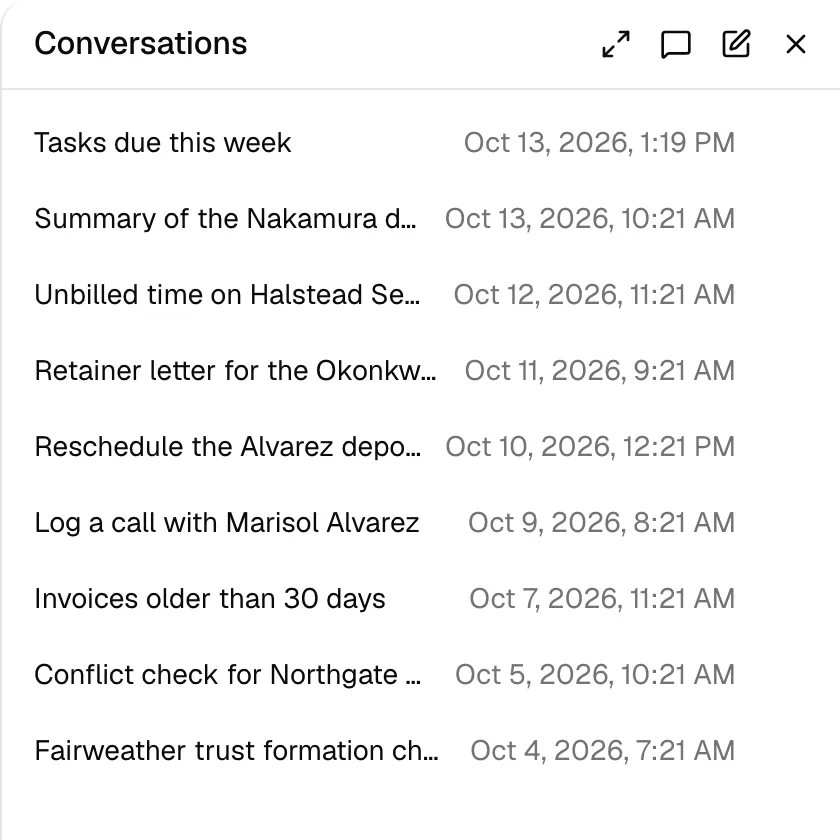
Rename or delete a conversation
Each conversation has a Conversation actions menu (the three dots) with Rename and Delete.
- In the list: click Conversations, point at a conversation, and click the three dots on its row. (On a touch screen they are always shown.) Rename turns the title into a text box: type the new name, up to 80 characters, and press Enter to save, or press Escape to keep the old name. Clicking elsewhere also saves.
- In an open conversation: click the three dots next to the title at the top of the panel. Rename opens the Rename conversation dialog: type the name and click Save.
You see Conversation renamed once the name is saved.
Delete asks first. The Delete conversation? dialog explains that the conversation is removed from your conversations and deleted for good within a day. Click Delete conversation to confirm, and you see Conversation deleted. Changes the assistant made to your records stay. While an answer is running, the menu waits until it finishes.
On the full page, the same menu is on each conversation in the Conversations list and next to the title at the top (see Use the full page).
Use the full page
For longer work, open the assistant on a page of its own, with the conversation in the middle of the screen.
- In the panel, click Expand (the two arrows icon) at the top. The panel closes and the AI Assistant page opens on the same conversation.
- The conversation and the message box work exactly as in the panel: the paperclip, the model button, Stop, confirmation blocks, and the assistant's questions.
- At the top, next to the conversation's title, are the same buttons as at the top of the panel: New conversation (the pencil icon), Conversations (the history icon), Open in side panel (the two arrows pointing inward), and the Conversation actions menu. Open in side panel closes the page, takes you back to the page where you clicked Expand (or to the overview if you opened the full page directly), and opens the panel there on the same conversation.
- Click Conversations to see your conversations in place of the messages, as in the panel. The title changes to Conversations, and the button turns into Back to the conversation (the speech bubble icon) while the list is shown. At the top of the list, a Search conversations box searches the titles of all your conversations; below it are your conversations, newest first, each with its title, the date and time it was last used, and its Conversation actions menu. If no title matches, it says No conversations match your search.
- Click a conversation to open it, or click New conversation to start one; either way the messages come back. Click Back to the conversation to go back to the conversation you had open; the button turns back into Conversations (the history icon). As in the panel, the message box stays below the list, and a message you type while the list is shown starts a new conversation.
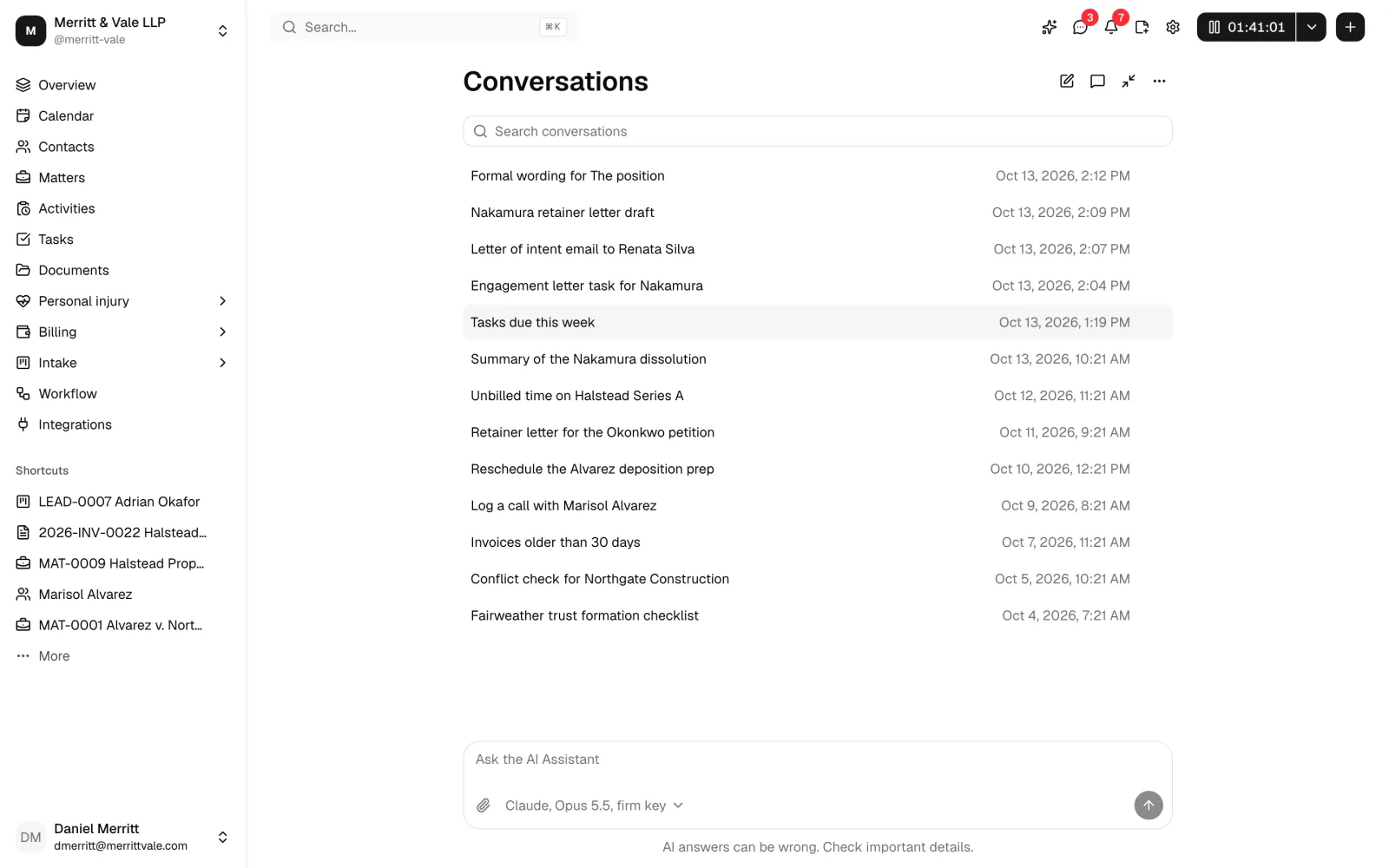
- The page's address includes the conversation, so you can bookmark it, or reload the page, and come back to the same conversation.
- On this page, the AI Assistant button in the header puts the cursor in the message box instead of opening the panel.
- While an answer is running, New conversation, Conversations, Open in side panel, and Expand wait until it finishes. If you leave the page while an answer is running, the answer is interrupted; when you open the panel, the assistant picks up where it left off, or offers Resume if it cannot continue by itself.
- If the assistant cannot be used right now (see When the button is dimmed), opening the page takes you to the overview instead.
Confirm or decline a change
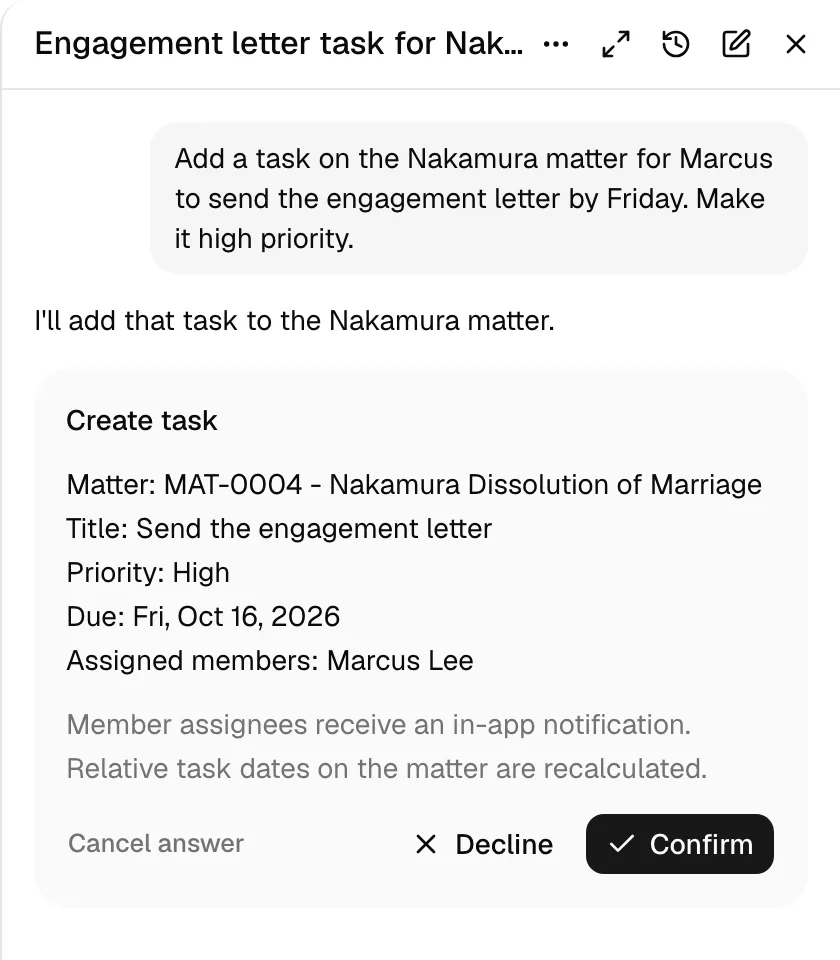
The assistant never changes anything on its own. When it wants to create, update, move, archive, or log something, it shows a confirmation block, a grey box in the conversation, and waits for you.
The block shows:
- The title of the change, for example Create task or Archive matter.
- The change in plain words, one line per detail. Records are named by their title or number, people by their name, and dates as days, for example Title: Send the engagement letter, Due: Fri, Oct 16, 2026, or Assigned members: Marcus Lee. A record your role cannot open is not named.
- A note for some changes, in grey: a change to billing records says "This changes billing records. Nothing changes until you confirm.", an archive, a cancellation, or a change that removes or deletes something says "This archives or cancels a record. Nothing changes until you confirm.", and an email says "This sends an email from your connected mailbox. Nothing is sent until you click Send." A change that makes something public or turns automation on says so first, for example "This makes it public. Nothing changes until you confirm." when you publish a form, or "This turns automation on. Nothing changes until you confirm." when you turn on a workflow's automation.
- Effects, in grey: what else happens when this change runs, for example assigned members getting an in-app notification, a client contact being told about a new event, or the event being copied to your connected calendar. Where Esqase can tell from the details, the block lists only the effects that apply, so the client notice appears only when a client contact is added. A change with nothing else to report shows no effects.
- Cancel answer, Decline, and Confirm at the bottom. An email shows Send (with an envelope icon) instead of Confirm, and an Edit button next to Decline. An edit to the document you have open shows a preview of the change and Apply instead of Confirm (see Editing the open document).
If Esqase cannot put a change into plain words in time, the block lists the details the assistant filled in instead, by field name, and the effects show everything this kind of change can do.
Click Confirm to make the change, or Decline to tell the assistant not to. Blocks that archive, delete, or remove something, or cancel an event, show Confirm in red, for example archiving a matter, deleting a tag, removing a workflow step, or removing custom fields from a record. To stop the whole answer instead, click Cancel answer (see Stop, cancel, resume, and closing the panel).
For an email, the block also shows the email exactly as it will be sent, below the recipients and the subject, so what you read is what goes out. Click Send to send it as shown, or Edit to change it first. Edit declines this draft and puts the email in the message box, with its recipients (including any Bcc), subject, and text, so you can change what you want and send your message; the assistant then shows the revised email in a new block. See Write and send email.
Publishing a form, turning on a workflow's automation, and changing a question on a public form or an automatic step of a workflow that already runs on its own show a block that says what goes live or which automation turns on. So do adding a workflow whose automation is on to a matter or a lead, and starting or resuming automation on one: the block lists the steps that run on their own. Nothing changes until you confirm. If the form or the workflow changed after you confirmed, so that the change would now go live on a public form or more would run on its own, nothing changes and the assistant asks you again.
Once you decide, the block shrinks to one line: what was done, with a check, for example Created task T-0007 Call the client back., or Declined: Create task. After Cancel answer it reads Not confirmed: Create task. Click the line to see what was proposed.
Some rules that always apply:
- Every change, every time. Saying "I confirm in advance" or "don't ask me" in the chat does not skip the confirmation block. Only the Confirm button counts.
- Archiving, cancelling, converting a lead, sending an email, publishing a form, turning on automation, and anything that touches invoices or credit notes ask in their own block each time, even in the middle of a longer request. So do approving an invoice, approving an invoice step of a workflow, and adding a bank or trust account with an opening balance.
- A declined change is not proposed again in the same request. The assistant tells you what it did not do.
- One request at a time. While a confirmation block is waiting, you cannot send another message: confirm or decline the change, or click Cancel answer, first. If you send a message to the same conversation from another tab, the waiting request is cancelled and nothing in its block is changed.
Stop, cancel, resume, and closing the panel
- Stop: while the assistant is working on an answer, the send button in the message box turns into Stop. Click it to stop the current answer. Anything you already confirmed stays done; nothing else runs. The conversation then ends with You stopped this answer.
- Cancel answer: while a confirmation block is waiting for you, click Cancel answer in the block. It stops the answer in the same way, and nothing in the block is changed.
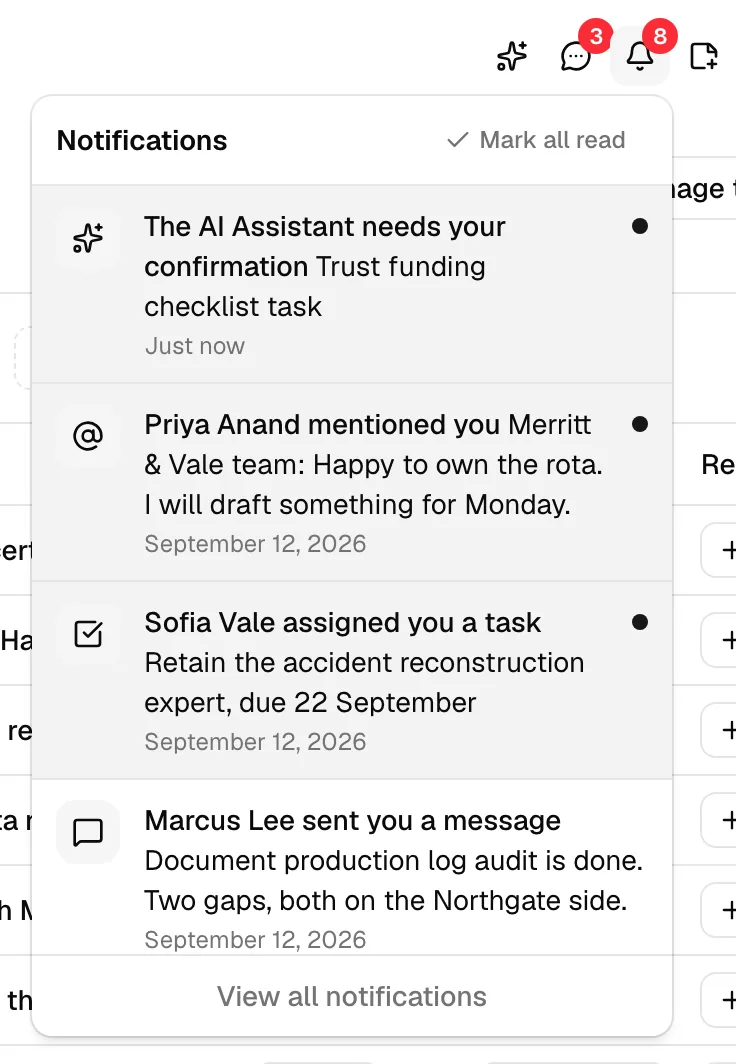
- Closing the panel does not stop the assistant. It keeps working while you use the rest of the dashboard in the same tab, and the conversation and any waiting confirmation blocks are there when you open the panel again. If it stops to wait for you while the panel is closed, you get a notification (see When the assistant needs you).
- Reloading the page, closing the tab, or leaving the dashboard (for example to open a settings page) interrupts the answer, and so does leaving the full AI Assistant page while an answer is running. When you open the panel again, the assistant picks up where it left off. If it cannot continue by itself, the conversation ends with This answer was interrupted and a Resume link: click Resume to continue, or Stop in the message box to end the answer. An action that was cut off in the middle is marked as interrupted, with a message to check the record before you try again.
- When something goes wrong, a red message in the conversation says so, for example The AI Assistant couldn't answer, with what happened.
When the assistant needs you
When the assistant stops to wait for you, with a confirmation block or with questions, and you are not looking at that conversation, Esqase sends you a notification. That happens when you closed the panel, opened another conversation, or switched to another tab or app while it worked. Nothing is sent while the conversation is open in front of you.
- The notification reads The AI Assistant needs your confirmation or The AI Assistant asked you a question, followed by the conversation's name. It never shows what the assistant proposed or asked.
- Click it in the bell, on the Notifications page, in the message in the corner of the screen, or in a desktop alert. The assistant panel opens on that conversation on the page you are on, showing the block or the questions. On the full AI Assistant page, the conversation opens on the page. Opened from an email, or from a desktop alert when no Esqase tab is open, it opens the overview with the panel open.
- Once the block or the questions are on your screen, the notification is marked read.
- The notification is deleted with the conversation, when you delete it or when it reaches your firm's Keep conversations for period.
- Only you get it, for your own conversations. Turn it off with the AI Assistant needs my input row under Settings > Notifications. See Notifications.
What the assistant can do
In this release the assistant works with the records below. It can only reach an area your role can see, and each change still needs the same permission it needs when you make it yourself. If your role cannot see invoices, for example, the assistant cannot read or create them for you, and if your role cannot see activities, it cannot read or log time for you; when you ask, it tells you your role doesn't allow it.
The assistant starts with what it needs for the page you are on and loads more as a request needs it, so you can ask about anything from any page. When it loads more, a step such as Loaded the billing tools appears in the conversation. There is nothing for you to switch on. On an OpenAI key one conversation can hold only so many tools; when a request needs more than that, the assistant says so and suggests starting a new conversation.
Finding records
- Search across your firm's records, and find a matter, contact, or lead by name or number. Search results include names and titles, not the contents of documents or messages.
Matters
- List, search, and open matters, read a matter's recent activity, and read and add comments (including mentioning a colleague).
- Create a matter, from a matter template if you like, and move a matter to another stage.
- Archive or restore a matter.
- List matter templates and practice areas, and run a conflict check. A conflict check is saved to your firm's conflict check history, so it asks for confirmation like a change.
Contacts and leads
- List, search, and open contacts, create a contact, update a contact (adding a phone number keeps the existing ones), and archive a contact. List contact tags.
- List and open leads, create a lead, update a lead, move a lead to another stage, and convert a lead to a matter.
Tasks
- List and open tasks, create a task, change its details, move it to another stage, complete it, assign or unassign members and client contacts, and archive it. List task lists.
- A task date given without a time is due at 9:00 in your firm's time zone.
Calendar
- List and open events, create an event, change its details, reschedule it, and cancel it.
- The assistant changes, reschedules, or cancels only events you host or created.
- Client contacts can be added to an event or a task only as existing contacts. When a client is added, the client gets the usual notice from Esqase, and the confirmation card lists it under Effects.
Time and expenses
- List time and expense entries, log time, log an expense, and change an entry. List time and expense categories.
- Start and stop your own timers, and list your running timers.
Notes
- List notes, create a note, and change a note.
Documents
- List documents and document templates, and show a document's details, folder, and versions.
- Read the text of a document written in the Esqase editor, and the text Esqase stores for an uploaded or synced file (up to 200,000 characters), or its search summary while that text is still being read, including what you attach to your message (see Attach documents and files).
- Change the document you have open in the editor: write at the cursor, rewrite the text you selected or a section, or add to the end. You see the change before you click Apply (see Editing the open document).
- Draft a document: a new document, or a new version of an existing one. Before it replaces a document's content, Esqase saves the old content as a named version, and the assistant never changes a document that has a signature request open. The answer links to the draft so you can open and review it.
- When it drafts a document for a matter, it uses your firm's placeholders instead of typing names, numbers, and dates (see Drafting with placeholders). It can also tell you what a letter would fill in for a matter, a lead, or a contact, and which values are missing.
Billing
- List and open invoices, show invoice totals, and list unbilled time and expenses.
- Create an invoice from unbilled entries, change an invoice, and write off an invoice. Invoices the assistant creates are drafts unless you ask it to submit them. When it changes an invoice's template, the new template has to be an active one, and asking for no template gives the invoice your firm's default template.
- List your invoice templates and create an invoice on the template you name. The confirmation block shows a Template line with the template the invoice uses; (default) means you did not name one and the invoice uses your firm's default template. See Invoice templates and the builder.
- List credit notes and create a credit note.
- List and open payments, and show the trust balance for a client or a matter.
- Show an invoice's payment plan: each installment and its state, and whether autopay is on.
- Show the billing overview for a period you name (this month to start, last month, a quarter, a year, the last 7, 30, or 90 days, the last 12 months, or your own dates): revenue, refunds, net revenue, and the change from the period before or from the same days a year earlier. Break revenue down by member or by practice area.
- Show aged receivables (what clients owe, grouped by how long it has been due, and the clients who owe the most) and realization (what was billed, collected, outstanding, written off, and credited for invoices issued in a period).
- List your firm's bank and trust accounts with their balances, and open one; for a trust account it also shows the three-way reconciliation as of a day and the largest client trust balances. List an account's transactions, newest first, with the running balance. Account and card numbers are never shown, and entries on personal injury matters are left out of a ledger.
- Add a bank or trust account, change an account's details, and archive an account whose balance is zero, or restore it. An opening balance records a deposit, so that block is a billing confirmation, and archiving shows Confirm in red.
- These follow the same permissions as the billing pages: the overview, revenue, and ledgers need Transactions view, aged receivables, realization, and payment plans need Invoices view, and accounts need Accounts. See The billing overview dashboard, Financial reports and exports, and Accounts, trust, and transactions.
Communications
- List logged calls and emails, open one, and log a call or email.
- Correct a logged call or email: its subject, notes, time, and people. Emails sent or synced through a connected mailbox stay as they are.
- Write and send email, save an email as a draft without sending it, and work with your email templates: list and read them, fill one in for a client or a matter, create one (private unless you share it), and change a template's name, subject, text, or sharing. See Write and send email.
- These follow the same permissions as the pages: creating or changing an email template needs Email templates create or update, and logging or correcting a call or email, or saving a draft, needs Communications create or update. Sending an email needs both Communications create and update, because Esqase files the sent email in the communication log. Without them the assistant tells you your role doesn't allow it, before anything is saved or sent.
Court dates
- For firms with court rules turned on, tell you which court rules your firm follows for a matter's court and whether they are applied, list the court dates on a matter, and calculate the dates a set of court rules gives from a trigger event, for example the day the summons was served, how it was served, and any questions the rules ask.
- Add those court dates to the matter after you confirm. The block shows the matter, the court rules and their version, the trigger and its day, how many dates and the first few of them, whose calendar gets them, tasks, and reminders; it uses your firm's Court rules settings unless you ask otherwise.
- Take one court date off a matter after you confirm: the date is marked not applicable, or vacated when the court cancelled it, its calendar event and task are archived, and you can reopen it on the Court dates tab. Listing court dates and taking one off still work if your firm's court rules add-on has ended; calculating and adding dates need it.
- It shows the same notice the Court dates tab shows: check each date against the governing rules and your orders. It does not change a date by hand, recalculate after a trigger changes, accept or reject proposed changes, or add a court to a matter; use the Court dates tab for those. See Applying court rules.
Workflows, forms, and invoice templates
- List and read workflows and forms, create a workflow and add, change, reorder, or remove its steps, and turn a workflow's automation on or off. Steps are manual unless you ask for automatic ones.
- Create a form, add, change, or remove its questions, and publish it as a lead intake form at a public link.
- Create an invoice template, copy one, restyle it (page size, margins, colors, font), and make one your firm's default.
- Logos and images on invoice templates, and form styles and custom CSS, are changed in the builders, not by the assistant. These need the same role permissions as the Workflows, Forms, and Invoice templates pages. See Workflows, Building forms, and Invoice templates and the builder.
Workflows on matters and leads
- Show where a matter or a lead stands in its workflows: each step, its state, and what you can do with it next.
- Add a whole workflow or one checklist step to a matter or a lead, and mark steps done or not done.
- Run, approve, reject, skip, or retry a step of a running workflow, and approve the invoice an invoice step created. Approving an invoice step is a billing confirmation.
- Pause, resume, or start automation on the matter or lead, and remove a step. What the step created, such as a task, a form request, an invoice, or a document, stays.
- These need the same permissions as the Workflow section of a matter or lead: Workflows update plus Matters or Leads update, and Invoices update to approve an invoice. Personal injury matters are not available, and archived matters and leads that became matters are read only. See Assigning and attaching workflows and How automation runs your workflows.
Comments, feed posts, and approvals
- Read the comments on a task, document, invoice, contact, lead, or feed post, and add a comment or a reply. The block names the record, the text, and who is notified. A reply in a document thread that guests can read is visible to them.
- Read the firm feed and one post with its comments, publish a post now or at a day and time in your firm's time zone (members who can see Feeds are notified when it is published), and edit or delete your own posts. Posts by other members are not changed, even if your role can moderate the feed. See Feeds.
- List the reviews waiting on you or requested by you, for invoices and documents, read one with a summary of the invoice or document, and record Approve or Request changes. Request changes needs a note, which is posted as a review comment. The decision is tied to the version the assistant read: if the invoice or document changed in between, even in the moment before the decision is saved, nothing is recorded and the assistant asks you to look again. Approving an invoice asks for confirmation like any billing change; once the last approval is in, the invoice leaves In review. Only members whose role approves that kind of item are offered this, and authors cannot approve their own items unless your firm allows it. See Approvals.
Integrations, roles, and firm details
- Tell you which integrations are connected, which need attention, and what each one enables, without showing account addresses or keys.
- Show who holds which role and a summary of what each role can do. Roles and permissions are still changed in Settings > Roles.
- Show your firm's addresses and contact channels and add, change, or remove them. Seeing the addresses needs the Firm address view permission and seeing the contact channels the Firm contact info view permission, as in Settings > Firm; changing them needs the matching update permission, and the firm keeps at least one of each. Every member can still ask for the firm's name, time zone, and currency.
Tags, lead sources, and practice areas
- Create, rename, recolor, archive, and restore tags and lead sources, and create, rename, archive, and restore practice areas, including personal injury ones.
- Mark a practice area as personal injury, or take the mark off. Taking it off shows Confirm in red, because the assistant can then read and change that area's other matters, and it is refused while matters in the area are tracked as personal injury. See Practice areas and stages. A tag is deleted only once it is archived, as in Settings, and deleting it cannot be undone.
- Add tags to a document or take them off. Contact tags change with the contact. Documents on personal injury matters are not tagged.
- A name already in use is refused, so asking twice never makes two. A new practice area starts without pipeline stages or matter types, which you add in Settings.
Custom fields
- List, read, create, change, archive, and restore custom fields and field sets, including which fields a set holds and their order. Fields and sets are archived, never deleted. See Custom fields.
- Set custom field values on a matter, a lead, or a contact, naming each field by its name or title, add a field set to a record, and remove fields from a record. Removing fields shows Confirm in red, because their values are lost.
- Values follow the field's type, for example a choice from its list or a date, and a required field needs a value. Personal injury matters are not available.
- Adding fields to a record needs the Custom fields view permission, and values on a matter need Matters update.
Task list templates, activity categories, and working hours
- Read your firm's task list templates, create one, and add, change, or remove its items, with their date rules, sub-items, and assignees. Removing an item removes its sub-items too.
- Apply a task list to a matter or a lead. Its tasks land in the first task stage, assigned members are notified, and client contacts assigned to a task that is not private see it in the client portal.
- List, add, change, and archive your firm's activity categories and their rates, your own personal rates, and a client's rates.
- Show your firm's business hours and a member's working hours, with any date-specific hours, change the firm's hours and date-specific hours (with the Firm schedule update permission), and change your own working hours (with the Member schedule update permission). The first time you set your own hours, the firm's hours are copied to the days you do not name. Going back to the firm's hours also clears your own time zone, so that block shows Confirm in red.
Your firm and you
- Show your firm's profile, your own role and access, the firm's members, the firm overview, and your inbox (approvals, signature requests, form submissions, and mentions waiting for you).
Write and send email
- Ask for an email, for example "Write to the client on the Chen matter asking for the signed retainer". It is easiest from the matter or lead the email is about.
- The assistant shows the whole email in its answer and, below it, a block with the recipients, the subject, the mailbox it sends from, and the email as it will be sent, with Send, Edit, and Decline.
- Click Send. The email goes from your own connected Gmail or Outlook account, with your email signature added, and is filed in the communication log of the matter or lead. A sent email cannot be unsent.
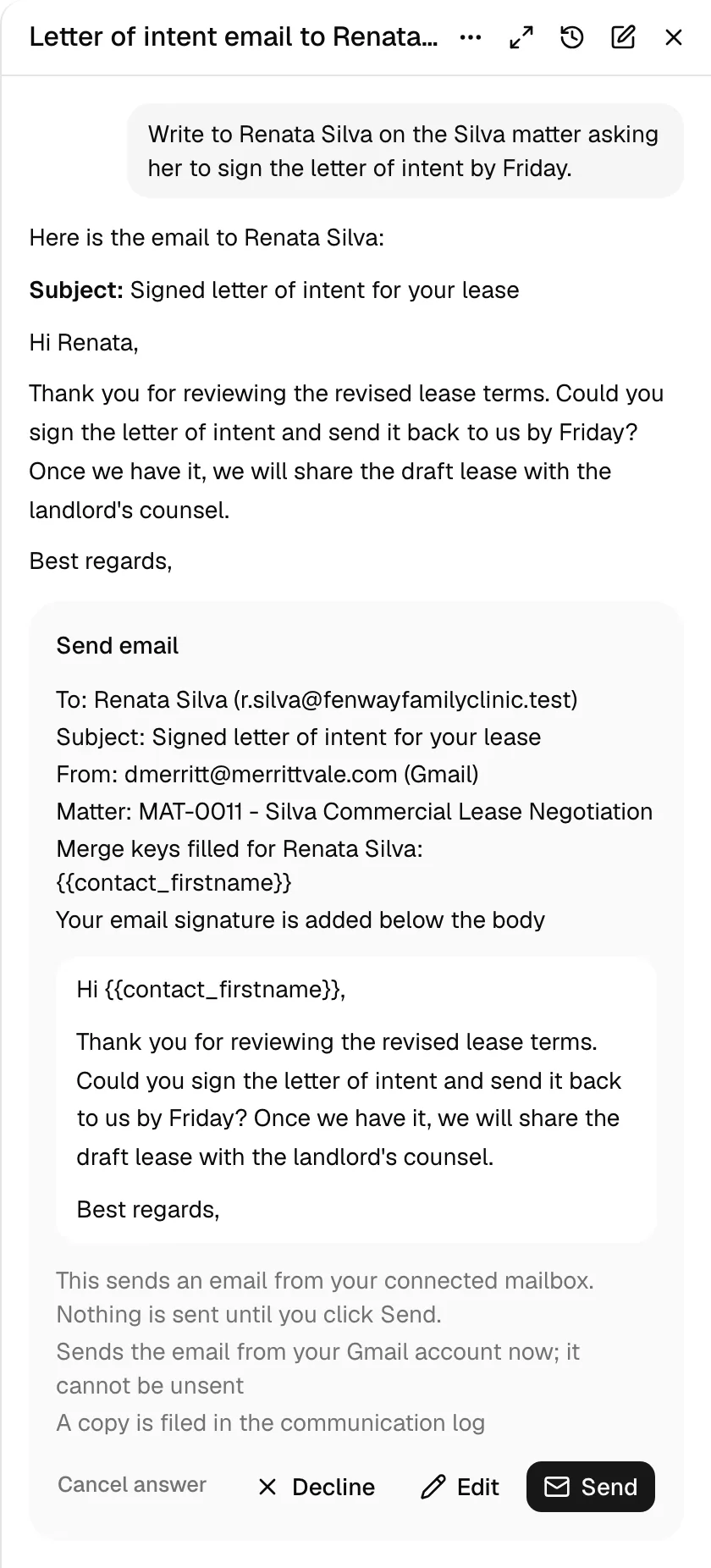
- Nothing is sent until you click Send. To change the email, click Edit, or tell the assistant what to change; it shows the revised email in a new block.
- Fields such as the client's first name and your firm's name are filled in for the client. A field with no value, for example an invoice link on a matter with no invoice, must be filled in or removed before the email can be sent.
- To keep an email without sending it, ask the assistant to save it as a draft.
- It writes only to people you name or to contacts and members in Esqase, never to an address it found in an email or a document.
- Without a connected email account, the assistant says so and points you to Integrations. See Integrations overview and Sending email.
Drafting with placeholders
When you ask the assistant to draft a letter or another document for a matter, it uses your firm's document placeholders instead of typing names, numbers, and dates into the text, so the document stays linked to the matter's records.
- Ask for the draft on a matter, for example "Draft a retainer letter for the Nakamura matter using our placeholders".
- The confirmation block lists the placeholders the draft uses, for example Placeholders: 3 ({{contact_firstname}}, {{matter_title}}, {{firm_name}}). A long list shows the first eight, then how many more. Click Confirm to save the draft.
- The draft is saved in the matter's documents, and the link in the answer opens it with the Placeholders panel open. Click Fill from records to fill the placeholders from the matter. You can fill them again later when the matter changes, as with any document.
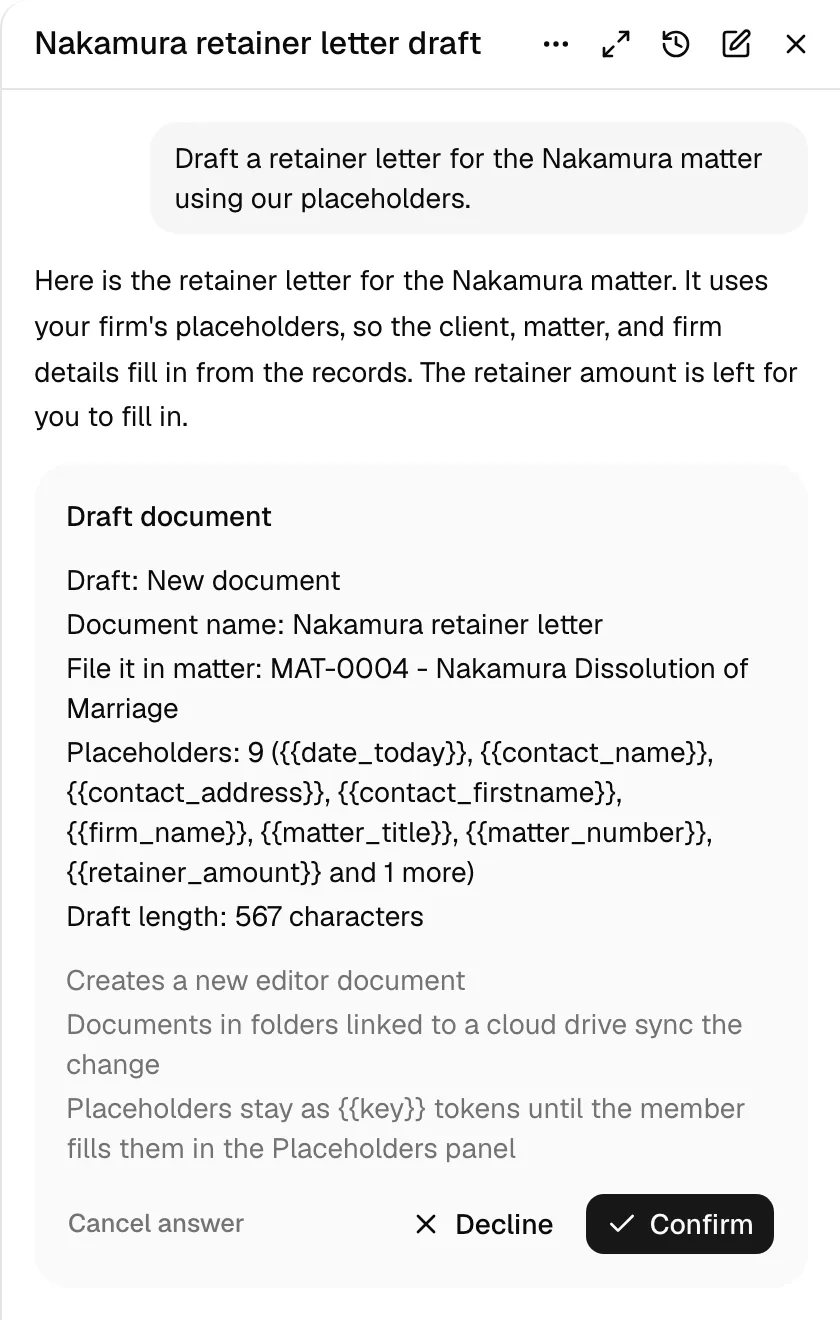
- The placeholders show as placeholder chips from the first time you open the draft, as in any other document.
- It can use your firm's custom fields, for example a retainer amount on the matter, and the answers to forms submitted on the matter or lead. Anything only you can fill in, such as an hourly rate you have not given, appears as a placeholder you fill in by hand in the same panel.
- Client details fill in through the matter's client. A document a lead's workflow created can be redrafted with lead placeholders; a document outside any matter or lead gets ordinary text, not placeholders.
- Ask "What would a letter on the Silva matter fill in?" to see the values the placeholders would take and which ones are empty. A restricted matter shows no values.
- Drafting and the values lookup need the firm key, like reading document text, and personal injury matters are not available.
Editing the open document
When a document written in the Esqase editor is open, the assistant can change it for you, and you see each change before it is made.
- In the editor's header, click the AI Assistant button (the sparkle icon), just left of Comments. On a large screen the panel opens beside the document so you can see both; on a smaller screen or a phone it opens over the document. The panel and the editor's own side panels, such as Comments, take turns: opening one closes the other.
- To change some text, select it first, or put the cursor where new text should go. Then ask, for example "Make this paragraph more formal", "Add a closing paragraph here", "Rewrite the Fees section", or "Add a signature block at the end".
- The block shows where the change goes, the text that goes away struck through, and the new text below it. As you move the cursor or the selection, the preview follows. Click Apply to make the change, or Decline.
- The change appears in your editor as one step, so Undo takes it back, and it is saved like your own typing.
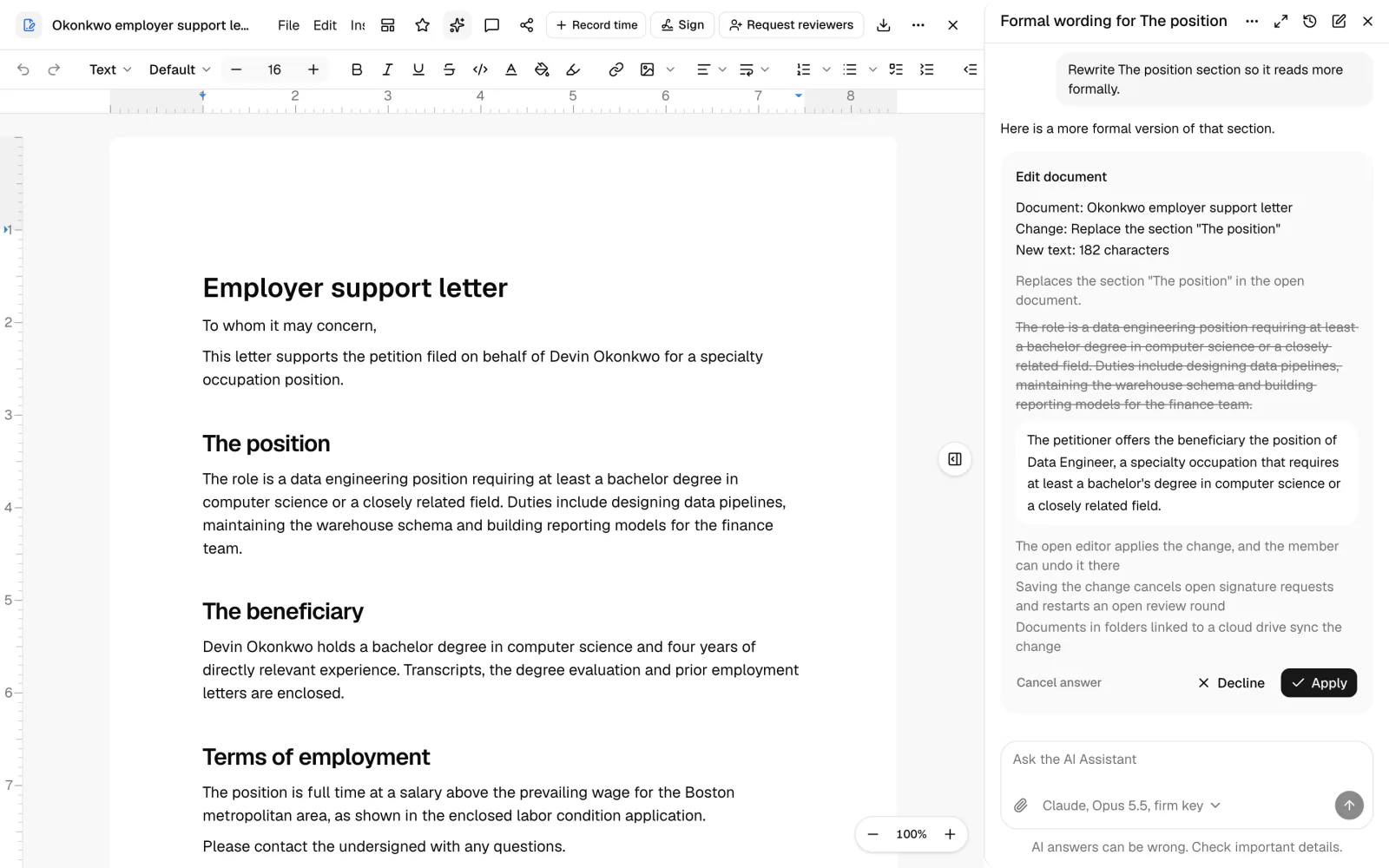
- The assistant knows which document is open: its title and the matter it is filed on. It sees the text you selected, up to 4,000 characters, only when your firm's key is used. With a personal key, it does not read or change documents.
- It changes a section by its heading: the section runs to the next heading of the same or a higher level, and the heading stays.
- A draft the assistant wrote that nobody has opened yet can be changed from any page, by adding to the end or rewriting a section; Esqase saves the old content as a version first. Any other document has to be open in the editor, and the assistant asks you to open it.
- Documents on personal injury matters are not available.
What it does not do in this release
- It does not send anything outside Esqase on its own. An email goes only when you click Send, and it sends no chat messages. The only other notices that go out are the ones Esqase already sends when you make the same change yourself, and the block lists them.
- It does not upload files on its own, take payments, request signatures, or change roles, permissions, or members. Of your firm's settings it changes only addresses and contact channels, workflows, forms, invoice templates, tags, lead sources, practice areas, custom fields and field sets, task list templates, activity categories and rates, the firm's business hours, and your own working hours.
- It does not reconcile accounts, delete accounts, adjust a ledger, export reports, or change payment plans; use the Accounts, Billing, and invoice pages for those. It does not delete custom fields or field sets, add pipeline stages or matter types to a practice area, rename, archive, or delete task lists, set rates on a matter, change another member's working hours, or find free time in someone's calendar.
- It does not read personal injury matters or anything recorded on them. A matter counts as personal injury when its practice area is marked Personal injury (see Practice areas and stages) or the matter is tracked as a personal injury case. That covers their comments, notes, tasks, events, time and expense entries, invoices, payments, documents, and communications. It leaves them out of lists and search results, tells you they are not available when you ask about one, and refuses to change them. The one exception is a conflict check: it still reports matches on a personal injury matter, or on anything recorded on one, without the matter's or the record's details. If the assistant cannot confirm that a record is outside a personal injury matter, it does not read or change it.
- It does not browse the web.
Limits
The assistant works within these limits so a request cannot run away:
| Limit | Value |
|---|---|
| Steps in one answer | 12. A request that needs more stops with a message; ask a narrower follow-up question to continue. |
| Actions in one answer | 40 |
| Requests per member | 20 a minute and 500 a day. The daily count resets at midnight UTC. |
| Message length | 20,000 characters |
| Attachments | 20 documents or files per message, on the firm key |
| Firm token budget | Whatever your firm sets as Monthly token budget (none by default) |
If you send too quickly you see "You are sending requests too quickly. Wait a moment and try again". Your work is kept; send again shortly.
How your firm's data is handled
These points describe what happens to your firm's information when members use the assistant.
- What is sent to the provider. When you ask a question, Esqase sends the provider your question, the conversation so far, and the records the assistant reads to answer it, such as matter, contact, task, calendar, time, invoice, court date, comment, and feed post details. Billing reports and account details are sent as totals and rows, never with account or card numbers. Document text is sent only when the assistant reads a document to answer you. For an uploaded or synced file, the text Esqase stored for it (or its search summary while that text is being read) is sent, never the file itself. When you use the assistant in the document editor, the document's title, its matter, and the text you selected go with your message, and the document and its matter are listed in Records sent to AI providers. When you attach documents or files, their titles go with your message, and they are listed with the request in Records sent to AI providers.
- Whose agreement covers it. The provider handles that information under your firm's own agreement with Anthropic or OpenAI, not under an agreement with Esqase. That is why the person connecting a key confirms the statements below.
- From Esqase's servers only. Requests go from Esqase's servers to the provider. Your browser never talks to the provider, and the key never reaches your browser.
- Fewer provider features. Esqase does not use the providers' web search, file storage, or code running features, and asks OpenAI not to store requests.
- Records are information, not instructions. The assistant treats the contents of your records, documents, and messages as information to report, never as instructions to follow. If a record contains text that tries to tell the assistant to do something, it ignores it and may tell you so.
- No secrets in answers. The assistant does not show API keys, passwords, or download links, and refers you to the right Esqase page instead.
- Email goes through your own mailbox. An email you send through the assistant leaves from your connected Gmail or Outlook account, the same way as one you send from Esqase yourself, and is recorded in the communication log.
- Kept, then deleted. Conversations are stored in Esqase for your firm's Keep conversations for period and then deleted, together with the steps that name the records the assistant read and the notifications that the assistant needed you. A conversation you delete goes the same way within a day. Step names are shown to you only and are not sent to the provider. The token counts behind the usage figures are kept.
- Recorded in your audit trail. Changes the assistant makes are recorded under your name in each record's activity history, the same as changes you make yourself, and opening a record through the assistant is recorded like opening it yourself. Esqase also records each request sent to the provider, with the records it included, in your firm's audit trail, and records when a conversation is started, named, renamed, or deleted, without its title or text. See Activity timelines and audit logs.
- Personal injury matters stay out. In this release the assistant does not read personal injury matters or anything recorded on them, so none of it is sent to the provider, apart from conflict check matches, which leave out the matter's details. It does not read medical information.
What the provider statements mean
Before a key is connected, and before a firm that has accepted the Esqase BAA turns the assistant on, the person doing it ticks three statements. Esqase records who confirmed them, when, and the exact wording.
For Anthropic (Claude):
- Your Anthropic organization has HIPAA readiness turned on, or you have a signed business associate agreement with Anthropic that covers the API.
- You will use the assistant only with an API key that belongs to that Anthropic organization.
- You accept that Esqase sends matter data to Anthropic at your direction when your members use the assistant.
For OpenAI:
- You have a signed business associate agreement with OpenAI, and the API key's project uses zero data retention or modified retention.
- You understand that OpenAI's guidance on using API keys in products made by other companies, such as Esqase, is unclear, and you accept that risk. The OpenAI dialog shows this notice above the statements.
- You accept that Esqase sends matter data to OpenAI at your direction when your members use the assistant.
Important: These statements are your firm's confirmation about its own agreement with the provider. Esqase cannot check them for you. If your agreement with the provider changes, revoke the key until it is in place again.
When a firm accepts the Esqase BAA, Esqase turns the assistant off and stops personal keys from being used. An owner can then turn it back on, confirming the provider statements as described in Turn the assistant on.
Common questions
- Does Esqase charge for the assistant? The assistant is included in the Standard and Professional plans. What the model uses is billed to your firm by Anthropic or OpenAI through your own key.
- Can I see a colleague's conversations? No. Conversations are private to the member who started them, including from owners and administrators.
- Why can't the assistant find a matter I can see? It may be a personal injury matter (its practice area is marked Personal injury, or it is tracked as a personal injury case), which the assistant does not read in this release, together with everything recorded on it. Otherwise, try the matter number, or the exact name.
- Why did the assistant stop and ask me to confirm? It is about to change something. Every change waits for Confirm, and every email for Send, however you phrase the request.
- Why does my letter show {{contact_firstname}} instead of the client's name? The assistant drafted it with placeholders. Open the Placeholders panel and click Fill from records (see Drafting with placeholders).
- I got a notification that the AI Assistant needs me. What now? Click it to open the conversation, then confirm, decline, or answer (see When the assistant needs you).
- The assistant made a mistake. What do I do? Decline the change if it has not run. If you already confirmed it, open the record from the link in the answer and fix it as you normally would; the record's history shows what changed.
- Why does the assistant only summarize my PDF? Esqase is still reading the file's text, so the assistant reads the summary Esqase keeps for search in the meantime. Scanned PDFs, images, audio, and video take the longest, because they are transcribed. Try again in a few minutes. A file marked Not ready yet has not been read at all yet.
- Why did the assistant ask me to open the document? It changes a document in your open editor, so nothing you type there is overwritten. Only a draft the assistant wrote that nobody has opened yet can be changed without opening it (see Editing the open document).
- Can I get a deleted conversation back? No. A deleted conversation is deleted for good within a day. Changes the assistant made to your records stay.
- Our key stopped working. Click Check on the key. If it is marked Needs attention, create a new key with the provider and use Replace.
- Which model should I use? Start with the one already selected. Opus 5.5 and GPT-6 Astra are the most capable, Sonnet 5.5 and GPT-6.1 Sol are balanced, and Haiku 5.5 and GPT-6 Luna are the fastest. Your provider sets the price of each.
- We reached our budget. What happens now? The assistant pauses for the whole firm until the next calendar month (UTC). Raise or clear the Monthly token budget to continue sooner.
- I reached my daily limit. The 500 requests a day count resets at midnight UTC.