Available lang sa Ingles ang dokumentasyon ng produkto.
Email templates
Email templates are reusable, pre-written emails you can apply with one click when you write to a client or contact. Each template has a name, a subject line, and a body, and can include placeholders (tokens) that fill in real details like the contact's first name or your firm's phone number when the email is sent. Templates save you from rewriting the same welcome note, invoice reminder, or signature request every time.
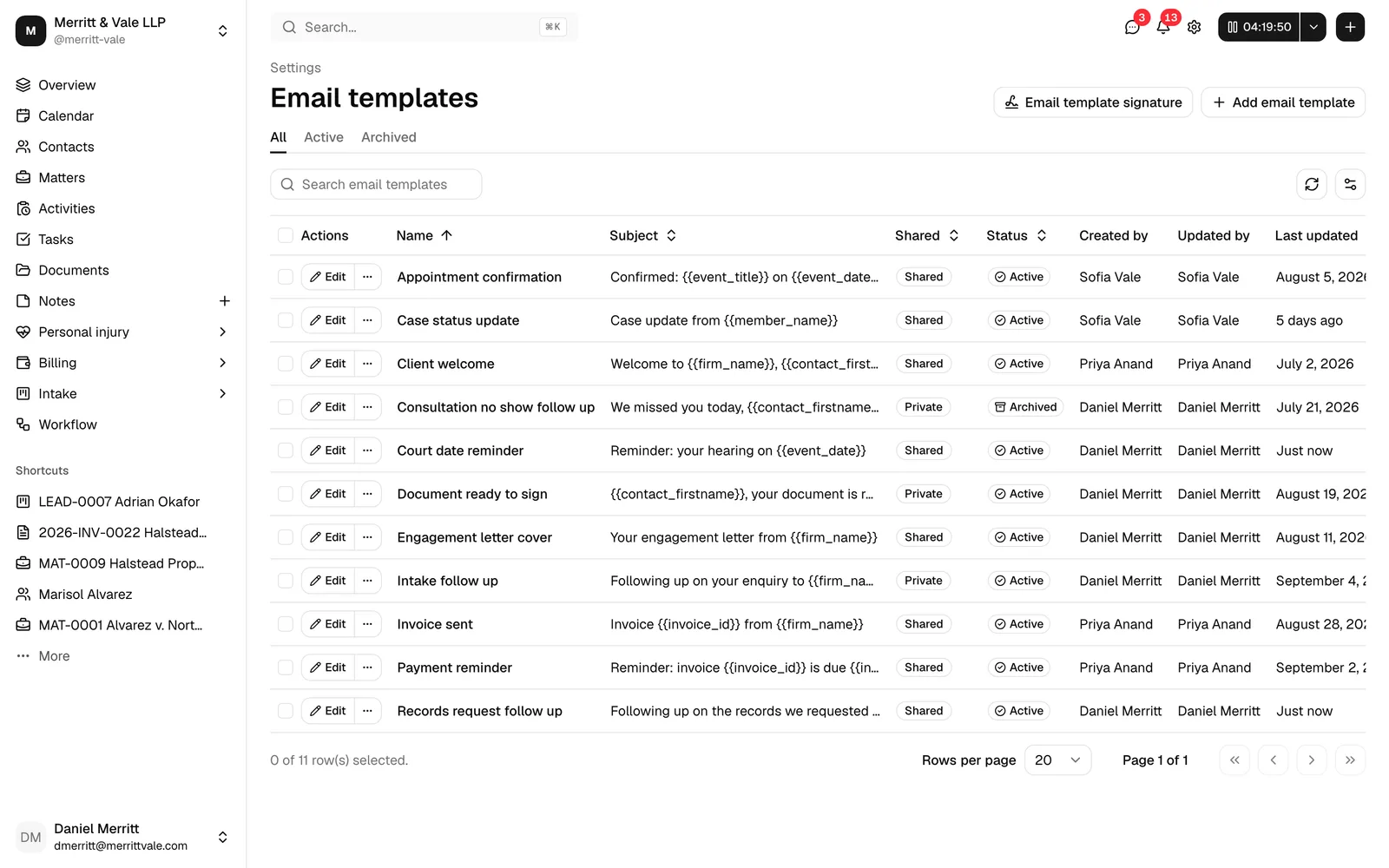
You manage all of your firm's templates from one place: Settings > Email templates.
Before you begin
- Email templates live under Settings > Email templates. You can reach this from the sidebar by clicking Settings, then opening Email templates.
- Your ability to view, create, edit, archive, and delete templates depends on your role. See Who can manage templates below. If your role does not include View access for email templates, the page shows a no-access message instead of the table.
- Every member, regardless of role, can manage their own email signature from this page (see Email signatures). Signatures are separate from templates.
What email templates are
A template is a saved email you reuse. Each one stores:
- A Template name that you use to find and pick the template (clients never see this name).
- A Subject line.
- A rich-text Body that can include formatting and placeholders.
Templates can be Shared (available to everyone at your firm) or Private (visible only to you). They also move through a lifecycle: a template is Active while in use, can be Archived when you want to retire it without losing it, and can be permanently deleted once archived.
You apply templates in two places:
- The email composer on a matter's Communications, where picking a template prefills the subject and body.
- Workflow email, form, event, and invoice steps, where picking a template fills in the step's subject and body for you to edit.
Create an email template
Use this when you want a new reusable email at your firm.
- In the sidebar, click Settings, then open Email templates.
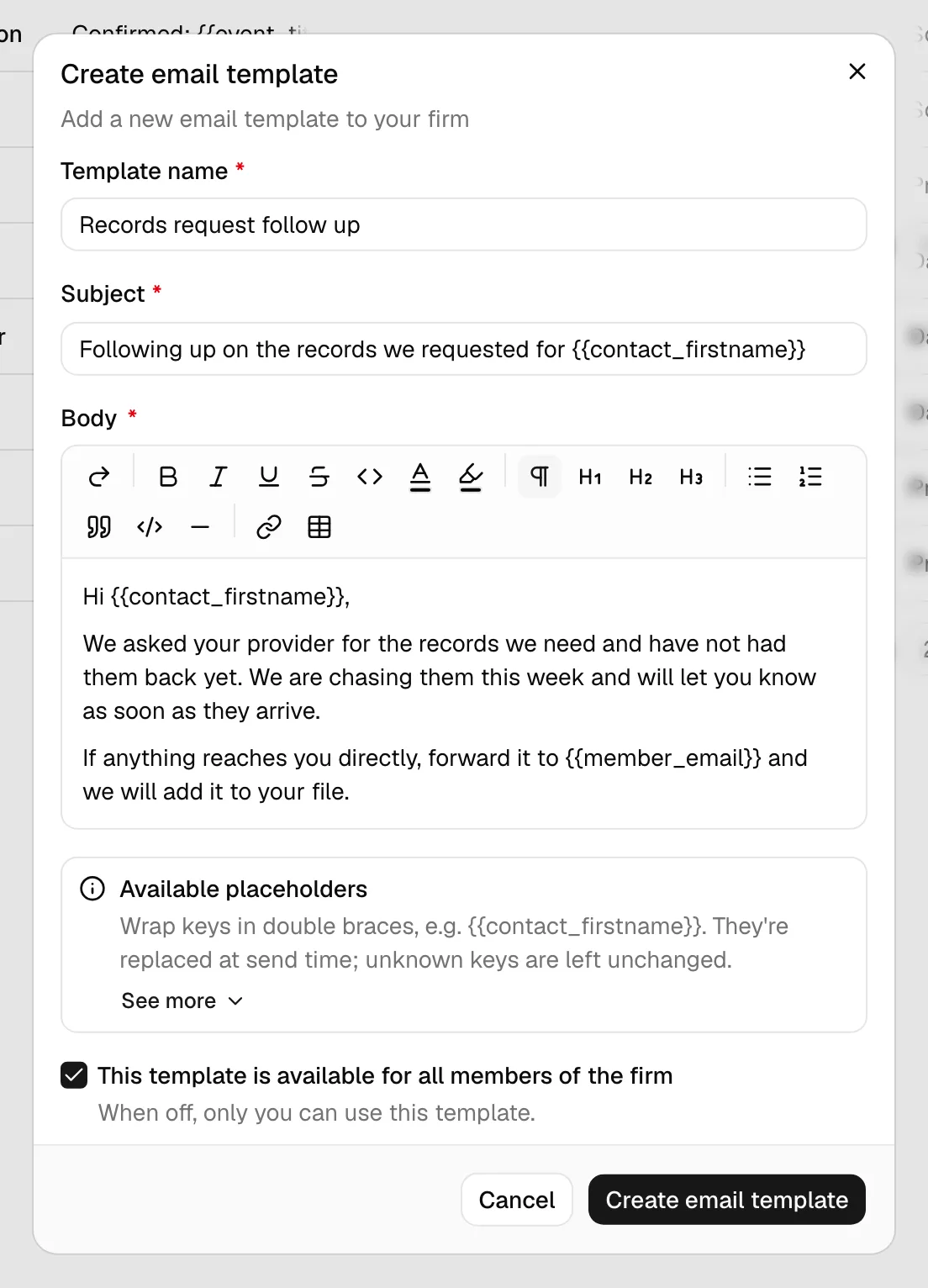
- In the top right, click Add email template. The Create email template dialog opens.
- In Template name, enter a short label that describes the email, for example
Intake follow-up. This is required and can be up to 128 characters. - In Subject, type the email's subject line, for example
Following up on your inquiry. This is required and can be up to 256 characters. You can include placeholders here too. - In Body, write the email using the rich-text editor. This is required. Use the toolbar to format text, and wrap any placeholder keys in double braces, for example
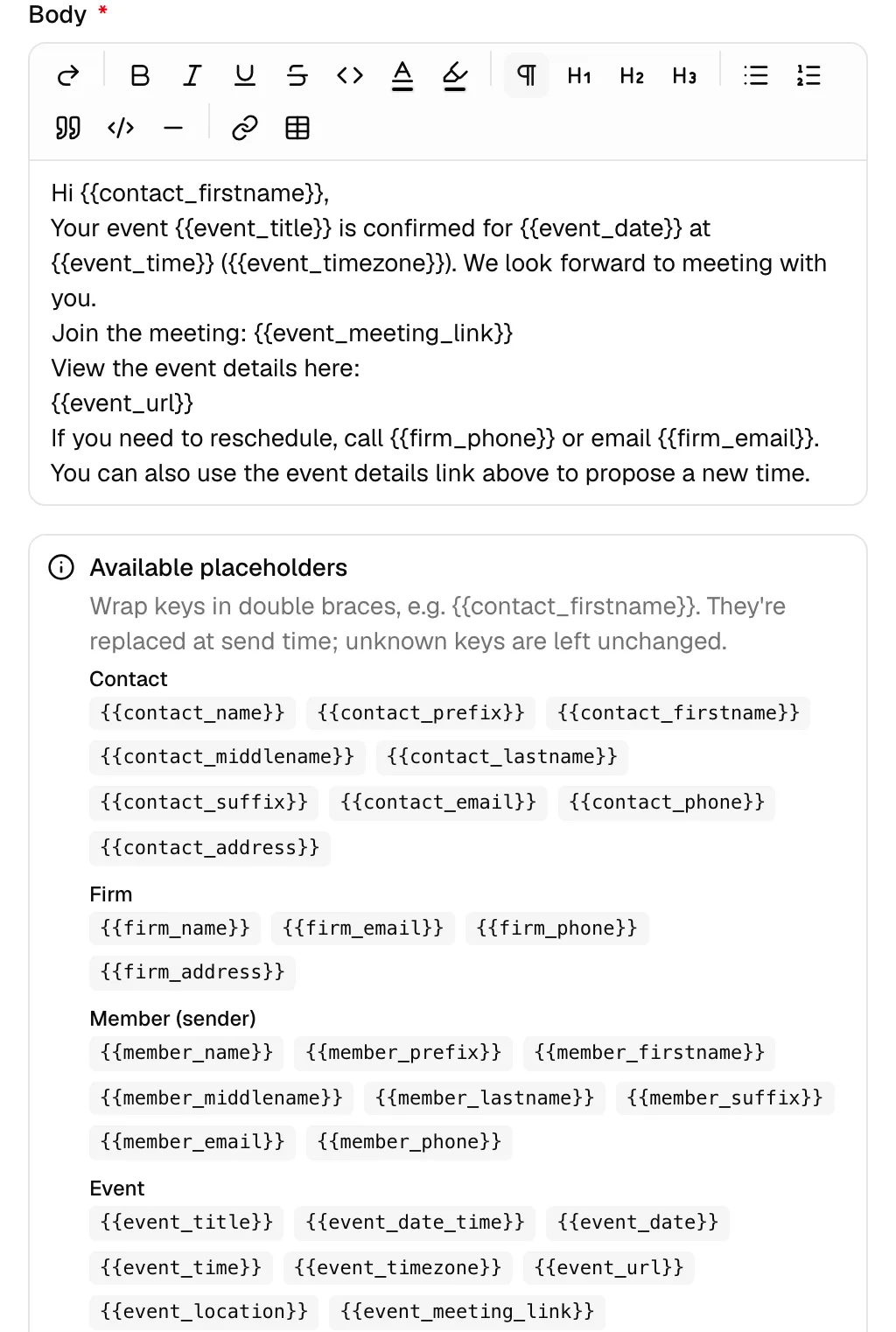
{{contact_firstname}}(see Use placeholders). - Expand the Available placeholders panel under the body if you need to look up which keys are available. Click See more to view every placeholder grouped by category.
- Decide who can use the template with the checkbox This template is available for all members of the firm:
- Leave it off to keep the template private to you.
- Turn it on to share it with everyone at your firm.
- Click Create email template. The dialog confirms with Email template created, and the new template appears in the table as Active.
Note: New templates are created as Active right away. There is no separate publish step.
Tip: Give templates clear, descriptive names like Event - Event Confirmation so they are easy to pick from a long list in the composer and in workflows.
Edit an email template
You can change any detail of a template later.
- On the Email templates page, find the template in the table.
- In the Actions column, click Edit. The Edit email template dialog opens with the current name, subject, body, and sharing setting.
- Change any of Template name, Subject, Body, or the This template is available for all members of the firm checkbox.
- Click Save changes. You will see Email template updated, and the table refreshes.
Note: Editing a template changes it everywhere it is used going forward. Emails you already sent are not affected, but the next time someone applies this template in the composer or picks it in a workflow step, they get the updated version. A workflow step keeps the subject and body it was saved with, on Email, Form, Event, and Invoice steps alike, so editing the template does not change a step you already set up.
Important: If you do not see an Edit button on a row, your role does not include Update access for email templates. See Who can manage templates.
Use placeholders (tokens) in templates
Placeholders are keys you put in the subject or body that get replaced with real values at send time. This lets one template greet every client by name and include the right links automatically.
How they work:
- Wrap a key in double braces, for example
{{contact_firstname}}. - When the email is sent, Esqase swaps each placeholder for the matching value (for example the contact's actual first name).
- If a value is not available in that context, the placeholder is left unchanged in the email. Always proofread before sending.
To see the full list while writing a template, expand the Available placeholders panel below the body and click See more. Placeholders are grouped into categories:
- Contact: the recipient's details, such as
{{contact_name}},{{contact_firstname}},{{contact_lastname}},{{contact_email}},{{contact_phone}}, and{{contact_address}}.{{contact_firstname}}is designed for greetings, so it always resolves to something usable. For a company contact it becomes the company name, and for a person recorded with only a full name it becomes that full name. This meansHi {{contact_firstname}},reads correctly whether you are writing to a person or an organization.
- Firm: your firm's details, such as
{{firm_name}},{{firm_email}},{{firm_phone}}, and{{firm_address}}. - Member (sender): details of the member sending the email, such as
{{member_name}},{{member_firstname}},{{member_email}}, and{{member_phone}}. - Event: scheduling details, such as
{{event_title}},{{event_date}},{{event_time}},{{event_timezone}},{{event_url}}(the link the client opens to view, schedule, or reschedule),{{event_location}}(where the event takes place), and{{event_meeting_link}}(the link to join an online meeting).- In an email about an event, a line that holds
{{event_meeting_link}}or{{event_location}}is left out when the meeting has no link or no location, instead of showing an empty value. See Add the meeting link to an event email.
- In an email about an event, a line that holds
- Form:
{{form_title}}and{{form_url}}(the link the client opens to fill out the form). - Task:
{{task_title}}and{{task_date_due}}. - Invoice:
{{invoice_id}},{{invoice_amount_due}},{{invoice_amount_paid}},{{invoice_status}},{{invoice_date_due}}, and{{invoice_url}}(the link the client opens to view and pay). - Payment plan:
{{payment_plan_installment_count}},{{payment_plan_frequency}},{{payment_plan_next_amount}}, and{{payment_plan_next_date_due}}. They fill in only when you send a payment plan's link with Send link to client or Send email to client, where{{invoice_url}}is the plan's payment link. See Send the payment link from your mailbox. - Document:
{{document_url}}(the link the client opens to view or sign the document). - Access:
{{access_url}}and{{access_password}}, used when you share a password-protected link. - Today:
{{date_today}}and{{time_today}}.
Important: Not every placeholder makes sense in every email. An invoice placeholder like {{invoice_amount_due}} only fills in when you send the email in an invoice context. If you use a placeholder where no value exists, it appears literally in the message, so use the placeholder that fits where the email will be sent.
Tip: Placeholders also work in your email signature. See Email signatures.
Add the meeting link to an event email
Two Event placeholders tell the client how to attend: {{event_meeting_link}} puts in the link to join an online meeting, and {{event_location}} puts in where the meeting takes place. Type each one on a line of its own, for example Join the meeting: {{event_meeting_link}}.
- What fills them. The meeting link is the Google Meet, Zoom, or Microsoft Teams link Esqase created for the meeting, the single link set on its event type, or a link your team added to the event. The location is what the event shows as its location, such as In person, Phone call, Zoom, or an address your team typed.
- A line with no value is left out. When the meeting has no link, for example because it is in person, by phone, or its link has not been created yet, the whole line that holds
{{event_meeting_link}}is left out, together with any words on that line such as "Join the meeting:", and the blank lines around it close up. A line that holds{{event_location}}is left out the same way when the event has no location. So an in-person meeting never shows an empty "Join the meeting:". - Where they fill. In the emails you send from an Event step on a lead or matter: the invitation after you create the event, Send email on the step, and the emails Esqase offers when you accept, decline, or propose a time. They also fill in the confirmation email a workflow Event step sends once a time is confirmed. See Placeholders in step emails.
- Elsewhere they stay as typed. An email you start anywhere else, such as a matter's Communications tab, has no event, so these placeholders are not filled, and the composer asks you to finish them before you send.
- Use them in the body. Only lines in the body are left out. A meeting link placeholder in the subject with no value is flagged before you send, and stops a workflow step, like any other placeholder.
Write the line so that it can be left out cleanly:
- Keep the label and the placeholder on the same line, as in
Join the meeting: {{event_meeting_link}}. If the label sits on a line of its own above the placeholder, only the placeholder's line is left out and the label stays behind, so the client sees "Join the meeting:" with nothing under it. - Give the placeholder a line of its own. If you put it inside a sentence, the whole line or paragraph that holds it is left out, with every other word and link on it.
- Put the line before another paragraph of your email, not last before your signature. When it is the last line before the signature, the blank line between the message and the signature is left out with it.
Make a template shared (firm-wide) vs personal
Sharing controls who can see and use a template.
- A Shared template appears for everyone at the firm. Anyone with access to email templates can pick it in the composer and in workflows.
- A Private template appears only to you. Other members never see it, even on the Email templates page.
To set sharing:
- In the Create email template or Edit email template dialog, find the checkbox This template is available for all members of the firm.
- Turn it on to make the template Shared, or leave it off to keep it private. The helper text reads "When off, only you can use this template."
- Save the template.
In the table, the Shared column shows a Shared badge for firm-wide templates and a Private badge for personal ones.
Note: The default templates that come with your firm are Shared, so the whole firm can use them from day one.
Archive, restore, and delete a template
Archiving retires a template without losing it. Deleting removes it for good.
Archive a single template
- On the Email templates page, find an Active template.
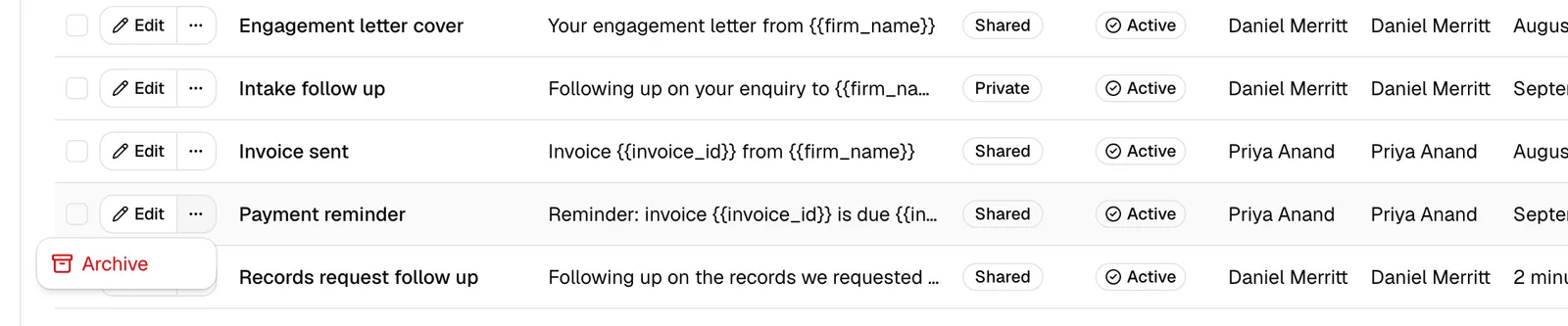
- In the Actions column, open the More email template actions menu (the ... button) and click Archive.
- The template moves to the Archived tab and stops appearing in template pickers (the composer and workflow steps only show Active templates).
You will see a confirmation that the template was archived.
Restore an archived template
- Click the Archived tab to list retired templates.
- On the template's row, open the ... menu and click Restore.
- The template returns to Active and becomes available to use again.
Delete a template
Deleting is permanent and only available for templates that are already archived.
- Archive the template first if it is still Active.
- On the Archived tab, open the template's ... menu and click Delete.
- In the Delete email template? confirmation, review the warning ("This can't be undone"), then click Delete email template.
Important: Deleting cannot be undone. If you might want the template again later, archive it instead of deleting it.
Archive, restore, or delete several at once
You can act on multiple templates together:
- Select the checkboxes on the rows you want.
- Use the batch actions control above the table to choose Archive, Restore, or Delete.
- Confirm in the dialog that appears. Archive moves the selected templates to Archived (recoverable), and Delete permanently removes them.
Note: Archive and Restore require Update access; Delete requires Delete access. If you lack these, the menu options (and the row's Edit button) do not appear.
Search, sort, and filter the templates table
The table makes it easy to find a template in a long list.
- Tabs: Use the tabs above the table to filter by status:
- All shows every template you can see.
- Active shows templates currently in use (this is the default view).
- Archived shows retired templates.
- Search: Type in the Search email templates box to filter by name or subject. Click Clear filters to reset the search.
- Sort: Click a column header to sort by that column. You can sort by Name, Subject, Shared, Status, Created by, Updated by, and Last updated.
- Columns: Use the view options control (top right of the toolbar) to show or hide columns and to refresh the list.
The table columns are:
- Name: the template's label.
- Subject: the email subject line.
- Shared: a Shared or Private badge.
- Status: an Active, Draft, or Archived badge.
- Created by and Updated by: who created and last changed the template.
- Last updated: when the template last changed.
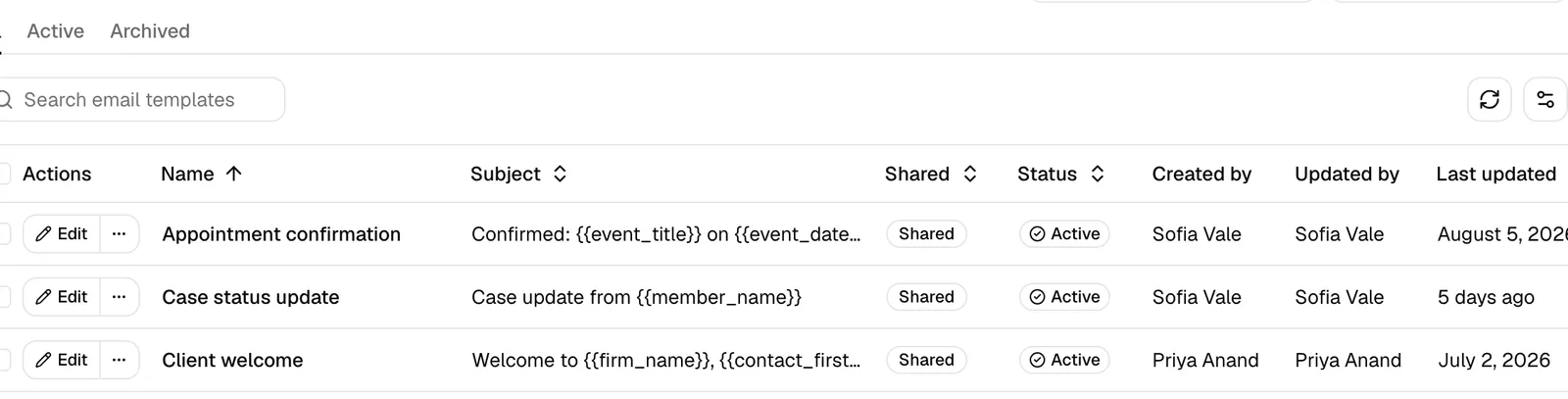
Note: You only see Shared templates plus your own Private ones. Another member's private templates never appear in your table, search results, or pickers.
Default templates seeded for a new firm
When your firm is first created, Esqase adds a set of ready-to-use Shared templates so you can start sending professional emails immediately. You can edit, rename, archive, or delete any of them just like your own templates.
The starter set covers common situations, including:
- General - Client Welcome and General - Access Password
- Form - Form Request and Form - Form Reminder
- Event - Event Invitation, Event - Event Schedule Request, Event - Event Confirmation, Event - Event Reminder, Event - Event Reschedule Proposal, Event - Event Rescheduled, Event - Event Schedule Invitation, Event - Event Schedule Declined, and Event - Event Canceled
- Task - Task Deadline Reminder
- Invoice - Invoice / Payment Notice, Invoice - Invoice / Payment Reminder, and Invoice - Payment Plan Link
- Document - Document Shared and Document - Document Signature Request
Each one already includes the right placeholders for its purpose, so a confirmation email greets the client by name and includes the event link, and so on.
The Event - Event Invitation, Event - Event Confirmation, Event - Event Reminder, and Event - Event Rescheduled templates also include a "Join the meeting" line with {{event_meeting_link}}, just above the event details link, so the client gets the link to join an online meeting. For an in-person or phone meeting, or one that has no link yet, that line is left out (see Add the meeting link to an event email). The other event templates have no meeting link line: they go out before a time is agreed, or when the meeting is canceled.
Note: If your firm was set up before the "Join the meeting" line was added, those four templates gain the line automatically only if their subject and body were never edited. A template you only renamed, or opened and saved without changing its text, counts as unedited. A template you edited keeps your wording: to add the link, edit it and type Join the meeting: {{event_meeting_link}} on a line of its own, for example just above the event details link. Workflow steps you saved earlier keep their own copy of each email and do not gain the line from the template; open the step, add the line to its Confirmation email (or pick the template again), and save. Esqase may also add the line to a step's Confirmation email that still has the original default wording.
Note: Firms set up before Invoice - Payment Plan Link existed get it added once, as a Shared template, unless they already have a template with that name.
Tip: Some of these are picked by name to fill a new workflow step: Form - Form Request and Form - Form Reminder on a Form step, Event - Event Schedule Invitation (or Event - Event Invitation on a step set to Manual), Event - Event Confirmation, and Event - Event Schedule Declined on an Event step, and Invoice - Invoice / Payment Notice and Invoice - Invoice / Payment Reminder on an Invoice step. The email Esqase offers when you propose a new time for a scheduling request starts from Event - Event Reschedule Proposal, and the email for a payment plan's link starts from Invoice - Payment Plan Link, both picked by name the same way. If you rename or archive one of those, a new step starts with an empty subject instead, and you write the email yourself or pick another template. Steps you already set up keep their own copy.
Apply a template when composing email and in workflows
You do not pick templates only from the Settings page; you apply them where you actually send email.
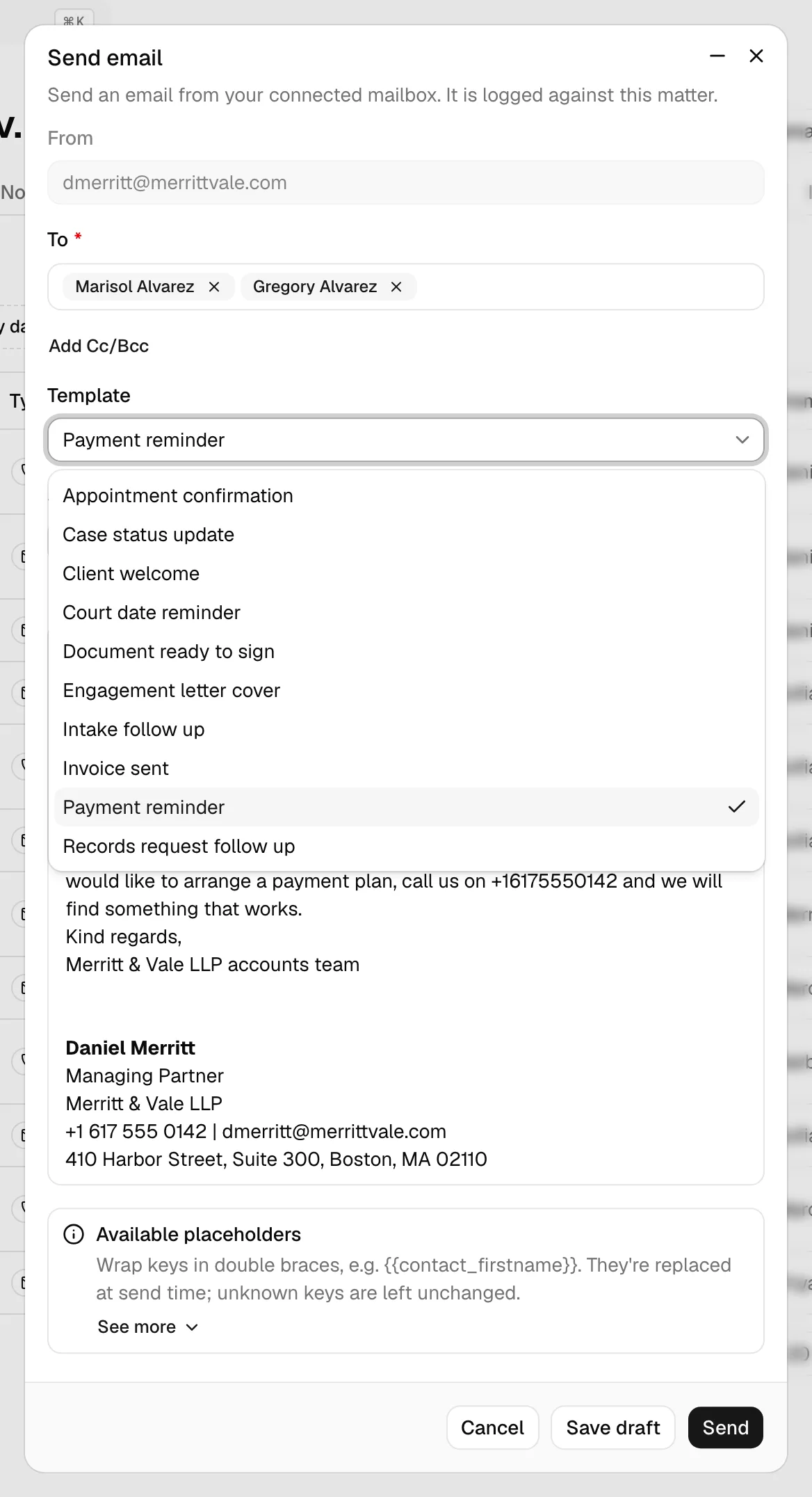
When composing an email
- Open a matter and go to the Communications area, then start a new email.
- In the email form, open the Template dropdown (labeled "Pick a template to prefill"). It lists every Active template you can see.
- Choose a template. Esqase fills in the Subject and the message body, replacing placeholders with the real values for this contact and matter, and adds your email signature to the bottom.
- Review and edit the email as needed, then send. Editing the subject or body after applying a template is fine; the template is just a starting point.
Note: If a template is Archived, it will not appear in this list. Restore it first if you need it.
In a workflow email or event step
Workflows can send templated emails automatically. See Workflow step types for the full picture.
- In the workflow builder, add or edit an Email step.
- In the Template dropdown ("Pick a template to prefill"), choose a template. Esqase copies its subject and body into the step's Subject and Body fields, with your firm's default email signature added to the end of the body. Picking a template is optional, and it replaces whatever subject and body the step had.
- Edit the Subject and Body as needed. The step sends what these fields say, not the template, so later edits to the template do not change it.
- You can also click New email template from the dropdown to create one without leaving the workflow. Esqase picks it and copies it in for you.
Form, Event, and Invoice steps work the same way, with one editor for each email the step sends: the request and its reminder on a Form step, the invitation, the confirmation, the decline, and the reminder on an Event step, and the invoice email and its payment reminder on an Invoice step. A new step fills them from the matching default templates, and you can change any of them.
When Esqase sends the email for you
A workflow step set to run automatically sends the email without anyone opening the composer, so the sending details come from your firm's settings rather than from a member's mailbox.
- Who it comes from. The client sees <Your firm name> via Esqase. Esqase sends on your firm's behalf, so the message goes out even when nobody is at their desk.
- Where replies go. Replies go to your firm's email address by default. You can point them at the member the workflow is running for, or at any address you choose, under Settings > Firm > Automation. See Automation settings.
- What the email contains. The subject and body written in the step, with the placeholders filled in. The signature is part of the body you see in the step, so it goes out as written. A step that names only a template, such as an Email step added before you could write the email in the step, sends the template's subject and body plus your firm's default email signature. Manual sends from the composer are unchanged: they still come from the member sending them.
- Which placeholders are filled. An automatic send fills the contact, firm, and today's date and time placeholders, the member placeholders from the member the workflow runs for, and the details the step itself creates: the form title and link on a Form step, the meeting title, link, date, time, and time zone on an Event step, plus the location and meeting link on the confirmation email an Event step sends once a time is confirmed, and the invoice details on an Invoice step.
- What happens to a placeholder Esqase cannot fill. Firm and sender details that have no value, such as a firm phone number you never entered, are simply left out. On an Event step, a body line that holds the meeting link or location placeholder is left out when the meeting has none. For any other placeholder, nothing is sent. The step stops and reads Needs attention on the lead or matter, naming the placeholder, so a client never receives a half-written email. The step's Available placeholders panel lists only the keys that step can fill, and saving the step flags any other key. Fix the email in the step (or its template, for a step that names only a template) or the missing detail, and use Try again. This is stricter than a manual send, where an unfilled placeholder is left in the text for you to catch while proofreading.
- When it goes out. If your firm has set a sending window, Esqase holds the email until the window opens, in your firm's time zone, and can skip weekends. Tasks, documents, and invoices a workflow creates are not held back that way.
Note: A step set to Automatic, needs approval writes the email first and holds it. The version you approve is the version that goes out, so editing the template afterwards does not change an email already waiting for review.
Tip: Form, event, and invoice steps can also chase a client on their own, using the reminder email on the step. See How automation runs your workflows.
📷 Screenshot: A workflow Email step with a template picked in the Template dropdown, and its subject and body copied into the Subject and Body fields with the firm signature at the end.
Who can manage templates
What you can do with email templates depends on your firm role. By default:
- Firm owners and Administrators: full access. They can view, create, edit, archive, restore, and delete templates.
- Attorney role: full access by default. Attorneys can view, create, edit, archive, restore, and delete templates.
- Staff role: view only by default. Staff can see and use Shared templates (and their own private ones) but cannot create, edit, archive, or delete them. The Add email template button, the row Edit button, and the archive/restore/delete actions are hidden for view-only members.
These are the default grants. A firm owner or administrator can adjust what each role can do from the roles and permissions settings. See Roles and permissions.
Note: Managing your own email signature is available to every active member and is not affected by these template permissions.
Common questions
Why can't another member see a template I created? The template is probably Private. Edit it and turn on This template is available for all members of the firm to share it firm-wide.
A template doesn't show up in the composer or my workflow step. Why? Pickers only list Active templates. Check the Archived tab and Restore the template if it was retired. Also confirm the template is Shared if a colleague needs it.
My placeholder showed up as text in the sent email. That placeholder had no value in the context where you sent the email (for example an invoice placeholder used in a plain email). Use a placeholder that fits where the email is sent, and proofread before sending.
My event email went out without the "Join the meeting" line.
The meeting had no link when the email was written: it is in person or by phone, its event type is set to Don't add a meeting link, or the link had not been created yet. The line is left out on purpose so the client never sees an empty "Join the meeting:". If the email has no such line at all, the template or the workflow step was edited, or set up, before the line was added. Add Join the meeting: {{event_meeting_link}} to it. See Add the meeting link to an event email.
Can I get a deleted template back? No. Deleting is permanent. Archive templates you might reuse instead of deleting them.