Available lang sa Ingles ang dokumentasyon ng produkto.
Document placeholders
Placeholders are named blanks in a rich-text document, written with double curly braces like {{contact_name}}. Esqase fills them in for you from the lead or matter the document belongs to, from your firm and your own profile, and from the answers clients send back on your forms, and you can type a value for any of them yourself. Use them for engagement letters, retainer agreements, demand letters, and any document where the wording stays the same but the names, dates, and amounts change.
The document keeps its {{placeholder}} tokens when it is saved, and the values are stored alongside it. That is what keeps a template reusable, and what lets a document fill again when its record changes.
Note: Placeholders belong to the rich-text file editor, so they work in documents you write inside Esqase, not in uploaded PDFs or Word files. To learn about the editor itself, see Editing documents (the file editor). Placeholders pair especially well with Document templates.
Before you begin
- You work with placeholders on the Placeholders tab of the editor's side panel.
- What you can do depends on your role's permissions for documents:
- View access lets you open the Placeholders tab and read every placeholder and its value. The values are read-only, and Fill from records and Insert a field are not shown.
- Update (edit) access lets you fill placeholders from the record, insert them, type values, and remove them.
- Firm owners can always do everything.
- What fills also follows your access to the record. A group of placeholders your role cannot view is left out: for example, without View access for Invoices, the Invoice group is missing from the panel and invoice placeholders stay empty when you fill. See Who sees what.
- Values are saved with the document, not shared across your firm. Two documents that both use
{{contact_name}}each keep their own value.
What a placeholder is
A placeholder is a named token, written {{key}}. Keys use lowercase letters, numbers, and underscores, for example contact_name, matter_number, or settlement_amount.
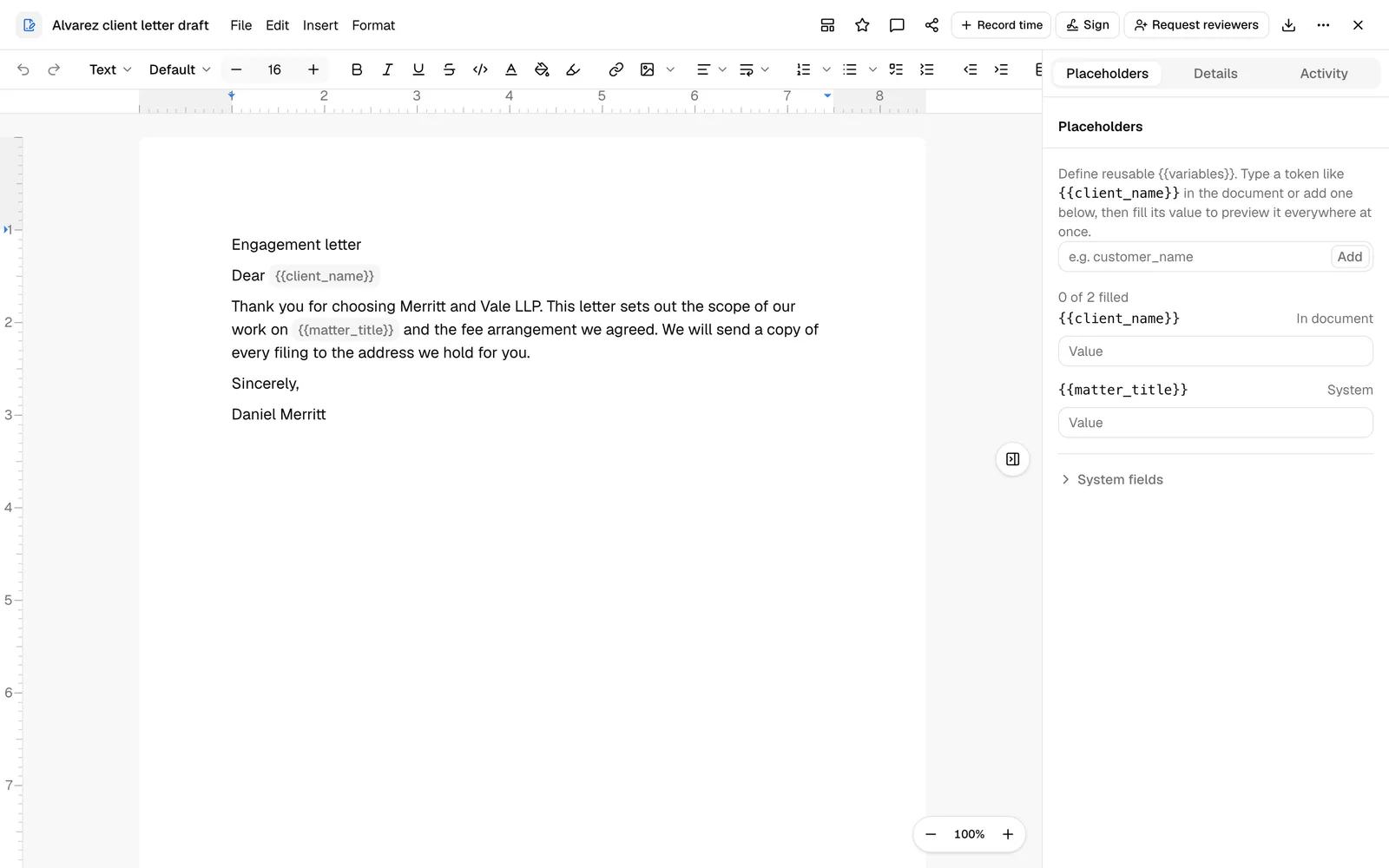
- While a placeholder has no value, it shows in the document as a small shaded chip with its token, for example
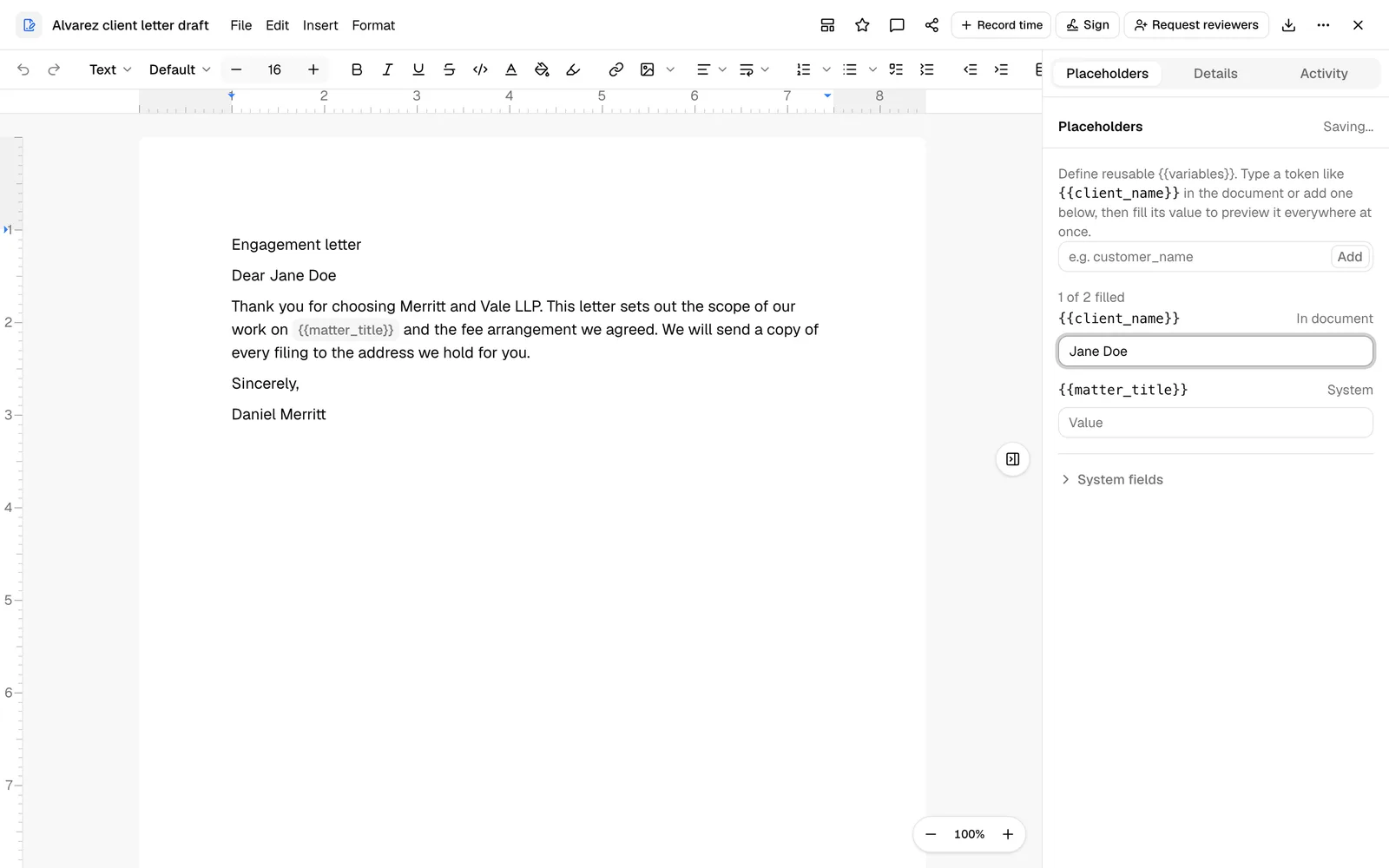
{{contact_name}}. - Once it has a value, every place that token appears shows the value instead, for example Marisol Alvarez.
- The saved document keeps the token, not the value. The values are stored separately, so the same wording can fill again for a different record.
There are three kinds of placeholder:
- Fields Esqase can fill, such as
{{contact_name}},{{matter_title}},{{firm_name}}, and{{date_today}}. They come from a fixed list, grouped by where the value comes from. See Placeholder reference. - Custom field and form answer placeholders, built from your firm's own custom fields and form questions, such as
{{matter_field_court_county}}or{{date_of_birth}}. See Custom fields and form answers. - Your own placeholders, keys you invent for one document, such as
{{settlement_amount}}. You type their values. Esqase fills one only when a question on one of your forms uses the same merge key.
Placeholders that only make sense in an email, such as a form link or an access password, are not offered for documents and never fill one.
What fills a placeholder
A document fills from the record it belongs to. Esqase finds that record in this order:
- the workflow step that created the document, on a lead or a matter;
- the matter whose documents folder holds the document.
The Filling from block at the top of the panel names the record and how the document is linked to it. A document with neither shows This document is not filed under a matter. See Documents with no record.
From the record, Esqase fills:
- the matter or the lead itself, and its client (the matter's primary client, or the lead's contact);
- the matter's court and case details, its invoices, and its events;
- your firm's custom fields on the matter, the lead, and the client;
- the personal injury case, on a matter tracked as one;
- the answers from forms on the record. See Custom fields and form answers.
And on every document, with or without a record:
- your firm's details;
- the member who prepares the document, which is you when you fill it;
- today's date and the current time, in your firm's time zone;
- the document's own name and creation date.
Values are written out to read well: dates like October 1, 2026, amounts with their currency like $1,500.00, phone numbers formatted, addresses on one line, and the label of a dropdown option rather than its stored value.
When placeholders fill
- When the document is created. A document you create from a template in a matter's documents, whether from the matter's Documents tab or anywhere inside that matter's folder, opens with its placeholders already filled. So does a document a workflow Document step creates. See Documents a workflow creates.
- When you click Fill from records in the panel. See Fill a document from its records.
- When you insert a field or type its token. A placeholder you add fills straight away when the record has a value for it.
What Esqase never does
- It never overwrites a value you typed. A value you entered yourself keeps its Entered tag through every fill. When the record holds something different, the row offers Use record value so you can switch if you want to.
- It never fills a template from a record. A template fills only firm, member, date, and document placeholders. Record placeholders fill when a document is created from the template. See Document templates.
- It never copies a template's record values into a new document. A document created from a template takes its contact, matter, and other record values from its own record, or leaves them empty. Only values someone typed on the template for firm and member placeholders, and for your own placeholders, carry over.
Custom fields and form answers
Custom fields
Every custom field your firm defines for matters, leads, or contacts has its own placeholder:
| Custom field for | Placeholder | Fills from |
|---|---|---|
| Matters | {{matter_field_<name>}} | The matter |
| Leads | {{lead_field_<name>}} | The lead, or on a matter the lead it came from |
| Contacts | {{contact_field_<name>}} | The client |
<name> is the custom field's name, which Esqase fills in from its title. A matter custom field titled Court county is {{matter_field_court_county}}. You do not need to work this out: Insert a field lists every custom field under Matter fields, Lead fields, and Contact fields, by its title, with its token under it. See Custom fields.
Form answers
Every question on a form has a placeholder named after its Merge key: {{<merge key>}}. A question whose merge key is date_of_birth fills {{date_of_birth}}. You set the merge key on the question's General tab in the form builder, which shows the exact placeholder to use and a button to copy it. See The form builder in depth.
- The older spelling keeps working. Documents and templates that use
{{form_answer_date_of_birth}}fill the same answer as{{date_of_birth}}. You do not need to change them. - The form answer wins. When a merge key is spelled the same as a placeholder Esqase already fills, such as
{{lead_number}}, the placeholder fills from the form answer. If the answer is blank, or a condition hid the question, it fills from the record as usual. - A merge key must start with a letter to be used on its own. A question whose merge key starts with a number, such as
2nd_address, keeps the longer spelling:{{form_answer_2nd_address}}. So does a merge key spelled the same as a placeholder that only works in emails, such asform_url. The form builder always shows the placeholder to use.
Two more placeholders describe the submission itself: {{form_title}} (the form's name) and {{form_submitted_date}}.
Which answers fill:
- Only completed submissions on the record. That means a submission on the lead, on the matter, or on the lead the matter came from. A form that has been sent but not sent back yet fills nothing.
- Only submissions you can see. Your role needs View access for Forms. A submission marked private counts only for the member who created it, and a form that is not available to all members of the firm counts only for the member who built it.
- Only answers the client could see. An answer to a question that a condition hid does not fill.
- The latest answers, by default. With Latest answers from each form, each answer placeholder fills from the newest completed submission of a form that asks that question. When two forms share a merge key, Esqase uses the form that answers more of the document's placeholders.
- One submission, when you pick it. Choose a submission in Form answers from and placeholders for that form's questions fill from that submission only. An answer it left blank stays empty. Placeholders for other forms' questions still use the latest answers.
Tip: When the client's contact record has no email address, phone number, or address, Esqase fills the missing one from a completed form on the record that asked for it, and tags the row with that form's name.
Open the Placeholders panel
- Open a rich-text document in the editor (click its name, or Open, in the documents list).
- Click the panel toggle on the right edge of the page (Show panel) to open the side panel.
- Click the Placeholders tab. The side panel also has Details and Activity tabs.
Tip: Clicking any placeholder in the document opens the side panel on the Placeholders tab. A document you open from a workflow step's review, or one that a workflow step has just created with placeholders still empty, opens on this tab by itself.
The panel has three parts, from top to bottom: Filling from, the list of placeholders, and Insert a field. At the top, Saving... and then Saved show your changes being stored. If a save fails, it reads Not saved, with a Retry button.
Filling from
- The record. Its name, for example MAT-0001 - Alvarez v. Northgate Construction or LEAD-0051 - Jane Doe, with how the document is linked: From the Engagement letter step for a document a workflow step created, or Filed in this matter's documents.
- Client, Invoice, and Event. When the document uses client, invoice, or event placeholders, a line shows which one Esqase fills from, for example Client: Marisol Alvarez. When the record has more than one, the line is a picker. Invoices read like INV-0042, issued September 1, 2026, and events like Initial consultation, October 6, 2026.
- Unless you pick another, the client is the matter's primary client. The invoice is the one the workflow's Invoice step created, or else the matter's newest invoice that is not a draft, cancelled, or archived. The event is the one the workflow's Event step booked, or else the next upcoming event, or else the most recent one.
- After you fill from a client, invoice, or event, the panel keeps using it for that document.
- Form answers from. Shown when the record has completed form submissions you can see. Choose one submission (listed like Client intake, submitted Sep 30, 2026) or Latest answers from each form.
- Changed values. When values Esqase filled earlier no longer match the record, for example after the client's address was updated, a line says how many, such as 2 values changed on the record since they were filled.
- Fill from records. The one button that fills empty placeholders and updates values that changed. Changing a picker fills nothing until you click it.
The list of placeholders
The list starts with a status line, for example 3 of 5 placeholders in the document filled. Next empty scrolls the document to the next empty placeholder, and to the one after that each time you click it. A document with none reads No placeholders in the document yet.
Each row shows the field's name (for example Contact name) with its token under it, a tag, and the value. Click the name to jump to that placeholder in the document. The tag says where the value came from:
| Tag | What it means |
|---|---|
| Contact, Matter, Lead, Court, Invoice, Event, Firm, Document, Personal injury | Esqase filled the value from that part of the record or your firm |
| Matter field, Lead field, Contact field | Esqase filled the value from one of your custom fields |
| The form's name, for example Client intake | Esqase filled the value from that form's answers |
| Filled when created | A member or date placeholder. It was set once, when it was first filled |
| Entered | Someone typed this value. Fill from records keeps it |
| Custom | One of your own placeholders. You type its value |
| Not filled | The placeholder is empty |
Some rows offer one more action under the value:
- Use record value appears on a value someone typed when the record holds a different one. Click it to replace the typed value with the record's.
- Use my details appears on a member placeholder that holds details other than yours, for example on a letter a colleague prepared. Click it to put your own details in.
- Use today's date appears on a date placeholder that no longer shows today's date.
Each one shows Value updated when it works. If the record has nothing to offer, you see "We couldn't find a value for this field on the record." and your value stays as it was.
Rows for placeholders that are no longer in the document body follow under Not in the document. See Remove a placeholder.
Fill a document from its records
- Open the document and the Placeholders tab.
- Check that Filling from names the record you expect. If the document has no record, assign it to a matter first. See Documents with no record.
- If the panel shows a Client, Invoice, Event, or Form answers from picker, choose the ones you want.
- Click Fill from records. The button reads Filling... while it works.
- A message sums up what changed, for example "Filled 3 values, updated 2, kept 1 you entered. 2 still need a value." When nothing needed changing, it reads "All placeholders are up to date."
What a fill does:
- Fills every empty placeholder the record has a value for, and updates values Esqase filled earlier that have since changed on the record.
- Keeps every value you typed. They are the "kept" in the message.
- Leaves a placeholder empty when the record has no value for it, or when you cannot view that part of the record. Type a value yourself, or add the missing detail to the record and fill again.
- Keeps member and date placeholders as they were first filled, so a letter keeps the name of the member who prepared it and the date it was written. Use Use my details or Use today's date on the row to change one.
- Shortens a value over 10,000 characters and says so: "1 value was too long and was shortened."
Note: If you see "That selection is no longer available. Refresh the panel and try again", the client, invoice, event, or submission you picked is no longer on the record. The panel reloads its choices: pick again and fill.
Add a placeholder
There are three ways to add a placeholder, and you can mix them freely.
Insert a field from the panel
- Click in the document where the placeholder should go.
- In Insert a field, type in Search fields, or open a group.
- Click Insert next to the field.
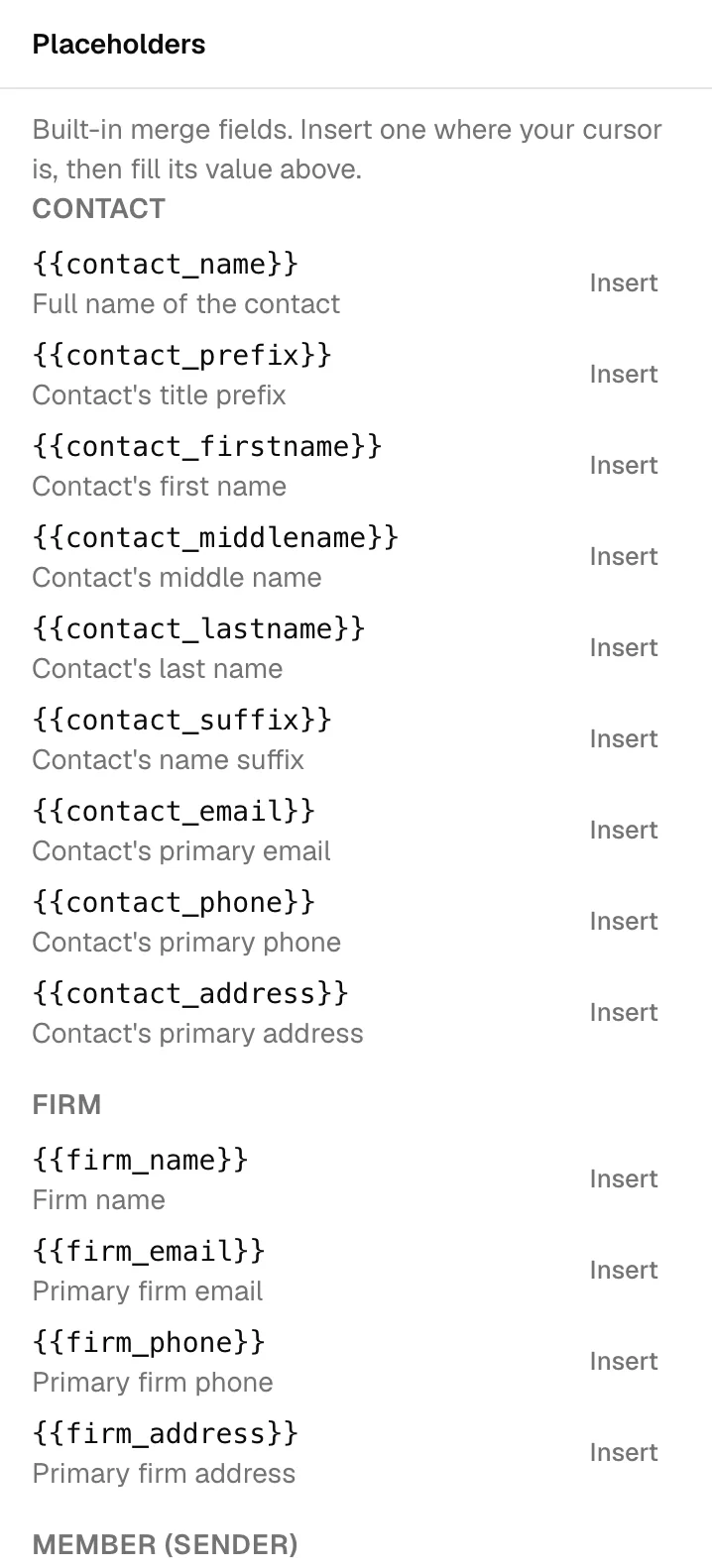
Esqase puts the token at your cursor (or at the end of the document, if you have not clicked into it yet), places the cursor after it so you can keep typing, and fills it straight away when the record has a value. On a template, only firm, member, date, and document fields fill when you insert them.
The groups come in this order: Contact, Matter, Lead, Form answers, Court, Invoice, Event, Firm, Member (who prepared the document), Today, and Document. On a matter tracked as a personal injury case, Damages, Medical, Settlement, and Incident follow. Your custom fields come last, under Matter fields, Lead fields, and Contact fields.
Form answers lists Form title and Form submitted date, then one heading for each form with a completed submission on the record, with that form's questions by label. Below them, Show answers from lets you pick any active form you can view and insert its questions, even before anyone has filled it in. That is how you put form answers into a template.
A field that cannot fill on this document is greyed out with the reason, for example Needs a matter on a document with no record, or for matter and court fields on a lead's document. A group you cannot view does not appear at all.
Type it in the document
- Click into the document where you want the placeholder.
- Type the token with double curly braces, for example
{{contact_name}}. - When you type the closing
}}, Esqase turns the text into a placeholder chip, adds it to the list, and fills it when the record has a value.
A key with spaces or capital letters is left as plain text.
Add your own placeholder
Use this for a placeholder Esqase does not know, such as an amount you agree with the client.
- Click in the document where the placeholder should go.
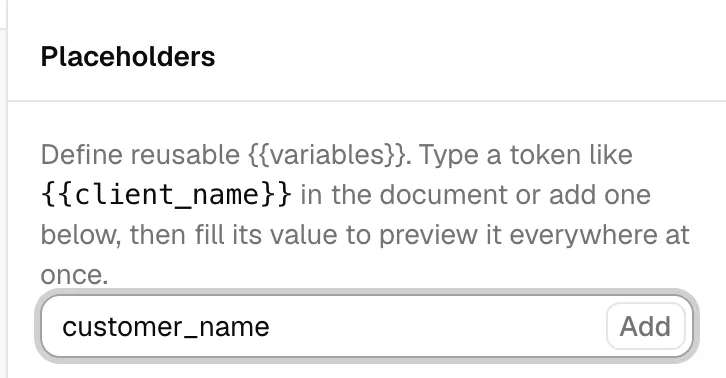
- Under Add your own placeholder, at the bottom of Insert a field, type a key, for example
settlement_amount. You can type a bare key or a full token ({{settlement_amount}}); Esqase strips the braces for you. - Click Add (or press Enter).
Esqase inserts the token at your cursor, and the placeholder appears in the list tagged Custom, ready for its value.
Note: Keys must use lowercase letters, numbers, and underscores. If you enter something else, you see "Use lowercase letters, numbers, and underscores".
Type or change a value
- In the list, find the placeholder's row.
- Type into its value box.
Every place the placeholder appears updates as you type, and your change saves by itself. A value you type is tagged Entered, and Fill from records never replaces it. Clear the value to go back to the empty chip; the row then reads Not filled.
Tip: The document stores the tokens and the values separately, so you can fill a draft, export it, and still reuse the same wording later.
Format a placeholder
A filled placeholder reads as a natural part of the sentence rather than a highlighted tag:
- A placeholder with a value renders as plain text in the same font, size, weight, and color as the text around it.
- A placeholder still showing its
{{token}}appears as a small shaded chip, so the blanks that remain are easy to spot.
You can also style a placeholder directly so its value matches the surrounding text:
- Select the placeholder in the document (click it, or drag-select across it together with nearby text).
- Apply any formatting from the toolbar or with keyboard shortcuts: bold, italic, underline, strikethrough, text color, highlight, font family, or font size.
The value updates to match, the formatting is saved with the document, and it carries into print, PDF, and Word exports.
Documents with no record
A document that no workflow step created, and that is not filed in a matter's documents, has no record. Filling from reads This document is not filed under a matter., and fields that need a record read Needs a matter in Insert a field. Firm, member, date, and document placeholders still fill.
To link it, click Assign to matter under that sentence. The Assign to matter dialog opens, the same one the documents list uses. See Assign a document to a matter. If you move the document into the matter, Filling from then names the matter: click Fill from records to fill from it. If you copy it instead, the copy opens in the matter's documents already filled from the matter.
Who sees what
- Members with View access for documents see the placeholders and their values, read-only.
- A member outside a restricted matter (a matter set to Specific members that they are not one of, or a member without View access for Matters) sees Restricted matter in Filling from, with "Only firm, member, date and document fields fill on this document." Nothing from the matter fills for them, and its groups are not offered in Insert a field.
- Each group follows your role. Contact needs View access for Contacts, Matter for Matters, Lead for Leads, Invoice for Invoices, Event for Calendar, and Court for Court dates. Form answers need Forms. Custom field placeholders follow your access to the matter, lead, or contact they belong to.
- Personal injury placeholders need View access for Personal injury, and the Medical group also needs Medical records and bills.
- Flat fee and Contingency rate fill only for members with Update access for Matters.
A missing permission never shows an error. The group is left out, and its placeholders stay empty when that member fills.
Empty placeholders when you export, share, or sign
Esqase checks for empty placeholders before a document leaves the editor.
- Download and print. PDF (.pdf), Word (.docx), and Print, from the header's Download menu or the File menu, first check the document. If any placeholder is empty, the Some placeholders are still empty dialog lists them by name, with each token under its name. Click Go back to fill them first (nothing is downloaded or printed), or Continue anyway.
- The blank line. If you continue, each empty placeholder prints as a blank line (
________) in the PDF, the Word file, or the printout, so nobody receives a stray{{token}}. The editor keeps showing the placeholder. Printing with your browser's own print shortcut prints the same blank lines. - Sign. The Create a PDF copy for signing? dialog lists any empty placeholders under Some placeholders are still empty, with "They will show as a blank line in the PDF copy." The copy shows the values you filled in and a blank line for each empty one. See Send a document for signature.
- Templates are the exception. A template exports, prints, and makes its signing copy with no warning, and keeps its
{{tokens}}in the PDF, the Word file, and the printout. See Document templates. - Share links. A link for A specific recipient shows the values you filled in, with a blank line for each empty placeholder. A link for Anyone with the link shows the placeholders as their
{{tokens}}. See Sharing documents.
Copy or move a document to another record
A document's values belong to its record, so copying or moving a document into another matter's documents fills it again for that matter:
- Copy into another matter's documents (Make a copy, or Copy here when you assign it to a matter). The copy fills from the new matter. Values from the old matter, including ones typed by hand, are not carried over. Firm and member values someone typed, and your own placeholders, stay. The copy's creation date is the day you copied it.
- Move into another matter's documents (Move to, or Move here when you assign it). The document fills again from the new matter in the same way, and keeps its own creation date.
- Copy or move within the same matter. The values stay exactly as they are. A copy gets its own name and creation date.
- Move a folder. Moving a whole folder into another matter does not refill the documents inside it. Open each one: the panel tells you how many values changed on the record, and Fill from records updates them.
A document a workflow step created keeps filling from that step's lead or matter, wherever you move it.
Documents a workflow creates
A workflow Document step creates its document from a template and fills it from the lead or matter, and from the form answers the step names in Fill values from. See Workflow step types.
- Filling from names the step, for example From the Engagement letter step. Once the step's form has come back, Form answers from starts on that submission.
- When Esqase creates the document on its own, court, invoice, event, and personal injury placeholders are left empty, unless a form answer fills them. They fill when a member reviews the document and clicks Fill from records.
- When the step is waiting for you, a notice sits above the page: "This document is waiting for your review in the Engagement letter step.", with how many placeholders are still empty. Fill or type what is missing, then click Approve and continue on the notice to let the workflow carry on.
Note: Approve and continue appears only for members who can review the step: your role needs Update access for Workflows and for the lead or matter, and automation must be running for that record and your firm. Everyone else sees the notice without the button.
Personal injury merge fields
On a matter tracked as a personal injury case, four more groups appear: Damages, Medical, Settlement, and Incident. They let you template a demand letter or a settlement statement once instead of retyping the figures for every case. See Personal injury overview.
- Damages:
{{damages_total}},{{damages_by_type}}(every type with its running amount, one per line), and one token per damage type:{{damages_special}},{{damages_general}},{{damages_other}},{{damages_actual}},{{damages_moral}},{{damages_temperate}},{{damages_nominal}}, and{{damages_exemplary}}. - Medical:
{{medical_providers}}(the treating providers, one per line),{{medical_treatment_start}},{{medical_treatment_end}},{{medical_treatment_dates}}(the two as a range),{{medical_billed}},{{medical_paid}}, and{{medical_owed}}. - Settlement:
{{settlement_gross_recovery}},{{settlement_legal_fee}},{{settlement_referral_fee}},{{settlement_expenses}},{{settlement_liens}},{{settlement_outstanding_balances}},{{settlement_net_to_client}}, and{{settlement_ladder}}(the whole deduction ladder, one line per deduction, with the gross recovery above it and the net to client below). - Incident:
{{incident_date}},{{incident_time}},{{incident_location}}, and{{incident_police_report_number}}.
A few rules:
- They fill like every other group: when the document is created from a template in the matter's documents, and whenever you click Fill from records.
- A figure the case does not have yet stays empty. If the case has no settlement yet,
{{settlement_net_to_client}}is left empty, so you can see what did not resolve. {{settlement_liens}}and{{settlement_outstanding_balances}}work before a settlement exists, by totalling the case's liens and balances. The other settlement tokens wait for a settlement.- Access is respected. A member without View access for Personal injury does not see these groups, and they do not fill for that member. The Medical group also needs View access for Medical records and bills. The document still works as normal, with no error.
- On templates, the groups are offered for inserting when your firm has personal injury and your role can view it.
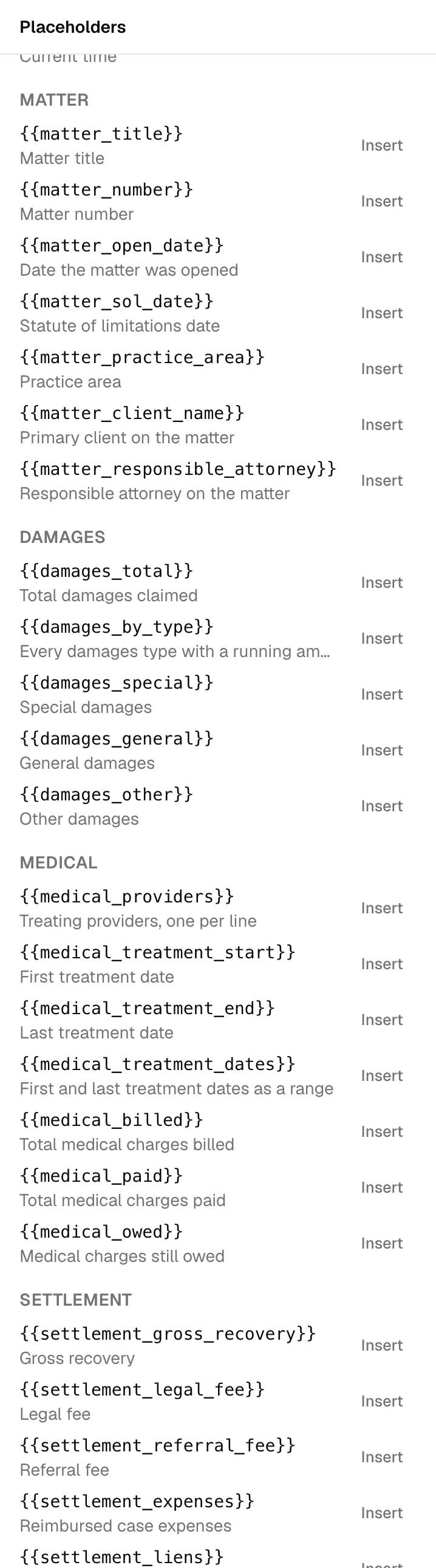
Placeholder reference
The groups Insert a field offers, with a few of the placeholders in each. Open a group in the panel to see the full list.
| Group | Fills from | Example placeholders |
|---|---|---|
| Contact | The client: the matter's primary client, or the lead's contact | {{contact_name}}, {{contact_email}}, {{contact_address}} |
| Matter | The matter | {{matter_title}}, {{matter_number}}, {{matter_responsible_attorney}} |
| Lead | The lead, or on a matter the lead it came from | {{lead_number}}, {{lead_status}}, {{lead_sources}} |
| Form answers | Completed form submissions on the record | {{form_title}}, {{form_submitted_date}}, {{<merge key>}} |
| Court | The matter's court and case details | {{court_name}}, {{court_case_number}}, {{court_judge}} |
| Invoice | An invoice on the matter | {{invoice_id}}, {{invoice_amount_due}}, {{invoice_date_due}} |
| Event | An event on the lead or matter | {{event_title}}, {{event_date_time}}, {{event_location}} |
| Firm | Your firm's details | {{firm_name}}, {{firm_phone}}, {{firm_address}} |
| Member (who prepared the document) | The member who prepares the document | {{member_name}}, {{member_email}}, {{member_title}} |
| Today | The date and time in your firm's time zone | {{date_today}}, {{time_today}} |
| Document | The document itself | {{document_name}}, {{document_created_date}} |
| Damages, Medical, Settlement, Incident | The matter's personal injury case | {{damages_total}}, {{settlement_net_to_client}}, {{incident_date}} |
| Matter fields, Lead fields, Contact fields | Your firm's custom fields | {{matter_field_<name>}}, {{lead_field_<name>}}, {{contact_field_<name>}} |
{{matter_client_name}} names the same client as the Contact group.
Remove a placeholder
You can remove a placeholder from the list once it is no longer in the document body. Rows like that follow under Not in the document.
- To remove a placeholder that is still in the document, first delete its chip from the document text. Its row moves under Not in the document.
- Click the X (remove) control on the row.
Common questions
- Will filling in values change my template? No. A template keeps its
{{tokens}}, and documents you create from it keep their own values. See Document templates. - Why did a placeholder not fill? The record may have no value for it, your role may not include that part of the record, the form may not be back yet, or the document may have no record. Check Filling from, look for a greyed-out reason in Insert a field, or type the value yourself.
- Will Fill from records undo what I typed? No. Typed values are always kept. Use Use record value on a row when you want the record's value instead.
- I typed
{{name}}but it did not turn into a chip. Make sure you typed both closing braces}}and that the key uses only lowercase letters, numbers, and underscores. - Do placeholders carry over when I create a document from a template? The tokens, content, and page setup do. Values are filled again for the new document's own record. See Document templates.
- Can clients see the placeholder names? Not on a PDF you download or send for signature, where empty placeholders print as a blank line, and not on a share link for A specific recipient. A link for Anyone with the link shows the
{{tokens}}.