Available lang sa Ingles ang dokumentasyon ng produkto.
Your Esqase subscription
Your Esqase subscription is how your firm pays Esqase for the platform. From one Billing page you can see your current plan and status, start a free trial, choose or change a plan, update your payment method, review past invoices, cancel, export a copy of your firm's data, and delete your firm. Every plan also includes monthly AI credits for the AI Assistant (see AI credits in your plan). This is separate from the invoices and payments you send to your own clients.
Note: This page covers what your firm pays Esqase. To learn about billing your clients, see Creating and sending invoices and Recording and managing payments.
Before you begin
A few things to know before you manage your subscription:
- You must be the firm owner. Only the firm owner can open the Billing page and make any subscription change (start a trial, choose a plan, change a plan, update the card, cancel, export firm data, or delete the firm). If you are not the owner, the page shows a "no access" message instead of the plan details. To find out who owns your firm or to transfer ownership, see Managing firm members and Roles and permissions.
- A firm you create without an invitation gets one 14-day free trial. Whether a card is needed to start it depends on your firm's country.
- Firms in the Philippines: no credit card is required. You get 14 days of full access, and when the trial ends you add a card and choose a plan to continue.
- Firms everywhere else: you enter a card and choose a plan during signup. You are still not charged for 14 days, and your plan begins automatically when the trial ends.
- A firm created from an invitation link Esqase sent you follows the invitation. The invitation sets the trial length (30 days, or 2 to 6 months) and whether a card is needed, in any country: it can waive the card wherever your firm is based, or ask for one even in the Philippines. If you already created a firm but never chose a plan for it, opening the link and signing in applies the invitation to that firm, as long as its trial has not started.
- The trial is one per firm, ever. Without an invitation it is also a one-time offer for your account: if a previous firm you created already used its trial and later lapsed, a new firm you create starts without a free trial. An invitation applies even then. Once the trial is used, choosing a paid plan is how you continue.
- Payments are handled securely by Stripe. When a card is needed (to subscribe to a paid plan, or in cases where a card is required up front), Esqase sends you to Stripe's secure checkout to enter it. Esqase never stores your full card number.
How to open the Billing page
- In the sidebar, click Settings.
- Open the Billing settings page.
View your subscription and plan status
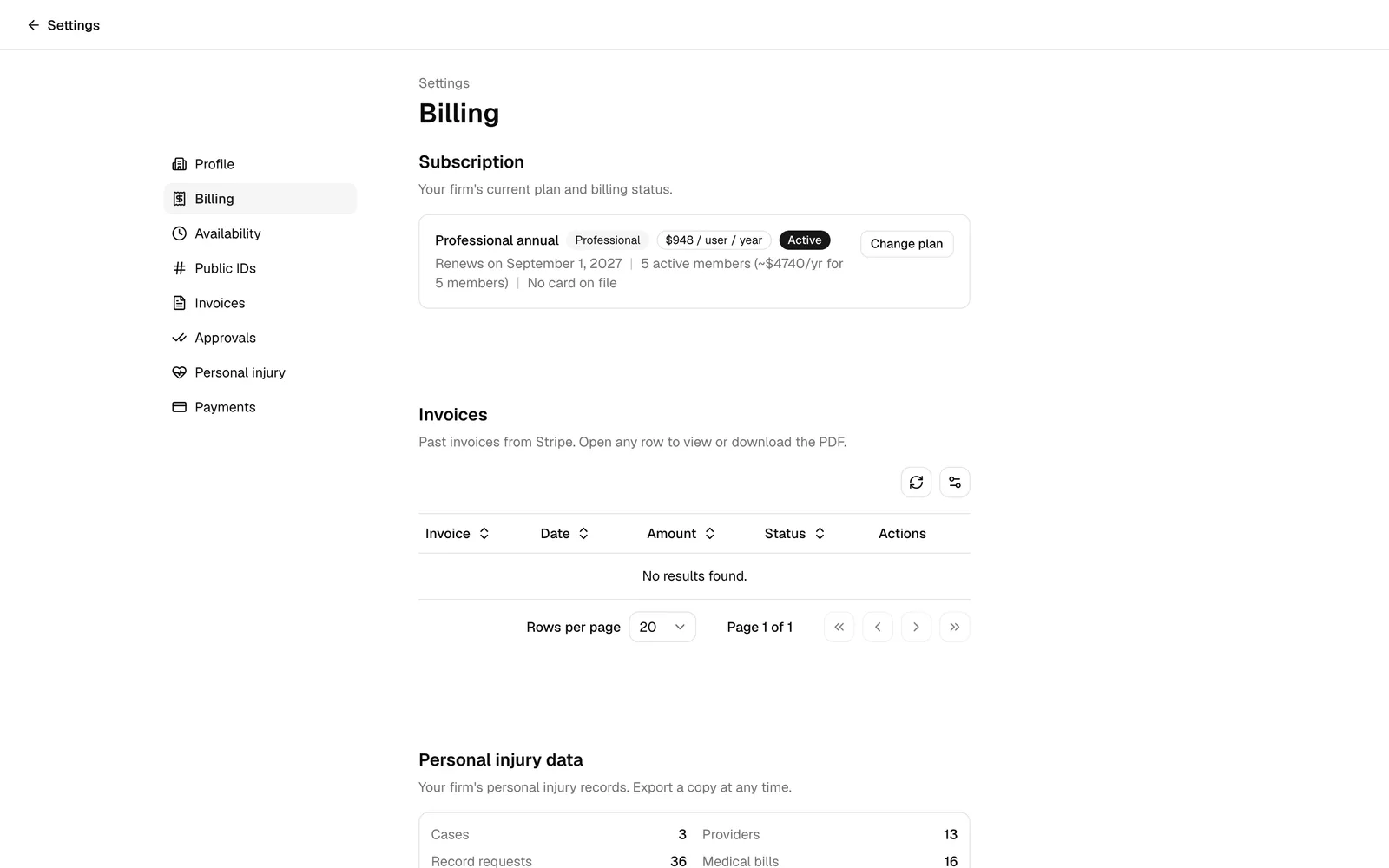
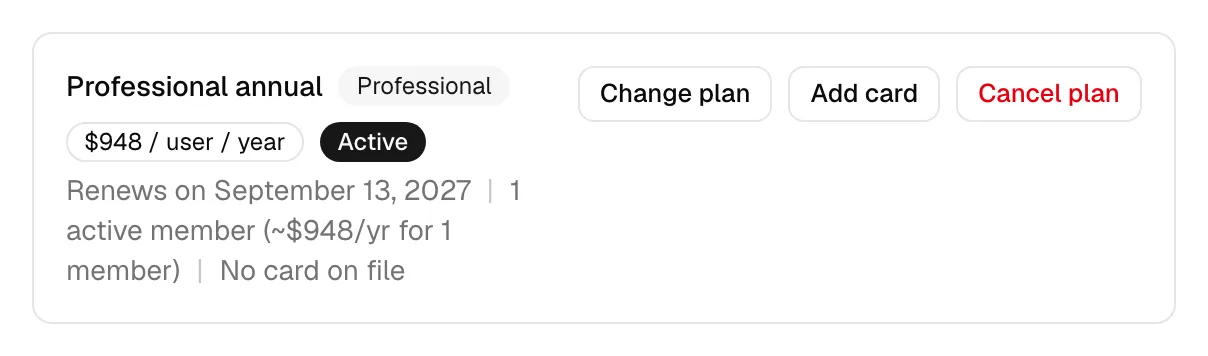
The Subscription section at the top of the Billing page summarizes your firm's plan at a glance. The current-plan card stacks everything important: the plan name and its badges on the first line, the renewal date and card on file on the next, your member and billed seat count under that, and a row of action buttons at the bottom.
- In the sidebar, click Settings, then open Billing.
- Read the current-plan card under the Subscription heading.
Here is what each part of the card tells you:
-
Plan name. Names the tier and the interval together: Standard annual, Standard monthly, Professional annual, or Professional monthly. While you are trialing it reads your trial's length followed by free trial, for example 14-day free trial, or 3-month free trial for a firm created from an invitation. It reads Subscription if a plan label is not available yet.
-
Tier badge. Next to the plan name, a badge reads Standard or Professional. It is the quickest way to check whether personal injury is in your plan. See Standard and Professional.
-
Price badge. When you are on a paid plan, a badge shows the rate you pay, which depends on both your tier and your billing interval. A monthly plan shows the monthly rate per user: $59 / user / month on Standard, $89 / user / month on Professional. An annual plan shows the full yearly rate you are actually charged: $588 / user / year on Standard (the $49 monthly-equivalent rate charged once a year) and $948 / user / year on Professional (the $79 rate). Firms registered in the Philippines are priced in pesos, for example ₱5988 / user / year on Standard annual. Current rates for every tier and interval are on the pricing page.
-
Status badge. A colored badge shows your current state:
- Trial while your free trial is active.
- Active when you are on a paid, in-good-standing plan.
- Trial ended when your trial has lapsed.
- Canceled after you cancel and the period ends.
- Past due if a payment failed and is awaiting retry.
- Unpaid if payment could not be collected.
- Incomplete if a checkout was started but not finished.
-
Time line. Just below the plan name you will see either how much time is left in your trial (for example 9 days left, ends June 29, 2026) or, on a paid plan, your next renewal date (for example Renews on June 29, 2026). If your trial has already lapsed, it reads Trial ended on..., and if you have scheduled a cancellation it reads Cancels on... instead. The card on file follows on the same line, separated by a vertical bar.
-
Member count and cost. On its own line under that, the card shows how many active members your firm has and the cost, for example 3 active members (~$1,764/yr for 3 members). Esqase prices per billed seat. Every active member is a billed seat except Esqase staff (members whose account email is an
@esqase.comaddress), and a firm always pays for at least one seat, so your subscription is the plan rate multiplied by your billed seats. When the two counts differ, the line names both, for example 4 active members, 3 billed seats (~$1,764/yr), followed by Esqase staff accounts are not billed.Important: Billing tracks your billed seats automatically. When a billed member is added (an invite is accepted, or a member is restored), Esqase adds them to your subscription and issues a prorated charge right away for the rest of the billing period. When a billed member is removed or leaves, Esqase lowers your subscription and applies a prorated credit against your next invoice. Adding or removing Esqase staff never changes your bill, and in a firm whose only members are Esqase staff, the first member of your own joins on the one-seat minimum you already pay for. To manage who counts as an active member, see Managing firm members. The figure shown here is the current basis for your bill; an individual invoice may differ slightly because of mid-period proration and the exact moment Stripe bills you.
Note: If the seats Stripe bills ever differ from the billed seats your team needs, the card shows a short notice, Your billed seats are being updated. This normally settles within a few minutes on its own. Esqase staff make your active members and your billed seats differ on purpose, and that never shows the notice.
-
Card on file. The time line ends with the brand name and the last four digits of the payment method Stripe has saved, for example Visa ····4242. The brand reads Visa, Mastercard, American Express, Discover, Diners Club, JCB, or UnionPay. It reads No card on file if none is saved (which is normal for a cardless trial).
-
Action buttons. A row of buttons at the bottom of the card, each with a small icon: Change plan, Update card (which reads Add card when no card is saved), and Cancel plan. While a cancellation is pending, Cancel plan gives way to Resume subscription. Update card and Cancel plan only appear once your firm has a subscription set up through Stripe.

Note: A Past due, Unpaid, or Canceled status does not lock your firm right away. When a paid subscription lapses, your firm keeps full access for a 30-day grace period (with a reminder banner) before the dashboard is paused. A free trial is different: when it ends, the dashboard is paused right away and you choose a plan to continue (a trial has no grace period). See What happens when your trial or subscription lapses.
Common questions
- Why does my card say "No card on file"? If your firm started a cardless free trial, no card was collected. You will be prompted to add one when you choose a paid plan.
- Why does my invoice differ from the figure on the card? The card shows your current per-seat basis. A given invoice can differ because member changes during the period are prorated (a partial charge when someone joins, a partial credit when someone leaves) and because of exactly when Stripe bills you.
Start your free trial
Without an invitation, every firm gets 14 days free, and how the trial starts depends on where your firm is based.
A firm created from an invitation link that Esqase sent you follows the invitation instead (see Before you begin). When the invitation needs no card, the trial runs like the cardless trial below wherever your firm is based. When it asks for a card, setup follows the card-up-front steps below, even in the Philippines. The invitation applies even if a firm you created earlier already used its trial. An invitation link may be valid for several firms, up to a limit set by the person who issued it, after which it shows as no longer available. The Subscription step of firm setup and the Billing page show your trial's length.
Firms in the Philippines, or an invitation with no card needed
No credit card is required to begin. The trial starts automatically during firm setup, so by the time you reach your dashboard it is already running.
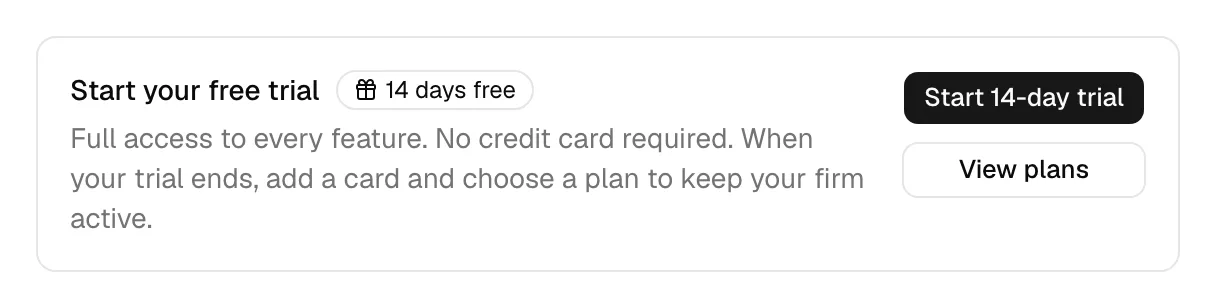
If your firm does not have a subscription yet, you can also start it from the Billing page, where the Subscription section shows a Start your free trial card with a badge naming your trial's length, for example 14 days free.
- In the sidebar, click Settings, then open Billing.
- In the Start your free trial card, click the start button. It names your trial's length, for example Start 14-day trial.
- Wait while the button shows Starting.... When it finishes, a confirmation appears naming your trial, for example Your 14-day free trial has started, and Esqase takes you to your dashboard home.
When the trial ends, your dashboard pauses until you add a card and choose a plan. Nothing is charged automatically, because Esqase has no card on file for you.
Tip: If you would rather review the plans first, click View plans instead. This opens the Choose a plan dialog so you can compare features and pricing before you commit. You are not charged while you are on the trial.
Firms outside the Philippines, or an invitation that asks for a card
You choose a plan and enter a card during signup, in the Subscription step of the setup wizard. You are not charged until your trial ends (after 14 days, or after the length your invitation sets). Your card is held securely by Stripe, and your plan begins automatically when the trial ends.
- Complete the earlier steps of firm setup.
- At the Subscription step, compare the Monthly plan and Annual plan and click the one you want.
- Click the continue button. You are taken to Stripe's secure checkout.
- Enter your card details and billing address, then confirm. Stripe returns you to Esqase and your trial begins.
Your firm stays on hold until this is finished, so a card and a plan are required to reach the dashboard. If you close the browser partway through, nothing is lost: your firm and everything you entered during setup are saved, and you can sign in later and pick up at the plan chooser.
Important: Because a card is already on file, your first charge happens automatically when the trial ends. Esqase emails you 7 days, 72 hours, and 24 hours before that, so the charge is never a surprise. To avoid it, cancel before the trial ends (see Cancel your subscription or trial); you keep access for the remainder of the trial.
Standard and Professional
Every subscription has two parts: a tier and a billing interval.
- Standard is the full practice management workspace: matters, contacts, documents, eSignature, time and billing, trust accounting, intake, and everything else in the product.
- Professional is everything in Standard plus the personal injury module.
- Monthly or annual sets how often you are billed. Annual costs less per user on both tiers and adds a Landing page website that monthly does not.
The plan chooser lists what Professional adds under a Professional adds heading:
- The Personal injury module.
- A Business associate agreement.
- Required two-factor authentication.
- Content-free notification alerts.
The last three are not optional extras. They are the conditions the module comes with: your firm owner accepts the agreement once before any personal injury record can be saved, and accepting it locks two-factor authentication on for every member and takes case details out of push and email alerts. See Business associate agreement (BAA).
A firm registered in the Philippines sees the module as Torts and Damages and nothing else under Professional adds: it accepts no agreement, and the module opens as soon as the firm is on Professional.
What each tier costs
Prices are per user, per month, and your firm's registered country decides the currency.
| Tier | Annual | Monthly |
|---|---|---|
| Standard | $49 | $59 |
| Professional | $79 | $89 |
| Standard (Philippines) | ₱499 | ₱599 |
| Professional (Philippines) | ₱749 | ₱849 |
Annual plans are charged once a year, so the plan chooser and the current-plan card show the yearly figure, for example $588 / user / year. Annual saves the same amount on either tier, and the Standard card spells it out on the annual interval: Save $120/user/yr vs. monthly, or Save ₱1200/user/yr vs. monthly in pesos. The Professional card uses that line to name what the tier includes instead.
Note: The prices above are the ones in the app today. The pricing page is the current published rate card.
Which tier your free trial runs on
A cardless free trial (the Philippine path) runs on Professional, so you can try personal injury before deciding. The plan chooser marks the Professional card Your trial includes this. When the trial ends you pick the tier you want, and picking Standard is not a downgrade because there is nothing to schedule.
On the card-required path, the plan chooser opens on the tier you select at checkout, and Standard is the default.
Note: Two-factor authentication and content-free alerts do not switch on just because a trial is running on Professional. They switch on when your firm owner accepts the agreement, which is also when the personal injury module opens.
Firms that were already using personal injury
If your firm was recording personal injury cases before Professional existed, Esqase moved you to Professional and kept you there at your existing Standard price. Nothing changes and nothing is charged extra until the day your firm chooses a different plan, at which point the plan you pick is the plan you pay for.
Your firm owner still has to accept the agreement before new personal injury records can be saved. See Business associate agreement (BAA).
Moving up to Professional takes effect right away. Moving back down to Standard takes effect at the end of the period you have already paid for, and nothing is deleted when it does. See Change your plan.
AI credits in your plan
Your plan includes Esqase AI, the AI Assistant's built-in option that needs no API key. Esqase AI runs on AI credits: every member of your firm gets included credits each month with the plan, and your firm owner can buy more for the whole firm. Firms that connect their own Claude, Gemini, or OpenAI key can keep using it, and what a firm's own key uses is never counted in credits. See AI Assistant for how members use the assistant.
Note: Esqase AI is turned on for firms in stages. Until it is available for your firm, the Use Esqase AI switch on the Firm AI Assistant page and the credits sections of both AI Assistant settings pages show Coming soon, and no credits can be used or bought.
Included credits by plan
Each active member gets their own included credits every month. The amount depends on your tier and on your firm's registered country, and it is the same on monthly and annual billing.
| Plan | Included AI credits per member, each month |
|---|---|
| Standard | 900 |
| Professional | 1,500 |
| Standard (Philippines) | 150 |
| Professional (Philippines) | 250 |
| Free trial | 100 for the whole trial (50 in the Philippines) |
Esqase staff members in your firm, who are not billed as seats, get included credits too. A member who joins partway through a period gets the full monthly amount right away.
How far a credit goes depends on the model a member picks, how much the assistant reads to answer, and how long its answer is. As a rough guide, a typical question on a model marked 1x credits uses about 5 to 8 credits, so 900 credits cover roughly 110 to 180 questions a month. Gemini 4 Argon, the model Esqase AI uses unless your firm or the member picks another, is marked 1x credits until November 30, 2026 and 2x credits from December 1, 2026. Claude Opus 5.5 uses about twice as many credits as a 1x model for the same work, while Gemini 3.8 Flash and Claude Haiku 5.5 use fewer. A question that reads long documents or many records uses more. The model list in the message box shows each model's rate, for example 2x credits for Claude Opus 5.5 (see Esqase AI models and credit rates).
When credits refresh
Included credits refresh once a month on every plan, and each refresh resets a member's included credits to the plan's monthly amount. Unused included credits do not carry over to the next month. Included credits start once Esqase AI is available for your firm and both the AI Assistant and Use Esqase AI are turned on in your firm's Firm AI Assistant settings; members get their first credits within about an hour.
- Monthly plans: credits refresh at the start of each billing period, when your renewal is paid.
- Annual plans: credits refresh every month on the same day of the month your annual period started (on the last day of the month when a month is shorter), even though the plan itself is charged once a year.
- Moving up a tier: when you move from Standard to Professional, each member's remaining included credits go up right away by the difference, for example by 600 credits outside the Philippines. Moving down to Standard applies at the next refresh, so nobody loses credits mid-month. Changing only between monthly and annual billing does not change the amount.
- When the assistant or Esqase AI is turned off: included credits do not refresh while the AI Assistant or Use Esqase AI is turned off for your firm. Within about an hour of both being turned back on, each member has the current period's credits.
- When billing is not in good standing: credits refresh only while your subscription is active or in its free trial. If a payment is past due or unpaid, or the subscription was canceled, the next refresh waits until billing is restored.
Each member sees their own credits, and the date they next refresh, on the My AI Assistant settings page and in the AI Assistant. Firm owners and members who manage the assistant settings see every member's credits on the Firm AI Assistant settings page.
Credits during a free trial
A free trial includes 100 credits per member (50 for firms in the Philippines), once for the whole trial, whatever its length. Trial credits do not refresh. When your paid plan starts, each member's credits reset to your plan's monthly amount, and any trial credits left over do not carry over.
Buy more credits
When a member's included credits run out, the assistant can draw on the firm pool: credits your firm owner buys for everyone at the firm. Credits in the pool never expire, carry over every month, and stay through plan changes. A member uses their own included credits first and the pool only after that. On the Firm AI Assistant settings page, the firm can limit how many pool credits each member may use in each credit period (the free trial, then each month); the limit resets when a new period starts.
Only the firm owner can buy credits. Credits come in packs, priced in your firm's currency:
| Firms outside the Philippines | Firms in the Philippines |
|---|---|
| 500 credits for $10 | 400 credits for ₱500 |
| 1,350 credits for $25 | 900 credits for ₱1,000 |
| 2,800 credits for $50 | 2,400 credits for ₱2,500 |
- In the sidebar, click Settings. In the Firm section, click the Firm AI Assistant card.
- In the AI credits section, click Buy credits.
- In the Buy AI credits dialog, pick a pack and click Continue to Stripe.
- Enter your card on Stripe's secure checkout and confirm. The payment is a one-time charge, separate from your subscription, and it does not change your plan or your renewal date.
- Stripe returns you to the Firm AI Assistant page, and a confirmation names the credits added, for example 1,350 credits added to your firm's pool.
If you back out on Stripe's page, Esqase shows Purchase cancelled and nothing is charged. See Buy credits for the firm pool for the details of the purchase flow.
Receipts for credit purchases
Each credit purchase is a one-time card payment, made out to your firm like your subscription invoices. It appears as its own row in the Invoices table on the Billing page, described with the pack, for example Esqase AI credit top-up: 1,350 credits for USD 25, and you open or download it from there like any other invoice (see View and download past invoices). The Credit purchases list on the Firm AI Assistant page also shows each purchase with its date, pack, amount, credits, and status.
Choose a paid plan
When you are ready to subscribe, whether during your trial or after it has ended, you choose a plan and pay through Stripe. This is the path a Philippine firm takes when its cardless trial ends, and the path any firm takes to resubscribe after cancelling.
-
In the sidebar, click Settings, then open Billing.
-
Click View plans (during a trial) or Choose a plan (once the trial has ended).
-
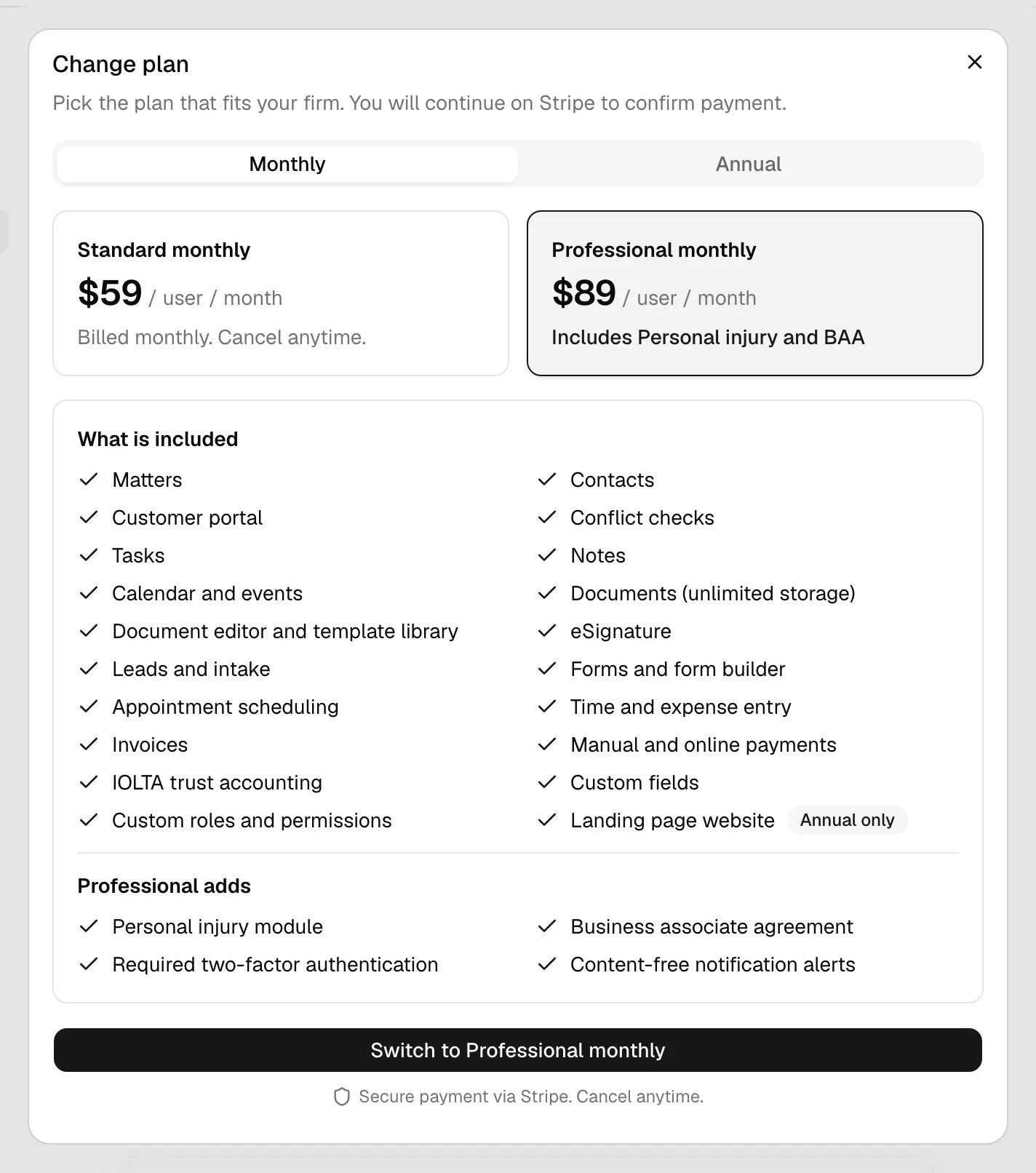
The Choose a plan dialog opens. Pick your billing interval at the top, Monthly or Annual, then pick a tier below it:
- Standard, the full practice management workspace.
- Professional, which shows Includes Personal injury and BAA. A firm registered in the Philippines sees the module under its Philippine name instead: Includes Torts and Damages.
On the annual interval, the Standard card also shows how much you save against monthly billing, and annual adds a Landing page website that monthly does not. Review the What is included list to see the full feature set both tiers share, such as Matters, Contacts, Documents (unlimited storage), eSignature, IOLTA trust accounting (the trust account that holds client funds), and more.
-
Click a plan card to select it (the selected card is highlighted).
-
Click the button at the bottom. It reads Continue with and the name of the plan you picked.
-
The button changes to Opening Stripe... and you are taken to Stripe's secure checkout. Enter your card details and billing address there, then confirm.
-
When you finish, Stripe returns you to the Billing page in Esqase to activate your subscription (see the next section).
Note: The dialog reminds you: Secure payment via Stripe. Cancel anytime. Your card is charged when you complete checkout, unless you are still on a cardless free trial with more than two days left. Then the trial carries over to your plan and the first charge waits until the trial ends.
Confirm your checkout and activate your subscription
After you finish payment in Stripe, Stripe sends you back to the Billing page in Esqase. Esqase then confirms the checkout and turns on your subscription automatically. You do not need to do anything except wait for the confirmation.
- After confirming in Stripe, you land back on the Billing page.
- Esqase verifies the checkout in the background. A confirmation appears reading Payment confirmed. Welcome aboard!.
- The page refreshes and the current-plan card updates to show your new status (for example Trial or Active), your plan, your renewal or trial-end date, and your saved card.
Note: If you changed your mind in Stripe and backed out, Esqase shows Checkout cancelled. You can try again when ready and leaves your subscription unchanged. Just start the flow again whenever you are ready.
Tip: If the confirmation does not appear, refresh the Billing page. If your status still does not update after a minute or two, see Troubleshooting below.
📷 Screenshot: The Billing page just after returning from Stripe, showing the Payment confirmed. Welcome aboard! confirmation and the updated current-plan card.
Change your plan
You can change your billing interval, move up to Professional, or move back down to Standard at any time. If you are already subscribed, the change happens on your existing subscription. You are not sent back through checkout and you do not re-enter your card.
- In the sidebar, click Settings, then open Billing.
- On the current-plan card, click Change plan.
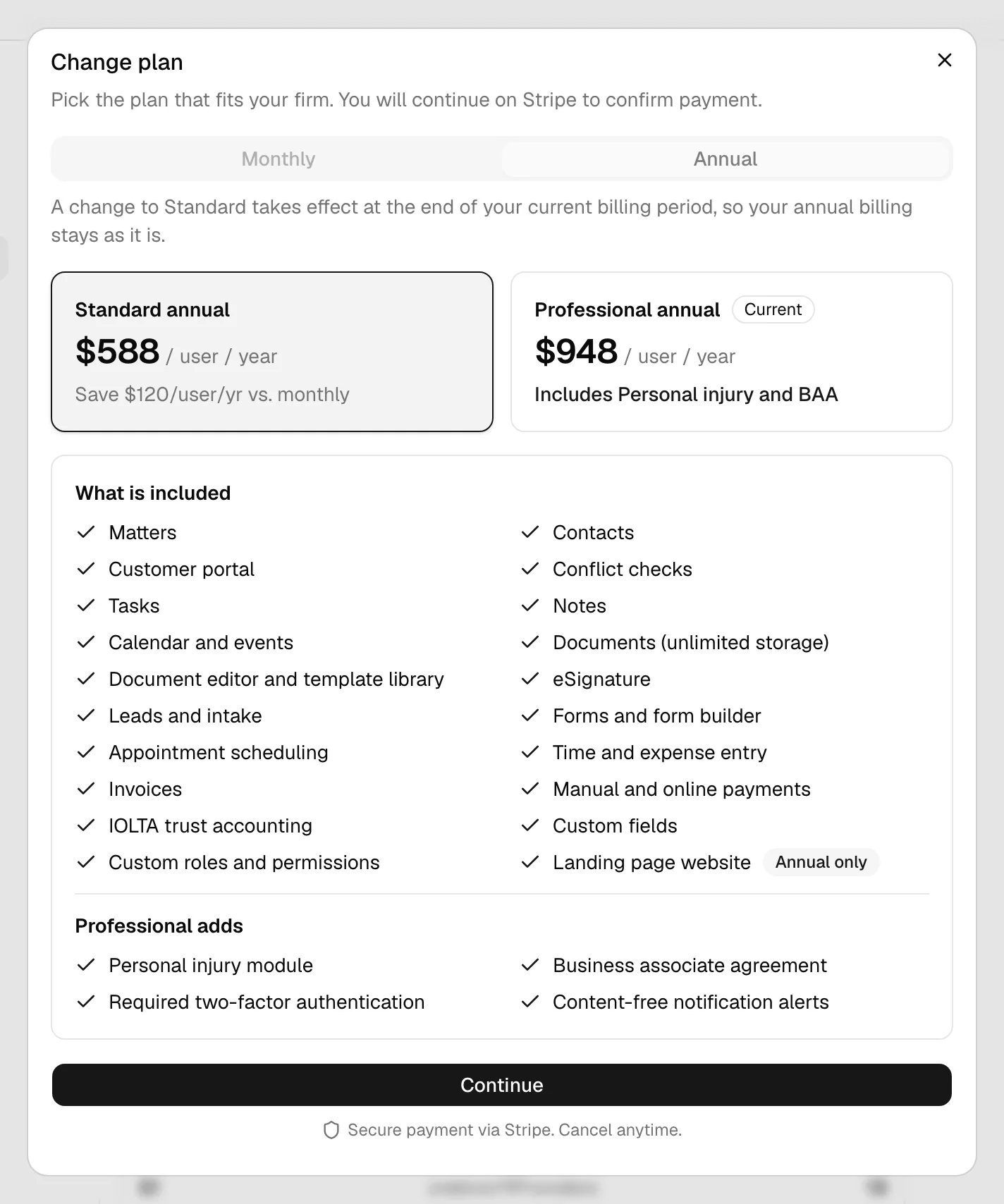
- The Change plan dialog opens with the interval toggle at the top and both tiers below it. Your existing plan is marked Current.
- Click the plan you want to move to. The selected card is highlighted.
- Click the button at the bottom. Moving up reads Switch to Professional; changing only the billing interval reads Switch to and the plan name, for example Switch to Standard monthly. Moving down to Standard reads Continue and opens the confirmation described below.
- Your plan is switched and the page refreshes with the new plan on the current-plan card.
What you are charged depends on where you are today:
- On a paid plan. The new plan starts immediately. Your card is charged for the new plan now, and the time you already paid for on the old plan is credited back on the same invoice, so you are not billed twice for the same days.
- On a free trial, or after your subscription was cancelled. There is no live subscription to switch, so Esqase takes you to Stripe's secure checkout to enter a card and start the new plan. This is the flow described in Choose a paid plan. On a cardless free trial with more than two days left, the rest of the trial carries over: the dialog tells you the date, and your card is not charged until then. In the last two days of the trial, the first period is charged when you finish checkout.
Note: Moving up to Professional also raises each member's included AI credits for the current month by the difference between the two tiers, right away. Moving down changes the monthly amount at the next refresh. See When credits refresh.
Note: Changing the plan tells the other people who administer your firm. A move up sends Your plan now includes Personal injury, and a move down sends Your plan has changed with a line explaining that personal injury is no longer available and that the data is kept. It reaches the firm owner and anyone whose role lets them administer the firm, but never you, since you are the one who made the change. It arrives whichever way the plan moves, whether you switched it here or Stripe applied it. Each person can turn it off under Plan changed in their notification settings. See Notifications.
Moving from Professional back to Standard
This one is different, because you are giving up the personal injury module. Esqase asks you to confirm it and schedules it rather than doing it at once.
- Open the Change plan dialog and pick Standard.
- A Switch to Standard? dialog opens. It tells you the date the module stays available until, which is the end of the period you have already paid for, and reminds you that your matters lose the Medical, Damages, Claims and Settlement tabs after that date.
- Export a copy of your personal injury data from the button in the dialog if you want one. You can also export it later, including after the change.
- Type STANDARD in the confirmation box, then click Switch to Standard.
Until the date arrives, the module keeps working and the billing page shows the scheduled change with a Keep Professional button that cancels it. When the date arrives, your firm moves to Standard.
Nothing is deleted. Your personal injury records are kept, the module is hidden while you are on Standard, and everything comes back if you move to Professional again. Your firm owner can export a copy at any time from Settings then Billing.
Note: If you pick the plan you are already on, nothing changes and Esqase tells you You are already on this plan.
Tip: The annual plan is billed once a year and usually costs less per user than monthly. The dialog shows your savings, for example Save $120/user/yr vs. monthly, and notes that the annual plan also includes a Landing page website.
Cancel your subscription or trial
You can cancel at any time. Esqase cancels at the end of your current period, so you keep access for what you have already paid for (or for the rest of your trial) and you are not charged early.
- In the sidebar, click Settings, then open Billing.
- On the current-plan card, click Cancel plan.
- A confirmation dialog opens. Its wording depends on your state:
- On a trial: the title reads Cancel your free trial? and it explains that your trial keeps running until its end date and your card will not be charged.
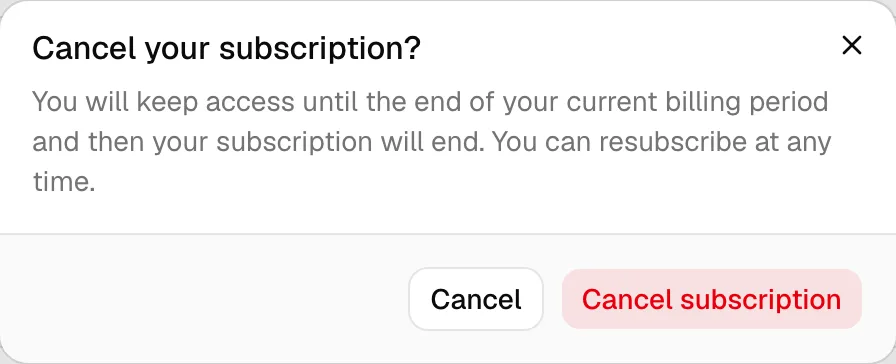
- On a paid plan: the title reads Cancel your subscription? and it explains that you keep access until the end of your current billing period, after which your subscription ends.
- Click Cancel trial or Cancel subscription to confirm. (To keep your plan, just close the dialog.)
- The button shows Cancelling... while it works. When done, you see Trial will not auto-renew or Subscription cancelled, and the page refreshes.
Once cancellation is scheduled, the Billing page makes it clear: a notice reads Your subscription is set to end, telling you the date you keep access until and that you can resume any time, the card's time line reads Cancels on..., and the Cancel plan button is replaced by a Resume subscription button.
Change your mind (Resume)
If you cancel and then decide to stay, you do not need to re-enter your card or start a new checkout.
- In the sidebar, click Settings, then open Billing.
- On the current-plan card, click Resume subscription. The button reads Resuming... while it works.
- You see Your subscription will continue, the notice disappears, and your subscription carries on with its normal renewal schedule.
Important: Cancelling does not delete your firm or your data and does not charge you anything extra. You keep working until the period ends. If you cancel a paid subscription, when the period ends your firm enters a 30-day grace period (you keep full access, with a reminder banner) before the dashboard is paused. If you cancel a free trial, the trial simply runs to its end date and then the dashboard is paused right away, because a trial has no grace period. Either way you can choose a plan again to restore access (see What happens when your trial or subscription lapses below).
Note: The Cancel plan button only appears when there is an active subscription to cancel. A cardless trial that has not gone through Stripe will not show it.
Tip: You can resubscribe at any time. Just open the Billing page and choose a plan again.
Renewal reminders on annual plans
An annual plan renews automatically once a year, so Esqase reminds you before each renewal and the charge is never a surprise. The firm owner and anyone whose role lets them administer the firm receive an email and an in-app notification 30 days and 7 days before the plan renews. Each reminder states the renewal date and the amount your card will be charged, for example $990.00 for 3 seats ($330.00 per seat per year).
You do not need to do anything to keep your plan. To make a change, open the Billing page before the renewal date:
- Change your seats or your plan. Seats follow your billed members, every active member except Esqase staff (see Managing firm members), and the plan is changed from the Change plan button (see Change your plan).
- Cancel. Click Cancel plan (see Cancel your subscription or trial). If you cancel, you keep access until the renewal date and your card is not charged again.
Monthly plans do not get a renewal reminder. Your next renewal date is always on the current-plan card, for example Renews on June 29, 2026.
Note: Only the firm owner can open the Billing page, so only the owner's reminder links to it. If you administer the firm but are not the owner, the reminder tells you the date and the amount, and the owner makes any change.
Update or view your payment method
Your saved card (brand and last four digits) appears on the current-plan card, for example Visa ····4242. Card details are managed in Stripe, not stored in Esqase, so you enter a new card on Stripe's secure form.
- In the sidebar, click Settings, then open Billing.
- On the current-plan card, click Update card (it reads Add card if no card is saved yet).
- Stripe's secure form opens. Enter the new card details and confirm.
- Stripe returns you to the Billing page and a confirmation reads Your payment method has been updated. The new card appears on the current-plan card and becomes the card used for your renewals.
Note: Saving a card here does not charge it and does not change your plan or your renewal date. It only replaces the card used for future billing.
Note: The Update card button appears when your firm has a subscription set up through Stripe. On a cardless trial there is no subscription to bill yet, so add your card by choosing a plan instead (see Change your plan).
Note: Esqase shows only the card brand and last four digits for your reference. To see or change full card details, manage them through Stripe's form.
Tip: If you backed out on Stripe's form, Esqase shows Card update cancelled. Your existing card is unchanged and nothing about your billing changes.
View and download past invoices
Esqase keeps a record of every invoice Stripe has issued for your subscription. You can open any one to view it or download a PDF.
- In the sidebar, click Settings, then open Billing.
- Scroll to the Invoices section below the subscription card.
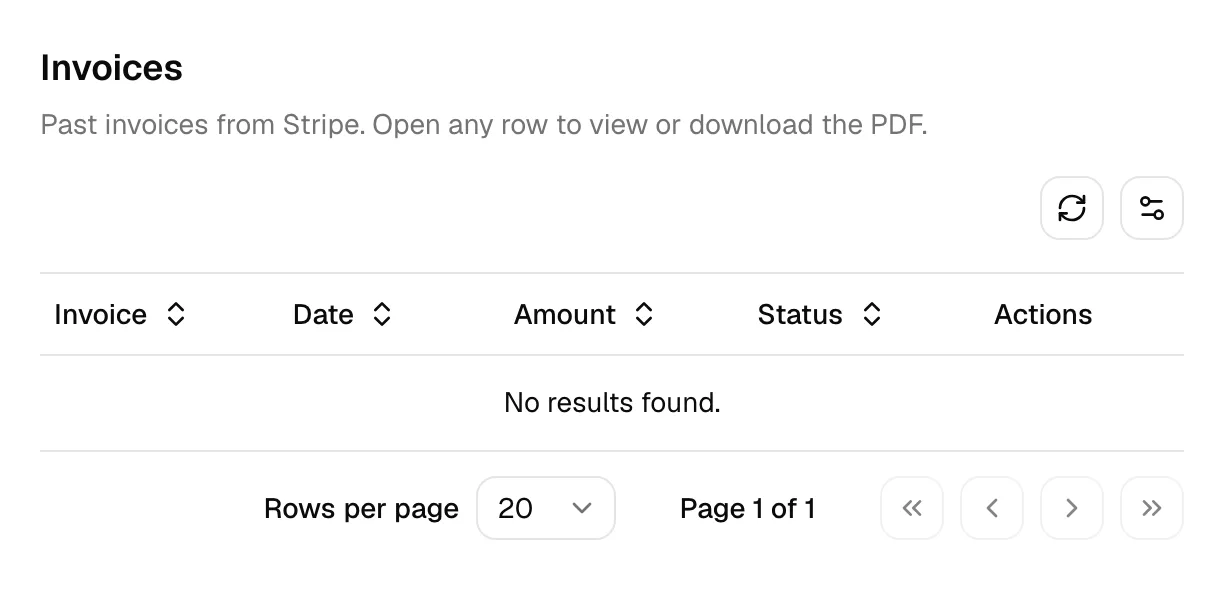
- Review the table. Each row shows:
- Invoice number.
- Date the invoice was issued.
- Amount charged.
- Status, such as Paid, Open, Draft, Void, or Uncollectible.
- To view or download an invoice, click Open on its row. The invoice opens in a new browser tab on Stripe, where you can view the details and download the PDF.
Tip: Use the column options control in the table toolbar to show or hide columns, and click the refresh control to reload the latest invoices from Stripe.
Note: Invoices are made out to your firm name, not to the person who entered the card, so they are ready to file as a business expense. Your firm keeps one billing profile for the life of the account, so changing plans or changing the card on file never splits your invoice history.
Note: If your firm has not been charged yet (for example, you are still in a cardless trial), the Invoices table will be empty. Invoices appear after your first Stripe charge.
Note: AI credit purchases appear in this table too, each as its own paid invoice described with the pack, for example Esqase AI credit top-up: 1,350 credits for USD 25. See Receipts for credit purchases.
What happens when your trial or subscription lapses
What happens next depends on whether you were on a free trial or a paid subscription. In both cases your data is kept safe and is never deleted.
When your free trial ends
What happens depends on whether Esqase has a card on file for your firm.
- If you started a cardless trial (Philippines, or an invitation with no card needed): the trial has no grace period. The moment it ends, the dashboard is paused and Esqase shows a dedicated screen until you add a card and choose a plan. Nothing is charged automatically. To avoid any interruption, choose a plan before the trial ends.
- If you entered a card at signup (outside the Philippines, or an invitation that asked for one): nothing pauses. The plan you chose begins automatically and your card is charged for your billed seats. You keep working without interruption.
Either way, Esqase warns you first. The firm owner and anyone whose role lets them administer the firm receive an email and an in-app notification 7 days, 72 hours, and 24 hours before the trial ends. The message matches your situation: firms with a card on file are told what will be charged and when, while cardless firms are told to add a card and choose a plan. Each email also has a link to book a call with the Esqase team, and for firms with a card on file it explains that cancelling on the Billing page before the trial ends avoids the charge. In the last three days of the trial, an amber banner also appears across the dashboard. Your data stays safe throughout.
The banner gives the days left and the date the trial ends in your firm's timezone, for example Your free trial ends in 3 days, on October 5, 2026. On the last day it reads Your free trial ends today. What follows depends on your firm:
- Card on file: the owner sees Your annual plan then starts and your card is charged. with a Review your plan button. Everyone else sees Your firm's annual plan starts then. A firm on a monthly plan sees monthly plan instead.
- Cardless trial: the owner sees Choose a plan to keep your firm active after the trial. with a Choose a plan button. Everyone else sees Your firm's owner can choose a plan before the trial ends.

When a paid subscription lapses
If you cancel a paid plan and the period passes, or a payment fails, your firm does not lose access immediately. Esqase follows a gradual wind-down, similar to other business tools.
Stage 1: Grace period (30 days of full access). As soon as your paid subscription lapses, your firm keeps full access to the dashboard for 30 days. The 30 days are counted from the end of the period you last paid for, so you always receive the full time you paid for plus the grace window on top.
During this time a red banner appears at the top of every page. The banner explains why (for example We could not process your latest payment or Your subscription has been canceled) and counts down the days left, for example Restore billing within 12 days to keep your firm active. The firm owner sees a Manage billing button in the banner; other members are reminded to ask their owner to resolve billing.
Esqase also emails and notifies the firm owner when a payment fails, again about a week before the grace period closes, and once more the day before it closes, so a lapse is never a surprise. You can adjust how you receive these under Settings, then Account, in your notification preferences.

Stage 2: Paused. If the 30 days pass without billing being resolved, the dashboard is paused and Esqase shows a dedicated screen instead (this is the same screen a firm sees when a free trial ends). Your data is retained, never deleted, and the screen says so plainly.
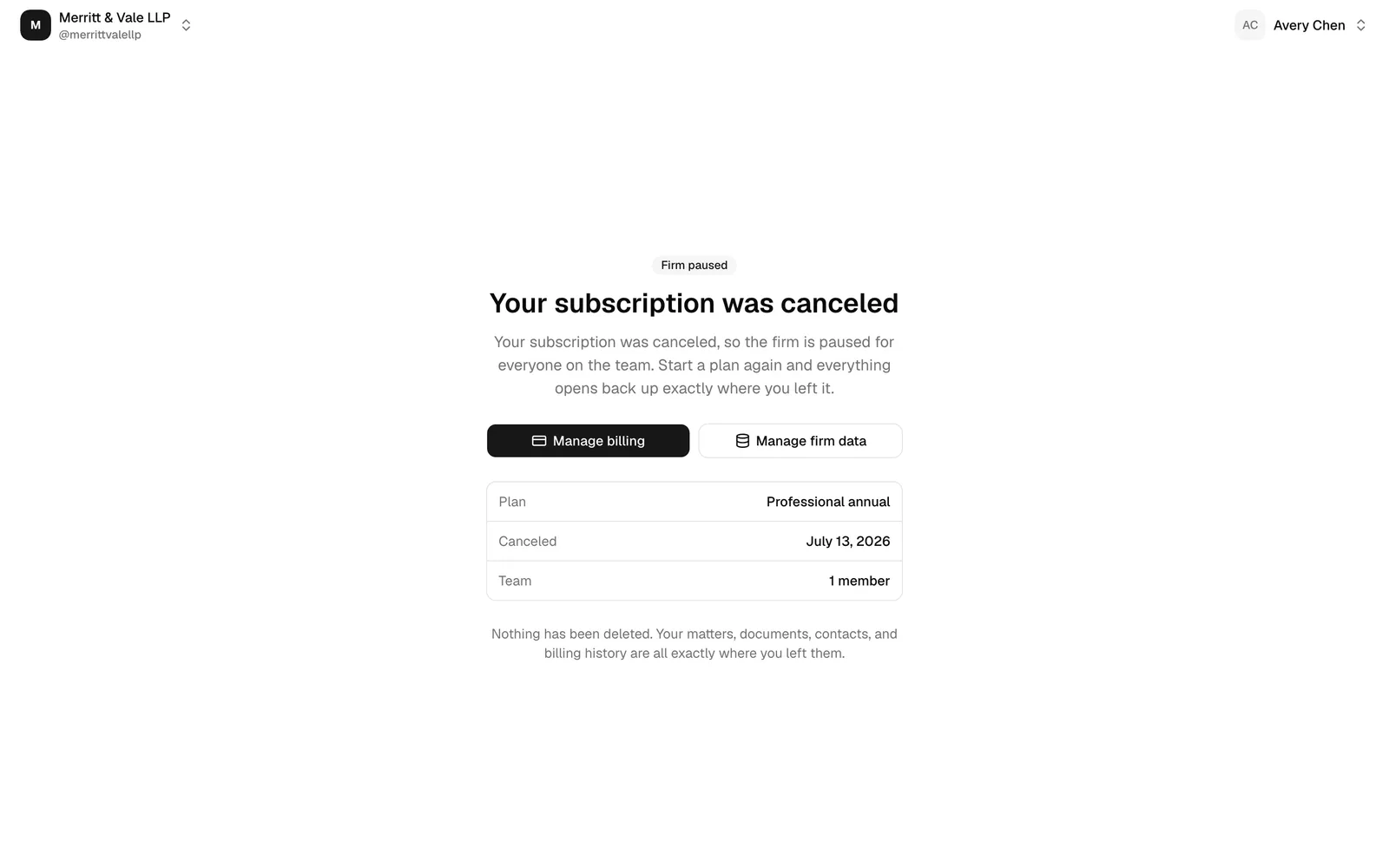
The screen opens with a Firm paused badge, then a headline that names exactly what happened:
- Your trial has ended when a free trial ran out.
- Your last payment didn't go through when a charge failed.
- There's an unpaid balance when a charge is still outstanding.
- Your subscription was canceled when the plan was cancelled and its period has passed.
- Your firm is not set up yet when the firm never chose a plan.
- Your subscription is not active in any other case.
Under the headline, a short paragraph explains the situation in plain language and what happens next. Below that:
- The firm owner sees two buttons side by side: Manage billing (to choose a plan and restore access) and Manage firm data (which opens a separate page for exporting or deleting the firm, so those controls are never mixed in with the everyday billing action).
- Other members see the badge, the headline, and an explanation asking them to reach out to the firm owner. They see no buttons, because only the owner can restore billing.
- Everyone sees a short details card listing only what applies to your firm: your Plan (the plan name, or Free trial if a trial ended), the date that matters (Trial ended, Canceled, or Paid through, shown in your firm's timezone), and your Team size. Any row with nothing to show is left out.
- Everyone also sees a closing line confirming that nothing has been deleted and that your matters, documents, contacts, and billing history are all where you left them.
Your firm name is not repeated in the middle of the screen. It sits in the top bar, which is where everything you can still do while the firm is paused now lives:
- On the left, the firm menu. It works just like the firm switcher at the top of the sidebar: your firm's logo (or its initial), its name, and its handle. Open it to see every firm you belong to and click another firm to switch to it. The menu also offers Add firm to start a new firm, and, if you are not the firm owner, Leave firm (with a confirmation first). See Switch between firms or add another firm and Leave a firm.
- On the right, your account menu. Open it to see your name and email address, and to Sign out.
While your firm is paused, your public-facing pages also pause: your booking page, your intake forms, and the client portal show visitors a short "currently unavailable" message instead of your firm's details. In the Esqase Client app, your firm's matters and records stop appearing until the subscription is active again. Two things keep working on purpose, so your clients are never blocked from finishing something they owe you or you owe them: payment links (clients can still pay your invoices) and eSignature links (signers can still complete documents already sent).
Restore access (owner)
- Click Manage billing in the banner (during the grace period) or on the paused-access screen. You can also open Settings, then Billing, directly.
- What to do next depends on why access lapsed:
- A payment failed (status Past due or Unpaid). Click Update card and enter a working card. Stripe retries the outstanding charge on the new card, and your status returns to Active once it clears.
- Your subscription was cancelled and the period ended. Click Change plan (or Start free trial if no subscription exists), choose a plan, and continue to Stripe to confirm payment.
- Once payment is confirmed, your full dashboard unlocks again right away.
Important: Only the firm owner can resubscribe and restore access. If you are not the owner, ask your firm owner to open Settings and then Billing to choose a plan. See Managing firm members to find out who your owner is.
Your personal injury data
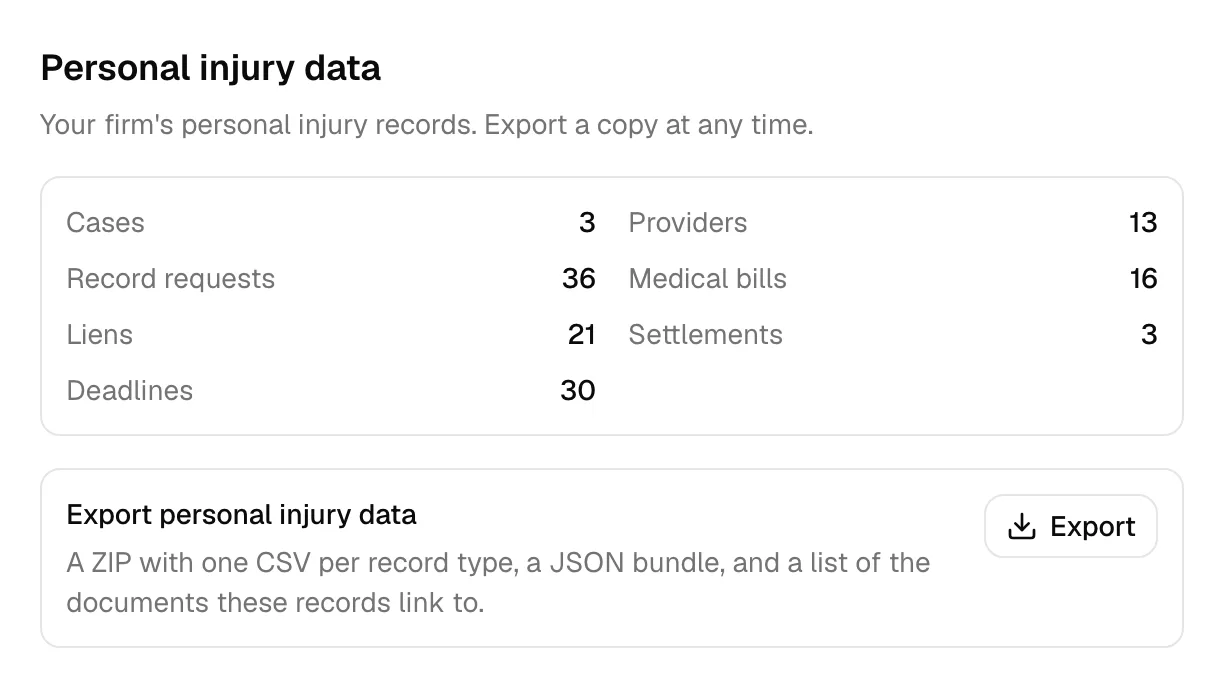
The Billing page carries a Personal injury data section (Torts and Damages data for a firm registered in the Philippines) so the module's records are never something you can only reach through the module. It is there whether your firm is on Professional or on Standard, and it works the same way in both.
It appears when your firm is on Professional, when you arrive from an upgrade prompt, or when your firm has any personal injury records at all. A firm that has never used the module does not see it. Like the rest of the Billing page, it is owner-only.
- In the sidebar, click Settings, then open Billing.
- Scroll to Personal injury data.
- Read the counts: Cases, Providers, Record requests, Medical bills, Liens, Settlements, and Deadlines.
- Click Export in the Export personal injury data row.
- The button reads Preparing export... while Esqase gathers the records. Your browser then downloads a file named like
esqase-your-firm-personal-injury-2026-09-07.zipand a confirmation reads Your personal injury export has downloaded.
The ZIP holds one CSV per record type, a single JSON bundle of the same data, and a manifest.json naming your firm, the date of the export, the row counts, and the documents these records link to. The documents themselves are not in the ZIP: they stay in your Documents area, where they are not part of the personal injury plan and were never gated. See Documents overview.
Note: For a very large firm the export is capped. If anything was left out, the download still happens and a warning tells you the export is incomplete; manifest.json lists which record types were cut short.
Note: Exporting is recorded in your firm's audit trail. The entry notes that an export happened and the record counts, never the records themselves.
On the Standard plan the section stays, and says so: your records are kept and are not visible in the app while you are on Standard. The Export button still works, and a Restore access row offers View plans to move back to Professional. Nothing has been deleted.
Note: Your firm-wide export covers the personal injury records too, so you do not have to take both. See Export your firm data.
Export your firm data
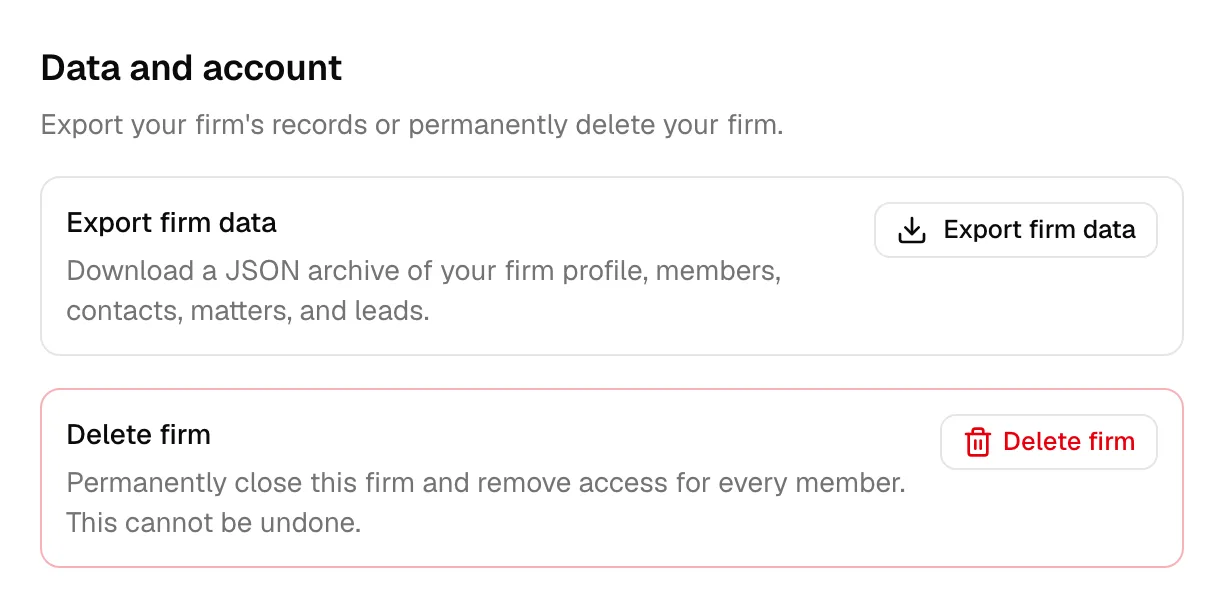
You can download a copy of your firm's core records at any time, including while your firm is paused, so you are never locked away from your own data. The export is a single JSON file covering your firm profile, members, contacts, matters, and leads.
Note: If your firm is paused, reach this from the paused-access screen by clicking Manage firm data. Otherwise use the Data and account section of the Billing page as described below.
- In the sidebar, click Settings, then open Billing.
- Scroll to the Data and account section.
- In the Export firm data row, click Export firm data.
- The button shows Preparing export... while Esqase gathers your records. When it finishes, your browser downloads a file named like
esqase-your-firm-export-2026-06-22.jsonand a confirmation reads Your firm data export has downloaded.
Note: The export covers your firm's core book of record (firm profile, members, contacts, matters, and leads), not every record type. For very large firms the export is capped, and the file notes if any records were left out.
Note: Exporting is owner-only and is recorded in your firm's audit log. The audit entry notes that an export happened and the record counts only, never the exported details themselves.
Delete your firm
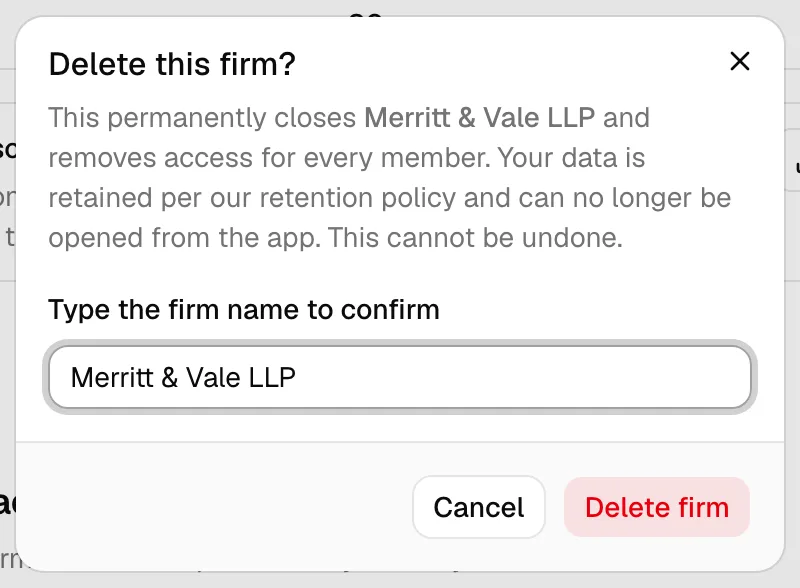
If you no longer need your firm, the owner can permanently close it. This removes access for every member and cannot be undone. Your data is retained according to our retention policy and can no longer be opened from the app.
- In the sidebar, click Settings, then open Billing (or, if your firm is paused, click Manage firm data on the paused-access screen).
- Scroll to the Data and account section.
- In the Delete firm row, click Delete firm.
- A confirmation dialog opens. To make sure this is deliberate, type your firm's name in the box exactly as shown.
- Click Delete firm to confirm. The button shows Deleting... while it works.
- When it finishes, you see Your firm has been deleted. If you belong to another firm, Esqase moves you there; otherwise it returns you to firm setup so you can create a new firm.
Important: Deleting a firm also cancels its Esqase subscription. Export your data first if you want to keep a copy (see Export your firm data).
Troubleshooting
- My status did not update after paying. Refresh the Billing page. Esqase confirms your checkout and updates from Stripe automatically, but it can take a moment. If it still does not update after a minute or two, try again or contact support.
- I closed the tab before Stripe sent me back. Your payment still counts. Stripe notifies Esqase directly, so your subscription is set up even if you never returned to the Billing page. Reopen Settings, then Billing, to see it.
- I do not see the Billing page or the plan controls. Only the firm owner can manage the subscription. If you are not the owner, you will see a no-access message. Ask your owner to make billing changes.
- The cancel button is missing. The Cancel plan button only appears when there is an active Stripe subscription to cancel. A cardless trial that has not been through Stripe will not show it.
- The Update card button is missing. It appears once your firm has a Stripe subscription. On a cardless trial, add a card by choosing a plan.
- My invoices list is empty. Invoices appear only after Stripe charges your firm. During a cardless or not-yet-charged trial, there will be no invoices yet.
- Esqase says my firm already has an active subscription. You tried to start a new checkout while a plan is already in place. Open Settings, then Billing, to review it: use Change plan to switch plans, or Update card if a payment failed. Starting a second checkout is blocked so your firm is never billed twice.
Who can manage the subscription
Managing the subscription is owner only. Only your firm owner can:
- Open the Billing page and see the plan, status, payment method, and invoices.
- Start a free trial (with or without a card).
- Choose or change a plan.
- Update the card on file through Stripe (Update card).
- Cancel the subscription or trial.
- Resubscribe to restore access after a lapse.
- Export the firm's data.
- Delete the firm.
- Buy AI credits for the firm pool, on the Firm AI Assistant settings page (see Buy more credits).
Other members, regardless of role, do not see these controls. If a non-owner opens the Billing page, Esqase shows a no-access message instead of the subscription details. To learn how ownership and roles work, see Roles and permissions.