Available lang sa Ingles ang dokumentasyon ng produkto.
Activity timelines and audit logs
Esqase keeps a running history of what happens to your firm's records. Every record detail page shows a Recent activities timeline so you can see who created, changed, or removed something, and when. This page explains how to read that history, open the details behind any entry, and use the sidebar Shortcuts that track the records you have viewed recently.
This history is automatic. You do not have to turn anything on, press a save button, or remember to log your work. Whenever someone in your firm creates, edits, deletes, or restores a record, Esqase records it for you.
Before you begin
- The Recent activities timeline lives on a record's detail page, so you need an existing record to look at (for example a matter, contact, lead, invoice, or task).
- You can only see the activity timeline for records you are allowed to view. If your role does not include view access for a record type, you will not see that record (and therefore not its timeline) in the first place. There is no separate permission to manage just for activity history.
- The same rule applies inside a matter's timeline, which gathers activity from the records filed under the matter. Entries about a record type your role cannot view (for example invoices, payments, documents, or tasks) are left out of your feed, so two colleagues can see a different amount of history on the same matter.
- The sidebar Shortcuts group (recently viewed and pinned records) is available to any active member of the firm.
What the activity timeline is
The Recent activities timeline is the running history shown on a record's detail page. It is a vertical, dated list of everything that has happened to that one record, newest first.
You will find a Recent activities section on the detail page of most major record types, including:
- A matter
- A contact
- A lead
- An invoice
- A task
- A firm member
- A form
- A task list
- A document (on the Activities tab of the document's own page)
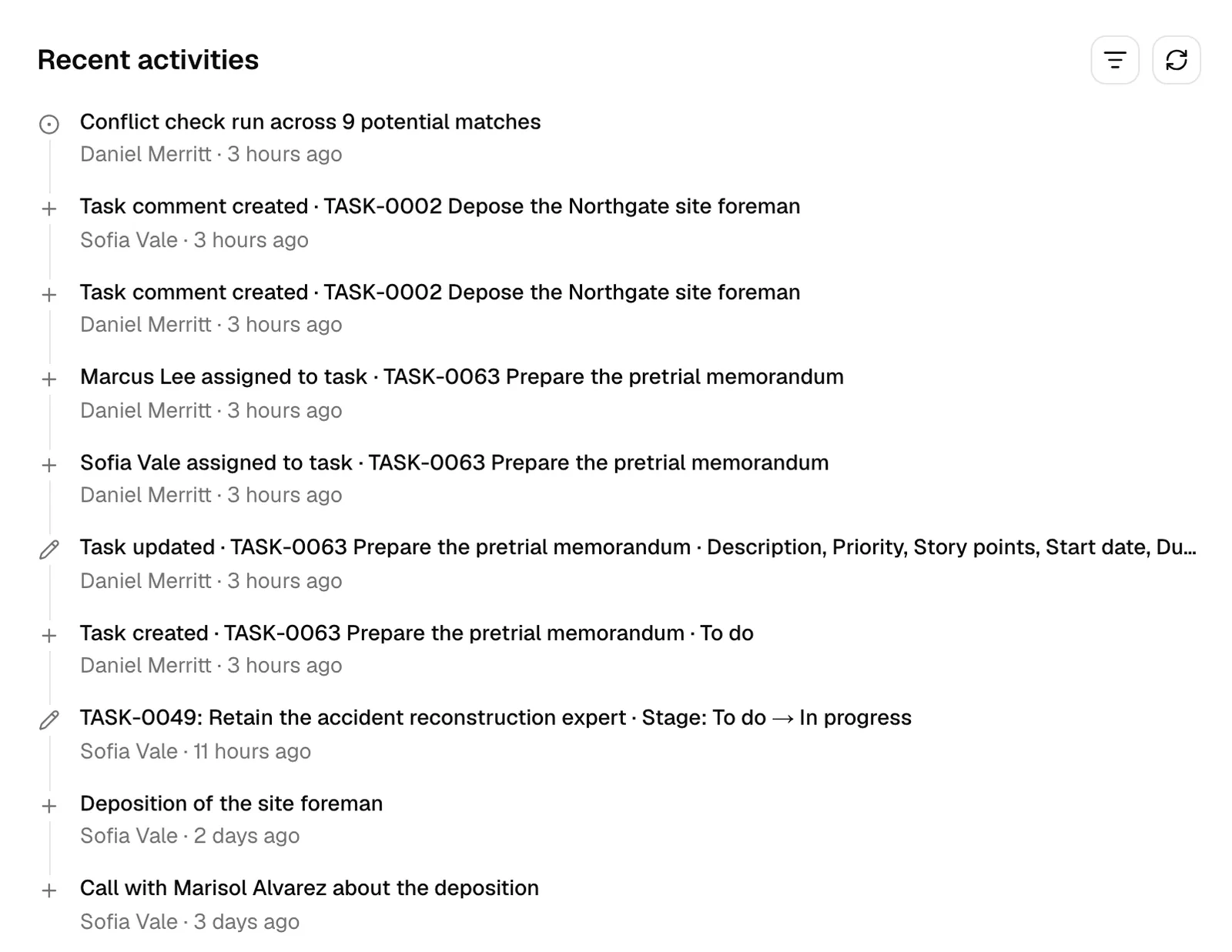
Each entry in the list represents one recorded action, such as the record being created, a field being updated, the record being archived, deleted, or restored, or someone opening (viewing) it. For each entry you see:
- A short, plain-English summary of what happened, naming the record it is about. The record comes first, then up to two further details about it, each separated by a dot: "Matter MAT-0004 created", "Invoice created · INV-00042 · Northgate Precision Manufacturing Corp.", or "Task stage updated · TSK-0012 Draft complaint · Stage: In progress → Done". Where a record carries an ID of its own, such as a task, matter, invoice, or lead, the summary shows that ID beside the name.
- A record with no title of its own is named by whatever it does use. A phone or email log is named by its subject, a time entry by its activity category, an uploaded file by its file name, and a guest or a person on a communication log by their name.
- For an edit, the summary also says what changed. One or two changed fields are shown with their old and new values ("Stage: In progress → Done"). Three or more are listed by name instead ("Quantity, Rate, Total updated"), and a long list ends with "and 3 more updated". Open the entry to read every old and new value.
- A small icon that hints at the kind of change (a plus for something created, a pencil for an edit, a trash icon for a deletion, a clock-style arrow for a restore, and an eye for a view).
- The person who did it, followed by how long ago it happened (for example "Jane Doe, 2 hours ago").
Note: Most timelines show activity for that one record only. To see a contact's history, open the contact; to see a task's history, open the task.
Note: A matter is one of two exceptions. A matter's Recent activities timeline gathers the matter's own history together with everything filed under it: its tasks, notes, events, time entries, communications, invoices, payments, transactions, documents, form submissions, workflow items, and, for members who can view court dates, its court and court dates. That way you can follow a whole case in one place. Because that feed mixes many records, each entry names the one it belongs to, so you can tell which task gained an assignee or which invoice gained a line. The matter's own name is left out, since every entry in the feed is already about that matter. Each of those records still keeps its own timeline, so you can open a single task or invoice to read its history on its own. See The matter workspace.
Note: A task list is the other exception. A task list's Recent activities timeline gathers the list's own history together with the history of every task in the list: tasks created, edited, given a different priority, archived, restored, or deleted, and people assigned to or unassigned from them. Each entry names the task it belongs to, and tasks that were later archived or deleted keep their entries, so the record of how the list was built stays complete. If your role can view task lists but not tasks, you see only the list's own entries. See Task lists and templates.
Note: Approval activity is recorded on the item being reviewed, not somewhere separate. A review being opened, a reviewer being added or removed, and each approve or request-changes decision all appear on the invoice's or the document's own timeline, so the history of who signed off and when sits alongside everything else about that record. See Approvals for invoices and documents.
Note: A document's Activities tab is one of these timelines. It gathers everything that happened to that file, including content and version changes, access being granted, changed, or revoked, shares, comments, stars, renames and moves, and, for a PDF sent for signature, the whole signature history (request created and sent, viewed, signed, completed, declined, or voided). Signature activity lives here rather than on a separate tab. See The documents workspace.
View a record's Recent activities timeline
To read the history of any record, open the record and find its Recent activities section.
- In the sidebar, click the area that holds the record you want, for example Matters, Contacts, Leads, Invoices, or Tasks.
- Click the record in the list to open its detail page.
- Find the Recent activities heading. Depending on the record type it appears in a sidebar rail or a panel on the detail page.
- Read the entries top to bottom. The newest activity is at the top.
If nothing has been recorded yet, you will see No activity recorded yet. This is normal for a record that was just created and has had no further changes.
Tip: The summary text for each entry is shortened to fit on one line. Hover over an entry to see the full summary, or click it to open the full details (covered below).
Note: History is never rewritten, so an entry keeps the wording it was given when it was recorded. Esqase improved how much detail a summary carries in August 2026, and older entries can read more briefly than recent ones. Clicking an older entry still opens whatever detail was recorded at the time.
Filter the timeline to show or hide view activity
By default, the timeline hides "viewed" events so you see real changes (creates, edits, deletions) without the list filling up with every time someone simply opened the record. You can choose to include view activity when you want the complete picture.
- On the record's detail page, find the Recent activities heading.
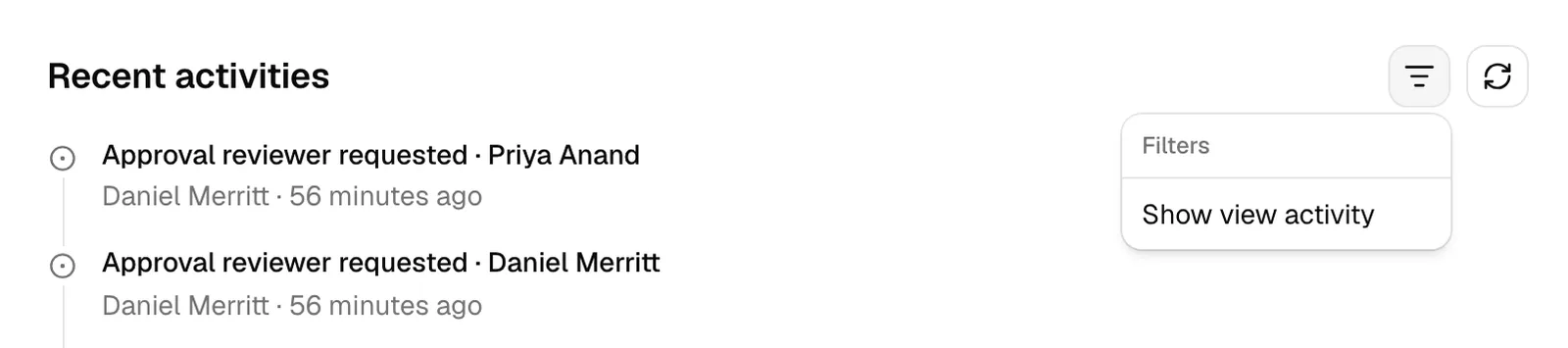
- Click the filter button next to the heading (the list-and-funnel icon, labeled Filter recent activities).
- In the menu under Filters, turn on Show view activity.
When Show view activity is on, the timeline also includes entries for every time the record was opened (each shown with an eye icon). Turn it back off to hide them again.
On a matter, this covers the records under the matter too, so turning it on also reveals who opened one of the matter's documents, who opened one of its tasks or invoices, and who opened a signing link.
Note: Toggling Show view activity returns you to the first page of history, since changing what is shown can change how many pages there are.
Open an audit event to see its before and after details
A one-line summary tells you what happened, but you can open any entry to see exactly what changed, including the old value and the new value side by side.
- In the Recent activities list, click the summary text of the entry you want to inspect.
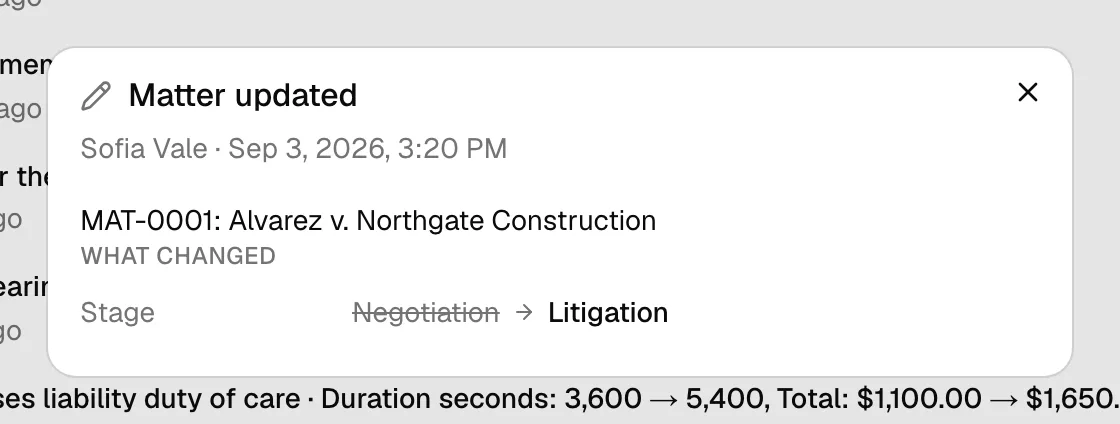
- A details dialog opens. At the top it shows the action (for example Matter updated), then the person and the exact date and time it happened.
- Below that, a sentence summarizes the activity, followed by a details section. What you see depends on the kind of activity:
- What changed, for an edit. Each changed field is listed with its old value, an arrow, and its new value. A field that was emptied shows the old value struck through and the word Cleared. A field that had no value shows Not set.
- Details, for a creation. The fields that were set when the record was created are listed with their values.
- Removed details, for a deletion. The fields that the record had at the time it was removed are listed.
- If nothing extra was captured for that activity, you will see No additional details were recorded for this activity. This is common for simple actions like a view.
- Close the dialog to return to the timeline.
Important: Esqase never shows raw internal identifiers in this dialog. References to other records (for example a matter, a contact, or a stage) are resolved to their real names, and sensitive values are kept out of the recorded details for privacy and compliance. You see friendly labels and values, not technical codes.
Page through history and refresh
The timeline shows ten entries per page. Older history is available on the following pages, and you can reload the list at any time to pull in the newest activity.
- On a record with more than ten recorded activities, look below the Recent activities list for the page controls.
- The controls show Page X of Y. Click the right-arrow (next) button to move to older activity, and the left-arrow (previous) button to move back toward newer activity.
- To pull in the very latest activity without leaving the page, click the refresh button next to the heading (the circular-arrows icon, labeled Refresh recent activities). While it is loading you will see a brief spinner in its place.
Tip: If you made a change in another tab or a colleague just updated the record, click Refresh recent activities to see the new entry appear at the top without reloading the whole page.
How a record view is tracked (recently viewed)
When you open a record's detail page, Esqase quietly notes that you viewed it. This is what feeds the Shortcuts group in the sidebar, so the records you have been working on are always one click away.
A few things to know about how this works:
- Viewing is recorded just by opening the record. You do not click anything to "track" it.
- Opening the same record again within a short window (about half an hour) does not pile up duplicate entries. Esqase treats it as the same recent visit and updates the timestamp instead.
- Recently viewed is personal to you. The list reflects the records you opened, not your colleagues' browsing.
- Tracking happens in the background and never blocks you. If it cannot be recorded for any reason, your view of the record is unaffected.
- Archived and deleted records are left out. If a record you viewed (or pinned) is later archived or deleted, it drops out of Shortcuts and the More dialog so the list only holds records you can still open. Records in other states keep showing, such as a lead marked Not hired or an invoice that is Canceled or Paid. Restore the record from its own area and it comes back to your recent history.
Note: A record view is part of the same firm-wide history described above. That is why turning on Show view activity on a record's timeline reveals who opened it and when.
Browse all recently-viewed records in the More dialog
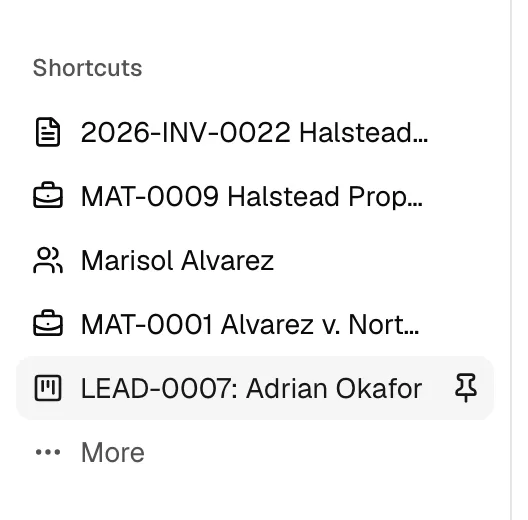
The sidebar shows your five most relevant shortcuts. To see the fuller list of records you have opened recently, use the More dialog.
- In the sidebar, find the Shortcuts group.
- Click More at the bottom of the group.
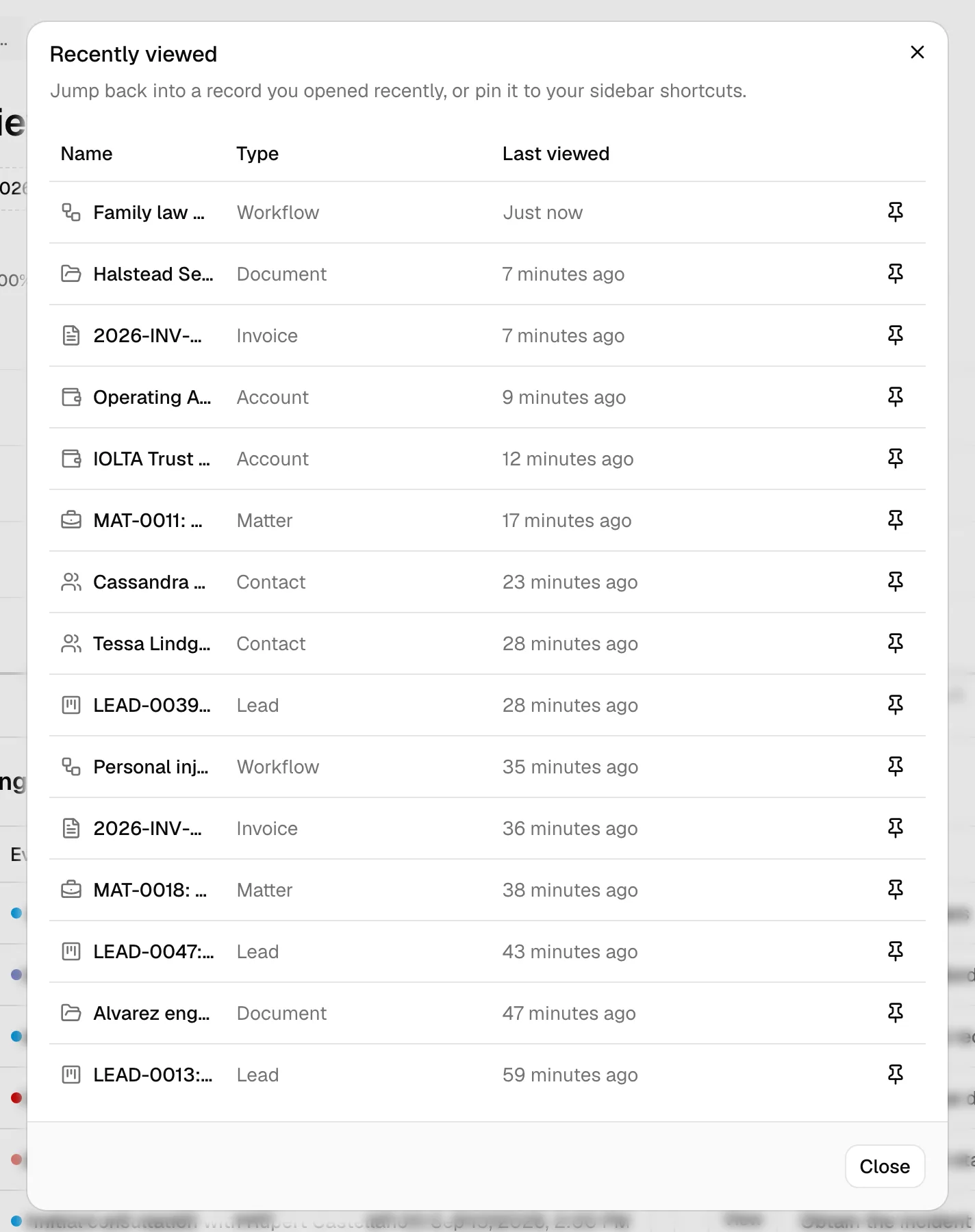
- The Recently viewed dialog opens with a table of records you opened recently. Each row shows:
- Name, the record's name with an icon for its type. Click it to jump straight to the record.
- Type, the kind of record (for example Matter, Contact, Lead, Invoice, Account, Task, Note, Event, Workflow, or Document).
- Last viewed, how long ago you opened it.
- To return to a record, click its name. The dialog closes and takes you there.
If you have not opened anything yet, the dialog shows No recently viewed records yet.
Pin a record as a sidebar shortcut and unpin it
Pinning keeps a record at the top of your Shortcuts group so it stays put even after you have viewed many other things. Recently viewed records eventually roll off the list; pinned ones do not. The one exception is a pinned record that gets archived or deleted: Esqase removes it from Shortcuts while it is in that state and brings it back if you restore it.
To pin a recently viewed record from the sidebar:
- In the Shortcuts group, hover over the record you want to keep.
- Click the pin icon that appears on the row (its tooltip reads Pin shortcut).
- The record moves to the pinned section at the top of the Shortcuts group.
You can also pin from the More dialog:
- Click More in the Shortcuts group.
- In the Recently viewed dialog, find the record's row.
- Click the pin button at the end of the row.
To unpin a record:
- In the Shortcuts group, hover over the pinned record.
- Click the pin-with-a-slash icon that appears (its tooltip reads Unpin shortcut).
- The record drops out of the pinned section. If you opened it recently it may still appear lower down as a recently viewed shortcut.
Note: Pinned shortcuts are personal to you. Pinning a record does not change anything for your colleagues, and it does not affect the record itself.
Open a pinned or recent shortcut
Shortcuts are the fastest way back into the records you are actively working on.
- In the sidebar, look in the Shortcuts group. Pinned records appear first, then your most recently viewed records, up to five items in total.
- Click any shortcut to open that record. The shortcut for the page you are currently on is highlighted.
- If the record you want is not among the five, click More to open the Recently viewed dialog and pick it from the fuller list.
Tip: Shortcuts deep-link to the right place automatically. A task or note shortcut opens the record's pop-up dialog, an event shortcut opens it on the calendar, and a matter, contact, lead, or invoice shortcut opens its full detail page.
What actions get recorded, and that logging is automatic and firm-wide
Esqase records the lifecycle of your records so your firm always has a dependable history. The following kinds of actions are captured automatically:
- Created, when a record is first made.
- Updated or changed, when a field is edited.
- Archived, when a record is set aside.
- Deleted or removed, when a record is taken out of use.
- Restored, when a previously removed record is brought back.
- Viewed, when someone opens a record (hidden by default in the timeline; reveal it with Show view activity).
Beyond record changes, certain account-level events (for example signing in and downloading a file) are also recorded as part of the same history.
Key things to understand about how logging works:
- It is automatic. Every qualifying create, edit, deletion, and restore is written as part of the same action that made the change. You never have to log anything by hand.
- It is firm-wide and consistent. The same history mechanism applies across matters, contacts, leads, invoices, tasks, members, forms, documents, signatures, and more, so the experience is the same everywhere.
- It captures who and when. Every entry records the person responsible and the exact time, which is what powers the "Created by" and "Updated by" details you see across the app.
- It covers automated changes too. Records created or updated through the developer API are recorded the same way, attributed to the member who created the API key and noting which key did it. Creating and revoking an API key are themselves recorded events. So even programmatic changes leave a clear trail.
- It covers the AI Assistant. Changes the AI Assistant makes for you, after you confirm them or at once when your Approvals setting allows it, are recorded under your name like changes you make yourself, and a record it opens for you is recorded as viewed by you. Connecting, checking, replacing, and revoking a Claude or OpenAI key, changes to the assistant settings, and each request the assistant sends to your firm's AI provider, with the records that request included, are recorded too. The assistant's own entries, such as starting a conversation, running a step, or sending records to the provider, end with via the AI Assistant. Renaming a conversation reads Renamed a conversation via the AI Assistant, and the title the assistant gives a new conversation reads Named a conversation via the AI Assistant; neither entry shows the title.
- It is privacy-aware. Sensitive information is deliberately kept out of the recorded before-and-after details, and identifiers are shown as friendly names. This supports your firm's compliance posture (for example SOC 2 and HIPAA expectations around audit trails).
Important: Because logging is built into every change, you can rely on the Recent activities timeline as an accurate record of what happened to a matter, contact, invoice, or any other record, including who did it and when. It is not something a user can switch off for an individual record.
Common questions
Can I delete or edit an entry in the activity timeline? No. The history is a record of what happened and is not editable. This is by design so the timeline stays trustworthy.
Why don't I see "viewed" entries in the timeline? View activity is hidden by default to keep the list focused on real changes. Turn on Show view activity in the filter menu to include it.
Why did the same change show up as several entries? Some actions touch more than one part of a record at once (for example creating a matter along with its initial details). Esqase keeps the entries distinct so each line tells you what actually happened.
A record I expected isn't in my Shortcuts. Where did it go? The sidebar shows only your five most relevant shortcuts. Open More to see the fuller recently viewed list, and pin anything you want to keep at the top.