Available lang sa Ingles ang dokumentasyon ng produkto.
Integrations overview
Esqase connects to a handful of outside services so you can send email, sync your calendar, create meeting links, keep a folder of your documents in step with OneDrive, Google Drive, or Dropbox, take card and bank payments through LawPay or Confido Legal, send your billing to QuickBooks Online or Xero, run the AI Assistant on the built-in Esqase AI or on your firm's own Claude, Gemini, or OpenAI key, and keep your firm subscription active, all without leaving the app. This page explains what Esqase connects to, why each connection exists, who controls it, and where to set it up.
There are two kinds of connections in Esqase, and the difference matters:
- Personal connections are tied to your own user account. Linking your own email, calendar, and meeting accounts is the clearest example: email you send comes from you, and meetings you book use your accounts. Each member links (or skips) these on their own, and your choices do not affect anyone else at the firm.
- Firm-wide connections are shared by everyone at the firm. Payment settings, your payment processor (LawPay or Confido Legal), accounting sync (QuickBooks Online or Xero), and your Esqase subscription work this way: they are configured once for the whole firm, usually by a firm owner, and they apply to every member.
The Claude and OpenAI keys for the AI Assistant can be either: a firm key that every member who can use the assistant shares, or, when your firm allows it, a personal key a member connects for their own conversations. Esqase AI, the assistant's built-in option, needs no connection at all: it runs on the AI credits included with your plan.
Before you begin
- To link your own accounts (email, calendar, meetings), you only need to be a signed-in member. No special role is required, because these links are personal to you.
- To change firm payment settings, you need to be a firm owner or have View access to the firm payment settings. If you do not, the Payments page will be read-only or hidden.
- To connect LawPay or Confido Legal for your firm, you need to be a firm owner or have Update access for Firm payment settings (owners and administrators have it by default).
- To connect QuickBooks Online or Xero for your firm, you need to be a firm owner or have Update access for Accounting sync settings (owners and administrators have it by default).
- To sync a folder with your own Microsoft OneDrive, Google Drive, or Dropbox, you need View and Create access for documents, because the synced files live in your documents.
- To connect your firm's Claude or OpenAI key for the AI Assistant, you need to be a firm owner or have Update access for Assistant settings (owners and administrators have it by default). To connect a personal key, your role needs View access for AI Assistant and your firm must allow personal keys.
- To change your firm subscription (plan, payment method, or cancellation), you must be a firm owner.
- Some firm-wide connections (email delivery, file storage, and push notifications) are handled automatically by Esqase. There is nothing to set up for those, and they are described below so you know what is happening behind the scenes.
Your personal integrations
Esqase now gathers all of your personal connections on one Integrations page, so you can connect the email, calendar, and meeting tools you already use in a single place. The same page is where your firm connects its payment processor and its accounting software, the two firm-wide connections there.
- In the sidebar, click Integrations. (You can also click the Integrations card on the Settings page.)
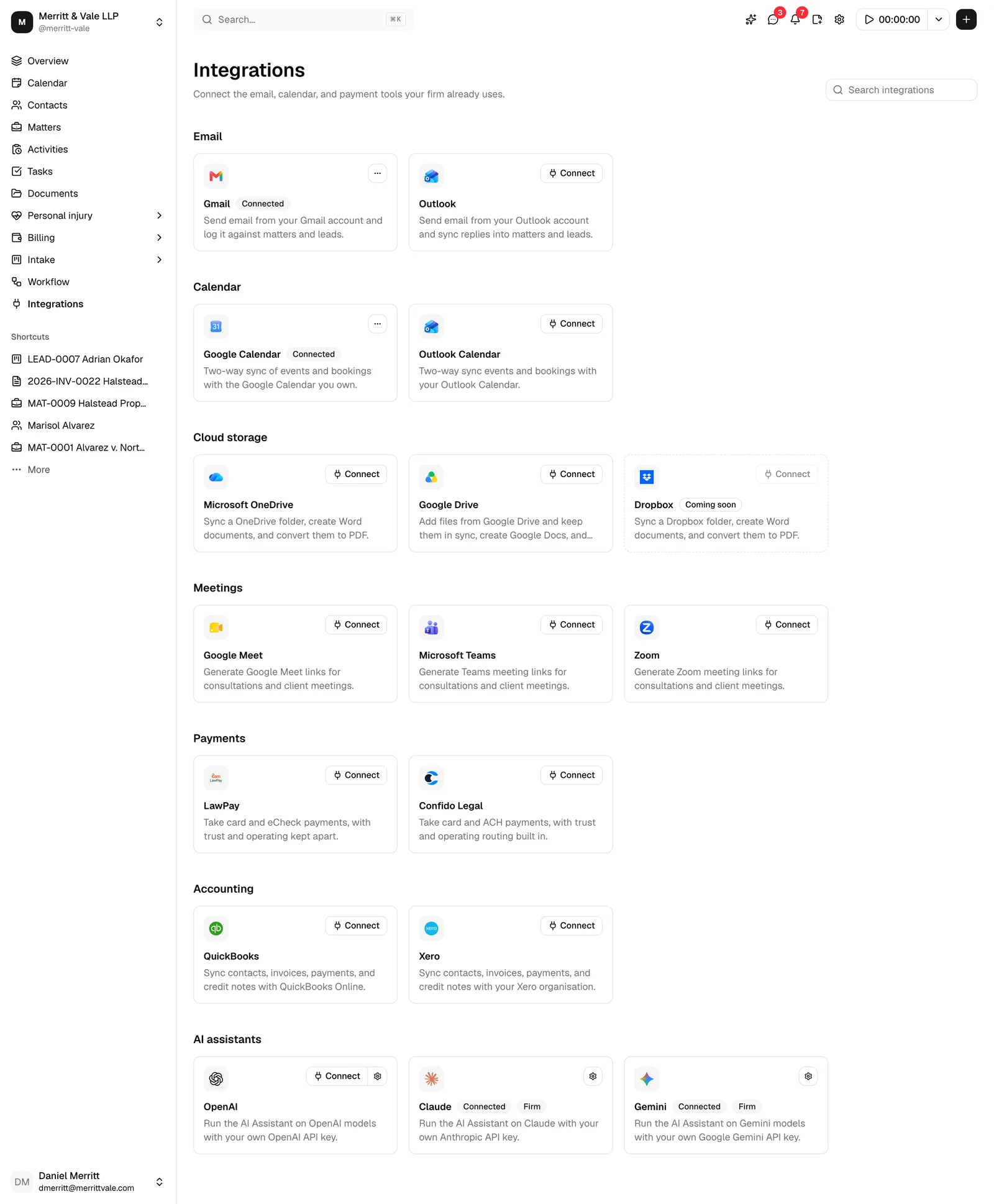
- The page is grouped into categories, in this order, each with one card per provider:
- Email: Gmail and Outlook. Connecting one lets you send email from that account inside Esqase, and every message you send is logged on the matter or lead it belongs to, against the mailbox it actually went out from. Outlook also brings replies back into that record automatically. The Gmail connection is send-only, so Esqase does not read your Gmail mailbox and you log Gmail replies yourself.
- Calendar: Google Calendar and Outlook Calendar. Connecting a calendar keeps your Esqase events and that calendar in step, two ways.
- Cloud storage: Microsoft OneDrive, Google Drive, and Dropbox. Connecting one lets you keep one folder in that drive in step with your Esqase documents, both ways (documents you write in Esqase appear there as Word files), create Word documents or Google Docs from Esqase, and convert Office files to PDF for signature. This connection is personal (see Connecting OneDrive, Google Drive, and Dropbox).
- Meetings: Google Meet, Microsoft Teams, and Zoom. Connecting one lets Esqase generate a video meeting link when you schedule a meeting.
- Payments: LawPay and Confido Legal. This connection is firm-wide: one connection lets your clients pay any payment link by card or bank account, and Esqase records those payments by itself (see Taking payments below).
- Accounting: QuickBooks and Xero. This connection is firm-wide too: one connection sends your whole firm's clients, invoices, payments, and credit notes to QuickBooks Online or Xero (see Accounting sync below).
- AI assistants: OpenAI, Claude, and Gemini. These cards connect the API key the AI Assistant runs on, for the firm or for yourself (see AI assistants: Claude, OpenAI, and Gemini below). Esqase AI, the assistant's built-in option, has no card here (see AI assistants: Esqase AI below).
- To find a tool quickly, type in the Search integrations box at the top right of the page. The cards narrow as you type, matching each card's name, its description, and the name of its group. If nothing matches, the page says No integrations match followed by what you typed. Clear the box to see every card again.
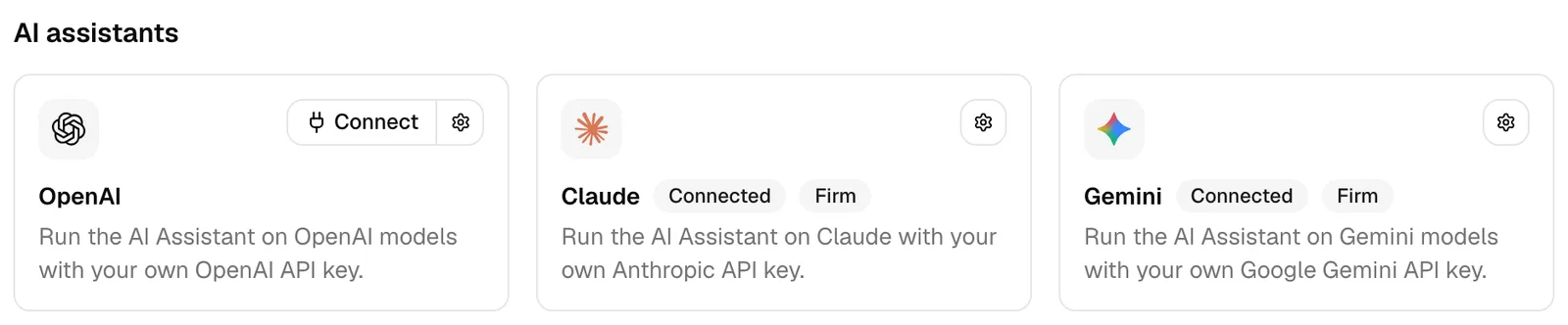
- Each active card shows a Connect button when the account is not connected. Once it is connected, the card shows a Connected badge and a more options (⋯) menu, which shows the connected account and the actions for that connection, such as Disconnect. The Claude, OpenAI, and Gemini cards work a little differently: after Connected they show Firm and Personal badges, and they have a settings button instead of a menu (see AI assistants: Claude, OpenAI, and Gemini).
- Connected payment, accounting, and cloud storage cards also have a settings button (the gear icon) just left of ⋯. It opens that connection's settings page: the Processor tab of Settings > Firm > Payments for LawPay and Confido Legal, Settings > Firm > Accounting for QuickBooks and Xero, and Settings > Cloud storage for Microsoft OneDrive, Google Drive, and Dropbox. On the Claude, OpenAI, and Gemini cards the gear icon opens a settings dialog instead, described below. Email, calendar, and meeting cards have no settings page, so they have no settings button.
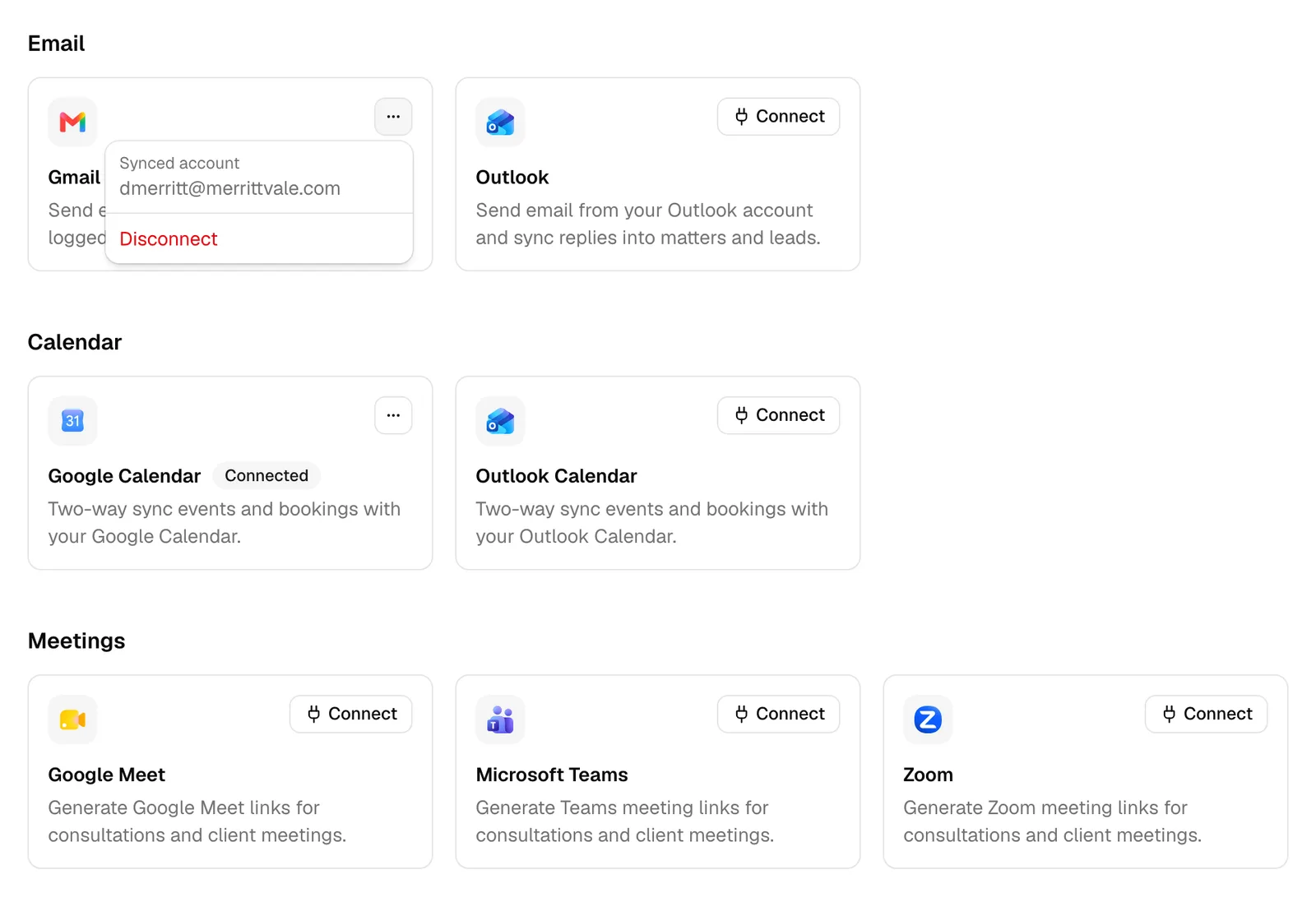
Note: Every connection is its own card. Connecting Gmail does not connect your Google Calendar or Google Meet, and connecting Outlook does not connect Outlook Calendar. Connect each tool you want to use.
Connecting an account
- On the card you want, click Connect.
- On the Gmail, Google Calendar, and Google Meet cards, a dialog opens first and explains what Esqase will ask Google for and what it uses it for, with a link to the Privacy Policy. Read it, then click Continue to Google (or Cancel to stop). The LawPay and Confido Legal cards open a similar dialog with Continue to LawPay or Continue to Confido, the QuickBooks and Xero cards with Continue to Intuit or Continue to Xero, and the Microsoft OneDrive, Google Drive, and Dropbox cards with Continue to Microsoft, Continue to Google, or Continue to Dropbox. The Outlook, Outlook Calendar, Microsoft Teams, and Zoom cards go straight to the provider.
- Esqase sends you to that provider's sign-in and consent screen (for example Google, Microsoft, Zoom, or Dropbox). Sign in if asked, review what Esqase is allowed to do, and approve. Google lets you untick individual permissions, so keep every one ticked: a Google connection that is missing the permission it needs is refused, and Esqase asks you to connect again.
- When you return, the card shows a Connected badge. To see which account is connected or to stop using a connection, open the card's more options (⋯) menu, which shows the connected account and a Disconnect action. Disconnecting clears the credentials Esqase had stored for that service and stops the connection at once, and past emails and existing events stay in place, but Esqase can no longer send new email, sync new events, or create new meeting links through that connection until you connect it again. For Google, Esqase holds one connection with your Google Account for all of its Google services, so disconnecting any of them revokes Esqase's access with Google and, after a warning, disconnects the others connected with the same Google account (see Disconnect a Google integration).
Note: After you connect Microsoft OneDrive, Google Drive, or Dropbox, Esqase takes you to Settings > Cloud storage to choose the folder to sync, and nothing syncs until you do. The connected card's settings button (the gear icon) takes you back there any time, and once a folder is syncing, the card's more options (⋯) menu also offers Sync now. Disconnecting one of these cards stops the folder syncing, and the files already in Esqase and in the drive stay where they are. See Connecting OneDrive, Google Drive, and Dropbox.
Tip: Because these connections are personal, every member who needs to send email, sync a calendar, or create meeting links should connect their own accounts. Your connections are not shared with your colleagues, and a matter's other team members do not inherit them.
Choosing which mailbox you send from
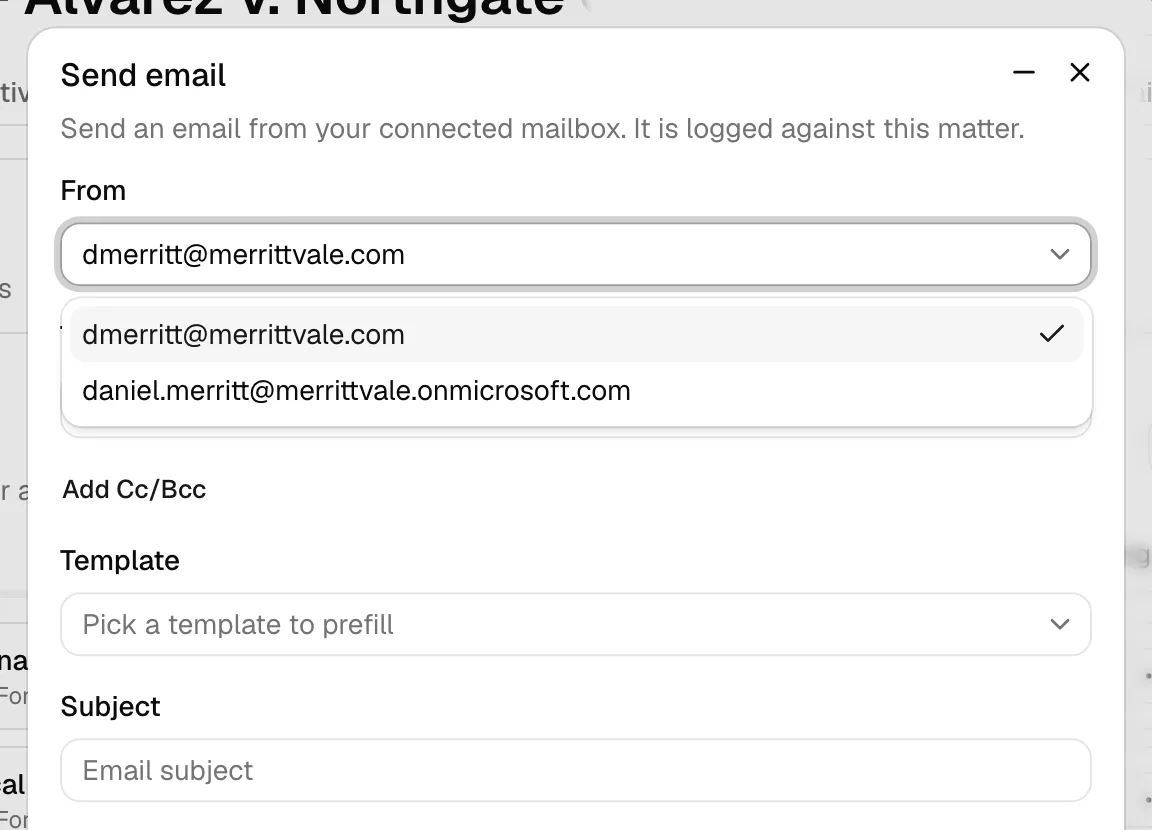
If you connect both Gmail and Outlook, the email composer adds a From picker so you can choose which mailbox a message goes out from. Open the From menu, then select the account (shown by its email address) you want to send as. If only one email account is connected, Esqase simply sends from that account and the From line shows which one.
You can still email without connecting a mailbox
Connecting Gmail or Outlook is not a requirement for writing to a client. The email composer opens whether or not you have a mailbox connected, and the templates, signature, recipients and placeholders all work the same way. What changes is the last step:
- With a mailbox connected, Esqase sends the message for you, records it as sent on the matter or lead, and (through Outlook) threads replies back onto that record.
- With no mailbox connected, the composer shows a No mailbox connected notice, the send button reads Continue, and Esqase hands the finished message to your own mail app (Gmail, Outlook, Yahoo Mail, Proton Mail, AOL Mail, or your computer's default mail app) with the recipients, subject and message filled in. You then choose what to record in Esqase. Because the message leaves in your own mail app, Esqase cannot confirm it was delivered, and anything you log as sent is marked Unverified.
Connecting a mailbox is still the better experience, and it is the only way to have delivery and replies recorded for you.
See Sending email for how outgoing client email is composed, and Calendar and events for how synced events behave.
AI assistants: Esqase AI
Esqase AI is the AI Assistant's built-in option, on Esqase's own Gemini and Claude models and included with your plan. The Integrations page lists only the services and API keys your firm connects, so Esqase AI is not on it: there is nothing to connect. Members use it with the AI credits every member gets each month, and the firm owner can buy more for the firm (see Esqase AI and AI credits).
Esqase AI lives in the assistant settings instead. On the Firm AI Assistant page (Settings, then the Firm AI Assistant card in the Firm section), the Use Esqase AI switch lets members use it, and the AI credits section shows the firm pool and every member's credits. On My AI Assistant (Settings, then the My AI Assistant card in the Personal section), My AI credits shows your own. Until Esqase AI is available for your firm, these show Coming soon.
AI assistants: Claude, OpenAI, and Gemini
The Claude, OpenAI, and Gemini cards connect the API key that the AI Assistant, the chat panel in the dashboard header, runs on, when your firm wants to use its own key instead of, or as well as, Esqase AI. With your own key from Anthropic (for Claude), OpenAI, or Google (for Gemini, a Gemini API key from Google AI Studio), the provider bills your firm directly, and what the key uses never counts against AI credits. Each card shows Coming soon until Esqase makes it available for your firm, and they need an active Standard or Professional subscription.
A key belongs either to the firm or to you:
- Firm key: everyone in your firm who can use the AI Assistant shares it. You see it if your role includes View access for Assistant settings, and only a firm owner or a member with Update access for Assistant settings can connect, check, replace, or revoke it (owners and administrators have it by default). Members who can only view see the firm key's details but cannot change it.
- Personal key: your own key, used for your conversations instead of the firm key. You see it if your role includes AI Assistant, and you can connect one when your firm allows personal keys. Firms that have accepted the Esqase business associate agreement start with personal keys turned off.
Each card looks like the other cards on the page. Next to its name, a connected card shows Connected, then a Firm badge when a firm key is connected and a Personal badge when your own key is, so you see Connected and Firm, Connected and Personal, or all three. A Firm or Personal badge turns red when that key failed its last check, and a line under the description says so. When every connected key failed its last check, Connected does not show: only the red badges and that line do. In the corner:
- With no key connected, the card shows Connect and the settings button (the gear icon). Connect connects the firm key if you can manage it, otherwise your personal key when your firm allows it.
- Once a key is connected, the card shows only the gear icon.
- When you cannot connect any key, for example because only firm owners and administrators can connect the firm key and your firm does not allow personal keys, Connect is greyed out. Hover over it to see why.
To connect a key:
- Under AI assistants, click Connect on the Claude, OpenAI, or Gemini card, or click the gear icon and then Connect on the Firm key or Personal key row.
- Read the dialog, which explains what Esqase sends to the provider when members use the assistant and that the provider handles it under your firm's own agreement, then click Continue.
- Keep or change the Name (filled in for you, for example "Firm Claude key"), paste the API key, click Check key, and choose the Default model from the models the key can use: Opus 5.5, Sonnet 5.5, or Haiku 5.5 for Claude, GPT-6.1 Sol, GPT-6 Astra, or GPT-6 Luna for OpenAI, and 4 Argon or 3.8 Flash for Gemini. For Gemini, create the key in Google AI Studio; the Where do I find this? link under the field opens it in a new tab.
- Tick the three statements about your firm's agreement with the provider, then click Connect.
The statements are your firm's confirmation, recorded with your name and the date, that its agreement with the provider covers what the assistant sends: for Anthropic, that your organization has HIPAA readiness turned on or a signed business associate agreement covering the API; for OpenAI, a signed business associate agreement with zero data retention or modified retention on the key's project, and that you accept the risk that OpenAI's guidance on using its keys in other companies' products is unclear; for Google, which offers no business associate agreement for the Gemini API, the three statements quoted word for word in the AI Assistant guide. Each also accepts that Esqase sends matter data to the provider at your firm's direction. See What the provider statements mean.
The gear icon opens Claude settings (or OpenAI settings, or Gemini settings):
- A Firm key row and a Personal key row, each shown when your role lets you see that key. A connected key shows a Connected badge, or Needs attention if the provider stopped accepting it, and its Name, API key (its last four characters, for example Ends in 7Q2x), Model, Last checked, and Provider agreement confirmed (the date the provider statements were confirmed).
- The actions you are allowed to use on each row: Connect when no key is connected, otherwise Check (check the key with the provider again; a key the provider refuses is marked Needs attention), Replace (paste a new key and keep the connection), and Revoke (after you confirm, Esqase deletes its saved copy of the key).
- Firm policy: whether your firm allows personal keys, with a link to the firm's AI Assistant settings (or to your own).
- How your data is handled: what Esqase sends to the provider and whose agreement covers it, with links to the AI Assistant guide and the Privacy Policy.
The dialog updates in place after you check, replace, or revoke a key; click Close when you are done. Esqase stores the key encrypted and only ever shows its last four characters.
Note: Turning the assistant off or on, allowing Esqase AI, choosing the default provider and models, how long conversations are kept, the firm's monthly token budget, and buying AI credits all live on the Firm AI Assistant settings page (open Settings, then the Firm AI Assistant card in the Firm section). See AI Assistant.
Provider walkthroughs
- For the full Google walkthrough (Gmail, Google Calendar, Google Meet), including what each permission covers, see Connecting Google (Gmail, Calendar, Meet).
- For connecting Outlook (email and calendar), Zoom, and Microsoft Teams, including choosing which mailbox to send from, generating meeting links, and removing Esqase from your Zoom account, see Connecting Outlook and Zoom.
- For syncing a folder with Microsoft OneDrive, Google Drive, or Dropbox, creating Word documents and Google Docs from Esqase, and converting Office files to PDF, see Connecting OneDrive, Google Drive, and Dropbox.
- For connecting your firm's payment processor, mapping its bank accounts, and the card, bank, and autopay switches, see Taking card and bank payments with LawPay or Confido Legal.
- For connecting your firm's accounting software, mapping accounts and taxes, and reading the sync history, see Connecting QuickBooks Online or Xero.
- For connecting a Claude, Gemini, or OpenAI key, turning the AI Assistant off or on, and what it can do, see AI Assistant. The assistant can also tell you which integrations are connected, which need attention, and what each one enables, and an email it writes for you is sent from your own connected Gmail or Outlook account only when you click Send.
Taking payments (firm-wide)
Client payment options are configured once for your whole firm so clients can pay invoices and so payments land in the right account. This is a firm-wide setting, not a personal one. Your clients can pay a payment link in two ways:
- Card and bank account, through a payment processor. Your firm connects its own LawPay or Confido Legal account, once, on the Integrations page under Payments. Clients then pay by card or straight from their bank account in the processor's secure fields, the money goes to your bank, and Esqase records each payment on the invoice by itself, as soon as the processor reports it.
- Bank transfer or QR code, self-reported. The client pays you through their own bank or payment app using a manual link or QR code you set up, reports the payment on the page, and a firm member confirms it afterwards.
To connect a payment processor:
- In the sidebar, click Integrations.
- Under Payments, click Connect on the LawPay or Confido Legal card, read the dialog, and click Continue to LawPay or Continue to Confido.
- Sign in and approve. Esqase takes you to the Processor tab of your payment settings, where you map the processor's bank accounts to your Esqase accounts. No card or bank payment is taken until an operating account is mapped.
A firm without a merchant account can instead apply with Sign up with LawPay or Apply with Confido Legal on the Processor tab, and a Confido Legal firm can paste an API token with Add Confido API token. Only one processor can be connected at a time.
📷 Screenshot: The Payments group on the Integrations page, below the Meetings group, showing a connected LawPay card with its Connected badge, its settings (gear) button, and its more options menu, next to the Confido Legal card.
Everything else lives under your firm settings.
- In the sidebar, open Settings.
- Under Firm, click Payments. (With a processor connected, the settings button, the gear icon, on its card on the Integrations page opens the Processor tab directly.)
- Use the tabs to control how clients pay and where money is recorded:
- Defaults: choose the default deposit account, which is the account a bank transfer or QR payment is recorded against unless you pick a different one at the time, and the default payment terms. Trust accounts (client funds you hold in escrow, such as an IOLTA account) are never offered as a deposit target here.
- Processor: your LawPay or Confido Legal connection, its account mappings, and its recent activity.
- Autopay: the Card payments, Bank payments, Autopay for payment plans, and Send payment plan emails switches.
- Manual link: turn on a manual payment option and add the instructions or link clients should use to pay you outside the app.
- QR code: upload a QR-code image and instructions so clients can scan to pay.
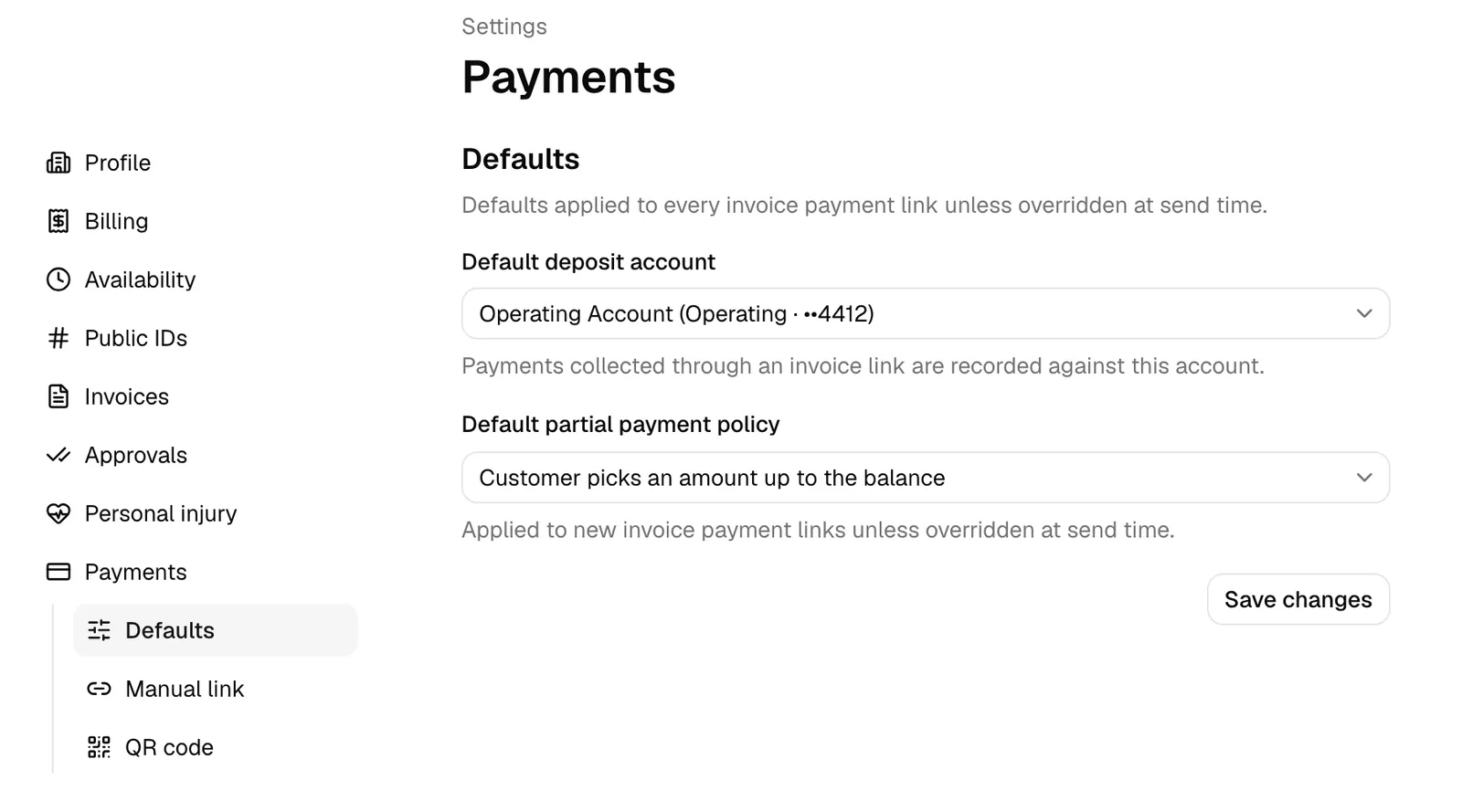
Important: Only firm owners or members with access to Firm payment settings can open this page, and changing it, or connecting a processor, needs Update access. If you do not have access, the page will be read-only or will not appear in your Firm settings.
For the details of each option, see Payment settings and Taking card and bank payments with LawPay or Confido Legal. For installments and autopay, see Payment plans and autopay. To learn how money flows into accounts and how trust funds are kept separate, see Accounts, trust, and transactions. For the client's side of paying, see How clients pay invoices.
Note: Esqase never holds your clients' money. A card or bank payment goes from the processor to your bank under your own merchant account, and Esqase records it. A bank transfer or QR payment arrives in your payments list as Pending and waits for a firm member to mark it cleared.
Accounting sync: QuickBooks Online or Xero (firm-wide)
Your firm can connect QuickBooks Online or Xero so your billing reaches your books without keying it in twice. This is a firm-wide connection: it is made once, by a firm owner or a member whose role includes Update access for Accounting sync settings, and it syncs the whole firm's billing. A firm connects one of the two at a time.
- In the sidebar, click Integrations.
- Under Accounting, click Connect on the QuickBooks or Xero card, read the dialog, and click Continue to Intuit or Continue to Xero.
- Sign in, choose the company or organisation to sync, and approve. If your Xero login reaches more than one organisation, Esqase asks you to choose one.
- Open Settings, then under Firm click Accounting (or click the settings button, the gear icon, on the connected card) to choose the accounts and tax rates Esqase uses, decide what syncs and from which date, and see the sync history.
Sync runs one way, from Esqase to your accounting software. Esqase sends the clients on your invoices (as customers), finalized invoices, cleared payments, and issued credit notes, automatically as they change and every 15 minutes, and whenever someone clicks Sync now. Nothing is sent until the required accounts are saved in the accounting settings. Drafts and invoices in review stay in Esqase, and nothing you change in QuickBooks or Xero comes back.
Note: Members without access to Accounting sync settings still see the QuickBooks and Xero cards, with Connect greyed out. Hover over Connect, or move to it with the Tab key, to see that only firm owners and administrators can connect accounting software.
For the full walkthrough, including what is not synced yet and how to fix a record that did not go through, see Connecting QuickBooks Online or Xero.
Your firm subscription (firm-wide)
Your Esqase subscription is what keeps the app active for your firm. It is billed at the firm level and managed by a firm owner. This is separate from how your clients pay you: the subscription is your firm paying Esqase, while payment settings (above) are about your clients paying your firm.
- In the sidebar, open Settings.
- Click Billing to view your current plan, billing period, and payment method.
- From here a firm owner can change the plan, update the card on file, or cancel.
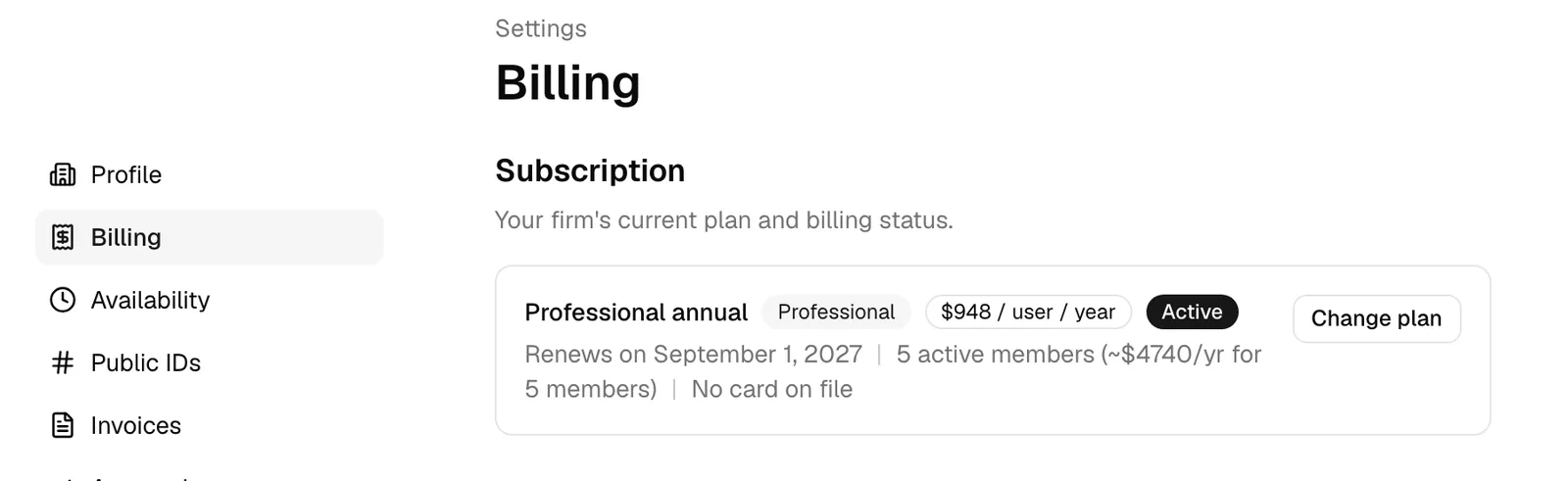
Important: Only firm owners can change the plan, update the payment method, or cancel the subscription. Other members can use Esqase normally but will not see these controls.
For the complete walkthrough, see Your Esqase subscription.
Email delivery (automatic)
Esqase handles two different kinds of email, and it helps to know the difference:
- Email you send to clients (for example, sending an invoice or replying in a matter) goes out through your connected email account (Gmail or Outlook), so it comes from your address. Replies come back to your own inbox. Outlook records them on the matter automatically; the Gmail connection is send-only, so Gmail replies are logged by hand. This is one of the personal connections described above.
- System email from Esqase (for example, an invite to join a firm, a verification email, or a notification) is delivered by Esqase's own email service. You do not set this up, and it works whether or not you have connected Gmail or Outlook.
Note: If you want client-facing email to come from you, connect Gmail or Outlook on your Integrations page. System messages from Esqase itself always arrive regardless.
See Sending email and Email templates for how outgoing client email is composed.
File storage (automatic)
Every file in Esqase (uploaded documents, signed PDFs, payment QR images, profile photos, and attachments) is stored securely in Esqase's managed cloud storage. That storage needs no integration and nothing to configure. When you upload a file, it goes straight to secure storage, and when you download or view one, Esqase serves it through a short-lived private link so only authorized people can open it.
You will mostly encounter storage indirectly, when you upload or download in places like the documents workspace or when attaching a QR-code image to your payment settings. See The documents workspace.
Syncing a folder with OneDrive, Google Drive, or Dropbox (personal)
If you also keep files in Microsoft OneDrive, Google Drive, or Dropbox, you can connect your own drive under Cloud storage on the Integrations page and choose one folder to keep in step with your Esqase documents. It is optional and personal: each member connects their own drive, and the synced folder sits in your own My documents.
- In the sidebar, click Integrations.
- Under Cloud storage, click Connect on the Microsoft OneDrive, Google Drive, or Dropbox card, read the dialog, and click Continue to Microsoft, Continue to Google, or Continue to Dropbox.
- Approve the access, then choose the folder to sync on the Cloud storage page Esqase opens for you. You can come back to it any time from Settings, in the Personal group.
Files and folders then move both ways: changes in the drive arrive in Esqase within five minutes, or straight away with Sync now, and files you add or change in the synced folder in Esqase go to the drive. Documents you write in Esqase appear in the drive as Word files, and edits to those Word files come back. Every change from the drive is kept as a new version, and Esqase still stores its own copy of every synced file, as above. Inside the synced folder you can also create a Word document (OneDrive or Dropbox) or a Google Doc. Word, Excel, and PowerPoint files can be turned into PDFs with Convert to PDF or Request signature (as PDF): a file in your synced folder through that drive (Dropbox does not convert spreadsheets), and any other file through your OneDrive, once a OneDrive folder is syncing.
Note: Unless whole folder sync is turned on for Google Drive in Esqase, Google Drive shows Esqase only the files Esqase creates there and the files you add with Add from Google Drive, so a file you drop into the folder from Google Drive itself does not appear in Esqase until you add it that way. OneDrive and Dropbox sync everything in the folder you choose. See The Google Drive visibility rule.
For the full walkthrough, including what does not sync, conflicts, trash and restore, and troubleshooting, see Connecting OneDrive, Google Drive, and Dropbox.
Push and in-app notifications (personal)
Esqase can let you know when something needs your attention (a new task, an assignment, an upcoming event) in three ways. Which ones you receive is a personal choice, set per notification type.
- In the sidebar, open Settings.
- Under Account, click Notifications.
- For each notification type, turn the delivery channels on or off:
- In-app: the notification appears in the bell inbox inside Esqase, and, while you are working in Esqase, as a message in the corner of the screen.
- Push: the notification also reaches you as a desktop alert while Esqase is in the background. It needs In-app on, so unticking In-app empties and greys out Push.
- Email: Esqase emails you about the event.
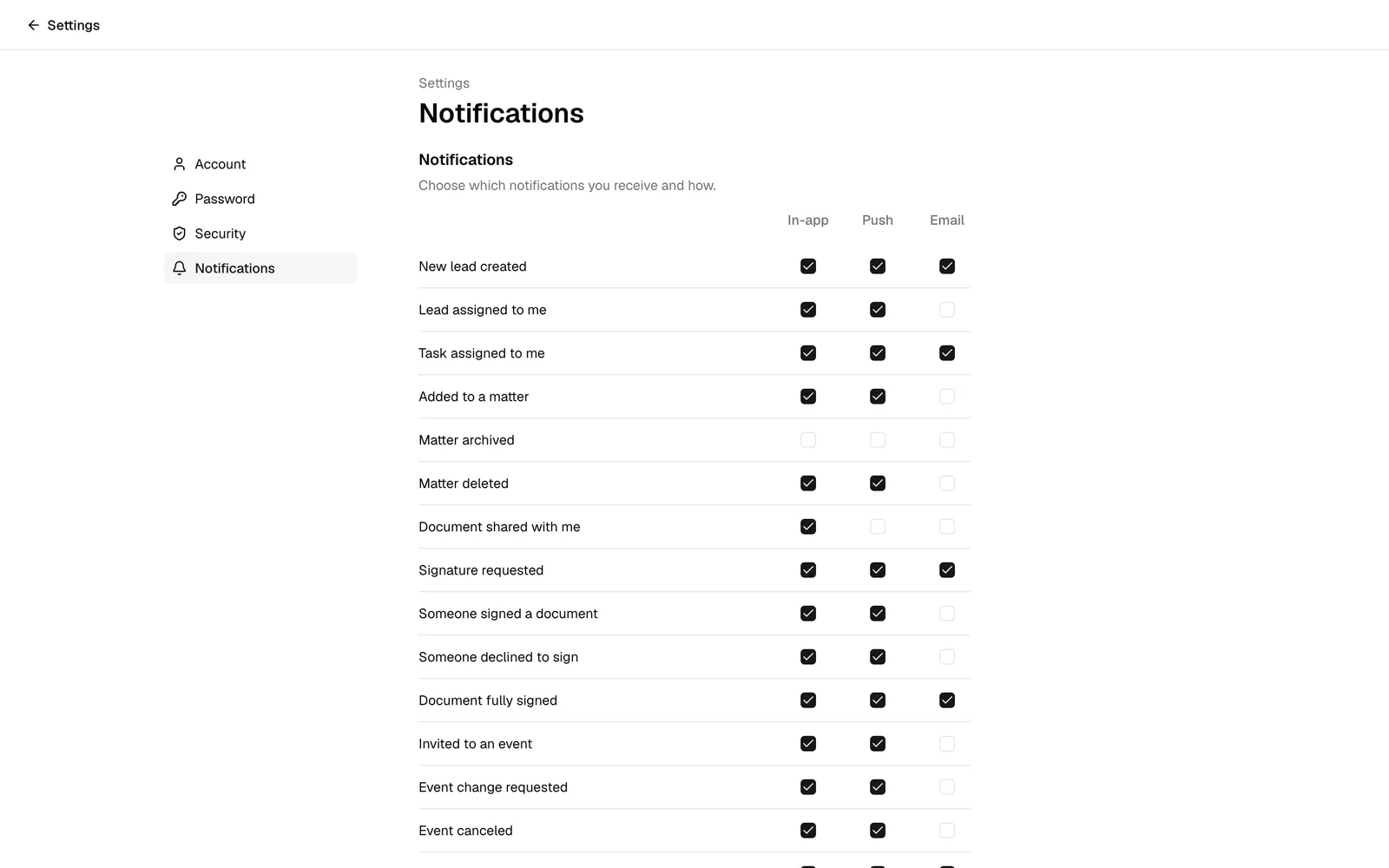
Note: Desktop alerts have to be switched on once per browser, and you do it from the top of this same page: click Enable desktop notifications and answer Allow when your browser asks. Esqase does not ask on its own, because some browsers ignore a request that does not follow a click. See Desktop alerts.
Tip: Notification preferences are personal, like your account connections. Changing yours does not change what your colleagues receive.
For the full breakdown of notification types and how the bell inbox works, see Notifications.
Where each connection lives, at a glance
| Connection | Personal or firm-wide | Where to set it up |
|---|---|---|
| Gmail or Outlook (send email; Outlook also syncs replies) | Personal | Integrations (in the sidebar) |
| Google Calendar or Outlook Calendar (event sync) | Personal | Integrations (in the sidebar) |
| Google Meet, Microsoft Teams, or Zoom (meeting links) | Personal | Integrations (in the sidebar) |
| Microsoft OneDrive, Google Drive, or Dropbox (sync one folder with your documents) | Personal | Connect on Integrations, choose the folder at Settings > Account > Cloud storage |
| Notification delivery (In-app, Push, Email) | Personal | Settings > Account > Notifications |
| Card and bank payments (LawPay or Confido Legal) | Firm-wide | Connect on Integrations, set up at Settings > Firm > Payments (Processor and Autopay tabs) |
| Client payment options (deposit account, bank transfer link, QR code) | Firm-wide | Settings > Firm > Payments |
| Accounting sync (QuickBooks Online or Xero) | Firm-wide | Connect on Integrations, set up at Settings > Firm > Accounting |
| AI Assistant firm key (Claude, Gemini, or OpenAI) | Firm-wide | Connect on Integrations or on the Firm AI Assistant settings page, where the assistant can also be turned off or on |
| AI Assistant personal key (Claude, Gemini, or OpenAI), when your firm allows it | Personal | Connect on Integrations or on the My AI Assistant settings page |
| Firm subscription (your firm paying Esqase) | Firm-wide | Settings > Billing |
| System email delivery | Automatic | No setup needed |
| File storage | Automatic | No setup needed (syncing with OneDrive, Google Drive, or Dropbox is the optional personal connection above) |
Common questions
- Do I have to connect an email or calendar to use Esqase? No. You can use almost everything without it. You only need to connect Gmail or Outlook if you want to send client email from your own address, a calendar to mirror events on your own schedule, and Google Meet, Microsoft Teams, or Zoom to auto-generate video links.
- Can I connect both Gmail and Outlook? Yes. When both are connected, the email composer shows a From picker so you can choose which mailbox each message sends from.
- My colleague connected their email but I still cannot send. Why? These connections are personal. Each member connects their own accounts, so you need to connect Gmail or Outlook yourself on the Integrations page.
- How do I use Claude, Gemini, or OpenAI in Esqase? Through the AI Assistant. The assistant is on by default on the Standard and Professional plans; your firm can use Esqase AI, which runs Gemini and Claude models on the credits in your plan, or connect its own Claude, Gemini, or OpenAI key on the Claude, Gemini, or OpenAI card (or on the Firm AI Assistant settings page). See AI Assistant.
- Can we sync our invoices to QuickBooks or Xero? Yes. A firm owner (or a member with Update access for Accounting sync settings) connects QuickBooks or Xero under Accounting on the Integrations page, once for the whole firm. See Connecting QuickBooks Online or Xero.
- Can I keep working in Word or Google Docs? Yes. Connect Microsoft OneDrive, Google Drive, or Dropbox under Cloud storage on the Integrations page and choose a folder: its files and your Esqase documents stay in step both ways, and every change from the drive is kept as a new version. See Connecting OneDrive, Google Drive, and Dropbox.
- Who can change payment settings or the subscription? Opening payment settings requires View access to Firm payment settings, and changing them or connecting a processor requires Update access (firm owners have both by default). Subscription changes require a firm owner.
- Can my clients pay me by card through Esqase? Yes, once your firm connects LawPay or Confido Legal under Payments on the Integrations page. Clients can then pay by card or from their bank account, and Esqase records the payment by itself. PayPal is not supported. See Taking card and bank payments with LawPay or Confido Legal and How clients pay invoices.
Related
- Connecting Google (Gmail, Calendar, Meet)
- Connecting Outlook and Zoom
- Connecting OneDrive, Google Drive, and Dropbox
- Connecting QuickBooks Online or Xero
- Taking card and bank payments with LawPay or Confido Legal
- AI Assistant
- Notifications
- Payment settings
- Your Esqase subscription
- Sending email
- Activity timelines and audit logs