Available lang sa Ingles ang dokumentasyon ng produkto.
Your dashboard home (Overview)
Overview is the first page you land on when you sign in, and the page you return to whenever you click Overview at the top of the sidebar. It is your daily starting point: a quick snapshot of the money moving through your firm and short, actionable lists of what needs your attention next, all on one screen. Nothing here is edited in place. Every card and list is a jumping-off point that links you straight to the full record.
This page explains what each part of the Overview shows, how the billing snapshot filters work, what the four work cards put in front of you, and where each list takes you.
Before you begin
- Overview is the sidebar's home link. It sits at the very top of the first navigation group. Clicking it from anywhere brings you back here. See Navigating the dashboard.
- The page is two columns under the billing snapshot. Everything about your own work and your firm's lists runs down the left column, and Feeds fills the right one on its own. On a narrower screen the two columns stack, with Feeds at the bottom. If your role cannot view Feeds, the left column simply spreads across the full width.
- What you see depends on your role. The Overview is built from several independent sections. The billing snapshot, Feeds, and the four firm lists each appear only if your role can view that area, so a missing one means your role does not include view access for it, not that there is no data. The four work cards under the snapshot are the exception: they always appear, and instead of hiding they only ever list records you are allowed to open. See Roles and permissions.
- Everything is scoped to your current firm. If you belong to more than one firm, the Overview reflects the firm shown at the top of the sidebar. Switch firms to see another firm's snapshot.
- This is not the Billing overview. The Overview home is a quick daily digest across events, tasks, invoices, and unbilled work. The separate Billing overview dashboard, under the Billing group, is a deeper financial analytics page. See How this differs from the Billing overview.
The billing snapshot
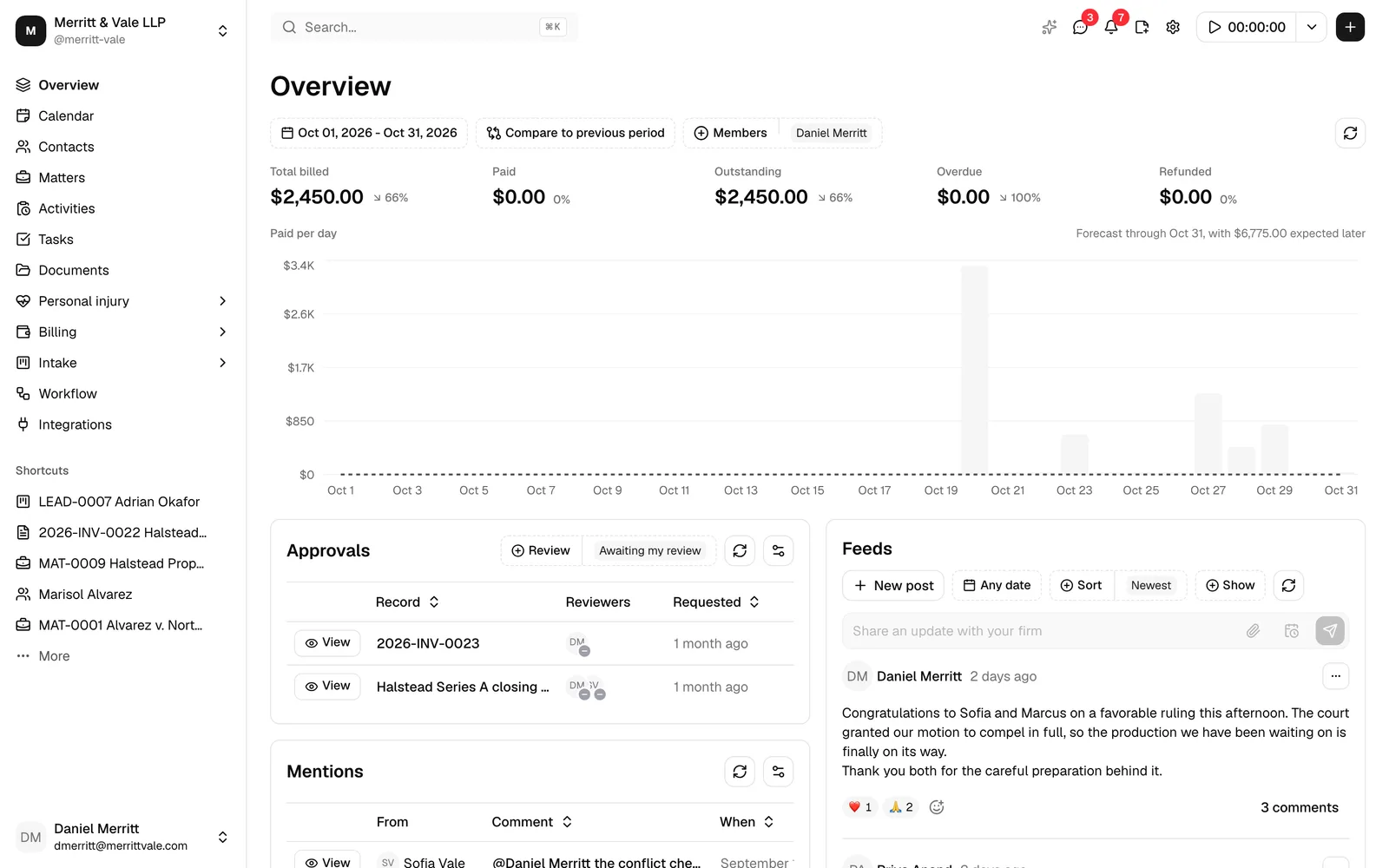
If your role can view billing, the top of the Overview is a compact billing snapshot: a row of filters, five headline numbers, and a per-day chart. It answers "how is the firm doing this month, and where is it heading?" without leaving the home page.
If your role does not include view access for invoices, this whole section is hidden and the Overview begins with the list widgets instead.
The filters
A row of controls sits above the numbers and drives everything in the snapshot:
- Date range. Pick the period the snapshot covers. It starts on the current month, from its first day to its last, counted in your firm's time zone, so on October 17, 2026 it reads Oct 01, 2026 - Oct 31, 2026. Click it to choose any range; clearing it shows Pick a date range.
- Compare to. The change arrows on the cards and the dashed line on the chart compare your date range with an earlier period. The button reads Compare to previous period by default. When your date range is exactly one calendar month, the previous period is the whole calendar month before it, so October 1 to 31 compares with September 1 to 30. Any other range compares with the same-length stretch immediately before it. Open it to switch between Previous period, which shows the exact dates it uses, and a Custom range you set yourself.
- Members. The snapshot starts scoped to you, the signed-in member, so you first see your own billing. Open the Members filter to add or remove members, or clear it to include the whole firm.
- Refresh. The circular arrow on the right re-pulls the latest figures without reloading the page.
Tip: Because the member filter defaults to you, the numbers on your Overview may look smaller than a firm-wide report. Clear the Members filter to see the firm's totals.
The five metric cards
Below the filters, five cards summarize the selected period. Each shows the amount for your date range and a small up or down arrow with the change against the comparison period.
- Total billed is the value invoiced during the period.
- Paid is the payments received.
- Outstanding is what has been billed but not yet paid.
- Overdue is the portion of outstanding that is past its due date.
- Refunded is the amount refunded.
The change indicator reads as a percentage (for example, an up arrow with 12%), shows New when the comparison period had nothing to compare against, and shows 0% when the figure is unchanged.

The per-day chart
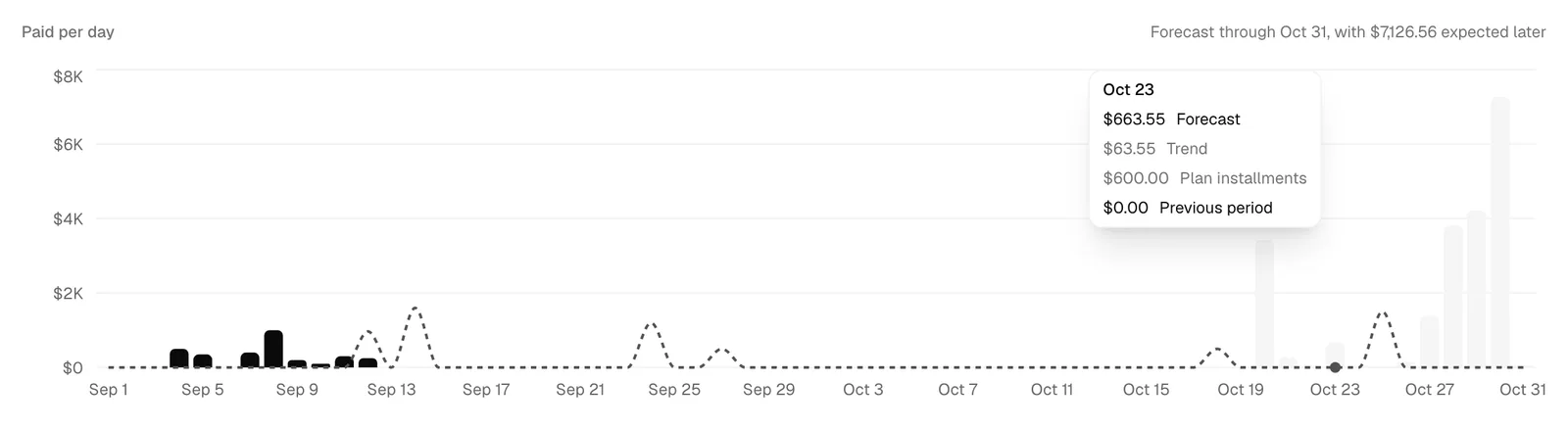
Under the cards, a chart plots your date range one day at a time. Its title follows the Members filter. While the filter is set, which is how the page opens, it reads Paid per day and shows the payments received on the selected members' work, less refunds. With the filter cleared, it reads Billed per day and shows what the whole firm invoiced each day.
The chart draws each kind of figure differently, so they never get confused for each other:
- This period is drawn as bars, one per day, for every day up to and including today.
- Forecast is drawn as light gray bars on the days after today, through the last day of your range. A day with nothing expected has no bar, and the forecast never reaches past the range you picked.
- Previous period is drawn as a dashed line across the same days.
Read the This period bars for what actually happened each day, the light gray Forecast bars for what is expected on the days still to come, and the line behind them for what the comparison period did on its matching day. Days are matched by their position, so the first day of your range lines up with the first day of the comparison period. When the comparison period is shorter, as September is next to October, the days at the end that have no match read zero on the line.
When your range has forecast days, a gray note at the right of the chart's title line names the last of them, for example Forecast through Oct 31. Today always counts as an actual day, so the forecast starts tomorrow, and a date range that ends today or earlier has no forecast at all.
When some overdue or undated balances are expected to be paid only after that last day, the note adds their total, for example Forecast through Oct 31, with $275.00 expected later. That money is real but falls outside your range, so it is not on any bar. The Outstanding balance part below explains how Esqase picks the day it expects a balance to be paid.
Each forecast bar is worked out from these parts:
- Trend is the chart's average per day in the comparison period. If the comparison period had nothing at all, Esqase looks further back: it uses the average per day over the last 90 days, or if those had nothing, over the last 365 days, or failing both, this period's own average per day so far. Once the chart has activity on at least 20 different days over the last year, that average is shaped by the days of the week your firm usually collects on: a busy weekday gets more than the average and a quiet one gets less, so a weekend reads lower, and zero when your firm never collects on it. A full week still adds up to seven days at the average. With less history than that, every forecast day gets the plain average. Either way, as long as there is history to go on, every forecast day gets a trend even when nothing falls due on it, apart from a day of the week with no collections at all in the last year.
- Due invoices is the unpaid balance of an invoice, placed on its due date. Any part already covered by a pending payment is left out here, so nothing is counted twice. An invoice on an active payment plan is not counted here: its installments are, under Plan installments. The unpaid balance of an invoice due after the end of your range is left out.
- Plan installments are the unpaid installments of active payment plans, each placed on its due date. When an automatic payment was declined and is waiting to be tried again, the installment is placed on the day of the next try instead (see When a charge fails: the retry schedule). An invoice on a payment plan is forecast through its installments only, never as a whole invoice, and its installments never add up to more than the invoice still owes. An installment whose payment is still processing counts under Pending payments, and one that is past its due date with no try scheduled counts under Outstanding balance. Once a plan is archived, its invoice is forecast like any other invoice. See Payment plans and autopay.
- Pending payments are payments that have been recorded but have not cleared yet. Each one is placed on its payment date, or on tomorrow if that date has already passed. A pending payment dated after the end of your range is left out.
- Outstanding balance is what is still owed on invoices that were due today or earlier, or that have no due date at all, less any part covered by a pending payment, together with overdue plan installments that have no try scheduled. Each balance is placed, whole, on the single day Esqase expects it to be paid, rather than spread across the days. Esqase learns that day from how late your firm's clients paid over the last year: it looks at the payments that came in later than this balance already is, and takes the middle one. For example, if a balance is 10 days overdue and the middle payment among those that came more than 10 days late was 25 days late, the balance is expected 25 days after its due date. An invoice with no due date works the same way, counted from its issue date. With too little history (fewer than five comparable payments in the last year, late ones for an invoice with a due date, or none later than this balance already is), Esqase uses the next 30-day mark after the due date, or after the issue date when there is no due date: a balance 10 days overdue is expected 30 days after its due date, and one 45 days overdue is expected 60 days after it. The timing is learned from the whole firm's payments, even while the Members filter is set; the amount is still the selected members' share. When your range starts after tomorrow, a balance expected before that first day falls outside your range and is left out, like an invoice due in that gap; it is not drawn and is not in the note. A balance expected after the end of your range is not drawn on any bar, and its amount is added to the note beside the chart's title instead (with $275.00 expected later).
- Refunds are refunds that are still pending. They are taken off on the first forecast day.
All six parts apply while the Members filter is set, and each is weighted by the selected members' revenue allocation on the matter it belongs to, the same way the cards are. So in the default view, with the filter set to you, a forecast day is the trend, plus the invoices due that day, plus the plan installments due or tried again that day, plus the pending payments expected to clear that day, plus any overdue or undated balances expected to be paid that day, minus any pending refunds. With the filter cleared, the chart shows what the firm billed, which due invoices, plan installments, pending payments, outstanding balances and refunds do not change, so each forecast bar is the trend alone, worked out the same way from what was billed and shaped by the days of the week your firm issues invoices on, and the note never adds an amount expected later. A forecast day never drops below zero.
Hover anywhere on a day to read its exact amounts in a tooltip. On a day up to today, the tooltip shows This period and Previous period. On a forecast day, it shows Forecast, then in gray each of its parts that is not zero (Trend, Due invoices, Plan installments, Pending payments, Outstanding balance, and Refunds, which shows as a negative amount), then Previous period. The Trend row shows that day's own trend, after the day-of-week shaping.
What needs you
Under the billing snapshot (or at the top of the page, if you do not have billing access) sit four cards about your own work: reviews waiting on you, comments that name you, signatures, and form requests that are still open. They open the left column, one under the other, show up to eight rows each, and each row has a View button, marked with an eye icon, on the left that opens the record. The small options control at the top-right of a card refreshes it and lets you show or hide columns.
These four cards always appear. They never hide because of your role: instead, they only ever list records you are allowed to open, so a colleague's card and yours can hold different rows.
Approvals
Invoices and documents waiting on a review.
A Review filter sits in the card's toolbar, to the left of the options control, and chooses which set you are looking at: Awaiting my review, which is what the card opens on, or Requested by me. It is a single choice, so one of the two is always in force and there is nothing to clear. Click the filter and pick the other option to swap.
- Awaiting my review is what needs your decision.
- Requested by me is what you are waiting on.
Either way the card shows the same columns:
- Record is the document's name or the invoice's number.
- Reviewers shows each reviewer with their decision so far.
- Requested says how long ago the review was asked for, in plain words such as 2 hours ago, Yesterday, 3 days ago, or 1 month ago. Hover it to see the exact date and time.
Two more columns start hidden to keep the card readable. Switch either on from the options control at the top-right: Type says whether the row is a Document or an Invoice, and Requested by names the person who asked.
View opens that invoice or document with the review panel already open, so you can approve or ask for changes without hunting for it.
Two things are worth knowing about Awaiting my review. It lists only reviews you can actually decide, so a round you raised yourself on a firm that does not allow self-approval stays out of it (you will find it under Requested by me instead). And a review comes back to you once the changes you asked for have been marked as done, so a second look is never lost.
Rounds leave Requested by me once every reviewer has decided. See Approvals for invoices and documents.
Mentions
The newest comments that @mention you, from anywhere in Esqase: tasks, documents, invoices, matters, leads, contacts, and Feeds posts.
- From is who wrote the comment.
- Comment is the start of what they said. Hover it to read more.
- When is how long ago.
View, or the comment itself, opens the record with the conversation scrolled to that comment. A fifth column, On, names the record the comment is on (for example Matter MAT-0012 - Estate of Hale, Invoice INV-0042, or Feeds post). It starts hidden to keep the card readable; switch it on from the options control at the top-right.
Your own comments never appear here, and neither do mentions on records your role cannot open. View all opens Notifications.
Signatures
Signature requests that are still open.
A Signature filter sits in the card's toolbar, to the left of the options control, and works exactly like the one on Approvals: pick Awaiting my signature, which the card opens on, or Sent by me. It is a single choice, so one of the two is always in force.
- Awaiting my signature is what is waiting on your own signature, as a member of the firm rather than as a client.
- Sent by me is what you sent out.
Either way the card shows the same columns:
- Document is the document.
- Signed is the progress, for example 1 of 3.
- Sent is how long ago it went out.
- Status is Ready to sign when it is your turn, or Waiting on others when the request runs in order and somebody ahead of you has not signed yet. It stays empty on a request you are not signing yourself.
Two columns start hidden to keep the card readable, and you can switch either on from the options control at the top-right: Requested by names who sent the request, and Expires shows its expiry date if one was set.
View opens the document with your signing view open once it is your turn. A request that has passed its expiry date is not listed.
Note: A request you sent out and must also sign yourself is one row, not two, and it appears under both choices of the filter.
See Requesting eSignatures and Managing signature requests.
Pending form submissions
Form requests across the firm that nobody has finished yet, newest first.
- Form is the form's name.
- Record is the matter or lead the request belongs to.
- Mode is Sent to client when the form went out for a client to fill, or Manual when someone in the firm is filling it in.
- Created is when it was started.
View opens the submission. A Created by column names who started it; it starts hidden and you can switch it on from the options control.
The card lists only submissions you can open, so a submission marked private is shown to the person who created it and nobody else. If a matter's visibility is limited to specific members and you are not one of them, its row still appears with the matter shown as Restricted matter, so you can see the work without seeing the case. See Form submissions.
Feeds
The right-hand column of the page is given over to Feeds, your firm's internal noticeboard: short posts from colleagues, with photos, files, emoji reactions, and comments. It sits at the top of that column, beside your work cards, so the firm's news stays in view while you work down the left-hand side.
The card shows five posts at a time, newest first, with previous and next arrows at the bottom to move between pages and a Page 1 of 3 style position beside them. Three controls in its toolbar filter it: a date range, a Sort choice of Newest or Pinned first, and a Show choice of Pinned, With attachments, or both. A pinned post carries a Pinned badge.
If your role can post, a writing box sits at the top of the card: type, attach files with the paperclip, set a publish time with the clock, and press Enter to publish. The New post button beside the filters opens the same thing as a larger dialog.
The card appears only if your role can view Feeds, which every default role can. See Feeds for posting, files, pinning, scheduling, reactions, comments, and who can edit or delete a post.
Your work at a glance
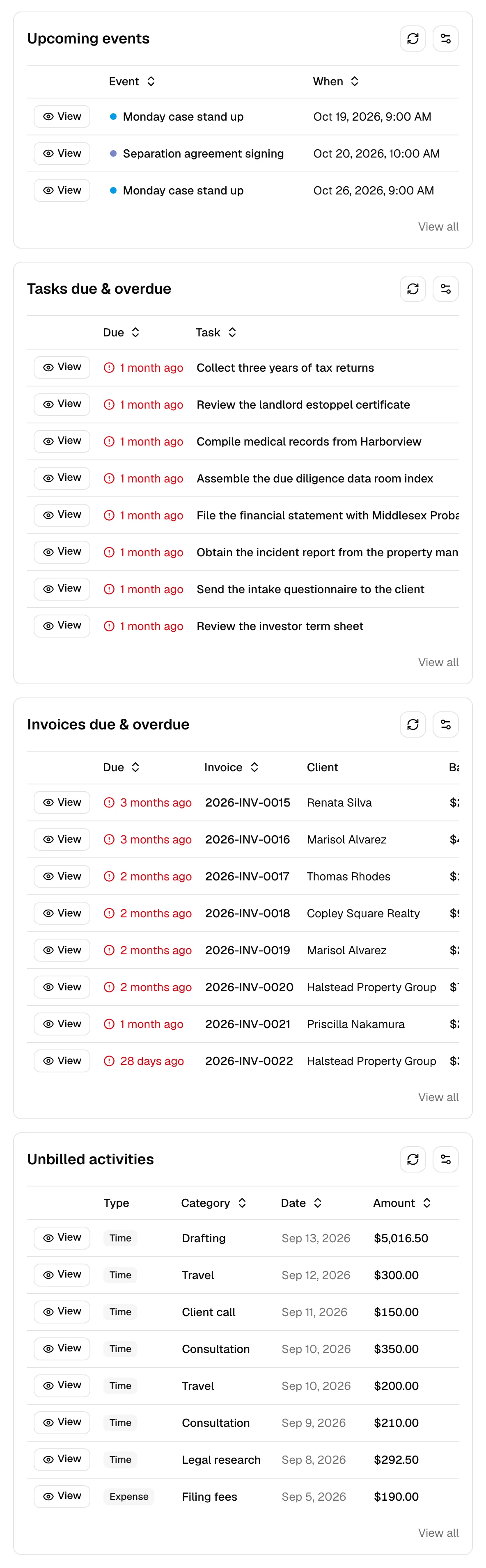
Under your work cards, still in the left column, are four lists that surface the work moving through the firm. They run one under the other. Each list shows the most relevant few rows, and each row has a View button, marked with an eye icon, on the left that opens that record. A View all link at the bottom-right of a list opens the full page it draws from, and the small options control at the top-right lets you refresh the list or hide columns.
As with the billing snapshot, a list only appears if your role can view that area, so you may see fewer than four.
Upcoming events
Your next meetings and calendar events.
- Event is the event's title, with a colored dot for its calendar.
- When is the date, or the date and time for a timed event.
- A repeating event appears as each occurrence that is actually coming up, not only the first one in the series, so a weekly review shows next week's sitting alongside everything else.
View or the title opens the event; View all opens the Calendar.
Tasks due and overdue
Tasks that are due soon or already past due.
- Due comes first, right after View, and says how far off the due date is in plain words, such as In 3 hours, Tomorrow, In 9 days, 3 days ago, or 1 month ago. Hover it to see the exact date and time. An overdue task's date is shown in red, with a red alert icon (a circle with an exclamation mark) to its left.
- Task is the task name.
- Assignee is who it is assigned to.
View opens the task (inside its matter, if it belongs to one); View all opens Tasks.
Invoices due and overdue
Invoices that are awaiting payment.
- Due comes first, right after View, and says how far off the due date is in plain words, such as Today, Tomorrow, In 9 days, 3 days ago, or 1 month ago. Hover it to see the exact date. Once the due date has passed, the date is shown in red, with a red alert icon (a circle with an exclamation mark) to its left. An invoice without a due date reads No due date.
- Invoice is the invoice number.
- Client is who it was billed to.
- Balance is the amount still owed.
View opens the invoice; View all opens Invoices.
Unbilled activities
Time entries and expenses that have not been added to an invoice yet, so you can see what is ready to bill.
- Type is a Time or Expense tag.
- Category is the activity category.
- Date is when it was recorded.
- Amount is its value.
View opens the activity; View all opens Activities.
How this differs from the Billing overview
Esqase has two "overview" pages, and it is easy to mix them up:
- Overview (this page, the sidebar home) is a daily digest. It combines a small billing snapshot with lists of upcoming events, due tasks, due invoices, and unbilled work, to answer "what should I look at right now?"
- Billing overview (under the Billing group) is a dedicated financial dashboard. It focuses only on money, with fuller charts of revenue, refunds, and how periods compare, and no task or event lists.
Use the Overview home to start your day, and the Billing overview when you want to study the firm's finances in depth.
Troubleshooting
I do not see the billing snapshot at all. The billing snapshot only appears if your role can view invoices (firm owners always can). If your role is view-only for other areas but not billing, your Overview starts with the list widgets. See Roles and permissions.
One of the lists is missing. Each list is tied to a permission. If your role cannot view events, tasks, invoices, or activities, that list is hidden. Ask a firm owner or administrator to adjust your role if you need it.
A work card is empty, but I know there is something there. The four work cards only list records you are allowed to open. A review on a document you cannot see, a mention on a matter you are not on, or a submission marked private will not appear for you, and no error is shown. If a colleague can see it and you cannot, that is a permission difference: see Roles and permissions.
The Feeds card is not on my Overview. Your role does not have view access for Feeds, so the rest of the page spreads across the full width instead. See Feeds.
My billing numbers look low. The snapshot defaults to your own work because the Members filter starts set to you. Clear the Members filter to see firm-wide totals, and check the Date range, which defaults to the current month, so early in the month it covers only a few days. The light gray forecast bars on the chart show where the rest of the month is heading. If the bars look low too, read the note beside the chart's title: overdue balances that Esqase expects to be paid after the end of your range are counted there (with $275.00 expected later), not on the bars.
The chart has no gray bars. The forecast covers only the days after today inside your date range. When your range has no days after today, for example a month that has already ended, there is nothing left to forecast, so the chart has no gray bars and no Forecast through note. Pick a range that runs past today, such as the current month. If only some days have no gray bar, usually Saturdays and Sundays, those are days of the week your firm has not collected on in the last year (or, with the Members filter cleared, has not issued invoices on), so the trend gives them nothing, and no invoice, installment or payment is expected on them. If your range does run past today and every gray bar is missing, there is nothing yet to base a forecast on inside your range: no payments in the comparison period, the last 365 days, or this period so far, and no unpaid invoice balance, plan installment or pending payment that falls inside your range. When the note then reads, for example, Forecast through Oct 31, with $275.00 expected later, the balances Esqase does know about are all expected after the end of your range; pick a longer range to see the days they land on. With the Members filter cleared, missing bars mean nothing was billed in those periods.
An overdue invoice is not on the chart. Esqase places an overdue invoice, or one with no due date, on the single day it expects the invoice to be paid: the day it works out from how late your firm's clients paid over the last year or, with too little history, the next 30-day mark after the invoice's due date (or its issue date, when it has no due date). When that day falls after the end of your date range, the invoice is not on any bar. Its balance is added to the note beside the chart's title instead, for example Forecast through Oct 31, with $275.00 expected later. Pick a longer range to see the day it lands on, and hover that day to find it under Outstanding balance. An invoice on an active payment plan shows under Plan installments instead, on the due dates of its installments. While the Members filter is set, only the selected members' share of an invoice counts, so an invoice on a matter where none of them has a revenue allocation does not appear at all. With the filter cleared, the chart shows what was billed, so no unpaid invoice appears on it.
A number does not match the Billing overview or the Invoices page. The Overview snapshot follows the date range, comparison, and member filters you have set here, and covers only that window. The Billing overview and Invoices pages use their own filters, so the totals will differ unless the ranges line up.