Setting firm availability
Your firm's availability tells Esqase when your firm is open for business. It sets the default weekly hours and timezone that drive the bookable time slots clients see on your public booking pages. Set it once, then adjust it for holidays or one-off changes as they come up.
This page covers your firm-wide availability. Individual team members can set their own schedule that overrides the firm default for the meetings they host. See the note at the end of each section for how that interacts with what you configure here.
Before you begin
- You reach availability from firm settings: in the firm settings sidebar, click Availability. The page title reads Availability.
- You need view access to your firm's schedule to open this page. If your role does not include that access, the Availability link will not appear in the sidebar, and visiting the page directly shows a "You do not have access" message. Firm owners always have access.
- What you can change depends on your role:
- Create access lets you add new time slots and date overrides.
- Update access lets you edit existing times and the firm timezone.
- Delete access lets you remove time slots and date overrides.
- If your role has view access only, you can see the hours but the editing controls and the Save changes button are hidden.
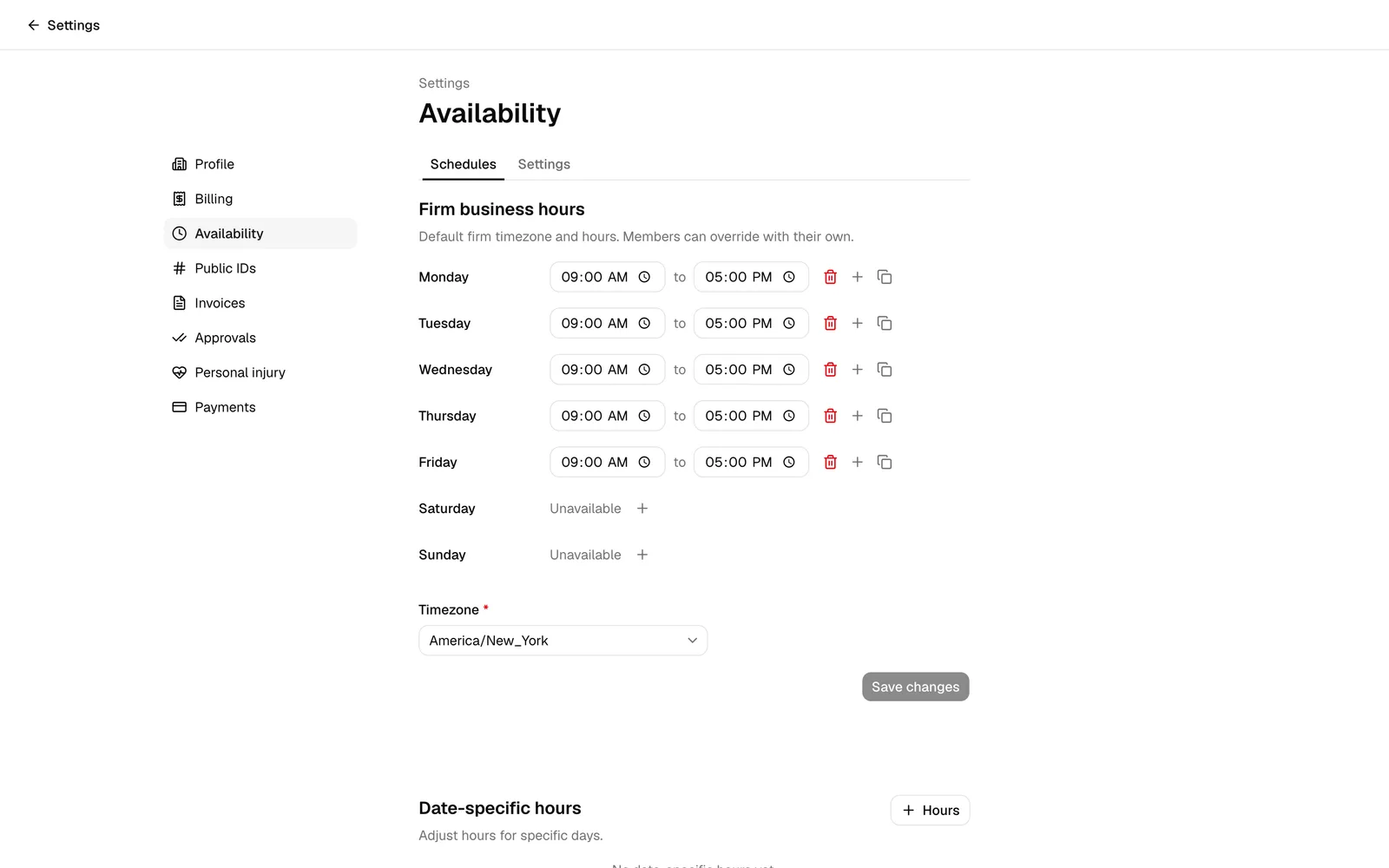
The page has two tabs near the top: Schedules (where you set your hours) and Settings. Everything in this guide lives under the Schedules tab.
Set your firm's weekly business hours
Your weekly business hours are the recurring days and times your firm is open. They repeat every week and act as the default availability for every day unless a date-specific override applies (covered in the next section).
The weekly hours live in the Firm business hours section at the top of the Schedules tab. You will see a row for each day of the week, Monday through Sunday, each listing the time slots that day is available.
- In the firm settings sidebar, click Availability.
- Make sure the Schedules tab is selected.
- Find the day you want to set, for example Monday.
- If the day shows Unavailable, it has no hours yet. Click the + (plus) button next to Unavailable to add a time slot. A new slot appears, prefilled from 09:00 to 17:00 (9:00 AM to 5:00 PM).
- Set the slot's hours using the two time fields. The first field is the Start time, the second (after the word to) is the End time. Pick the times with your browser's time picker or type them in.
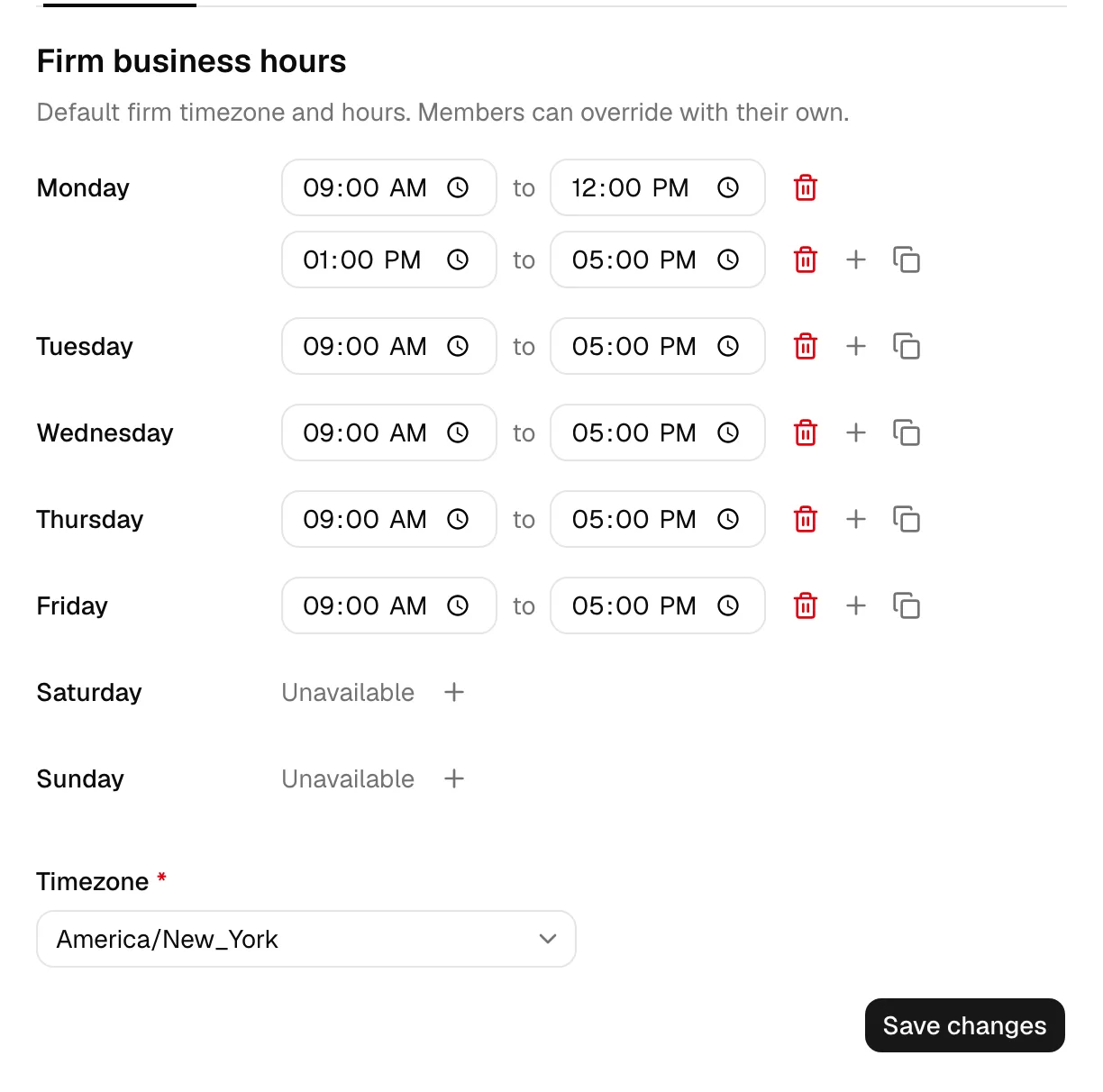
- To add more than one slot to the same day (for example, to model a lunch break with morning and afternoon hours), click the + (plus) button at the end of the last slot row. Add as many slots as you need.
- To remove a slot, click the trash-can button next to it. Removing every slot from a day marks that day Unavailable, meaning the firm is closed that day.
- Repeat for each day you want open. Leave a day with no slots to keep it closed.
Copy one day's hours to other days
If several days share the same hours, set one day, then copy it to the others instead of retyping.
- Set the hours on the day you want to copy from (it must have at least one slot).
- Click the copy button at the end of that day's last slot row. A Copy times to menu opens.
- Check each day you want to copy the times to.
- Click Apply. The copied days now match the source day's slots.
Note: Copying replaces the target days' existing slots with the copied ones. If a target day already had hours, those are cleared and the new times take their place.
Set your firm timezone
Below the day rows is the Timezone field. This is your firm's default timezone, and it matters a lot: all your weekly and date-specific hours are interpreted in this timezone, and it determines the local times clients see when booking.
- Click the Timezone field and start typing to search, for example "New York" or "Los Angeles".
- Select your firm's timezone from the list.
The Timezone field is required. If you clear it and try to save, Esqase asks you to select a timezone before continuing.
Tip: If your firm and a client are in different timezones, you do not need to do anything special. Clients always see times converted to their own timezone on the booking page, so a slot you set as 9:00 AM in your firm's timezone shows correctly wherever the client is. After they book, their confirmation page, their email, and the page where they manage the meeting keep using their timezone and add your firm's time, labeled Firm time (a note in brackets after the time on the pages, a line of its own in the email), so both of you can read the same booking without converting anything.
Note: This timezone does more than booking. It is the timezone the firm calendar is drawn in for any member who has not set one on their own schedule, and the hours above are what the calendar shades as working hours. See Calendar and events.
Save your weekly hours
Your edits are not stored until you save.
- Review your day rows and the Timezone.
- Click Save changes at the bottom of the Firm business hours section. The button is disabled until you make a change.
- While saving, the button shows Saving.... On success, you see a Business hours saved confirmation.
Important: Time slots on the same day cannot overlap, and each slot's end time must be after its start time. If a slot has these problems, the times are flagged and Esqase blocks the save with a message like "Time slots on Monday cannot overlap" or "End time must be after start time on Monday." Fix the flagged slot and save again.
Note: A team member who hosts meetings can set their own weekly schedule from their member profile. When they do, their personal hours replace the firm hours for the meetings they host. The firm business hours you set here apply to any host who has not set their own schedule, and they are the default that members start from. Round-robin event types, which share bookings between several hosts, work the same way: each host's own schedule is used when they have one, and your firm hours when they do not (see Event types (scheduling)).
Add date-specific availability (holidays and one-off hours)
Date-specific hours let you override your recurring weekly hours for particular calendar dates. Use them for office closures (holidays, firm retreats), shortened days (a half day before a long weekend), or extended hours for a one-off busy period. An override only affects the date or dates you choose; every other day keeps following the weekly hours.
Date overrides live in the Date-specific hours section, just below Firm business hours on the Schedules tab. When you have not set any, the section reads No date-specific hours yet.
Add an override
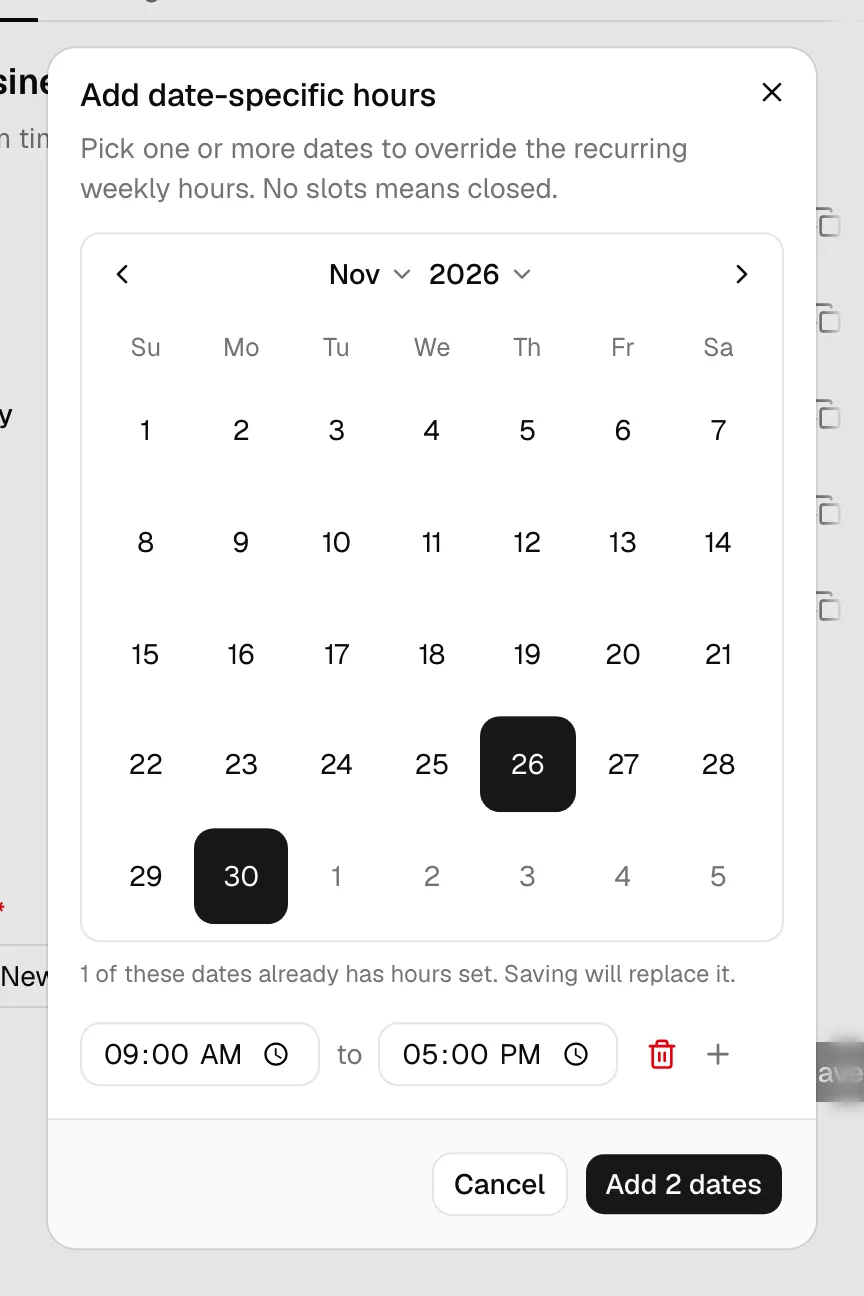
- In the Date-specific hours section, click Hours (the button labeled with a + and Hours). The Add date-specific hours dialog opens.
- In the calendar, click one or more dates. You can select several dates at once to apply the same override to all of them (handy for a multi-day holiday). Past dates cannot be selected.
- Set the hours for those dates using the time slots below the calendar:
- To mark the date(s) closed, remove all slots so the section reads Unavailable. No slots means the firm is closed that day.
- To set custom open hours, add or edit slots the same way as the weekly hours: use the Start time and End time fields, click the + button to add another slot, and click the trash-can button to remove one. New slots default to 09:00 to 17:00.
- If any selected date already has an override, a note appears (for example, "1 of these dates already has hours set. Saving will replace it."). Saving overwrites the existing override for those dates.
- Click the save button. Its label reflects what you are doing: Add date for one date, or Add N dates when you selected several.
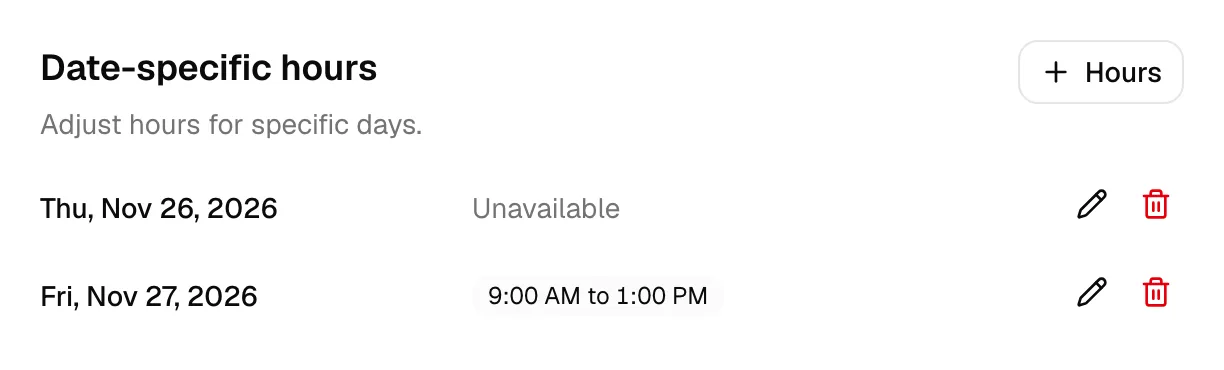
- On success, you see a confirmation, and each date appears as its own row in the Date-specific hours list, showing the date and its hours (or Unavailable if closed).
Tip: To close the office for a holiday, select the date, remove every time slot until it reads Unavailable, then save. Clients will not be offered any booking times on that date.
Edit or remove an override
Each override appears as a row in the Date-specific hours list with its date and hours.
- To change a date's hours, click the pencil (edit) button on its row. The Edit date-specific hours dialog opens with that date's current slots. Adjust the slots and click Save changes.
- To remove an override, click the trash-can button on its row. A confirmation dialog appears explaining that the override will be removed and the recurring weekly hours will apply again to that date. Click Remove date to confirm.
Note: Date overrides validate the same way as weekly hours: slots cannot overlap and each end time must be after its start time. Esqase blocks the save and shows a message if a slot is invalid.
Note: Just like weekly hours, a meeting host who has set their own date-specific schedule has that take priority over the firm's override for the dates where both exist. The firm override applies to hosts who have not set their own override for that date.
How availability feeds bookable time
Your firm availability is not just a record of your hours, it directly shapes the time slots clients can pick on your public booking pages and for each event type (the named meeting offerings clients book, such as a 30-minute consultation).
When a client opens a booking page and picks a date, Esqase builds the list of open times for that date in this order:
- Date-specific override first. If the host has a personal date override for that date, it is used. Otherwise, if your firm has a date-specific override for that date, that is used. Either way, an override fully replaces the weekly hours for that date. If the chosen override has no slots, the date shows as fully booked or closed and offers no times.
- Weekly hours otherwise. If no override applies, Esqase uses the weekly business hours for that day of the week, preferring the host's personal weekly schedule and falling back to your firm business hours when the host has none.
- Timezone. All of these times are read in the firm or host timezone, then displayed to the client converted to the client's own timezone. Meeting limits are counted on the host's day, week, and month, not the client's.
Within the open hours for a date, the event type's own settings further trim what the client actually sees:
- The event type's duration decides how the open window is sliced into selectable start times.
- Any buffer before or after a meeting, and any meeting limit (a cap on how many of that event type can be booked per day, week, or month), can remove or shorten the available slots.
- The host's existing calendar events are treated as busy time, so already-booked or blocked periods are excluded. An all-day court date is the exception: it counts as free time and never blocks booking, while a timed court hearing or trial does.
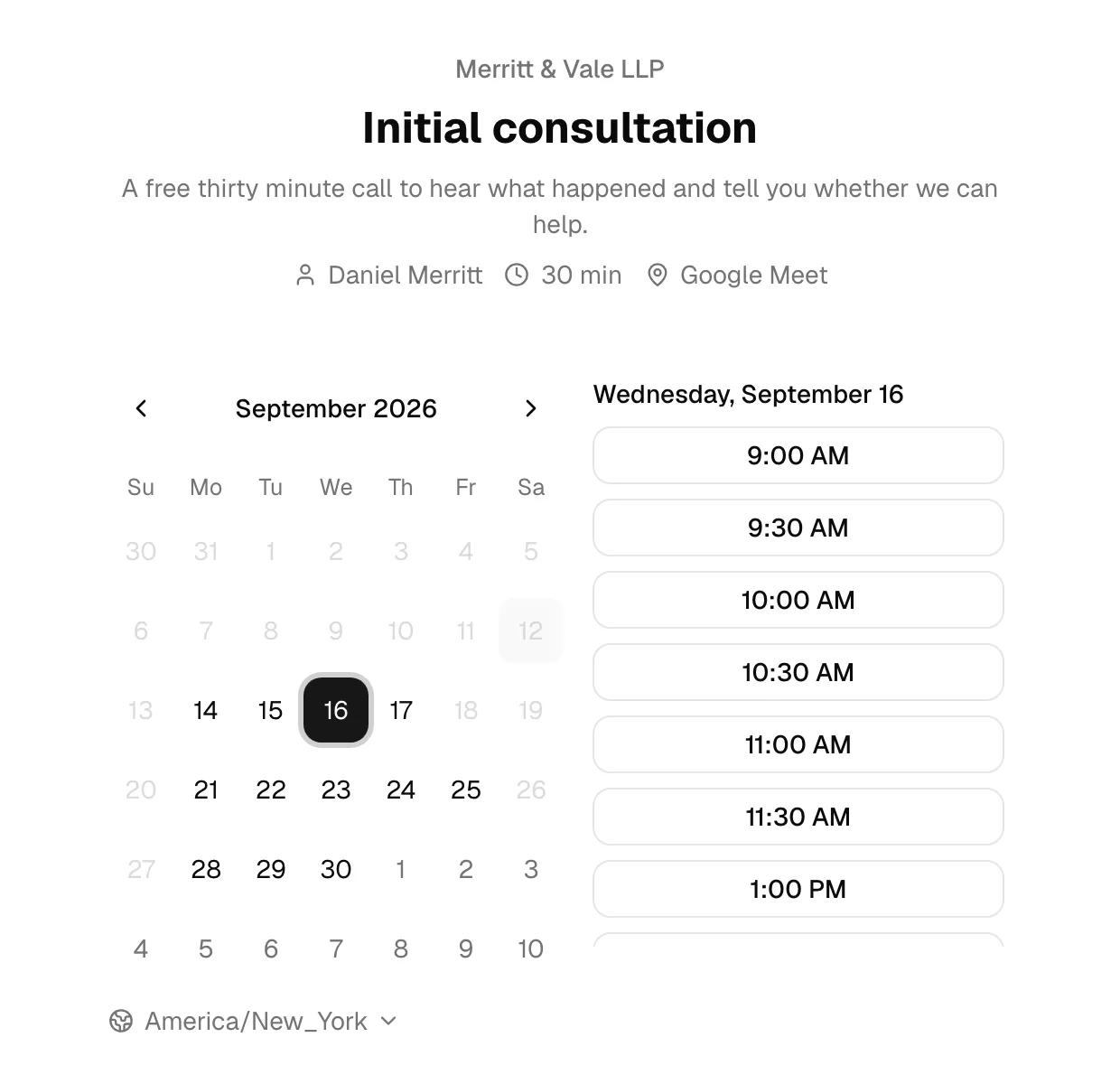
Important: A date with no available slots (because you closed it with a date override, or because the day has no weekly hours) will not offer any booking times to clients. This is exactly how you take the firm offline for holidays.
Common questions
Why don't my new hours show up on the booking page right away? Make sure you clicked Save changes (for weekly hours) or the save button in the dialog (for date overrides) and saw the success confirmation. Unsaved edits are not applied.
A client sees a different time than I set. Is that a bug? No. Clients always see times in their own timezone. Confirm your firm Timezone is correct under Firm business hours, then the conversion will be accurate. On the client's confirmation page and email, the Firm time shows the same meeting in your timezone (in brackets after the time on the page, on its own line in the email), and that is the time to compare against your calendar.
I set firm hours, but a specific lawyer's booking page shows different times. Why? That host has set their own personal schedule, which overrides the firm hours for the meetings they host. The firm hours you set here apply to hosts who have not set their own.
How do I close the office for a holiday? Add a date-specific override for the holiday and remove all of its time slots so it reads Unavailable, then save. No booking times will be offered that day.