Managing firm members
Your firm's members are the people who can sign in to Esqase and work on your matters: attorneys, paralegals, billing staff, and admins. The Members area is where you invite new people, assign each person a role that controls what they can do, and manage their accounts over time (changing roles, archiving someone who leaves, and so on).
This page covers how to view your members, invite new ones, manage pending invites, change roles, archive and restore members, and update a member's timezone.
Before you begin
A few things to know before you dive in:
- Where to find it. In the sidebar, open Settings, then go to Members.
- Permissions matter. What you can do here depends on your role. Firm owners can do everything. Other roles see only the actions their role grants. Throughout this page we note which permission each action needs (for example, "Create access for invites"). If you do not have a permission, the related button or menu item simply will not appear. If you have no access to either the members list or invites, the page shows a No access message instead.
- Roles come from your firm's roles. Every member and every invite is assigned a role. Roles (and the exact permissions each grants) are managed separately. See Roles and permissions. To jump there quickly, click Manage roles at the top of the Members page.
View the members list
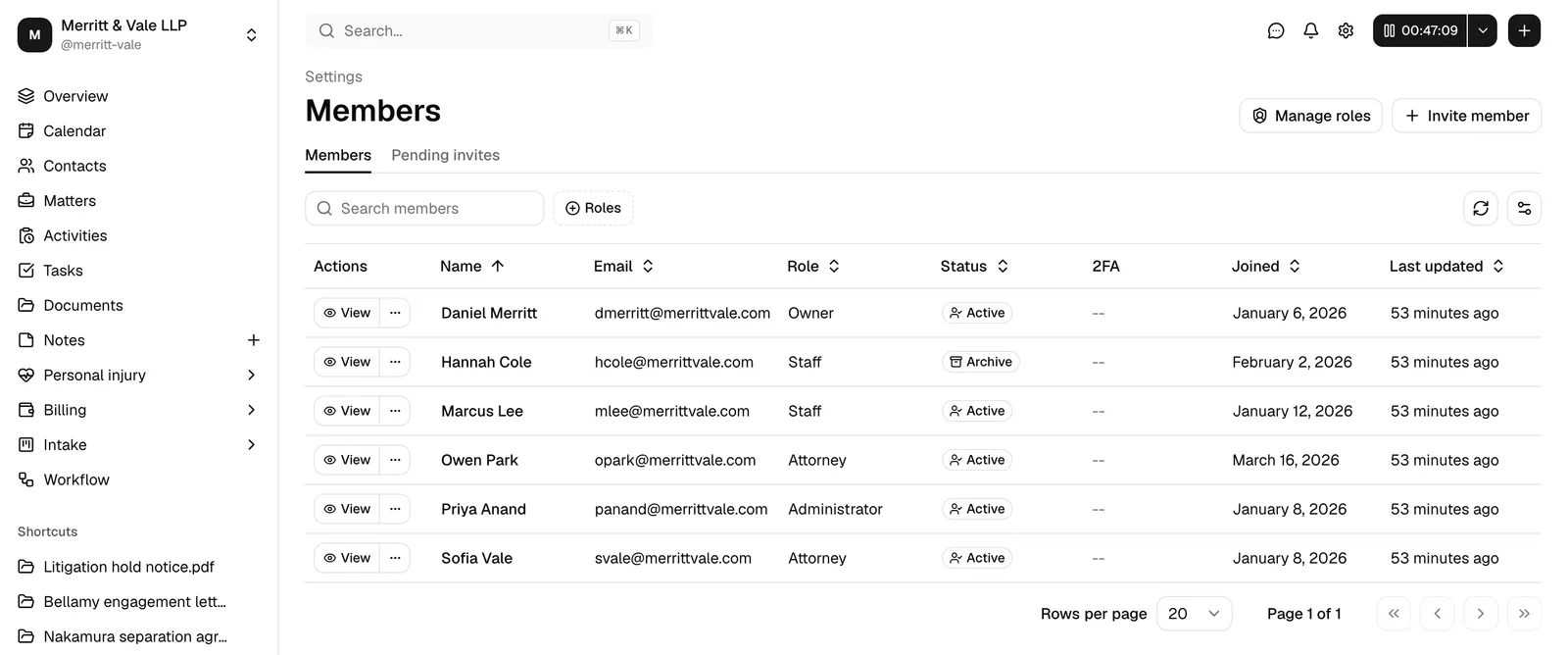
The members list shows everyone who currently belongs to your firm, along with their role and status.
- In the sidebar, click Settings.
- Click Members.
- The Members tab is selected by default. Each row shows:
- Name (or No name if the person has not set one yet). Click it to open that member's detail page.
- Role
- Status (see below)
- 2FA (whether the member has two-factor authentication on; members who do show an Enabled badge)
- Joined (when they became a member)
- Last updated
You can sort by clicking a column header, and you can narrow the list:
- Search members. Type in the Search members box to filter by name or email.
- Role. Click the Role filter to show only members in one or more roles.
- Clear filters. When a search or filter is active, click Clear filters to reset.
Use the view options control (top right of the table) to show or hide columns, and to refresh the list.
What the statuses mean
The Status badge tells you where a member stands:
- Active. A normal, working member who can sign in and use Esqase.
- Invited. The person has been invited but has not accepted yet. (Most pending invites live on the Pending invites tab; see below.)
- Disabled. The account is turned off and cannot sign in.
- Archive. The member has been archived (for example, someone who left the firm). They no longer appear as active but their history is preserved.
Tip: Archived members stay searchable so their past work (time entries, notes, audit history) remains intact and attributable. Archiving is reversible (see Remove and restore a member).
Open a member's detail page
Each member has a detail page with their profile information, schedule, billing rates, and a full history of changes.
- On the Members tab, find the member you want.
- Click their Name, or click View in the Actions column.
- The member detail page opens. At the top you will see the member's name as the page title, with a breadcrumb back to Settings and Members.
Tip: You do not have to come here first. Member names are links throughout the dashboard, so you can open someone's page straight from the Updated by, Assigned to, Responsible, Owner, or Host column of any list. See Navigating the dashboard.
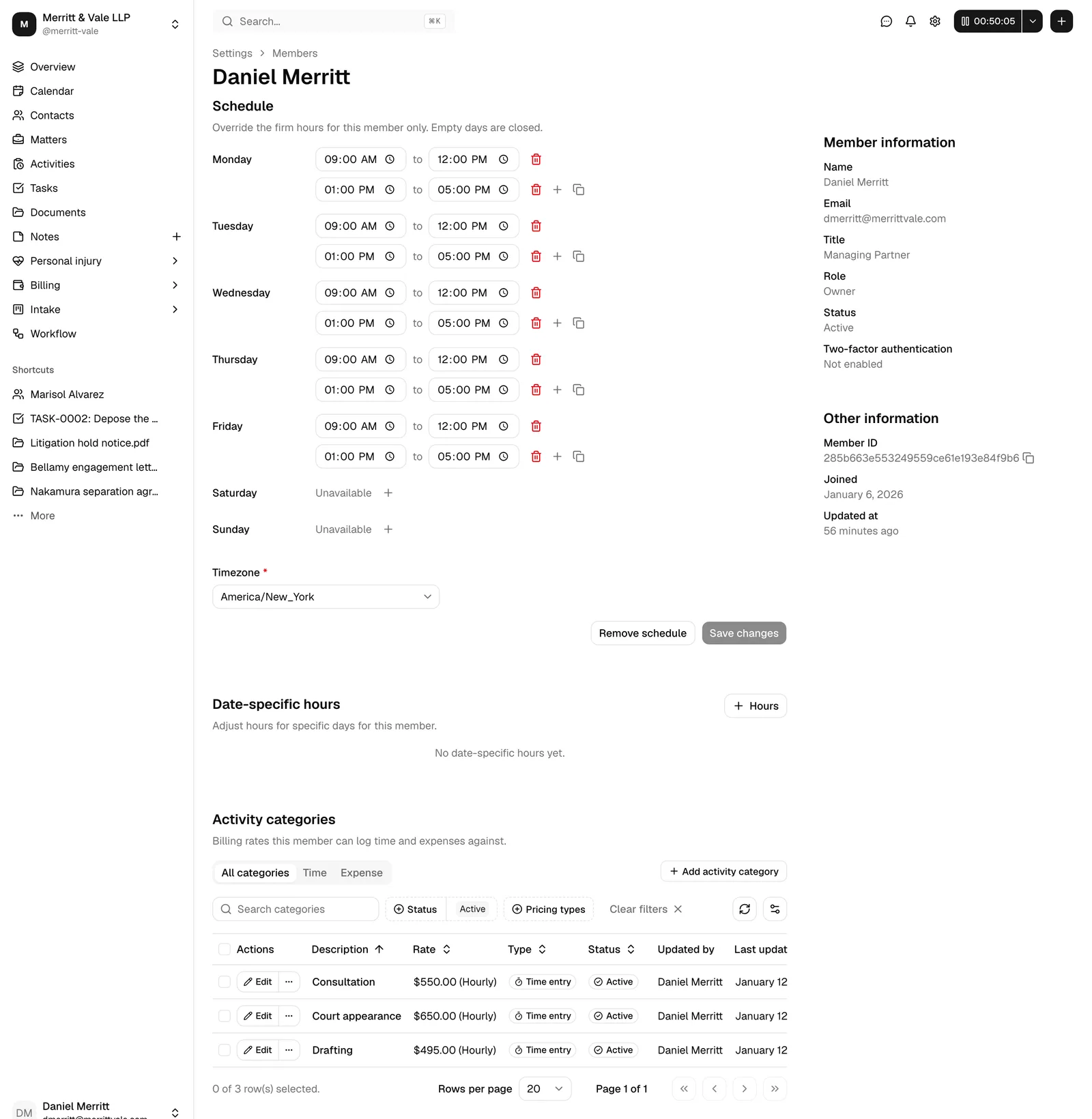
The detail page is organized into a main area and a sidebar.
The sidebar shows:
- Member information: Name, Email, Title (if set), Role, and Status.
- Two-factor authentication: whether this member has 2FA on, shown as Enabled or Not enabled.
- Other information: the Member ID (with a copy icon to copy it), Joined, and Updated at.
The main area shows:
- Schedule. This member's working hours. By default the member follows the firm's business hours; you can override them here for this person only (see Update a member's timezone and schedule).
- Activity categories. The billing rates this member can log time and expenses against. See Activity categories and rates.
- A history timeline at the bottom that records changes to this member (role changes, archives, restores, and more). See Activity timelines and audit logs.
Invite a new member
To add someone to your firm, you send them an email invite. They follow the link, sign in (or create an account), and accept to become an active member.
Important: You need Create access for invites to send invites. If you do not have it, the Invite member button will not appear.
- On the Members page, click Invite member (top right).
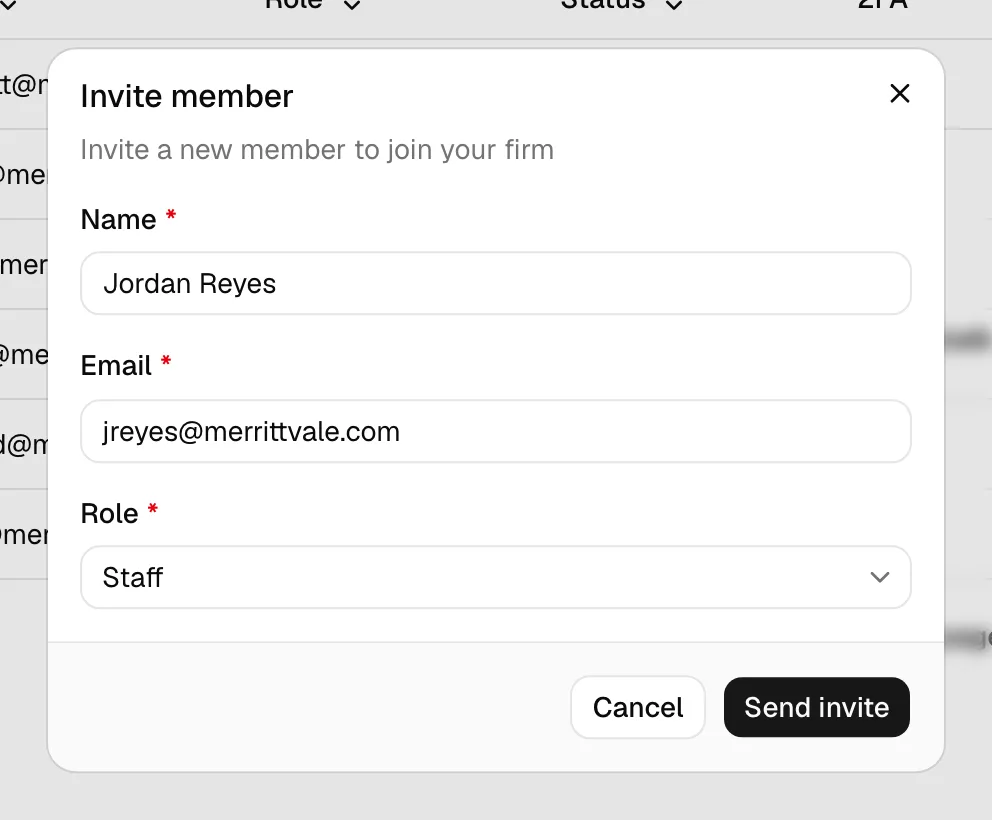
- The Invite member dialog opens. Fill in:
- Name (required). The person's full name. Up to 100 characters.
- Email (required). Where the invite is sent. Enter a valid email address.
- Role (required). Choose the role this person will have. The Role field is a searchable dropdown listing your firm's active roles. Start typing to filter, then select one. The role controls everything the new member will be able to see and do, so choose carefully. (Not sure which to pick? See Roles and permissions.)
- Click Send invite. The button shows Sending invite... while it works.
- On success, the dialog closes and you see a confirmation. The invite now appears on the Pending invites tab, and Esqase emails the person an invite link.
What happens next: the invited person receives an email with a link to join. When they open it, sign in, and accept, they become an Active member with the role you chose. Invites are valid for 7 days (the Expiry column shows the deadline).
Note: You can only have one active (pending) invite per email address at a time. If an invite for that email is already pending, you will see "An active invite for this email already exists." Cancel or edit the existing one instead of creating a duplicate.
Common questions
Does inviting a member use up a seat? Invites and members count toward your plan. If your plan limits seats, you may need to manage your subscription. See Your Esqase subscription.
The person already has an Esqase account. Will this still work? Yes. They sign in with their existing account and accept the invite to be added to your firm. For the recipient's experience, see Joining a firm (accepting an invite).
Manage pending invites
Invites you have sent live on the Pending invites tab. From here you can resend, copy the link, edit, cancel, and (once cancelled) delete them.
- On the Members page, click the Pending invites tab.
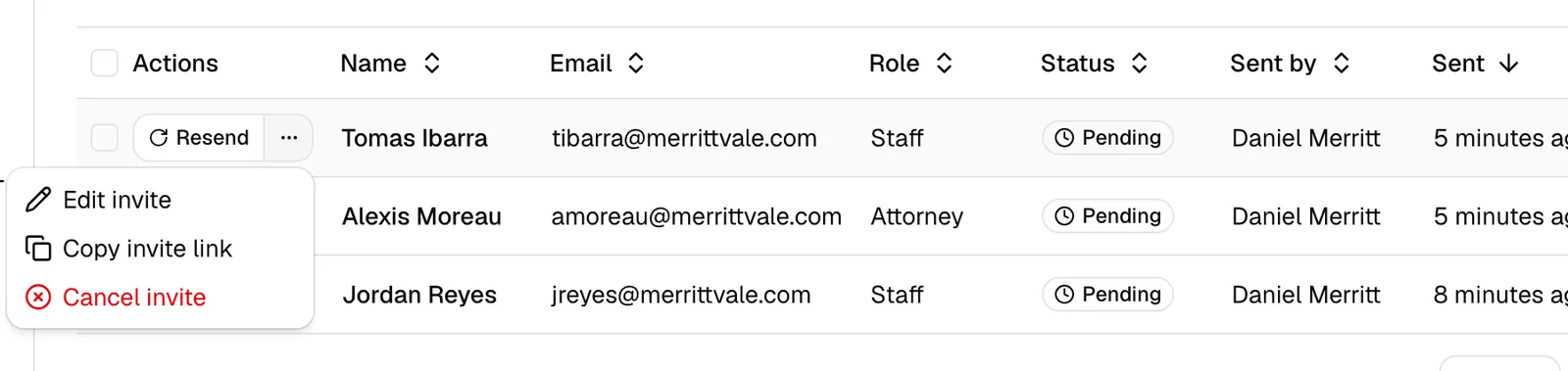
- Each row shows the invite's Name, Email, Role, Status, who it was Sent by, when it was Sent, its Expiry, and Last updated.
You can filter this list by Role and by Status, search with the Search invites box, and click Clear filters to reset.
Invite statuses
- Pending. Sent and waiting to be accepted.
- Accepted. The person accepted and is now a member.
- Rejected. The person declined the invite.
- Cancelled. You cancelled the invite before it was accepted. A cancelled invite can be deleted, or re-sent by inviting the same email again.
- Expired. The 7-day window passed without the invite being accepted.
Resend an invite
Use this if the recipient did not get the email or it expired.
- On the Pending invites tab, find the invite.
- Click Resend in the Actions column.
- Esqase sends the invite email again. You will see "Invite resent to [email]."
Note: Resending requires Update access for invites. The Resend button does not appear for invites that have already been accepted.
Copy the invite link
If you would rather share the link yourself (for example, paste it into a message), copy it directly.
- On the invite's row, open the "more actions" menu (the ... button).
- Click Copy invite link.
- The link is copied to your clipboard, and you see "Invite link copied to clipboard." Share it with the recipient.
Edit a pending invite
You can correct the name, email, or role on an invite that has not been accepted yet.
- On the invite's row, open the "more actions" menu (...).
- Click Edit invite. (This option appears only for invites that are still Pending.)
- The Edit invite dialog opens with the current Name, Email, and Role. Change what you need.
- Click Save changes. The button shows Saving... while it works, then closes on success.
Note: Editing requires Update access for invites, and is only available while the invite is Pending.
Cancel an invite
Cancel an invite to stop the recipient from being able to accept it.
- On the invite's row, open the "more actions" menu (...).
- Click Cancel invite.
- The invite's status changes to Cancelled, and you see "Invite to [email] cancelled." The recipient can no longer accept it.
You can cancel several invites at once: select their checkboxes, then use the batch action Cancel at the top of the table. You will be asked to confirm before they are cancelled.
Note: Cancelling requires Update access for invites. You cannot cancel an invite that has already been accepted.
Delete a cancelled invite
Once an invite is cancelled, you can remove it from the list permanently.
- Make sure the invite's status is Cancelled.
- On the invite's row, open the "more actions" menu (...).
- Click Delete.
- The invite is permanently removed. You will see "Invite to [email] deleted."
You can also delete several cancelled invites at once: select their checkboxes, then use the batch action Delete. You will be asked to confirm; this cannot be undone.
Important: Deleting requires Delete access for invites, and is only available for invites that are already Cancelled. Deleting cannot be undone.
Tip: To re-invite someone whose invite you cancelled, simply send a new invite to the same email address. Esqase reactivates the existing cancelled invite rather than creating a duplicate.
Change a member's role
A member's role controls everything they can see and do. Change it when someone's responsibilities change (for example, promoting a paralegal to an attorney role).
Important: Changing a role requires Update access for members. If you do not have it, the "more actions" menu on the member row will not appear.
- Go to the Members tab.
- On the member's row, click the ... ("more actions") button in the Actions column.
- Click Change role.
- The Change role dialog opens. Use the Role dropdown (a searchable list of your firm's active roles) to pick the new role.
- Click Save changes. The button shows Saving... while it works.
- On success, the dialog closes and you see "Member role updated." The member's new permissions take effect immediately.
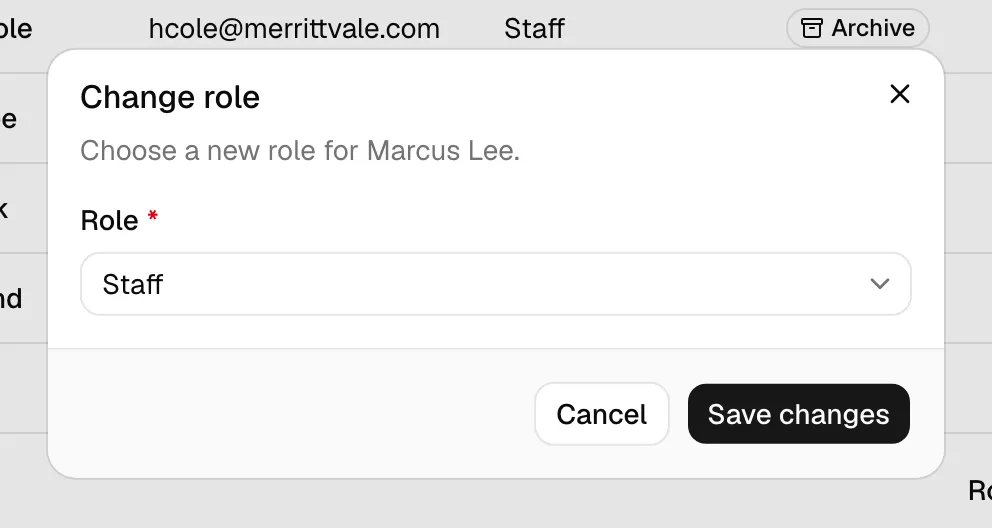
Note: Some role changes are reserved for firm owners. To change who owns the firm, use Transfer firm ownership rather than changing roles here, so the firm always keeps exactly one owner.
Remove and restore a member
Removing a member takes someone who no longer works at your firm off the active roster, without deleting their history. Their past time entries, notes, and other records stay intact and attributable, and removing is fully reversible (you can restore them later). A removed member keeps a Status of Archive in the list.
Important: Removing and restoring require Update access for members. You cannot remove the firm owner (transfer ownership first) or yourself (use Leave a firm instead). Because Esqase bills per active member, removing a member lowers your firm's subscription cost (prorated) and restoring raises it again. See Your Esqase subscription.
Remove a member
- Go to the Members tab.
- On the member's row, click the ... ("more actions") button.
- Click Remove.
- Confirm in the Remove member? dialog. On success the member's status changes to Archive and you see "'[name]' removed."
Note: The Remove option does not appear on the firm owner's row or on your own row. To hand off ownership, use Transfer firm ownership; to remove yourself, use Leave a firm.
Restore a member
- Go to the Members tab. (Removed members still appear in the list; their Status reads Archive.)
- On the removed member's row, click the ... ("more actions") button.
- Click Restore.
- The member is reactivated, and you see "'[name]' restored."
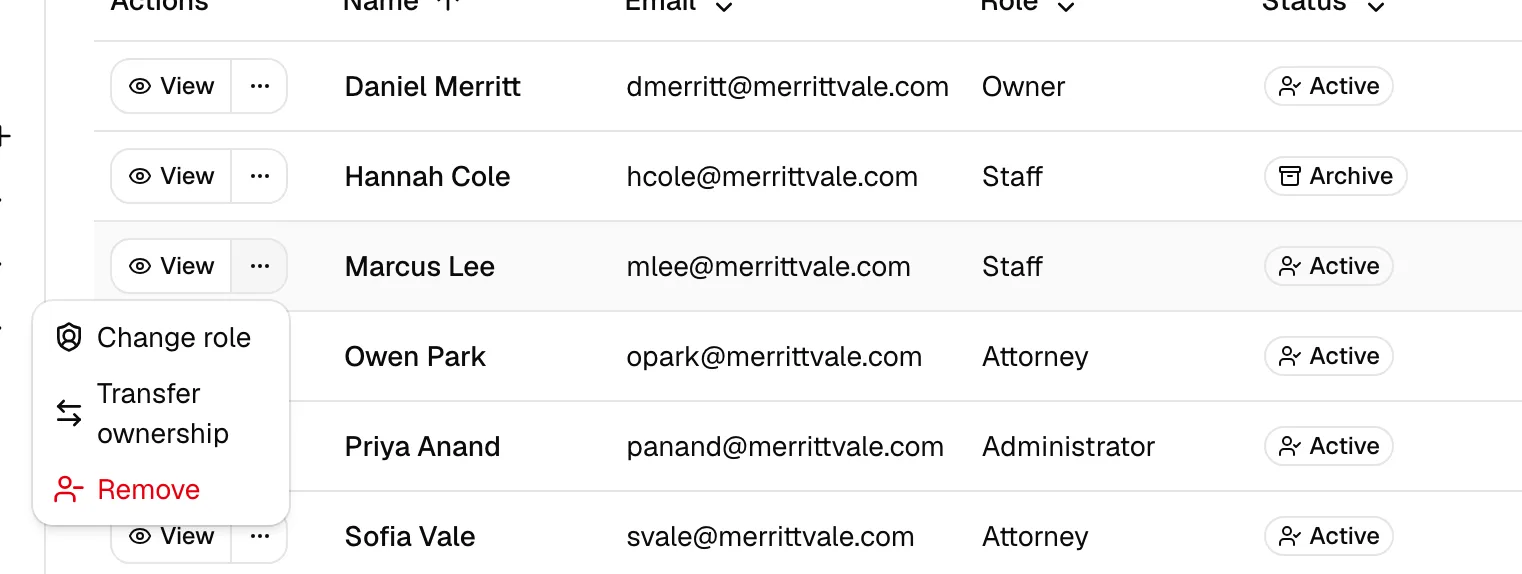
Tip: The menu adapts to the member's current state. You will see Remove for active members and Restore for removed ones, never both at the same time. If you are the firm owner, the menu also shows Transfer ownership on other active members' rows (see Transfer firm ownership).
Transfer firm ownership
Every firm has exactly one owner. The owner can hand ownership to another active member, for example before they leave the firm or close their own account. The previous owner steps down to the Administrator role.
Important: Only the current firm owner can transfer ownership, and only to another active member.
- Go to the Members tab.
- On the row of the member you want to make the new owner, click the ... ("more actions") button in the Actions column.
- Click Transfer ownership.
- Confirm in the Transfer ownership? dialog. On success you see "Firm ownership transferred to '[name]'."
After the transfer, the new owner has full owner access (including billing and firm deletion), and you become an Administrator. Only the new owner can transfer ownership back.
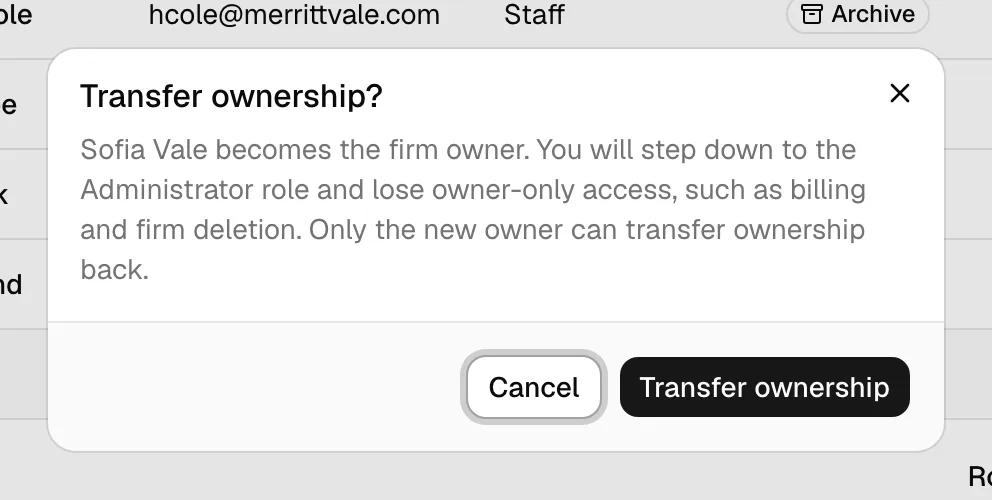
Note: The Transfer ownership option appears only for the firm owner, and only on the rows of other active members (not your own row, and not members who are still invited or have been removed). If there are no other active members yet, invite one first. You cannot leave a firm or delete your account while you are its owner, so transferring ownership is the first step in handing the firm off.
Leave a firm
Any member can remove themselves from a firm they no longer need access to.
- In the sidebar, click your firm name at the top to open the firm switcher.
- Click Leave firm.
- Confirm in the Leave [firm name]? dialog. You lose access to that firm right away.
If you belong to other firms, Esqase moves you to one of them; otherwise it takes you to firm setup. An owner or administrator can invite you back later.
Important: The firm owner cannot leave their own firm. If you are the owner, transfer ownership to another member first, then leave. Leaving a firm lowers that firm's per-seat subscription cost (prorated).
Update a member's timezone and schedule
Each member can have their own timezone and working hours, which override the firm's defaults for things like scheduling and booking availability. You manage both from the member's detail page. A round-robin event type, which shares its bookings between several hosts, reads each host's own schedule and timezone the same way and falls back to the firm's hours for a host who has none, just as a single-host type does (see Event types (scheduling)).
Important: Editing a member's schedule and timezone requires the schedule permissions for your role (view, create, update, and delete as appropriate). If you only have view access, the controls will be read-only.
- Open the member's detail page (Members tab > View on their row).
- Find the Schedule section at the top of the main area.
- If the member is following the firm's hours, you will see Following the firm's hours. Click Set schedule to start a custom schedule (it pre-fills from the firm's hours so you can adjust from there). You can also click Firm hours to review the firm's defaults. See Setting firm availability.
- Set each day's working hours. For each day you can:
- Click the + (add) button to add a time slot, then enter a start time and an end time.
- Leave a day with no slots to mark it Unavailable (closed).
- Use the copy icon on a day to Copy times to other days you select, then click Apply.
- Use the trash icon to remove a slot.
- Set the member's Timezone using the Timezone dropdown below the days. This is the member's own timezone; their hours are interpreted in it, and it is also the timezone the firm calendar is drawn in for that member. A member with no timezone of their own sees the calendar in the firm's timezone instead. See Which time zone the calendar shows.
- Click Save changes. The button shows Saving... while it works, then confirms with "Member hours saved."
To revert a member back to the firm's defaults, click Remove schedule and confirm. This clears their custom hours and timezone, and the firm's business hours apply again.
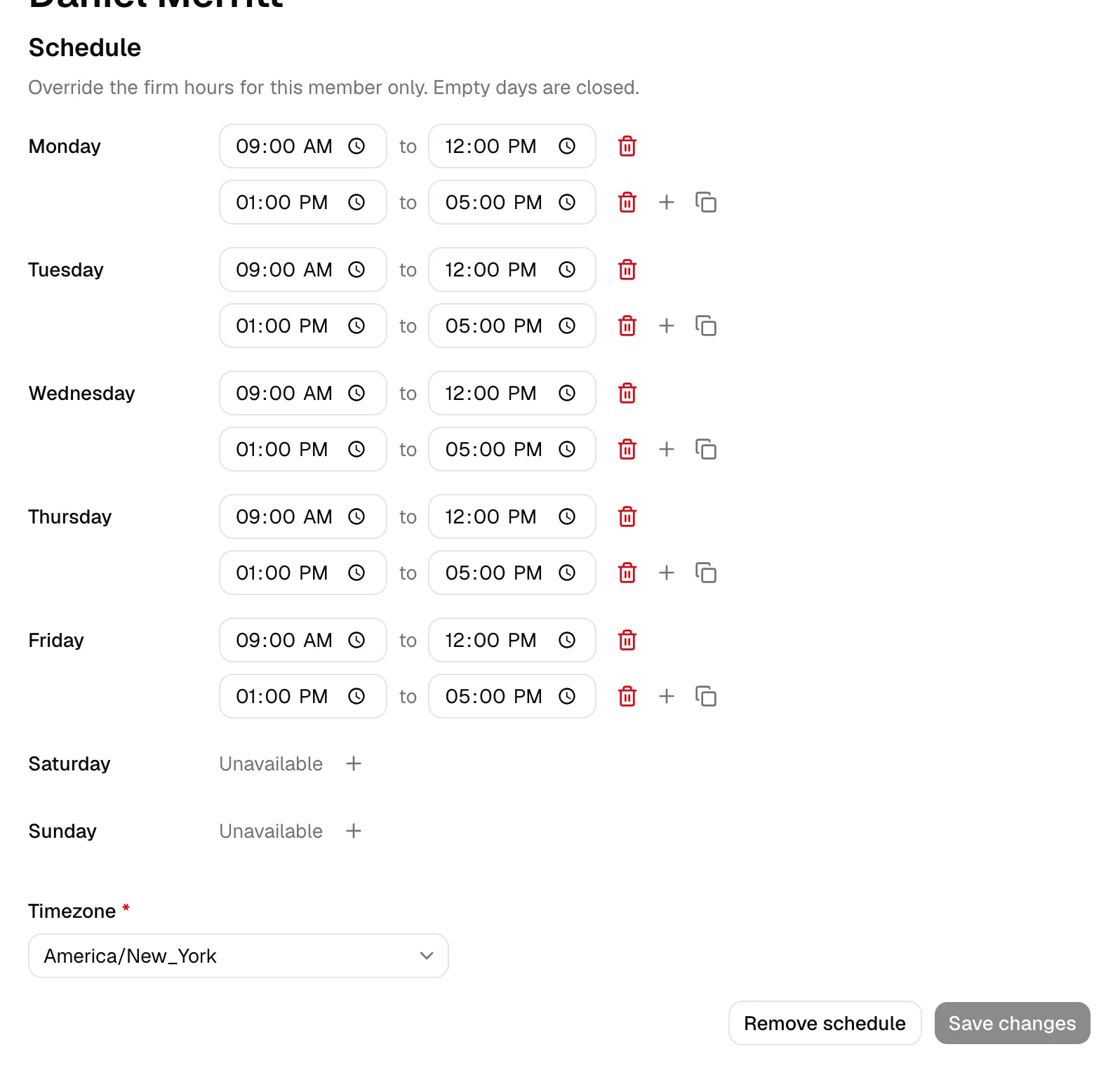
Note: A member's schedule overrides the firm's hours only on the days you fill in. Time slots within a day cannot overlap, and the end time must be after the start time, or saving is blocked with an explanation.
See who has two-factor authentication on
Two-factor authentication (2FA) adds a second step to a member's sign-in, on top of their password. The Members area shows you who has it on so you can keep track across your team.
- On the Members tab, the 2FA column shows an Enabled badge next to each member who has two-factor authentication on.
- On a member's detail page, the Two-factor authentication line in the sidebar reads Enabled or Not enabled.
Each member turns 2FA on for their own account from their account settings. You cannot turn it on for someone else from here, but you can require it firm-wide (see below). For the full member-facing walkthrough, see Two-factor authentication (2FA).
Require two-factor authentication for the whole firm
Firm owners can make two-factor authentication mandatory for everyone in the firm, so no one can use the firm without it.
- In the sidebar, open Settings, then Profile.
- Find the Security section.
- Turn on Require two-factor authentication, then save.
Once this is on, any member who has not yet set up 2FA is prompted to enroll before they can keep working in the firm. Members who already have it on are unaffected, and while the requirement is in place members cannot turn their own 2FA off.
Important: Only firm owners can change this setting. Before turning it on, let your team know it is coming so members can set up an authenticator app or have their inbox ready. Point them to Two-factor authentication (2FA) for the steps.
Which actions require which permissions
A quick reference for what each action needs. Firm owners can always do all of these. For other roles, access depends on the permissions granted to their role (see Roles and permissions).
- See the Members tab: View access for members.
- See the Pending invites tab: View access for invites.
- Open a member's detail page: View access for members.
- Invite a new member: Create access for invites.
- Resend, edit, or cancel an invite: Update access for invites.
- Delete a cancelled invite: Delete access for invites.
- Change a member's role: Update access for members.
- Remove or restore a member: Update access for members (you still cannot remove the owner or yourself).
- Transfer firm ownership: Firm owner only.
- Leave a firm: Any member except the firm owner.
- Edit a member's schedule and timezone: the corresponding schedule permissions (view, create, update, delete).
If a button or menu item is missing, it is almost always because your role does not include that permission. Ask a firm owner or admin to adjust your role if you need access.
Troubleshooting
I don't see the Invite member button. Your role does not include Create access for invites. Ask a firm owner or admin.
"An active invite for this email already exists." There is already a pending invite for that email. Go to Pending invites, then resend, edit, or cancel the existing one instead of creating a new one.
The recipient says the link doesn't work. The invite may have expired (invites last 7 days) or been cancelled. Check its Status on Pending invites. If it expired or was cancelled, send a new invite to the same email; Esqase will reactivate or re-send it.
A new member's permissions look wrong. Permissions come from their role. Open the member, check the Role in the sidebar, and change it if needed (see Change a member's role). To adjust what a role can do, see Roles and permissions.
I changed someone's role but the sidebar still looks the same. Permission and account changes can take up to a minute to fully reflect everywhere. Refresh the page after a moment.