How clients fill intake forms
Intake forms let your clients and prospective clients send you information without you having to chase emails or re-key answers. A client opens a link, fills out the form in their browser, and submits it. Esqase captures the answers and (for lead-intake forms) turns the submission into a new lead with a matching contact, so the information lands in your dashboard ready to work.
This page is written from the firm's point of view: it explains what your clients see and do, and how you set each form up so that experience works.
There are two kinds of intake link your firm can send:
- A public lead-intake form with a reusable web address. Anyone you give the link to (or who finds it on your website) can open it, and every submission spins up a brand-new lead.
- A one-time form you send to a specific client. The link points at a single submission, and you can protect it so only the intended client can open it.
Before you begin
- You build forms in the firm dashboard under Forms. To create or edit a form you need a role that includes the right access for forms. If your role does not include Create or Edit access for forms, you will not see the buttons to build, send, or change them. See Building forms and Roles and permissions.
- For a public lead-intake form to work, your firm needs a username (set on your firm profile) and the form needs the Lead intake form setting turned on with a Public link. See Public lead-intake forms.
- Clients do not need to set anything up to fill a form. They just need the link, and for protected links an email address your firm has on file for them. Esqase keeps an account behind the scenes for that address, but it grants no access by itself. See How clients sign in.
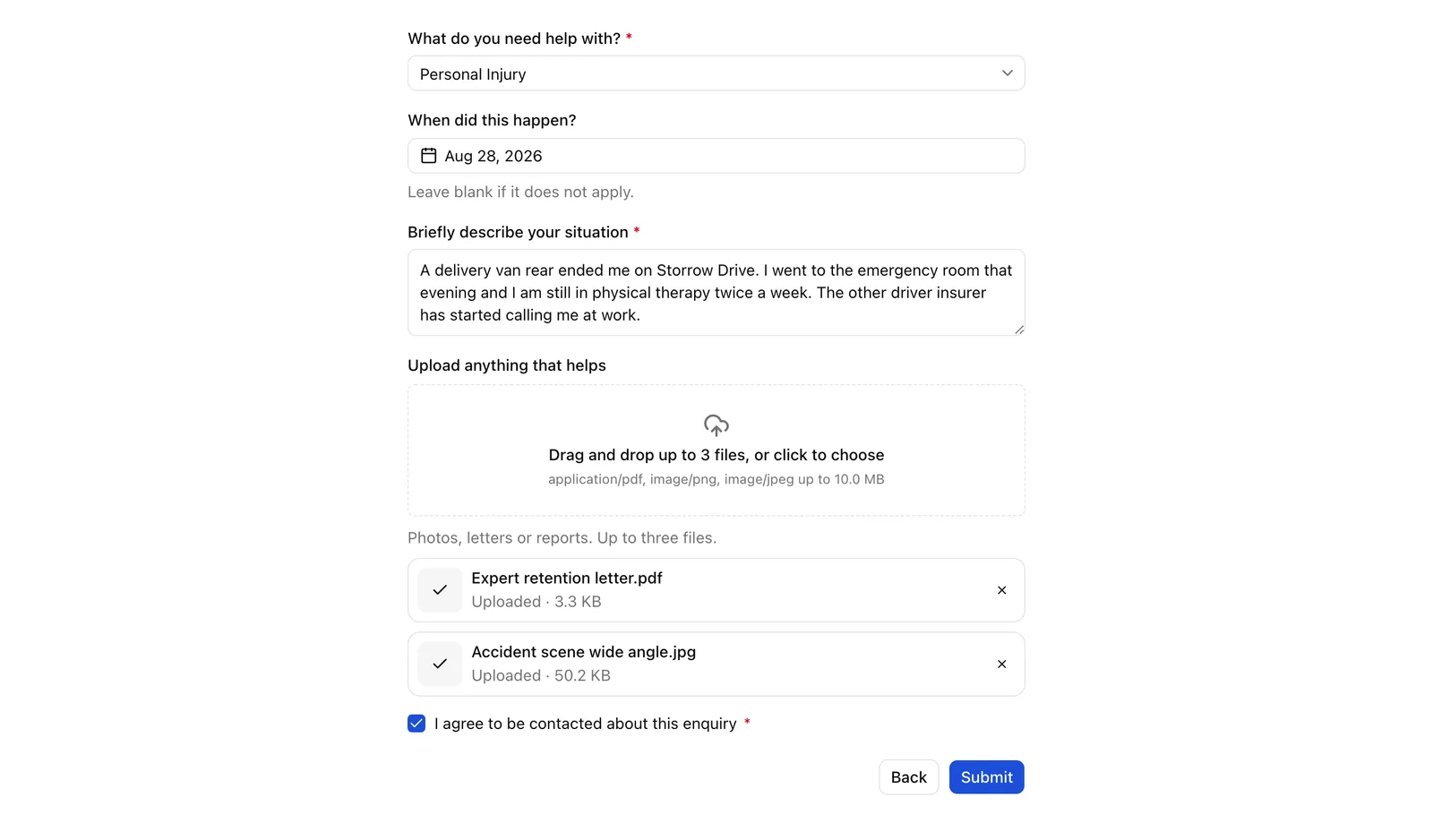
What your clients see when filling a form
No matter which kind of link a client opens, the experience is the same clean, single-purpose page. There is no Esqase sidebar, no login wall (unless you protect the link), and nothing for the client to learn.
Here is what a client encounters:
- A centered form with the questions you placed in the builder, in the order you arranged them. Each question shows its label, any helper text you added, and a red asterisk (*) on required fields.
- If you split the form across multiple pages, the client sees one page at a time with Back and Next buttons to move between them, and a Submit button on the final page.
- Questions you set up to appear only in certain cases stay hidden until the client's earlier answers trigger them.
- A Submit button (it briefly reads Submitting... while the form is sent).
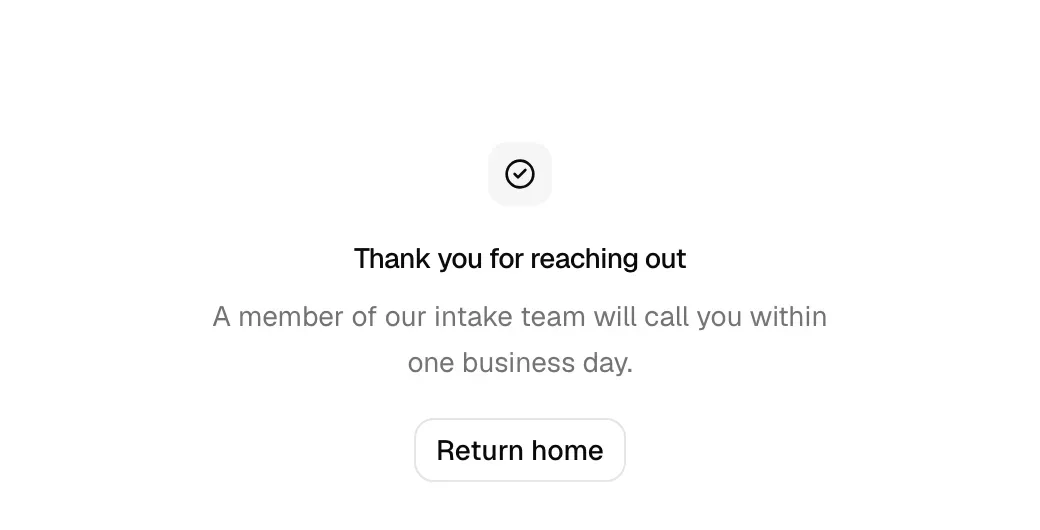
- After submitting, a confirmation page with the title and message you wrote, plus a Return home button.
Note: The form always uses your firm's settings under the hood, such as your default country for phone-number formatting, so the experience matches your region without the client having to configure anything.
How the firm sets it up
You design every part of that experience in the form builder:
- In the sidebar, click Forms.
- Open an existing form, or click New form to create one.
- In the builder, drag question and layout elements from the palette onto the canvas, then click any element to edit its label, helper text, required flag, validation, and visibility rules in the properties panel.
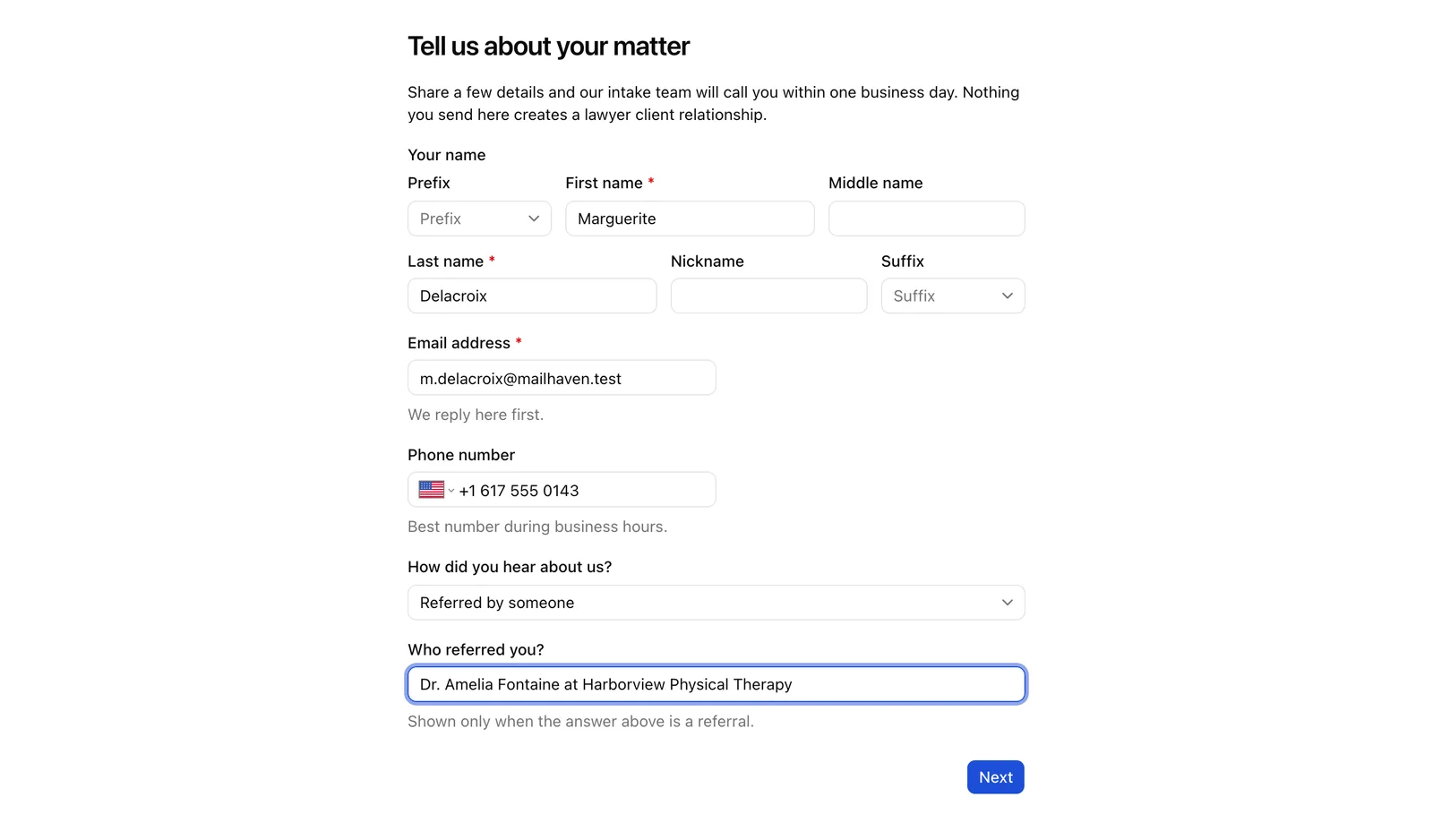
- Use the Form settings panel (shown when no element is selected) to set the form name, the Confirmation message shown after submit, whether the form is a Lead intake form, and whether it is Available to all members of the firm.
- Click Save.
For the full builder walkthrough, see Building forms and The form builder in depth.
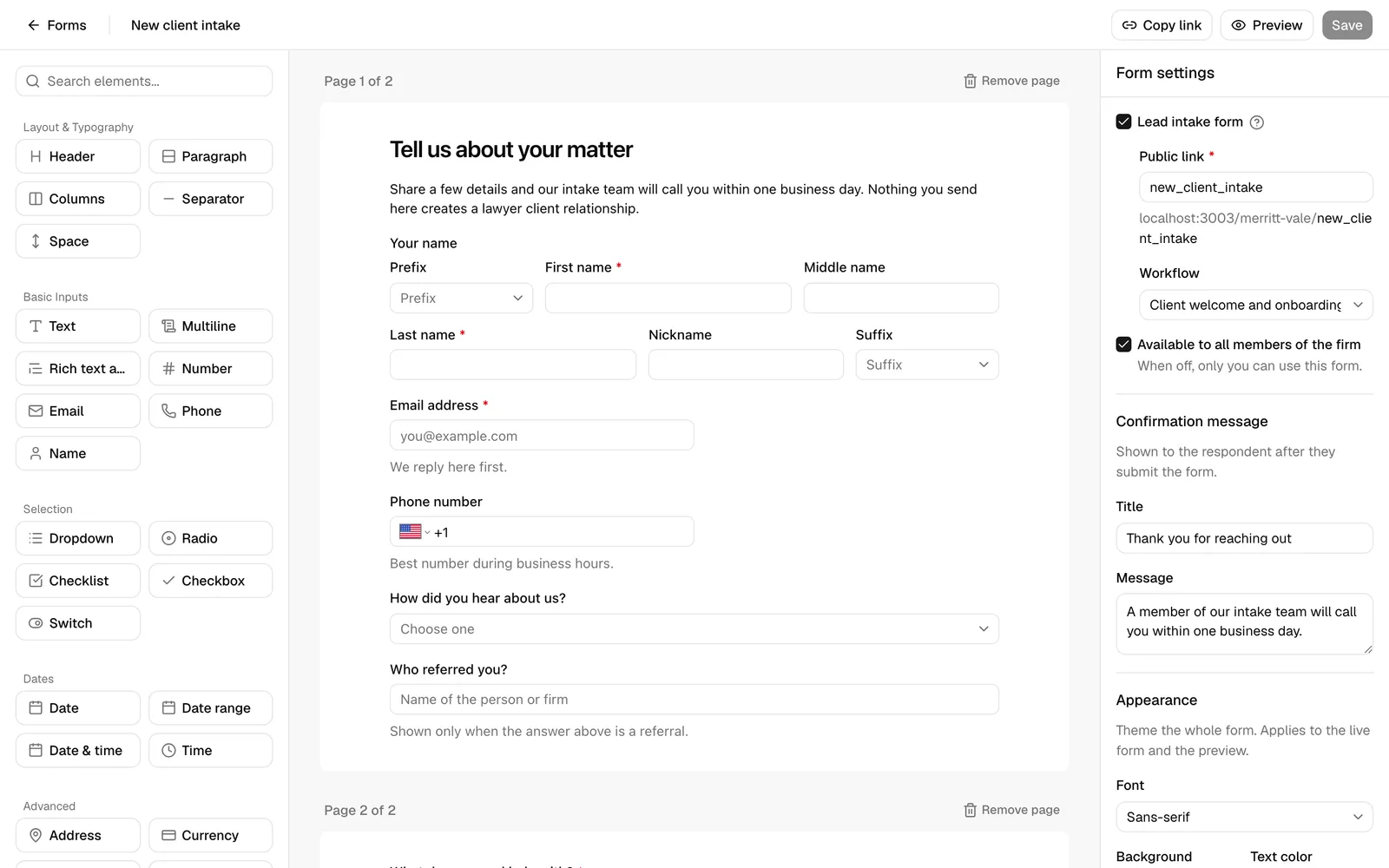
Filling out and submitting a public lead-intake form
A public lead-intake form lives at a reusable web address built from your firm username and the form's public link, for example your-firm/new-client-intake. You can share this link by email, put it on your website, or add it to a "Get started" button. Anyone who opens it can fill it out, and every submission creates a fresh lead.
What the client does:
- The client opens the public link in any browser. The form loads immediately, with no sign-in step.
- They answer the questions. A public lead-intake form always requires a Name field plus an Email or Phone field, because those answers become the new lead's contact details.
- If the form has more than one page, they click Next to advance (and Back to return). Esqase checks the current page's required and validation rules before letting them move on.
- On the final page they click Submit. The button shows Submitting... while the answers are sent.
- They land on your confirmation page.
How you set it up:
- Build the form as above, making sure it includes a Name field and at least one of Email or Phone.
- In Form settings, turn on Lead intake form.
- Fill in the Public link field. This is the last part of the web address. If you leave it blank, Esqase suggests one based on the form name.
- Optionally choose a Workflow to attach to each new lead (see "How a submission becomes a lead" below).
- Click Save. From the builder you can click Copy link to grab the public address and share it.
Important: A public lead-intake form always accepts more than one submission. That is by design, since the same link is meant to collect many separate leads.
Tip: If a client opens the public link and sees a message that the form is not accepting submissions, check that the form is published and that your lead intake settings are complete. See Public lead-intake forms.
Opening and submitting a form your firm sent (the one-time link)
Sometimes you want a specific client to fill a specific form, tied to a lead or matter you already have. For this you create a form request. Esqase generates a one-time link pointing at a single submission, so the answers attach to that one client rather than creating a new lead from scratch.
How you send it:
- Open the form you want to send (from the Forms list, or from a lead or matter).
- Click the option to create a form request (for example Send form or the equivalent action on the form's detail page).
- In the Create a form request dialog, enter the Contact name of the person who will fill it out.
- Under How do you want to collect this form?, choose:
- Send to client to generate a link the client opens and fills out themselves.
- Fill out manually to enter the answers yourself on the client's behalf.
- Click Create request. A draft lead and contact are created for this submission, and you get a link to share. See Reviewing form submissions.
What the client does:
- The client opens the link you sent.
- If the link is protected, they pass a quick sign-in check first (see the next section).
- The form loads with your questions. They answer them, moving through pages with Back and Next if there is more than one.
- They click Submit. The button reads Submitting... while saving.
- They land on your confirmation page.
Note: A one-time link is meant for a single submission. Once the client has submitted, reopening the link sends them straight to the confirmation page rather than re-showing the blank form (unless you allowed multiple submissions, covered later).
Unlocking a gated form link (signing in)
When you send a one-time form to a specific client, the link is gated so only the intended client can open it. The client cannot simply forward it: they confirm they are the right person by signing in with an email address your firm has on file for them. For a form tied to a matter, any of the matter's client contacts can sign in with their own email on file.
A client who is already signed in to Esqase never sees the panel. The page shows Signing you in for a moment and then opens the form. A client who is not signed in is taken to their Esqase client portal sign-in panel, which says "Sign in to open your form", signs in there with a 6-digit code Esqase emails them, or with Continue with Google, and lands back on the form. How clients sign in covers all of it in full.
The email sign-in link is the fallback on the form page itself, shown when the automatic sign-in is refused or does not apply, and it needs no account:
- The client types an email the firm has on file and asks for a sign-in link.
- Esqase shows a Check your email confirmation, noting the link expires in 30 minutes. (For privacy, Esqase shows the same message whether or not the email matched, so the client never learns which addresses are on file.) They can click Use a different email to start over.
- The client opens the sign-in link from their email on the same device. Esqase briefly shows Signing you in while it verifies the link, then opens the form.
📷 Screenshot: The Open your form email sign-in fallback, with the email field and the Email me a sign-in link button.
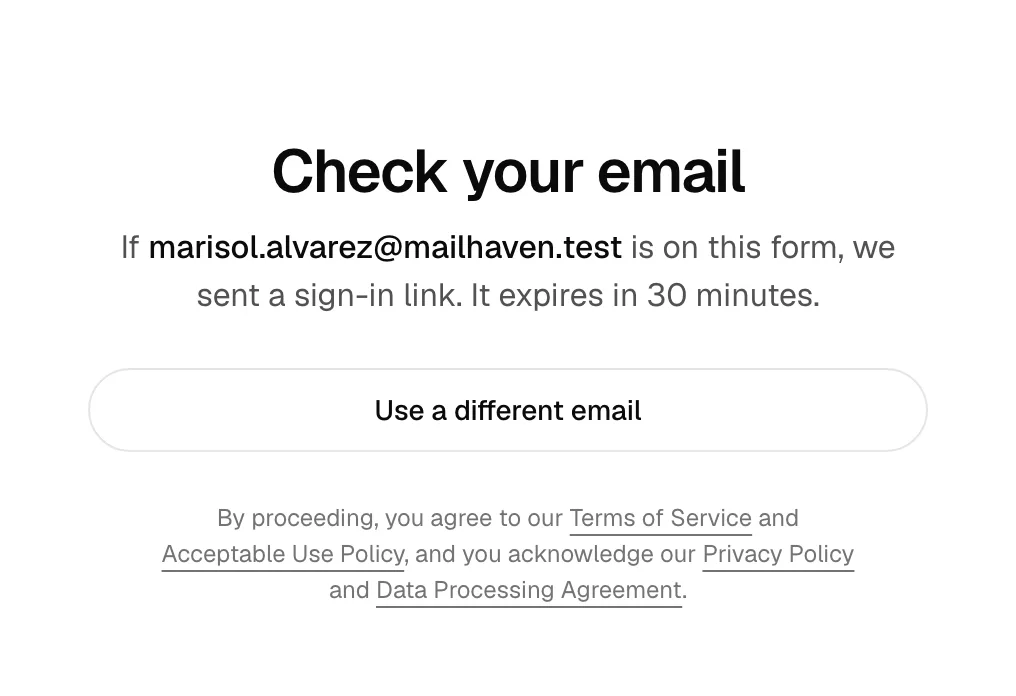
A few things worth telling clients up front:
- The sign-in link expires after a short time (about 30 minutes). If it expires, they just request a new one from the same panel.
- They must open the sign-in link on the same device and browser where they requested it.
- For everyone's protection, the number of attempts allowed in a short window is limited. If a client tries too many times in quick succession, later attempts are quietly throttled; they should wait a few minutes and try again.
Note: A one-time form opened at its own web address behaves like everything else you send: a signed-in client goes straight in. A form embedded in your website is the exception, because a page inside another page cannot send the visitor away to sign in and bring them back cleanly.
Note: Inside a form embedded on your own website, the email sign-in link is the way in, and there is also a link reading "Sign in with your Esqase account in a new tab" for a client who would rather use their account. It opens the same form at its own address, where the automatic sign-in works normally. See Embedding forms on your website.
Important: Whichever method the client uses, the form opens only for an email address your firm has on file for that record, and only once that address is confirmed. A client can create an Esqase account for themselves, but an account grants no access on its own. Confirm the contact's email is correct before you send the form: that address is the whole of the access decision.
From the Esqase Client app
A client who uses the Esqase Client app opens a form you sent with Fill out, from the form in the app or from Needs your attention on Home, and a completed one with View. It opens inside the app, already signed in, so there is no sign-in step and no emailed link to open on the same device.
- Everything after that is this page: the questions, the pages, validation and the confirmation.
- A file question lets the client choose a file from the phone, or take a photo, as a browser on a phone does.
- When the client submits, the app closes the page and goes back to the form with "Form submitted".
- If the page cannot be opened in the app, the app says "Open this from your email", and the link in your form email still works.
Public lead-intake forms are not part of the app, because they are not addressed to a client. See The Esqase Client app.
Forms a workflow sends, and the reminders that follow
A workflow step can send a form request on its own, so a client who books a call or fills your public form gets the intake form without anyone typing an email. What the client receives and what they have to do are the same as a form a member sends by hand, with three differences worth knowing.
- The email comes from your firm through Esqase. The client sees <Your firm name> via Esqase in the From line, and replies reach the address your firm chose under Settings > Firm > Automation. See Automation settings.
- The link is always gated. An automatically sent form asks the client to sign in first, exactly as described above, using an email address your firm has on file for that lead or matter. Esqase never emails a password for these links: the client signs in with a 6-digit code emailed to them, with Google, or with the form page's own email sign-in link. If the contact's email on file is wrong, they cannot open the form, so check it before the workflow runs.
- Esqase can chase the client for you. If the step has reminders turned on, Esqase sends the reminder template on the step's schedule (for example every three days) until the form comes back.
When reminders stop, they stop for a reason:
- The client submitted the form. The step is done and the workflow carries on with the next step.
- The step reached the number of reminders it was given, or your firm's reminder cap, whichever comes first. As that last reminder goes out, the firm gets a Workflow waiting on a client notification on the lead or matter, reading We have reminded the client 3 times about Intake form on LEAD-0117.
- The step has been waiting longer than your firm allows for chasing. Esqase stops and sends the same notification in place of the next reminder.
- A reminder could not be sent at all, for example because its template was deleted. Esqase stops reminding and tells the firm once, with the reason.
In the last three cases the step keeps waiting, so somebody can pick the phone up instead. A member can still send the form again by hand from the step at any time. See How clients sign in and Reviewing form submissions.
Note: If your firm set a sending window, the first request and every reminder wait for that window in your firm's time zone, so a form request written at 2am reaches the client during office hours.
Uploading a file inside a form
If your form includes a File upload question, clients can attach documents (for example an ID, a contract, or a photo) right inside the form. This works everywhere the form can be filled: on your public lead-intake link, on a one-time link you sent a client, and when you fill the form in on a client's behalf from the submission itself or from the New lead dialog.
What the client does:
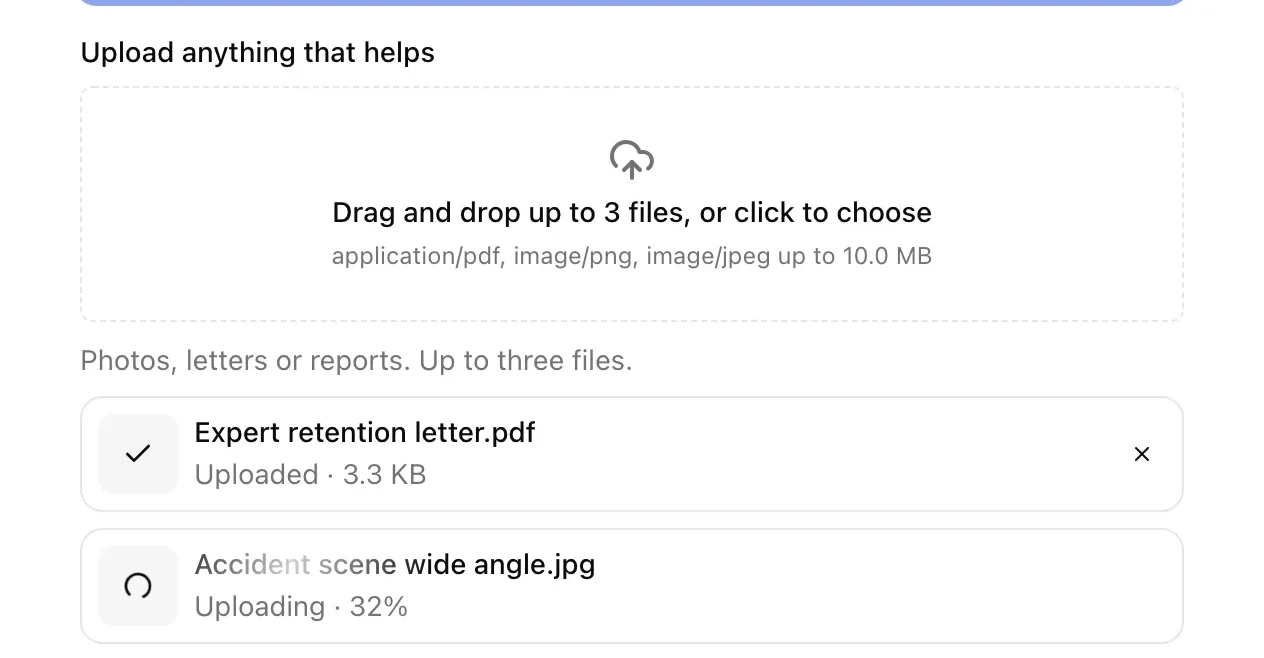
- They reach the file question, which shows a dashed drop area reading Drag and drop a file, or click to choose (or Drag and drop up to 3 files, or click to choose when you allow more than one). A line beneath it spells out the file types you accept and the size limit for each file.
- They drag a file onto the area, or click it to pick one from their device.
- Each file uploads on the spot. While it transfers, its row shows a spinner and reads Uploading with the percentage done so far. When it lands, the row shows a check mark and reads Uploaded with the file size.
- They can remove a file with the small remove (x) button next to it, or add more up to the limit you set. Once the limit is reached, the drop area dims until they remove one.
Size and type limits:
- File types. If you listed accepted file types on the question, the file picker only offers matching files. If a client drags in something else, the form tells them that file is not an accepted type and skips it.
- Number of files. If a client tries to add more than the maximum you set, the form tells them how many files this question accepts and the extra ones are not added.
- File size. Each file is capped by the Maximum file size (MB) you set on the question. The default is 25 MB per file, and you can raise it to 100 MB. A file over the cap is refused with a message naming the file and the limit.
Finishing the upload before submitting:
- The Submit button stays disabled while any file is still transferring. If a client tries to submit anyway, a message asks them to wait for their files to finish uploading. It re-enables itself the moment the last file lands.
- If a file fails, its row turns red with a warning icon and reads Upload failed. Try again. (or a more specific reason), with two small buttons beside it: a circular arrow to try that file again, and an x to drop it from the list. A failed file does not block the rest of the form.
What happens to the files:
- Each attached file becomes a real document in your firm's Documents area when the form is submitted, filed in the Upload destination folder you set on the question (or in a Forms folder, in a subfolder named after the form, if you left the destination on the default). See Documents overview.
- Your team can also open and download the files straight from the submission. See Reviewing form submissions.
Note: The client never sees your folders, and there is nothing for them to choose. Where the files land is decided entirely by the Upload destination you set in the builder. See The form builder in depth.
Troubleshooting
- A file shows "Upload failed. Try again." Ask the client to click the retry (circular arrow) button next to it, ideally on a stable connection. Very large files or a dropped connection can interrupt a transfer. They can also dismiss the failed file with the x and pick it again.
- A file the client picks does not get added. It is likely outside the accepted types, over the size limit, or past the maximum number of files. The line under the drop area tells them which types and size are allowed.
- The Submit button will not respond. A file is probably still uploading. Wait for it to finish: Submit re-enables itself the moment the last file lands. If a file failed, dismiss it with its x, then submit.
Conditional questions and validation while filling
Esqase forms react to what the client types, so the form stays short and only asks what is relevant.
Conditional questions
When you build the form you can add visibility rules to any question so it appears, hides, becomes required, or becomes disabled based on another answer. For example, "Show the Other details box only when How did you hear about us? is Other."
From the client's side this is seamless:
- Hidden questions are simply not on the page until an earlier answer reveals them.
- A question that becomes required only when shown gets its red asterisk at that point, and it is only validated while it is visible.
- Hidden questions are not validated and are not submitted, so a client is never blocked by a question they cannot see.
You set these rules per element in the builder; see The form builder in depth.
Validation while filling
Esqase checks answers as the client moves through the form, not just at the end:
- Required fields. A required question that is left blank is flagged. On a multi-page form, the client cannot click Next until the current page's required questions are answered.
- Format checks. Email and website questions check for a valid address or URL. Number, length, and pattern rules you added are checked too, using the error message you wrote (or a sensible default).
- Clear, in-line errors. Invalid fields are highlighted, and a banner at the top reads "Please fix the highlighted fields before continuing" (or "...before submitting" on the last page). When the client clicks Submit, Esqase jumps them to the first page that has an error so they can fix it.
- Correcting a field clears its error right away.
Tip: Keep required questions to what you truly need to open a matter. Every required field is one more thing standing between a prospective client and a completed submission.
The submission confirmation page (your custom header and description)
After a client submits, they see a confirmation page so they know the form went through. You control exactly what it says.
What the client sees:
- A success checkmark.
- A title (your "header") and a message (your "description") that you wrote.
- A Return home button.
How you set it up:
- In the builder, open Form settings (deselect any element if a question is selected).
- Under Confirmation message, fill in:
- Title. The big header, for example "Thank you!" This is what shows in bold on the confirmation page.
- Message. The supporting text, for example "We received your information and will be in touch within one business day." Line breaks are preserved.
- Click Save.
If you leave these blank, Esqase falls back to a default title of "Thank you!" and a default message of "Your response has been submitted."
Tip: Use the message to set expectations: when you will respond, what to do next, or who to contact in the meantime. It is the last thing the client reads, so make it reassuring.
Re-submitting vs single submission
Whether a client can submit a form more than once depends on the kind of link.
- Public lead-intake forms always accept multiple submissions. The same reusable link is designed to be filled out by many people (or by the same person twice), and each submission becomes its own separate lead.
- One-time links you send to a client are single-submission by default. After the client submits, reopening the link takes them to the confirmation page instead of a blank form, so they cannot accidentally submit twice or change their answers.
If you want a one-time form to be re-fillable (for example a status update the same client returns to), turn on the "allow multiple submissions" option for that form in the builder before you send it. With that on, reopening the link shows the form again.
Note: When a one-time link is single-submission and already completed, the client lands on your confirmation page. There is nothing for them to do, which is the intended end state.
How a submission becomes a lead and auto-tags lead sources
Lead-intake submissions are not just stored answers; they create real work items in your dashboard so your team can pick them up.
When a client submits a public lead-intake form, Esqase automatically:
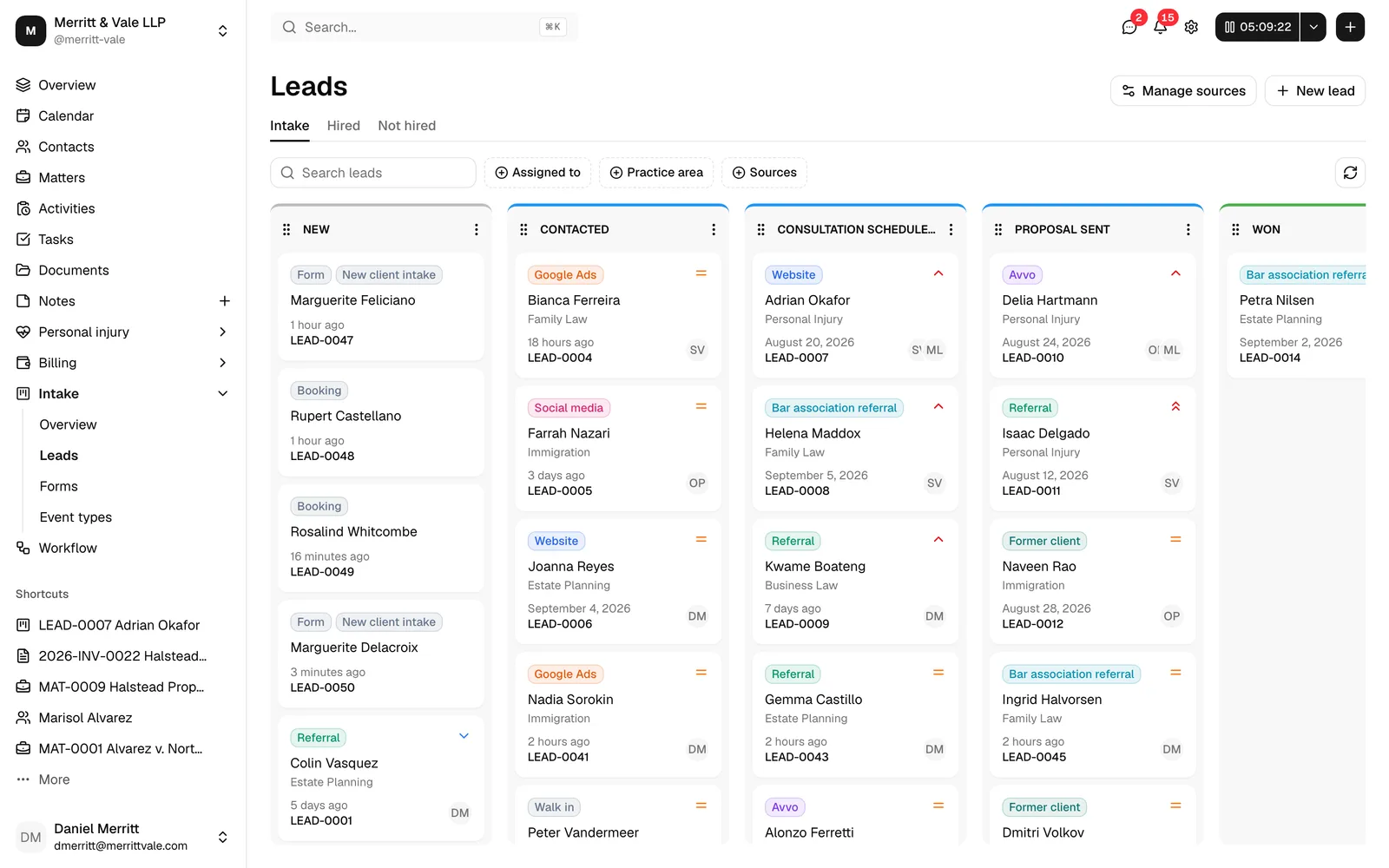
- Creates a new lead in your intake pipeline, placed in your default starting lead stage, with a readable lead number.
- Creates a contact for that lead from the form's Name field and the Email or Phone answers. Email is used as the primary way to reach the contact when both are provided.
- Records the submitted answers against the lead so your team can review everything the client entered. See Reviewing form submissions.
- Tags the lead's source. Two lead sources are recorded automatically: a general Form source, plus a source named after the specific form. Esqase reuses existing sources of those names if you already have them, so your reporting stays clean instead of filling up with duplicates. See Lead sources.
- Attaches a workflow, if you assigned one. If you chose a Workflow on the form, every step of that workflow is copied onto the new lead as pending items. Esqase does not run those steps automatically; it queues them so your team can run them from the lead's Workflow section when ready. See Workflows and the builder.
Note: The lead is created even if one of the optional follow-up steps (recording an answer, adding a second contact channel, or tagging a source) runs into a hiccup. You will never lose a lead because of a side step, though in rare cases a source tag or a single answer might not be recorded.
For one-time links you send, the lead and contact are created up front when you make the form request (as a draft), and the client's submission fills in the answers. You then review and, when appropriate, convert it. See Converting a lead to a matter.
Common questions
- Do clients need an Esqase login to fill a form? No. Public links open straight to the form. On a protected one-time link, the form page's own email sign-in link opens the form with nothing to set up, and a client who is already signed in to Esqase is recognised without doing anything. Either way the form opens only for an address your firm has on file.
- Can the same person submit a public form twice? Yes. Public lead-intake forms always allow it, and each submission becomes a separate lead. De-duplicate in your dashboard if needed.
- A client says the form will not accept their submission. For public forms, confirm the form is published and the lead intake settings (the Public link and a Name plus Email or Phone field) are complete. See Public lead-intake forms.
- A client is told to open their form link again when they submit. A form left open for several hours can outlive its sign-in. Nothing they typed is lost until they reload, so ask them to open the link from the email again, sign in, and re-submit.
- A client cannot get past the gate. Confirm the contact's email on file matches the address they are signing in with, whichever method they use. A client using Continue with Google needs the Google account that uses that exact address. If they are using an emailed sign-in link, check they open it on the same device and browser; those links expire after a short time, so requesting a fresh one often resolves it.