Sharing documents
Sharing lets you give people outside your firm a link to open one of your documents, without inviting them as a member or emailing a copy as an attachment. You control who can open the link, whether they have to confirm their email first, and what they are allowed to do once they are in (just view, also download, or also comment).
This page covers firm-side sharing: how you create, copy, and revoke share links. For what your recipient sees when they open one, see How clients view shared documents.
Note: Sharing a document by link is different from sharing it with a firm member. To give a colleague access inside Esqase, use the Members tab in the same dialog (see The documents workspace). This page is about the Share link tab, which creates links for people outside your firm.
Before you begin
- You need a document in your firm to share. This can be an uploaded file or a native document you created in the file editor. See The documents workspace.
- Sharing is part of the documents area, so your role must include access to documents. If your role does not include update access for documents, you will not see the Share action. Firm owners always have access.
- A "share link" is a private web address that points to a single document. Anyone you give the link to can open the document in their browser, with the access level you chose. They never see the rest of your firm's documents.
Note: A shared document opens for the recipient just as it looks in Esqase. Images and other media added in the file editor display in the shared view too, with the same layout and text wrapping. See Editing documents (the file editor).
Opening the Share dialog
You start every share from the Share dialog. You can open it from a few places, whichever is most convenient.
- From the documents list, find the document you want to share (sharing is for files and documents, not folders).
- Click the actions menu (the ... button) on that row, then click Share.
- Alternatively, while editing a native document in the file editor, click the Share button in the top toolbar (or open the editor menu and choose Share).
- You can also open it from an uploaded file's own page, using the Share button in its header.
The dialog opens with the document's name in the title, for example Share 'Engagement Letter'. It has two tabs: Members (for firm members) and Share link (for everyone else).
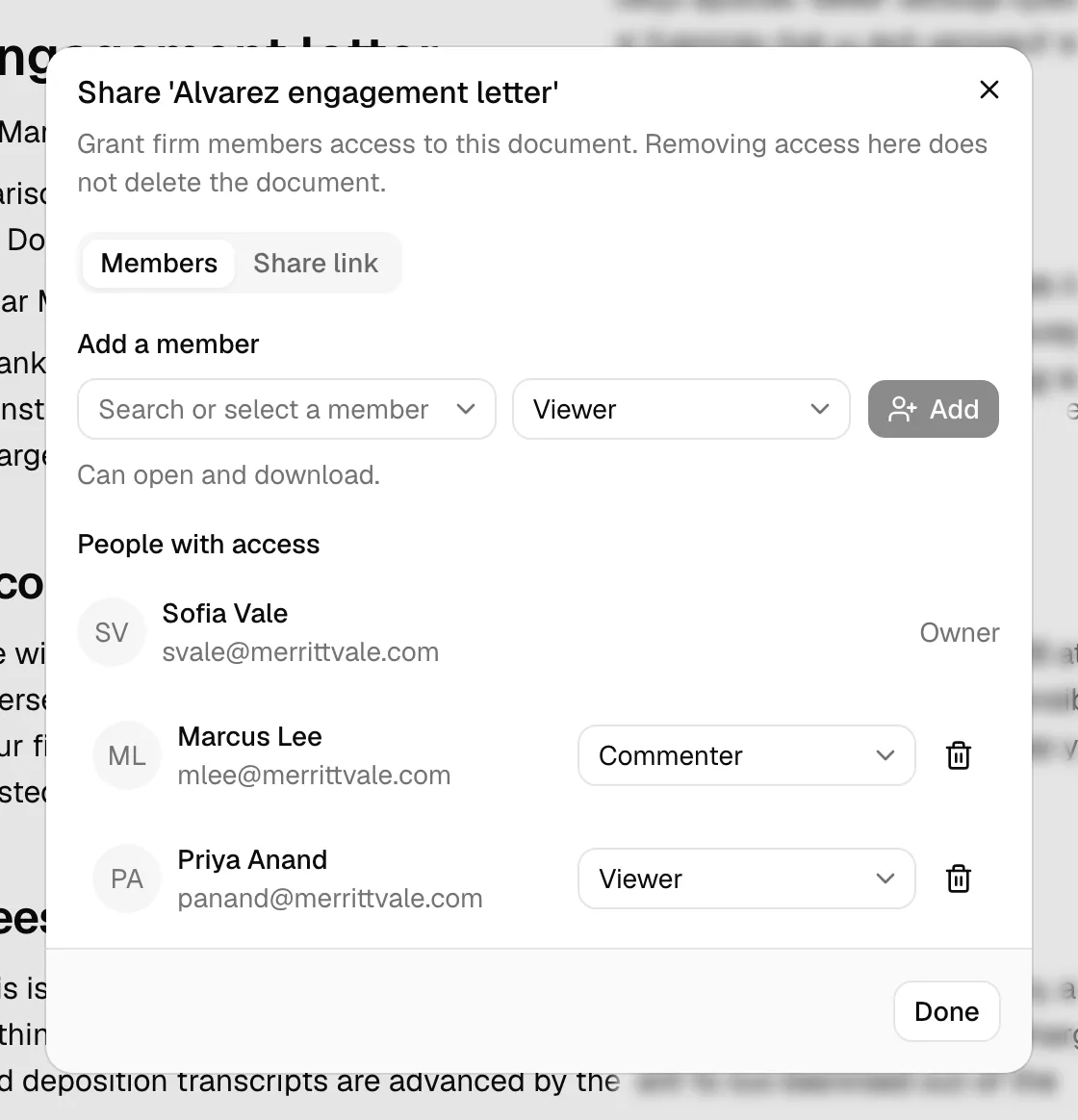
- Click the Share link tab. This is where you create and manage links for people outside your firm.
Creating a share link
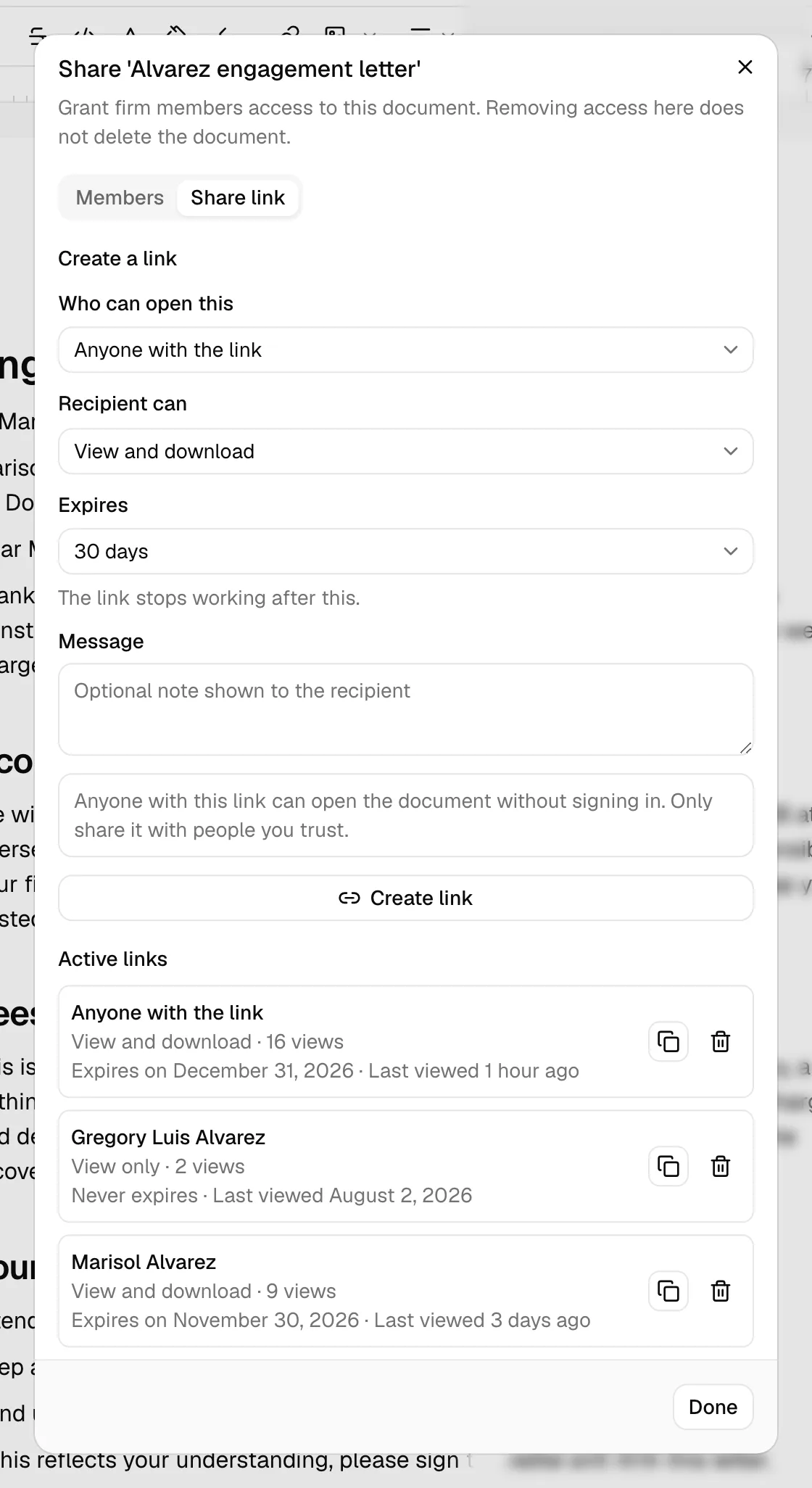
The Share link tab has a Create a link section at the top. You make your choices there, then click Create link to generate the address.
- In the Share dialog, click the Share link tab.
- Under Create a link, choose your options (described in the sections below): Who can open this, Recipient can, an Expires setting, and, for a restricted link, the recipient's details.
- Optionally type a Message to show the recipient.
- Click Create link.
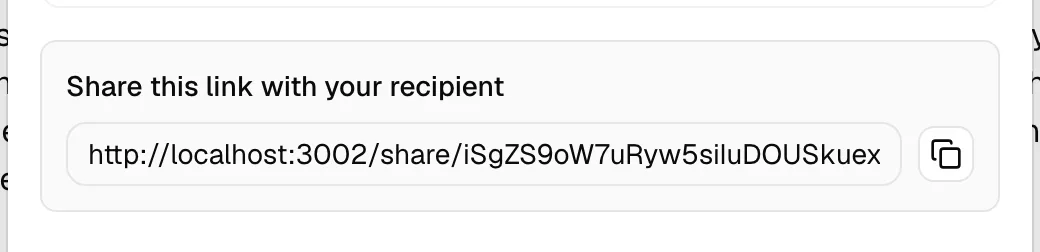
When the link is created, you see a confirmation box titled Share this link with your recipient with the new link ready to copy. The link also appears in the Active links list lower down. You can create more than one link for the same document (for example, one public view-only link and one restricted comment link for a specific client).
Note: When you create a link for A specific recipient, Esqase emails the secure link straight to that recipient's address for you, so you do not have to send it yourself. (A public Anyone with the link link is not emailed, because there is no specific address to send it to. Copy it and share it however you like.) See Esqase emails the link to a specific recipient.
Common questions
- Do I have to fill in everything? No. For a public link, only the two dropdowns matter. For a restricted link, you also need the recipient's email. The message is always optional.
- Can I create several links for one document? Yes. Each link is independent, with its own audience and access level, and each can be revoked separately.
Choosing who can open the link
The Who can open this dropdown decides whether your link is open to anyone or locked to one person.
- Anyone with the link. This is a public link. Anyone who has the address can open the document right away, with no email check. Use this for documents you are comfortable sharing broadly, or when you do not have (or do not want to require) a specific email.
- A specific recipient. This is a restricted link. Before the document opens, the person must confirm the email address you entered. Only someone who can receive mail at that address can get in. Use this for client-specific or sensitive documents.
Important: A public link puts no barrier in front of the document. Anyone who gets the link, whether you sent it to them or it was forwarded, can open it. For confidential client material, choose A specific recipient so only the intended person can open it.
When you choose A specific recipient, extra fields appear so you can identify the recipient. See "Sharing with a specific recipient" below.
Choosing the access level
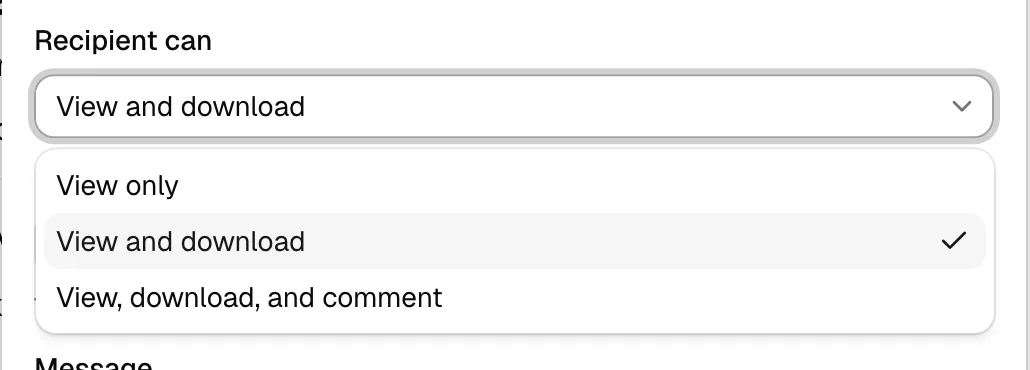
The Recipient can dropdown sets what the person is allowed to do once they open the document. The choices, from least to most access, are:
- View only. The recipient can read the document on screen but cannot save a copy.
- View and download. The recipient can read the document and download a copy to their device. This is the default.
- View, download, and comment. The recipient can read, download, and leave comments on the document.
Pick the level that matches what you need from the recipient. For a document you only want someone to read, choose View only. If you want feedback, choose View, download, and comment.
Note: The access level applies to that specific link. If you share the same document two ways, each link keeps its own access level. To change what a recipient can do, revoke the old link and create a new one at the level you want.
Setting when a link expires
Every share link has an expiry, so a link you sent months ago does not sit open forever. The Expires dropdown lets you choose how long the link stays active:
- 7 days, 30 days, or 90 days: the link stops working that many days after you create it.
- Custom date: pick the exact date the link should stop working.
- Never: the link stays active until you revoke it yourself.
If you do not change it, Expires defaults to 30 days. Once a link's expiry passes, it stops working automatically, the same as if you had revoked it, and Esqase does not warn the recipient beforehand, so plan ahead if you want to send a reminder or a fresh link before the date arrives.
Tip: Choose Never deliberately, for links you intend to keep open indefinitely (for example, a standing link on your website). For anything sent to one person for one purpose, a shorter expiry limits how long the link matters if it is ever forwarded by mistake.
Sharing with a specific recipient
Choosing A specific recipient under Who can open this turns the link into an email-gated link. The recipient has to confirm the email address you specify before the document will open, which keeps the document private to that person.
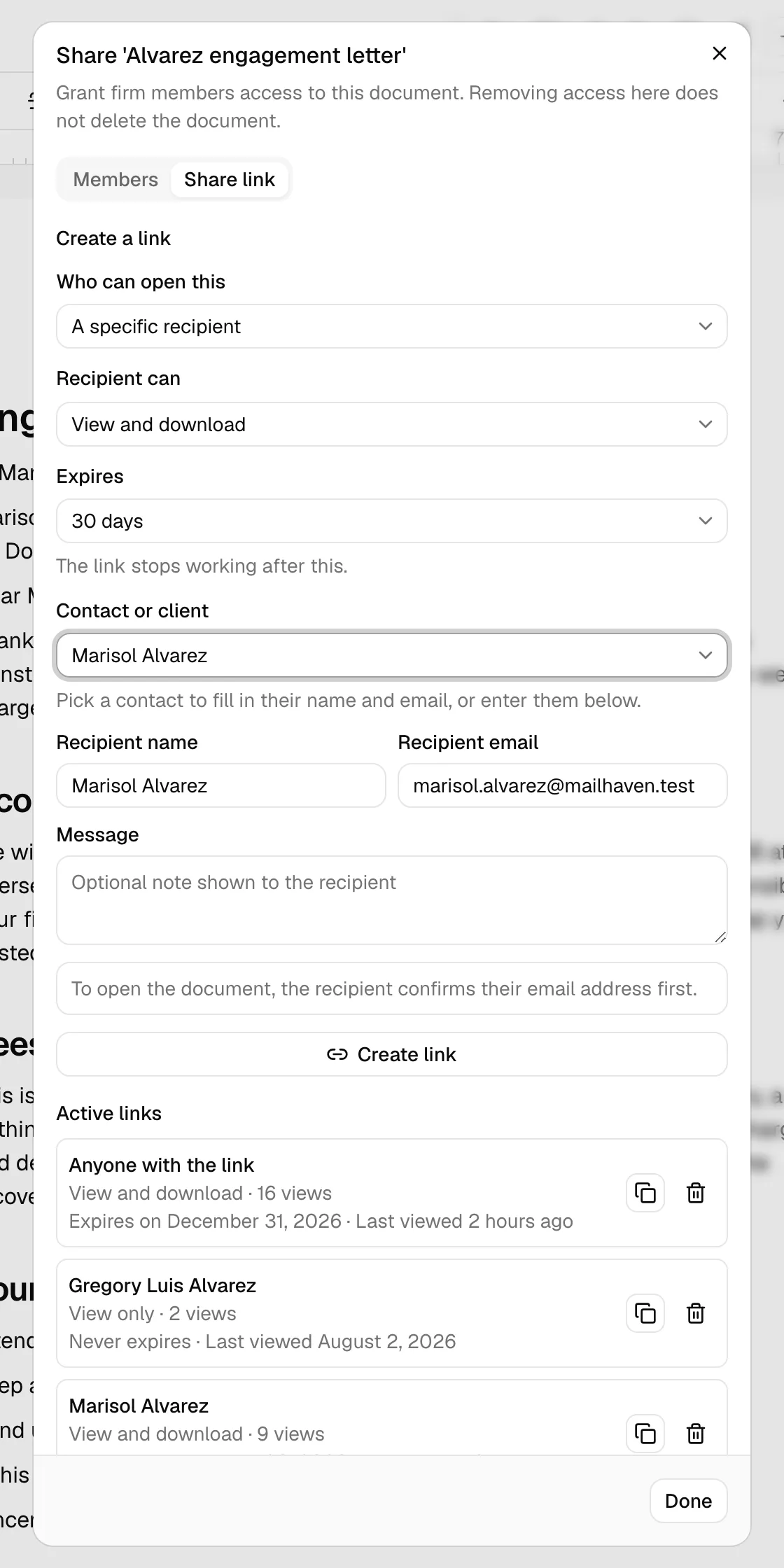
When you pick A specific recipient, three more controls appear:
- Contact or client. A searchable picker of your firm's active contacts. Select a contact to automatically fill in their name and email in the fields below, so you do not have to type them. This field is optional; you can leave it blank and type the recipient's details yourself.
- Recipient name. The name shown to the recipient and listed with the link. Optional.
- Recipient email. The email address the recipient must confirm to open the document. Required for a restricted link.
To create a restricted link:
- Set Who can open this to A specific recipient.
- Choose an access level in Recipient can.
- (Recommended) Open the Contact or client picker and select the person. Their Recipient name and Recipient email fill in automatically.
- If the contact has no email on file, or you are not using the picker, type the Recipient email yourself. You can edit the auto-filled name and email at any time.
- Optionally add a Message.
- Click Create link.
Note: On a matter's Documents tab, choosing A specific recipient fills in the matter's primary client for you (or its first client, if the primary client's contact is archived): the Contact or client picker, Recipient name, and Recipient email. You can change or clear any of them. This happens once each time you open the Share link tab, and nothing is filled in if you have already picked a contact or started typing a name or email. Sharing from the Documents page, or from My documents with Only this matter turned off, starts with empty fields.
Tip: Using the Contact or client picker pulls the name and email straight from your contact record, so there is no risk of a typo in the address. If you want to send a link to someone who is not yet a contact, just type their name and email instead.
Important: The Create link button stays disabled until you provide a recipient email for a restricted link. If you switch back to Anyone with the link, the recipient fields disappear and you can create the link without an email.
Esqase emails the link to a specific recipient
When you create a link for A specific recipient, Esqase sends that recipient an email containing the secure link, so the person you named gets it without you copying and pasting anything. The email goes to the Recipient email you entered.
What to know:
- The email is sent only for a restricted link (A specific recipient), where Esqase has an address to send to. A public Anyone with the link link is never emailed; you share it yourself.
- If you typed a Message for the recipient, it is included in the email along with the link.
- You still see the link in the confirmation box and can copy it. The auto-sent email is in addition to the copy option, not a replacement, so you can also forward the link yourself if you like.
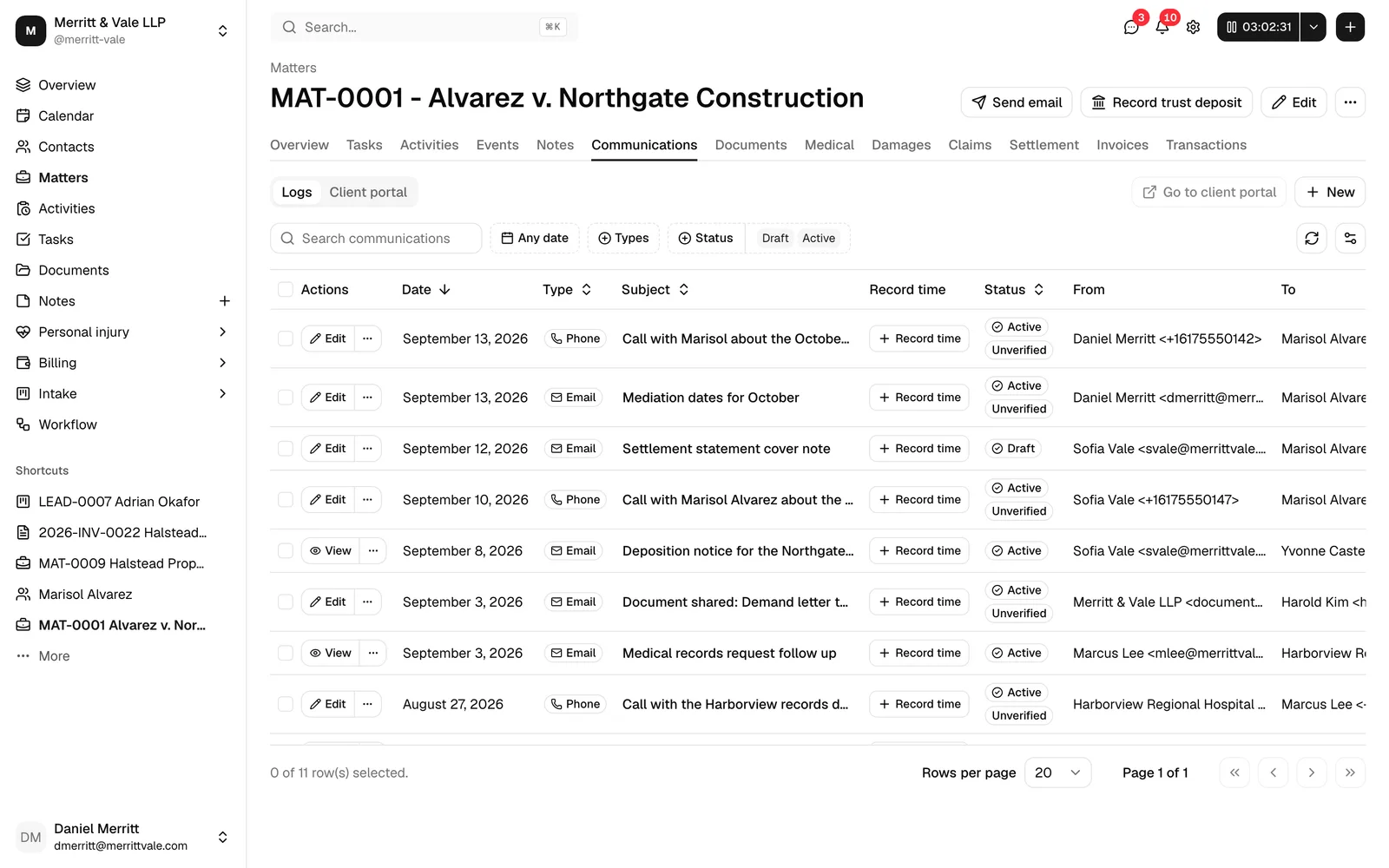
- If the document is connected to a matter, the email Esqase sent is recorded on that matter's Communications tab as a read-only Email row, so your team can see that the share link went out and when. See Logging communications.
Tip: Because Esqase sends the link to the exact Recipient email you entered, that is the same address the recipient confirms to open the document. There is no mismatch to worry about, as long as the email address is correct.
Public versus email-gated links
The difference between the two audiences comes down to whether the document opens immediately or only after the person proves they own the email address.
| Anyone with the link (public) | A specific recipient (email-gated) | |
|---|---|---|
| Who can open it | Anyone who has the link | Only someone who can receive mail at the recipient email |
| Email step | None, opens straight away | Recipient confirms their email before the document opens |
| Best for | Broadly shareable documents | Client-specific or confidential documents |
| Recipient fields | Hidden | Contact picker, name, and email shown |
After you create a link, the confirmation box tells you which kind it is:
- For a public link: Anyone with this link can open the document.
- For a restricted link: To open the document, the recipient confirms their email address.
Note: Even a public link is private in the sense that it points only to that one document. It does not expose your firm, your other documents, or any client data beyond the shared file. Still, treat a public link like a key: anyone who has it can use it until you revoke it.
Adding a message for the recipient
The Message box lets you include a short note that the recipient sees alongside the document, for example "Please review and sign by Friday." It is optional and works the same for public and restricted links. Leave it blank if you do not need it.
Copying the share link
Right after you create a link, Esqase shows it ready to copy so you can paste it into an email, a message, or your case notes.
- Create the link as described above. The confirmation box titled Share this link with your recipient appears.
- The link is shown in a read-only field. Click the copy button next to it (the icon to the right of the link).
- The icon briefly changes to a check mark to confirm the link is on your clipboard.
- Paste the link wherever you want to send it.
Tip: For a public Anyone with the link link, Esqase does not email it for you, so copy it and send it yourself through your normal email or messaging tool. For a restricted A specific recipient link, Esqase already emails the link to the Recipient email for you (see Esqase emails the link to a specific recipient). You can still copy it here if you want to send it again or keep it in your notes.
Managing active links
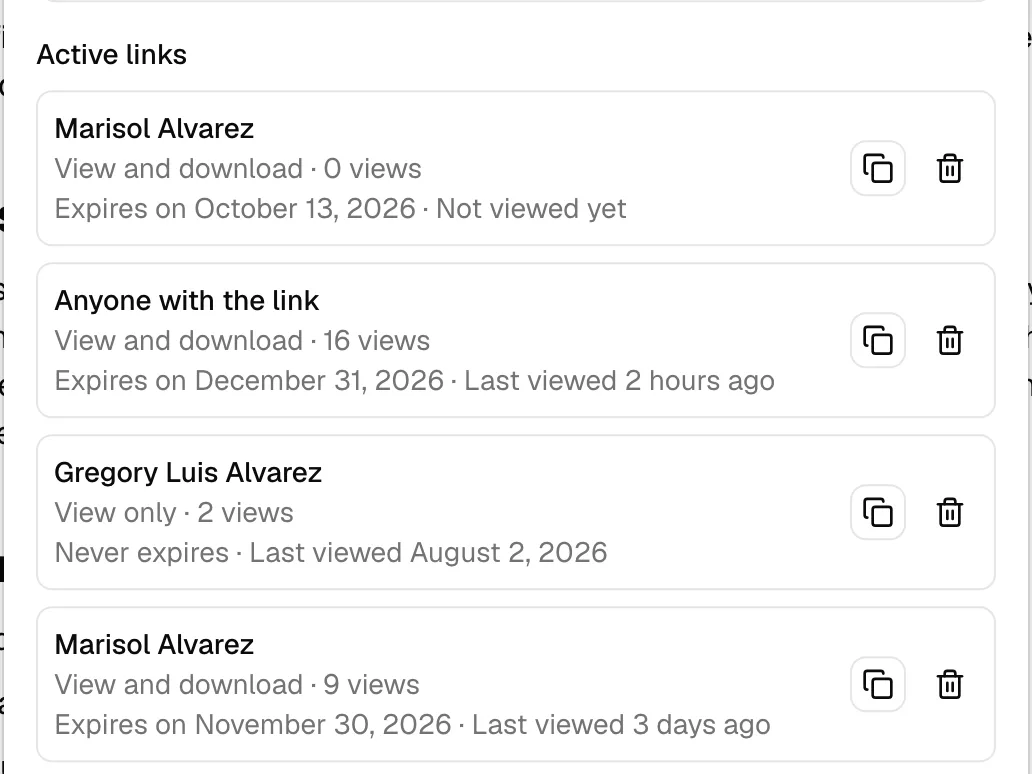
Every link you create for the document is listed under Active links at the bottom of the Share link tab. This is your record of who currently has access.
Each row shows:
- The recipient. For a restricted link, this is the recipient's name or email. For a public link, it shows Anyone with the link.
- The access level (View only, View and download, or View, download, and comment).
- When the link expires, either the date it will stop working or that it never expires.
- When it was last viewed, or that it has not been viewed yet, alongside a view count so you can see how many times the document has been opened through that link.
- A Copy button so you can grab the link again at any time, without recreating it. If the full address is no longer available to copy, the button is disabled with a note that the link is only shown in full at the moment you create it.
If there are no links yet, you see No active links yet.
Revoking a share link
Revoking a link turns it off immediately. After you revoke, the link stops working and the person can no longer open the document through it. Revoke a link as soon as someone should no longer have access, for example after a matter closes or if a link was sent to the wrong person.
- In the Share dialog, open the Share link tab.
- Find the link under Active links.
- Click the trash (revoke) button on that row.
- In the Revoke this share link? confirmation, read the warning that anyone with the link loses access immediately and that this cannot be undone, then click Revoke link to confirm.
- The link is revoked and removed from the Active links list. You will see a confirmation that the share link was revoked.
Important: Revoking cannot be undone. The old link will never work again, even if you later create a new one for the same document. If the recipient still needs access, create a fresh link and send them the new address.
Note: Revoking a share link only switches off that link. It does not delete or change the document itself, and it does not affect any firm members who have access through the Members tab.
Note: Every share link on a document is also revoked automatically, all at once, the moment you move that document to Trash. See Trash a document and restore it from Trash.

A share link shows the version you shared
A share link keeps showing the exact version of the file that was current at the moment you created the link, even if you later upload a new version over it. If you need a recipient to see your latest changes, revoke the old link and create a new one; the new link will pick up whatever version is current when you create it.
Note: This applies to uploaded files, which are versioned. A native document you wrote in the file editor has no separate version history for sharing purposes, so its share link always reflects the document's current content.
Troubleshooting
- The recipient says the link does not open. If it is a restricted link, the person must confirm the same email you entered as the Recipient email. Make sure you sent the link to that exact address. If the address was wrong, revoke the link and create a new one with the correct email.
- The link says it has expired, or simply does not open anymore. Check its Expires date under Active links. Once a link passes its expiry, it stops working the same as a revoked link. Create a new link if the recipient still needs access, and choose a longer expiry or Never if this keeps happening sooner than you expect.
- The Create link button is greyed out. For a restricted link, you must enter a Recipient email first. Either add the email or switch Who can open this to Anyone with the link.
- I do not see the Share action. Sharing requires update access for documents. If your role does not include it, ask a firm owner or administrator to share the document or adjust your role. See Roles and permissions.
- I need to change what a recipient can do. Access level is set per link and cannot be edited after creation. Revoke the existing link and create a new one at the access level you want.
- The contact's email did not fill in. The Contact or client picker only fills in an email if the contact has one on file. Add an email to the contact record, or type the recipient email directly in the field.