Using the Setup Guide
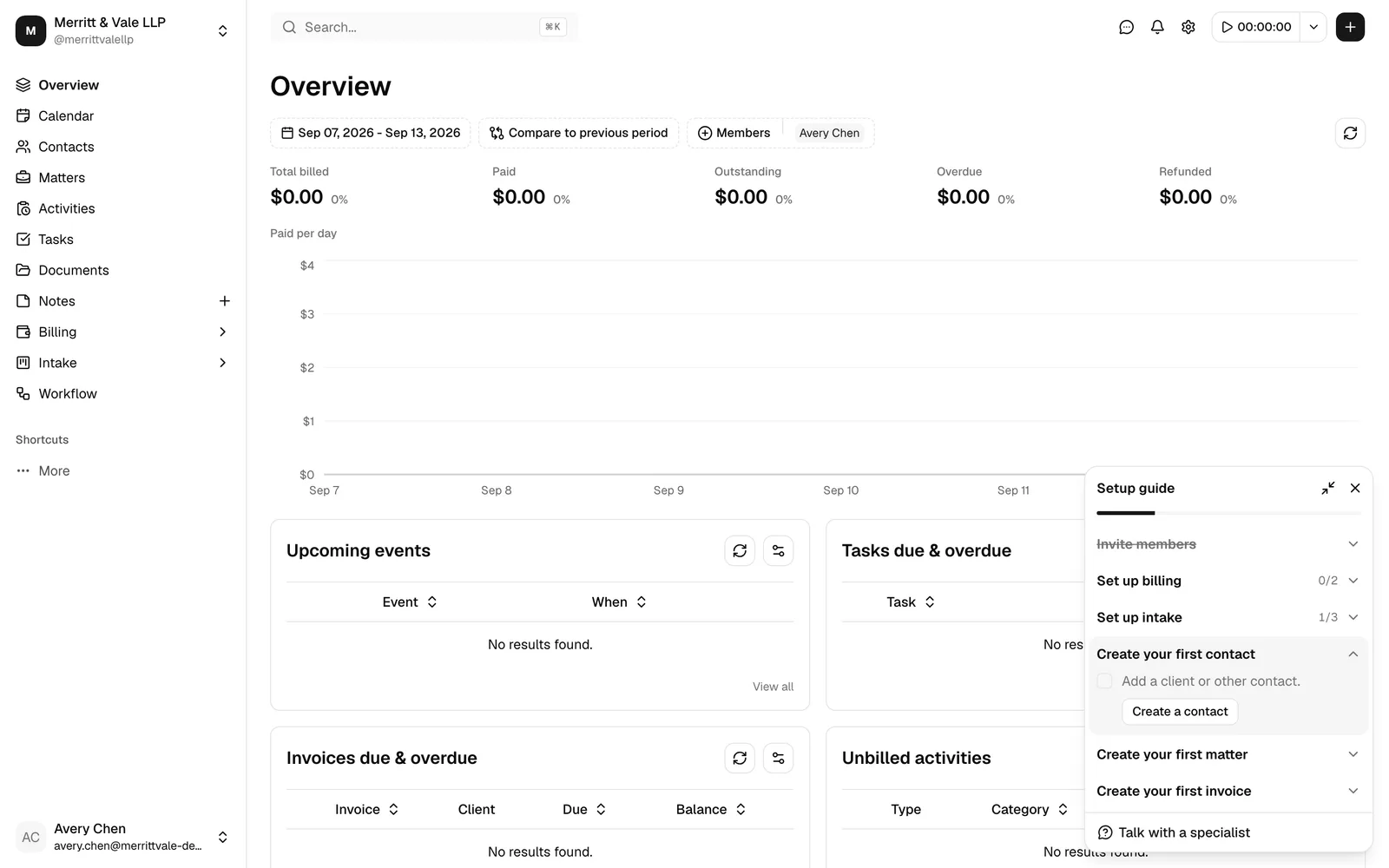
The Setup guide is a friendly checklist that walks you through everything you need to do to get your firm up and running in Esqase: inviting your team, setting up billing and intake, and creating your first contact, matter, and invoice. It floats in the bottom corner of every dashboard page, tracks your progress automatically, and quietly retires once you have finished.
Before you begin
There is nothing to turn on. The Setup guide appears on its own once you are signed in to a firm. A few things are worth knowing up front:
- What you see depends on your role. If you are the firm owner, you get the full firm-setup checklist. If you are a regular member, you get a shorter, personalized checklist (see The owner checklist versus the member checklist).
- You do not have to follow it in order. Every step links straight to the page where you complete it, and most steps tick themselves off the moment you finish the underlying task.
- It is per person. Your progress, and whether you have minimized or closed the card, is tracked separately for you. Closing the guide does not affect your colleagues.
Find and open the Setup Guide
The Setup guide lives in the lower-right corner of the screen and follows you from page to page, so you never have to go looking for it. The one exception is the full AI Assistant page, where the card and the header chip stay hidden so they never cover the message box; they come back on the next page you open (see AI Assistant).
The card has three states:
- Open (the default): the full checklist is shown.
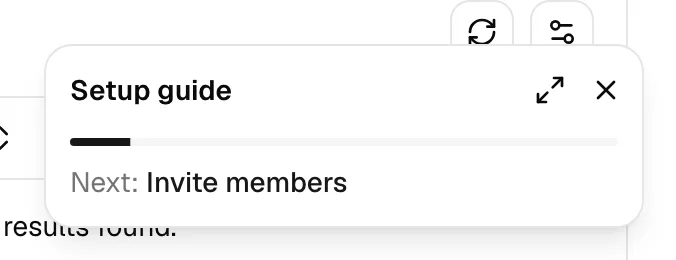
- Minimized: the card collapses to a slim bar that shows only your progress and the next step.
- Closed: the card disappears from the corner, and a small Setup guide chip takes its place up in the dashboard header.
Minimize the card
Minimizing keeps the guide handy but out of your way while you work.
- In the top-right of the Setup guide card, click the Minimize setup guide button (the inward-pointing arrows icon).
- The card shrinks to a thin bar that still shows the progress bar and a Next: hint with the name of your next step.
- To expand it again, click the Expand setup guide button (the outward-pointing arrows icon) in the same spot. You can also click the underlined next-step name in the Next: hint to jump straight back to the full card.
Note: Minimizing only lasts for your current browsing session. If you reload the page or come back later, the full card opens again. Use Close instead if you want it to stay hidden.
Close (dismiss) the card
Closing tucks the guide away entirely so it no longer floats over your screen.
- In the top-right of the Setup guide card, click the Close setup guide button (the X icon).
- The floating card disappears. In its place, a rounded Setup guide chip appears in the dashboard header at the top of the screen, with a small ring showing how far along you are.
Tip: Closing is remembered. Unlike minimizing, a closed card stays closed even after you reload or come back another day. It stays closed until you reopen it from the header chip (or until you finish every step, at which point the guide retires on its own).
Reopen it from the header chip
Once you have closed the card, the header chip is how you bring it back.
- Look at the top of the dashboard for the rounded Setup guide chip with a progress ring beside the text.
- Click the chip. The floating card reopens in the bottom-right corner, right where you left off.

Note: The header chip only appears once you have closed the floating card, and only while you still have steps left. Once you reach 100%, both the card and the chip go away for good.
Track onboarding progress
The Setup guide is built to do most of the tracking for you, so you can focus on the actual work and watch the checklist fill in.
The progress bar
A thin progress bar sits near the top of the card, just under the Setup guide title. It fills from left to right as you complete steps, giving you an at-a-glance sense of how much setup is left. When the card is closed, the same progress is shown as a small ring on the header chip.
The percentage is based on the total number of steps in your checklist. Because owners and members have different checklists, the same firm can show different progress for different people, and that is expected.
The next-step hint
When the card is minimized, it shows a Next: line naming the next step you have not finished yet. Click that step name to expand the full card and get going. When every step is done, the minimized bar reads You're all set. instead.
In the full card, the step that is up next is automatically expanded for you, so the most useful action is always one click away.
Steps that complete themselves
This is the part that saves you the most effort. Most steps are detected automatically: as soon as you do the underlying task anywhere in Esqase, the matching step ticks itself off, even if you never touched the Setup guide to do it.
A completed step shows its title with a line through it (struck through), and grouped steps show a running count such as 1/2 next to the group name.
Here is what each step is watching for:
- Invite members: marked complete once you have invited at least one teammate or your firm has more than one member.
- Set your billing accounts: marked complete once you have both an operating account and a trust account. (A trust account, sometimes called an IOLTA account, holds client funds separately from your firm's own operating money.)
- Set up your payment information: marked complete once you have a working way to collect payments, meaning either a manual payment link with a URL saved, or a QR code with an image uploaded. Simply switching a payment method on is not enough; it has to be fully usable. See Payment settings.
- Set up your firm's availability: marked complete once your firm's appointment hours are set.
- Set up your availability (member checklist): marked complete once you have set your own working hours.
- Set up your event types: marked complete once you have created at least one bookable appointment type.
- Set up your forms: marked complete once you have built at least one intake form.
- Create your first contact: marked complete once at least one contact exists.
- Create your first matter: marked complete once at least one matter exists. (A matter is a single client case or file.)
- Create your first invoice: marked complete once at least one invoice exists.
Note: Auto-detection refreshes as you move around the app, so a step you just finished on another page will usually be ticked by the time you glance back at the guide. If it has not caught up yet, switching pages or returning to that browser tab nudges it to re-check.
Use a step's action button to jump there
Every step has a button that takes you straight to the right place, so you do not have to hunt through the menus.
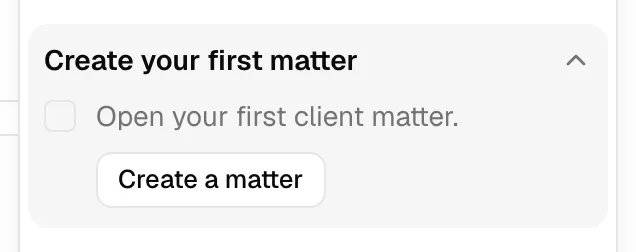
- In the Setup guide card, click a step title to expand it (or use the one that is already expanded).
- Read the short description of what the step does.
- Click the step's action button to go do it. The button is labeled for the task, for example Invite members, Set up accounts, Set up payments, Set availability, Set up event types, Set up forms, Create a contact, Create a matter, or Create an invoice.
- Complete the task on the page that opens. When you come back, that step is typically already checked.
Manually mark a step complete or incomplete
Sometimes you have already handled a step your own way, or you simply want to hide something that does not apply to you. You can check or uncheck any step by hand, and your choice overrides the automatic detection.
- In the Setup guide card, click a step title to expand it.
- Click the checkbox next to the step's description.
- Checking it marks the step complete: its title gets a line through it and your progress bar moves up.
- Unchecking it marks the step incomplete again.
- A brief spinner appears in place of the checkbox while your change saves. Once it saves, the change sticks.
Important: A manual choice wins over automatic detection. If you manually check a step before doing the real task, it counts as done. If you manually uncheck a step that the system would otherwise consider done, it stays unchecked for you until you change it back. This lets you tailor the checklist to how your firm actually works.
Tip: Marking steps by hand is the quickest way to clear the guide if you onboarded before Esqase, or if a step (such as intake forms or event types) is not something your firm uses.
What happens when everything is checked
Once every step in your checklist is complete (whether automatically, manually, or a mix), the Setup guide has done its job. The floating card and the header chip both disappear, and the guide does not come back. There is no extra button to dismiss it; finishing simply retires it.
The owner checklist versus the member checklist
Not everyone sees the same Setup guide. What appears is based on whether you are the firm owner and, for members, on what your role lets you do.
If you are the firm owner
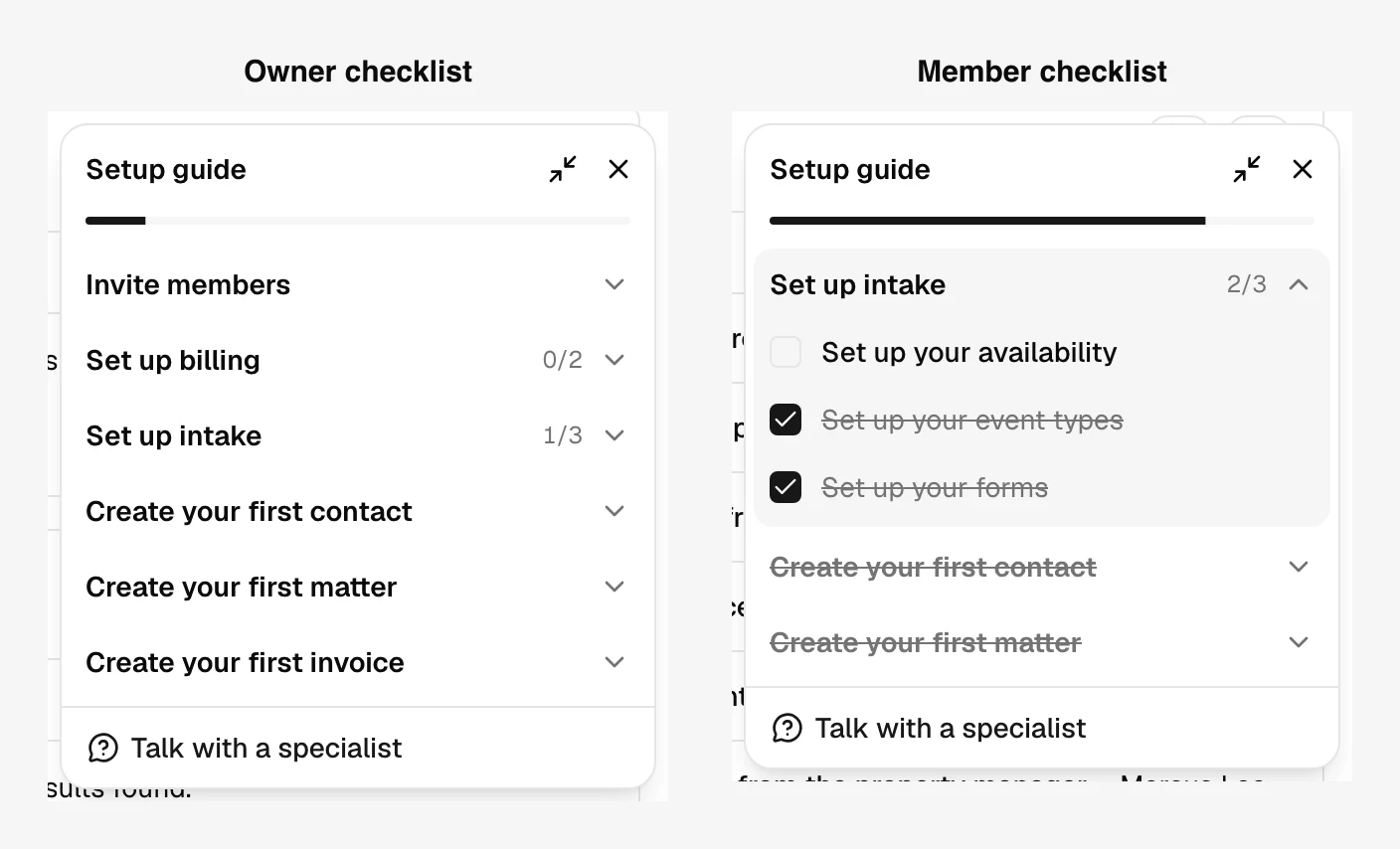
Owners see the complete firm-setup checklist, because owners can configure everything. It covers:
- Invite members
- Set up billing (a group containing Set your billing accounts and Set up your payment information)
- Set up intake (a group containing Set up your firm's availability, Set up your event types, and Set up your forms)
- Create your first contact
- Create your first matter
- Create your first invoice
The grouped sections ("Set up billing", "Set up intake") collapse and expand, and each shows a small count of how many of its steps are done.
If you are a member
Members get a shorter, personalized checklist. It always includes setting your own availability, plus only the "create" steps your role actually permits. Esqase hides any step you would not be allowed to do, so you are never pointed at a dead end.
A member checklist can include:
- Set up intake (a group): Set up your availability (always shown, so you can set your personal hours, which override the firm's default business hours), plus Set up your event types and Set up your forms only if your role lets you create those.
- Create your first contact: shown only if your role allows creating contacts.
- Create your first matter: shown only if your role allows creating matters.
- Create your first invoice: shown only if your role allows creating invoices.
Note: Because steps are filtered to match your permissions, your progress percentage reflects only the steps you can actually see. If your role is limited, your guide may be short and may reach 100% quickly. That is by design.
To learn more about which actions each role allows, see Roles and permissions.
Get help while you set up
At the bottom of the open card there is a Talk with a specialist link. Click it if you would like a hand from the Esqase team while you work through your setup.
Common questions
The guide disappeared. Where did it go? If you closed it, look for the rounded Setup guide chip in the dashboard header and click it to bring the card back. If you have finished every step, the guide has retired and will not return.
I finished a task but the step is still unchecked. Auto-detection re-checks as you navigate. Move to another page or click back into the tab to prompt a refresh. If a step truly should be done, you can also check it by hand.
Why is my checklist shorter than my colleague's? You are probably a member rather than the firm owner, or your role does not include some "create" permissions. Esqase only shows you steps you are able to complete. See Roles and permissions.
Can I get rid of a step I will never use? Yes. Expand the step and check its box by hand to mark it done. Your manual choice overrides automatic detection, and clearing all steps retires the guide.
Does closing the guide affect anyone else? No. Whether you minimize, close, or complete the guide is tracked only for you, and only for this firm. Other members manage their own.