Signing up and signing in
Everything in Esqase starts with your account. This page walks you through creating a new firm account, confirming your email address, signing in day to day, and understanding how Esqase keeps you signed in (and when it signs you out to protect your firm's data).
Before you begin
- Creating a new firm? Use the Create account flow below. When you sign up this way, you become the first user, and after you verify your email Esqase walks you through setting up your firm.
- Joining a firm that already uses Esqase? Do not create a new account from scratch. Wait for an invitation email from your firm and follow the link in it. See Joining a firm (accepting an invite).
- Have your work email ready. You will receive a 6-digit verification code there, so use an inbox you can open right away.
- Choose a strong password before you start. Esqase requires at least 12 characters, including an uppercase letter, a lowercase letter, a number, and a special character.
Create a firm account (sign up)
Signing up creates your personal user account and gets you ready to set up a new firm in Esqase.
- Go to the Esqase sign-up page. If you are on the sign-in screen, click Sign up at the bottom (under "Don't have an account?").
- You will see the Create your account heading with the subtitle "Get started in less than a minute."
- Fill in the form:
- First name (required). Your given name, up to 50 characters.
- Last name (required). Your family name, up to 50 characters.
- Work email (required). The address you will sign in with and where your verification code is sent. Enter a valid email; it is stored in lowercase.
- Password (required). Must be at least 12 characters and include an uppercase letter, a lowercase letter, a number, and a special character. It cannot contain the username part of your email (the text before the
@). - Confirm password (required). Re-type the same password. The two must match.
- Each password field has a show/hide control so you can confirm what you typed.
- Click Create account. While Esqase works, the button shows a spinner and reads Creating account....
- On success, you are taken to the Email verification screen to confirm your email with a 6-digit code (see the next section).
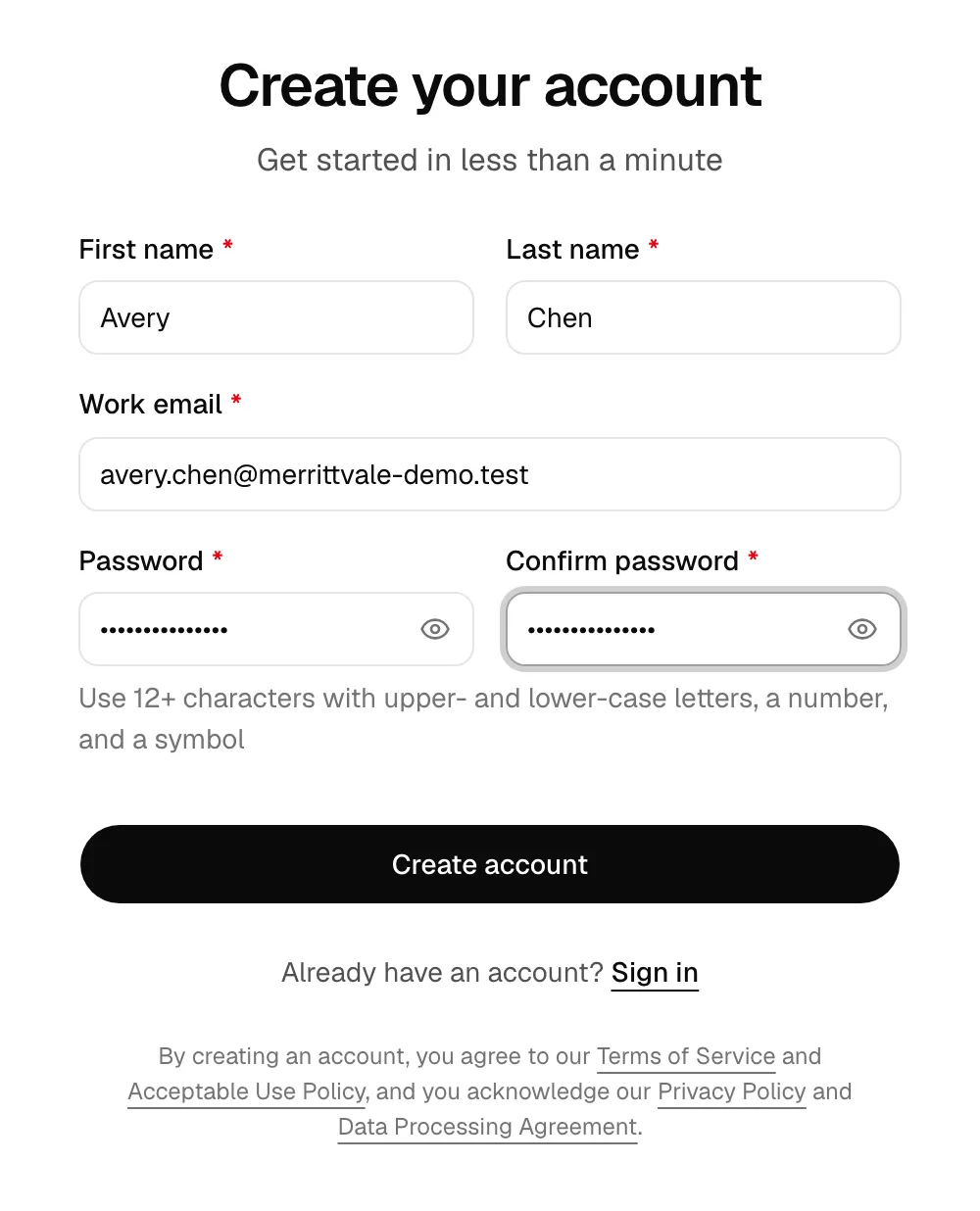
By creating an account you agree to Esqase's Terms of Service, Acceptable Use Policy, Privacy Policy, and Data Processing Agreement, all linked beneath the form.
Note: For security, Esqase never tells you whether an email is already registered. If you try to sign up with an address that already has an account, you will see a neutral message rather than a "this email is taken" error. If you think you already have an account, go to the sign-in page and use Forgot your password? instead. See Passwords and account recovery.
If you arrived from a referral link
If someone sent you an Esqase referral link, there is nothing extra to fill in.
- The link opens a short page on esqase.com. Click Start your free trial to reach the sign-up form.
- Above the fields, the form shows the line You're signing up with a referral link. That is your confirmation that the referral came through.
- Fill in the form and click Create account as usual. The referral is applied for you, so there is no code to type and nothing to confirm afterwards.
Note: Clicking Sign in first (to check whether you already have an account, for example) does not lose the referral. The Sign up link on the sign-in screen carries it back, and Esqase remembers the link in your browser for seven days. A referral only ever applies to a brand-new account, so signing in to an account you already have clears it. For the referrer's side of this, see Referrals and points.
Troubleshooting sign-up
- A field turns red as you type. Esqase checks each field as you go. Hover or read the message beneath the field to see what to fix (for example, "Password must contain a number" or "Passwords do not match"). The error clears once the field is valid.
- "We couldn't create your account." This banner appears at the top of the form if something went wrong on submit. Review your entries and try Create account again. You can dismiss the banner with its close control.
- Password rejected for containing your email. Choose a password that does not include the text before the
@in your email address.
Verify your email with the 6-digit code
After you sign up, Esqase sends a 6-digit code to your work email so it can confirm the address belongs to you. You cannot reach your dashboard until your email is verified.
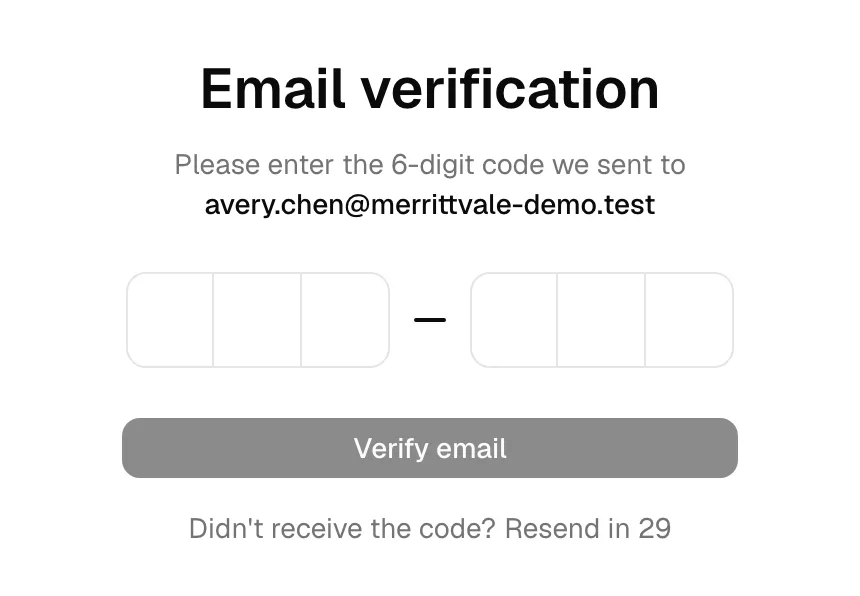
- On the Email verification screen, read the line "Please enter the 6-digit code we sent to," followed by your email address. Confirm it is the address you expected.
- Open your email inbox and find the message from Esqase containing the code.
- Back in Esqase, type the code into the six boxes. The cursor moves forward automatically as you type, and you can paste the whole code at once.
- When all six digits are entered, the Verify email button becomes active. Click it. While it works, the button shows a spinner and reads Verifying....
- On success, Esqase signs you in and sends you onward:
- If you do not belong to a firm yet (the typical case for a brand-new sign-up), you go to the firm setup flow to create your firm. See Quickstart: set up your firm.
- If you were following an invite link, you go straight to that destination.
Important: The code expires after a short time (a few minutes). If you wait too long, it stops working and you will need to request a new one. Enter the code promptly.
What if the code does not work?
For your security, Esqase shows the same message ("We couldn't verify your code") whether the code is wrong, expired, or not found. If you see this banner:
- Double-check that you typed all six digits correctly, with no extra spaces.
- Make sure you are using the most recent code. If you requested a new code, older codes no longer work.
- If the code has expired, request a fresh one using Resend (see below).
- "Too many incorrect codes." For security, a code stops working after 5 incorrect tries in a row. Click Resend to get a fresh code; the new code also resets your tries. Enter it carefully, ideally by pasting it straight from the email.
Resend the verification code
If the email did not arrive, landed in spam, or expired before you entered it, you can request a new code.
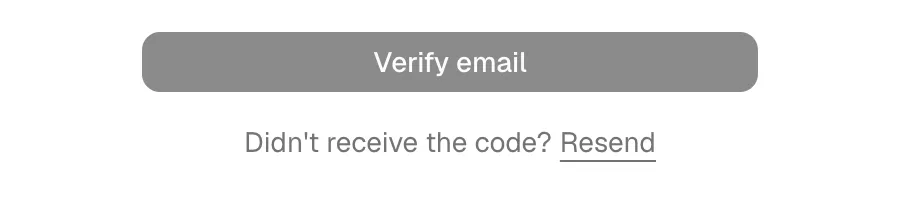
- On the Email verification screen, look below the Verify email button for "Didn't receive the code?"
- Immediately after the screen loads, there is a short cooldown. You will see Resend in 30 counting down. This prevents accidental duplicate emails.
- Once the countdown reaches zero, Resend becomes a clickable link. Click it.
- While Esqase sends a new code, the link shows a spinner and reads Resending....
- A new 6-digit code is emailed to the same address, and the cooldown timer restarts. Enter the new code in the six boxes and click Verify email.
Tip: Always enter the newest code. Each time you resend, the previous code is replaced. If you have several Esqase emails open, use the most recent one.
Note: If a resend fails for any reason, a short message appears under the buttons asking you to try again later. Wait a moment and click Resend again.
Sign in
Once your account exists and your email is verified, signing in is how you return to your dashboard each day.
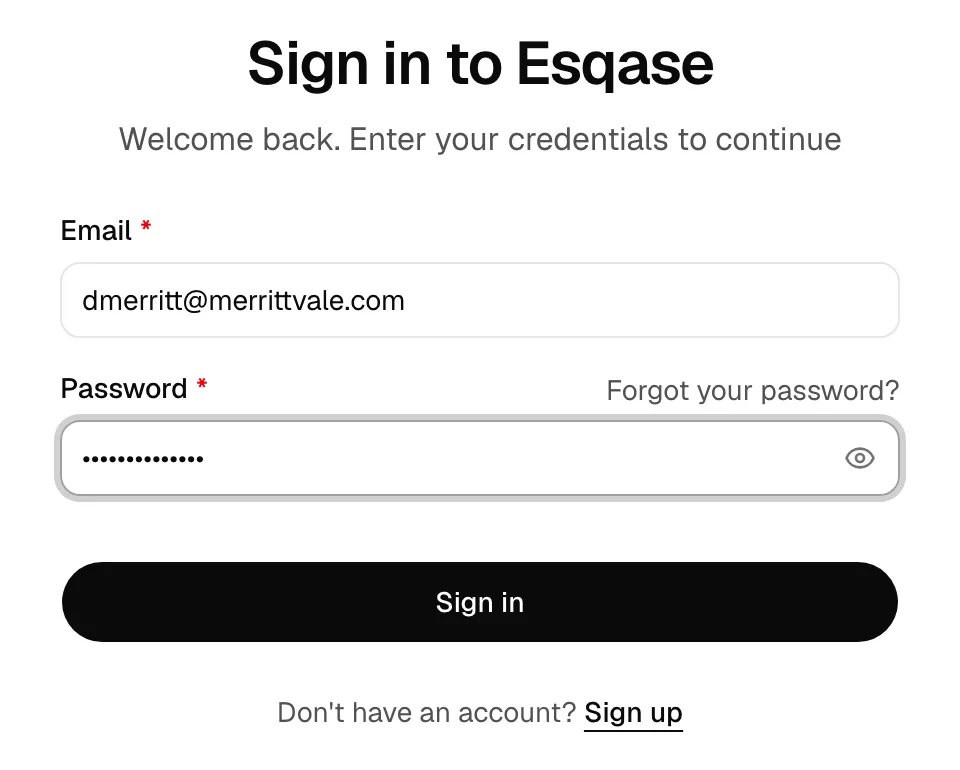
- Go to the Esqase sign-in page. You will see the Sign in to Esqase heading with the line "Welcome back. Enter your credentials to continue."
- Enter your Email (the address you signed up with).
- Enter your Password. Use the show/hide control if you want to confirm what you typed.
- Click Sign in. While Esqase verifies your credentials, the button shows a spinner and reads Signing in....
- If you have two-factor authentication turned on, Esqase shows a Two-step verification step and asks for your 6-digit code (from your authenticator app or sent to your email) before it lets you in. Enter the code to continue. For the full walkthrough, including using a recovery code if you cannot get one, see Two-factor authentication (2FA).
- On success, you land on your dashboard (or, if you arrived from a specific link, the page you were trying to reach).
Note: The Two-step verification code at sign-in is not the same as the 6-digit code you enter to verify a new account's email address. Email verification confirms your email belongs to you and happens only once, when your account is created (see Verify your email with the 6-digit code above). Two-step verification is a security check that happens at every sign-in while two-factor authentication is on.
A few helpful links live on this screen:
- Forgot your password? sits just above the password field. Use it if you cannot remember your password. See Passwords and account recovery.
- Sign up sits at the bottom (under "Don't have an account?") if you need to create a new firm account instead.
Important: If your email is not yet verified, signing in returns you to the Email verification screen to finish confirming your address before you can continue.
Note: If you do not belong to any firm yet (or your firm was deleted or you were removed from it), signing in takes you to the firm setup screen to create a firm, rather than to an empty dashboard. From there you can set up a new firm. See Quickstart: set up your firm.
Troubleshooting sign-in
- "We couldn't sign you in." This banner appears if your email or password is not correct, or your account is not ready. For security, Esqase does not say which part was wrong. Re-check both fields and try again, or use Forgot your password? if you are unsure of your password.
- A field turns red. Esqase validates the email format and that both fields are filled before it submits. Fix the highlighted field and try Sign in again.
How staying signed in works
Esqase balances convenience with the security expectations of a legal practice. Two timers govern your session:
- Inactivity (idle) timeout. If you do not interact with Esqase for about 1 hour, your session ends and you are signed out. Normal use (moving the mouse, typing, scrolling, navigating) keeps you signed in, because each action refreshes this window.
- Maximum session length. Regardless of how active you are, a single sign-in lasts at most 12 hours. After that you must sign in again. This caps how long any one session can stay open.
You do not need to do anything to maintain a session during normal work; simply using the app keeps it alive.
The inactivity timer is shared across every Esqase tab open in the same browser. Working in any one tab keeps all of them signed in, so a tab you left open on another screen will not quietly expire while you work. If you close your laptop, or the computer goes to sleep, that counts as inactivity: when you come back after more than an hour, you are signed out and asked to sign in again.
The inactivity warning
So you are never signed out by surprise, Esqase warns you before the idle timeout is reached.
- About 5 minutes before your session would expire from inactivity, a "Still there?" prompt appears in the center of the screen, explaining that you will be signed out after a period of inactivity.
- The prompt shows a live countdown of the time remaining before your session expires, and gives you two choices: Stay signed in and Sign out.
- Click Stay signed in to extend your session right away. The prompt closes and your idle timer resets, so you can keep working.
- Click Sign out to end your session immediately and return to the sign-in screen, for example if you are stepping away from your computer.
- If you do not respond before the countdown reaches zero, Esqase confirms with the server that the session has gone idle, signs you out for inactivity, and returns you to the sign-in screen.
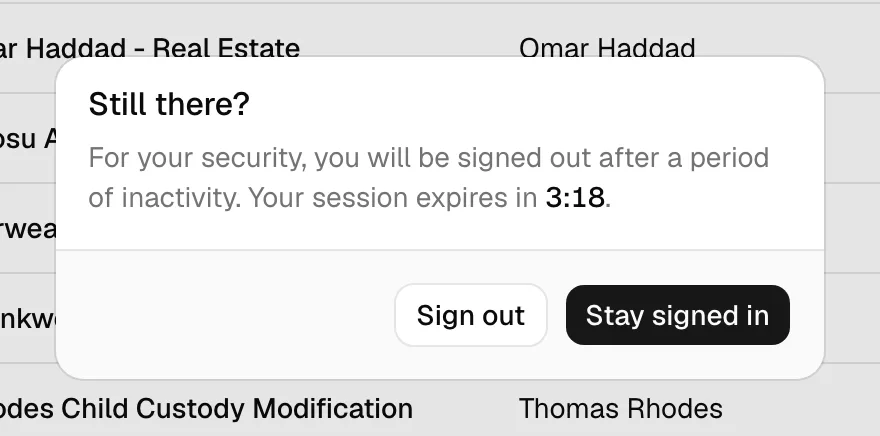
Note: The prompt always appears on top of whatever you were doing (even an open dialog), so the Stay signed in and Sign out buttons are always available. Moving the mouse will not dismiss it: you must choose Stay signed in or Sign out. This is deliberate, so a stray cursor movement on an unattended screen cannot keep you signed in.
Note: Because the timer is shared, you only have to answer the prompt once. Clicking Stay signed in in one tab clears the prompt in every other open Esqase tab as well.
Tip: If you are stepping away from your computer, it is safest to sign out (see below) rather than leave a session open.
Sign out
Signing out ends your session and clears it from the browser. Always sign out on shared or public computers.
- In the bottom-left of the dashboard sidebar, click your name and avatar to open the account menu.
- In the menu, click Sign out (next to the sign-out icon). While it processes, a spinner appears in place of the icon.
- Esqase ends your session and returns you to the Sign in to Esqase page.
Signing out covers the whole browser, not just the tab you clicked in. Any other Esqase tab you had open returns to the sign-in screen on its own, so you do not have to close them one by one.
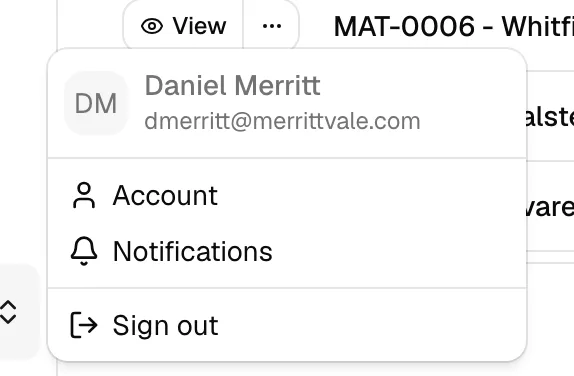
Note: Above Sign out, the same menu holds Account (your personal settings), Notifications (which alerts you receive), and Referrals (your referral link and points). See Your profile and personal settings and Referrals and points.
What to do when your session expires or you are signed out
When Esqase signs you out (whether from inactivity, reaching the 12-hour limit, or because you signed out), it sends you back to the sign-in page and shows a brief message explaining why. You will see one of:
- "You were signed out for inactivity. Please sign in to continue." You were idle past the timeout. Sign in again to pick up where you left off.
- "Your session expired. Please sign in to continue." Your session reached the end of its life. Sign in again to start a fresh one.
- "You have been signed out. Please sign in to continue." Confirmation that your sign-out completed.
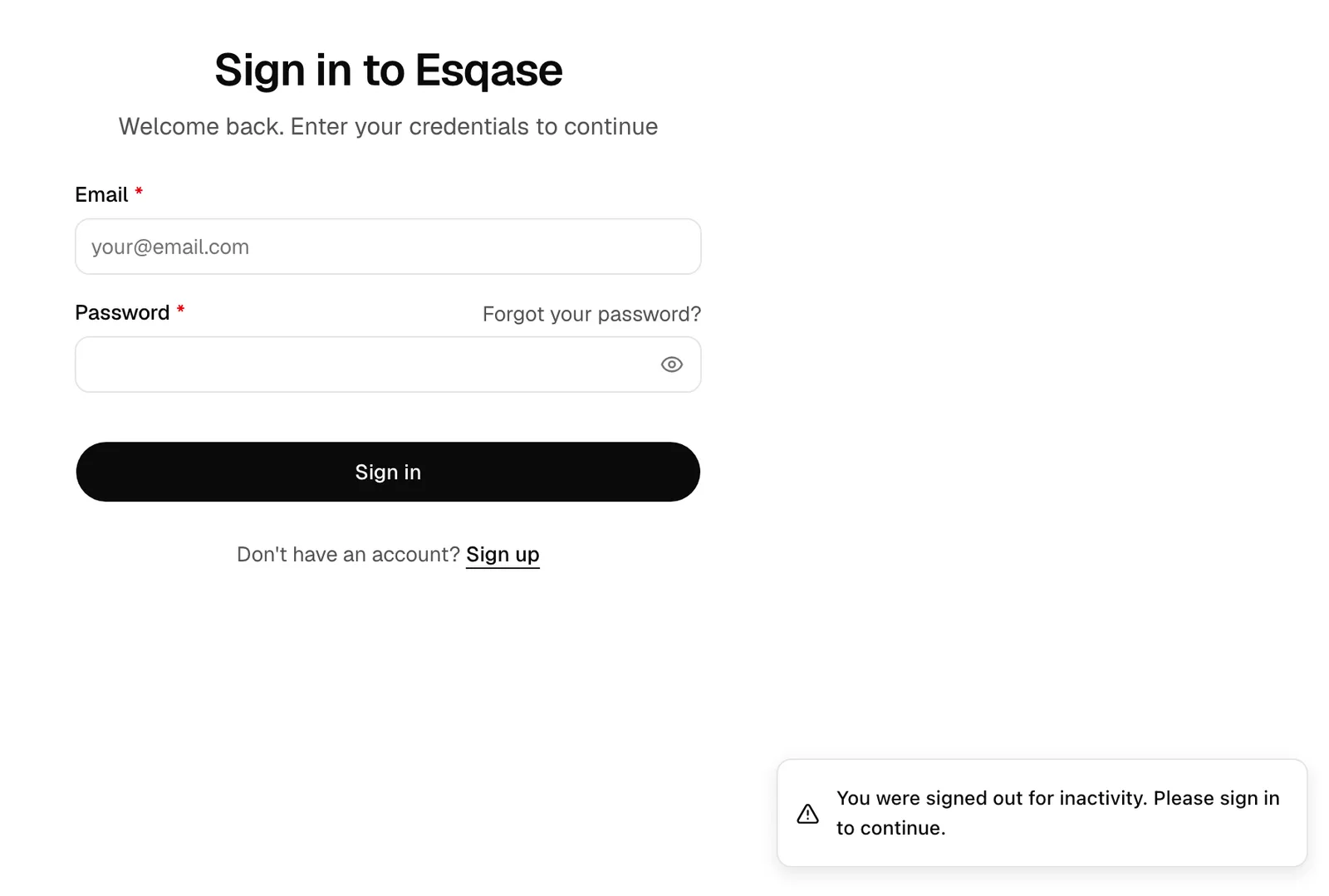
To get back in:
- On the sign-in page, enter your Email and Password.
- Click Sign in.
- You return to your dashboard. If you were deep-linked to a specific page when you were signed out, Esqase brings you back to that page after you sign in.
Tip: Being signed out does not lose your saved work. Anything you saved (matters, notes, time entries, and so on) is stored in Esqase. Only work you typed but had not yet saved when the session ended could be lost, so save regularly during long sessions.
Common questions
- Why was I signed out even though I had a tab open? Background activity (such as a page silently prefetching) does not count as you using the app. Only real interaction keeps your session alive, which is why an idle tab still times out.
- Can I stay signed in longer than 12 hours? No. The 12-hour maximum is a fixed security limit. After it, sign in again to continue.
- I clicked Stay signed in but was still signed out. If the maximum 12-hour session length had already been reached, Stay signed in cannot extend it. Sign in again to start a new session.