How clients book meetings
Esqase gives every firm a public booking page where prospective and existing clients can pick a date and time to meet with you, much like Calendly. When someone books, Esqase automatically creates a new contact, a new lead, and a tentative meeting on your calendar, so a request for a consultation turns into a tracked piece of work without any manual data entry.
This page is written from your (the firm's) point of view. It explains what your clients see and do on the booking page, and how the choices you make when you set up an event type shape that experience.
Before you begin
The booking page is generated from an event type (a bookable meeting type such as "Initial consult"). Before clients can book, make sure you have:
- At least one active event type with a host (or a list of hosts, for a round-robin type), a duration, and a booking link. See Event types (scheduling).
- A host with a working schedule. Available times come from the host's weekly availability, or, if the host has none, from your firm's availability. See Setting firm availability.
- A connected Google account on the host (recommended). For Google Meet event types, Esqase needs the host's Google connection to generate a meeting link. The connection also lets the calendar sync bring the host's Google events into Esqase, where they count as busy time. See Connecting Google (Gmail, Calendar, Meet).
Note: If your firm has not finished setup (for example, no lead stage or no default calendar for the host), the booking page will not accept bookings. Finish the Setup Guide first.
What clients see on your booking page
Each event type has its own public booking page. You share it by copying the booking link.
- In the sidebar, click Event types.
- Find the event type you want to share and click Copy link in its row. (You can also open the More actions menu, the ... button, for archive and other options.)
- Esqase copies the full booking URL to your clipboard. The link looks like
your-booking-domain/your-firm/your-meeting, where the last part is the event type's Booking link slug. Paste it into an email, your website, or a text message.
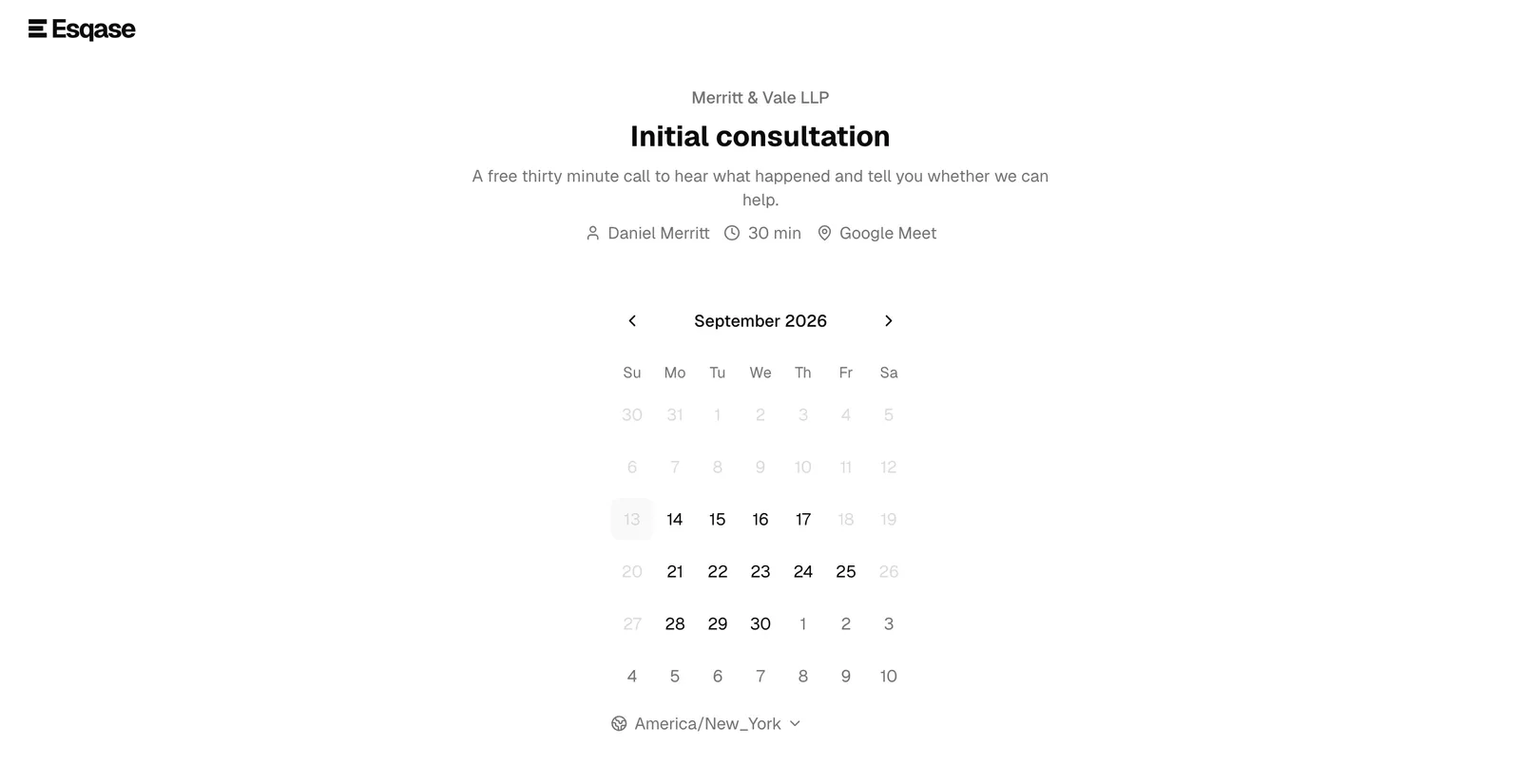
When a client opens the link, they see a clean, single-purpose page with no sign-in required:
- Your firm name at the top, then the event type name (for example, "Initial consult") and its description.
- A short summary line showing the host, the duration (for example, "30 min"), and the location (for example, "Google Meet" or "Phone call").
- A monthly calendar for picking a date, with unavailable days greyed out. Only days in the month on screen can be clicked, so a client cannot land on a date from the month before or after by mistake.
- A time zone indicator below the calendar.
How you control what appears
Everything on the booking page comes from the event type's settings:
- Name and Description become the page heading and subheading.
- Host is the member the meeting is with. Their name appears in the summary line. For a round-robin type, the summary line shows your firm name instead, and a Hosts line lists the hosts (see below).
- Duration sets the meeting length and the summary "min" value.
- Location sets the location label. Options include In person, Phone call, Google Meet, Zoom, Microsoft Teams, Ask customer (the client chooses from options you provide), and Custom (your own label). For Custom, you can also choose Show on booking page or Only after booking confirmation, which controls whether the location appears while the client is choosing a time or only after they finish booking.
To edit any of these, open Event types, click Edit on the row, change the fields, and save. The booking page updates immediately.
Important: Only active event types appear at a booking link. If you Archive an event type, its link stops accepting bookings and shows a "We could not find that booking page" message. Restore it from the event type's ... menu to bring the link back.
What clients see for a round-robin event type
An event type set to Round robin shares its bookings between several hosts, and the client never picks one. See Event types (scheduling). Its booking page differs from a single-host page in a few ways:
- The summary line shows your firm name where a single host's name would be, and a Hosts line underneath lists the members who take the meeting, for example "Hosts: Daniel Reyes, Sofia Cruz, Owen Park".
- The calendar offers a time whenever any of those hosts is free, so it often shows more open times than any one host's page would.
- Times are shown in the client's own time zone. Once the client picks a time, the page adds the same moment in your firm's time zone on a second line, labeled Firm time, whenever the two zones differ. If the event type locks the time zone, the page is locked to your firm's zone.
- After booking, the confirmation page names the host the booking went to, for example "Your host is Sofia Cruz." From then on the email and the meeting page show that host, just as they would for a single-host type.
If none of the hosts can take bookings (for example, every one of them is disabled or archived), the page shows "No times are available right now." instead of a calendar.
📷 Screenshot: A round-robin booking page, showing the firm name in the summary line, the Hosts line listing three members, and the calendar.
Booking a meeting
Booking is a two-step flow: the client picks a time, then fills in their contact details.
- The client opens your booking link.
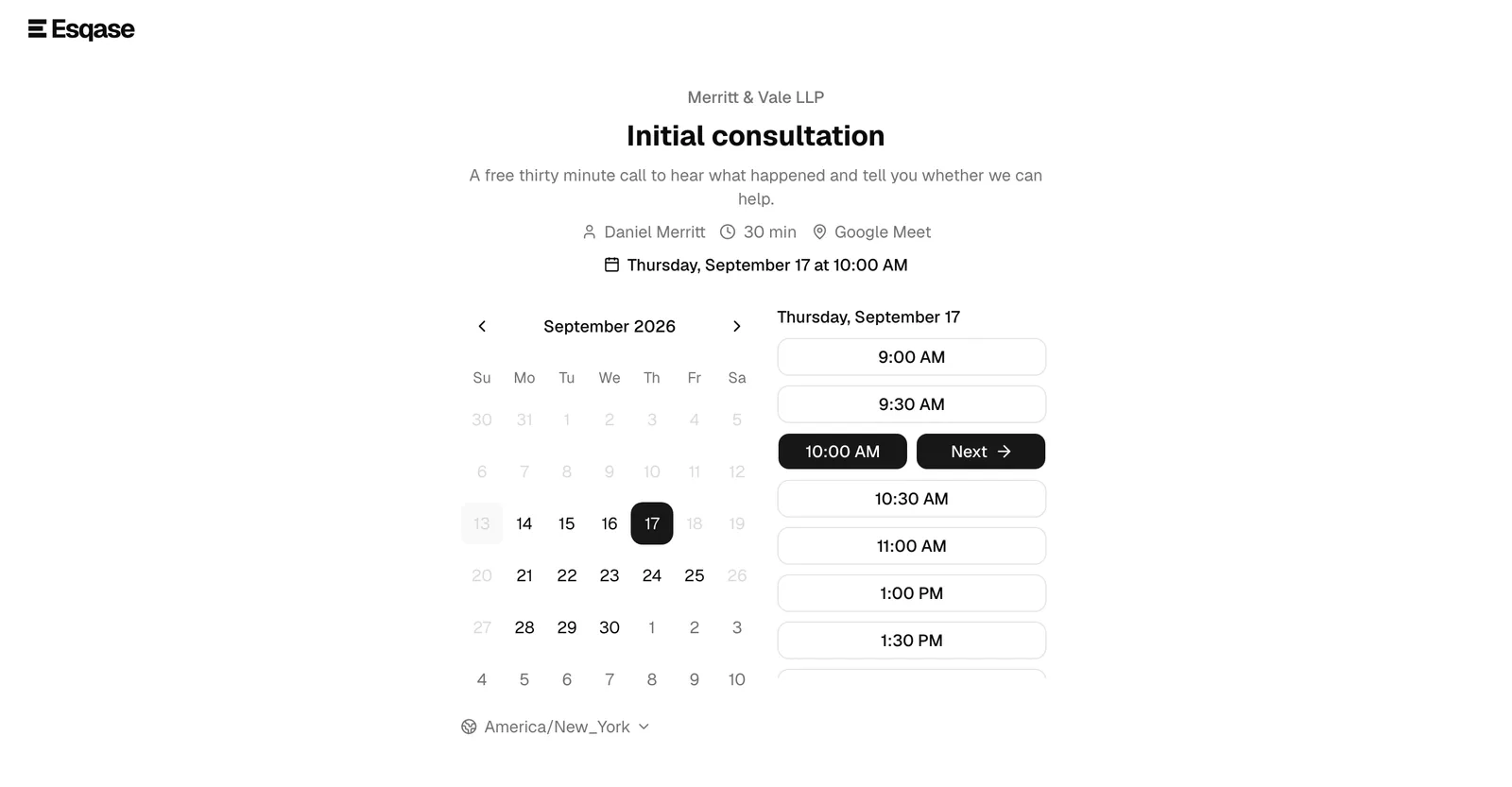
- On the calendar, the client clicks an available date. Days with no open times are disabled and cannot be selected, and neither are days that belong to the previous or next month.
- A list of time slots for that day appears beside the calendar. Each slot is a button showing the start time (for example, "9:00 AM").
- The client clicks a slot. The slot expands to reveal a Next button next to it.
- The client clicks Next to move to the contact form.
If the client picks a day with no open times, the page shows "No times are available on this day." They can pick a different day or use the month arrows to look ahead.
Note: If Esqase cannot load the month's availability at all (a dropped connection, for example), the page says so with "We could not load the available times for this month. Please try again." and offers a Try again button. It never shows an empty calendar in that case, so a client is never misled into thinking you are fully booked.
Providing details and an optional note
After clicking Next, the client sees a short contact form. The selected date and time stay visible at the top of the page so the client always knows what they are booking.
- The client fills in their name. First name and Last name are required. Prefix (for example, "Mr."), Middle name, and Suffix (for example, "Jr.") are optional.
- The client provides at least one way to reach them: Email, Phone, or both. If they leave both blank, the form asks for "an email or phone number." This contact detail is how the firm and the confirmation reach them.
- In the Anything to share? box, the client can add an optional note (for example, the nature of their legal matter). The helper text reads "Please share anything that will help prepare for our meeting." This note is saved with the lead so you have context before the meeting.
- The client clicks Schedule event. While it submits, the button shows "Scheduling...".
A line of fine print under the button notes that, by proceeding, the client agrees to Esqase's Invitee Terms and Privacy Notice.
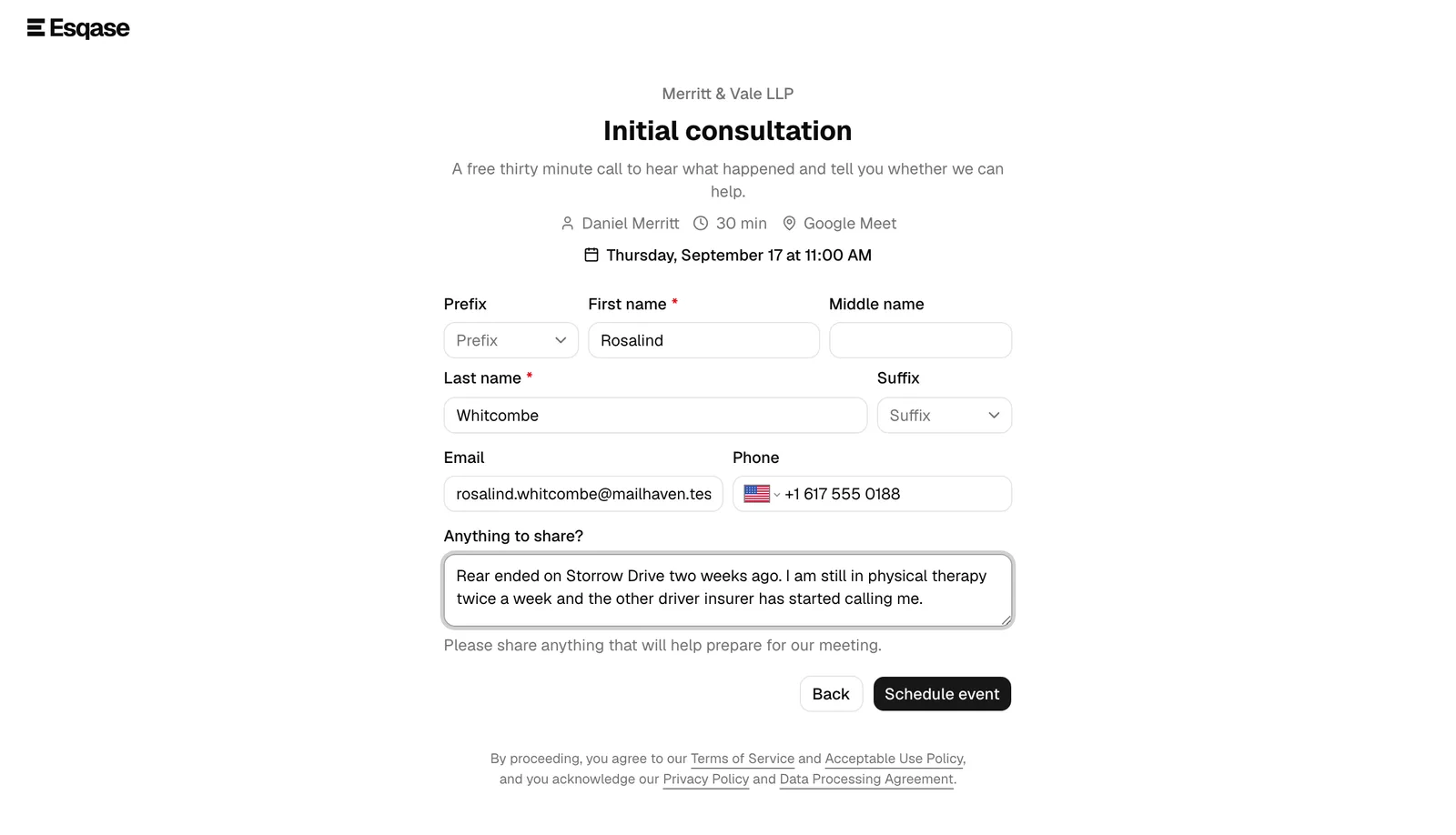
Tip: The client can click Back at any point on the contact form to return to the calendar and pick a different time without losing what they typed.
What stops a booking at the last second
To prevent double-bookings, Esqase re-checks availability the instant the client clicks Schedule event. If the chosen slot was taken by someone else (or filled by another calendar event) in the moments since they picked it, the booking is rejected with a message like "That time was just taken." The client simply chooses another open slot and tries again. This is normal and means the calendar stayed accurate.
Choosing or locking the booking time zone
Times on the booking page are always shown in a specific time zone, and the booking page makes the active time zone clear so there is never confusion about, say, whether "2:00 PM" is the client's time or yours.
You decide how the time zone behaves with the event type's Time zone display setting:
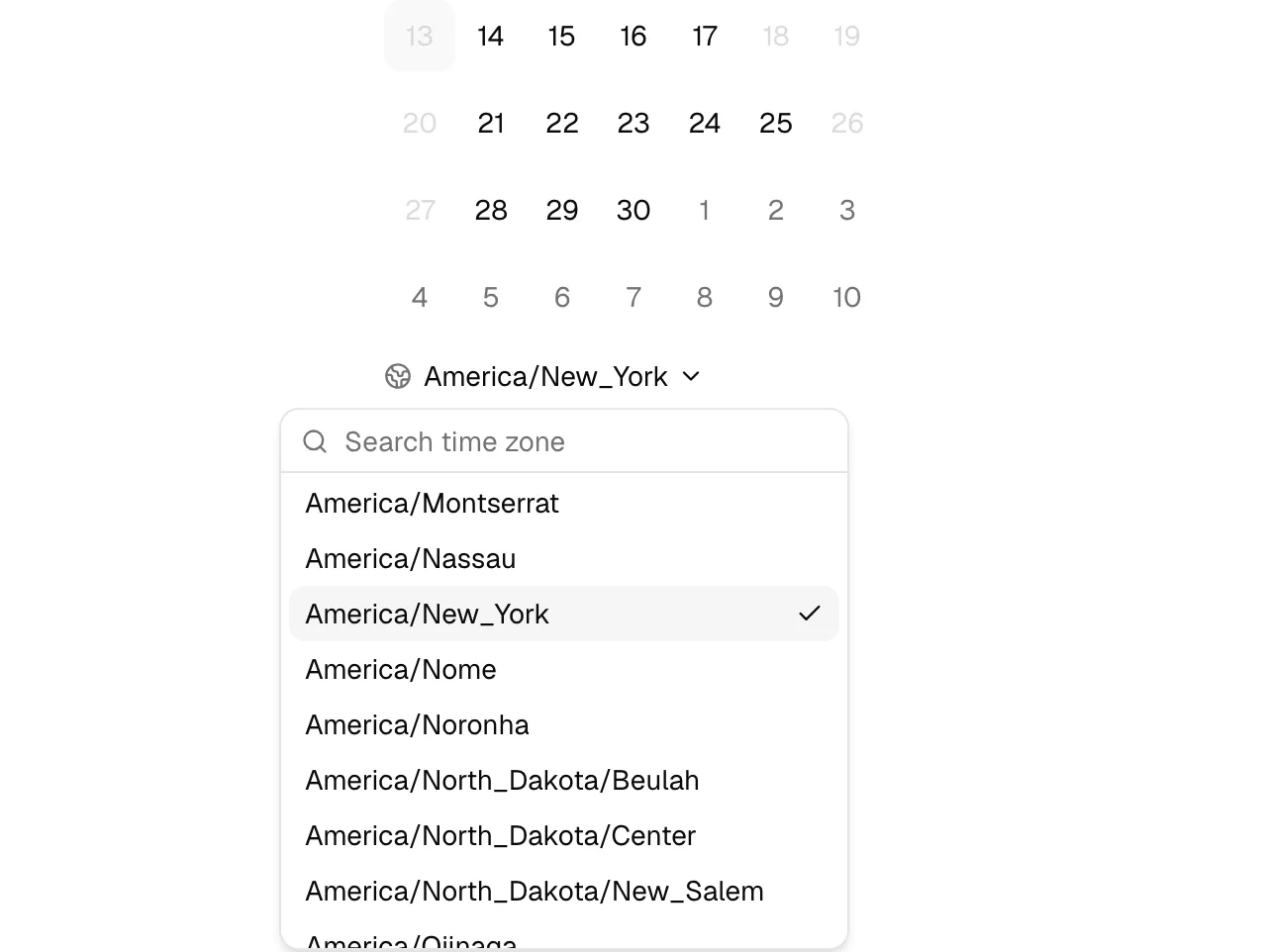
- Automatically detect and show the times in my invitee's time zone (the default). The booking page detects the client's own time zone and shows all slots in it. The client can also open the time-zone control under the calendar and pick a different zone if they are traveling or booking on someone else's behalf.
- Lock the time zone (best for in-person events). The page pins every time to the host's (or firm's) time zone, and the client cannot change it. On a round-robin page, the lock uses your firm's time zone, because its hosts may work in different zones. Use this for in-person meetings, where "3:00 PM" only makes sense in the office's local time.
On the booking page itself, the client sees a small globe and the current zone below the calendar. When the zone is not locked, that control is a searchable dropdown labeled by zone name; the client can type to filter and select a different zone.
Important: Changing the time zone re-displays all the slots at their equivalent local times and clears any date or slot the client had already selected, so they re-pick on the calendar. The actual meeting time never changes, only how it is labeled.
The zone the client booked in follows the meeting from there on. The confirmation page, the confirmation email, and the page where the client manages the meeting all lead with the client's own time zone. Whenever that differs from your firm's, they also show your firm's time on a second line, labeled Firm time, so neither side has to do the arithmetic. A client in Manila booking a New York firm sees "Wednesday, October 14, 2:00 AM, Philippine Standard Time" with "Firm time: Tuesday, October 13, 2:00 PM" underneath.
How available slots are computed
You do not pick the open times by hand. Esqase calculates them from your settings each time the page loads, so the booking page always reflects reality. In plain terms, a slot is offered only when all of these are true:
- It falls inside a working window. Esqase uses the host's weekly schedule. If the host has not set one, it falls back to the firm's weekly schedule. A specific date can override the weekly pattern (for example, a one-off closure or extended hours).
- The full meeting plus buffers fits. Esqase reserves the meeting length and any Before event and After event buffer time you configured on the event type, so back-to-back meetings keep breathing room.
- The slot is in the future. Past times and times earlier today are never offered.
- It does not overlap the host's busy time. Esqase checks the host's meetings and events in Esqase, including the busy time the calendar sync has already brought in from a connected Google or Outlook calendar, and hides any slot that would collide, buffers included. The sync runs about every ten minutes, so an event added in Google Calendar a moment ago may not block a slot until the next sync has run. An all-day court date on the host's calendar counts as free time and never blocks a slot, while a timed court hearing or trial does.
- The meeting limit is not reached. If you set a cap such as "3 meetings per Day," days that already hit the cap show no slots. Limits can be per Day, Week, or Month.
Whole days that end up with zero open slots appear greyed out on the calendar, so clients only ever click into days that can actually be booked.
For a round-robin event type, Esqase runs these checks for each host on their own, using that host's schedule, time zone, and busy time, and offers a slot when at least one host passes them all. Meeting limits are the exception: they count the event type's bookings across all of its hosts.
Tip: If clients report that no times are available, check the host's weekly availability, the event type's buffers and meeting limits, and whether the host's connected calendar is showing them as busy. These four settings, together, decide what clients can see.
To adjust the inputs:
- Change working hours in Setting firm availability (firm-wide) or on the host member's own schedule.
- Change Buffer times and Meeting limits on the event type. See Event types (scheduling).
What happens after booking
When the client clicks Schedule event and the slot is still open, Esqase confirms the booking and shows a confirmation page.
The confirmation page
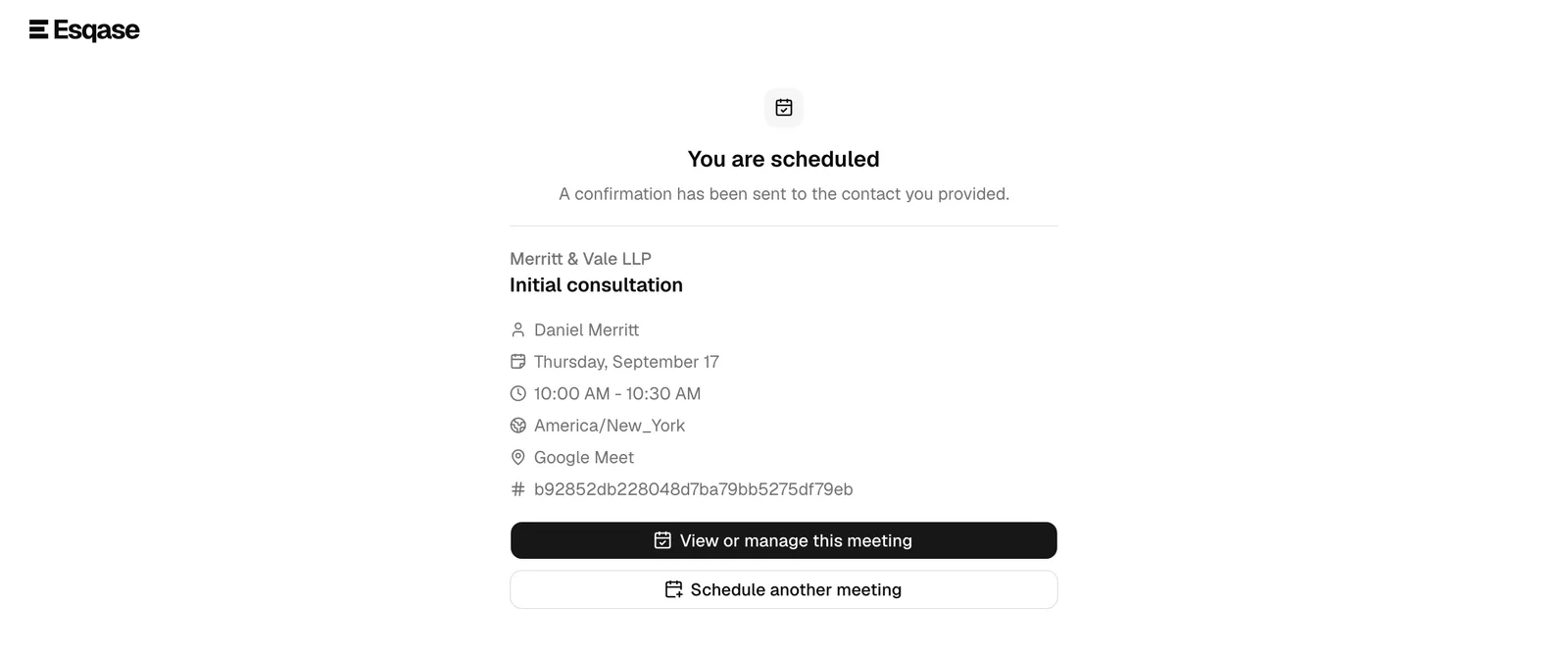
The heading tells the client exactly where the meeting stands, so nobody leaves thinking a time is locked in when it is not:
- You are scheduled, when the event type auto-confirms bookings. The time is theirs.
- Your meeting request is in, when the event type waits for your firm to confirm. The page adds "This time is held for you until [your firm name] confirms it."
Under the heading, the page says whether an email went out ("We sent the details to the email address you provided.") or, when the client gave only a phone number, asks them to "Save the details below." The page then lists:
- Your firm name and the event type name.
- The host, the date, and the start and end time, in the client's own time zone.
- The time zone, marked "your time zone" when it differs from yours, followed by a Firm time line giving the same meeting in your firm's time.
- The location, and, when applicable, a meeting link (for example, the Google Meet URL).
- A reference identifier for the meeting.
For a round-robin event type, a line under the heading also names the host the booking went to, for example "Your host is Sofia Cruz."
Two buttons appear:
- View or manage this meeting, which opens the stable per-event page (described below).
- Schedule another meeting, which returns to the booking page.
The confirmation email the client receives
As soon as a client books with an email address, Esqase emails them the details. You do not have to set this up, and it goes out whether or not the event type auto-confirms.
- The subject reads Meeting confirmed: [meeting name] on [date] when the event type auto-confirms, and Meeting requested: [meeting name] on [date] when it waits for your approval. The body of a request email says the time is held and is not confirmed until your firm approves it.
- The times are written in the client's own time zone, with a Firm time line giving your firm's time whenever the two differ.
- The email names the host, the location, and the meeting link when there is one.
- A calendar attachment comes with it, so the client can add the meeting to any calendar app in one click. The attachment is marked tentative until your firm confirms a booking that needs approval.
- Add it to your calendar links for Google Calendar and Outlook sit underneath, for clients who prefer a link to an attachment.
- A link back to the meeting page rounds it off, where the client can check the status or ask for a different time.
The email comes from Esqase on your firm's behalf and tells the client to contact your firm directly with any questions.
Note: A client who books with a phone number and no email address gets no email, because there is nowhere to send it. The confirmation page tells them to save the details from the screen instead, and your firm still gets the contact, the lead, and the meeting.
What your firm receives
Behind the scenes, a single booking populates several places in your dashboard automatically:
- A new contact is created from the name and email or phone the client entered. See Working with contacts.
- A new lead is created and assigned the next lead number. If the client wrote a note, it is saved with the lead. A Booking source (plus a source named after the event type) is attached so you can see where the lead came from. See Managing leads and Lead sources.
- A tentative event is added to your calendar with the host and the client as guests. See Calendar and events.
- A workflow is attached, if you assigned one. If the event type has an assigned workflow, its steps are copied onto the new lead. They wait for your team by default: a lead that arrives from your booking page does not run its automatic steps until somebody clicks Start automation on the lead, unless the workflow's own Automation switch is on and a firm owner or administrator has turned on Leads from public pages and the API under Settings > Firm > Automation, in which case they start by themselves. See Workflows and the builder and Automation settings.
- The booked meeting fills the workflow's Event step. If that workflow has an Event step, the meeting the client just booked lands on it instead of showing up as a second item, so the lead reads as one meeting rather than two. A step pinned to a particular event type is only filled by a booking of that type; a step left on None takes any booking. This happens whether or not the lead's automatic steps are allowed to run, because it records what the client did. See Workflow step types.
Note: If the client did not provide an email, Esqase still records the booking and creates the contact and lead from the phone number. The confirmation email and any email-based follow-up will not reach a client who only gave a phone number, so call them to confirm.
Auto-confirmed vs pending bookings
Whether a booking is instantly confirmed or waits for your approval depends on the event type's Auto-confirm bookings toggle.
- Auto-confirm bookings on. The meeting is confirmed the moment the client books. The host is marked as attending, and the meeting is live on the calendar right away. The client sees You are scheduled and gets a Meeting confirmed email. If the lead's workflow has an Event step, that step is completed at once and the workflow moves on.
- Auto-confirm bookings off (the default). The booking is recorded as tentative and waits for a member to approve it from the dashboard. The client sees Your meeting request is in, told the time is held until your firm confirms it, and gets a Meeting requested email that says the same. They can still manage the meeting, but the host's attendance is pending until someone on your team accepts the request. If the lead's workflow has an Event step, that step sits on Waiting until a member approves the booking, and then completes on its own. The helper text on the setting reads "When off, new bookings are tentative until you approve them."
To change this, open Event types, click Edit on the row, toggle Auto-confirm bookings, and save.
Tip: Leave auto-confirm off when you want a human to vet new consultation requests (for conflicts, fit, or capacity) before committing the host's time. Turn it on for low-stakes, always-available meeting types.
Approving and managing tentative bookings happens on your side, on the firm calendar. See Calendar and events.
Viewing and managing a meeting (the per-event page)
Every booked meeting has a stable, durable page the client can return to at any time. It is where they confirm attendance and request changes. The client reaches it from the View or manage this meeting button on the confirmation page, or from a link in their confirmation email.
Because this page can expose meeting details, it is protected by a sign-in step (covered in the next section). Once signed in, the client sees:
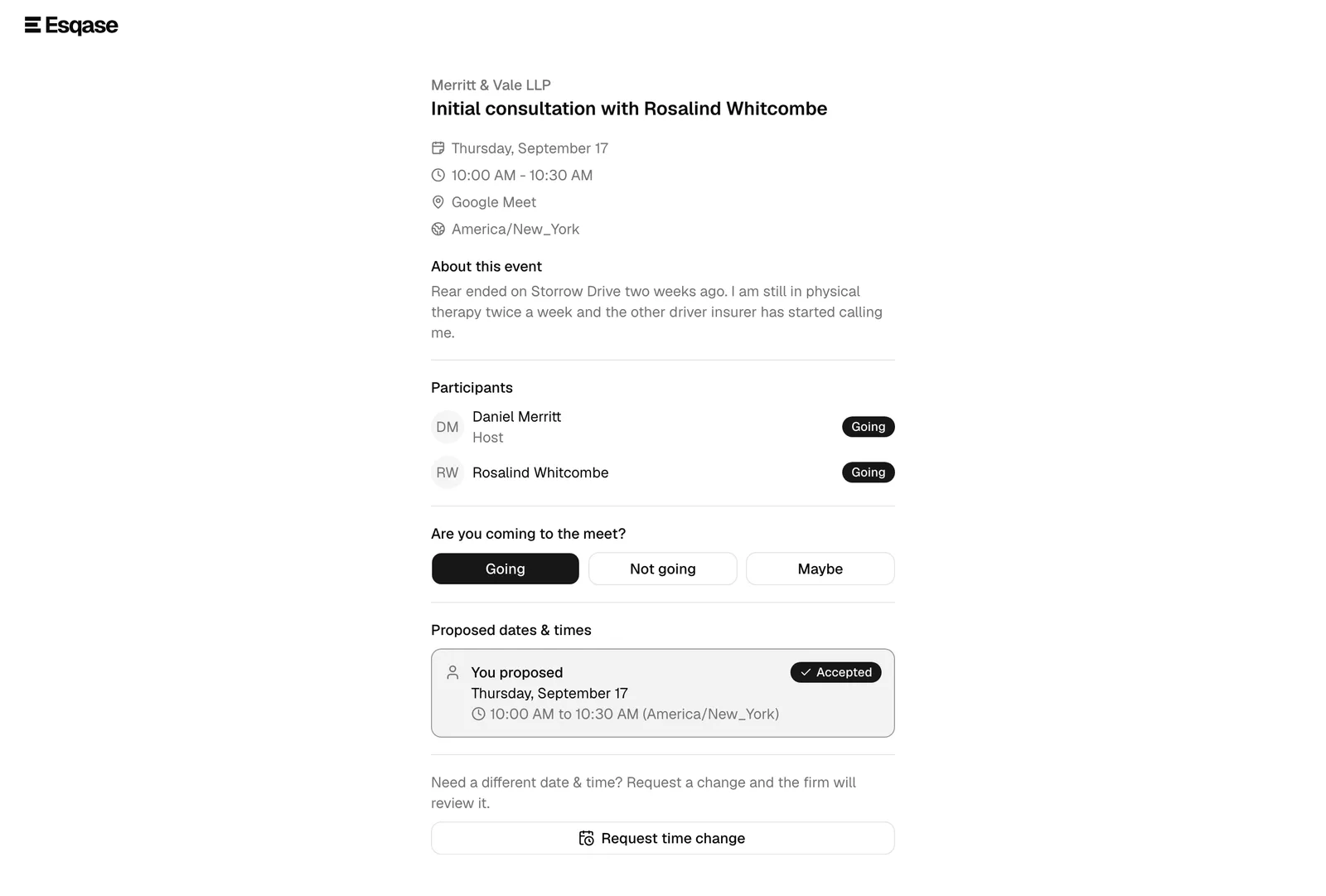
- The firm name, meeting title, date, time, time zone, location, and, when present, a meeting link with a Join meeting button. The date and time are in the client's own time zone, with your firm's time on a Firm time line beneath whenever the two differ.
- An About this event section, if the meeting has a description.
- A Participants list, showing each guest, who the Host is, and each person's RSVP status (Going, Not going, Maybe, or No response).
- Controls to RSVP and to request a different time.
RSVP yes or no
Under the participant list, the client sees "Are you coming to the meet?" with three buttons:
- The client clicks Going, Not going, or Maybe.
- The choice saves immediately and updates the client's badge in the participant list.
The client can change their RSVP as many times as they like before the meeting. Their response is visible to your team on the firm calendar.
Proposing a new time (rescheduling) and the negotiation
If the meeting time no longer works, the client can ask for a different one without canceling. Esqase handles this as a back-and-forth negotiation, so both sides agree before anything moves.
To propose a new time:
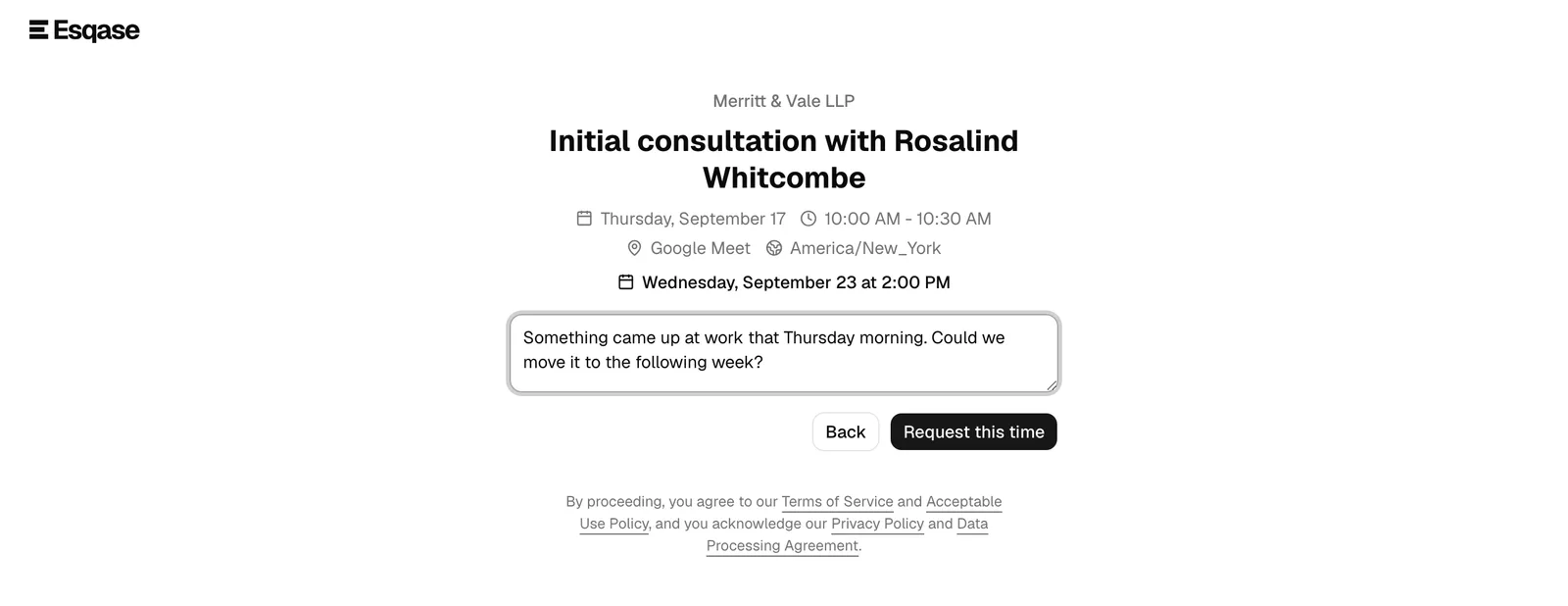
- On the per-event page, the client clicks Request time change (the wording is Request schedule change for an unconfirmed invite).
- The familiar date-and-time picker appears, showing the host's currently open slots. For a meeting booked from a round-robin event type, these are the open slots of the host the meeting was assigned to, and the host does not change. These are the host's genuine working hours, read from their weekly schedule (or your firm's, when the host has none) and from any date-specific hours either of you has set, so a client cannot ask for a time you were never open for. The client picks a date, then a slot, then clicks Next.
- The client can add an optional note for the firm, then clicks Request this time (or Propose this schedule).
- The page returns to the overview and shows the proposed time as Pending, with the message "Waiting for the firm to confirm your requested time."
While a client proposal is pending, the client can:
- Choose a different time, which replaces the pending proposal with a new one.
- Cancel request (or Cancel proposal), which withdraws their proposed time and leaves the meeting as it was.
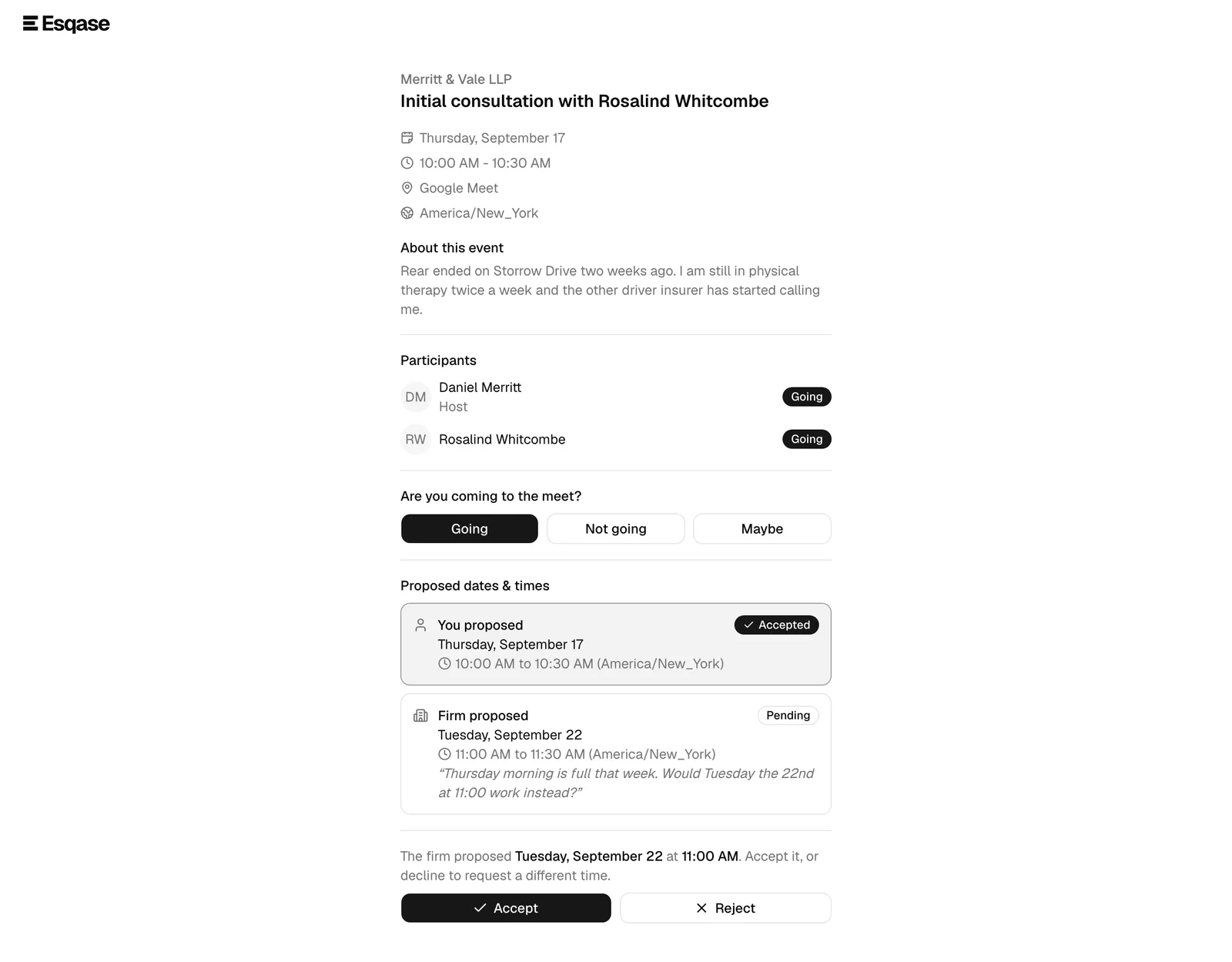
The negotiation can also go the other way. When your team proposes a new time from the dashboard, the client sees it on this page as "The firm proposed [date] at [time]," and can:
- Accept, which confirms the new time and updates the meeting.
- Reject (or Propose new schedule), which declines the firm's proposal so the client can request a different time instead.
A Proposed dates & times history lists each offer, who made it (Firm proposed or You proposed), the time, any note, and its status (Pending, Accepted, Declined, or Withdrawn), so both sides can follow the conversation.
The whole negotiation stays in the client's own time zone. The picker names the zone it is offering slots in beneath the date grid, the slot the client selects is echoed back with a Firm time line giving the same moment in your firm's time, and every entry in the Proposed dates & times history carries the same pairing, so a client in another country never has to work out what your offer means on their clock.
When the client accepts a time your firm proposed, or approves a reschedule, two things follow on your side without anyone doing anything: the host is sent a Meeting time confirmed notification giving the agreed time in their own zone (plus the client's time when the two differ), and the meeting is pushed to the host's connected Google or Outlook calendar. See Notifications and Calendar and events.
Note: Only one proposal from each side can be outstanding at a time. Submitting a new proposal supersedes the previous one (it shows as Withdrawn in the history). The meeting time only actually changes when one side accepts the other's pending proposal.
Meeting invitations a workflow sends, and the reminders that follow
Not every meeting starts with the client finding your booking page. A workflow step can invite a client to pick a time, which is how a consultation usually gets booked after a lead comes in.
- Esqase emails the client from <Your firm name> via Esqase, with the reply address your firm chose under Settings > Firm > Automation.
- The email carries a link to choose a time. The client opens it, confirms who they are, and picks a slot, exactly as they would on your booking page.
- The time comes back to your firm as a scheduling request to accept. Once the meeting is confirmed, the client gets the confirmation email and the workflow moves on to its next step.
If the step has reminders turned on, Esqase chases the client on the step's schedule until they pick a time. Reminders stop when the client books, when the step reaches the number of reminders it was given or your firm's reminder cap, when the step has been waiting longer than your firm allows for chasing, or when a reminder cannot be sent at all. In every case but the first, the firm gets a Workflow waiting on a client notification as the chasing stops, naming the step and how many times the client has been reminded, so a person can follow up instead. A member can also send the invitation again by hand from the step.
Note: If your firm set a sending window, the invitation and every reminder wait for that window in your firm's time zone.
See Calendar and events for the firm's side of a scheduling request, and How automation runs your workflows for how the steps around it run.
Signing in to a meeting
The per-event page is gated so that only people on the meeting can open it, and most of the time the client does nothing at all.
A client already signed in to Esqase sees Signing you in for a moment and then the meeting. A client who is not signed in is taken to their Esqase client portal sign-in panel, which says "Sign in to open your meeting", signs in with a 6-digit code Esqase emails them or with Continue with Google, and lands back on the meeting. How clients sign in covers all of it.
The emailed sign-in link is the fallback on the meeting page itself, shown when the automatic sign-in is refused or does not apply. It needs no account:
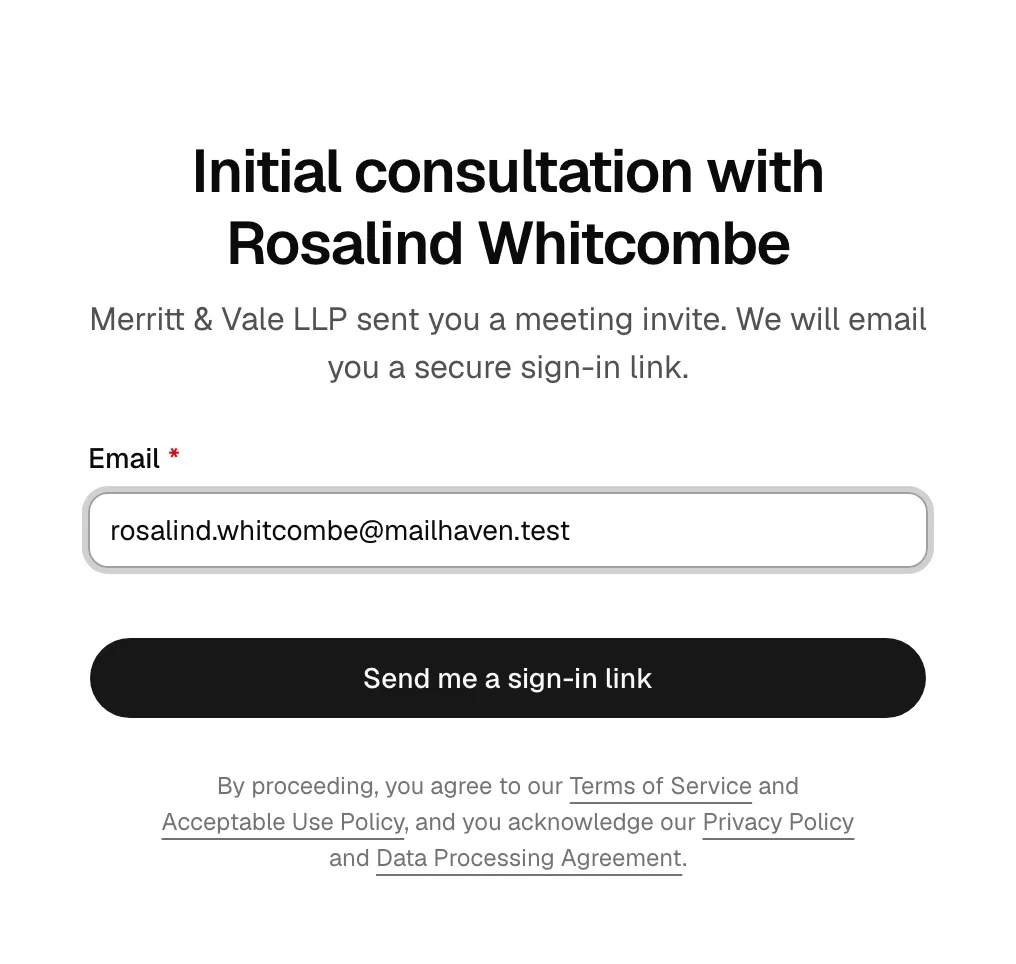
- The client sees a sign-in screen asking them to "Enter the email the firm has on file and we will send you a secure sign-in link to view this meeting."
- The client types their email and clicks Email me a sign-in link.
- The page confirms with "Check your email," noting that if that address is on the meeting, a secure sign-in link was sent. (The client can click Use a different email if they entered the wrong one.)
- The client opens the email and clicks the link on the same device. Esqase verifies it ("Signing you in"), then shows the meeting.
Either way the client stays signed in on that device for the next two weeks, so a meeting page they come back to opens straight away. An invitation that asks a client to pick a time is different: it is a one-off link with no meeting behind it yet, and it keeps the emailed sign-in link only.
Important: Every method checks the same thing: the address must be one the firm has on the meeting (the client's own email, or the host's). A client signed in with a different address sees "You're signed in to Esqase with a different email address" and the email sign-in form underneath it. If a client cannot get in, confirm the email address on their contact record matches the one they are entering. Links are single-use and expire; if a link is "invalid or has expired," the client simply requests a new one.
Note: When a client requests a sign-in link for a meeting that is tied to a matter or lead, the link email is recorded on that record's Communications tab in the dashboard, so your team can see that the client asked for access. See Logging communications.
From the Esqase Client app
A client who uses the Esqase Client app sees the meetings they are a guest on in the Events tab, as a calendar or a list, with their reply to each. Tapping a meeting and then View opens this meeting page inside the app, already signed in.
- RSVP and proposing a new time work as described above. When the client changes their reply, the app closes the page and refreshes the meeting.
- Join meeting opens the meeting link in the phone's browser or meeting app.
- If the page cannot be opened in the app, the app says "Open this from your email", and the link in your invitation email still works.
Common questions
Do clients need an Esqase account to book or manage a meeting? No. Booking requires nothing but the public link, and managing a meeting only requires access to the email the firm has on file. A client who does have an Esqase account is simply recognised without waiting on an email.
Can a client cancel a meeting from this page? The per-event page is for confirming attendance (RSVP) and proposing a different time. To cancel outright, the client should RSVP Not going or contact your firm. Removing or canceling the event itself is done by your team from the firm calendar.
The booking link shows "We could not find that booking page." Why? The event type is archived or paused, or the link is mistyped. Restore the event type, or copy a fresh link from Event types and resend it.
A client says no times are available. What should I check? Confirm the host has a weekly schedule (or that your firm availability is set), that the event type's buffers and meeting limits are not too tight, and that the host's connected calendar is not blocking the whole window as busy. For a round-robin type, also confirm that at least one of its hosts is active and has a calendar in Esqase; the Event types table shows No eligible host when none of them can take bookings.
A client says the time in their email is not the time we agreed. Who is right? Both of you. The confirmation page and the email lead with the client's own time zone and add your firm's time on a Firm time line, so the same meeting is written two ways. Compare the Firm time line with what you see on your calendar.
Does the Esqase Client app add meetings to the client's phone calendar? No. Meetings appear in the app's Events tab. The app does not write them to the phone's own calendar.
Did the client get an email? Yes, as long as they booked with an email address. The confirmation page says "We sent the details to the email address you provided." when it went out, and "Save the details below." when the client gave only a phone number.