Browsing matters
A matter is a single legal case or piece of work you handle for a client (a lawsuit, a contract, an estate plan, and so on). The Matters page is your home base for every open and closed case at the firm. From here you can search and filter the full list, switch to a visual Stages board, move cases through your workflow by dragging cards, and open any matter to its full workspace.
Before you begin
- You reach this page by clicking Matters in the left sidebar.
- You need view access for matters. If your role does not include view access, the page shows a no-access message instead of the list. Firm owners and administrators have full access by default; attorneys can typically view and edit matters, and staff often have view-only access. Your firm owner controls this through Roles and permissions.
- The Stages board only works once your firm has at least one practice area with stage columns set up. If you have none yet, see Practice areas and stages.
View and search the matters list
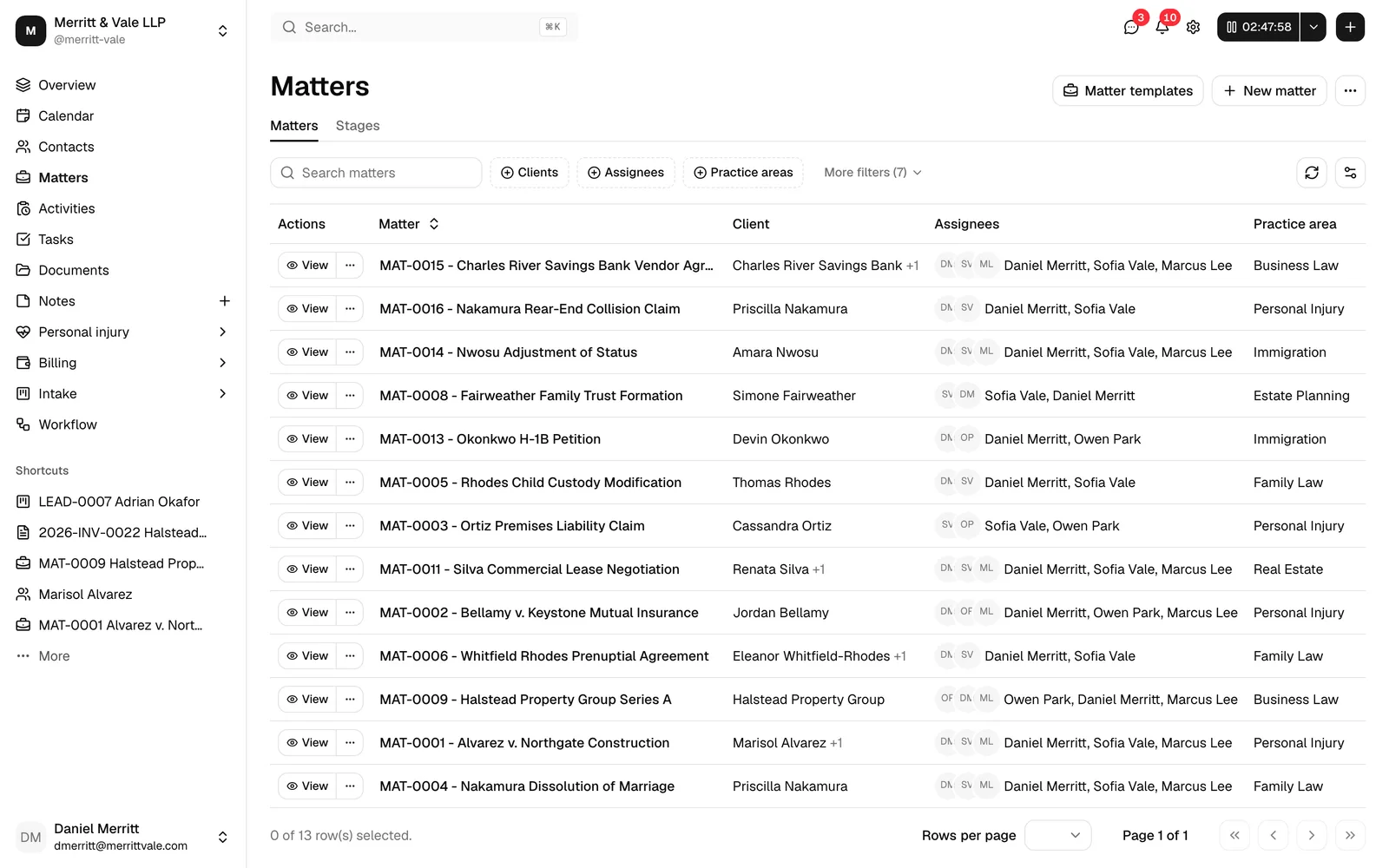
The default view is the Matters tab, a sortable, filterable table of your cases. By default it shows only Active matters so your busiest cases stay front and center.
- In the sidebar, click Matters.
- Make sure the Matters tab is selected (it is the default).
- Browse the rows, or use the toolbar above the table to narrow the list (described below).
What the columns show
Each row represents one matter. The table includes:
- Matter: the matter's reference number and its title, separated by a dash (for example,
MAT-0042 - Smith v. Acme Corp). Click this link to open the matter. You can sort by clicking the Matter column header. - Client: the primary client on the matter. Click the name to open that contact. If the matter has more than one client, a
+1style count follows the primary name; point at that count to see who the other clients are. - Responsible: the firm members assigned to the matter, shown as a small stack of avatars with their names. Click an avatar or a name to open that member's page.
- Practice area: the area of law the matter belongs to (for example, Family Law or Personal Injury).
- Stage: the current stage column the matter sits in within its practice area (for example, Intake, In Progress, or Closed).
- Court: the court hearing the matter, by its short name when it has one. See the note below for who sees it.
- Open date: the date the matter was opened. Sortable.
- Close date: the date the matter was closed, if any. Sortable.
- Statute: the statute-of-limitations date, the legal deadline after which a claim can no longer be filed. Sortable.
- Next court date: the earliest court date on the matter that is still open, so a date that has passed without being closed shows here too.
- Last updated: how recently the matter changed, shown as a relative time (for example, "2 days ago").
- Actions: a View button (and, if you have edit access, a menu with Edit) for each row. See Open a matter to its workspace.
Note: A Status column exists but is hidden by default, because the list is already filtered to Active matters. You can turn it on (and hide other columns) using the view options control, described below.
Note: The Court and Next court date columns, and the court filters described below, appear only if your role includes View access for Court dates and your firm follows at least one court under Settings > Firm > Court rules. See Working with court dates.
Search
Use search to find a matter by its number, title, description, practice area, a client's name, or its court's name or case number.
- In the toolbar, type into the Search matters box.
- The list updates as you type. Clear the box to remove the search.
Filter the list
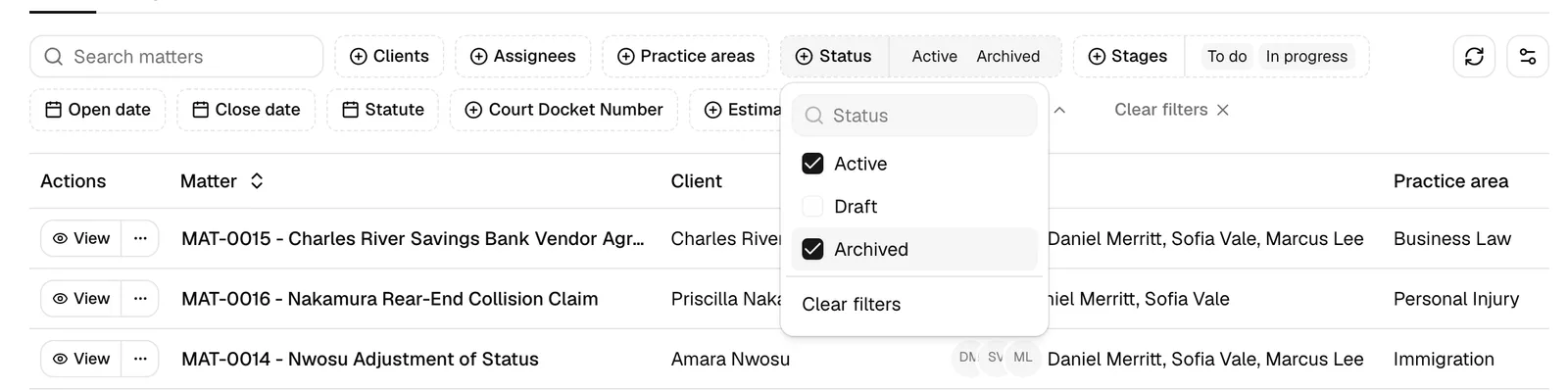
The toolbar has four filters. Each opens a checklist where you can select one or more values; the list narrows to matters matching your selections.
- Status: filter by lifecycle state. The options are:
- Active: open, live matters (the default).
- Draft: matters saved from the new-matter wizard before all steps were finished. See Creating a matter.
- Archived: matters that have been archived (closed out of the active list).
- Client: filter to matters for specific clients.
- Responsible: filter to matters assigned to specific firm members.
- Practice area: filter to matters in specific practice areas.
Tip: To see every matter regardless of state, open the Status filter and select Active, Draft, and Archived together.
When any filter or search differs from the default, a Clear filters button appears in the toolbar. Click it to reset everything back to the default Active-only view.
If your firm follows courts, two more filters narrow the list by court. Courts keeps the matters whose court is one of the courts you pick, and Next court date keeps the matters whose next open court date falls in the date range you choose. Both sit behind More filters until you use them, and like your other filters they are remembered the next time you open the list.
📷 Screenshot: The matters table with the Court and Next court date columns showing, and the Courts filter open listing the courts the firm follows.
Sort and choose columns
- Sort: Click a sortable column header (Matter, Open date, Close date, Statute, or Last updated) to sort by that column. Click again to reverse the direction.
- Choose columns: Use the view options control at the top right of the table to show or hide columns (for example, to turn on the Status column or hide Close date).
- Refresh: The same control includes a refresh action to reload the list with the latest data.
Move through pages
The matters list is paginated. Use the controls at the bottom of the table to change the page and the number of rows shown per page. Searching, filtering, or sorting returns you to the first page of results.
Common questions
Why don't I see a matter I just created? If you saved the new-matter wizard before completing every step, the matter is saved as a Draft and is hidden by the default Active filter. Open the Status filter and add Draft to see it.
Why is the list empty? Either no matters match your current filters (click Clear filters), or the firm has no matters yet. When your firm has no matters at all, the page shows a No matters yet panel with New matter and Import matters buttons. If you have create access, click New matter to add one, or Import matters to bring in many at once. See Importing matters from CSV.
How do I add many matters at once? Use the More matter options ("...") menu in the top right and choose Import matters to upload a CSV. See Importing matters from CSV.
I don't see the New matter or Edit buttons. Those actions require create or edit access for matters. If your role is view-only, the buttons are hidden, but you can still open and read matters.
Switch the matters list to the Stages kanban view
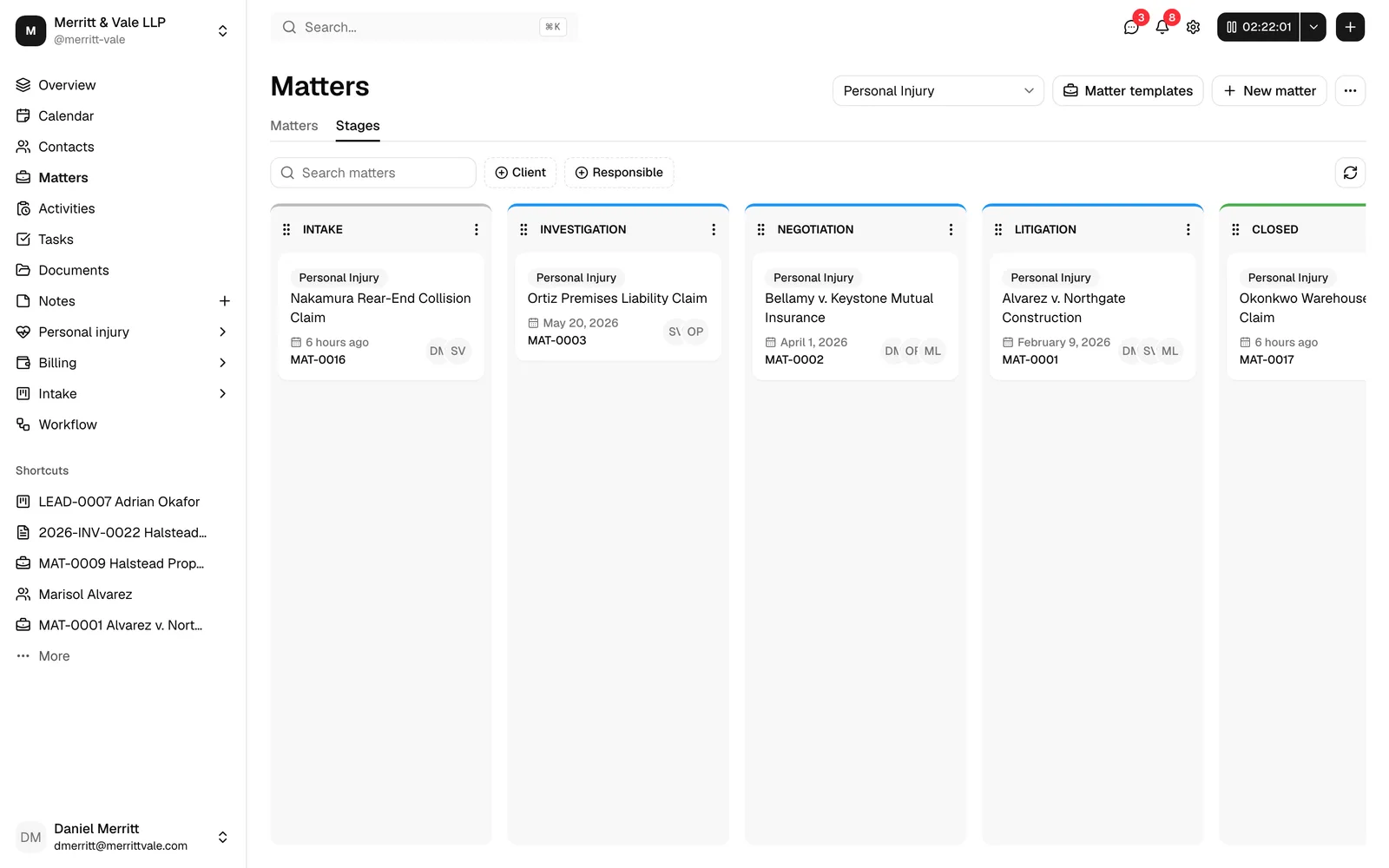
The Stages view is a kanban board: a set of columns (one per stage of your workflow) with each matter shown as a card. It gives you an at-a-glance picture of where every case stands and lets you move cases forward by dragging cards. Each board shows one practice area at a time, because stages are defined per practice area.
- On the Matters page, click the Stages tab.
- If your firm has more than one practice area, a Select practice area picker appears in the top right. Choose the practice area whose board you want to see. Esqase remembers a sensible default (typically the practice area of your most recent matter).
- The board loads with one column per stage in that practice area. Each matter in that practice area appears as a card in the column for its current stage.
Each card shows the matter's reference number, its title, a practice-area badge, the open date, and the avatars of the responsible members. Click a card to open that matter's workspace.
Search and filter on the board
The board has its own toolbar, separate from the table:
- Search matters: filter the cards by matter number, title, description, practice area, or client name.
- Client: show only cards for the selected clients.
- Responsible: show only cards assigned to the selected members.
- Clear filters: appears when a search or filter is active; resets the board.
- A Refresh button reloads the columns and cards.
Note: The Status filter from the table is not on the board. The board shows the active matters that belong to the selected practice area, organized by stage.
Important: If you select the Stages tab and see the message "Create a practice area first to use the stages kanban," your firm has no practice areas yet. Set one up under Manage practice areas (also reachable from the more-options menu on the Matters page) before using the board. See Practice areas and stages.
Move a matter between stages on the kanban with drag and drop
Dragging a card to a different column changes the matter's stage. This is the fastest way to advance a case through its workflow (for example, moving a card from Intake to In Progress). You need edit access for matters to do this.
- Open the Stages tab and select the right practice area.
- Click and hold a matter card.
- Drag it onto the target stage column (or to a specific position within that column to reorder it).
- Release. The card stays where you dropped it, and a brief "Moving matter..." message confirms the change, followed by "Matter moved."
What happens behind the scenes: the matter's Stage updates to the new column, and the change is recorded on the matter's activity timeline, so anyone can see when and by whom the case was moved. The new stage is reflected in the Stage column back on the Matters table too.
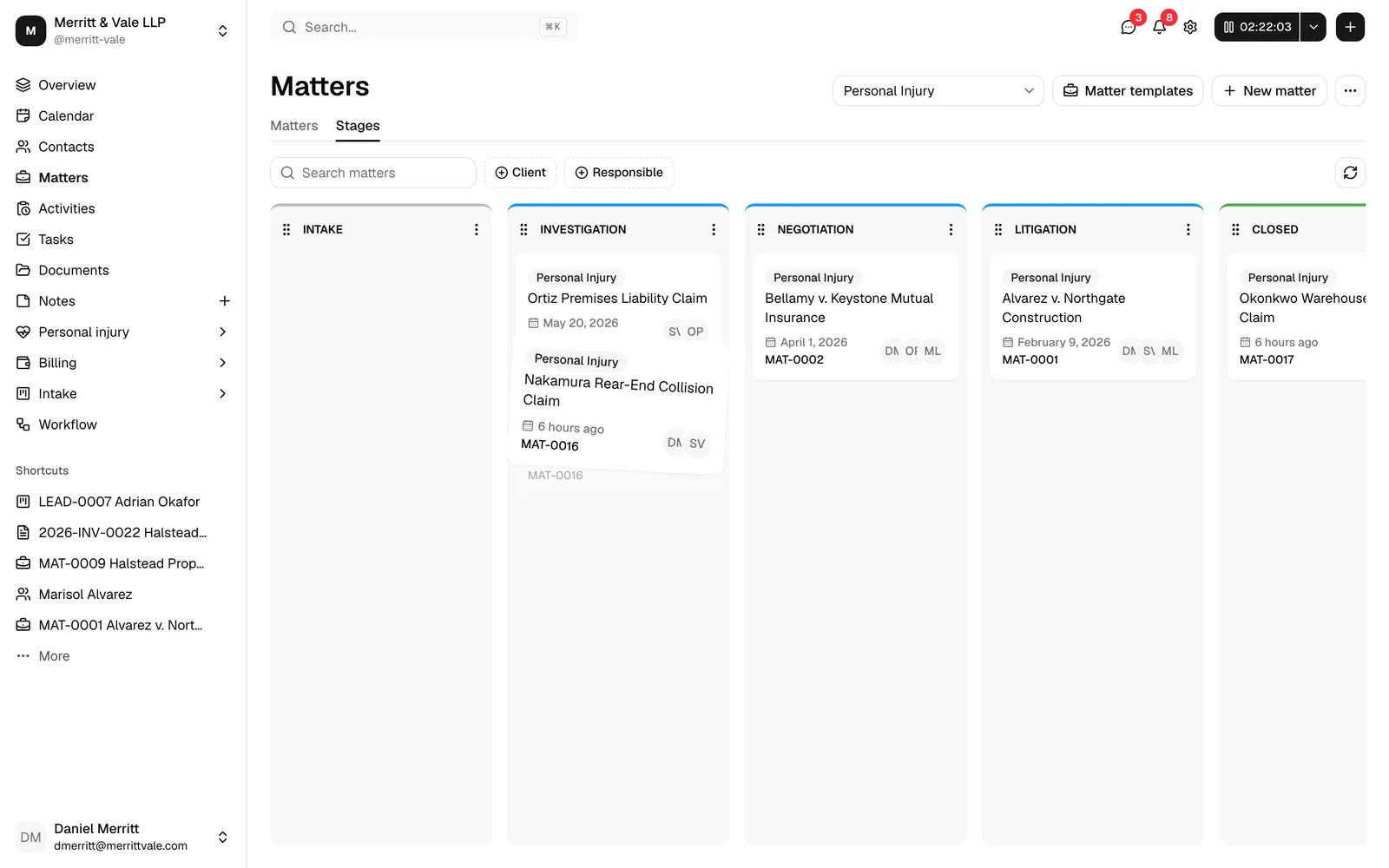
Tip: You can also reorder cards within the same column by dragging a card above or below another card. This sets the order in which cards appear in that stage.
Note: If a move can't be saved (for example, a momentary connection issue), the card snaps back to where it started and an error message appears. Just try again.
Managing the stage columns themselves
If you have edit access, each column has options to rename or remove it, and you can add a new column to the board. You can also drag a whole column left or right to reorder your stages. Deleting a stage column is permanent and cannot be undone, so move any cards out of it first. For the full setup of practice areas and their stage columns, see Practice areas and stages.
Open a matter to its workspace
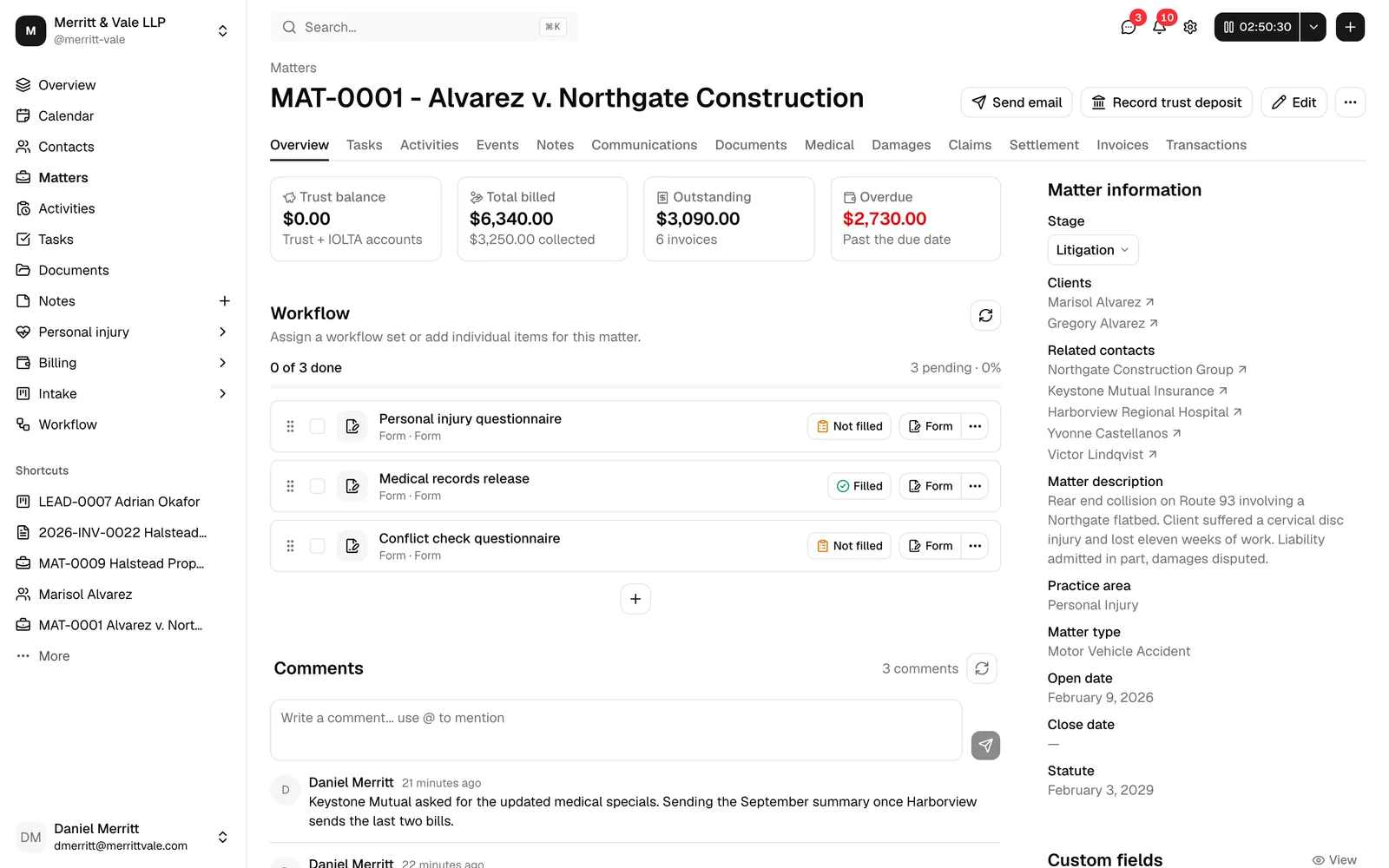
Opening a matter takes you to its workspace, the single place that holds everything about that case: its overview, tasks, time entries, events, notes, communications, documents, invoices, and trust transactions.
There are several ways to open a matter:
- From the table: Click the matter's name in the Matter column, or click the View button in the Actions column on that row.
- From the board: Click anywhere on the matter's card.
- To edit directly: If you have edit access, open the Actions menu (the ... button) on a table row and choose Edit to jump straight into the matter wizard. See Creating a matter.
Once open, the workspace shows the matter's number and title in the header, with action buttons (such as Record trust deposit and Edit, plus a copy-link button) for users with the right access. Below the header is a row of tabs:
- Overview: key figures (trust balance, billed, outstanding, overdue), the clients and related contacts, and a recent-activity timeline.
- Tasks: to-dos for the matter.
- Activities: time and expense entries.
- Events: calendar events linked to the matter.
- Court dates: the matter's court and its court dates, when your firm uses court rules and your role can view court dates.
- Notes: internal notes.
- Communications: logged phone calls and emails.
- Documents: the matter's files and folders.
- Invoices: bills raised on the matter.
- Transactions: payments and trust account movements.
For a full tour of everything in the workspace, see The matter workspace.
Tip: Your spot on the page is remembered in the address bar, so you can bookmark a matter on a specific tab (for example, its Documents tab) and return to it later.