Tax rates
Tax rates are your firm's reusable catalog of taxes (for example VAT, GST, or Sales Tax). Each rate records a name, an optional description, the country it applies to, and a percentage. Expenses and invoice lines point at a rate from this catalog, and Esqase calculates the tax on the invoice from it. You manage this catalog once under Settings, then keep it tidy as your billing needs change.
Note: Every invoice line keeps a snapshot of the percentage that applied when it was raised, so changing a rate here never rewrites an invoice you have already created. See How tax rates apply to invoice tax totals.
Before you begin
-
Where it lives: Tax rates are in your firm settings, under Settings > Tax.
-
Permissions: What you can do depends on your role.
- To open the page and see the list, you need View access for taxes (firm owners always have it).
- To add a rate, you need Create access. If you do not have it, the Add tax button will not appear.
- To edit, archive, or restore a rate, you need Update access. Without it, the Edit button, the per-row menu, and the bulk actions are hidden.
- To delete a rate, you need Delete access.
If your role is view-only, you can browse and search the list, but the action controls will not be shown.
View and search the tax rates list
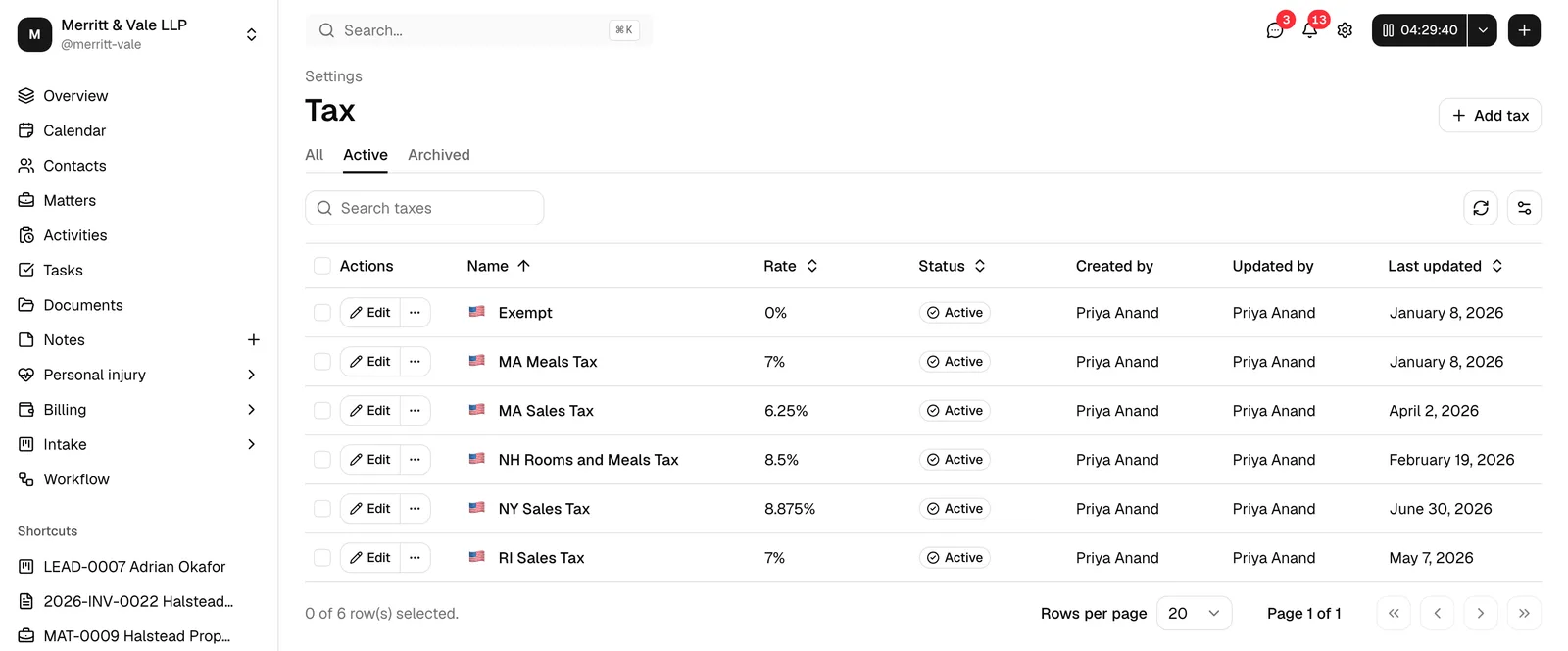
The Tax page shows every rate in your firm as a sortable, searchable table. Each row displays the rate's name (with a small flag for its country), its percentage, its status, who created and last updated it, and when it was last changed.
Note: When your firm is first created, the catalog starts with a single No Tax rate set to 0% and your firm's country. It is a ready-to-use placeholder for work that is not taxed. You can rename it, edit it, archive it, or add your own rates (such as VAT, GST, or Sales Tax) at any time.
- In the sidebar, open Settings, then click Tax.
- Use the tabs above the table to choose which rates you see:
- All shows both active and archived rates together.
- Active (the default) shows only rates you are currently using.
- Archived shows only rates you have set aside.
- To find a specific rate, type in the Search taxes box. The search matches a rate's name and description, and the list updates as you type.
- To clear an active search, click Clear filters (it appears next to the search box only when a search is in place), or simply empty the box.
Tip: The flag and country are shown inline in the Name column, so you can scan for the right region at a glance even though there is no separate country filter.
Sorting the columns
Most columns can be sorted so the rates you care about float to the top.
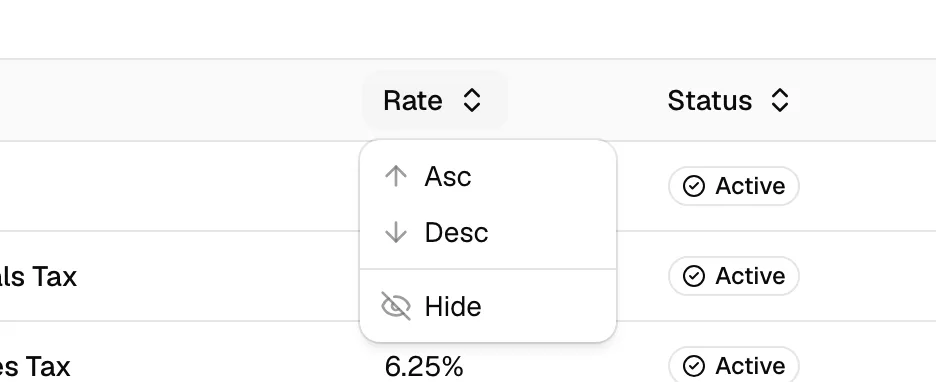
- Click a column heading, such as Name, Rate, Status, Created by, Updated by, or Last updated.
- In the small menu that opens, choose Asc for ascending order or Desc for descending order.
- To remove a column from view, choose Hide in that same menu. You can bring hidden columns back from the Toggle columns button (the gear icon) on the right of the toolbar.
Tip: The Refresh button (the circular-arrows icon) next to Toggle columns reloads the list if you want to confirm the latest changes from your teammates.
Reading the status badge
Every rate carries a status badge:
- Active means the rate is in your working catalog and ready to reference.
- Archived means you have set the rate aside. It stays in the system for reference and reporting but is kept out of your default Active view.
Create a tax rate
Adding a tax rate takes a few seconds. New rates are created as Active so they are ready to use right away.
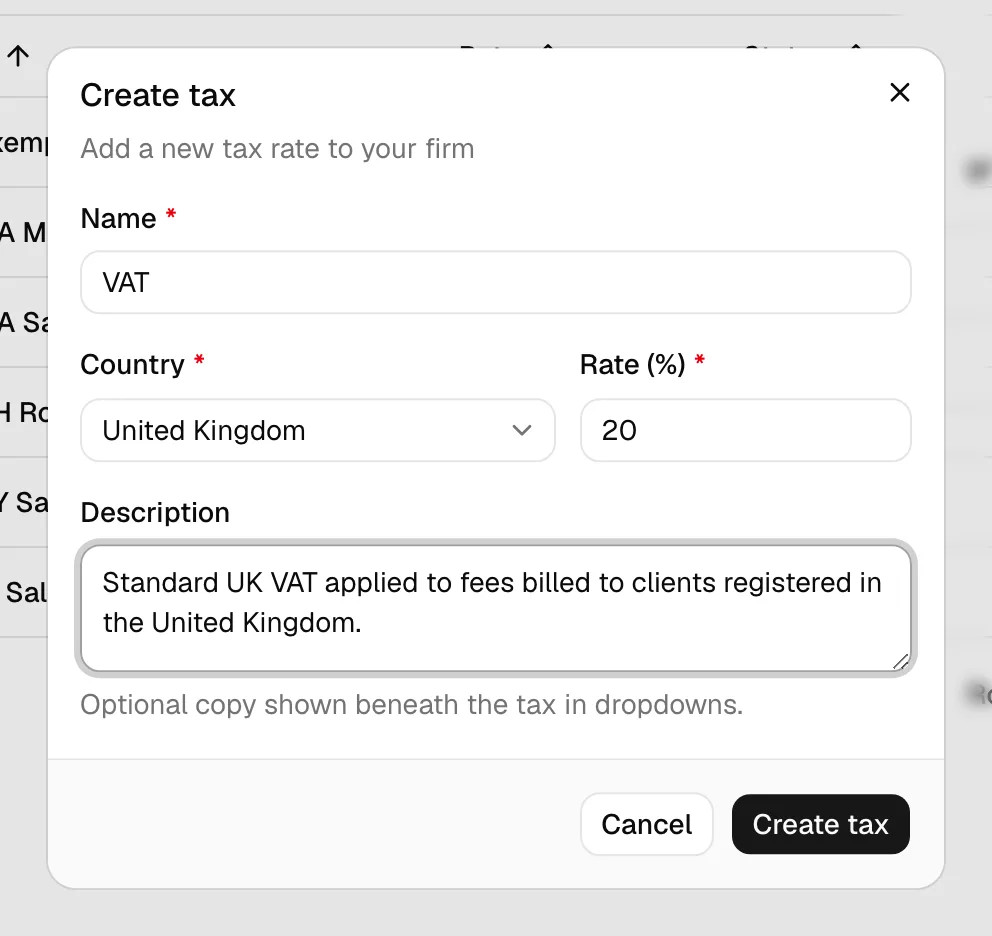
- On the Tax page, click Add tax in the top right. The Create tax dialog opens.
- Fill in the fields:
- Name (required): A short, recognizable label, for example Sales Tax, VAT, or GST. Up to 64 characters.
- Country (required): The country the tax applies to. Start typing to search the list and select a country. The picker defaults to your firm's country.
- Rate (%) (required): The tax percentage as a number between 0 and 100. You can enter decimals, for example
7.25. The field accepts up to two decimal places. - Description (optional): A short note explaining the tax. This copy is meant to be shown beneath the tax name in dropdowns so staff know when to use it. Up to 2048 characters.
- Click Create tax to save. While it saves, the button shows Creating....
When the rate is saved, a Tax created confirmation appears, the dialog closes, and the new rate shows up in the table as Active.
Field rules and validation
If a required field is empty or out of range, the dialog highlights the field and shows a message at the top. Common rules:
- Name cannot be blank and must be 64 characters or fewer.
- Country must be a real country selected from the list.
- Rate (%) must be a number from 0 to 100. Blank, negative, or over-100 values are rejected.
- Description must be 2048 characters or fewer.
Note: You can close the dialog at any time with Cancel. Nothing is saved until you click Create tax.
Edit a tax rate
You can update a rate's name, description, country, or percentage at any time.
- On the Tax page, find the rate you want to change.
- Click Edit at the start of that row. The Edit tax dialog opens with the current details filled in.
- Change any of the Name, Country, Rate (%), or Description fields. The same rules from Create a tax rate apply.
- Click Save changes. While it saves, the button shows Saving....
A Tax updated confirmation appears and the table refreshes with your changes.
Important: Editing a rate updates the catalog entry only. It does not change the tax amounts on invoices you have already created. See How tax rates apply to invoice tax totals.

Archive and restore a tax rate
Archiving is the safe way to retire a rate you no longer use without losing it. Archived rates stay in your records and can be brought back at any time.
Archive a single rate
- Find an Active rate in the table.
- Click the ... (more actions) icon at the start of the row.
- Choose Archive. The rate moves to Archived straight away (there is no extra confirmation for a single row).
A confirmation toast appears, for example 'Sales Tax' archived, and the rate leaves the Active view. Switch to the Archived or All tab to see it.
Restore a single rate
- Switch to the Archived (or All) tab to find the archived rate.
- Click the ... (more actions) icon on that row.
- Choose Restore. The rate returns to Active and reappears in your working catalog.
Archive or restore several rates at once
When several rates need the same change, use bulk actions.
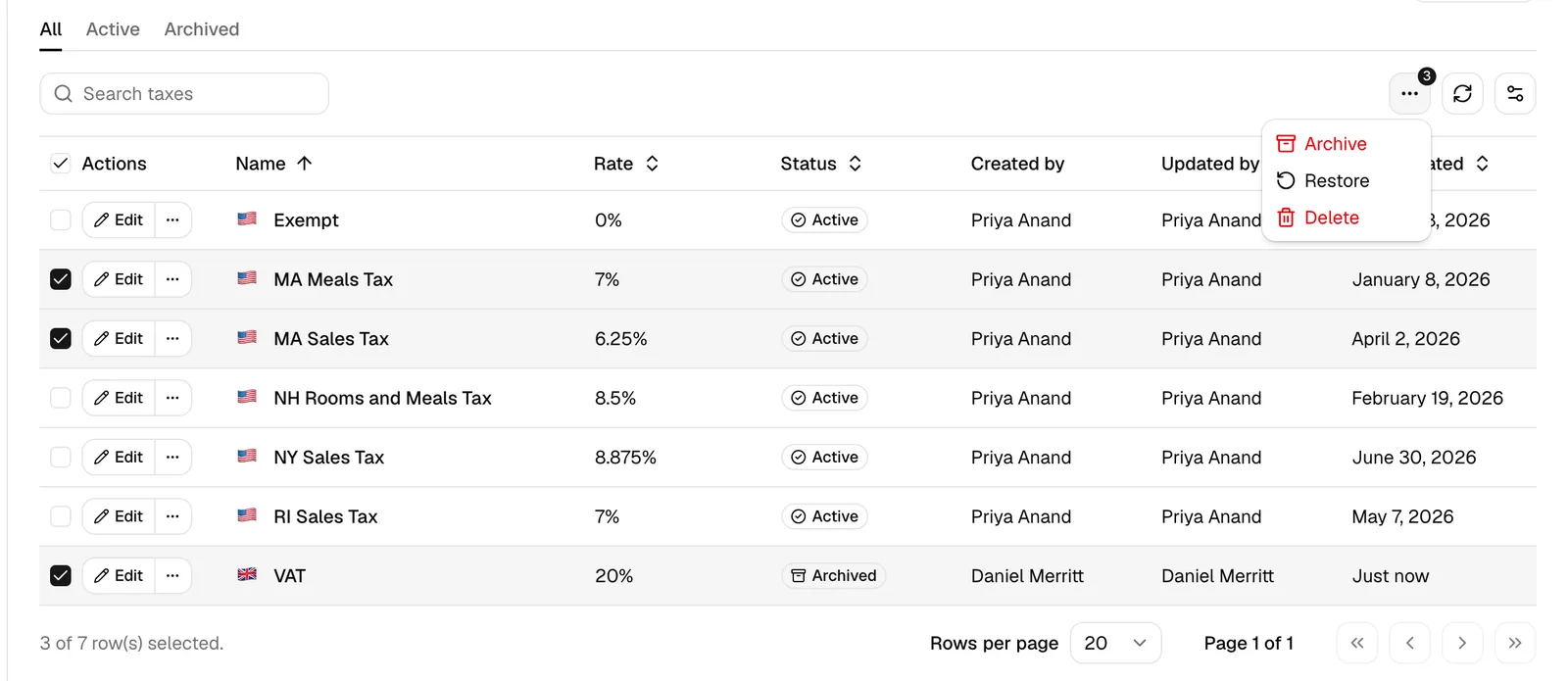
- Select the rows you want by ticking the checkbox at the start of each one, or tick the header checkbox to select the whole page.
- A bulk-actions control appears in the toolbar. Choose the action you need:
- Archive moves the selected Active rates to Archived. You are asked to confirm with Archive selected taxes?; click Archive taxes to proceed.
- Restore returns the selected Archived rates to Active.
- A summary toast confirms how many rates were changed (for example 2 taxes archived).
Tip: Bulk Archive only applies to rates that are currently Active, and bulk Restore only applies to rates that are currently Archived. Selecting a mix is fine; each action only touches the rows it applies to.
Delete a tax rate
Deleting permanently removes a rate from your catalog. To keep your data tidy and prevent mistakes, you can only delete a rate that is already Archived, so archiving acts as a deliberate first step.
- Make sure the rate is Archived. If it is still active, archive it first (see Archive and restore a tax rate).
- On the Archived (or All) tab, click the ... (more actions) icon on the rate's row.
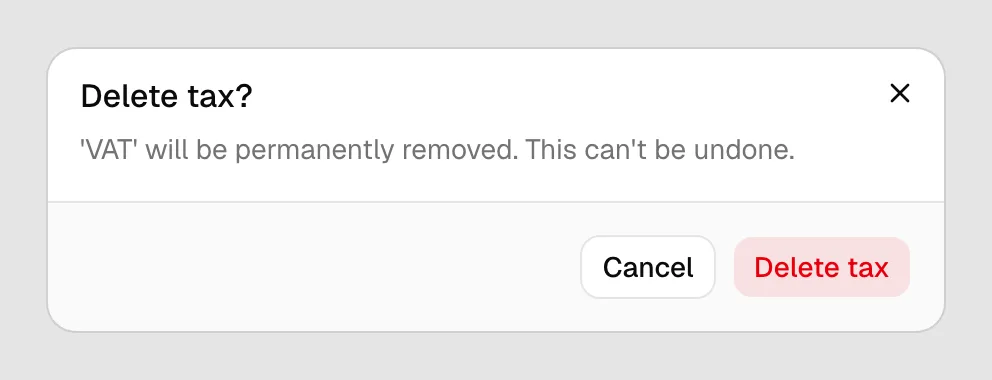
- Choose Delete. The Delete tax? confirmation dialog opens and warns that the rate will be permanently removed and that this can't be undone.
- Click Delete tax to confirm. While it processes, the button shows Deleting....
A confirmation toast appears, for example 'Sales Tax' deleted, and the rate is removed from the list.
You can also delete several archived rates together: select them, choose Delete from the bulk-actions menu, then confirm with Delete taxes in the Delete selected taxes? dialog.
Important: Deleting a tax rate is permanent and cannot be reversed from the Tax page. If you might need the rate again, archive it instead of deleting it. Archived rates can always be restored.
Archive versus delete
| Archive | Delete | |
|---|---|---|
| Keeps the rate for reference | Yes | No |
| Reversible | Yes (Restore) | No |
| Requires the rate to be archived first | No | Yes |
| Permission needed | Update | Delete |
Choose Archive when you simply want a rate out of the way. Choose Delete only when you are sure you will never need it again.
How tax rates apply to invoice tax totals
This catalog is where invoice tax comes from. Nothing types a percentage onto an invoice by hand.
- An expense carries a tax rate. Pick it in the Tax field on the expense. See Time and expense tracking.
- A manual invoice line carries a tax rate. Pick it in the Tax field when you add the line.
- Esqase does the arithmetic. When an invoice is saved, the tax on every line is recalculated from the rate on that line's own record, and the invoice's tax total is the sum. The figure is never taken from the browser, which is what makes it defensible if anyone audits it.
Each invoice line keeps a snapshot of the percentage it was taxed at, so an invoice always shows the tax that applied when it was raised.
- Editing, archiving, or deleting a rate here does not change any invoice you have already raised. Past invoices keep the snapshotted percentage.
- Changing a rate here changes what new work is taxed at, from that point on.
Because each line carries its own rate, one invoice can mix rates. The invoice PDF shows a tax summary with one line per rate used, so a client can see how the tax total was reached rather than just its sum. See Creating and sending invoices.
Tax-inclusive prices and withholding tax
Two firm-wide settings change how tax appears on every invoice. Both live at Settings > Firm > Invoices; see Invoice and billing settings.
- Line prices already include tax. With this on, the amounts on your rate cards are treated as gross: the tax is backed out of the line total rather than added on top, and the invoice total is the same as the subtotal. The tax summary on the PDF marks each rate as (included) so nobody adds it twice.
- Withholding tax. A percentage your clients deduct from their payment and remit to the tax authority on your behalf. It is shown as Withholding tax on the invoice, deducted from the total, so what the client owes you matches what they will actually send. The work you billed is unchanged; only the collectible amount is lower.
Note: Withholding tax and an ordinary tax rate are different things going in opposite directions. A tax rate adds to what the client owes. Withholding subtracts from what the client pays you, because they are paying part of it to the tax authority instead.
Common questions
Why can't I delete an active rate? By design. A rate must be Archived before it can be deleted, so archiving is a clear, reversible first step before any permanent removal.
I don't see the Add tax button. Your role does not include Create access for taxes. Ask a firm owner or an administrator to grant it, or to add the rate for you. See Roles and permissions.
Where did my archived rate go? Archived rates are hidden from the default Active view. Switch to the Archived or All tab to find them, then use Restore to bring one back.
Does adding a rate here charge anyone? No. Nothing is billed from this page. It stores the rate definitions that expenses and invoice lines then use.
Why does an old invoice show a different percentage from the catalog? Because it snapshotted the rate that applied on the day it was raised. That is deliberate: an issued invoice must not change when a tax rate changes.
Can one invoice carry more than one tax rate? Yes. Each line carries its own, and the PDF summarises the total per rate.