Field sets and using custom fields
Custom fields let your firm capture information Esqase does not track out of the box, such as a contact's preferred language, a matter's insurance policy number, or a lead's referral details. A field set is a reusable bundle of custom fields you can apply to a record all at once, so you do not have to add the same fields one by one every time. This page covers creating and maintaining field sets, then explains how to add and fill in custom fields on a contact, lead, or matter.
If you have not yet defined the individual fields that go into a set, start with Custom fields, then come back here to bundle them.
Before you begin
- Where field sets live. In the sidebar, open Settings, then Custom fields. The page has two tabs: Individual fields and Field sets. Field sets are managed on the Field sets tab.
- Permissions. What you can do depends on your role's access for custom fields:
- View access is required just to see the Custom fields settings page and the Field sets tab.
- Create access shows the Add field set button.
- Edit (Update) access lets you edit a field set, archive it, and restore it.
- Delete access lets you permanently delete an archived field set.
- Firm owners always have full access. If your role does not include a given level, the matching button or menu item simply does not appear.
- Categories. Every custom field and every field set belongs to one category: Contact, Matter, or Lead. A set can only contain fields from its own category, and it can only be added to records of that type. Pick the category that matches where you intend to use the bundle.
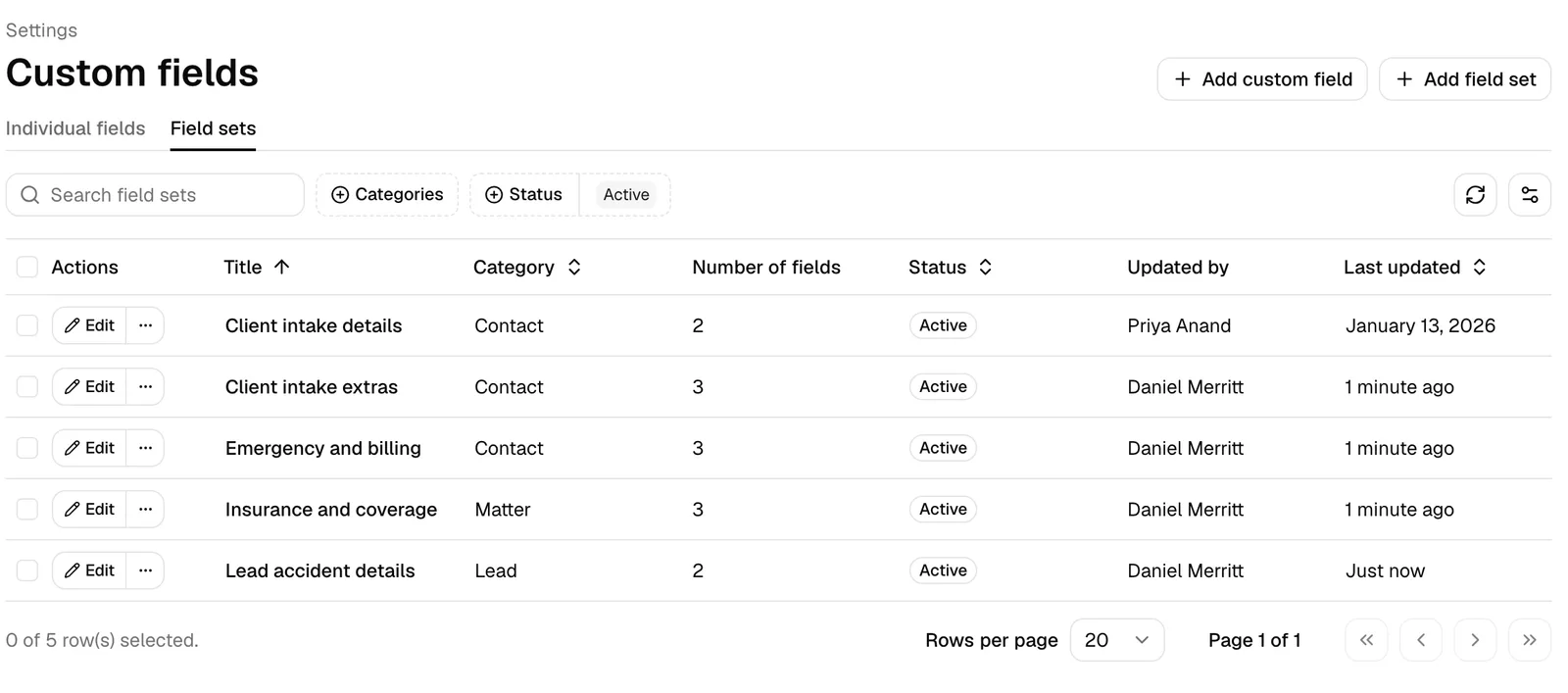
What a field set is
A field set (sometimes called a template) is a named, reusable group of related custom fields. Think of it as a checklist of fields that belong together. For example, a Contact field set called "Emergency contact" might bundle a name field, a phone field, and a relationship field. When you later add that set to a contact, all three fields appear at once, ready to fill in.
A few things to keep in mind:
- The fields inside a set are the same individual custom fields you see on the Individual fields tab. A field set just references them; it does not make copies. If you change a field's settings (its label, options, or whether it is required), that change is reflected everywhere the field is used.
- A single field can belong to more than one set, and it can still be added to records on its own.
- Adding a set to a record is a one-time convenience. After the fields land on the record, you can keep, remove, or fill in each one independently. Removing a field from a record later does not change the set, and editing the set later does not retroactively change records that already used it.
- Each set has a category (Contact, Matter, or Lead) and a status (Draft, Active, or Archived). Only Active sets are offered when you add custom fields to a record.
Create a field set
Creating a set is a single dialog: you name it, choose its category, and pick the fields that go inside.
- In the sidebar, click Settings, then Custom fields.
- Click the Field sets tab.
- Click Add field set in the top right. (If you do not see this button, your role does not include Create access for custom fields.)
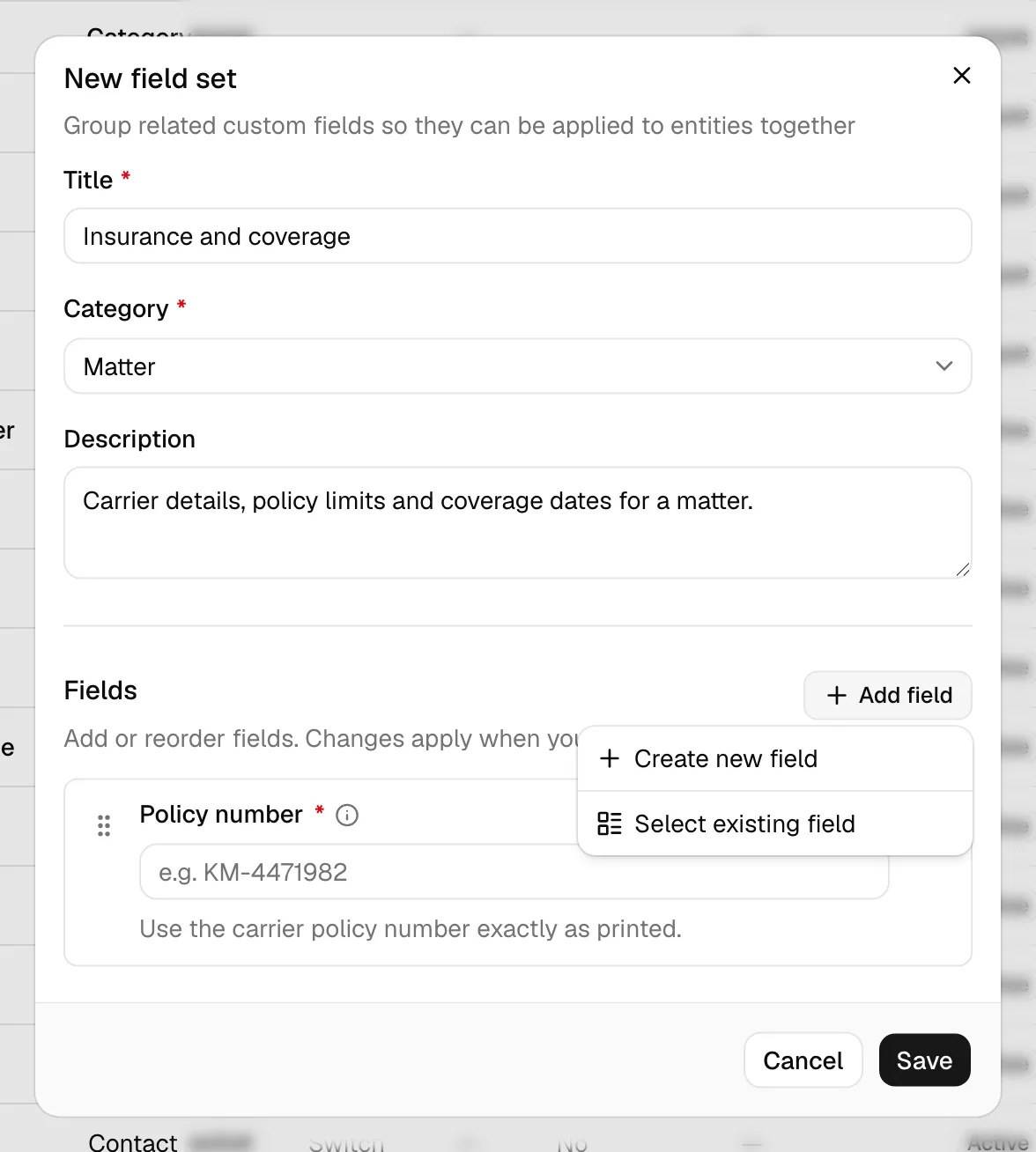
- In the New field set dialog, fill in the details at the top:
- Title (required). A short, clear name for the bundle, up to 100 characters, for example "Personal injury intake." This is what you will search for when adding the set to a record.
- Category (required). Choose Contact, Matter, or Lead. This determines which records the set can be applied to and which fields you can attach. Set this first, because changing it later swaps the list of available fields.
- Description (optional). A note for your team about what the set is for, up to 500 characters.
- Under Fields, add the custom fields that belong in this set. Click Add field (top right of the Fields section) and choose one of:
- Create new field to build a brand-new custom field without leaving the dialog. This opens the new-custom-field form; when you save it, the field is added to the set automatically. (See Custom fields for the full field-creation walkthrough.)
- Select existing field to pick from custom fields you have already created in this category.
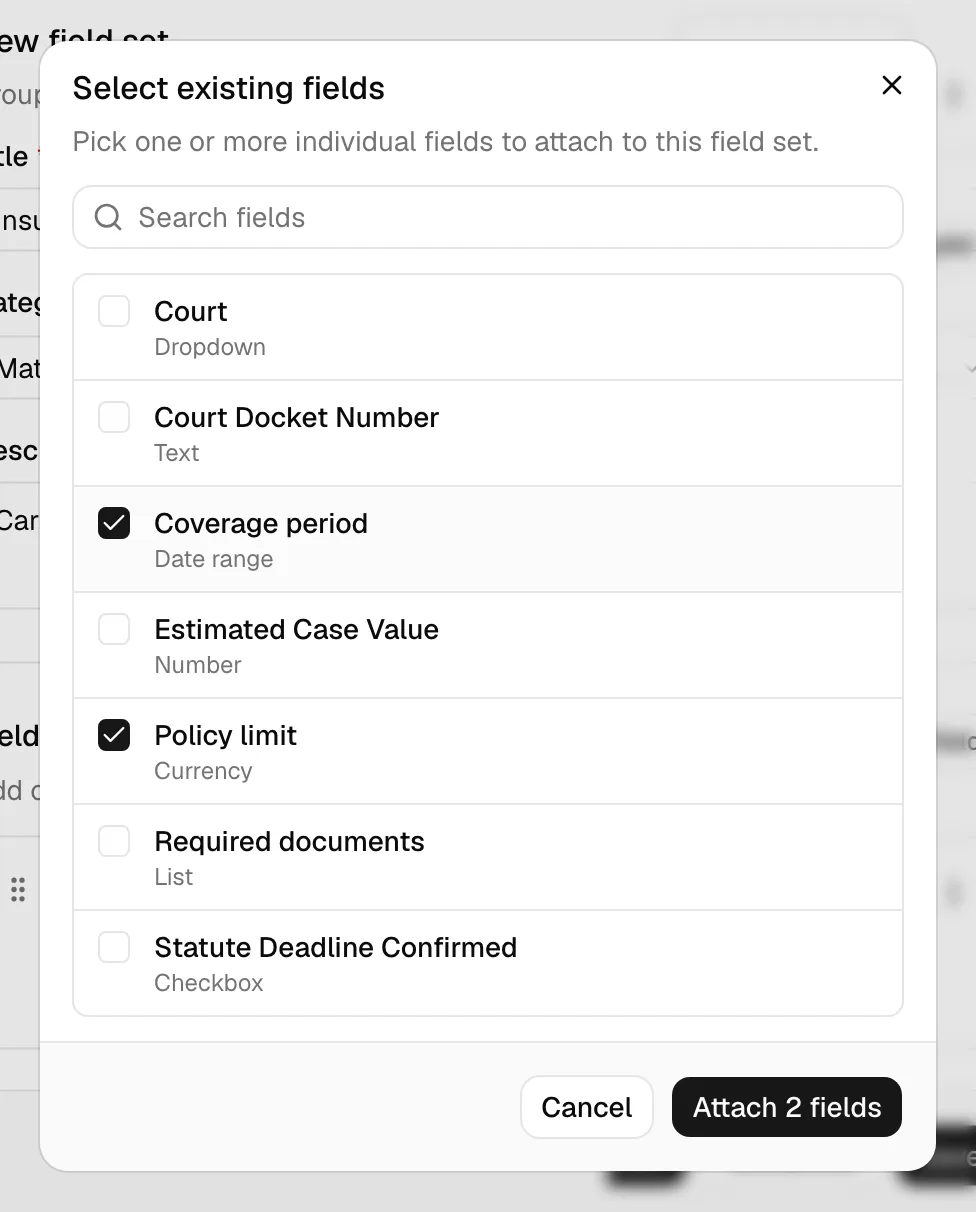
- If you chose Select existing field, the Select existing fields dialog opens. Search by name if the list is long, tick the checkbox next to each field you want, then click Attach (the button shows how many you have selected, for example Attach 3 fields). Fields already in the set are not shown.
- Back in the set, each attached field appears as a preview row. To change the order, drag a row by its handle on the left. The order you set here is the order the fields appear in when the set is added to a record.
- To remove a field you added by mistake, open the row's menu (the icon on the right) and choose Remove from set, or use the trash icon. This only removes it from this set; the field itself is not deleted.
- Click Save. Esqase creates the set, attaches the fields, and shows a "Field set created" confirmation. The new set appears in the Field sets list with status Active.
Tip: A set with no fields can be saved, but it will not do anything useful until you add fields. Attach at least one field before you rely on the set in day-to-day work.
Note: The category and field choices are tied together. If you switch the Category after attaching fields, the available-fields list changes to match the new category. Choose the category you mean before you start attaching fields.
Edit a field set
You can rename a set, change its description, and add, remove, or reorder its fields at any time.
- On the Field sets tab, find the set you want to change.
- Click Edit on that row.
- The Edit field set dialog opens with the current title, category, description, and attached fields loaded.
- Make your changes:
- Update the Title or Description as needed.
- Add fields with Add field (Create new field or Select existing field), exactly as when creating a set.
- Reorder fields by dragging them.
- Remove a field with Remove from set in its row menu.
- Click Save changes. Esqase applies the additions, removals, and new order together and shows a "Field set updated" confirmation.
Important: Editing a set changes the set going forward. It does not reach back and alter records that already had the set applied. Those records keep whatever fields and values they had at the time. To update an existing record, open its Custom fields dialog and add the set again or adjust its fields directly (see Fill in and save custom field values on a record).
Note: Changing a set's Category in edit mode is generally not something you will do once fields are attached, because fields are category-specific. If you need a set for a different record type, create a new set in that category instead.
Attach and detach a custom field
Attaching and detaching are how you control which fields belong to a set. You do both from inside the New field set or Edit field set dialog, in the Fields section.
To attach a field:
- Open the set (click Add field set to create one, or Edit to change an existing one).
- In the Fields section, click Add field.
- Choose Select existing field, tick the fields you want in the Select existing fields dialog, and click Attach. The fields appear as preview rows in the set.
- Click Save (or Save changes) to keep the attachment.
To detach a field:
- Open the set and find the field's preview row in the Fields section.
- Open the row's menu and choose Remove from set, or click the trash icon on the row.
- Click Save (or Save changes).
Note: Detaching a field from a set never deletes the field itself. The field still exists on the Individual fields tab and remains usable on its own and in any other set it belongs to. Detaching also does not remove the field from records where it was already added.
Change a field set status
A field set's status controls whether it shows up when people add custom fields to records:
- Active. The default for a newly created set. Active sets appear in the Add field set picker on a record.
- Archived. A retired set. Archived sets are hidden from the picker, so no one can add them to new records, but they are not deleted and can be brought back. Use Archive when a set is no longer in use but you may want it again later.
- Draft. A set that is not yet ready for use. Drafts are also hidden from the record picker.
To archive a set:
- On the Field sets tab, click Edit's neighboring menu button (the ... icon) on the set's row, then choose Archive. Confirm if prompted. The set's status changes to Archived.
To restore an archived set:
- By default the list shows only Active sets. Use the Status filter in the toolbar and select Archived to see archived sets.
- On the archived set's row, open the ... menu and choose Restore. The status returns to Active and the set is available in the picker again.
You can also change status in bulk: tick the checkboxes next to several sets, then use the batch Archive or Restore action that appears in the toolbar.
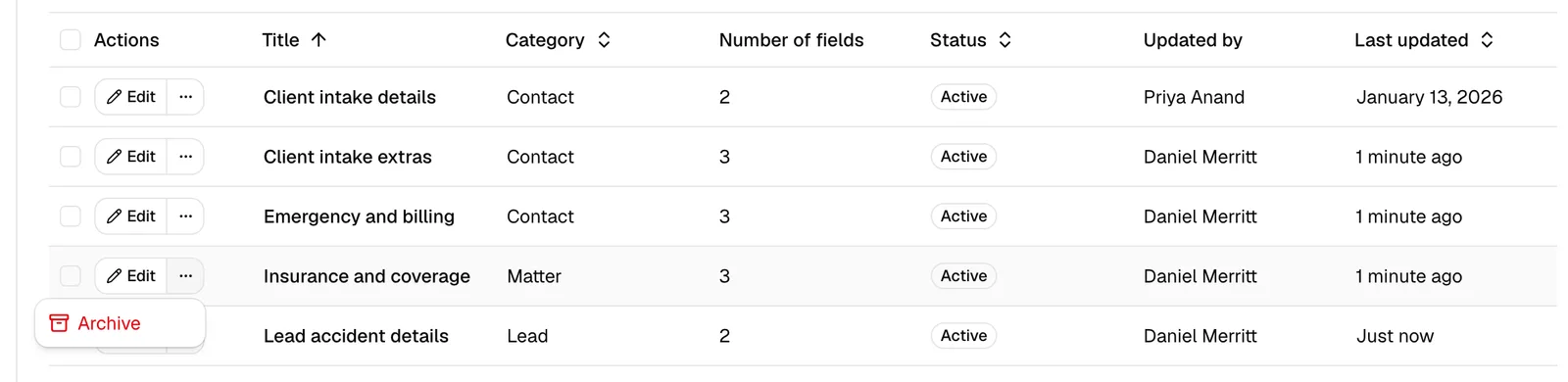
Tip: Archiving a set does not touch the fields inside it or any record values already saved. It simply takes the bundle out of circulation for new records.
Delete a field set
Deleting permanently removes a field set. It is only available for sets that are already archived, which acts as a safety step so you do not delete an in-use bundle by accident.
- On the Field sets tab, set the Status filter to Archived so archived sets are visible.
- On the set you want to remove, open the ... menu and choose Delete. (If you do not see Delete, either the set is not archived yet or your role does not include Delete access for custom fields.)
- In the Delete field set? confirmation, review the warning that the set will be permanently removed and cannot be undone, then click Delete field set.
You can also delete several archived sets at once: select their checkboxes and use the batch Delete action.
Important: Deleting a set removes only the bundle, not the individual fields it grouped, and not any values already saved on records. The fields remain on the Individual fields tab. Deletion cannot be undone, so archive first if you are unsure.
Add custom fields to a contact, lead, or matter via the Custom fields dialog
Once your firm has custom fields (and optionally field sets), you add and fill them on a specific record from that record's sidebar.
- Open the record: a contact from Working with contacts, a lead from Managing leads, or a matter from The matter workspace.
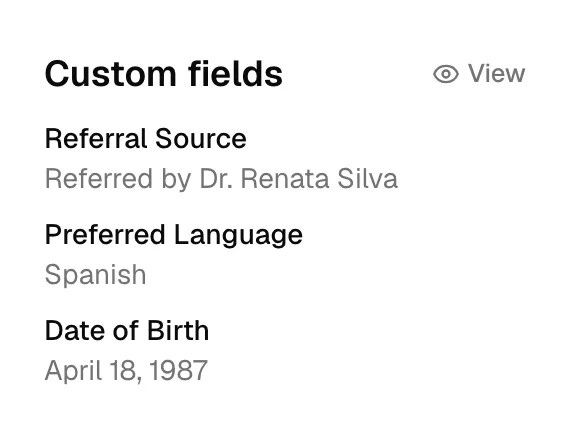
- In the record's right-hand sidebar, find the Custom fields section.
- Click View at the top of that section. The Custom fields dialog opens.
- If you have edit access for this record, the dialog shows two dropdowns at the top: Add individual field and Add field set. Already-saved fields appear below them. If you do not have edit access, the dialog opens in read-only mode (see View a record's custom fields read-only when you lack update permission).
Add a single custom field
- In the Custom fields dialog, click the Add individual field dropdown.
- Start typing to search, then choose the field you want. It is added to the list below, ready to fill in. Fields already on the record are not listed.
- If the field you need does not exist yet, click New custom field at the bottom of the dropdown to create it on the spot. Once it is created, Esqase adds it to the record automatically.
Tip: Only Active custom fields in this record's category appear in the Add individual field list. If a field is missing, check that it is Active and in the right category on the Custom fields settings page.
Add a field set to a record (bulk-add the bundled fields)
When several fields go together, adding the set is faster than adding them one at a time.
- In the record's Custom fields dialog, click the Add field set dropdown.
- Search for and select the set you want. Esqase resolves the set and adds all of its fields to the record at once, in the set's saved order. A brief "Adding field set..." message appears while it loads.
- Any field from the set that is already on the record is skipped, so you will not get duplicates.
- If the set you need does not exist yet, click New field set at the bottom of the dropdown to build it without leaving the record; its fields are added once you save it.
- Fill in the values (next section) and click Save.
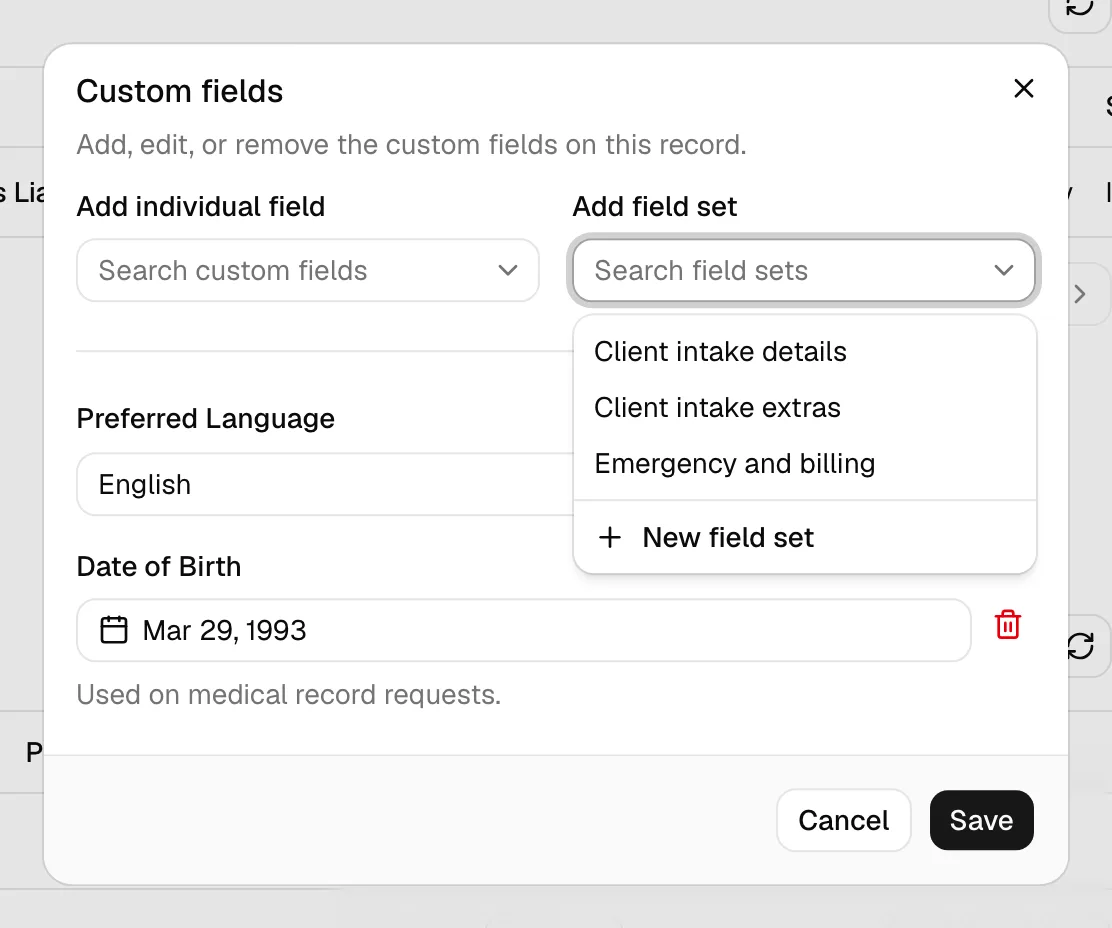
Note: Adding a set drops its current fields onto the record. If you later edit the set, this record keeps the fields it already has. To pick up new fields you added to the set, add the set again, the new fields will be appended and the existing ones left alone.
Fill in and save custom field values on a record
After fields are on the record, enter their values and save.
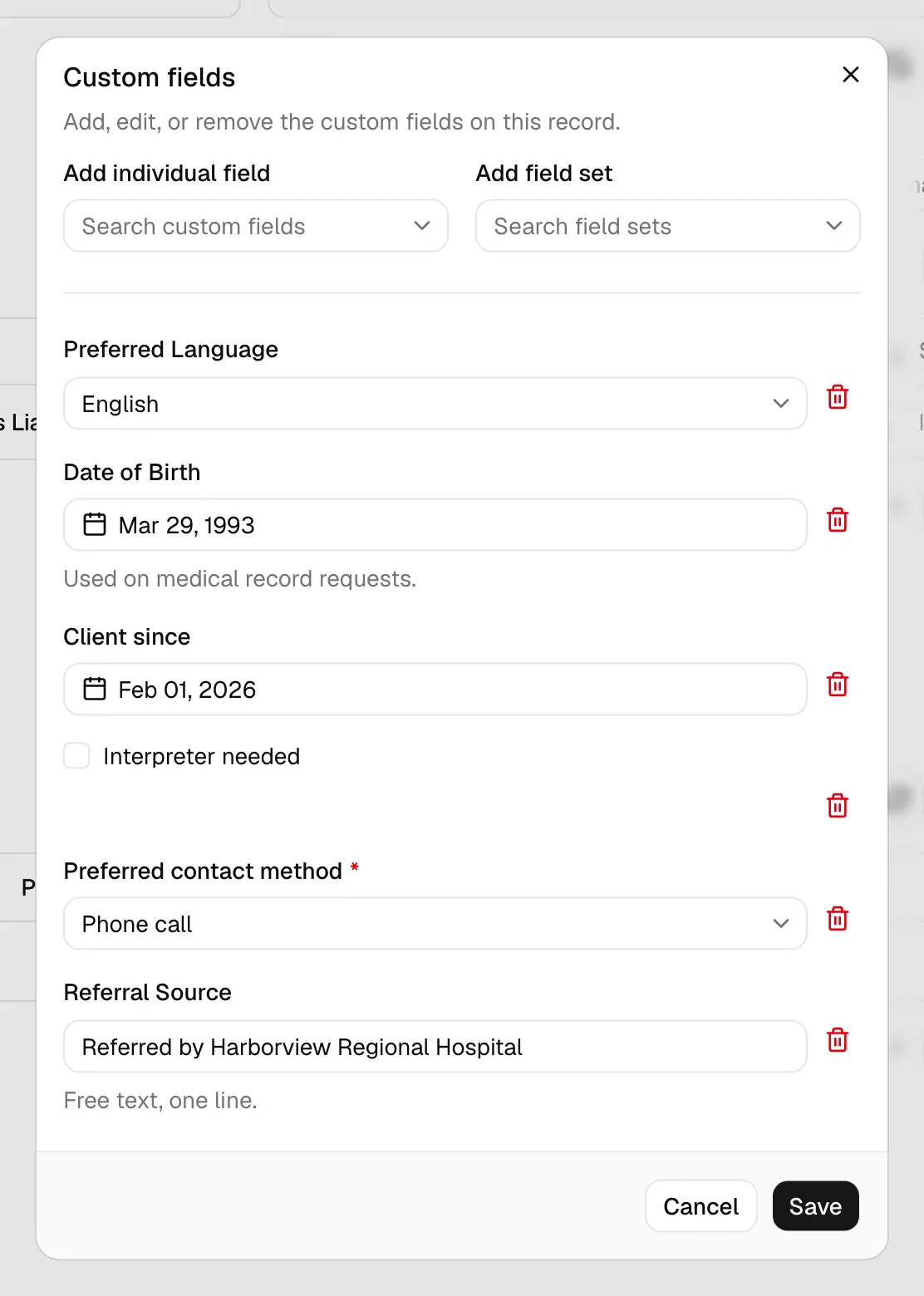
- In the Custom fields dialog, each added field shows its own input. The input type matches how the field was defined: a text box, a number, a date picker, a dropdown, a set of checkboxes, a star rating, and so on. Required fields are marked.
- Enter or select a value for each field you want to record. Leaving a field blank is fine unless it is required.
- Click Save. Esqase saves the full set of fields and values on the record and shows a "Custom fields saved" confirmation. The sidebar updates to show the saved values.
Important: The dialog saves the record's custom fields as a complete set, replacing what was there before. Whatever fields and values are in the dialog when you click Save become the record's custom fields. Any field you removed in the dialog is removed from the record on save.
Note: Phone and Address fields open on your firm's country: the phone dial code and the address Country dropdown are already filled in for you, and you can change either one on the field. A value you saved earlier keeps the country it was saved with. An Address field you add but never fill in shows the country without saving an address, so nothing is recorded until you actually enter something. See How your firm's country sets phone and address defaults.
Required fields
If a field is marked required and you leave it empty, saving is blocked. The dialog shows "Please complete the required fields" and highlights the field that needs a value, for example "Policy number is required." Fill it in and click Save again.
A required Checkbox or Switch counts as empty until you turn it on. Use this when a record cannot be saved without an explicit confirmation, for example a conflict-check acknowledgement or a signed-engagement-letter tick box.
Tip: If you do not want a required field on a particular record, remove the field from that record (see below) instead of leaving it blank, since a required field that is present must have a value to save.
How saved values look in the sidebar
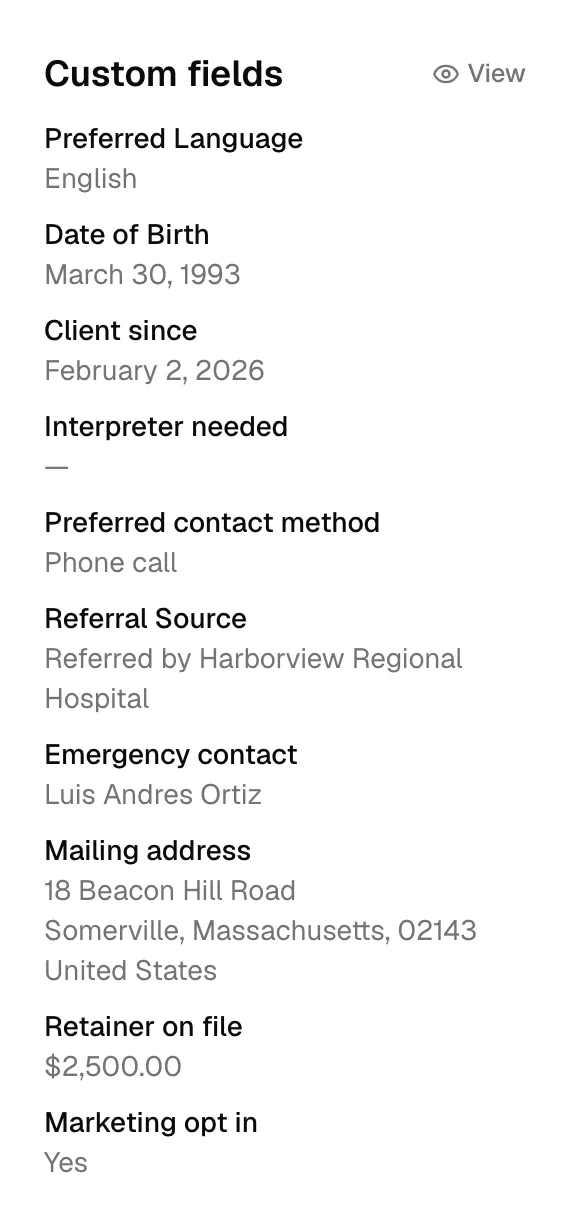
After you save, the record's Custom fields sidebar block shows each field's label with its value underneath, written out in plain reading form rather than the way it was typed in. You do not have to open the dialog to read a value.
Each field type is presented the way you would expect to see it on paper:
- Name fields read as a single line, in order: prefix, first, middle, last, then the suffix after a comma, with any nickname in quotation marks at the end. For example,
Dr. Jane A. Smith, Esq. ("Janie"). - Address fields read like a mailing label, on separate lines: the street, then a second street line if you entered one, then the city, state or province and postal code together, then the country. This matches how an address is shown elsewhere in the app. The state or province and the country are spelled out in full rather than shown as two-letter codes.
- Currency fields show the amount formatted for its currency, for example
$1,200.00. - Date, Date & time, Date range, and Time fields are spelled out for reading, for example
August 17, 2026,Aug 17, 2026, 7:30 AM, and3:30 PM. A Date & time value is shown in your firm's time zone. A date range reads asMarch 3, 2026 to March 17, 2026, or as the single date when only one side is set. - Dropdown, Radio, and Checklist fields show the option's label, the same wording you picked in the dialog. A checklist joins its selections with commas.
- Checkbox and Switch fields read Yes or No.
- Star rating fields read as
4 out of 5. - Rich text area fields show their text without the formatting marks, so a long note stays readable in a narrow sidebar.
- List fields join their entries with commas.
- On a contact or a matter, a field you have not filled in shows a dash. On a lead, unfilled fields are left out of the block altogether.
Note: This applies to the Custom fields block on a contact, lead, or matter. The formatting is display only, it never changes what is stored, and reopening the Custom fields dialog always shows the original inputs so you can edit the value exactly as you entered it.
Remove a field value
You can take a custom field off a record entirely.
- Open the record's Custom fields dialog (View in the sidebar's Custom fields section).
- Find the field's row.
- Click the trash icon on the right side of that row. The field is removed from the list.
- Click Save. The field and its value are removed from the record.
Note: Removing a field here affects only this record. It does not delete the field definition or change any field set. You can add the field back later from the Add individual field dropdown.
View a record's custom fields read-only when you lack update permission
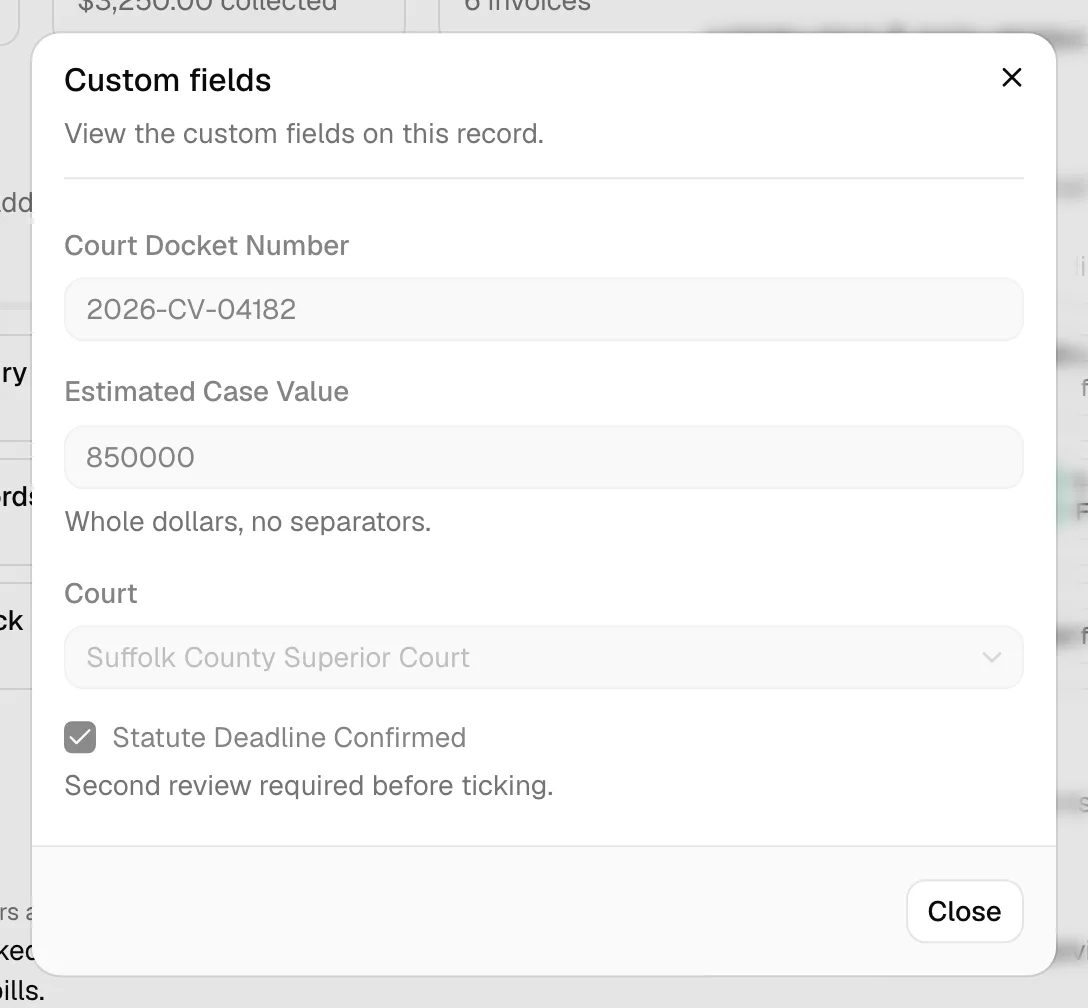
If your role lets you view a contact, lead, or matter but not edit it, the Custom fields dialog opens in read-only mode.
In read-only mode:
- The dialog title is still Custom fields, and the description reads "View the custom fields on this record."
- The Add individual field and Add field set dropdowns are hidden, so you cannot add fields.
- Each field's value is shown but cannot be changed, and there are no trash icons to remove fields.
- The footer shows only a Close button; there is no Save.
This lets you see exactly what information has been captured on the record without the risk of changing it. To make edits, you need Update access for that record type. See Roles and permissions for how access is granted, or ask a firm owner or administrator.
Common questions
- What is the difference between a custom field and a field set? A custom field is a single piece of information you capture (one input). A field set is a named bundle of several custom fields you can add to a record together. See Custom fields to create the fields, and this page to bundle them.
- I added a field set, then changed the set. Why did the record not update? Field sets are applied as a one-time copy of their fields onto the record. Editing the set later does not change records that already used it. Add the set again on the record to pick up any new fields.
- Why does a field or set not appear in the record picker? Only Active fields and sets in the record's category are offered. Check the field's or set's category and status on the Custom fields settings page.
- I deleted a field set by mistake. Deletion cannot be undone, but the individual fields the set grouped still exist on the Individual fields tab, and any saved record values are unaffected. You can create a new set and re-attach the same fields.
- Why can't I see the Custom fields settings page at all? Viewing it requires View access for custom fields. If you do not have it, you will see a no-access message. Ask a firm owner or administrator to adjust your role.