Notifications
Esqase keeps you up to date on the work that matters to you: a task assigned to your name, a new lead, a payment, an upcoming meeting, a message, and more. Notifications reach you in three places: the in-app bell at the top of the dashboard, desktop alerts (a pop-up your browser shows outside the Esqase window while you are working somewhere else), and email. This page explains how to read your notifications, turn on desktop alerts, and choose exactly which events notify you and how.
Before you begin
- Notification settings are personal. Each member of your firm controls their own notifications, so changing yours never affects a colleague.
- You can use notifications in any modern browser. Desktop alerts need switching on once per browser, with the Enable desktop notifications button in your notification settings. See Turning alerts on.
- Your notifications belong to the firm you are currently working in. If you belong to more than one firm and switch between them, the bell shows the notifications for the firm you are viewing.
Note: Notifications are about events inside Esqase. They do not change what you can see or do in the app. If a notification links to a record you no longer have access to, opening it will simply take you to that record's page (and Esqase will tell you there if you cannot view it). Esqase avoids that where it can: colleagues who cannot already open a document or an invoice are not offered as signers, reviewers, or people to mention on it.
Note: This page is about your own notifications as a member of the firm. Your clients have a separate inbox of their own in the client portal and the Esqase Client app, with its own list of events and its own settings that only they control. See How clients get portal notifications.
The notification bell inbox
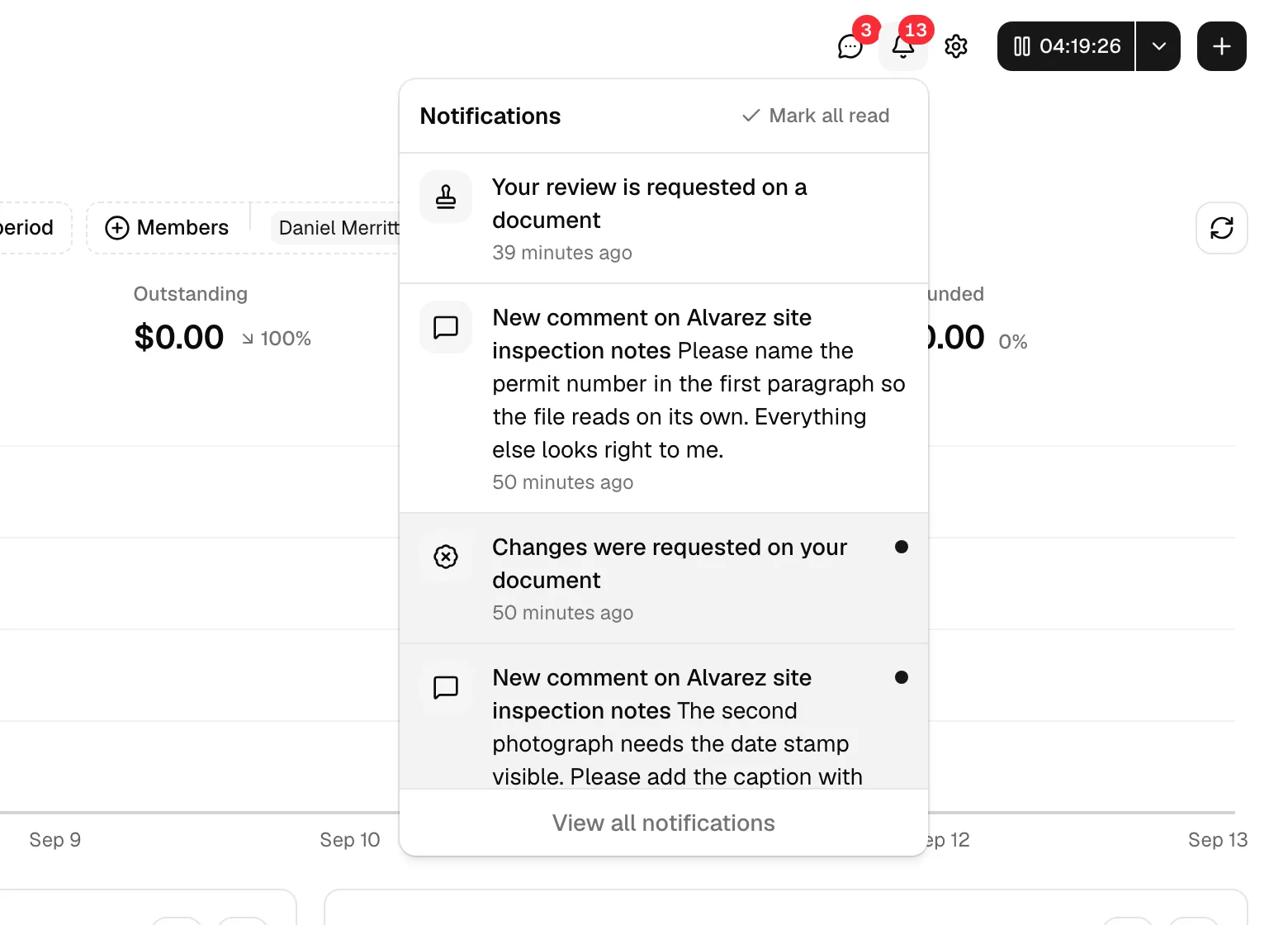
The bell is your quick inbox. It lives in the top bar of the dashboard, on every page, so you can glance at what is new without leaving what you are doing.
- Look at the top-right of the dashboard header for the bell icon.
- When you have unread notifications, a small red badge sits on the bell showing the number unread. Once you pass 99 unread, the badge shows 99+.
- Click the bell to open the notification panel.
The panel lists your most recent notifications, newest first. Each row shows:
- An icon that hints at the kind of event (for example, a person icon for a new lead, a calendar icon for an event).
- The notification text: a short bold title and, often, a one-line description.
- How long ago it arrived (for example, "2 hours ago"), shown in your firm's time zone.
- A small dot on the right while the notification is still unread. Unread rows also have a light highlight so they stand out.
Opening a notification
- In the bell panel, click any notification row.
- If the notification was unread, Esqase marks it read for you automatically.
- Esqase takes you to the exact thing the notification is about, not just the page it lives on.
Every way in behaves the same:
- A row in the bell panel.
- A row on the Notifications page: the description is clickable, so you do not have to reach for the View button.
- The message in the corner of the screen while you are working: it carries a View button.
- A desktop alert: clicking it brings the Esqase tab to the front and opens the record there.
This is the fastest way to act on something: click it, and you land exactly where you need to be.
Where each notification takes you
Most notifications open the record itself. Some open a specific part of it, so you can act without hunting:
| Notification | Opens |
|---|---|
| Invited to an event, Event reminders | The event |
| Court date reminders, Court date overdue | The matter's Court dates tab, with that court date open |
| Court dates added or changed | The matter's Court dates tab, with the court date open when only one date changed |
| Court rules updated | Settings > Firm > Court rules |
| Event change requested | The time your client proposed, on the lead or matter it belongs to |
| Form request completed | The completed submission, on the lead or matter it belongs to |
| Signature requested | The document, with your signing view open |
| Someone declined to sign | The document, with a summary of who declined |
| Payment received | The invoice, with that payment highlighted |
| Comment on my matter, Comment on my contact, and their mentions | The record's Overview tab, at the comment |
| Approval requested, Feedback implemented | The invoice or document, with the review panel open |
| Changes requested, My review was marked done | The invoice or document, at the review comment |
| New message, Mentioned in a message | The conversation |
| New post in Feeds | The post's own page |
| Comment on my feed post, Mentioned in a feed comment | The post's own page, with the conversation open at the comment |
| Records follow-up due, Personal injury deadline due, Lien response due, Demand response due | The matter, on the right tab, at the exact request, deadline, lien, or demand |
| Automatic step could not run, Automatic step needs approval, Workflow waiting on a client | The lead or matter, with the workflow step highlighted |
| Matter deleted, Event canceled | The matters list and the calendar, since the record is gone |
Nothing in your history is stranded. Esqase works out the destination at the moment you click, so an old notification opens the right place too.
Note: A notification always opens the record in the firm it belongs to. If you belong to more than one firm and click a notification from a firm you are not currently working in (from a desktop alert or an email, say), Esqase does not silently move you. It shows a short page headed Notification telling you which firm it came from, with an Open in <firm name> button and a Back to notifications link. Click the button and Esqase switches your active firm and opens the record.
Marking notifications as read
You have two ways to clear the unread count from the bell.
- One at a time: opening a notification (clicking its row) marks just that one as read.
- All at once: when you have unread notifications, a Mark all read button appears at the top-right of the bell panel. Click it to mark every notification as read in one step. The red badge disappears.
Tip: "Read" only changes the unread badge and the highlight. It does not delete or hide the notification. The notification stays in your list, and you can still open it later. To file notifications away for good, use the full Notifications page described below.
Seeing your full history
The bell shows only your recent notifications. To see everything, scroll to the bottom of the panel and click View all notifications. This opens the full Notifications page.
The Notifications page
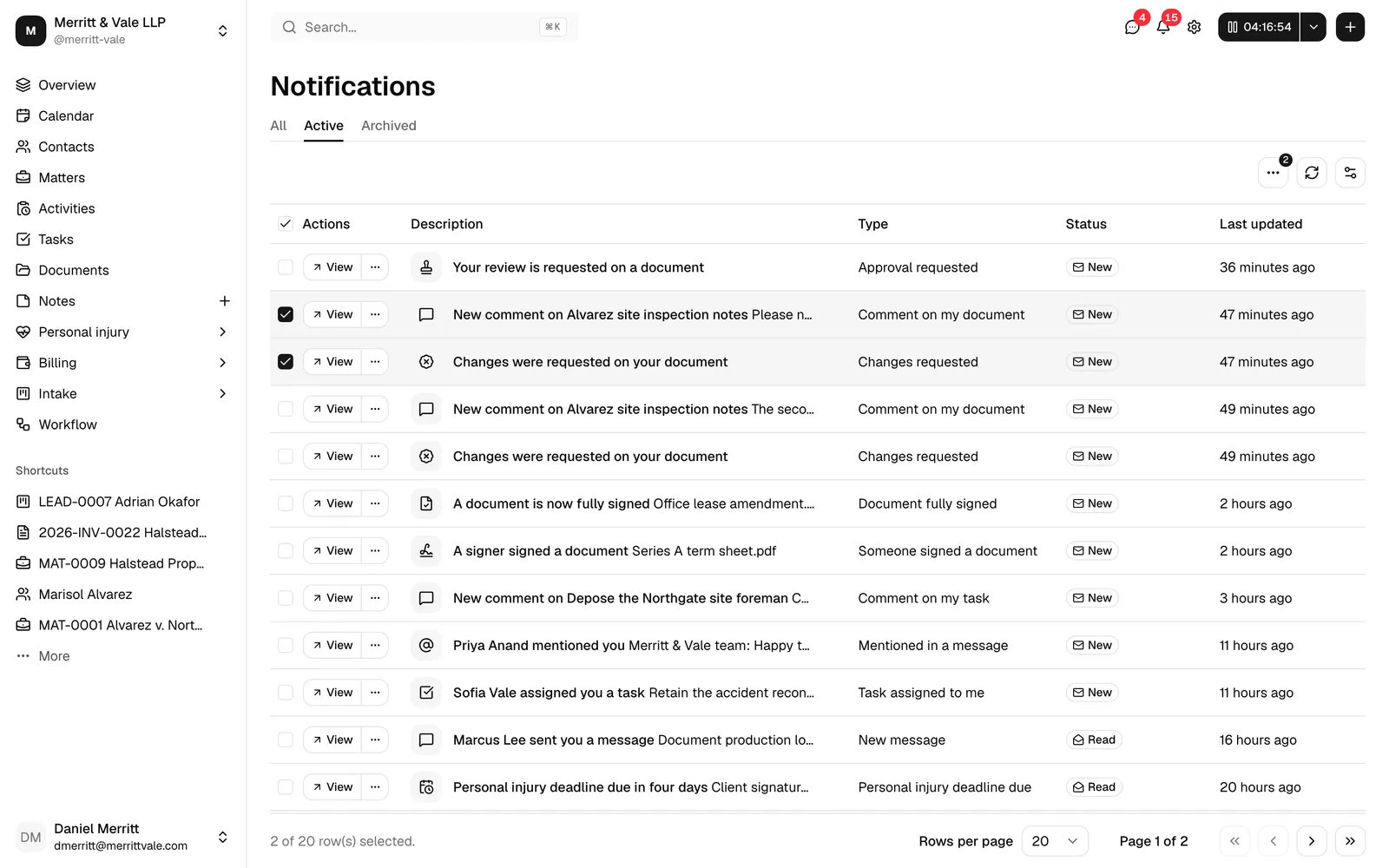
The full page is a searchable, sortable table of every notification you have received in this firm. Use it to review history, tidy up, or work through a backlog.
- Open it from the bell panel by clicking View all notifications, or go to it directly from the address
/notifications. - The page title reads Notifications, with a table of your notifications below it.
Filter tabs
Above the table are three tabs that filter what you see:
- All shows everything, active and archived together.
- Active shows notifications you have not archived. This is your working inbox and is selected by default.
- Archived shows notifications you have set aside.
Table columns
Each row shows:
- Description: the notification's icon plus its title and short detail.
- Type: the kind of event in plain language, for example "Task assigned to me" or "Payment received".
- Status: a New badge if you have not read it yet, or a Read badge once you have.
- Last updated: when the notification arrived, in your firm's time zone.
Acting on a single notification
On the right of each row are quick actions:
- Click View to open the notification. As in the bell, this marks it read (if it was unread) and takes you to the linked record.
- Click the More button (the three-dots icon) next to View for the rest of the actions:
- Mark as read (shown only while the notification is unread) clears its unread status without leaving the page.
- Archive moves the notification out of your Active list and into Archived. Use this to keep your inbox tidy without losing the record.
- Restore (shown on archived rows) brings a notification back into the Active list.
- Delete (shown on archived rows) permanently removes the notification. Esqase asks you to confirm because this cannot be undone.
Important: You can only Delete a notification that has been archived first. Deleting is permanent, so if you might want the notification later, Archive it instead.
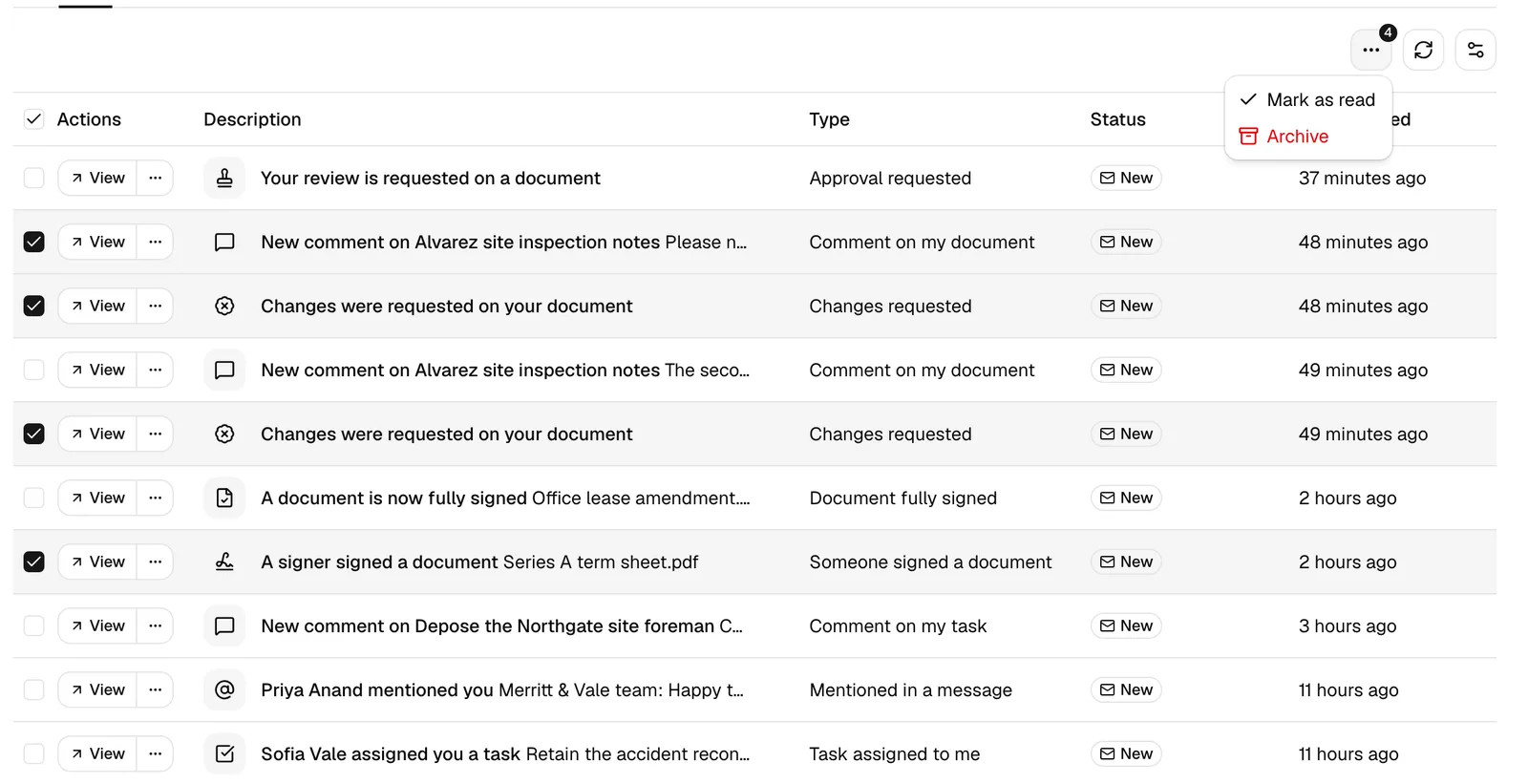
Acting on many at once
You can work on several notifications together.
- Use the checkboxes on the left of each row to select the notifications you want. The checkbox in the header selects every row on the page.
- A batch-actions menu appears in the toolbar. Depending on what you selected, you can:
- Mark as read the selected unread notifications.
- Archive the selected active notifications.
- Restore the selected archived notifications.
- Delete the selected archived notifications (with a confirmation prompt, since this is permanent).
Tip: The table refreshes on its own as new notifications arrive, and you can use the toolbar's refresh control to update it immediately.
Desktop alerts
A desktop alert is the pop-up your browser shows outside the Esqase window, the same kind of alert you get from a calendar app before a meeting. It reaches you when the Esqase tab is in the background, buried behind another program, or closed altogether. It is the surest way to catch something time-sensitive, like a meeting reminder or a payment, without watching the bell.
Turning alerts on
You switch desktop alerts on yourself, from your notification settings. Esqase asks your browser for permission only when you click the button, never on page load, because Firefox and Safari ignore a request that does not follow a click.
- Click your account, then open Settings.
- In the account settings sidebar, click Notifications.
- At the top of the page you will see Turn on desktop notifications to get push alerts in this browser with an Enable desktop notifications button beside it.
- Click Enable desktop notifications. Your browser asks whether Esqase can show notifications: click Allow.
- The line changes to Desktop notifications are on for this browser and the button goes away. Esqase confirms with a Desktop notifications are on for this browser message.
You do this once per browser on each device you use, and it works in Chrome, Edge, Firefox, and Safari.
The same line tells you where you stand if you have not just switched them on:
- Desktop notifications are on for this browser: nothing more to do.
- Desktop notifications are blocked in this browser. Allow them in your browser settings.: you answered Block at some point. Esqase cannot ask again, so change it in the browser (below).
- This browser does not support desktop notifications.: the browser you are using cannot show them at all. Everything else still works.
📷 Screenshot: The top of the account Notifications settings page showing the Turn on desktop notifications to get push alerts in this browser line with the Enable desktop notifications button beside it.
To unblock alerts you previously blocked:
- Click the small icon at the left of the address bar (often a lock or a sliders/tune icon) while on the Esqase dashboard.
- Find the Notifications setting for the site.
- Set it to Allow.
- Reload the Esqase tab so the change takes effect.
Note: Blocking alerts changes nothing else. The notification still lands in your bell, on the Notifications page, and, while you are looking at Esqase, as a message in the corner of the screen.
What an alert looks like and what it does
- The alert shows the notification's title and its short detail, for example Event reminder with the name of the meeting.
- Click the alert to act on it. Esqase brings its tab to the front and opens the record the notification is about (the event, the task, the invoice, and so on), exactly as clicking the row in the bell would.
- Reminders stay on screen until you dismiss them, so a meeting alert or a deadline cannot slip past while you are away from your desk. Every other kind of alert clears itself after a few seconds.
📷 Screenshot: A desktop alert in the corner of the screen showing Event reminder with a meeting title, next to the Esqase dashboard.
When Esqase is open in front of you
While you are looking at Esqase, a new notification arrives as a small message in the corner of the screen, with a View button on it. The bell badge and your Notifications list update at the same time. You do not get a desktop alert on top of that, because you are already looking at the screen it would land on.
Esqase never doubles up: one notification produces one alert, wherever it reaches you. If a batch of notifications lands at once, Esqase shows you the first few rather than covering your screen, and the rest are waiting in the bell.
What alerts do and do not depend on
- Alerts are tied to the browser and device where you enabled them. If you use Esqase on a laptop and a desktop, turn them on in each so alerts reach you everywhere.
- Alerts respect your per-type preferences below. An event needs both In-app and Push turned on to reach your desktop. Turning In-app off silences the event everywhere, including the bell.
- Archiving a member stops their alerts. Someone archived or removed from your firm stops receiving desktop alerts for it straight away.
- Signing out releases the browser. Esqase stops sending alerts to a browser after you sign out of it, so a shared or borrowed computer does not keep showing your firm's notifications to the next person who uses it. The same happens when somebody else signs in to Esqase in that browser.
- If an alert cannot be delivered the first time, Esqase tries again a few times before giving up. The notification is in your bell either way.
Managing your per-type notification preferences
You decide which events notify you and through which channels. Preferences are set per member, so this only affects you.
- Click your account, then open Settings.
- In the account settings sidebar, click Notifications.
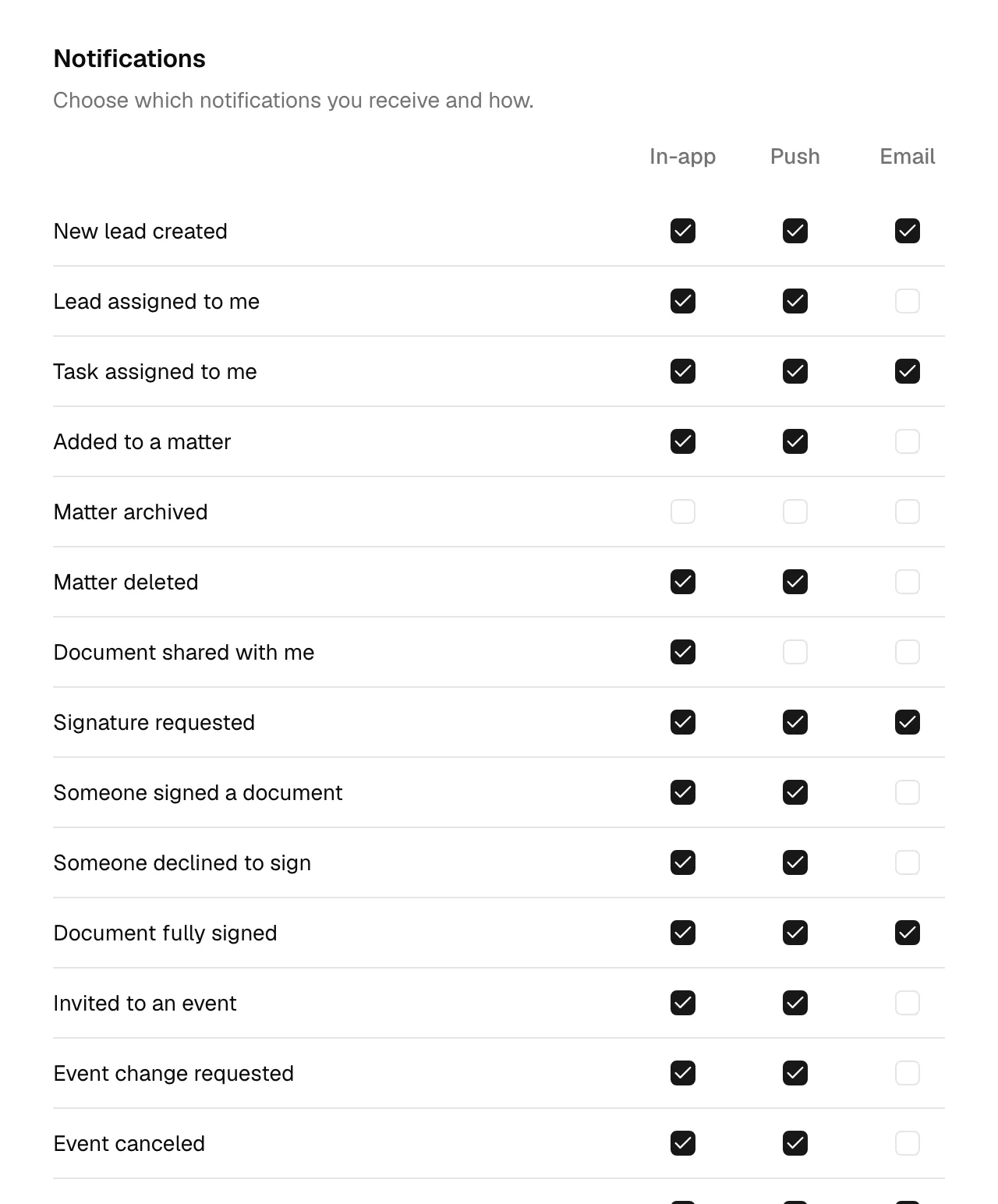
- The page header reads Notifications with the line "Choose which notifications you receive and how."
The three channels
Each row is one kind of event. For each event, you control three checkboxes:
- In-app: whether the event appears in your bell inbox and on the Notifications page, and, while you are working in Esqase, as a message in the corner of the screen. On by default.
- Push: whether the event also reaches you as a desktop alert while Esqase is in the background (turn alerts on first, above). On by default.
- Email: whether Esqase emails you about the event. Off by default.
Tick or untick any box to turn that channel on or off for that event. Changes save immediately, and Esqase confirms with a small Notification settings updated message. There is no separate Save button.
Important: Push needs In-app, and the page says so above the grid. In-app is the master switch for an event: untick it and the Push box empties and greys out, because there is nothing to push. To keep a record of an event without being interrupted at your desk, leave In-app on and turn Push off. To bring Push back, turn In-app on again first.
Tip: A common setup is to leave In-app on for everything, keep Push on for the few events you want to react to right away (like an event reminder or a payment), and turn on Email only for the things you want a paper trail of.
The events you can be notified about
The preferences page lists each event type with a plain-language label, in this order:
- New lead created: a new potential client (lead) comes into your firm.
- Lead assigned to me: a lead is assigned to you.
- Task assigned to me: a task is assigned to you.
- Added to a matter: you are added to a matter (a case or legal file).
- Matter archived: a matter you work on is archived.
- Matter deleted: a matter you work on is deleted.
- Document shared with me: a document is shared with you.
- Signature requested: someone requests your signature on a document.
- Someone signed a document: a signer signs a document you sent out.
- Someone declined to sign: a signer declines a document you sent out, or Esqase could not finalize one.
- Document fully signed: every signer on a document you sent out has signed.
- Invited to an event: you are added to a calendar event or meeting.
- Event change requested: a client or attendee asks to reschedule an event.
- Event canceled: an event you are part of is canceled.
- Event reminders: a reminder before an event you are attending.
- Court date reminders: a court date on a matter you work on is coming up. It arrives on each reminder day set for the date, for example 7 days before.
- Court date overdue: a court date passed while it was still open, meaning nobody marked it completed, vacated it, or marked it not applicable.
- Court dates added or changed: court dates were added to a matter you work on, moved, or proposed for your review.
- Court rules updated: Esqase published a new version of court rules your firm follows.
- Form request completed: an intake form you are tracking is filled out and submitted.
- Payment received: a payment is recorded against an invoice.
- Invoice due today: an invoice reaches its due date.
- New message: a colleague or a client sends a message in a conversation you are in.
- Mentioned in a message: someone @mentions you in a message.
- Comment on my task: someone comments on a task you created, are assigned to, or previously commented on.
- Mentioned in a task comment: someone @mentions you in a comment on a task.
- Comment on my document: someone comments on a document you own, have access to, or previously commented on.
- Mentioned in a document comment: someone @mentions you in a comment on a document.
- Comment on my invoice: someone comments on an invoice you created or previously commented on.
- Mentioned in an invoice comment: someone @mentions you in a comment on an invoice.
- Comment on my contact: someone comments on a contact you created or previously commented on.
- Mentioned in a contact comment: someone @mentions you in a comment on a contact.
- Comment on my matter: someone comments on a matter you created, are assigned to, or previously commented on.
- Mentioned in a matter comment: someone @mentions you in a comment on a matter.
- Comment on my lead: someone comments on a lead you created, are assigned to, or previously commented on.
- Mentioned in a lead comment: someone @mentions you in a comment on a lead.
- New post in Feeds: someone publishes a post to the firm noticeboard. Everyone who can view Feeds gets it, except the person who wrote it.
- Comment on my feed post: someone comments on a feed post you wrote or have already commented on.
- Mentioned in a feed comment: someone @mentions you in a comment on a feed post.
- Approval requested: you have been asked to review an invoice or a document.
- Approval granted: an invoice or document you submitted was approved.
- Changes requested: a reviewer asked for changes on an invoice or document you submitted.
- Feedback implemented: someone told you the changes you asked for on an invoice or document have been made.
- My review was marked done: every point you raised as a reviewer has been marked done, so the invoice or document is ready for another look.
- Free trial ending soon: your firm's free trial is close to its end.
- Subscription payment failed: a subscription payment did not go through.
- Subscription access ending soon: your firm's grace period after a failed payment is running out.
- Subscription suspended: your firm's access has been put on hold.
- Plan changed: your firm moved between the Standard and Professional plans.
- Automatic step could not run: a workflow step Esqase was running stopped and needs someone to look at it.
- Automatic step needs approval: Esqase prepared a workflow step and is waiting for a member to approve it before it goes out.
- Workflow waiting on a client: Esqase has stopped chasing a client for a step and is handing it back to you. The detail reads We have reminded the client 3 times about Intake form on LEAD-0117., or names the reason when a reminder could not be sent at all.
- Statute of limitations approaching: a matter's statute of limitations date is coming up.
- Records follow-up due: a records or bills request on a personal injury case is due to be chased.
- Personal injury deadline due: a deadline on a personal injury case has reached its reminder window.
- Lien response due: a lien on a personal injury case is due for a response.
- Demand response due: a demand you sent is due for a response.
- Settlement funded: a personal injury settlement has been marked funded.
Note: The three workflow rows (Automatic step could not run, Automatic step needs approval, and Workflow waiting on a client) reach you in the app only until you change them, with no desktop alert and no email, so automation keeps you informed without interrupting your desk. Their Push box shows ticked all the same, as it does on every row you have never changed. The first time you change a box on one of these rows, Esqase saves the row exactly as it appears, so Push is on from then unless you untick it. To hear about a stuck step right away, untick Push and tick it again. They go to the member the workflow runs as and to the people assigned to the lead or matter. See Managing leads and The matter workspace.
Note: Turning every channel off for an event silences it completely: it will not reach your bell, your desktop, or your inbox.
Note: The five subscription rows (Free trial ending soon, Subscription payment failed, Subscription access ending soon, Subscription suspended, and Plan changed) go to the firm owner and to anyone whose role lets them administer the firm. Only an owner's copy links to the billing settings, because only owners can open that page. If you are not an owner, the notification tells you what happened and leaves the payment to whoever handles it. A Subscription suspended notice is the exception: everyone's copy opens the page explaining that the firm is on hold. See Your Esqase subscription.
Note: The five personal injury rows (Records follow-up due, Personal injury deadline due, Lien response due, Demand response due, and Settlement funded) only appear when your firm is on the Professional plan and has accepted its compliance agreement. On the Standard plan they are not in the list at all. Statute of limitations approaching is not one of them and stays for every firm, because a statute date lives on the matter rather than on a personal injury case. See Your Esqase subscription.
Note: A firm registered in the Philippines sees three of these rows under Philippine names: Prescriptive period approaching, Torts and damages deadline due, and Claim response due. See Torts and damages (Philippines).
When alerts carry no details
Once your firm accepts the compliance agreement that comes with the Professional plan, what leaves Esqase changes. Push alerts and notification emails stop naming anything about the case.
- A push alert reads the kind of thing that happened and nothing else, for example Task assigned with the body Open Esqase to see it. No client, matter, document, or provider name appears. A type Esqase has no short name for reads New activity in Esqase. This now covers every alert that leaves the window, including the one Esqase raises itself when your tab is in the background.
- A notification email does the same. Billing emails also drop your firm's name from the subject and the body.
- Your clients' alerts are covered too. A portal client's desktop alert and notification email carry the kind of event and Open your client portal to see it., with no matter, document, or invoice named. Their portal inbox still shows the full text. Alerts on a client's phone from the Esqase Client app carry no detail with or without an agreement: they read the kind of event and Open Esqase to see it.
- The notifications inside Esqase are unchanged. The bell, the Notifications page, and the message in the corner of the screen you see while you are working all still carry the full title and body.
This is not a preference. It is switched on with the agreement and stays on for as long as the agreement stands. The firm owner can see it under Settings > Firm, in a Notifications section showing Content-free notifications with an On badge and the reason underneath. See Business associate agreement (BAA).
Tip: If your alerts have gone quiet on detail, this is why. Open the alert, or the bell, to read the whole thing.
How notifications relate to assignments, bookings, payments, and reminders
Notifications are not a separate feature you have to configure for each record. They are generated automatically by the everyday work happening across Esqase, so understanding what triggers them helps you predict what you will see.
Assignments
When work is routed to you, you get a notification. It does not matter whether you were picked while the record was being created or added to it afterwards: both notify.
- Being assigned a task triggers Task assigned to me, whether the task was just created, cloned, produced by a workflow step, or added from a task list. Applying a task list that puts several tasks on you sends one notification naming how many, not one per task.
- Being assigned a lead triggers Lead assigned to me.
- Being added to a matter as a team member triggers Added to a matter, from the new matter wizard, from converting a lead, and through the developer API.
- Being added as a guest on an event triggers Invited to an event.
- Being given access to a document triggers Document shared with me.
Editing a matter's team only notifies the people you just added. The colleagues already on it are left alone. Importing matters from a spreadsheet stays silent, because an import is not an assignment anyone is waiting on.
This means you do not need to keep refreshing your task list to learn that something landed on your plate; the bell tells you.
Note: You are never notified about work you routed to yourself. If you create a task and put your own name on it, nothing lands in your bell.
Intake and leads
- A new lead arriving at your firm triggers New lead created, whichever way it arrived: typed into the New lead dialog by a colleague, booked through your public booking page, submitted through a public intake form, or pushed in through the developer API.
- It goes to firm owners and to colleagues whose role can see leads. The person who created the lead is not notified about it, and anyone they picked as an assignee gets Lead assigned to me instead, so nobody gets told the same thing twice.
- A public intake form being completed triggers Form request completed, and opens the completed submission on the lead or matter it belongs to.
Tip: If another system pushes leads into Esqase in bursts, Esqase protects your bell. More than three leads arriving through the developer API inside the same ten minutes collapse into a single New leads from the API notification saying how many arrived, which opens your leads list. Leads created through the API are announced about a minute after they arrive, which is what gives Esqase the chance to group them.
These keep your intake team responsive without watching the leads board all day. See Managing leads and Reviewing form submissions.
Bookings and events
Scheduling generates several notification types:
- Being invited to an event triggers Invited to an event, both when the event is created and when you are added to one that already exists. It opens the event.
- A client asking to move a meeting triggers Event change requested, every time they propose a time, not just the first. It opens the time they proposed.
- A client accepting the time your firm proposed, or approving a reschedule, triggers Meeting time confirmed for the meeting's host. It names the client and the meeting and gives the agreed time in the host's own time zone; when the client is in a different zone it adds Their time with the same moment on the client's clock, so nobody has to convert. It opens the event. This one arrives under Invited to an event in your notification settings rather than having a switch of its own.
- A cancellation triggers Event canceled. Archiving or deleting a matter cancels its events, and the guests are told, including colleagues who were invited but are not on the matter's team. On a matter restricted to specific members the notification leaves the event's name out.
- An upcoming event triggers an Event reminders notification at the lead time set on the event (for example 15 minutes before it starts), before every occurrence of a repeating event.
So when a client books or reschedules through your public booking page, the relevant team member is alerted automatically. See Calendar and events and How clients book meetings.
Documents and signatures
- A document being shared with you, or your being given access to one, triggers Document shared with me and opens the document.
- A request for your signature triggers Signature requested, and opens the document with your signing view ready. On a document signed in order, you are told when it is your turn, not when the request is set up, and the next signer is told as soon as the one before them signs.
- A signer acting on a document you sent out triggers Someone signed a document, Someone declined to sign, or Document fully signed. A declined notification opens the document showing who declined and when.
- A client commenting on a document you shared with them triggers Comment on my document for the document's owner, everyone with access, and anyone who has already commented.
- If everyone signs but Esqase cannot produce the certified copy, it tells the person who sent the request and the firm owners: A signed document could not be certified. The notice names the document and says which of three things is in the way (the file changed after it was sent out, a signer's typed value uses characters the certified copy cannot print, or part of the signed document can no longer be read), each with the advice to cancel the request and send it again. It arrives under the Someone declined to sign setting. See If the certified copy does not arrive.
See Sharing documents and Requesting eSignatures.
Comments and mentions
Discussion on tasks, documents, invoices, contacts, matters, leads, and feed posts keeps the people involved in the loop:
- A comment on a task triggers Comment on my task for the task's creator, its assignees, and anyone who has already commented on it.
- A comment on a document triggers Comment on my document for the document's owner, everyone it is shared with, and anyone who has already commented on it.
- A comment on an invoice triggers Comment on my invoice for the person who created the invoice and anyone who has already commented on it.
- A comment on a contact triggers Comment on my contact for the person who created the contact and anyone who has already commented on it.
- A comment on a matter triggers Comment on my matter for the person who created the matter, everyone on the matter's team, and anyone who has already commented on it.
- A comment on a lead triggers Comment on my lead for the person who created the lead, its assignees, and anyone who has already commented on it.
- A comment on a feed post triggers Comment on my feed post for the person who wrote the post and anyone who has already commented on it. See Feeds.
- Being @mentioned in any of those comments triggers the matching Mentioned in a ... comment event. A mention takes priority, so if you are both a participant and mentioned, you get the mention notification rather than a duplicate.
- Editing a comment to add a mention notifies the person you added. Only the newly mentioned people are told, so nobody already in the thread hears about it twice.
- A comment on a matter or a contact opens that record's Overview tab at the comment, rather than leaving you to find it.
- A comment on a feed post opens that post on its own page, with the conversation open at the comment.
You are never notified about your own comments. See Creating and managing tasks, Editing documents (the file editor), and Creating and sending invoices.
Approvals
If your firm requires invoices or documents to be reviewed before they go out, the people involved are told automatically:
- Being added as a reviewer triggers Approval requested, whether you were picked by hand or added as one of the firm's default reviewers. Being taken off a review notifies nobody.
- A reviewer approving triggers Approval granted for whoever submitted the item.
- A reviewer asking for changes triggers Changes requested for whoever submitted the item.
- Someone clicking Mark all feedback implemented triggers Feedback implemented for every reviewer who asked for changes.
- Every point one reviewer raised being marked Done triggers My review was marked done for that reviewer, so they know to look again.
So nobody has to check an invoice or a document to find out that it is waiting on them. Note that a reviewer asking for changes also posts a comment on the item, which carries its own comment notifications on top of these.
Approval notifications land where you can act. Approval requested and Feedback implemented open the invoice or document with the review panel already open, so the Approve and Request changes buttons are in front of you. Changes requested and My review was marked done open the item at the review comment itself, so you can read what was asked without scrolling the conversation. See Approvals for invoices and documents.
Payments and billing
- A payment being recorded triggers Payment received, whether a client paid through a payment link or a colleague entered it by hand. It reaches the people who can see invoices, and it opens the invoice with that payment highlighted. Recording a payment as pending and clearing it later is one notification, not two.
- An invoice reaching its due date triggers Invoice due today. Push the due date back and the invoice reminds again for the new date.
- Your firm's subscription produces its own alerts: Free trial ending soon, Subscription payment failed, Subscription access ending soon, Subscription suspended, and Plan changed. A plan you change yourself in Settings notifies the other people who administer the firm, and never you.
This lets billing staff confirm money in and chase invoices on time without manually scanning the ledger. See Creating and sending invoices, Recording and managing payments, and Your Esqase subscription.
Messages
Chat reaches your bell as well as the red badge on the Messages icon.
- A message in a conversation you are in triggers New message, and clicking it opens the conversation.
- Being @mentioned in a message triggers Mentioned in a message instead.
- Messages a client sends from the client portal or the Esqase Client app notify your team the same way.
To keep a busy thread from filling your bell, Esqase groups ordinary messages: one conversation produces at most one New message notification every five minutes, however many messages arrive in it. Mentions are never grouped, because somebody asked for you by name.
Turn either of them off under Settings > Notifications, exactly as you would any other event. See Messages (chat).
Feeds
Publishing a post to the firm noticeboard tells the whole firm:
- A published post triggers New post in Feeds for every member whose role can view Feeds, except the person who wrote it. The detail is the start of the post, or A new post was shared with your firm when the post has no text of its own.
- Clicking it opens that post on its own page.
- A post scheduled for later sends nothing when it is written. The notification goes out at its publish time, so it arrives when the firm can actually read the post.
- Editing a post does not notify anyone again, so a typo fix is not a second announcement.
- Comments and mentions on a post are separate events, covered under Comments and mentions.
Turn it off under Settings > Notifications with the New post in Feeds row. See Feeds.
Reminders arrive on their own
Some notifications are not triggered by a person clicking something. Event reminders, Invoice due today, Court date reminders, Court date overdue, and the personal injury reminders below are produced by Esqase on a schedule, so they reach you at the right time even if no one is logged in. As long as your preferences allow the channel, they will reach you. Court date reminders keep their own timetable, described under Court dates and court rules.
For an event, you receive one reminder per occurrence, at the time you chose on the event itself: pick 15 minutes before and the reminder arrives 15 minutes before the start. A repeating event reminds you before every occurrence, not just the first. Moving an event arms its reminder again, so a meeting you push to next week still reminds you before the new time. Everyone invited to the event gets it, along with whoever created it. Set the lead time in the event's Notification field, or choose None there for an event you do not want to be reminded about. See Calendar and events.
Note: Getting a notification about something once does not stop a later one about the same record. A second statute reminder, a later billing alert, the second signer's notice, and a second payment on the same invoice all reach you. What Esqase does prevent is the same thing being reported twice: one occurrence produces one notification, one alert, and one email, however many times the work behind it is retried.
Personal injury reminders
If your firm runs injury cases, Esqase watches five kinds of date for you and sends a reminder when one comes due. Each one opens the matter on the tab where you can act on it, at the record it is about.
| Reminder | Triggered by | Opens |
|---|---|---|
| Statute of limitations approaching | A reminder you set on the matter's statute date | The matter's Overview tab |
| Records follow-up due | The Follow up date on a records or bills request | The Medical tab, at that request |
| Personal injury deadline due | A deadline's Remind days before window opening | The Claims tab, at that deadline |
| Lien response due | The Response due date on a lien | The Settlement tab, at that lien |
| Demand response due | The Response due date on an open demand or counter | The Claims tab, at that demand |
| Settlement funded | Someone marking a settlement Funded | The Settlement tab |
When the reminder names a record and you can edit it, Esqase opens that record's own panel for you. If you can only read it, Esqase scrolls to the row and marks it instead, so you can still see which one the reminder meant.
The five reminders go to the people assigned to the matter. If nobody is assigned and the matter is visible to the whole firm, they go to everyone whose role can work on that part of a case instead. On a matter restricted to specific members with nobody yet assigned, nothing is sent, and the reminder waits until someone is put on the matter. Settlement funded goes to everyone assigned to the matter whose role includes View access for personal injury, and to firm owners, so a colleague who cannot open the settlement is not told about it.
Three things are worth knowing about how often they arrive:
- One reminder per record, per date. However many times a day the check runs, a given deadline or request produces one notification for a given due date. Move the date and it arms again for the new one.
- A statute reminder fires once for each reminder you set up. A matter with a six-month, a thirty-day, and a seven-day reminder produces three notifications over the life of the case, one as each is reached.
- A missed date stops reminding. Statute reminders stop once the date has passed or the matter's statute is marked satisfied, and a deadline reminder only fires inside the window you set. The Statute of limitations at risk card on the personal injury overview is what surfaces a date that has already gone by. See The personal injury workspace and reports.
Note: These reminders never carry a client, provider, or document name, or any amount. They tell you which matter needs attention and what kind of date it is, and the details are behind the link.
Note: A reminder always opens the matter, but the tab it names appears only if the matter is still a personal injury case and your role still includes View access for Personal injury. If either has changed, you land on the matter's Overview tab instead.
Court dates and court rules
If your firm has court rules turned on, Esqase keeps the people working a matter up to date on its court dates. Four notifications cover it:
| Notification | Sent when | Goes to |
|---|---|---|
| Court date reminders | A court date reaches one of its reminder days | The date's assignees and the matter's team |
| Court date overdue | The day after a court date passes while it is still open | The date's assignees and the matter's team |
| Court dates added or changed | Court rules are applied to a matter, its dates are recalculated or changed, or a change needs review | The date's assignees and the matter's team, except whoever made the change |
| Court rules updated | Esqase publishes a new version of court rules your firm follows | Firm owners and members whose role can view court rules |
Who counts as the matter's team. A court date notification goes to the people assigned to the court date and to the members on the matter's team, as long as their role includes View access for Court dates and they can open the matter. If nobody qualifies, it goes to the firm owners instead, so no court date passes unannounced.
When reminders arrive:
- Each court date has its own reminder days. A date starts with your firm's reminders, which are 30, 14, 7, and 1 days before and on the day itself unless your firm changed them, or with the reminders its rule sets. Anyone whose role can update court dates can change them on the date with Edit reminders. See Turning on court rules and following courts.
- Reminders go out at your firm's reminder hour. Esqase checks for due reminders once an hour. A reminder is sent on its day at the first check from your firm's reminder hour onward, in your firm's time zone. The hour is 7:00 AM unless your firm changed Send reminders at under Settings > Firm > Court rules.
- The title counts down. A reminder reads Court date in 7 days, Court date tomorrow, or Court date today, and its detail names the court date and the matter by its number, for example Answer to complaint on matter MAT-0012 is due on 2026-10-14. It never names the matter's title or its parties.
- Missed days collapse into one. If a reminder day is missed, the reminders that came due together arrive as a single notification rather than one each.
- Overdue comes once. When a court date passes while it is still open, Court date overdue arrives the next day, once for that date.
- Moving a date arms its reminders again. Change a court date and its reminders count down to the new date.
- Closed dates go quiet. Reminders stop once a date is marked completed, vacated, or marked not applicable, and when its matter is archived.
What counts as a change. Court dates added or changed is sent when court rules are applied, when dates are recalculated, when a date is added by hand, changed by hand or reset, vacated, marked not applicable, or reopened, when a trigger is removed or the court changes, when a proposed change is accepted, and when Esqase proposes or makes a change because the court rules or the court's calendar changed. One notification covers the whole change, however many dates it touched. It is not sent when a date is marked completed, when a proposed change is rejected, or when reminders are edited, and the person who made the change is never notified about it.
Rule updates. Court rules updated names the rules, the new version, the date it takes effect, and how many of your firm's matters use them, and it opens Settings > Firm > Court rules. A firm that does not want it can turn off Notify when Esqase updates a rule set on that page.
Note: The four court rows are in your notification settings whether or not your firm uses court rules. They stay quiet until your firm starts putting court dates on its matters. See Working with court dates.
Common questions
Why didn't I get a notification I expected? Check three things: that the event type's channel is turned on under Settings > Notifications; that you are viewing the right firm in the bell; and, for desktop alerts, that the settings page says Desktop notifications are on for this browser. Note that Email is off by default, so you will not be emailed unless you turn it on.
My browser never asked to show notifications. It does not ask on its own. Open Settings > Notifications and click Enable desktop notifications at the top of the page. This is also why alerts work in Firefox and Safari, which ignore a request that does not follow a click.
The Push checkbox is greyed out. In-app is off for that event. Push has nothing to send when the notification is not being recorded at all, so tick In-app first and Push becomes available again.
Why don't I get a desktop alert while I am looking at Esqase? You do not need one. While the tab is in front of you, the notification arrives as a message in the corner of the screen with a View button on it, and the bell updates at the same time. Desktop alerts are for when you have switched to something else.
A reminder alert is sitting on my screen and will not clear. Event and deadline reminders are meant to wait for you, so they stay until you dismiss them. Click the alert to open the record, or close it the way your operating system closes notifications. Other kinds of alert clear themselves after a few seconds.
Am I going to get the same reminder over and over? No, but you will get the ones you should. A repeating event reminds you before each occurrence, and moving an event arms its reminder again for the new time. A one-off event reminds you once. The same is true elsewhere: a second statute reminder, a later billing alert, and a second payment on the same invoice all reach you, while one occurrence never produces two notifications.
I clicked a notification and Esqase asked me to switch firm. The notification belongs to another firm you work with, and Esqase will not move you without asking. Click Open in <firm name> to switch and open the record, or Back to notifications to stay where you are.
I'm getting too many desktop alerts. Open Settings > Notifications and turn off the Push checkbox for the noisier event types to stop alerts while Esqase is in the background. To stop them entirely for an event, untick In-app as well, which also removes it from your bell. If chat is the noisy one, turn off New message and keep Mentioned in a message on.
Do my colleagues see my notifications? No. Notifications are personal. Each person is notified about the work assigned to or relevant to them, based on their own preferences.
Are read notifications gone? No. Marking a notification read only clears the unread badge and highlight. To remove notifications from your working list, Archive them on the Notifications page, and only archived notifications can be permanently Deleted.
Related
- Integrations overview
- How clients get portal notifications
- Messages (chat)
- Feeds
- Connecting Google (Gmail, Calendar, Meet)
- Your profile and personal settings
- Calendar and events
- Recording and managing payments
- Creating and sending invoices
- Approvals for invoices and documents
- Personal injury overview
- Working with court dates
- Activity timelines and audit logs