Accounts, trust, and transactions
The Accounts area is where your firm keeps track of the money it holds: the operating account you run the business from, savings, and any trust or client-funds accounts you are required to keep separate. Every account carries a running balance, and behind each one sits a full ledger of deposits, withdrawals, and payments so you can always see where the money came from and where it went.
This page covers what each kind of account is, how to create and manage them, how to record and void transactions, and how Esqase keeps each account's balance perfectly in step with its ledger.
Before you begin
- Where to find it. In the sidebar, open the Billing group, then click Accounts. (If you have collapsed the sidebar groups, expand Billing first.)
- What you can do depends on your role. Esqase treats accounts and transactions as two separate areas of permission:
- Accounts: to add, edit, archive, restore, or delete an account you need Create, Update, or Delete access for accounts. Firm owners and administrators have full access by default. Attorneys and staff usually have view-only access, so they can open accounts and read balances but will not see the Add account button or the "..." menu on a row.
- Transactions: to record a deposit, withdrawal, or trust deposit you need Create access for transactions. By default, attorneys can view, record, and edit transactions, and staff cannot see transactions at all. Owners and administrators can do everything.
- Transaction voids: voiding a ledger entry is now its own permission, shown as Transaction voids in the role grid, and it is off by default for attorneys and staff. Voiding rewrites a balance and cannot be undone, so it is granted deliberately.
- Reconciliations: matching entries against a bank statement is its own permission too, shown as Reconciliations. Attorneys can view reconciliations by default, staff cannot. See Reconciling bank and trust accounts.
- If your role does not include a given permission, the matching button simply will not appear. Your firm owner or administrator can adjust this. See Roles and permissions.
Note: Esqase shows you the buttons your role allows, but the real check happens on the server when you save. Even if a button is visible, a save can still be refused if your access changed.
Operating, savings, and trust accounts explained
Esqase groups the accounts your firm holds into two broad families, because the law treats them very differently.
- Operating and Savings accounts hold your firm's own money: the fees you have earned, your day-to-day spending, and reserves. These are the accounts where invoice payments are normally deposited.
- Trust accounts hold money that belongs to your clients or to third parties, not to the firm. You hold it on their behalf until it is earned or disbursed. Lawyers are required by their bar to keep this money in a separate account and never to mix ("commingle") it with firm funds. Esqase offers several trust account types so you can label yours correctly:
- Trust Account (a general client-trust account).
- IOLTA (Interest on Lawyers' Trust Accounts): a pooled trust account whose interest is paid to a state bar foundation rather than to the firm or the client.
- Escrow: funds held pending the completion of a transaction.
When you choose one of these trust types, Esqase automatically turns on trust-accounting features for that account: a separate Clients tab, a per-client balance for every client whose money sits in the account, and stricter rules when you record a deposit (you must pick a category and, in most cases, name the client).
Note: The exact list of account types depends on your firm's country. In some regions you will see Client Trust Account in place of Trust Account and IOLTA. Operating, Savings, Escrow, Credit Card, and Other are available everywhere.
Important: Only Operating and Savings accounts can be used as the destination for invoice-link payments. Trust accounts are deliberately excluded so client funds are never commingled with firm income. The same holds for card and bank payments taken through LawPay or Confido Legal: an invoice payment is always posted to the operating or savings account you mapped to the processor's default operating account. See Taking card and bank payments with LawPay or Confido Legal.
View the accounts list
The accounts list is the home of this area. It shows every account your firm holds, with its type, bank, masked account number, currency, and current balance.
- In the sidebar, open the Billing group and click Accounts.
- Review the table. Each row shows the Account name, Type, Bank, Account No. (the last four digits, masked as
****1234), Currency, Balance, Status, who last updated it, and when. Click the name in Updated by to open that member's page. - Use the status tabs above the table to switch between:
- All every account.
- Active accounts in normal use (the default view).
- Archived accounts you have set aside but not deleted.
- To narrow the list, use the controls in the toolbar:
- Search accounts filters by name as you type.
- Account type is a faceted filter; pick one or more types to show only those.
- Clear filters appears once you have changed anything from the default, and resets the search, type filter, and status tab.
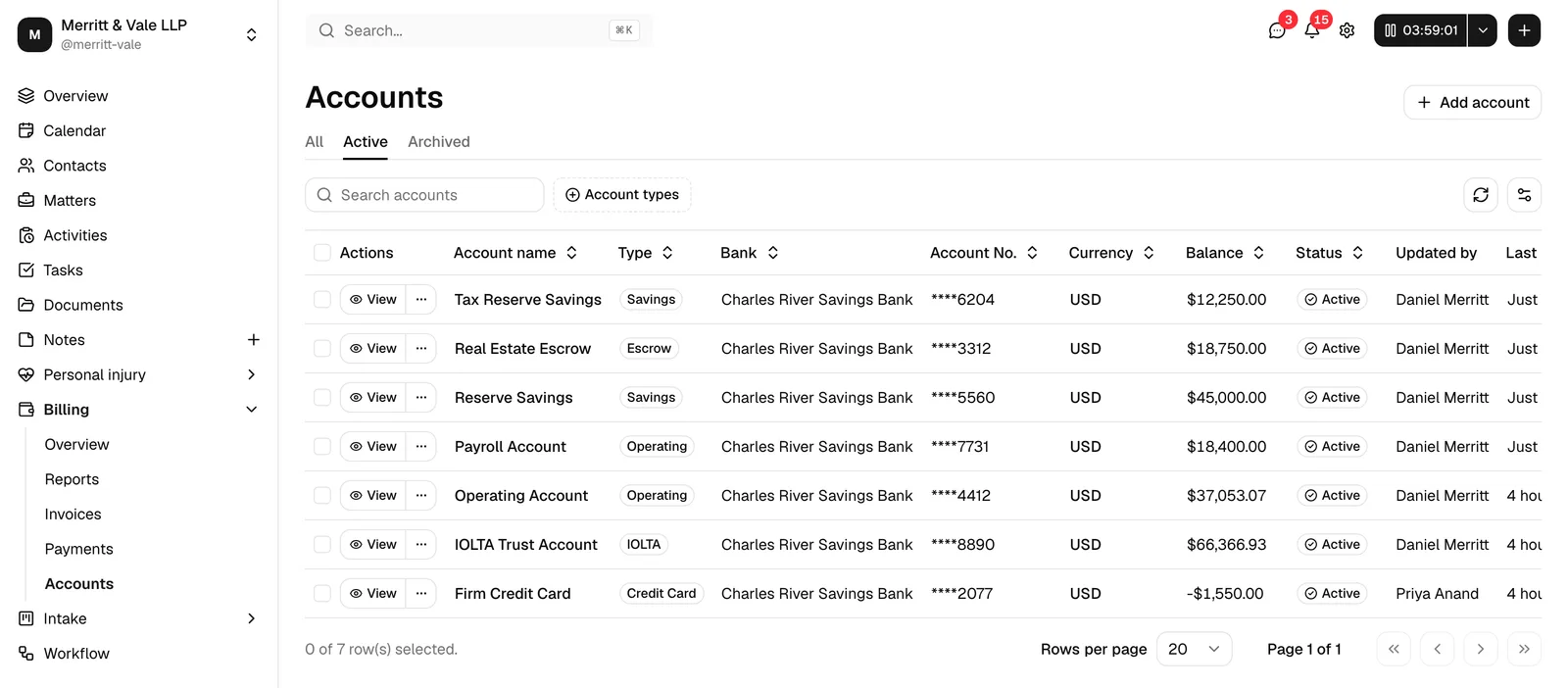
To open an account and see its full detail, click its Account name, or click View at the start of its row. Use the row's "..." menu for the other actions.
Note: Because an account's detail page is really that account's ledger, both ways in need view access for accounts and transactions. With both, you get the View button and a clickable Account name, even if you cannot edit anything. Without transaction access (which is how Staff are set up by default), there is no View button and the account name stays plain text. The "..." menu with Edit, Archive, Restore, and Delete is separate: it only appears if you have Update or Delete access for accounts, so a view-only member sees View on its own.
Tip: If you have Update or Delete access, you can select several accounts with the row checkboxes and use the batch actions to Archive, Restore, or Delete them in one step.
When the firm has no accounts yet
The first time your firm uses Accounts, instead of an empty table you will see a No accounts yet panel. It explains that this is where you track your firm's operating and trust accounts, and that adding one lets you start recording transactions. If your role includes Create access for accounts, the panel carries an Add account button that opens the same Add account dialog as the button in the top right. A Learn more link beside it opens this page in a new tab. As soon as you save your first account, the table takes the panel's place without reloading the page.
📷 Screenshot: The Accounts page showing the No accounts yet panel with the Add account button and the Learn more link on one row.
Create a financial account (operating or savings)
Add an operating or savings account when you want to track your firm's own funds and have a place to deposit invoice payments.
- On the Accounts page, click Add account in the top right. (You will only see this button if your role includes Create access for accounts.)
- The Add account dialog opens. Fill in the fields:
- Account name (required): a clear label such as
Operating Checking. Up to 128 characters. - Account type: choose Operating or Savings. This is searchable, so you can start typing to filter.
- Bank name: the name of the bank, for example
Chase. Optional. - Last 4 digits (required): the last four digits of the account number. Esqase stores and displays only these four digits, never the full number.
- Currency (required): defaults to your firm's currency. You can pick another from the list.
- Initial balance: the opening balance for the account. This is recorded as the account's first deposit, so the ledger and balance start out in agreement. It cannot be negative. Leave it at
0for a brand-new account with no starting funds. - Description: optional notes about the account, up to 500 characters.
- Account name (required): a clear label such as
- Click Create account. Esqase saves the account, records the opening balance as its first deposit, and shows a confirmation. The new account appears in the list.
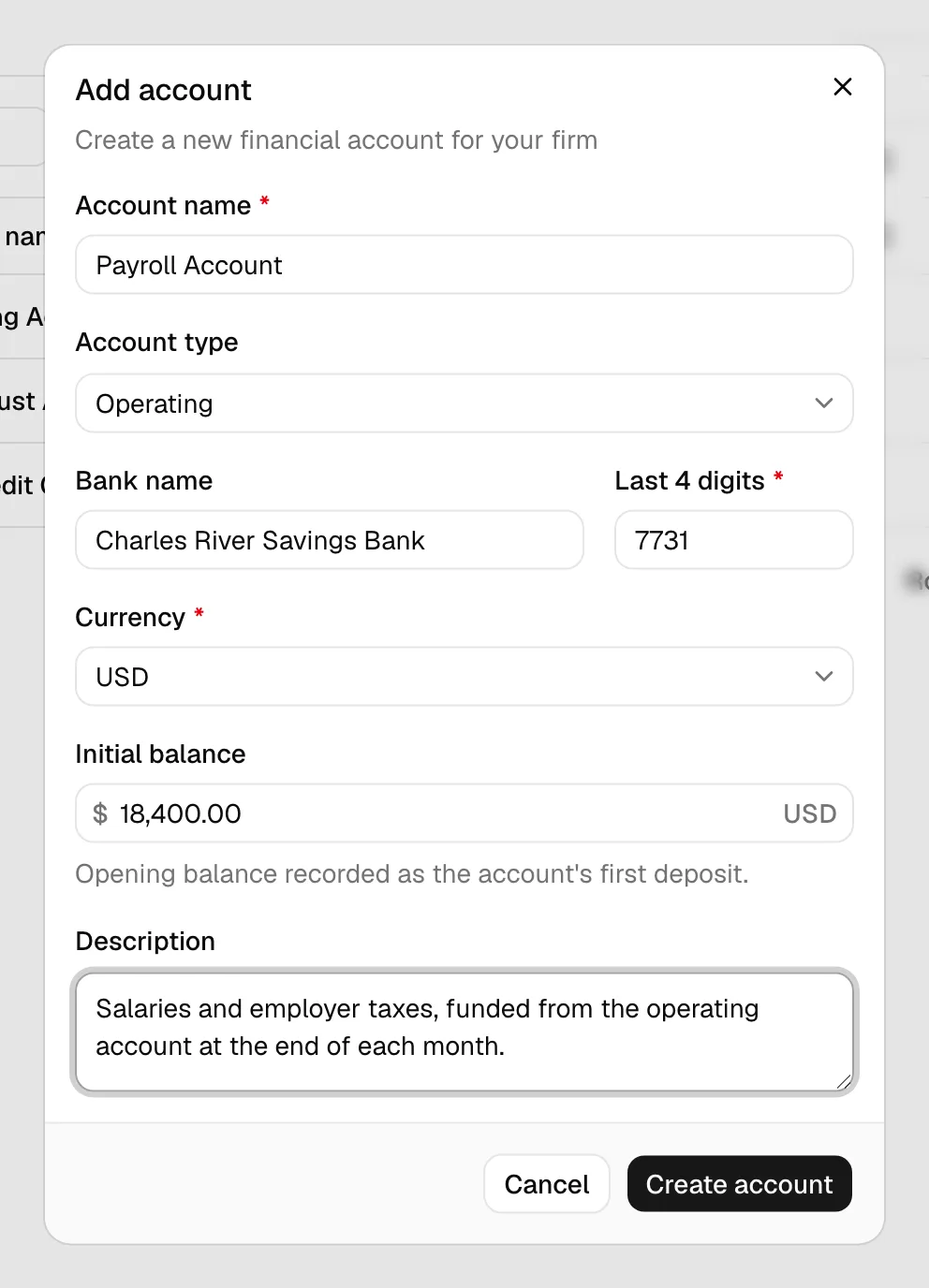
Tip: The Initial balance field only appears when you are creating an account. To change a balance afterward you record a transaction, not by editing the account.
Create a trust, IOLTA, or escrow account
Set up a trust-type account to hold client or third-party funds. The steps are the same as for an operating account, but choosing a trust type unlocks trust-accounting features.
- On the Accounts page, click Add account.
- In the Add account dialog, set Account type to Trust Account, IOLTA, or Escrow (or Client Trust Account, depending on your country).
- Complete the remaining fields (Account name, Bank name, Last 4 digits, Currency, optional Initial balance and Description) exactly as you would for any account.
- Click Create account.
Because you chose a trust type, the account now behaves differently from an operating account:
- Its detail page gains a Clients tab that breaks the balance down per client.
- When you record money into it, Esqase requires a deposit Category and, in most cases, the Client the money belongs to.
- It is excluded from the list of accounts that can receive invoice-link payments, so client funds stay separate from firm income.
Important: Pick the trust type that matches your bar's terminology. The type label is what appears throughout the app and on reports, so an IOLTA account should be created as IOLTA, not as a plain Trust Account.
Edit, archive, restore, and delete an account
You can correct an account's details or move it through its life cycle from the accounts list or from the account's own detail page. The available actions depend on whether the account is active or archived, and on your permissions.
Edit an account
- From the list, find the account and click the "..." menu at the start of its row, then choose Edit. (On the account's detail page, use the "..." menu next to New transaction and choose Edit.)
- The Edit account dialog opens with the current details. Change the Account name, Account type, Bank name, Last 4 digits, Currency, or Description.
- Click Save changes.
Note: There is no balance field on the edit dialog. Balances only change when you record or void transactions, never by editing the account itself.
Archive an account
Archiving hides an account from the default Active view without deleting it or its history. Use this for accounts you have closed at the bank but want to keep for the record.
- Open the account's "..." menu and choose Archive.
- In the Archive account? confirmation, click Archive account. The account moves to the Archived tab and can be restored later.
Restore an account
- Switch to the Archived tab.
- Open the account's "..." menu and choose Restore. The account returns to the Active list.
Delete an account
Deleting is permanent and is only offered for accounts that are already archived.
- Switch to the Archived tab.
- Open the account's "..." menu and choose Delete (this requires Delete access for accounts).
- In the Delete account? confirmation, click Delete account. The dialog warns that this cannot be undone.

Tip: To act on many accounts at once, tick their checkboxes in the list and use the batch Archive, Restore, or Delete buttons that appear. The same active-versus-archived rules apply.
The account detail tabs
Open an account by clicking its Account name or the View button on its row. The detail page shows the account's name and breadcrumb at the top, a New transaction button and a "..." menu on the right, and a set of tabs in the main area.
Reconciling happens on the account's Reconcile tab, where you tick entries off against a bank statement. Open that tab and a Start reconciliation button joins the header, to the left of New transaction. See Reconciling bank and trust accounts.
On a trust-type account, the "..." menu also carries Record disbursement and Transfer to another trust account. See Trust compliance and three-way reconciliation.
Which tabs you see depends on the account type and your role:
- Every account shows Overview and Transactions.
- A trust-type account also shows a Clients tab.
- A Reconcile tab appears last when your role includes View access for reconciliations.
Note: The Account information sidebar on the right only appears on the Overview tab. The other tabs use the full width of the page, so the tables and the reconciliation history have room to breathe.
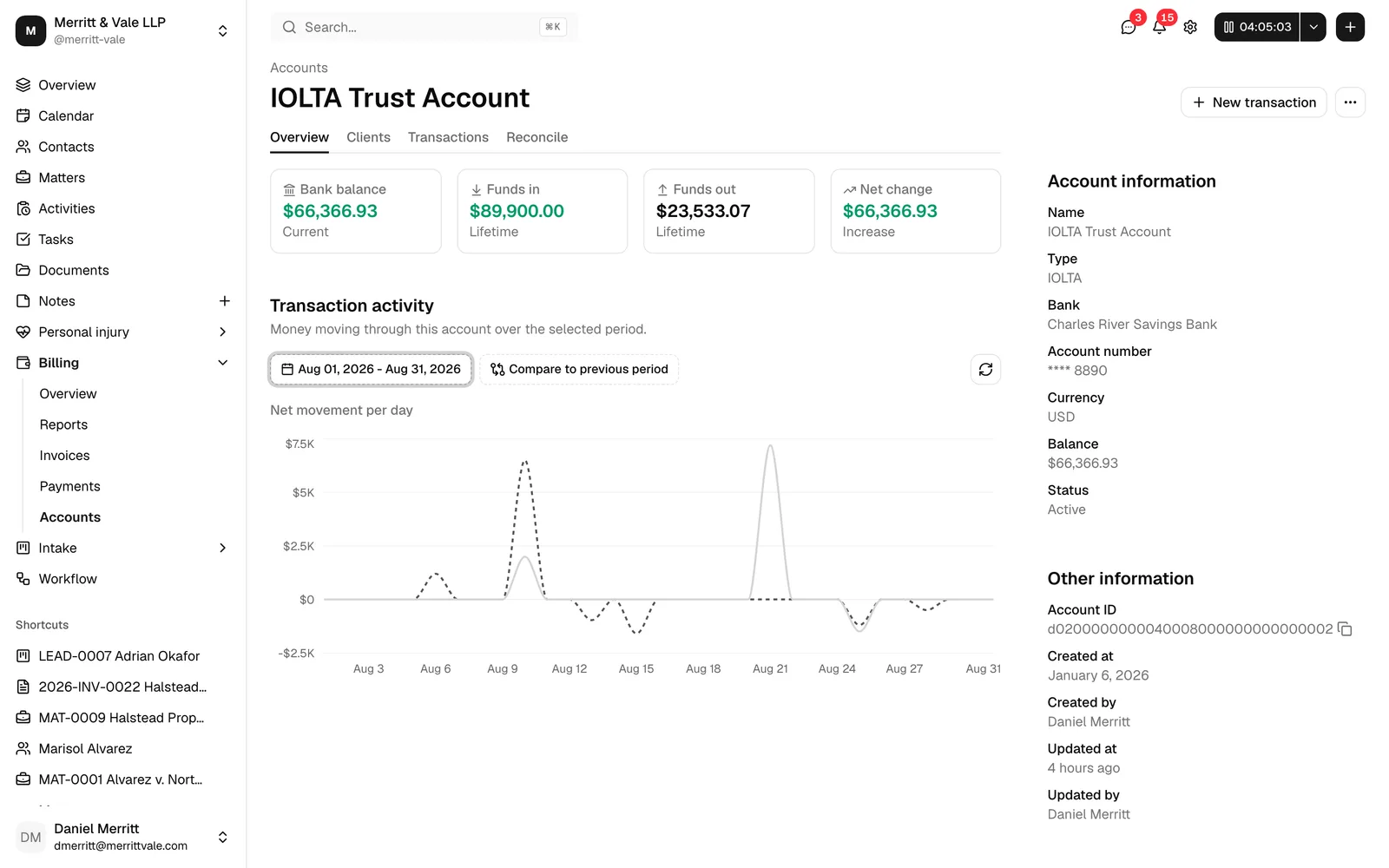
Overview
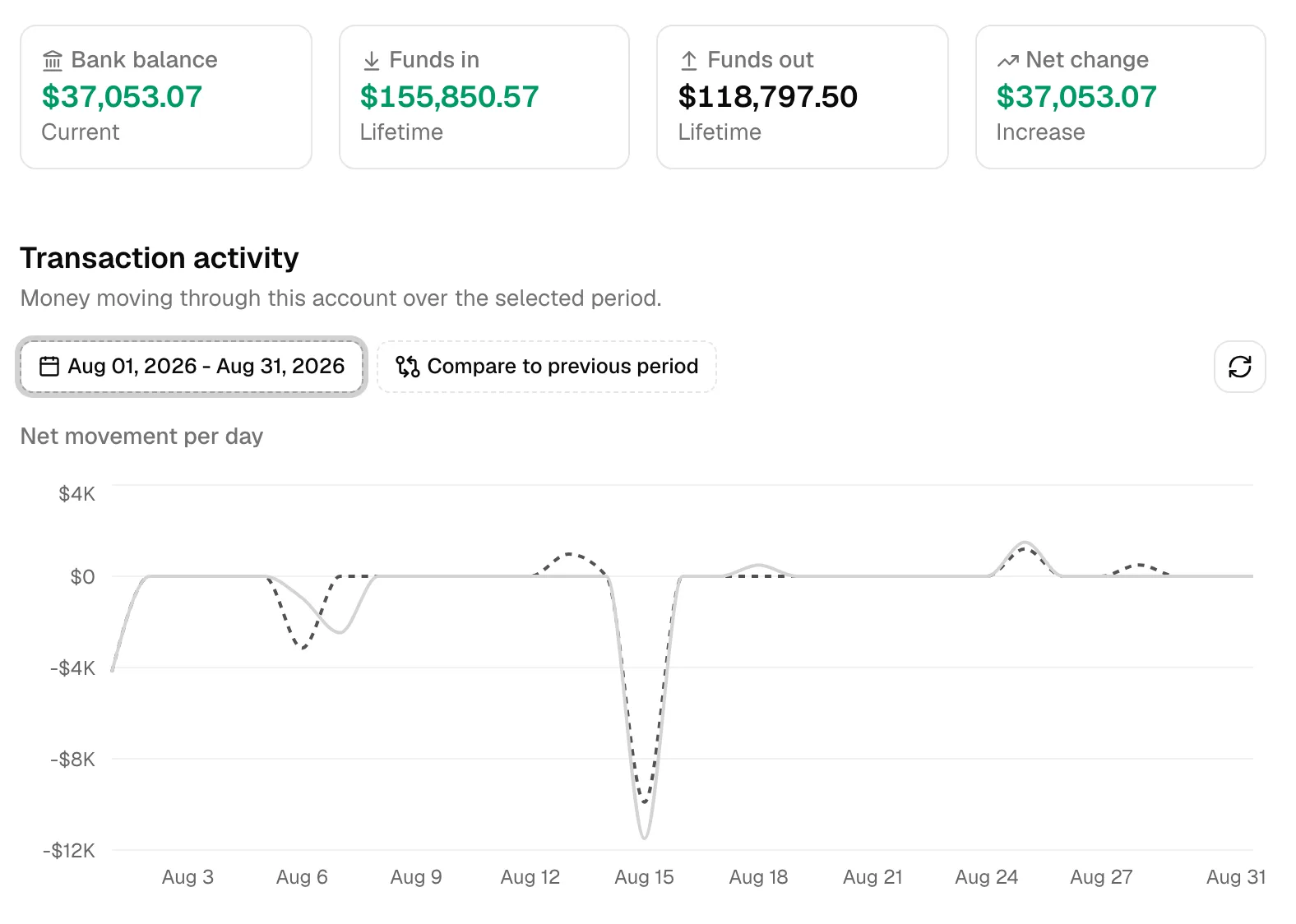
The Overview tab gives you four summary cards at a glance:
- Bank balance the account's current balance.
- Funds in the total of everything that has come into the account (deposits, transfers in, payments, interest), across the account's lifetime. Voided rows are excluded.
- Funds out the total of everything that has left the account (withdrawals, transfers out, fees, refunds). Voided rows are excluded.
- Net change the difference between funds in and funds out, shown with an up or down indicator.
Below the cards, Transaction activity charts the money moving through this account over a period you choose, so you can see the rhythm of deposits and disbursements rather than just lifetime totals.
- The date range starts on the last 7 days, including today. Click the date range button to pick any other period.
- The comparison starts on the period immediately before the one you picked, so a 7-day view compares against the 7 days before it. Use the compare button to choose a custom range instead.
- The chart plots the account's net movement for each day, that is, everything that came in on that day less everything that went out. The solid line is the period you picked and the dashed line is the comparison period, so you can read the two against each other day by day. Hover any point for the exact amounts.
- Voided entries are excluded, the same as the summary cards above.
- A period with no activity shows a flat line at zero.
- Use the refresh button on the right of the filters to reload the chart.
The four cards above stay on lifetime totals, so they do not change when you move the date range. The chart is the part that follows the period you pick.
The right-hand Account information sidebar repeats the key facts (Name, Type, Bank, Account number, Currency, Balance, Status) plus an Account ID you can copy, and the created/updated history. It is shown on the Overview tab only.
Clients (trust accounts only)
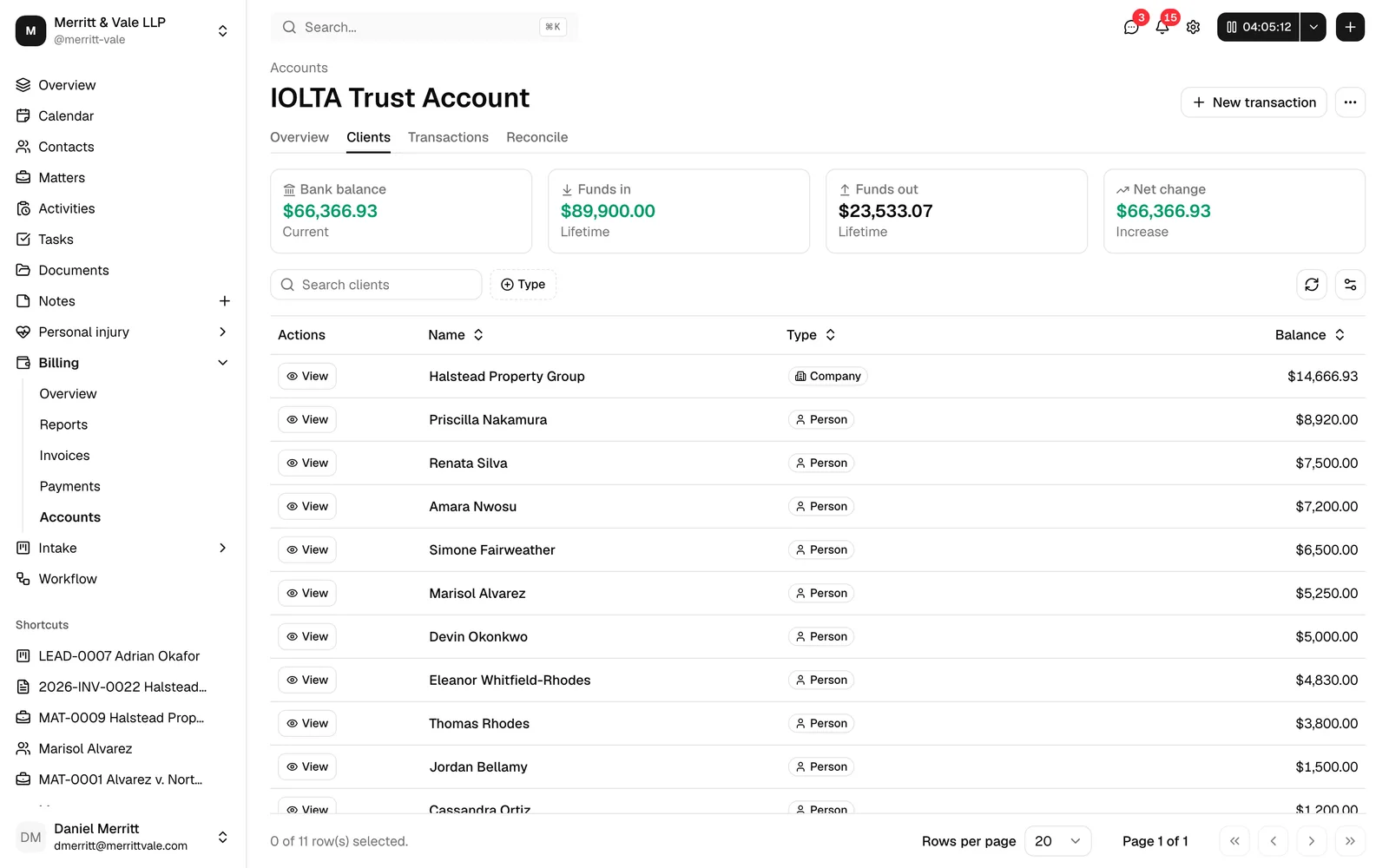
The Clients tab appears only on trust-type accounts and answers the question every trust account must be able to answer: how much of this account belongs to each client?
- The same four summary cards appear at the top.
- A Clients table lists every client with money in the account, showing each client's Name, Type, and Balance.
- Type tells you whether the client is a Person or a Company, using the same badge you see on the Contacts list.
- Use Search clients to find a name, and the Type filter to show only people or only companies. Clear filters resets both.
- Click Name or Balance to sort the table by that column.
- Click a client's Name to open that contact.
- Click View on a client's row to jump to the Transactions tab already filtered to that client, so you can see exactly which deposits and disbursements make up their balance.
Important: A client's trust balance should never go negative. If you see a balance shown in red (negative), it means more has been disbursed for that client than was deposited, which usually points to a recording error worth investigating.
Transactions
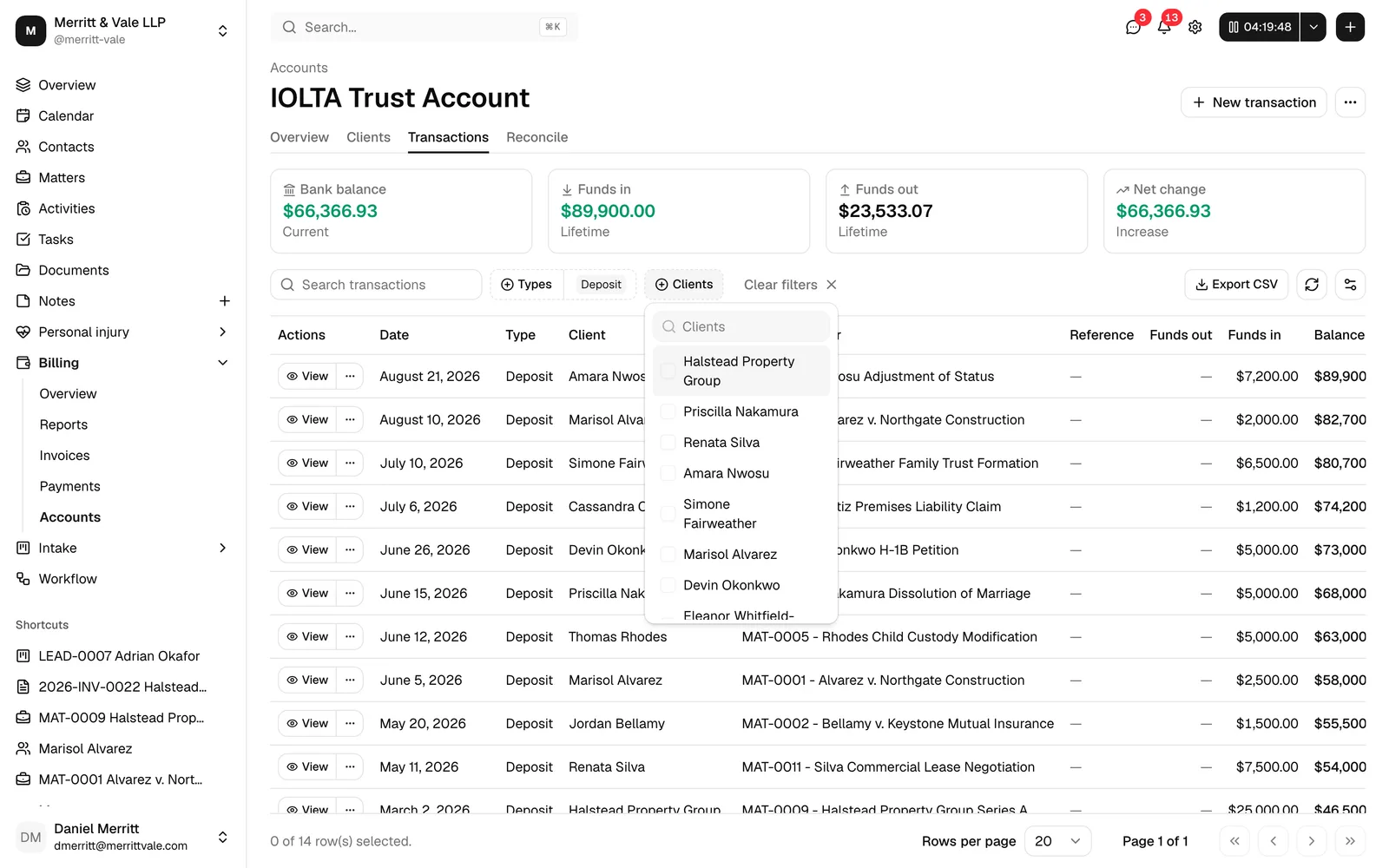
The Transactions tab is the account's full ledger. Each row is one entry, with columns for:
- Date the date of the transaction.
- Type for example Deposit, Withdrawal, Payment, Transfer in, Transfer out, Refund, Fee, Interest, or Adjustment.
- Client and Invoice / Matter the people and records the entry relates to, where they apply.
- Reference a check or reference number.
- Funds out and Funds in the amount, shown in the correct column depending on whether money left or entered the account (money out is shown in red).
- Balance the running balance after that entry.
- Who last updated it and when.
Most of those references are links, so you can follow an entry back to its source: Client opens the contact, and in Invoice / Matter the invoice number opens the invoice and the matter (shown as its number and title) opens the matter. The name of whoever last updated the entry opens that member's page. The same ledger appears on a matter's and a contact's Transactions tab, where it adds an Account column that opens the account the entry was posted to.
The summary cards sit above the ledger and update to match whatever filter you have applied. Use Search transactions, the Type filter, and (on trust accounts) the Client filter to narrow the view. Clear filters resets everything.
Reconcile
The Reconcile tab is the account's reconciliation history: one row per bank statement you have reconciled this account against, with its status, statement balance, and remaining difference. A search box, a Statement date range filter, and a Status filter above the table help you find an older one. Start reconciliation, which appears in the page header while this tab is open, begins a new one, and View on a row opens it so you can match entries. See Reconciling bank and trust accounts for the whole flow.
Record a deposit or withdrawal
On an operating or savings account, you record both deposits and withdrawals through the same form. Esqase decides which it is from the sign of the amount you enter.
- Open the account and click New transaction at the top right. (You need Create access for transactions.)
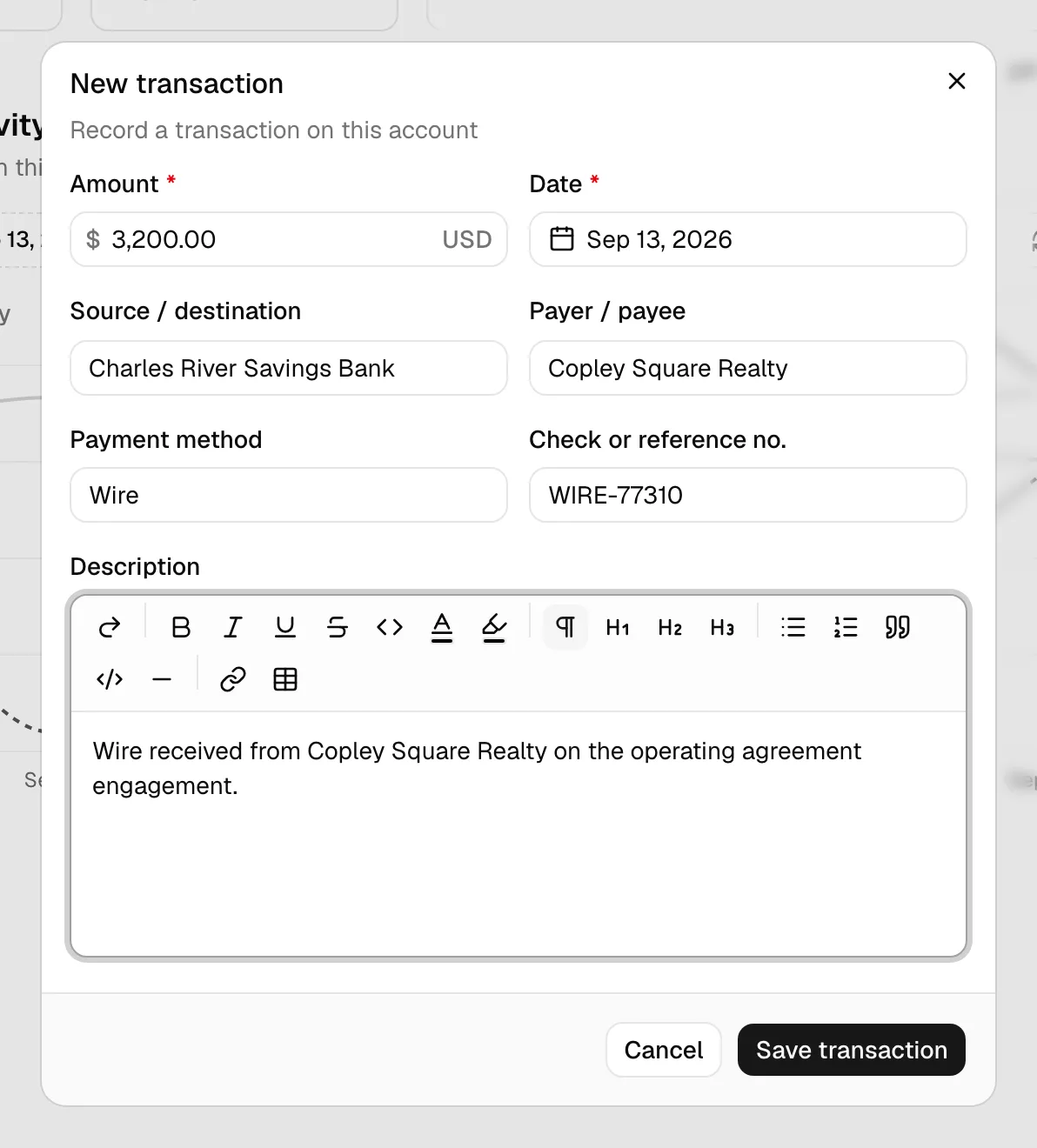
- The New transaction dialog opens. Fill in the fields:
- Amount (required): enter a positive amount for a deposit (money coming in) or a negative amount for a withdrawal (money going out).
- Date (required): defaults to today. Pick the date the transaction actually occurred.
- Source / destination: where the money came from or went to. Optional.
- Payer / payee: the person or organization on the other side. Optional.
- Payment method: for example
Check,Wire, orACH. Optional. - Check or reference no.: a check number or other reference. Optional.
- Description: a rich-text note explaining the entry. Optional but recommended.
- Click Save transaction. Esqase records the entry, updates the account's balance, and shows a confirmation. The new row appears at the top of the ledger.
Note: The amount cannot be zero. If you leave it at zero or enter an invalid number, Esqase asks you to enter a non-zero amount before saving.
Tip: If your firm takes card and bank payments through LawPay or Confido Legal, the processor deposits the full amount of each payment and takes its fees from your operating account separately, usually as one debit a month. Esqase records the full payment, so record the fee debit here as a withdrawal on the operating account when it appears on your bank statement, for example with a description such as LawPay processing fees for March. That keeps the account's ledger matching the bank, and processing fees never touch a trust account.
Record a trust deposit
Recording money into a trust account is stricter than into an operating account, because every dollar has to be tied to a client (and sometimes a matter). Esqase enforces these rules so your trust ledger stays compliant.
- Open the trust account and click New transaction.
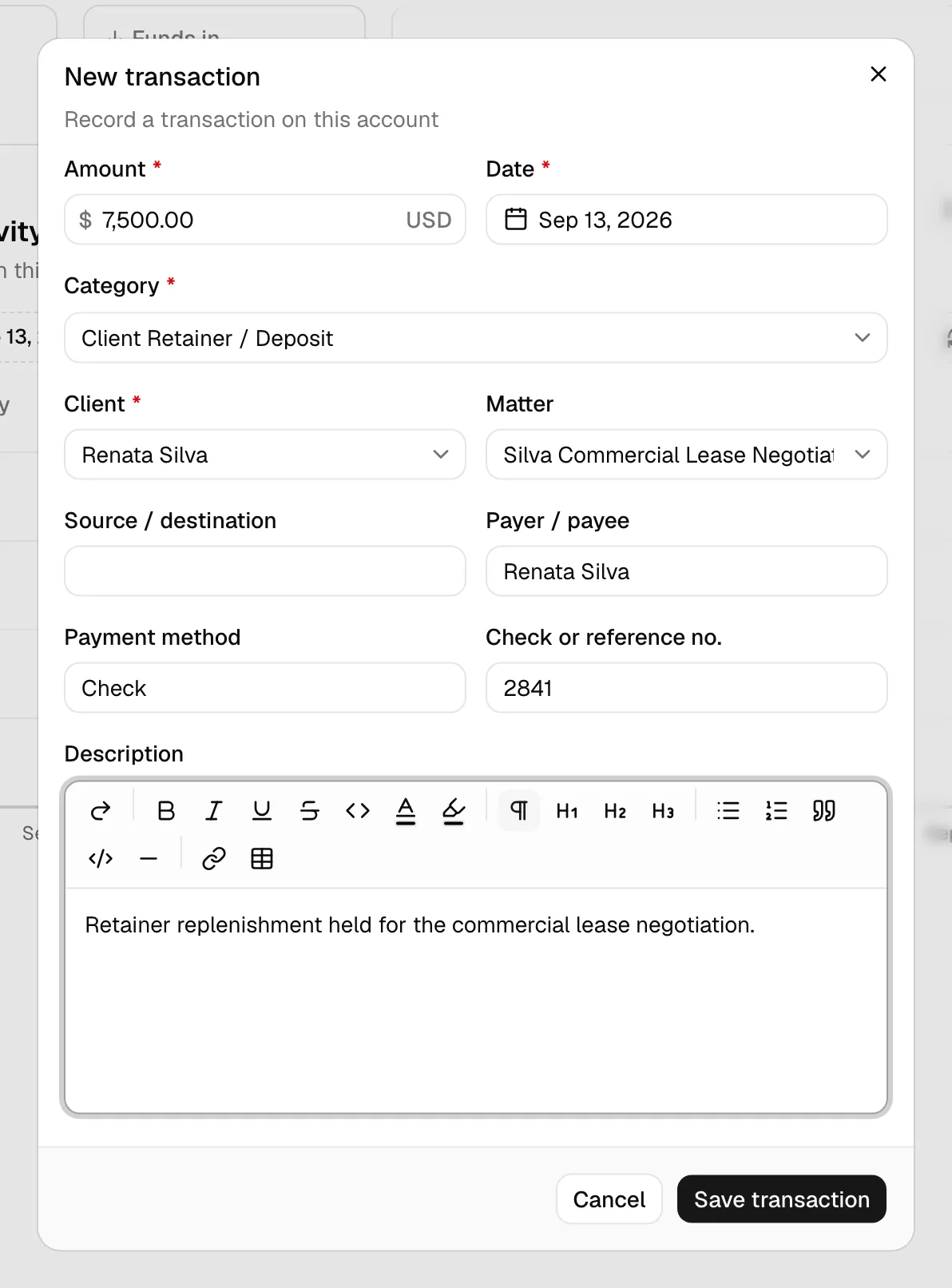
- In the dialog, fill in the fields. The form shows extra fields because this is a trust account:
- Amount (required): must be a positive number. Trust deposits cannot be negative.
- Date (required): defaults to today.
- Category (required): the kind of trust deposit. Choose from:
- Client Retainer / Deposit the most common case: funds a client has paid you to hold.
- Bank Interest / IOLTA interest credited to the account.
- Court-Ordered Deposit funds deposited under a court order.
- Third-Party Deposit funds received from someone other than the client.
- Other.
- Client: the client whose funds these are. Required for every category except Bank Interest / IOLTA.
- Matter: the matter the deposit relates to. Optional in general, but required when the category is Court-Ordered Deposit. The matter list narrows to matters tied to the client you picked, so choose the client first.
- Source / destination, Payer / payee, Payment method, Check or reference no., and Description work as on any transaction.
- Click Save transaction. The deposit is added to the ledger, the account balance goes up, and the client's per-client balance on the Clients tab increases by the same amount.
Important: Because Bank Interest / IOLTA is account-level interest rather than a particular client's money, choosing it hides the Client and Matter fields. For every other category you must name the client.
Record a trust deposit from a matter or contact
If you are already working inside a matter or a contact, you can record a trust deposit without leaving it. The record you started from is filled in for you.
- Open the matter or the contact and click Record trust deposit in its header. (You need Create access for transactions.)
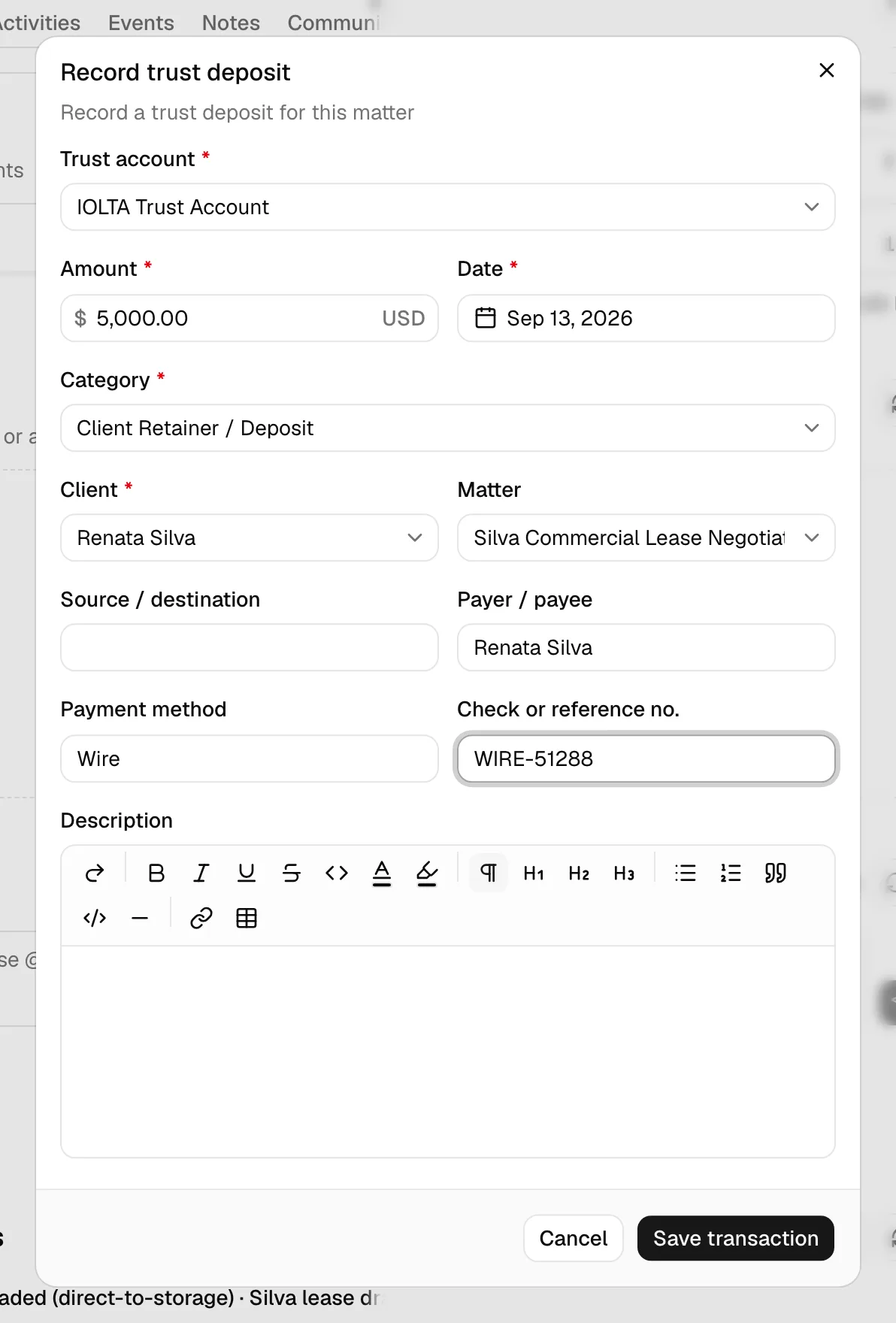
- The dialog opens. It is the same transaction form, but from a matter the Matter is already set to the current matter, from a contact the Client is already set to that contact, and either way the Category defaults to Client Retainer / Deposit.
- Pick the Trust account that receives the money. This is the first field in the dialog, and it lists only your trust-type accounts (Trust Account, IOLTA, Client Trust Account, and Escrow). Deposits recorded this way can never land in an operating or savings account. If your firm keeps only one trust account, it is already chosen for you.
- Set the Amount, confirm the Client and Category, add any optional details, and click Save transaction.
The deposit is recorded against the trust account you picked and shows up in that account's ledger, on the account's Clients tab, and in the matter's or contact's own transactions. For more on the matter workspace, see The matter workspace; for the contact detail page, see Working with contacts.
Note: If your firm has no trust account yet, the dialog does not show the form. It shows a notice titled "No trust account yet", explaining that trust deposits are recorded against a Trust or IOLTA account. Click Go to accounts to open the accounts list and add one, or Close to go back. Adding an account needs Create access for accounts.
Tip: The same notice appears if you click the Trust balance card on a matter's or a contact's Overview tab before your firm has a trust account. Adding the account once fixes both.
Ask a client to pay a trust deposit online
If your firm takes card and bank payments through LawPay or Confido Legal and has a default trust account mapped, you can ask the client to pay the deposit themselves instead of recording it by hand. Click Request trust deposit in the matter's or contact's header, enter the amount, and send the client the link. When the client pays, Esqase records the deposit on the mapped trust account in the Client Retainer / Deposit category, under that client and matter, so you do not record it again. A bank payment stays pending until it clears. See Trust deposit requests.
Void a transaction
You cannot edit or delete a posted transaction, because the ledger is meant to be a permanent record. Instead, when an entry is wrong, you void it. Voiding keeps the original row in the ledger marked Voided and reverses its effect on the balance, so your history stays intact and auditable.
- On the Transactions tab, find the entry and open its "..." menu, then choose Void transaction. (You need the Transaction voids permission, and the entry must not already be voided.)
- The Void this transaction? dialog opens. Enter a short Reason explaining why you are voiding it, for example
Entered the wrong amount; corrected by reversing entry. A reason is required. - Click Void transaction.
Esqase marks the row Voided, removes its amount from the running balance, and records who voided it, when, and the reason you gave. Voided rows are append-only: they stay visible in the ledger but cannot be edited or restored.
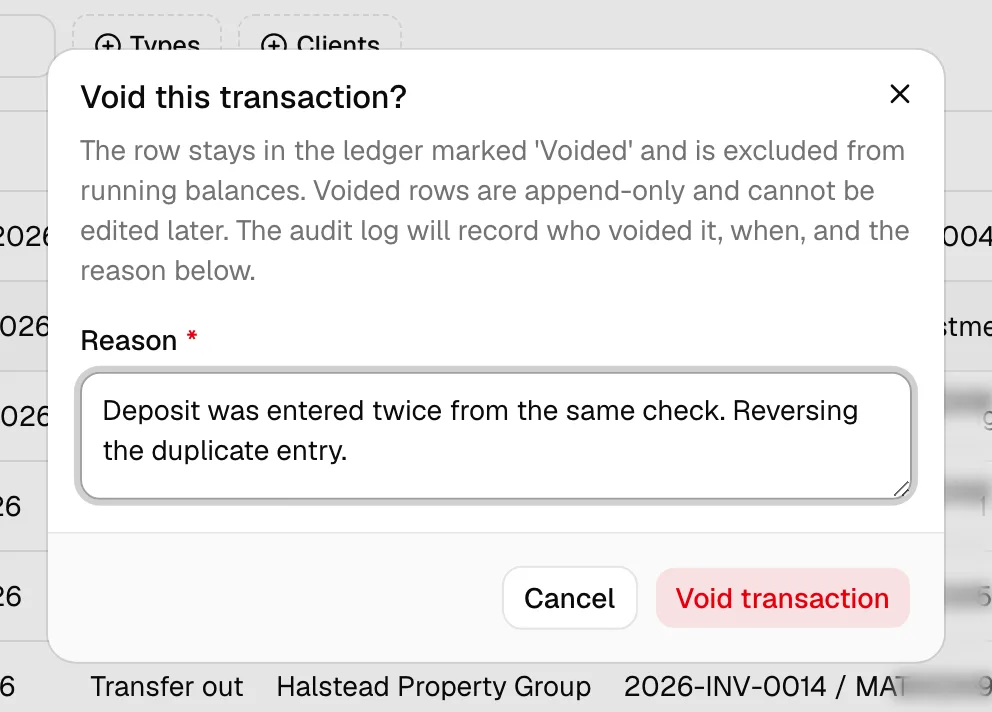
Note: Voiding the same entry twice has no extra effect. Once a row is voided, the Void transaction option no longer appears for it.
Important: A void that would push a client's trust balance below zero is refused, and nothing is written. That can happen when entries are voided out of order, for example voiding a trust deposit after its money has already been paid out. Void the later entry first. See Trust compliance and three-way reconciliation.
View transaction details
To inspect an entry without changing it, open its read-only details view.
- On any ledger (an account's Transactions tab, or the Transactions area inside a matter or contact), click View at the start of the entry's row.
- The Transaction details dialog opens. It shows every field on the entry, read-only: Amount, Date, Type, Status (Posted, Pending, Voided, or Archived), the deposit Category if any, the Client and Matter, the related Invoice, Source / destination, Payer / payee, Payment method, Check or reference no., and the Description.
- Click Close when you are done.
Tip: If a transaction came from an invoice payment, its "..." menu also offers View invoice, which jumps straight to the related invoice. See Creating and sending invoices.
Search and filter the ledger
The Transactions tab gives you several ways to find a specific entry.
- Search transactions: type to match against the entry's type, reference number, payer or payee, source or destination, description, and account name.
- Type: a faceted filter; pick one or more transaction types (for example Deposit and Withdrawal) to show only those.
- Client (trust accounts only): filter the ledger to a single client. This is the same filter applied when you click View on a client in the Clients tab.
- Clear filters: removes the search text and any selected types or clients.
As you filter, the four summary cards above the ledger recalculate to match, so Funds in, Funds out, and Net change always reflect exactly the rows you are looking at. On a trust account, filtering by a client switches the top card to show that Client balance instead of the overall bank balance.
How balances stay in sync with the ledger
It helps to understand the simple rule that keeps every account's balance trustworthy.
Esqase treats the ledger as the single source of truth. Every entry carries a signed amount: money coming in counts as a positive number and money going out as a negative one. The account's balance is just the sum of those signed amounts, kept up to date with every change.
- Deposits, transfers in, payments, and interest add to the balance.
- Withdrawals, transfers out, fees, and refunds subtract from it.
- Adjustments can go either way, depending on the sign you enter.
Because of this, two things are always true:
- The moment you save a transaction, the account balance changes by exactly that entry's amount. There is no separate "update the balance" step to forget.
- When you void a transaction, Esqase reverses just that entry's amount, so the balance rolls back precisely to what it would have been without it. The row stays as Voided history, but it no longer counts toward the balance.
This is also why you cannot type a new balance directly: the balance is always derived from the entries, so the only way to change it is to add or void a transaction. That guarantee is what makes trust accounting reliable. Each client's balance on the Clients tab is calculated the same way, by adding up just the posted entries tied to that client.
Important: A negative running balance (shown in red) on an account or a client means more has gone out than came in. On a trust account in particular that is a warning sign, since you should never disburse more of a client's funds than you are holding.
Common questions
- Can I edit a transaction after saving it? No. Posted entries are permanent. If something is wrong, void it and record a correct entry.
- Why does my operating account not show a Clients tab? The Clients tab and per-client balances only apply to trust-type accounts (Trust Account, IOLTA, Escrow, or Client Trust Account). Operating and savings accounts hold firm funds, so they do not track money per client.
- Where do invoice payments show up? When a client pays an invoice, the payment is recorded as a transaction on the deposit account you have set up, or, for a card or bank payment through LawPay or Confido Legal, on the account mapped to the processor's default operating account. It appears in that account's ledger with a Payment type and a link back to the invoice once the payment has cleared. See Recording and managing payments and Payment settings.
- A transaction I expected is missing. Check the status tab and filters on the ledger, and confirm you are looking at the right account. Voided entries still appear but are clearly marked.
- Why can I not pick my operating account when I record a trust deposit from a matter or a contact? That action always posts to a trust account, so the Trust account picker lists only trust-type accounts. To move money into an operating account, record the transaction from the account itself, or transfer earned fees out of trust. See Recording and managing payments.
- Can a client pay a retainer into trust by card? Yes, if your firm takes card payments through LawPay or Confido Legal and has a default trust account mapped. Send a trust deposit request from the matter or contact, and the deposit is recorded on the trust account when the client pays. See Trust deposit requests.
- The dialog says "No trust account yet". Your firm has not set up a trust account. Click Go to accounts and add a Trust Account, IOLTA, Client Trust Account, or Escrow account, then record the deposit.
Related
- Recording and managing payments
- Reconciling bank and trust accounts
- Trust compliance and three-way reconciliation
- Trust deposit requests
- Creating and sending invoices
- Payment settings
- Financial reports and exports
- The billing overview dashboard
- The matter workspace
- Working with contacts
- Activity timelines and audit logs
- Navigating the dashboard