Quickstart: set up your firm
This guide walks you through your very first day in Esqase, from creating your account to opening your first matter. Follow the five steps below in order. Each one is a short summary with a Learn more link to the full, detailed page when you want to go deeper.
By the end you will have a verified account, a configured firm, your team invited, and your first client work underway. The whole flow takes about 10 to 15 minutes.
Before you begin
You will need a few things on hand before you start:
- A work email address. This becomes your sign-in email and is where your verification code and any future invites are sent. Use a real inbox you can check right away, because the code expires after a few minutes.
- A few minutes to verify your email. Account verification is required before you can create or join a firm.
- Your firm's basic details. Have your firm name, country, timezone, and currency ready. You can also add contact details and addresses, but those are optional and can be added later.
- Every firm gets 14 days free, and you are never charged during the trial. Firms in the Philippines start with no credit card at all. Firms elsewhere choose a plan and enter a card during setup, are still not charged for 14 days, and then begin their plan automatically. See Your Esqase subscription.
Note: If a colleague has already created your firm in Esqase and sent you an invite, you do not need to create a new firm. Skip ahead to Joining a firm (accepting an invite) instead.
Step 1: Create your account and verify your email
First, create your personal Esqase login and confirm you own the email address.
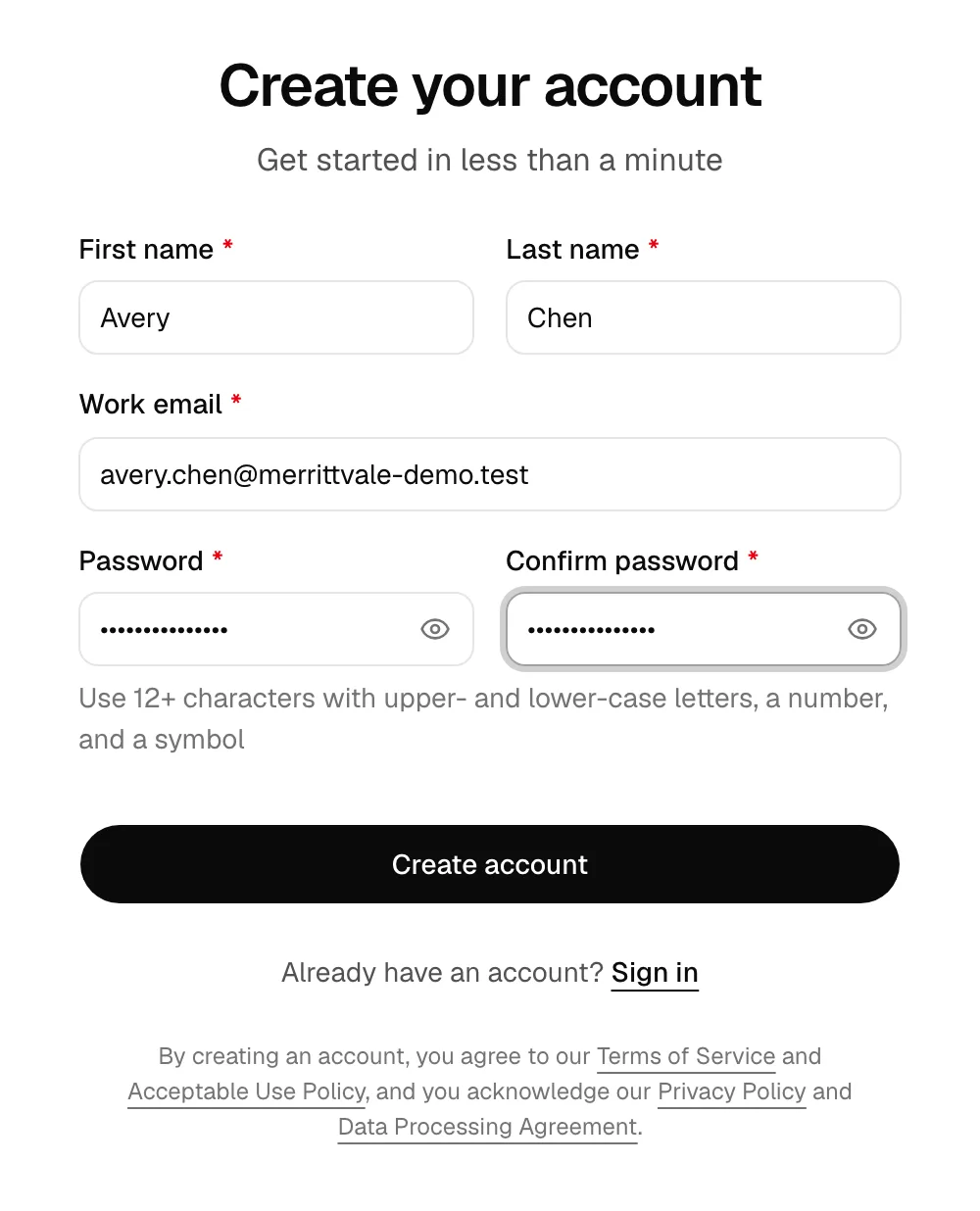
- Go to the Esqase sign-up page. You will see the Create your account screen.
- Enter your First name and Last name.
- Enter your Work email. This is the address you will sign in with.
- Choose a Password and re-type it in Confirm password. Your password must be at least 12 characters and include upper- and lower-case letters, a number, and a symbol.
- Click Create account. The button shows Creating account... while it works.
- Esqase sends a 6-digit verification code to your email and takes you to the Email verification screen.
- Open the email, copy the 6-digit code, and type it into the boxes on the verification screen.
- Click Verify email. Once the code is accepted, your account becomes active and you continue to firm setup.
Tip: Did not get the code? On the verification screen, wait for the countdown to finish, then click Resend to send a new code. Each code is valid for a few minutes only, so use the most recent one.
Note: If you enter the wrong code or wait too long, Esqase shows a generic "incorrect or expired" message. After 5 incorrect tries in a row the code locks for security. Either way, request a fresh code with Resend and try again; a new code resets your tries.
Learn more: Signing up and signing in and Passwords and account recovery.
Step 2: Create your firm with the setup wizard
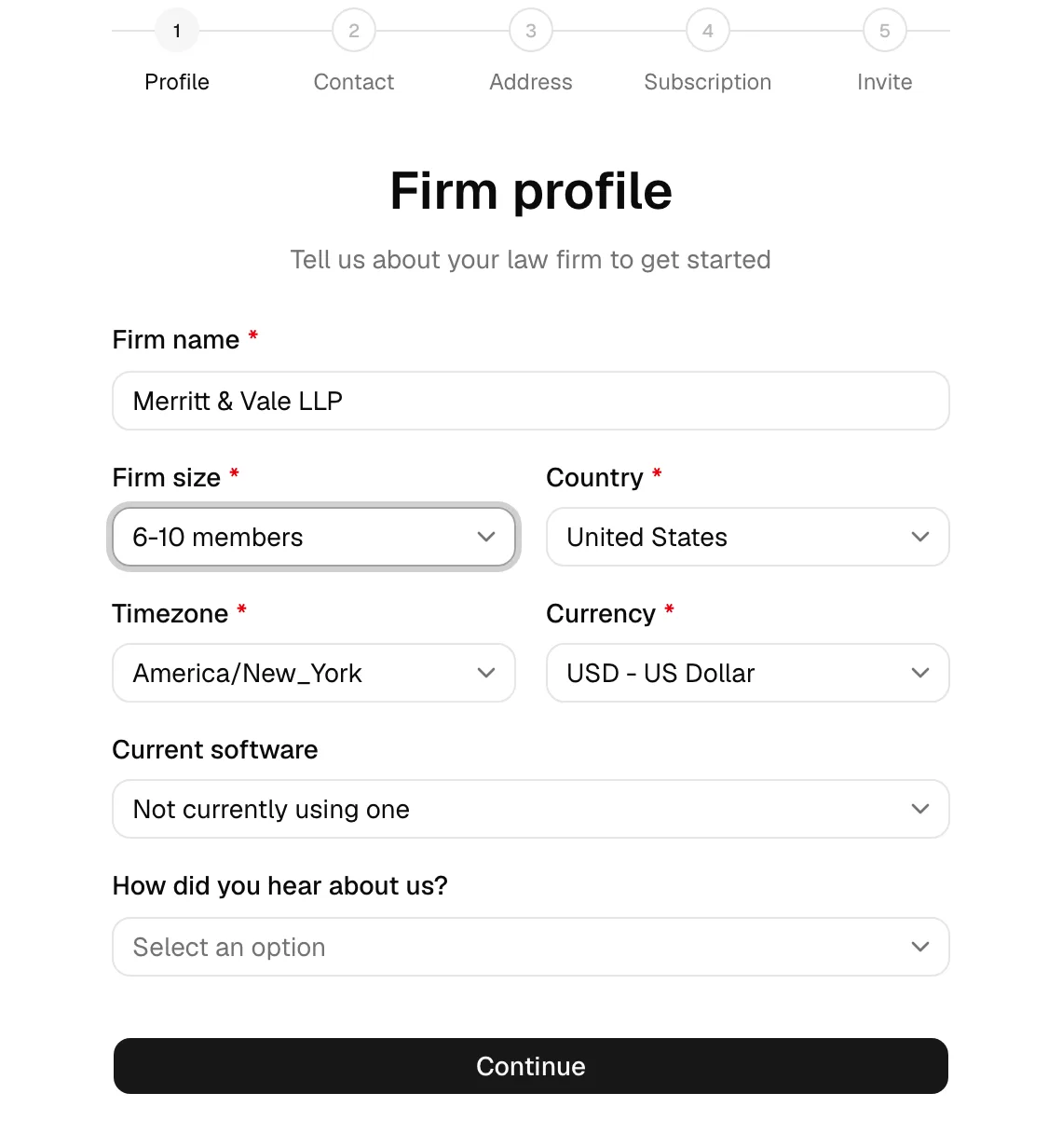
After your email is verified, Esqase opens the firm setup wizard. This 5-step wizard creates your firm and starts your trial. The progress bar at the top shows the steps: Profile, Contact, Address, Subscription, and Invite.
-
Profile. On the Firm profile step, fill in the required details:
- Firm name (for example, Smith & Associates).
- Firm size, chosen from the list.
- Country, Timezone, and Currency. These default to sensible values based on your browser, but confirm they are correct because your timezone and currency drive scheduling and billing throughout Esqase. The country you pick also becomes the preselected country on every phone number and address you enter later, so a Philippine firm sees +63 and Philippines ready to go. See How your firm's country sets phone and address defaults.
- Current software and How did you hear about us? are optional and help us understand your needs.
Click Continue when you are done.
-
Contact. Add a firm phone number or email if you like, then click Continue. This step is optional, so you can click Skip to move on and add contact methods later.
-
Address. Add your firm's mailing or office address, then click Continue, or click Skip to do it later. When you finish this step, Esqase creates your firm.
-
Subscription. Start your free trial. You review the plans and click Continue with your free trial to begin your 14-day trial with no credit card. (In some cases you may be taken to a secure checkout to enter card details first; you are not charged during the trial period, and after checkout you return to the wizard automatically.)
-
Invite. On the Invite your team step you can send your first invites now (see Step 4 below) or do it later. Click Finish setup to enter your dashboard.
Important: Your firm is created when you finish the Address step, not at the very end. If you close the browser after that, your firm still exists. You can sign back in and continue where you left off.
Note: You can move back to an earlier step by clicking a completed step in the progress bar, but once you pass the Subscription step the wizard will not return you to it, because your trial has already started.
Note: If you leave setup at the Subscription step, your firm waits for you. The next time you open Esqase, on any device, setup reopens at that step so you can finish. If you also belong to another firm already, the step shows a Return to button so you can go back to that firm's dashboard instead.
Learn more: Your firm profile and details and Your Esqase subscription.
Step 3: Meet the Setup Guide checklist
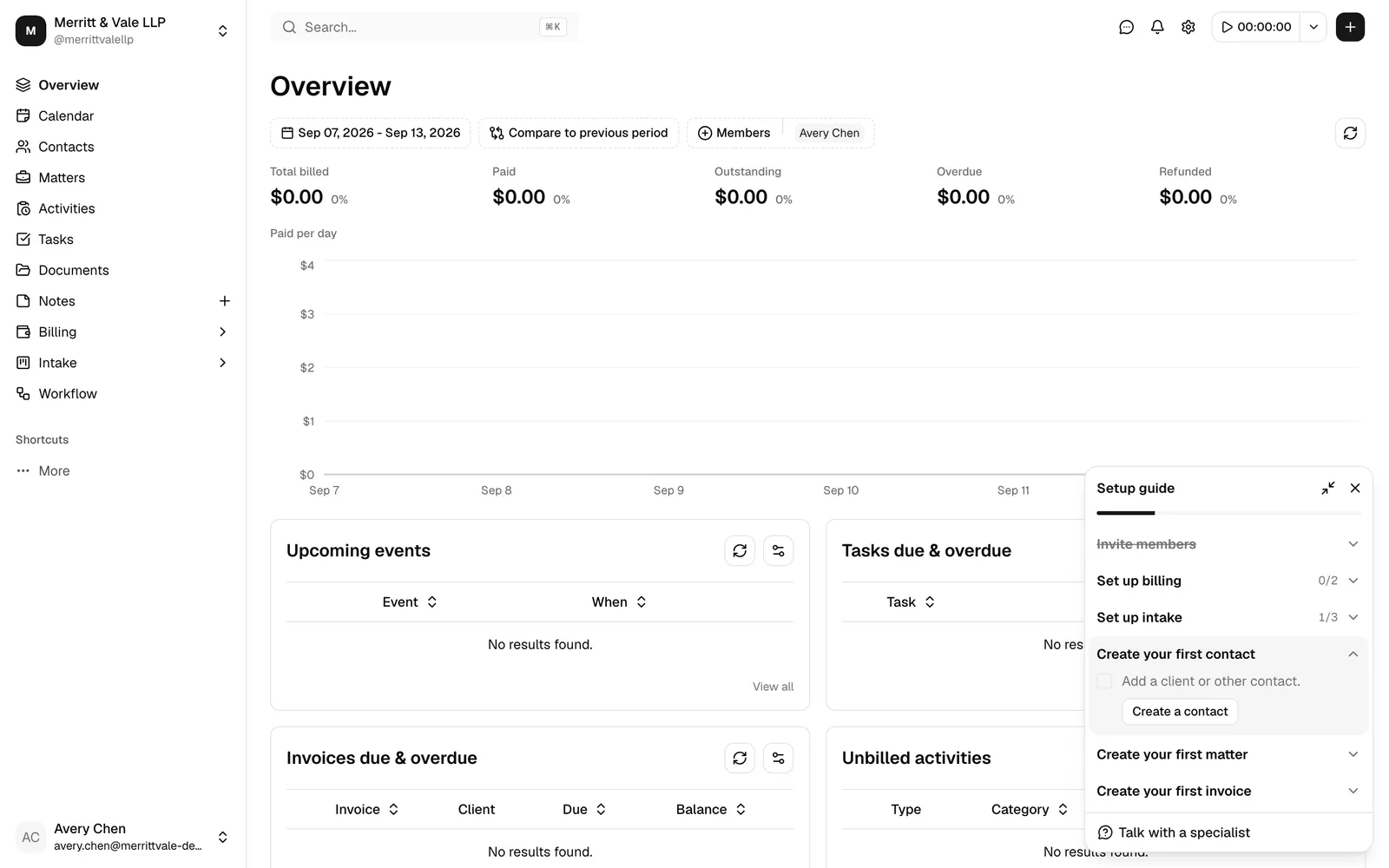
Once you reach the dashboard, look in the bottom-right corner for the Setup guide card. This floating checklist walks you through the rest of configuring your firm and tracks your progress as you go.
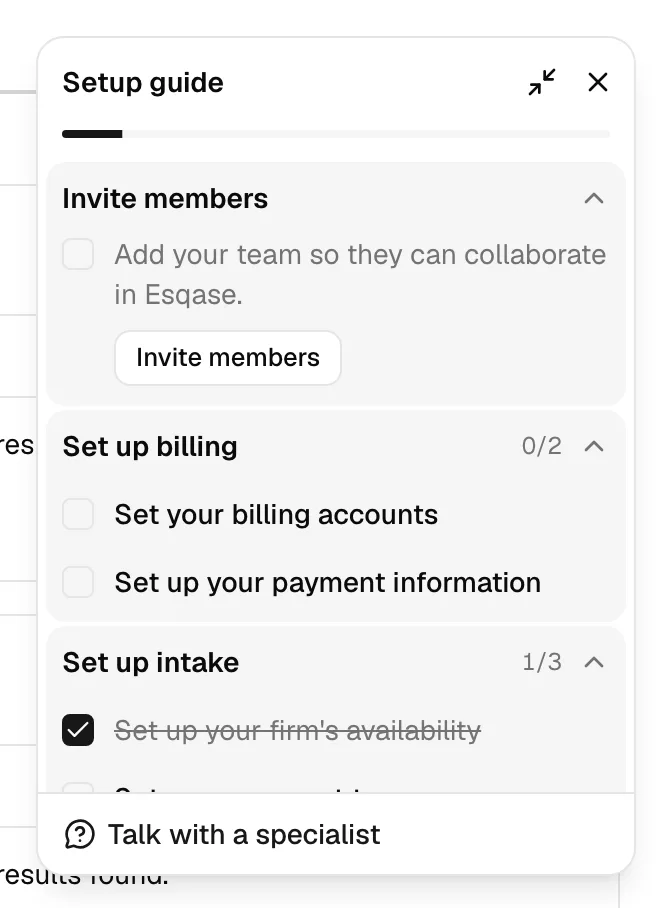
- Find the Setup guide card in the bottom-right corner of any dashboard page. A progress bar at the top shows how far along you are.
- Each item expands to show a short description and a button that takes you straight to the right page. For example:
- Invite members opens member settings.
- Set your billing accounts lets you add an operating account and a trust account. (A trust account, also called an IOLTA account in the US, holds client funds separately from your firm's own money.)
- Set up your payment information connects a way to collect payments.
- Set up your firm's availability sets your appointment hours.
- Set up your event types and Set up your forms prepare your client intake.
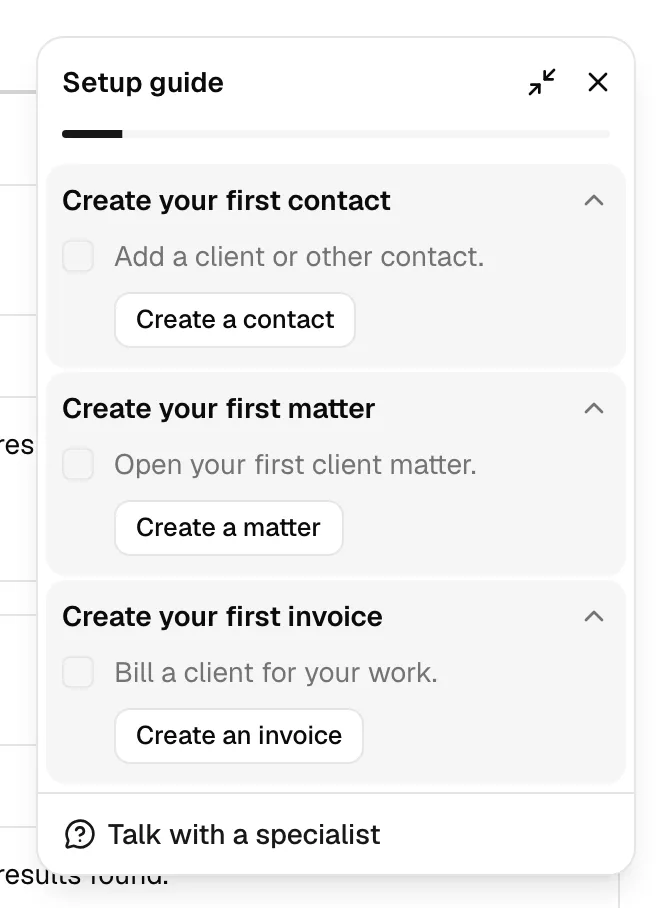
- Create your first contact, Create your first matter, and Create your first invoice start your real client work.
- Each step is detected automatically. When you complete the underlying task (for example, once a contact exists), Esqase checks the step off for you. You can also tick or untick any item by hand to override what the guide detected.
- Use the controls in the card's title bar to Minimize the card (it shrinks to a pill that shows your next step) or Close it. If you close it, a progress chip appears in the dashboard header so you can reopen it any time.
- Need help? Click Talk with a specialist at the bottom of the card.
Note: What you see in the guide depends on your role. Firm owners get the full firm checklist. Other members see their own availability plus only the create steps their role allows. The card disappears once everything is complete.
Learn more: Using the Setup Guide.
Step 4: Invite your first team members
Bring your colleagues into Esqase so everyone works in the same place. You can do this from the Invite step of the setup wizard or any time afterward from member settings.
- Open member settings (from the Invite members item in the Setup guide, or from Settings in the sidebar), and go to the invites view. If you are still in the setup wizard, you are already on the Invite your team step.
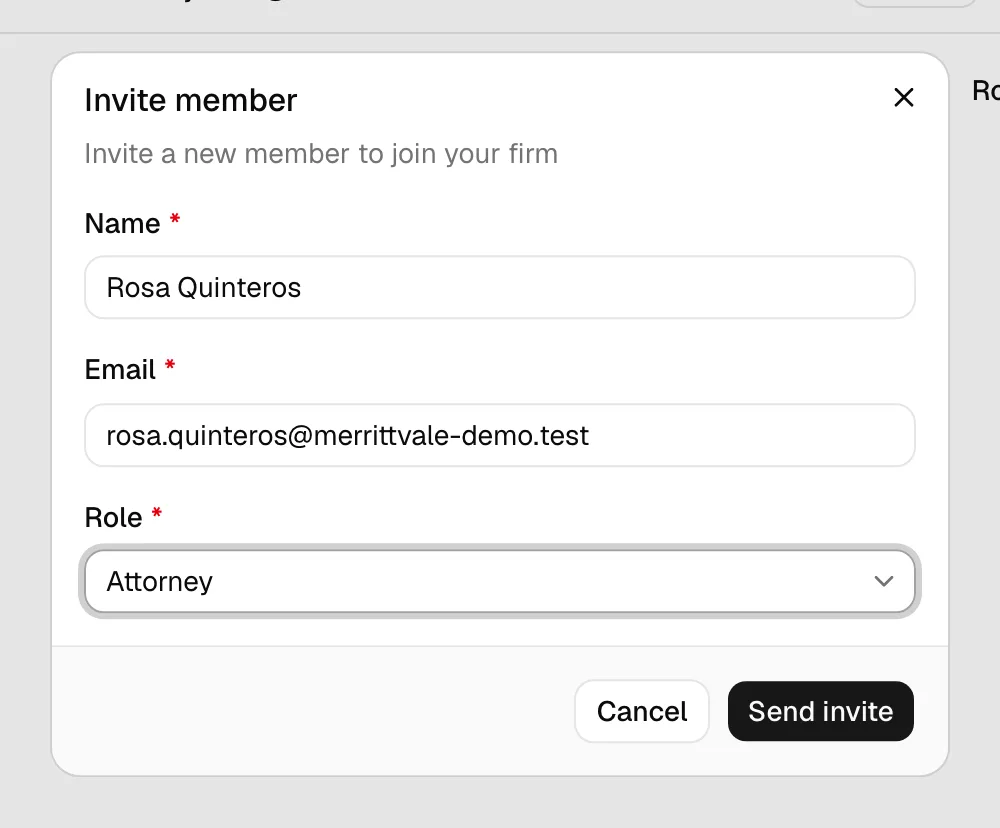
- Click Invite member to open the Invite member dialog.
- Fill in the fields:
- Name of the person you are inviting.
- Email, the address the invite is sent to.
- Role, which controls what they can see and do. Pick from your firm's roles in the list.
- Click Send invite. The dialog shows Sending invite... while it works, then confirms with Invite sent.
- The person receives an email invitation. They sign up or sign in, open the invite, and accept it to become an active member of your firm.
Tip: Each role comes with a different set of permissions. Before inviting many people, review the available roles so you assign the right access. You can change someone's role later from member settings.
Note: You can send only one pending invite per email address at a time. Invites expire after 7 days. If an invite expires or is cancelled, you can resend a fresh one.
Learn more: Managing firm members, Roles and permissions, and Joining a firm (accepting an invite).
Step 5: Create your first contact, matter, and invoice
With your firm and team set up, you are ready to do real legal work. These three steps appear near the bottom of the Setup guide and form the natural flow of taking on a client.
- Create your first contact. A contact is a person or organization you work with, such as a client, opposing party, or referral source. From the Setup guide, click Create a contact, then add the contact's details.
- Create your first matter. A matter is a single case or piece of legal work for a client (for example, a personal injury claim or an estate plan). From the Setup guide, click Create a matter to open the new-matter wizard, link it to your contact, and choose a practice area.
- Create your first invoice. Once you have logged some time or expenses, bill the client. From the Setup guide, click Create an invoice to draft, review, and send a bill.
Tip: Do these in order. A matter needs a client contact, and an invoice is usually tied to a matter and the time you tracked on it. Following the sequence keeps everything connected.
Learn more: Working with contacts, Creating a matter, and Creating and sending invoices.
Common questions
Do I have to finish everything in one sitting? No. Your firm is saved as you go, and the Setup guide is always there to pick up where you left off. Sign out and return any time.
I created a firm but a colleague also created one. Which do we use? Only one firm should be the shared workspace. Decide together which firm to keep, then have everyone else accept an invite to that firm rather than creating their own. See Joining a firm (accepting an invite).
Will I be charged during setup? No. Setting up your firm starts a 14-day free trial, and right now no credit card is required to begin. (In some cases you may be asked to enter card details up front, but no charge is made during the trial period.) See Your Esqase subscription.
I don't see some of the setup steps. The checklist adapts to your role. If you are not a firm owner, you only see the steps your permissions allow. Ask your firm owner or administrator if you need broader access. See Roles and permissions.
Troubleshooting
- The verification code does not work. Codes expire after a few minutes and only the most recent code is valid. Click Resend on the verification screen and use the new code.
- I never received the verification or invite email. Check your spam or junk folder, and confirm you typed your email correctly. On the verification screen, use Resend to send a new code.
- The wizard sent me to a checkout and back. That is expected in regions that collect card details up front. After checkout you return to the wizard automatically and continue to the Invite step.
- My sidebar still shows the old state after accepting an invite. Give it a moment and refresh the page. The dashboard updates shortly after you join.