Workflows and the builder
A workflow is a reusable playbook for your firm: a named sequence of steps (send an email, create a task, request a form, schedule a meeting, screen for conflicts, change a status, and more) that you attach to a lead or a matter. Build a workflow once, then attach it whenever you start a new lead or matter so your team always follows the same intake or onboarding process.
Each step also says how it runs: a team member does it, or Esqase does it for you, or Esqase prepares it and waits for someone to approve. This page covers the Workflows area: the list, creating a workflow, the builder toolbar, turning automation on, and archiving or deleting a workflow. The step types have their own page, and so does the way automation works once a workflow is live.
Before you begin
- Workflows are a firm-wide setting, so the steps and rules you build here apply across your whole firm.
- Access depends on your role. If your role does not include View access for workflows, you will not see the Workflows page at all. If it does not include Create, you will not see the New workflow button. If it does not include Update, you can open the builder in read-only mode but cannot change or save anything. Delete access is needed to permanently remove an archived workflow. Firm owners always have full access.
- A workflow only describes what should happen. Attaching it to a lead or matter copies its steps onto that record. See Assigning and attaching workflows.
- Esqase only runs steps on its own when the workflow's Automation switch is on. A workflow with automation off is a checklist your team works through by hand, exactly as before.
What a workflow is and when to use one
A workflow is an ordered list of steps that captures a repeatable process. Each step is one action your team would otherwise do by hand, such as emailing a new client a welcome message, creating a follow-up task, or sending an intake form.
Use a workflow whenever the same set of actions repeats for similar records:
- New lead intake: screen the contact for conflicts, send a thank-you email, create a "call the lead" task, and send an intake form.
- New client onboarding: send an engagement form, schedule a kickoff meeting, and create the standard opening tasks.
- Lead-to-matter conversion: change the intake status, then convert the lead into a matter.
Important: Attaching a workflow copies its steps onto a single lead or matter. Editing the workflow later does not change leads or matters you already attached it to. Think of the workflow as a template and each attachment as a fresh copy that runs on its own.
View and search the Workflows list
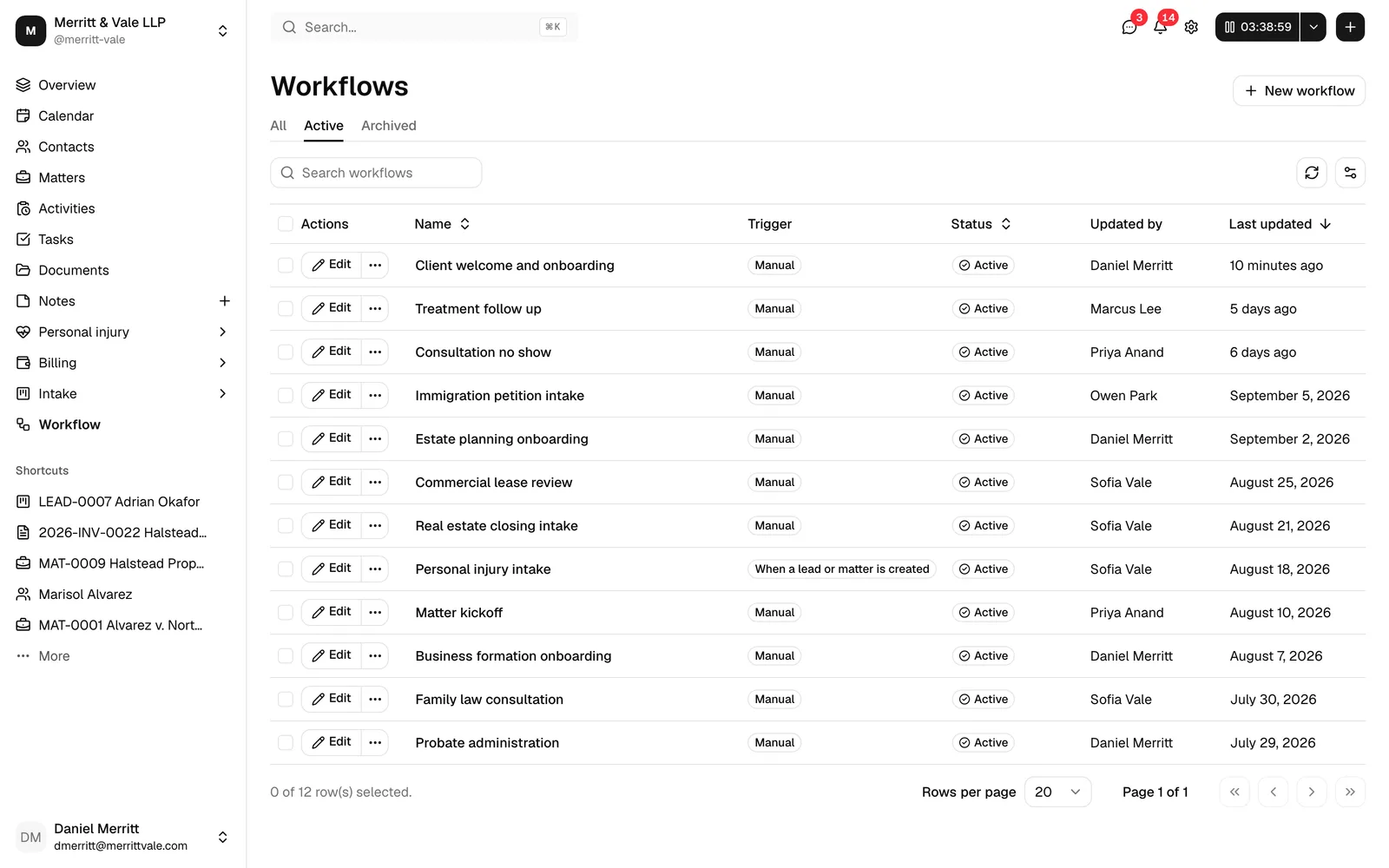
The Workflows list is the home for every workflow your firm has built.
- In the sidebar, open the intake and automation area and click Workflows.
- The page opens with the heading Workflows, four summary cards, and a table of your firm's workflows. By default the table shows your Active workflows.
The summary cards
Four cards sit above the table and answer for the whole firm, whatever you have searched or filtered:
- Live workflows: active workflows with at least one step.
- Records running: leads and matters that have started a workflow and not finished it. The card reads Partway through a workflow.
- Waiting on clients: steps waiting for a form or a meeting.
- Needs attention: steps a team member has to pick up, shown in red. The card is a count rather than a link, and it counts steps on leads and on matters, so open the lead or the matter itself to deal with one.
Tip: Needs attention is the card to watch. A step lands there when Esqase tried to run it and could not, and the workflow on that record stops until someone clears it. See How automation runs your workflows.
The table
The table has these columns:
- Actions: the Edit button (and a ... menu) for each row.
- Name: the workflow's name.
- Trigger: either Manual or When a lead or matter is created.
- Automation: how the steps are set to run, as Manual, Mixed, or Automatic, with Off beside it when the workflow's Automation switch is off.
- Steps: how many steps the workflow has.
- Status: Active or Archived.
- Updated by: who last changed the workflow.
- Last updated: when it was last changed.
📷 Screenshot: The four summary cards above the Workflows table: Live workflows, Records running, Waiting on clients, and Needs attention in red with a count.
Filter the list
Three filters sit beside the search box. Click one to open its list of options, then tick as many options as you want. A filter with nothing ticked does not narrow the list at all.
- Trigger: Manual, or When a lead or matter is created.
- Automation: Manual, Mixed, or Automatic, matching the Automation column.
- Status: Active or Archived.
The page opens with Status set to Active, so you see the workflows you can attach today. Tick Archived as well to see both, or untick Active to see only the ones you have set aside. The filters work together, so picking Automatic in Automation and Archived in Status shows only archived, fully automatic workflows.
Tip: Filtering narrows the table only. The four summary cards always answer for the whole firm.
Search
Use the Search workflows box to filter the list by name. Results update as you type. A Clear filters button appears as soon as you type in the box or change a filter away from its starting point; click it to empty the search, clear Trigger and Automation, and put Status back to Active.
Sort and adjust columns
- Click a sortable column header (Name, Status, Updated by, or Last updated) to sort by that column. Click again to reverse the order.
- Use the view options button on the right of the toolbar to refresh the list or show and hide columns.
- The list is paginated. Use the pagination controls at the bottom to move between pages and change how many rows appear at once.
Create a new workflow
Creating a workflow is a quick two-field step, after which you land in the builder to add your steps.
- On the Workflows page, click New workflow.
- In the Create workflow dialog, fill in:
- Workflow name (required): a clear name, for example New client onboarding. Names can be up to 128 characters.
- Trigger (required): choose Manual ("Start this workflow yourself from a lead or a matter.") or When a lead or matter is created ("Attach this workflow as soon as the record is created."). You can change it later in the builder.
- Click Create workflow.
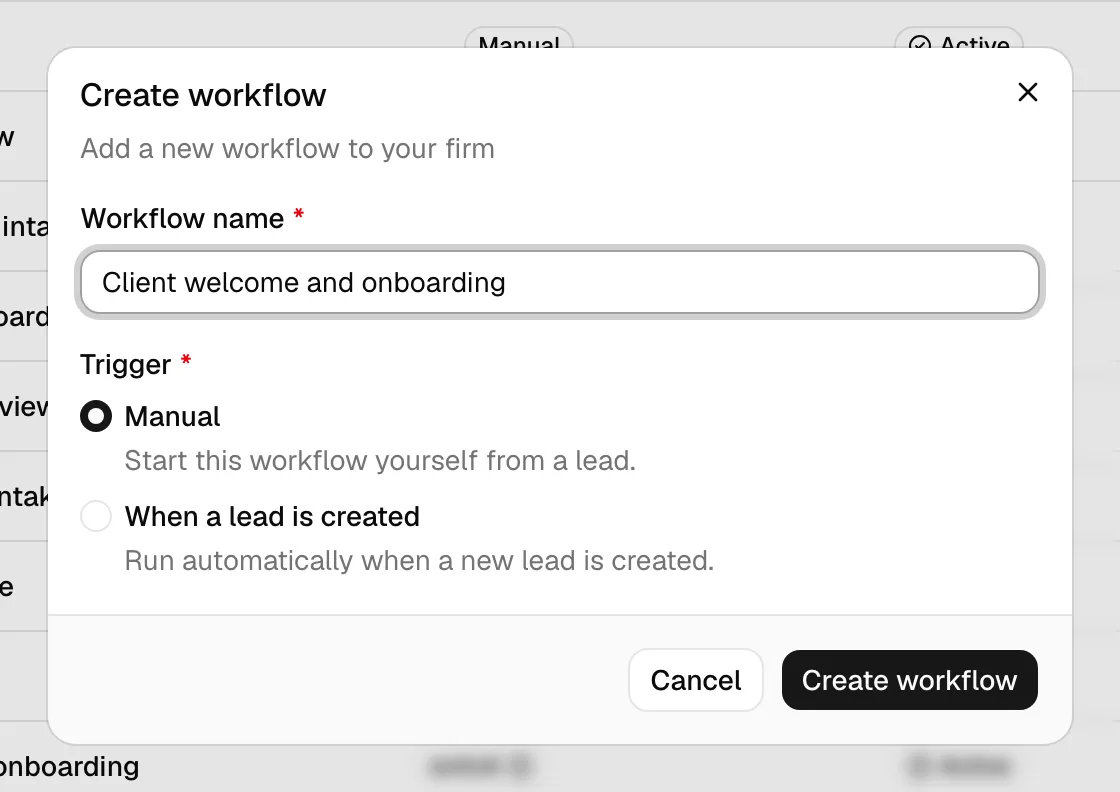
When you save, Esqase confirms with a Workflow created message and opens the workflow in the builder so you can start adding steps right away. A new workflow is active and available to attach immediately, and its Automation switch starts off.
Tip: A brand-new workflow has no steps. It will not do anything until you add at least one step and save in the builder.
Edit a workflow in the builder
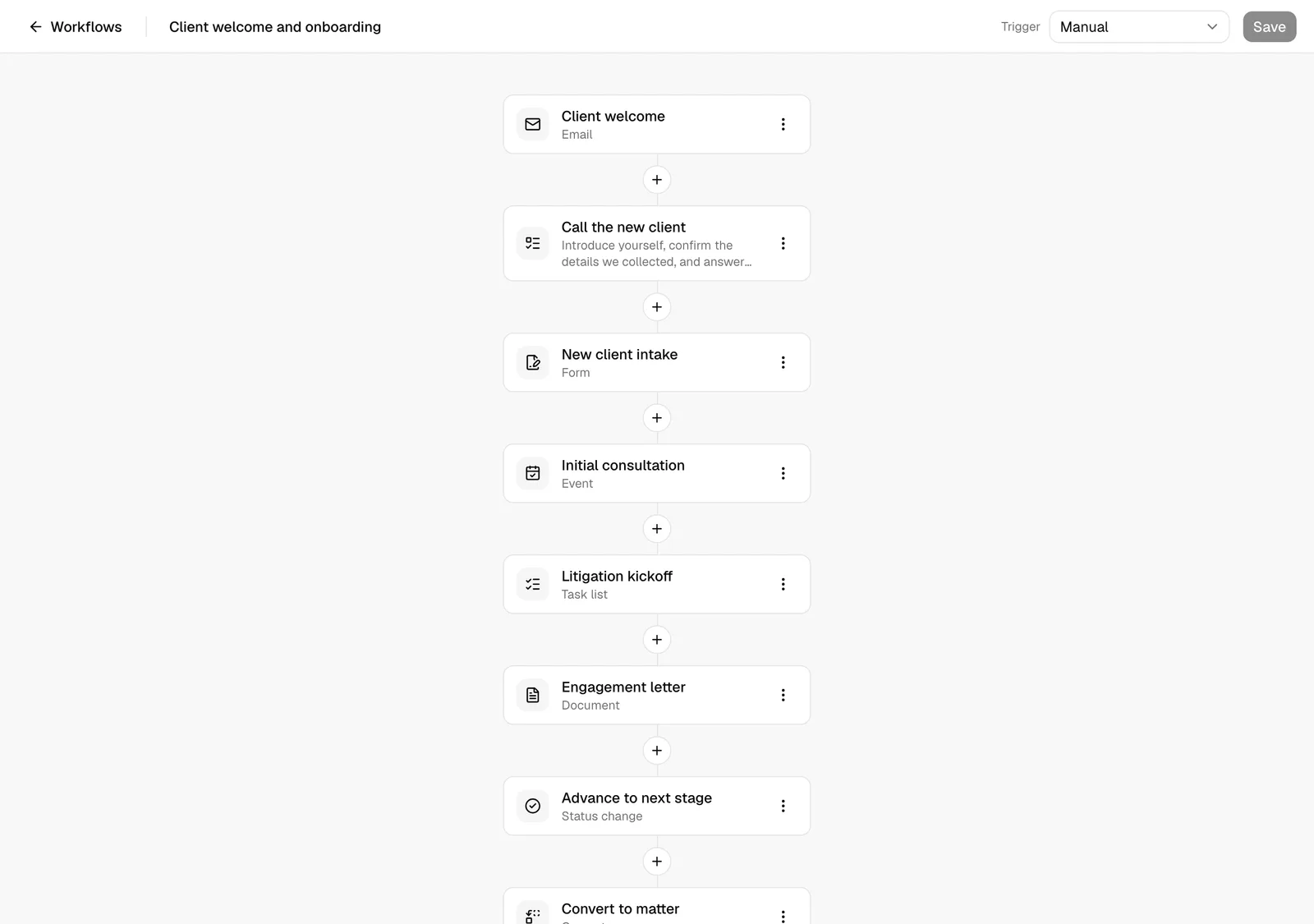
The builder is a full-page editor where you set the workflow's name, decide how it starts, assemble its steps, and turn automation on. You reach it right after creating a workflow, or any time from the list.
- On the Workflows page, find the workflow and click Edit in its row. (You can also click Edit in the ... menu.)
- The builder opens with a two-row toolbar:
- The top row has a Workflows link back to the list, the name field (it reads Untitled workflow until you type a name), a summary line counting what you have built, and the Save button. The summary reads like 12 steps. 7 automatic, 3 need approval, 2 manual. An empty workflow reads No steps yet. Add the first one below.
- The second row has Trigger, Sources (only when the trigger is When a lead or matter is created), Default run mode, and the Automation switch.
- Below the toolbar is the canvas, a dotted work area where your steps appear in order. If the workflow has no steps yet, you will see No workflow items yet with an Add workflow item button.
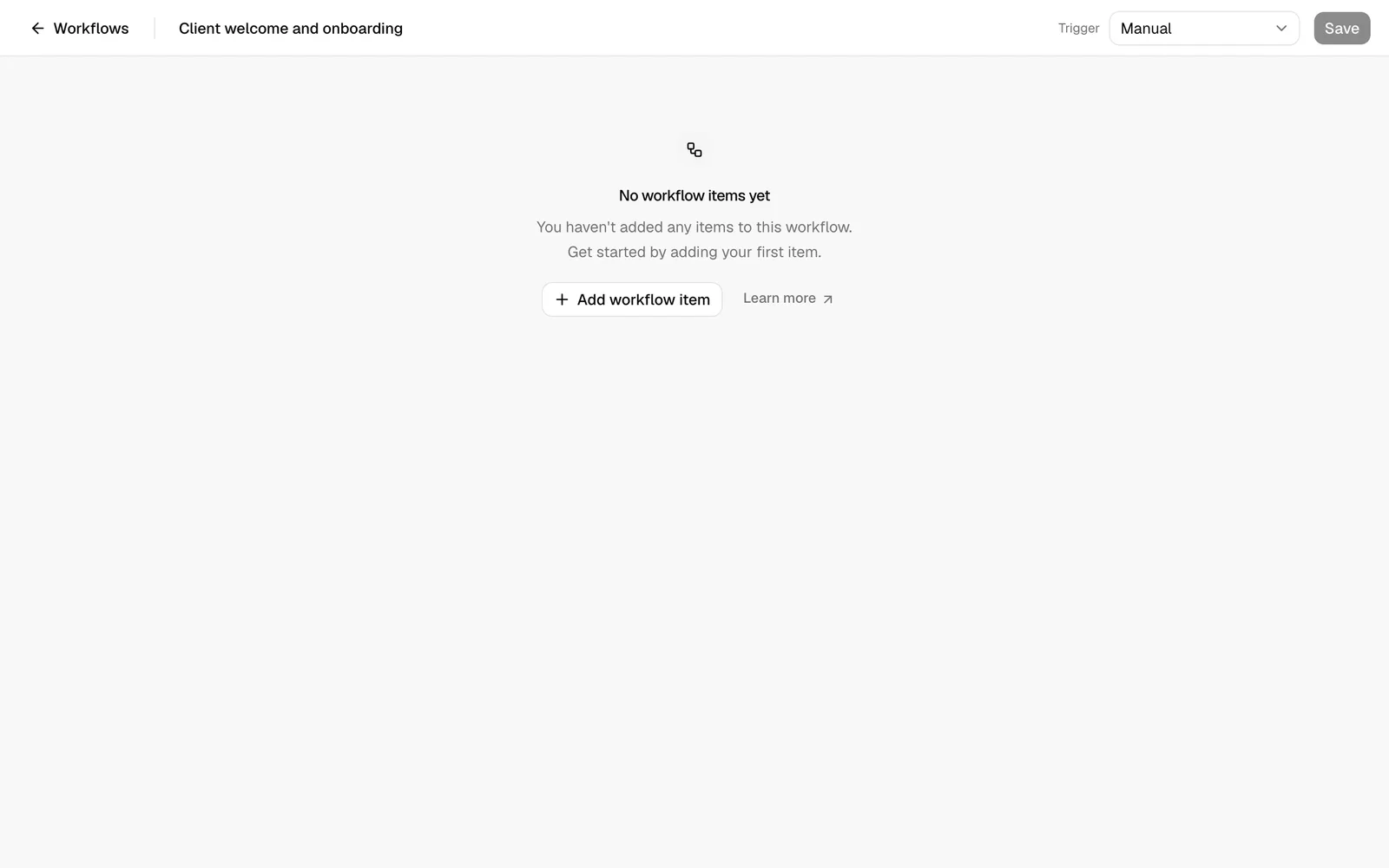
📷 Screenshot: The builder's top row showing the workflow name, the summary line, and the Save button, with the second row underneath it showing Trigger, Sources, Default run mode, and the Automation switch.
Move around the canvas
The canvas takes the rest of the page and scrolls on its own, with room left below the last card so a long workflow stays comfortable to work in.
- Scroll as you would anywhere else to move down the chain.
- Drag any empty part of the canvas to pull the view around. The cursor turns into a hand while you hold it.
- Dragging a step card does not move it. Reorder steps from the card's ... menu with Move up and Move down. See Edit, move, or remove a step.
Set the trigger
The trigger decides when the workflow reaches a record.
- Manual: you attach this workflow yourself, on demand, from a lead, a matter, or the new-matter wizard. Use this for workflows you only want to run sometimes.
- When a lead or matter is created: Esqase attaches this workflow to every new lead and matter that comes from one of the sources you pick below. Use this for your standard, every-time intake or onboarding process.
Change it in the builder's Trigger picker, then click Save.
Choose the sources
Sources appears only when the trigger is When a lead or matter is created. It decides which new records get the workflow:
- Created in Esqase: leads and matters your team creates in the dashboard.
- API: records created through your firm's API integration.
- Booking page: leads created when a client books a meeting.
- Public form: leads created from a public form submission.
- Client portal: records that come from the client portal.
- Import: records brought in from a file import.
Pick as many as you need. New workflows start with Created in Esqase, API, Booking page, and Public form selected.
Important: Keep at least one source selected. If you clear every source and save, the workflow stays active and still says When a lead or matter is created, but it will not attach to anything.
Set the default run mode
Default run mode is the starting point for the next step you add: Manual, Automatic, or Automatic, needs approval. It is a convenience, not a rule. Every step keeps its own run mode, which you set in the step itself, and changing the default later does not touch steps you have already added. See Workflow step types.
Turn automation on
The Automation switch is the master switch for this workflow. While it is off, every step waits for a team member, whatever each step's run mode says.
- In the builder, turn the Automation switch on.
- Esqase opens Check this workflow before turning it on with the line Esqase runs every step you set to automatic. Here is what to look at first. The dialog lists:
- Fix these first: problems that stop automation. The Turn automation on button stays disabled until you fix them. For example, Reminders need a reminder template. Pick one, or turn reminders off. or Pick how this step runs before you save it.
- Worth knowing: things to be aware of that do not block you, for example Convert to matter cannot run without a member. It will ask for approval.
- When there is nothing to report, it reads Everything looks ready. Save the workflow to put automation to work.
- Click Turn automation on to accept, or Cancel to leave the switch off.
- Click Save. The switch is part of your unsaved changes, so automation only starts once the workflow is saved.
Turning the switch off takes effect straight away in the builder, with no dialog, and still needs a Save.
📷 Screenshot: The "Check this workflow before turning it on" dialog with a Fix these first list, a Worth knowing list, and the Cancel and Turn automation on buttons.
You can also switch automation from the list without opening the builder. In a row's ... menu, choose Turn automation on or Turn automation off and confirm. Turning it on tells you the workflow will start running its automatic steps on new leads and matters. Records already running keep the settings they started with. Turning it off tells you it will stop running steps on its own. Your team can still run every step by hand.
Note: The row menu applies your choice immediately and does not run the pre-flight check the builder runs. If you are turning automation on for the first time, do it from the builder so you see the check.
Important: If someone has paused automation for your whole firm, the confirm dialog tells you: it adds Your firm has paused automation, so nothing runs until it is resumed in Automation settings. Turning the workflow's switch on still works, and its automatic steps start as soon as the firm pause is lifted. See Automation settings.
Add a step
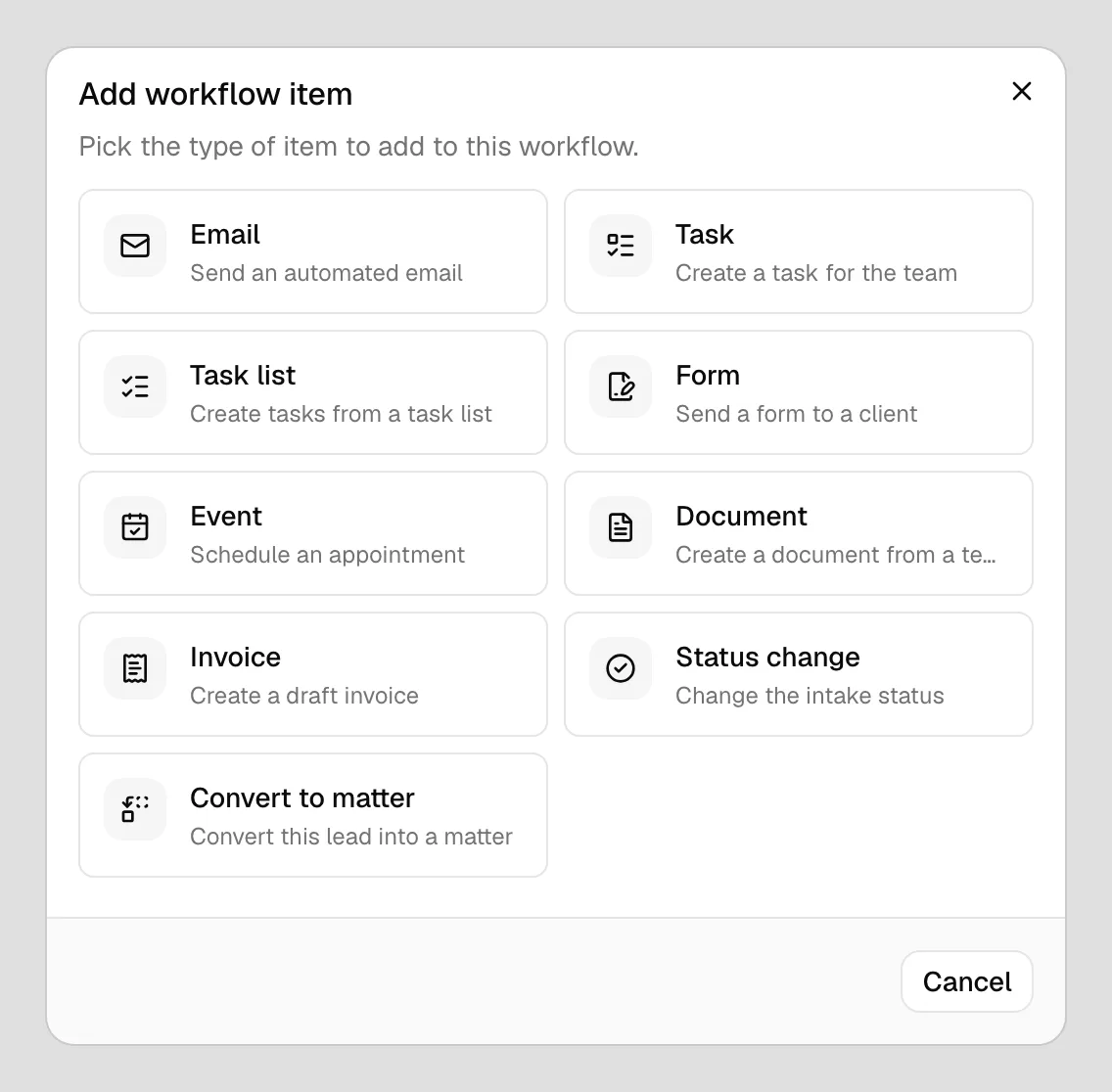
- Click Add workflow item (in the empty state), or click the round + button between or after existing steps to insert a step at that exact position.
- The Add workflow item dialog opens showing the step types, each with a short description:
- Email (Send an automated email)
- Task (Create a task for the team)
- Task list (Create tasks from a task list)
- Form (Send a form to a client)
- Event (Schedule an appointment)
- Document (Create a document from a template)
- Invoice (Create a draft invoice)
- Status change (Change the intake status)
- Convert to matter (Convert this lead into a matter)
- Conflict check (Screen the client for conflicts)
- Click the type you want. The dialog moves to a configuration screen for that step.
- Fill in How it runs at the top (run mode, when it starts, what counts as done, and any condition), then the fields for that type. For a full breakdown, see Workflow step types.
- Click Add to workflow. The dialog closes and the step appears on the canvas.
Tip: Use the Back button in the dialog to return to the type picker if you chose the wrong type, or Cancel to close without adding anything.
Read a step card
Each card on the canvas shows the step's title and description plus small badges that say how it will run:
- the run mode (Manual, Automatic, or Automatic, needs approval),
- when it starts (After the previous step is done, or something like 2 days after the previous step),
- its condition, shown as Only if ... with and 1 more when there are several,
- its reminders, for example Reminds every 3 days, on form and meeting steps.
Edit, move, or remove a step
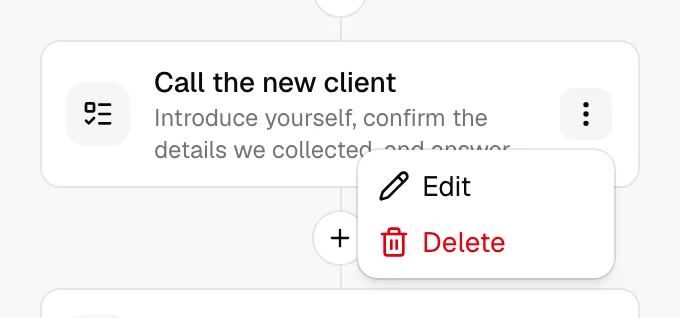
- On a step card, click the ... (more actions) button.
- Choose:
- Move up or Move down to change the step's place in the order. Both are unavailable at the ends of the list.
- Edit to reopen the configuration dialog, prefilled with the step's current settings. Change what you need and click Save changes.
- Delete to remove the step, then confirm in the Delete workflow item? dialog by clicking Delete item.
- Click Save in the toolbar. Moves, edits, and deletions only take effect once the workflow is saved.
You can also place a new step exactly where you want it: click the round + button between two cards, and the new step is inserted at that point.
Save the workflow
Your changes in the builder are held until you save them.
- Make your edits to the name, the toolbar settings, and the steps.
- Click Save in the top right of the toolbar.
A few things to know about saving:
- The Save button stays disabled until you make a change, so an unchanged workflow cannot be saved by accident.
- One Save stores the whole workflow at once: the name, the trigger, the sources, the default run mode, the automation switch, and every step you added, edited, moved, or removed.
- On success you see a Workflow saved confirmation.
Important: If you leave the builder without saving, your changes are lost, including the Automation switch.
Note: If your role does not include Update access (and you are not a firm owner), the builder opens in read-only mode. You can see the steps but the name field, the toolbar settings, the step menus, and Save are unavailable.
Archive, restore, and delete a workflow
You manage a workflow's lifecycle from the Workflows list, either one row at a time or several at once.
Archive a workflow
Archiving sets a workflow aside without deleting it. Archived workflows are no longer offered when attaching, are not attached to new records, and are hidden from the default Active view. You can restore them at any time.
- On the Workflows page, find an Active workflow.
- In its Actions column, click the ... menu.
- Click Archive.
You will see an archived confirmation, and the workflow leaves the default view. Tick Archived in the Status filter to see it again.

Tip: Archiving is the quickest way to stop a workflow attaching to new records without losing the work. To stop it running steps on its own but keep it attaching, turn its Automation off instead.
Restore a workflow
- In the Status filter, tick Archived to see archived workflows.
- In the row's ... menu, click Restore.
The workflow returns to Active and can be attached again.
Delete a workflow
Deleting is permanent and cannot be undone. To keep this safe, a workflow must be archived first.
- In the Status filter, tick Archived.
- In the archived workflow's ... menu, click Delete.
- In the Delete workflow? dialog, confirm by clicking Delete workflow.
Important: Deleting removes the workflow permanently. Leads and matters that already have this workflow's steps keep their copies, but you will no longer be able to attach it again. If you only want to stop using it, archive it instead.
Act on several workflows at once
The list also supports batch actions:
- Select the checkboxes on one or more rows.
- A batch actions control appears in the toolbar with the available options:
- Archive (for selected active workflows)
- Restore (for selected archived workflows)
- Delete (for selected archived workflows)
- Choose an action and confirm in the dialog. Archiving and deleting ask you to confirm first; deleting reminds you it cannot be undone.
Note: The batch options you see depend on your permissions. Archive and Restore need Update access; Delete needs Delete access.
Common questions
Why is the Save button greyed out? You have not changed anything yet, or your role does not include Update access. The button enables as soon as you make an editable change.
I turned Automation on but nothing is running. Check three things: that you clicked Save after flipping the switch, that the steps you expected to run are set to Automatic rather than Manual, and that automation is not paused for your whole firm in Automation settings.
I edited a workflow but a lead already running it did not change. Why? Editing a workflow only affects records you attach it to after the change. Records that already have the workflow's steps keep the copies they were given, along with the settings they started with. To change one of those, manage its steps from the lead or matter itself.
Can I delete a workflow that is still Active? No. Archive it first, then tick Archived in the Status filter and delete it from there. This prevents accidental permanent removal.
Where do the attached steps actually appear? On the lead or matter you attach the workflow to, in its Workflow section. See Assigning and attaching workflows.