Assigning and attaching workflows
A workflow is a reusable set of steps that you build once and reuse across many leads and matters. Building it is only half the job. This page explains the other half: how a workflow's steps land on a real lead or matter, and what decides whether Esqase starts running them or waits for your team.
There are several ways a workflow reaches a record. You can attach one by hand, have Esqase attach it whenever a lead or matter is created, or assign it to a form or an event type so it rides along with a client's booking or submission.
Before you begin
- You build and manage workflows under Workflows in the sidebar. If you have not created any yet, start with Workflows and the builder.
- To create or edit a workflow, your role must include the right access for workflows. Without it you will not see the Workflows item in the sidebar or the workflow pickers described below.
- Only Active workflows are offered in the pickers on event types, forms, and the new-matter wizard, and only active workflows are attached automatically. Restore an archived workflow first if you want to use it again.
- Several paths here need something else to exist first: an event type for bookings, a lead-intake form for public submissions, or the new-matter wizard for matters.
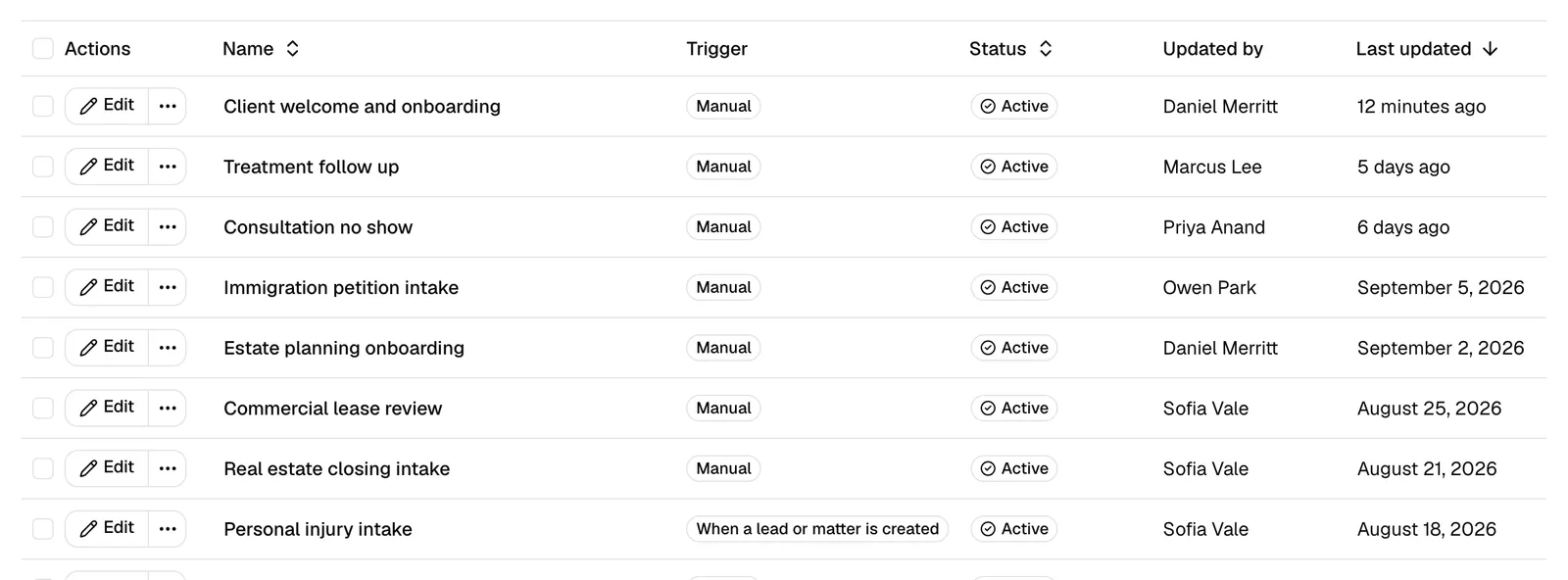
How a workflow reaches a record
Every workflow is a template. Attaching it copies its steps onto one lead or one matter, and from then on those copies belong to that record. A workflow reaches a record in one of these ways:
- Automatically, when a record is created. A workflow whose trigger is When a lead or matter is created is attached to every new lead and matter that arrives from one of its chosen sources.
- By hand, from the record. From a lead's or matter's Workflow section, pick any active workflow and add it whenever you like. This is the main way to use a Manual workflow.
- From the new-matter wizard. The wizard has a Workflow step where you attach a workflow to the matter you are about to create.
- From a form or an event type. A workflow assigned to a lead-intake form or to an event type is attached to the lead that the submission or booking creates.
Note: Each record keeps its own copy of the steps, and its own copy of how they run. Changing the original workflow later does not change records that already have it. New attachments use the updated workflow.
Important: A record carries one running copy of a given workflow at a time. If you try to add the same workflow while its copy is still going you will see This workflow is already on this lead (or matter). Work the copy that is already there, or wait until it finishes: once every step is done the run is complete and you can attach the same workflow again.
Attach automatically when a lead or matter is created
- In the sidebar, click Workflows, then New workflow (or open an existing workflow and click Edit).
- Set Trigger to When a lead or matter is created.
- In Sources, choose where the records come from: Created in Esqase, API, Booking page, Public form, Client portal, or Import. A new workflow starts with the first four selected.
- Add your steps, then click Save.
From then on, every new lead and matter that arrives from one of those sources gets a copy of the workflow's steps, ready in its Workflow section.
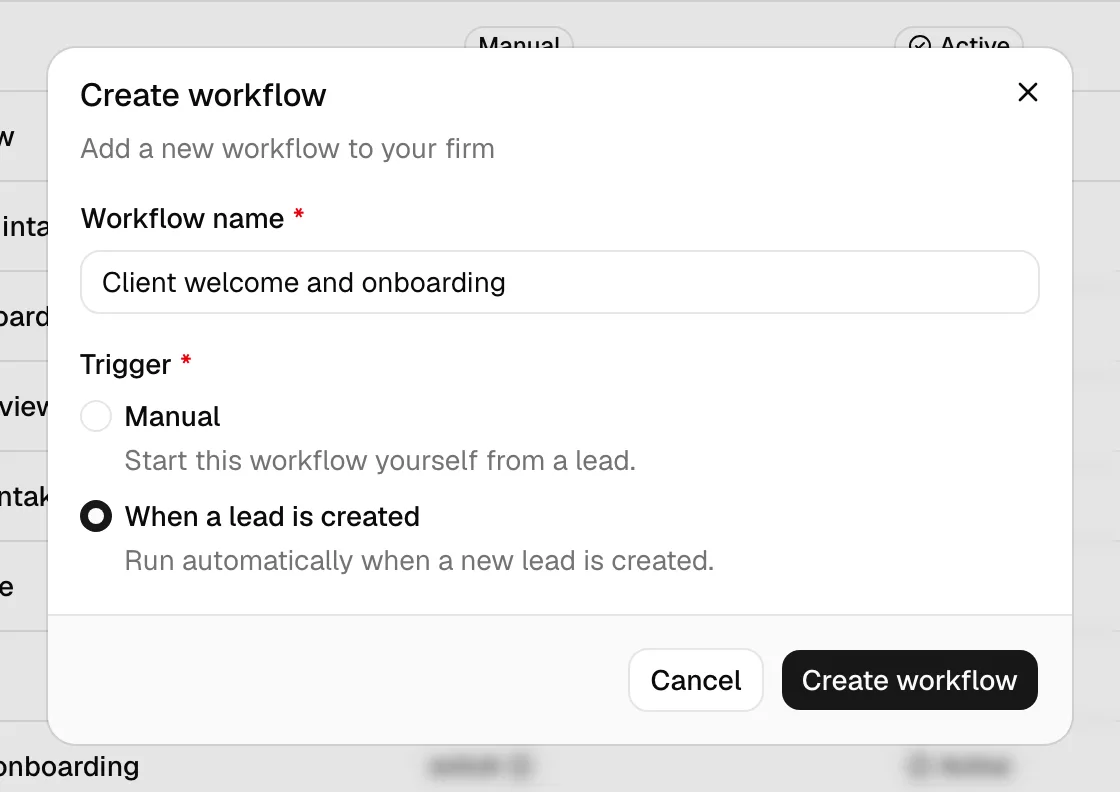
Important: Keep at least one source selected. A workflow with no sources still says When a lead or matter is created, but it will not attach to anything and nothing warns you.
Tip: If several active workflows use this trigger and share a source, every one of them is attached to each new record. Keep just one standard intake playbook active if you do not want a record to carry two sets of steps.
Attach a workflow by hand from a lead or a matter
- Open the lead or the matter. The Workflow section is at the top of a lead's profile, and on the matter's Overview tab.
- Click Add workflow.
- Pick an active workflow and confirm.
Its steps are appended below any steps already on the record, in their original order.
Attach a workflow from the new-matter wizard
- Start a new matter (in the sidebar, open Matters, then New matter).
- Work through the wizard until you reach the Workflow step.
- Use the Workflow dropdown to pick a workflow. The placeholder is Don't attach a workflow, so leaving it untouched skips this.
- The note under the picker tells you what will happen:
- With nothing selected: Leave blank to skip. You can also assign a workflow later from the matter's Overview tab.
- With a workflow selected: Its steps are added to the matter. When this workflow has automation on, Esqase starts running them as soon as the matter is created. Anything it cannot run on its own waits for you on the Overview tab.
- Finish the wizard. The steps are attached to the new matter.
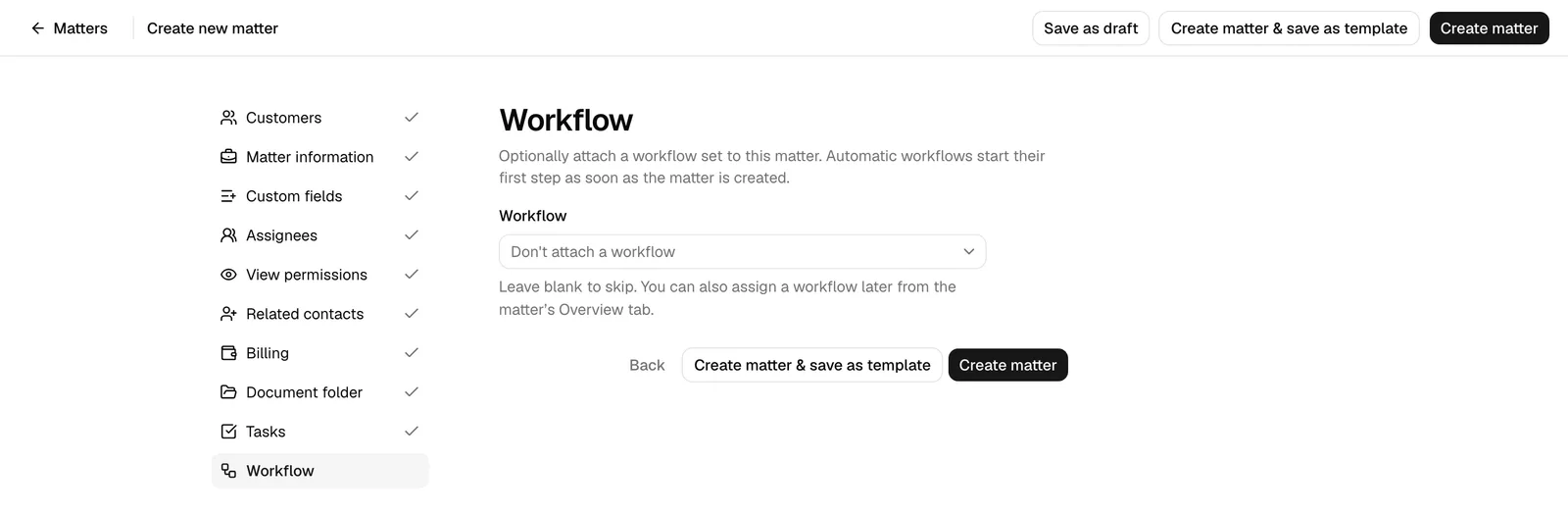
Note: If your firm has no active workflows, the wizard step shows No active workflows yet instead of a picker. You can create one later and add it from the matter.
Assign a workflow to a lead-intake form
A lead-intake form is a public form whose every submission creates a lead (and a contact). Assign a workflow to that form and each new lead arrives with a ready-made set of next steps.
- In the sidebar, open Forms and either create a new form or open an existing one in the builder.
- In the form's settings, turn on Lead intake form. (A Name field and an Email or Phone field are required on a lead-intake form.)
- Two extra settings appear: Public link and Workflow.
- Open the Workflow dropdown and choose the workflow every submission should receive. Leave it on Don't attach a workflow if you do not want one.
- Save the form.
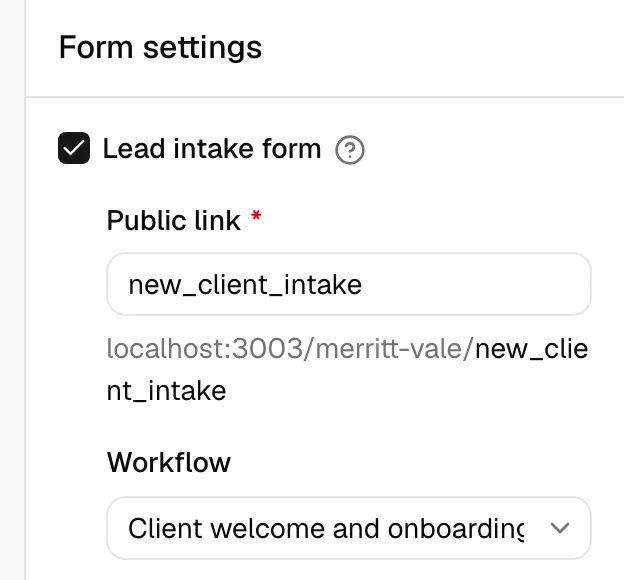
Note: Only Active workflows appear in this dropdown. If you assign a workflow and later archive it, the dropdown keeps showing it as the currently assigned workflow so the form's setting stays accurate.
For more on these forms, see Public lead-intake forms and Building forms.
Assign a workflow to an event type
An event type is a bookable meeting (for example an Initial consultation) that clients schedule from your public booking page.
- In the sidebar, open Event types and create or edit an event type.
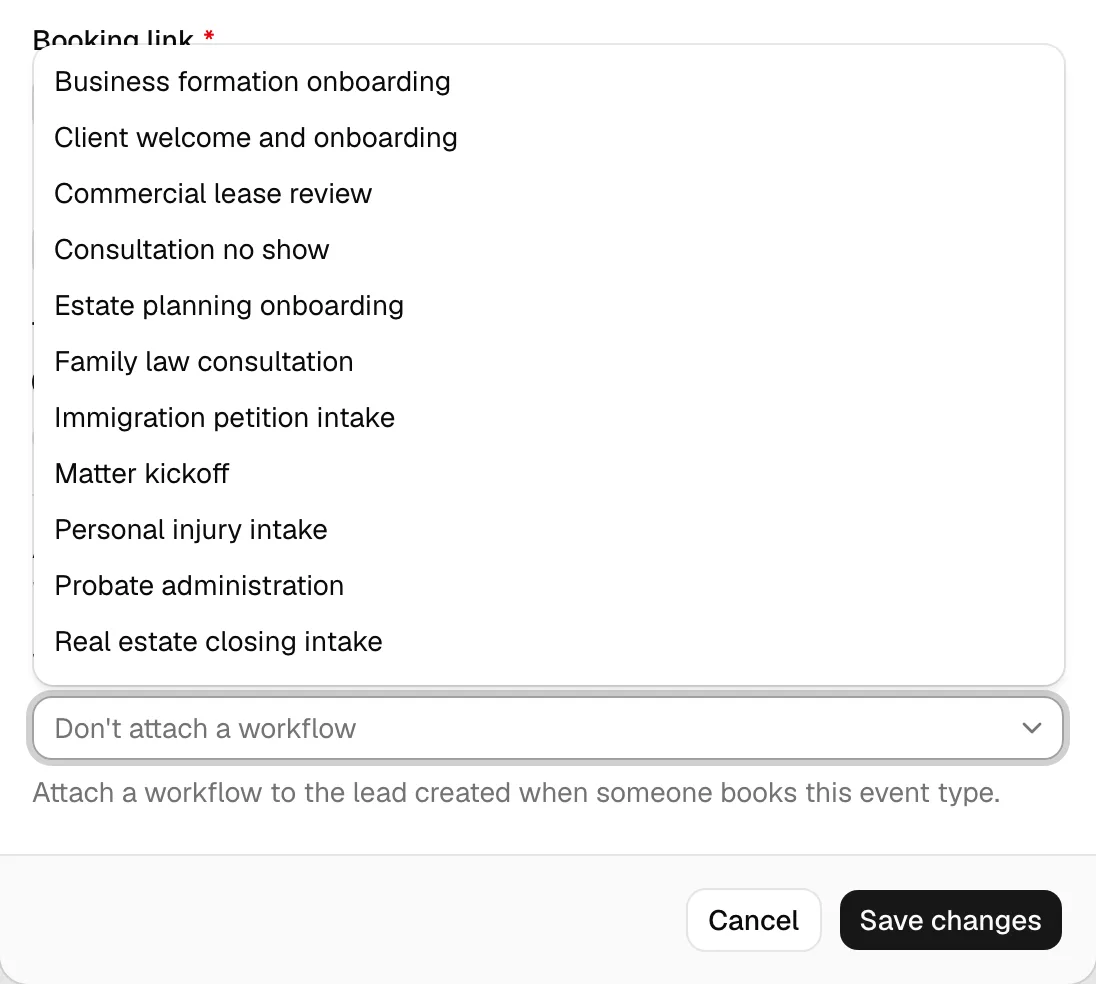
- Scroll to the Workflow dropdown. Its description reads Attach a workflow to the lead created when someone books this event type.
- Choose the workflow bookings should receive, or leave it on Don't attach a workflow.
- Save the event type.
For details, see Event types (scheduling) and How clients book meetings.
Leads created through the API
Leads created by your firm's API integration are treated like any other source. A workflow whose trigger is When a lead or matter is created and whose Sources include API is attached to them automatically. See The Esqase API.
What decides whether Esqase runs the steps
Attaching a workflow and running it are two different things. Two switches decide whether Esqase starts working through the steps by itself:
- The workflow's Automation switch. While it is off, every step waits for a team member, whatever each step's run mode says. Turn it on in the builder (or from the row menu on the Workflows list) and save. See Workflows and the builder.
- Your firm's setting for public sources. Leads that arrive from a booking page, a public form, the client portal, or the API keep their workflow, but their automatic steps only start when Run automatic steps on these leads is on under Settings, Firm, Automation. While it is off, their steps wait for a member, and the record's Workflow section offers Start automation to release them. What the client already did still counts: a time they booked on your booking page fills the workflow's Event step either way. See Automation settings.
Records your team creates in the dashboard, and matters created through the wizard, are not affected by the second switch: their automatic steps start as soon as the record exists.
Note: A workflow you assigned directly to a lead-intake form or to an event type runs like any other. Its automatic steps start as soon as the lead is created, as long as the workflow's own Automation switch is on and your firm allows leads from public pages to run. While Run automatic steps on these leads is off, the steps are still attached and wait for a member, and the record offers Start automation.
Note: The setting holds back what Esqase does on its own, not what the client did. A client who books a time on your booking page fills the workflow's Event step whether the setting is on or off, so the record always shows the meeting on the step it belongs to. Only the step after it waits for a member.
Note: If automation is paused for the whole firm, nothing runs anywhere until an owner or administrator turns it back on.
Where to find and run attached steps
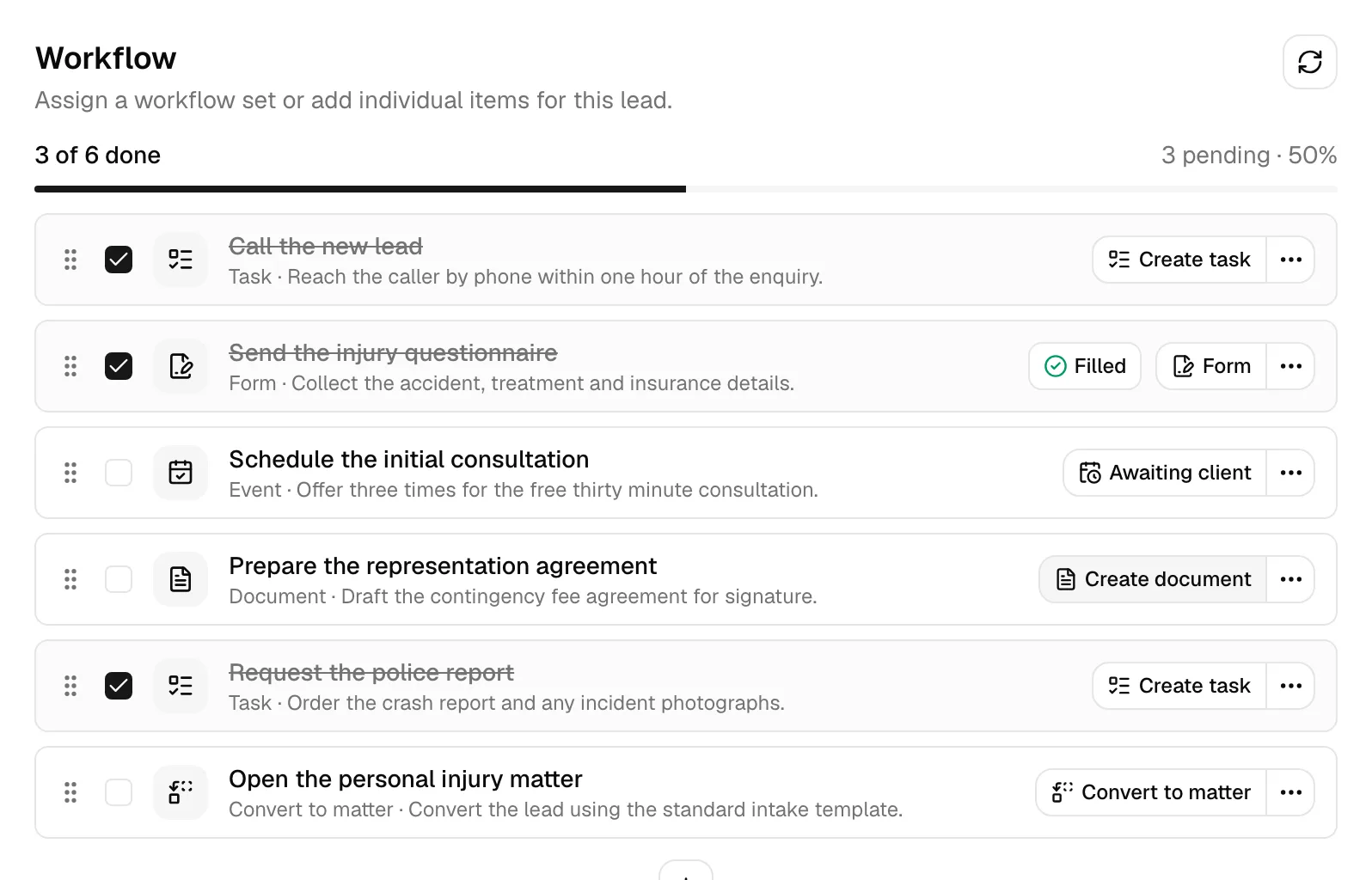
- On a lead: open the lead and go to its Workflow section. You will see the attached steps, a progress line, and an automation bar showing whether Esqase is working the list.
- On a matter: open the matter and find the Workflow section on its Overview tab.
Each step shows what state it is in and offers the actions that state allows, from running it yourself to approving what Esqase has prepared. See How automation runs your workflows.
Common questions
I set a workflow to "When a lead or matter is created" but new leads have no steps. Why? Check that the workflow is Active, that it has steps saved, and that its Sources include where those leads come from. A workflow with every source cleared attaches to nothing.
I attached a workflow but no email went out. Is it broken? Look at the step on the record. If it is Not started with no badge, the step is set to Manual and is waiting for someone to run it. If the automation bar reads Automation off, use Start automation. If it reads Automation paused for the firm, an owner or administrator has paused everything. In both of those cases Run now is greyed out and names the reason when you hover over it.
Can I assign a workflow to a matter after it is created? Yes. Open the matter, find its Workflow section on the Overview tab, and use Add workflow. You are not limited to the wizard.
Why can I not add the same workflow again? A record carries one copy of a given workflow at a time, so the steps cannot be duplicated by accident. Work the copy that is already there.
Can I stop a workflow attaching without deleting it? Yes. Archive it to stop it attaching to anything new, or clear the source it was attaching from. To keep attaching but stop Esqase running the steps, turn its Automation off instead.