Public lead-intake forms
A lead-intake form is a form you publish at a permanent web address so anyone can fill it out, and every submission automatically creates a new lead and contact in Esqase. It is the fastest way to capture prospective clients from your website, an email, or an ad, without anyone on your team having to type their details in by hand.
This page covers how to turn a form into a public lead-intake form, attach a workflow to it, share its public link, send a form to a specific person (or fill it out yourself), and what actually happens behind the scenes when a public submission comes in.
Note: This page assumes you have already built a form. If you have not, start with Building forms and The form builder in depth, then come back here to publish it.
Before you begin
A few things make this flow work smoothly:
- The right access. You need at least Create and Edit access for forms to build and publish one. Firm owners, administrators, and attorneys have full access by default. Staff members can create and edit forms but cannot delete them. If you do not see the New form button or the Edit option, your role does not include that access. See Roles and permissions.
- A firm username. Your public link includes your firm's username (for example,
form.esqase.com/your-firm/...). This comes from your firm profile. See Your firm profile and details. - A Name field and an Email or Phone field. Because each submission becomes a lead and a contact, a lead-intake form must collect a name plus at least one way to reach the person. Add these in the form builder before you publish.
- A workflow (optional). If you want a set of follow-up steps attached to every new lead, create the workflow first. See Workflows and the builder.
Turn a form into a public lead-intake form
You can mark a form as a lead-intake form in two places: when you first create it, or later from inside the form builder. Both use the same settings.
When creating a new form
- In the sidebar, click Forms.
- Click New form in the top right.
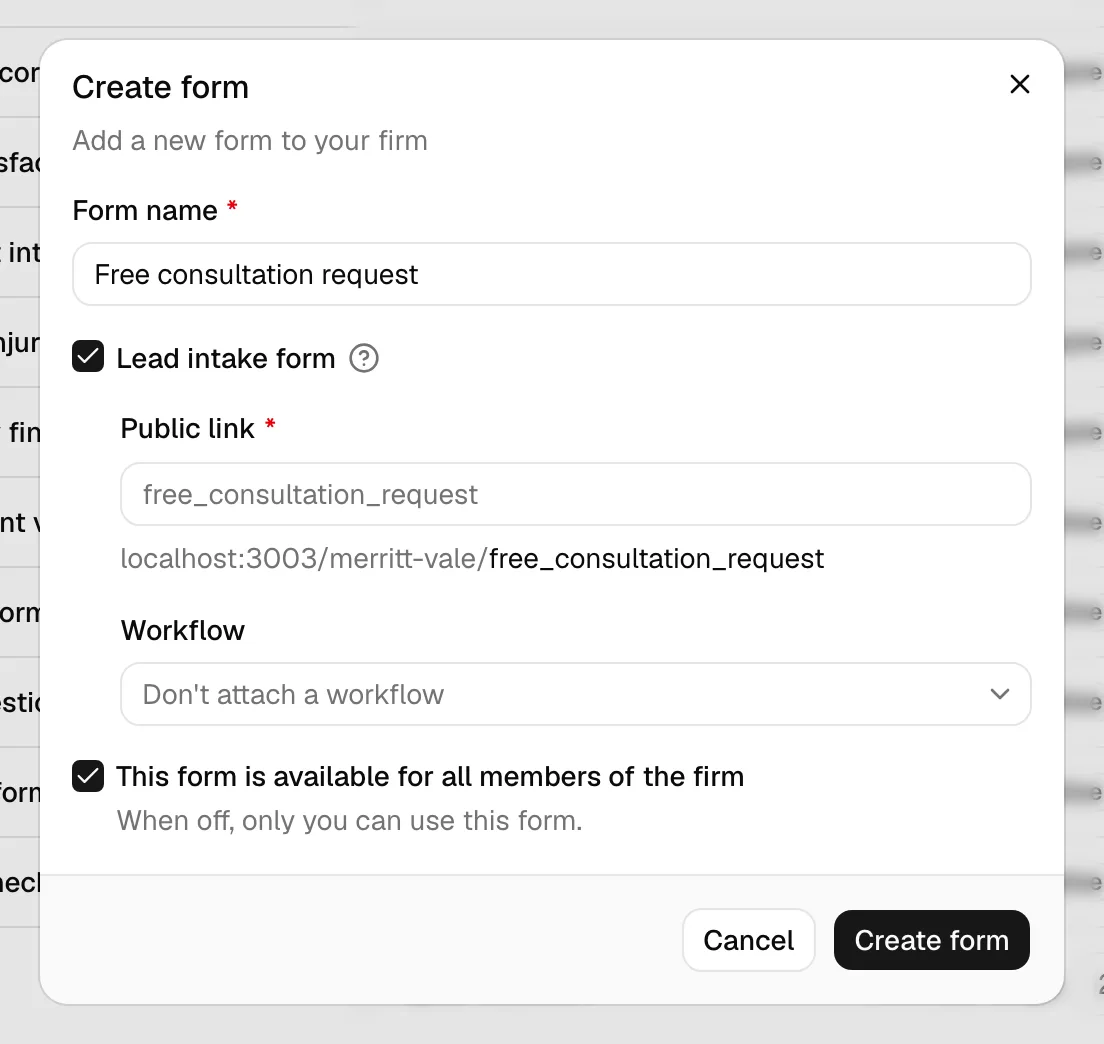
- In the Create form dialog, enter a Form name (required). This is the internal name your team sees in the forms list, for example "New client intake".
- Select the Lead intake form checkbox. A short note confirms what this does: each submission creates a lead and contact, a Name field and an Email or Phone field are required, and any workflow you assign is attached to the new lead.
- A Public link field appears. This is required. Type the last part of your form's web address into the box (the part after
your-firm/). Esqase shows your firm's full address as a prefix so you can see exactly where the form will live. - Optionally choose a Workflow from the dropdown to attach to every new lead. Leave it on Don't attach a workflow if you do not want one.
- Decide whether to leave This form is available for all members of the firm checked. When off, only you can use the form.
- Click Create form. Esqase saves the form and opens the form builder so you can add your fields.
From inside the form builder
If you already built a form and now want to publish it publicly:
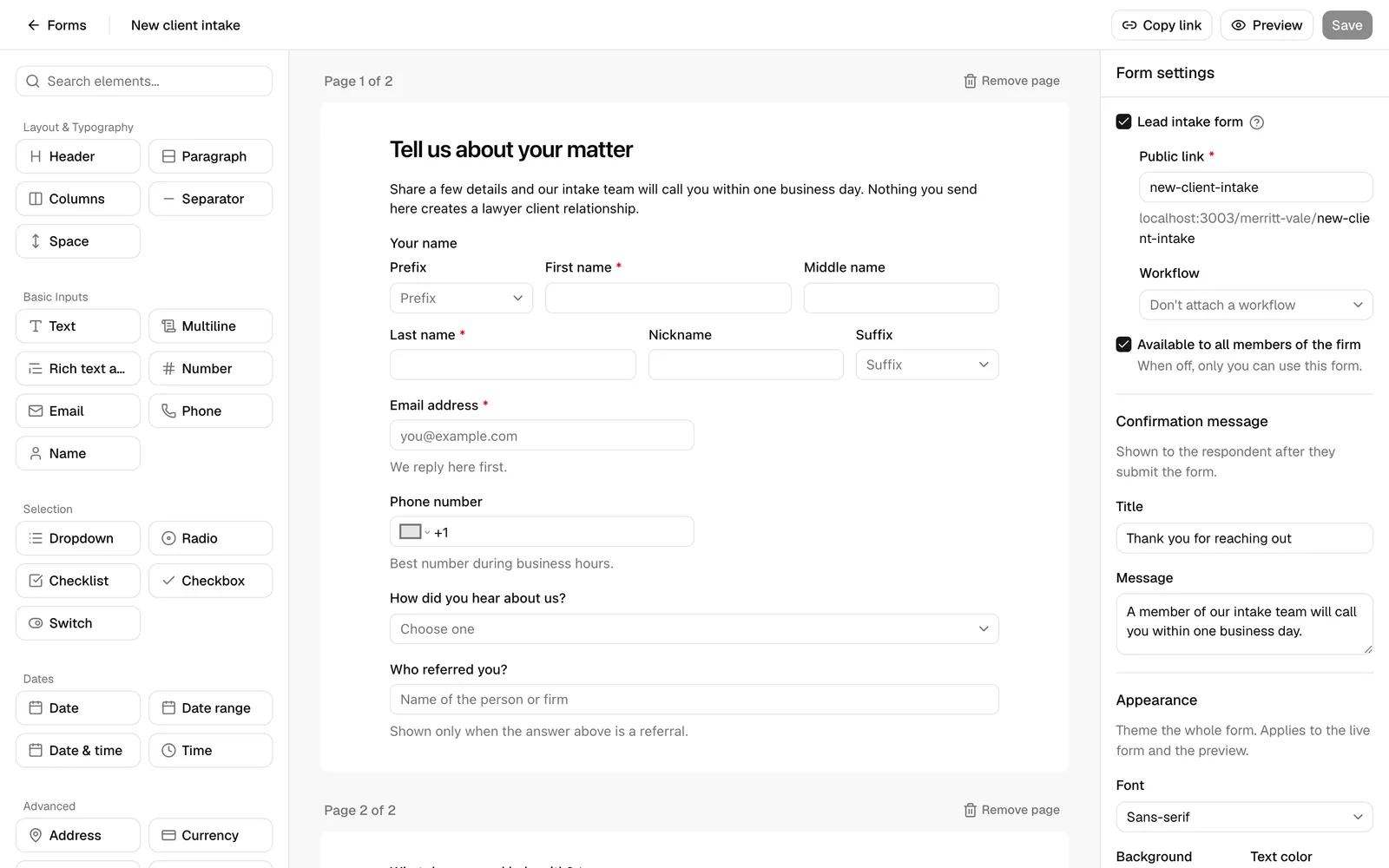
- Open the form, then click Edit to open the builder. (You can also open the builder from the forms list row actions.)
- On the right side of the builder, click anywhere on the blank canvas, or deselect the current element, so the panel shows Form settings rather than a single element's settings.
- Select the Lead intake form checkbox.
- Fill in the Public link field that appears (required). The text you type is the address segment for your form.
- Optionally choose a Workflow to attach.
- Click Save in the top toolbar.
Public link rules
A few things to know about the Public link value:
- It is required for lead-intake forms. If you leave it blank and try to save, you will see "Enter a public link for this form".
- It must be unique within your firm. No two lead-intake forms in your firm can share the same link. If the one you choose is already taken, you will see "That public link is already in use. Choose a different one". Pick a different link.
- Esqase tidies it automatically. Whatever you type is converted to a clean, lowercase address with spaces and special characters turned into underscores. For example, "New Client Intake" becomes
new_client_intake. So you do not have to format it perfectly yourself. - Leaving it empty as a default. If you have not typed a link, Esqase suggests one based on the form name. You can still type your own.
Tip: Keep the link short, lowercase, and memorable. It becomes part of the address you hand to clients, so something like intake or free_consultation reads better than a long phrase.
What "lead intake" turns on
When you select Lead intake form, two things change automatically:
- Multiple submissions are always allowed. A public intake form needs to accept a submission from every visitor, so the form stops limiting itself to one submission per person.
- The form becomes reachable at its public address. Once you save (and the form is active), anyone with the link can open and submit it.
Important: Make sure your form actually contains a Name field and at least one Email or Phone field before you rely on it publicly. These are what Esqase uses to build the contact for each lead. Without them, submissions cannot be turned into a usable contact.
Assign a workflow to a lead-intake form
A workflow is a reusable checklist of follow-up steps (for example, "Send welcome email", "Schedule consultation", "Run conflict check"). Attaching one to a lead-intake form means every new lead arrives with those steps ready for your team, so nothing falls through the cracks.
- Open the form's Form settings in the builder (or use the create dialog as described above).
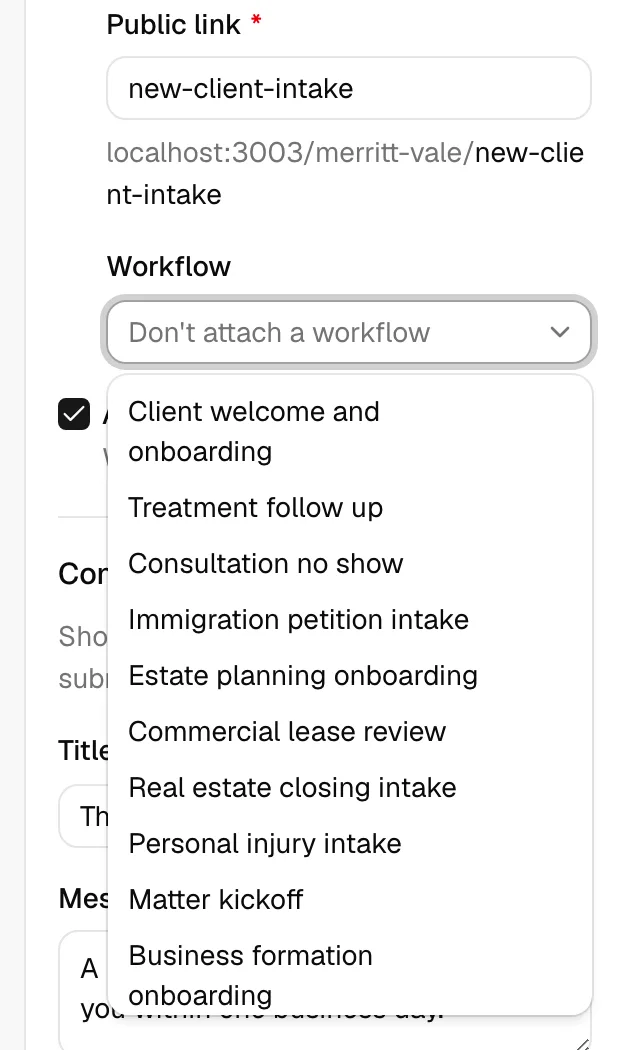
- Make sure Lead intake form is selected. The Workflow dropdown only appears for lead-intake forms.
- Click the Workflow dropdown and choose an active workflow. The list is searchable. If you have no active workflows yet, you will see "No active workflows".
- To remove an attached workflow later, reopen the dropdown and choose Don't attach a workflow.
- Click Save.
How the attached workflow behaves on a public submission:
- The workflow's steps are copied onto the new lead as separate items, each starting as Pending, so your team can work through them.
- The steps are attached only, never run automatically. Esqase does not send emails, book events, or take other actions on its own from a public submission. A real team member runs each step when ready, from the lead's Workflow section.
- Workflow assignment only applies to lead-intake forms. If you turn off Lead intake form and save, any workflow you had chosen is cleared, because it has nowhere to attach.
Note: To run the attached steps later, open the new lead and use its Workflow section. For more on how steps work and what each one does, see Workflow step types and Assigning and attaching workflows.
Copy and share a form public link
Once a lead-intake form is saved and active, Esqase generates its public link automatically. You then copy it and share it wherever your prospects are: a website button, an email signature, a social post, or a QR code.
Copy the link from the form builder
- Open the form's builder by clicking Edit.
- Make sure your changes are saved. The Copy link button only appears once the form is saved and has no unsaved edits.
- In the top toolbar, click Copy link. Esqase copies the full public address to your clipboard and shows "Public link copied".

Preview before you share
It is worth seeing the form exactly as a client will:
- In the builder toolbar, click Preview. (If you have unsaved changes, save first; the button prompts you with "Save your changes to preview".) The preview opens in a new tab.
- You can also click Preview from the form's detail page header to open the same read-only view.
Tip: Preview is a safe, read-only view: it does not create a lead. Use it to proofread labels, check field order, and confirm the form looks right before you publish the link.
Where the link points
Your public link looks like form.esqase.com/your-firm/your-link, where your-firm is your firm username and your-link is the Public link value you set. Anyone who opens it sees your published form and can submit it. For the client-side experience, see How clients fill intake forms.
Important: The link only works while the form is active. If you archive the form, the public link stops accepting submissions. Restore the form to make it work again.
Send a form to a specific person, or fill it out yourself
Sometimes you do not want a fully public link. You want to send this exact form to one named client, or you want to capture answers on their behalf during a call. Use Create request for both.
A form request creates a single, one-time submission tied to a person you name, and it sets up a draft lead and contact for that person right away.
- Open the form from the Forms list.
- In the top right of the form's detail page, click Create request. (This button appears only for active forms when your role includes Create access for form submissions.)
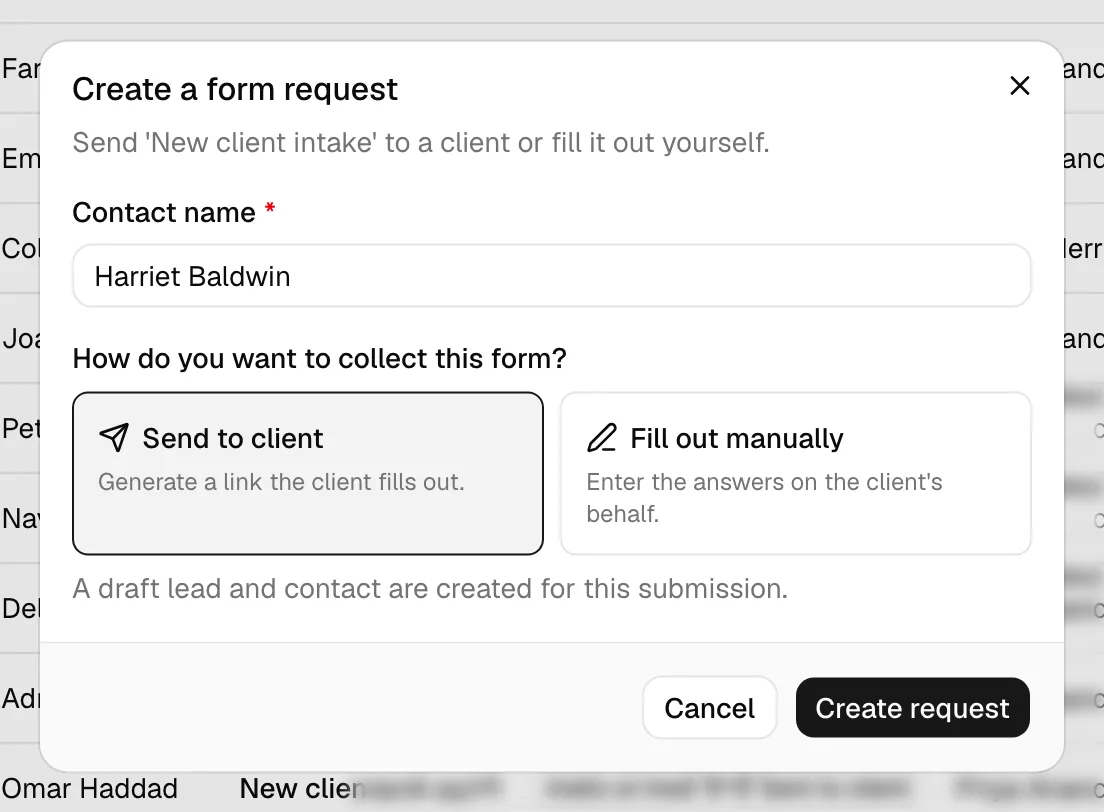
- In the Create a form request dialog, type the Contact name (required), for example the client's name.
- Choose how you want to collect the form:
- Send to client generates a link the client fills out themselves. The submission stays Pending until they complete it.
- Fill out manually lets you enter the answers on the client's behalf right now. Esqase creates a Draft submission and opens the form for you to fill in.
- Click Create request.
What happens next depends on your choice:
- If you chose Send to client, you will see "Form request created". A draft lead and contact are created for that person, and a pending submission is waiting for their answers.
- If you chose Fill out manually, you will see "Draft created. Fill out the form for the contact." and the form opens for you to complete on their behalf.
Note: Whichever option you pick, a draft lead and contact are created for this submission. You will find the new lead under Managing leads, and you can review the submission itself on the form's detail page. See Reviewing form submissions.
Tip: Create request is the right tool for a known, named client. A public lead-intake link is the right tool for unknown prospects arriving from your website or marketing. You can use both on the same form.
How a public form submission creates a lead, a contact, and lead sources
Understanding what Esqase does automatically helps you trust the data that lands in your pipeline. When someone submits your public lead-intake form, Esqase does the following in one step.
It creates a contact
Esqase reads the Name field and the Email and/or Phone field from the submission and builds a new contact:
- The person's full name is assembled from the name parts (prefix, first, middle, last, suffix).
- If they entered an email, it becomes the contact's primary contact method. If they also entered a phone number, it is added as a secondary method (and vice versa if they only gave a phone number).
- At least one of email or phone is required. If a submission somehow arrives without either, it is rejected with "Please provide an email address or a phone number".
The new contact is active straight away and appears under Working with contacts.
It creates a lead
A new lead is created and linked to that contact, with a readable lead reference number generated from your firm's lead numbering settings. The lead lands in your intake pipeline so your team can pick it up. See Managing leads and Document and record numbering.
The full set of answers the person submitted is saved with the lead, so you can review exactly what they told you on the form's detail page.
It tags the lead with two lead sources
So you can measure where your leads come from, Esqase automatically attaches two lead sources to every public form lead:
- A shared Form source, which groups every lead that arrived through any form.
- A source named after the specific form, so you can see how each individual form is performing.
If either source does not already exist in your firm, Esqase creates it for you. This means you can report on intake performance both broadly ("how many leads came from forms?") and per form ("how many came from the free-consultation form?"). See Lead sources.
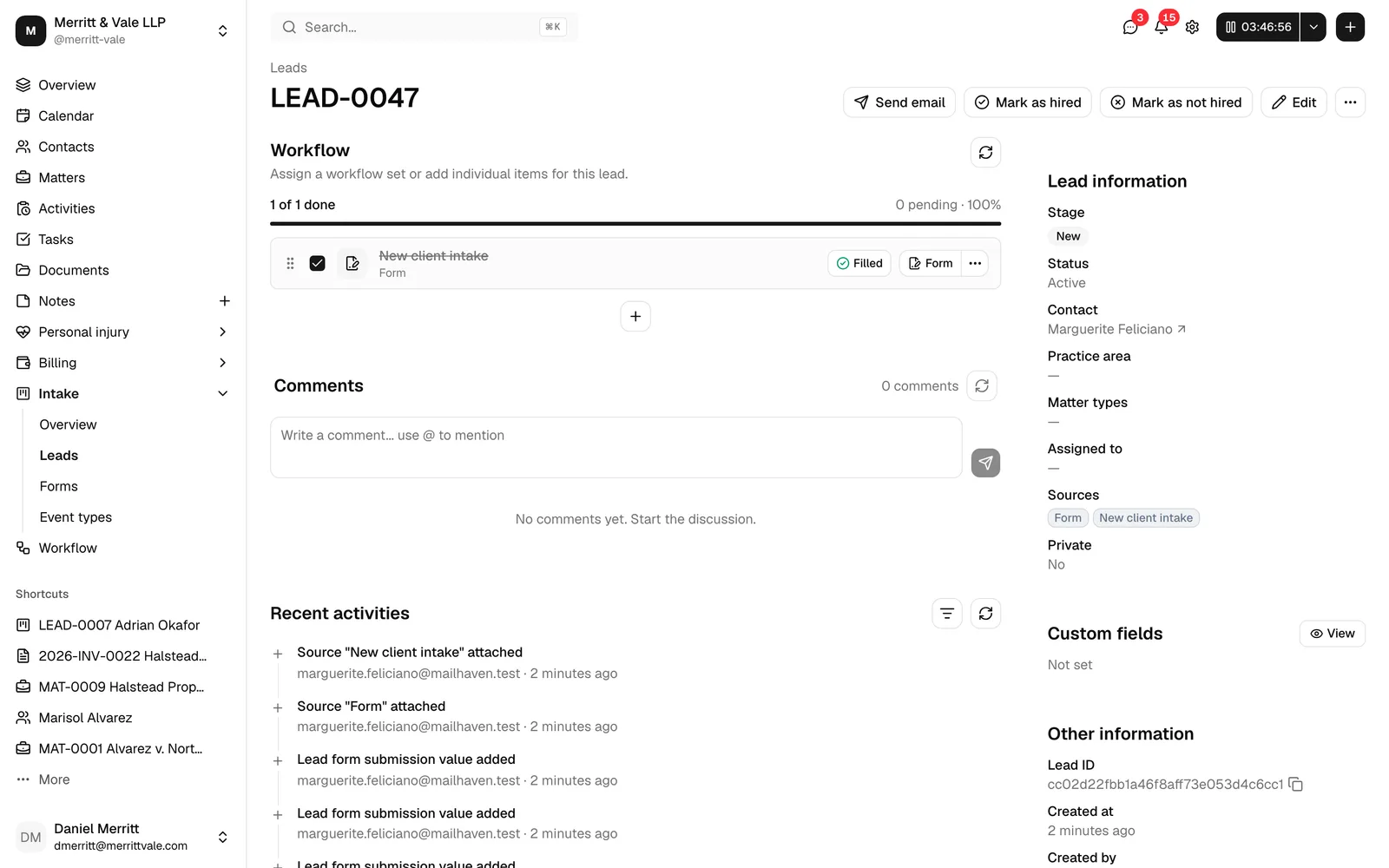
It files any documents the person attached
If your form has a File upload question, each file the person attached is saved as a document in your firm's Documents area. It lands in the Upload destination folder you set on that question, or in a Forms folder (inside a subfolder named after the form) if you left the destination on the default. Your team can also download the files straight from the submission. See The form builder in depth for the upload settings and Documents overview for what you can do with the files afterwards.
It attaches any workflow you assigned
If you assigned a workflow to the form, its steps are copied onto the new lead as Pending items, ready for your team to run from the lead's Workflow section. Nothing runs automatically. See Assigning and attaching workflows.
Common questions
Does the client create an account? No. People filling out your public form do not need an Esqase account. They simply open the link and submit.
What if the same person submits twice? Each submission creates its own lead and contact. A public lead-intake form is built to accept many submissions, so a duplicate submission produces a separate lead. Review your leads regularly and merge or close duplicates as needed.
Why are there two lead sources on one lead? This is intentional. The shared Form source lets you compare forms against your other channels, while the per-form source lets you see which specific form drove the lead. You can rename or recolor these sources later under Lead sources.
The public link is not working. What should I check? Confirm the form is active (not archived), that you saved your latest changes, and that you copied the full link from the builder's Copy link button. Archived forms stop accepting public submissions until restored.