Invoice templates and the builder
Invoice templates control how your firm's invoices look when you generate, download, or send them to clients. Each template is a reusable layout you design once in a drag-and-drop builder, then apply to any invoice. Templates let you put your logo, firm details, line items, and totals exactly where you want them, with your own colors and fonts.
Templates live in Settings under Invoice templates. The data on an actual invoice (line items, amounts, client details) always comes from the matter and its billable activities. The template only decides the presentation.
Before you begin
- Invoice templates are a firm-wide setting, so you reach them through Settings, not from a single matter.
- To view templates, your role needs View access for invoices (firm owners always have it). If you do not, the Invoice templates card in Settings and this page will be hidden, and you will see a "no access" message if you open the link directly.
- To create a template, you need Create access for invoices. Without it, the New template button does not appear.
- To design or rename a template (open the builder, change the name, save the layout), you need Update access for invoices.
- To delete a template permanently, you need Delete access for invoices. Archiving and restoring only require Update access.
Note: "Owner" here means a firm owner, who can do everything regardless of role. Everyone else is governed by their role's invoice permissions.
View the invoice templates list
The list is your home base for every template in the firm.
- In the sidebar, open Settings.
- On the Settings page, find the Invoice templates card (described as "Design and manage invoice layouts for billing") and click it. You land on the Invoice templates page.
- Use the status tabs above the table to filter what you see:
- All shows every template regardless of status.
- Active (the default view) shows templates you can use on invoices.
- Archived shows templates you have set aside.
- Use the Search invoice templates box to find a template by name. Click Clear filters to reset the search.
Each row shows the template's Name, its Status (Draft, Active, or Archived), who created and last updated it, and a Last updated time. You can sort by clicking the Name, Status, Created by, Updated by, or Last updated column headers.
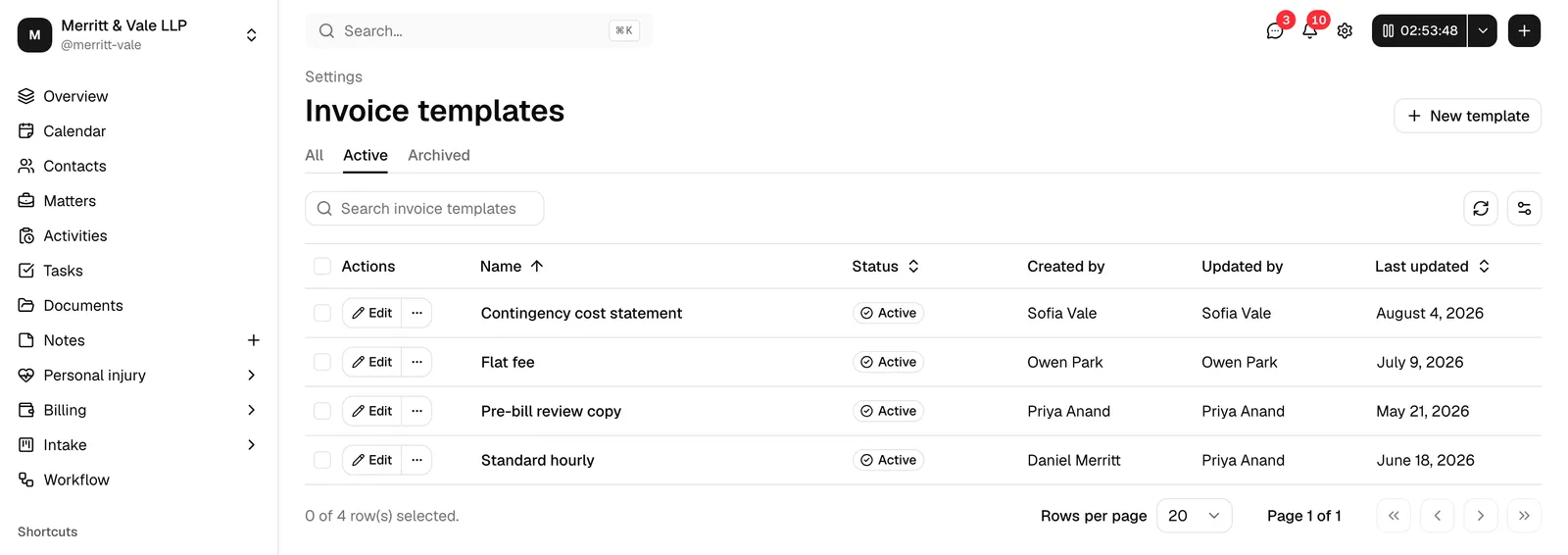
Tip: Use the view options button (top right of the table) to show or hide columns, and the refresh button to reload the list after changes.
Create a new invoice template
Creating a template gives it a name and immediately opens the builder so you can design the layout.
- On the Invoice templates page, click New template (top right).
- In the Create invoice template dialog, type a Template name. This is required and can be up to 128 characters. Pick something you will recognize later, for example "Standard hourly billing template".
- Click Create template.
When the template is created, Esqase saves it and takes you straight into the builder so you can start designing. A brand-new template opens with an empty page (no elements yet) and a standard set of page defaults you can change at any time.
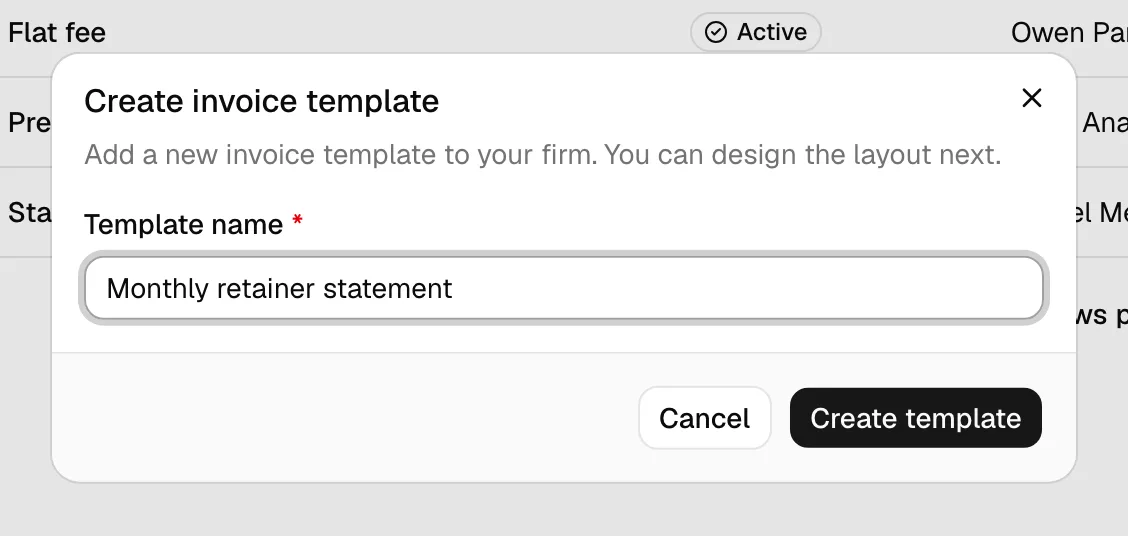
Note: A new template's name is the only thing you set up front. Everything else (logo, sections, colors, fonts) happens in the builder, covered below.
Edit a template name and status
You can rename a template at two places, and you change its status through the row menu.
Rename from the list
- On the Invoice templates page, find the template's row.
- Click Edit on that row to open the builder.
- At the top of the builder, click the template name field (it shows the current name, or "Untitled invoice template" if blank) and type the new name.
- Click Save to keep the change.
Rename inside the builder
The name field always lives in the builder's top toolbar. Edit it there and click Save. The name and the layout are saved together.
Change the status
A template's status is not a free-text field you pick. It changes based on what you do:
- Draft / Active: New templates become usable (Active) so they can be applied to invoices.
- Archived: You move a template to Archived by archiving it (see Archive, restore, or delete a template). Archived templates do not appear in the invoice template picker when creating an invoice.
Important: Only Active templates can be chosen when creating an invoice. If a template is missing from the picker on the invoice form, check whether it has been archived.
Build a template with the drag-and-drop builder
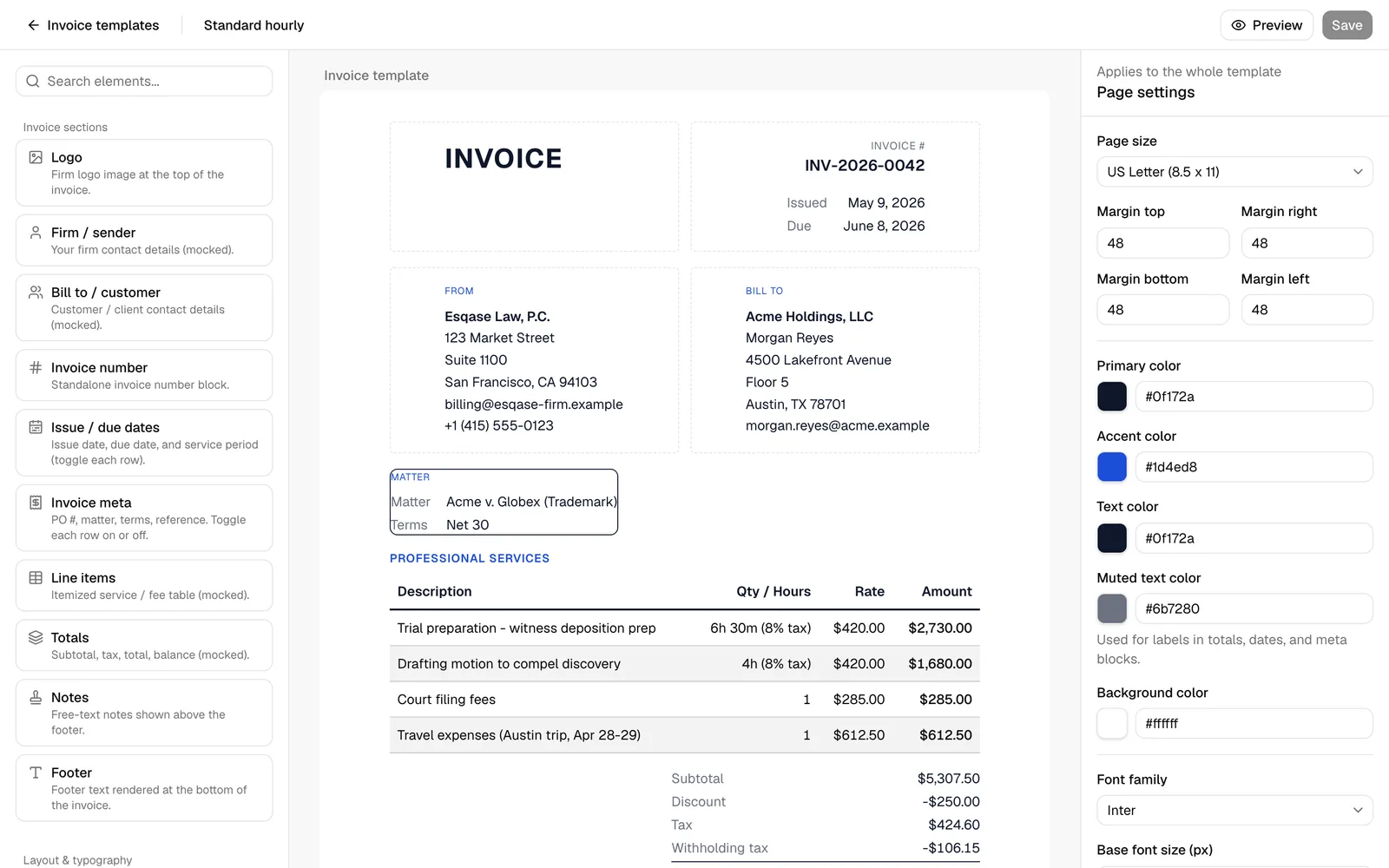
The builder is a three-panel workspace: a palette of elements on the left, the page canvas in the middle, and a settings panel on the right.
- Open a template by clicking Edit on its row (or create a new one, which opens the builder automatically).
- You will see:
- Top toolbar: a back link to Invoice templates, the editable template name, a Preview button, and a Save button.
- Left palette: searchable elements grouped under Invoice sections and Layout & typography.
- Center canvas: a white page that represents your invoice. It reads "Drag and drop elements here" when empty.
- Right panel: Page settings when nothing is selected, or Element settings when you select an element.
Add elements to the page
You add an element in either of two ways:
- Drag an element from the left palette onto the canvas and drop it where you want it.
- Click an element in the palette to drop it at the bottom of the page.
Reorder, select, and remove elements
- Hover over an element on the canvas to reveal its controls.
- Use the grip handle on the left edge of the element to drag it up or down into a new position.
- Click an element to select it. The right panel switches to that element's settings, and the element is highlighted.
- Click the trash icon on the right edge of the element to remove it.
- Click an empty area of the page to deselect and return the right panel to Page settings.
Tip: Use the Search elements... box at the top of the palette to filter the list by name or description, which is faster than scrolling.
Set page-wide options
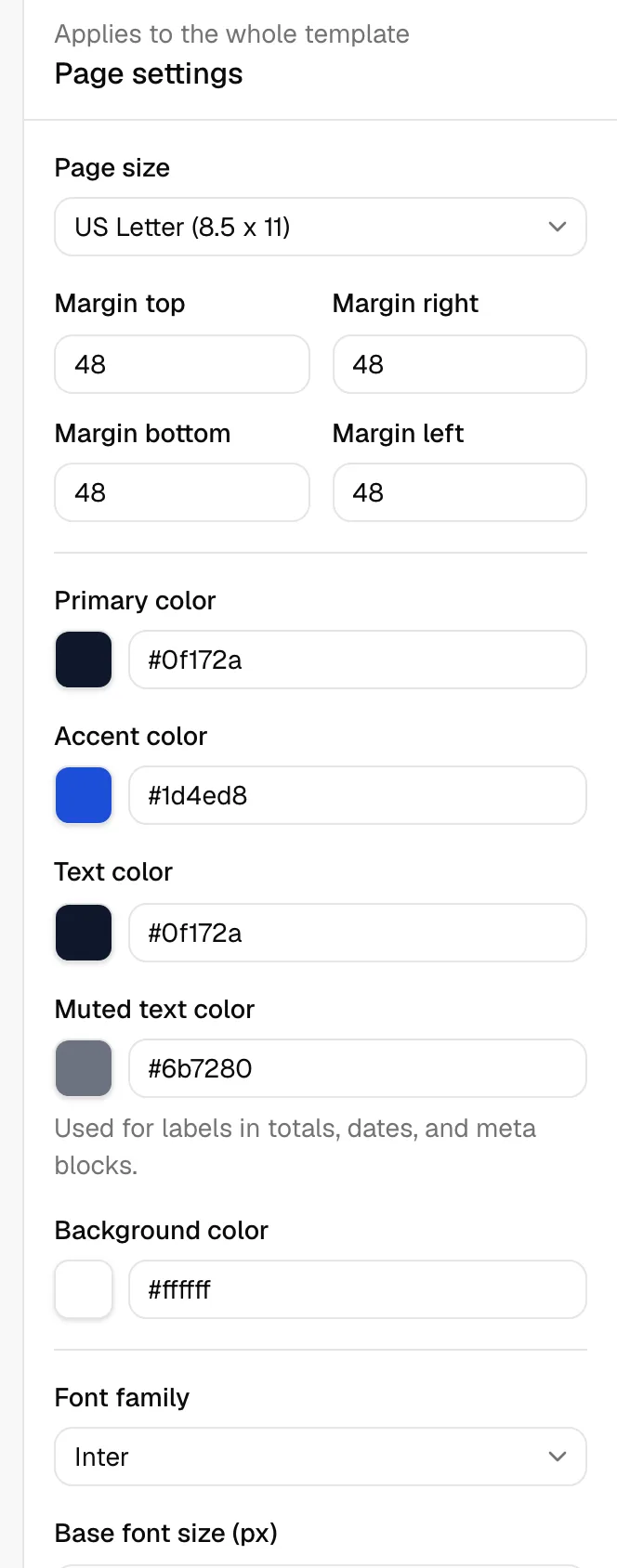
When no element is selected, the right panel shows Page settings, which apply to the whole template:
- Page size: US Letter (8.5 x 11), A4, or US Legal (8.5 x 14).
- Margins: separate Margin top, Margin right, Margin bottom, and Margin left values in pixels.
- Colors: Primary color (borders and totals rules), Accent color (section labels and the balance due), Text color, Muted text color (the small labels in totals, dates, and meta blocks), and Background color.
- Font family: Inter, Helvetica, Arial, Georgia, Times New Roman, or Courier New.
- Base font size (px): the default text size for the document.
- Image upload directory: where uploaded logo and image files are stored. It defaults to the template name; you can change it.
Save your work
Click Save in the top toolbar whenever you want to keep your changes. The Save button stays disabled until you have unsaved edits and shows a spinner while saving. You must save before you can preview (see Preview a template).
Important: The builder does not save automatically. If you leave without saving, your latest changes are lost. The Save button being active is your cue that you have pending edits.
Add and configure template elements (logo, line items, totals, and more)
Each element you add to the page has its own settings in the right panel. Select an element to see only the options that apply to it. The palette groups elements into Invoice sections and Layout & typography.
Invoice section elements
These pull (or stand in for) real invoice data when an actual invoice is generated. In the builder and preview they show realistic sample data so you can see the layout.
- Logo: your firm logo at the top. Settings: upload or paste an image, set Alignment, and set Height (px). See Upload a logo or image asset.
- Firm / sender: your firm's name and contact details. Settings: a Section label (for example "From"), Show section label, Show border, a background color, and alignment.
- Bill to / customer: the client's name and contact details. Same label, border, background, and alignment settings as the firm block.
- Invoice number: a standalone invoice number block. Settings include a label, Show section label, alignment, font size, font weight, and color.
- Issue / due dates: issue date, due date, and service period. Toggle each row with Show issue date, Show due date, and Show service period, plus the usual label, border, background, and alignment options.
- Invoice meta: extra details. Toggle Show PO number, Show matter, Show payment terms, and Show reference, plus label, border, background, and alignment.
- Line items: the itemized table of services, fees, and expenses. This is where billable work appears on a real invoice. Settings include:
- Show table header, Show quantity / hours column, and Show rate column to control which columns appear (Description and Amount always show).
- Stripe alternate rows for a zebra-striped table.
- Header background and Header text color.
- Border style (Solid, Dashed, Dotted, or None), Border color, Row border thickness (px), and Header border thickness (px).
- A section label and its Show section label toggle.
- Totals: the subtotal, tax, total, amount paid, and balance due summary. Discount, withholding tax, credited, and written-off lines appear in it when they apply to the invoice. Settings include alignment, a value color, and a muted (label) color.
- Notes: a free-text note above the footer (for example payment instructions). Settings: a label, Show section label, the note Text, and alignment.
- Footer: small text at the very bottom of the page. Settings: the footer Text, alignment, color, and font size.
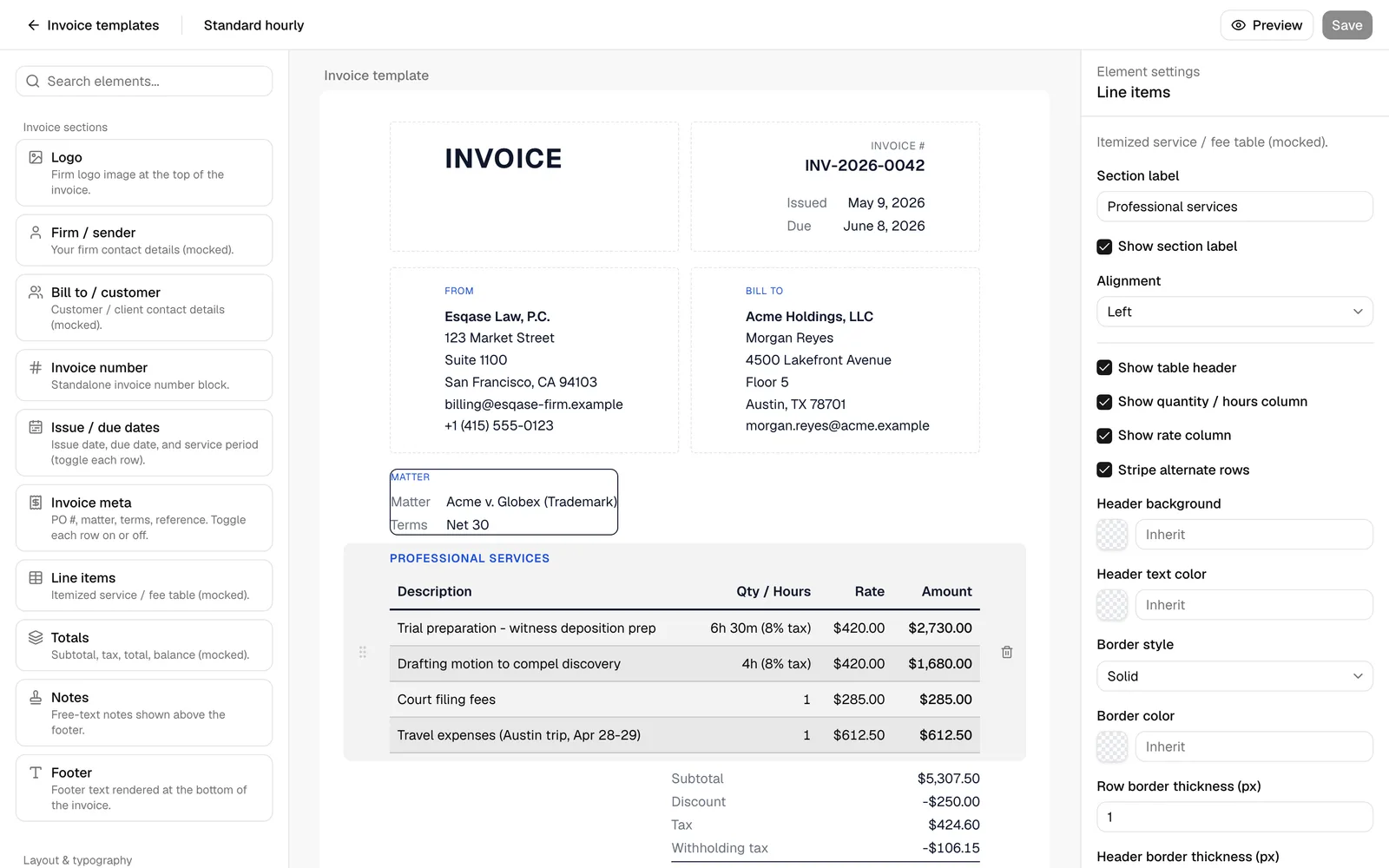
Note: The amounts, dates, and client details shown while you build are sample data. On a real invoice these are replaced with the matter's actual numbers. The Totals are always recalculated by Esqase from the invoice's line items, so you cannot override the math in the template.
Layout and typography elements
These shape the page without pulling invoice data.
- Columns: lay out two or three sections side by side on the same line. Set Number of columns to 2 or 3, then drag elements into each column slot. (You cannot nest a Columns element inside another column.)
- Header text: a heading or document title (defaults to "INVOICE"). Settings: the Text, alignment, font size, font weight, and color.
- Paragraph: a free-form block of text. Settings: the Text, alignment, font size, font weight, and color.
- Image: a decorative image such as a signature, watermark, or banner. Same upload, alignment, and height options as the Logo.
- Spacer: vertical whitespace. Set its Height (px).
- Divider: a horizontal rule between sections. You can set its color.
Tip: Use a Columns element to put your firm block and the bill-to block side by side, or to line up the invoice number and dates across the top of the page.
Upload a logo or image asset
The Logo and Image elements share the same uploader, which appears in the right panel when one of them is selected.
- Add a Logo or Image element and select it.
- In the right panel, click Upload image.
- Choose a file. Accepted formats are PNG, JPG, WebP, GIF, and SVG, and the file must be 10 MB or smaller.
- Wait for the upload to finish (the button shows "Uploading..."). When it succeeds, the image preview appears in the panel and on the canvas.
You also have two alternatives to uploading:
- Paste an image URL into the "Or paste an image URL" field to use an image hosted elsewhere.
- Remove the current image with the trash icon next to its preview.
Uploaded files are saved to your firm's storage in the folder named in Image upload directory under Page settings (it defaults to the template name). Change that directory in Page settings if you want uploads organized differently.
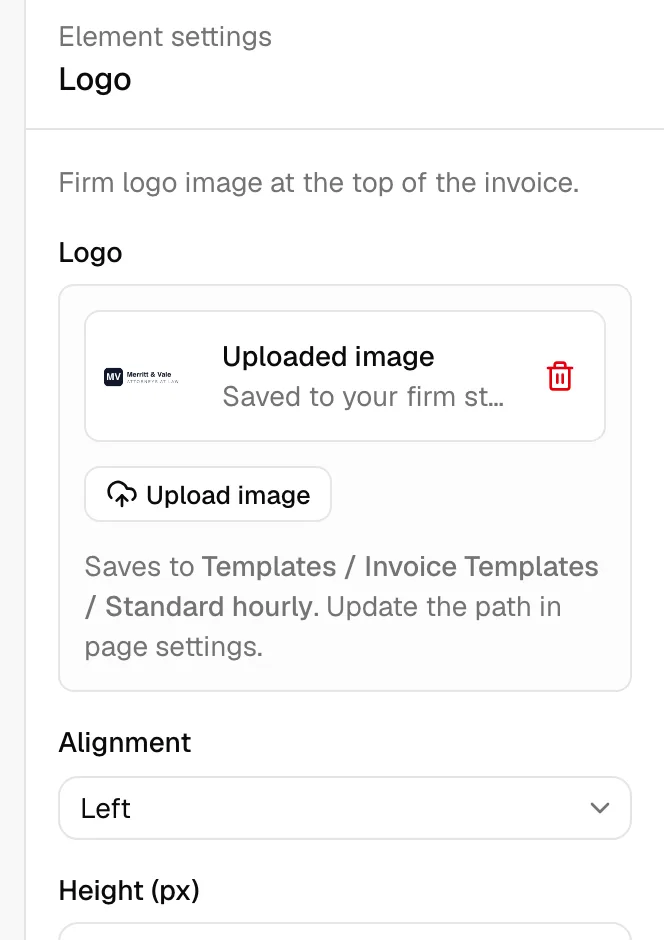
Important: If you try a file in an unsupported format or larger than 10 MB, the upload is refused with a message and nothing is saved. Convert or resize the file and try again.
Preview a template
The preview renders your template at full page size using sample data, so you can see exactly how a real invoice will look.
- Save any pending changes first. The Preview button is disabled while you have unsaved edits or while a save is running. (Hovering over it explains "Save your changes to preview the document.")
- Click Preview in the top toolbar.
- A full-screen preview opens showing the template name at the top.
- Use the zoom controls (the minus and plus buttons, with the current percentage between them) to zoom out or in.
- Click the close (X) button to return to the builder.
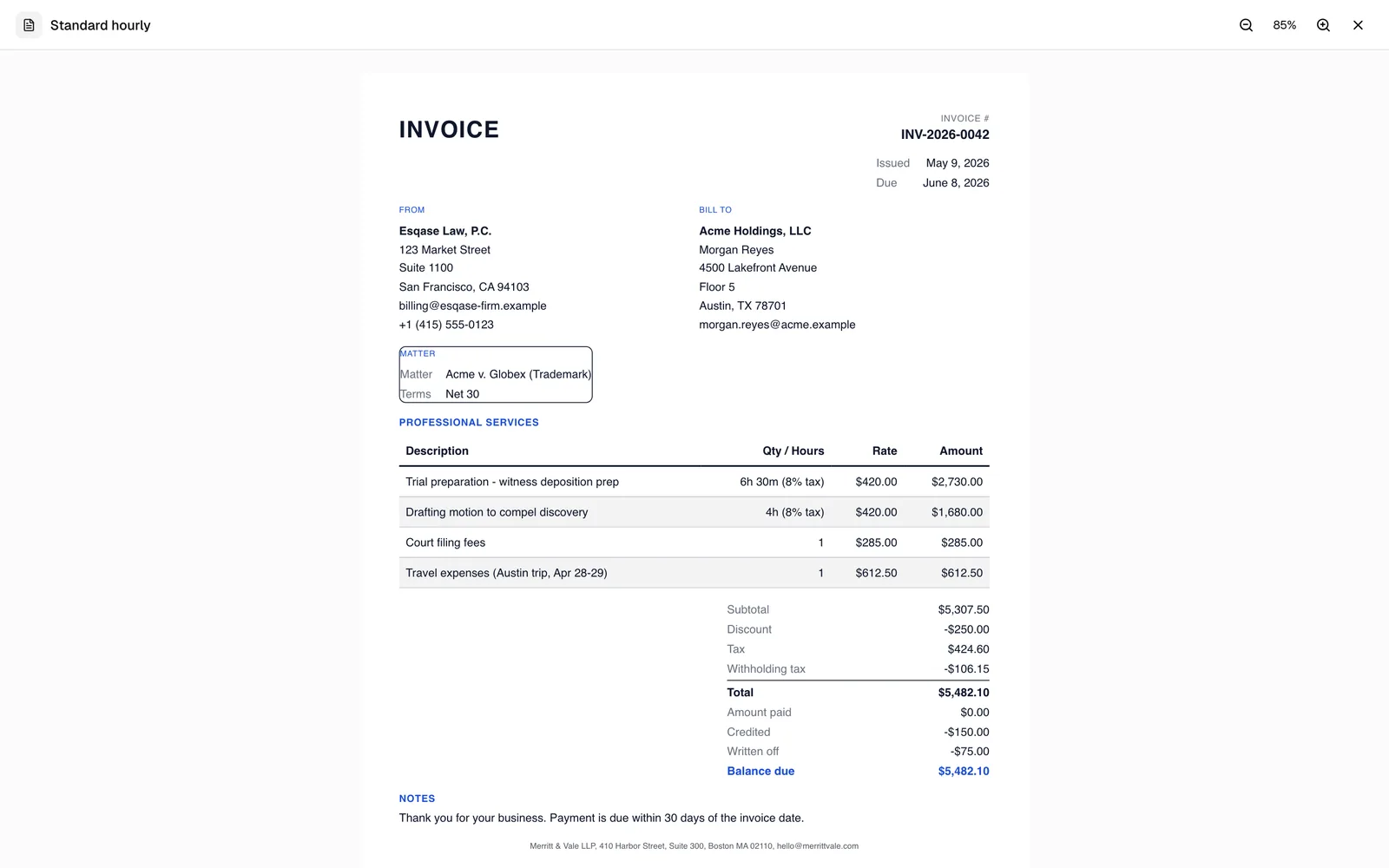
Tip: Because preview uses sample data, focus on layout, spacing, colors, and which sections appear, not the specific numbers. The real figures come from the invoice itself.
Archive, restore, or delete a template
Archiving removes a template from everyday use without deleting it. Deleting removes it permanently and is only possible after archiving.
Archive a single template
- On the Invoice templates page, find the template's row.
- Click the more-actions menu (the ... button) on that row.
- Choose Archive. The template moves to the Archived tab and can no longer be picked when creating an invoice.
Restore a template
- Switch to the Archived tab (or use All).
- Open the row's more-actions menu and choose Restore. The template returns to the active list and can be used again.
Delete a template
A template must be archived before it can be deleted.
- Make sure the template is archived.
- Open the row's more-actions menu and choose Delete.
- In the Delete invoice template? dialog, confirm by clicking Delete template.
Important: Deleting is permanent and cannot be undone. If you only want to set a template aside, archive it instead.
Do several at once
To act on multiple templates at the same time, select their checkboxes in the list and use the batch actions:
- Archive moves all selected Active templates to Archived.
- Restore returns all selected Archived templates to active.
- Delete permanently removes all selected Archived templates (after a confirmation).

Apply a template when creating an invoice
Templates are applied at the moment you build an invoice, not from this settings page.
- From a matter, start a new invoice (see Creating and sending invoices).
- On the invoice form, find the Invoice template dropdown (placeholder "Pick a template...").
- Choose the template you want. Only Active templates appear here; if there are none, the dropdown shows "No active invoice templates".
- Continue filling in the invoice. As you select line items and fill in details, the invoice preview on the right uses your chosen template's layout with the invoice's real data.
The dropdown pre-selects a template for you, and you can change it. It picks your firm's default invoice template while that template is active. Otherwise it picks an active template named Default Invoice Template, if there is one, and otherwise the first active template in alphabetical order. Batch invoicing, invoices that a workflow's invoice step or a recurring invoice schedule creates, and the AI Assistant, when you do not name a template, follow the same order. A recurring schedule keeps its own template while that template is active; if it is archived, the schedule's next invoices follow this order instead. When the AI Assistant changes an invoice's template, the new one must be active, and asking for no template gives the invoice the template this order picks.
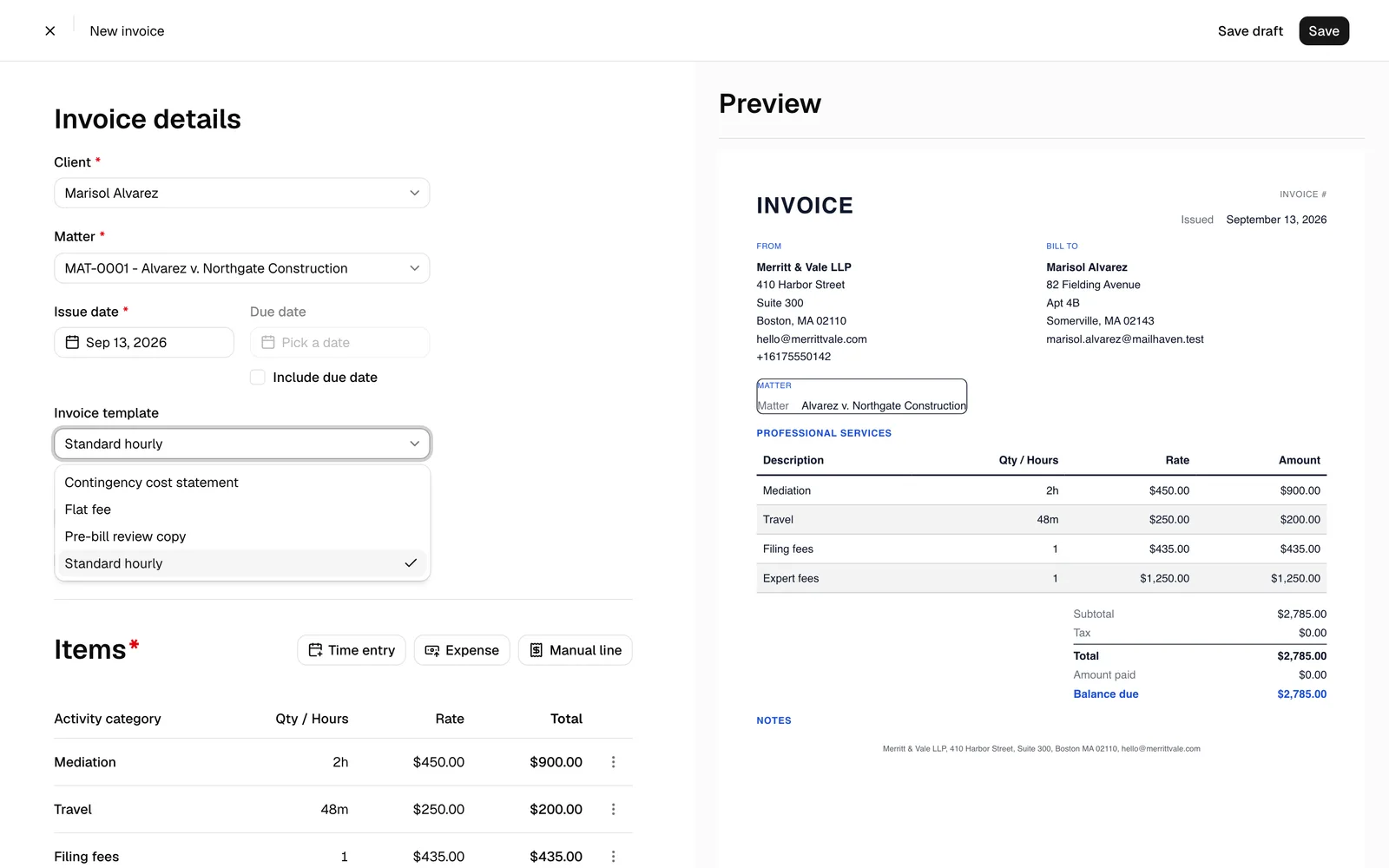
Note: The template you pick affects only how that invoice is presented (its layout, colors, and which sections show). All amounts, taxes, and totals are calculated by Esqase from the invoice's line items.
What your client sees on the payment page
The template sets how the invoice PDF looks. When your client opens the invoice's payment link, the payment page shows the invoice in a standard layout, the same for every invoice, rather than in your template. The Download PDF button on that page gives the client the invoice as a PDF in its template. See How clients pay invoices.
Common questions
Why can't I see a template in the invoice picker? It is probably archived. Only Active templates appear when creating an invoice. Restore it from the Invoice templates page if you need it.
Why is the Preview button greyed out? You have unsaved changes, or a save is in progress. Click Save, then the preview opens.
The numbers in the preview look wrong. Will my invoices be wrong? No. The builder and preview use sample data so you can judge the layout. Real invoices use the matter's actual line items, and Esqase always recalculates the subtotal, tax, and total.
Can I delete a template I'm still using? You can only delete a template after archiving it, and only if your role has Delete access. Archiving it first keeps it from being chosen on new invoices while you decide.