Importing contacts from CSV
If you already keep your people and companies in a spreadsheet, another case-management tool, or an exported address book, you do not have to add them to Esqase one at a time. The Import contacts tool reads a CSV file and adds many contacts to your firm in a single pass, up to tens of thousands of rows at once.
This page explains when to use the import, how to prepare a clean file, how to run the import and track its progress, and how to fix and re-run any rows that were skipped.
Before you begin
A few things to know before you start:
- You need Create access for contacts. The Import contacts action only appears if your role can create contacts. Firm owners, administrators, and attorneys have this by default. If your role is view-only for contacts, you will not see the option. See Roles and permissions.
- A CSV file is required. Esqase imports comma-separated value (
.csv) files only. Most spreadsheet programs, including Microsoft Excel, Google Sheets, and Numbers, can save or export a sheet as CSV. If you have an.xlsxor.numbersfile, save a copy as CSV first. - Import only adds new contacts. The tool always creates new records. It does not look for matching existing contacts to update or merge. See Import only adds new contacts before importing a list that may overlap with contacts you already have.
Tip: If your firm has custom fields on contacts, set them up first so they appear as columns in the template. See Custom fields.
When to use CSV import
Use a CSV import when you have more than a handful of contacts to add and they already exist somewhere you can export to a spreadsheet. Common cases:
- Moving your client and contact list over from another practice-management system or CRM.
- Loading a batch of contacts from a referral list, a marketing list, or a conference attendee export.
- Bulk-adding the employees of a company you work with.
For one or two contacts, it is usually faster to add them by hand with Add contact on the Working with contacts page. The importer shines when the same effort would mean typing the same fields over and over. If your firm runs an ongoing sync from another system rather than a one-time file, the contacts endpoints can create and update contacts programmatically instead.
Open the import tool
There are two ways into the importer.
From the Contacts page (when you already have contacts):
- In the sidebar, click Contacts.
- In the top-right corner, click the More contact options button (the "..." icon next to Add contact).
- Choose Import contacts.
From the empty state (when your firm has no contacts yet):
When your firm has not added any contacts, the Contacts page shows a No contacts yet panel instead of the table, inviting you to get started.
- In the sidebar, click Contacts.
- On the No contacts yet panel, click Import contacts.
Either path opens the Import contacts dialog, where the whole import takes place.

Download the CSV template
The fastest way to build a valid file is to start from the template Esqase generates for you. It already has every column in the right order, plus two example rows so you can see exactly what each field should look like.
- Open the Import contacts dialog (see Open the import tool).
- At the bottom-left of the dialog, click Download template.
- A file named
contact-import-template.csvdownloads to your computer. - Open it in your spreadsheet program.
The template includes:
- A header row naming every column the importer understands.
- Two example rows: one Person (Jane Doe, with an email, phone, address, tags, and an employer link) and one Company (Acme Legal LLC). These rows are just illustrations. Replace them with your own data or delete them before importing.
Tip: The template opens cleanly in Excel and Google Sheets. Keep the header row exactly as it is. The importer matches columns by their header name, so renaming or reordering columns is fine as long as the names still match, but it is safest to leave them alone.
How custom-field columns appear in the template
If your firm has added custom fields to contacts, the template automatically includes one extra column for each one, placed after the standard columns. The column header is the field's exact title (for example, a Referral source custom field becomes a Referral source column).
This means the template is personalized to your firm. If you add or rename a contact custom field later, download a fresh template so the columns stay in sync.
Important: If a custom field is marked required, every row in your file must have a value in that column. Rows that leave a required custom field blank are skipped. See Review the skipped-rows report.
📷 Screenshot: The downloaded template open in a spreadsheet, with the header row visible and a firm custom-field column highlighted at the right end of the standard columns.
Prepare your file
Fill in one row per contact. You can leave any column blank unless it is required for that contact type. Below is what each group of columns does.
Identity columns (one is required)
Every row must identify the contact, and the rules depend on the Type:
- Type: Either
PersonorCompany. If you leave it blank, the contact is treated as a Person. Esqase also accepts common synonyms (for example,Individualfor a person, orOrganization,Org, orBusinessfor a company). An unrecognized value skips the row. - For a Person, fill in First Name, Last Name, or both. A person needs at least one of these.
- For a Company, fill in Company Name. A company without a company name is skipped.
Optional name columns let you record more detail: Prefix, Middle Name, Suffix, Nickname, Trade Name (a company's "doing business as" name), and Company Type (for example, LLC or PLLC).
Contact-method columns
Each of these columns, when filled, adds a way to reach the contact:
- Email and Secondary Email
- Mobile Phone, Work Phone, and Home Phone
- Fax
- Website
Leave any you do not have blank. Email columns are lightly checked for a valid email shape, so a value like not-an-email in an Email column skips the row.
Address columns
One primary address per contact, spread across these columns:
- Street 1 and Street 2
- City
- State
- Postal Code
- Country: a two-letter country code (for example,
US,CA,GB). If you fill any address column but leave Country blank, Esqase uses your firm's default country. A value that is not a two-letter code skips the row.
If you leave all address columns blank, the contact is simply created without an address.
Tags
Use the Tags column to label contacts (for example, VIP, Client, Referral). To apply more than one tag to a contact, separate the tag names with a semicolon (;), like VIP;Referral.
Tags are matched to your firm's existing tags by name (case-insensitive):
- If a tag name already exists for your firm, that existing tag is applied.
- If it does not exist yet, Esqase creates the tag for you during the import and applies it.
Because new tag names are created automatically, double-check spelling so you do not accidentally create near-duplicate tags like Client and Cleint. To learn more about tags, see Tagging contacts.
Linking a person to their employer
For Person rows, two columns let you connect the person to a company:
- Employer Company: the name of the company the person works for.
- Job Title: the person's position at that company (for example,
General Counsel).
The employer is matched to your firm's existing companies by name:
- If a company with that name already exists, the person is linked to it.
- If no matching company exists, Esqase creates the company contact automatically and links the person to it.
Tip: If you are importing both companies and their employees in the same file, spell the company name identically in the company's Company Name column and in each employee's Employer Company column. That way everyone links to the one company record instead of creating duplicates.
The Employer Company and Job Title columns are ignored on Company rows.
A note on length limits and the live preview
Each text field has a maximum length (names, company names, addresses, and so on). Values that are too long are reported as row issues rather than being cut short, so you will see them flagged in the preview and the skipped-rows report rather than losing data quietly.
You do not have to guess whether your file is valid. When you choose the file, Esqase checks every row and shows you a count of rows that are ready and rows that will be skipped, with a few examples, before anything is imported. See Upload and start the import.
📷 Screenshot: A spreadsheet with several prepared contact rows filled in, highlighting the Type, First Name/Last Name (or Company Name), Email, Tags (with a semicolon-separated value), and Employer Company columns.
Upload and start the import
Once your file is ready, upload it and let Esqase check it before you commit.
- Open the Import contacts dialog.
- Drag your CSV file onto the Drag and drop a CSV, or click to choose area, or click the area and pick the file. The importer accepts one file at a time, up to 50,000 rows.
- Esqase shows Checking your file... while it reads and validates every row.
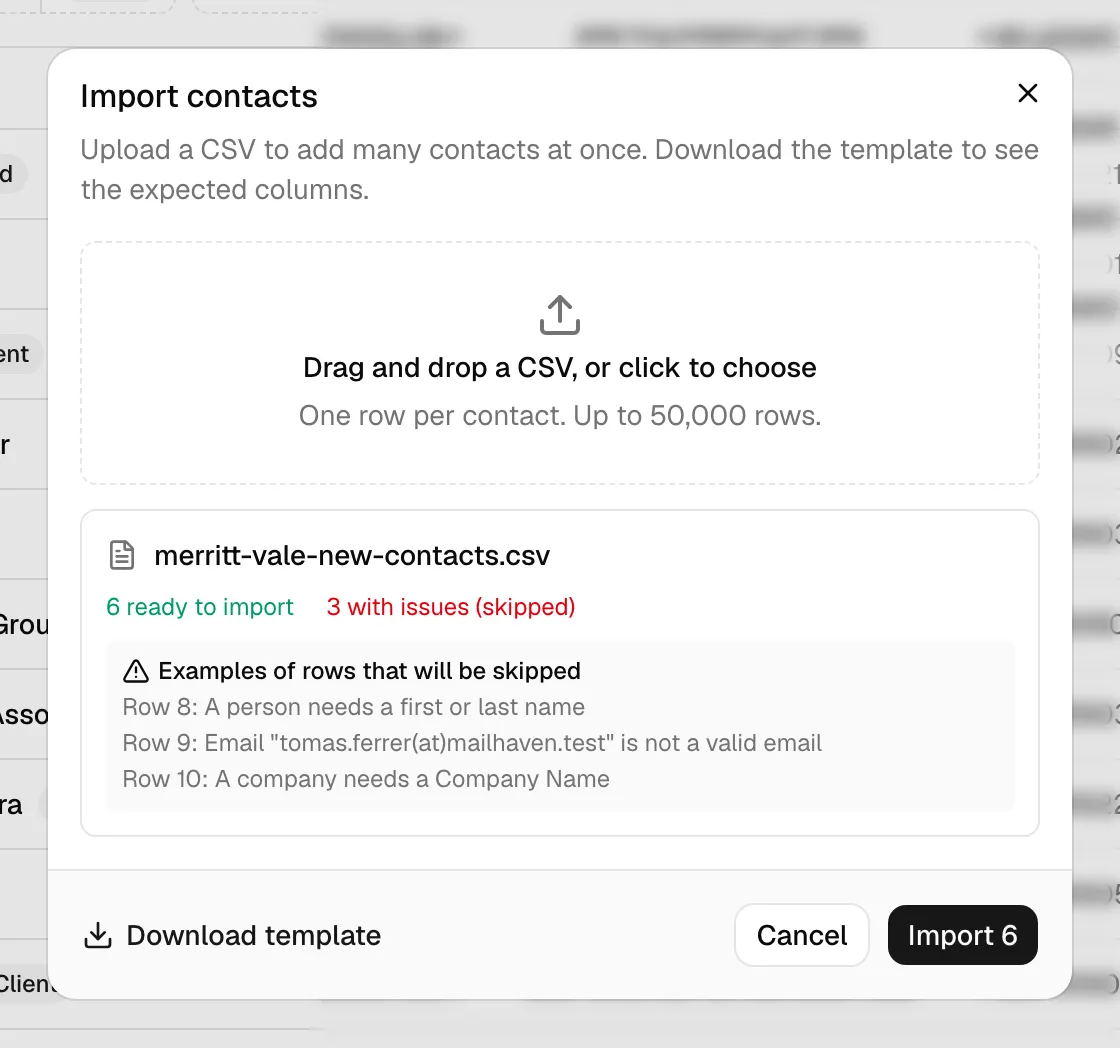
- When the check finishes, the dialog shows a summary for your file:
- A green N ready to import count for rows that passed.
- A red N with issues (skipped) count, shown only if some rows have problems.
- A short Examples of rows that will be skipped list, naming up to a few problem rows and why (for example,
Row 4: A person needs a first or last name).
- Review the summary. If too many rows will be skipped, you can fix the file now and re-select it before importing anything.
- When you are happy, click the Import N button (where N is the ready-to-import count). The button is disabled if no rows are valid.
Esqase then uploads the file and begins importing. You will see an Uploading file... progress bar, followed by an Importing contacts... stage.
Note: The importer cannot read a file that is missing the expected name columns, so if you upload a CSV that does not look like a contact file, you will be told to download the template and try again. It also rejects a file that has two columns with the same name (for example, two Email columns) and tells you which one to remove, because duplicate columns would quietly drop data.
Track progress for large imports
Large files import in the background, so you are never stuck staring at a frozen window, and the rest of the app stays fully responsive while the import runs.
- During import, the dialog shows an Importing contacts... bar with a running processed / total count that climbs as rows are added.
- A line under the bar reads: "You can close this dialog. The import keeps running and the list updates as contacts are added." You can safely click Close and keep working. The contacts list refreshes on its own as new contacts land.
- When the import finishes, the dialog (if still open) switches to a completion summary, and a toast notification tells you how many contacts were imported.
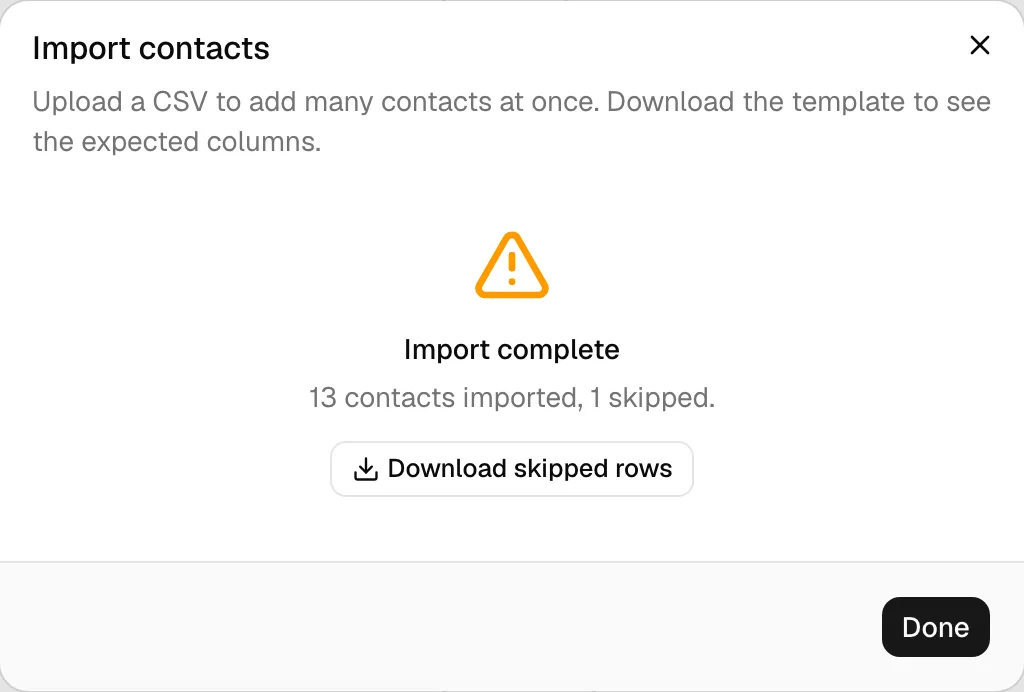
The completion summary shows one of three outcomes:
- Import complete with a green check, when every valid row was added.
- Import complete with an amber warning icon, when some rows were skipped. It reads, for example, "120 contacts imported, 5 skipped." A Download skipped rows button appears so you can fix those rows.
- Import failed with a red icon, if the file could not be processed at all. This is rare and usually means the file itself was unreadable; check it and try again.
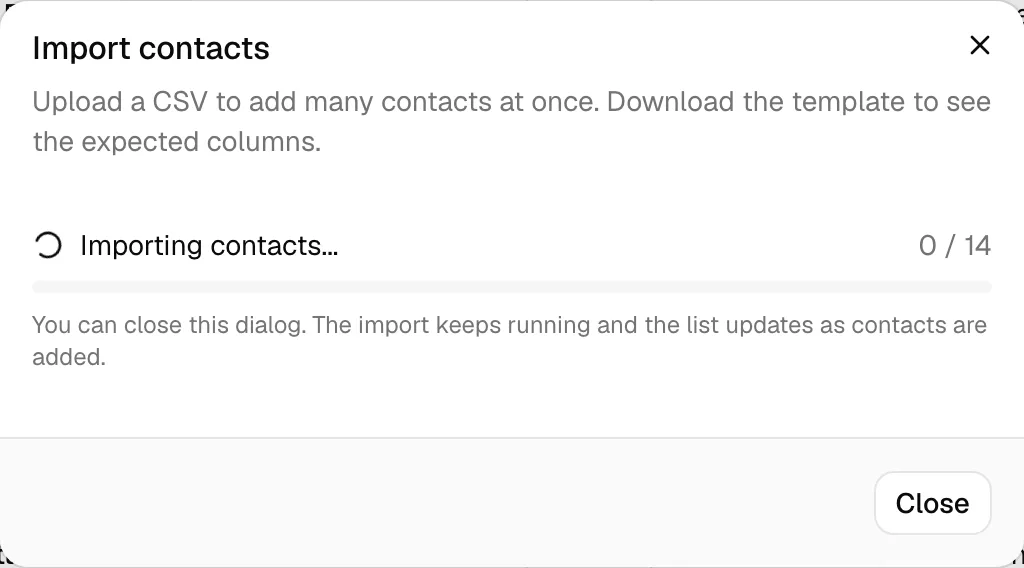
Tip: Closing the dialog does not cancel the import. To check on it, just return to the Contacts page; newly imported contacts appear in the list as they are created.
Review the skipped-rows report
When some rows are skipped, the rest of your contacts are still imported. Only the problem rows are left out, and Esqase gives you a report of exactly which ones and why.
- On the completion summary (the Import complete screen with the amber warning), click Download skipped rows.
- A report file downloads to your computer. Open it in your spreadsheet program.
The report is itself a CSV. Each row is a skipped contact and includes:
- A Row column pointing to the row number in your original file, so you can find it quickly.
- An Error column explaining why the row was skipped, in plain language (for example, "A company needs a Company Name" or "Email ... is not a valid email").
- The original columns from your file, echoed back so you have the data in front of you.
To fix and re-import the skipped rows:
- Open the skipped-rows report.
- Correct each row using the Error column as your guide. You can edit the report directly, since it already contains all the original columns.
- Delete the Row and Error columns (they are only there to help you), leaving a clean contact file with the standard headers.
- Save the file as CSV.
- Open the Import contacts dialog again and upload this corrected file.
Because import always adds new contacts, only re-upload the rows you previously fixed. Do not re-upload your whole original file, or the rows that already imported successfully will be created a second time.
Common reasons a row is skipped
- Type is set to something other than a recognized person or company value.
- A Person row has neither a First Name nor a Last Name.
- A Company row has no Company Name.
- An email column contains a value that is not a valid email address.
- Country is not a two-letter country code.
- A required custom field column is left blank.
- A value is longer than the field's maximum length.
Import only adds new contacts
This is the most important thing to understand before importing a list that overlaps with contacts you already have.
The importer only creates new contacts. It does not search for existing contacts that match a row, and it never updates or merges into a contact you already have. If a person or company in your file is already in Esqase, importing the file again will create a second, duplicate record.
What this means in practice:
- Importing the same file twice doubles those contacts. Import a list only once.
- To update existing contacts, edit them directly. Open the contact and use its edit form on the Working with contacts page. There is no "update by import" mode.
- When re-importing fixed rows, include only the rows that were skipped, not the rows that already imported. See Review the skipped-rows report.
There are two exceptions where the importer reuses an existing record instead of creating a new one, and both are intentional matches by name:
- Tags are reused if a tag with that name already exists for your firm (otherwise a new tag is created).
- Employer companies are reused if a company with that name already exists (otherwise the company is created and the person is linked to it).
These two cases are about linking, not about avoiding duplicate contacts in your imported rows.
Important: There is no undo for an import. If you import a file by mistake or create duplicates, you will need to archive or delete the affected contacts by hand. Review the preview counts carefully before clicking Import.
Troubleshooting
I do not see Import contacts anywhere. The action is only available to roles that can create contacts. If you have a view-only role for contacts, ask a firm owner or administrator to run the import, or to adjust your role. See Roles and permissions.
Esqase says my file is missing the expected columns. The file does not have the name columns the importer needs. Download a fresh template, copy your data into it, and try again.
Esqase says I have a duplicate column. Two columns in your file share the same name (for example, two Email columns). Remove the duplicate the message names, then re-upload.
My custom field column is being ignored. The column header must exactly match the custom field's title. Download a fresh template after creating or renaming any contact custom field so the header lines up. See Custom fields.
The import is taking a while. Large files (many thousands of rows) take time to process, but they run in the background without slowing down the rest of the app. You can close the dialog and keep working; the contacts appear in the list as they are added, and a notification confirms when the import finishes.
Some contacts came in twice. The same file was almost certainly imported more than once, or a corrected file included rows that had already succeeded. Remember that import only ever adds new contacts. Archive or delete the duplicates from the Contacts list.