Creating a matter
A matter is a single legal case or engagement you work on for a client. In Esqase you create a matter through a guided, step-by-step wizard that gathers everyone involved, the practice area and key dates, the assignees and their revenue split, billing, documents, tasks, and any workflow. This page walks you through every step, how to save a draft versus activate the matter, how to start from a template, and how the edit wizard differs from creating from scratch.
Before you begin
- You need Create access for matters to start a new matter. If your role does not include it, you will not see the New matter button and the new-matter page will show a "no access" message. Firm owners, administrators, and attorneys have this access by default; staff members usually have view-only access.
- You need at least one practice area with at least one stage set up, because every matter belongs to exactly one practice area and one stage. If your firm has not set up practice areas yet, see Practice areas and stages.
- The clients you want to add should already exist as contacts. You can also create a new contact from inside the wizard, so this is not strictly required.
Tip: The wizard saves nothing until you finish. You can move between steps freely using the left-hand step list, and you can leave at any time with Save as draft to come back later.
Starting the new-matter wizard
You start the wizard from the matters list.
- In the sidebar, click Matters.
- In the top right, click New matter. The full-screen matter wizard opens at the first step, Customers.
- The left side shows the list of steps. The current step is highlighted, completed steps show a checkmark, and you can click any step you have already reached to jump to it.
- To leave without finishing, click Save as draft in the top bar (more on drafts below) or click the back arrow labelled Matters in the top left to discard and return to the list.
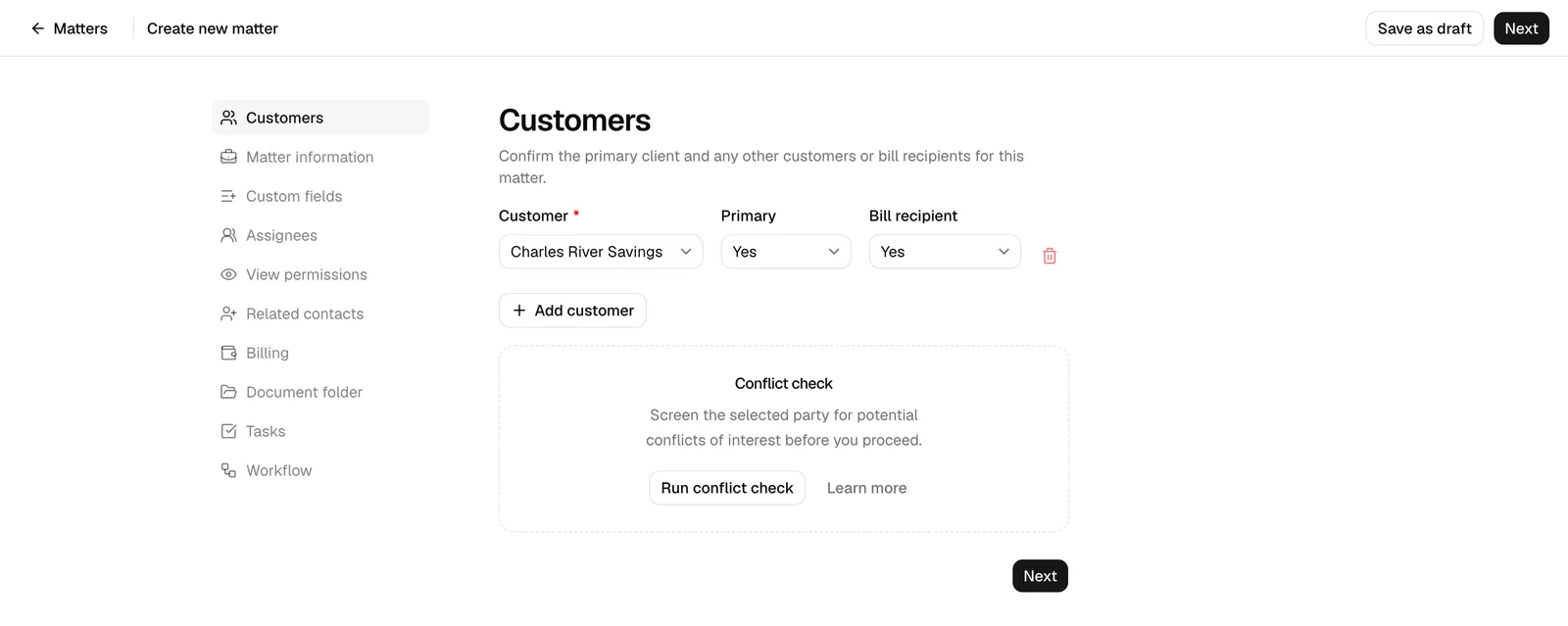
The wizard has up to ten steps. The order is always: Customers, Matter information, Custom fields, Assignees, View permissions, Related contacts, Billing, Document folder, Tasks, Workflow. Each step is covered below.
Note: Each time you click Next or jump to another step, Esqase checks the current step for required fields. If something is missing it stays on the step and highlights what needs fixing, so you cannot skip past a step with errors.
Step 1: Customers
Customers are the clients this matter is for. This is where you confirm the primary client and anyone who should receive bills. A matter needs at least one customer.
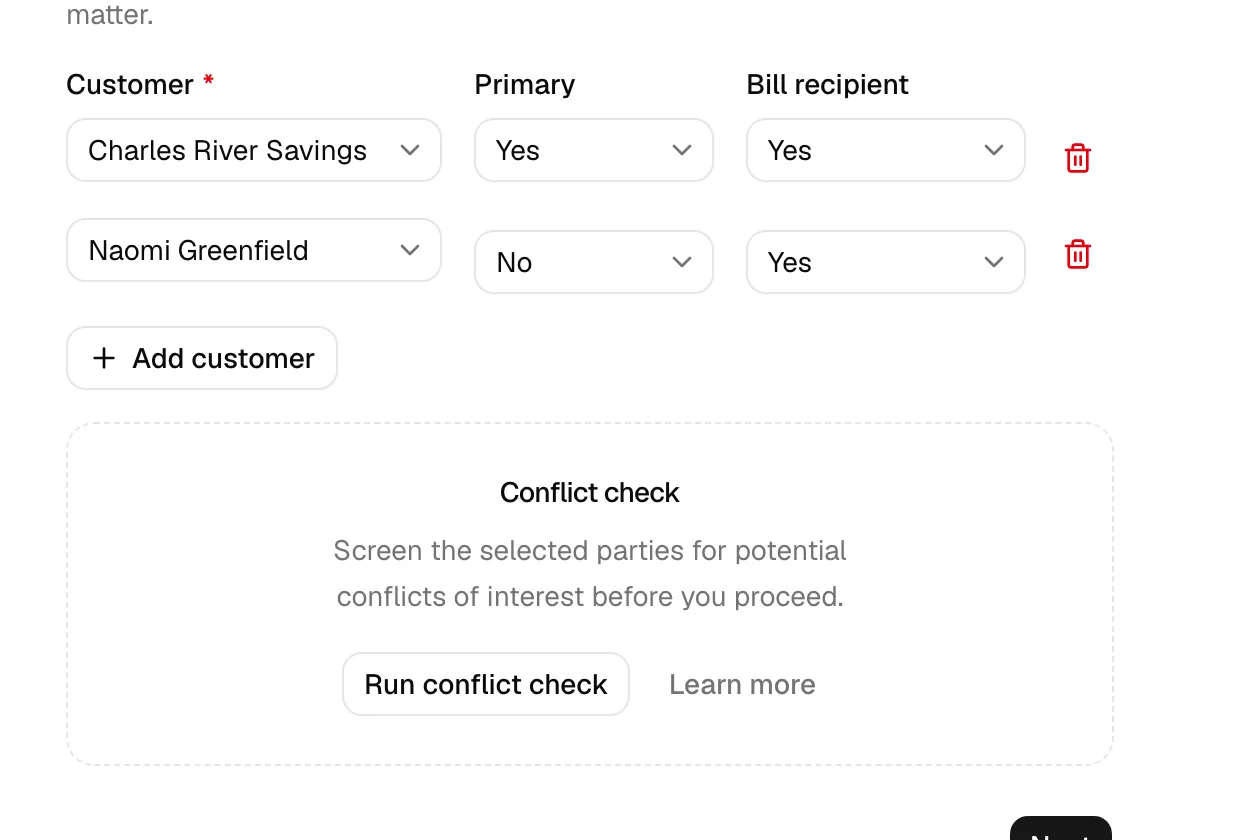
- In the Customer field, search for and select a contact. To add someone who is not in your contacts yet, open the field and click New customer, fill in the contact dialog, and the new contact is selected automatically.
- Use the Primary dropdown to mark the main client for the matter. At least one customer must be set to Yes for primary.
- Use the Bill recipient dropdown to mark whether this customer should receive invoices. At least one customer must be a bill recipient.
- To add more clients, click Add customer and repeat. Remove a row with the trash icon (you cannot remove the last remaining row).
What each option does:
- Primary: identifies the lead client on the matter. The primary client (plus any others) is used to auto-fill the matter title on the next step, for example "Alice Reyes - Family law".
- Bill recipient: marks who invoices go to. You will configure how bills split between recipients later, on the Billing step.
Important: You must mark at least one customer as Primary and at least one as a Bill recipient, or the step will not let you continue. The same contact cannot be added twice.
Note: The contact dialog you open from New customer here (and from New contact on the Related contacts step) behaves exactly like the one on the Contacts page, including starting its phone and address fields on your firm's country. See Working with contacts.
Running the conflict check
Below the customer rows is a Conflict check panel. A conflict check screens everyone involved in this matter against your firm's existing records (matters, contacts, leads, invoices, documents, and more) to surface potential conflicts of interest before you take on the work. Reviewing the results and deciding whether a conflict exists stays with you.
- Add the clients you intend to represent in the customer rows above. To screen the other side as well, fill in the Related contacts step first, so the opposing party, opposing counsel, and witnesses are included.
- In the Conflict check panel, click Run conflict check. The same panel appears on the Related contacts step, and both screen the same full set of parties.
- Review the results. Matches are grouped by record type and tagged with the kind of match (for example Adverse party is a client, Existing client, Former client, Employee, or Mention) and its priority. Click any result to open that record in a new tab, so you do not lose the wizard.
- Read the What this check did not cover panel if it appears. It names the record types that could not be searched, so you can tell how much a result with no matches actually covered.
- If you change the parties, click Re-run conflict check to screen again. Changing them while a check is still running discards that run, and the panel asks you to run the check again.
If nothing is found, you will see No matches found. If none of the parties could be screened, for example because a name is too short to search, you will see Nothing could be screened instead, which is not a clean result.
Important: If the check finds high-priority matches, they follow you through the rest of the wizard. A red banner appears on every other step, and a checkbox reading I have reviewed the [n] high-priority matches and choose to proceed appears under the step you are on. The matter cannot be saved, as a draft or otherwise, until you tick it. A check that ran but could not be completed asks for an acknowledgment too, worded I understand the conflict check could not be completed and choose to proceed. A check you never ran does not hold up the save.
Every check you run is saved. Once the matter is saved, the screening is attached to it, appears on the matter's activity timeline, and is listed under Previous conflict checks when you reopen Conflict check from the matter's ... menu. It attaches once, and only for the member who ran it: if a colleague saves the matter, your screening stays saved but is not listed on it. If a screening could not be saved at all, a line under the results says so.
Tip: For a deeper explanation of how conflict checks work, what each match type means, and how to export the results, see Running a conflict check.
Step 2: Matter information
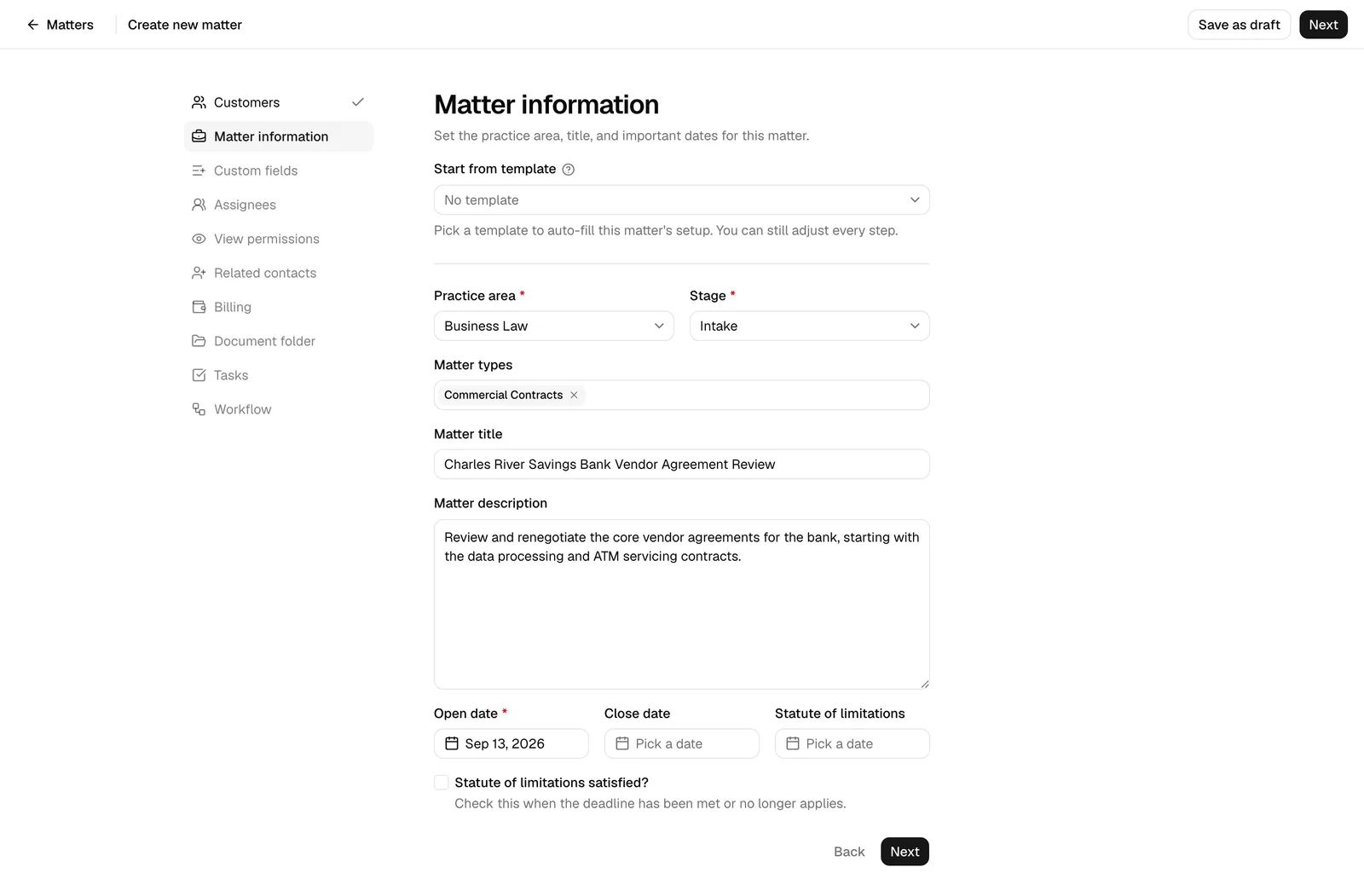
This step sets the practice area, title, and important dates, and the court when your firm uses court rules. It is the core identity of the matter.
- (Optional) Start from template. At the top is a Start from template dropdown. Picking a template auto-fills the rest of the matter setup. To build a template you do not have yet, open the dropdown and click New matter template, fill in the New matter template dialog, and click Create template: the template is saved for future matters and applied to this one right away. The question mark next to the field label opens the full Matter templates guide in a new tab. See Apply a matter template while creating below.
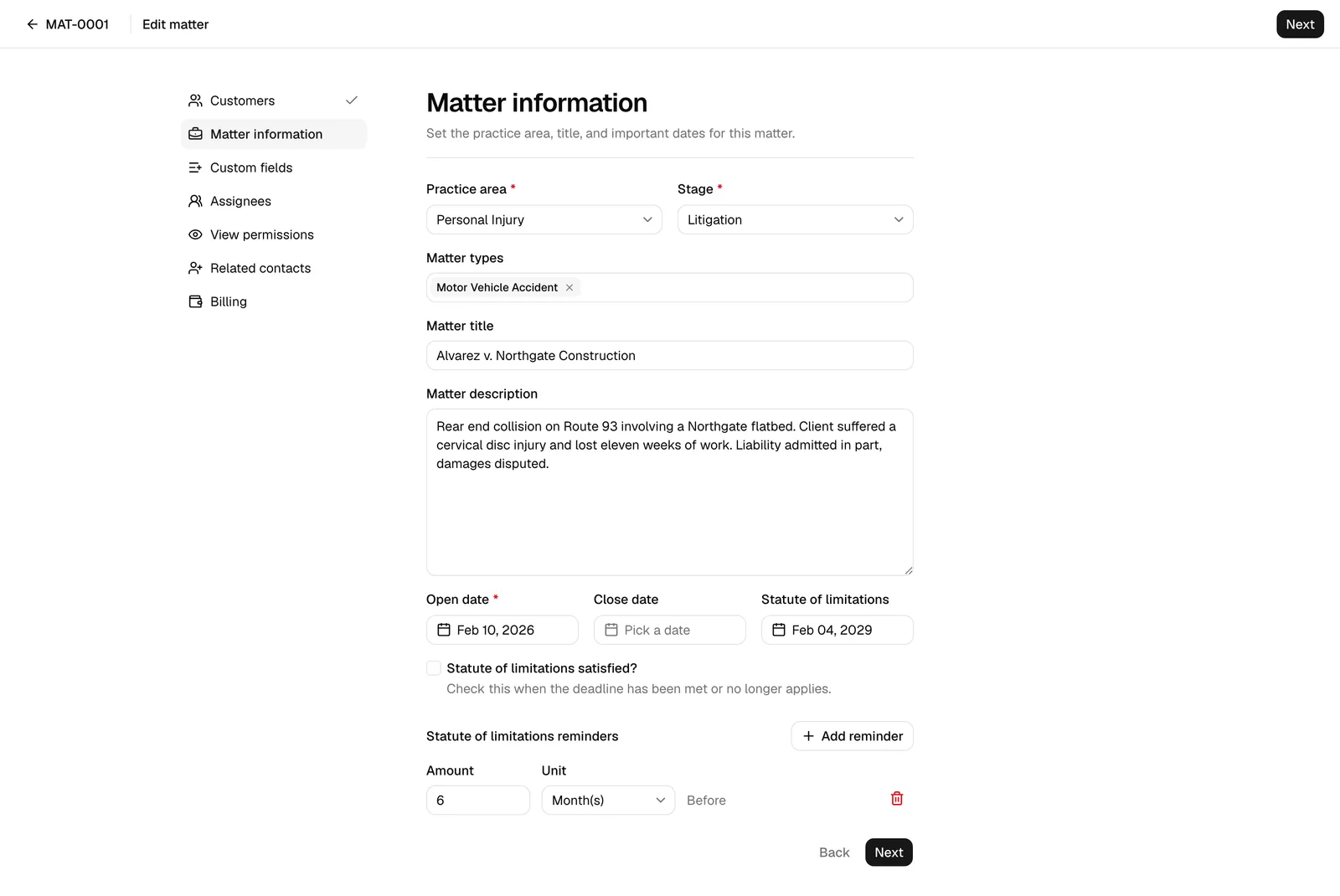
- Select a Practice area (required). This determines the available stages and matter types. Changing the practice area resets the stage and matter types.
- Select a Stage (required). Stages are the columns on the matters kanban for that practice area. When you pick a practice area, the first stage is selected for you.
- Select one or more Matter types (optional). These are the sub-types defined for the practice area, for example "Divorce" or "Custody" under Family law. The field stays disabled until you pick a practice area. To create a type you do not have yet, open the dropdown and click New matter type, enter a name, and click Add practice area type. The new type is selected on this matter and is saved to the practice area for everyone in your firm to reuse.
- Confirm the Matter title. If you leave it blank, Esqase uses the auto-generated title (primary client plus practice area). Type your own to override it.
- Add a Matter description (optional) for any internal notes about the case.
- Set the Open date (required), the date the matter is considered open. It defaults to today.
- Set the Close date (optional), for when the matter is or will be closed.
- Set the Statute of limitations date (optional). The statute of limitations is the legal deadline by which a claim must be filed; tracking it here keeps the deadline visible on the matter.
- Check Statute of limitations satisfied? when the deadline has been met or no longer applies.
Note: A practice area with no types yet still opens its Matter types dropdown, so you can add the first one with New matter type without leaving the wizard. Types created this way are the same ones you manage on the practice area, so they also appear in its Types table. See Practice areas and stages.
Statute of limitations reminders
When you enter a Statute of limitations date, a Statute of limitations reminders section appears so you can be reminded ahead of the deadline.
- Click Add reminder.
- Enter an Amount (a number) and a Unit (Day(s), Week(s), Month(s), or Year(s)). The row reads, for example, "7 Day(s) Before".
- Add more reminders for multiple lead times, or remove a row with the trash icon.
Court
If your firm has court rules turned on and your role can add court dates, the Matter information step ends with a Court section, where you record which court hears the case. Court rules are applied to the matter later, from its Court dates tab.
- In Court, pick the court from the courts your firm follows under Settings > Firm > Court rules. A new matter starts with your firm's default court already selected. Choose No court to leave it empty.
- Once a court is picked, fill in what you know: Case number, Filed date, Judge, and Department. Each one is optional.
The court, case number, and judge then show in the matter's sidebar, and the full case details on its Court dates tab. See Applying court rules to a matter.
📷 Screenshot: The Matter information step scrolled to the Court section, with a court selected and the Case number, Filed date, Judge, and Department fields below it.
Note: When you edit a matter that already has court dates from its court, the Court field is locked, with the note This matter has court dates from its court. Change the court from the Court dates tab. You can still change the case number and the other details. The Court section never appears on the small pre-engagement matter Esqase creates to invoice a lead.
Step 3: Custom fields
Custom fields let you capture extra information specific to your firm, such as a court case number or an insurance carrier. This step is optional unless a field is marked required.
- Use Add individual custom field to attach a single field, or Add custom field template to attach a whole set of fields at once.
- To create a brand-new field on the fly, open either dropdown and click New custom field or New custom field template, fill in the dialog, and it is added to the matter.
- Fill in a value for each field you added. Each field shows the input it was defined with, so a rich text field gives you a formatting toolbar, an address field gives you separate street, city, and country lines, and a star rating gives you stars to click. Phone and address fields open on your firm's country, and you can change the country on any of them. See How your firm's country sets phone and address defaults.
- Fields marked required must have a value before you can continue. A required tick box or switch counts as empty until you turn it on.
- Remove a field you do not need with the trash icon next to it.
Note: Adding a field here attaches it to this matter only. To manage the firm-wide library of fields and field sets, see Custom fields and Field sets and using custom fields.
Step 4: Assignees
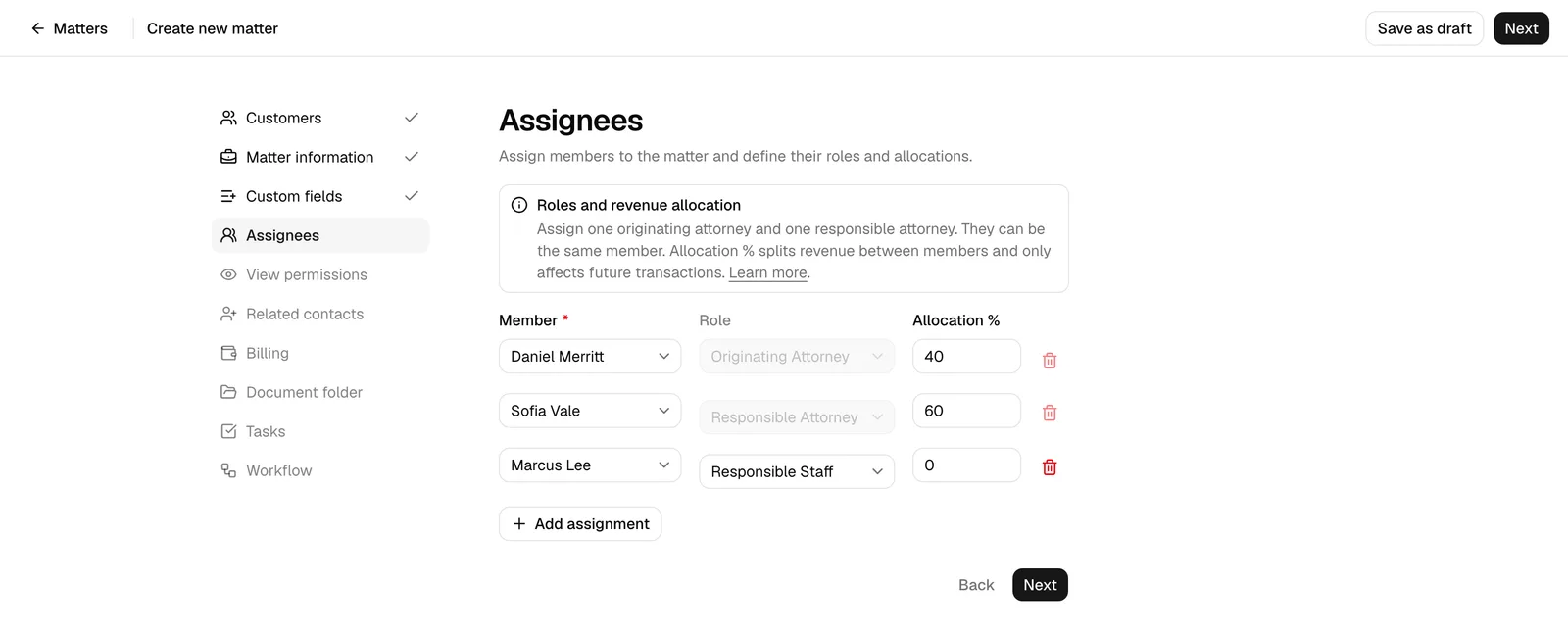
The Assignees step assigns members to the matter, sets their roles, and splits revenue between them. You must have at least two assignee rows.
- In each Member field, search for and select a firm member.
- Choose a Role for each: Originating Attorney, Responsible Attorney, or Responsible Staff. You must keep one Originating Attorney row and one Responsible Attorney row. The same member can hold both.
- Enter an Allocation % for each member. Allocations split future revenue between the assigned members and must add up to exactly 100%.
- Click Add assignment to add more members. Some rows are locked (you cannot remove or re-role them); these are seeded for you with the current user.
What the roles mean:
- Originating Attorney: the member who brought in the matter.
- Responsible Attorney: the attorney accountable for the work.
- Responsible Staff: supporting staff on the matter.
Important: Allocation percentages must total 100%. If they do not, the step shows the current total and asks you to fix it. Allocation only affects future transactions, not work already recorded.
Note: Everyone you assign here is notified that they were added to the matter as soon as you save, and the notification opens the matter. This happens whichever way the matter is created: through this wizard, by converting a lead, or through the developer API. You are not notified about a matter you created yourself, and each person can turn it off under Added to a matter in their notification settings. Adding somebody to the team later notifies only the person you just added, not the colleagues already on it. See Notifications.
Step 5: View permissions
This step controls which members in your firm can see and work on the matter.
- Choose Everyone in the firm to let all members access the matter, or Specific members to restrict it.
- If you choose Specific members, a Members with access field appears. Select each member who should have access.
Note: Members you assigned on the Assignees step are always included automatically and cannot be removed here. To remove one, go back to the Assignees step and remove their assignment.
Step 6: Related contacts
Related contacts are other people connected to the matter who are not your clients, such as opposing counsel, witnesses, or experts. This step is optional.
- If there are no related contacts yet, click Add related contact.
- In each Contact field, search and select a contact, or click New contact to create one.
- Enter the Relationship (required), for example "Opposing counsel" or "Witness".
- Use the Bill recipient dropdown to mark whether this person should receive invoices for the matter.
- Add more rows with Add related contact, or remove a row with the trash icon.
Note: Contacts you already added as customers do not appear in this list, so you cannot add the same person twice.
Below the rows is the same Conflict check panel as the Customers step, and it screens the same full set: every customer plus every related contact. Running it here matters, because a related contact who turns out to be your firm's client is flagged as Adverse party is a client at high priority, which a check limited to your clients does not cover. See Running a conflict check.
Step 7: Billing
The billing step decides whether the matter is billable, how it is billed, and how bills split between recipients.
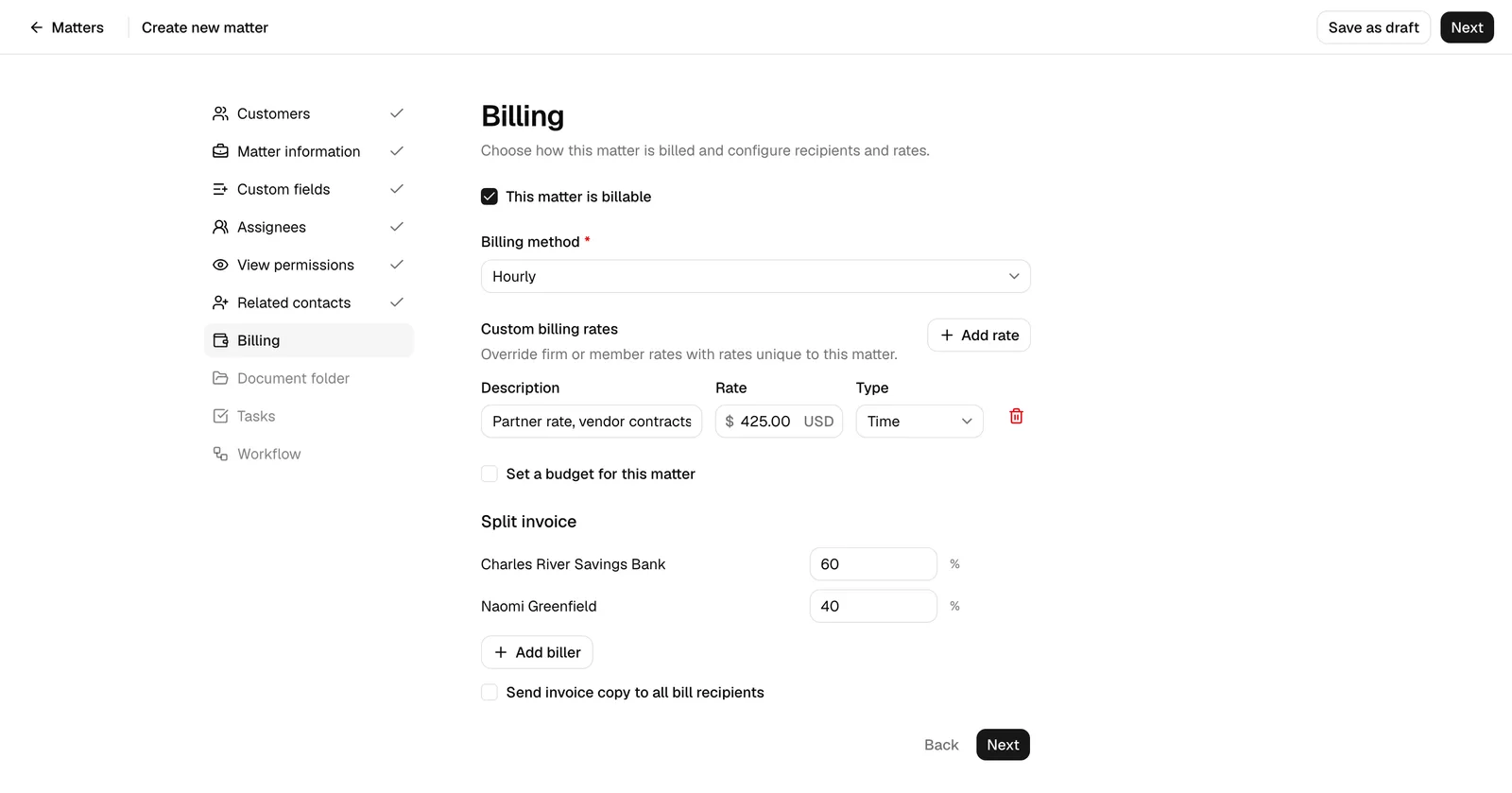
- Check or uncheck This matter is billable. If unchecked, the matter has no billing configuration.
- If billable, choose a Billing method: Hourly, Flat rate, or Contingency fee.
What each method captures:
- Hourly: bills by time and expense at standard rates. You can optionally add Custom billing rates to override firm or member rates just for this matter (give each a description, a rate amount, and a type of Time or Expense). You can also check Set a budget for this matter and enter a Matter budget amount.
- Flat rate: a single fixed fee. Pick a Fee recipient (the member credited for the fee), optionally a Flat fee category (a fixed-rate category, which fills in the amount), and an Amount.
- Contingency fee: the firm is paid a percentage of the recovery. Pick a Fee recipient and enter a Rate %.
Splitting an invoice between recipients
When a matter has more than one bill recipient (across customers and related contacts), and the method is Hourly or Flat rate, a Split invoice section appears so you can divide each invoice between them.
- Each bill recipient appears as a row with a percentage. Set each recipient's share so the percentages total 100%.
- To add another person to the split, click Add biller and pick a Member or Contact from the list.
- Remove a manually added biller with the trash icon. (Recipients that come from your customer and related-contact choices are managed on those steps.)
- Check Send invoice copy to all bill recipients to email a copy of each invoice to everyone on the split.
Note: The split invoice section is only available when there is more than one bill recipient. To make it disappear, remove bill recipients on the Customers or Related contacts steps. Contingency-fee matters cannot be split.
Step 8: Document folder
This step sets the default location where files for this matter are uploaded.
- Leave the Document upload location field blank to use the default path, which Esqase shows below the field (for example, "Matters / MAT-001 Alice Reyes - Family law").
- To use a different existing folder instead, enter it here.
Note: This step does not appear in the edit wizard. The document folder is set when the matter is created and is then managed from the matter's Documents tab. See The documents workspace.
Step 9: Tasks
The tasks step prepopulates the matter's task board so your team has work to do from day one. Everything here is optional.
- Pick a Task stage template to set the columns on the matter's task board, or leave it blank to use the default columns (To do, In progress, Done). A Stage preview shows the columns you will get.
- Pick a Task list to copy a ready-made set of tasks onto the board, or leave it blank to start with no tasks. A Tasks preview lists the tasks that will be cloned.
Tip: If a task stage template's name matches your selected practice area, Esqase selects it for you automatically. You can change it. To build these reusable sets, see Task lists and templates and Task kanban, stages, and types.
Note: Like the document folder, the tasks step does not appear in the edit wizard. Task columns and tasks become live data once the matter exists and are then managed from the matter's Tasks tab.
Tip: Leaving Task list blank here is not a one-way door. You can copy a task list onto the matter at any time later with the Assign task list button on the matter's Tasks tab. See Assign a task list to an existing matter.
Step 10: Workflow
A workflow is an automated or guided sequence of steps (such as sending a form, creating a task, or scheduling a meeting). You can optionally attach one to the matter. This step appears only when creating a fresh matter, not when editing or when converting a lead.
- In the Workflow dropdown, pick a workflow, or leave it blank with Don't attach a workflow.
- Read the description under the field to understand what will happen:
- An automatic workflow starts its first step as soon as the matter is created; the remaining steps are added for you to run from the matter's Overview tab.
- A manual workflow simply adds its steps to the matter for you to run from the Overview tab.
If your firm has no active workflows, this step shows a note instead, and you can create one later. See Workflows and the builder and Assigning and attaching workflows.
Save as a draft or create the matter
On the last step you decide whether the matter goes live or is saved as a draft.
- Create the matter. Click Create matter. The matter is created as active and you are taken to its workspace. A confirmation shows its reference number (for example, "Matter MAT-001 created").
- Save as a draft. Click Save as draft (available in the top bar at any step). The matter is saved as a draft so you can finish it later. A confirmation shows the draft's reference number.
What the difference means:
- A draft is an incomplete matter you intend to come back to. It still gets a reference number.
- An active matter is a complete, live matter. Creating from the final step always activates the matter.

Create and save as a template at the same time
On the final step you can also click Create matter & save as template. This creates the matter and saves its setup (practice area, custom fields, team, permissions, billing, and tasks, plus the court you picked, but not its case number or other case details) as a reusable template.
- Click Create matter & save as template.
- In the Save as matter template dialog, enter a Template name (it suggests the practice area name).
- Click Save and create template.
The matter is created and the template appears under Matter templates for next time. See Matter templates.
Note: Templates store the matter's setup, not its clients or saved values, so sensitive field values are never included.
Apply a matter template while creating
A matter template prefills the wizard so you do not start from scratch for routine case types. There are two ways to apply one.
From the Matter information step:
- Start a new matter and go to the Matter information step.
- In the Start from template dropdown, pick a template.
- The wizard fills in the practice area, custom fields, team, permissions, billing, and tasks from the template, and the court when the template has one. You can still review and adjust every step before saving.
From the matter templates list:
- In the sidebar, click Matters, then Matter templates.
- Find the template and click Create (create a matter from this template).
- The new-matter wizard opens with the template already applied.
By building one on the spot:
- On the Matter information step, open the Start from template dropdown and click New matter template.
- Fill in the New matter template dialog (the same one you get from the Matter templates page) and click Create template.
- The template is saved to your firm and applied to the matter you are creating, so you do not have to pick it afterwards.
Tip: Applying a template does not skip any steps. It is a starting point; you confirm the clients, dates, and anything else specific to this case before creating the matter.
Important: Applying a template replaces what is already on the practice area, assignees, permissions, billing, custom fields, and tasks steps. Your customers, matter title, description, and dates are left alone. A court saved on the template replaces the Court you picked, but keeps any case number, judge, department, and filed date you typed. Apply the template before you fine-tune those other steps, not after.
Edit an existing matter
You can reopen a matter in the wizard to change its core details. The edit wizard reuses the same flow but covers only the first seven steps.
- Open the matter, or find it in the Matters list.
- From the list, click the ... (more actions) menu on the matter's row and choose Edit.
- From the matter's workspace, click Edit in the header.
- The wizard opens in edit mode with every field prefilled from the saved matter. The available steps are Customers, Matter information, Custom fields, Assignees, View permissions, Related contacts, and Billing.
- Make your changes. In edit mode you can jump to any of these steps directly.
- Click Save changes. You return to the matter's workspace with a confirmation.
Note: The Document folder, Tasks, and Workflow steps do not appear when editing. Those become live parts of the matter after creation and are managed from the matter's own tabs (Documents, Tasks, and Overview) rather than the wizard.
Important: You need Update access for matters to edit. If your role does not include it, you will not see the Edit option and the edit page shows a "no access" message.
What "replace-all" means when you save edits
When you save an edit, Esqase updates the core matter details and then completely replaces the matter's sub-records for the steps you can edit, namely its customers, matter types, team and allocations, view permissions, related contacts, billing configuration, and custom field values. The previous versions of those records are cleared and re-created from exactly what is on screen when you save.
In practical terms:
- Anything you removed on a step (a customer, a related contact, a team member, a custom field) is gone after you save.
- Anything you added or changed replaces what was there before.
- The matter keeps its reference number, its documents, and its tasks; those are never touched by an edit.
Tip: Because saving replaces these records wholesale, review every editable step before clicking Save changes, not just the one you came to change. If a step still shows the right people and values, leaving it as-is preserves it.
Common questions
Do I have to fill in every step? No. Required fields exist only on the Customers, Matter information, Assignees, and (when billable) Billing steps. Custom fields, related contacts, the document folder, tasks, and workflow are optional unless a specific custom field is marked required.
Can I leave and come back? Yes. Click Save as draft to save your progress as a draft matter, then reopen it from the Matters list later.
Why can't I move to the next step? A required field is missing or invalid on the current step. The wizard highlights the field and shows a message. Common cases are a missing primary or bill-recipient customer, team allocations that do not total 100%, or a missing practice area or stage.
The Workflow step is missing. Why? It only appears when creating a fresh matter. It is hidden when you edit a matter and when you create a matter by converting a lead (in that case the lead's own workflow carries over). See Converting a lead to a matter.