How clients view shared documents
A document share is a secure web link you send to a client or other recipient so they can open one of your documents in their browser, with no Esqase account needed. Depending on how you set up the link, the recipient can view the document, download it, and even leave comments. This page explains what your clients see when they open a shared link, and how you configure the share so it behaves the way you want.
This is the client-facing side of document sharing. To learn how the shared document itself is created and edited, see The documents workspace and Editing documents (the file editor). For the firm-side configuration screen in full, see Sharing documents.
Before you begin
- You create and configure share links from the documents area. To create a share link, your role needs update access for documents. If your role does not include that access, you will not see the Share option on a document.
- A shared link opens a clean, read-only page. Recipients never see your dashboard, your other documents, or any client data beyond the one document you shared.
- A share link works for two kinds of documents: uploaded files (such as PDFs) and native Esqase documents you wrote in the file editor. Both open the same way for the recipient.
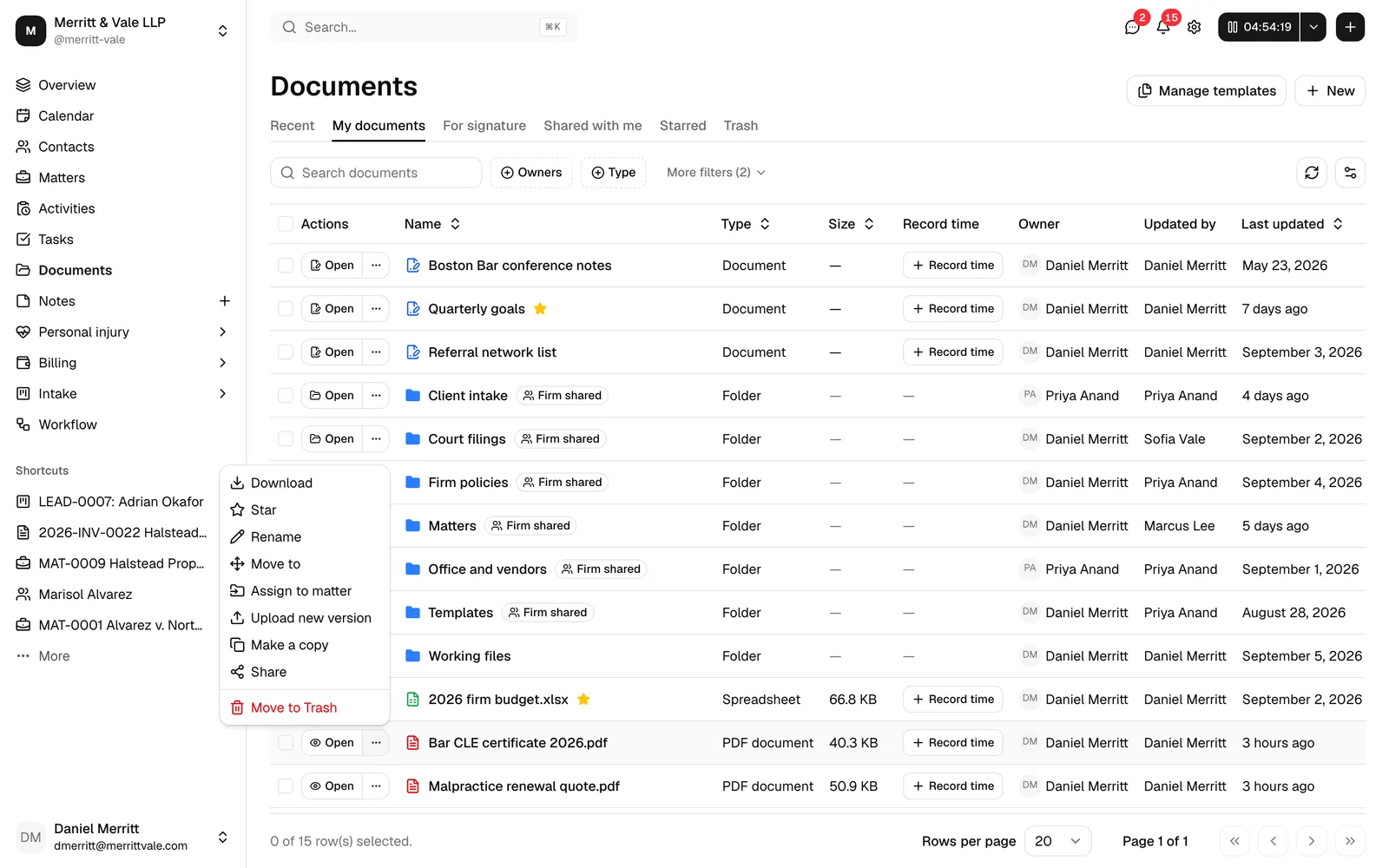
What clients see, and how the firm configures it
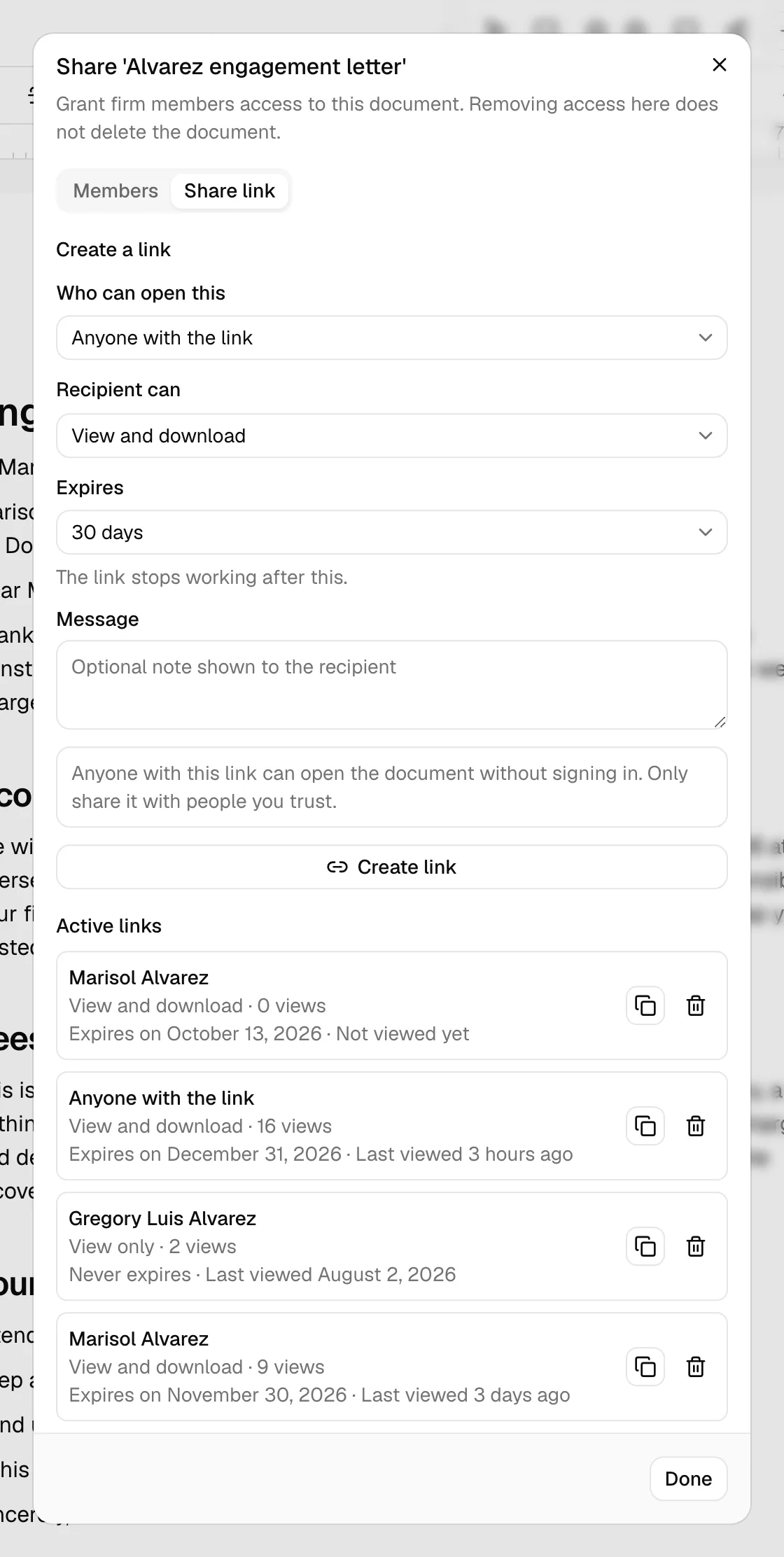
When you share a document, you create a link from the Share dialog. That dialog has two tabs: Members (for granting firm members access inside Esqase) and Share link (for creating an external link to send to a client or other recipient). Everything on this page is about the Share link tab.
On the Share link tab you build one link at a time using three controls, then copy the link and send it to your recipient.
- From the documents list, open the document's "..." menu and click Share. (Inside the file editor, click the Share button instead.)
- In the Share dialog, click the Share link tab.
- Under Who can open this, choose who the link is for:
- Anyone with the link: a public link. Anyone who has the URL can open the document, with no extra step. Use this for documents that are not sensitive, or when you want the simplest possible experience for the recipient.
- A specific recipient: a restricted link. Before the document opens, the person must confirm they own the email address you shared it with. Use this for anything confidential.
- Under Recipient can, choose what the recipient is allowed to do. This is the access level, covered in detail below:
- View only
- View and download
- View, download, and comment
- If you chose A specific recipient, fill in who the link is for:
- Contact or client: pick an existing contact to auto-fill their name and email. This is optional.
- Recipient name: the person's name (optional).
- Recipient email: the email address the recipient must confirm to open the document. This is required for a restricted link.
- Under Expires, choose how long the link should stay active: 7 days, 30 days (the default), 90 days, a Custom date, or Never. Once a link passes its expiry it simply stops working, the same as if you had revoked it.
- In Message, add an optional note that appears alongside the share (for example, "Please review and let us know if anything looks off").
- Click Create link.
- A panel appears with the finished link, ready to copy. For a link set to A specific recipient, Esqase also emails the secure link to that recipient's address for you. For a public Anyone with the link link, copy the link and send it to your recipient however you normally reach them (email, secure portal, and so on).
Note: For a restricted A specific recipient link, Esqase emails the link to the recipient for you, and records that email on the document's matter Communications tab. For a public Anyone with the link link, Esqase does not email it, so you copy the link and send it yourself. The optional Message is included in the email (for a restricted link) and is stored with the share to give the recipient context once they open it. See Sharing documents.
Each link you create appears under Active links in the same dialog, showing who it is for, its access level, and how many times it has been viewed. You can revoke a link at any time (see Revoking a link below).
Opening a shared document via a public link
A public link is the simplest experience for your recipient. There is no sign-in, no password, and no waiting on an email.
Here is what your client does:
- They click the link you sent. It opens in any modern browser, on a phone, tablet, or computer.
- The document loads immediately on a clean viewer page.
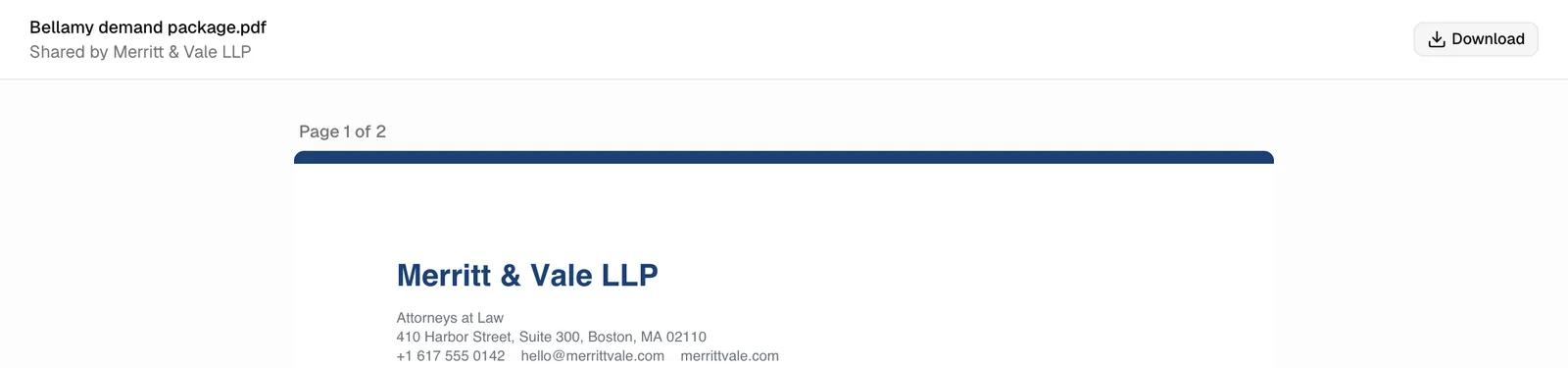
- At the top of the page they see the document name and a "Shared by [your firm name]" line, so they know the document is from you.
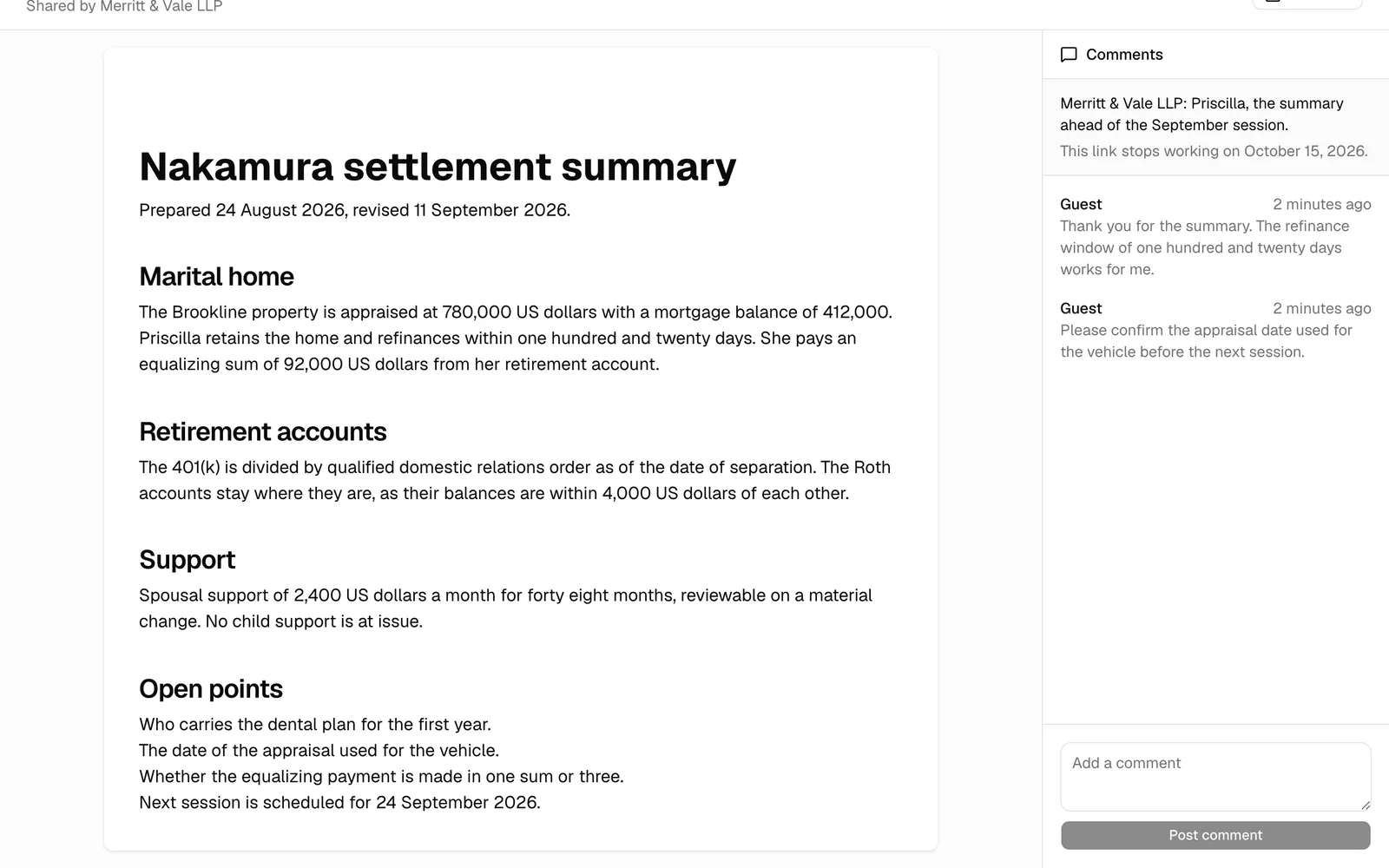
- If you granted download access, a Download button appears in the top-right corner. If you granted comment access, a Comments panel appears on the right.
That is the whole flow for a public link: click and read.
![A public shared document open in the viewer, highlighting the document title, the "Shared by [firm name]" line, and (if present) the Download button.](images/client-document-shares/client-public-view.webp)
Important: Anyone who has a public link can open the document. Only use Anyone with the link for documents that are safe to share broadly. For confidential material, choose A specific recipient so the recipient must confirm their email first.
Unlocking a restricted share (signing in)
When you choose A specific recipient, the link is restricted to the email address you entered. Before the document opens, the recipient must prove they own that address, and most of the time that happens by itself. The full walkthrough is on How clients sign in; here is what it means for a shared document.
If the recipient is already signed in to Esqase, there is nothing to do. The page shows Signing you in for a moment and then opens the document by itself.
If they are not signed in, the page sends them to their Esqase client portal sign-in panel, which says "Sign in to open your document". They sign in there with a 6-digit code Esqase emails them, or with Continue with Google, and they land back on the document.
The email sign-in link is the fallback, shown on the share page itself when the automatic sign-in is refused or does not apply. The recipient enters the address you shared the document with, sees Check your email, opens the link from their inbox on the same device, and the document opens.
After they get in once, they stay unlocked on that device, so they can refresh or come back without signing in again right away.
📷 Screenshot: The restricted-share email sign-in fallback, showing the document name, the email field and the Email me a sign-in link button.
Important: Whichever method the recipient uses, the document opens only for the exact email address you shared it with. Having an Esqase account grants nothing: signing in with any other address is refused. See How clients sign in.
Tip: Tell your recipient to open an emailed sign-in link on the same device and browser where they requested it. The Check your email screen reminds them, and it keeps the unlock tied to that device.
From the Esqase Client app
A client who uses the Esqase Client app opens a restricted share with View, from the document in the app. It opens inside the app, already signed in with the client's account, so there is no sign-in step. Download, when the access level allows it, hands the file to the phone, which opens it or offers to save or share it, and comments work as they do in a browser. If the page cannot be opened in the app, the app says "Open this from your email", and the link in your share email still works. See The Esqase Client app.
Common questions about restricted shares
- What if they enter the wrong email? Esqase only sends the secure link if the address matches the one you shared the document with, and a sign-in with any other address is refused with "You're signed in to Esqase with a different email address" and the email sign-in form underneath. The recipient can click Use a different email on the confirmation screen and try the correct address. For privacy, the screen does not reveal whether a given address was the right one.
- What if the sign-in link expires? Secure sign-in links last 30 minutes and work once. If the recipient sees a message that the link is invalid or expired, they request a new one from the sign-in panel and open the fresh link.
- Does the recipient need an Esqase account? No. The share page's own email sign-in link opens the document with nothing to set up. Being signed in to Esqase is only a convenience for recipients who deal with you often.
- Can someone create an account to get at a document we did not send them? No. Registration is open, but it grants nothing. The document opens only for the address on the share, and only after that address is confirmed. See How clients sign in.
Downloading a shared document (when allowed)
Whether a recipient can save a copy depends on the access level you chose.
- If you chose View only, there is no Download button. The recipient can read the document on screen but cannot save a copy through the share.
- If you chose View and download or View, download, and comment, a Download button appears in the top-right corner of the viewer.
Here is what your client does to download:
- With the document open, they click Download in the top-right corner.
- Esqase prepares a secure, time-limited download and opens the file in a new browser tab, where the browser saves it as usual.
Note: Download links are generated fresh each time and expire shortly after, so a copied browser address will not keep working. The recipient should use the Download button again if they need the file later. Every download is recorded on the document's activity history.
Adding a guest comment (when allowed)
If you grant comment access, your recipient can leave notes on the document without an account. This is handy for collecting client feedback, questions, or approvals in one place.
Comments are only available when you choose the View, download, and comment access level. With any lower level, the Comments panel does not appear.
Here is what your client does to comment:
- With the document open, they look at the Comments panel on the right side of the page.
- Existing comments appear in the panel. If there are none yet, the panel reads "No comments yet. Be the first to leave one."
- They type their note in the Add a comment box at the bottom of the panel.
- They click Post comment. The comment appears in the list, and a brief "Comment posted" confirmation shows.
Each comment is labeled with the commenter's name. For a restricted share, this is the recipient you addressed the link to; otherwise it shows as a guest.
Your firm is told when a client comments. A guest comment sends A client commented on a document to the document's owner, to everyone who has access to it, and to anyone who has already commented on it. Clicking the notification opens the document at that comment, so nobody has to keep checking a shared draft to see whether the client has replied. Each person controls this under Comment on my document in their notification settings. See Notifications.
Tip: Guest comments come back to you on the firm side as part of the document's activity. Comment access is best for review-and-feedback documents (drafts, proposals, agreements under negotiation) where you want the client's input captured against the document itself.
The difference between view, view and download, and view and download and comment access
The Recipient can setting controls exactly what a recipient may do. Each level includes everything in the level above it, so the levels build on each other.
- View only: the recipient can read the document on screen. No Download button and no Comments panel. Choose this when you want the recipient to see a document but not keep a copy or annotate it.
- View and download: the recipient can read the document and save a copy using the Download button. No commenting. This is the default for a new link and is a good fit for sharing finalized files (signed agreements, receipts, letters).
- View, download, and comment: the recipient can read, download, and leave comments in the Comments panel. Choose this for collaborative review where you want the recipient's feedback recorded on the document.
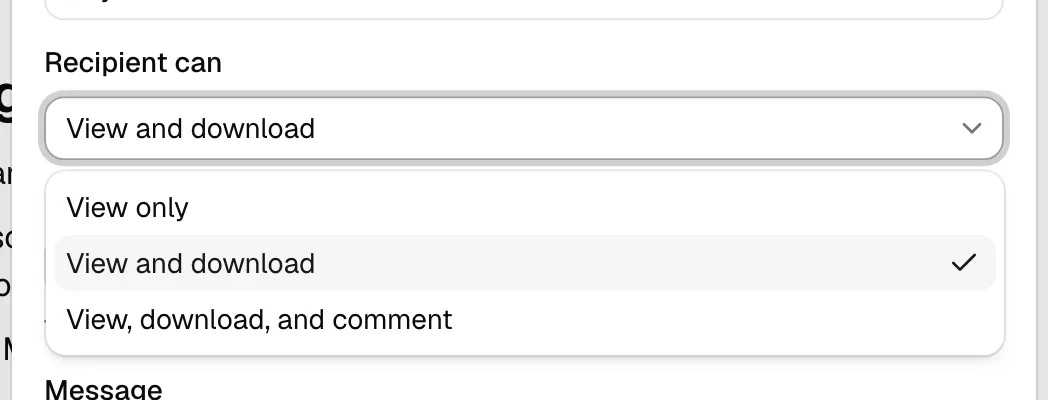
Access level and audience are independent settings. You can combine any access level with either a public link (Anyone with the link) or a restricted link (A specific recipient). For example, a public View only link is read-only for anyone, while a restricted View, download, and comment link lets one confirmed recipient do everything.
Important: If you change your mind after creating a link, the cleanest approach is to revoke the existing link and create a new one with the access level and audience you want. The new link is a different URL.
Revoking a link
You can turn off a share at any time. Once revoked, the link stops working immediately and the recipient can no longer open the document.
- Open the document's Share dialog and go to the Share link tab.
- Under Active links, find the link you want to turn off.
- Click the trash icon next to it and confirm.
The link disappears from Active links and anyone who tries to use the old URL is blocked.
Tip: Because the Active links list shows the view count for each link, you can confirm whether a recipient has opened a document before you follow up.
Troubleshooting
- The recipient says the link does not work. Confirm the link has not been revoked or expired under Active links (each link's row shows its expiry date), and that you copied the full URL. For a restricted link, the recipient must sign in before the document appears.
- The recipient does not see a Download button. The link is set to View only. Revoke it and create a new link with View and download or View, download, and comment.
- The recipient does not see a Comments panel. Comments require the View, download, and comment access level. Create a new link at that level if you want them to comment.
- The recipient signed in but the document did not open. The address they signed in with is not the one on the share. Compare the two under Active links, and if the email is wrong, revoke the link and create a new one addressed correctly. If they used an emailed sign-in link, it may also have expired or been opened on a different device, in which case they request a fresh one and open it on the same device.
- You want to share with more than one person, each confirming separately. Create one restricted link per recipient, each addressed to that person's email. A single restricted link is tied to one email address.