Managing signature requests
Once you have sent a document out for eSignature, the For signature tab on your Documents page is where you track it through to completion. It is your documents list, filtered to the files that are in signing: from here you can see how far each one has got, open it to check who has signed and who has not, cancel a request that is no longer needed, and archive finished ones. The finished files (a clean copy of the signed document and the Certificate of Completion) are collected from the document's own page.
This page covers the firm side of signing: the list, the request detail, the cancel/void and archive actions, and how a request is finalized into a sealed PDF. For placing fields and sending a document out in the first place, see Requesting eSignatures. For what the signer sees, see How clients sign documents.
Before you begin
- For signature is a tab on your Documents page. To open it, you need View access for documents. If your role does not include document access, the tab shows a "no access" message instead of the list.
- Actions that change a request (cancelling, voiding, archiving, generating a new link, signing in app) require Update access for documents. If your role is view-only, you will still see the list and can open requests and download completed documents, but the management actions will not appear.
- Firm owners always have full access regardless of role.
Note: Esqase uses a single set of document permissions to control documents, templates, and signatures together. There is no separate "signatures" permission to grant.
Tip: To track requests for a single matter instead of the whole firm, open the matter and use the For signature tab on its Documents tab. It works the same way, narrowed to that matter's documents. See The matter workspace.
View the For signature tab
The signatures list shows every document your firm has put into signing, most recently updated first. It is the same table as your documents list, with the same columns and the same row actions, narrowed to files that have a signature request on them.
- In the sidebar, click Documents.
- Click the For signature tab, immediately to the right of My documents.
- Directly below the tab strip, four stat cards summarize your firm's signing activity: Draft (not sent yet), Awaiting signature (sent and still open), Completed (everyone has signed), and Declined or cancelled (closed without signatures).
- Use the Status filter in the table toolbar to narrow the list to a specific status, including Voided and Archived requests. Leave it clear to see every status at once.
- To find a specific document, type in the Search signatures box. When a search or filter is active, a Clear filters button appears so you can reset it.
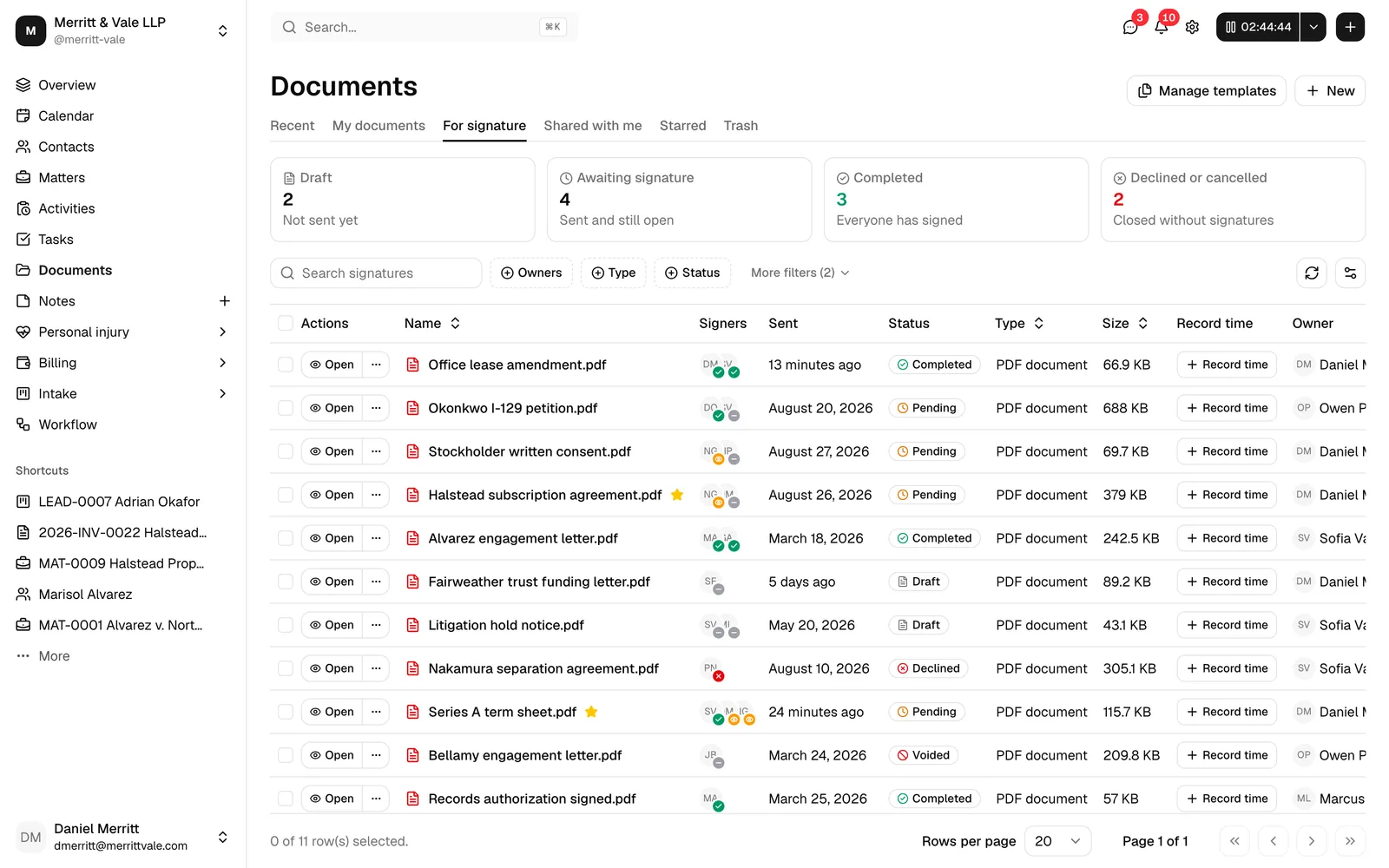
Each row in the table shows:
- Name - the document name, with a signing badge beside it (see Statuses below).
- Signers - a stack of the request's signer avatars, each carrying its own status.
- Sent - when the request went out.
- Status - a badge repeating where the request stands, so you do not have to decode the name badge alone.
- Record time - the timer control, so you can bill the time you spend chasing or reviewing a signing.
- Owner - the member the document belongs to.
- Updated by - the person who last acted on the document.
- Last updated - how long ago that happened.
You can sort by Name or Last updated by clicking the column header. Use the table's view options (the control at the top right) to show or hide columns or to refresh the list.
Note: A row is a document, not a request. If a document has been through more than one round of signing, it appears once, and the row's actions apply to its current request (the open one, or the most recent if none is open).
Statuses explained
The badge next to the document name tells you exactly where its signing stands:
- Draft - the request has been set up but not yet sent or signed. A request also sits here when your firm requires the document to be approved before it goes out. See Approvals for invoices and documents.
- Awaiting signatures, or Signed 2 of 3 - the request is out for signing and one or more signers still need to act. Once someone has signed, the badge counts the progress for you.
- Signed - every signer has signed and the document has been finalized.
- Declined - a signer chose not to sign. A declined request cannot proceed.
- Voided - the request was cancelled by your firm before it finished.
- Archived - the request was tidied away after it was completed, declined, or voided.
The same badges appear on your documents list, so you can spot a file that is out for signature without leaving Documents.
Open a request and check signer status
You can open a request from the list to see the document, or open its detail to see exactly who has done what.
Open the document
- On the For signature tab, find the document you want.
- Click Open at the start of the row, or click the document name. The document opens on its own page so you can read it as it stands. Click the X in the top right (or use your browser's Back button) to come back to the For signature tab, with your search and filters as you left them.
Tip: The document's page is where the per-signer detail lives: the Signatures tab on the right shows each signer's status and timestamps, the signing actions, and the completed files.
See per-signer status and progress
Every signer's progress is shown on their own row in the Signers list, on the document's own page.
- Open the document. From the For signature tab, click Open; from My documents, click the PDF; from a matter, open its Documents tab and click the PDF there.
- The right-hand panel opens on the Signatures tab, showing the Signers list. On a PDF you can edit, and on any PDF whose request has finished, that is where the panel starts, so you do not have to switch tabs to check on a request. A PDF you can only view, and a PDF in Trash, open on Details.
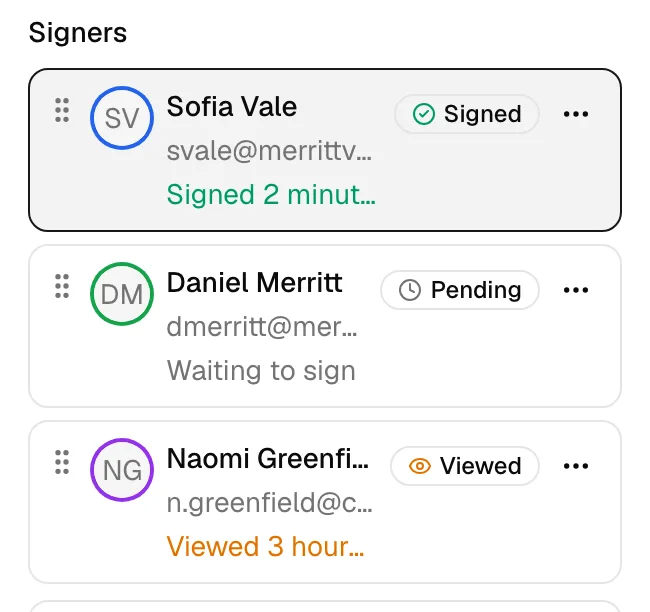
Each signer's row shows:
- Their name, in the color used for the fields assigned to them.
- Their email address, how many fields they have, and when they last acted.
- A status badge: Pending (has not opened it yet), Viewed (opened the document but has not signed), Signed, or Declined.
Note: Everyone can sign at the same time; there is no fixed order. Each signer only sees the fields assigned to them. Once the last one signs, Esqase produces the sealed PDF and the Certificate of Completion within seconds, and the page you are looking at switches to the certified copy on its own. See Watching it finish.
Note: Esqase notifies your firm when someone signs, when someone declines, and when a document becomes fully signed, so you do not have to watch this list. Choose which of these reach you in your notification preferences. See Notifications.
Generate signing links for a draft
A request sitting in Draft has signers and fields set up but no live links yet. You can activate it straight from the list, without opening the document first.
- On the For signature tab, find the draft document.
- Open the more actions menu (the ... button) on its row and click Generate signing links.
- In the Generate signing links? confirmation, read the note that this activates the request and makes every signer's link live straight away, then click Generate links to confirm.
- The request moves to Awaiting signatures (or further, if it can complete immediately), and every signer now has a working link.
Tip: This is the same activation that happens when you click Save on the document's own Signatures panel. Use whichever is more convenient: Generate signing links from the list when you just want to flip a draft live, or Save on the document itself when you are already there setting up signers and fields. See Save the signers.
Note: Running Generate signing links on a request that is already Awaiting signatures re-issues links using the existing setup rather than activating anything new. It does not resend any emails; use Send to signers, or Resend signing email for one person, for that. See Track and manage each signer.
Copy a signing link
While a request is still open, you can hand a signer their link directly instead of emailing it.
- For one signer: in the document's Signers list, open the actions menu on their row and choose Copy signing link. If your browser blocks the copy, Esqase shows the link so you can select it by hand. The same menu has a Resend signing email item that emails that person their link again, for when a first email was missed; it needs an email on file and only shows while the signer's link is still live and unsigned. See Track and manage each signer.
- For everyone: on the For signature tab, open the more actions menu (the ... button) on a document whose request is still open and choose Copy signing links. Expand each signer to copy their personal link.
Note: Copying a link never issues a new one, so links you have already emailed keep working.
Important: Each link is personal to one signer. To open and sign, the signer confirms the email address shown on their link, so links are not interchangeable. There is no separate password to send.
Cancel a single signer
If one person should no longer sign, you can remove just them without cancelling the whole request.
- In the document's Signers list, open the actions menu on their row.
- Click Cancel signing and confirm.
Their link stops working immediately and their fields come off the document. The remaining signers are unaffected, and if they have all already signed, the document completes. Someone who has already signed cannot be cancelled, because their signature is part of the finished document.
Cancel or void a request
If a request was sent in error, superseded by a new version, or is simply no longer needed, you can stop it. Cancelling and voiding are the same action: the request is marked Voided and can no longer be signed.
Important: Voiding is permanent. A voided request cannot be reopened or signed, so you would need to create a new request to collect signatures again. You can only void a request that is still Draft or Pending; once it is Completed or Declined it can no longer be voided. Try it on a finished request and Esqase answers This signature request is already complete, so it can't be voided. If someone else closed it while you had the menu open, you get This signature request is no longer open instead. Neither one changes anything.
Note: A request can also be voided automatically, without you opening the For signature tab at all. Moving the document to Trash, uploading a new version over it, or otherwise changing its content, each cancels any request that is still waiting on a signer, so nobody ends up signing stale content. A request everyone has already signed is the exception: it is kept rather than voided, because it is sealed against the version it was sent on, and voiding it would throw away signatures you already collected. Uploading a new version over it still leaves it certified, and the certified copy is filed on top of your upload when it is ready. Moving it to Trash pauses the certifying instead: restore the file and it finishes. See Trash a document and restore it from Trash and Upload a new version of a file.
Cancel from the For signature tab
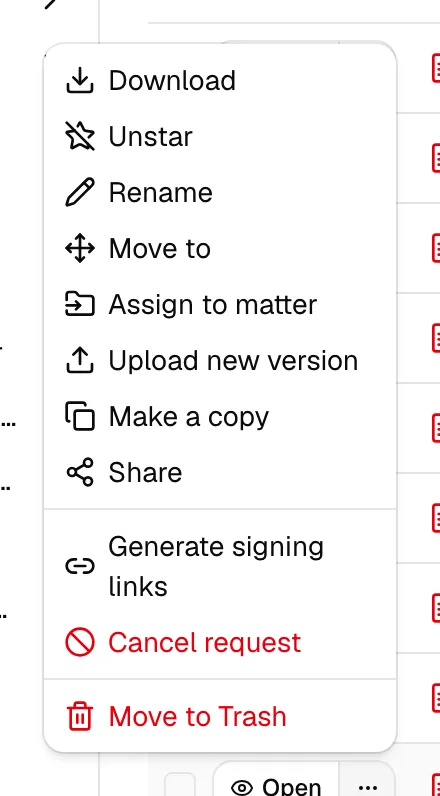
- On the For signature tab, open the more actions menu (the ... button) on a document whose request is still open.
- Click Cancel request.
- In the Cancel signature request? confirmation, review the warning that the request will be cancelled and can no longer be signed, then click Cancel request to confirm. The badge changes to Voided.
Note: When you cancel a request, no reason is requested from you. A reason is only recorded automatically when a signer themselves declines to sign (they are offered an optional reason on the signing page). Declined and voided are different outcomes: Declined means a signer refused, while Voided means your firm cancelled.
Tip: To stop just one person rather than the whole request, use Cancel a single signer instead.
Archive a completed or voided request
Archiving moves a finished request out of your active list so the page stays focused on work in progress. Archiving does not delete anything: the signed document and its certificate remain available from the matter and your documents.
You can archive a request once it is Completed, Declined, or Voided.
- On the For signature tab, find the document whose request has finished.
- Open the more actions menu (the ... button) at the end of its row.
- Click Archive request.
- In the Archive signature request? confirmation, confirm. The row's badge changes to Archived.
Tip: Archiving does not remove the document from For signature: it stays listed, and its badge shows Archived. Set the Status filter to Archived to see only archived requests, or clear the filter to see every status again. The signed PDF is still the current version of the document in your files, and the certificate is still one click away on the document's page, so archiving is safe housekeeping rather than a way to remove records.
View the signed document and the certificate
Once every signer has finished, the request becomes Completed and the signed files are ready. The document you sent out now carries the signatures itself: opening or downloading it from Documents gives you the signed copy, and the version from before signing stays in its version history. That completed copy is sealed and locked: it is filed as a finished, tamper-evident record, not a working draft, so keep using it for reference rather than editing over it.
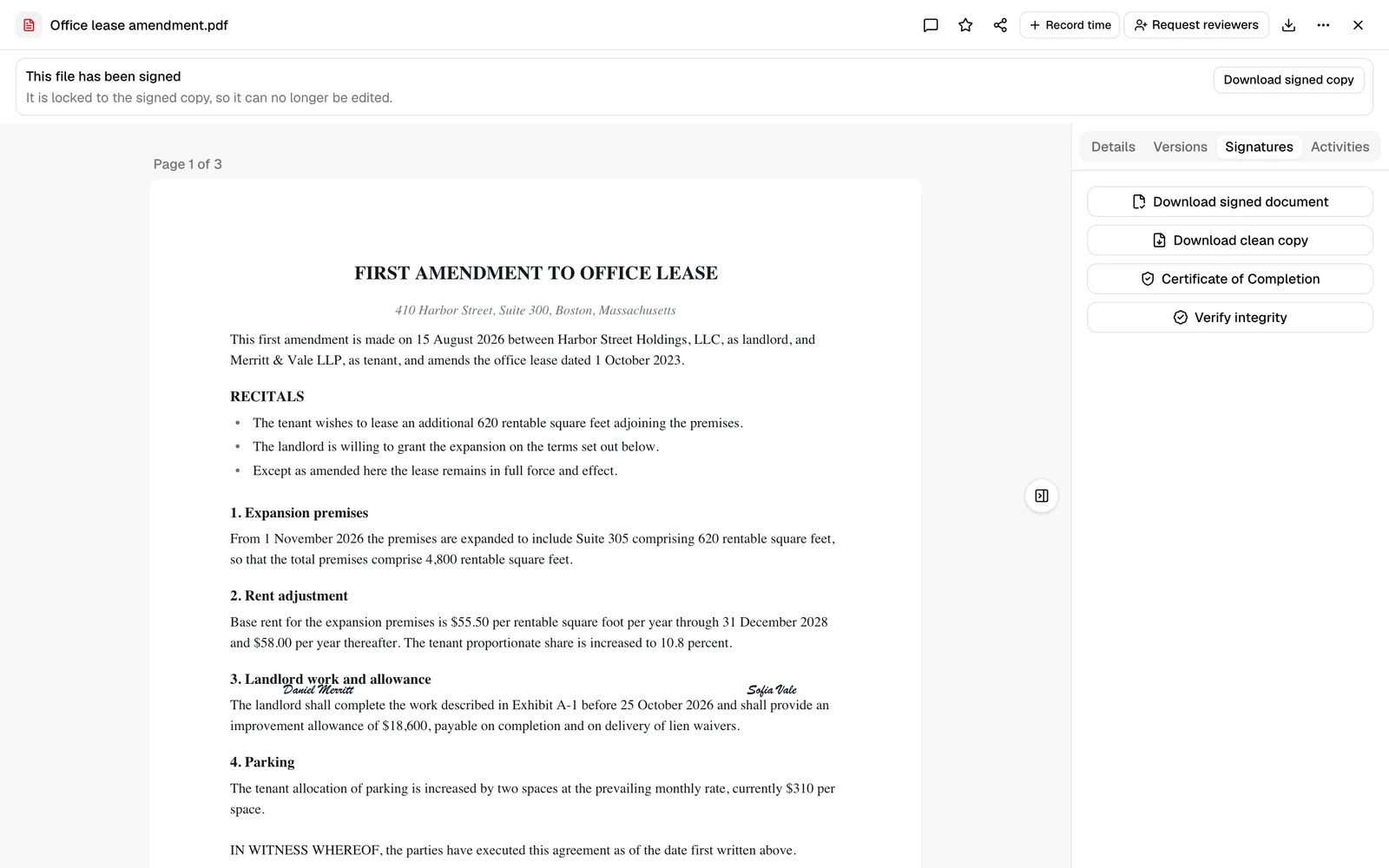
Alongside that, a completed request offers four actions, on the document's own page:
- Download signed document - the certified record. This is the original document with every signature stamped in, a faint SIGNED watermark on every page, and the Certificate of Completion appended at the end. Use it for your file, for court, or whenever the evidence needs to travel with the document.
- Download clean copy - the same signatures with no watermark and no certificate pages. Use it for everyday distribution, for example the copy you send a client or a counterparty.
- Certificate of Completion - the certificate on its own, as a separate PDF.
- Verify integrity - checks that the signed document still matches the fingerprint Esqase recorded at completion (see below).
Important: The clean copy is produced when the request is finalized, so it only exists for requests completed from this release onward. On a request your firm completed earlier, Download clean copy appears but is greyed out. Everything else on those requests works exactly as before.
From the For signature tab
The For signature tab carries the standard document actions, so Download on a signed row gives you the signed PDF (it is the document's current version). For the clean copy, the certificate, and the integrity check, open the document.
From the document's page
When a request is Completed, the Signatures tab on the document's page shows the same actions as buttons: Download signed document, Download clean copy, Certificate of Completion, and Verify integrity.
Tip: Not sure which to send? If the recipient needs proof of who signed and when, send the signed document. If they just need the executed agreement to read and file, send the clean copy.
Note: The Signatures tab swaps the field-placement editor for these actions once a request completes. The document's approval control is not on this tab: it lives in the top-right row of header actions on the document's page and stays available after signing, so you can still record a sign-off on the executed copy. See Approvals for invoices and documents.
What the Certificate of Completion shows
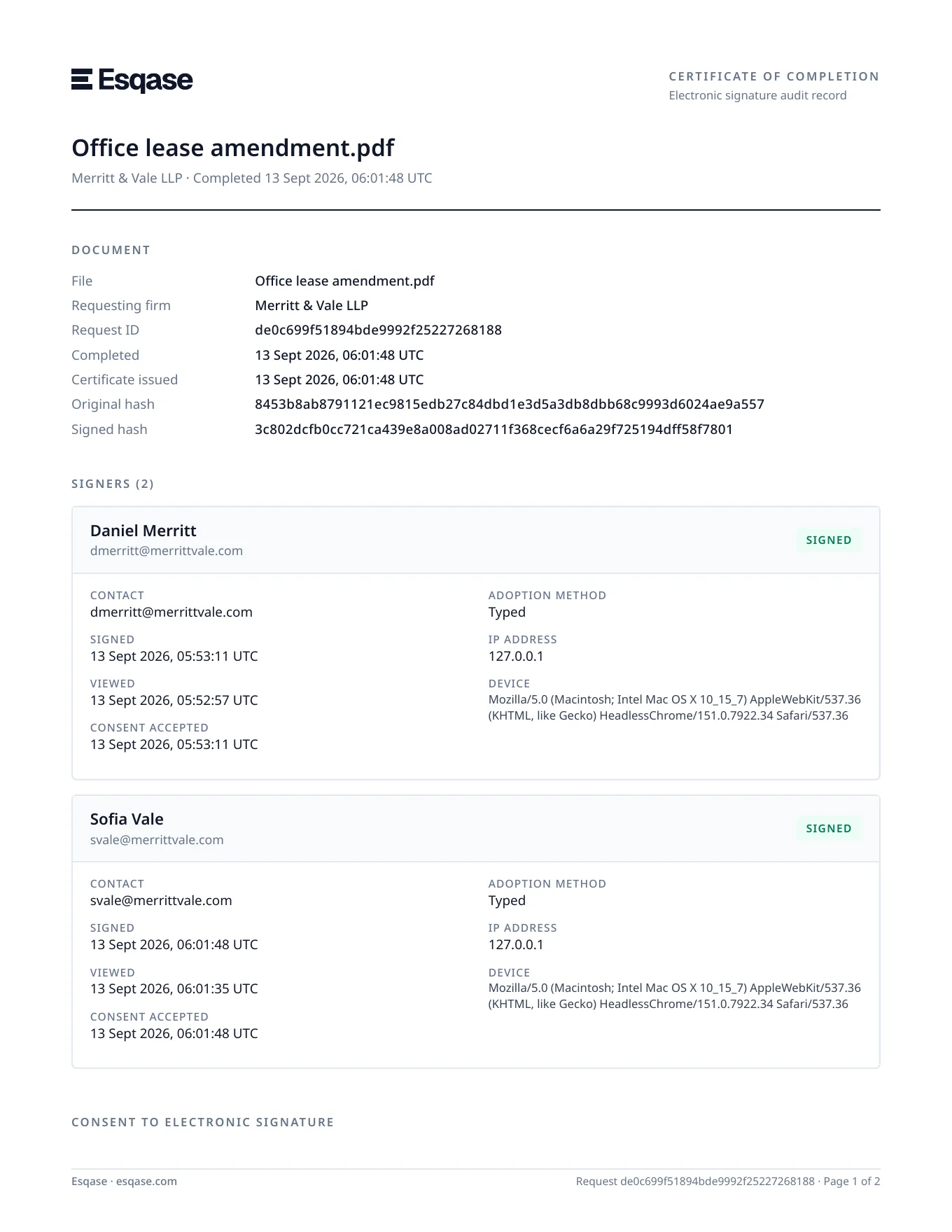
The certificate is the audit record for the signing. It opens with your firm named as the requesting firm, then sets out:
- Document details: the file name, the request reference, when the request was completed, when the certificate was issued, and the fingerprints (hashes) of both the original and the signed file.
- One card per signer: their name and email, whether they signed, and the times they signed, viewed the document, and accepted the consent disclosure, along with how they created their signature (drawn, typed, or uploaded), their IP address, and the device they used.
- The consent to electronic signature: the full disclosure text the signers agreed to, reproduced word for word.
Every page carries the request reference and a page number in the footer, so pages stay identifiable if the certificate is ever printed or split up.
Note: You get the certificate in two places: appended to the end of the signed document, and on its own through Certificate of Completion. The two are identical except for one row. The signed fingerprint covers the whole signed document, certificate pages included, so the appended copy cannot print it: a file cannot contain its own fingerprint. That row instead points you to the standalone certificate, which carries the real value. Use the standalone download whenever you need the signed fingerprint itself.
Verify integrity
Verify integrity confirms that the signed document has not been altered since it was finalized. Esqase compares the sealed file it recorded at completion against the fingerprint taken at the same moment:
- If it matches, you see a confirmation that the signed document matches its recorded hash. When your firm has a cryptographic seal configured, the message also confirms the seal is valid.
- If it does not match, you are warned that the document did not pass verification.
Note: Verification always checks the exact file that was sealed at completion. If someone later uploads a new version over the document, the check still passes, because it is not looking at whatever happens to be the current version.
Tip: Run Verify integrity before relying on a signed PDF as evidence, for example if a copy has been emailed around. It is your quick check that the version in hand is the authentic, unaltered original.
How completion is finalized
You do not have to assemble anything manually. The moment the last required signer signs, Esqase finalizes the request automatically, normally within a few seconds. Here is what happens behind the scenes, so you know what is in the file you download.
- Tamper check. Esqase re-reads the original document and compares it to the fingerprint taken when the request was created. If the source document changed in the meantime, finalization stops and reports a problem, so a signed copy is never produced from an altered original.
- Signatures are stamped in. Every captured signature, set of initials, date, name, text, and checkbox is drawn onto the document at the exact spot it was placed.
- A clean copy is set aside. Before any evidence markings are added, Esqase keeps a copy carrying the signatures alone. This is what Download clean copy gives you.
- The document is marked as executed. Each page receives a faint diagonal SIGNED watermark and a footer noting that the document was electronically signed via Esqase with a Certificate of Completion attached, so a printed or forwarded copy is clearly identifiable as signed.
- The Certificate of Completion is appended. A certificate is added to the end of the document, and the same certificate is also kept as a separate standalone PDF for evidence. See What the Certificate of Completion shows above for everything it records. The consent disclosure wording reflects your firm's country (the Philippines and the United States get country-specific legal language; other countries get a neutral statement), and the text on the certificate is the text each signer agreed to. See How clients sign documents for what signers see.
- A sealed fingerprint is recorded. Esqase computes a fingerprint (hash) of the finished PDF and, where a signing key is configured, applies a cryptographic seal. This is what Verify integrity later checks against.
- The signed copy becomes the document. The sealed PDF is filed as the newest version of the document you sent out, so from now on opening or downloading that document gives you the signed copy, and its "last updated" details move forward. The pre-signature copy stays in the document's version history. Esqase does not create a second, separate file for the signed version.
- The request is marked Completed. The status flips to Completed, every signer shows as Signed, and the download, certificate, and verify actions become available.
Note: The signed PDF that you download already includes the Certificate of Completion as its final pages. The separate Certificate of completion download gives you that certificate on its own, which is handy when you need to share proof of signing without the full document.
Watching it finish
If you have the document open when the last signature lands, you do not have to do anything or reload the page.
- The Signatures panel reads Everyone has signed. The certified copy is being prepared. The signer list stays visible, all marked Signed, and the setup controls are put away.
- Within seconds the page switches to the certified copy by itself: the signed document appears in the viewer, and the panel swaps to Download signed document, Download clean copy, Certificate of Completion, and Verify integrity.
- If it is still preparing after a minute, a Certify now button appears under the signer list. Click it to finish the certified copy straight away. You see Document certified when it is done, or a note that the copy is already being prepared if it was in progress anyway.
If the certified copy is ready but the viewer cannot open it, the main pane says We could not open the certified copy and offers a Try again button. Esqase retries a few times by itself first, so you only see this when the retries did not help. Click Try again, or reload the page.
The signer who finished sees the same thing on their own confirmation page: it updates itself and offers Download signed copy as soon as the certified copy exists. See How clients sign documents.
Tip: Certify now is a fallback, not part of the normal flow. If you find yourself reaching for it regularly, tell your firm's administrator so they can look into it.
If the certified copy does not arrive
Certifying normally takes seconds. When it does not happen, something about the document is in the way, and Certify now is how you find out what. Open the document, click Certify now under the signer list, and read the message. Where the answer is to start again, see Cancel or void a request.
- This document changed after it was sent for signature, so it can't be certified. Void the request and send it again. The file was altered after the signers were sent their links, so the signatures no longer match what they saw. Cancel the request and send a fresh one on the document as it stands now.
- Some of the details a signer entered use characters we can't print on the certified copy. Void the request and ask them to sign again without those characters. A signer's typed value contains something Esqase cannot print on the sealed copy, for example an emoji or a script it does not carry. You cannot fix the value for them, because it is their entry on a signed document. Cancel the request, agree the wording with the signer, and send it again. New signatures should not run into this: Esqase now refuses a value like that at the moment someone signs, so it never reaches the certified copy. See What a signer can type into a field.
- Part of this signed document can no longer be read, so it can't be certified. Void the request and send it for signature again. Something the certified copy is built from is missing or damaged. Cancel the request and send the document for signature again.
- This document is in the trash, so it can't be certified. Restore it and try again. Restore the file from Trash and the certified copy is produced as usual. While the file sits in Trash its Signatures tab is empty, so restore it first and the button comes back with it.
- This document has been deleted, so it can't be certified. The file was permanently deleted rather than moved to Trash, so there is nothing left to certify and nothing to restore. This is the one certifying problem you cannot undo: upload the document again and send a fresh request if you still need it signed.
- This document belongs to an archived matter, so it can't be certified. Restore the matter and try again. Take the matter out of the archive, then certify. See The matter workspace.
- You don't have permission to certify this document. Your role does not include Update access for documents. Ask a colleague who has it, or a firm owner.
- Not everyone has signed yet, or This signature request is no longer open. The request moved on while you had the page open. Refresh and check the signer list.
- We couldn't certify this document. Please try again in a moment. Something unexpected went wrong. Wait a moment and click Certify now again. If it keeps happening, tell your firm's administrator.
The first three of these also reach you as a notification, so you usually hear about them without looking. It is titled A signed document could not be certified, names the document, and tells you which of the three happened and what to do about it. It goes to whoever sent the request and to your firm's owners, and it arrives under the Someone declined to sign setting in your notification preferences. See Notifications.
The rest are not sent anywhere, because each is something you can see and fix from the document itself. For those, the message on Certify now is where the reason lives, so check there when a fully signed document has sat without its certified copy.
Note: Once Esqase has hit a problem it cannot solve on its own, it stops trying every few minutes and waits a day before trying again. That keeps a stuck document quiet rather than noisy, and it does not hold you up: fix the cause (restore the file, restore the matter, or send a fresh request) and Certify now acts immediately.
Common questions
Why is my request still showing as awaiting signatures after someone signed? A request only finishes when every required signer has signed. The badge next to the document name counts the progress (for example Signed 1 of 2). With sequential signing, the next person cannot sign until the one before them is done.
A signer declined. What now? The request moves to Declined and cannot proceed. Review the optional reason the signer left (if any) in the matter's signing activity, fix whatever was wrong, and create a new request when you are ready. You can archive the declined request to clear it from your list.
Can I edit a request after sending it? Only while someone still has to sign. You can adjust fields and click Save again, and anyone who already signed keeps their signature. Once everyone has signed there is nothing left to change: Esqase answers Everyone has already signed this document, or This document has already been signed and certified once the certified copy exists. To collect a different set of signatures, start a new request on the document. See Requesting eSignatures.
Where do the signed files live? On the document you sent out, in the documents area and on the matter's Documents tab. The signed PDF is the document's current version, so there is no separate file to hunt for, and the copy from before signing is still in its version history. The clean copy and the standalone certificate are downloaded from the completed request rather than filed as documents of their own.
I used to get a second "(Signed)" file. Where has it gone? Esqase no longer creates one. The document itself now carries the signatures, which keeps your folders free of near-duplicate files. Any (Signed) file created before this change stays exactly where it is; nothing was moved or removed.
My request is stuck on Draft and will not send. Why? If your firm has document approvals turned on, the document needs internal sign-off before anything can be emailed or signed. Open the document and click the approval control in the top-right row of header actions on its page (the reviewer avatars, between the record-time control and Download) to request a review. The send actions become available once it is approved. See Approvals for invoices and documents.