Event types (scheduling)
Event types are the bookable meeting types your firm offers, like an Initial consult or a Discovery call. Each one defines how long the meeting runs, who hosts it, where it takes place, and the public link clients use to pick a time. When someone books, Esqase creates an event on your calendar and (optionally) a lead in your intake pipeline, so scheduling stays connected to the rest of your work.
This page covers everything you can do from the Event types screen: creating and editing a type, choosing a single host or a round-robin team of hosts, duration, buffers, location and meeting links, time zone behavior, per-period meeting limits, auto-confirm vs. host approval, the booking email Esqase sends the client, attaching a workflow, copying the booking link, and the archive, restore, and delete lifecycle.
Before you begin
- Find the page. In the sidebar, expand Intake, then click Event types.
- Permissions. To see this page your role needs View access for event types (firm owners always have access). Creating, editing, archiving, restoring, and deleting each require the matching permission. By default, owners and administrators have full access, while attorneys and staff can view, create, and edit but cannot delete. If your role is view-only, you will not see the New event type button or the per-row action buttons. See Roles and permissions.
- A public firm username helps. Your booking link is built from your firm's username (for example,
book.esqase.com/your-firm/initial-consult). If your firm has not set a username yet, the form shows a placeholder and the link will not be shareable until that is configured. See Your firm profile and details. - Connect a meeting provider for video meetings. For a Google Meet, Zoom, or Microsoft Teams location, or an Ask customer location that offers one of them, Esqase can create each booking's meeting link on the host's own connected account, so each host connects that provider on their Integrations page. Syncing booked meetings to your calendar relies on a connected Google or Outlook calendar. See Connecting Google (Gmail, Calendar, Meet) and Connecting Outlook and Zoom.
What an event type is
An event type is a reusable template for a single kind of meeting. Think of it the way a calendar-booking tool works: you define the meeting once, and clients (or prospective clients) book it themselves from a public page.
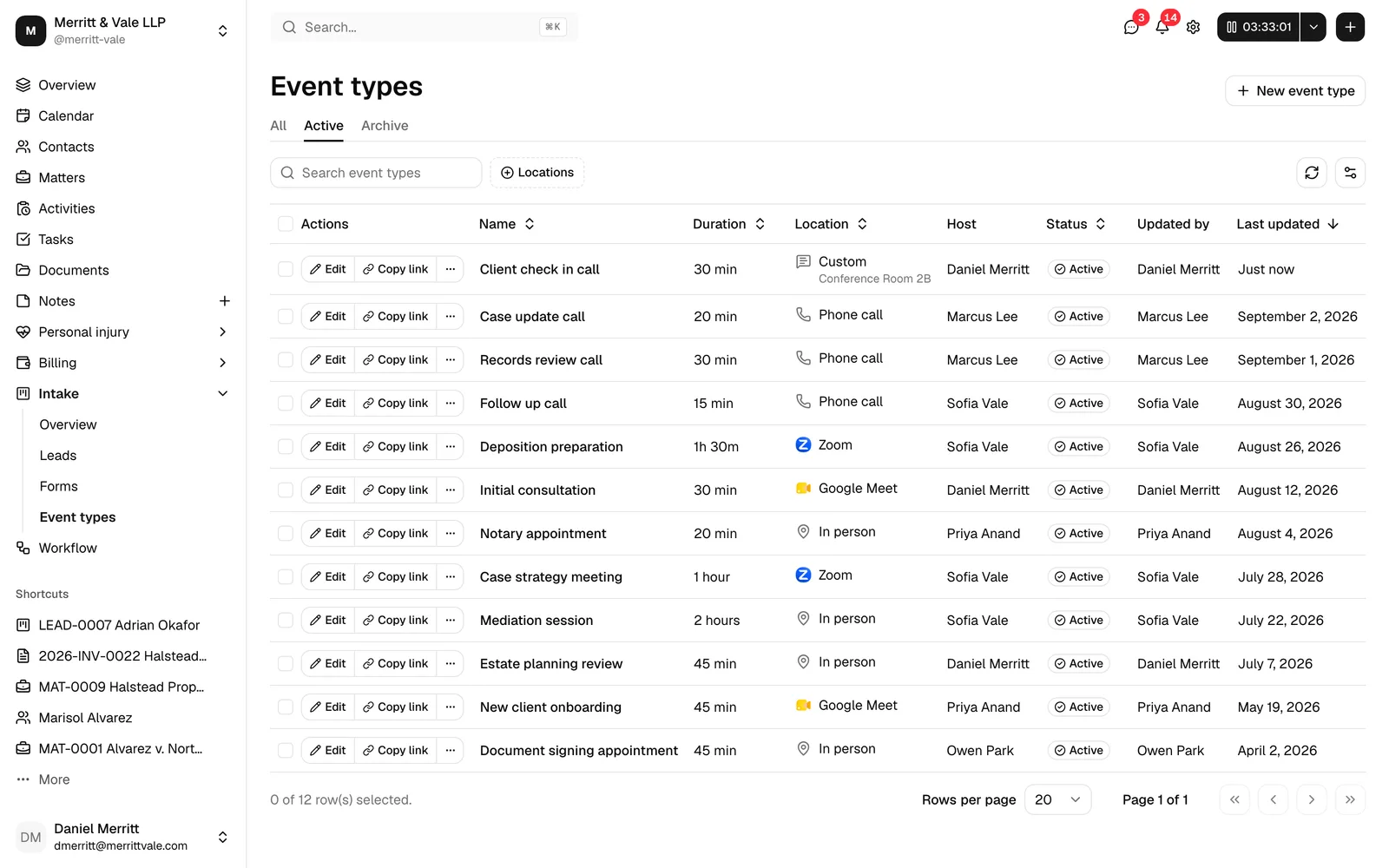
Each event type row in the table shows:
- Name (for example, Initial consult).
- Duration, shown as minutes or hours (for example, 30 min or 1 hour).
- Location, with an icon (In person, Phone call, Google Meet, Zoom, Microsoft Teams, Ask customer, or Custom). For a custom location, the row also shows your custom label underneath.
- Host, the firm member who runs the meeting. For a round-robin type, the column reads Round robin followed by the first two hosts in its list, plus +N when there are more. If none of those hosts can take bookings right now, a muted No eligible host line appears underneath.
- Status, one of Active or Archive.
- Updated by and Last updated, so you can see who changed it and when.
Use the tabs above the table to switch between All, Active (the default view), and Archive. Use Search event types to find one by name, and use the Location filter to narrow by meeting location. Click Clear filters to reset.
Note: New event types are created as Active right away, so they appear on your public booking pages as soon as you save. There is no separate "publish" step.
Create an event type
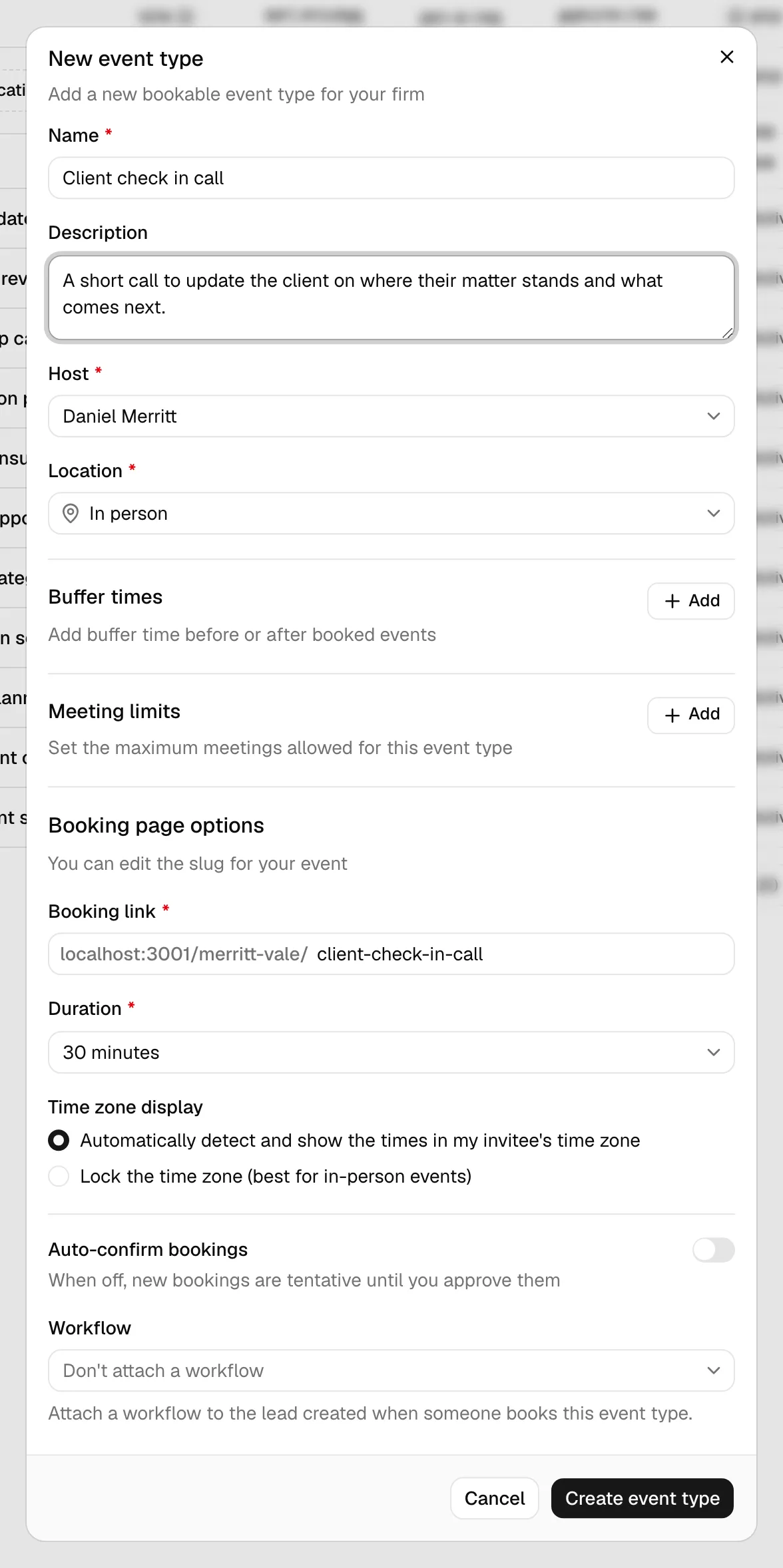
Creating an event type opens a single dialog where you fill in every detail of the meeting.
- In the sidebar, expand Intake, then click Event types.
- Click New event type. The New event type dialog opens.
- In Name, enter a clear title clients will recognize, for example Initial consult. This field is required.
- (Optional) In Description, add details clients see on the booking page, such as what to prepare or who should attend.
- In Host assignment, choose Single host or Round robin, then choose the member in Host or the members in Hosts. See Host assignment below. These fields are required.
- In Location, pick where the meeting happens. For Google Meet, Zoom, or Microsoft Teams, also choose how the Meeting link is added. For Ask customer, check the options clients choose from, and, if you offer a video option, choose how its Meeting link is added. See Choose the meeting location. This field is required.
- (Optional) Add Buffer times and Meeting limits (covered in their own sections below).
- Under Booking page options, confirm the Booking link (slug), choose the Duration, and set the Time zone display.
- (Optional) Turn on Auto-confirm bookings, turn off Email the client about their booking if you send clients your own email, and attach a Workflow.
- Click Create event type. Esqase saves the type, you see a confirmation, and the new type appears in the table as Active.
Tip: As you type the Name, Esqase automatically fills in a matching Booking link (for example, Initial consult becomes initial-consult). You can edit the link by hand if you want a different one. Once you edit it manually, Esqase stops auto-generating it from the name.
Required fields and limits
- Name is required and can be up to 255 characters.
- Host assignment is required. With Single host, Host is required. With Round robin, Hosts needs at least one member, and you can list up to 50.
- Location is required (and some locations require extra detail, see below).
- Meeting link, when you choose Use one link for every booking, is required, must be a full web link that starts with
https://(orhttp://), and can be up to 2,048 characters. - Booking link is required, must be lowercase, and may use only letters, numbers, and hyphens (no leading or trailing hyphen), up to 128 characters.
- Duration is required and must be between 1 minute and 24 hours.
- Description is optional and can be up to 5,000 characters.
If anything is missing or invalid, the dialog highlights the affected fields and shows a short message. Fix the highlighted fields and click Create event type again.
Edit an event type
Editing reuses the same dialog you used to create the type, with all the current values filled in.
- On the Event types page, find the row you want to change.
- Click Edit on that row. The Edit event type dialog opens.
- Change any field: name, description, host assignment and hosts, location and meeting link, buffers, meeting limits, booking link, duration, time zone, auto-confirm, the booking email, or workflow.
- Click Save changes. Esqase updates the type and you see a confirmation.
Important: If you change the Booking link (slug), the old public URL stops working. Anyone who saved or bookmarked the previous link will need the new one. Re-copy and re-share the link after changing it.
Note: Editing an event type does not move or change meetings that were already booked. It only affects bookings made from that point forward. Two settings are the exception: a booking still waiting for approval when you change the Meeting link choice gets its link the new way once it is confirmed, and one still waiting when you change Email the client about their booking follows the new setting when it is approved. See Meeting link for video locations and Turn the client booking email on or off.
Host assignment
The host is the firm member who runs the meeting. The Host assignment field, just above the host picker, decides how the host is chosen:
- Single host: one member hosts every booking. This is the default, and it works exactly as it always has.
- Round robin: you list several members, and Esqase shares the bookings between them. The client never picks a host; Esqase assigns one at the moment the client books.
Single host
The host's availability and time zone drive which slots clients can choose on the booking page, and the booked event lands on their calendar.
- In the create or edit dialog, set Host assignment to Single host.
- Open the Host field, start typing to search, then select a member from the list. Only active firm members appear.
- When you create a new type, Esqase defaults the host to you (if you are an active member); otherwise it picks the first available member. You can change it before saving.
Tip: The slots a client sees depend on the host's working hours and existing calendar. To control when meetings can be booked, set the host's availability. See Setting firm availability.
Note: If the host's account is disabled or archived, or the host has no calendar in Esqase, the booking page shows "No times are available right now." instead of a calendar. Choose another host, or make the member active again, to open the page again.
Round robin
Use round robin when several members can take the same kind of meeting, for example a team of attorneys who share initial consults.
- In the create or edit dialog, set Host assignment to Round robin. The Host field is replaced by Hosts.
- In Hosts, select each member who should take these meetings. Only active firm members appear. The helper text under the field reads "Bookings rotate between these members. A time is offered when any of them is free."
- Save the event type.
How the booking page and the rotation work:
- A time is offered when any listed host is free. Esqase works out each host's open times separately, from that host's own weekly schedule and date-specific hours (or your firm's, when the host has none), read in that host's own time zone, and from that host's existing calendar. The booking page offers every time that at least one host can take. A time disappears only when every listed host is busy.
- Each booking goes to the host who has waited longest. When a client books, Esqase looks at the listed hosts who are free at that exact time and assigns the one who has gone longest since their last booking from this event type. Hosts who have never been assigned one come first, and a tie goes to the host listed earlier. For example, with Daniel, Sofia, and Owen listed and all free, the first booking goes to Daniel, the next to Sofia, then Owen, then back to Daniel. If Sofia is busy at the time the next client picks, that booking goes to Owen and Sofia stays first in line.
- A host is never booked twice for the same time. If two clients book the same time at once, the second goes to another host who is free then, or is asked to pick another time when nobody else is.
- Only hosts who can take a meeting receive one. A listed host whose account is disabled or archived, or who has no calendar in Esqase, stops receiving bookings straight away. Meetings they already have stay with them. When you next edit the type, members who are disabled or archived are left out of Hosts, and saving removes them from the list. If none of the hosts can take bookings, the booking page offers no times and the table shows No eligible host.
- The first host in the list is the primary host. Sorting the Event types table by Host orders round-robin types by their primary host, and the primary host is the member the type keeps if you switch it back to Single host.
Once a booking is assigned, it behaves exactly like a single-host booking: the meeting sits on the assigned host's calendar with them as the host, and the client's confirmation names them. If the client later asks for a different time, the meeting stays with that host. See Calendar and events.
📷 Screenshot: The Edit event type dialog with Host assignment set to Round robin and three members selected in the Hosts field, showing the helper text under it.
Note: Round robin applies to bookings made from your public booking link. When a workflow Event step, or a scheduling link you create on a lead or matter, uses a round-robin event type, the member acting on it stays the host, and the event type supplies only the meeting's length and details. See Workflow step types.
Switch a type between single host and round robin
You can change Host assignment on an existing type at any time.
- On the Event types page, click Edit on the row.
- Change Host assignment:
- From Single host to Round robin: the Hosts field starts with the current host. Add the other members. The current host stays first in the list and becomes the primary host.
- From Round robin to Single host: the Host field starts with the primary host. Keep it or choose another member.
- Click Save changes.
What changes when you save:
- Switching to Single host clears the list of hosts, so every new booking goes to the one host. If you switch back to Round robin later, you choose the hosts again and the rotation starts fresh.
- Editing the list of a round-robin type keeps each remaining host's place in the rotation. A host you add has never been assigned a booking from this type, so they are first in line the next time they are free. A host you remove stops receiving new bookings.
- Meetings already booked keep their host in every case. Changing the host assignment only affects bookings made from then on.
Configure duration and before/after buffers
Duration sets how long the meeting runs. Buffers add padding before or after the meeting so back-to-back bookings do not crowd your schedule.
Set the duration
- In the dialog, find Duration under Booking page options.
- Choose a preset: 15 minutes, 30 minutes, 45 minutes, 1 hour, or Custom. (New types default to 30 minutes.)
- If you choose Custom, two more fields appear:
- Length, a whole number.
- Unit, either Minute or Hour. For example, set Length to 90 and Unit to Minute for a 90-minute meeting. The total must be between 1 minute and 24 hours.
Add buffer times
A buffer is reserved time around the meeting that no other booking can use, useful for travel, notes, or a breather.
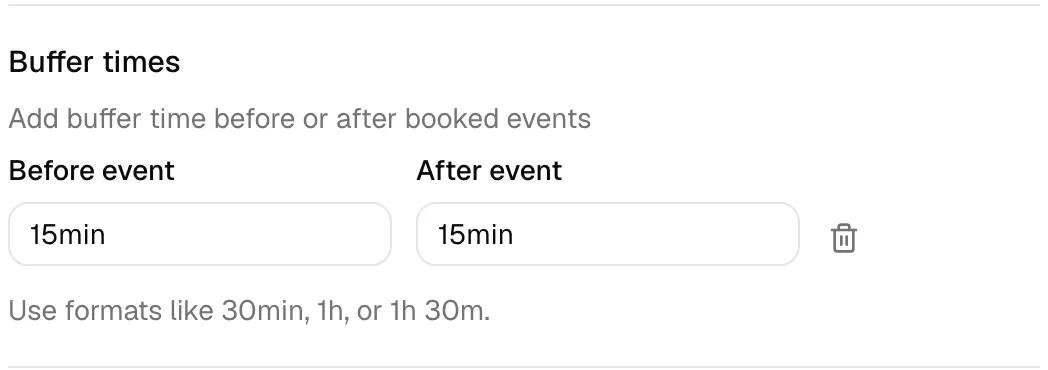
- In the dialog, find the Buffer times section.
- Click Add to reveal the buffer fields.
- In Before event, enter how much time to block before the meeting.
- In After event, enter how much time to block after the meeting.
- Use natural formats like
30min,1h, or1h 30m. Leaving a field at0minmeans no buffer on that side. - To remove buffers entirely, click the trash icon next to the buffer fields; both reset to
0min.
Note: Buffers can be up to 24 hours each. They are applied automatically to every booking of this event type, so clients never see the buffered time as available. For a round-robin type, the same buffers apply around each host's own meetings.
Choose the meeting location
The Location field tells clients where the meeting takes place and, for online meetings, how they will join.
- In the dialog, open the Location field and choose one:
- In person: a physical meeting.
- Phone call: you or the client places a call.
- Google Meet: a Google Meet video meeting.
- Zoom: a Zoom video meeting.
- Microsoft Teams: a Microsoft Teams video meeting.
- Ask customer: let the client choose how to meet from a list of options you define.
- Custom: a location you describe in your own words (for example, a specific room or address).
Three kinds of location need extra setup: the three video locations, Custom, and Ask customer.
Meeting link for video locations
When the location is Google Meet, Zoom, or Microsoft Teams, a Meeting link choice appears directly under Location. It decides how the client gets the link to join. An Ask customer location gets the same choice when it offers one of these video options. See Ask customer for how it differs there.
- Under Meeting link, choose one:
- Generate a new link for each confirmed booking (the default): Esqase creates a new meeting on the host's own connected account each time a booking is confirmed, and adds its link to the meeting. The description under the option reads "Created on the host's connected account when a booking is confirmed".
- Use one link for every booking: every booking of this type gets the same link, for example your firm's standing Zoom room. A Meeting link field appears. Paste the full link, starting with
https://. The description reads "Shared with the client once their booking is confirmed". - Don't add a meeting link: Esqase adds no link, and you share one with the client yourself.
- Save the event type.
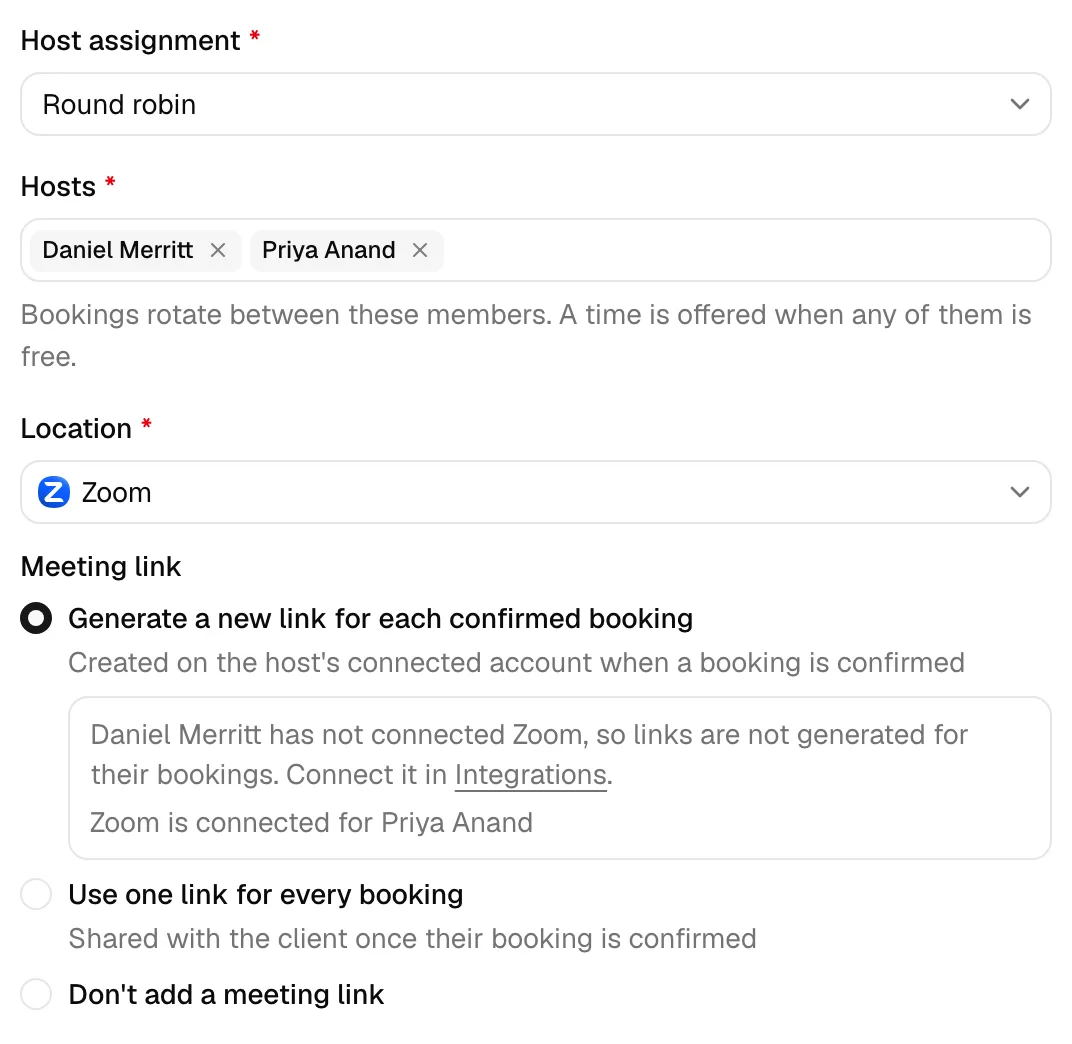
Generate a new link for each confirmed booking is the default, both for new event types and for the ones you already have.
If you choose Use one link for every booking and leave the link empty, the dialog shows "Add the meeting link clients will use". A link that is not a full web address shows "Enter a full link that starts with https://".
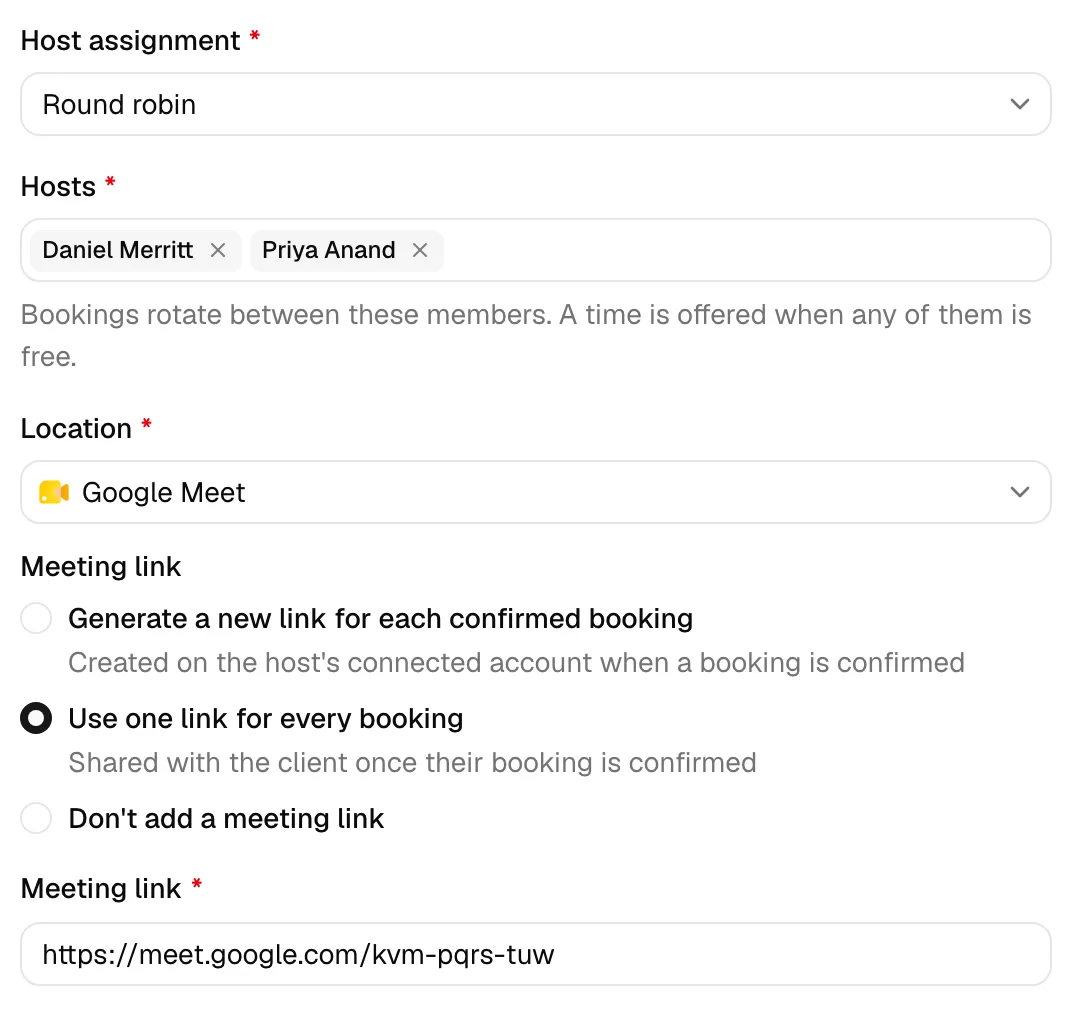
How meeting links work:
- The link is added when the meeting is confirmed. With Auto-confirm bookings on, that is the moment the client books. Otherwise it is when a member approves the booking, or when the client accepts a time your firm proposed. A tentative booking has no link, so a client never sees one before the meeting is confirmed. The link usually reaches the meeting within a minute of confirmation.
- It uses the host's own account. The meeting is created in the host's Google Meet, Zoom, or Microsoft Teams account. For a round-robin type, that is the host the booking went to. Each host connects their own account on the Integrations page, and Esqase never uses another member's.
- The provider must match the location. A Zoom event type needs the host's Zoom connection, a Google Meet type their Google Meet connection, and a Microsoft Teams type their Microsoft Teams connection. If the host of a Zoom type has connected only Google Meet, no link is created: Esqase does not switch to another provider.
- The dialog shows who is connected. While Generate a new link for each confirmed booking is selected, an informational note under it has a line for each host (the Host, or each member in Hosts for round robin). A line reads, for example, "Zoom is connected for Sofia Cruz" or "Sofia Cruz has not connected Zoom, so links are not generated for their bookings". When you are the host who has not connected, your line ends with "Connect it in Integrations.", which links to your Integrations page.
- A single link is shown only on confirmed meetings. With Use one link for every booking, the link never appears on the booking page. Esqase adds it to each meeting as it is confirmed, so clients see it only on a confirmed meeting.
- A link on a meeting is kept. Esqase never replaces a link a meeting already has, including one you typed into the meeting yourself, and a rescheduled meeting keeps its link.
- Changes apply to meetings confirmed afterwards. Changing the Meeting link choice, or the link itself, affects meetings confirmed after you save. Meetings that already have a link keep it.
- Canceling leaves the provider's meeting in place. Canceling or deleting a meeting in Esqase does not delete the meeting Esqase created in Google Meet, Zoom, or Microsoft Teams.
Important: When the host has not connected the matching provider, the meeting is confirmed without a link, and the client's confirmation page still says a link will follow. Connect the provider for that host, switch to Use one link for every booking, or add a link to the meeting yourself from its Meeting link field (see Calendar and events).
Note: If Google, Zoom, or Microsoft cannot create the meeting at that moment, Esqase tries again several times over the next two hours or so. If it still cannot, the meeting stays without a link, and you can add one yourself.
For what the client sees, and when, see When clients get the meeting link.
Custom location
When you choose Custom, the dialog reveals two more fields:
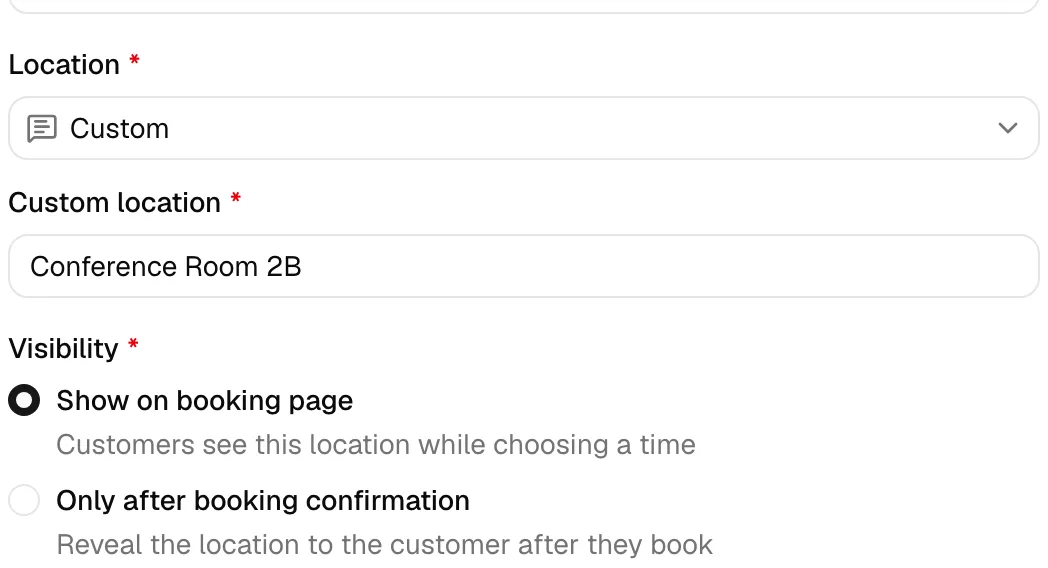
- In Custom location, type the location text clients should see, for example Conference Room 2B. This is required for a custom location.
- Under Visibility, choose when clients see this location:
- Show on booking page: clients see the location while choosing a time.
- Only after booking confirmation: the location is hidden until the client has booked, useful for private addresses.
Ask customer
When you choose Ask customer, you build the list of choices clients pick from at booking:
- Under Customer options, check any of the built-in choices you want to offer: In person, Phone call, Google Meet, Zoom, Microsoft Teams.
- To add your own choice, type it in Add your own option (for example, Coffee shop) and click Add, or press Enter. Custom choices appear under Other options, where you can remove any with the X button.
- You must add at least one option for this location to be valid.
- If you checked Google Meet, Zoom, or Microsoft Teams, a Meeting link choice appears below the options, with the same three choices as for a video location (see Meeting link for video locations). Under Generate a new link for each confirmed booking, the description reads "Created on the host's connected account when a video option is confirmed".
- Save the event type.
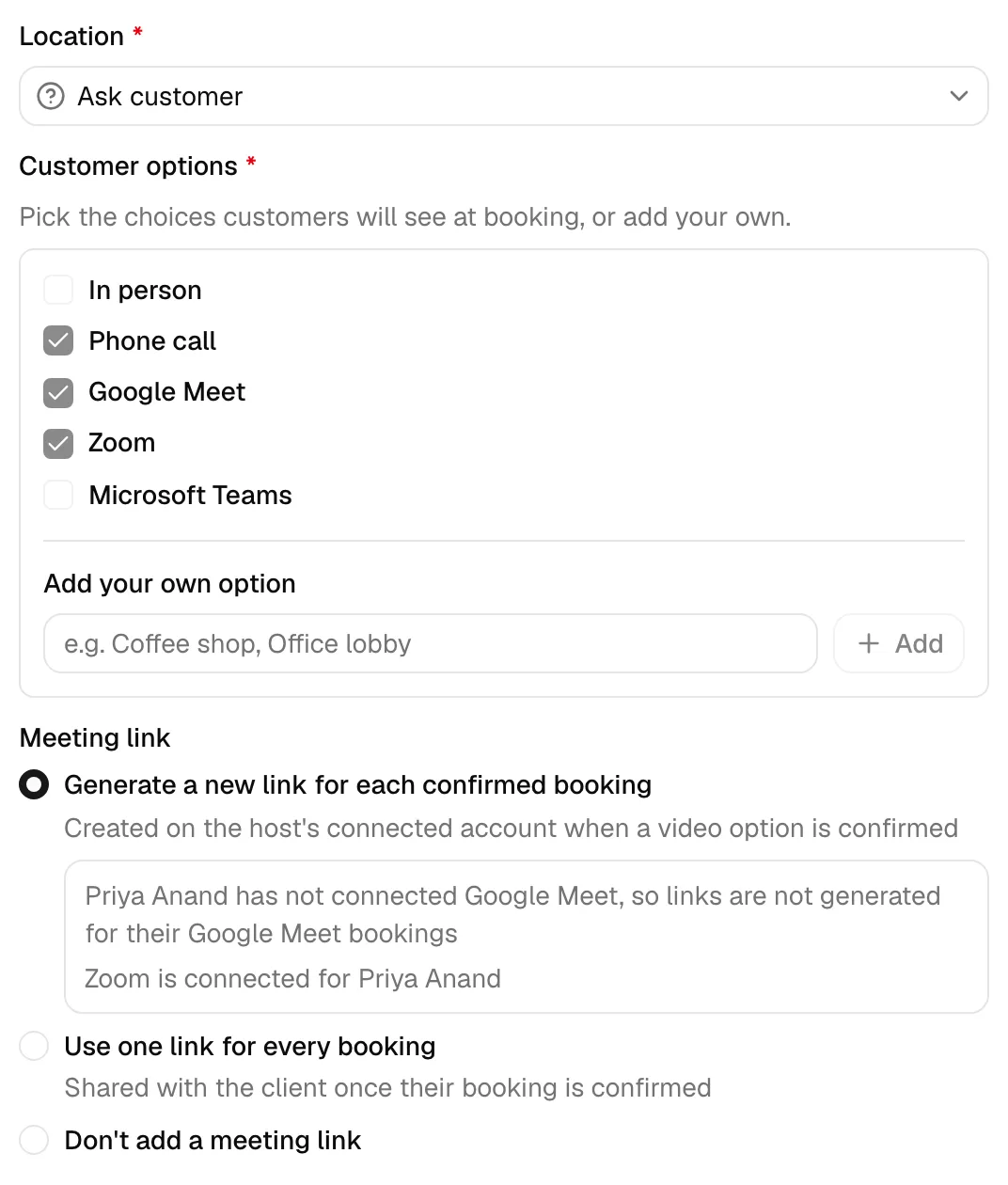
On the booking page, the location reads "Choose a meeting type". The client picks one of your options on the contact form, under How would you like to meet?, and the option they pick becomes the meeting's location: on your calendar, on the client's confirmation page, and in the confirmation email. See Providing details and an optional note.
How meeting links work for an Ask customer type:
- The link follows the client's pick. A meeting gets a link only when the client picks Google Meet, Zoom, or Microsoft Teams, and Esqase creates it with that provider on the host's own account. A client who picks Zoom needs the host's Zoom connection: Esqase does not switch to another provider.
- The dialog shows who is connected for each video option. While Generate a new link for each confirmed booking is selected, the informational note under it has a line for each host and each video option you checked. A line reads, for example, "Zoom is connected for Sofia Cruz" or "Sofia Cruz has not connected Google Meet, so links are not generated for their Google Meet bookings". When you are the host who has not connected, your line ends with "Connect it in Integrations.", which links to your Integrations page.
- One link serves every video option. With Use one link for every booking, each booking where the client picks a video option gets the link you pasted, whichever video option it was. If you offer both Zoom and Google Meet, a client who picks Google Meet still gets your Zoom link, so when you use one link, offer only the video option it belongs to.
- Other picks get no link. When the client picks In person, Phone call, or a choice you added yourself, such as Coffee shop, the meeting has no link, whatever the Meeting link choice says.
Note: The Meeting link choice appears only while at least one of Google Meet, Zoom, or Microsoft Teams is checked. With none of them checked, no booking of this type gets a link, so share the address, phone number, or other details with the client yourself.
Set timezone display (auto-detect vs. locked)
The Time zone display option controls how times are shown to the person booking, which matters when your firm and the client are in different time zones.
- In the dialog, find Time zone display under Booking page options.
- Choose one:
- Automatically detect and show the times in my invitee's time zone: the booking page converts available slots into the client's local time. This is the default and is best for phone and video meetings.
- Lock the time zone (best for in-person events): times are shown in a fixed zone rather than the client's, which avoids confusion when everyone meets in person at one location.
Tip: Use Lock the time zone for in-person meetings so a client across the country still sees the office's local clock. Use Automatically detect for remote meetings so clients always see their own time.
For a round-robin type, Lock the time zone locks the page to your firm's time zone, because the hosts may work in different zones. With Automatically detect, the client sees times in their own zone, and once they pick a time the page adds the same moment in your firm's time, as a Firm time note in brackets at the end of the chosen time, whenever the two zones differ.
The zone the client booked in stays with the meeting. The confirmation page, the confirmation email, and the page where the client manages the meeting all lead with the client's time zone, and add your firm's time, labeled Firm time, whenever the two differ: a note in brackets after the time on the two pages, and a line of its own in the email. Nothing on your side changes: your calendar and the event's own Timezone field still hold the meeting in your firm's time. See How clients book meetings.
Add per-period meeting limits (day, week, month)
Meeting limits cap how many of this event type can be booked in a given period, so a single popular meeting type does not flood your calendar.
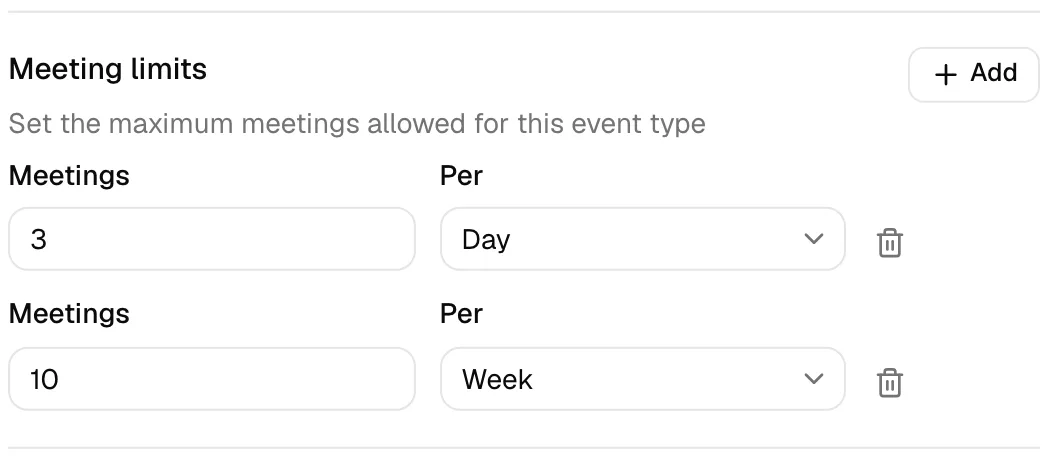
- In the dialog, find the Meeting limits section.
- Click Add. A limit row appears.
- In Meetings, enter the maximum number allowed (a whole number).
- In Per, choose the period: Day, Week, or Month.
- Repeat to add more limits. You can add at most one limit per period, and up to three limits total (one for each of Day, Week, and Month).
- To remove a limit, click the trash icon on its row.
For example, a limit of 3 per Day plus 10 per Week caps this meeting type at three a day and ten across the week.
Note: Each period can have only one limit. Once you use Day, it disappears from the Per list of remaining rows, so you cannot accidentally add two daily limits.
Important: Limits are counted twice: once when the booking page works out which slots to offer, and again at the instant the client submits the booking. A cap that fills while a client is still typing their details stops that booking, and the client is asked to pick another time. Periods are counted in the host's time zone, so "3 per Day" means three on the host's day, wherever the client happens to be.
Note: For a round-robin type, a limit counts bookings of the type across all of its hosts, not per host: 3 per Day means three bookings of that type in a day, whichever hosts took them. The day, week, and month are read in your firm's time zone rather than each host's, so a host who works in another time zone cannot take a booking past the limit while it is still the same day for your firm.
Turn on auto-confirm vs. host approval
By default, a public booking is tentative until the host approves it. Auto-confirm flips that so bookings are accepted immediately.
- In the dialog, find the Auto-confirm bookings switch (near the bottom).
- Leave it off to require host approval. When someone books, the meeting is created as tentative and the host (for a round-robin type, the host the booking was assigned to) gets a scheduling request to accept, reject, or propose a different time. The client is told plainly where things stand: their confirmation page reads Your meeting request is in and their email subject reads Meeting requested, both saying the time is held until your firm confirms it.
- Turn it on to confirm bookings automatically. The meeting is locked in the moment the client books, with no approval step. The client's page reads You are scheduled and their email subject reads Meeting confirmed.
The dialog summarizes this under the switch: "When off, new bookings are tentative until you approve them."
The Meeting requested and Meeting confirmed emails go out only while Email the client about their booking is on. See Turn the client booking email on or off.
Tip: Use host approval (off) for first-time consults where you want to vet requests, and auto-confirm (on) for routine check-ins where any open slot is fine. You can review and act on pending requests from the Calendar and events page.
Turn the client booking email on or off
When a client books with an email address, Esqase emails them the meeting details on your firm's behalf: the Meeting requested or Meeting confirmed email described above, with a calendar attachment and a link to their meeting page. The email is on for every event type until you turn it off. Turn it off for an event type when you would rather send clients your own email, for example from the workflow you attach.
- In the dialog, find the Email the client about their booking switch, directly under Auto-confirm bookings. The description under it reads "Esqase emails the client the meeting details after they book. Turn this off to send your own."
- Leave it on (the default) to keep sending the booking email.
- Turn it off to stop it. Esqase then sends no booking email for this event type, including the Meeting confirmed email that a client whose booking was held for review gets once a member approves it.
- Click Create event type or Save changes.
📷 Screenshot: The bottom of the Edit event type dialog, showing the Auto-confirm bookings switch, the Email the client about their booking switch below it turned off, and the Workflow field.
With the switch off, everything else about the booking stays the same: the client still sees the confirmation page, the meeting still lands on your calendar, and the contact, the lead, and any workflow you attached are set up as usual. On the client's side:
- The confirmation page no longer mentions an email. In place of "We sent the details to the email address you provided.", it asks the client to "Save the details below." A booking held for review reads "The firm will contact you to confirm."
- The meeting link waits on the meeting page. For a video meeting, the link is still added once the meeting is confirmed, and the client finds it on their meeting page, with Join meeting, rather than in an email. On an auto-confirmed booking, the confirmation page says "Your meeting link will appear on your meeting page in a moment."
- Telling the client is up to you. Send your own email from the attached workflow, use the confirmation email Esqase offers to send when you accept a booking that waits for approval, or contact the client yourself. See Approve, reject, or propose a new time for a booking.
Esqase checks the switch when it sends the email, not when the client booked, so a change also applies to bookings still waiting for your approval. A client who got no email when they booked, because the switch was off, gets the Meeting confirmed email if the switch is back on when a member approves the booking.
Note: The switch covers only the booking email. Emails your workflow sends still go out, and so does a sign-in link the client asks for on their meeting page. When a member approves a booking and the meeting is copied to that member's connected Google or Outlook calendar, that calendar can still send the client its own invitation.
Assign a workflow
Attaching a workflow automates follow-up. When someone books this event type and a new lead is created from that booking, the workflow's steps are added to that lead so your intake process starts on its own.
- In the dialog, open the Workflow field.
- Select an active workflow, or leave it as Don't attach a workflow to skip this.
- Save. From then on, bookings that create a lead will have the workflow's steps attached.
The field description says it plainly: "Attach a workflow to the lead created when someone books this event type."
Note: Steps set to run on their own start by themselves when the workflow's Automation switch is on, unless your firm has turned off Run automatic steps on these leads under Settings > Firm > Automation; steps set to Manual wait for a team member. To build the steps, see Workflows and the builder and Assigning and attaching workflows.
Note: If that workflow has an Event step, the meeting the client just booked fills it instead of sitting beside it as a second item, so the lead reads as one meeting. This happens before any step runs, so the client is not sent a second invite to pick a time. A step pinned to a particular event type is only filled by a booking of that type, and a step left on None takes any booking. See Workflow step types.
Important: Only currently active workflows appear in the list. If a workflow you previously attached has since been archived, the picker keeps showing it as Currently assigned workflow so your selection is not silently lost.
Copy the public booking link
Every event type has a public link clients use to book it. The link follows the pattern book.esqase.com/your-firm/your-meeting, combining your firm's username with the event type's booking link (slug).
- On the Event types page, find the row for the type you want to share.
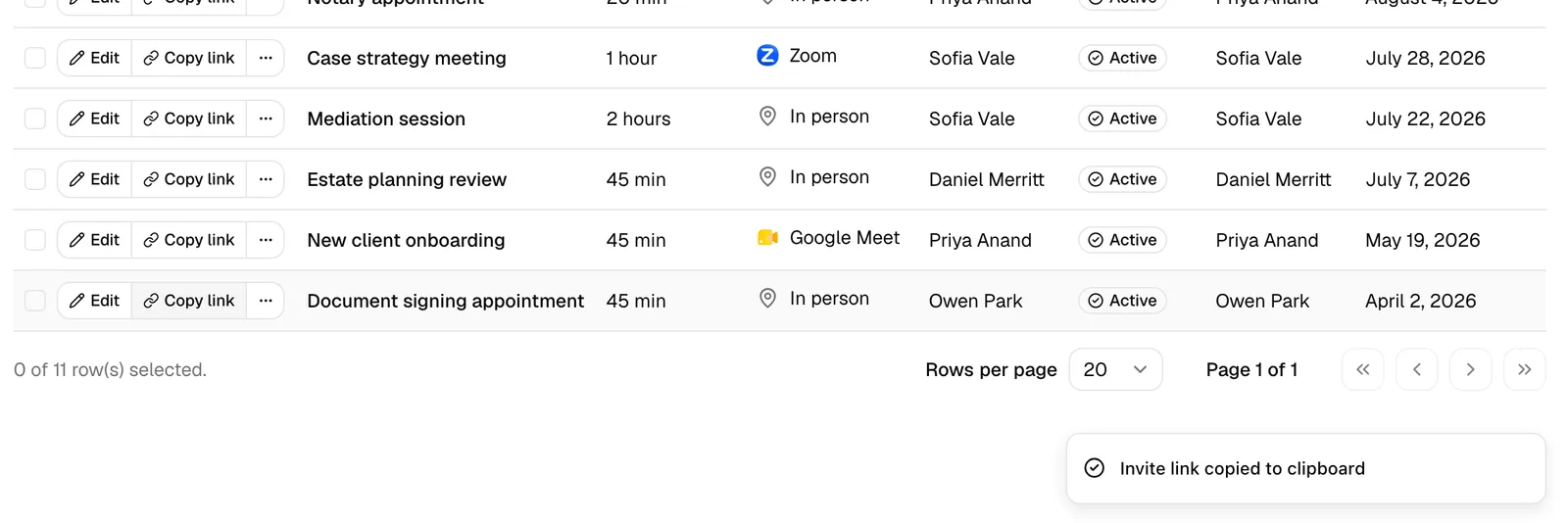
- Click Copy link. Esqase copies the public booking URL to your clipboard and confirms with "Invite link copied to clipboard."
- Paste it into an email, your website, or a signature so clients can book themselves.
Tip: You can also see and fine-tune the link inside the dialog. Under Booking page options, the Booking link field shows your firm's prefix followed by the editable slug.
Common questions
- The link does not include my firm name. Your firm needs a public username set on its profile. Until then, the link shows a placeholder. See Your firm profile and details.
- Can I rename the part after my firm name? Yes. Edit the event type and change the Booking link field. Remember that changing it breaks the old URL.
- What do clients actually see? For the booking experience from the client's side, see How clients book meetings.
Archive, restore, and delete an event type
Event types follow a safe lifecycle: archive to take a type off your booking pages without losing it, restore to bring it back, and delete only after archiving when you are sure.
Archive an event type
Archiving removes the type from your public booking pages and moves it to the Archive tab. Existing bookings are not affected.
- On the Event types page, find an Active row.
- Click the more actions button (the "..." menu) at the end of the row.
- Click Archive. Esqase archives the type and confirms.
Note: You can archive several at once. Select the checkboxes on multiple rows, then use the batch Archive action in the toolbar.
Restore an archived event type
- Switch to the Archive tab above the table.
- Find the archived row and open its more actions menu.
- Click Restore. The type returns to Active and appears on your booking pages again.
Delete an event type
Deleting is permanent and is only offered for types that are already archived.
- Switch to the Archive tab.
- Open the archived row's more actions menu and click Delete.
- In the Delete event type? dialog, read the warning ("'...' will be permanently removed. This can't be undone.") and click Delete event type to confirm.
Important: Deleting cannot be undone. If you only want to stop offering a meeting temporarily, archive it instead so you can restore it later.

Troubleshooting
- I do not see Archive, Restore, or Delete. These actions depend on your permissions. Archive and Restore need edit access; Delete needs delete access. By default, attorneys and staff cannot delete. See Roles and permissions.
- The "..." menu has no options. That row may be in a state with no actions available to your role, or you may lack edit and delete access entirely.
- An archived type still has upcoming meetings. Archiving stops new bookings but does not cancel existing events. Manage those from the Calendar and events page.