The billing overview dashboard
The Billing overview is a read-only financial summary of your firm's money in motion. It rolls up every posted payment, fee, and refund into a small set of headline numbers and charts so you can see, at a glance, how much revenue you are bringing in, how much you are refunding, and how that compares to a previous period. It does not have a table of its own and you cannot edit anything here. Instead, it mirrors the work you do across activities, invoices, payments, and trust accounts.
Before you begin
- The Billing overview lives under the Billing group in the sidebar, alongside Invoices, Payments, and Accounts.
- You can open it if you are a firm owner, or if your role includes view access for invoices. If your role does not include that access, the page shows a no-access message instead of the charts.
- The numbers reflect posted financial activity only. Pending, voided, or archived transactions are not counted, so the overview can differ from what you see while an invoice is still a draft or a payment is still clearing.
- Amounts and date labels follow your firm's currency and time zone, which are set in your firm profile.
- This is not the same as your Overview home page. The dashboard home Overview is a quick daily digest with a small billing snapshot plus lists of events, tasks, invoices, and unbilled work. This Billing overview is a dedicated, deeper financial dashboard with no task or event lists.
Note: This page is a summary, not a ledger. To open, edit, or reconcile individual records, use the Invoices, Payments, and Accounts pages instead.
Open the Billing overview
The overview is the first destination in the Billing group.
- In the sidebar, click Billing to expand the group.
- Click Overview.
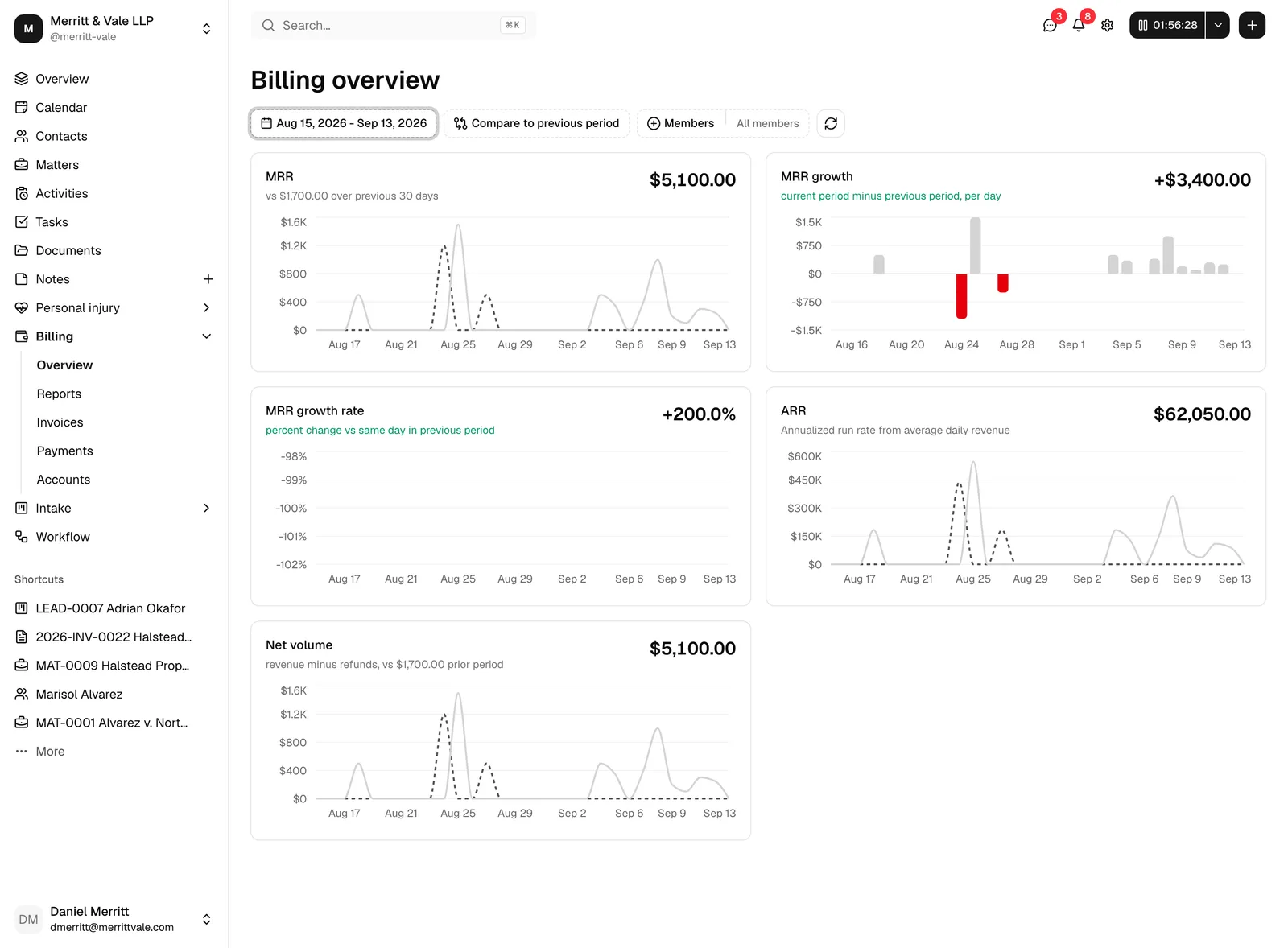
- The page opens with the heading Billing overview. A row of filter buttons sits at the top, and a grid of metric cards fills the rest of the page.
When the page first loads (and whenever you change a filter), the cards briefly show a loading placeholder while the figures are calculated, then fill in with your numbers.
Read the headline metrics
Each card shows one headline number for the selected date range, a short explanation underneath, and a small chart. Here is what each one means in plain terms.
First, two underlying concepts the cards are built from:
- Revenue is the money coming in: payments you have received plus any fees, added together for the selected period.
- Refunds are money going back out to clients. On this page refunds are shown as a positive amount that is subtracted from revenue, so a refund always reduces your totals rather than inflating them.
The cards on the page are:
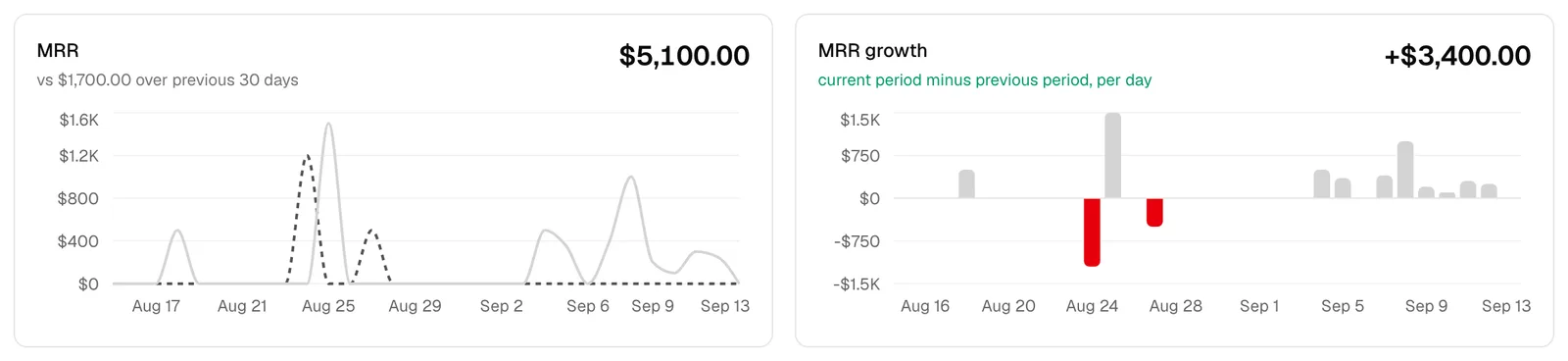
- MRR shows your total revenue for the selected date range. (The label uses the common "monthly recurring revenue" shorthand, but here it simply means the revenue total for whatever range you have chosen.) Under the number, the card notes how this compares to the same length of time in the previous period, for example "vs $4,200.00 over previous 7 days".
- MRR growth shows revenue this period minus revenue in the comparison period. A positive number (shown in green with a plus sign) means you earned more than the comparison period; a negative number (shown in red) means you earned less.
- MRR growth rate shows the same change as a percentage instead of a dollar amount, for example "+12.5%". If there was no revenue in the comparison period to measure against, this reads as a dash and the card notes "No prior-period revenue to compare".
- ARR is your annualized run rate. It takes your average daily revenue across the selected range and projects it across a full year (365 days). It answers "if every day looked like the days in this range, how much would we make in a year?" The card describes this as "Annualized run rate from average daily revenue".
- Net volume is your revenue minus refunds for the selected range. This is your true take after money returned to clients. The card shows the comparison figure too, for example "revenue minus refunds, vs $5,800.00 prior period".
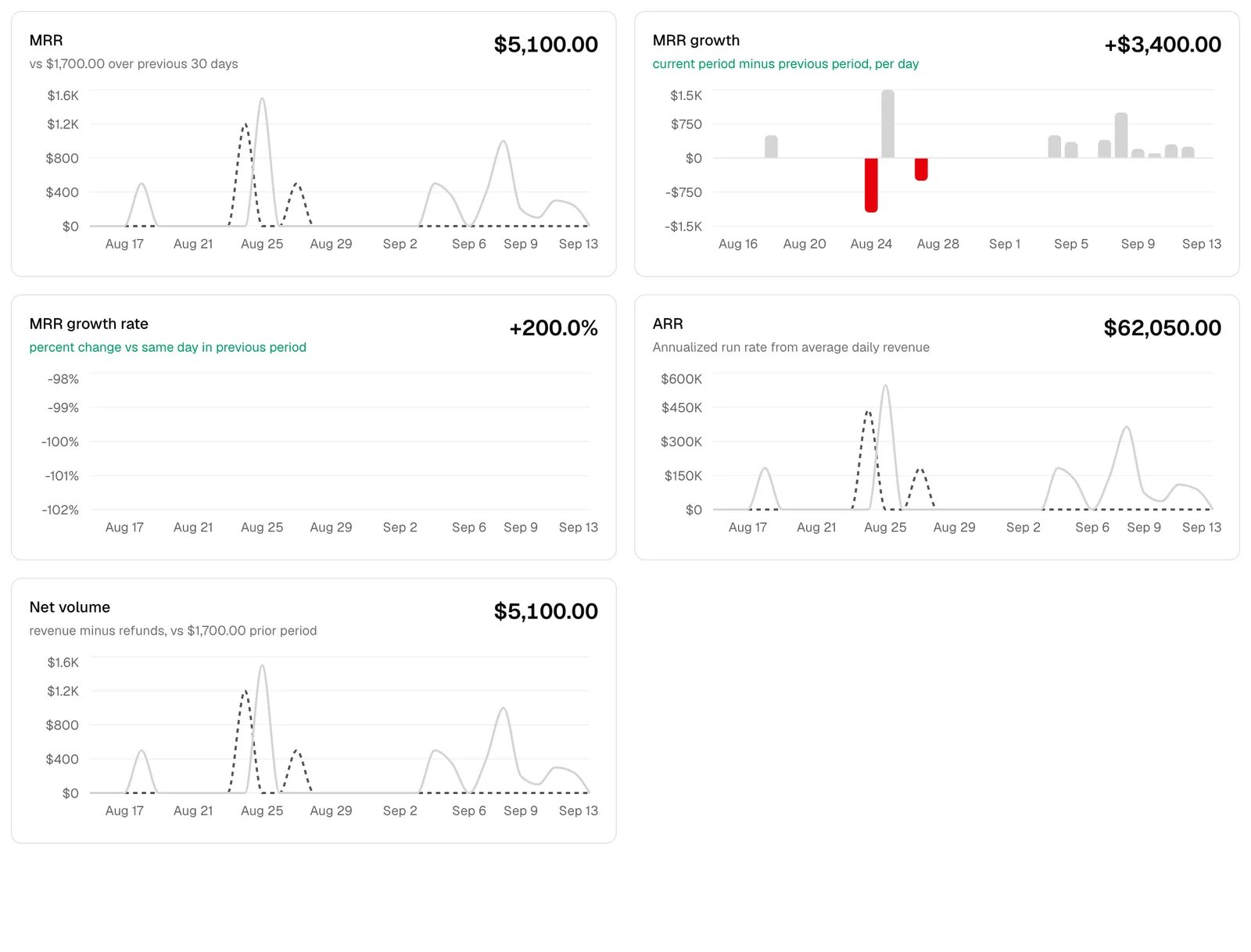
Tip: Hover over any point on a chart to see a tooltip with the exact dollar amount (or percentage) for that day, labeled This period or Previous period.
Common questions
- Why is MRR the same as my revenue? On this page, "MRR" is a label for the revenue total of the selected range. The shorter your range, the smaller this number will be.
- Why does a refund not make my Net volume go up? Refunds are money leaving your firm, so they are subtracted. A fully refunded payment leaves you with zero net for that amount, which is the intended behavior.
- Why is a growth rate showing a dash? A percentage change needs a starting value. If the comparison period had no revenue, there is nothing to divide by, so the rate is shown as a dash.
Change the date range
Every number on the page is driven by the date range you choose. By default the page shows the last 7 days, including today.
- Click the date button at the top left (it shows the current range, for example "Jun 14, 2026 - Jun 20, 2026", or Pick a date range if none is set).
- In the calendar that opens, click the first day of the range you want, then click the last day. The two clicks set the start and end of the range.
- The page recalculates automatically as soon as a complete range is selected. There is no separate apply button.
Choose a single day by clicking the same date twice. Choose a longer span (a month, a quarter, a year) by picking a start and end far apart. The growth and comparison numbers always compare against an equal length of time, so the labels under the cards update to match (for example "over previous 30 days").
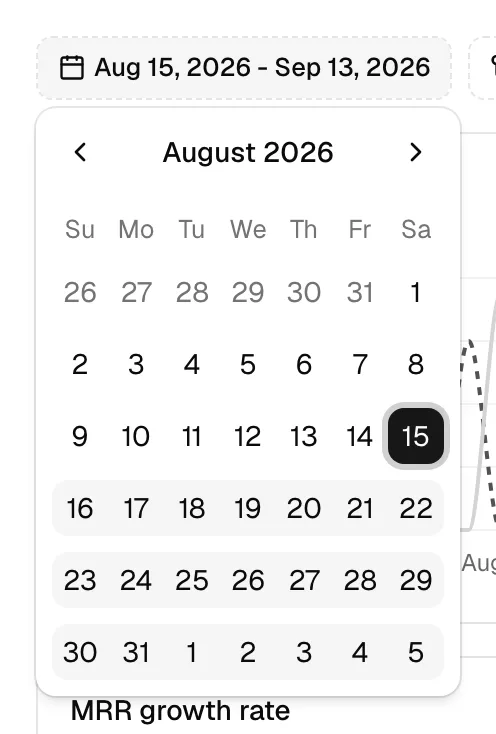
Note: The range is inclusive of both the first and last day you pick, so a Monday-to-Sunday selection counts seven full days.
Important: A range longer than 370 days is refused, with the message "Choose a date range of 370 days or less to load the billing overview". Look at a year at a time, or split a longer span in two.
Compare to the previous period or a custom period
Next to the date button is the comparison control. It decides what the dashed comparison line and the "vs" hints are measured against.
- Click the comparison button. By default it reads Compare to previous period.
- In the popover, choose one of two options:
- Previous period automatically shifts the comparison to the block of days immediately before your selected range, matching its length. For example, if you select the last 7 days, it compares against the 7 days before that. The popover previews the exact dates it will use.
- Custom range lets you compare against any range you choose. When you select this option, a calendar appears below it. Click a start and end date to set the period you want to compare against.
- The page recalculates as soon as a valid comparison is set. The comparison appears on each chart as a dashed line (labeled Previous period) running alongside the solid current-period line (labeled This period).
The comparison you choose drives the "vs" figures in the card hints and the MRR growth and MRR growth rate cards, so picking a fair comparison period matters when you are judging whether you are up or down.
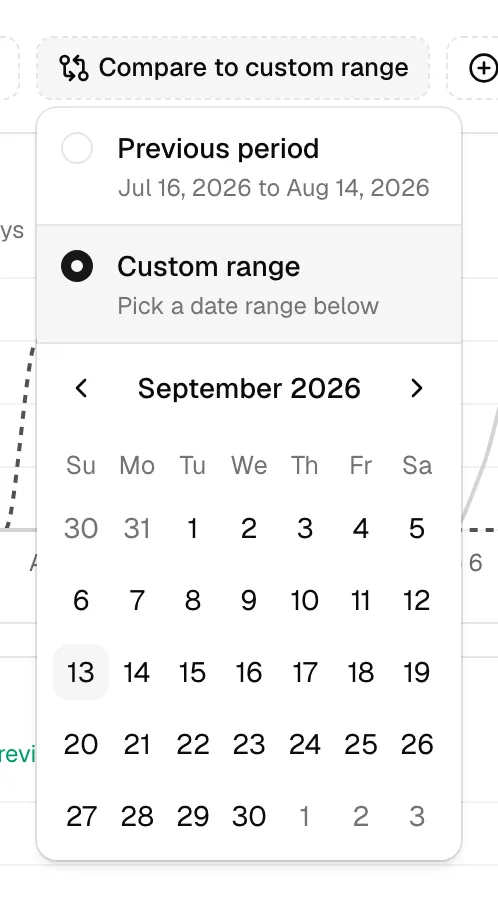
Tip: Use Custom range to compare against the same month last year, or against a standout month, rather than just the period immediately before. Use Previous period for quick week-over-week or month-over-month checks.
Filter by member (per-member view)
By default the overview shows firm-wide totals. You can narrow it to one or more members to see the revenue allocated to their work.
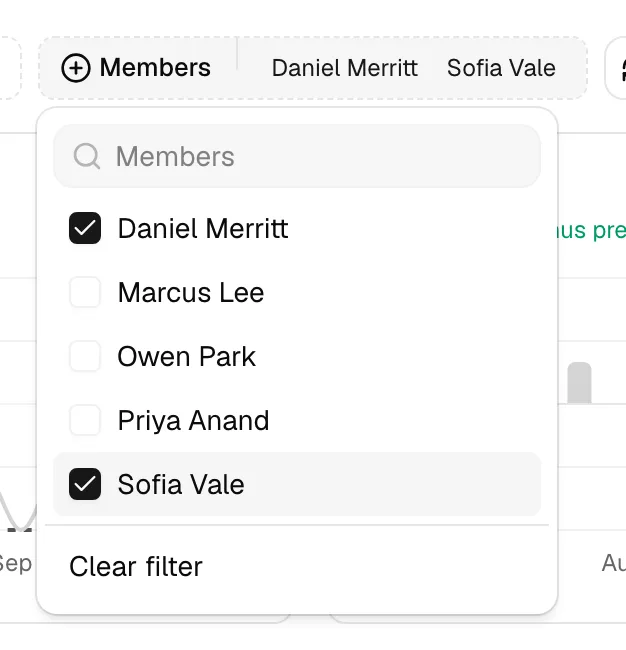
- Click the Members button. With nothing selected it reads All members.
- In the popover, type a name in the search box to find a member, or scroll the list.
- Click a member to select them. A checkmark appears, and you can select several members at once. The button updates to show the selected names (or a count like "3 selected" when you pick more than two).
- The page recalculates to show only revenue, refunds, and net allocated to the selected members.
- To return to the firm-wide view, open the popover again and click Clear filter, or unselect each member.
When one or more members are selected, the figures come from per-member allocation snapshots rather than firm-wide totals. This lets you see how much of the firm's revenue is attributable to each person's matters.
Important: Per-member figures are based on how revenue is allocated across the members on each matter. If a member shows a smaller total than you expect, check that they are assigned on the relevant matters and that the underlying transactions have posted. A member with no allocated, posted revenue in the range will show zeros.
Read the daily charts and the growth sub-charts
Each card carries a small chart under its headline. They all share the same horizontal axis of days across your selected range, so you can read them together.
- The MRR chart is a line chart of daily revenue. The solid line is This period; the dashed line is Previous period, aligned day-for-day so you can see where you were ahead of or behind the comparison.
- The ARR chart plots the annualized run rate for each day, again with a solid current line and a dashed comparison line.
- The Net volume chart plots daily net (revenue minus refunds), with the same two lines.
- The MRR growth chart is a bar chart. Each bar is one day's revenue minus the comparison day's revenue. Bars above the center line (positive days, where you beat the comparison) are colored normally; bars below the line (negative days, where you fell short) are shown in red.
- The MRR growth rate chart is a line of the day-by-day percentage change versus the same day in the comparison period.
Days with no activity appear as gaps at zero rather than missing points, so a flat stretch on a chart means there was simply no posted revenue or refund on those days.
Tip: Read the charts together. If MRR is flat but Net volume dips on a given day, a refund landed that day. If a single tall bar dominates the growth chart, one big payment skewed that day's comparison.
Refresh the data
The overview loads fresh figures each time you open it or change a filter, but you can also reload on demand.
- Click the refresh button at the right end of the filter row (the circular-arrows icon).
- While the data reloads, the icon turns into a spinner and the button is briefly disabled. The cards show their loading placeholders, then refill with the latest numbers.
Use refresh after you have just recorded a payment, posted a transaction, or made a change on another page and want the overview to reflect it without leaving and returning.

Troubleshooting
- A red error banner appears. If the figures cannot be loaded, the page shows a short error message with a Dismiss link. Click Dismiss to clear it, then try Refresh. If it persists, check that your date range is valid and that you still have access to billing.
- The numbers look lower than expected. Confirm your date range covers the days you have in mind, and that the activity you are looking for has actually posted. Drafts, pending payments, and voided records are not included.
- Nothing shows for a member. Make sure the member is assigned on the relevant matters and that those matters have posted, allocated revenue in the selected range.
How the overview is fed, and where to go next
The Billing overview is the downstream mirror of the everyday billing work you do elsewhere. Money flows through the system roughly like this:
- Time and expenses are captured as billable activities on a matter. See Time and expense tracking.
- Those activities become invoice line items when you bill a matter. See Creating and sending invoices.
- When a client pays, you record a payment, which posts as revenue. See Recording and managing payments.
- Trust and account transactions, including refunds and fees, also post here and adjust your refunds and net. See Accounts, trust, and transactions.
The overview reads all of those posted transactions and rolls them into the headline numbers and charts. To act on anything you see, use the sibling pages in the Billing group:
- In the sidebar, under Billing, click Invoices to create, send, or review invoices.
- Click Payments to record a payment or review a chart-driven payments breakdown.
- Click Accounts to manage your operating and trust (IOLTA) accounts. A trust account, sometimes called an IOLTA account, holds client funds separately from your firm's own money. The Accounts page is where refunds, fees, and transfers are recorded.
Note: Because the overview only reflects posted transactions, the fastest way to make a number move here is to complete the corresponding action on Invoices, Payments, or Accounts, then come back and click Refresh.
Tip: The overview answers "how are we doing". For the reports an accountant asks for, aged receivables, work in progress, realization, revenue splits, and the trust reports, see Financial reports and exports.