Document placeholders
Placeholders are reusable fill-in-the-blank variables you put inside a rich-text document, written with double curly braces like {{client_name}}. You write the document once with placeholders where the details go, then fill in a value for each one and watch every matching spot update at the same time. This is ideal for engagement letters, retainer agreements, and any template where the wording stays the same but a few names, dates, or amounts change each time.
The document keeps the {{placeholder}} tokens when it is saved, so it stays a reusable template. Filling in values previews them in the editor and carries them into what you print, download, or export, without changing the underlying template.
Note: Placeholders are part of the rich-text file editor, so they apply to documents you create inside Esqase, not to uploaded PDFs or Word files. To learn about the editor itself, see Editing documents (the file editor). Placeholders pair especially well with Document templates.
Before you begin
- You manage placeholders from the Placeholders tab in the editor's right-hand side panel.
- What you can do depends on your role's permissions for documents:
- View access lets you open the Placeholders tab and see the placeholders and their values, but the fields are read-only.
- Update (edit) access lets you add placeholders, fill in their values, and remove them.
- Firm owners can always do everything.
- Placeholder values are saved with the document, not shared across your firm. Two documents that both use
{{client_name}}each keep their own value.
What a placeholder is
A placeholder is a named token, written {{key}}, that stands in for a value you fill in later. Placeholder keys use lowercase letters, numbers, and underscores (for example client_name, matter_no, opposing_party).
- While a placeholder has no value, it shows in the document as its token, for example
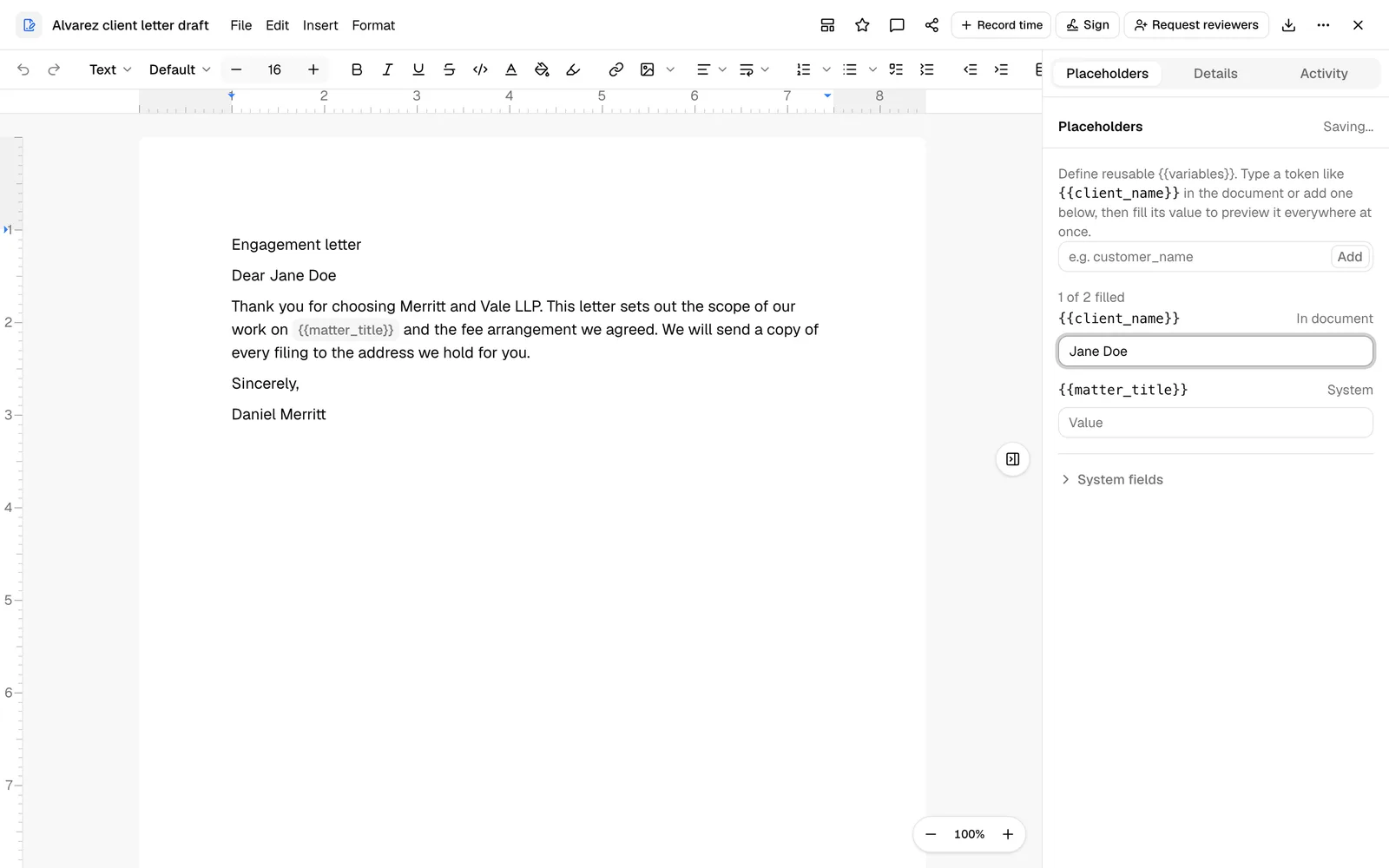
{{client_name}}. - Once you fill in a value, every place that token appears immediately shows the value instead, for example Jane Doe.
- The saved document keeps the
{{client_name}}token, not the value. That is what makes the document reusable: you (or a colleague) can open it later, fill in different values, and reuse the same wording.
There are two kinds of placeholder:
- Custom placeholders are ones you invent for this document, such as
{{settlement_amount}}. - System fields are a built-in set of common merge fields (such as
{{contact_name}},{{firm_name}}, and{{date_today}}) that Esqase offers as a ready-made palette. You still fill in their values yourself (see Good to know).
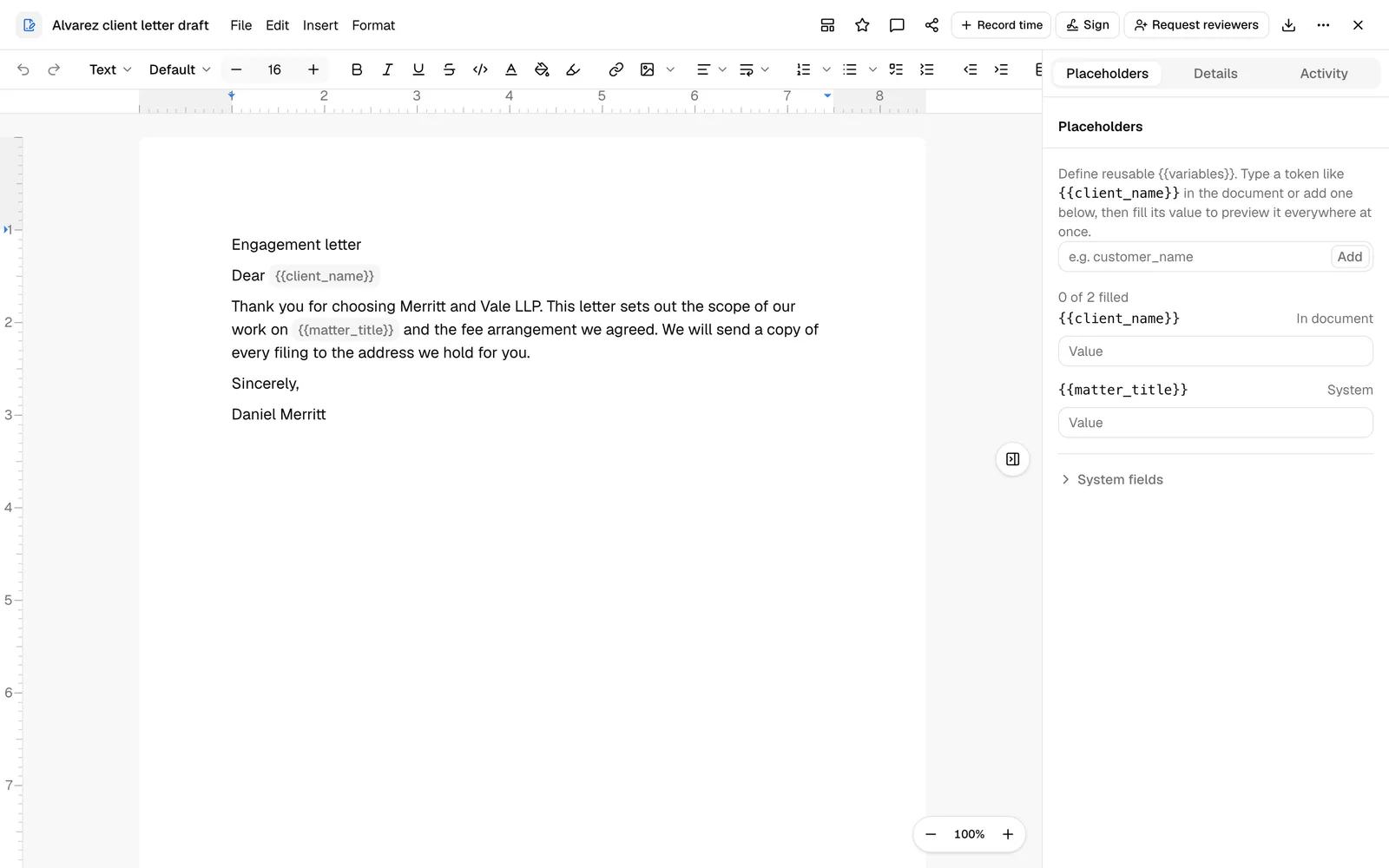
Open the Placeholders panel
- Open a rich-text document in the editor (click its name or Open in the documents list).
- Click the round panel toggle on the right edge of the page to open the side panel.
- Click the Placeholders tab. (The panel also has Comments, Details, and Activity tabs.)
The panel lists every placeholder in the document, each with a field for its value, and a collapsible System fields section at the bottom.
Tip: Clicking any placeholder in the document (whether it is filled in or still showing its {{token}}) opens this panel on the Placeholders tab, so you can jump straight to editing its value.
Add a placeholder
There are two ways to add a placeholder, and you can mix them freely.
Type it in the document
- Click into the document where you want the variable to go.
- Type the placeholder using double curly braces, for example
{{client_name}}. - When you finish typing the closing
}}, Esqase turns the text into a placeholder chip and adds it to the Placeholders list automatically.
This is the quickest way while you are writing: type the token inline, and it shows up in the panel ready to fill in.
Add it from the panel
Use this to drop a placeholder into the document without typing the braces yourself.
- Click in the document where you want the placeholder to go (so Esqase knows where to place it).
- Open the Placeholders tab.
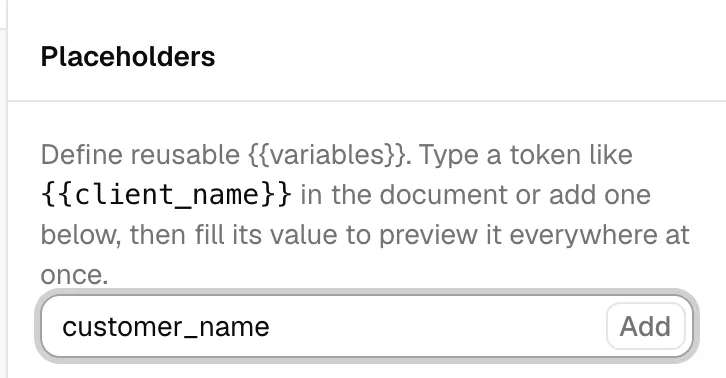
- In the Add field at the top, type a key, for example
matter_no. You can type a bare key (matter_no) or a full token ({{matter_no}}); Esqase strips the braces to the correct format for you. - Click Add (or press Enter).
Esqase inserts the {{matter_no}} token into the document at the spot where your cursor last was, and the placeholder appears in the list with a value field. If you had not placed your cursor in the body yet, the token is added at the end of the document.
Note: Keys must use lowercase letters, numbers, and underscores. If you enter something else, you will see "Use lowercase letters, numbers, and underscores."
Fill in values
This is where placeholders do their work: type a value once and it appears everywhere that placeholder is used.
- In the Placeholders list, find the placeholder's row.
- Type into its Value field.
As you type, every place that placeholder appears in the document updates to show the value. Your changes save automatically: a small Saving... and then Saved indicator appears at the top of the panel. Clear the value to go back to showing the bare {{token}}.
Tip: Because the document still stores the tokens, you can fill in values to preview a finished draft, then reuse the same document later with a fresh set of values.
Format a placeholder
A filled-in placeholder reads as a natural part of the sentence rather than a highlighted tag:
- A placeholder with a value renders as plain text in the same font, size, weight, and color as the text around it.
- A placeholder still showing its
{{token}}appears as a small shaded chip, so the blanks that remain are easy to spot.
You can also style a placeholder directly so its value matches the surrounding text:
- Select the placeholder in the document (click it, or drag-select across it together with nearby text).
- Apply any formatting from the toolbar or with keyboard shortcuts: bold, italic, underline, strikethrough, text color, highlight, font family, or font size.
The value updates to match, the formatting is saved with the document, and it carries into print, PDF, and Word exports.
Use a built-in system field
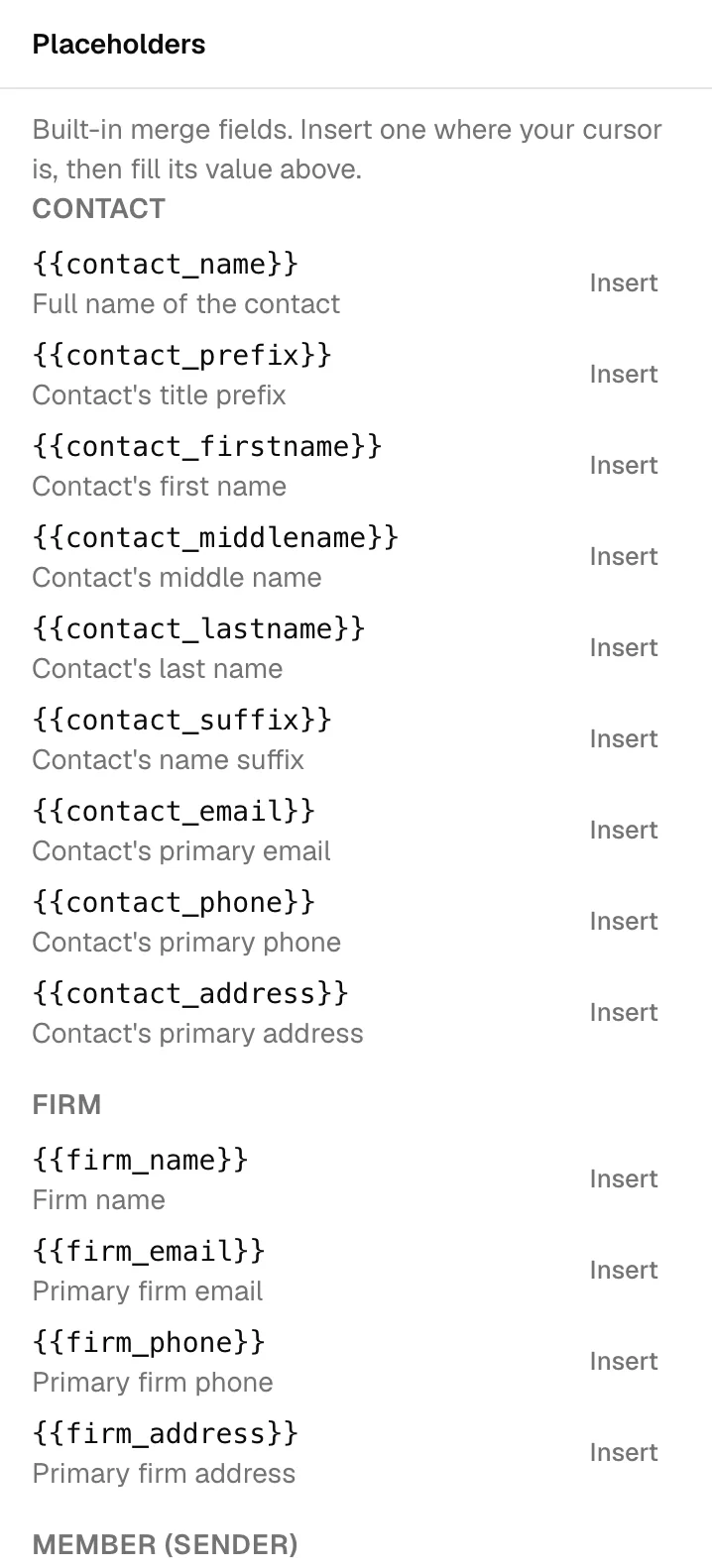
Esqase includes a palette of common merge fields so you do not have to remember their names.
- Click in the document where you want the field to go.
- In the Placeholders panel, expand the System fields section at the bottom.
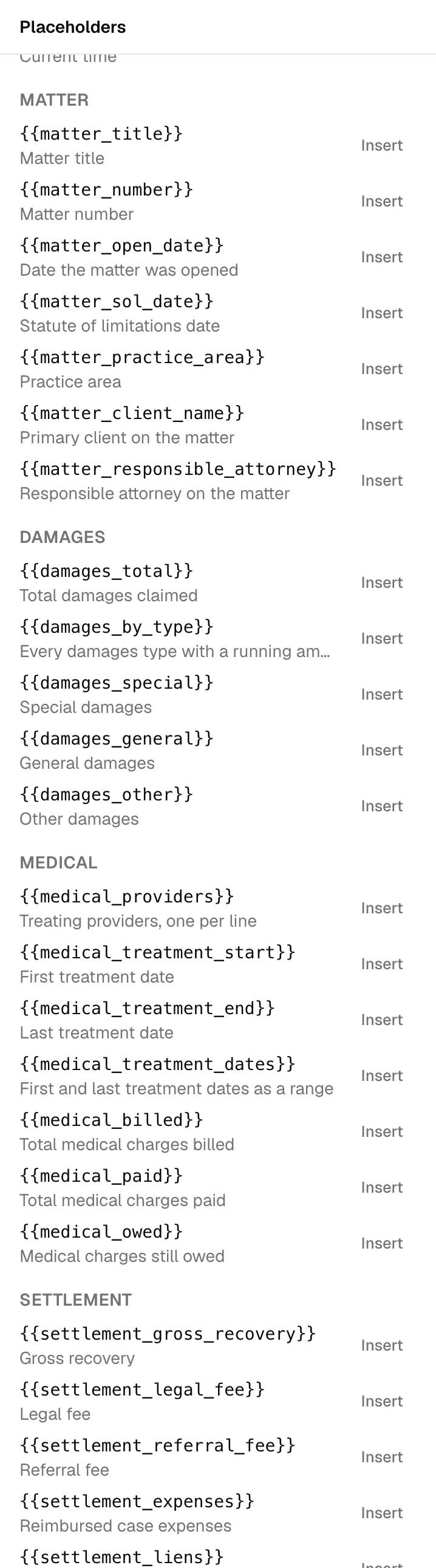
- Browse the groups: Contact, Firm, Member (sender), Event, Form, Task, Invoice, Document, Access, Today, and Matter. On a document filed under a matter that is tracked as a personal injury case, three more follow: Damages, Medical, and Settlement. Each field shows its token and a short description.
- Click Insert next to the field you want. Esqase places its
{{key}}token at the spot where your cursor last was (or at the end of the document if you have not clicked into the body yet).
Once it is in the document, the field appears in the main list above, where you can fill in its value like any other placeholder. You can also just type the token (for example {{firm_name}}) directly in the body.
Matter and personal injury merge fields
Four groups behave differently from the rest of the system fields: instead of waiting for you to type a value, they are filled in from the matter's own records when the document is created.
The Matter group
Offered on any document filed under a matter:
| Token | What it fills in |
|---|---|
{{matter_title}} | The matter's title |
{{matter_number}} | The matter's number |
{{matter_open_date}} | The date the matter was opened |
{{matter_sol_date}} | The statute of limitations date |
{{matter_practice_area}} | The practice area |
{{matter_client_name}} | The primary client on the matter |
{{matter_responsible_attorney}} | The responsible attorney |
Personal injury merge fields
Three more groups appear when the matter is tracked as a personal injury case. They exist so a demand letter or a settlement statement can be templated once instead of retyped for every case. See Personal injury overview.
- Damages:
{{damages_total}},{{damages_by_type}}(every type with its running amount, one per line), and one token per damage type:{{damages_special}},{{damages_general}},{{damages_other}},{{damages_actual}},{{damages_moral}},{{damages_temperate}},{{damages_nominal}}, and{{damages_exemplary}}. - Medical:
{{medical_providers}}(the treating providers, one per line),{{medical_treatment_start}},{{medical_treatment_end}},{{medical_treatment_dates}}(the two as a range),{{medical_billed}},{{medical_paid}}, and{{medical_owed}}. - Settlement:
{{settlement_gross_recovery}},{{settlement_legal_fee}},{{settlement_referral_fee}},{{settlement_expenses}},{{settlement_liens}},{{settlement_outstanding_balances}},{{settlement_net_to_client}}, and{{settlement_ladder}}(the whole deduction ladder, one line per deduction, with the gross recovery above it and the net to client below).
How they get filled in
- Write a template that uses the tokens you want, and save it as a document template. See Document templates.
- From a matter's Documents tab, create a new document from that template.
- Open the Placeholders panel. The Matter and personal injury tokens already have their values.
A few rules govern this:
- It happens at creation, from a template, into a matter's folder. A document created anywhere else, or written from scratch, gets nothing filled in.
- A value you already set in the template is never overwritten.
- A token with nothing behind it stays a token. If the case has no settlement yet,
{{settlement_net_to_client}}is left as written rather than blanked, so you can see what did not resolve. {{settlement_liens}}and{{settlement_outstanding_balances}}work before a settlement exists, by totalling the case's liens and balances. The other settlement tokens wait for a settlement.- Access is respected. A member without View access for Personal injury does not see the three groups in the panel at all, and the tokens are not filled in for a document they create. The document is created as normal, with no error.
Remove a placeholder
You can remove a placeholder from the list only when it is not currently used in the document body (its row is labeled Custom). To remove a placeholder that is in the document, first delete the chip from the document text; it then leaves the list automatically.
- In the Placeholders list, find a placeholder labeled Custom.
- Click the X (remove) control on its row.
Each row also shows where the placeholder stands:
- In document: the token is used in the document body.
- Custom: you added it but it is not in the document yet.
- System: it is one of the built-in merge fields.
How placeholders appear in exports
When you print, download, or export a document, Esqase uses the values you filled in:
- Print and PDF download show the filled-in values exactly as they appear on screen.
- Word (.docx) export also replaces each placeholder with its value.
The document you keep editing still holds the {{tokens}}, so exporting a filled-in copy never turns your template into a one-off. See Export a document.
Good to know
- Most system fields are not filled in automatically. A field like
{{firm_name}}behaves like any other placeholder: it stays a token until you type a value for it. The built-in list is a convenient, well-named starting set, not an automatic data merge from your contact records. The exceptions are the Matter, Damages, Medical, and Settlement groups, which are filled in for you when you create a document from a template into a matter's folder. See Personal injury merge fields. - Shared and signing links show the raw tokens. If you share a rich-text document by link, the recipient sees the
{{tokens}}, not your filled-in values. To send a finished copy, turn the document into a PDF first, because a PDF keeps your values: use Download > PDF (.pdf) to share it yourself, or the Sign button to save a PDF copy in Esqase and collect signatures on it (see Send a document for signature). Fill in every value before you do, since an empty placeholder still prints as its token. - Values are per document. Filling in
{{client_name}}on one document does not fill it in on another.
Common questions
- Will filling in values change my template? No. The saved document keeps the
{{tokens}}. Values are stored separately, so the document stays reusable. - I typed
{{name}}but it did not turn into a chip. Make sure you typed both closing braces}}and that the key uses only lowercase letters, numbers, and underscores. A key with spaces or capital letters is left as plain text. - Do placeholders carry over when I create a document from a template? Yes. Starting a new document from a template brings over its placeholders along with its content and page setup. See Document templates.
- Can clients see the placeholder names? On a shared or signing link they see the raw
{{tokens}}. Download a PDF to share a copy with the values filled in.