Importing matters from CSV
If you are moving your open and closed cases into Esqase from another practice-management tool, or you simply have a long list of matters in a spreadsheet, you do not have to open them one at a time. The Import matters tool reads a CSV file and opens many matters for your firm in a single pass, up to tens of thousands of rows at once.
This page explains when to use the import, how to prepare a clean file, how to run the import and track its progress, and how to fix and re-run any rows that were skipped.
Before you begin
A few things to know before you start:
- You need Create access for matters. The Import matters action only appears if your role can create matters. Firm owners, administrators, and attorneys have this by default. If your role is view-only for matters, you will not see the option. See Roles and permissions.
- You need at least one practice area. Every matter belongs to a practice area, and the importer matches each row to one of your firm's existing practice areas by name. If you have not set any up yet, do that first. See Practice areas and stages.
- A CSV file is required. Esqase imports comma-separated value (
.csv) files only. Most spreadsheet programs, including Microsoft Excel, Google Sheets, and Numbers, can save or export a sheet as CSV. If you have an.xlsxor.numbersfile, save a copy as CSV first. - Import only opens new matters. The tool always creates new matters. It does not look for matching existing matters to update or merge. See Import only opens new matters before importing a list that may overlap with matters you already have.
Tip: If your firm has custom fields on matters, set them up first so they appear as columns in the template. See Custom fields.
When to use CSV import
Use a CSV import when you have more than a handful of matters to open and they already exist somewhere you can export to a spreadsheet. Common cases:
- Moving your case list over from another practice-management system when you first set up Esqase.
- Backfilling a batch of historical or closed matters so your records are complete.
- Opening many similar matters at once (for example, a set of cases that all share a practice area).
For one or two matters, it is usually faster to open them by hand with New matter on the Browsing matters page, which walks you through the full guided wizard. The importer shines when the same effort would mean repeating the same steps over and over.
Open the import tool
There are two ways into the importer.
From the Matters page (when you already have matters):
- In the sidebar, click Matters.
- In the top-right corner, click the More matter options button (the "..." icon next to New matter and Matter templates).
- Choose Import matters.
From the empty state (when your firm has no matters yet):
When your firm has not opened any matters, the Matters page shows a No matters yet panel instead of the table, inviting you to get started.
- In the sidebar, click Matters.
- On the No matters yet panel, click Import matters.
Either path opens the Import matters dialog, where the whole import takes place.

Download the CSV template
The fastest way to build a valid file is to start from the template Esqase generates for you. It already has every column in the right order, plus one example row so you can see exactly what each field should look like.
- Open the Import matters dialog (see Open the import tool).
- At the bottom-left of the dialog, click Download template.
- A file named
matter-import-template.csvdownloads to your computer. - Open it in your spreadsheet program.
The template includes:
- A header row naming every column the importer understands.
- One example row showing a complete matter (a title, a description, a practice area, dates in the right format, a status, a client email, and an attorney email). This row is just an illustration, and it is pre-filled with one of your firm's real practice areas and your own email so it would import cleanly as-is. Replace it with your own data or delete it before importing.
Tip: The template opens cleanly in Excel and Google Sheets. Keep the header row exactly as it is. The importer matches columns by their header name, so it is safest to leave the headers alone.
How custom-field columns appear in the template
If your firm has added custom fields to matters, the template automatically includes one extra column for each one, placed after the standard columns. The column header is the field's exact title (for example, a Referral source custom field becomes a Referral source column).
This means the template is personalized to your firm. If you add or rename a matter custom field later, download a fresh template so the columns stay in sync.
Important: If a custom field is marked required, every row in your file must have a value in that column. Rows that leave a required custom field blank are skipped. See Review the skipped-rows report.
📷 Screenshot: The downloaded template open in a spreadsheet, with the header row visible and a firm custom-field column highlighted at the right end of the standard columns.
Prepare your file
Fill in one row per matter. Below is what each column does, in the order they appear in the template. You can leave any column blank unless it is marked required.
Title
The matter's name (for example, Doe v. Smith). This is optional. If you leave it blank, Esqase builds a title for you from the matter's clients and practice area, so a matter is never left unnamed.
Description
A short summary of the matter. Optional. Leave it blank if you have nothing to add.
Practice Area (required)
The area of law the matter belongs to (for example, Personal Injury or Family Law). This column is required, and the value must match the name of an existing practice area at your firm. If the name does not match one of your practice areas, the row is skipped. Set up your practice areas first under Manage practice areas. See Practice areas and stages.
Stage
The stage column the matter should start in within its practice area (for example, Intake or In Progress). Optional. If you fill it in, the value must be a stage that belongs to the practice area in that same row, or the row is skipped. If you leave it blank, the matter goes into the practice area's first stage by default.
Open Date, Close Date, and SOL Date
The matter's key dates, each written in YYYY-MM-DD format (for example, 2026-01-15).
- Open Date is required. A row with a missing or badly formatted open date is skipped.
- Close Date is optional. Fill it in only for matters that are already closed. It cannot be earlier than the open date.
- SOL Date is optional. This is the statute-of-limitations date, the legal deadline after which a claim can no longer be filed.
Any date in the wrong format (for example, 01/15/2026 instead of 2026-01-15) skips the row, so double-check the format before importing.
Status
Whether the matter comes in as Active or Draft. Optional, and the default is Active. Use Draft for matters that are not yet live. Any value other than Active or Draft skips the row.
Client Emails
The clients on the matter, listed by email address. Optional. To list more than one client, separate the email addresses with a semicolon (;), like jane.doe@example.com;john.roe@example.com.
Each email is matched to an existing contact at your firm by email address:
- The first email you list becomes the matter's primary client and its bill recipient.
- An email that matches a contact links that contact to the matter as a client.
- An email that does not match any contact is simply skipped for that row, and the matter still imports with whichever clients did match.
Because clients are matched to contacts you already have, import or add those contacts first if they are not in Esqase yet. See Importing contacts from CSV.
Originating Attorney and Responsible Attorney
The firm members assigned to the matter, each listed by their email address. Both are optional, and each must be the email of an existing member of your firm. Use Originating Attorney for the member who brought in the matter and Responsible Attorney for the member who runs it. See Managing firm members.
Custom-field columns
If your firm has matter custom fields, each appears as its own column after the standard columns, with the field's title as the header. Fill in a value for any you want to set. A column whose custom field is marked required must have a value in every row, or the row is skipped.
A note on the live preview
You do not have to guess whether your file is valid. When you choose the file, Esqase checks every row and shows you a count of rows that are ready and rows that will be skipped, with a few examples, before anything is imported. See Upload and start the import.
📷 Screenshot: A spreadsheet with several prepared matter rows filled in, highlighting the Title, Practice Area, Open Date (in YYYY-MM-DD format), Status, and Client Emails (with a semicolon-separated value) columns.
Upload and start the import
Once your file is ready, upload it and let Esqase check it before you commit.
- Open the Import matters dialog.
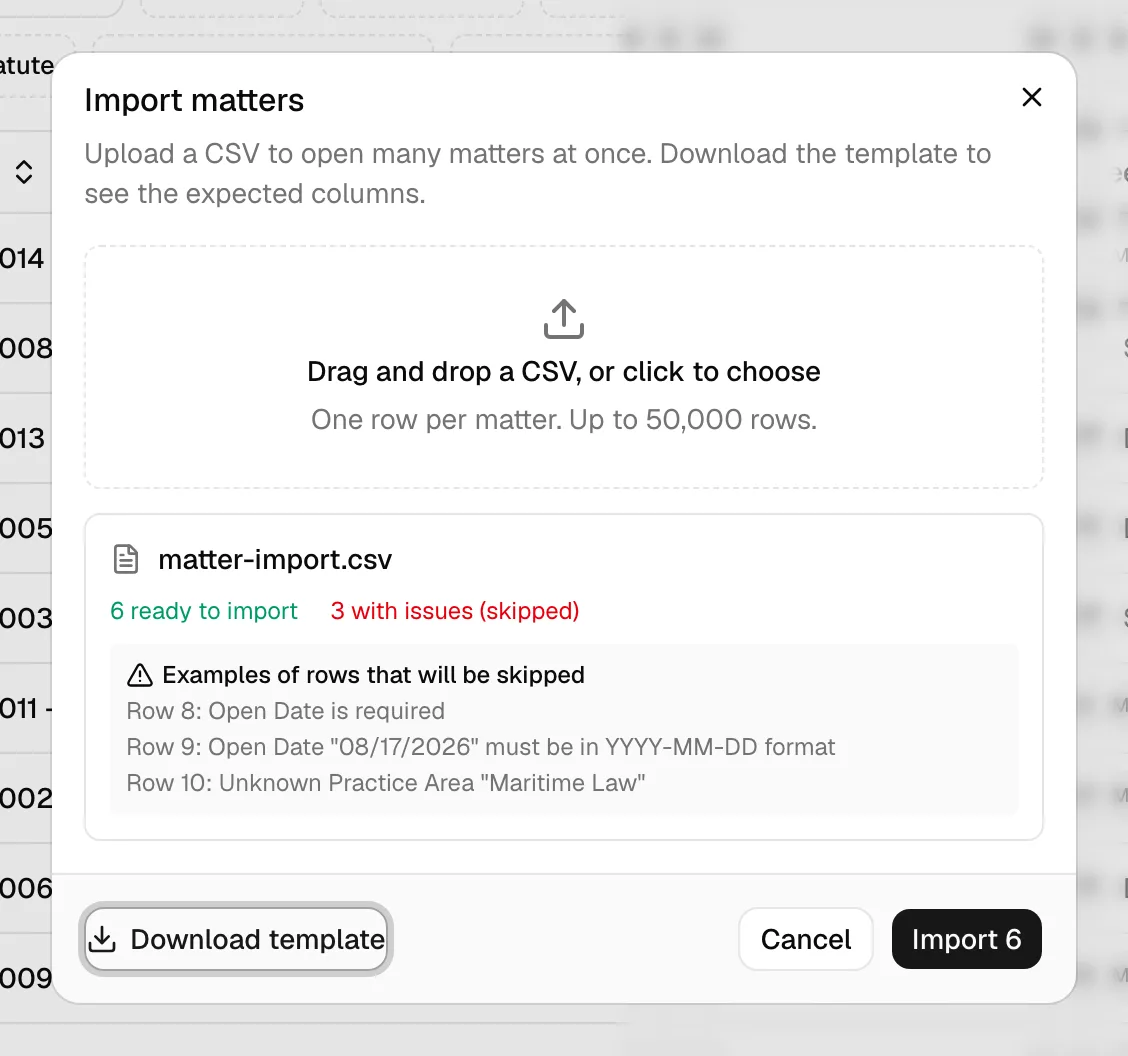
- Drag your CSV file onto the Drag and drop a CSV, or click to choose area, or click the area and pick the file. The importer accepts one file at a time, up to 50,000 rows.
- Esqase shows Checking your file... while it reads and validates every row.
- When the check finishes, the dialog shows a summary for your file:
- A green N ready to import count for rows that passed.
- A red N with issues (skipped) count, shown only if some rows have problems.
- A short Examples of rows that will be skipped list, naming up to a few problem rows and why (for example,
Row 4: Open Date is required).
- Review the summary. If too many rows will be skipped, you can fix the file now and re-select it before importing anything.
- When you are happy, click the Import N button (where N is the ready-to-import count). The button is disabled if no rows are valid.
Esqase then uploads the file and begins importing. You will see an Uploading file... progress bar, followed by an Importing matters... stage.
Note: The importer cannot read a file that is missing the expected columns, so if you upload a CSV that does not look like a matter file, you will be told to download the template and try again. It also rejects a file that has two columns with the same name (for example, two Stage columns) and tells you which one to remove, because duplicate columns would quietly drop data.
Track progress for large imports
Large files import in the background, so you are never stuck staring at a frozen window, and the rest of the app stays fully responsive while the import runs.
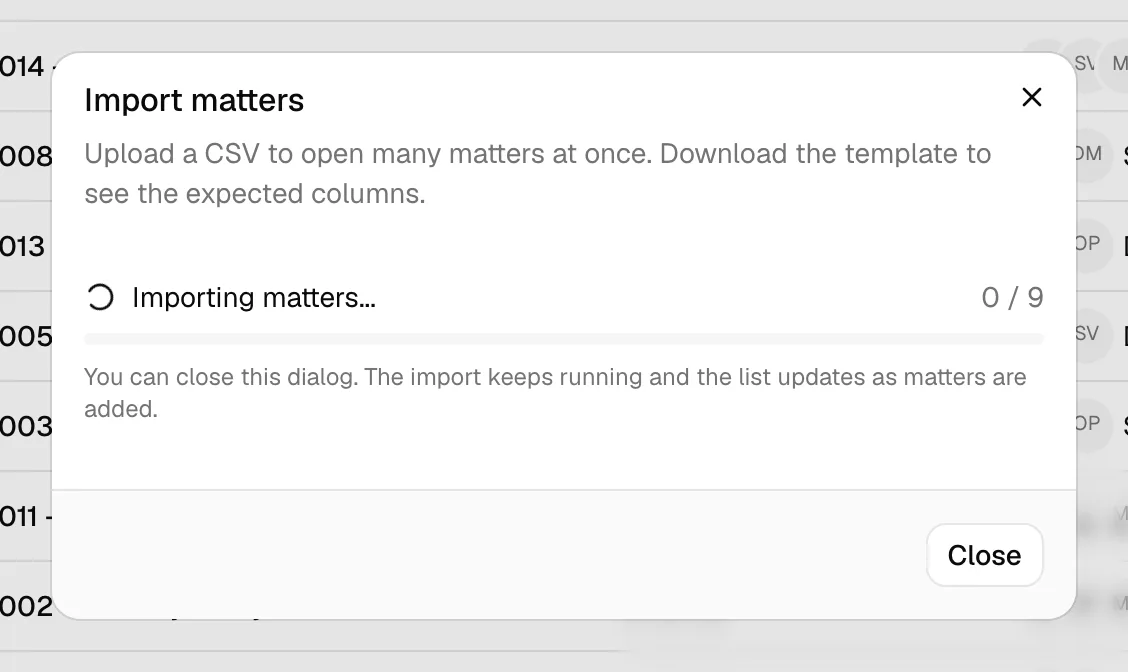
- During import, the dialog shows an Importing matters... bar with a running processed / total count that climbs as matters are opened.
- A line under the bar reads: "You can close this dialog. The import keeps running and the list updates as matters are added." You can safely click Close and keep working. The matters list refreshes on its own as new matters land.
- When the import finishes, the dialog (if still open) switches to a completion summary, and a toast notification tells you how many matters were imported.
Note: An import is deliberately quiet for everyone else. Colleagues named on the imported matters are not sent an Added to a matter notification, because a bulk load of historical files is not work anyone is waiting on. Adding someone to a matter by hand afterwards does notify them. See Notifications.
The completion summary shows one of three outcomes:
- Import complete with a green check, when every valid row was opened.
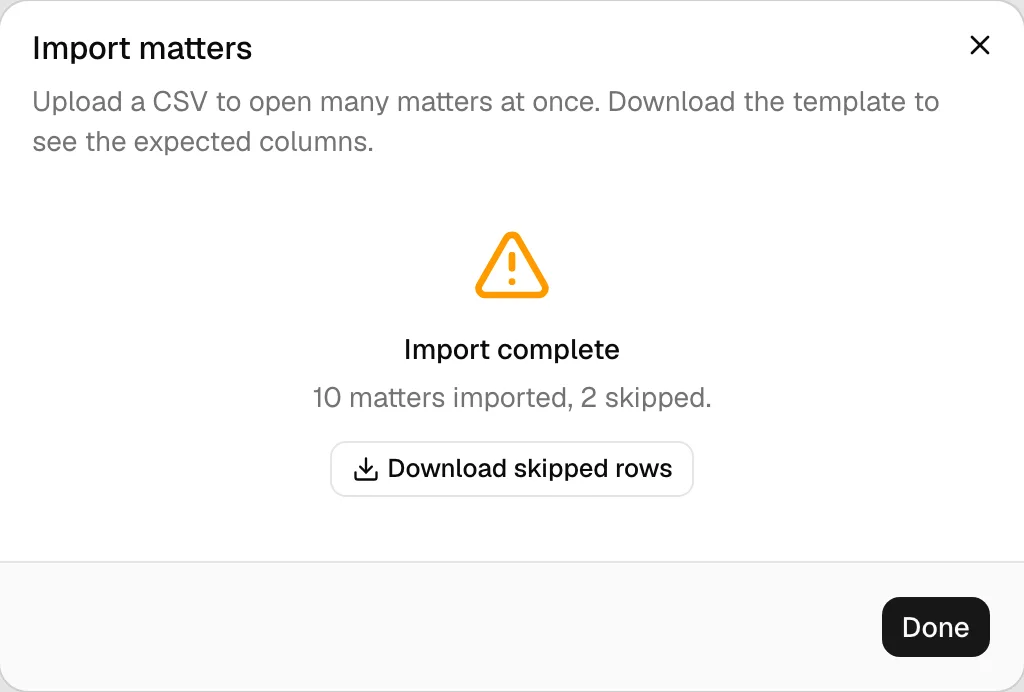
- Import complete with an amber warning icon, when some rows were skipped. It reads, for example, "120 matters imported, 5 skipped." A Download skipped rows button appears so you can fix those rows.
- Import failed with a red icon, if the file could not be processed at all. This is rare and usually means the file itself was unreadable; check it and try again.
Tip: Closing the dialog does not cancel the import. To check on it, just return to the Matters page; newly opened matters appear in the list as they are created.
Review the skipped-rows report
When some rows are skipped, the rest of your matters are still imported. Only the problem rows are left out, and Esqase gives you a report of exactly which ones and why.
- On the completion summary (the Import complete screen with the amber warning), click Download skipped rows.
- A report file downloads to your computer. Open it in your spreadsheet program.
The report is itself a CSV. Each row is a skipped matter and includes:
- A Row column pointing to the row number in your original file, so you can find it quickly.
- An Error column explaining why the row was skipped, in plain language (for example, "Practice Area is required" or "Open Date must be in YYYY-MM-DD format").
- The original columns from your file, echoed back so you have the data in front of you.
To fix and re-import the skipped rows:
- Open the skipped-rows report.
- Correct each row using the Error column as your guide. You can edit the report directly, since it already contains all the original columns.
- Delete the Row and Error columns (they are only there to help you), leaving a clean matter file with the standard headers.
- Save the file as CSV.
- Open the Import matters dialog again and upload this corrected file.
Because import always opens new matters, only re-upload the rows you previously fixed. Do not re-upload your whole original file, or the rows that already imported successfully will be opened a second time.
Common reasons a row is skipped
- Practice Area is blank, or its value does not match an existing practice area at your firm.
- Stage does not match a stage of that practice area.
- Open Date is blank, or a date column is not in
YYYY-MM-DDformat (or a close date falls before the open date). - Status is something other than
ActiveorDraft. - A client or attorney email is not a valid email address.
- A required custom field column is left blank.
Note: A client email that simply does not match any contact does not skip the row. That client is left off and the matter still imports. Only an email that is not a valid email address (a formatting problem) skips the row.
Import only opens new matters
This is the most important thing to understand before importing a list that overlaps with matters you already have.
The importer only creates new matters. It does not search for existing matters that match a row, and it never updates or merges into a matter you already have. If a matter in your file is already in Esqase, importing the file again will open a second, duplicate matter with its own reference number.
What this means in practice:
- Importing the same file twice opens those matters twice. Import a list only once.
- To update existing matters, edit them directly. Open the matter and use Edit from its workspace or the row's actions menu. See Browsing matters. There is no "update by import" mode.
- When re-importing fixed rows, include only the rows that were skipped, not the rows that already imported. See Review the skipped-rows report.
Important: There is no undo for an import. If you import a file by mistake or open duplicate matters, you will need to archive the affected matters by hand. Review the preview counts carefully before clicking Import.
Troubleshooting
I do not see Import matters anywhere. The action is only available to roles that can create matters. If you have a view-only role for matters, ask a firm owner or administrator to run the import, or to adjust your role. See Roles and permissions.
Every row is being skipped for the practice area. The Practice Area value in your file must match the name of a practice area at your firm exactly. Open Manage practice areas to check the spelling, or download a fresh template (its example row uses one of your real practice areas as a guide). See Practice areas and stages.
Esqase says my file is missing the expected columns. The file does not have the columns the importer needs. Download a fresh template, copy your data into it, and try again.
Esqase says I have a duplicate column. Two columns in your file share the same name (for example, two Stage columns). Remove the duplicate the message names, then re-upload.
My clients are not showing up on the imported matters. Clients are matched to existing contacts by email address. If an email does not match a contact, that client is left off and the matter still imports. Add or import those contacts first, then re-import the affected matters. See Importing contacts from CSV.
The import is taking a while. Large files (many thousands of rows) take time to process, but they run in the background without slowing down the rest of the app. You can close the dialog and keep working; the matters appear in the list as they are opened, and a notification confirms when the import finishes.
Some matters came in twice. The same file was almost certainly imported more than once, or a corrected file included rows that had already succeeded. Remember that import only ever opens new matters. Archive the duplicates from the Matters list.