Your dashboard home (Overview)
Overview is the first page you land on when you sign in, and the page you return to whenever you click Overview at the top of the sidebar. It is your daily starting point: a quick snapshot of the money moving through your firm and short, actionable lists of what needs your attention next, all on one screen. Nothing here is edited in place. Every card and list is a jumping-off point that links you straight to the full record.
This page explains what each part of the Overview shows, how the billing snapshot filters work, what the four work cards put in front of you, and where each list takes you.
Before you begin
- Overview is the sidebar's home link. It sits at the very top of the first navigation group. Clicking it from anywhere brings you back here. See Navigating the dashboard.
- The page is two columns under the billing snapshot. Everything about your own work and your firm's lists runs down the left column, and Feeds fills the right one on its own. On a narrower screen the two columns stack, with Feeds at the bottom. If your role cannot view Feeds, the left column simply spreads across the full width.
- What you see depends on your role. The Overview is built from several independent sections. The billing snapshot, Feeds, and the four firm lists each appear only if your role can view that area, so a missing one means your role does not include view access for it, not that there is no data. The four work cards under the snapshot are the exception: they always appear, and instead of hiding they only ever list records you are allowed to open. See Roles and permissions.
- Everything is scoped to your current firm. If you belong to more than one firm, the Overview reflects the firm shown at the top of the sidebar. Switch firms to see another firm's snapshot.
- This is not the Billing overview. The Overview home is a quick daily digest across events, tasks, invoices, and unbilled work. The separate Billing overview dashboard, under the Billing group, is a deeper financial analytics page. See How this differs from the Billing overview.
The billing snapshot
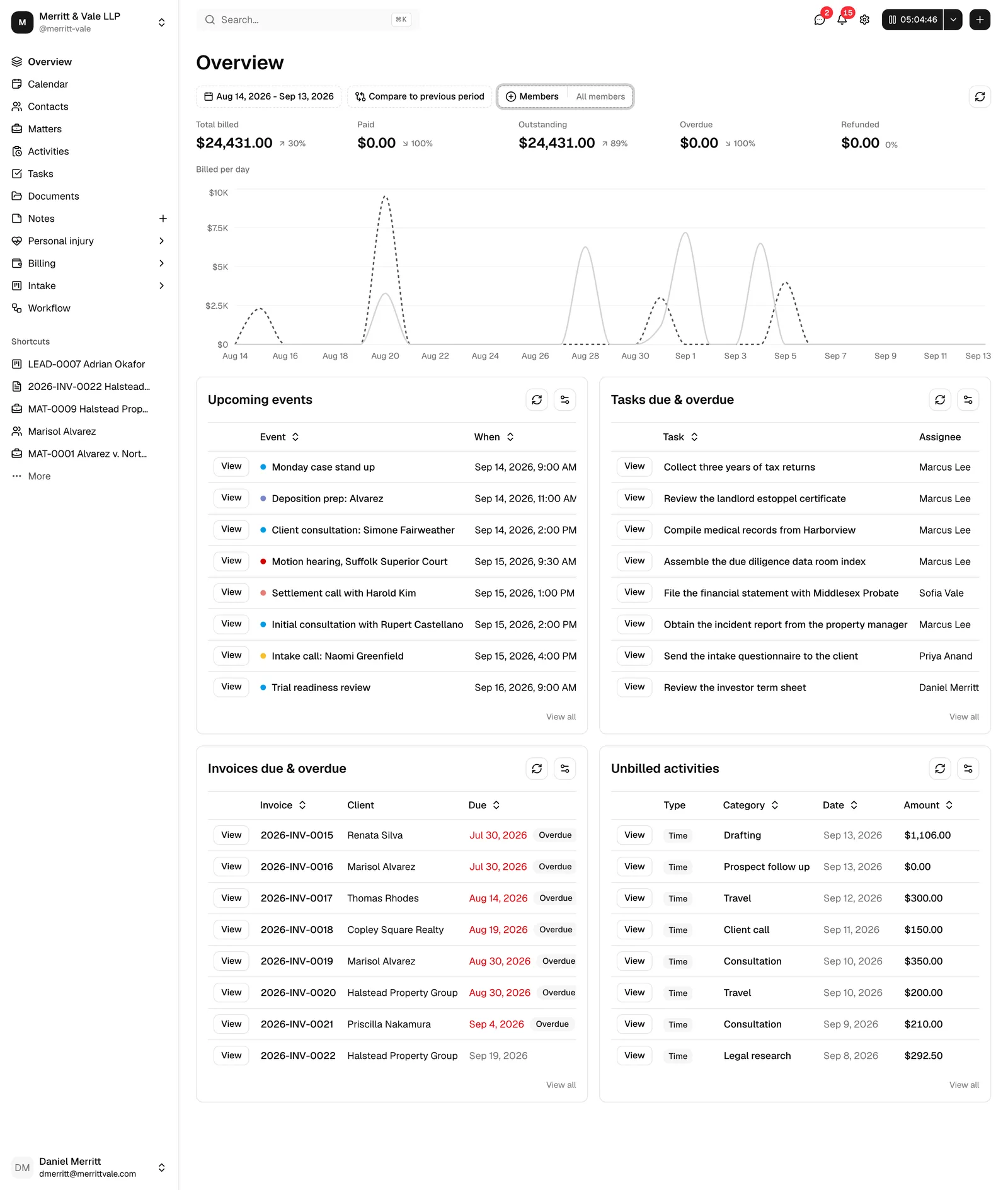
If your role can view billing, the top of the Overview is a compact billing snapshot: a row of filters, five headline numbers, and a per-day chart. It answers "how is the firm doing this week?" without leaving the home page.
If your role does not include view access for invoices, this whole section is hidden and the Overview begins with the list widgets instead.
The filters
A row of controls sits above the numbers and drives everything in the snapshot:
- Date range. Pick the period the snapshot covers. It starts on the last 7 days (today and the six days before it). Click it to choose any range; clearing it shows Pick a date range.
- Compare to. Every number and the chart are compared against an earlier period. The button reads Compare to previous period by default, which is the same-length stretch immediately before your date range. Open it to switch between Previous period and a Custom range you set yourself.
- Members. The snapshot starts scoped to you, the signed-in member, so you first see your own billing. Open the Members filter to add or remove members, or clear it to include the whole firm.
- Refresh. The circular arrow on the right re-pulls the latest figures without reloading the page.
Tip: Because the member filter defaults to you, the numbers on your Overview may look smaller than a firm-wide report. Clear the Members filter to see the firm's totals.
The five metric cards
Below the filters, five cards summarize the selected period. Each shows the amount for your date range and a small up or down arrow with the change against the comparison period.
- Total billed is the value invoiced during the period.
- Paid is the payments received.
- Outstanding is what has been billed but not yet paid.
- Overdue is the portion of outstanding that is past its due date.
- Refunded is the amount refunded.
The change indicator reads as a percentage (for example, an up arrow with 12%), shows New when the comparison period had nothing to compare against, and shows 0% when the figure is unchanged.

The "Billed per day" chart
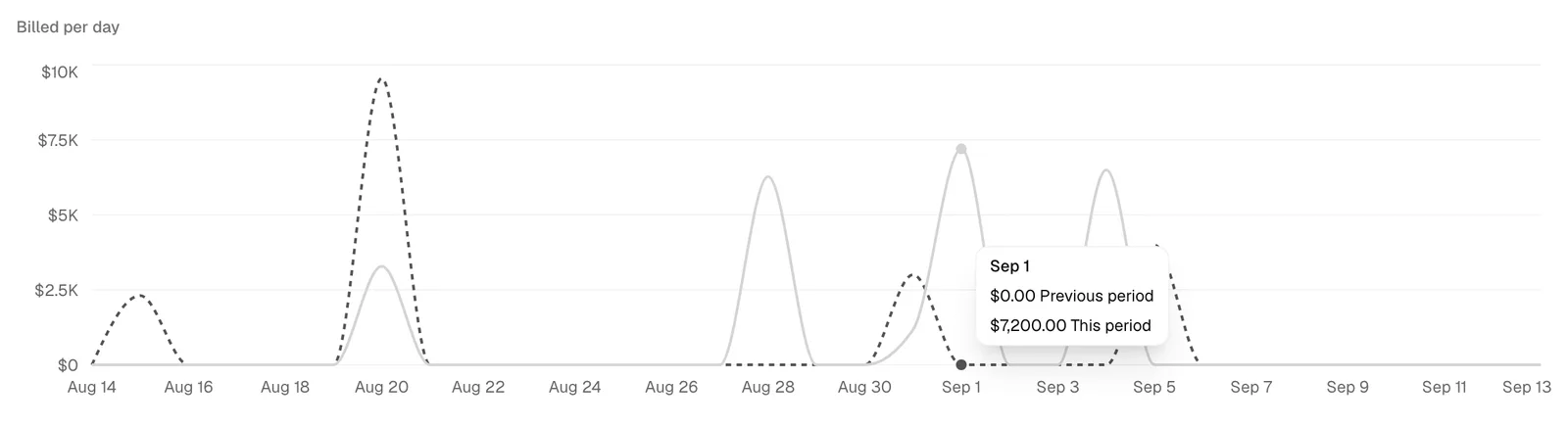
Under the cards, a chart plots the daily trend for your date range in two forms, so the two periods never get confused for each other:
- This period is drawn as bars, one per day.
- Previous period is drawn as a dashed line across the same days.
Read the bars for what your firm billed each day in the range you picked, and the line behind them for what the comparison period did on its matching day. Hover anywhere on a day to read both exact amounts in a tooltip, labelled This period and Previous period.
What needs you
Under the billing snapshot (or at the top of the page, if you do not have billing access) sit four cards about your own work: reviews waiting on you, comments that name you, signatures, and form requests that are still open. They open the left column, one under the other, show up to eight rows each, and each row has a View button on the left that opens the record. The small options control at the top-right of a card refreshes it and lets you show or hide columns.
These four cards always appear. They never hide because of your role: instead, they only ever list records you are allowed to open, so a colleague's card and yours can hold different rows.
Reviews and approvals
Invoices and documents waiting on a review.
A Review filter sits in the card's toolbar, to the left of the options control, and chooses which set you are looking at: Awaiting my review, which is what the card opens on, or Requested by me. It is a single choice, so one of the two is always in force and there is nothing to clear. Click the filter and pick the other option to swap.
- Awaiting my review is what needs your decision.
- Requested by me is what you are waiting on.
Either way the card shows the same columns:
- Record is the document's name or the invoice's number.
- Reviewers shows each reviewer with their decision so far.
- Requested is how long ago it was asked for.
Two more columns start hidden to keep the card readable. Switch either on from the options control at the top-right: Type says whether the row is a Document or an Invoice, and Requested by names the person who asked.
View opens that invoice or document with the review panel already open, so you can approve or ask for changes without hunting for it.
Two things are worth knowing about Awaiting my review. It lists only reviews you can actually decide, so a round you raised yourself on a firm that does not allow self-approval stays out of it (you will find it under Requested by me instead). And a review comes back to you once the changes you asked for have been marked as done, so a second look is never lost.
Rounds leave Requested by me once every reviewer has decided. See Approvals for invoices and documents.
Mentions
The newest comments that @mention you, from anywhere in Esqase: tasks, documents, invoices, matters, leads, contacts, and Feeds posts.
- From is who wrote the comment.
- Comment is the start of what they said. Hover it to read more.
- When is how long ago.
View, or the comment itself, opens the record with the conversation scrolled to that comment. A fifth column, On, names the record the comment is on (for example Matter MAT-0012 - Estate of Hale, Invoice INV-0042, or Feeds post). It starts hidden to keep the card readable; switch it on from the options control at the top-right.
Your own comments never appear here, and neither do mentions on records your role cannot open. View all opens Notifications.
Signatures
Signature requests that are still open.
A Signature filter sits in the card's toolbar, to the left of the options control, and works exactly like the one on Reviews and approvals: pick Awaiting my signature, which the card opens on, or Sent by me. It is a single choice, so one of the two is always in force.
- Awaiting my signature is what is waiting on your own signature, as a member of the firm rather than as a client.
- Sent by me is what you sent out.
Either way the card shows the same columns:
- Document is the document.
- Signed is the progress, for example 1 of 3.
- Sent is how long ago it went out.
- Status is Ready to sign when it is your turn, or Waiting on others when the request runs in order and somebody ahead of you has not signed yet. It stays empty on a request you are not signing yourself.
Two columns start hidden to keep the card readable, and you can switch either on from the options control at the top-right: Requested by names who sent the request, and Expires shows its expiry date if one was set.
View opens the document with your signing view open once it is your turn. A request that has passed its expiry date is not listed.
Note: A request you sent out and must also sign yourself is one row, not two, and it appears under both choices of the filter.
See Requesting eSignatures and Managing signature requests.
Pending form submissions
Form requests across the firm that nobody has finished yet, newest first.
- Form is the form's name.
- Record is the matter or lead the request belongs to.
- Mode is Sent to client when the form went out for a client to fill, or Manual when someone in the firm is filling it in.
- Created is when it was started.
View opens the submission. A Created by column names who started it; it starts hidden and you can switch it on from the options control.
The card lists only submissions you can open, so a submission marked private is shown to the person who created it and nobody else. If a matter's visibility is limited to specific members and you are not one of them, its row still appears with the matter shown as Restricted matter, so you can see the work without seeing the case. See Form submissions.
Feeds
The right-hand column of the page is given over to Feeds, your firm's internal noticeboard: short posts from colleagues, with photos, files, emoji reactions, and comments. It sits at the top of that column, beside your work cards, so the firm's news stays in view while you work down the left-hand side.
The card shows five posts at a time, newest first, with previous and next arrows at the bottom to move between pages and a Page 1 of 3 style position beside them. Three controls in its toolbar filter it: a date range, a Sort choice of Newest or Pinned first, and a Show choice of Pinned, With attachments, or both. A pinned post carries a Pinned badge.
If your role can post, a writing box sits at the top of the card: type, attach files with the paperclip, set a publish time with the clock, and press Enter to publish. The New post button beside the filters opens the same thing as a larger dialog.
The card appears only if your role can view Feeds, which every default role can. See Feeds for posting, files, pinning, scheduling, reactions, comments, and who can edit or delete a post.
Your work at a glance
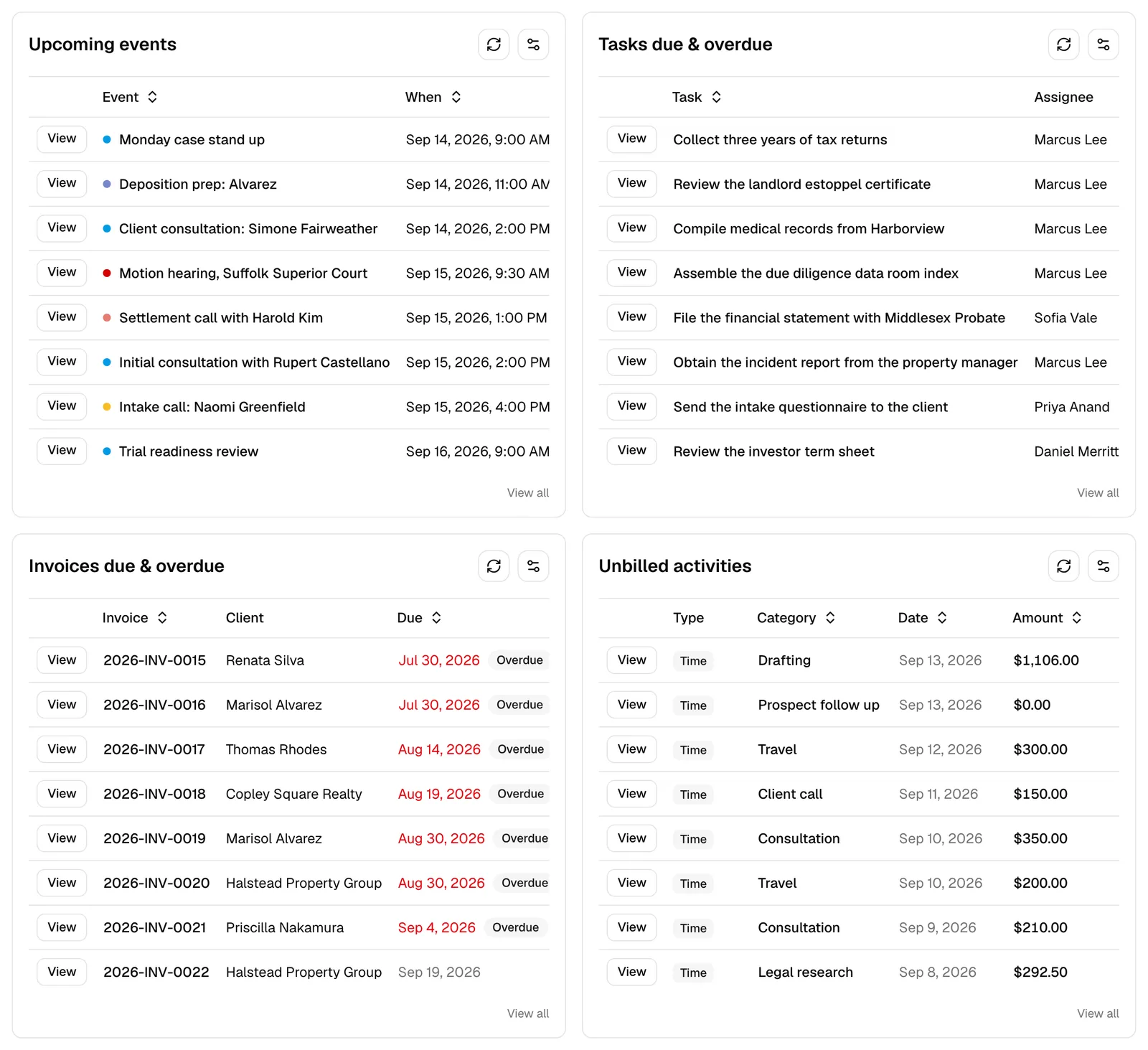
Under your work cards, still in the left column, are four lists that surface the work moving through the firm. They run one under the other. Each list shows the most relevant few rows, and each row has a View button on the left that opens that record. A View all link at the bottom-right of a list opens the full page it draws from, and the small options control at the top-right lets you refresh the list or hide columns.
As with the billing snapshot, a list only appears if your role can view that area, so you may see fewer than four.
Upcoming events
Your next meetings and calendar events.
- Event is the event's title, with a colored dot for its calendar.
- When is the date, or the date and time for a timed event.
- A repeating event appears as each occurrence that is actually coming up, not only the first one in the series, so a weekly review shows next week's sitting alongside everything else.
View or the title opens the event; View all opens the Calendar.
Tasks due and overdue
Tasks that are due soon or already past due.
- Task is the task name.
- Assignee is who it is assigned to.
- Due is when it is due. Overdue tasks are shown in red.
View opens the task (inside its matter, if it belongs to one); View all opens Tasks.
Invoices due and overdue
Invoices that are awaiting payment.
- Invoice is the invoice number.
- Client is who it was billed to.
- Due is the due date, with an Overdue badge when it has passed.
- Balance is the amount still owed.
View opens the invoice; View all opens Invoices.
Unbilled activity
Time entries and expenses that have not been added to an invoice yet, so you can see what is ready to bill.
- Type is a Time or Expense tag.
- Category is the activity category.
- Date is when it was recorded.
- Amount is its value.
View opens the activity; View all opens Activities.
How this differs from the Billing overview
Esqase has two "overview" pages, and it is easy to mix them up:
- Overview (this page, the sidebar home) is a daily digest. It combines a small billing snapshot with lists of upcoming events, due tasks, due invoices, and unbilled work, to answer "what should I look at right now?"
- Billing overview (under the Billing group) is a dedicated financial dashboard. It focuses only on money, with fuller charts of revenue, refunds, and how periods compare, and no task or event lists.
Use the Overview home to start your day, and the Billing overview when you want to study the firm's finances in depth.
Troubleshooting
I do not see the billing snapshot at all. The billing snapshot only appears if your role can view invoices (firm owners always can). If your role is view-only for other areas but not billing, your Overview starts with the list widgets. See Roles and permissions.
One of the lists is missing. Each list is tied to a permission. If your role cannot view events, tasks, invoices, or activities, that list is hidden. Ask a firm owner or administrator to adjust your role if you need it.
A work card is empty, but I know there is something there. The four work cards only list records you are allowed to open. A review on a document you cannot see, a mention on a matter you are not on, or a submission marked private will not appear for you, and no error is shown. If a colleague can see it and you cannot, that is a permission difference: see Roles and permissions.
The Feeds card is not on my Overview. Your role does not have view access for Feeds, so the rest of the page spreads across the full width instead. See Feeds.
My billing numbers look low. The snapshot defaults to your own work because the Members filter starts set to you. Clear the Members filter to see firm-wide totals, and check the Date range, which defaults to the last 7 days.
A number does not match the Billing overview or the Invoices page. The Overview snapshot follows the date range, comparison, and member filters you have set here, and covers only that window. The Billing overview and Invoices pages use their own filters, so the totals will differ unless the ranges line up.