How clients sign documents
When your firm sends a document for eSignature, the client receives a secure link that opens a clean, guided signing page. There is nothing to install, and no account is needed unless the client wants one. This page explains exactly what your clients (and any external signers) see, so you can set expectations, answer questions, and reassure them that the process is simple and legally sound.
The signing experience runs on a separate, public signing site (the page address contains /sign/). Your client never logs in to your firm dashboard and never sees any of your internal records. They only see the one document they were asked to sign.
Before you begin
This page describes the client side of eSignature. To put it in motion from the firm side, see Requesting eSignatures and Managing signature requests.
A few things that shape what your client sees:
- The signer must be added to the request. Each person you add as a signer (a contact, a firm member, or an external email address) gets their own private link. The link is tied to that one signer, so it cannot be forwarded to someone else and used in their place.
- The signer's email must match. Security is built around the signer's verified email address. The client unlocks the document by proving they own the email address you have on file for them, so make sure the email on the signer is correct.
- Required fields must exist. When you place signature, initials, or other fields on the document, the client cannot finish until every field marked required has a value. Fields you mark optional can be left blank.
- Sequential vs. parallel order. If you set the request to sign in a specific order (sequential), a signer's link only becomes active when it is their turn. Until then, their link is not yet ready and they should wait for their notification.
What your client sees when asked to sign
Your client receives an email from your firm inviting them to review and sign a document. The email contains a button or link that opens the signing page in their web browser. Once they unlock the link (see below), they land on the signing surface:
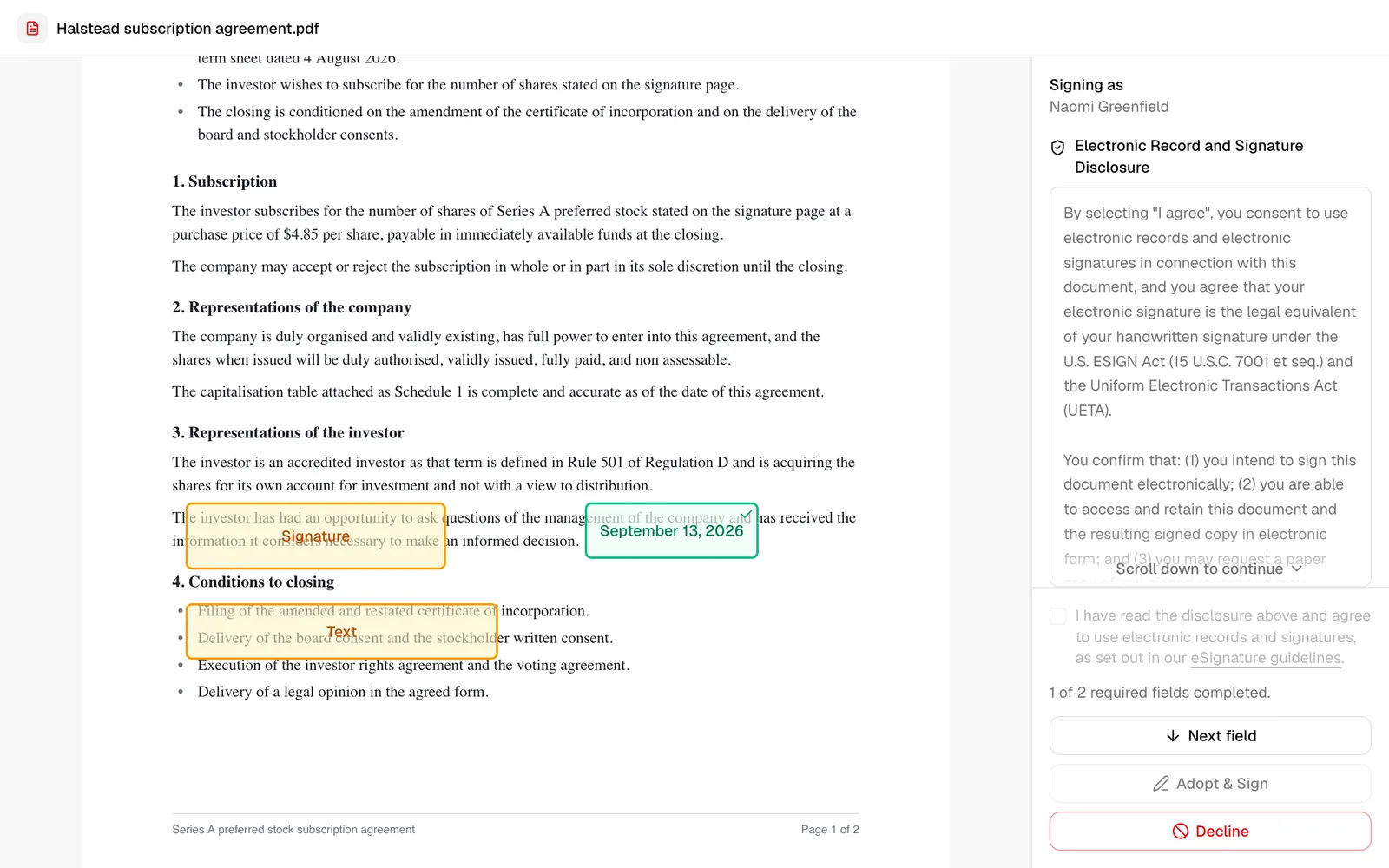
- The document fills most of the screen so the client can read every page before signing.
- A signing panel on the right (or below, on a phone) shows who they are signing as and the Electronic Record and Signature Disclosure. The consent checkbox and the two buttons, Adopt & Sign with Decline directly beneath it, stay pinned to the bottom of the panel so they are always in view.
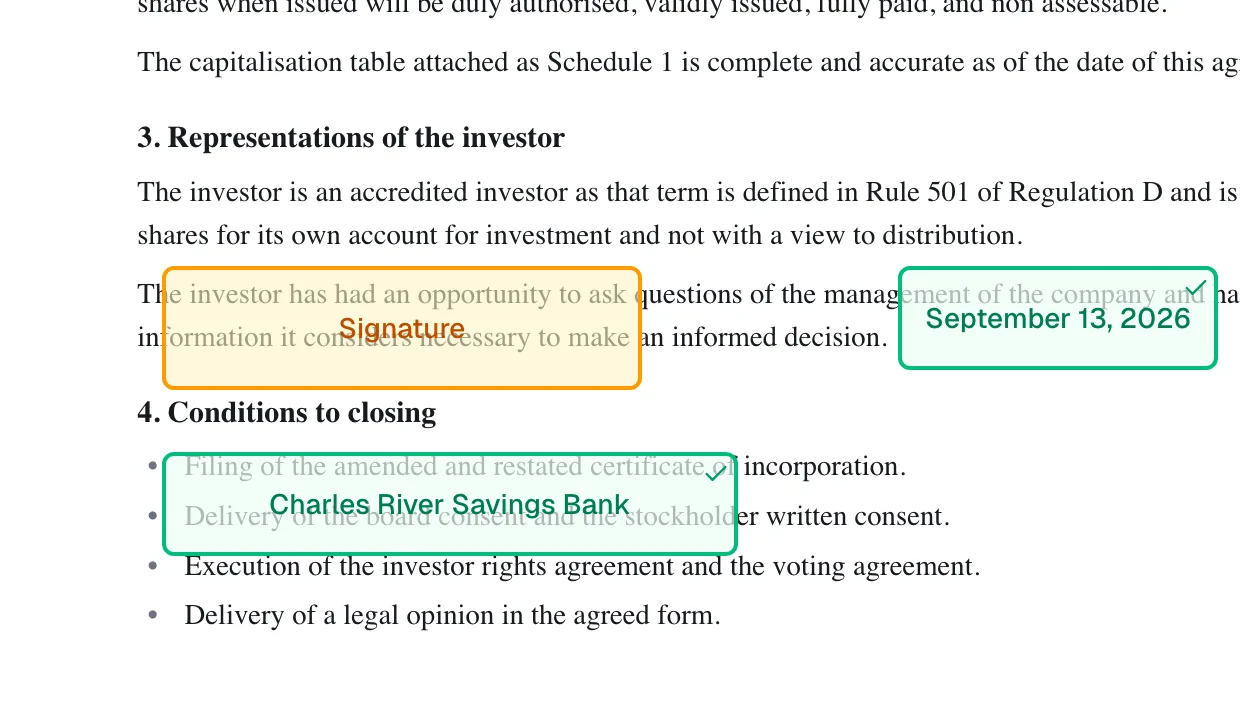
- Highlighted fields appear on the document itself. Every place that needs the client's input is marked with a colored, gently pulsing box. Boxes that still need attention are amber; once filled, they turn green.
- A progress line above the buttons keeps a running count, for example "3 of 7 required fields completed," so the client always knows how much is left, or "No fields to complete on this document" when there is nothing to fill in.
- A Next field button sits above Adopt & Sign while fields remain. Clicking it scrolls straight to, and highlights, the next field the client still needs to fill, so they never have to hunt for it on a long document.
- A reminder line appears just above the buttons whenever a field on the document still needs the client's attention: "Complete the highlighted fields in the document to continue." It disappears once nothing is outstanding.
The client signs entirely in the browser. Nothing downloads to their computer until the document is complete.
Tip: Tell clients to use the same device and browser where they opened the email link. The unlock that grants access is tied to that browser session, so opening the link on one device and trying to sign on another means signing in again.
Opening and unlocking the signing link
Before anyone can see the document, they must sign in, and most of the time that happens by itself. How clients sign in covers every method in full; this section is the signing-specific version.
Signing in without doing anything
A signer who is already signed in to Esqase never sees a sign-in panel. The page shows Signing you in for a moment and then opens the document, ready to sign.
Signing in at the portal
A signer who is not signed in is taken to their Esqase client portal sign-in panel, which says "Sign in to open your document" and names nothing else. There they enter their Email and type the 6-digit code Esqase sends to it, or use Continue with Google. There is nothing to sign up for and no password to remember. When they finish, they land back on the document, ready to sign, and the next thing your firm sends opens without any of this.
The email sign-in link, the fallback that always works
The signing page itself keeps the passwordless form, shown when the automatic sign-in is refused or does not apply. It needs no account.
- The signer enters the email address your firm has on file and clicks Email me a sign-in link.
- The page confirms with Check your email, telling them the link expires in 30 minutes and to open it on the same device.
- They open that email and click its link. The page briefly shows Signing you in while it verifies, then opens the document, ready to sign.
📷 Screenshot: The signing page email sign-in fallback, titled with the document name, showing the email field and the Email me a sign-in link button.
Important: Whichever method a signer uses, the document opens only for the exact email address on that signer. Having an Esqase account grants nothing by itself: a signer who signs in with any other address is refused. This is why the email on the signer has to be right before you send the request.
Note: For privacy, the confirmation always says the link was sent if that email is on this document, even when the address entered is not a signer. This prevents anyone from probing which emails are attached to a document. If a client never receives the email, the most common cause is a typo or using a different address than the one on the signer. Ask them to click Use a different email and try the exact address your firm has on file.
Important: Every sign-in method is rate limited to protect the document. After several failed attempts in a short window, the client sees "Too many attempts have been made recently. Please wait a few minutes before trying again." The block clears on its own after about ten minutes. If a client is locked out, ask them to wait and retry, or send them a fresh link.
From the Esqase Client app
A client who uses the Esqase Client app opens the signing page with Sign, from the document in the app or from Needs your attention on Home. It opens inside the app, already signed in, so there is no sign-in panel and no emailed link to open on the same device.
- Everything after that is this page. Fields, Adopt your signature, consent, Decline and the confirmation work as described below, and Draw works with a finger.
- When the client signs or declines, the app closes the page and goes back to the document, with "Document signed" or "Signature declined".
- Download signed copy hands the file to the phone, which opens it or offers to save or share it.
- If the page cannot be opened in the app, the app says "Open this from your email", and the link in your signature request email still works.
Requesting a new sign-in link
Email sign-in links are single-use and time-limited, so a client may need a new one. This is normal and quick.
- If the link has expired or was already used, the page returns the client to the sign-in panel and shows "We could not sign you in," with a note that the link is invalid or has expired and to request a new one.
- The client simply re-enters their email and asks for a sign-in link again to receive a fresh one.
- On the Check your email screen, if they used the wrong address, they can click Use a different email to start over.
Tip: Sign-in links expire for security. If a client lets the email sit for a while before clicking it, they may need to request a new one. Reassure them that requesting another link does not affect the document or anything they have already done.
If a client tells you the page says "Signing link unavailable" (with the note "That signing link is not active. Check the URL from your email, or contact the firm to request a new link."), the link itself is no longer valid. This happens when the request was already completed, declined, canceled (voided) by your firm, or the link was mistyped. In that case, send the client a new signing request from your dashboard. See Managing signature requests.
Reviewing the document and completing fields
Once the document is open, the client works through it field by field. Esqase makes the required spots obvious so nothing gets missed.
- The client scrolls through the document. Every place that needs input is marked with a highlighted box. Amber boxes still need attention; green boxes are done.
- The client clicks a box to fill it. What happens next depends on the field type:
- Signature and Initials open a capture window (see the next section).
- Full name is pre-filled with the signer's name; clicking it lets the client edit the value in an Enter value dialog.
- Date signed is pre-filled with today's date; clicking it opens a calendar so the client can pick a different date instead of typing one. The date is written out in full, in United States style, as in September 18, 2026, whatever country the client is in.
- Text opens the Enter value dialog so the client can type whatever the field asks for.
- Checkbox toggles on or off with a single click (a checked box shows an X).
- As the client fills fields, each amber box turns green, so the remaining work is always visible on the document itself.
- A filled Date signed, Full name, or Text box grows to show its value rather than cutting it off, up to the edge of the page. So a long name or a written-out date is fully readable while the client checks their work, even if you drew the box a little small. A value long enough to reach the page edge is shortened on screen so the page stays readable, and the completed copy still carries every character.
The client does not have to fill the signature box this way. Leaving it and using Adopt & Sign in the panel collects the signature and submits the document in one step, which is the shorter path for most documents.
If a typed value cannot be signed
The completed copy Esqase seals at the end has to print every value exactly as it was typed, and a few characters cannot be drawn into a PDF at all. Esqase checks a typed value when the client signs, rather than letting the completed copy fail afterwards.
- Accepted: letters, numbers, and ordinary punctuation. Accented letters are fine, as are Greek and Cyrillic letters and the usual currency symbols, so names such as Muñoz, Séamus, Nguyễn, Παπαδόπουλος, and Иванова all go through.
- Refused: emoji, and writing systems the completed copy cannot carry, such as Chinese, Japanese, Korean, Arabic, Hebrew, Thai, and Devanagari.
- Only typed values are affected. A Signature or Initials mark is a picture, whether it was drawn, typed, or uploaded, so it carries any writing system. Date signed is picked from a calendar and Checkbox has no typed value. Only a Text or Full name entry can run into this.
When it happens, the client is stopped at the moment they try to sign. Nothing is recorded and nothing else on the document is lost: they click the box again, retype the value, and sign. The message they see asks them to complete every required field before signing, which is easy to misread when every box already looks filled in, so if a client reports that, look for an emoji or a pasted character in one of their typed boxes.
Tip: If a client wants their name in a script Esqase cannot print, ask them to type the Latin spelling in the Full name box and to draw or upload their name in the Signature box instead. The signature is stored as a picture, so it prints exactly as they wrote it.
Placing a signature or initials
A window titled "Adopt your signature" (or "Adopt your initials") is where the client creates their mark. It opens in two ways: by clicking a Signature or Initials box on the document, or by clicking Adopt & Sign in the panel once that button is available.
The window offers three ways to create the mark, on tabs:
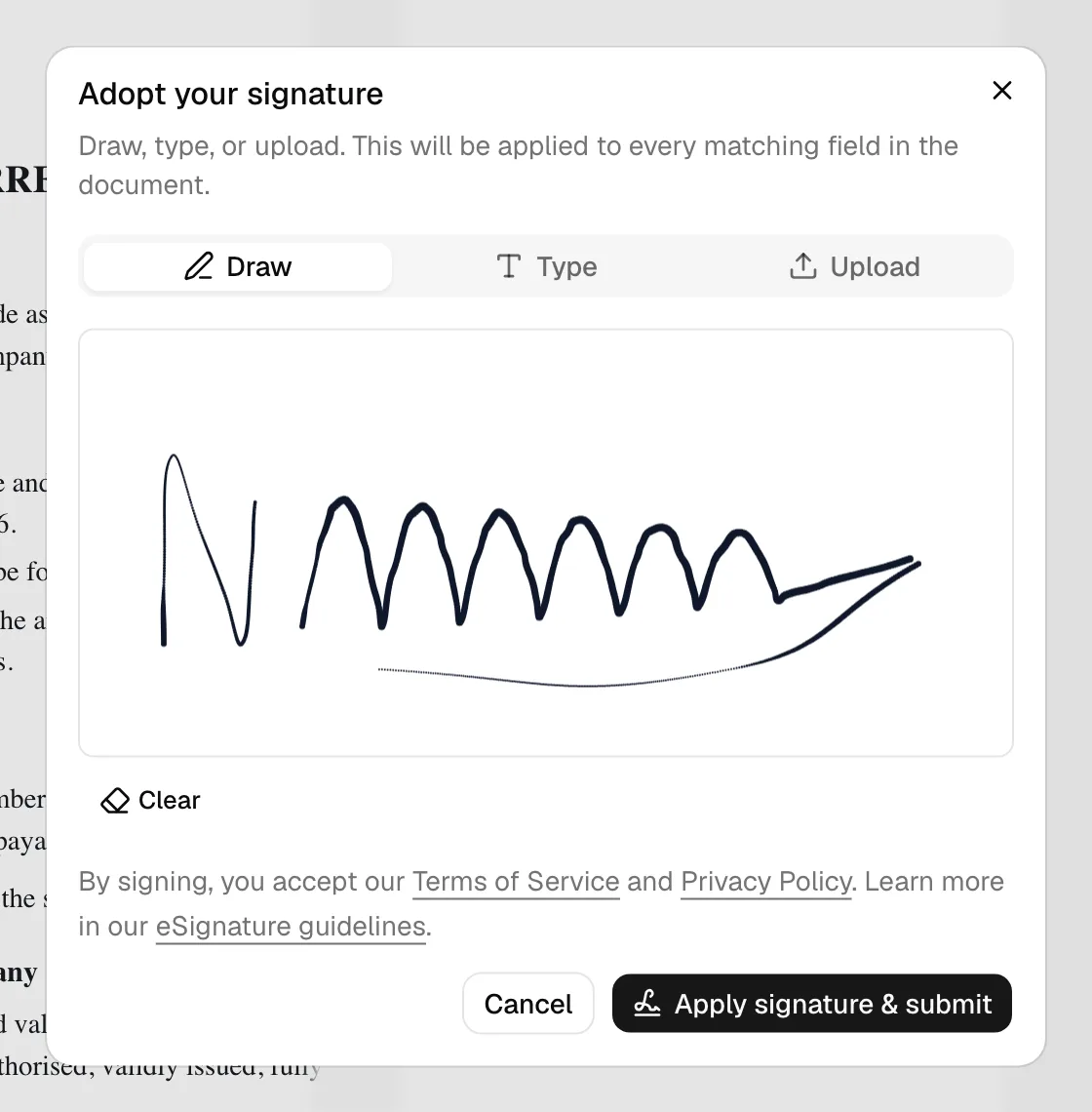
- Draw: The client signs with a mouse, trackpad, or finger on a touchscreen, in a large, clearly bordered signing area with a crisp stroke that stays sharp on any screen. A Clear button lets them start over.
- Type: The client types their name and it is rendered in a handwriting-style font, shown in a live preview.
- Upload: The client uploads an image of their signature (any standard image file). A preview appears once it loads.
The button that closes the window depends on how the client got there:
- Opened from a box on the document, it reads Apply signature (or Apply initials) and only places the mark. The client still signs afterwards from the panel.
- Opened from Adopt & Sign, it reads Apply signature & submit and does both at once: it places the mark and submits the signed document.
Note: A signature or initials are adopted once and reused everywhere. If the document has several signature boxes for the same signer, applying the mark fills all matching boxes at once. The window itself notes: "This will be applied to every matching field in the document."
Note: If the client already adopted a mark by clicking a box on the document, the window shows that signature as a preview and confirms it will be used, so there is no need to draw it again. They can still draw, type, or upload a new one to replace it.
Note: If a document asks the same person for both a signature and initials, one adoption cannot cover both. The client fills one of them by clicking its box on the document, and Adopt & Sign then collects the other.
Accepting consent and signing
Before the client can sign, they must agree to use electronic records and signatures. Esqase records the client's agreement, and the exact disclosure text they agreed to is kept with their signature and shown on the Certificate of Completion.
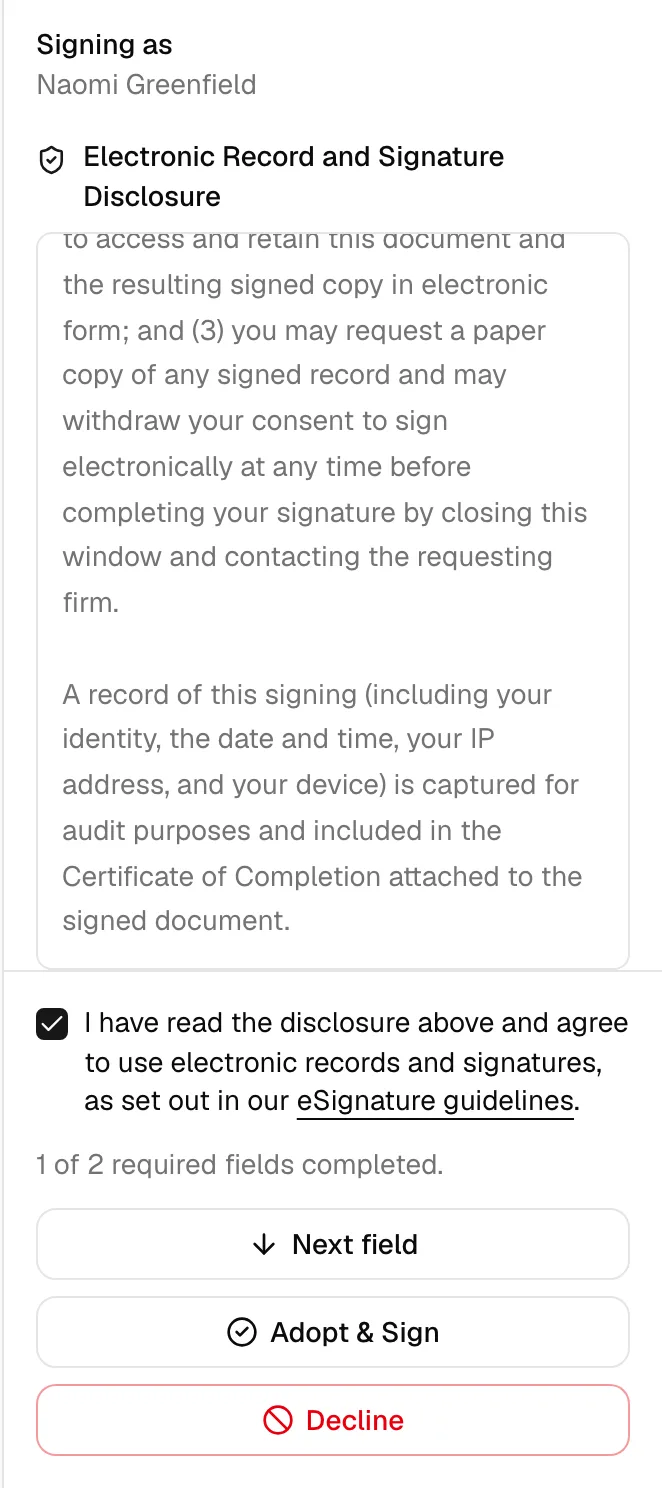
- In the signing panel, the client reviews the Electronic Record and Signature Disclosure. The full text sits in a scrollable box that stretches to fill the panel, and the client must scroll all the way to the bottom before they can agree to it. Until they reach the end, a "Scroll down to continue" hint appears at the foot of the box and the consent checkbox is greyed out and cannot be ticked.
- Once the client has scrolled to the end of the disclosure, the checkbox becomes available. They tick the box that reads "I have read the disclosure above and agree to use electronic records and signatures."
- Adopt & Sign becomes available. Clicking it opens the "Adopt your signature" window rather than signing straight away, so the client always confirms their signature as the last step.
- In that window the client draws, types, or uploads their signature and clicks Apply signature & submit. That single click applies the signature to every matching box on the document and submits it. The window also carries the line "By signing, you accept our Terms of Service and Privacy Policy. Learn more in our eSignature guidelines."
- A brief overlay shows Signing... and then Opening... while the signature is recorded, after which the client is taken to a confirmation page.
Note: Nothing is submitted until the client clicks Apply signature & submit. Closing that window with Cancel leaves the document exactly as it was, and the client can reopen it whenever they are ready.
Note: If Adopt & Sign looks inactive, one of two things is missing. Either the client has not yet scrolled the disclosure to the end and ticked the consent box, or a field on the document still needs filling, in which case the line "Complete the highlighted fields in the document to continue" appears just above the button.
Note: On a large screen the whole disclosure may already fit in the box with nothing to scroll. In that case there is no "Scroll down to continue" hint and the consent checkbox is available right away.
Note: The wording of the disclosure reflects your firm's country, which is set in your firm details. Firms in the Philippines and the United States see a statement written for the law of that country (for example, the Philippine Electronic Commerce Act for Philippine firms, and the ESIGN Act and UETA for U.S. firms). Firms in any other country, or a firm with no country set, see a neutral statement that the electronic signature is legally binding and is the legal equivalent of a handwritten signature to the fullest extent permitted by applicable law. Whatever the client sees, the exact text they agreed to is recorded with their signature and appears on the Certificate of Completion.
Declining to sign
A client is never forced to sign. They can decline at any time, with an optional reason.
- In the signing panel, the client clicks Decline, the red outlined button directly below Adopt & Sign. It is available at any time, including before they have read the disclosure.
- A window titled "Decline to sign?" opens, explaining that this stops the signing request. It includes an optional Reason box.
- The client may type a reason (or leave it blank) and then clicks Decline to confirm, or Cancel to go back.
- After declining, the client is taken to the confirmation page.
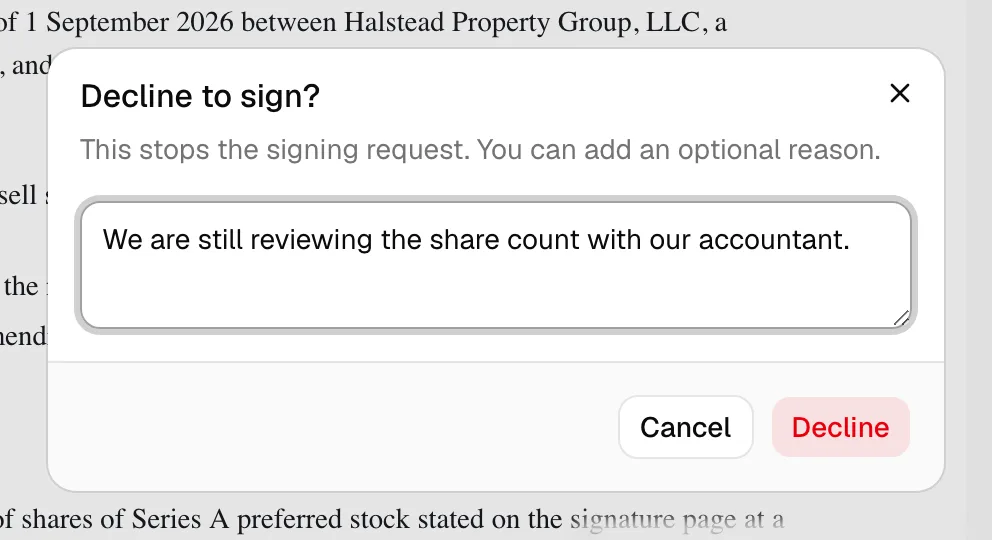
Important: When a signer declines, the whole request is stopped, and your firm is notified. If you still need the document signed, you will need to send a new request. The reason the client provides (if any) is recorded so you can follow up. See Managing signature requests.
The signing confirmation page
After the client signs or declines, they land on a simple confirmation page so they know the action went through. There are two versions.
After signing
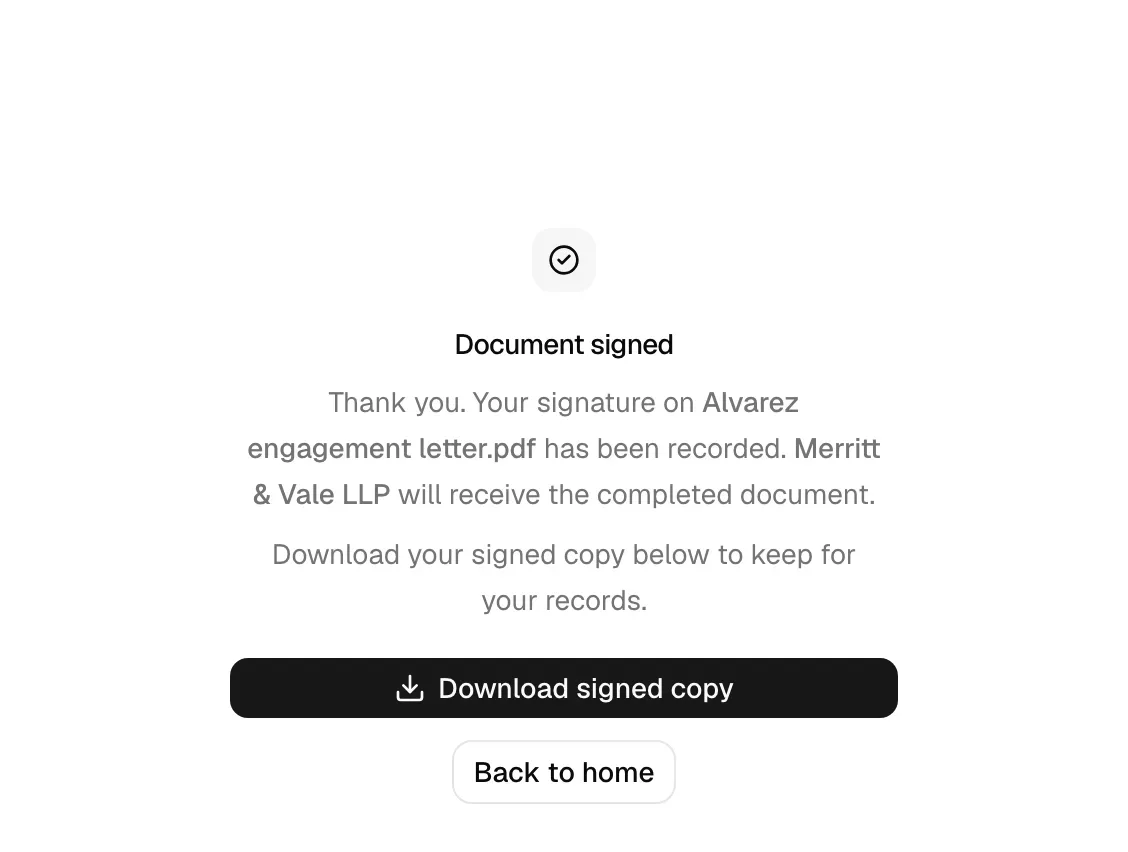
The page shows a checkmark and the title "Document signed," with the message "Thank you. Your signature on [document] has been recorded. [Your firm] will receive the completed document." A Back to home button takes the client to the Esqase home page.
What appears underneath depends on whether the whole request has finished:
- While someone else still has to sign, the page reads "Once everyone has signed, you will be able to download the completed copy here."
- Once every signer has finished, it reads "Download your signed copy below to keep for your records." and a Download signed copy button appears, so the client can take the completed, signed document right there rather than waiting to be sent one. While the file is being fetched the button briefly reads Preparing your copy.... This is the most reliable way for a client to get their copy the moment signing finishes.
The client does not have to reload or come back later. If they were the last signer, the page checks for itself and swaps to the download within seconds of the certified copy being ready, while they are still looking at it. It keeps checking for a while (often enough to catch it at once, then less often) and stops on its own if nothing arrives, so it never sits there refreshing forever. A client who leaves the tab and comes back gets a fresh check the moment they return.
After declining
The page shows a "Signing declined" title with the message "You declined to sign [document]. [Your firm] has been notified." A Back to home button is also shown.
If the client returns to their original signing link after finishing, Esqase recognizes the request is complete and sends them straight back to this confirmation page rather than reopening the document. There is nothing left for them to do.
What happens after signing
The client does not have to do anything else once they sign, but it helps to know what happens behind the scenes so you can answer their questions.
- The document is sealed, within seconds. When the last required signer has signed, Esqase finalizes a single, completed copy of the document with every signature and field in place, normally in a few seconds. The finished file is tamper-evident: it carries a digital seal so any later change to it can be detected. On your side, the document's page switches to the certified copy on its own while you watch. See Watching it finish.
- Every value is kept, and fitted to its box. In the sealed PDF, a date, name, or text value is sized to the field you drew for it, shrinking a little if it needs to. A value that is still too long for the box wraps onto more lines, which can carry it below the box and over the wording underneath, because nothing the client typed is dropped from the finished document. Nothing runs off the page either. Drawing text fields with a little room beneath them keeps a long answer tidy.
- A Certificate of Completion is attached. Alongside the signed document, Esqase generates a Certificate of Completion, an audit record headed with your firm's name that lists each signer, their email, when they viewed the document, when they consented, when they signed, the signing method they used (drawn, typed, or uploaded), and technical details such as IP address and device. It also reproduces the consent disclosure the signers agreed to and includes verification hashes of both the original and signed files. One small difference is worth knowing: the certificate is both appended to the signed document and available on its own, and only the standalone copy prints the signed file's hash, because a file cannot contain its own fingerprint. Everything else reads the same on both.
- Your firm receives the completed document. The signed file becomes the newest version of the document you sent out, so it is right where you left it in your documents area rather than in a second, separate file. If the request was tied to a matter, it appears with that matter as well. See The documents workspace and The matter workspace.
Tip: The Certificate of Completion is the document you rely on if anyone ever questions whether a signature was valid. It is generated automatically and travels with the signed file, so you do not need to assemble proof by hand.
Note: Clients sign on the public signing site, not in your firm dashboard. Once the whole request is complete, their confirmation page updates itself and offers a Download signed copy button so they can grab their copy right there, without reloading. If a client asks you for it separately, or needs it before the whole request finishes, you can share it with them yourself. See Sharing documents.
Tip: For the copy you send a client, Download clean copy on the completed request gives you the signed document without the SIGNED watermark or the certificate pages. Keep the full signed document, watermark and certificate included, for your own file. See Managing signature requests.
Common questions
Does the client need an Esqase account to sign? No. The signing link plus access to the email address on the signer is all they need, and the signing page's own email sign-in link gets them in with nothing to set up. Esqase keeps an account behind the scenes for that address, but it grants no access on its own. See How clients sign in.
Can the client sign on a phone? Yes. The signing page works on phones and tablets, and the Draw tab lets them sign with a finger. Remind them to open the email link and finish signing on the same device.
Can a client forward their link to a colleague to sign instead? No. Each link is tied to one signer and unlocks only for the email address on that signer, whichever sign-in method is tried. To let someone else sign, add that person as a signer from the firm side.
The client signed last but sees no Download signed copy button. What now? The certified copy is still being prepared. The page checks for it by itself and the button appears within seconds, so ask them to leave the tab open rather than reloading. If it is taking longer than a minute, open the document in Esqase and use Certify now under the signer list, then ask them to look again. If Certify now reports a problem instead, it names what is in the way. See Watching it finish and If the certified copy does not arrive.
What if the client filled the wrong value in a field? Until they click Apply signature & submit, they can click any field again to change it, including reopening the signature window. Once they submit, the document is final and they should contact your firm.
The client says the page won't let them sign. What's wrong? The Adopt & Sign button stays disabled until the client has scrolled the Electronic Record and Signature Disclosure to the bottom and ticked the consent box. The checkbox itself only becomes available after that scroll, so if it looks greyed out, ask them to read through the disclosure first. If the consent box is ticked and the button is still inactive, a field on the document is still empty, and the line "Complete the highlighted fields in the document to continue" appears above the button. Ask them to look for the amber boxes on the document.
Troubleshooting
- The client never got the sign-in email. Confirm they entered the exact email on the signer, ask them to check spam, and have them request the link again. Remember the page shows the same "Check your email" message whether or not the address matches, so verifying the signer email on your side is the reliable check.
- The link says "Signing link unavailable." The request was completed, declined, canceled, or the URL was altered. Send a new request.
- The client is locked out after several tries. They hit the attempt limit. They should wait a few minutes, then try again, or you can issue a new link.
- The client signed in but the document did not open. The address they used is not the one on the signer. Check the signer's email on the request, correct it if needed, and send a new request. A client signing in with Google needs the Google account that uses that exact address.
- The client is asked to complete the fields, but every box is filled. A typed value contains a character the completed copy cannot print, usually an emoji or text pasted from another writing system. Ask them to retype that box in plain letters and numbers. See If a typed value cannot be signed.
- The client signed but says nothing happened. Ask whether they reached the Document signed confirmation page. If they did, the signature was recorded and the completed document will appear on your side; check the request status in Managing signature requests.