How clients pay invoices
When you send an invoice through Esqase, your client receives a secure payment link they can open in any browser. This page explains exactly what your client sees, from unlocking the link through paying and getting a confirmation, and how you set up the payment methods that appear to them. Use it to walk a client through paying, or to make sure your firm is configured so the link works smoothly.
The payment link is a public, client-facing page, separate from your dashboard. Your client has nothing to set up: Esqase keeps an account behind the scenes for the address you billed, without them filling anything in. They open the link from the email you send them, prove they are the right person, view the invoice, and pay.
Esqase never holds the money. There are two kinds of payment method, and they are confirmed differently:
- Card and Bank account run through your firm's own LawPay or Confido Legal account, when your firm has connected one. The client enters their details in the processor's secure fields, the money goes to your bank, and Esqase records the payment on the invoice by itself as soon as the processor reports it. See Taking card and bank payments with LawPay or Confido Legal.
- Bank transfer or wire and QR code are self-reported: the client sends the money through their own bank or payment app, tells you on the page that they have paid, and a firm member reviews that report and marks it cleared. Nothing changes the invoice balance until you confirm it.
Before you begin
Before any client can pay through a link, your firm needs a few things in place. Most of this is one-time setup.
- At least one payment method enabled. Card and bank payments through a connected LawPay or Confido Legal account, a manual bank-transfer or wire link, or a QR code. You connect a processor on the Integrations page and configure the other two in your firm's payment settings. See Taking card and bank payments with LawPay or Confido Legal and Payment settings.
- Somewhere to record the money. Bank transfer and QR payments are recorded on your firm's default deposit account, and card and bank payments on the account you mapped to the processor's default operating account. Without one of these, Esqase has nowhere to record the payment, so it will not let you generate a link. See Accounts, trust, and transactions.
- An invoice to collect on. The link is always tied to one specific invoice. See Creating and sending invoices.
Important: A client only sees a payment method on the link if two things are both true: your firm has that method enabled in settings, AND you allowed it when you generated the link for this invoice. If a method is turned off in either place, it does not appear. For Card and Bank account, "enabled" also means the processor is connected with its accounts mapped, and the invoice is in the same currency as the processor account.
Note: Only firm members with the right billing permissions can generate a payment link or change payment settings. If your role does not include access to payments, you will not see these buttons. Roles like Attorney and Staff can typically record payments but cannot change firm payment settings. See Roles and permissions.
What your clients see, and how you set it up
The payment link is a single web page, branded with your firm's name and invoice number. The flow your client experiences is shaped entirely by how you configure the link and your payment settings.
Here is how you create the link your client will use:
- Open the invoice you want to collect on. See Creating and sending invoices.
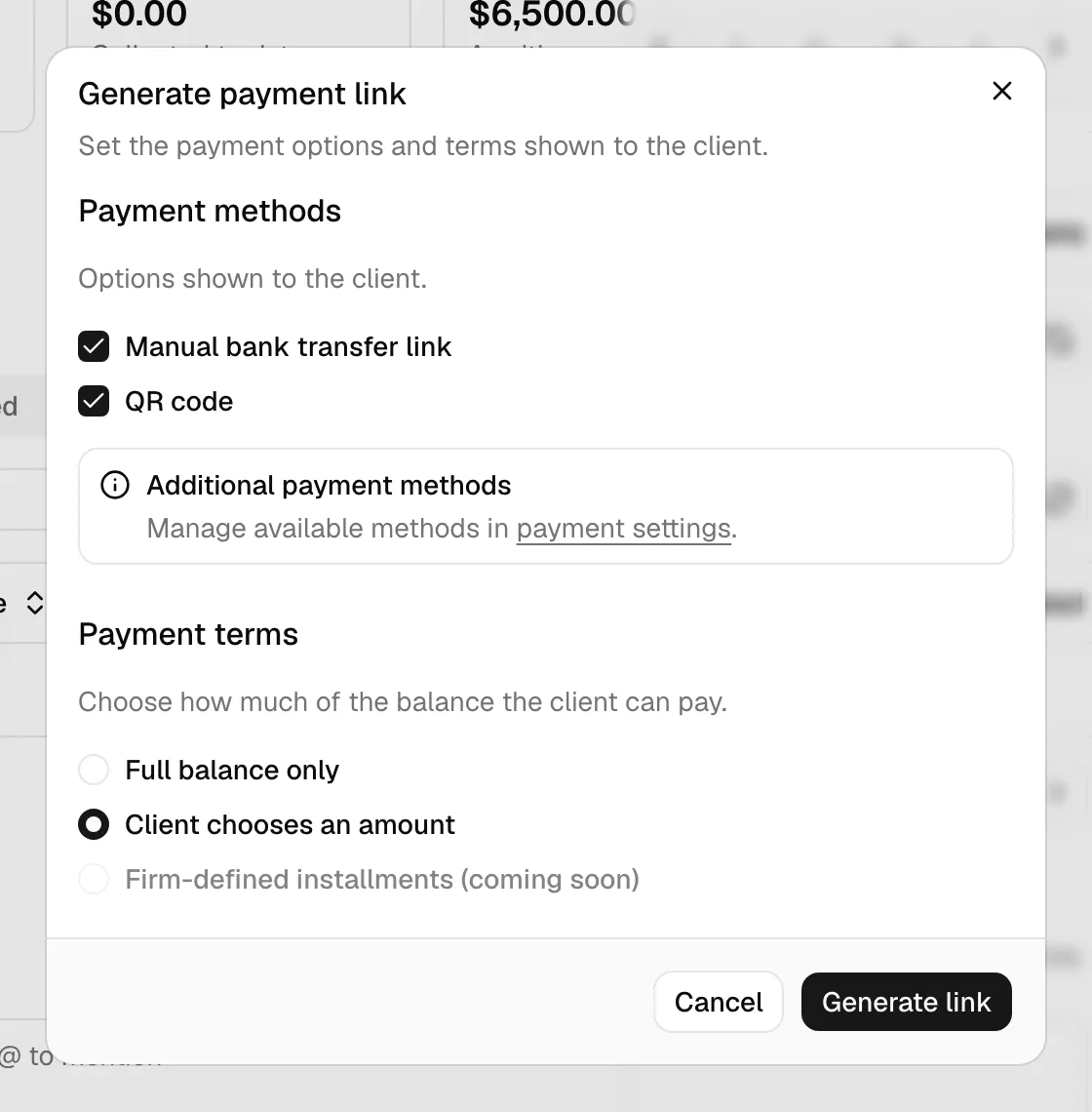
- Choose the option to generate a payment link. The Generate payment link dialog opens.
- Under Payment methods, check the methods you want to offer the client for this invoice: Card, Bank payment (eCheck) or Bank payment (ACH) (the name depends on your processor), Manual bank transfer link, and QR code. A method is only checkable if your firm has set it up; methods your firm has not set up appear greyed out, with a line telling you where to set them up. Card and Bank payment are ticked for you when they are available.
- Under Payment terms, choose how much of the balance the client can pay:
- Full balance only: the client must pay the entire remaining balance.
- Client chooses an amount: the client can pay a partial amount toward the balance.
- Firm-defined installments: the client pays a schedule of installments you set, and can turn on autopay. See Payment plans and autopay.
- Click Generate link. The dialog switches to Payment link ready and shows the link in a read-only field.
- Use the copy button to copy the link, or click Send email to client to email it from Esqase. The email is addressed to the client the invoice is billed to, using the email labeled Billing on their contact record when there is one. The link page itself asks the client to sign in when they open it, and only lets in the address the invoice is billed to.
Tip: If you see Finish payment setup first instead of the options, your firm has no payment method ready: no processor connected with its accounts mapped, and no bank transfer link or QR code with a default deposit account. The notice links to payment settings and Integrations so you can fix it, then come back. See Payment settings.
When the client opens the link, they move through three stages: unlocking the link, viewing the invoice, and paying. The rest of this page covers each stage from the client's point of view.
Opening and unlocking the payment link
To protect the invoice, the link does not show any financial detail until the client proves they are the person it was sent to. Most of the time that happens by itself. How clients sign in is the full walkthrough; this section is the invoice version.
If the client is already signed in to Esqase, they see Signing you in for a moment and then the invoice opens by itself. There is no button to press.
If they are not signed in, the page sends them to their Esqase client portal sign-in panel, which says "Sign in to view your invoice". They sign in there with a 6-digit code Esqase emails them, or with Continue with Google, and they land straight back on the invoice. From then on, the next invoice or document you send opens without any of this.
The email sign-in link is always available as the fallback, on the payment page itself, when the automatic sign-in is refused or does not apply:
- The client enters the email address the invoice was sent to.
- The screen changes to Check your email, noting the link expires in 30 minutes.
- They open it on the same device, the page shows Signing you in, and the invoice unlocks.
📷 Screenshot: The payment page email sign-in fallback, titled with the invoice number, showing the email field and the Email me a sign-in link button.
A few things to know about this step:
- The email on the invoice is what decides access. Every method checks the same thing: the address the client signed in with must be the one the invoice is billed to, and it must be confirmed. A client can create an Esqase account for themselves, but that grants nothing on its own, so nobody can register their way into someone else's invoice.
- Signed in as somebody else. A client already signed in with a different address sees "You're signed in to Esqase with a different email address", and the email sign-in form underneath it. Entering the address the invoice was billed to gets them in.
- Privacy by design. For security, the Check your email message appears whether or not the email matched. This prevents anyone from using the link to discover who an invoice was sent to. Only the genuine contact actually receives a sign-in link.
- Same device. The client should open an emailed sign-in link on the same device and browser where they requested it. Opening it elsewhere may not unlock the page.
- Use a different email. If the client entered the wrong address, they can click Use a different email to try another one.
- Rate limiting. If a client makes too many attempts in a short time, Esqase temporarily pauses new ones to deter abuse. They should wait a few minutes and try again.
Note: When a client requests a sign-in link to open a payment link, the link email is recorded on the invoice's matter Communications tab in the dashboard, so your team can see that the client asked for access. See Logging communications.
Troubleshooting the unlock step
- "That sign-in link is invalid or has expired." Sign-in links are short-lived and work once. Ask the client to return to the payment page and request a fresh one with Email me a sign-in link instead.
- The client never receives the email. The email address they entered does not match the contact on the invoice. Confirm the email you have on file for that contact, then ask the client to enter that exact address. You can check and update the contact's email under Working with contacts.
- The client signed in but the invoice did not open. Same cause: the address they used is not the one the invoice is billed to. The page says they are signed in with a different address and offers the email sign-in form. Compare the two on the contact record, then have them try the correct address. A client using Continue with Google needs the Google account that uses that exact address.
- They clicked the link on their phone but requested it on a laptop. Have them request a new link from the device they intend to pay on.
From the Esqase Client app
A client who uses the Esqase Client app opens the same payment page from the invoice in the app, with Pay (or View when the invoice has no active payment link). It opens inside the app, already signed in, so there is no sign-in panel and no emailed link.
- Everything after that is this page. The invoice view, Download PDF, the payment methods and proof of payment work as described below.
- Download PDF hands the PDF to the phone, which opens it or offers to save or share it.
- When the client reports a payment, the app closes the page and goes back to the invoice with "Thanks. Your law firm will confirm your payment." The balance changes only once your firm confirms the payment, as on the web.
- If the page cannot be opened in the app, the app says "Open this from your email", and the link in your invoice email still works.
Viewing the invoice and downloading the PDF
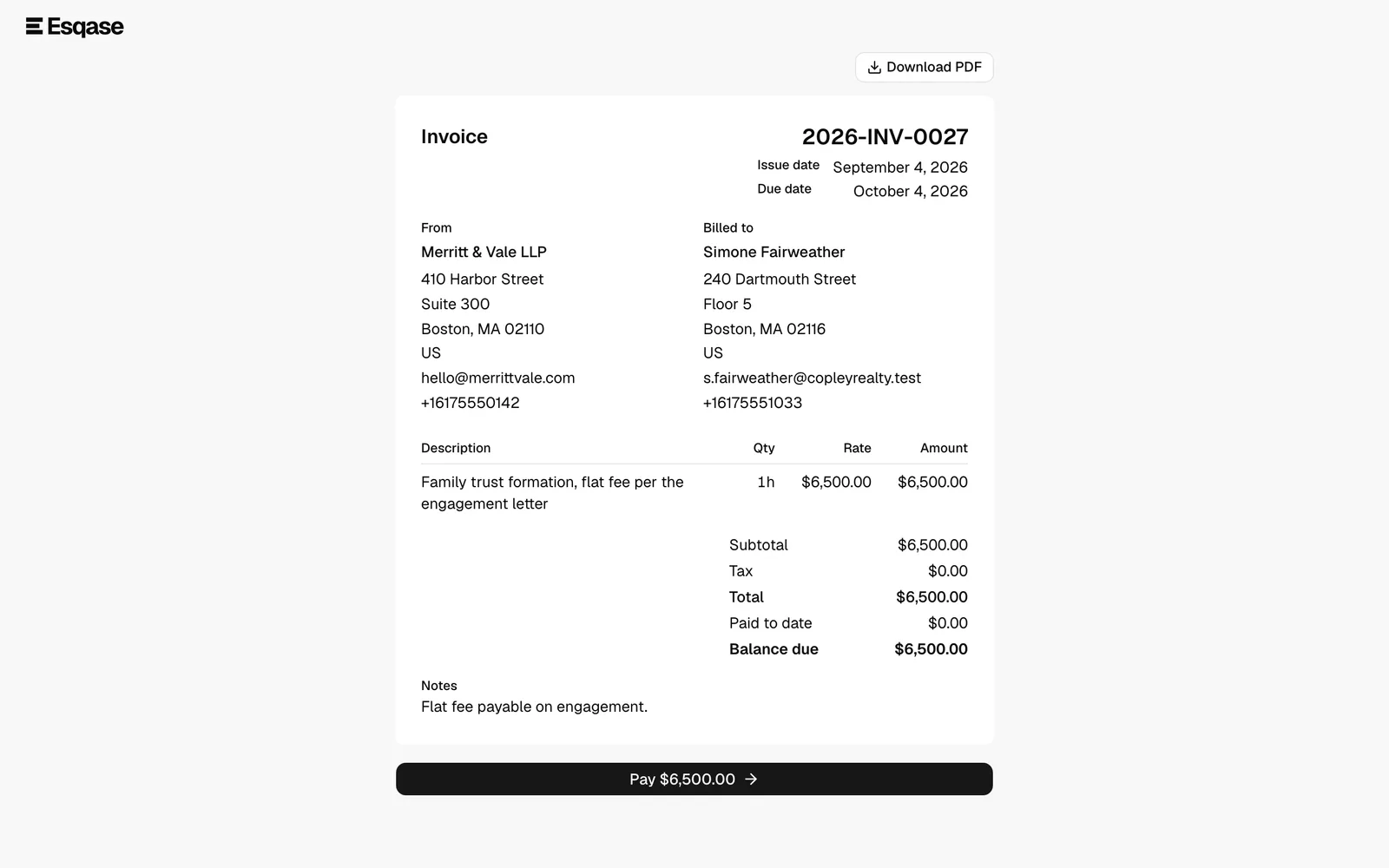
Once unlocked, the client sees the full invoice laid out like a printed bill.
The invoice view shows:
- A header with the word Invoice, the invoice number, the Issue date, and the Due date (if the invoice includes one).
- A From block with your firm's name, address, email, and phone.
- A Billed to block with the client's name and contact details.
- A line-item table with columns for Description, Qty, Rate, and Amount.
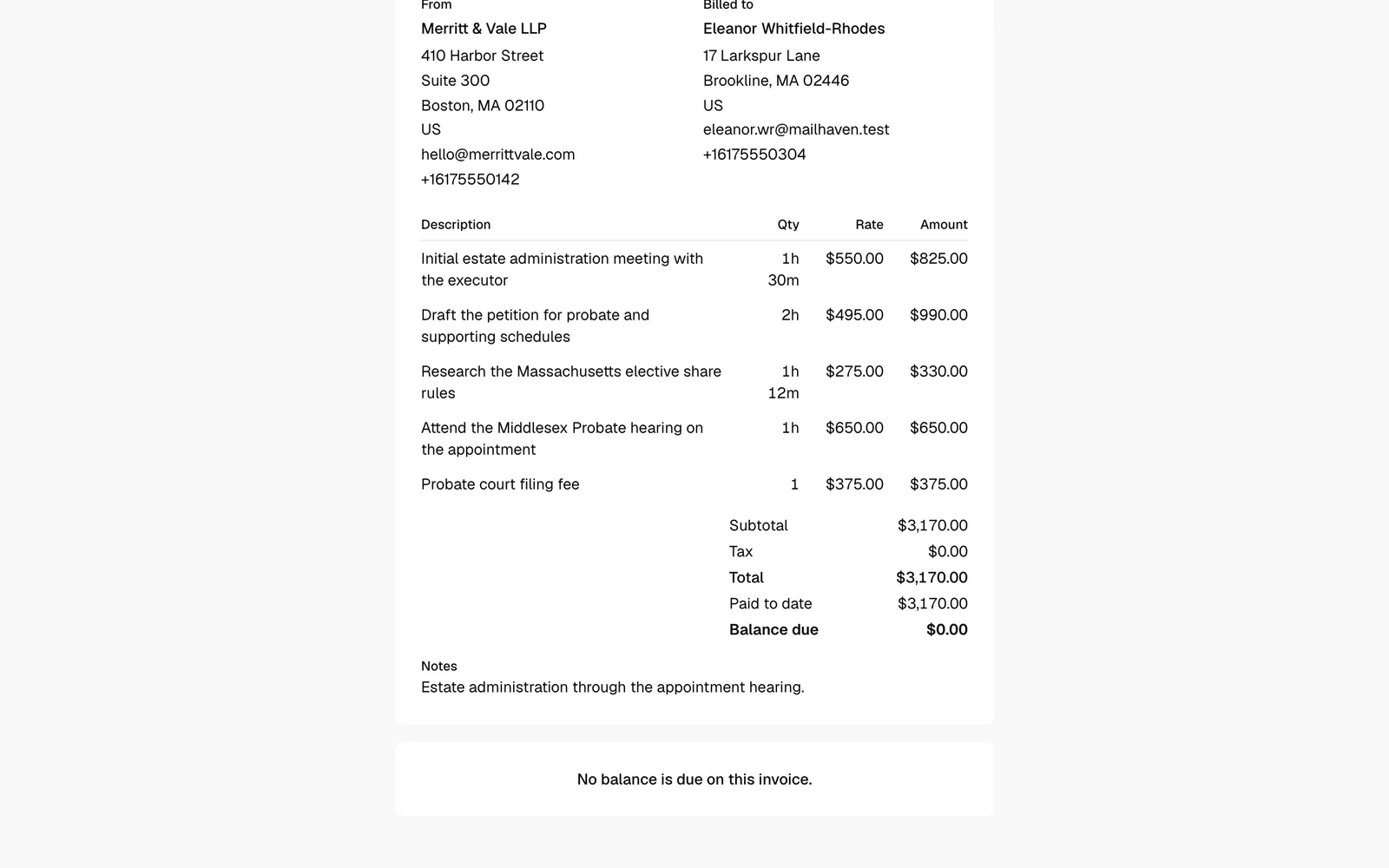
- A totals summary showing Subtotal, Tax, Total, Paid to date, and Balance due.
- Any Notes you added to the invoice.
At the top right of the invoice, the client can click Download PDF to save a copy of the invoice as a PDF file. This is handy for the client's own records or to forward to an accountant.
Tip: The Balance due is what the client still owes after any payments already recorded. If you record a payment from inside Esqase, the balance the client sees here updates accordingly.
The two-view invoice and pay toggle
The payment link has two views: the invoice on one side and the payment options on the other. The client toggles between them.
- The default view is the invoice. Below the invoice, when a balance is owed and at least one payment method is available, there is a primary button reading Pay followed by the amount due (for example, Pay $1,250.00).
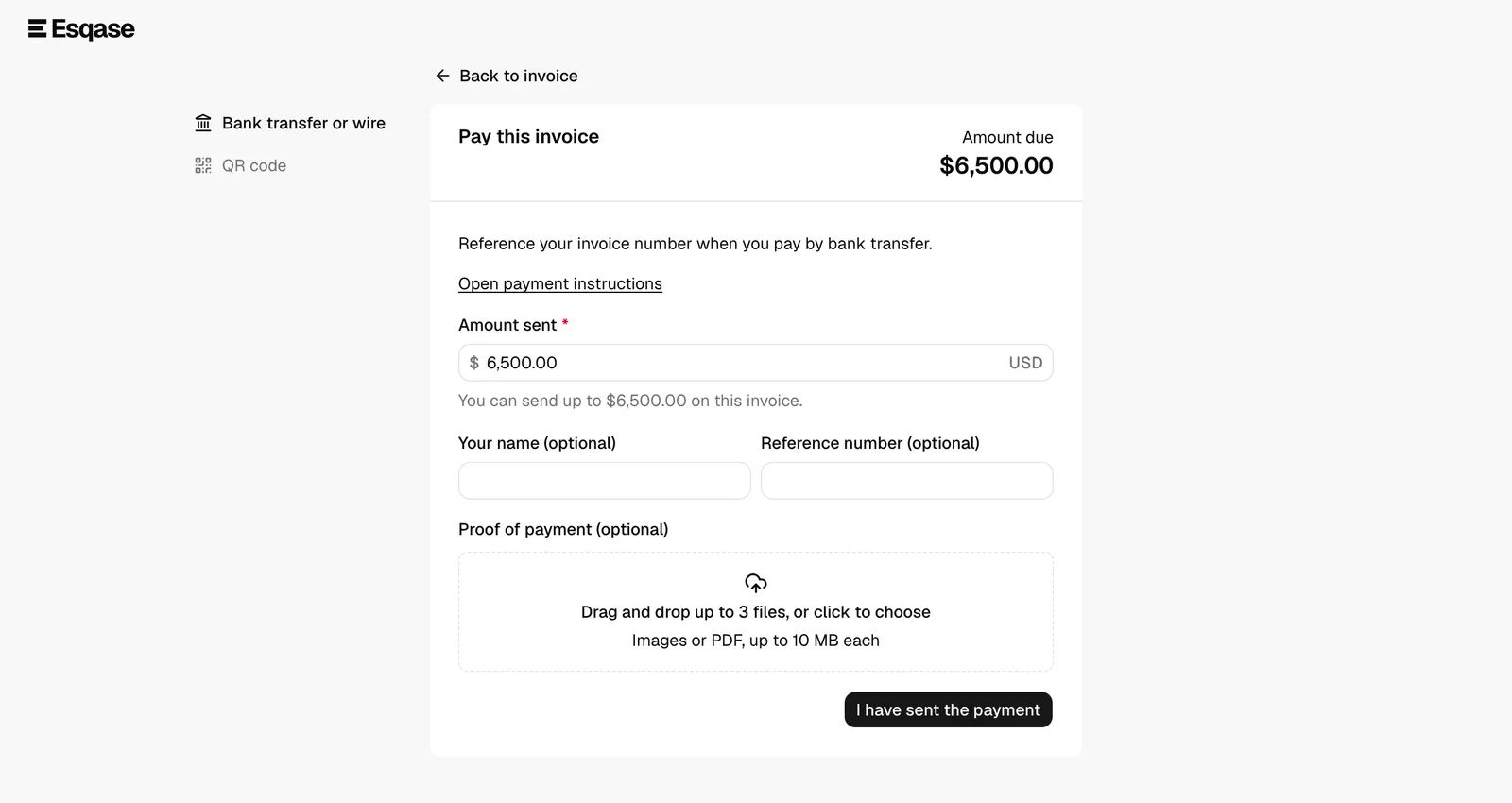
- Clicking that Pay button switches to the pay view. This shows a method picker on the left and the selected payment method's form on the right, with the amount due shown at the top right under Amount due (or Installment due on a payment plan). The picker lists the methods available on this link in this order: Card, Bank account, Bank transfer or wire, and QR code.
- To go back, the client clicks Back to invoice at the top of the pay view. They can switch back and forth freely without losing their place.
Note: If the invoice has no remaining balance, the Pay button does not appear at all (see A fully paid invoice and unavailable links below).
Paying by card
When your firm takes payments through LawPay or Confido Legal, the client can pay by credit or debit card. The card details go straight to the processor in secure fields on the page, and Esqase never sees them.
- In the pay view, the client selects Card.
- The amount shows at the top of the form. Under Full balance only it is fixed to the balance, on a payment plan it is the next installment (Installment amount), and under Client chooses an amount the client types it in Amount to pay, up to what is still collectible.
- They fill in the card form:
- Name on card (optional with LawPay).
- The card number, and the expiry and security code, in the processor's secure fields. With LawPay the expiry goes in Expiration (MM/YY).
- Billing postal code (required with LawPay, optional with Confido Legal).
- On a payment plan with autopay available, they can also save the card for the remaining installments (see Saving a card or bank account for a payment plan).
- They click Pay followed by the amount. The button reads Processing payment... while the processor charges the card.
When the processor accepts the card, the payment is recorded straight away as Cleared: the invoice balance goes down, the payment is posted to your firm's account, and your team is notified. The client lands on a Payment received page. Nobody at your firm has to review or clear it.
If the card is declined, the page shows Your payment did not go through with the reason, for example The card was declined. Nothing is recorded, and the client can try another card.
📷 Screenshot: The Card tab in the pay view, showing the amount block, the Name on card field, the processor's secure card fields, the Billing postal code field, and the Pay button.
Paying from a bank account
The Bank account option debits the client's checking or savings account through your firm's processor. LawPay calls this an eCheck and Confido Legal calls it ACH; the client sees Pay from your checking or savings account by eCheck (or by ACH), with a note that bank payments usually take 3 to 5 business days to clear.
- In the pay view, the client selects Bank account.
- They confirm the amount, as for a card.
- They choose the Account holder (Individual or Business) and the Account type (Checking or Savings). With LawPay they also give a First name and Last name, or a Business name for a business account.
- They enter the routing and account numbers in the processor's secure fields.
- They tick I agree to the bank payment authorization. The authorization text beneath it says the client authorizes your firm to debit the account they designated for the amount shown, and that the authorization stays in effect until the debit is processed or the client cancels it by contacting your firm.
- They click Submit Payment.
A bank payment takes a few days to reach your bank, so it is recorded as Pending, and the client lands on a Payment processing page: Your bank payment is processing and usually clears in 3 to 5 business days. You will get a receipt when it does. When the processor reports that the money arrived, Esqase marks the payment Cleared and the invoice balance goes down, with nothing for your firm to do. If the client's bank refuses the debit, Esqase marks the payment Failed and the balance is open again.
While a bank payment is processing, the amount is held against the invoice. If the client opens the link again before it clears, the page reads Payment processing instead of offering to pay the same amount twice.
📷 Screenshot: The Bank account tab in the pay view, showing the Account holder and Account type choices, the name fields, the processor's secure bank fields, the authorization checkbox and text, and the Submit Payment button.
Saving a card or bank account for a payment plan
On a payment plan, a client paying by Card or Bank account can save that payment method so the rest of the installments are charged automatically on their due dates. This is autopay.
- Above the pay button, the form lists Automatic payments: each installment still to come, with the date it will be charged and its amount.
- The client ticks Save this card and charge the remaining installments automatically (or Save this bank account and charge the remaining installments automatically) and reads the authorization text beneath it. It says the client authorizes your firm to save the payment method with its payment processor and charge it for each remaining installment on or after its due date, that a failed payment may be tried again on a later day, and that the authorization lasts until the plan is paid in full or the client cancels it by contacting your firm. Cancelling automatic payments does not cancel the balance owed.
- They pay the current installment as usual.
The confirmation page then adds Automatic payments are on. Your remaining installments will be charged on their due dates. The saved card or bank account is kept by the processor, and Esqase stores only a reference to it, such as its brand and last four digits. Before each automatic charge, the client is emailed a notice with the amount and date.
The option only appears when your firm allows autopay and more installments are still to come. See Payment plans and autopay.
Paying by bank transfer or wire (a self-reported payment)
A manual payment link is for clients who pay outside Esqase, for example by sending a wire or bank transfer to your firm. Because the money moves through your bank rather than through Esqase, the client tells you they have paid, and you confirm it on your side later.
This is what your client does:
- In the pay view, the client selects Bank transfer or wire.
- They read the instructions you wrote. If you added a payment URL or wire-instructions link, they can click Open payment instructions to view it in a new tab.
- They send the payment through their bank.
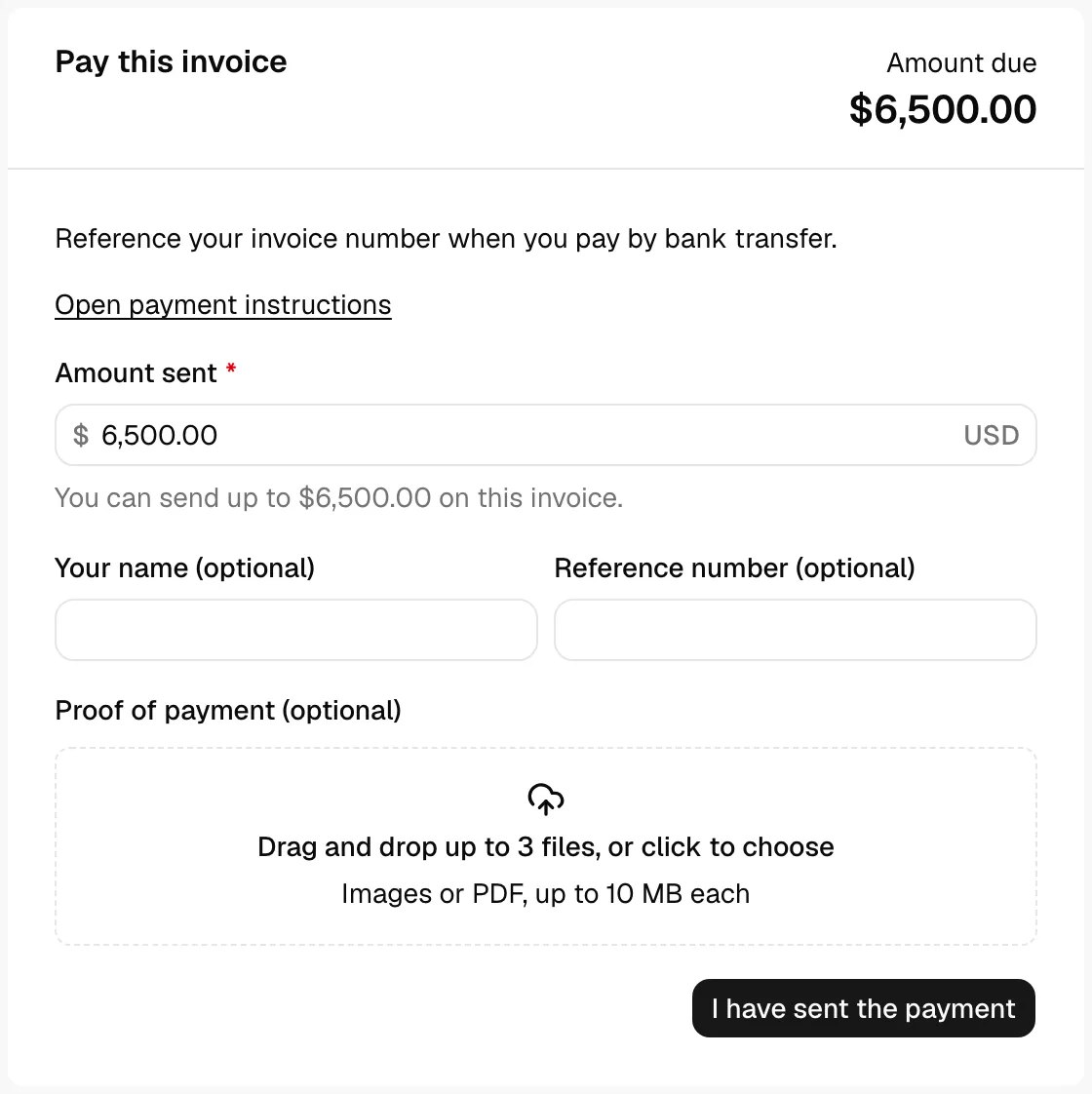
- Back on the page, they fill in the small form to report what they sent:
- Amount sent: how much of the balance is being paid, in the invoice's currency. What the client can do here depends on the payment terms you chose. Under Full balance only the amount is fixed to the balance and shown as a figure rather than a field, with the line "Your firm accepts the full balance only on this invoice." Under Client chooses an amount it is an editable field capped at what is still collectible, with the note "You can send up to ..." beneath it.
- Your name (optional): the name the payment will arrive under.
- Reference number (optional): a wire reference or confirmation number that helps you match the payment.
- Proof of payment (optional): they can attach a receipt or screenshot (see Uploading proof of payment).
- They click I have sent the payment. Esqase records the payment as pending and shows them a confirmation page.
Important: A manual payment is self-reported, so it does not change the invoice balance until you review it and mark it as cleared in Esqase. Until you confirm it, the payment sits as Pending in your payments list. See Recording and managing payments for how to review and clear it.
Note: A reported payment reserves the amount on the page, so the same client cannot report the same transfer twice. If they come back before you have confirmed it, the page reads Payment reported and tells them how much is being held while your firm confirms it arrived. Clearing or failing the payment releases the hold.
Paying by scanning the QR code
A QR code payment works like the manual method, but instead of a link the client scans a static QR code (for example PIX, UPI, or a Venmo code) with their banking or payment app.
- In the pay view, the client selects QR code.
- They read any instructions you provided, then scan the displayed QR code with their banking or payment app and send the payment.
- They fill in the same short form as the bank-transfer method: Amount sent, optional Your name, optional Reference number, and optional Proof of payment.
- They click I have sent the payment. The payment is recorded as pending and they see a confirmation page.
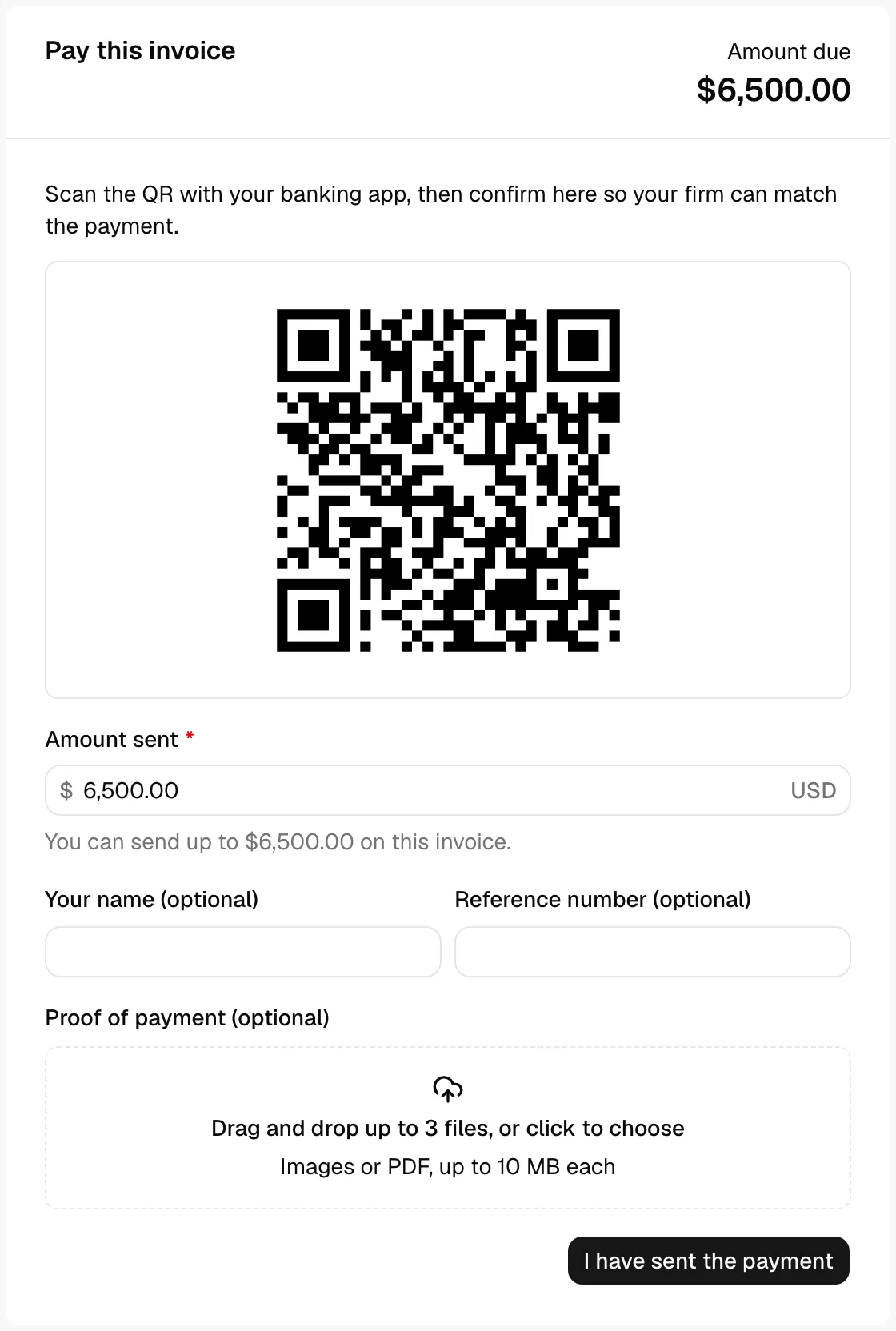
Note: If the QR image cannot be shown for any reason, the page tells the client to contact your firm. Make sure you have uploaded a current QR image in your payment settings. See Payment settings.
Important: Like bank transfers, a QR payment is self-reported and stays Pending until you confirm it in Esqase.
Uploading proof of payment
For manual and QR payments, the client can attach evidence that they paid, such as a bank receipt or a screenshot of their transfer. This makes it much easier for you to match and confirm the payment.
- In the bank-transfer or QR form, the client finds the Proof of payment (optional) area.
- They drag and drop files onto it, or click to choose files from their device.
- Accepted files are images or PDFs, up to 10 MB each. The client can attach more than one file.
- Each file uploads with a progress indicator, then shows a green check when it finishes. The client can remove a file before submitting by clicking the remove (X) button next to it.
- When they click I have sent the payment, the attachments are saved with the pending payment so you can see them when you review it.
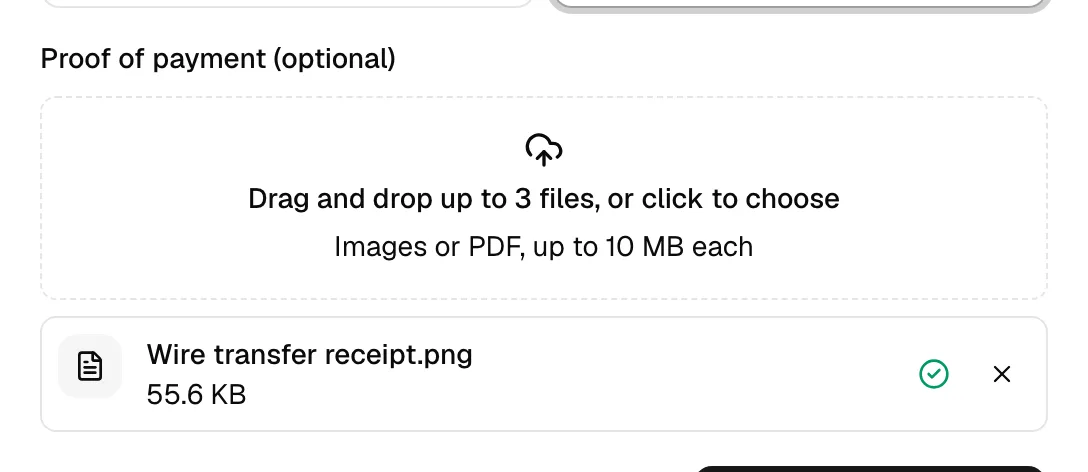
Tip: Encourage clients to attach a receipt for bank transfers and QR payments. It speeds up your reconciliation and reduces back-and-forth. Attachments appear with the payment when you open it in your payments list. See Recording and managing payments.
Common questions
- Are there file-type or size limits? Yes. Proof files must be images or PDFs, and each file can be at most 10 MB. There is also a cap on the number of files per payment; if the client reaches it, the page tells them they cannot add more.
- Is proof required? No. It is optional for both manual and QR payments, but it is strongly recommended.
The payment confirmation page
What the client sees after paying depends on the method.
Card and bank account payments. The page is titled Payment received for a card the processor accepted: it names your firm, the amount, and the invoice number, and gives the receipt number when your firm issues official receipts. For a bank payment it is titled Payment processing and says the payment usually clears in 3 to 5 business days, and that the client will get a receipt when it does. A card payment that the processor holds for review reads Your card payment is processing. You will get a receipt when it clears. A Back to invoice button returns to the link. The client also gets a Payment received or Payment processing notification in their client portal. See How clients get portal notifications.
📷 Screenshot: The Payment processing page a client sees after paying from a bank account, with the Back to invoice button.
Bank transfer and QR payments. After the client reports a payment, they land on a confirmation page titled Thank you. It reads: "We recorded your payment for invoice [number]. [Your firm name] will follow up if needed." A Back to home button takes them to the Esqase website.
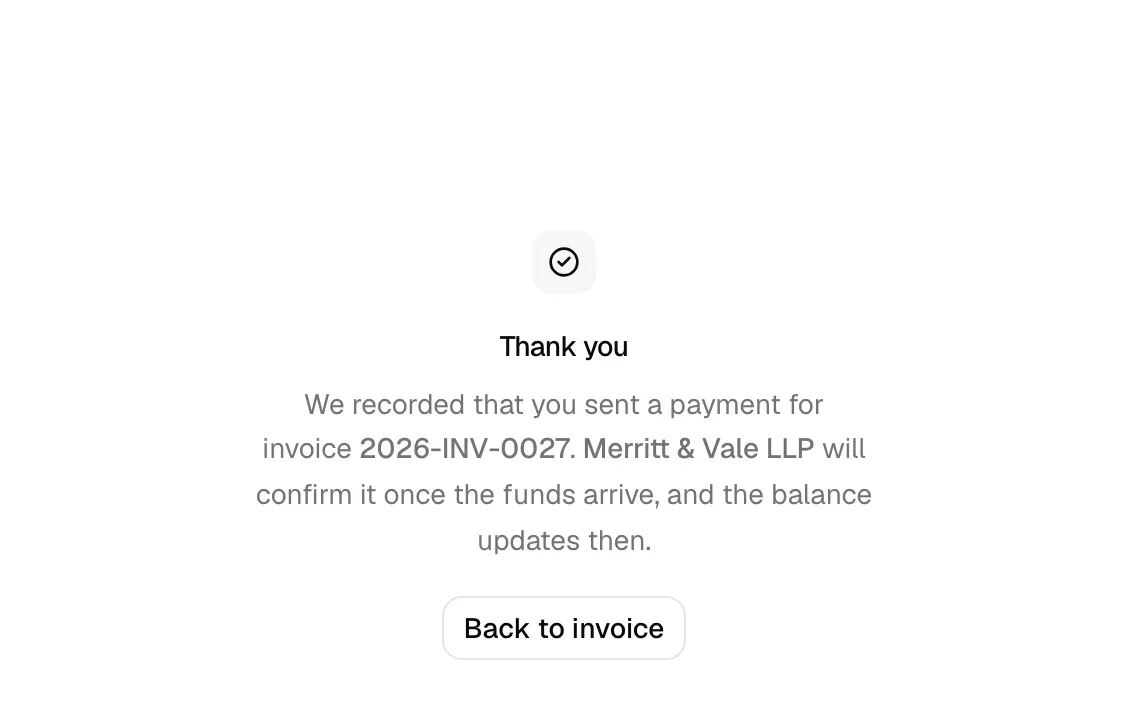
"Recorded" does not mean "cleared". For both bank transfer and QR code, the payment is saved as pending. Your firm reviews it, checks the money actually arrived, and marks it cleared before the invoice balance changes. See Recording and managing payments.
Note: The confirmation page is tied to the specific payment the client just made. If they navigate away and come back to the link later, they will see the invoice again (now with an updated balance, if you have since cleared the payment), not the confirmation screen.
Tip: Bank transfer and QR payments do not clear on their own, so watch the Pending tab of your payments list after you send a link. That is where a client's reported payment waits for you. Card and bank account payments need nothing from you: they clear by themselves.
A fully paid invoice and unavailable links
Sometimes a client opens a link and there is nothing to pay, or the link no longer works. Here is what they see.
No balance due. If the invoice is already fully paid, the client still sees the invoice details, but instead of a Pay button they see a message: "No balance is due on this invoice." This is the expected result once an invoice is paid in full, and also once the balance has been closed by a credit note or a write-off. See Credit notes, write-offs, and discounts.
Payment already reported. If the client has reported a payment that your firm has not confirmed yet, the page reads Payment reported and names the amount being held against the invoice. Clear or fail that payment to let them pay again.
Bank payment processing. If the client paid from their bank account and the payment has not cleared yet, the page reads Payment processing: Your bank payment is processing and usually clears in 3 to 5 business days. It opens for payment again on its own once the payment clears, or if it fails.
No payment options yet. If a balance is owed but your firm has not finished setting up payments for that invoice, the client sees a panel titled No payment options yet asking them to contact your firm directly. If this happens, check your payment settings and the methods you allowed on the link.
Expired, revoked, or invalid link. If a link has expired, was revoked, or the address is wrong, the page shows a generic not-found screen rather than the invoice. The client should ask your firm for a fresh link.
Tip: If a client reports a link that does not work, the quickest fix is to generate a new payment link from the invoice and send it again. The old token stops working once a link is revoked or expires.
Troubleshooting
- The client sees "No payment options yet." Enable at least one payment method in Payment settings and confirm you checked it when generating the link.
- The client does not see Card or Bank account. Check that your firm's processor is connected with its accounts mapped, that Card payments and Bank payments are on, and that the invoice is in the processor account's currency. See Taking card and bank payments with LawPay or Confido Legal.
- The client sees "Your payment did not go through". The processor declined the card or bank account, and the message gives its reason. Nothing was charged or recorded. The client can try again or use another method.
- A bank account payment is still pending after a few days. Bank payments usually take 3 to 5 business days to clear. Esqase marks it cleared by itself when the processor reports the money arrived; you do not clear it by hand.
- The client sees a not-found page. The link is expired, revoked, or mistyped. Generate and send a new one.
- A manual or QR payment is not reducing the balance. That is expected. Self-reported payments stay pending until you review and clear them in Recording and managing payments.
- The client says the amount is locked and they want to pay part of it. The link was generated with Full balance only. Generate a new link with Client chooses an amount.
- The client sees the invoice but no Pay button after a refund. A fully refunded invoice cannot take a new payment through its original link. Generate a fresh link once the invoice is payable again.
Related
- How clients sign in
- The Esqase Client app
- Creating and sending invoices
- Payment plans and autopay
- Taking card and bank payments with LawPay or Confido Legal
- Recording and managing payments
- Payment settings
- Invoice and billing settings
- Accounts, trust, and transactions
- Integrations overview
- Working with contacts