Workflow step types
A workflow is an ordered list of steps that you attach to a lead or a matter. Each step is one action, like sending an email, creating a task, screening for conflicts, or converting a lead into a matter. Every step also carries a How it runs block that says who does it, when it starts, and what counts as finished.
This page explains the shared How it runs settings, then every step type, the fields you fill in, and what the step does on a real lead or matter. For creating a workflow and using the builder, see Workflows and the builder. For what happens once automation is on, see How automation runs your workflows.
Before you begin
- You build and edit workflow steps in the workflow builder, which opens when you create or edit a workflow under Workflows in the sidebar.
- You need a role that includes Update access for workflows to add, edit, or remove steps. Without it you can open a workflow but the Add workflow item controls will not appear.
- Some step types reference other records. To pick them, you need at least one of the matching items set up first:
- Email, Form, and Event steps use your Email templates. Esqase ships preset templates, and you can create a new one from inside the step using the New email template action.
- Form steps need at least one form.
- Event steps can optionally use an event type.
- Task list steps need at least one task list.
- Document steps can optionally copy from a document template.
- Convert to matter steps can optionally use a matter template.
- Invoice steps use your activity categories.
Important: Adding steps only builds the template. Steps do something once the workflow is attached to a lead or matter. A step set to Manual always waits for a team member. A step set to run on its own only runs when the workflow's Automation switch is on and automation is not paused for your firm.
Adding a step
Every step type is added the same way. The differences are in the configuration screen that follows.
- In the sidebar, click Workflows, then open the workflow you want to edit (or create a new one).
- In the builder, click the + button on the chain line between two steps, or Add workflow item if the workflow is empty. This opens the Add workflow item dialog.
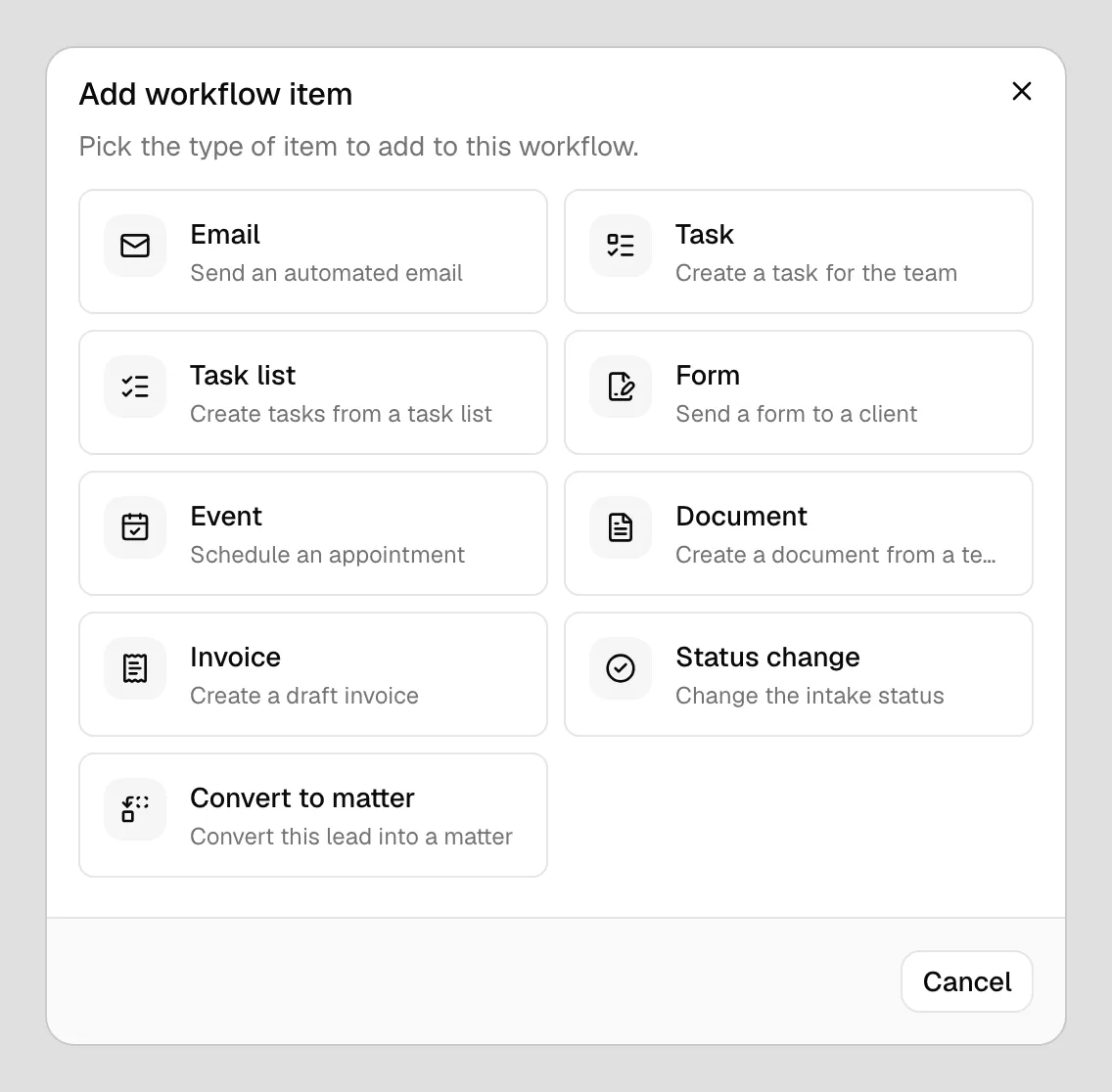
- Choose a step type from the grid. Each tile shows the type name and a short description:
- Email (Send an automated email)
- Task (Create a task for the team)
- Task list (Create tasks from a task list)
- Form (Send a form to a client)
- Event (Schedule an appointment)
- Document (Create a document from a template)
- Invoice (Create a draft invoice)
- Status change (Change the intake status)
- Convert to matter (Convert this lead into a matter)
- Conflict check (Screen the client for conflicts)
- Set How it runs at the top of the configuration screen, then fill in the fields for that type.
- Click Add to workflow. The step appears on the canvas at the position you chose.
- When you are finished, click Save in the builder toolbar to store the whole workflow.
Tip: To change a step later, open its ... menu on the canvas and click Edit. The dialog title changes to Edit ... and the button reads Save changes instead of Add to workflow. Editing a step does not save the workflow on its own; click Save in the toolbar afterward.
How it runs
Every step type opens with the same How it runs block above its own fields.
📷 Screenshot: The How it runs block at the top of a step's configuration screen, showing Run mode, Starts, Done when, the Only run if switch, and If the condition is not met.
Run mode
Run mode decides who does the work:
- Manual: "A team member runs this step from the lead or matter." Nothing happens until someone opens the record and runs it.
- Automatic: "Esqase runs this step on its own."
- Automatic, needs approval: "Esqase prepares this step and waits for someone to approve it." Esqase gets everything ready, for example writing the email or drafting the invoice, then holds it for a member to look over.
Two things can lock the picker:
- Convert to matter always reads Convert to matter always asks a member. Converting a lead is never done unattended.
- A type Esqase cannot run yet reads This step type cannot run automatically yet.
Note: Your firm can require approval for whole types of step. A step set to Automatic whose type needs approval still waits for a member. Your firm owner or administrator sets that under What needs approval in Automation settings.
Starts
Starts decides when the step begins once the step before it is finished:
- After the previous step is done: as soon as the one above it finishes.
- A set time after the previous step: type a number and choose Minutes, Hours, Days, Business days, or Weeks. Business days skip Saturdays and Sundays.
Waits are counted in your firm's time zone. Emails, form requests, meeting invites, and reminders also respect the sending window your firm sets, so a step that comes due outside those hours goes out when the window next opens. Tasks, documents, invoices, and status changes are created straight away whatever the window says.
Done when
Done when decides what marks the step finished, which is what lets the next step start. The picker only appears when the type offers more than one choice:
| Step type | Choices |
|---|---|
| Form | The step runs, The client sends the form back |
| Event | The step runs, The meeting is confirmed |
| Task | The step runs, The task is done |
| Invoice | The step runs, The invoice is approved, The invoice is paid |
| Conflict check | The step runs, The conflict check is cleared |
| Email, Task list, Document, Status change, Convert to matter | The step runs |
A Conflict check step behaves the same way whichever of its two choices you pick: it is done when the screen finds nothing that blocks it, and it waits for you when it does.
Esqase preselects the choice most firms want: the client outcome on a Form, an Event, and a Conflict check step, and The step runs everywhere else.
Pick The step runs when the workflow should carry straight on, and a client outcome when the next step must not happen until the client responds. A step waiting on a client sits in a Waiting state and can chase the client with reminders.
Note: On a lead, a task step is done as soon as the task is created, even if you chose The task is done. The builder says so under the picker. On a matter, the step waits until someone ticks the task off.
Only run if
Turn on Only run if to give the step a condition. The step then runs only when everything you list is true.
- Turn the Only run if switch on. One condition row appears.
- Pick the field to test:
- Lead source, Lead stage, Lead status, Lead type (a person or a company), Assigned member,
- Practice area, Matter stage,
- Previous step, which tests how the step above it ended.
- Pick how to compare: is, is not, is one of, is not one of, is empty, or is set. is one of and is not one of let you choose several values at once, and is empty and is set need no value at all.
- Pick the value.
- Click Add another condition for more rows. Every row must be true for the step to run.
- A plain sentence under the rows shows what you have built, for example This step runs only when the lead source is Website.
Then choose If the condition is not met:
- Skip this step and carry on: the step is marked skipped and the workflow moves to the next one.
- Stop the workflow here: this step and everything below it are skipped, and the workflow finishes.
Note: A condition is checked against the record the workflow is running on. After a Convert to matter step the workflow keeps the lead it came from as well as the new matter, so lead conditions are still checked on the matter. Matter fields are not available while the record is still a lead, and a field Esqase cannot check counts as "not met", so the step is skipped (or the workflow stops, if that is what you chose). Keep matter conditions below the Convert to matter step.
Email step
An Email step sends one email from a saved template. Use it for a welcome message, a "we received your inquiry" note, or any standard message you send at a point in your process.
- In the Add workflow item dialog, choose Email.
- In the Email template field, select the template to send. This is the only required field.
- The dropdown is searchable. Start typing to filter your templates.
- If you do not have a suitable template yet, click New email template at the bottom of the dropdown to create one without leaving the workflow.
- A Template preview appears showing the subject line and body so you can confirm you chose the right one.
- Click Add to workflow.
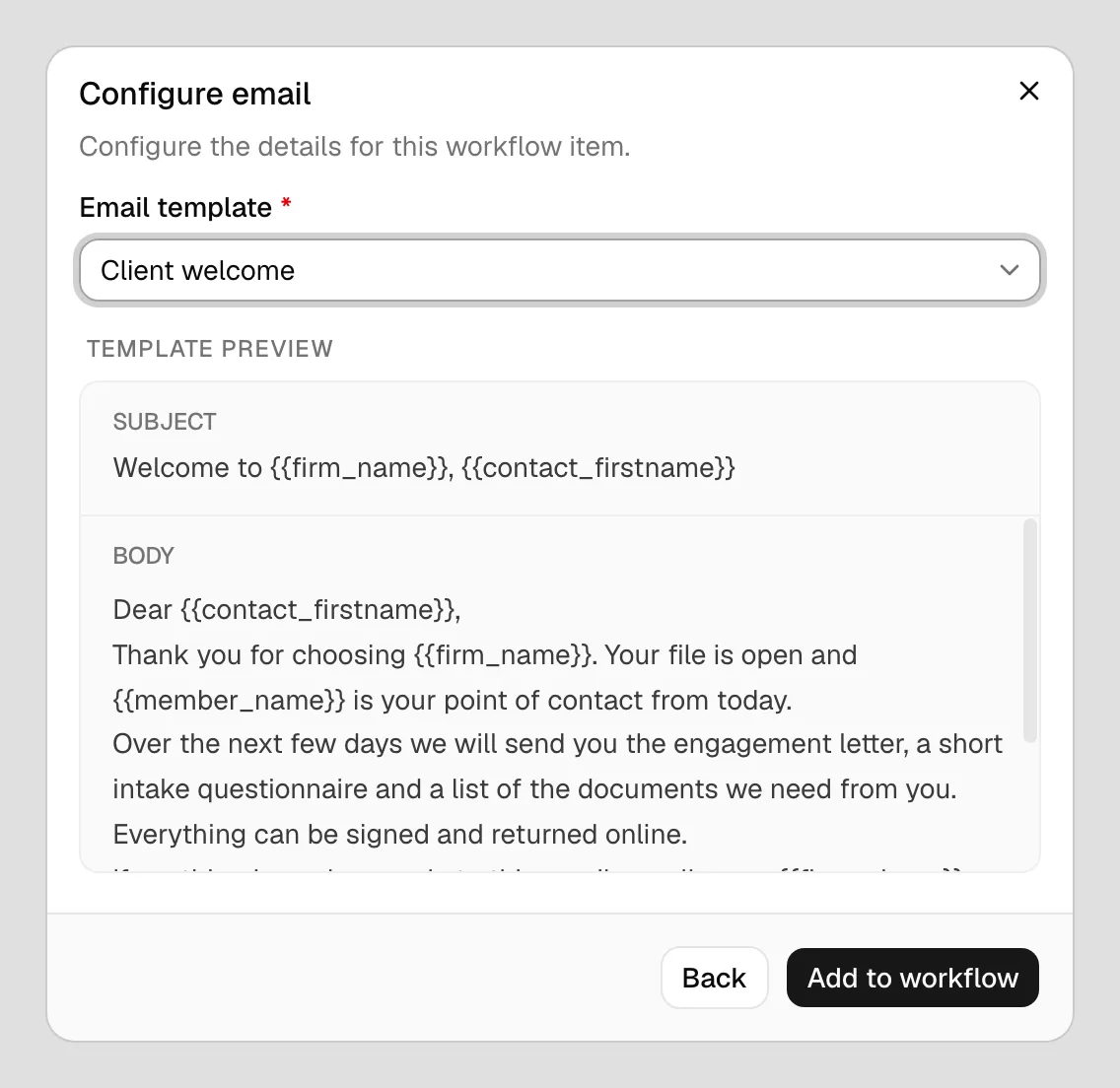
What it does: the email goes to the client on the record, with placeholders like the contact's name filled in from the record. Run by hand, it opens your email composer. Run by Esqase, it is sent for you from your firm's name and signed with your firm signature, and the step is done once it has gone out. See How automation runs your workflows.
Note: The step stores which template to use, not a copy of its text, so edits to the template apply to future sends. The one exception is a step set to Automatic, needs approval: Esqase writes the email when it prepares the step, and that is the wording you review and send.
Task step
A Task step creates an internal to-do for your team. This is the most detailed step type because it carries everything a task needs: who is responsible, how urgent it is, and when it is due.
- In the Add workflow item dialog, choose Task.
- Fill in the task details:
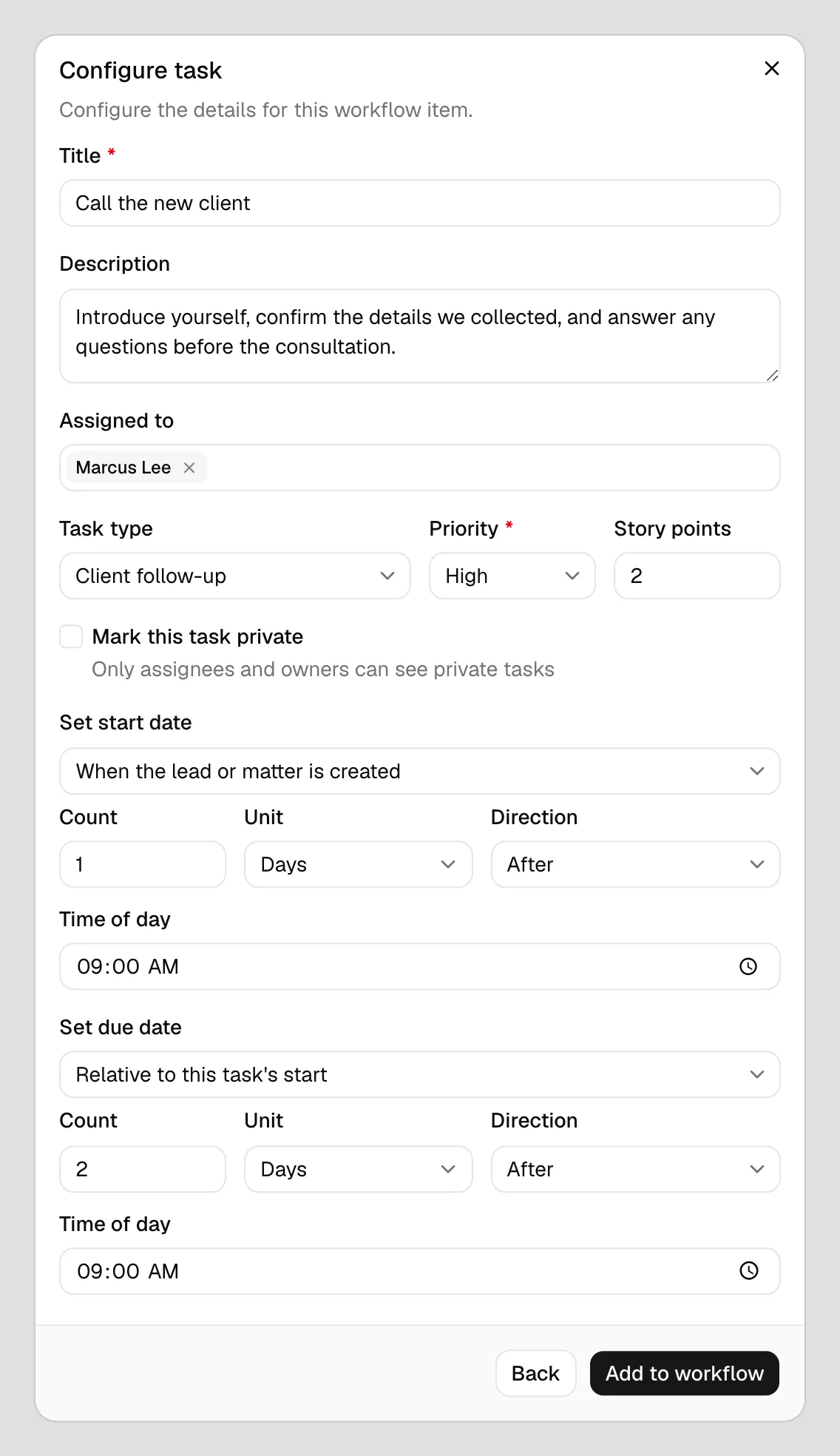
- Title (required). A short description of what needs to be done, for example "Open the file" or "Send engagement letter".
- Description (optional). Extra detail for whoever picks up the task.
- Assigned to (optional). Select one or more firm members. Leave it empty to create the task unassigned.
- Task type (optional). Categorize the task using one of your task types. If you have none active, the field shows "No active task types".
- Priority (required, defaults to Medium). Choose from Lowest, Low, Medium, High, or Highest.
- Story points (optional). A numeric estimate of effort, if your firm uses point sizing.
- Mark this task private. When checked, only assignees and firm owners can see the task.
- Set when the task starts and is due using the two scheduling fields below.
- Click Add to workflow.
Scheduling the start and due dates
Because a workflow runs at different times for different leads or matters, task dates are set relative to a reference point rather than to a fixed calendar date. The Set start date and Set due date fields each offer a "how to schedule" dropdown:
- Not scheduled. The task has no start (or due) date. This is the default.
- When the lead or matter is created. Anchors the date to the moment the record came into being. After choosing this you can set an offset:
- Count and Unit (Day, Week, Month, or Year): how far from the anchor.
- Direction (Before or After): which side of the anchor.
- Time of day: the clock time the date lands on.
- For example, Count
3, UnitDay, DirectionAfterschedules the task three days after the record was created.
- Relative to this task's start (available only on Set due date). Anchors the due date to this same task's start date, so the due date moves with the start.
Tip: A common pattern is to set the start date to "When the lead or matter is created" with a small offset, then set the due date to "Relative to this task's start". The whole task window then slides with the record.
What it does: the step creates a real task on the lead or matter with the title, description, type, priority, points, privacy, and assignees you configured, and the dates are worked out at that moment. On a matter the task lands in the first active task stage. You can open and edit the task afterward from the Tasks page. See Creating and managing tasks.
Note: The people you assign are told about the task, whether a member ran the step or Esqase ran it on its own.
Task list step
A Task list step creates several tasks at once from a saved task list. Use it to drop in a standard checklist in a single step instead of adding many individual Task steps.
- In the Add workflow item dialog, choose Task list.
- In the Task list field, select the list to use. This is required. If you have none, the field shows "No active task lists".
- A Tasks in this list preview appears showing every task the list will create. Sub-tasks are indented under their parent. If the list is empty, it shows "This task list has no tasks yet."
- Click Add to workflow.
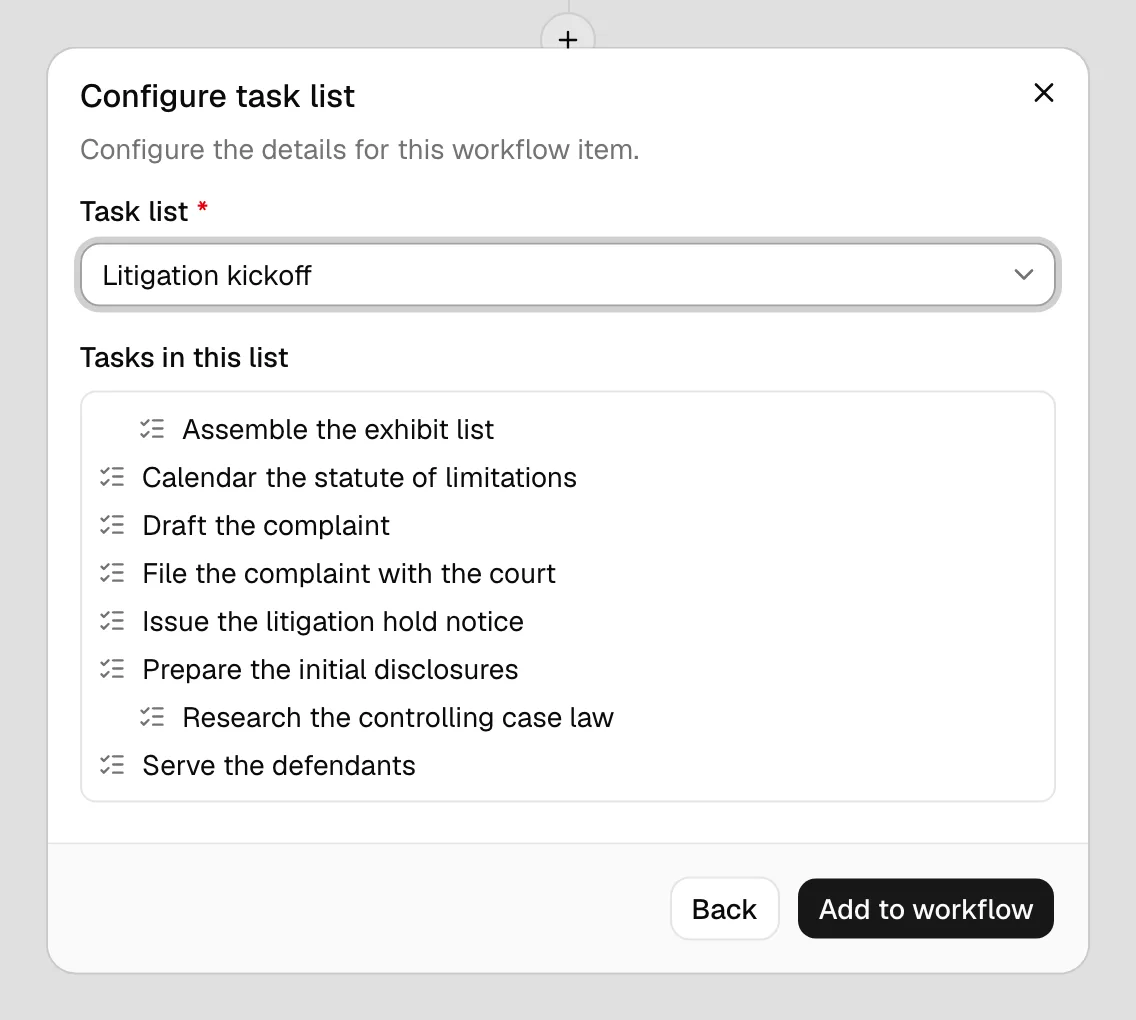
What it does: the step creates a task for every template in the chosen list, including the assignees, priorities, and relative dates defined there. On a lead, the tasks are created as a flat list. On a matter they keep their parent and sub-task structure and need an active task stage to land in. On a lead, the row's button reads Create tasks.
Form step
A Form step emails a client a link to one of your forms and, optionally, keeps reminding them until they respond.
- In the Add workflow item dialog, choose Form.
- Configure the request:
- Form (required). The form to send.
- Send template (required). The email template used for the initial "please complete this form" message. Esqase pre-selects a preset request template when one exists; you can change it or click New email template to make a new one. A Send template preview shows the subject and body.
- To chase clients who have not responded, check Send reminders for pending submissions. This reveals the reminder settings:
- Reminder interval. A number plus a unit (Minute, Hour, or Day), for example
3Dayto remind every three days. - Total reminders. How many reminders to send in all. Choose a number from
1to10, or Unlimited. - Reminder template (required when reminders are on). The email template used for each reminder. A Reminder preview shows it.
- Under the fields, Esqase notes Automatic reminders stop at your firm's cap.
- A new step opens with the interval and the total already filled in from your firm's Reminder defaults under Settings > Firm > Automation, so most steps need no change. Whatever you save on the step is what that step uses from then on.
- Reminder interval. A number plus a unit (Minute, Hour, or Day), for example
- Click Add to workflow.
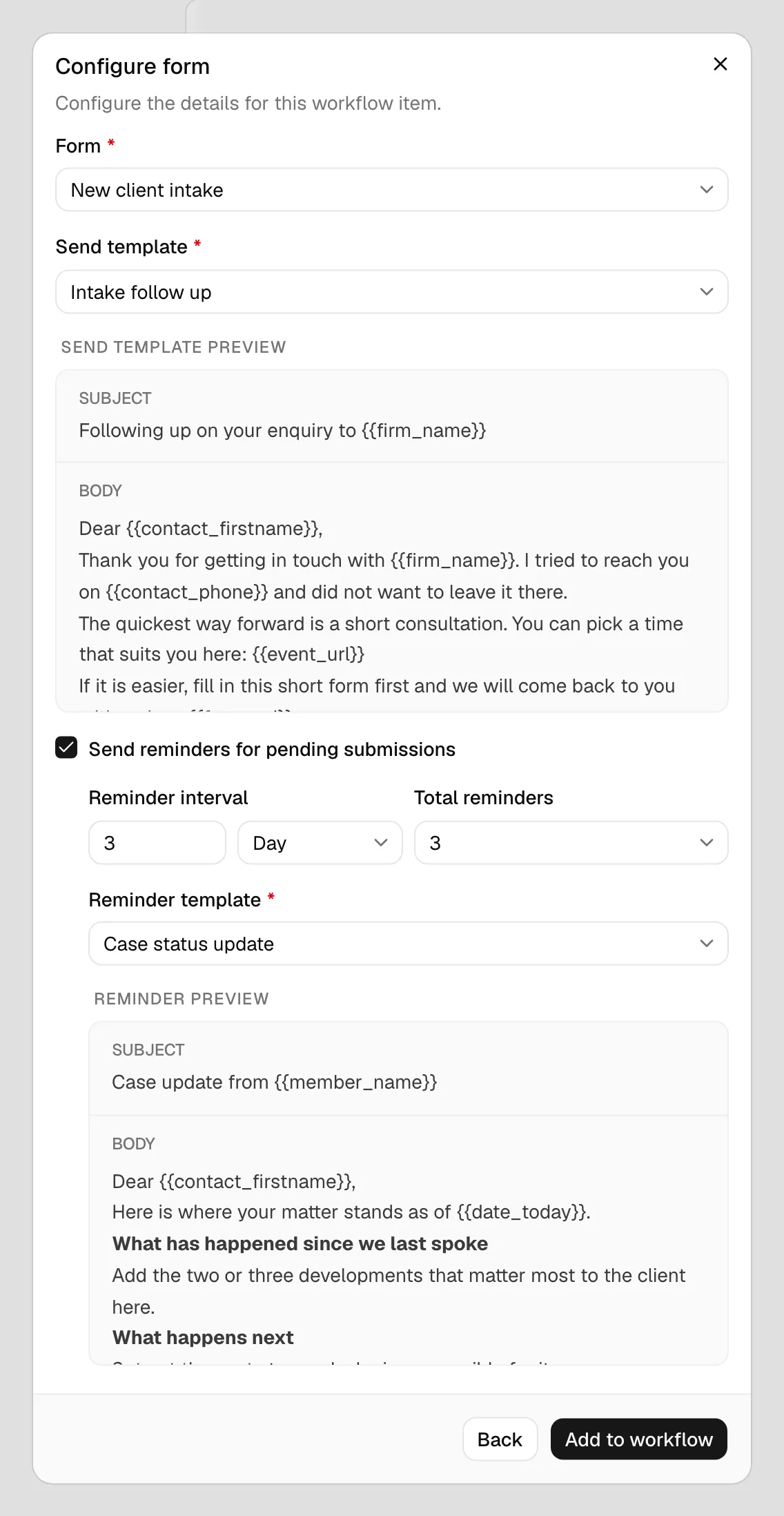
What it does: the client is emailed a link to the form using the send template. With Done when set to The client sends the form back, the step waits until they submit and the workflow holds there. With The step runs, the workflow carries on as soon as the request has gone out.
Important: Unlimited means "until your firm's cap is reached" for reminders Esqase sends. Your firm sets both a maximum number of reminders and a number of days after which reminding stops. See Automation settings.
For the client side, see Public lead-intake forms and How clients fill intake forms.
Event step
An Event step invites a client to schedule a meeting and manages the surrounding emails. Because scheduling involves back-and-forth, this step lets you pick a different email template for each stage.
- In the Add workflow item dialog, choose Event.
- Fill in the event details:
- Event title (required). What the meeting is for, for example "Initial consultation".
- Event type (optional, shown only if you have event types). Choose one of your event types to carry its duration and settings over. Each option shows its length in minutes. Select None to leave it open.
- Pick the three email templates. Each is required and shows a preview once selected:
- Invite template. The email that asks the client to book a time.
- Confirmation template. The email sent once a time is booked.
- Decline template. Sent when you decline the client's proposed time and ask them to pick another.
- To remind clients who have not yet responded to the invite, check Send reminders for pending responses, then set the Reminder interval, Total reminders, and Reminder template. These also start from your firm's Reminder defaults, and the same firm cap note applies.
- Click Add to workflow.
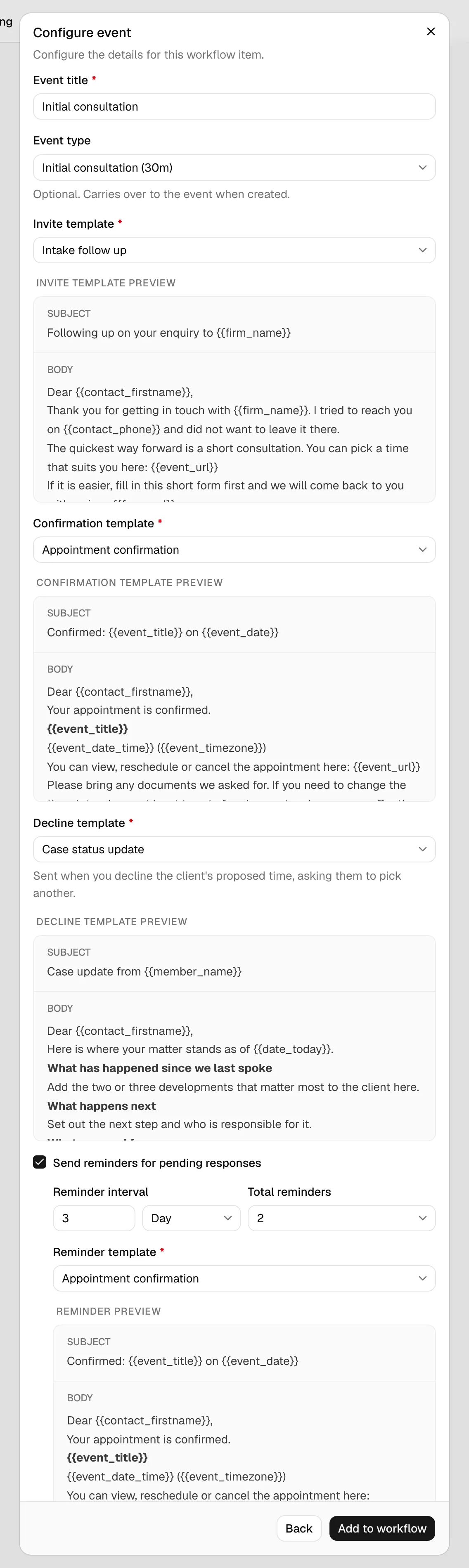
What it does: the invite goes to the client with a link to choose a time. With Done when set to The meeting is confirmed, the workflow waits until a time is booked. With The step runs, it carries on once the invite has gone out. A member of your firm is set as the meeting host, and the meeting is booked in your firm's time zone. The step keeps the member acting on it as the host even when the chosen event type is round robin, so the rotation between hosts applies only to bookings made from your public booking link. For the client experience, see How clients book meetings and Calendar and events.
A booking made on your public page fills this step. When a client books a time on your booking page and the lead is already running a workflow with an Event step, the meeting lands on that step instead of appearing as a second item. A booking your firm confirms straight away completes the step. A booking that waits for approval leaves the step Waiting until a member approves it, and the step then completes on its own. If you pinned an Event type on the step, only a booking of that type fills it; a step left on None takes any booking. This happens even while Run automatic steps on these leads is off under Settings > Firm > Automation: what the client did is always recorded on the step, and only the next step waits for a member.
Document step
A Document step creates a rich-text document on the lead or matter, the same kind of document you get from the New document button in the documents workspace.
- In the Add workflow item dialog, choose Document.
- Fill in the document details:
- Document name (required). The title the new document will be given, for example "Engagement letter". If you leave it blank the field shows the placeholder "Untitled document".
- Template (optional). Choose a document template to copy its content and page setup, or leave it on Blank document to start empty.
- Click Add to workflow.
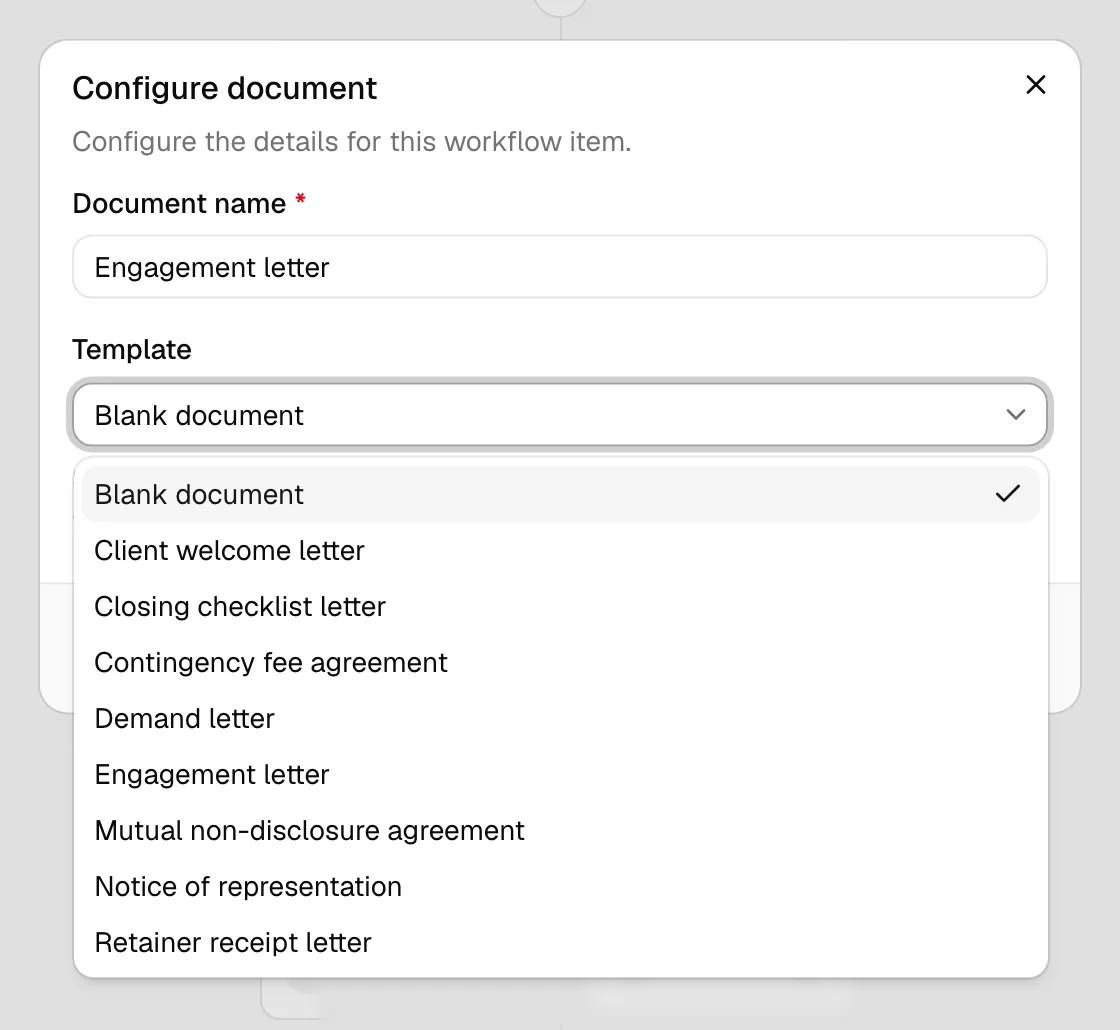
What it does: the document is created from the name and template you chose, filed in the record's documents, and linked to the step so you can jump straight to it. From the step you can then View document, unlink it, or remove the step (optionally deleting the document too).
Important: When Esqase creates the document for you, the template's merge fields are left as they are for you to fill in, so open the document and complete it before you send it anywhere. Creating the same document by hand from the documents workspace fills those fields in from the matter.
Invoice step
An Invoice step creates a draft invoice, with one line per activity category you choose.
- In the Add workflow item dialog, choose Invoice.
- In Activity categories (required), select one or more categories. Each option is labeled with its name, its scope (Firm-wide or Member: a member name), its type (Time or Expense), and its rate. If you have none active, the field shows "No active activity categories".
- Click Add to workflow.
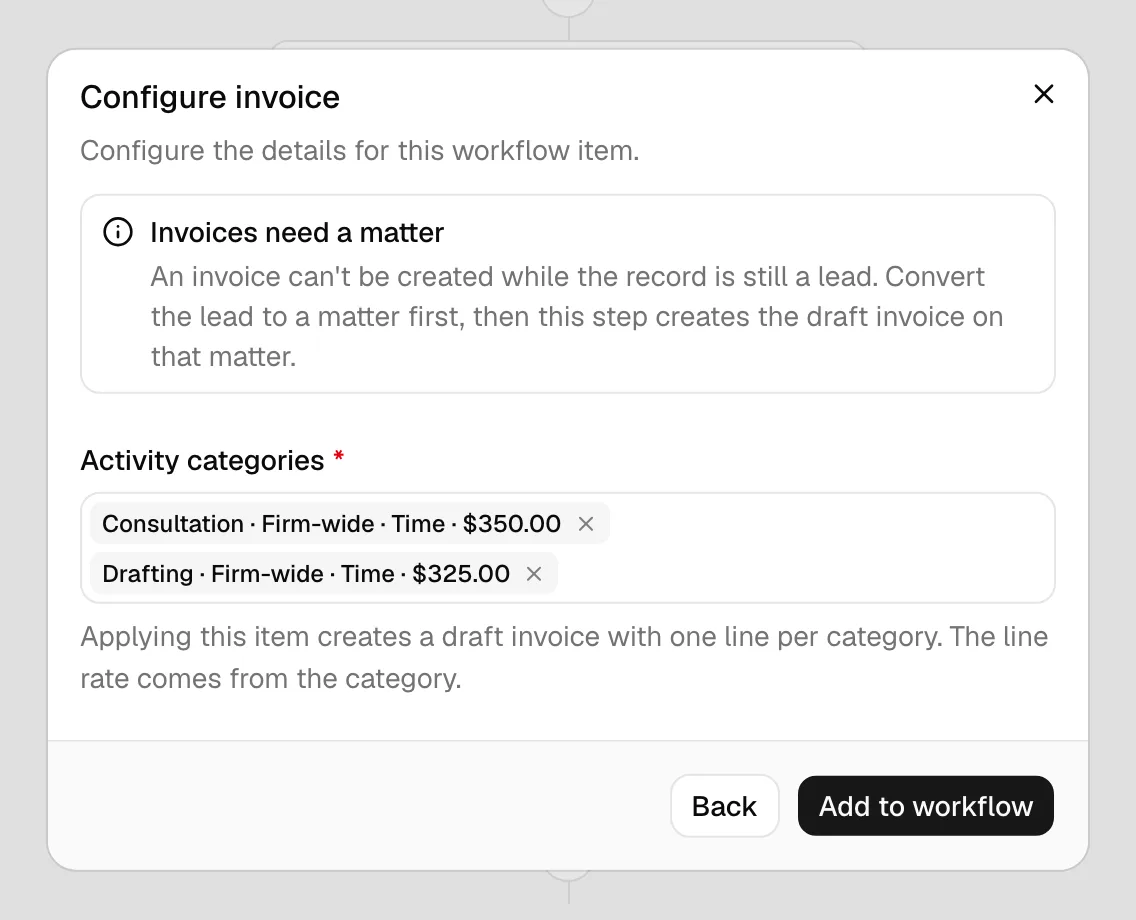
What it does: the step creates a draft invoice with one line per category. The line rate comes from the category, and each line starts at a quantity of one (one hour for a time entry, one unit for an expense). The bill contact, your firm's invoice numbering, and the currency are filled in automatically. The invoice starts as a draft so you can review and edit it. When the step is waiting on approval, the review dialog offers Also approve this invoice, ticked for you, so approving the step finalizes the invoice in the same click. Clear it and the invoice stays a draft for you to finalize from the invoice itself.
An invoice belongs to a matter, so where the draft lands depends on the record:
- On a matter: the draft is created on that matter.
- On a lead: the draft is created on a small invoicing matter linked to the lead. Esqase creates that matter the first time you bill the lead and reuses it afterwards. The lead itself is not marked hired, converted, or done. This works the same whether a member clicks Create draft invoice on the step or Esqase runs it.
Once the draft exists, the step's button reads View invoice so you can open it.
Tip: If you want the bill on the real matter your team will work, put a Convert to matter step above the Invoice step.
Done when offers The invoice is approved and The invoice is paid, which hold the workflow until the invoice reaches that point. A step set to The invoice is approved does not sit waiting for something that has already happened: if the invoice was approved when you approved the step, or you finalized it yourself in the invoice editor first, the step finishes on its next pass. See Creating and sending invoices and Activity categories and rates.
Status change step
A Status change step moves a record along without anyone clicking through the pipeline.
- In the Add workflow item dialog, choose Status change.
- In What this step changes, pick the target:
- Move to the next stage. Moves the record one stage forward in its pipeline, whatever stage it is on. Works on leads and matters.
- Move to a lead stage you pick. Choose the exact Lead stage to move to. Leads only.
- Set the lead status. Choose Hired or Not hired. Leads only.
- Click Add to workflow.
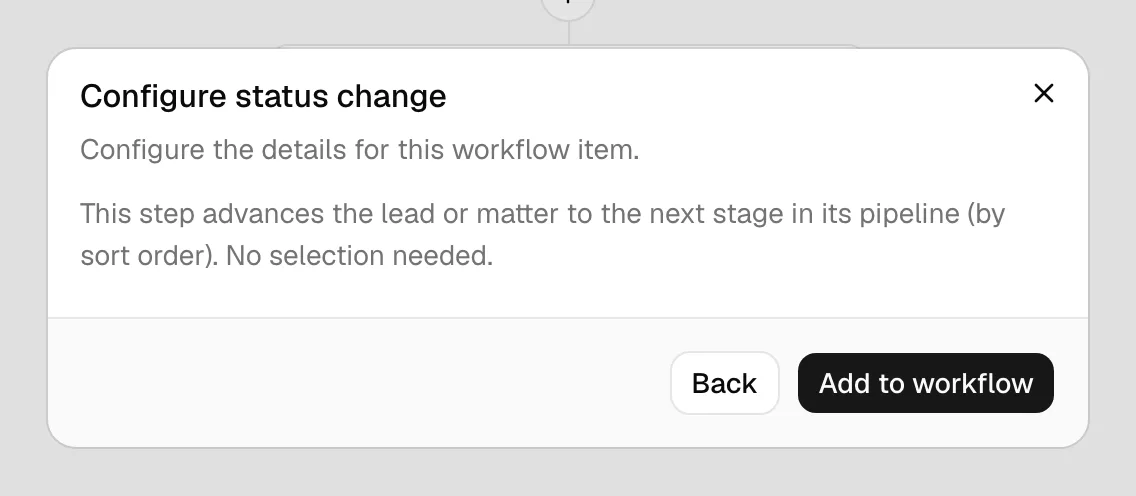
What it does: the record moves as you asked. Move to the next stage on a lead advances the lead pipeline, and on a matter it advances the matter stages; a record already on the last stage stays where it is and the step is marked done. A lead stage or status target still moves the lead after a Convert to matter step, because the workflow keeps the lead it came from. It only fails on a workflow that has never run on a lead, where the step stops with This step changes a lead, and this workflow is running on a matter. Edit the step to change the matter instead.
Note: Setting a lead to Not hired pauses the workflows on that lead, whether a member did it or this step did, so nothing below it reaches a client you have turned away. Putting the lead back into intake, or marking it hired, starts them again.
Convert to matter step
A Convert to matter step turns a lead into a matter. Use it as the hand-off point in an intake workflow, once a lead is qualified.
- In the Add workflow item dialog, choose Convert to matter.
- In the Matter template field, optionally choose a matter template:
- Pick a template to build the new matter from the lead's information plus the template, with no extra screens.
- Leave it empty (the field reads "No template (open the wizard)") to open the new-matter wizard at conversion time so you can review and adjust the details by hand.
- If you have no active templates, the field shows "No active matter templates".
- Click Add to workflow.
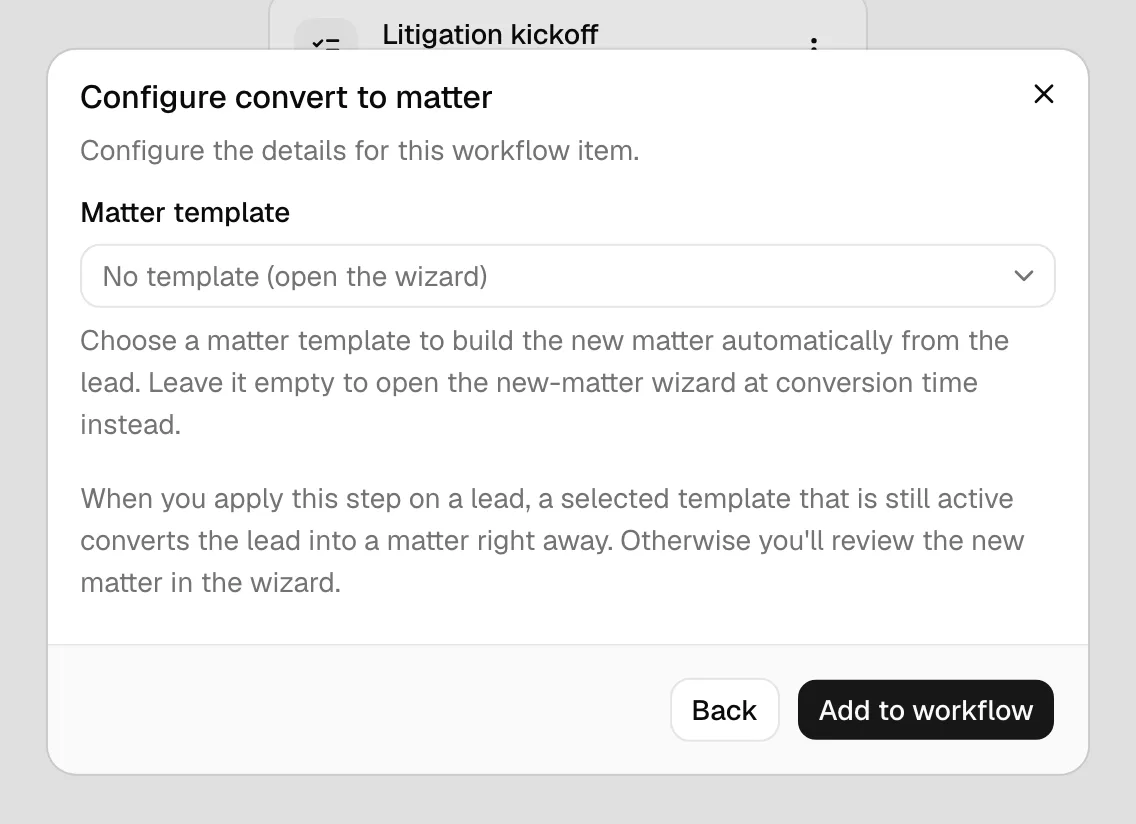
What it does: converting always needs a person, so this step never runs unattended. Set to Automatic or Automatic, needs approval, it asks a member to convert now and waits. A member clicks Convert to matter on the step, and Esqase either converts straight away using the template you chose, or opens the new-matter wizard seeded from the lead when there is no usable template. After the conversion the workflow continues on the new matter.
Note: You can convert from the step or from the Convert to matter button in the lead's header. Either way the step is ticked off and the workflow carries on with the new matter.
For the full flow, see Converting a lead to a matter.
Conflict check step
A Conflict check step screens the client on the record for conflicts of interest before the workflow goes any further.
- In the Add workflow item dialog, choose Conflict check.
- Set the two switches:
- Block the workflow when a possible conflict is found (on by default). The workflow stops and waits for a team member to review the results before anything else runs.
- Also screen related contacts (off by default). Screens the people and companies linked to the client as well as the client itself.
- Click Add to workflow.
📷 Screenshot: The Conflict check step configuration with the two switches and their explanations, and the How it runs block above them.
What it does depends on who runs it:
- A member clicks Run conflict check on the step, which opens the usual conflict screen and searches everything Esqase can search.
- Esqase runs a narrower screen: matters, clients, related contacts, organisation links, contacts, leads, and invoices. It does not search tasks, activities, events, notes, emails, or documents.
Either way the results are saved to the record's conflict history. A screen Esqase ran is listed there as Automatic screen by Esqase, with a line naming what it looked at and what it did not, so a later reader can tell the two kinds of check apart. When Esqase finds a high-priority match and the blocking switch is on, the step turns red and the workflow stops until a member deals with it.
The step shows you what the check found. As soon as a check is attached to the step, the row carries a status button reading Conflicts found (a high-priority match), Matches to review (matches, none of them high priority), Nothing found, or Not checked (the screen could not search anything, so nothing was ruled out). It is there whatever state the step is in, not only when the workflow is blocked. Hover it for a one-line summary.
Click the button and a Conflict check results dialog opens on the results already saved, headed What this check found when it ran. Opening it does not start a new check. It shows the outcome, when the check ran and who ran it, the parties that were screened, the matches grouped by what they matched, and a note on how far the search went. Results are limited to what your own access allows, so a matter you are not on reads Restricted matter rather than showing its details. Previous conflict checks at the bottom lists the record's earlier screenings with the step's own check highlighted, and Run a new check in the footer is the only thing that starts a fresh one.
📷 Screenshot: A Conflict check step row with its Matches to review status button, and the Conflict check results dialog open beside it showing the saved results and the highlighted row in Previous conflict checks.
Important: An automatic screen is narrower than one a member runs, so treat a clean automatic result as a first pass, not a clearance. A member can always run the full check from the step. See Running a conflict check.
Common questions
Can I put an Invoice step before a Convert to matter step? You can, but the invoice will be drafted on the lead's small invoicing matter rather than the real one. Put Convert to matter first if you want the bill on the matter your team will work.
What happens if a template, form, or task list I picked is deleted later? The step stores a reference, not a copy. If the referenced item is gone when the step runs, the step stops and tells you what is missing, for example The email template for this step is no longer available. Edit the step to point at a current item, then use Try again on the record.
Do these steps run on their own? Only when you have set them to and turned the workflow's Automation switch on. A step set to Manual, or any step in a workflow with automation off, waits for a team member. See How automation runs your workflows.
Can I change how a step runs after the workflow is attached somewhere? Yes, but the change only applies to records you attach it to afterward. Records already running keep the settings they started with.