Connecting Google (Gmail, Calendar, Meet)
Esqase can connect to your personal Google account so you can send email from your own Gmail address, keep events in sync with Google Calendar, and add Google Meet video links to meetings. These connections are personal to you, not shared with the rest of your firm, and you manage them from the Integrations page.
This page explains how to connect each Google service, what Esqase asks Google for, what each connection unlocks, how to check the status of a connection, how to disconnect, and what to do when a connection does not work.
Before you begin
A few things to know before you start:
- The connections are yours. Each Google connection belongs to your individual user account, not to your firm. Other members do not see or share your connections, and disconnecting only affects you.
- You sign in to Google during the process. Connecting first shows you a short summary of what Esqase will ask Google for, then sends you to Google's own consent screen, where you choose the Google account to use and approve the access. You can use any Google account you have access to (it does not have to match the email you use for Esqase).
- Esqase asks for as little as it can. Each connection asks Google for the one permission that service needs, plus your Google account email address so the card can show which account is connected. Esqase does not ask for your name or your profile picture, and it does not ask to read your mailbox.
- No special firm role is required. Because these connections are personal, any signed-in member can connect their own Google account. You do not need owner or administrator access.
- Your email must be verified. If your Esqase email is not yet verified, you will be asked to verify it before you can open these settings.
Tip: If your firm has not finished configuring Google access on the Esqase side, the Connect buttons may show a message that connecting is not available right now. See Troubleshooting below.
Opening your Integrations page
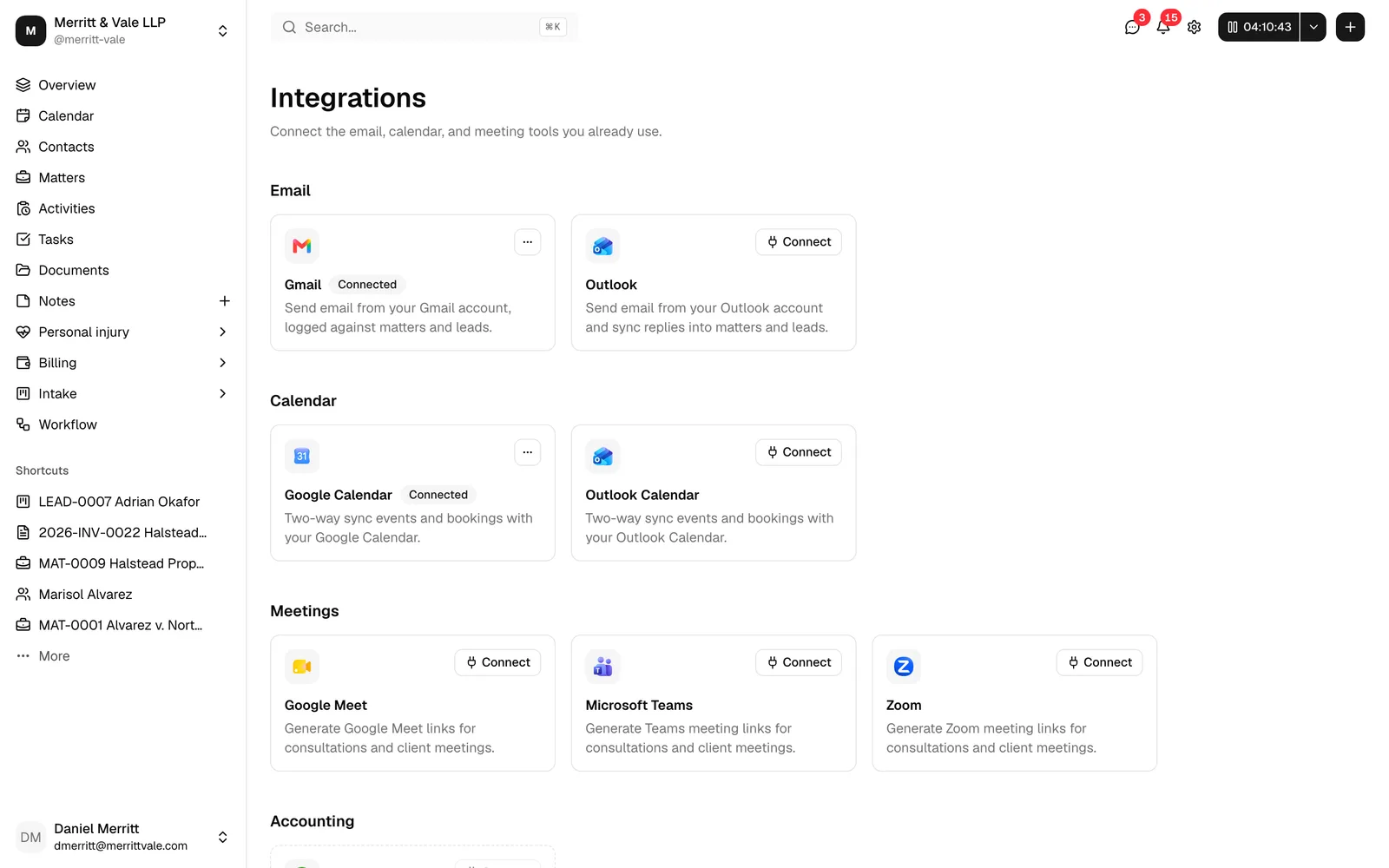
All three Google connections live on one page.
- In the sidebar, click Integrations. (You can also reach the same page from Settings.)
- The page is grouped into categories. Gmail sits under Email, Google Calendar under Calendar, and Google Meet under Meetings.
Every card shows the service name and a short description of what it does. A card that is not connected shows a Connect button. Once connected, the card shows a Connected badge and a more options (⋯) menu listing the connected Google address and a Disconnect action.
Connect your Google account for Gmail
Linking Gmail lets Esqase send email through your own Gmail account. Esqase asks Google for one Gmail permission, sending mail on your behalf, plus your account's email address. The connection is send-only: Esqase cannot read, list, or change anything in your mailbox.
- On the Integrations page, under Email, find the Gmail card.
- Click Connect. A Connect Gmail dialog opens and explains what Esqase will ask Google for (permission to send email on your behalf, and your Google account email address), what it uses each for, and that you can disconnect at any time. It also links to section 3.5 of the Privacy Policy.
- Read it, then click Continue to Google. (Cancel closes the dialog and nothing is requested.)
- You are redirected to Google. Sign in (if prompted) and choose the Google account you want to use.
- On Google's consent screen, review the access Esqase is requesting, keep every permission ticked, and click Allow (or Continue) to approve it. If you untick the permission to send email, Esqase cannot do the job you connected it for, so the connection is refused.
- Google sends you back to Esqase. You will see Connecting your account... for a moment, then a confirmation that Gmail is linked, along with the Google email address it was linked as.
- Click Back to integrations to return to the list. The Gmail card now shows a Connected badge, and its more options (⋯) menu shows the connected address and a Disconnect action.
📷 Screenshot: Google's consent screen for the Gmail connection, with the account picker and the Allow / Continue button highlighted.
📷 Screenshot: The confirmation screen reading "Gmail linked as [your email]" with the Back to integrations button.
What linking Gmail enables
Once Gmail is linked:
- You can send email from your own Gmail address inside Esqase (for example, when emailing a client from a matter or sending a templated message). The recipient sees the message coming from your Gmail account.
- Every message you send is recorded on the Communications tab of the matter or lead you sent it from.
- Replies arrive in your Gmail inbox as normal. Esqase does not read your mailbox, so a reply is not recorded automatically. To keep it with the matter, log it manually from the Communications tab.
Note: Linking Gmail is one of two ways to power the email features described in Sending email; linking Outlook is the other. See Connecting Outlook and Zoom.
Note: If you link neither, the email composer still opens and works in full. Instead of sending for you, Esqase hands the finished message to your own mail app and asks what to record. Esqase cannot confirm delivery for a message sent that way, so anything you log as sent is marked Unverified. See Send from your own mail app.
Connect Google Calendar
Linking Google Calendar keeps your Esqase events and your Google Calendar in step with each other. Esqase asks Google for permission to work with events on the calendars you own, plus your account's email address. The sync covers your own primary calendar only, and never a calendar someone else owns and has shared with you.
- On the Integrations page, under Calendar, find the Google Calendar card.
- Click Connect. A Connect Google Calendar dialog opens and explains what Esqase will ask Google for (permission to see, create, change and delete events on calendars you own, and your Google account email address), that it uses this to keep your Esqase events and your primary Google Calendar in step, and that it does not touch calendar settings, sharing, or other people's calendars. It also links to section 3.5 of the Privacy Policy.
- Read it, then click Continue to Google. (Cancel closes the dialog and nothing is requested.)
- You are redirected to Google. Choose the account to use and sign in if prompted.
- On the consent screen, review the calendar access being requested, keep every permission ticked, and click Allow (or Continue). If you untick the calendar permission, the connection is refused.
- Google returns you to Esqase, where you will briefly see Connecting your account... followed by a confirmation that Google Calendar is linked.
- Click Back to integrations. The Google Calendar card now shows Connected, and its more options (⋯) menu shows the connected address.
What linking Google Calendar enables
Once Google Calendar is linked:
- The meetings already on your primary Google Calendar for the year ahead are imported on the first sync, so your existing commitments start blocking your booking slots right away. You do not have to wait for them to change, or recreate them by hand.
- Events you create in Esqase (for matters and from bookings) are sent to your primary Google Calendar, so they appear alongside the rest of your schedule.
- Changes flow both ways, keeping your Esqase calendar and your primary Google Calendar aligned.
- An event you set to show you as Free, and an invitation you declined, do not hold your time, so neither blocks your booking page.
- An all-day event blocks that full day on your own clock, not a day shifted by your timezone.
Tip: To see how events appear and behave inside Esqase, read Calendar and events.
Court dates on your Google Calendar
If your firm uses court rules and court dates are put on your calendar, Google Calendar receives them a little differently from other events:
- Esqase copies each court date to your primary Google Calendar without inviting anyone, so nobody is emailed.
- An all-day court date shows there as free time, so it does not block your day. A timed hearing or trial shows as busy.
- When a court date leaves your calendar in Esqase (it is vacated, marked not applicable, or removed) or its calendar entry is deleted, Esqase deletes the copy from Google Calendar, again without emailing anyone.
- If Google refuses the removal, for example because Esqase's access was removed from your Google Account, the copy stays and you need to delete it by hand. The matter's activity timeline records that it could not be removed.
- Moving or deleting the copy in Google Calendar never changes the court date in Esqase.
See Court dates and your connected calendar.
Connect Google Meet
Linking Google Meet lets Esqase generate a video meeting link when you schedule a meeting. Esqase asks Google for permission to create meeting spaces, plus your account's email address, and it can read the join link of a space it created and nothing more.
- On the Integrations page, under Meetings, find the Google Meet card.
- Click Connect. A Connect Google Meet dialog opens and explains what Esqase will ask Google for (permission to create Google Meet spaces, and your Google account email address), that it only creates a link when you ask for one, and that it cannot see your other meetings. It also links to section 3.5 of the Privacy Policy.
- Read it, then click Continue to Google. (Cancel closes the dialog and nothing is requested.)
- You are redirected to Google. Choose your account and sign in if prompted.
- On the consent screen, keep every permission ticked and approve the requested access by clicking Allow (or Continue). If you untick the permission to create meeting links, the connection is refused.
- After Google returns you to Esqase and the connection finishes, click Back to integrations. The Google Meet card shows Connected.
What linking Google Meet enables
Once Google Meet is linked, Esqase can create a Google Meet video link for consultations and client meetings, so a join link is ready to share when you schedule the meeting. Nothing is created on its own: a Meet link is made only when you click Generate Google Meet link on the event form, and the new link fills the Meeting link field.
Note: For Meet links to attach to scheduled meetings, you generally also want Google Calendar connected, since the meeting and its video link travel together. See Event types (scheduling).
View your connected accounts and their status
The Integrations page is also where you check the current state of each connection at a glance.
- A connected card carries a Connected badge beside the service name. A card with no badge, showing a Connect button, has not been connected yet.
- On a connected card, open the more options (⋯) menu to see the Synced account, the Google address the service was connected with. This is helpful if you have more than one Google account and want to confirm you connected the right one.
- The same menu holds the Disconnect action.
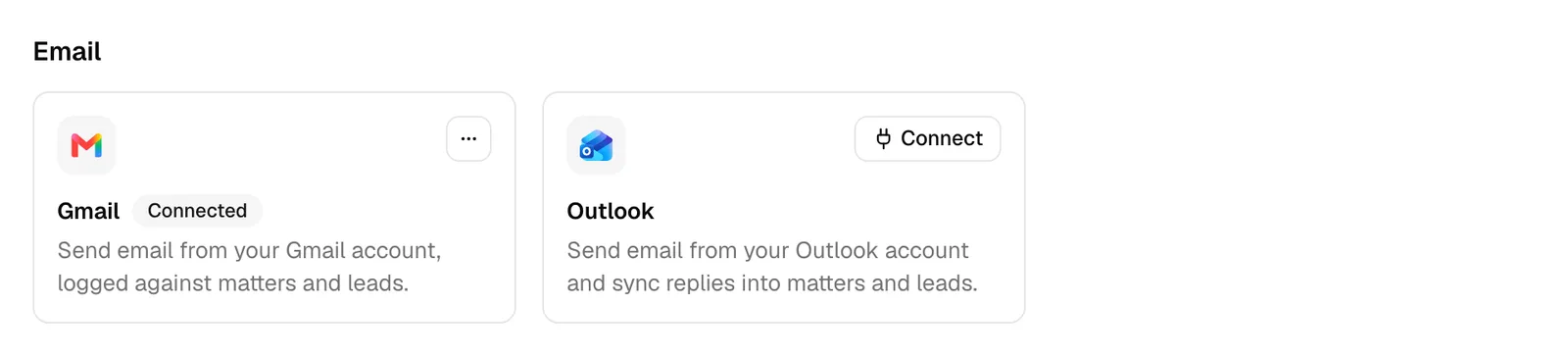
Note: Each Google service is connected separately. Connecting Gmail does not automatically connect Google Calendar or Google Meet, so check that each card you rely on shows Connected.
Disconnect a Google integration
Disconnecting removes Esqase's access to that Google service. You might do this if you connected the wrong account, if you are leaving the firm, or if you simply no longer want Esqase using that service.
- On the Integrations page, find the card for the service you want to disconnect.
- Open the card's more options (⋯) menu and click Disconnect. A short Disconnecting message appears while Esqase works.
- When it finishes, you will see a confirmation that the service was disconnected, and the page refreshes. The card loses its Connected badge and offers Connect again.
What happens when you disconnect:
- Esqase revokes its access to that Google service for your account and clears the credentials it had stored for it, so it can no longer send email, sync events, or create Meet links on your behalf through that connection.
- The connection is removed only for you. It does not affect other members' connections.
- You can reconnect at any time by clicking Connect again, reading the dialog, and going through the consent screen.
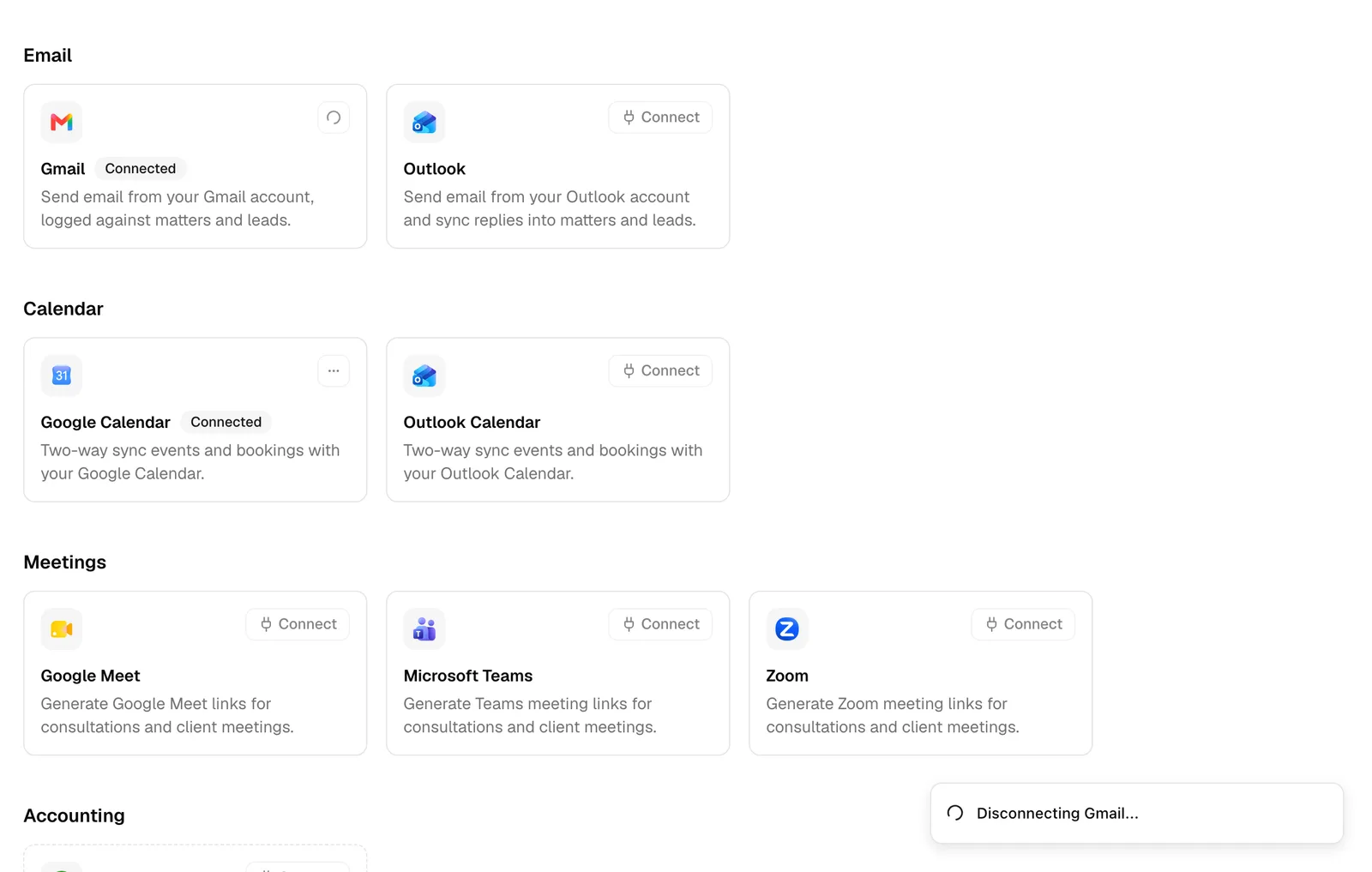
Important: Disconnecting a service that you actively use will stop the features it powers. For example, disconnecting Gmail stops Esqase from sending email through your Gmail address, so unless you have Outlook connected too, the composer switches to handing your messages off to your own mail app. Reconnect when you are ready to use those features again.
Disconnecting and deleting your data
Disconnecting is how you take Esqase's access to a Google service away, and it takes effect straight away.
- Access with Google ends. Esqase revokes the connection with Google and clears the credentials it stored for it, so it can no longer act on your Google account. To use the service again you connect it afresh and approve the consent screen again.
- Email you already sent stays sent. A message sent through your Gmail account stays in your Gmail Sent folder, and the record of it stays on the Communications tab of the matter or lead it belongs to. Disconnecting does not recall or delete sent email.
- Events already synced stay where they are. Events that reached your Esqase calendar stay on it, and events Esqase created on your Google Calendar stay on that. They simply stop updating each other.
- You can also remove access from Google's side. Open your Google Account, find Esqase in the list of third-party apps with account access, and remove it. Then use Disconnect on the card in Esqase as well, so the Integrations page shows the real state.
Note: This page covers the Google connection only. To delete the Esqase records themselves, delete the communication, event, or note from where it lives in Esqase, or close your account entirely: see Deactivating or deleting your account.
Troubleshooting
If a connection does not complete, the message Esqase shows points to the cause. Here is what each one means and what to do.
"The link request expired. Please try again"
A linking attempt is only valid for a short window. If you waited too long on Google's screens, or paused partway through, the request times out.
- Return to the Integrations page and click Connect again to start a fresh attempt.
- Complete the Google steps promptly this time without long pauses.
"That account did not finish granting access. Remove Esqase from your account settings for that provider and try again"
This appears when Google does not hand Esqase the full, lasting permission it needs (often because you previously granted access and Google skips part of the consent the second time).
- Open your Google Account, go to the security or connected-apps area (the section listing third-party apps with account access).
- Find Esqase in the list and remove its access.
- Return to Esqase, open the Integrations page, and click Connect again. This time Google shows the full consent screen, and the connection should complete.
"Google did not grant Esqase permission to ..."
Google's consent screen lets you untick individual permissions. If you untick the one the service needs, the connection cannot do its job, so Esqase refuses to save it and shows one of these:
- "Google did not grant Esqase permission to send email. Connect again and keep every permission ticked."
- "Google did not grant Esqase permission to manage your calendar events. Connect again and keep every permission ticked."
- "Google did not grant Esqase permission to create Google Meet links. Connect again and keep every permission ticked."
Nothing is saved, and Esqase hands the access it was given straight back to Google, so there is nothing to tidy up. To finish connecting, click Connect again on the card, click Continue to Google, and leave every box ticked on Google's screen before you approve.
"You declined the link request"
This means you closed or denied Google's consent screen instead of approving it. To finish connecting, click Connect again and click Allow (or Continue) on Google's screen.
"The provider could not complete the link request"
Something went wrong on Google's side during the handoff. Wait a moment, then click Connect again to retry. If it keeps failing, try again later.
"The link request is missing required information"
The page that finishes the connection did not receive everything it needed (for example, if you reached it by an incomplete or altered link). Start over from the Integrations page by clicking Connect rather than reusing an old link.
"Linking is not available right now. Please try again later"
This means Google connections are not configured for your firm's Esqase environment yet, so the Connect buttons cannot start the process. This is a setup item handled by whoever administers your firm's Esqase account, not something you can fix from this page. Check back later, or ask your firm administrator whether Google connections are enabled.
"We couldn't load your linked accounts" or "Please try again in a moment"
These are temporary errors. Refresh the Integrations page and try again. If the problem continues, sign out and back in, then return to the page.
Common questions
- Do I need to connect all three? No. Connect only the services you use. Each one is independent, and you can add or remove them at any time.
- Will my colleagues use my Gmail or calendar? No. These connections are personal. Each member connects their own Google account.
- Can I switch which Google account is connected? Yes. Disconnect the service, then click Connect again and choose a different Google account on the consent screen.
- Do I have to accept every permission? Yes, for the service to work. Google lets you untick permissions, but a connection missing the permission it needs is refused, so keep every box ticked.
- Is disconnecting reversible? Yes. Disconnecting simply removes access. You can reconnect whenever you like by connecting again.